
R600 Quad HD - Caméra auto Navitel - Free user manual and instructions
Find the device manual for free R600 Quad HD Navitel in PDF.


| Product Type | Dashcam (Portable Video Recorder) |
| Brand | Navitel |
| Model | R600 Quad HD |
| Processor | NOVATEK NT96660 |
| Display | 2" TN, 960x240 pixels |
| Camera Sensor | OV4689 |
| Video Resolution | 2560x1440 @30 fps |
| Video Format | MOV |
| Image Resolution | 12 MP |
| Image Format | JPG |
| View Angle | 170° |
| Lens | 4-layer glass |
| Storage | MicroSD card (Class 10 or above), up to 256 GB |
| USB Port | Mini-USB |
| Battery | 180 mAh x2 (internal) |
| Power Supply | 5V, 1.5 A via car charger |
| G-Sensor | Yes (auto-locks video on impact) |
| Parking Monitor | Yes (auto-activates on vibration) |
| Loop Recording | Yes (configurable duration) |
| Audio Recording | On/Off via Up button |
| File Protection | Manual lock or G-sensor auto-lock |
| Mounting | Adhesive mount (3M sticker) on windshield |
| Operating Temperature | 0 to +35°C |
| Cleaning | Wipe lens with soft cloth; do not use chemicals |
| Safety | Use original charger; do not disassemble; avoid fire |
Frequently Asked Questions - R600 Quad HD Navitel
User questions about R600 Quad HD Navitel
0 question about this device. Answer the ones you know or ask your own.
Ask a new question about this device
Download the instructions for your Caméra auto in PDF format for free! Find your manual R600 Quad HD - Navitel and take your electronic device back in hand. On this page are published all the documents necessary for the use of your device. R600 Quad HD by Navitel.
USER MANUAL R600 Quad HD Navitel
natural_image
Close-up of a black and white digital camera with a circular lens and top mount (no visible text or symbols)NAVITEL R600 Quad HD
Portable Video Recorder
Úvod
CZ
Vážený zákazníku!
Thank you for purchasing this NAVITEL® product.
NAVITEL R600 QUAD HD is a multifunctional high-definition DVR with many functions and features that are described in this User Manual. Please read the manual carefully before using the device and keep it for future reference.
Device layout
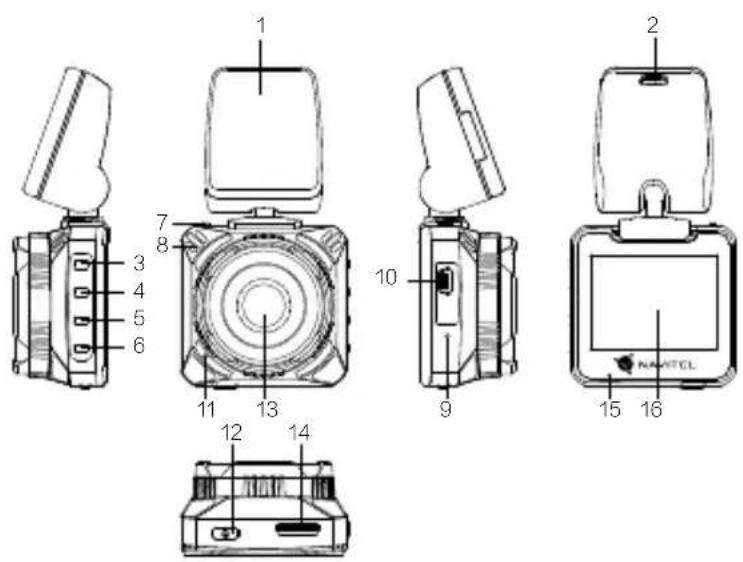
- Adhesive mount (3M sticker)
- Mini-USB port for charging
- Menu
- Up
- Down
- OK
- Mount lock
- Speaker
- Reset
- Mini-USB port
- Microphone
- Power
- Camera
- MicroSD slot
- LED indicator
- Display
Specifications
| Processor NOVATEK NT | 96660 |
| Display 2", 960×240, TN | |
| Camera OV4689 | |
| Recording format MOV | |
| Video resolution 2560×1440, 30 fps | |
| Image format JPG | |
| Image resolution 12 MP | |
| View angle 170° | |
| Lens 4-layer glass | |
| Storage MicroSD card | |
| MicroSD card capacity Max. 256 GB | |
| USB mini-USB | |
| Battery 180 mAh × 2 | |
| Power 5 V, 1.5 A | |
| Frequency 50/60 Hz | |
| Microphone / speaker | Yes |
| Language | Czech, English, French, German, Polish, Russian, Slovak, Spanish |
Note: the specifications may change due to upgrades.
Installation
- Put the microSD card into the DVR. Use a high-speed SD card (Class10 or above); capacity should be within 8-256 GB.

- To avoid malfunctions of the DVR and / or SD-card, don't insert and remove SD-card during DVR operation.
-
Before using a microSD card, please format it inside the DVR to avoid data errors. For formatting the SD-card in Menu mode select Format SD-card and confirm it.
-
Secure the device on the windshield with the holder.
- Connect the car charger to the cigarette lighter socket.
- Connect the car charger to the DVR (mini-USB).
- Adjust the camera position.
- Turn the power on; check whether the device is installed correctly. If the device is installed correctly, the indicator will glow red; the device will start up and begin recording (indicated by flashing blue light).
Precautions
- Use only the original charger adapter. Using another adapter may negatively affect the device's battery. Use accessories only approved by manufacturer.
- Permissible ambient temperature in operating mode: 0 to +35 °C. Storage temperature: +5 to +45 °C. Relative humidity: 5% to 90% without condensation (25 °C).
- Put the device away from fire sources to avoid explosion or fire.
- Do not expose the device to physical impacts.
- Avoid contacting the device with sources of electromagnetic radiation.
- Keep the lens clean. Do not use chemicals or detergents to clean the product; always turn off the device before cleaning.
- Strictly follow the laws and regulatory acts of the region where the device is used. This device can not be used for illegal purposes.
- Do not disassemble or repair device by yourself. In case of device failure, contact the service center.
Buttons
| Button Functions | |
| Power | Press and hold for 3 seconds to turn the device on / off.Press to turn the screen on / off. |
| Menu | Press to enter Menu mode.In Menu, press to exit any menu or list of functions. |
| Up / Down | In Record mode, press Up to turn the microphone on / off.In Record mode (REC), press Down to lock a file (protected file cannot be deleted or overwritten).In Capture mode, press to zoom in / out.In Video / Photo mode, press to select the previous / next file.In Menu, press to select the previous / next menu item. |
| OK | In Record mode (STBY), press to start recording; press again to stop recording.In Capture mode, press to take a picture.In Video mode, press to select a file, or pause / resume video.In Photo mode, press to select a file.In Menu, press to select a menu item. |
| Reset If the device is not responding, press to reset. | |
Note: the built-in battery is designed only for recording an emergency event in parking mode and turning off the device correctly when the power is turned off; for the full operation of the device in any mode, a constant power connection is required.
NAVITEL s.r.o. hereby declares that the device NAVITEL R600 QUAD HD is compatible with the European directive EMC 2014/30/EU.
The full text of Declaration of conformity is available at the following internet address:
www.navitel.cz/en/declaration_of_conformity/r600qhd
Device functions
| Format SD-card | Formatting a microSD card in the DVR is necessary for the correct operation of the device. Before using a microSD card or in case of data error, please format the microSD card. For formatting the SD-card in Menu mode select Format SD-card and confirm it. |
| Record | Connect the device to an external power supply and it will start recording automatically (indicated by the flashing blue light). Press the OK button to stop recording (the blue light will become steady). Press OK again to record another video. Each video will be saved automatically. |
| Capture In Capture | mode, press the OK button to take a photo (it will be saved automatically). |
| Video | In Video mode, press the Up and Down buttons to select a file; press the OK button to play a file. During playback, press OK to pause/unpause; press the Up and Down keys to fast forward/rewind. |
| Photo In Photo mode | mode, press the Up and Down buttons to select a file; press the OK button to play a file. |
| Record audio Record | video with or without sound. |
| Lock file | In Record mode (REC), press Down to protect the current recording. A key symbol will appear on the center top of the screen. In Video / Photo mode, select a file, press Menu and select Protect, then Lock Current or Lock All. Protected files cannot be deleted or overwritten. Select Unlock Current / Unlock All to remove protection. |
| Loop recording | This feature allows you to save a video as a set of files given in the duration menu. If the memory card runs out of space, the unprotected files will be overwritten in the order in which they were created. |
| G-sensor If the vehicle is hit by something, the DVR will automatically lock the current video. | |
| Parking monitor | In shutdown state, if vibration is detected, the device will turn on automatically and start recording. The file will be protected (locked). If nothing happens for over 60 seconds, the device will shut down. |
| Battery | Red indicator lights up when the device is plugged into an external power supply; as the battery is charging, the red light will gradually dim; the red light going out means the battery is full. |
| LCD OFF | The device can automatically shut off the screen to reduce power consumption; time interval can be set in the Screen Saver menu. |
| USB-connection * | When connecting the device to a PC using a USB cable, two connection options will appear:1) Mass Storage: play, copy and delete files.2) Record: standard mode. |
* This function is available only in firmware version 20200514-V2.0 and higher.
Bevezetés
Tisztelt Ügyfelünk!
natural_image
Green globe with orbiting rings, no text or symbols presentNAVITEL


Brand : Navitel
Model : R600 Quad HD
Category : Caméra auto