
Digital Weekly 00137290 - Uncategorized HAMA - Free user manual and instructions
Find the device manual for free Digital Weekly 00137290 HAMA in PDF.


| Product Type | Digital Weekly Timer |
| Brand | Hama |
| Model | Digital Weekly 00137290 |
| Rated Voltage | 230V ~ / 50 Hz |
| Maximum Load | 16(2)A, 3680W (resistive: 16A, inductive: 2A) |
| Protection Class | I |
| Degree of Protection | IP20 |
| Operating Temperature | 0°C to +50°C |
| Standby Power Consumption | approx. 0.6W |
| Minimum Time Setting Interval | 1 minute |
| Number of Programs | Up to 16 switching times |
| Display | LCD screen |
| Rechargeable Battery | Yes, internal (charges during operation) |
| Programming Options | Individual days or day combinations (Mon-Sun) |
| Operating Modes | AUTO, ON, OFF, Countdown, Random |
| Time Format | 12-hour (AM/PM) or 24-hour |
| Daylight Saving Time Support | Yes, switchable between winter/summer time |
| Indoor Use Only | Yes |
| Reset Function | Yes (RESET button) |
Frequently Asked Questions - Digital Weekly 00137290 HAMA
User questions about Digital Weekly 00137290 HAMA
0 question about this device. Answer the ones you know or ask your own.
Ask a new question about this device
Download the instructions for your Uncategorized in PDF format for free! Find your manual Digital Weekly 00137290 - HAMA and take your electronic device back in hand. On this page are published all the documents necessary for the use of your device. Digital Weekly 00137290 by HAMA.
USER MANUAL Digital Weekly 00137290 HAMA
OperatingInstructions
Bedienungsanleitung
Instruccionesdeuso
ControlsandDisplays
- LCD screen = Displays the time and programme status
- SET= U setoselecttheoperatingmodeorto adjusthours, minutesanddayswhenentering thetimeorsettinga p rogramme
- CLOCK / OK = Sets the time (entry mode) or confirmsthetimeorprogramme
- RESET = R esetsallentries
5.PROG= S witchestoprogrammingmode - UP / CLEAR = Enters values for the time and day of the week or deletes a programme
Thankyouforchoosinga H amaproduct. Takeyourtimeandreadthefollowinginstructions andinformationcompletely. P leasekeepthese instructions in a safe place for future reference. If yousellthedevice,pleasepasstheseoperating instructionsontothenewowner.
1. ExplanationofWarningSymbolsandNotes

Riskofelectricshock
This symbol indicates product parts energized with a dangerous voltage of sufficient magnitude to constitute a risk of electric shock.

Warning
This symbolised to indicate safety instructions ortodraw your attention to specific hazards and risks.

Note
This symbol is used to indicate additional information or important notes.
2.PackageContents
- D igitalWeeklyTimer
• Theseoperatinginstructions
3. SafetyNotes
- D o n otoperatetheproductoutsidethepower limitsgiveninthespecifications.
- Protect the product from dirt, moisture and overheating, and only use it in a dry environment.
• T heproductisintendedforindooruseonly. - D o n otdroptheproductanddonotexposeitto anymajorshocks.
- Keep this product, as all electrical products, out of thereof children!
- D isposeofpackagingmaterialimmediatelyaccordingtolocallyapplicableregulations.
- Do not modify the product in any way. Doing so voidsthewarranty.

Warning
- Onlyconnecttheproducttoa socketthathas beenapprovedforthedevice.Thesocketmust beinstalledclosetotheproductandeasily accessible.
- N everconnectmultipleunitsofthisproduct inseries.
- N everconnectthetimerswitchtoanextension cableoradapter. It must be plugged directly into a mains socket. Connecting the timer in any other way may cause it to overheat.
- Do n otuseanyheat-generatingdevices(such aselectricblankets, coffeemachines, etc.)with this product. There is a risk of fire and injury.
- Do notusethisproductwithanydevices thatare motorisedoranydevicesthathavea rotatingcomponentorworkpiece.Thereisa riskofinjury.

Riskofelectricshock
- Don o n otopentheproduct.Donotcontinueto operatetheproductifitisdamaged,whichmay beindicatedbysmoke,odourorloudnoises. Immediatelycontactyourdealerorourservice department(seeitem"ServiceandSupport").
- Do not attempt to service or repair the product yourself. Leave any and all service work to qualified experts.
- Therechargeablebatterymayonlybereplaced byanauthorisedtechnician.
4. Getting Started
Withthedigitalweeklytimerswitch(alsoreferred to belowasthe"timer"or"timerswitch"),youcanset user-definedswitch-onandswitch-offtimesforyour electricdevices.

Note
- If the timercannotbeputintooperation, press and hold the RESET button fora few seconds.
- T hedevicecontainsa r echargeablebattery. Thisensuresthatthetimecontinuestorun evenifthetimerswitchisnotpluggedintoan electricalsocket. Thetimesthathavealready beenprogrammedalsoremainsaved.
- T herechargeablebatteryischargedduring operation.
- The internal rechargeable battery will discharge if the timers switch is not used for longer periods of time. Plug the timers switch into a mains plug for approx. 24 hour every 3 m onth to charge the internal rechargeable battery.
4.1 Setting the time and day of the week
You can choosetodisplaythetime in 12-hour or 24-hour format. In 24-hour mode, the timer runs from 0:00 to 23:59. In 12-hour mode, the clock differentiates between morning (AM) and afternoon (PM) hours:
Morning—A M —
00:00AMto12:59AM
Afternoon/evening—P M —
01:00PMto11:59PM
- Simultaneously press the CLOCK / OK and PROG buttonstoswitchbetweenthetwotimedisplay modes.
- To set the current time and the day of the week, hold down the CLOCK/ O K button for three seconds. CLOCK, HOURS, MINUTES and WEEKS are displayed on the LCD. You are now in entry mode.
- When you press the SET button, a small triangle in frontoftheHOURSdisplaybeginstoflash.Enter the current hour by pressing UP / CLEAR.
- To switch to the minute setting, press SET again. A s malltriangleinfrontofthe MINUTES display flashes. Press the UP / CLEAR button until the desiredminutevalueisdisplayed.
- A fteryouhaveenteredthetime,youcanselectthe dayoftheweek.Todoso,presstheSETbutton again.Thesmalltriangleinfrontof WEEKS begins toflash,signallingthatthedeviceisreadyforyour entry. S electthedayinthesamewayasthetime, usingUP/ C LEAR.
- Once you have entered all data correctly, press CLOCK / OK. This causes you to exit entry mode.
- If no button is pressed for an extended period of timewhen you are entering the time of the week, the timers switch automatically exits entry mode. The last confirmed entries are a pplied.
Specialsummertimefeature
- Youcanswitchbetweenwintertimeandsummer timebysimultaneouslypressingtheCLOCKand SETbuttons.Summertimeisindicatedonthe displayby SUMMER, meaningthatthetimehas beenautomaticallysetonehouraheadofwinter time.
- T heswitch-onandswitch-offtimesthathave beensetremainunchangedandmustbeadjusted manuallytosummertimeifrequired.
4.2 Programmingtheswitch-onandswitch-off times
You can set up to 16 switching times using the "Premium" digital timers switch. The programming required can be performed in just a few steps.
- Press the PROG button to switch to programming mode. As when setting the time, HOURS, MINUTES and WEEKS appear on the display.
- PROGRAM is alsodisplayedonthebottomleft. 1 ON isdisplayednexttothis. 1 ON referstothe switch-ontimeofthefirstprogramme.
- Pressing PROG a second time changes the display from 1 ON to 1 OFF. This referstotheswitch-off timeofthefirstprogramme.
- To select programmes 2 to 16, press PROG the corresponding numberoftimes.

- After you have chosen a programme number, press the SET button. A small triangle flashes in front of the HOURS display. Setthedesiredhourusingthe UP/ C LEARbutton.
- To switch to the minute setting, press SET again. A small triangle flashes in front of the MINUTES display. Press the UP / CLEAR button until the desired minute value is displayed.
- A fteryouhaveenteredthetime,youcanselectthe dayoftheweek.Todoso,presstheSETbuttonagain. Thesmalltrianglebeginstoflashinfrontof WEEKS, indicatingthatthedeviceisreadyforyouentry.
- You can choose from the following options using UP/ C LEAR:
MO>T U>W E>T H>F R>S A>S U
MOTUWETHFR
SASU
MOTUWETHFRSA
MOWEFR
TUTHSA
MOTUWE
THFRSA
MOTUWETHFRSASU
- If you have correctly entered the time and day(s) of the week for the switch-on time (e.g. 1 ON), press PROG again in order to set the switch-off time (e.g. 1 OFF). To enter the time, repeat the steps outlined above.
- Press CLOCK / OK to leave programming mode.
- If no button is pressed for an extended period of timed during programming, the display return to the current time. Your confirmed entries will be saved.

Note
- To change a program that has already been created, repeatthestepsoutlinedabove.
- To delete a switch-on or switch-off time, first press PROG, then UP / CLEAR.
4.3 Manual and automatic operation
You cantogglebetweentheoperatingmodes AUTO, ON and OFF usingtheSETbutton.
- AUTO: the device connected to the timer is switched on and off at the time that have been programmed.
- ON. t hedeviceconnectedtothetimerremainson atalltimes; theprogrammesare n otexecuted.
- OFF: the device connected to the timeristurned off all times; the programmes are not executed.
4.4Countdown
- S witchintooperatingmode ON or OFF.
- To enable or disable the countdown function, first press PROG and UP / CLEAR at the same time and then press SET.
- To set the desired countdown length, press UP / CLEAR and then press CLOCK / OK to confirm.
| Operating mode | Countdownfunction |
| OFF | Whenthecountdowniscomplete (00:00),theconnectedterminal deviceisswitchedonandthetimer switchgoesintooperatingmode ON. |
| ON | Whenthecountdowniscomplete (00:00),theconnectedterminaldevice isswitchedoffandthetimerswitch goesintooperatingmode OFF. |
4.5Randommode
Whenrandommodeisactivated, the connected terminal device is switched on/off at irregular intervals between 18:00 and 06:00.
- Firstplugthetimerswitchandterminaldeviceinto a mainssocketasdescribedinsection
- Random modecan only be activated or deactivated when the timerswitch and a terminal device are plugged in.
- S witchintooperatingmode AUTO.
- Press SET and UP / CLEAR at the same time to activateordeactivaterandommode.
Whenrandommodeisactivated,programs1–16are automaticallydeactivated.
5.Operation
5.Operation
- P leasenotethattheelectricaldevicemustbe switchedon.
- Settheon/offprogrammesandtheoperating mode(AUTO,ON,OFF)onthetimerasinstructed above.
- Connect the powerercable of the device to be connected (e.g. fairylights) to the timersocket, then plug the timerswitch into a main socket.
- The electrical device is then controlled accordingly by the timers switch.
6. Care a ndMaintenance
- D isconnectthedevicefromthemainsbefore cleaningit.
- Only clean this product with a slightly damp, lint-free clothanddonotuseaggressivecleaningagents.
7.WarrantyDisclaimer
Hama GmbH & Co. KG assumes no liability and providesnowarrantyfordamageresultingfrom improperinstallation/mounting,improperuseof theproductorfromfailure t o o bservetheoperating instructionsand/orsafetynotes.
8. Service and Support
PleasecontactHamaProductConsultingifyouhave anyquestionsaboutthisproduct.
Hotline:+499091502-115(German/English)
Furthersupportinformationcanbefoundhere:
www.hama.com
9.TechnicalData
| DigitalWeeklyTimer | |
| Voltage230V ~ / 50 Hz | |
| Maximumconnectionpower | 16(2)A,3680W;i.e upto16A forresistiveloadsandupto2 A forinductiveloads |
| ProtectionClass1 | |
| Degreeofprotection | IP20 |
| Operatingtemperature | 0°C- + 50°C |
| Standbypowerapprox.0.6W | |
| Minimumtime-settinginterval | 1 minute |
10. Recycling Information
Noteonenvironmentalprotection:
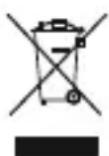
AftertheimplementationoftheEuropean Directive2012/19/EUand2006/66/EUin thenationallegalsystem,thefollowing applies:Electricandelectronicdevicesas well as batteriesmustnotbedisposedof withhouseholdwaste. Consumers are obliged by law to return electrical and electronic devices as well as batteries at the end of their servicelivestothepublic collecting points setup forth this purpose or point of sale. Details to this are defined by the national law of therespective country. This symbol on the product, the instruction manual or the package indicates that a product subject to the regulations. By recycling, reusing thematerials or other forms of utilising old devices/Batteries, you are making an important contribution to protecting our environment.
$$ \dot {M} O > T U > W E > T H > F R > S A > S U $$
$$ \text { M O T U W E T H F R } $$
$$ \text { S A S U } $$
$$ \text { MOTUWETHFRSA } $$
$$ \text { MOWEFR } $$
$$ \text { TUTHSA } $$
$$ \text { M O T U W E } $$
$$ \text { THFRSA } $$
$$ \text { MOTUWETHFRSASU } $$
$$ \dot {M} O > T U > W E > T H > F R > S A > S U $$
$$ \text { M O T U W E T H F R } $$
$$ \text { S A S U } $$
$$ \text { MOTUWETHFRSA } $$
$$ \text { MOWEFR } $$
$$ \text { TUTHSA } $$
$$ \text { M O T U W E } $$
$$ \text { THFRSA } $$
$$ \text { MOTUWETHFRSASU } $$
$$ \text { M O T U W E T H F R } $$
$$ \text { S A S U } $$
$$ \text { MOTUWETHFRSA } $$
$$ \text { MOWEFR } $$
$$ \text { TUTHSA } $$
$$ \text { M O T U W E } $$
$$ \text { THFRSA } $$
$$ \text { MOTUWETHFRSASU } $$
$$ M O > T U > W E > T H > F R > S A > S U $$
MOTUWETHFR
SASU
MOTUWETHFRSA
MOWEFR
TUTHSA
MOTUWE
THFRSA
MOTUWETHFRSASU
Hotline:+499091502-115(Alm/Ing)
All listed brands are trademarks of the corresponding companies. Errors and omissions excepted, and subject to technical changes. Our general terms of delivery and payment are applied.