USER MANUAL F20 Plus DREAME
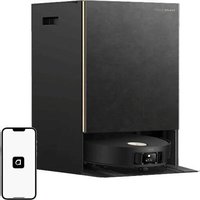
Auto-Empty Robot Vacuum and Mop
User Manual
DREAME
The illustrations in this manual are for reference only. Please refer to the actual product.
A A-1
A-1
[Non-Text]
A-3
A-4
B
②
③
④

C C-1
C-2
C-3
D D-1
D-2
D-4
D-5
E E-1
E-2
natural_image
Three-step diagram showing a device with cable fastening, then holding a cable to form a circular component (no text or symbols present)
E-4

natural_image
Illustration of three different cleaning or cleaning process steps: a robotic vacuum cleaner, a mechanical component, and a bucket with particles (no text or symbols)
③
natural_image
Illustration of two identical car seats with a faucet and solar panels nearby (no text or symbols)
E-5
natural_image
Illustration of household appliances including a vacuum cleaner, hand tools, mirror, bathtub, and bowl (no text or symbols)
E-6
E-8
natural_image
Diagram of a device housing with an arrow indicating a component, no text or symbols present
E-9
Contents
EN User Manual 01
To avoid electric shock, fire or injury caused by improper use of the appliance, please read the user manual carefully before using the appliance and keep it for future reference.
Usage Restrictions
- This product should not be used by children younger than 8 years old nor persons with physical, sensory, intellectual deficiencies, or limited experience or knowledge without the supervision of a parent or guardian to ensure safe operation and to avoid any risks. Cleaning and maintenance shall not be performed by children without supervision.
- This appliance contains batteries that are only replaceable by skilled persons.
- Clear the area to be cleaned. Children shall not play with the appliance. Ensure children and pets are kept at a safe distance from the robot while it is operating.
- Do not install, charge or use the appliance in the bathrooms or around the pools.
- This product is for floor cleaning in a home environment only. Do not use it outdoors, on non-floor surfaces, or in a commercial or industrial setting.
- If the power cord is damaged, it must be replaced by a special cord or assembly available from the manufacturer or its service agent.
- Do not use the robot in an area suspended above ground level without a protective barrier.
- Do not place the robot upside down. Do not use the LDS cover, robot cover, or bumper as a handle for the robot.
- Use the robot in environments with an ambient temperature above 0^ and below 40^ . Make sure there is no liquid or sticky substance on the floor.
- To prevent damage or harm from dragging, clear any loose objects from the floor, and remove cables or power cords on the cleaning path before operating the appliance.
- Remove fragile or small items from the floor to prevent the robot from bumping into and damaging them.
- Keep hair, fingers, and other body parts away from the suction opening of the robot.
- Do not operate the appliance in a room where an infant or child is sleeping.
- Do not place children, pets, or any item on top of the robot regardless of whether it is stationary or moving.
- Do not use the robot to clean any burning objects. Do not use the robot to pick up flammable or combustible liquids, corrosive gases, or undiluted acids or solvents.
- Do not vacuum hard or sharp objects. Do not use the appliance to pick up objects such as stones, large pieces of paper or any item that may clog the appliance.
- Plug must be removed from the socket-outlet before cleaning or maintaining the appliance.
- Do not wipe the robot or the base station with a wet cloth or rinse them with any liquid. After cleaning washable parts, fully dry the parts before reinstalling and using them.
- Please use this product in accordance with the instructions in the User Manual. Users are responsible for any loss or damage that arise from improper use of this product.
Batteries and Charging
- WARNING: Against recharging non-rechargeable batteries.
- Do not use any third-party battery or base station with auto-empty. Use only with RCFD0301 supply unit.
- Do not attempt to disassemble, repair, or modify the battery or the base station with auto-empty on your own.
- Do not place the base station with auto-empty near a heat source.
- Do not use a wet cloth or wet hands to wipe or clean the charging contacts of the base station with auto-empty.
- Do not improperly dispose of old batteries. Unneeded batteries should be discarded at an appropriate recycling facility.
- If the power cord becomes damaged or broken, stop using it immediately and contact after-sales service.
- Make sure the robot is turned off when being transported and kept in its original packaging if possible.
- If the robot will not be used for an extended period, fully charge it, then turn it off and store it in a cool, dry place. Recharge the robot at least once every 3 months to avoid over-discharging the battery.
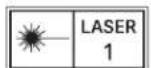
The laser sensor in this product meets the IEC 60825-1:2014/EN 60825-1:2014/A11:2021 Standard for Class 1 laser products. Please avoid direct eye contact with it during use.
CLASS 1 LASER PRODUCT
CONSUMER LASER PRODUCT
EN 50689:2021
CAUTION:
In order to avoid a hazard due to inadvertent resetting of the thermal cut-out, this appliance must not be supplied through an external switching device, such as a timer, or connected to a circuit that is regularly switched on and off by the utility.

For indoor use only

Read operator's manual
Hereby, Dreame Trading (Tianjin) Co., Ltd. declares that the radio equipment type RLF41GD is in compliance with Directive 2014/53/EU. The full text of the EU declaration of conformity is available at the following internet address: https://global.dreametech.com For detailed e-manual, please go to https://global.dreametech.com/pages/user-manuals-and-faqs
A Product Overview
Robot
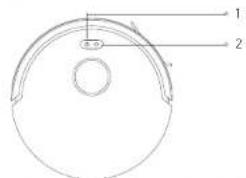
- Power/Clean Button
- Press and hold for 3 seconds to turn on or off
- Press to start cleaning after the robot is turned on
- Dock/Spot Cleaning Button
- Press to send the robot back to the base station
- Press and hold for 3 seconds to start spot cleaning
Button Status Indicator
• Solid White: Cleaning or cleanup completed
- Blinking Orange: Error
- Breathing White: Robot is charging when the battery power is not low
Note:
- Press and hold for 3 seconds to restore to factory settings
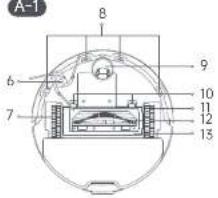
- Charging Contacts
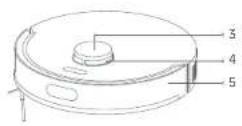
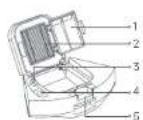
- 2-in-1 Water Tank with Dust Box
- Return-to-Base Sensor
- Auto-Empty Vent
- Mop Assembly
Fig. A-1
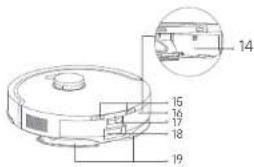
2-in-1 Water Tank with Dust Box
- Filter Holder
- HEPA Filter
- Water Inlet Lid
- Water Inlet
- Release Clip
Fig. A-2
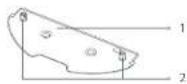
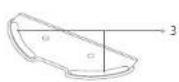
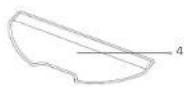
Mop Assembly
- Mop Pad Holder
- Release Clips
- Mop Pad Attachment Area
- Mop Pad
Fig. A-3
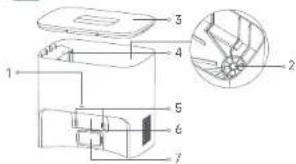
Base Station with Auto-Empty
- Status Indicator
• Solid White: Base station is connected to power
• Breathing White: Robot is charging
- Blinking Orange: Base Station has an error
2. Filter
3. Cover
4. Dust Bag Slot
5. Charging Contacts
6. Signaling Area
7. Auto-Empty Vent
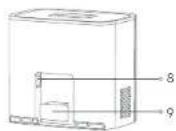
8. Power Port
9. Power Cord Storage Slot
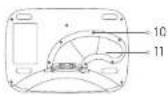
10. Mounting Screw
11. Air Duct Cover
Fig. A-4
B Preparing Your Home
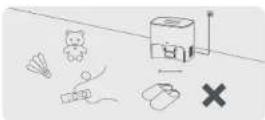
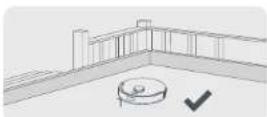
- Before cleaning, please move away unstable, fragile, valuable or dangerous items, and clean up cables, cloths, toys, hard objects and sharp objects on the ground to avoid being entangled, scratched or knocked over by the robot and causing losses.
- Before cleaning, place a physical barrier at the edge of the stairs to ensure the secure and smooth operations of the robot.
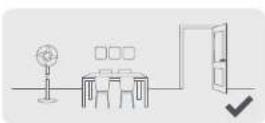
- Open the door of the room to be cleaned, and put the furniture in its proper place to leave more space.
- To prevent the robot from not recognizing areas that need to be cleaned, do not stand in front of the robot, or in a threshold, hallway, or narrow places.
Note:
- When operating the robot for the first time, follow it around while cleaning to remove any potential obstacles in time.
- Do not vacuum hard objects like stones, steel balls and toy parts, or sharp objects like construction waste, broken glass and nails, otherwise the ground may be scratched.
Fig. B
© Before Use
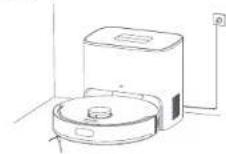
1. Place the Base Station and Connect to an Electrical Outlet
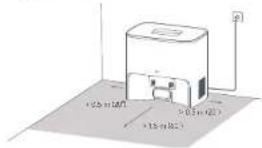
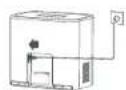
Place the base station in a location that is as open as possible with a good Wi-Fi signal. Leave enough space as shown in the figure and remove any objects in the shaded area. Insert the power cord into the base station and plug it into the socket.
Note:
- Firmly insert the power cord until the indicator turns on.
- Remove any objects that are closer than 1.5 m from the front and 0.5 m from either side of the base station.
- Make sure that no objects might block the signaling area.
-
To prevent water stains from wetting wood floors or carpets, placing the base station on tile floors or marble floors is recommended.
-
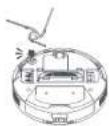
Remove the Protections and Install the Side Brush
-
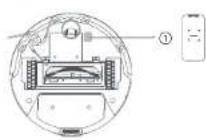
Connect with the Dreamehome App
(1) Press and hold the power button on the robot
for 3 seconds to turn it on. Scan the QR code on the robot or search "Dreamehome" in the app store to download and install the app.
(2) Open the Dreamehome app, tap "Scan QR code to connect", and scan the same QR code on the robot again to add the device. Please follow the prompts to finish the Wi-Fi connection.
① QR code
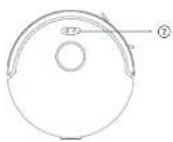
② Wi-Fi Indicator
- Blinking: To be connected / Connecting
- On: Connected
Note:
- Only 2.4 GHz Wi-Fi is supported.
- To reset Wi-Fi, repeat step (2) and then follow the prompts to finish the Wi-Fi connection.
- After the device is successfully connected to the home Wi-Fi network, it will continuously attempt to reconnect in case of network disruptions caused by issues such as unpaid bills or power outages, in order to ensure a smooth user experience upon network restoration.
- To disconnect the device from Wi-Fi network, press and hold the Reset button on the robot for 3 seconds.
- Due to upgrades in the app software, the actual operations may differ from the directions in this manual. Please follow the instructions based on the current app version.
4. Charge the Robot
When placing the robot, align the charging contacts of the robot with the charging contacts of the base station, and the robot will automatically turn on and start charging.
After the robot is fully charged, the status indicators on the robot and the base station will remain lit for 10 minutes and then dim.
Note: It is recommended to fully charge your robot before first time use.
Fig. C-1-Fig. C-4
D How to Use
Turn On/Off
Press and hold the power button for 3 seconds to turn on the robot. The power indicator should be illuminated. Place the robot onto the base station, the robot should turn on automatically and begin charging. To turn off the robot, move the robot away from the base station and press and hold the power button for 3 seconds.
Fast Mapping
After configuring the network for the first time, follow the instructions in the app to quickly create a map. The robot will start mapping without cleaning. When the robot returns to the base station, the mapping process has been completed and the map will be saved automatically.
Start Cleaning
Press the power button to start cleaning after the robot is turned on. The robot will accurately map out a route, methodically clean along the edges and walls, then finish by cleaning each room in an S-shaped pattern to ensure a thorough job.
Note:
- It is recommended that the robot set out from the base station before cleaning. Do not move
the base station while the robot is cleaning. This ensures that the robot returns to base station smoothly.
- After the robot completes the cleaning task and automatically returns to the base station, the base station will start auto-empty. More settings can be operated on the app.
Pause/Sleep
When the robot is running, press any button to pause it.
If the robot is paused for more than 10 minutes, it automatically enters sleep mode. All indicators on the robot will turn off. Press any button on the robot, or use the app to wake up the robot.
Note: If the robot is paused and placed onto the base station, the current cleaning process will end.
Auto Resume Cleaning
If the battery is too low, the robot will automatically return to the base station to charge. After charging to the appropriate battery level, it will resume unfinished cleaning tasks.
Note: To use this function, please enable it in the app.
Do Not Disturb (DND) Mode
When the robot is set to Do Not Disturb (DND) mode, the robot will be prevented from resuming cleaning. DND mode is disabled by default at the factory. You can use the app to enable DND mode or modify the DND period. The DND period is 22:00-8:00 by default.
Note:
- The scheduled cleaning tasks will be performed as usual during the DND period.
- The robot will resume cleanup where it left off after the DND period expires.
Spot Cleaning
When the robot is awaiting, press and hold the button for 3 seconds to enable the spot cleaning mode. In this mode, the robot cleans a square-shaped area of 1.5 × 1.5 meters around it and returns to its starting point once the spot cleaning is completed.
Robot Restarting
If the robot stops responding or cannot be turned off, press and hold the power button for 10 seconds to forcefully turn it off. Then, press and hold the power button for 3 seconds to turn the robot on.
Use Mopping Function
Note: It is recommended that all floors are vacuumed at least three times before the first mopping session to achieve a better cleaning effect.
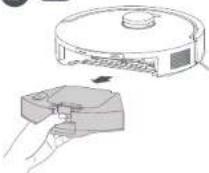
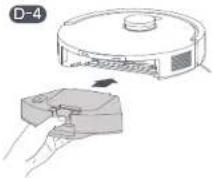
- Press the release clip to remove the 2-in-1 water tank with dust box.
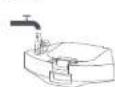
- Open the water inlet lid, fill the tank with water, and close the lid tightly.
Note:
Note:
- It is not recommended to use the mopping function on carpets.
- Use the app to adjust the mop pad moisture as required.
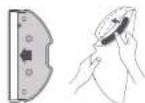
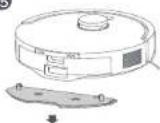
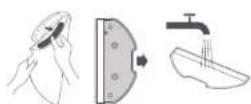
- When the robot returns to charge after cleaning, remove the mop pad holder and clean the mop pad to prevent mildew or odors.
Note:
- Wash the mop pad after each use, and regularly empty the water tank of unused water.
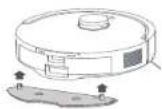
- Remove the mop assembly when not mopping.
Fig. D-1-Fig. D-5
E Routine Maintenance
Parts
To keep the robot in good condition, it is recommended to refer to the accessory usage in the app or the following table for routine maintenance.
| Part Maintenance Frequency Replacement Period | |
| Mop pad After each use Every 3 to 6 months | |
| Main brush | Once every 2 weeks |
| Side brush |
| Dust box's filter |
| Base station's signaling area | Once every month / |
| Charging contacts |
| Auto-empty vents |
| Laser distance sensor (LDS) |
| Return-to-base sensor |
| Bumper |
| Bottom of the robot |
| Omnidirectional wheel |
| Part Maintenance Frequency Replacement Period | |
| Cliff sensors | Clean it as needed / | |
| Dust box |
| Main wheels |
| Water tank |
| Dust bag / Every 2 to 5 | months | |
Note: The replacement frequency will depend on your usage of the robot. If an exception occurs due to special circumstances, the parts should be replaced.
Main Brush
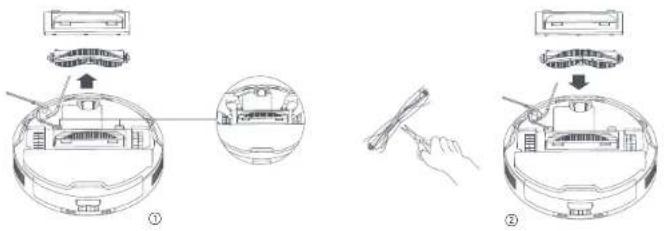
- Press the brush guard clips inwards to remove the brush guard, and lift the brush out of the robot.
- Use a proper cleaning tool to remove any hair tangled in the brush. Then reinstall the brush and press on the brush guard to lock it in place.
Fig. E-1
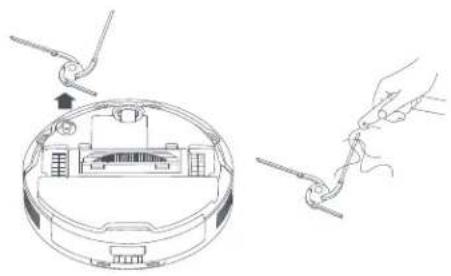
Side Brush
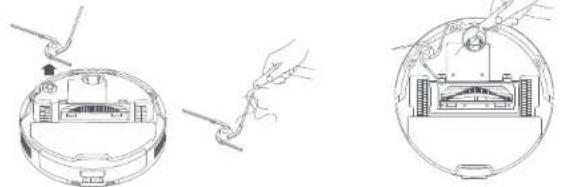
Remove and clean the side brush.
Fig. E-2
Omnidirectional Wheel
Use a proper cleaning tool to remove any hair tangled in the omnidirectional wheel.
Fig. E-3
2-in-1 Water Tank with Dust Box
- Press the release clip to remove the 2-in-1 water tank with dust box, and then empty the water tank.
- Open the dust box cover and empty the dust box.
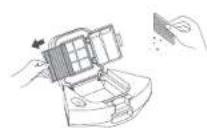
- Open the filter holder to remove the HEPA filter and tap the HEPA filter gently.
Note: Do not attempt to clean the filter with a brush, a finger or sharp objects to prevent damage.
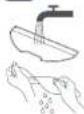
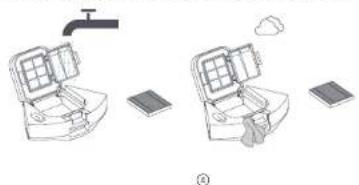
- Rinse the dust box and HEPA filter with water and air dry them completely before reinstalling.
Note:
- Do not rinse the parts outside the dust box. If there are any water stains, please wipe them dry
before reinstalling.
- Rinse the dust box and filter with clean water only. Do not use any detergent.
- Use the dust box and filter only when they are completely dry.
Fig. E-4
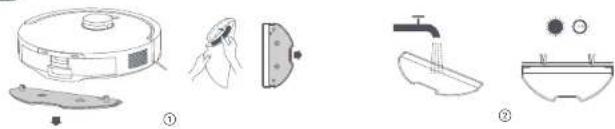
Mop Pad
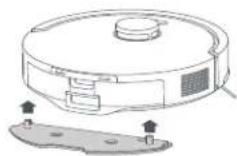
- Remove the mop assembly and pull the mop pad off the mop pad holder.
- Clean the mop pad with water only and dry it completely before reinstalling.
Fig. E-5
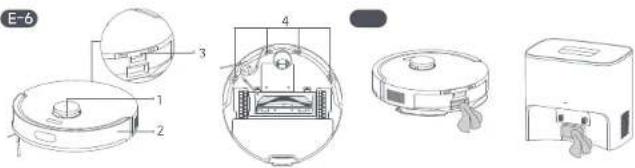
Robot Sensors
Wipe robot sensors by using a soft and dry cloth, as shown in the below figure:
- Laser Distance Sensor (LDS)
- Bumper
- Return-to-Base Sensor
- Cliff Sensors
Note: A wet cloth can damage sensitive elements within the robot and the base station. Please use a dry cloth for cleaning.
Fig. E-6
Clean the auto-empty vents, charging contacts and the signaling area with a soft and dry cloth.
Fig. E-7
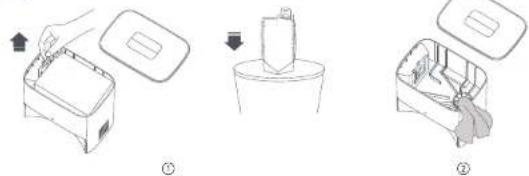
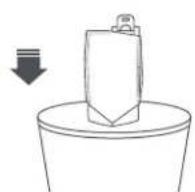
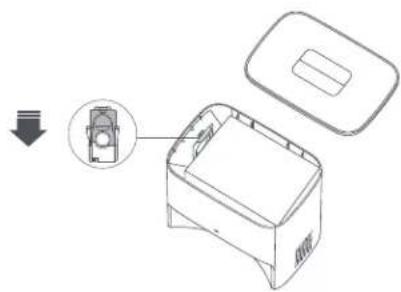
Dust Bag
- Remove and discard the dust bag.
Note: Pulling outwards on the handle will seal the dust bag to prevent the dust and debris from accidentally falling out.
- Remove the dust and debris from the filter with a dry cloth.
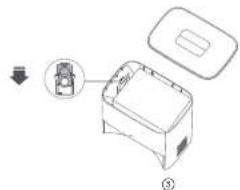
- Install a new dust bag.
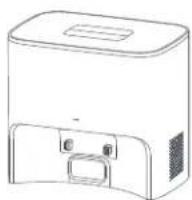
- Reinstall the dust tank cover.
Fig. E-8
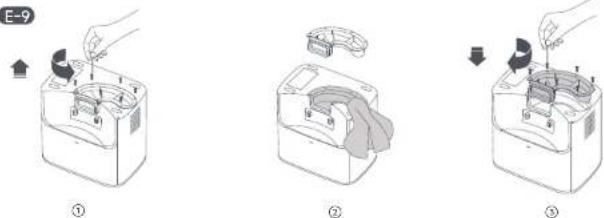
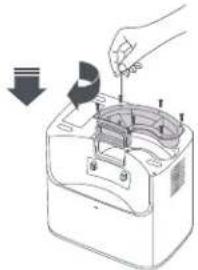
Air Duct
If the air duct is blocked, please clean it according to the following steps.
- Unscrew mounting screws on the air duct cover and remove the cover.
- Check whether the air duct is blocked by foreign objects. If any, clean them.
- Reinstall the air duct cover.
Fig. E-9
Battery
The robot contains a high-performance lithium-ion battery pack. Make sure that the battery remains well-charged for daily use to maintain optimal battery performance. If the robot is not used for an extended period of time, turn it off and put it away. To prevent damages from over-discharging, charge the robot at least once every three months.
Troubleshooting
| Problem Solution |
| The robot will not turn on. | The battery is low. Recharge the robot on the base station and try again.The temperature of the battery is too low or too high. It is recommended to operate the appliance at a temperature between 32°F (0°C) and 104°F (40°C). |
| The robot will not charge. | The base station is not connected to power, please make sure both ends of its power cord are correctly plugged in.The contact between the charging contacts on the base station and the robot is poor, please clean the charging contacts. |
| The robot fails to connect to Wi-Fi. | The Wi-Fi network password is incorrect. Make sure the password used to connect to your Wi-Fi network is correct.The robot does not support a 5 GHz Wi-Fi connection. Make sure the robot is connected to a 2.4 GHz Wi-Fi connection.The Wi-Fi signal is weak. Make sure the robot is in an area with good Wi-Fi coverage.The robot may not be ready to be configured. Please exit and re-enter the app, and then try again as instructed. |
| Problem Solution |
| The robot cannot find and return to the base station. | The route for returning to charge is blocked, e.g. the door is closed.The base station is disconnected from power or moved when the robot is not on it. Please connect the base station to the power supply or place the robot onto the base station to charge.There are too many obstructions around the base station. Place the base station in a more open area.Moving the robot may cause it to re-position itself, and it will recreate a map if re-positioning fails. If the robot is too far from the base station, it might not be able to automatically return on its own, in which case you will need to manually place the robot onto the base station.Wipe the signaling area on the base station to remove dust or debris. |
| The robot gets stuck in front of the base station and cannot return to it. | Check whether there is enough space on both sides or in front of the base station to prevent the robot from being blocked.The robot may slip if the floor in front of the base station is overly wet. If so, clean the excess water before trying again.It is recommended to move the base station to a different place and try again. |
Troubleshooting
| Problem Solution |
| The robot will not turn off. | The robot cannot be turned off when it is charging. It is recommended to move the robot from the base station, and then press and hold the power button for 3 seconds to turn it off.If the robot cannot be turned off by performing step 1, press and hold the power button for 10 seconds to forcibly turn off the robot. If the problem persists, please contact after-sales service. |
| The charging speed is slow. | It takes about 4.5 hours to fully charge the robot when its battery is low.If you operate the robot at temperatures outside of the specified range, the charging speed will automatically slow down to extend the battery life.The charging contacts on both the robot and the base station may be dirty, please wipe them with a dry cloth. |
| The noise increases while the robot is operating. | Check whether the dust box's filter is clogged. If so, clean it or replace it.A hard object may be caught in the main brush or the dust box. Check and remove any hard objects.The main brush or the side brush may become tangled. Check and remove any foreign objects.Switch the suction mode to Standard or Quiet. |
| Problem Solution |
| The robot moves without following the set route. | · Objects such as power cords and slippers should be organized before using the robot.· Working on wet slippery surfaces may cause the main wheel to slip. It is recommended to dry any wet areas before using the robot. |
| The robot misses the rooms to be cleaned. | · Make sure that the doors of the rooms to be cleaned are open.· Check whether there is a threshold higher than 2 cm at the door of the room. The robot cannot climb over high thresholds or steps.· The place in front of the room to be cleaned may be wet and slippery, causing the robot to slip and work abnormally. Please try drying the floor before using the robot. |
| The robot will not resume cleaning after charging. | · Make sure that the robot is not set to the Do Not Disturb (DND) mode, which will prevent it from resuming cleaning.· The robot will not resume cleaning after you manually place the robot on the base station or send the robot to charge via the app or the button ⏻ |
Troubleshooting
| Problem Solution |
| The base station cannot automatically empty the dust box. | Check whether the dust bag in the dust tank is full.If the dust bag is not full, check whether there is any obstruction at the auto-empty vents of the robot, the base station, or the dust box. If any, clean the blocked part in time. |
| No water comes out of the water tank, or only a little bit comes out. | Check whether there is water inside the water tank.Clean the mop pad if it becomes dirty.Make sure the mop pad and the mop pad holder is installed correctly according to the user manual. |
| Robot returns to the base station without performing auto-empty tasks. | DND mode prevents the robot from performing auto-empty tasks. |
For more support, contact us via https://global.dreametech.com.
Specifications
Robot B
| Model RLF41GD | |
| Charging Time Approx. 4.5 | hours |
| Rated Voltage 14.4 V | --- |
| Rated Power 45 W | |
| Operation Frequency 2400 | -2483.5 MHz |
| Maximum Output Power < | 20 dBm |
Under normal use of condition, this equipment should be kept a separation distance of at least 20 cm between the antenna and the body of the user.
Rechargeable Lithium-ion Battery Pack
| Model C1251A6 | |
| Type Li-ion | |
| Number | 1 |
| Rated Capacity | 2.95 Ah |
| Model RCFD0301 | |
| Rated Input 220-240 V 50-60 Hz | ~ |
| Rated Output 20 V 1 A | --- |
| Rated Power (during dust emptying) 650 W |
Base Station/Charging Dock
Power consumption in standby mode: ≤slant 0.5 W (within 15 minutes after the robot leaves the base station/charging dock)
Robot&Base Station/Charging Dock
Power consumption in networked standby mode: ≤slant 2 W (Within 20 minutes after the battery pack of robotic vacuum cleaner is fully charged.)
Power consumption in standby mode: ≤slant 0.5 W (Within 20 minutes after the battery pack of robotic vacuum cleaner is fully charged.)
Battery Disposal and Removal
The built-in lithium-ion battery contains substances that are hazardous to the environment. Before disposing of the battery, make sure the battery is removed by qualified technicians and discarded at an appropriate recycling facility.
- the battery must be removed from the appliance before it is scrapped;
- the appliance must be disconnected from the supply mains when removing the battery;
- the battery is to be disposed of safely.
CAUTION:
Before removing the battery, disconnect the power and run out the battery as much as possible.
Unneeded batteries should be discarded at an appropriate recycling facility.
Do not expose to high temperature environment to avoid risks of explosion.
Under abusive conditions, liquid may be ejected from the battery. If contact occurs, flush with water and seek medical help.
Removal Guide:
- Turn over the robot, use a proper tool to remove the screws on the back of the robot, and then remove the cover.
- Unplug the terminals between the battery and PCB board to remove the battery.

All products bearing this symbol are waste electrical and electronic equipment (WEEE as in directive 2012/19/EU) which should not be mixed with unsorted household waste. Instead, you should protect human health and the environment by handing over your waste equipment to a designated collection point for the recycling of waste electrical and electronic equipment, appointed by the government or local authorities. Correct disposal and recycling will help prevent potential negative consequences to the environment and human health. Please contact the installer or local authorities for more information about the location as well as terms and conditions of such collection points.
Sicherheitshinweise
LASERPRODUKT DER KLASSE 1
LASERPRODUKT FÜR VERBRAUCHER
EN 50689:2021
ACHTUNG!
KLASSE 1 LASERPRODUCT
LASERPRODUCT VOOR CONSUMENTEN
EN 50689:2021
VOORZICHTIG:
KLASSE 1-LASERPRODUKT
FORBRUKERLASERPRODUKT
EN 50689:2021
FORSIKTIG:
LASERPRODUKT KLASS 1
LASERPRODUKT FÖR KONSUMENTBRUK
EN 50689:2021
VAR FÖRSIKTIG:
Baca manual operator
Dengan ini, Dreame Trading (Tianjin) Co., Ltd. mengumumkan bahawa peralatan radio jenis RLF41GD adalah mematuhi Arahan 2014/53/EU. Teks penuh pengumuman keakuran EU boleh didapati di alamat Internet berikut: https://global.dreametech.com
Untuk e-manual yang terperinci, sila pergi ke https://global.dreametech.com/pages/user-manuals-and-faqs
A Gambaran Keseluruhan Produk
Robot
KLASSE 1 LASERPRODUKT
FORBRUGERLASERPRODUKT
EN 50689:2021
FORSIGTIG:
© Foydalanishdan oldin
I KLASÈS LAZERINIS GAMINYS
BUITINIS LAZERINIS GAMINYS
EN 50689:2021
ATSARGIAI!
natural_image
Illustration of various electronic devices including a bear, fan, mouse, pen, and monitor on a surface (no text or symbols)
natural_image
Architectural sketch of a balcony with railing and a circular object, no text or symbols present
natural_image
Line drawing of a simple room layout with a desk, chair, fan, and door (no text or symbols)
natural_image
Interior hallway scene with a person standing near a robotic vacuum cleaner and a 'X' symbol (no text or labels)
natural_image
Line drawing of a microwave oven with a mounted power outlet (no text or symbols)
natural_image
Illustration of a robotic vacuum cleaner with a hand holding the device (no text or symbols present)
natural_image
Line drawing of a mechanical device with a faucet and handle (no text or symbols)
注:
洗剤や消毒剤は使用しないでください。
natural_image
Illustration of a robotic vacuum cleaner with a hand inserting a component (no text or symbols)
注:
注:
natural_image
Illustration showing a hand using a tool to clean a circular device, with an inset diagram illustrating the assembly process (no text or symbols present)
サイドブラシ
サイドブラシを取り外し、掃除します。
natural_image
Diagram showing a robotic vacuum cleaner inside a circular housing and a hand holding a rope, with no visible text or symbols.
全方向ホイール
natural_image
Line drawing of a mechanical assembly with hands adjusting components (no text or symbols)
日常的なお手入れ
natural_image
Technical line drawings of a robotic vacuum cleaner and its internal components (no text or symbols)
natural_image
Line drawing of a kitchen appliance with a lid and a bowl of food, no text or symbols present
natural_image
Illustration of hands using a device to adjust or install a component, with no visible text or symbols.
natural_image
Illustration of two identical seats with different interior compartments and a faucet, alongside a small solar panel and cloud (no text or symbols)
注:
natural_image
Illustration of a robotic vacuum cleaner with a hand holding a tool, alongside a close-up of its component (no text or symbols present)
natural_image
Technical line drawings of two electronic devices, one circular and one rectangular, with no visible text or symbols.
日常的なお手入れ
紙パック
natural_image
Line drawing of a hand placing a component into a container with an open lid (no text or symbols)
natural_image
Line drawing of a mechanical device with a lid and internal components (no text or symbols)
natural_image
Technical line drawing of a device casing with a magnified inset showing internal components (no text or symbols)
- ダストタンクカバーを元に戻します。
日常的なお手入れ
ダクト
natural_image
Technical line drawing of a mechanical device with a clamped component (no text or symbols)
- ダクトカバーを再度取り付けます。
natural_image
Illustration of a hand using a tool to adjust or install a mechanical component, with no visible text or symbols.
バッテリー
The word "dreame" is the abbreviation of Dreame Technology Co., Ltd. and its subsidiaries in China. It is the transliteration of the company's Chinese name "追觅", which means striving for excellence in every endeavor and reflects the company's vision of continuous pursuit, exploration and search in technology.


For more support, contact us via https://global.dreametech.com