SYNC55 - Monitor Interphone - Free user manual and instructions
Find the device manual for free SYNC55 Interphone in PDF.


User questions about SYNC55 Interphone
0 question about this device. Answer the ones you know or ask your own.
Ask a new question about this device
Download the instructions for your Monitor in PDF format for free! Find your manual SYNC55 - Interphone and take your electronic device back in hand. On this page are published all the documents necessary for the use of your device. SYNC55 by Interphone.
USER MANUAL SYNC55 Interphone
natural_image
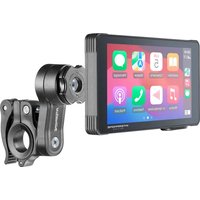
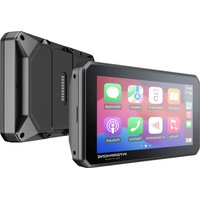
Exterior view of a black inter Cameroon tablet with app icons displayed on screen (no readable text or symbols beyond branding)SYNC55B
Smart display for BMW motorcycles
1.0
USER MANUAL
EN/IT/FR/ES/DE
Table of contents
1 Introduction
2 Safety and Warnings
3 Features
4 Usage
5 Settings
01. Introduction
The SYNC55B is a 5.5-inch Smart Display designed for BMW riders, featuring a high-visibility IPS touchscreen. It is engineered to be mounted on the original BMW Navigator dock, seamlessly connects via Apple CarPlay and Android Auto for navigation, calls, and media control, and integrates with BMW motorcycles to display vehicle data across multiple screen layouts. It can be operated using the BMW handlebar multi-controller.
2. Safety and Warnings
Important! Read before use!
Failure to follow these instructions may cause death, serious injury, or device damage. Incorrect setup or use increases risks. Drive carefully, avoid screen interaction, and follow local laws. Cellularline S.p.A. is not liable for fines from non-compliance.
Correct mounting
Ensure the device does not obstruct your view, vehicle control, block any safety function or dashboard instruments.
Use of audio systems (Bluetooth Intercoms)
This device doesn't support Bluetooth headsets/intercoms. Connect your phone directly to a Bluetooth headset.
Water resistance
IP67 waterproof when properly installed and used. Do not immerse.
Vehicle compatibility: Check the compatibility list and be aware of limitations.
General guidelines
SYNC55B mirrors apps via CarPlay & Android Auto. It is not a navigator or music player. Touchscreen may not work with gloves or in rain. Do not open—risk of injury and warranty void. Clean only with a soft cloth.
Memory Card: Uses a U3-class mini SD card (32–256 GB) from reputable brands. SD card is used only for firmware updates.
Technical Specifications:
CE Declaration of Conformity: Cellularline S.p.A., declares that this device complies with Directive 2014/53/EU. The full text of the EU declaration of conformity is available at the following address:
www.cellularline.com/_/declaration-of-conformity. Cellularline S.p.A., also declares that this device complies with the 2011/65/EU updated from 2015/863/EU.
| Product:INTERPHOSYNC55B | Model:SYNC55B | Operating temperature:-20~70°C |
| Dimensions mm:153 x 82 x 23 | Power supply:12V DC | Weight:249 g |
| Bluetooth® v. 4.2 - Class 2 | FrequencyBluetooth: 2.402 – 2.480GHz | Power Bluetooth: 20dBm |
| Frequency WIFI : 2.4G(2400MHz ~ 2500MHz) /5G (5150Mhz~5250Mhz) | PowerWi-Fi 20 dBm |

WEEE: The crossed-out wheel bin symbol on the product, literature, or packaging reminds you that all electrical and electronic products, batteries, and accumulators must be taken to separate collection at the end of their working life.
This requirement applies to the European Union and other locations where separate collection systems are available. To prevent possible harm to the environment or human health from uncontrolled waste disposal, please do not dispose of these products as unsorted municipal waste, but hand it in at an official collection point for recycling.

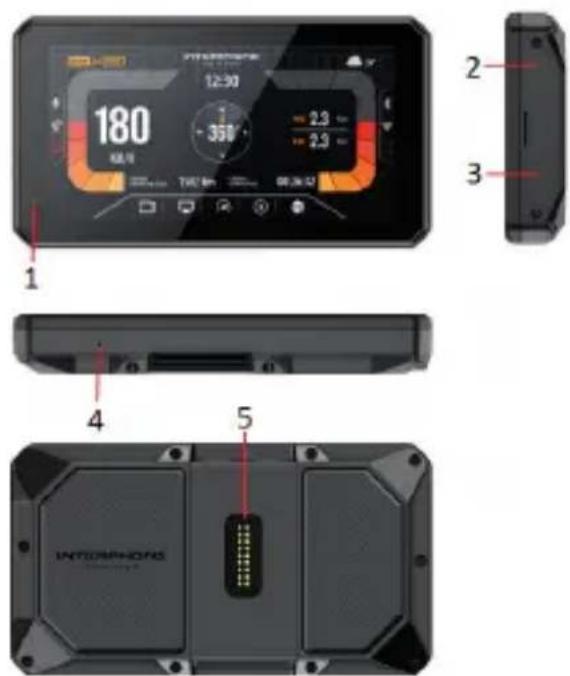
Installation: The SYNC55B does not require any installation or wiring. Simply mount it on the original BMW Navigator dock on your motorcycle. This provides the SYNC55B with power, motorcycle data, and connection to the BMW handlebar multi-controller.
Vehicle compatibility: The SYNC55 can read and display:
• Engine & Air temperature
- Total mileage
• Fuel range remaining
• Date & distance of last service
- Gear position
- Speed & RPM
- Lean angle
- Tire pressure
- Battery voltage
- Driving time & distance
This functionality is available on the following list of models:
-
BMW F750 GS
• BMW F800 GS(2024)
BMW F850 GS
• BMW F850 GS ADV
BMW F900 XR
• BMW F900 GS(2024)
• BMW F900 GS ADV(2024)
BMW S1000 XR -
BMW R1200 GS
• BMW R1200 GS ADV
• BMW R1200 RS
• BMW R1250 GS
• BMW R1250 GS ADV - BMW R1250 RS
- BMW R1300 GS
• BMW R1300 GS ADV
The BMW multi-controller allows you to switch between different vehicle data screens and within CarPlay and Android Auto interfaces.
text_image
180 2 3 4 5 INTOCOMPHONS- Light sensor
- Type-c power connector
- SD card slot hole for firmware upgrade via SD card
- Microphone (not used)
- BMW base connector
4. Usage
4.1 Main Screen Overview
text_image
INTERPHONE station in touch 14:16 0 KM/H N W -- E S F 0.0 Bar R 0.0 Bar CURRENT DRIVING MILEAGE 0 KM CURRENT DRIVING TIME 00:00:00 12 5 1 2 3 4 6 13- ICONS & FUNCTIONS
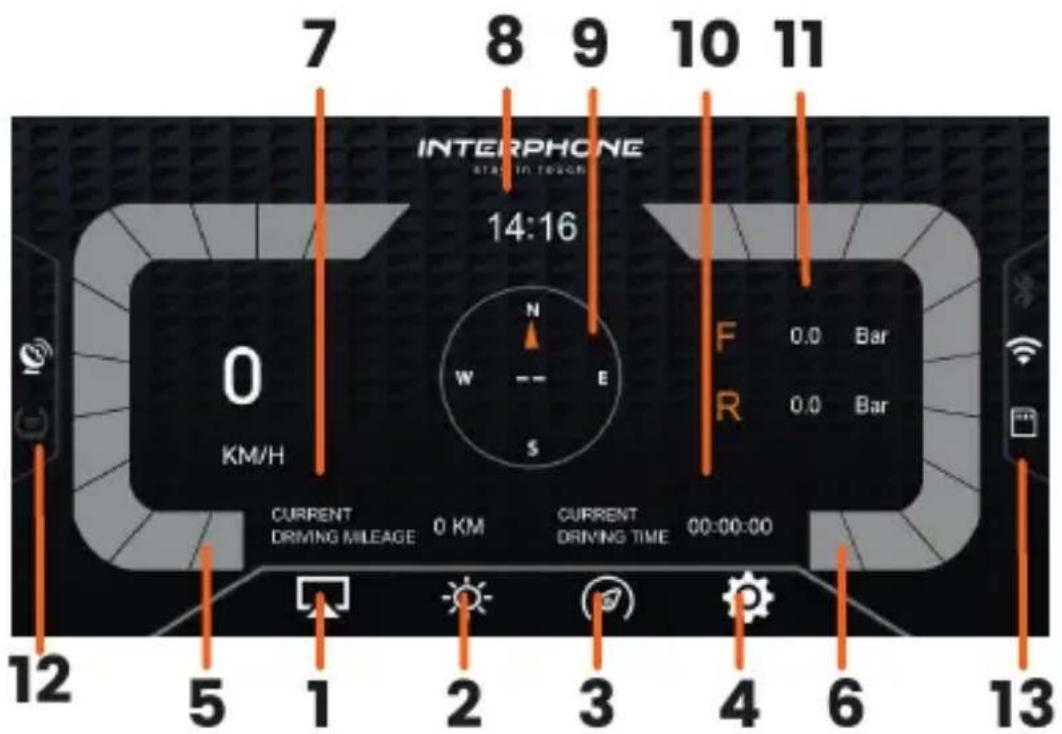
(1) CarPlay / Android Auto Tap to access smartphone mirroring. On first use, pairing is required. Once paired, it opens the mirroring screen directly.
(2) Brightness Control Tap to adjust screen brightness (automatic level can be chosen in settings menu).
(3) Motorcycle Dashboard Tap to view vehicle data like speed, RPM, gear, etc.
(4) Settings Tap to access device settings.
(5) Speed: shows speed in digits and through the bar.
(6) RPM: shows engine RPM through the bar.
(7) Current driving mileage: shows distance traveled since current ignition on
(8) Current time
(9) Compass: shows driving direction
(10) Current driving time: shows time since current ignition on
(11) TPMS: show front and rear tire pressure
(Home) Home Tap at any time to return to this main screen
Status Indicators
(12) GPS Signal, Tire Pressure
Green = OK/Connected
Red = Error
Gray = Not connected
White = Standby
(13) Bluetooth, Wi-Fi, SD Card
Green = Connected
Red = Error
Gray = Not active / not detected
White = Standby
4.2 Carplay & Android Auto
First Use
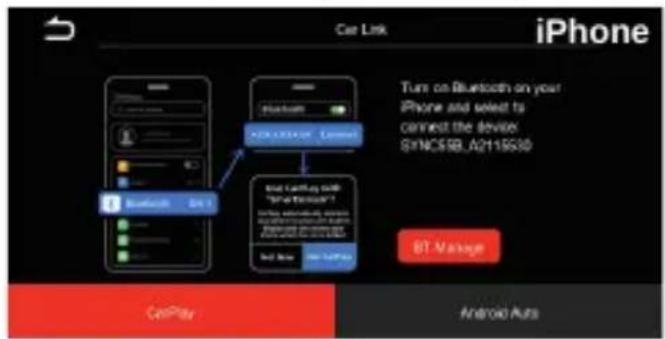
Sync55B needs to be paired with your smartphone only during the initial setup. To proceed with pairing, after enabling both Bluetooth and Wi-Fi functions on your smartphone, press the "Carplay" icon for Apple smartphones.
Tap "Android Auto" for Android smartphones as illustrated on the screen. On the next screen, follow the prescribed instructions.
text_image
Car Link iPhone Turn on Bluetooth on your iPhone and select to connect the device SYNC5RB_A211953D BT- Manage CarPlay Android Auto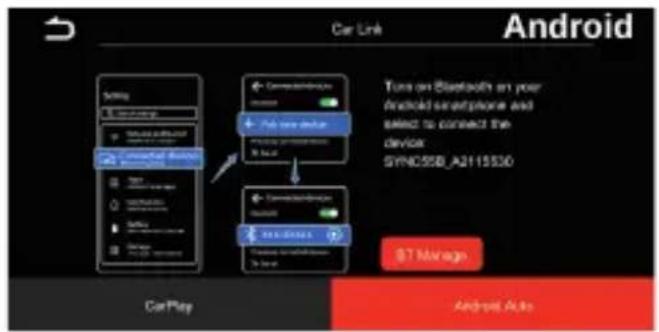
flowchart
graph TD
    A["Car Play"] --> B["Car Link"]
    B --> C["Android"]
    C --> D["Switch: Bluetooth on your mobile phone and switch to connect the device SYNC558_A3115530"]
    D --> E["Command-line access"]
    E --> F["Mobile phone: 9.2.2"]
    F --> G["Switch: 9.2.2"]
    G --> H["Command-line access"]
    H --> I["Mobile phone: 9.2.2"]
    I --> J["Switch: 9.2.2"]
    J --> K["7 Manage"]
4.3 Dash screens
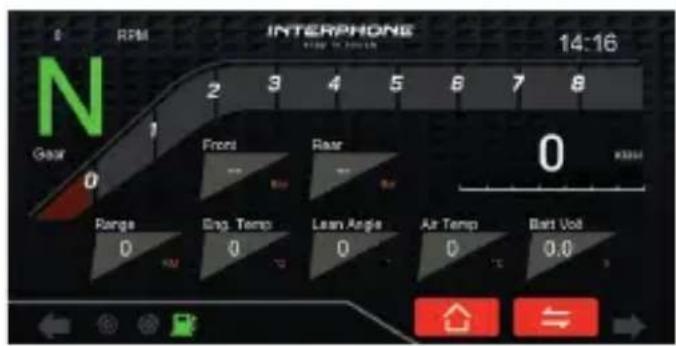
Sync55B reads data from motorcycle and display many information replicated in different screens offering different views.
Ensure the BMW handlebar Magic Wheel is switched to NAV mode; only in this mode will the SYNC55B respond to wheel commands.
For instructions on how to change this setting, please refer to your motorcycle's user manual.
Tap on this icon ⇌ on screen or rotate up/down or push left/right the BMW wheel to switch the screens.
Tap on this icon 🏠 or hold the Magic Wheel to the left or right for 3 seconds. to go back to main screen.
text_image
RPM INTERPHONE 14:16 N Gear 0 1 2 3 4 5 6 7 8 Front Rear 0 Range Grip. Temp Lean Angle Air Temp Batt Volt 0 0 0 0 0 0 0 0 0 0 0 0 0 0 0 0 0 0 0 0 0 0 0 0 0 0 0 0 0 0 0 0 0 0 0 0 0 0 0 0 0 0 0 0 0 0 0 0 0 0 RPM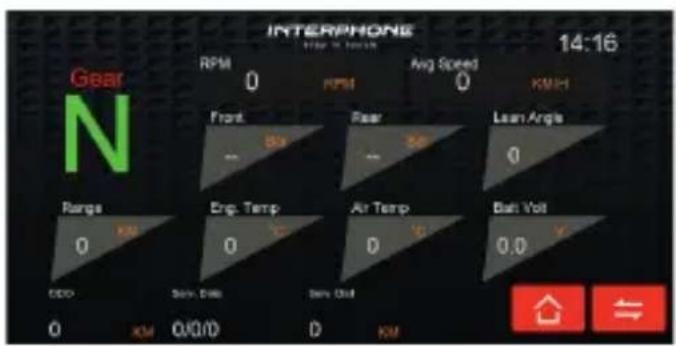
text_image
INTERPHONE 14:16 Gear N RPM 0 RPM Avg Speed 0 KMH Front 80° Fear 20° Lean Angle 0 Range 0 KM Eng. Temp 0 Air Temp 0 Battery 0.0 V CDD Sim. Data Sim. Off 0 KM Q/Q/D D KM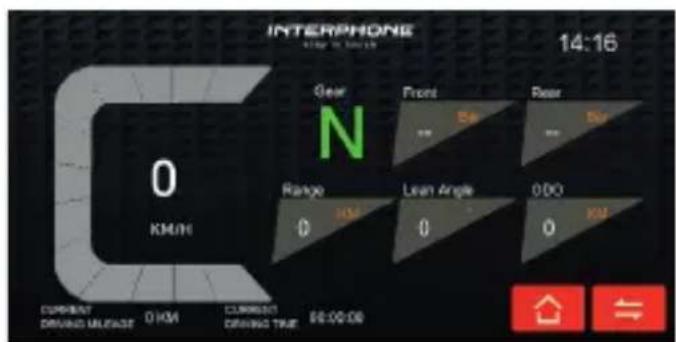
text_image
INTERPHONE 14:16 0 KH/M Gear N Front Bar Bar Bar Range 0 HM 0 Lean Angle 0 0 0 0 KIM CURRENT DRIVING MLEASE 0 KM CURRENT DRIVING TRUE 00:00:00 ↑ ⇌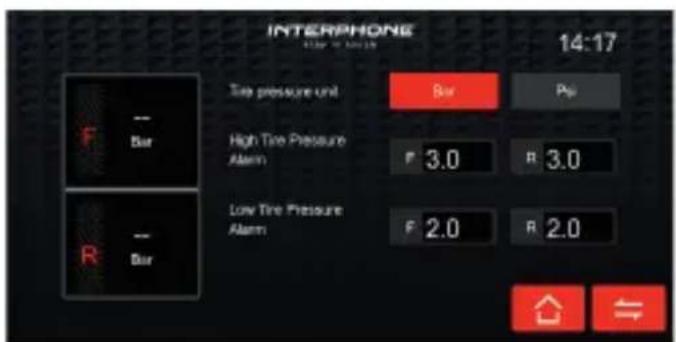
text_image
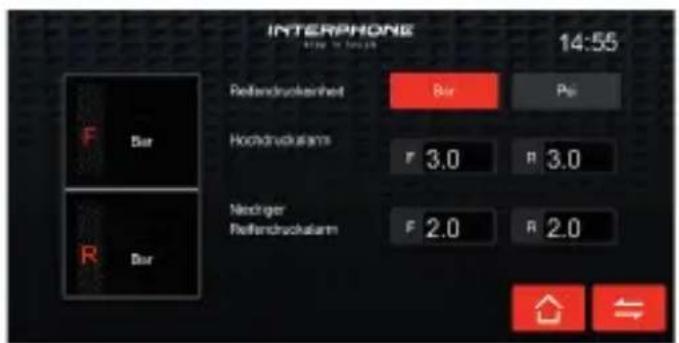
INTERPHONE 14:17 F - Bar R - Bar Top pressure unit Bar Pip High Tire Pressure Alarm F 3.0 R 3.0 Low Tire Pressure Alarm F 2.0 R 2.05. Settings
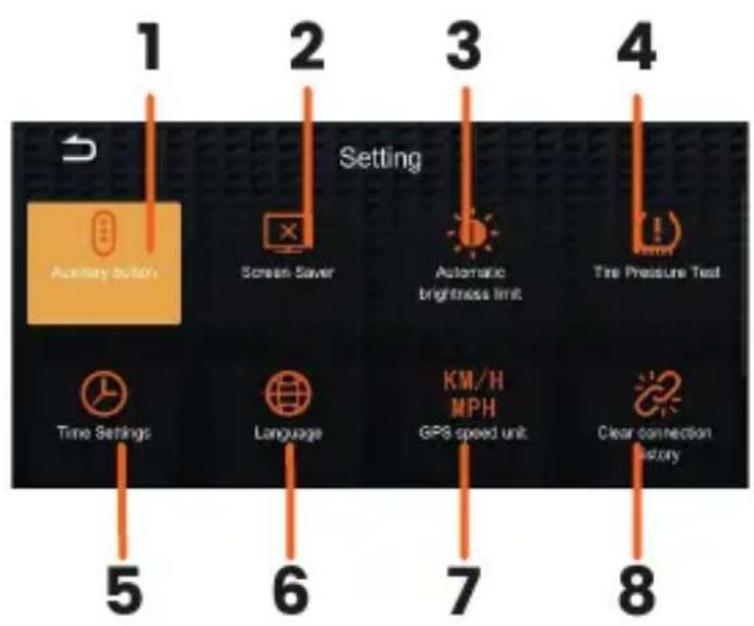
5.1 Settings screen
text_image
1 2 3 4 Setting Auxiliary button Screen Saver Automatic brightness limit The Pressure Test Time Settings Language KM/H MPH GPS speed unit Clear connection history 5 6 7 8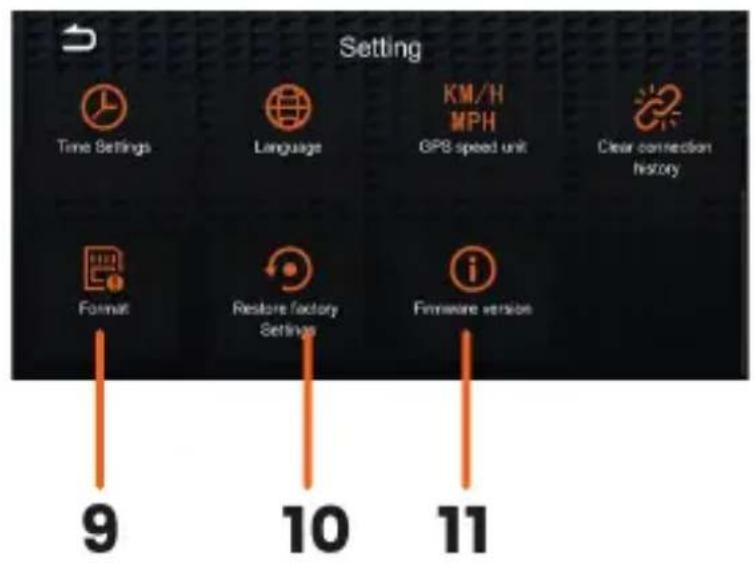
text_image
Setting Time Settings Language KM/H MPH GPS speed unit Clear connection history Format Restore factory Settings Firmware version 9 10 11- Aux button: Switch on/off the floating button to quick access shortcut menu (carplay/android auto screens only)
- Screen saver: Click to set the automatic screen off delay. When off just tap on screen to reactivate it.
- Auto brightness: tap to access device's display brightness settings
- Tire pressure test: Set tire pressure warning range and choose units
- Time settings: Set date / time / time zone
- Language: Set language
- GPS Speed unit: Set speed units
- Clear connection history: erase all stored connected smarphones
- Format: Format sd card. Be careful, all data in the card will be erased
- Restore factory setting: resets the device to its original factory configuration. All user settings, paired devices, and saved data will be permanently erased
- Firmware version: check the version of installed firmware
SYNC55B
Indice
text_image
Car Link iPhone Bluetooth on via Bluetooth sulliPhone per connectere if disperto: SYNOS6B_A2115500 Bluetooth on CarPlay with "SmartScreen" on display in the next session on display in the next session on display in the next session on display in the next session on display in the next session on display in the next session on display in the next session on display in the next session on display in the next session on display in the next session on display in the next session on display in the next session on display in the next session on display in the next session on display in the next session on displays in the next session on displays in the next session on displays in the next session on displays in the next session on displays in the next session on displays in the next session on displays in the next session on displays in the next session on displays in the next session on displays in the next session on displays in the next session on displays in the next session on displays in the next session on displays in the next session on displays in Android Auto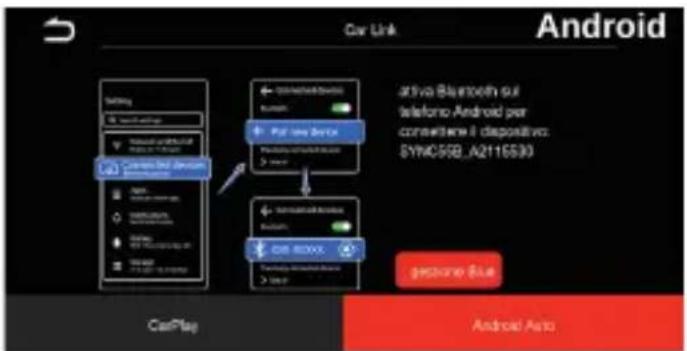
text_image
Car Link Android Setting Bluetooth Bluetooth Bluetooth Bluetooth Bluetooth Bluetooth Bluetooth Bluetooth Bluetooth Bluetooth Bluetooth Bluetooth Bluetooth Bluetooth Bluetooth Bluetooth Bluetooth Bluetooth Bluetooth Bluetooth Bluetooth Bluetooth Bluetooth Bluetooth Bluetooth Bluetooth Bluetooth Bluetooth Bluetooth Bluetooth Bluetooth Bluetooth Bluetooth Bluetooth Bluetooth Bluetooth Bluetooth Bluetooth Bluetooth Bluetooth Bluetooth Bluetooth Bluetooth Bluetooth Bluetooth Bluetooth Bluetooth Bluetooth Bluetooth Bluetooth Ethernet Blue MacPlay Android Auto4.3 Cruscotto moto
text_image
INTERPHONE March N 0 0 0 Vined 0 KOH Marcia N Front Mn Rear Bar Ang. Flage Autonomia 0 Temp. Ivt. 0 Temp. Arla 0 Bad V Data Cable Avg. Dist a Highest 0 KM 0/0/0 D KM 10:50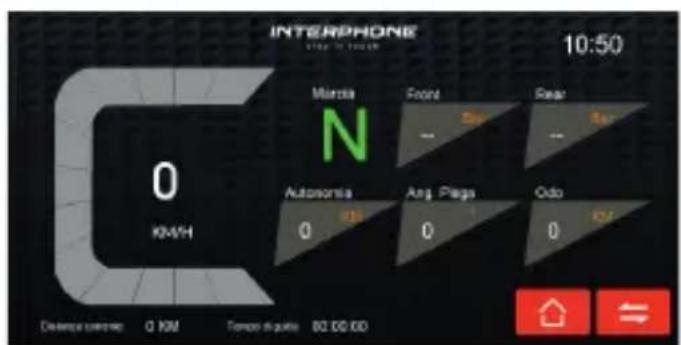
text_image
INTERPHONE 10:50 0 KM/H Munica Front Sear N Autovonta Ang. Plags Odo 0 0 0 Distance distance: 0 KM Tempo di guita: 02 DD KD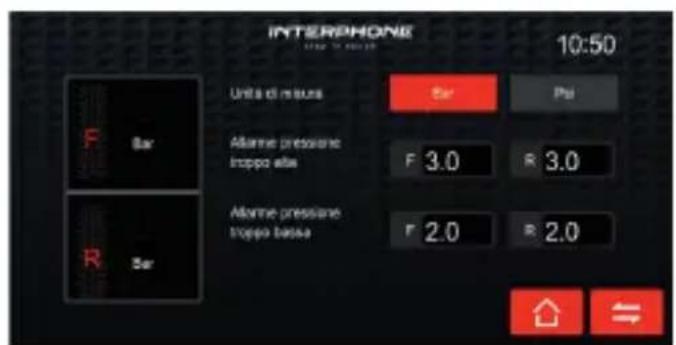
text_image
INTERPHONE stasi in Reason 14:16 0 KM/H N W -- E S F 0.0 Bar R 0.0 Bar CURRENT DRIVING MILEAGE 0 KM CURRENT DRIVING TIME 00:00:00 12 5 1 2 3 4 6 13ICONOS Y FUNCIONES
text_image
Car Link Android CarPlay Automotive Automotive Automotive Automotive Automotive Automotive Automotive Automotive Automotive Automotive Automotive Automotive Automotive Automotive Automotive Automotive Automotive Automotive Automotive Automotive Automotive Automotive Automotive Automotive Automotive Automotive Automotive Automotive Automotive Automotive Automotive Automotive Automotive Automotive4.3 Pantallas del tablero
text_image
S RPM INTERPHONE 15:06 Marcha 2 3 4 5 6 7 8 Front Rear 0 Aut Temp. No. Inclnac Temp. Belt U 0 0 0 0 0 0.0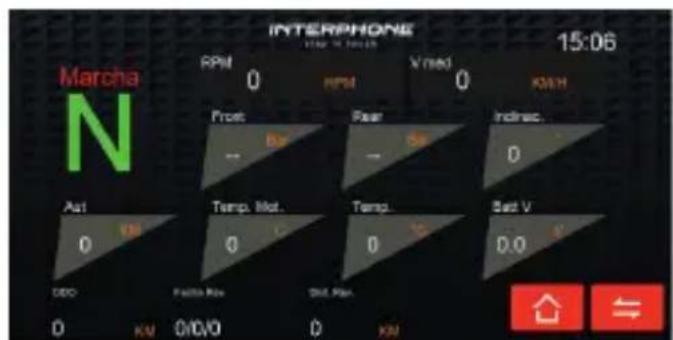
text_image
INTERPHONE 15:06 Marcha N RPM 0 RPM Vired 0 KSH Front Bar Fear Indirect. Air 0 Temp. Mat. 0 Temp. 0 Bad V 0.0 DCO Pallie Rev Std. Plan. 0 KM 0/0/V0 0 KM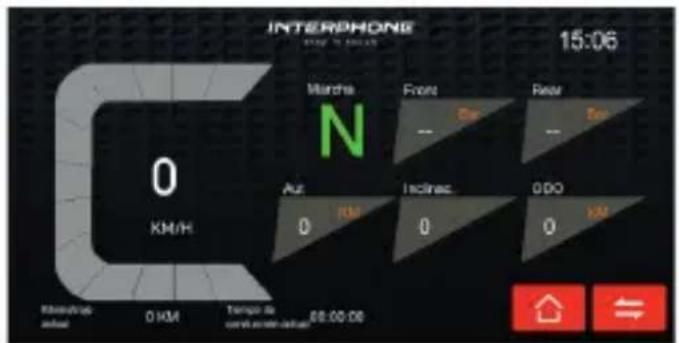
text_image
INTERPHONE 15:06 Marcha Front Rear N Aut Inclines 0DO KM 0 KM 0 KM Intership actual 0 KM Tempo de correl port/airway 08:00:06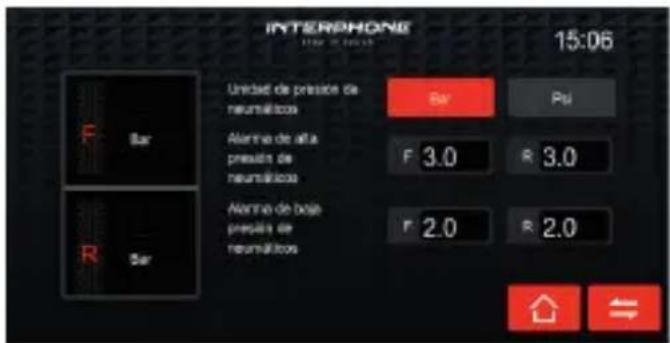
text_image
INTERPHONE 15:06 Bar Unité de presión de neurollosis Bar Pai F Bar Alarma de alta presión de neurollosis F 3.0 R 3.0 F Bar Alarma de basal presión de neurollosis F 2.0 R 2.05. Configuración
4.2 Carplay & Android Auto
Erste Verwendung
text_image
Car Link iPhone Setting CarPlay Automotive Automotive Automotive Automotive Automotive Automotive Automotive Automotive Automotive Automotive Automotive Automotive Automotive Automotive Automotive Automotive Automotive Automotive Automotive Automotive Automotive Automotive Automotive Automotive Automotive Automotive Automotive Automotive Automotive Automotive Automotive Automotive Automotive Automotive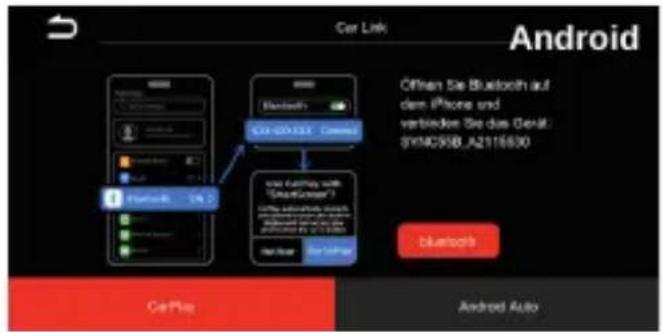
text_image
Car Link Android Bluetooth CIA-001325 - CiaMai Use Bluetooth with "SmartScope" Use Bluetooth with "SmartScope" Use Bluetooth with "SmartScope" Use Bluetooth with "SmartScope" Bluesch CarPlay Android Autotext_image
INTERPHONE 14:55 Gang Drezhahl 0 Drezhahl V-0 0 KWH N Front Box Fear 500 Schraplage 0 NEI 0 KWH Kühlamp 0 Lufhamp 0 Buhersp 0.0 000 Daily 2nd Daily 3rd 0/0/0 D KGT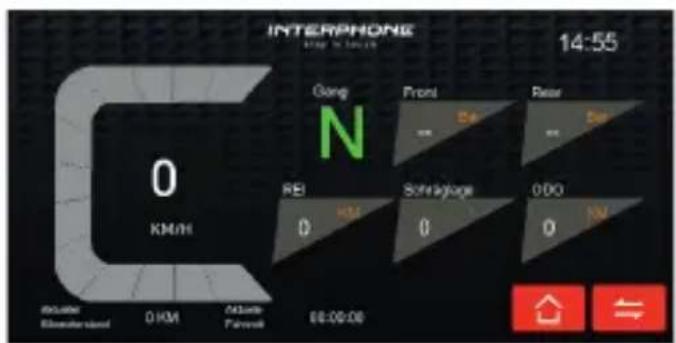
text_image
INTERPHONE 14:55 0 KM/H Gong Front Rear N REI HM Schlaglage 000 0 HM 0.00:06 88:00:06 Bilanzschulden 0 KM Altivate Fahrlei