RideSync - Monitor Interphone - Free user manual and instructions
Find the device manual for free RideSync Interphone in PDF.


User questions about RideSync Interphone
0 question about this device. Answer the ones you know or ask your own.
Ask a new question about this device
Download the instructions for your Monitor in PDF format for free! Find your manual RideSync - Interphone and take your electronic device back in hand. On this page are published all the documents necessary for the use of your device. RideSync by Interphone.
USER MANUAL RideSync Interphone
text_image
RIDESYNC INTERPHONE stay in touchMANUALE UTENTE | USER MANUAL | GUIDE DE L'UTILISATEUR | GUÍA DE USUARIO | BEDIENUNGSANLEITUNG

CE Declaration of Conformity: Cellularline S.p.A., declares that this device complies with Directive
2014/53/EU. The full text of the EU declaration of conformity is available at the following address: www.cellularline.com/_declaration-of-conformity. Cellularline S.p.A., also declares that this device complies with the 2011/65/EU updated from 2015/863/EU.
| Product: INTERPHORIDESYNC | Model: RIDESYNC | Operating temperature: - 20~70°C | Dimensione mm: 85mm X 49mm X 25mm | Alimentazione nominale: CC 5 V, 2,5A | Weight: 182g |
| Bluetooth® v. 4.0 - Class 2 | Frequency Bluetooth: 2.402 – 2.480GHz | Power Bluetooth: 20dBm | Frequency WIFI : 2.4G(2400MHz~2500MHz).5G (5150mhz~5250mhz) | Power: Wi-Fi 15 dBm |
text_image
Apple CarPlay Android Auto Turn on Bluetooth on your iPhone and select to connect the device: BTRX-EE2 Bluetooth EVR XXXXXX Connect Use CarPlay with "SmartScreen" Hi/Hi/Hi/Hi/Hi/Hi/Hi/Hi/Hi/Hi/Hi/Hi/Hi/Hi/Hi/Hi/Hi/Hi/Hi/Hi/Hi/Hi/Hi/Hi/Hi/Hi/Hi/Hi/Hi/Hi/Hi/Hi/Hi/Hi/Hi/Hi/Hi/Hi/Hi/Hi/Hi/Hi/Hi/Hi/Hi/Hi/Hi/Hi/Hi/Hi/Hi/ Setting Bluetooth Bluetooth EVR XXXXXX Connect Use CarPlay with "SmartScreen" Hi/Hi/Hi/Hi/Hi/Hi/Hi/Hi/Hi/Hi/Hi/Hi/Hi/Hi/Hi/Hi/Hi/Hi/Hi/Hi/Hi/Hi/Hi/Hi/Hi/Hi/Hi/Hi/Hi/Hi/Hi/Hi/Hi/Hi/Hi/Hi/Hi/Hi/Hi/Hi/Hi/My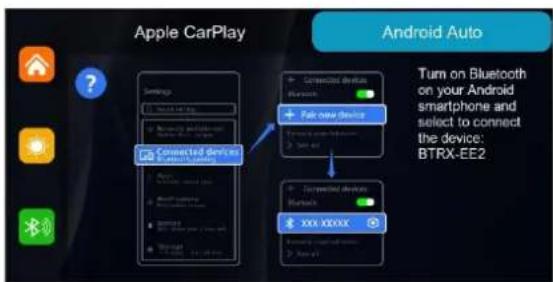
text_image
Apple CarPlay Switches Connected devices Bluetooth Fair new devices Turn on Bluetooth on your Android smartphone and select to connect the device: BTRX-EE2 Connected devices Bluetooth Fixed devices XXXXXX Switches, wireless, and other BTRX-EE2Utilizzo
text_image
Brightness Clear Connections Assistive touch Language Date and Time Factory reset Firmware version
Important Safety Notices and Warnings
Important! Read before use!
Failure to observe or partially observe the instructions and warnings may result in death or serious injury. Improper configuration or use of the device may increase the risk of death, serious injury, or damage to the device. Use with caution. As a user, it is your responsibility to exercise judgment and pay attention when using this device. Do not distract yourself by interacting with this device while driving. Minimize the time spent looking at the device while driving. As a user, you are responsible for complying with regulations that limit or prohibit the use of cell phones or other electronic devices (e.g., the requirement to use hands-free options for making calls while driving). Always obey applicable laws and traffic signs. Cellularline is not responsible for any fines resulting from non-compliance with applicable regulations and provisions.
Correct mounting
Do not mount the device in a way that obstructs the view of the road or the vehicle's control capabilities. Do not place the device in an area that may obstruct any vehicle safety function.
Use of audio systems (Intercoms)
Ridesync does not provide connection to a Bluetooth headset or intercom. It is recommended to use your mobile phone's connection directly to the Bluetooth headset, concurrently with the use of Ridesync.
Water resistance
IPX6 level waterproofing if stored, used, and mounted correctly. Do not immerse in water.
User instructions:
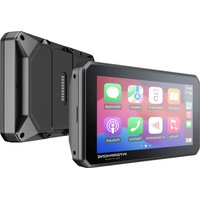
Interphone Ridesync is a smartphone display mirroring device, meaning it replicates the display and use of apps compatible with Apple CarPlay and Android Auto technology. Interphone Ridesync is not a satellite navigator, standalone music player, or instrumentation (speedometer or tachometer). The Ridesync screen is capacitive touchscreen: it may not work with motorcycle gloves, and raindrops may trigger commands. Do not open the device under any circumstances. Such an operation can be dangerous and voids the warranty. Only dry or clean the device screen with a soft cloth. Do not use liquid detergents.
Technical Specifications:
CE Declaration of Conformity: Cellularline S.p.A., declares that this device complies with Directive 2014/53/EU. The full text of the EU declaration of conformity is available at the following address: www.cellularline.com/ /declaration-of-conformity . Cellularline S.p.A., also declares that this device complies with the 2011/65/EU updated from 2015/863/EU.
| Product: INTERPHORIDESYNC | Model: RIDESYNC | Operating temperature: - 20~70°C | Dimensions mm: 85mm X 49mm X 25mm | Power supply: 5V DC - 2,5A | Weight: 182g |
| Bluetooth® v. 4.0 - Class 2 | Frequency Bluetooth: 2.402 – 2.480GHz | Power Bluetooth: 20dBm | Frequency WIFI : 4G (2400MHz ~ 2500MHz) / 5G (5150mhz~5250mhz) | Power: Wi-Fi 15 dBm |
WEEE: The crossed-out wheel bin symbol on the product, literature, or packaging reminds you that all electrical and electronic products, batteries,
and accumulators must be taken to separate collection at the end of their working life. This requirement applies to the European Union and other locations where separate collection systems are available. To prevent possible harm to the environment or human health from uncontrolled waste disposal, please do not dispose of these products as unsorted municipal waste, but hand it in at an official collection point for recycling.
Triman Logo

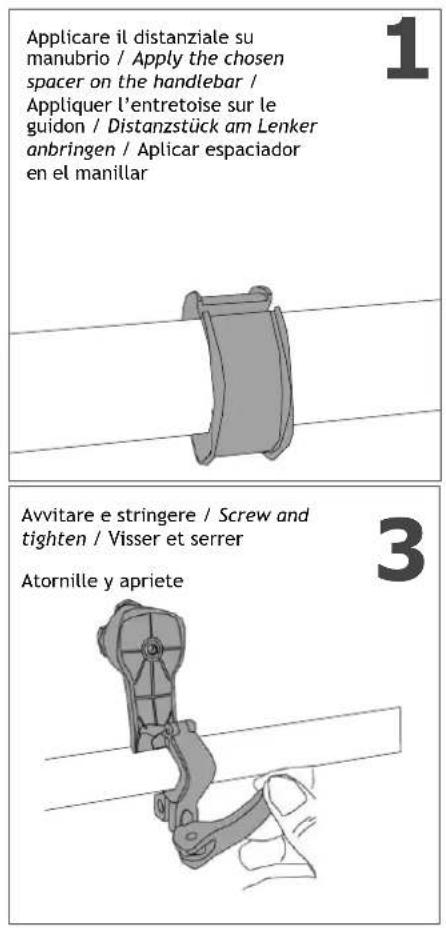
Handlebar Mount Installation
text_image
Applicare il distanziale su manubrio / Apply the chosen spacer on the handlebar / Appliquer l'entretoise sur le guidon / Distanztück am Lenker anbringen / Aplicar espaciador en el manillar 1 Avvitare e stringere / Screw and tighten / Visser et serrer 3 Atornille y apriete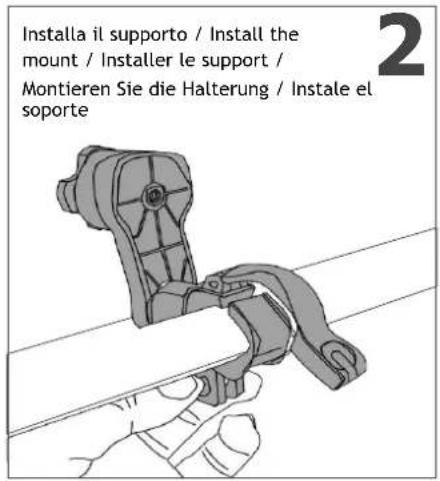
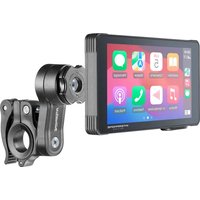
Ridesync can be used with all mounts in the Interphone Quiklox range, providing various additional mounting opportunities, including handlebar clamp, super sport motorcycle handlebar stem, rearview mirror or handlebar crossbar, brake fluid reservoir, car vent or windshield mount, etc. Visit the website www.interphone.com for more information.
Power
Ridesync can be powered in two ways:
1) By connecting the power cable with a 12V adapter directly to the motorcycle. Connect the Yellow "B+" cable to the positive battery terminal, the Red "ACC" cable to the key switched power, and the Black "GND" cable to the negative battery terminal. It is recommended to perform the wiring installation only by experienced personnel for safety reasons.
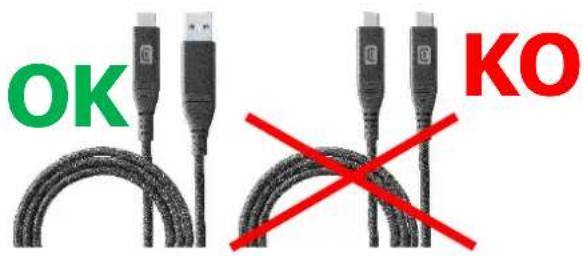
2) By connecting the provided USB cable to a USB-A port (in a motorcycle or a car). The provided cable maintains waterproof characteristics. Note: the device cannot be powered using a USB-C/USB-C cable but only with a USB-C/USB-A type cable.
text_image
OK KOFirst Use
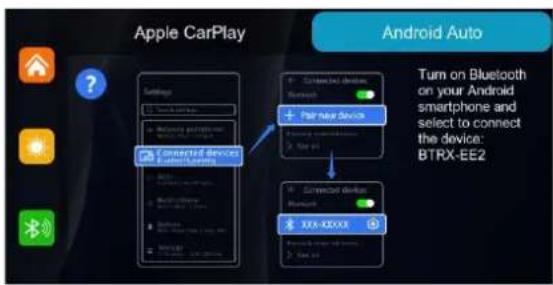
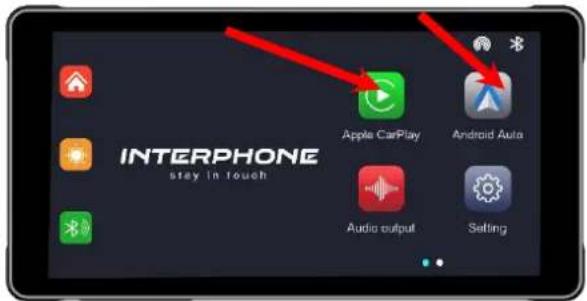
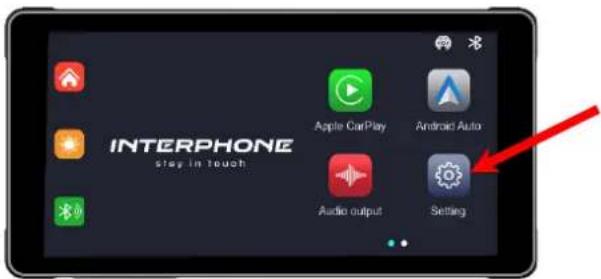
Ridesync needs to be paired with your smartphone only during the initial setup. To proceed with pairing, after connecting Ridesync to power and enabling Bluetooth and Wi-Fi functions on your smartphone, press the "Carplay" icon for Apple smartphones or "Android Auto" for Android smartphones as illustrated on the screen.
text_image
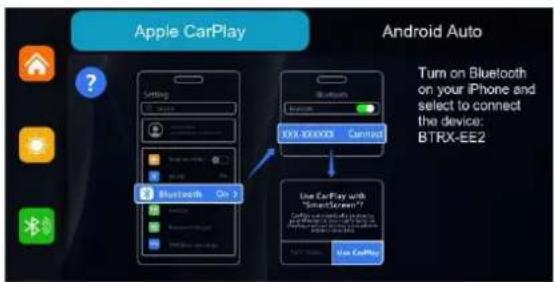
INTERPHONE stay in touch Apple CarPlay Android Auto Audio output SettingOn the next screen, follow the prescribed instructions.
text_image
Apple CarPlay Android Auto Turn on Bluetooth on your iPhone and select to connect the device: BTRX-EE2 Bluetooth On Use CarPlay with "SmartScreen"?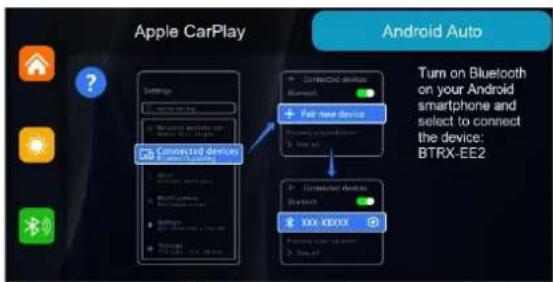
text_image
Apple CarPlay Android Auto Turn on Bluetooth on your Android smartphone and select to connect the device: BTRX-EE2Usage
Once paired, upon each power-up, after a short moment, Ridesync will display the HOME screen of your smartphone. Refer to your phone's manual for detailed instructions on how to operate the Carplay / Android Auto system.
When the phone is not connected and therefore the HOME screen of the phone itself is not visible, the Ridesync startup screen will be displayed, from which you can:
- initiate the Carplay/Android Auto connection.
- adjust the brightness (which can be automatic or manually set).
- view the recommended audio device connection diagram.
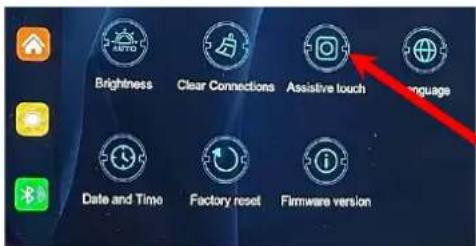
- modify settings (change language, reset pairings, etc.).
text_image
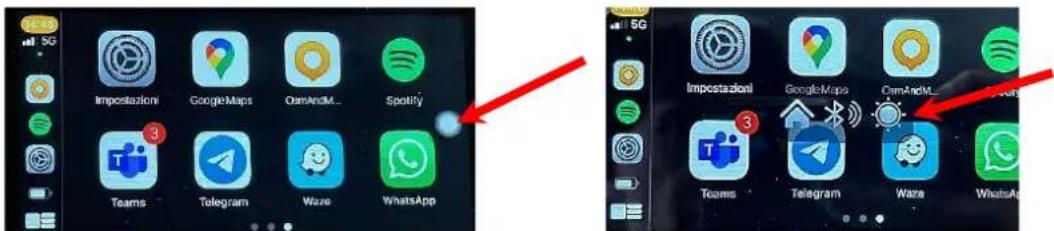
INTERPHONE stop in touch Apple CarPlay Android Auto Audio output SettingYou can access a quick menu by pressing the circle that appears at the center-right of the screen (the cursor can be dragged to a different position).
text_image
5G Impostazioni GoogleMaps OmAndM_ Spotify Teams Telegram Waze WhatsAppThis menu can be disabled from the settings by selecting the appropriate function..
text_image
Brightness Clear Connections Assistive touch Language Date and Time Factory reset Firmware version
natural_image
Diagram of a hand holding a mechanical component with rotational arrows indicating motion (no text or symbols)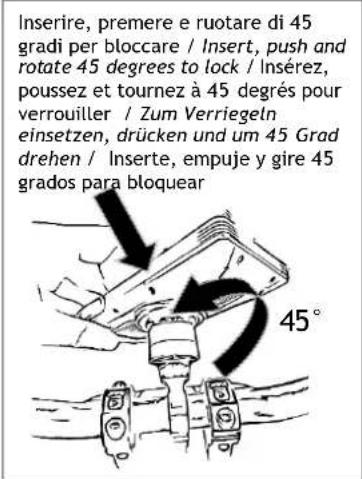
text_image
Inserire, premere e ruotare di 45 gradi per bloccare / Insert, push and rotate 45 degrees to lock / Insérez, poussez et tournez à 45 degrés pour verrouiller / Zum Verriegeln einsetzen, drücken und um 45 Grad drehen / Inserte, empuje y gire 45 grados para bloquear 45°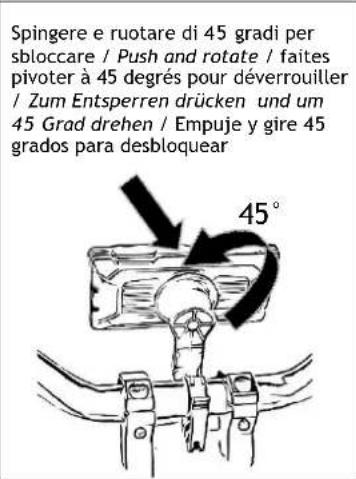
text_image
Spingere e ruotare di 45 gradi per sbloccare / Push and rotate / faites pivoter à 45 degrés pour déverrouiller / Zum Entsperren drücken und um 45 Grad drehen / Empuje y gire 45 grados para desbloquear 45°Note:
text_image
Apple CarPlay Android Auto Turn on Bluetooth on your iPhone and select to connect the device: BTRX-EE2 Bluetooth On Use CarPlay with "SmartScreen"?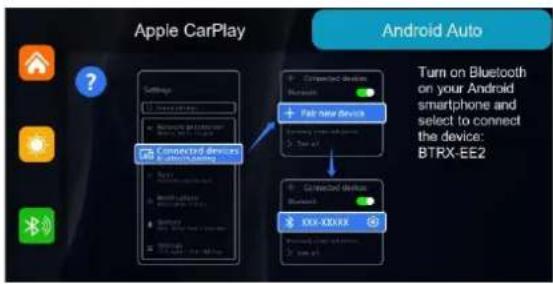
text_image
Apple CarPlay Settings Connected devices on Android Switch: 10000000000 Connected devices Bluetooth Fair new device Turn on Bluetooth on your Android smartphone and select to connect the device: BTRX-EE2 Connected devices Bluetooth 000-XXXXXX Bluetooth, smart devices 3 min 4 minUsage
text_image
Brightness Clear Connections Assistive touch Language Date and Time Factory reset Firmware version
natural_image
Diagram of a hand holding a mechanical component with rotational arrows indicating motion (no text or symbols)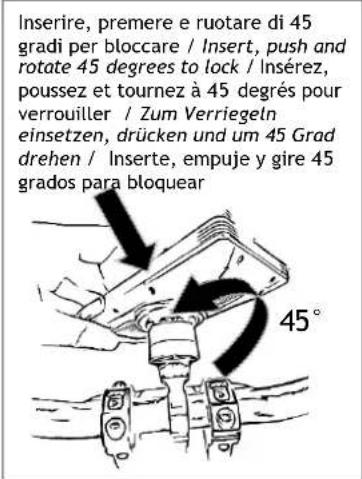
text_image
Inserire, premere e ruotare di 45 gradi per bloccare / Insert, push and rotate 45 degrees to lock / Insérez, poussez et tournez à 45 degrés pour verrouiller / Zum Verriegeln einsetzen, drücken und um 45 Grad drehen / Inserte, empuje y gire 45 grados para bloquear 45°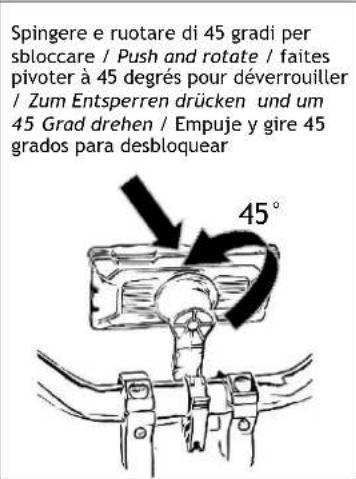
text_image
Spingere e ruotare di 45 gradi per sbloccare / Push and rotate / faites pivoter à 45 degrés pour déverrouiller / Zum Entsperren drücken und um 45 Grad drehen / Empuje y gire 45 grados para desbloquear 45°Nota:
text_image
Apple CarPlay Android Auto Turn on Bluetooth on your iPhone and select to connect the device: BTRX-EE2 Bluetooth On Use CarPlay with SmartScreen?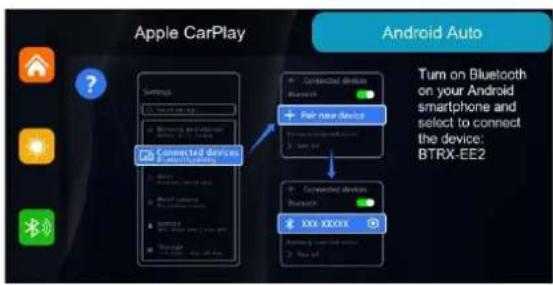
text_image
Apple CarPlay Switches Connected devices Bluetooth + Fair new device Turn on Bluetooth on your Android smartphone and select to connect the device: BTRX-EE2 Connected devices Bluetooth + XXX XXXXXX Switches, wireless, and other 2. Use ofUso
text_image
Brightness Clear Connections Assistive touch Language Date and Time Factory reset Firmware versiontext_image
Apple CarPlay Android Auto Turn on Bluetooth on your iPhone and select to connect the device: BTRX-EE2 Bluetooth On 3 Use CarPlay with "SmartScreen"?