
Summa 302 - Printing calculator OLIVETTI - Free user manual and instructions
Find the device manual for free Summa 302 OLIVETTI in PDF.


| Brand | Olivetti |
| Model | Summa 302 |
| Product type | Desktop printing calculator |
| Dimensions | 220 x 160 x 50 mm |
| Weight | 470 g |
| Power supply | 4 UM-3/AA batteries or mains adapter 100-240 V AC, 50-60 Hz |
| Display | 12-character LCD screen |
| Printer | Daisy wheel, IR 40T ribbon cartridge |
| Paper | Roll width 57.5 mm, max diameter 50 mm |
| Calculation capacity | 12 digits (entries and results) |
| Decimal selector | A (addition), 0, 2, 3, 4, F (floating) |
| Main functions | 4 operations, sequential calculation, memory, gross profit, constant, euro conversion, item count |
| Safety | Check voltage before connecting; do not cover the device; unplug adapter when using batteries; replace battery with identical model; do not touch moving parts and paper cutter |
| Maintenance | Clean casing without alcohol; do not expose to sunlight, temperature changes, or humidity |
| Ribbon replacement | Unplug device, remove printer cover, replace ribbon cartridge (IR 40T) |
| Paper loading | Insert the straight edge of the roll into the rear slot and press the paper feed key |
| Operating temperature | 0 °C to 40 °C |
| Disposal | Do not dispose of with household waste; deposit at an appropriate collection center |
Frequently Asked Questions - Summa 302 OLIVETTI
User questions about Summa 302 OLIVETTI
0 question about this device. Answer the ones you know or ask your own.
Ask a new question about this device
Download the instructions for your Printing calculator in PDF format for free! Find your manual Summa 302 - OLIVETTI and take your electronic device back in hand. On this page are published all the documents necessary for the use of your device. Summa 302 by OLIVETTI.
USER MANUAL Summa 302 OLIVETTI
SUMMA 302 Professional Printing Calculator
Istruzioni per l'uso Instructions Instructions d'emploi Bedienungsanleitung Instrucciones de uso Instruções para o uso Gebruiksaanwijzing
PUBLICATION ISSUED BY:
Olivetti S.p.A. Strada Monte Navale 2/C, 10015 Ivrea (TO) Italy www.olivetti.com
Copyright © 2025, Olivetti All rights reserved Printed in China
This manual may not be photocopied, translated into any language or reproduced in any form, in whole or in part, without the prior written consent of Olivetti S.p.A. The manufacturer reserves the right to make changes to the product described in this manual at any time and without any notice.
The compliance of this product to quality standards is certified by the ⬇ mark affixed on the product itself.

AVVERTENZE - PRECAUTIONS - AVERTISSEMENTS - HINWEISE - ADVERTENCIAS - ADVERTÊNCIAS - WAARSCHUWINGEN
Before plugging in the AC cord and switching on the calculator, check that the rated voltage indicated on the rating label on the bottom corresponds to the local voltage. The calculator must not be covered when turned on, as this will cause it to overheat. Do not use organic solutions such as alcohol to clean the casing. Do not use or leave the calculator in direct sun light. Locations subject to quick temperature changes, high humidity and dirt should also be avoided. The electrical power socket-outlet shall be near the equipment and shall be easily accessible.
The display switches off automatically after 3 minutes of inactivity. To switch it on again, just press C/CE key; if a calculation is in course it is displayed.
Remarque
natural_image
Technical line drawing of a mechanical device with no visible text or symbols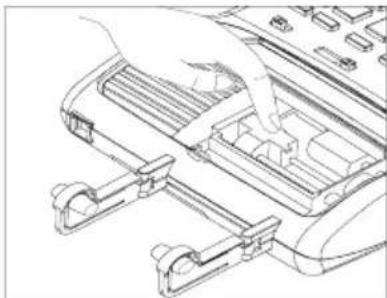
natural_image
Line drawing of a hand inserting a component into a device (no text or symbols visible)Inserimento carta
natural_image
Technical line drawing of a mechanical device with rollers and housing (no text or symbols)Warning and Power off switch
Before plugging in and switching on the calculator, check that the rated voltage indicated on the rating label on the bottom corresponds to the local voltage.
The power off switch is the selector at the top left of the keyboard.
This equipment is not suitable for use in location where children are likely to be present.
The adaptor need to be removed when using battery or vice-versa.
Printer cover must always be closed before using/operating the calculator.
Danger of explosion if battery is incorrectly replaced. Replace only with same or equivalent type.
Do not touch printer moving parts and sharp edges between the printer mechanism as it may cause injury or pain.
Do not touch paper cutter sharp edges as it may cause injury or pain.
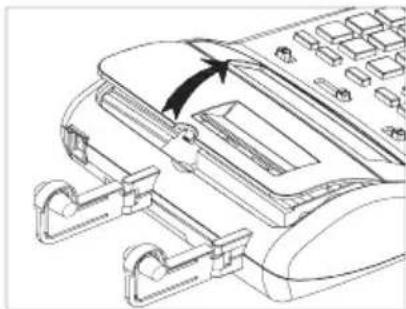
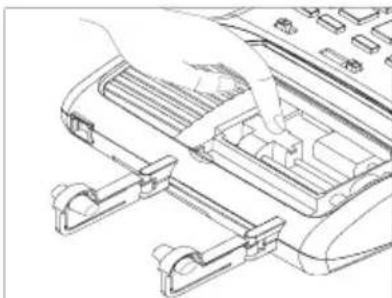
Replacing Ink Roller
-
Please turn Off the power switch or the main power before replacing ink roller.
-
Remove printer cover.
-
Remove ink roller.
-
Insert new ink roller
-
Close printer cover.
natural_image
Line drawing of a telephone handset with a black arrow indicating the handle (no text or symbols present)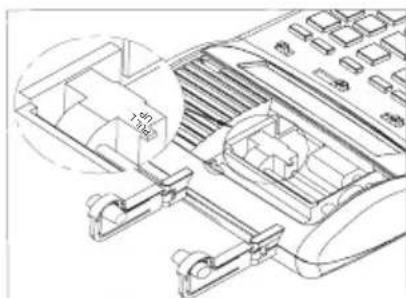
natural_image
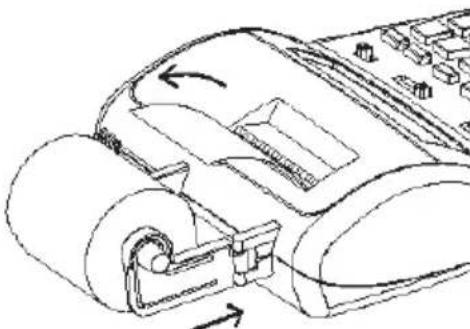
Line drawing of a hand pressing down on a computer keyboard (no text or symbols)Loading paper
-
Plug in the calculator and turn it on.
-
Cut, or tear evenly, the end of the paper roll to get a straight, even edge for proper feeding under the print head.
-
Holding the paper roll in one hand, feed the paper from the bottom of the roll and insert it the paper slot at the back of the calculator.
natural_image
Technical line drawing of a mechanical device with rollers and a handle, showing directional arrows (no text or symbols)-
Press paper feed key until the paper catches and advances through the printer.
-
Fit the paper roll between the pair of paper h olders.
Keyboard Description
OFF NP P Power off/Printer selection switch
OFF Machine is switched off.
NP Printer is activated only when paper feed key or non-add/date key is pressed.
P Printer is activated as long as calculator is turned on.
↓ 5/4 ↑ Rounding selector
↓ Absolute round down.
5/4 Final result is rounded up if the 1^st digit not to be printed is 5 or more and rounded down if the 1^st digit not to be printed is 4 or less.
↑ Absolute round up.
A 0 2 3 4 F Decimal Point selector
A Add mode. The decimal point is automatically placed before the last two digits in addition and subtraction.
0,2,3,4 For multiplication and division, decimal point is set to the result of calculation.
For addition and subtraction, decimal point is set to all entries.
For all the results, number in the decimal place to the last decimal place designated will be rounded. For example, number at 3^rd decimal place is rounded at "2" position.
F Automatic floating point for decimally accurate computing. Decimal point is entered at desired position and the decimal point is automatically shifted to the right is under 12 digits of integer.
- IC Item Count switch
• Calculation without Item Count
IC Number of entries using keys [+] , [-] , [M+] and [M-] will be counted.
The counter is added for [+] , [M+] and subtracted for [-] , [M-] .
Result is printed at left when [] , [] , [M] or [M] key is used.
[↑] Paper feed key
Advances the paper roll.
[→] Right shift key
Deletes right most character of a live entry.
[COST] Cost key
Used to enter Cost factor in a Cross Profit Margin calculation.
[SELL] Sell key
Used to enter Selling price in a Cross Profit Margin calculation.
[MARGIN] Margin key
Used to enter desired Margin in a Cross Profit Margin calculation.
[RATE] Rate key
Enters Currency Exchange rate.
[EURO] Euro currency
Converts the displayed value to Euro currency.
[LOCAL] Local currency
Converts the displayed value to Local currency.
[#/D] Non-add / Date key
Prints a live entry as an identifier, e.g. an invoice number with "#" mark, on left hand side of paper roll.
[%] Percentage key
Completes percent calculation when [x] or [÷] key is used.
[+/-] Sign change key
Reverses the sign on the display.
[C/CE] Clear / Clear entry key
Pressed once, clears a live entry.
Pressed twice, clears all the accumulator or calculation status except
Memory.
[0]-[9], [00], [•] Numeric keys
Any numeral over 12 digits will be ineffective.
When decimal point key is used more than once in one numeral, the first decimal point will be considered as effective.
[÷] Division key
To divide, enter the number to be divided (dividend) and press the [÷] key; then enter the second number (divisor) and press [=] or other keys as necessary to obtain result.
If pressed repeatedly, makes sequential division calculations.
[-] Minus key
Subtracts an amount from the accumulator.
To subtract the same amount more than once (repeat subtraction), enter the amount once and press this key as many times as necessary.
When pressed immediately after [%] key, works as a percent minus key.
[+] Plus key
Adds an amount to the accumulator.
To add the same amount more than once (repeat addition), enter the amount once and press this key as many times as necessary.
If pressed immediately after [%] key, works as a percent plus key.
[X] Multiplication key
To multiply, enter the first number (multiplicand) and press the [x] key; then enter the second number (multiplier) and press [=] or other keys as necessary to obtain result.
If pressed repeatedly, makes sequential multiple calculations.
[=] Equals key
Completes multiplication or division.
Subtotal key
[◇] Gives immediate result of addition and subtraction.
Prints but does not clear the accumulator.
[\*] Total key
Gives total result of addition and subtraction.
Clears the total accumulator.
[M\*] Memory total key
Prints and clears the memory.
[M◇] Memory subtotal key
Prints but does not clear the memory.
[M=1] Memory minus key
Subtracts an amount from memory.
If there is a live calculation pending, completes the calculation and subtracts the amount from memory.
[M+] Memory plus key
Adds an amount to memory.
If there is a live calculation pending, completes the calculation and accumulates the result to memory.
Technical Specifications
| Type:: | Desktop Adding Machine/Calculator, Electronic Printing Calculator/Display Calculator |
| Basic Operations: | Addition/subtraction (with subtotal and total) and multiplication/division |
| Capacity: | Input and result - 12 digits |
| Decimal System: | Floating(F), Add mode(A), Fixed(0,2,3,4) |
| Functions: | 4 rules, successive calculation, memory calculation, gross/pro margin calculation, constant calculation and EURO calculation |
| Printer: | Character wheel selection type |
| Ink Ribbon Cartridge: | IR40T |
| Paper width: | Width 57.5 ± 0.5mm X Diameter 50mm |
| Display: | 12 digit LCD display |
| Power: | Battery UM-3/AA x 4Adapter 100-240V AC 50-60HzAC-DC Adaptor YLS0051A-E0600306.0V = 300 mAUsed compatible adaptor or recommended by manufacturer. |
| Operating Temperature: | 0°C ~ 40°C |
| Dimensions: | 220x160x50 mm |
| Weight: | 470 gr |
natural_image
Technical line drawing of a mechanical device with no visible text or symbols![OLIVETTI Summa 302 - [M+] Memory plus key - 1](/content/2026/04/737956/images/ac4fea4b7a381ecda4e0e37e8dc76e86588c3418f7526fa33267ba639bdca509.jpg)
natural_image
Line drawing of a telephone receiver with an arrow indicating the button (no text or symbols present)![OLIVETTI Summa 302 - [M+] Memory plus key - 2](/content/2026/04/737956/images/d8ede567941e494209b88c17d27039964707424994609a48ce124d2b877d8487.jpg)
natural_image
Line drawing of a hand inserting a component into a device (no text or symbols visible)natural_image
Technical line drawing of a mechanical component with rotational arrows indicating motion (no text or symbols)[MARGIN] Touche Marge
[RATE] Touche Taux taxe/change
[X] Touche Multiplication
[M\*] Touche Total mémoire
[M=] Touche Soustraction mémoire
[M+] Touche Addition mémoire
AC-DC Adaptor YLS0051A-E060030
6.0V=300 mA
natural_image
Line drawing of a telephone handset with a black arrow indicating the handle (no text or symbols present)![OLIVETTI Summa 302 - [M+] Touche Addition mémoire - 1](/content/2026/04/737956/images/f568966e255b8bb8db1b025387e52796ce5f0088cb99b1769bfb7354369df96c.jpg)
natural_image
Technical line drawing of a mechanical device with no visible text or symbols![OLIVETTI Summa 302 - [M+] Touche Addition mémoire - 2](/content/2026/04/737956/images/e99f184a6ac96ba96259e046b08d1015156e5ee012608746522809fd7aba781e.jpg)
natural_image
Line drawing of a hand inserting a component into a device (no text or symbols visible)Papier einlegen
natural_image
Technical line drawing of a mechanical device with rollers and adjustment arrows (no text or symbols)[#/D] Taste Keine Addition/Datum
natural_image
Line drawing of a telephone handset with a scroll wheel, showing no text or symbols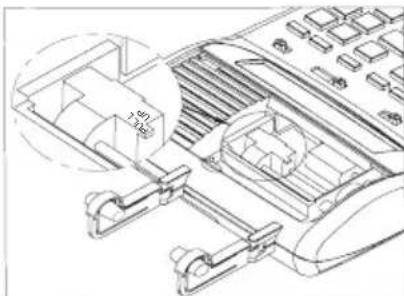
![OLIVETTI Summa 302 - [#/D] Taste Keine Addition/Datum - 2](/content/2026/04/737956/images/e557e19dea2d5add36c1cde864cf6693c31f3d20d2dfb747afb11729668f6414.jpg)
natural_image
Line drawing of a hand inserting a component into a device (no text or symbols visible)natural_image
Technical line drawing of a mechanical component with no visible text or symbolsnatural_image
Line drawing of a telephone handset with a black arrow indicating the handle (no text or symbols present)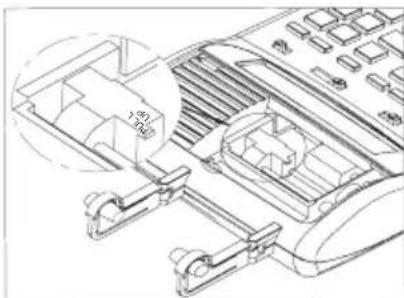
![OLIVETTI Summa 302 - [#/D] Taste Keine Addition/Datum - 4](/content/2026/04/737956/images/3a3c88ae54ada4cef64d805ad1fa4d0116ca0c1e7ff44d1452397cfbdbd55a3a.jpg)
natural_image
Line drawing of a hand inserting a component into a device (no text or symbols visible)Introdução do papel
natural_image
Technical line drawing of a mechanical device with rollers and a handle, showing directional arrows (no text or symbols)natural_image
Line drawing of a telephone handset with a scroll wheel, showing no text or symbols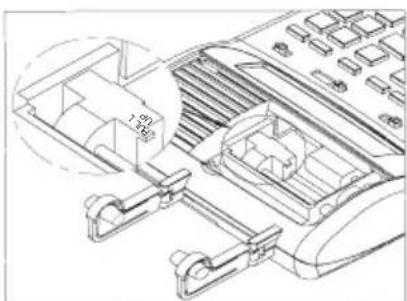
natural_image
Technical line drawing of a vehicle air vent system with no visible text or symbols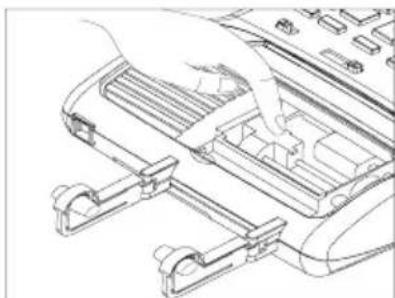
natural_image
Line drawing of a hand inserting a component into a device panel (no text or symbols)Papier invoeren
natural_image
Technical line drawing of a mechanical device with no visible text or symbols[%] Toets percentage
There are 13 Euro currency rates available in memory, the default values are preset to 1.
- To select a position in which to set the rate you desire:
- Press and hold the [RATE] key until the "RATE" symbol blinks on the display.
- Press the [EURO] key, the display will show "r-01 1."
- Enter the required rate and press the [EURO] key.
The current rate is now set.
- Press the [+] key, to move on to the next rate.
- Press the [-] key, to move back to previous rate.
- If you want to return the Euro Currency and TAX rates to their default rate, switch OFF the machine, then holding down [C/CE] and [+] switch it ON again. "r-CC" will appear on the display and the default rate is set.
| Print P | Rounding 5/4 | Decimal 2 | IC | ||||
| Calculation | Enter | Display | Paper | ||||
| Set Currency rate1.08 in r-02 | [RATE] | (Blinking) RATE | 0. | ||||
| (Press & hold 3 sec.) | |||||||
| [EURO] | (Blinking) RATE€ | r-01 | 1. | ||||
| [+] | (Blinking) RATE | r-02 | 1. | ||||
| 1.08 | [EURO] | RATE€ | 1.08 | 1.08 | |||
| 2500+4000+1500= Total Euro currency? | 2500 | [+] | 2'500.00 | 2,500.00 + | |||
| 4000 | [+] | 6'500.00 | 4,000.00 + | ||||
| 1500 | [+] | 8'000.00 | 1,500.00 + | ||||
| [*] | 8'000.00 | 8,000.00 * | |||||
| [EURO] | € | 7'407.41 | 8,000.00 ÷ 1.08 = 7,407.41 * | ||||
| 2500+4000+1500= Total Local currency? | 2500 | [+] | 2'500.00 | 2,500.00 + | |||
| 4000 | [+] | 6'500.00 | 4,000.00 + | ||||
| 1500 | [+] | 8'000.00 | 1,500.00 + | ||||
TAUX DE CHANGE
| PrintP | Rounding5/4 | Decimal2 | IC• | ||||
| Calculation | Enter | Display | Paper | ||||
| Set Currency rate1.08 in r-02 | [RATE] | (Blinking)RATE | 0. | ||||
| (Press & hold 3 sec.) | |||||||
| [EURO] | (Blinking)RATE€ | r-01 | 1. | ||||
| [+] | (Blinking)RATE | r-02 | 1. | ||||
| 1.08 | [EURO] | RATE€ | 1.08 | 1.08 | |||
| 2500+4000+1500= Total Euro currency? | 2500 | [+] | 2'500.00 | 2,500.00 + | |||
| 4000 | [+] | 6'500.00 | 4,000.00 + | ||||
| 1500 | [+] | 8'000.00 | 1,500.00 + | ||||
| [*] | 8'000.00 | 8,000.00 * | |||||
| [EURO] | € | 7'407.41 | 8,000.00 ÷1.08 =7,407.41 * | ||||
| 2500+4000+1500= Total Local currency? | 2500 | [+] | 2'500.00 | 2,500.00 + | |||
| 4000 | [+] | 6'500.00 | 4,000.00 + | ||||
| 1500 | [+] | 8'000.00 | 1,500.00 + | ||||
WÄHRUNGSUMRECHUNG
| PrintP | Rounding5/4 | Decimal2 | IC• | ||||
| Calculation | Enter | Display | Paper | ||||
| Set Currency rate1.08 in r-02 | [RATE] | (Blinking)RATE | 0. | ||||
| (Press & hold 3 sec.) | |||||||
| [EURO] | (Blinking)RATE€ | r-01 | 1. | ||||
| [+] | (Blinking)RATE | r-02 | 1. | ||||
| 1.08 | [EURO] | RATE€ | 1.08 | 1.08 | |||
| 2500+4000+1500= Total Euro currency? | 2500 | [+] | 2'500.00 | 2,500.00 + | |||
| 4000 | [+] | 6'500.00 | 4,000.00 + | ||||
| 1500 | [+] | 8'000.00 | 1,500.00 + | ||||
| [*] | 8'000.00 | 8,000.00 * | |||||
| [EURO] | € | 7'407.41 | 8,000.00 ÷1.08 =7,407.41 * | ||||
| 2500+4000+1500= Total Local currency? | 2500 | [+] | 2'500.00 | 2,500.00 + | |||
| 4000 | [+] | 6'500.00 | 4,000.00 + | ||||
| 1500 | [+] | 8'000.00 | 1,500.00 + | ||||
CALCOLO DEL MARGINE DI PROFITTO LORDO - GROSS PROFIT MARGIN CALCULATION - CALCUL DE LA MARGE DE PROFIT BRUT - BERECHNUNG DER BRUTTO-GEWINNSPANNE - CÁLCULO DEL MARGEN LORDO DE GANANCIAS - CÁLCULO DA MARGEM DE LUCRO BRUTO - BEREKENING VAN DE BRUTO WINSTMARGE
| Print P | Rounding 5/4 | Decimal 2 | IC • | ||||
| Calculation | Enter | Display | Paper | ||||
| Cost = 100 | 100 | [COST] | COST | 100.00 | 100.00 C | ||
| Margin = 5% | 5 | [MARGIN] | SELL | 105.26 | 5.00 M | ||
| Sell = ? | 5.26 Δ | ||||||
| 105.26 ◊ | |||||||
| Sell = 150.00 | 150 | [SELL] | SELL | 150.00 | 150.00 ◊ | ||
| Margin = 10% | 10 | [MARGIN] | COST | 135.00 | 10.00 M | ||
| Cost = ? | 15.00 Δ | ||||||
| 135.00 C | |||||||
| Cost = 100 | 100 | [COST] | COST | 100.00 | 100.00 C | ||
| Sell = 125 | 125 | [SELL] | MARGIN | 20.00 | 125.00 ◊ | ||
| Margin = ? | 25.00 Δ | ||||||
| 20.00 M | |||||||
I
DIRETTIVA 2002/96/CE SUL TRATTAMENTO, RACCOLTA, RICICLAGGIO E SMALTIMENTO DI APPARECCHIATURE ELETTRICHE ED ELETTRONICHE E LORO COMPONENTI
1. PER I PAESI DELL'UNIONE EUROPEA (UE)
DIRECTIVE 2002/96/CE ON THE TREATMENT, COLLECTION, RECYCLING AND DISPOSAL OF ELECTRIC AND ELECTRONIC DEVICES AND THEIR COMPONENTS
1. FOR COUNTRIES IN THE EUROPEAN UNION (EU)
The disposal of electric and electronic devices as solid urban waste is strictly prohibited: it must be collected separately. The dumping of these devices at unequipped and unauthorized places may have hazardous effects on health and the environment.
Offenders will be subjected to the penalties and measures laid down by the law.
TO DISPOSE OF OUR DEVICES CORRECTLY:
a) Contact the Local Authorities, who will give you the practical information you need and the instructions for handling the waste correctly, for example: location and times of the waste collection centres, etc.
b) When you purchase a new device of ours, give a used device similar to the one purchased to our dealer for disposal.

The crossed dustbin symbol on the device means that:
- When it to be disposed of, the device is to be taken to the equipped waste collection centres and is to be handled separately from urban waste;
- Olivetti guarantees the activation of the treatment, collection, recycling and disposal procedures in accordance with Directive 2002/96/CE (and subsequent amendments).
2. FOR OTHER COUNTRIES (NOT IN THE EU)
The treatment, collection, recycling and disposal of electric and electronic devices will be carried out in accordance with the laws in force in the country in question.
F
DIRECTIVE 2002/96/CE SUR LE TRAITEMENT, LA COLLECTE, LE RECYCLAGE ET LA MISE AU REBUT DES EQUIPEMENTS ELECTRIQUES ET ELECTRONIQUES ET DE LEURS COMPOSANTS
1. POUR LES PAYS DE L'UNION EUROPEENNE (UE)
- SUMMA 302 Professional Printing Calculator
- PUBLICATION ISSUED BY:
- AVVERTENZE - PRECAUTIONS - AVERTISSEMENTS - HINWEISE - ADVERTENCIAS - ADVERTÊNCIAS - WAARSCHUWINGEN
- Remarque
- Inserimento carta
- Warning and Power off switch
- Replacing Ink Roller
- Loading paper
- Keyboard Description
- OFF NP P Power off/Printer selection switch
- ↓ 5/4 ↑ Rounding selector
- A 0 2 3 4 F Decimal Point selector
- - IC Item Count switch
- [↑] Paper feed key
- [→] Right shift key
- [COST] Cost key
- [SELL] Sell key
- [MARGIN] Margin key
- [RATE] Rate key
- [EURO] Euro currency
- [LOCAL] Local currency
- [#/D] Non-add / Date key
- [%] Percentage key
- [+/-] Sign change key
- [C/CE] Clear / Clear entry key
- [0]-[9], [00], [•] Numeric keys
- [÷] Division key
- [-] Minus key
- [+] Plus key
- [X] Multiplication key
- [=] Equals key
- Subtotal key
- [\*] Total key
- [M\*] Memory total key
- [M◇] Memory subtotal key
- [M=1] Memory minus key
- [M+] Memory plus key
- [X] Touche Multiplication
- [M\*] Touche Total mémoire
- [M=] Touche Soustraction mémoire
- [M+] Touche Addition mémoire
- Papier einlegen
- [#/D] Taste Keine Addition/Datum
- Introdução do papel
- Papier invoeren
- [%] Toets percentage
- TAUX DE CHANGE
- WÄHRUNGSUMRECHUNG
- I
- DIRETTIVA 2002/96/CE SUL TRATTAMENTO, RACCOLTA, RICICLAGGIO E SMALTIMENTO DI APPARECCHIATURE ELETTRICHE ED ELETTRONICHE E LORO COMPONENTI
- PER I PAESI DELL'UNIONE EUROPEA (UE)
- DIRECTIVE 2002/96/CE ON THE TREATMENT, COLLECTION, RECYCLING AND DISPOSAL OF ELECTRIC AND ELECTRONIC DEVICES AND THEIR COMPONENTS
- FOR COUNTRIES IN THE EUROPEAN UNION (EU)
- TO DISPOSE OF OUR DEVICES CORRECTLY:
- FOR OTHER COUNTRIES (NOT IN THE EU)
- F
- DIRECTIVE 2002/96/CE SUR LE TRAITEMENT, LA COLLECTE, LE RECYCLAGE ET LA MISE AU REBUT DES EQUIPEMENTS ELECTRIQUES ET ELECTRONIQUES ET DE LEURS COMPOSANTS
- POUR LES PAYS DE L'UNION EUROPEENNE (UE)
Brand : OLIVETTI
Model : Summa 302
Category : Printing calculator