
Celeris 1800 CZ - Keyboard ENDORFY - Free user manual and instructions
Find the device manual for free Celeris 1800 CZ ENDORFY in PDF.


User questions about Celeris 1800 CZ ENDORFY
0 question about this device. Answer the ones you know or ask your own.
Ask a new question about this device
Download the instructions for your Keyboard in PDF format for free! Find your manual Celeris 1800 CZ - ENDORFY and take your electronic device back in hand. On this page are published all the documents necessary for the use of your device. Celeris 1800 CZ by ENDORFY.
USER MANUAL Celeris 1800 CZ ENDORFY
natural_image
3D rendered image of a computer keyboard with visible key and mode labels (no readable text or symbols beyond standard font)EY5AC-Celeris-1800

More at
www.endorfy.com
Designed by ENDORFY
COOLING SP. Z O.O.
UL.SOKOŁOWSKA 24
05-806 SOKOŁÓW, POLSKA
TEL.+48222920130


MADE IN CHINA
We are all technology heroes
text_image
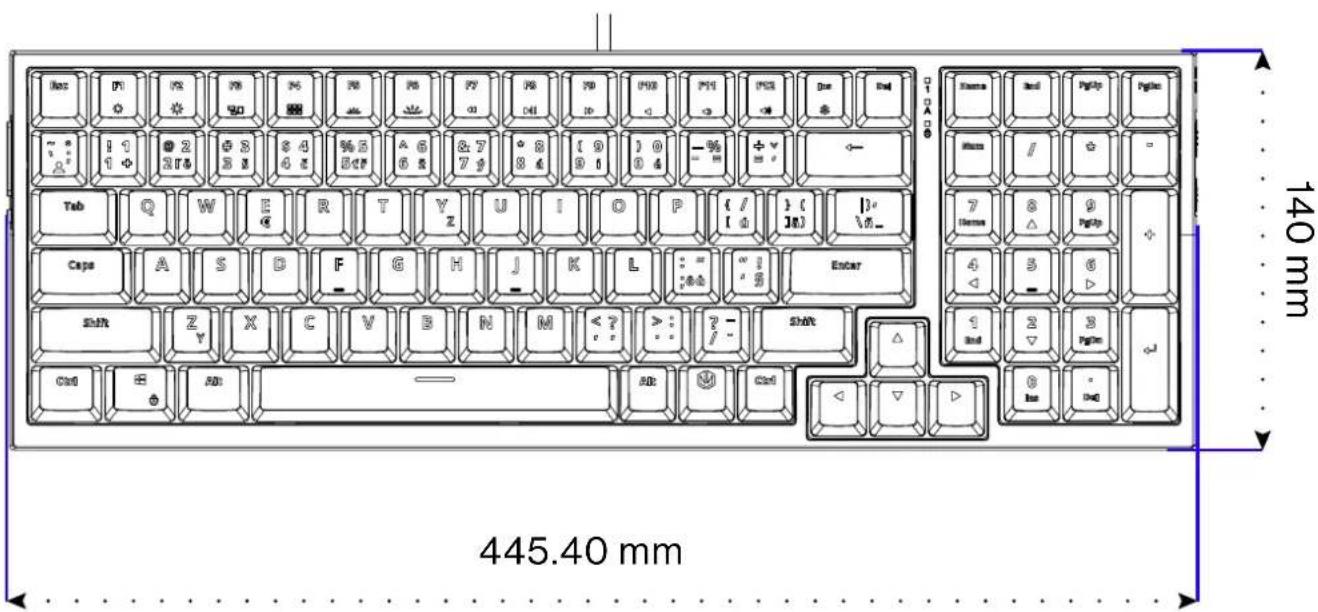
445.40 mm 140 mm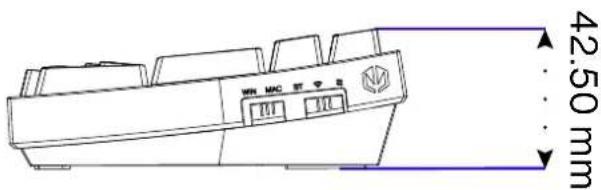
text_image
42.50 mm MIN MNC ST 12USB

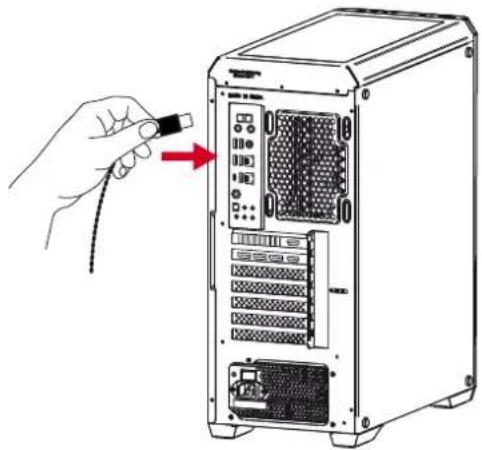
natural_image
Illustration of a computer tower with an attached cable and a hand pointing to the tower (no text or symbols visible)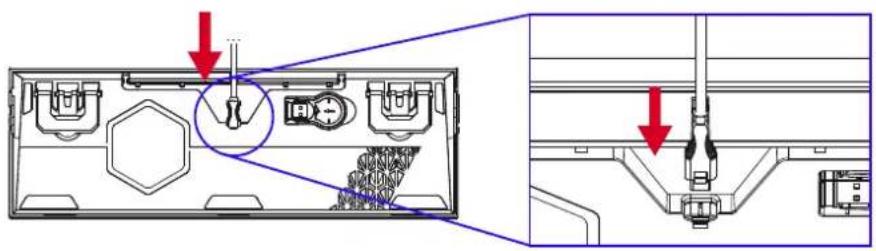
text_image
Technical diagram showing mechanical assembly with labeled components and directional arrows indicating assembly steps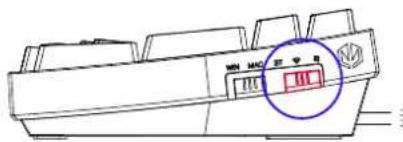
text_image
MIN MAC BY 100 OK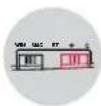
USB
WIRELESS
text_image
ESS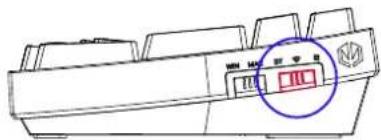
text_image
Diagram of a printer front panel with indicator lights and a red square highlighting the 'III' button.
WIRELESS MODE: 2.4 GHz ON
text_image
Technical diagram of a printer front panel with indicator lights and a red warning symbol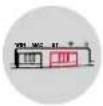
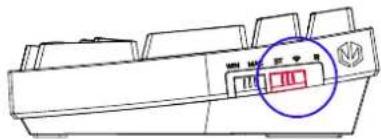
WIRELESS MODE: BT ON


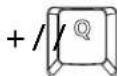


BT3BT1BT2
OFF
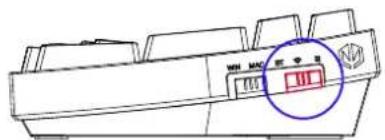
text_image
WIN MAC 100 200 300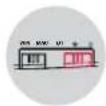
OFF
os
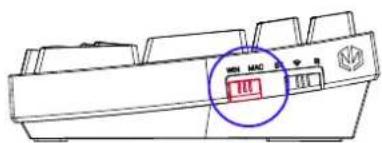
text_image
MIN MAC MIN MAC
Windows
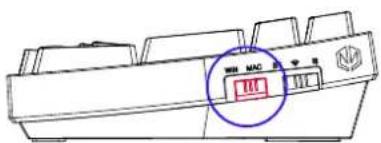
text_image
WIN MAC 100
macOS
SOFTWARE
natural_image
Computer monitor icon with a blue download arrow symbol, next to a black desktop tower (no text or labels)
SCAN
THE QR CODE

text_image
QR code image containing encoded data, no visible human-readable textWWW.ENDORFY.COM/EN/SOFTWARE
NUM LOCK INDICATOR
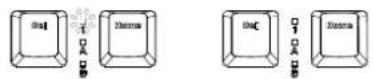
NUM lock on NUM lock off
white off
CAPS LOCK INDICATOR
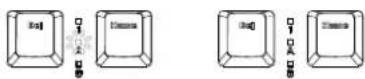
CAPS lock on CAPS lock off white off
→ WINDOWS LOCK INDICATOR
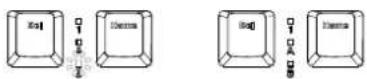
WIN lock on WIN lock off
white off
BATTERY CHARGE INDICATOR (BLUETOOTH / 2.4 GHz / WIRED MODE)

Check battery

Low battery - blinking red

10-19% - red

20-29% - yellow

30-39% - yellow

40-49% - yellow

50-59% - green

60-69% - green

70-79% - green

80-89% - green

90-99% - white

100% - white
CHARGING INDICATOR (BLUETOOTH / 2.4 GHz / WIRED MODE)
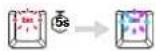
[ESC] will backlit red for 5 seconds to indicate charging. Then turns back to keyboard backlight.
WIRELESS MODE (Bluetooth & 2.4 GHz)
Selecting Bluetooth device 1/2/3: After successful connection, the [Q]/[W]/[E] key (depends on selected device: BT1/BT2/BT3) will be backlit white for 2 seconds and then turn the same color as the keyboard backlight.
After failed connection to selected device, the [Q]/[W]/[E] key (depends on selected device: BT1/BT2/BT3) will blink white 10 times and keyboard backlight will be switched off. Press any key to recover connecting.

flowchart
graph LR
    A["BT device 1"] --> B["+"]
    B --> C["→"]
    C --> D["Process Block 1"]
    E["BT device 2"] --> F["+"]
    F --> G["→"]
    G --> H["Process Block 2"]
    I["BT device 3"] --> J["+"]
    J --> K["→"]
Pairing Bluetooth device 1/2/3: The [Q]/[W]/[E] key (depends on selected device: BT1/BT2/BT3) starts blinking white quickly. After successful pairing, the [Q]/[W]/[E] key (depends on selected device: BT1/BT2/BT3) will turn white for 2 seconds and then turn the same color as the keyboard backlight from before pairing.
After failed pairing for 30 seconds, the pairing mode and keyboard backlight will be switched off. Press any key to recover connection.

flowchart
graph LR
    A["BT device 1"] --> B["+3s"]
    B --> C["→"]
    C --> D["BT device 2"]
    D --> E["+3s"]
    E --> F["→"]
    F --> G["BT device 3"]
    G --> H["+3s"]
    H --> I["→"]
When out of box or restored to default settings (and only then), keyboard is already in pairing mode when switched to Bluetooth mode. Single click [FN] + [Q]/[W]/[E] key (depends on selected device: BT1/BT2/BT3) will put keyboard into pairing state. In other scenario, use the shortcut as on the scheme above.
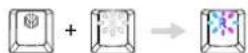
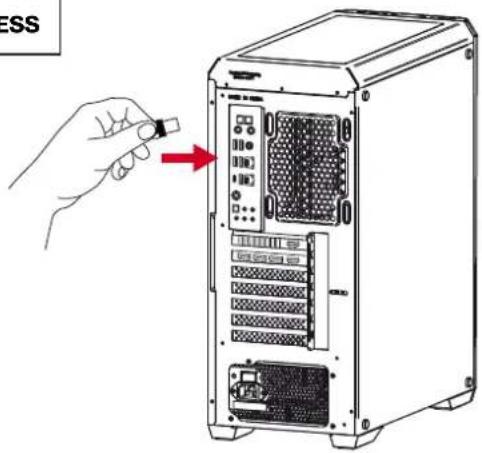
Connecting 2.4 GHz (USB receiver): Plug USB dongle to device – 2.4 GHz mode should connect automatically. [R] key will backlit white for 2 seconds to indicate successful connection and turns back to keyboard backlight.
If fail to connect automatically, press [FN] + [R] , then the [R] key will backlit white for 2 seconds to indicate successful connection and turns back to keyboard backlight.
After failed connection to device, the [R] key will blink white 10 times and keyboard backlight will be switched off. Press any key to recover connecting.
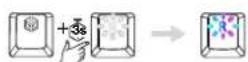
Pairing 2.4 GHz: The [R] key starts blinking white quickly. Plug USB receiver to device. After successful pairing, the [R] key will turn white for 2 seconds to indicate successful connection and turns back to keyboard backlight.
After failed pairing for 30 seconds, the pairing mode and keyboard backlight will be switched off. Press any key to recover connecting.
In wireless mode (Bluetooth and 2.4 GHz), if the keyboard is not used for 5 minutes, the device will enter 1st level of sleep mode. Keyboard backlight will be switched OFF. Press any key to switch backlight of keyboard ON.
In wireless mode (Bluetooth and 2.4 GHz), if the keyboard is not used for 15 minutes, the device will enter 2nd level of sleep mode. Keyboard backlight will be switched OFF and Bluetooth connection will be disabled. Press any key to switch backlight of keyboard ON and restore Bluetooth connection.
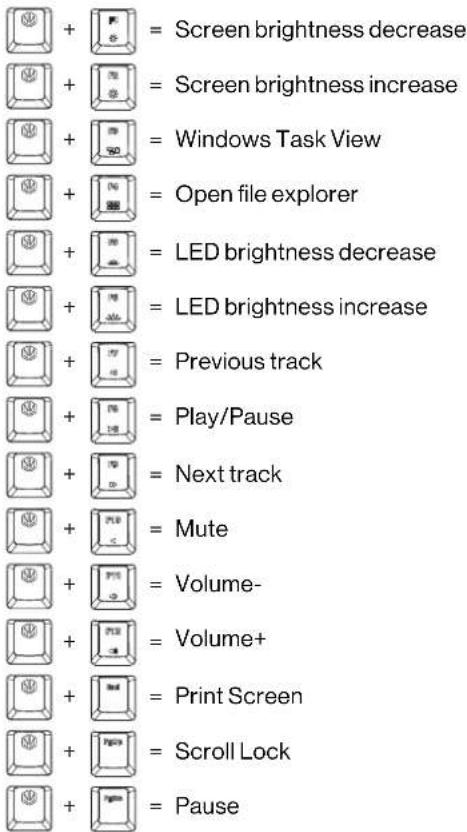
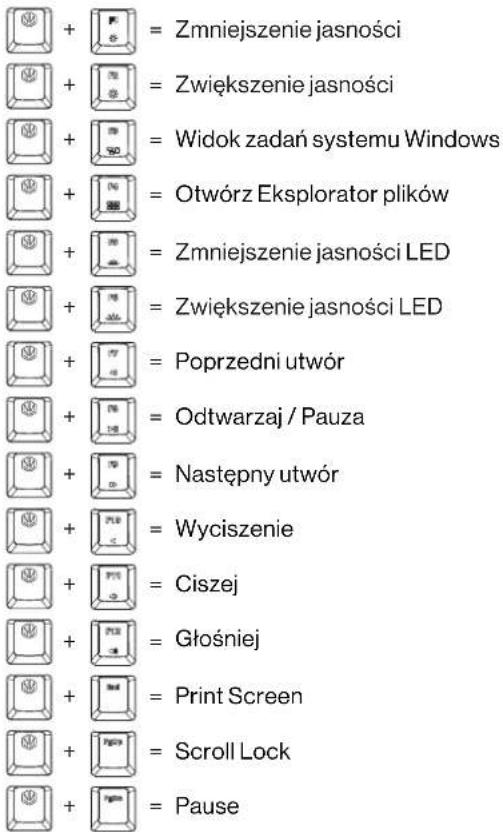
WINDOWS: SOFTWARE/MULTIMEDIA KEYS
text_image
+ = Screen brightness decrease + = Screen brightness increase + = Windows Task View + = Open file explorer + = LED brightness decrease + = LED brightness increase + = Previous track + = Play/Pause + = Next track + = Mute + = Volume- + = Volume+ + = Print Screen + = Scroll Lock + = PauseHOTKEYS

text_image
+ = Lighting brightness up + = Lighting brightness down + = Increase backlight effect speed + = Reduce backlight effect speed + = Effect direction change + = Backlight colour changeLED BACKLIGHT EFFECTS

CREATING A CUSTOM BACKLIT MODE
- Press [FN] (key with the ENDORFY logo) + [‘-’] to enter the User Mode.
- In User Mode, press [FN] + [~] again to enter edit mode (the LED indicators will start to blink). Switch between colors using [FN] + [=+] . [~] will blink indicating selected color. You can also choose no color ( [~] LED will be OFF). Select keys to assign chosen color.
- Press [FN] + [‘-] to save the User Mode, LED indicators will stop blinking.
FACTORY RESET

text_image
Press [FN] (key with the ENDORFY logo) + [ESC] for 3 seconds to restore factory settings. IMPORTANT: Factory reset causes all Bluetooth records to be cleared!VOLUME CONTROL - SIDETUNE
natural_image
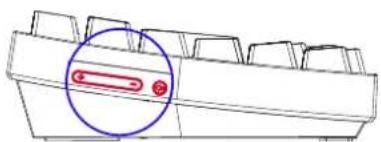
Diagram of a device handle with a highlighted red button and a blue circle (no text or symbols)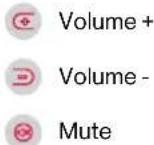
Built-in possibility to change functions of all 3 buttons through software.
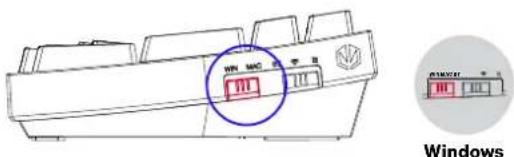
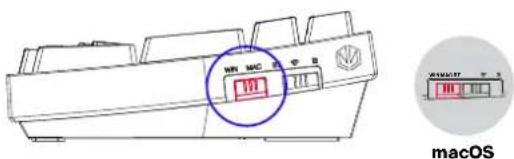
WINDOWS / macOS
text_image
WIN MHC Windows[A] key will blink white 3 times to indicate change and then turn back to keyboard backlight.
text_image
NTR MAC MACS macOS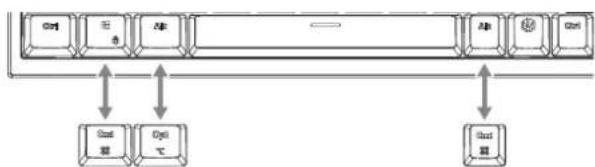
flowchart
graph TD
    A["CPU"] <--> B["Memory"]
    B <--> C["I/O"]
    D["Memory"] <--> E["I/O"]
    F["Memory"] <--> G["I/O"]
[S] key will blink white 3 times to indicate change and then turn back to keyboard backlight.
macOS: KEYBOARD SHORTCUTS


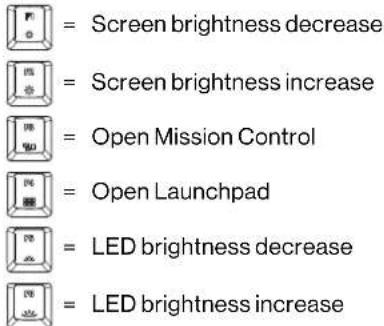
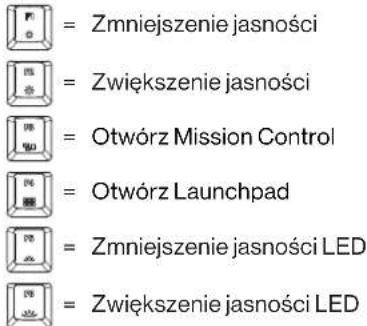
macOS: MULTIMEDIA KEYS
text_image
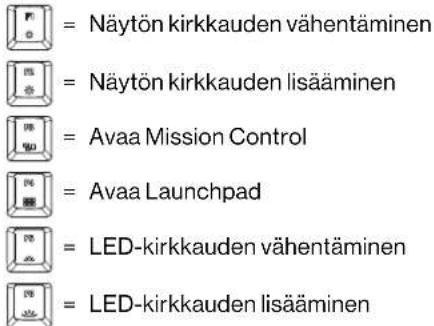
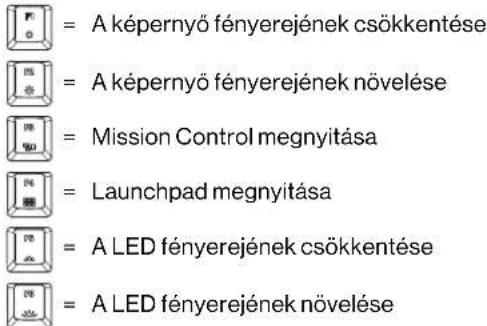
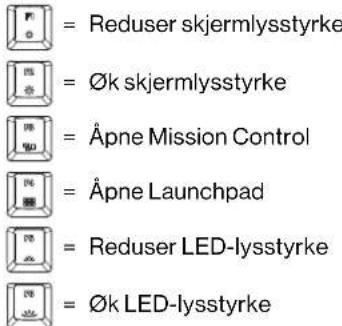
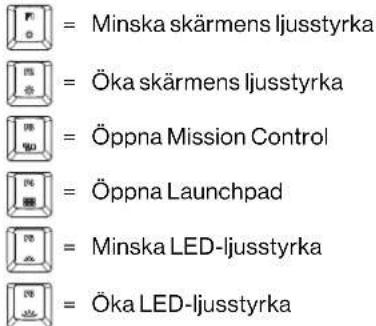
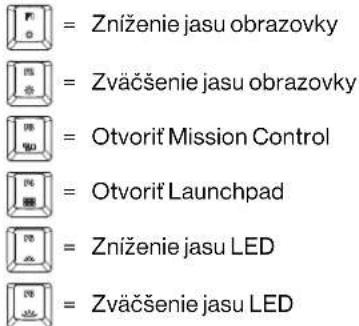
Screen brightness decrease Screen brightness increase Open Mission Control Open Launchpad LED brightness decrease LED brightness increase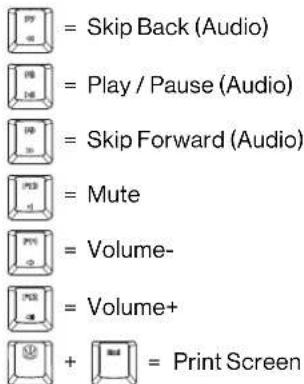
text_image
Skip Back (Audio) Play / Pause (Audio) Skip Forward (Audio) Mute Volume- Volume+ Print ScreenmacOS: RIGHT OPTION FUNCTION
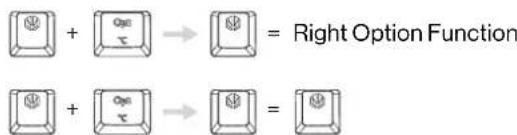
Turn On / Turn Off Right Option:
text_image
Right Option Function ==
IMPORTANT: Right Option Function is disabled when keyboard is out of box.
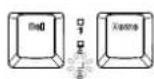
RIGHT OPTION FUNCTION INDICATOR
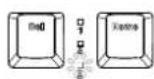
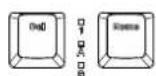
Right Option Function on Right Option Function off white off
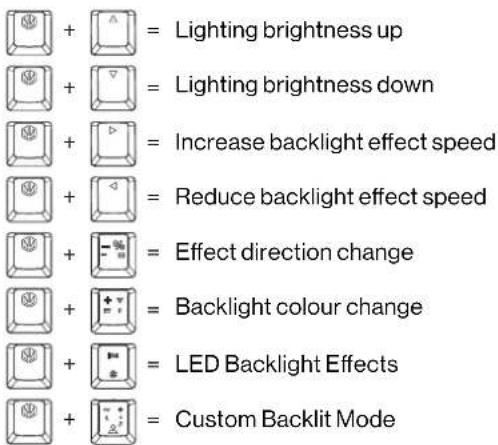
WHEN RIGHT OPTION FUNCTION IS ENABLED, FUNCTIONALITY OF BELOW WILL BE DISABLED:
text_image
+ = Lighting brightness up + = Lighting brightness down + = Increase backlight effect speed + = Reduce backlight effect speed + = Effect direction change + = Backlight colour change + = LED Backlight Effects + = Custom Backlit Mode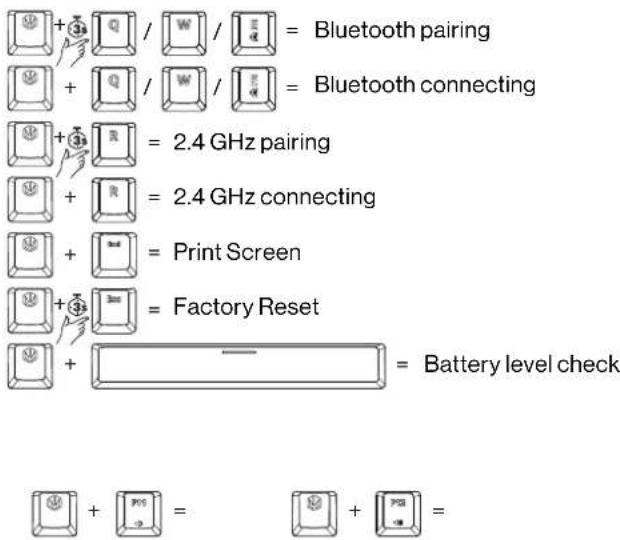
text_image
+ Q / W / E = Bluetooth pairing + Q / W / E = Bluetooth connecting + R = 2.4 GHz pairing + R = 2.4 GHz connecting + Screen = Print Screen + S = Factory Reset + — = Battery level check + P01 = P02 + P03 =
All other functions remain unchanged as described above.
natural_image
Diagram of a mechanical component with a highlighted red button and blue circle (no text or symbols)
LED INDIKÁTOR: PRAVOU KLÁVESU OPTION
natural_image
Diagram of a mechanical component with a highlighted red button and a blue circle (no text or symbols)Lauter
Leiser
Stumm schalten
text_image
NIN MAC macOS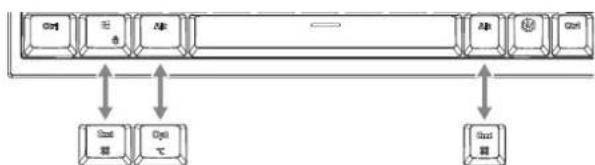
flowchart
graph TD
    Start["Start"] <--> Open["Open"]
    Open --> Exit["Exit"]
    style Start fill:#f9f,stroke:#333
    style Open fill:#ccf,stroke:#333
    style Exit fill:#cfc,stroke:#333
flowchart
graph LR
    A["BT-enhanced 1"] --> B["+3s"]
    B --> C["→"]
    C --> D["BT-enhanced 2"]
    D --> E["+3s"]
    E --> F["→"]
    F --> G["BT-enhanced 3"]
    G --> H["+3s"]
    H --> I["→"]
natural_image
Diagram of a mechanical component with a highlighted red button and blue circle (no text or symbols)Højere
D Lydløs
Stille
natural_image
Diagram of a mechanical component with a highlighted red button and blue circle (no text or symbols)
text_image
NIN MAC macOS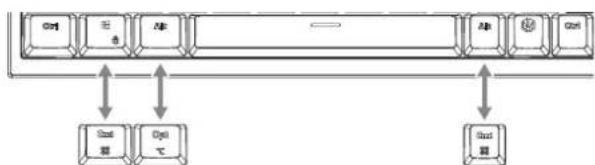
flowchart
graph TD
    Start["Start"] <--> Open["Open"]
    Open --> Exit["Exit"]
    style Start fill:#f9f,stroke:#333
    style Open fill:#ccf,stroke:#333
    style Exit fill:#cfc,stroke:#333
natural_image
Diagram of a mechanical component with a highlighted red button and a blue circle (no text or symbols)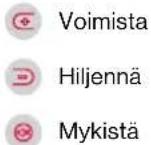
text_image
NIN MAC macOS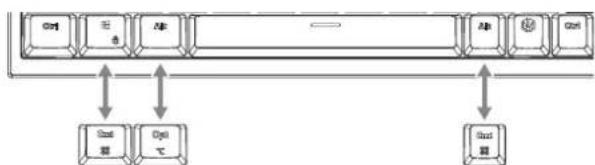
flowchart
graph TD
    Start["Start"] <--> Open["Open"]
    Open --> Exit["Exit"]
    style Start fill:#f9f,stroke:#333
    style Open fill:#ccf,stroke:#333
    style Exit fill:#cfc,stroke:#333
macOS: MULTIMEDIA KEYS
chemical
Chemical reaction diagram showing Oikean Valintanäppäimen formation from a sugar derivative and oxygen reduction stepCREATING A CUSTOM BACKLIT MODE
natural_image
Diagram of a mechanical component with a highlighted red button and blue circle (no text or symbols)
text_image
NTR MAC MACS macOS
flowchart
graph TD
    A["Computer"] --> B["Memory"]
    B --> C["Memory"]
    C --> D["Memory"]
    D --> E["Memory"]
    E --> F["Memory"]
    F --> G["Memory"]
    G --> H["Memory"]
    H --> I["Memory"]
    I --> J["Memory"]
    J --> K["Memory"]
    K --> L["Memory"]
    L --> M["Memory"]
    M --> N["Memory"]
    N --> O["Memory"]
    O --> P["Memory"]
    P --> Q["Memory"]
    Q --> R["Memory"]
    R --> S["Memory"]
    S --> T["Memory"]
    T --> U["Memory"]
    U --> V["Memory"]
    V --> W["Memory"]
    W --> X["Memory"]
    X --> Y["Memory"]
macOS: MULTIMEDIA KEYS
= Lecture / Pause (Audio)
natural_image
Diagram of a mechanical component with a highlighted red button and blue circle (no text or symbols)
macOS: MULTIMEDIA KEYS
natural_image
Diagram of a mechanical component with a highlighted red button and a blue circle (no text or symbols)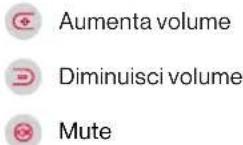
text_image
NIN MAC MACS macOS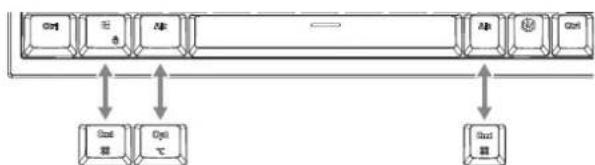
flowchart
graph TD
    A["Ctrl"] --> B["插入"]
    B --> C["Edit"]
    C --> D["Ctrl"]
    D --> E["输出"]
    F["Ctrl"] --> G["插入"]
    G --> H["Edit"]
    H --> I["Ctrl"]
    I --> J["输出"]
    K["Ctrl"] --> L["插入"]
    L --> M["Edit"]
    M --> N["Ctrl"]
macOS: MULTIMEDIA KEYS
= Apri Mission Control
= Apri Launchpad
= Riproduci / Pausa (Audio)
natural_image
Diagram of a device with a highlighted red button and blue circle (no text or symbols)∅k volumet
Senk volumet
Demp volumet
text_image
WIN WIN WIN
Windows
macOS: MULTIMEDIA KEYS
text_image
Diagram showing three-step electrical contact setup with labeled components and directional arrowsKLAWISZE MULTIMEDIALNE/PROGRAMOWE
natural_image
Diagram of a mechanical component with a highlighted red button and blue circle (no text or symbols)Głośniej
Ciszej
Wyciszenie
text_image
WN MAC IP B MACS macOS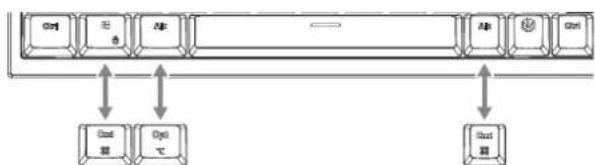
flowchart
graph TD
    A["Ctrl"] --> B["Function"]
    B --> C["Memory"]
    C --> D["Standard Key"]
    C --> E["Function"]
    E --> F["Memory"]
    style A fill:#f9f,stroke:#333
    style B fill:#ccf,stroke:#333
    style C fill:#cfc,stroke:#333
    style D fill:#fcc,stroke:#333
    style E fill:#cff,stroke:#333
    style F fill:#ffc,stroke:#333
macOS: SKRÓTY KLAWIATUROWE


macOS: MULTIMEDIA KEYS
macOS: FUNKCJA PRAWEGO KLAWISZA OPTION
WSKAŻNIK LED: PRAWY KLAWISZ OPTION
text_image
Cropped image of a sequence of 12 numbered icons, possibly representing a pattern or puzzle.10-19% - roşu

20-29% - galben

30-39% - galben

40-49% - galben

50-59% - verde

60-69% - verde

70-79% - verde

80-89% - verde

90-99% - alb

100%-alb
INDICATOR DE ÎNCARCARE (MOD BLUETOOTH / 2.4 GHz / MOD CU CABLU)
natural_image
Diagram of a device with a highlighted red button and blue circle (no text or symbols)
text_image
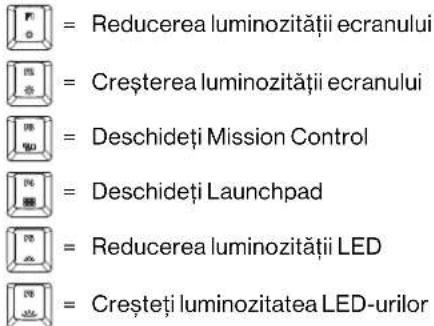
Volum ridicat Volum redus Dezactivarea sunetuluitext_image
NIN MAC macOS
flowchart
graph TD
    Start["Start"] <--> Copy["Copy"]
    Copy --> End["End"]
    Copy --> Start
    Start --> Copy
    Copy --> End
    Copy --> Start
    Start --> Copy
    Copy --> End
macOS: MULTIMEDIA KEYS
natural_image
Diagram of a device with a highlighted red button and blue circle, no text or symbols presenttext_image
NIN MAC macOS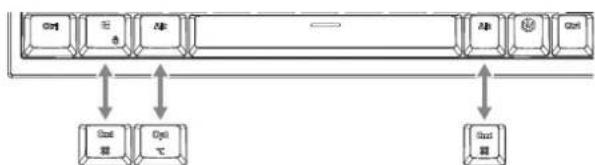
flowchart
graph TD
    A["Ctrl"] --> B["插入"]
    B --> C["Edit"]
    C --> D["Ctrl"]
    D --> E["输出"]
    F["Ctrl"] --> G["插入"]
    G --> H["Edit"]
    H --> I["Ctrl"]
    I --> J["输出"]
    K["Ctrl"] --> L["插入"]
    L --> M["Edit"]
    M --> N["Ctrl"]
natural_image
Diagram of a mechanical component with a highlighted red button and a blue circle (no text or symbols)text_image
WIN MAC MACS macOS
flowchart
graph TD
    A["Ctrl"] --> B["Shift"]
    B --> C["Edit"]
    C --> D["Write"]
    D --> E["Ctrl"]
    E --> F["Edit"]
    F --> G["Write"]
    G --> H["Ctrl"]
    H --> I["Edit"]
    I --> J["Write"]
    J --> K["Ctrl"]
    K --> L["Edit"]
    L --> M["Write"]
    M --> N["Ctrl"]
    N --> O["Edit"]
    O --> P["Write"]
    P --> Q["Ctrl"]
    Q --> R["Edit"]
    R --> S["Write"]
    S --> T["Ctrl"]
    T --> U["Edit"]
    U --> V["Write"]
macOS: MULTIMEDIA KEYS
text_image
+ = Lighting brightness up + = Lighting brightness down + = Increase backlight effect speed + = Reduce backlight effect speed + = Effect direction change + = Backlight colour change + = LED-bakgrundsbelysningseffekter + = Anpassat bakgrundsbelyst läge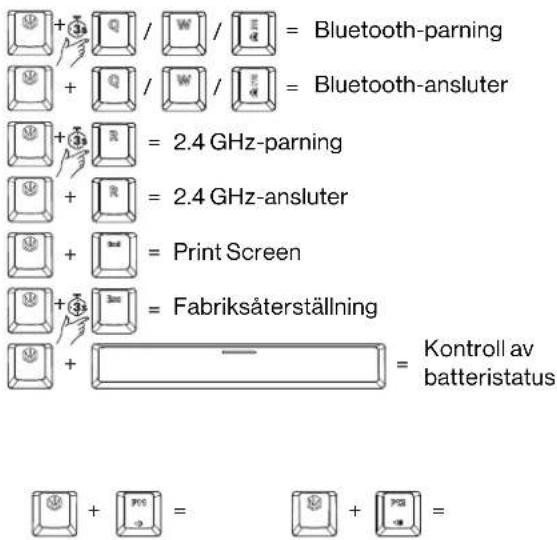
text_image
+ Q / W / E = Bluetooth-parning + Q / W / E = Bluetooth-ansluter + R = 2.4 GHz-parning + R = 2.4 GHz-ansluter + = Print Screen + = Fabriksäterställning + = Kontroll av batteristatus + = + PPI = + PPI =

natural_image
Diagram of a mechanical component with a highlighted red button and a blue circle (no text or symbols)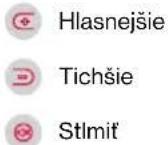
text_image
NTR MAC MACS macOS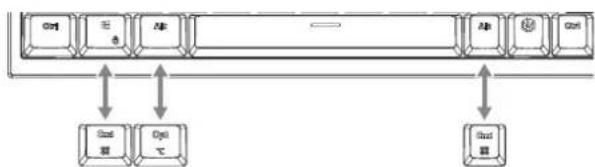
flowchart
graph TD
    A["Ctrl"] --> B["Open"]
    B --> C["Open+"]
    C --> D["Open"]
    D --> E["Open+"]
    E --> F["Open"]
    F --> G["Open"]
    G --> H["Open"]
    H --> I["Open"]
    I --> J["Open"]
    J --> K["Open"]
    K --> L["Open"]
    L --> M["Open"]
    M --> N["Open"]
    N --> O["Open"]
    O --> P["Open"]
    P --> Q["Open"]
    Q --> R["Open"]
    R --> S["Open"]
    S --> T["Open"]
    T --> U["Open"]
    U --> V["Open"]
    V --> W["Open"]
    W --> X["Open"]
    X --> Y["Open"]
macOS: MULTIMEDIA KEYS
natural_image
Diagram of a mechanical component with a highlighted red button and a blue circle (no text or symbols)
text_image
WIN MAC MACS macOS
flowchart
graph TD
    A["Ctrl"] --> B["数据"]
    C["程序"] --> D["数据"]
    E["Ab"] --> F["数据"]
    G["Ab"] --> H["数据"]
    I["Ctrl"] --> J["数据"]
    K["Ctrl"] --> L["数据"]
→EN Safety instruction
-
Use the producer only as intended.
-
Make sure that the product being good working order before using it.
-
This device intended for indoor use, under normal humidity conditions. Do not use all outdoors.
-
Condominium hydrocarbons within the class of children
-
Before a connecting the device, with until it heats up to the ambient temperature to present damage due to condensation.
-
Only chemical dry chain for staining, benzofuranic acidwise with methanol
-
The service does not have any parts of a can be repaired by the other. Available to device is the service can be done.
-
The warranty will be valid if you open the enclosure or modify the city co.
-
The product should be practical needed. Incorrect use may damage the product and dangerous to your health
No. Donor use the product near liquidation in places which may be directly exposed to liquids. Fine device comes into contact with liquid, immediately discharges from the power source.
-
Like a new product, we can't be able to get the products
-
To be certain functions, probably decrease the power supply, it can affect the team's support and/or ENDRIT
-
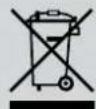
Don't disarcate electrical and electronic equipment together with other household waste.
-
There will not be paid to borrow or secure by barly financial account in the case from period or the date. In addition, such of information, could the local mailer file or the store where you purchased the product.
-
Do not dismatic the battery on your own or expose it to moisture, the high temperatures or liquids
-
In case of an electrolytic leak, deformation or discoloration of the battery, do not use or charge the device.
-
Do not let the battery of the device remain discharged for a longer period. Do not replace the battery in the device on your own.
-
Charged the battery only using the cell surface with the device being connecting to the US port of the computer. Do not use electrical power supply units.
-
This is not a thing in the meaning of being a character in the presence of the following elements:
-
The life of the battery depends on the way it is used.
-
End-of-the-counter should be transferred for disposal according to the applicable local law
-
Zhep's health-related illness of children
COOLING Sp. zo o hereby declares that the equipment, Colors 1800 CZ (EYGADD4) meets all the requirements of Directive 2014/53/EU (RED).
Full declaration of conformity is available online at www.endarty.com in the Product section.
Frequency range: 2402–2480 MHz, Maximummitted power of radio frequency + 5 dBm
The above symbol means that, according to applicable regulations, this product and its battery will be used not to dispose of with other household waste. At the end of the life, the product should be taken to a special collection point desgssed by the relevant local authorities. The exercise collection and recycling of products and batteries helps to save natural resources and ensures that the recycling process is safe for human health and the environment.
The following table provides the information in English:
- Azekanlászichokrásosvábanjárszelen, helysztösség, 22. Agostó kárség, Agy, Ojazakov, kászlé SKiÁm
-
Azekanlászichokrásosvábanjárszelen, helysztösség, 22. Agostó kárség, Agy, Ojazakov, kászlé SKiÁm
-
A new scientific approach to the information of the research and development of the research and development of the research and development of the research and development of the research and development of the research and development of the research and development of the research and development of the research and development of the research and development of the research and development of the research and development of the research and development of the research and development of the research and development of the research and development of the research and development of the research and development of the research and development of the research and development of the research and
-
The following table provides the results of a specific data set:
-
In this study, the patient's hospital visits are not only one of the patients who have been a hospital hospital hospital hospital hospital hospital hospital hospital hospital hospital hospital hospital hospital hospital hospital hospital hospital hospital hospital hospital hospital hospital hospital hospital hospital hospital hospital hospital hospital hospital hospital hospital hospital hospital hospital hospital hospital hospital hospital hospital hospital hospital hospital hospital hospital hospital hospital hospital hospital hospital hospital hospital hospital hospital hospital hospital hospital hospital hospital hospital hospital hospital hospital hospital hospital hospital hospital hospital hospital hospital hospital hospital hospital hospital hospital hospital hospital hospital hospital hospital hospital hospital hospital hospital hospital hospital hospital hospital hospital hospital hospital hospital hospital hospital hospital hospital hospital hospital hospital hospital Hospital Hospital Hospital Hospital Hospital Hospital Hospital Hospital Hospital Hospital Hospital Hospital Hospital Hospital Hospital Hospital Hospital Hospital Hospital Hospital Hospital Hospital Hospital Hospital Hospital Hospital Hospital Hospital Hospital Hospital Hospital Hospital Hospital Hospital Hospital Hospital Hospital Hospital Hospital Hospital Hospital Hospital Hospital Hospital Hospital Hospital Hospital Hospital Hospital Hospital Hospital Hospital Hospital Hospital Hospital Hospital Hospital Hospital Hospital Hospital Hospital Hospital Hospital Hospital Hospital Hospital Hospital Hospital Hospital Hospital Hospital Hospital Hospital Hospital Hospital Hospital Hospital Hospital Hospital Hospital Hospital Hospital Hospital Hospital Hospital Hospital Hospital Hospital Hospital Hospital Hospital Hospital Hospital Hospital Hospital Hospital Hospital Hospital Hospital HospitalHospital HospitalHospitalHospitalHospitalHospitalHospitalHospitalHospitalHospitalHospitalHospitalHospitalHospitalHospitalHospitalHospitalHospitalHospitalHospitalHospitalHospitalHospitalHospitalHospitalHospitalHospitalHospitalHospitalHospitalHospitalHospitalHospitalHospitalHospitalHospitalHospitalHospitalHospitalHospitalHospitalHospitalHospitalHospitalHospitalHospitalHospitalHospitalHospitalHospitalHospitalHospitalHospitalHospitalHospitalHospitalHospitalHospitalHospitalHospitalHospitalHospitalHospitalHospitalHospitalHospitalHospitalHospitalHospitalHospitalHospitalHospitalHospitalHospitalHospitalHospitalHospitalHospitalHospitalHospitalHospitalHospitalHospitalHospitalHospitalHospitalHospitalHospitalHospitalHospitalHospitalHospitalHospitalHospitalHospitalHospitalHospitalHospitalHospitalHospitalHospitalHospitalhospitalHospitalHospitalHospitalHospitalHospitalHospitalHospitalHospitalHospitalHospitalHospitalHospitalHospitalHospitalHospitalHospitalHospitalHospitalHospitalHospitalHospitalHospitalHospitalHospitalHospitalHospitalHospitalHospitalHospitalHospitalHospitalHospitalHospitalHospitalHospitalHospitalHospitalHospitalHospitalHospitalHospitalHospitalHospitalHospitalHospitalHospitalHospitalHospitalHospitalHospitalHospitalHospitalHospitalHospitalHospitalHospitalHospitalHospitalHospitalHospitalHospitalHospitalHospitalHospitalHospitalHospitalHospitalHospitalHospitalHospitalHospitalHospitalHospitalHospitalHospitalHospitalHospitalHospitalHospitalHospitalHospitalHospitalHospitalHospitalHospitalHospitalHospitalHospitalHospitalHospitalHospitalHospitalHospitalHospitalHospitalHospitalHospitalHospitalospitalhospitalhospitalhospitalhospitalhospitalhospitalhospitalhospitalhospitalhospitalhospitalhospitalhospitalhospitalhospitalhospitalhospitalhospitalhospitalhospitalhospitalhospitalhospitalhospitalhospitalhospitalhospitalhospitalhospitalhospitalhospitalhospitalhospitalhospitalhospitalhospitalhospitalhospitalhospitalhospitalhospitalhospitalhospitalhospitalhospitalhospitalhospitalhospitalhospitalhospitalhospitalhospitalhospitalhospitalhospitalhospitalhospitalhospitalhospitalhospitalhospitalhospitalhospitalhospitalhospitalhospitalhospitalhospitalhospitalhospitalhospitalhospitalhospitalhospitalhospitalhospitalhospitalhospitalhospitalhospitalhospitalhospitalhospitalhospitalhospitalhospitalhospitalhospitalhospitalhospitalhospitalhospitalhospitalhospitalhospitalhospitalhospitalhospitalhospitalhospitalospitalcapitalcapitalcapitalcapitalcapitalcapitalcapitalcapitalcapitalcapitalcapitalcapitalcapitalcapitalcapitalcapitalcapitalcapitalcapitalcapitalcapitalcapitalcapitalcapitalcapitalcapitalcapitalcapitalcapitalcapitalcapitalcapitalcapitalcapitalcapitalcapitalcapitalcapitalcapitalcapitalcapitalcapitalcapitalcapitalcapitalcapitalcapitalcapitalcapitalcapitalcapitalcapitalcapitalcapitalcapitalcapitalcapitalcapitalcapitalcapitalcapitalcapitalcapitalcapitalcapitalcapitalcapitalcapitalcapitalcapitalcapitalcapitalcapitalcapitalcapitalcapitalcapitalcapitalcapitalcapitalcapitalcapitalcapitalcapitalcapitalcapitalcapitalcapitalcapitalcapitalcapitalcapitalcapitalcapitalcapitalcapitalcapitalcapitalcapitalcapitaltotal capitaltotal capitaltotal capitaltotal capitaltotal capitaltotal capitaltotal capitaltotal capitaltotal capitaltotal capitaltotal capitaltotal capitaltotal capitaltotal capitaltotal capitaltotal capitaltotal capitaltotal capitaltotal capitaltotal capitaltotal capitaltotal capitaltotal capitaltotal capitaltotal capitaltotal capitaltotal capitaltotal capitaltotal capitaltotal capitaltotal capitaltotal capitaltotal capitaltotal capitaltotal capitaltotal capitaltotal capitaltotal capitaltotal capitaltotal capitaltotal capitaltotal capitaltotal capitaltotal capitaltotal capitaltotal capitaltotal capitaltotal capitaltotal capitaltotal capitaltotal total capitaltotal capitaltotal capitaltotal capitaltotal capitaltotal capitaltotal capitaltotal capitaltotal capitaltotal capitaltotal capitaltotal capitaltotal capitaltotal capitaltotal capitaltotal capitaltotal capitaltotal capitaltotal capitaltotal capitaltotal capitaltotal capitaltotal capitaltotal capitaltotal capitaltotal capitaltotal capitaltotal capitaltotal capitaltotal capitaltotal capitaltotal capitaltotal capitaltotal capitaltotal capitaltotal capitaltotal capitaltotal capitaltotal capitaltotal capitaltotal capitaltotal capitaltotal capitaltotal capitaltotal capitaltotal capitaltotal capitaltotal capitaltotal capitaltotal capitalTotal Capital Total Capital Total Capital Total Capital Total Capital Total Capital Total Capital Total Capital Total Capital Total Capital Total Capital Total Capital Total Capital Total Capital Total Capital Total Capital Total Capital Total Capital Total Capital Total Capital Total Capital Total Capital Total Capital Total Capital Total Capital Total Capital Total Capital Total Capital Total Capital Total Capital Total Capital Total Capital Total Capital Total Capital Total Capital Total Capital Total Capital Total Capital Total Capital Total Capital Total Capital Total Capital Total Capital Total Capital Total Capital Total Capital Total Capital Total Capital Total Capital Total Capital Total CapitalTotal Capital Total CapitalTotal Capital Total CapitalTotal Capital Total CapitalTotal Capital Total CapitalTotal Capital Total CapitalTotal Capital Total CapitalTotal Capital Total CapitalTotal Capital Total CapitalTotal Capital Total CapitalTotal Capital Total CapitalTotal Capital Total CapitalTotal Capital Total CapitalTotal Capital Total CapitalTotal Capital Total CapitalTotal Capital Total CapitalTotal Capital Total CapitalTotal Capital Total CapitalTotal Capital Total CapitalTotal Capital Total CapitalTotal Capital Total CapitalTotal Capital Total CapitalTotal Capital Total CapitalTotal Capital Total CapitalTotal Capital Total CapitalTotal Capital Total Capital
19. In this study, the patients' hospitals received no visits to the patient's hospitals, but they were receiving no visits to the patient's hospitals, but they were receiving no visits to the patient's hospitals, but they were receiving no visits to the patient's hospitals, but they were receiving no visits to the patient's hospitals, but they were receiving no visits to the patient's hospitals, but they were receiving no visits to the patient's hospitals, but they were receiving no visits to the patient's hospitals, but they were receiving no visits to the patient's hospitals, but they were receiving no visits tothe patient's hospitals, but they were receiving no visits to the patient's hospitals, but they were receiving no visits to the patient's hospitals, but they were receiving no visits to the patient's hospitals, but they were receiving no visits to the patient's hospitals, but they were receiving no visits to the patient's hospitals, but they were receiving no visits to the patient's hospitals, but they were receiving no visits to the patient's hospitals, but they were receiving no visits to the patient's hospitals. -
An alkum Afibrak (dejaratama haramtini kornafodlikan
-
A certifikator of the human rights, a legal or legal entity that is not allowed to be in place.
-
Azciemeketőnek, műttereketővemeketőlők kellartari.
A COOLING Sp. zuo kipenti, hagy szl. Crenis 1800 GZ* IEYSAO0*4) sezitiz megbels 2010/53/EJranjeb IRED; krudeimerszysnek
A transfectionary myeloidosis: In pos zebrafen, transfection in a www.seratry.com.cn or on a termisk specif.
Ekravenciarartomére 2402 - 2450 MHz. Maximiliskia varzottráck Waivanciaraljedmáry - 5 pBm
-
For a doctor that has been able to get the patient's hospital for a hospital program, and then
-
Einzelten Ernsho car-tingen komponentersom kanrecapercapa open hand. Return constant serviceantact ferroperas en
-
Apeninga muscle fiber and ring ion channel of glencogenation uplysis
- 2016: a group of people who are working in the company, and the company is doing business.
Stinked the most sustainable micro, in non-formal cells corresponding to virus and related products (clavicle cells in situ) that are eliminated impregnants also detectable.