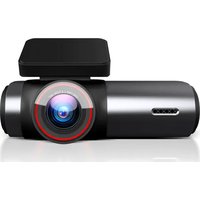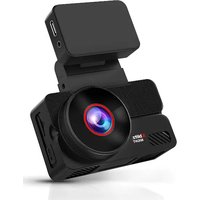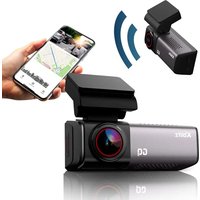
GO3 - Video camera Xblitz - Free user manual and instructions
Find the device manual for free GO3 Xblitz in PDF.


| Product Type | Dashcam |
| Brand | Xblitz |
| Model | GO3 |
| Dimensions | 88 x 30 x 53 mm |
| Weight | 90 g |
| Power Supply | 5V / 1.5A via cigarette lighter charger (USB-C port) |
| Screen | IPS 3.2 inches |
| Max Recording Resolution | 4K (2160p) at 30 fps |
| Lens | FOV 150°, F/1.8 |
| Processor | Allwinner 851 S3 |
| Image Sensor | GC4663 |
| Video Codec | H.264 |
| Video Format | TS |
| Wi-Fi Connectivity | Yes (2412-2472 MHz, 18.9 dBm) |
| Built-in GPS | Yes |
| G-Sensor | Yes, adjustable |
| Parking Mode | Yes (requires constant power kit) |
| Loop Recording | Yes (1/3/5 minutes) |
| WDR (Wide Dynamic Range) | Yes |
| Storage | Micro SD card up to 512 GB (class 10 or higher) |
| Built-in Microphone | Yes |
| Built-in Speaker | Yes |
| Mobile App | RoadVideo (Android and iOS) |
| Care and Cleaning | Clean with a dry cloth; do not use chemicals; clean the lens gently |
| Safety | Use only original 5V/1.5A charger; do not disassemble; avoid shocks and extreme temperatures; keep out of reach of children |
| Warranty | 24 months |
| Repairability / After-Sales Service | After-sales service via www.xblitz.pl; original spare parts available |
| Regulatory Information | Compliant with Directive 2014/53/EU |
Frequently Asked Questions - GO3 Xblitz
User questions about GO3 Xblitz
0 question about this device. Answer the ones you know or ask your own.
Ask a new question about this device
Download the instructions for your Video camera in PDF format for free! Find your manual GO3 - Xblitz and take your electronic device back in hand. On this page are published all the documents necessary for the use of your device. GO3 by Xblitz.
USER MANUAL GO3 Xblitz
natural_image
Exterior view of a XBlitz GQ smartphone displaying a scenic road scene (no text or symbols on the device body)Table of contents
Spis treści
natural_image
3D model of a black electronic device with labeled parts (1, 4), no visible text or symbols beyond labels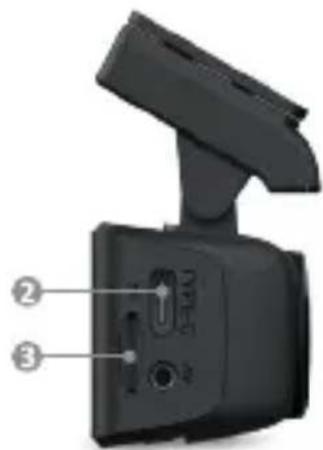
natural_image
Close-up of a black electronic device with labeled ports (no text or symbols visible)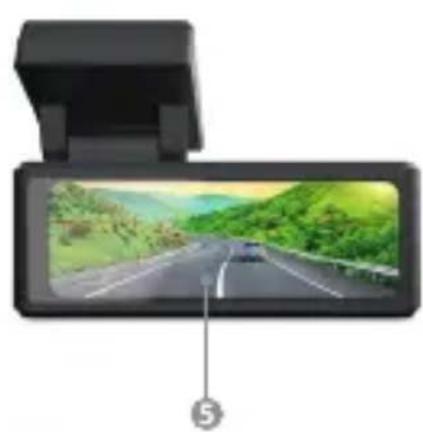
natural_image
Digital display screen showing a scenic road scene with green hills and a car, mounted on top (no text or symbols visible)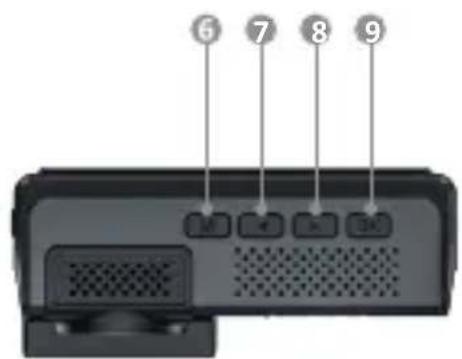
B
natural_image
Interior view of a car dashboard and steering wheel (no text or symbols visible)PL
INSTRUKCJA OBSŁUGI
WIDEOREJESTRATOR
Carefully read the enclosed operating instructions and safety notes before use to avoid accidental damage to the equipment or unintentional injury.
PURPOSE OF THE PRODUCT
The Xblitz GO3 dash cam with built-in GPS and Wi-Fi module allows you to monitor the route, position and speed of your vehicle and record any traffic incidents. The video recorder is created from the highest quality components.
01. CONTENTS OF THE KIT
- Dash cam
- Charger
- Electrostatic film
- Micro SD memory card reader
- Operating instructions
- Mounting accessories
02. PRODUCT DESCRIPTION
SEE FIG. A
- POWER button (short press starts the screen saver, longer press 2s switches the device on/off)
- USB-C power port
- Micro SD memory card slot
- Handle with retaining strap
- Display
- Function button "MENU" & in home screen mode longer holding 2s takes you to the gallery of saved files
-
Up function key & on/off sound recording & in video playback mode longer hold locks the recording from being overwritten
-
Function key "DOWN" & start emergency recording & in video playback mode, longer holding deletes selected recording
- Function button "OK" & start/stop video
03. BEFORE USE
- It is recommended to use original micro SD cards of class 10 or higher.
- Before inserting the card into the recorder, it must be formatted on the computer in the FAT32 or exFAT file system (depending on the card) and then in the recorder.
- The camera must be switched off when inserting the memory card, otherwise the card and the device may be damaged. The same applies when removing the card from the device.
- When the memory card fills up, the oldest unprotected recordings are overwritten.
- It is recommended that the G - SENSOR option is set to the minimum, in order to avoid the preservation of unnecessary material caused, for example, by uneven road surfaces and thus the loss of space on the memory card.
- Sound: the device has a built-in condenser microphone that records all ambient noises. Sounds may overlap causing distortion.
04. MONTAGE
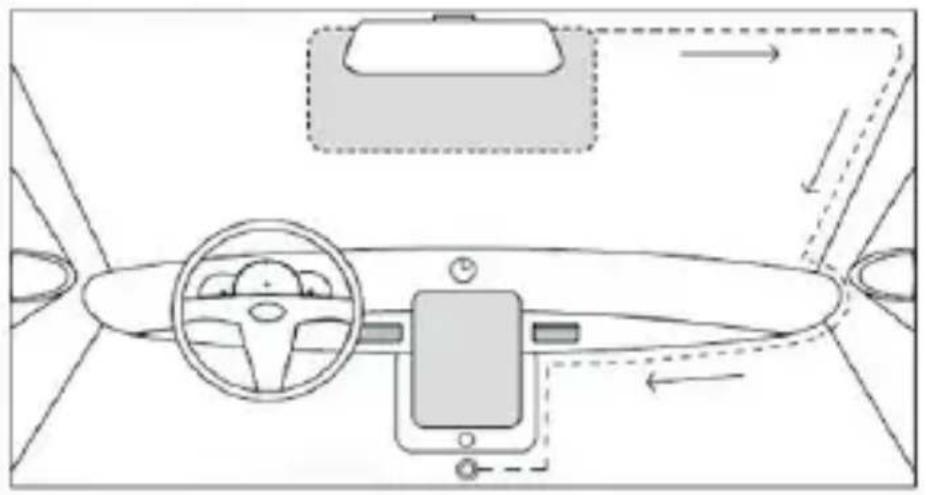
SEE FIG. B
- Select and clean the camera mounting location.
- Mount the camera with or without pre-applied electrostatic film.
- Insert the memory card into the slot in the camera.
- Point the camera lens towards the roadway.
- Connect the power supply to the camera.
- Route the power supply cable so that it does not obstruct the view while driving.
- Plug the power supply plug into the car's cigarette lighter socket.
05. DESCRIPTION OF THE MENU OPTIONS
- Wi-Fi: allows you to enable or disable the Wi-Fi module and scan the QR code needed to download the app, as well as displaying the network name and password.
- Resolution: allows you to change the resolution of recorded video files
- Loop recording: allows you to change the length of recorded loops.
-
Audio recording: allows you to enable or disable audio recording on the camera.
-
Screen saver: allows you to enable and set the time after which the screen saver will be activated or disable this option.
- Volume: allows you to adjust or turn off the sound of the control buttons.
- Gravity sensor: allows you to adjust or deactivate the sensitivity of the g-sensor (shock sensor).
- Language settings: selection of menu language.
- Date and time: allows the current date and time to be adjusted.
- Time zone: selection of time zone.
- GPS data: once the GPS module is connected, current speed and location data will be displayed here.
- GPS switch: allows you to switch GPS data on or off.
- Memory card format: executes the format of the memory card inserted in the device.
- Restore factory settings: restores the device to its factory settings.
- Software version: displays information on the current software version.
- Parking mode sensitivity: allows the sensitivity of the g-sensor (shock sensor) to be set during parking - (constant power kit connection required).
- Time-lapse movie duration: allows you to set the duration of the time-lapse movie in parking mode - (permanent power kit required).
- Time-lapse movie FPS: allows you to set the number of frames per second (FPS) during a time-lapse movie - (constant power kit required).
06. MOBILE APPLICATION
The Xblitz GO3 video recorder, thanks to its built-in Wi-Fi module, also has the ability to control and playback recordings via a mobile application called RoadVideo. The software can be downloaded from the Play Store (Android), App Store (iOS) or by scanning the QR code located on the box or in the main menu Wi-Fi tab.
Connecting to the app: make sure the camera is switched on and has Wi-Fi activated. Start the app, add your device and search for a Wi-Fi network on your phone, the device network name is: Xblitz GO3 and the default password is 12345678 Once your device is successfully connected to the app, the icon symbolising Wi-Fi will light up green on the camera display (at this time it is not possible to control the camera manually with buttons). You can then manage the settings yourself or view and save your recordings to your phone's memory.
Note: only one device can be connected to the network when using the camera.
07. READING GPS DATA
When you insert the memory card with the video files into your computer, the installation file with the "HIT GPS PLAYER" programme will be on the card. Once it has been installed, the video files and the route can be viewed and analysed together with the GPS data. The data and route can also be tracked directly in the RoadVideo application by playing the recordings on your phone, where the parameters of the route will be displayed.
08. PRECAUTIONS
- Do not disassemble the camera yourself or interfere with its construction. In the event of a malfunction, contact the service department.
- Use only original accessories.
- Only use the original charger supplied. The use of any other power adapter may adversely affect the performance of the device or battery.
- The device may not be used in contravention of the laws of your country or region.
- Permissible operating temperature is 0-35 °C, storage temperature 5-45 °C
- Do not subject the device to damage or impacts.
- Take care of the cleanliness of the product, especially the lens. Do not use detergents or chemicals when cleaning.
- Clean the device when it is unplugged.
- Keep the device out of the reach of children.
- Do not expose the device to very high temperatures or fire.
- If you smell burnt plastic or electronics from the camera, unplug the unit as soon as possible and contact service.
09. FAQ
1. Device does not switch on, screen flashes
Before starting up, charge the device's battery and check the connection in the cigarette lighter socket.
2. Device does not switch on/off automatically
The reason for this behaviour may be the constant power supply in the cigarette lighter socket.
3. Camera stops recording / does not overwrite recordings
Check: G-SENSOR - a function by which recordings with recorded overloads (e.g. uneven pavement, braking, driving off a kerb or over a speed bump, etc.) are protected from being overwritten. If you use this function, you must periodically format the memory card on your com-
puter and then on the camera. Ultimately, each file on the data carrier will be protected from being overwritten and the device will not be able to record a further route - it will not record in a loop. We suggest setting the sensor according to your driving style and road conditions. You can also disable the option completely, in which case each oldest file will be overwritten and the card will not need to be formatted periodically. After adjusting the function, remember to format the memory card.
4. Camera switches on and off
Check: PARKING MODE/MONITOR and MOVEMENT DETECTION - function designed to operate while the vehicle is parked. Deactivate the functions, before setting off, as they can cause the camera to switch on and off and make random fragments of the route recordings. If the functions are deactivated, check if the fault occurs without a memory card inserted.
5. Camera records fragments of a route / random ongoing recordings
Check: MOVEMENT DETECTION - a function designed to operate while the vehicle is parked.
You need to deactivate the function before you set off, as it can cause the camera to switch on and off and make random fragments of route recordings. If the function is deactivated, check if the fault occurs without a memory card inserted.
6. Device shows "card full" message or does not read the card
Check the "G-sensor" and "parking mode" functions and set them to minimum. The card must be formatted in the computer in the FAT32 or exFAT file system (depending on the card) and then in the recorder.
Also check: Is the selected card capacity and specification (micro SD, class 10 - U1, V10 additionally recommended) suitable for your device (we recommend using cards from reputable manufacturers, we recommend: Kingston, Samsung, Sandisk). If you encounter an error at any stage, replace the card with a new one from official distributors.
7. The device records noise, distorted, unclear sound
The device has a highly sensitive microphone that records any ambient noises. The recorded sounds may overlap. Windscreen air vents can also distort the sound.
8. Device does not respond
Press the Reset button briefly or return the device to factory settings.
9. The footage shows transverse lanes
Incorrect setting of the frame rate value. Set the frequency value to "50Hz" or "60Hz" depending on local settings.
10. Handle detaches from the windshield/does not stick
Degrease the surfaces well before mounting the holder on the glass.
Remember to avoid high temperatures, which can cause deformation of the holder, and damage to the recorder itself.
NOTES:
- G-SENSOR - a function thanks to which recordings with recorded overloads (e.g. uneven road surface, braking, driving off a kerb or over a speed bump, etc.) are protected from being overwritten. If you use this function, you must periodically format the memory card on your computer and then on the camera. Ultimately, each file on the data carrier will be protected from being overwritten and the device will not be able to record a further route - it will not record in a loop. We suggest setting the sensor according to your driving style and road conditions. The option can also be completely disabled, in which case each oldest file will be overwritten and the card will not need to be formatted periodically.
- PARKING MODE/MONITOR - a function designed to operate while the vehicle is parked, uses battery power* if the dash cam is fully charged - (*if it has a built-in battery). In this case, the camera starts recording a few seconds of video after detecting a shock - until the battery is discharged. When using this function, bear in mind the battery of the device, which needs to be recharged after the function is activated (started). You should deactivate the function, before setting off on a journey, as it may cause the camera to switch on and off and make random fragments of recordings from the route.
The operation of the vehicle's constant power supply can cause this function to behave differently, e.g. leaving the camera on, which can drain the car's battery.
- MOVEMENT DETECTION - a function designed to operate while the vehicle is parked - requires constant power and the camera must remain switched on. The camera will start recording automatically when motion is detected, and will stop recording a few seconds after there is no movement in front of the camera lens. Please note that this function can drain the car battery.
You need to deactivate the function, before setting off, as it can cause the camera to switch on and off and make random fragments of route footage.
10. NOTE
-
Due to continuous product improvement, the producer reserves the right to make changes to the device/kit without prior notice. Some functions described in this manual may differ slightly from reality.
-
Use only the original charger with a charging current of 5V/1.5A
(do not plug directly into a 220/230V socket). Failure to do so may damage the camera or lead to dangerous situations.
-
This recorder records in a loop if you select: 1/3/5 minutes as the recording time, when the memory media is full, it will record from the beginning again and automatically delete the oldest footage in addition to the protected footage.
-
The unit's Wi-Fi module is used to connect to a mobile phone using dedicated RoadVideo software, so you can view the camera's live video, review recordings, and change camera settings using your mobile phone.
11. SPECIFICATION
■ Wi-Fi ■ GPS ■ Dedicated app (Android & iOS) ■ 3.2" IPS display ■ Proces-
sor: Allwinner 851 S3 ■ Sensor: GC4663 ■ Lens: FOV 150° / FNO=1.8 ■ Max.
recording resolution: 4K (2160p) / 30fps ■ Codec: H.264 ■ Video format: TS. ■
Wide viewing angle ■ G-sensor ■ Parking mode (constant power kit required)
■ Loop recording ■ WDR ■ Support for micro SD memory cards up to 512GB
(class 10 upwards) ■ Built-in microphone and speaker ■ Operating frequency
range: 2412-2472MHz ■ Max frequency power in operating range: 18.9dBm ■
Dimensions: 88x30x53mm ■ Weight: 90g
12. WARRANTY/ COMPLAINTS CARD
The product comes with a 24-month warranty. Warranty conditions can be
Complaints should be made using the complaint form found at:
Details, contact and service address can be found at: www.xblitz.pl. Specifications and contents are subject to change without notice. We apologise for any inconvenience.
KGK Trend declares that the Xblitz X4 GO3 device complies with the essential requirements of Directive 2014/53/EU. The text of the declaration can be found at the link:
02. PRODUKTA APRAKSTS
SKATIT A FIG.
The crossed out trash can symbol indicates that unusable electrical or electronic devices, its accessories (such as power supplies, cords) or components (for example batteries, if included) cannot be disposed of alongside with household waste. In order to dispose of the devices or its components (for example, batteries) deliver the device to the collection where it will be accepted free of charge. Disposal is subject to cast version of the WEEE Directive (2012/19/ EU) and the use on batteries and accumulators (2006/66 / EC). Properal of the device prevents degradation of the natural nment. Information about the collection points of the es is issued by the competent local authorities. Incorrect al of waste is subject to penalties provided for by the law in the given area.
DE

KGK TREND Sp. z o.o.
Ujastek 5b, 31-752 Kraków, Polska.
Wyprodukowano w PRC
Producer:
KGK TREND Sp. z o. o.
Ujastek 5b, 31-752 Cracow, Poland.
Made in PRC