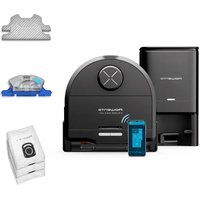
X-Plorer Serie 220+ RR9485 - Robot vacuum ROWENTA - Free user manual and instructions
Find the device manual for free X-Plorer Serie 220+ RR9485 ROWENTA in PDF.


| Product type | Robot vacuum |
| Brand | Rowenta |
| Model | X-Plorer Serie 220+ RR9485 |
| Main functions | Vacuuming, vibrating mop, LiDAR navigation, automatic emptying, mapping |
| Navigation technology | LiDAR |
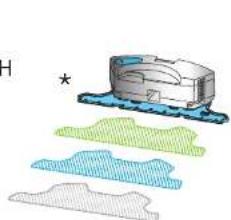
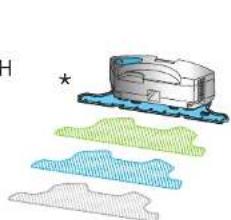
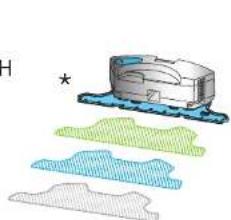
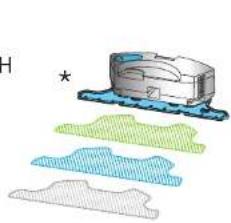
| Mop types | Grid (standard), blue (scrubbing), green (fine dust, waterless) |
| Water tank | Vibrating water tank (for mop) |
| Station | Automatic dust collection station with Hygiène+ bag |
| Wi-Fi connection | 2.4 GHz, 802.11b/g/n |
| App | Free app for control and programming |
| Box contents | Robot, station, vacuum-only module, water tank, mops, cleaning tool, Hygiène+ bag |
| Sensor maintenance | Once a week: clean with a dry cloth |
| Filter maintenance | Once a week: clean with tool or water; replace twice a year |
| Main brush maintenance | Once a week: remove hair and debris |
| Side brush maintenance | Once a week: remove hair; replace twice a year |
| Wheel maintenance | Once a month: remove hair |
| Mop replacement | After 100 washes |
| Dust bag replacement | When full (red flashing light) |
| Safety | Drop sensors, bumper, obstacle detection |
Frequently Asked Questions - X-Plorer Serie 220+ RR9485 ROWENTA
User questions about X-Plorer Serie 220+ RR9485 ROWENTA
0 question about this device. Answer the ones you know or ask your own.
Ask a new question about this device
Download the instructions for your Robot vacuum in PDF format for free! Find your manual X-Plorer Serie 220+ RR9485 - ROWENTA and take your electronic device back in hand. On this page are published all the documents necessary for the use of your device. X-Plorer Serie 220+ RR9485 by ROWENTA.
USER MANUAL X-Plorer Serie 220+ RR9485 ROWENTA
natural_image
Black and white photo of a RQWENTA robotic vacuum cleaner with a circular sensor, shown from front and side (no visible text or symbols on device body)
What's in the box? page 04
Product overview page 05
Before cleaning page 07
Install the robot page 08
Connect the robot with the free app page 10
Use the main app features page 10
Use the robot without the app page 11
The difference between the two tanks page 12
Use the robot without the mopping function page 12
("vacuum only" mode)
Use the robot with the mopping function page 13
("vacuum & mop" mode)
Maintain the robot and its accessories page 17
Replace the dust bag when it's full page 21
Component replacement frequency page 24
Store the robot when you don't use it page 25
Do's and don'ts page 25
Common issues and solutions
page 29
Please read carefully the "Safety and use instructions" booklet before first use.
For more information:
www.rowenta.com
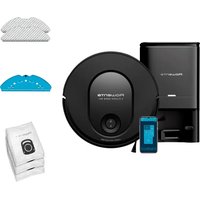
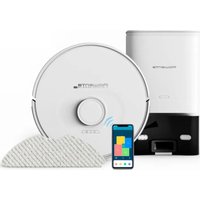
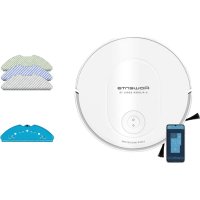
What's in the box?
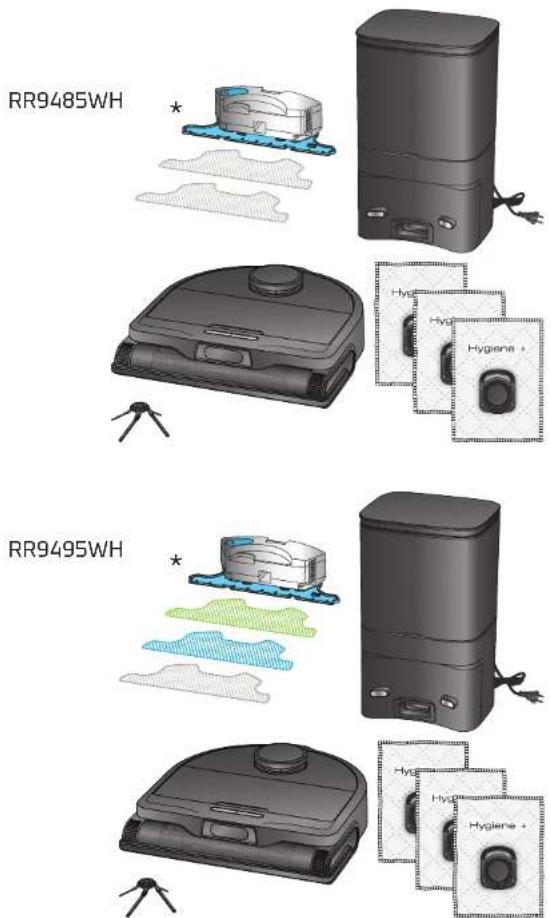
*Depending on model
Product Overview
EN
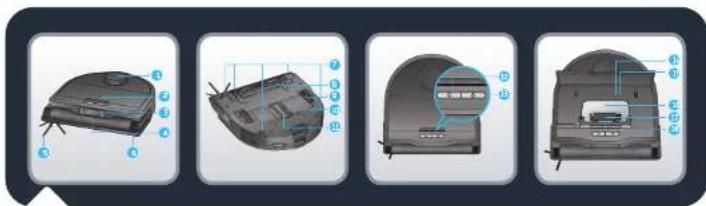
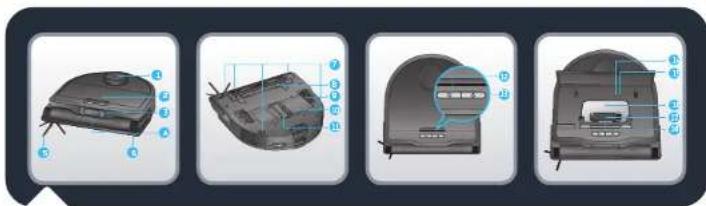
- LiDAR
- Flip cover
- Obstacle detector
- Main brush
- Side brush
- Bumper
- Anti-drop sensors
- Main brush cover
- Wheel
-
Battery
-
Dustcollecting channel cover
- Home button
- Press to return to station
- Power / Start / Pause button
- Press and hold to turn on or off
-
Press to start or pause cleaning
-
WiFi indicator light • Off: WiFi disabled
- Blinking slowly: waiting for connection
• Steady: WiFi connected
- Reset button
- Dust box
- Cleaning tool
- Dust box handle
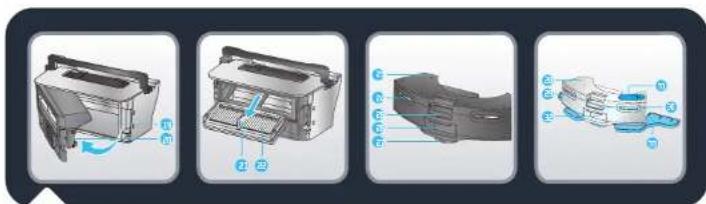
- Dust box opening
- Dust box latch
- Filter handle
- Filter
- «Vacuum only» module (keep it installed in the robot when you don't use the mopping function)
-
Charging contacts
-
« Vacuum only » module latch
- Dust trap door
- Wheel
-
Vibrating water tank (to use the mopping function, unclip the "vacuum only" module and replace it by the water tank)
-
Charging contacts
- Water tank latch
- Stopper
- Dust trap door
- Vibrating mop bracket

Product Overview Before cleaning
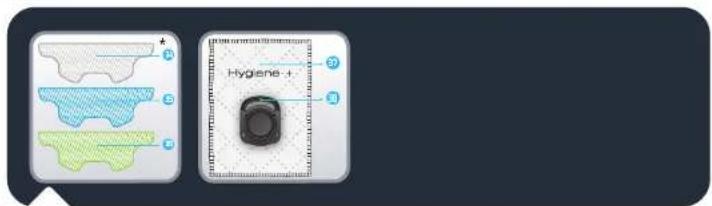
*Depending on model
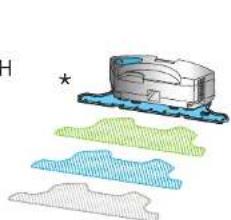
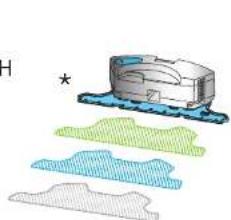
34. Washable grey mop for standard use
35. Washableblue scrubbing mop for hard stains
- Washablegreen microfiber mop to capture fine dust (to use without water)
-
Hygiene+ dust bag
-
Hygiene+ dust bag handle
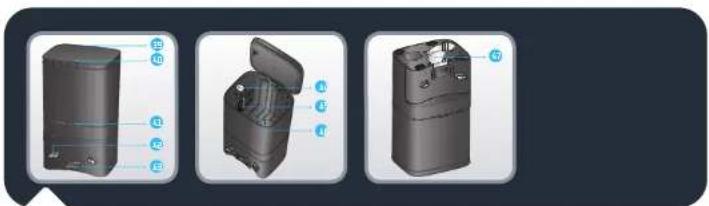
- Automaticdust collecting station
- Station lid
- Status indicator light • Light off: charging/ powered off • White blinking: dust collecting • White light on: station plugged in and robot not connected
• Red: lid open/bag not installed
- Red blinking : bag full/error
42. Charging contacts
43. Suction inlet
- Eject button of the dust bag
- Dust bag handle insertion slot
- Dust bag chamber
- Dust channel cover

natural_image
Interior layout of a modern living room with sofa, wall-mounted furniture, and a red 'X' symbol (no text or symbols on main objects)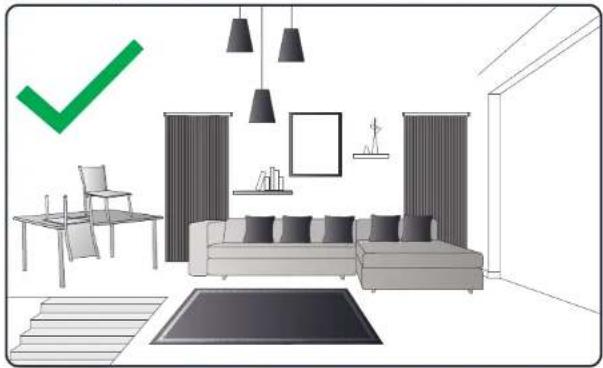
natural_image
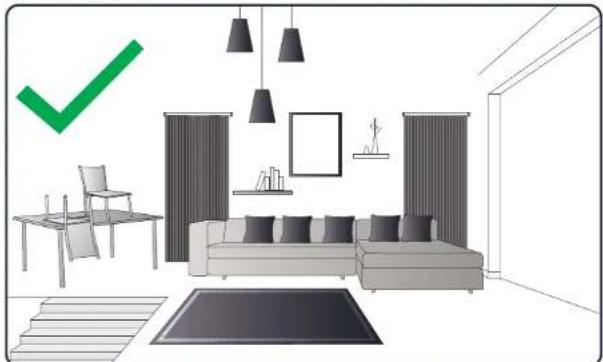
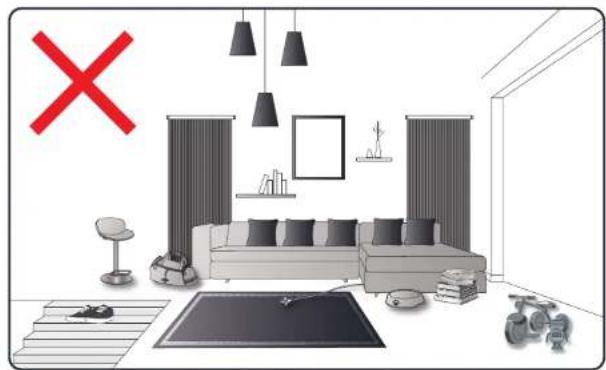
Interior layout diagram of a modern living room with sofa, chairs, and wall-mounted furniture (no text or symbols)Although the robot is able to autonomously avoid some obstacles, please read the following tips to improve cleaning efficiency. Tidy up cables, cords, small and loose items. Remove any unstable, fragile, precious or dangerous items from the ground. Make sure each room door is open. Your robot may encounter some difficulties on dark floors and on carpets: with fringes, too thick, with long piles, too light (ex: bathroom carpet). For optimum anti-drop sensors efficiency, remove any item (ex: shoe) from the stairs. When using the robot in a raised area, place a physical barrier at the edge of a drop to prevent accidental falls. Do not stand in narrow spaces, such as hallways so the robot is not blocked.

Install the robot Install the robot

Flash the QR-Code above to know how to install and connect the robot in video. Read the following instructions for more detailed informations.
natural_image
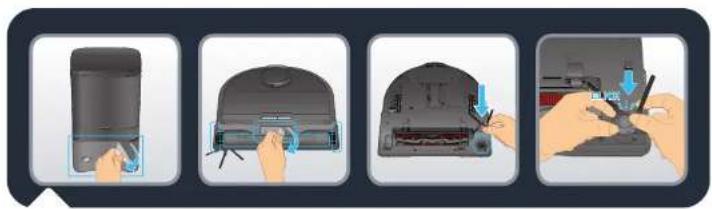
Illustration of four steps of a device being processed, showing tool manipulation and disassembly (no text or symbols)Remove all protections (protective films) on the station and on the robot. Reverse the robot, install the side brush by gently clipping it. The side brush is correctly installed when you hear a click sound.

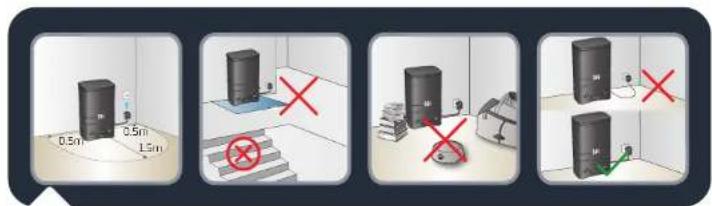
Install the Automatic Dust Collecting Station on a hard and flat floor. Avoid parquet, wooden floors and carpet. Place the station in a clear space against a wall, with no stairs in front of the station. Keep at least 0.5 m of clearance on either side and 1.5 m in front. Make sure the chosen location is close to the Wi-Fi box or has good Wi-Fi signal strength. Keep the area around the station clear from any object, reflective surface, mirror, table and chair. Keep the station away from direct sunlight. Plug the power cable. Make sure the power cable remains against the wall.
natural_image
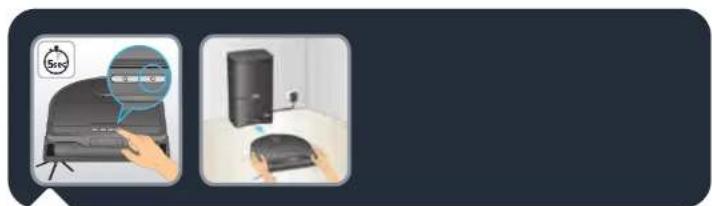
Two-step illustration showing a hand holding a device next to a device with a magnified view of its screen (no text or symbols visible)Turn the robot on by pressing and holding the START button until the robot lights turn on (\~5 seconds). Manually place the robot against the station. Once the robot is docked, the dust collection will be automatically activated for few seconds. Please note that the minimum time interval between two dust collections is 5 minutes. Wait 3-4 hours for the robot to be fully charged. For the first-time cleaning, please ensure that the robot is fully charged. For the first cleaning in a new environment, the robot will create the home map. In order to improve the accuracy of the map, don't use the vibrating water tank, keep the « vacuum only » module installed in the robot.
Do not lift the robot during the first cleaning, it prevents the map creation.
If you have carpets with fringes, please place barriers around carpets to prevent the robot from getting stuck in the fringes, it prevents the map creation.
If you have an outdoor area (garden, balcony, patio, etc.) accessible with a threshold less than 2 cm high or without threshold (for example with a French window, a patio door, a bay window, etc.), please close this access so the robot doesn't go outside your home.

Connect the robot with the free app

Flash the QR-Code above to know how to install and connect the robot in video. You can also find the detailed pairing instructions step by step in a PDF document by flashing the QR-Code below.

Use the main app features

Flash the QR-Code above to know how to use the main features of the application in video.
Use the robot without the app
natural_image
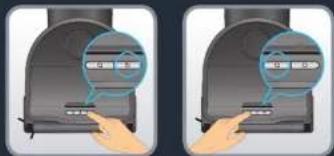
Illustration of a hand inserting a button into a mailbox (no text or symbols visible)Press the button « Start » to start automatic cleaning. The robot will scan the area. It will automatically split the room into small zones, first cleans inside the zone in a zigzag, and then cleans zone edges. The robot will clean all accessible area, zone by zone. Press the button « Start » at any time to pause cleaning and press it again to resume cleaning. If the robot is on standby, press the button « Start » once to wake up the robot and a second time to start cleaning.
If you start the robot from the station, it will automatically return to its station at the end of the cleaning session or if the battery level is too low. If the battery runs low during the cleaning session, the robot will automatically return to its station to charge. After charging, the robot will resume cleaning where it left off.
If the robot is not on its station when it starts cleaning, it will automatically return to its starting point at the end of the cleaning session or if the battery level is too low.
If the robot doesn't start when you press the button « Start », the battery level may be too low, please charge the robot.
At the end of the cleaning session, the robot will automatically return to the station. But if you want to manually end the cleaning session, press the « Home » button once to stop the robot at any time and press it again to send the robot back to the station. If the robot is on standby, press the « Home » button once to wake up the robot and a second time to send it back to the station. If the robot fails to find the station, manually place the robot in front of the station and press the « Home » button. Once the robot is docked, the dust collection will be automatically activated for few seconds. Please note that the minimum time interval between two dust collections is 5 minutes.
Note: At the start of a cleaning session, the robot goes few meters away from the station and comes back (relocation sequence). During this sequence, the robot reduces the motor power and stops water tank vibrating. This behavior is normal.

The difference between the two tanks
natural_image
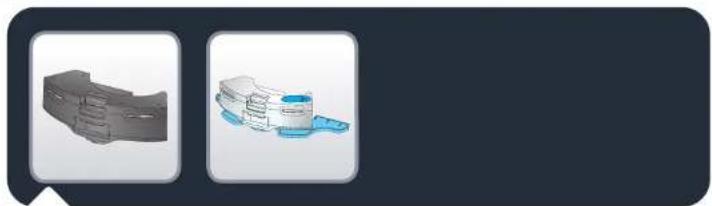
Two 3D mechanical components shown in grayscale, one with a curved housing and the other with a blue container (no text or symbols)To work properly, the robot always needs one of the two tanks installed:
- Install the "vacuum only" module to use the robot in "vacuum only" mode (without mopping function);
- Or install the water tank to use the robot in "vacuum & mop" mode.
Both tanks are equipped with charging contacts to allow the robot to dock to its station and to charge its battery.
Warning: the robot will not charge if no tank is installed.
Use the robot without the mopping function («vacuum only» mode)
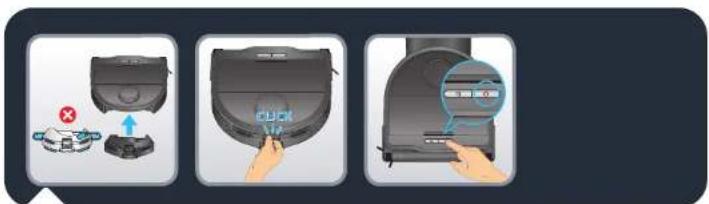
To use the robot without the mopping function ("vacuum only" mode), install the "vacuum only" module at the back of the robot. The module is correctly installed when you hear a « click » sound. Press the « Start » button or use the app to start cleaning. Keep the "vacuum only" module installed in the robot when you don't use the mopping function. The "vacuum only" module is equipped with charging contacts to allow the robot to dock to the station and to charge its battery.
Use the robot with the mopping function («vacuum & mop» mode)


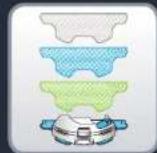
Flash the QR-Code above to know how to use the mopping function in video. Read the following instructions for more detailed informations.
The different types of mops (depending on model):
- Washable grey mop for standard use
- Washable blue scrubbing mop for hard stains
- Washable green microfiber mop to capture fine dust (to use without water)
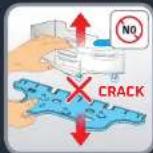
Warning: Do not try to disassemble the water tank and the vibrating mop bracket. The vibrating mop bracket is not removable from the water tank.
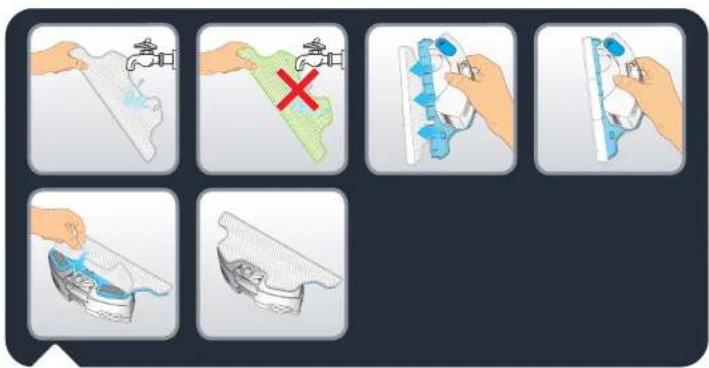
Moisten the mop cloth with water before use. If you use the green mop, don't moisten it. Attach the mop to the vibrating mop bracket.
EN
Use the robot with the mopping function («vacuum & mop» mode)
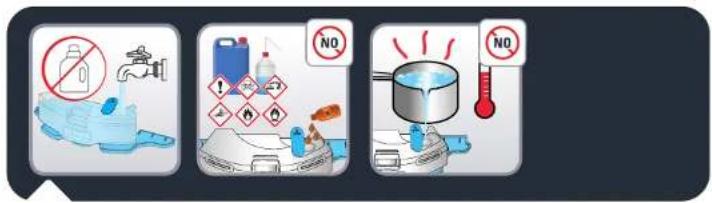
Open the stopper of the water tank and fill it with clean water until the water tank is full. Do not use hot water. Warning: Do not add cleaning agents in the water tank. This may clog the pipes and make the water tank not functioning anymore.
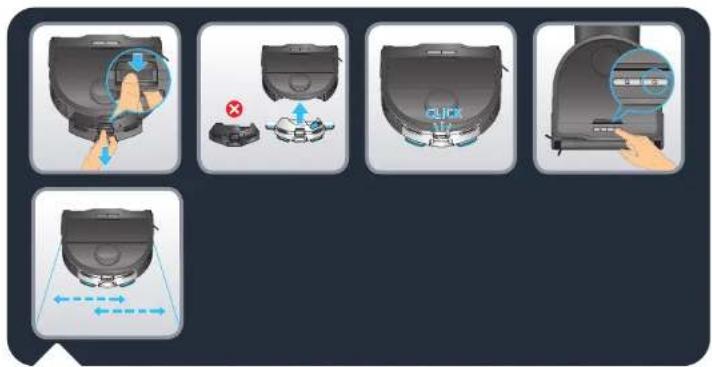
Unclip the "vacuum only" module by pressing the latch and pull to remove the "vacuum only" module. Take the water tank and clip it at the back of the robot. The water tank is correctly installed when you hear a « click » sound. Press the « Start » button or use the app to start cleaning. The vibrating mop bracket will be automatically activated with a left-to-right motion. Note: Keep the "vacuum only" module installed in the robot when you don't use the mopping function.
The robot will be more agile at crossing threshold, at moving on carpets.
Warning: Do not use the mopping function on carpets. You can use the "vacuum only" module or if you want to use the mopping function avoiding carpets, you can set "no mop zones" in the app.
Use the robot with the mapping function («vacuum & mop» mode)
EN
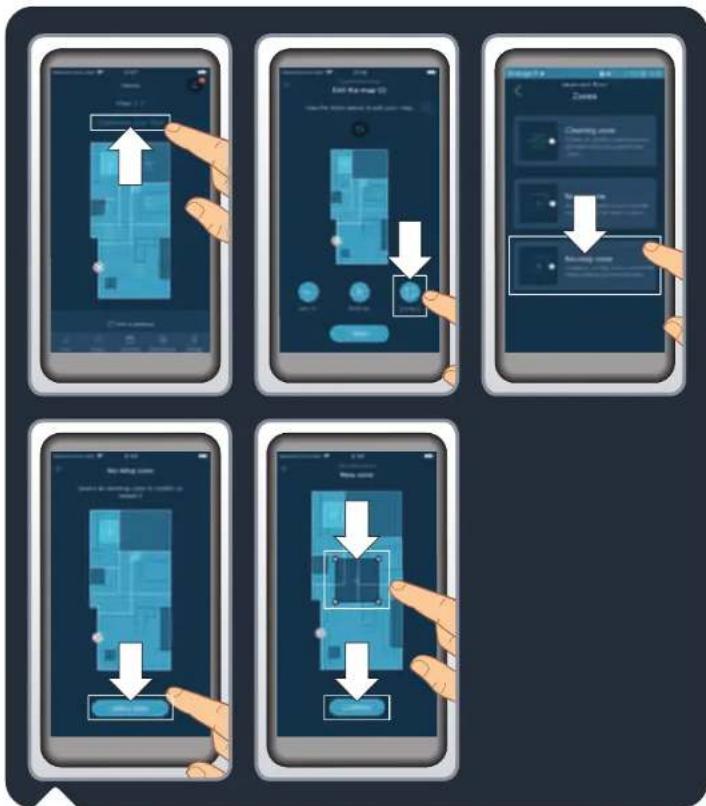
To preserve fragile floors or carpets, you can set « no mop zones » in the app. On the homepage, click on « Customize your floor », then on « Zones ». Select « No mop zones » and add a zone on the map that you can customize (size, location). To save the no mop zone, click on « Confirm ». You can create as many « no mop zones » as necessary. When the water tank is installed, the robot is not allowed to clean in these zones.
EN
Use the robot with the mopping function («vacuum & mop» mode)
natural_image
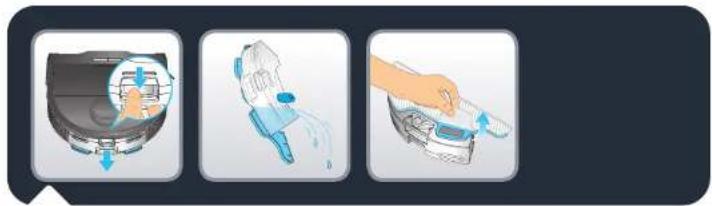
Three-step illustration showing a kitchen appliance with internal components and cleaning steps (no text or symbols)At the end of the cleaning session, unclip the water tank by pressing the latch and pull to remove the water tank. Empty the water tank of the remaining water. Remove the dirty mop cloth.
Install the « vacuum only » module for charging.
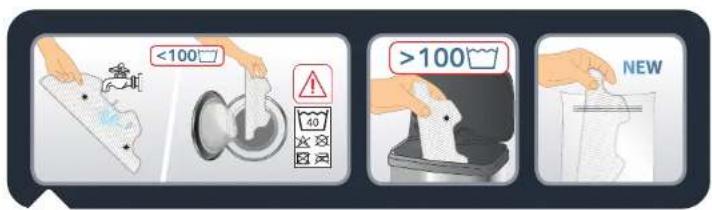
Wash the mop cloth under water or in the laundry machine. Let it dry for 24 hours. Please replace the mop cloth after 100 washes. You can buy kit of new mops on www.rowenta.com
Maintain the robot and its accessories
EN
natural_image
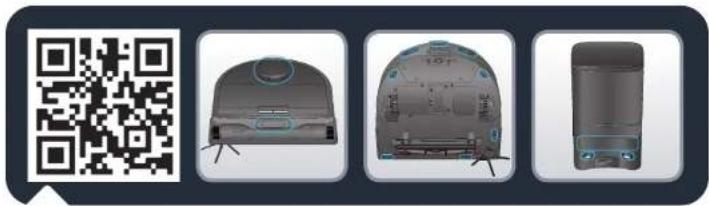
Four technical illustrations of a device with internal components, displayed alongside a QR code (no text or symbols on the devices themselves)Flash the QR-Code above to know how to use the maintain the robot to keep its performance. Always switch off the robot by pressing and holding the START button for 5 seconds, and unplug the station before any manipulation.
Once a week, clean the sensors
With a clean, soft and dry cloth, wipe the robot sensors (in front, top, back and bottom of the robot) and the sensors and charging contacts of the station.
Wipe the two buttons on top of the robot.
After each use, clean the dust box
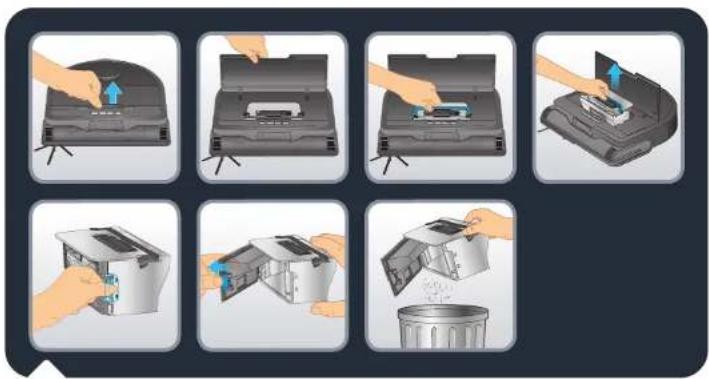
At the end of the cleaning session, the robot returns to its station and automatically empties the dust box, but some dirt may remain in the dust box. Open the flip cover, take the dust box handle and lift the dust box by the handle to take it out of the robot. Push on the latch on the side of the dust box to open. Empty the dirt into the bin. Close the dust box.
Note: The flip cover may not open or close properly if there is too much dust in the hinges. Please clean hinges with a clean, soft and dry cloth to remove dust.

Maintain the robot and its accessories
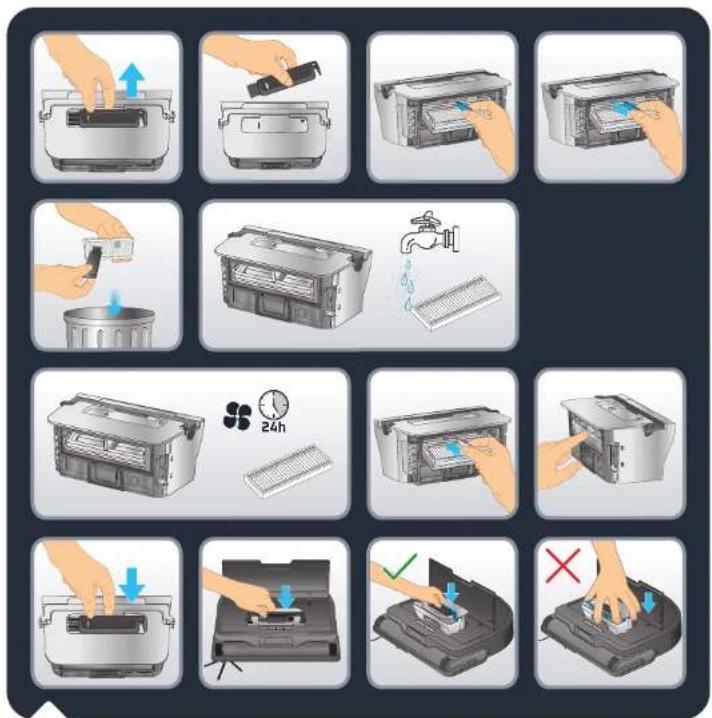
Once a week, clean the filter
Always switch off the robot by pressing and holding the START button for 5 seconds, and unplug the station before any manipulation.
Take the cleaning tool located on top of the dust box. Remove the filter from the dust box by grabbing the center part of the filter holder. Use the brush part of the cleaning to clean the filter. You can also wash the filter and the dust box under water. Let them out to dry for 24 hours. Put the filter back to its original place. Replace the cleaning tool on top of the dust box. Reinstall the dust box in the robot by grabbing the dust box handle. Warning: do not reinstall the dust box in the robot without grabbing the dust box handle, it will not be correctly installed and the robot will not start. Note: Never use the robot without the pleated filter. It would damage the robot.
Maintain the robot and its accessories

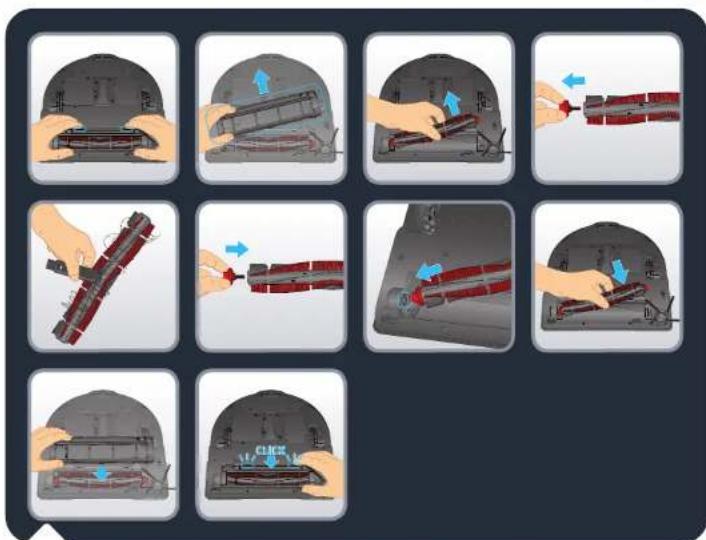
Once a week, clean the main brush
Always switch off the robot by pressing and holding the START button for 5 seconds, and unplug the station before any manipulation.
Turn the robot upside down. Press the latches of the brush cover and pull to remove it. Take out the brush. Pull the brush heads on the left and right sides of the brush to remove them and get rid of tangled hair. Take the cleaning tool and use the blade part to cut off the tangled hair. Replace the brush heads before re-installing the brush in the robot. Re-install the brush cover. The cover is correctly installed when you hear a click sound.
EN
Maintain the robot and its accessories
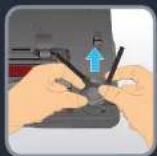
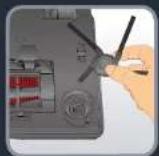
Once a week, clean the side brush
Always switch off the robot by pressing and holding the START button for 5 seconds, and unplug the station before any manipulation.
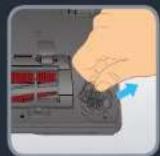
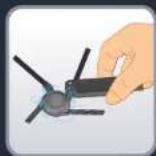
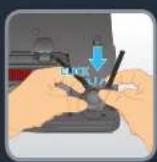
Tum the robot upside down. Take the side brush with two hands by the plastic parts and pull to unclip it. Do not pull by the bristles of the side brush. Remove the tangled hair. Re-install the side by gently clipping it. The side brush is correctly installed when you hear a click sound.
Note: The side brush can be difficult to remove, if you can't unclip it, try pulling from a different angle. To remove the tangled hair, you can use the blade of the cleaning tool on top of the dust box.
natural_image
Two views of a spacecraft's dome structure, one showing internal components and the other showing a close-up of its base (no text or symbols visible)Once a month, clean the wheels
Always switch off the robot by pressing and holding the START button for 5 seconds, and unplug the station before any manipulation.
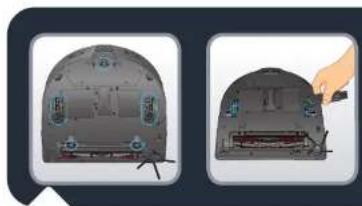
The wheels may be entangled by hair or dirt. Turn the robot upside down. Clean the wheels by removing the tangled hair.
Replace the dust bag when it's full
EN

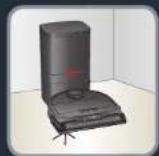
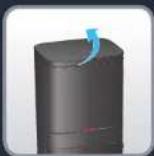
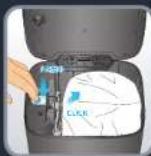

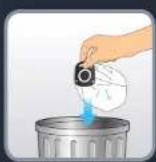
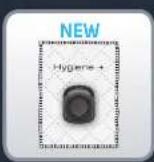
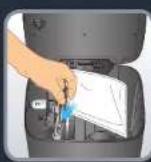
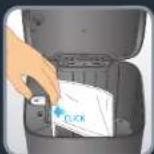
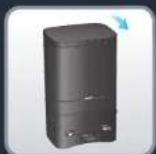
Flash the QR-Code above to watch how to change the dust bag in video. Read the following instructions for more detailed informations.
When the dust bag is full, the light indicator of the station is blinking in red. Open the station lid. Press the EJECT button. Take out the used dust bag by the dust bag handle. Throw it away in the bin. Take a new Hygiene+ bag. Install it in the station by sliding the dust bag handle in the insertion slot. Clip it to the station. The dust bag is correctly installed when you hear a click sound. Close the station lid. The light indicator of the station is white for few seconds before the light is off. If the light indicator is red, the dust bag is not in place or not correctly installed or the station lid is open.
EN
The light indicator of the station is still blinking red after replacement of the dust bag
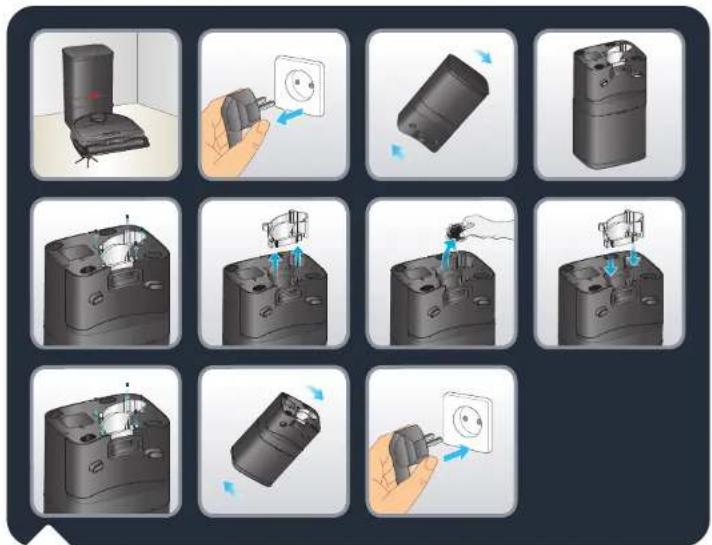
If the light indicator is blinking in red after replacing the dust bag, or if the dust collection stops after a short period of time, a foreign item may block the dust channel of the station. Please unplug the station before any manipulation. Violent disassembly is prohibited. Do not use blunt object. Reverse the station upside down. With a screwdriver, remove the 5 screws that hold the cover of the dust channel. Remove the cover of the dust channel. Check wether there are foreign matters blocking the dust channel. If the dust channel is blocked, remove the foreign matters with your fingers or with a bottle brush. After cleaning the dust channel, please put the cover back and 5 screws back. Reverse the station and replug the power plug. Place the robot in front of the station and press the HOME button on the robot. The robot will automatically return to the station and start a dust collection for few seconds. The light indicator of the station is white for few seconds before the light is off.
The light indicator of the station is still blinking red after replacement of the dust bag
EN
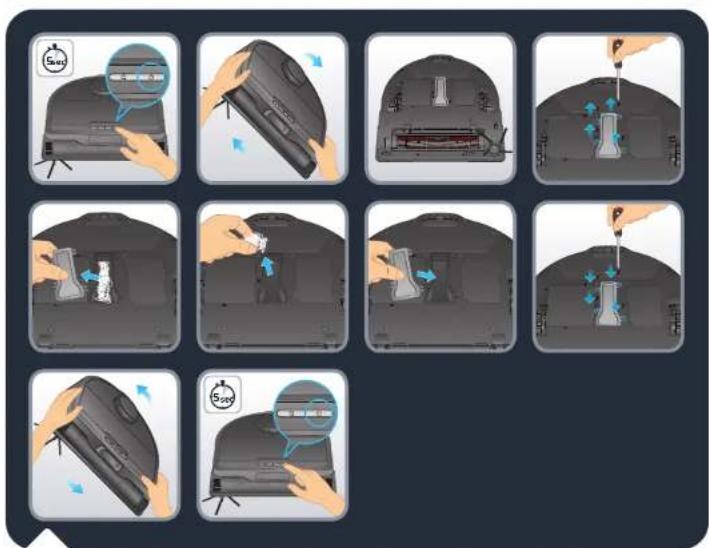
If the station failed to empty the robot's dust box, a foreign item may block the dust channel of the robot. Violent disassembly is prohibited. Do not use blunt object. Switch off the robot by pressing and holding the START button for 5 seconds. Reverse the robot upside down. With a screwdriver, remove the 4 screws that hold the cover of the dust channel of the robot. Remove the cover of the dust channel. Check whether there are foreign matters blocking the dust channel. If the dust channel is blocked, remove the foreign matters with your fingers or with a bottle brush. After cleaning the dust channel, please put the cover back and 4 screws back. Reverse the robot. Switch the robot on by pressing and holding the START button for 5 seconds. Place the robot in front of the station and press the HOME button on the robot. The robot will automatically return to the station and start a dust collection for few seconds. The light indicator of the station is white for few seconds before the light is off.
EN
Component replacement frequency
Components and accessories can be bought on www.rowenta.com
| Component Cleaning the component Replacing the component | ||
| Dust box After each use Not applicable | ||
| Water tank After each use Not applicable | ||
| Mops After each use After 100 washes | ||
| Filter Once a week Twice a year | ||
| Main brush Once a week If required | ||
| Side brush Once a week Twice a year | ||
| Sensors Once a week Not applicable | ||
| Station | Once a week Not applicable | |
| Wheels | Once a month | Not applicable |
| Hygiene+ dust bag | Not applicable | When full |
Store the robot when you don't use it
EN
In order to extend the battery lifespan, always keep the robot charging at its station. When not using the robot for a long time, please fully charge the battery, switch off the robot by pressing and holding the START button for 5 seconds. Store the robot in a cool dry place.
Do's and don'ts
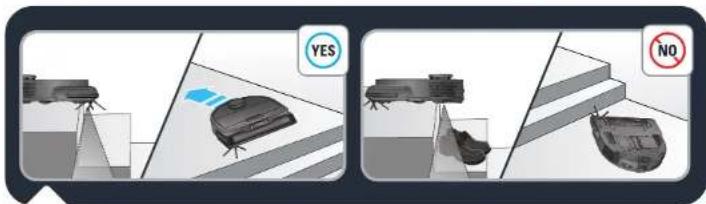
The robot has anti-drop sensors to detect stairs. The robot will change direction when detecting them. For optimum anti-drop sensors efficiency, remove any item (ex: shoe) from the stairs. When using the robot in a raised area, place a physical barrier at the edge of a drop to prevent accidental falls.

Do's and don'ts
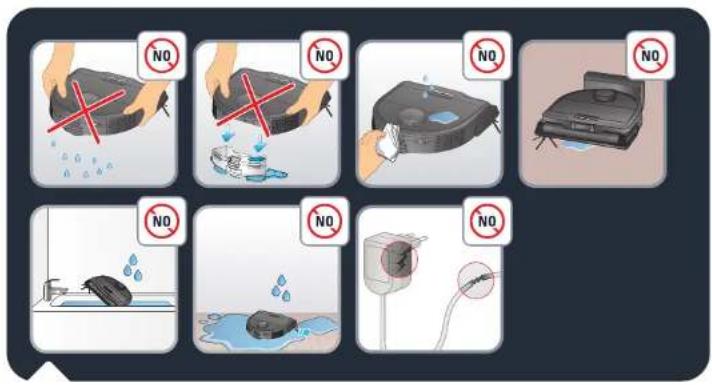
Do not shake the robot. Do not try to disassemble the vibrating mop bracket from the water tank. Do not put water or any wet cloth on the robot. Do not charge the robot when the ground is flooded. Do not submerge the robot in water. Do not use the robot on wet surfaces or surfaces with standing water.
Do not use the product if the cord or charger is damaged.
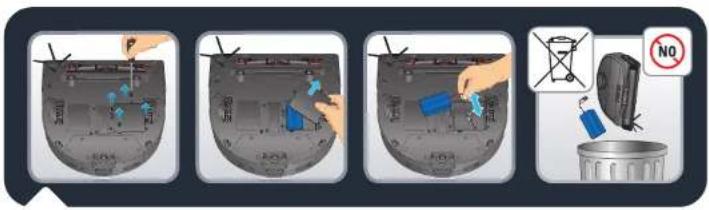
Before disposing of the device, remove the battery and dispose of it in accordance with local laws and local arrangements. If you have any questions, please contact your product dealer who can tell you what to do.
Do's and don'ts
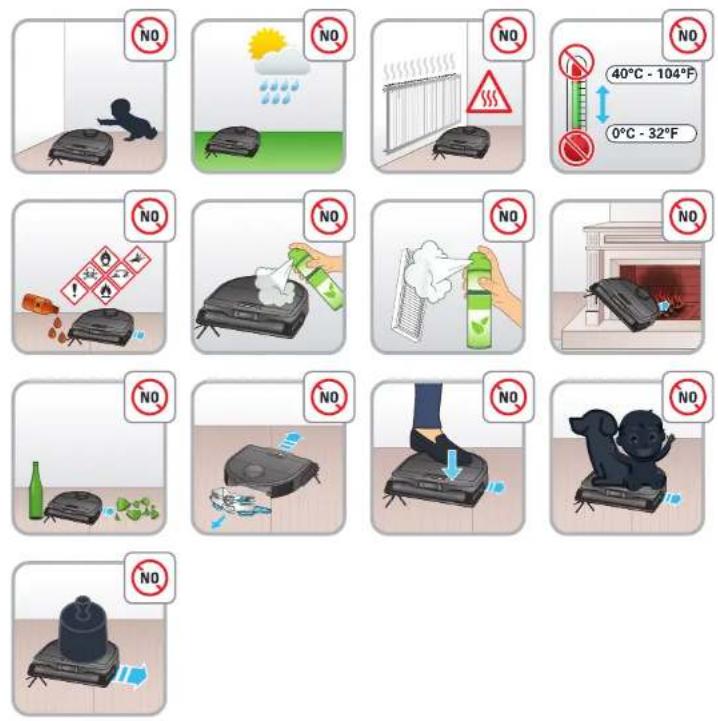
Do not leave children unattended, do not allow children to play with the robot.
Do not use the robot outside home.
Do not use the robot in a overheated environment.
Do not use the robot when the home temperature is below 0^ C ( 32^ F) and above 40^ C ( 104^ F).
Do not spread cleaning agents on the floor before using the robot.
Do not use cleaning agents, aerosol cleaners or cleaning spray to clean the robot and the filter.
Do not throw the robot in the fire.
Do not use the robot to clean broken glass.
Do not try to use the robot without the « vacuum only » module or the water tank, do not remove the « vacuum only » module or the water tank when the robot is running.
Do not walk or climb on the robot, do not move the robot with the foot.
Do not allow children or pets to ride on the robot.
Do not put any item on the robot.
Do not use the robot without the filter, it would damage the robot.
Common issues and solutions
EN
| FAULT SOLUTION | |
| Cannot start the robot | Make sure the robot is connected to power supply.Make sure the battery is fully charged.Make sure the robot is ON. Press and hold the START button for 5 seconds until the robot lights are on.Do not try to use the robot without the « vacuum only » module or the water tank.Check whether the dust box and water tank are properly installed. |
| The robot suddenly stops working | Check whether the robot is stuck or blocked by obstacles.Check whether the battery is too low.If the problem persists, please switch OFF the robot by pressing and holding the START button for 5 seconds. Wait for 30 seconds, and switch ON by pressing the START button for 5 seconds to restart it.The appliance may be overheating:Stop the appliance and leave cool for at least 1 hour.If it overheats on repeated occasions, contact the Approved Services Center. |
| Cannot charge the robot | Make sure the station is properly connected to the power.Make sure the robot is ON. Press and hold the START button for 5 seconds until the robot lights are on.Check whether the indicator on the robot is flashing during charging.Wipe dust off charging contacts with dry cloth.Make sure the robot and the station are connected through the charging contacts.Do not try to use the robot without the « vacuum only » module or the water tank.Make sure the station light is white when it's connected to power and robot is not on the station. |
| The charger is getting hot | This is perfectly normal. The robot can remain permanently connected to the station without any risk. |
| The robot cannot return to the station | Clear the station of objects within 0.5 m on the left and right sides and within 1.5 m ahead.Make sure that the robot starts cleaning from the station without abnormal movement.When the robot is near the station, it can return faster. But if the station is located far away, the robot will need more time to return. Please wait during its return.Clean the charging contacts with dry cloth.Make sure the station light is white when it's connected to power and robot is not on the station. |
| The cleaning schedule is not executed | Make sure the robot has been powered on. Press and hold the START button for 5 seconds until the robot lights are on.Make sure the cleaning schedule has been set correctly in the application at the desired time, and the cleaning schedule is saved.Check whether the battery level is too low to start cleaning.The robot will not start any scheduled cleaning when a task is being performed.Check whether the dust box and water tank are properly installed. |
| The suction is whistling or running is very loud during cleaning | Check the suction inlet for any obstruction.Empty the dust bin.Clean the filter.Check whether the filter is wet due to water or other liquids on the floor. Let the filter dry naturally thoroughly before use.Check whether the dust box and water tank are properly installed.Check whether the main brush or side brush is blocked by any foreign item, remove the main brush or side brush and clean it. |
| The central brush does not rotate | Check whether the main brush is blocked by any foreign item, remove the main brush and clean it.Check whether the central brush and the brush cover are correctly installed. |
| FAULT SOLUTION | |
| Abnormal action or sweep route of the robot | Carefully clean the sensors with dry cloth.Switch OFF the robot by pressing and holding the START button for 5 seconds, wait for 30 seconds and switch on by pressing and holding the START button for 5 seconds to restart the robot. |
| No water released during mopping | Make sure there is enough water in the water tank.Check wether the water tank is correctly installed.Check wether the humidity level is set at the desired level in the application.Check whether the water outlet is blocked. |
| The robot cannot connect to your Wi-Fi network | Ensure that your Wi-Fi router supports 2.4GHz and 802.11 b/g/n bands as this equipment does not support 5GHz bands.Check if the automatic reconnection to your domestic WiFi network is correctActivate the mobile data of your smartphoneDon't use a VPN (Virtual Private Network)Retry the process and check that you have selected the correct WiFi networkRetry the process and make sure you have entered the correct WiFi passwordKeep your phone close to the robot and the station until the end of the pairing processAfter several attempts, unplug and replug the productReset the robot, open the flip cover, press and hold the « Home » button for 15 secondsPress and hold for 5 seconds the « Home » and « Start » button until the two buttons lights are blinkingRestart your smartphoneIn case a warning window appears for internet connection, please maintain the connection with the robotIf the failure persists, contact our support team (telephone number depending on your country of residence, find it on the assistance leaflet in the packaging).Make sure the station light indicator is white when it's connected to power and when the robot is not on the station. |
| The map is lost | The map may be lost if the robot has been manually moved to another location during cleaning or if the home environment has been changed (moved furniture). Please restart mapping by launching in the app a new exploration or a new cleaning session from the station. |
| The robot returns to the station before it has finished cleaning | The battery level may be too low to finish cleaning, the robot will return to the station to charge. When its battery is full, the robot will resume cleaning where it has left to finish cleaning.The robot may be unable to reach certain areas blocked by furniture or barriers, tidy up these area to make them accessible.Verify the no go zones and no mop zones set in the application. Add, modify or delete zones according to your needs. |
| The robot gets stuck | The robot may be tangled with something, manually remove the blocked item and restart the cleaning session by pressing the START button.The robot may be stuck under furniture with an entrance of similar height, please set a physical barrier or a no go zone in the app.Rotate and press the wheels to check weather there is any foreign object wrapped or stuck, remove it. |
natural_image
Exterior view of a modern cylindrical device with attached power cord and ports (no visible text or symbols)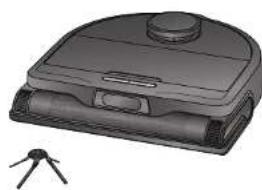
natural_image
Illustration of a robotic vacuum cleaner with a tripod base (no text or symbols)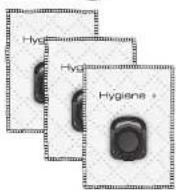
RR9495WH
natural_image
Illustration of a 3D printer with green and blue fabric patterns, no text or symbols present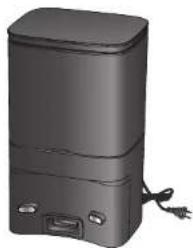
natural_image
Exterior view of a modern cylindrical device with a power cord and USB cable (no visible text or symbols)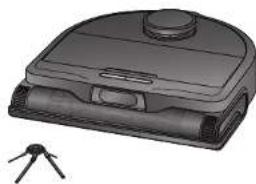
natural_image
Illustration of a robotic vacuum cleaner with a tripod-mounted sensor (no text or symbols)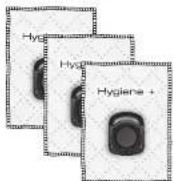
*Selon le modèle
natural_image
Interior layout of a modern living room with sofa, wall art, and a red 'X' symbol (no text or symbols present)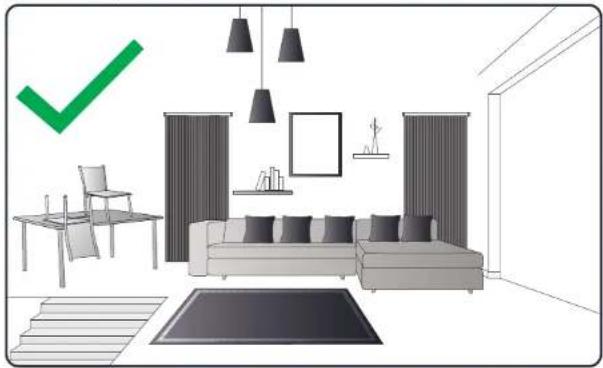
natural_image
Interior layout diagram of a modern living room with sofa, chairs, and wall-mounted furniture (no text or symbols)natural_image
Illustration of four steps of a device being processed, showing hand tool and tool path (no text or symbols)natural_image
Two 3D mechanical components shown in two cropped views: one with layered structure and one with layered cylindrical components (no text or symbols)natural_image
Three technical illustrations of a vehicle chassis with a QR code on the left, showing front, side, and top views (no text or symbols present)natural_image
Illustration of six steps of a device cleaning or packaging process, showing hand positioning and disassembly (no text or symbols)natural_image
Illustration of a hand using a device to adjust a component, showing step-by-step instructions (no text or symbols present)natural_image
Two views of a spacecraft's helmet showing internal components and a hand adjusting the part (no text or symbols visible)natural_image
Exterior view of a modern cylindrical device with attached power cord and ports (no visible text or symbols)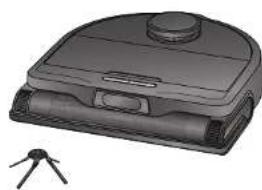
natural_image
Illustration of a robotic vacuum cleaner with a tripod base (no text or symbols)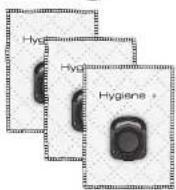
RR9495WH
natural_image
Illustration of a cleaning machine with blue and green filter bands (no text or symbols)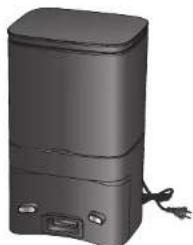
natural_image
Exterior view of a modern cylindrical device with a power cord and two buttons (no visible text or symbols)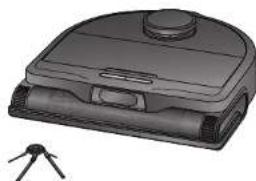
natural_image
Illustration of a robotic vacuum cleaner with a tripod-mounted sensor (no text or symbols)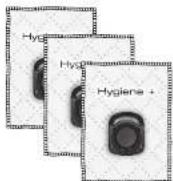
*je nach Modell
Produktübersicht
DE
natural_image
Interior layout of a modern living room with sofa, curtains, pendant lights, and a red 'X' symbol (no text or symbols present)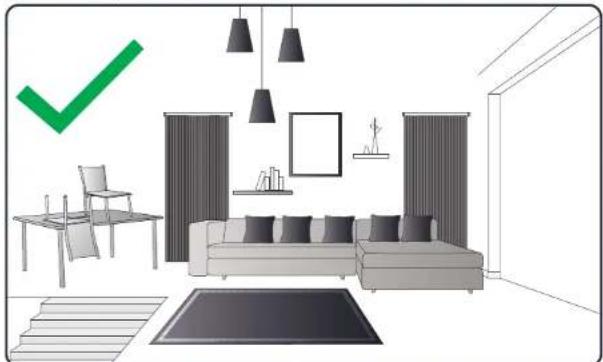
natural_image
Interior layout diagram of a modern living room with sofa, chairs, and wall-mounted furniture (no text or symbols)natural_image
Four-step illustration showing a device being processed with tools, no text or symbols presentnatural_image
Two 3D-rendered mechanical components with no visible text or symbolsnatural_image
Three technical illustrations of a device with internal components, displayed alongside a QR code (no text or symbols on the devices themselves)natural_image
Illustration of a multi-step cleaning or packaging process showing hand positioning, disc removal, and waste disposal (no text or symbols)natural_image
Two views of a military helmet showing internal components and a hand inserting a component (no text or symbols visible)natural_image
Interior layout of a modern living room with sofa, wall-mounted rug, and a red 'X' symbol (no text or symbols present)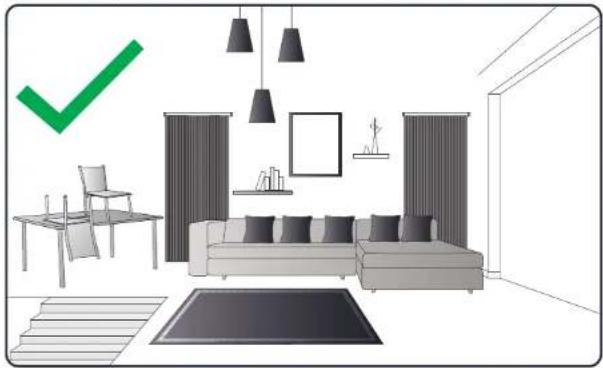
natural_image
Interior layout diagram of a modern living room with sofa, chairs, and wall-mounted furniture (no text or symbols)natural_image
Four-step illustration showing a device being processed with tools, no text or symbols presentnatural_image
Two 3D-rendered mechanical components with no visible text or symbolsnatural_image
Three-step illustration showing a hand cleaning a car interior with arrows indicating motion (no text or symbols)natural_image
Three technical illustrations of a vehicle's internal components, each with a QR code on the left (no text or symbols on the diagrams themselves)natural_image
Exterior view of a modern cylindrical device with attached power cord and ports (no visible text or symbols)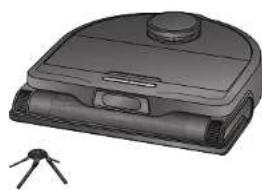
natural_image
Illustration of a robotic vacuum cleaner with a tripod base (no text or symbols)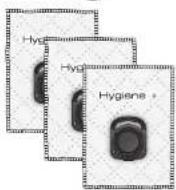
RR9495WH
natural_image
Illustration of a cleaning machine with blue and green filter bands (no text or symbols)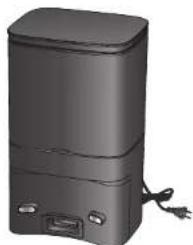
natural_image
Exterior view of a modern cylindrical device with a power cord and two buttons (no visible text or symbols)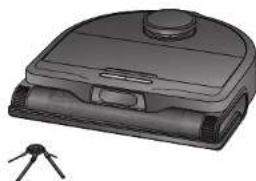
natural_image
Illustration of a robotic vacuum cleaner with a tripod-mounted sensor (no text or symbols)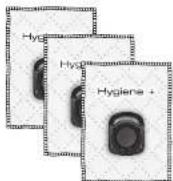
*Según el modelo
natural_image
Interior layout of a modern living room with sofa, chairs, lamp, and wall-mounted furniture (no text or symbols)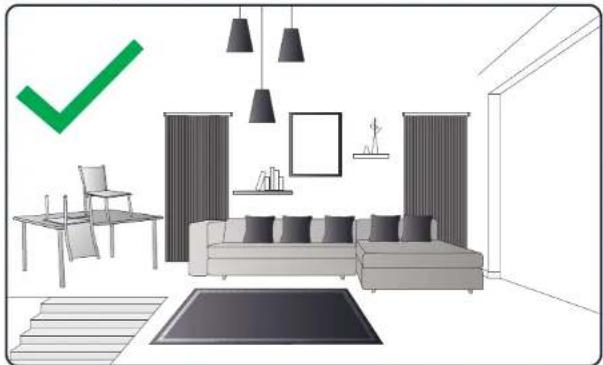
natural_image
Interior layout diagram of a modern living room with sofa, chairs, and wall-mounted furniture (no text or symbols)natural_image
Four-step illustration showing a device being processed with tools, no text or symbols presentnatural_image
Two 3D mechanical components shown in two cropped views: one with a gray outline and one with a blue container (no text or symbols visible)natural_image
Three technical illustrations of a device with internal components, displayed alongside a QR code (no text or symbols on the devices themselves)natural_image
Illustration of a hand using a handheld device to adjust or install a device, showing step-by-step instructions (no text or symbols present)natural_image
Two views of a spacecraft's internal structure, one showing external components and the other showing internal components with a hand adjusting it (no text or symbols visible)natural_image
Exterior view of a modern cylindrical device with attached power cord and ports (no visible text or symbols)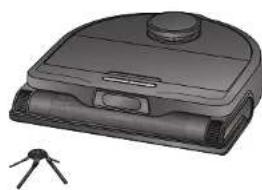
natural_image
Illustration of a robotic vacuum cleaner with a tripod base (no text or symbols)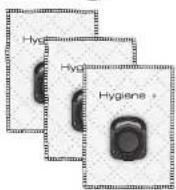
RR9495WH
natural_image
Illustration of a cleaning machine with blue and green filter bands (no text or symbols)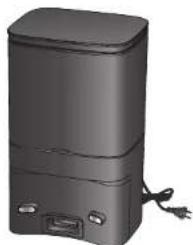
natural_image
Exterior view of a modern cylindrical device with a power cord and two buttons (no visible text or symbols)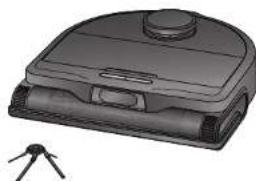
natural_image
Illustration of a robotic vacuum cleaner with a tripod-mounted sensor (no text or symbols)natural_image
Interior layout of a modern living room with sofa, wall-mounted rug, and bicycle (no text or symbols)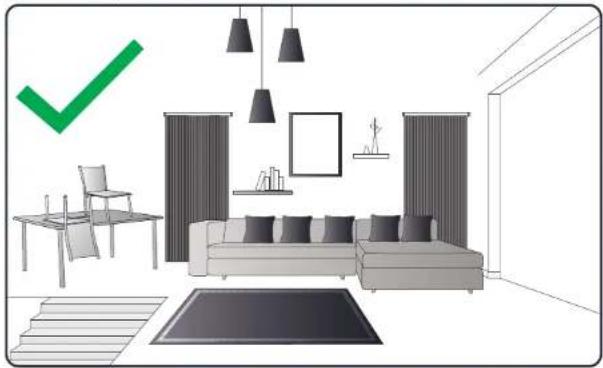
natural_image
Interior layout diagram of a modern living room with sofa, chairs, and wall-mounted furniture (no text or symbols)natural_image
Four-step illustration showing a device being processed with tools, no text or symbols presentnatural_image
Two 3D mechanical components shown in two cropped views: one with layered structure and one with layered cylindrical components (no text or symbols)natural_image
Three-step illustration showing a hand cleaning a car interior with arrows indicating motion (no text or symbols)natural_image
Four technical illustrations of a robotic device with internal components, displayed alongside a QR code (no text or symbols on the devices themselves)natural_image
Illustration of a multi-step cleaning or packaging process showing hand positioning and disassembly steps (no text or symbols)Maak de stofbak na elk gebruik schoon
natural_image
Exterior view of a modern cylindrical device with attached power cord and ports (no visible text or symbols)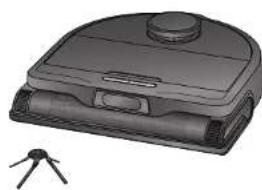
natural_image
Illustration of a robotic vacuum cleaner with a tripod base (no text or symbols)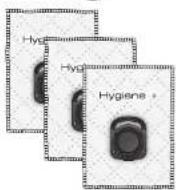
RR9495WH
natural_image
Illustration of a cleaning machine with blue and green filter bands (no text or symbols)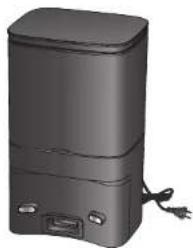
natural_image
Exterior view of a modern cylindrical device with a power cord and small electronic ports (no visible text or symbols)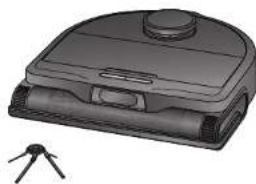
natural_image
Illustration of a robotic vacuum cleaner with a tripod base (no text or symbols)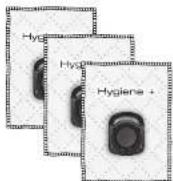
*consoante o modelo
natural_image
Interior layout of a modern living room with sofa, wall-mounted rug, and bicycle (no text or symbols)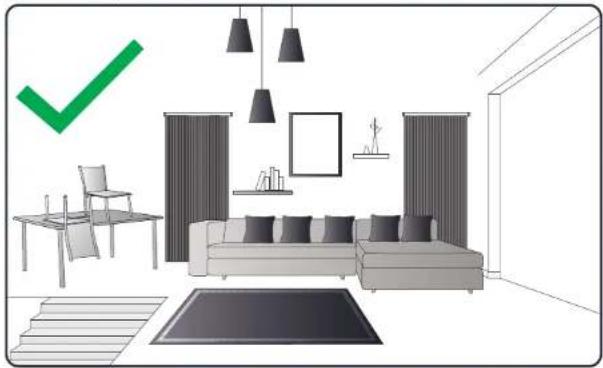
natural_image
Interior layout diagram of a modern living room with sofa, chairs, and wall-mounted furniture (no text or symbols)natural_image
Illustration of four steps of a device operation: adding a component, adjusting a tray, removing a device, and using a power tool (no text or symbols present)natural_image
Two 3D mechanical components shown in two cropped views: one with layered structure and one with layered cylindrical components (no text or symbols)natural_image
Three-step illustration showing a cleaning or cleaning process: washing machine, cleaning device, and cleaning tool (no text or symbols)natural_image
Four technical illustrations of a device with internal components, displayed alongside a QR code (no text or symbols on the devices themselves)natural_image
Interior layout of a modern living room with sofa, wall-mounted rug, and a red 'X' symbol (no text or symbols present)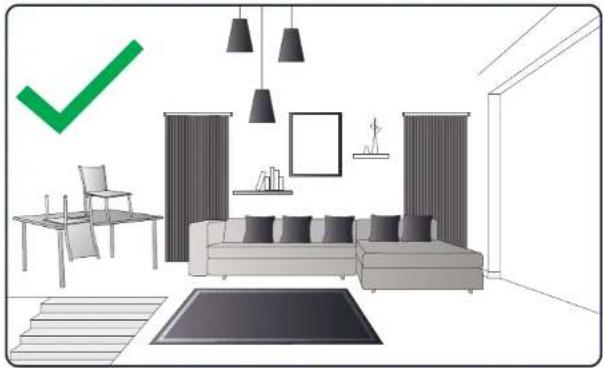
natural_image
Interior layout diagram of a modern living room with sofa, chairs, and wall-mounted furniture (no text or symbols)natural_image
Four-step illustration showing a device being processed with tools, no text or symbols presentnatural_image
Two 3D mechanical components shown in two cropped views: one with a gray outline and one with a blue container (no text or symbols visible)natural_image
Three-step illustration showing a hand cleaning a car interior with arrows indicating motion (no text or symbols)natural_image
Three technical illustrations of a vehicle's internal components with a QR code on the left (no text or symbols on the diagrams themselves)natural_image
Illustration of a multi-step cleaning or packaging process showing hand positioning and disassembly steps (no text or symbols)natural_image
Exterior view of a modern cylindrical device with attached power cord and ports (no visible text or symbols)
natural_image
Illustration of a robotic vacuum cleaner with a tripod base (no text or symbols)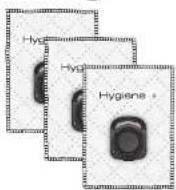
RR9495WH
natural_image
Illustration of a robotic arm with blue and green motion paths, no text or symbols present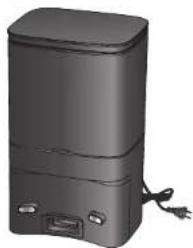
natural_image
Exterior view of a modern cylindrical device with a power cord and small electronic ports (no visible text or symbols)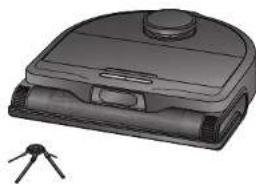
natural_image
Illustration of a robotic vacuum cleaner with a tripod base (no text or symbols)natural_image
Interior layout of a modern living room with sofa, wall-mounted rug, and bicycle (no text or symbols)