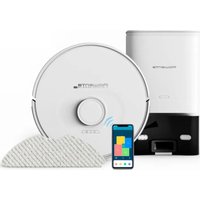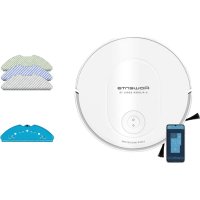
ROWENTA XPlorer Serie 70 RR8477 - Robot vacuum

XPlorer Serie 70 RR8477 - Robot vacuum ROWENTA - Free user manual and instructions

Find the device manual for free XPlorer Serie 70 RR8477 ROWENTA in PDF.

📄 128 pages English EN 💬 AI Question
Notice ROWENTA XPlorer Serie 70 RR8477 - page 11

Download the instructions for your Robot vacuum in PDF format for free! Find your manual XPlorer Serie 70 RR8477 - ROWENTA and take your electronic device back in hand. On this page are published all the documents necessary for the use of your device. XPlorer Serie 70 RR8477 by ROWENTA.
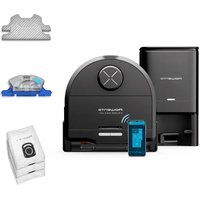
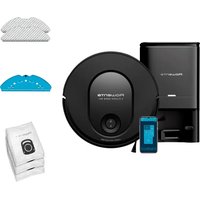
USER MANUAL XPlorer Serie 70 RR8477 ROWENTA

For more information: www.rowenta.com Please read carefully the “Safety and use instructions” booklet before first use. What’s in the box? page 04 Product overview page 05 Before cleaning page 07 Install the robot page 08 Connect the robot with the free app page 10 Use the main app features page 10 Use the robot without the app page 11 Use the robot with the mopping function page 12 Maintain the robot and its accessories page 16 Replace the dust bag when it’s full page 21 Component replacement frequency page 23 Store the robot when you don’t use it page 24 Do’s and don’ts page 24 Unpair your robot page 27 Common issues and solutions page 284 5

  • Press to return to station
  • Press and hold to turn on or off
  • Press to start or pause cleaning

13. Anti-drop sensor

16. Dust bin and water

18. Dust bin and water

scrubbing mop for hard stains

microbermopto capturenedust (to use without water)

Automatic dust collecting station

  • Light off: charging/ powered off

White blinking: dust collecting

White light on: station plugged in and robot not connected

  • Red: lid open/bag not installed

Please read the following tips to improve cleaning efciency. Tidy up cables, cords, small and loose items. Remove any unstable, fragile, precious or dangerous items from the ground. Make sure each room door is open. Your robot may encounter some difculties on dark oors and on carpets: with fringes, too thick, with long piles, too light (ex: bathroomcarpet).Foroptimumanti-dropsensorsefciency,removeany item (ex: shoe) from the stairs. When using the robot in a raised area, place a physical barrier at the edge of a drop to prevent accidental falls. Do not stand in narrow spaces, such as hallways so the robot is not blocked.8 9 Flash the QR-Code above to know how to install and connect the robot in video. Read the following instructions for more detailed informations. Remove allprotections(protectivelms)onthestationandontherobot.Reversethe robot,installthesidebrushbygentlyclippingit.Thesidebrushiscorrectlyinstalled when you hear a “click” sound. Install the robot

CLICK Install the robot InstalltheAutomaticDustCollectingStationonahardandatoor.Avoidparquet, woodenoorsandcarpet.Placethestationinaclearspaceagainstawall,withno stairsinfrontofthestation.Keepatleast0.5mofclearanceoneithersideand1.5min front. Make sure the chosen location is close to the Wi-Fi box or has good Wi-Fi signal strength.Keeptheareaaroundthestationclearfromanyobject,reectivesurface, mirror, table and chair. Keep the station away from direct sunlight. Plug the “power” cable. Make sure the “power” cable remains against the wall. Turntherobotonbypressingandholdingthe“Power”buttonuntiltherobotlightsturnon(~5 seconds). Place the robot from 20 to 50 cm in front of the station. Press the “Home” button, the robot will automatically dock to the station. (Do not manually place the robot against the station). Once the robot is docked, the dust collection will be automatically activated for few seconds. Please note that the minimum time interval between two dust collections is 5minutes. Wait 3-4 hoursfortherobottobefullycharged.Thestationlightisoffwhentherobotischarging.For therst-timecleaning,pleaseensurethattherobotisfullycharged.Therobotisfullycharged whenthewhiteindicatorsontherobotarenormallyseton.Forthersttimeuse,therobotwill explore the environment and clean your home at the same time. Once it is done, the robot will come back where it started and the map of your home will be displayed on your app. Donotlifttherobotduringtherstcleaning,itpreventsthemapcreation. Thisrobotisequippedwithaxedlasertechnology.Itmeansthatitwillneedtoself-relocate oftenbyturningonitselfwhilecleaning.Thisishowitdetectsitsenvironment. If you have carpets with fringes, please place barriers around carpets to prevent the robot from getting stuck in the fringes. If you have an outdoor area (garden, balcony, patio, etc.) accessible with a threshold less than 2 cm high or without threshold (for example with a French window, a patio door, a bay window, etc.), please close this access to the robot. 1.5m 0.5m 0.5m

sec AUTO EN10 11 Flash the QR-Code above to know how to install and connect the robot in video. You canalsondthedetailedpairinginstructionsstepbystepinaPDFdocumentby ashingtheQR-Codebelow. Flash the QR-Code above to know how to use the main features of the application in video. Use the main app features Connect the robot with the free app

thecleaningsessionorifthebatterylevelistoolow.Ifthebatteryrunslowduring the cleaning session, the robot will automatically return to its station to charge. After charging,therobotwillresumecleaningwhereitleftoff.

therobotisnotonitsstationwhenitstartscleaning,itwillautomaticallyreturntoits startingpointattheendofthecleaningsessionorifbatterylevelistoolow. If the robot doesn’t start when you press the button “Power”, the battery level may be toolow,pleasechargetherobot. At the end of the cleaning session, the robot will automatically return to the station. Butifyouwanttomanuallyendthecleaningsession,pressthe“Home”buttononceto stop the robot at any time and press it again to send the robot back to the station. If the robotfailstondthestation,manuallyplacetherobotinfrontofthestationandpress the“Home”button.Oncetherobotisdocked,thedustcollectionwillbeautomatically activated for few seconds. Please note that the minimum time interval between two dust collections is 5 minutes. Use the robot without the app EN12 13 The differenttypesofmops(dependingonmodel): ū Washable grey mop for standard use ū Washable blue scrubbing mop for hard stains ū Washablegreenmicrobermoptocapturenedust(tousewithoutwater) PRESS CLICK Flash the QR-Code above to know how to use the mopping function in video. Read the following instructions for more detailed informations. To ll the water tank: Press the release button of the water tank to unclip it & pull it to separate from the robot. Openthestopperofthewatertankandllitwithcleanwateruntilthewatertank isfull.Donotusehotwater.Closethestopperoncethewatertankislled.

Warning:Donotaddcleaningagents/detergentsinthewatertank.Thismayclogthe

pipes and make the water tank not functioning anymore. Clip the water tank back into therobot.Thewatertankiscorrectlyinstalledwhenyouheara“click”sound. Use the robot with the mopping function

Warning: Do not use the mopping function on carpets. Set up a vacuum only session in

Wash the mop cloth under water or in the laundry machine. Let it dry for 24 hours. Please replace the mop cloth after 100 washes. You can buy kit of new mops on www.rowenta.com At the end of the cleaning session, unclip the mop pad from under the robot and remove the dirt mop cloth. Unclip the 2-in-1 dust bin and water tank by pressing and holding its release button and pull it outwards. Open the stopper and empty the remaining water from the water tank. Use the robot with the mopping function

PRESS16 17 Flash the QR-Code above to know how to maintain the robot to keep its performance. Always switch off the robot by pressing and holding the “Power” button for 5 seconds and unplug the station before any manipulation. Once a week, clean the sensors. With a clean, soft and dry cloth, wipe the robot sensors (in front, top, back and bottom of the robot), the laser window, the sensors and charging contacts of the station. Wipe the two buttons on top of the robot. Maintain the robot and its accessories Maintain the robot and its accessories After each use, clean the dust box When the robot returns to its station, separate the 2-in-1 dust bin and water tank from the rest of the robot: press and hold its release button and pull it outwards. Press the dust bin and water tank separation button to horizontally lift the dust bin and seperate it from the water tank. Open the dust bin and empty it into the bin, gently tap the dust bin to knock off dirt. Close the dust box. Note: Thedustbinopeningmaynotopenorcloseproperlyifthereistoomuchdustin the hinges. Please clean hinges with a clean, soft and dry cloth to remove dust. EN EN18 19 Once a week, clean the lter Always switch off the robot by pressing and holding the “Power” button for 5 seconds, and unplug the station before any manipulation. Opentheltercovertotakeoutthelterandremoveitfromthedustbox. Takethecleaningtoolsuppliedinthepack.Usethebrushpartofthecleaningtooltoclean thelter.Youcanalsowashthedustbinandthelterunderwater.Letthemouttodryfor 24hours.Putthelterbacktoitsoriginalplace.Reinstallthedustbinintothewatertank, and then install the 2-in-1 dust bin and water tank back to the robot. Note:Neverusetherobotwithoutthepleatedlter.Itwoulddamagetherobot. 24h

Maintain the robot and its accessories Once a week, clean the main brush Always switch off the robot by pressing and holding the “Power” button for 5 seconds, and unplug the station before any manipulation. Turntherobotupsidedown.Pressthelatchesofthebrushcoverandpulltoremove it.Takeoutthebrush.Pullthebrushheadontherightsideofthebrushtoremoveit andgetridoftangledhair.Takethecleaningtoolandusethebladeparttocutoff the tangled hair. Replace the brush head before reinstalling the brush in the robot. Re-installbrushcover.Thecoveriscorrectlyinstalledwhenyouheara“click”sound. CLICK Maintain the robot and its accessories EN20 21 Once a week, clean the side brush Always switch off the robot by pressing and holding the “Power” button for 5 seconds and unplug the charging base before any manipulation. Turntherobotupsidedown.Takethesidebrushwithtwohandsbytheplasticparts and pull to unclip it. Do not pull by the bristles of the side brush. Remove the tangled hair. Re-installthesidebrushbygentlyclippingit.Thesidebrushiscorrectlyinstalled when you hear a “click” sound. Note:Thesidebrushcanbedifculttoremove,ifyoucan’tunclipit,trypullingfroma differentangle.Toremovethetangledhair,youcanusethebladeofthecleaningtool. Once a month, clean the wheels Always switch off the robot by pressing and holding the Power button for 5 seconds, and unplug the station before any manipulation. Thewheelsmaybeentangledbyhairordirt.Turntherobotupsidedown.Cleanthe wheels by removing the tangled hair.

CLICK Maintain the robot and its accessories Flash the QR-Code above to watch how to change the dust bag in video. Read the following instructions for more detailed informations. When the dust bag is full, the light indicator of the station is blinking in red. Open the stationlid.PresstheEjectbutton.Takeouttheuseddustbagbythedustbaghandle. Throwitawayinthebin.TakeanewHygiene+bag.Installitinthestationbysliding thedutbaghandleintheinsertionslot.Clipittothestation.Thedustbagiscorrectly installedwhenyouheara“click”sound.Closethestationlid.Thelightindicatorofthe station is white for few seconds before the light is off. If the light indicator is red, the dust bag is not in place or not correctly installed or the station lid is open.

CLICK CLICK PRESS NEW Replace the dust bag when it’s full22 23 If the light indicator is blinking in red after replacing the dust bag, or if the dust collection stops after a short period of time, a foreign item may block the dust channel of the station. Please unplug the station before any manipulation. Violent disassembly is prohibited. Do not use blunt object. Reverse the station upside down. With a screwdriver, remove the 5 screws that hold the cover of the dust channel. Remove the cover of the dust channel. Check wether there are foreign matters blocking the dust channel. If the dustchannelisblocked,removetheforeignmatterswithyourngersorwithabottle brush. After cleaning the dust channel, please put the cover back and 5 screws back. Reverse the station and replug the “power” plug. Place the robot in front of the station andpressthe“Home”buttonontherobot.Therobotwillautomaticallyreturntothe stationandstartadustcollectionforfewseconds.Thelightindicatorofthestationis white for few seconds before the light is off. The light indicator of the station is still blinking red after replacement of the dust bag

Components and accessories can be bought on www.rowenta.com Component Cleaning the component Replacing the component Dust bin After each use Notapplicable Water tank After each use Notapplicable Mops After each use Twiceayear Filter Once a week Twiceayear Central brush Once a week Ifrequired Sensors Once a week Notapplicable Wheels Once a month Notapplicable Side brush Once a month Twiceayear Docking station Once a week Notapplicable Auto Empty Station Once a week Notapplicable Hygiene+ dust bag Notapplicable When full Component replacement frequency EN24 25 Do’s and don’ts In order to extend the battery lifespan, always keep the robot charging at its station. When not using the robot for a long time, please fully charge the battery, switch off the robot by pressing and holding the “Power” button for 5 seconds. Store the robot in a cool dry place. Therobothasanti-dropsensorstodetectstairs.Therobotwillchangedirectionwhen detectingthem.Foroptimumanti-dropsensorsefciency,removeanyitem(ex:shoe) from the stairs. When using the robot in a raised area, place a physical barrier at the edge of a drop to prevent accidental falls. Store the robot when you don’t use it

Do not shake the robot. Do not put water or any wet cloth on the robot. Do not charge therobotwhenthegroundisooded.Donotsubmergetherobotinwater.Donotuse the robot on wet surfaces or surfaces with standing water. Do not use the product if the cord or charger is damaged. Before disposing of the device, remove the battery and dispose of it in accordance withlocallawsandlocalarrangements.Ifyouhaveanyquestions,pleasecontactyour product dealer who can tell you what to do. Do’s and don’ts EN26 27 Do’s and don’ts

Do not leave children unattended, do not allow children to play with the robot. Do not use the robot outside home. Do not use the robot in a overheated environment. Do not use the robot when the home temperature is below 0°C (32°F) and above 40°C (104°F). Donotspreadcleaningagentsontheoorbeforeusingtherobot. Do not use cleaning agents, aerosol cleaners or cleaning spray to clean the robot and thelter. Donotthrowtherobotinthere. Do not use the robot to clean broken glass. Do not walk or climb on the robot, do not move the robot with the foot. Do not allow children or pets to ride on the robot. Do not put any item on the robot. Donotusetherobotwithoutthelter,itwoulddamagetherobot. TodisableWi-Fimoduleonrobot,simultaneouslypressthe“Home”and“Power”buttons until you hear a beep sound. The robot will automatically removes its connection tothephone.The2buttonswillthenslowlyashforafewminutes.Therobotwill automatically removes its connection to the phone and router. Once it is done, you can’tgoback.Topairagain,youwillneedtodothepairingprocessagain. Do’s and don’ts Unpair your robot

  • Make sure the robot is connected to “power” supply.
  • Make sure the battery is fully charged.
  • MakesuretherobotisON.PressandholdtheSTARTbuttonfor5seconds until the robot lights are on.
  • Check whether the dust box and water tank are properly installed. Therobotsuddenlystops working
  • Check whether the robot is stuck or blocked by obstacles.
  • Check wether the battery is too low.
  • If the problem persists, please switch OFF the robot by pressing and holding theSTARTbuttonfor5seconds.Waitfor30seconds,andswitchONby pressingtheSTARTbuttonfor5secondstorestartit.
  • Theappliancemaybeoverheating: ū Stop the appliance and leave cool for at least 1 hour. ū If it overheats on repeated occasions, contact the Approved Services Center. Cannot charge the robot
  • Make sure the station is properly connected to the “power”.
  • MakesuretherobotisON.PressandholdtheSTARTbuttonfor5seconds until the robot lights are on.
  • Checkwhethertheindicatorontherobotisashingduringcharging.
  • Wipe dust off charging contacts with dry cloth.
  • Make sure the robot and the station are connected through the charging contacts.
  • Make sure the station light is white when it’s connected to “power” and robot is not on the station Thechargerisgettinghot
  • Thisisperfectlynormal.Therobotcanremainpermanentlyconnectedtothe station without any risk. Therobotcannotreturntothe station
  • Clear the station of objects within 0.5 m on the left and right sides and within
  • Make sure that the robot starts cleaning from the station without abnormal movement.
  • When the robot is near the station, it can return faster. But if the station is located far away, the robot will need more time to return. Please wait during its return.
  • Clean the charging contacts with dry cloth.
  • Make sure the station light is white when it’s connected to “power” and robot is not on the station Thecleaningscheduleisnot executed
  • Makesuretherobothasbeen“power”edon.PressandholdtheSTARTbutton for 5 seconds until the robot lights are on.
  • Make sure the cleaning schedule has been set correctly in the application at the desired time, and the cleaning schedule is saved.
  • Check wether the battery level is too low to start cleaning.
  • Therobotwillnotstartanyscheduledcleaningwhenataskisbeing performed.
  • Check whether the dust box and water tank are properly installed. Thesuctioniswhistlingor running is very loud during cleaning
  • Check the suction inlet for any obstruction.
  • Check wether the dust box and water tank are properly installed.
  • Check wether the main brush or side brush is blocked by any foreign item, remove the main brush or side brush and clean it. Common issues and solutions
  • Check wether the main brush is blocked by any foreign item, remove the main brush and clean it.
  • Check wether the central brush and the brush cover are correctly installed. Abnormal action or sweep route of the robot
  • Carefully clean the sensors with dry cloth.
  • SwitchOFFtherobotbypressingandholdingtheSTARTbuttonfor5seconds, waitfor30secondsandswitchonbypressingandholdingtheSTARTbutton for 5 seconds to restart the robot. Nowaterreleasedduring mopping
  • Make sure there is enough water in the water tank.
  • Check wether the water tank is correctly installed.
  • Check wether the humidity level is set at the desired level in the application.
  • Check whether the water outlet is blocked. Therobotcannotconnecttoyour Wi-Fi network
  • Ensure that your Wi-Fi router supports 2.4GHz and 802.11 b/g/n bands as this equipmentdoesnotsupport5GHzbands.
  • Check if the automatic reconnection to your domestic WiFi network is correct
  • Activate the mobile data of your smartphone
  • Don’tuseaVPN(VirtualPrivateNetwork)
  • Retry the process and check that you have selected the correct WiFi network
  • Retry the process and make sure you have entered the correct WiFi password
  • Keep your phone close to the robot and the station until the end of the pairing process
  • After several attemps, unplug and replug the product
  • Restart your smartphone
  • In case a warning window appears for internet connection, please maintain the connection with the robot
  • If the failure persists, contact our support team (telephone number dependingonyourcountryofresidence,nditontheassistanceleaetinthe packaging).
  • Make sure the station light indicator is white when it’s connected to “power” and when the robot is not on the station. Themapislost
  • Themapmaybelostiftherobothasbeenmanuallymovedtoanother location during cleaning or if the “home” environment has been changed (moved furniture). Please restart mapping by launching in the app a new exploration or a new cleaning session from the station. Therobotreturnstothestation beforeithasnishedcleaning
  • Thebatterylevelmaybetoolowtonishcleaning,therobotwillreturntothe station to charge. When its battery is full, the robot will resume cleaning where ithaslefttonishcleaning.
  • Therobotmaybeunabletoreachcertainareasblockedbyfurnitureor barriers, tidy up these area to make them accessible.
  • Verify the no go zones and no mop zones set in the application. Add, modify or delete zones according to your needs. Therobotgetsstuck
  • Therobotmaybetangledwithsomething,manuallyremovetheblockeditem andrestartthecleaningsessionbypressingtheSTARTbutton.
  • Therobotmaybestuckunderfurniturewithanentranceofsimilarheight, please set a physical barrier or a no go zone in the app.
Manual assistant
Powered by ChatGPT
Waiting for your message
Product information

Brand : ROWENTA

Model : XPlorer Serie 70 RR8477

Category : Robot vacuum