MC-660WDSI - Turntable LENCO - Free user manual and instructions
Find the device manual for free MC-660WDSI LENCO in PDF.


User questions about MC-660WDSI LENCO
0 question about this device. Answer the ones you know or ask your own.
Ask a new question about this device
Download the instructions for your Turntable in PDF format for free! Find your manual MC-660WDSI - LENCO and take your electronic device back in hand. On this page are published all the documents necessary for the use of your device. MC-660WDSI by LENCO.
USER MANUAL MC-660WDSI LENCO
natural_image
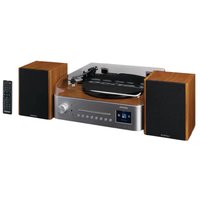
Exterior view of a Lenovo audio recording device with two speakers and a control panel (no visible text or symbols on the device body)USER MANUAL Hifi set with internet, DAB+, FM radio, CD player and turnt.
HANDLEIDING Hifi-set met internet, DAB+, FM-radio, cd-speler en platenspe
BEDIENUNGSANLEITUNG HiFi-Anlage mit Internet-, DAB+- und FM-Radio,
CD-Player und Plattenspieler
MODE D'EMPLOI Chaîne Hifi avec radio Internet, DAB+, FM, lecteur CD et to disque
MANUAL DEL USUARIO Equipo Hifi con internet, DAB+, radio FM, reproductor de CI KÄYTTÖOHJE tocadiscos
MANUALE DELL'UTENTE Set HiFi con internet, radio DAB+, FM, lettore CD e giradisc
BRUGERVEJLEDNING Hi-fi-anlæg med internetradio, DAB+/FM-radio, CD-afspiller og pladespiller
BRUKSANVISNING Hi-fi med internet, DAB+, FM-radio, CD-spelare och skivspela
Index:
English....4
Nederlands....33
Deutsch....65
Français....98
Español....1300
Italiano....161
Dansk/Norsk....192
Svenska 222
English
CAUTION:
Usage of controls or adjustments or performance of procedures other than those specified herein may result in hazardous radiation exposure.
KEEP THESE INSTRUCTIONS IN MIND:
-
Do not cover or block any ventilation openings. When placing the device on a shelf, leave 5 cm (2") free space around the whole device.
-
Install in accordance with the supplied user manual.
-
Keep the device away from heat sources such as radiators, heaters, stoves, candles and other heat-generating products or naked flame. The device can only be used in moderate climates. Extremely cold or warm environments should be avoided. Working temperature between 0° and 35°C.
-
Avoid using the device near strong magnetic fields.
-
Electrostatic discharge can disturb normal usage of this device. If so, simply reset and restart the device following the instruction manual. During file transmission, please handle with care and operate in a static-free environment.
-
Warning! Never insert an object into the product through the vents or openings. High voltage flows through the product and inserting an object can cause electric shock and/or short circuit internal parts. For the same reason, do not spill water or liquid on the product.
-
Do not use in wet or moist areas such as bathrooms, steamy kitchens or near swimming pools.
-
The device shall not be exposed to dripping or splashing and make sure that no objects filled with liquids, such as vases, are placed on or near the apparatus.
-
Do not use this device when condensation may occur. When the unit is used in a warm wet room with damp, water droplets or condensation may occur inside the unit and the unit may not function properly; let the unit stand in power OFF for 1 or 2 hours before turning on the power: the unit should be dry before getting any power.
-
Although this device is manufactured with the utmost care and checked several times before leaving the factory, it is still possible that problems may occur, as with all electrical appliances. If you notice smoke, an excessive build-up of heat or any other unexpected phenomena, you should disconnect the plug from the main power socket immediately.
-
This device must operate on a power source as specified on the specification label. If you are not sure of the type of power supply used in your home, consult your dealer or local power company.
-
Keep away from animals. Some animals enjoy biting on power cords.
-
To clean the device, use a soft dry cloth. Do not use solvents or petrol based fluids.
-
To remove severe stains, you may use a damp cloth with dilute detergent.
-
The supplier is not responsible for damage or lost data caused by malfunction, misuse, modification of the device or battery replacement.
-
Do not interrupt the connection when the device is formatting or transferring files. Otherwise, data may be corrupted or lost.
-
If the unit has USB playback function, the USB memory stick should be plugged into the unit directly. Don't use an USB extension cable because it can cause interference resulting in failing of data.
-
The rating label has been marked on the bottom or back panel of the device.
-
This device is not intended for use by people (including children) with physical, sensory or mental disabilities, or a lack of experience and knowledge, unless they're under supervision or have received instructions about the correct use of the device by the person who is responsible for their safety.
-
This product is intended for non professional use only and not for commercial or industrial use.
-
Make sure the unit is adjusted to a stable position. Damage caused by using this product in an unstable position vibrations or shocks or by failure to follow any other warning or precaution contained within this user manual will not be covered by warranty.
-
Never remove the casing of this device.
-
Never place this device on other electrical equipment.
-
Do not allow children access to plastic bags.
-
Only use attachments/accessories specified by the manufacturer.
-
Refer all servicing to qualified service personnel. Servicing is required when the device has been damaged in any way, such as the power supply cord or the plug, when liquid has been spilled or objects have fallen into the device, when the device has been exposed to rain or moisture, does not operate normally, or has been dropped.
-
Long exposure to loud sounds from personal music players may lead to temporary or permanent hearing loss.
-
If the product is delivered with power cable or AC power adaptor:
-
If any trouble occur, disconnect the AC power cord and refer servicing to qualified personnel.
- Don't step on or pinch the power adaptor. Be very careful, particularly near the plugs and the cable's exit point. Do not place heavy items on the power adaptor, which may damage it. Keep the entire device out of children's reach! When playing with the power cable, they can seriously injure themselves.
● Unplug this device during lightning storms or when unused for a long period. - The socket outlet must be installed near the equipment and must be easily accessible.
- Do not overload ac outlets or extension cords. Overloading can cause fire or electric shock.
● Devices with class 1 construction should be connected to a main socket outlet with a protective earthed connection.
● Devices with class 2 construction do not require a earthed connection.
● Always hold the plug when pulling it out of the main supply socket. Do not pull the power cord. This can cause a short circuit. -
Do not use a damaged power cord or plug or a loose outlet. Doing so may result in fire or electric shock.
-
If the product contains or is delivered with a remote control containing coin/cell batteries:
Warning:
- “Do not ingest battery, Chemical Burn Hazard” or equivalent working.
● [The remote control supplied with] This product contains a coin/button cell battery. If the battery is swallowed, it can cause severe internal burns in just
● 2 hours and can lead to death. - Keep new and used batteries away from children.
- If the battery compartment does not close securely, stop using the product and keep it away from children.
-
If you think batteries might have been swallowed or placed inside any part of the body, seek immediate medical attention.
-
Caution about the use of Batteries:
-
Danger of explosion if battery is incorrectly replaced. Replace only with the same or equivalent type.
● Battery cannot be subjected to high or low extreme temperatures, low air pressure at high altitude during use, storage or transportation. - Replacement of a battery with an incorrect type that can result in an explosion or the leakage of flammable liquid or gas.
- Disposal of a battery into fire or a hot oven, or mechanically crushing or cutting of a battery, that can result in an explosion.
● Leaving a battery in an extremely high temperature surrounding environment that can result in an explosion or that leakage of flammable liquid or gas.
● A battery subjected to extremely low air pressure that may result in an explosion or the leakage of flammable liquid or gas.
- Attention should be drawn to the environmental aspects of battery disposal.
INSTALLATION
- Unpack all parts and remove protective material.
- Do not connect the unit to the mains before checking the mains voltage and before all other connections have been made.
WARNING
Class 1 Laser Product
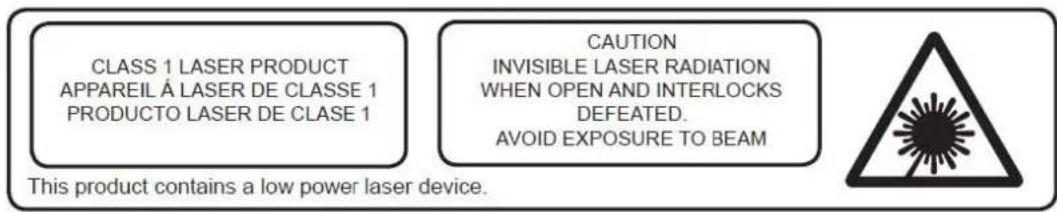
Warning: Do not touch the lens.
FRONT VIEW
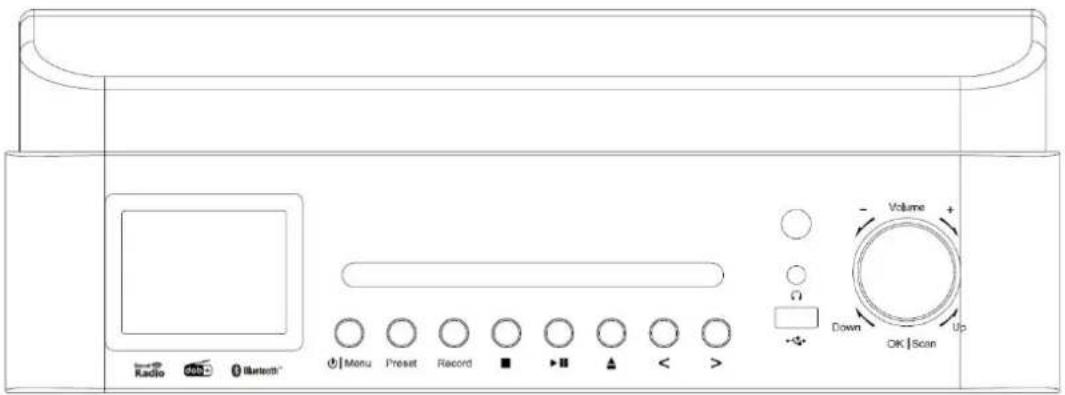
- LCD Display
- CD door
- Standby/menu Button
- Preset Button
- Scan Button
- Record Button
-
Play/Pause Button
-
CD door eject Button
- Left /SKIP/TUNE- Button
- Right/SKIP/TUNE+ Button
- Remote Control Receiver
- USB jack(Record and playback)
- Earphone jack
- Volume/UP/Down/Enter/Stop Button
REAR VIEW
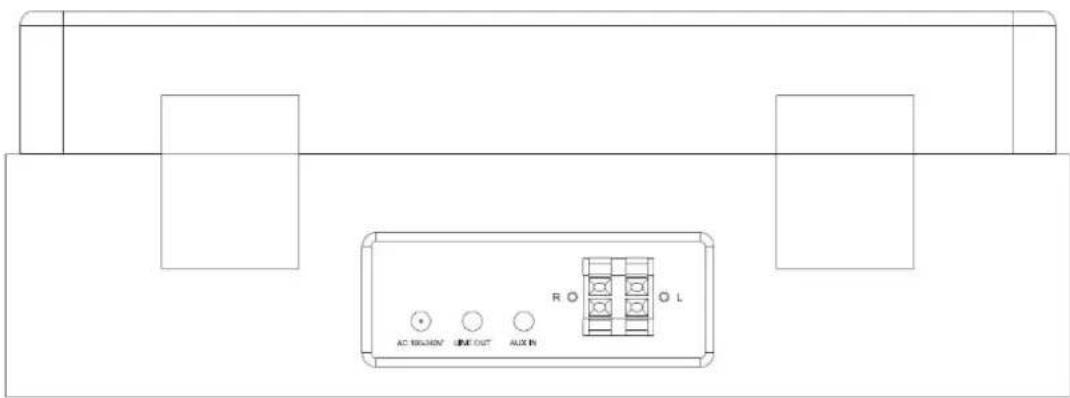
- AC cable
-
Aux in jack
-
Line out
- L/R speaker connector
REMOTE CONTROL
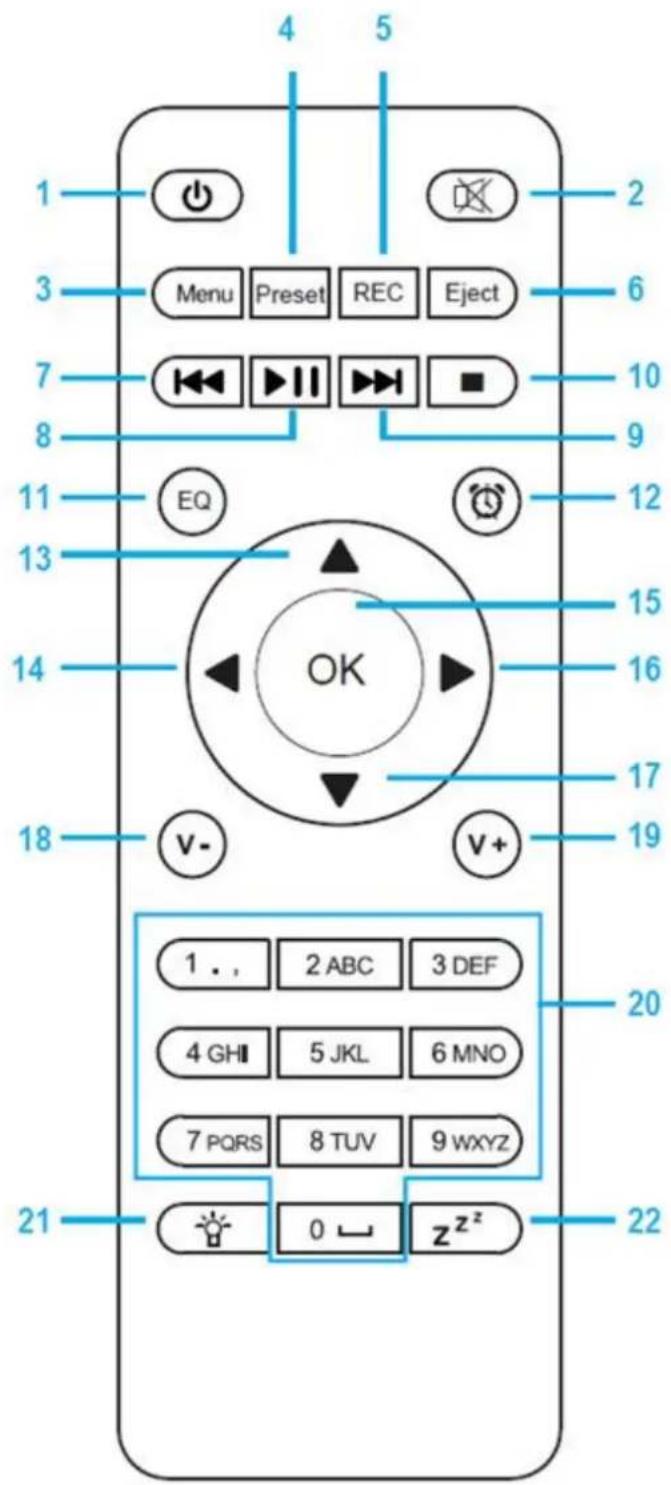
-
Standby button
-
Switch speaker ON/OFF
-
Menu-Main menu
-
Preset-saved stations, Favorites, etc
-
REC Button for record
-
Eject button
-
Media Center; Go back one track
-
Media Center; Play/Pause
-
Media Center; Go forward one track
-
Stop play button
-
EQ button
-
Alarm Button
-
Up cursor button
-
Left cursor button
-
OK Confirm selection
-
Right Cursor button
-
▼Down cursor button
-
V- Decrease volume
-
V+ Increase volume
-
0.....9 Call up favorites/Memory; input letters and numbers
-
Dimmer
-
Sleep
Before Started
Network Requirement
-
Before using the Lenco MC-460 / MC-660, the following requirements are needed:
-
A broadband connection in combination with a wired/wireless access point, router or similar network device.
-
The network device needs to support WIFI (802.11b/g/n) wireless connection.
-
(Only 2.4 Ghz)
-
A PC or smart phone with a network ready. This network has to be the same one as the Lenco MC-460 / MC-660 equipped with.
Symbols on the display

Connection is being established, device functioning

No wireless connection

Wireless connection established

FM radio reception: Mono
(●) FM radio reception: Stereo
FM radio function select
AUX signal source selected
Speaker off
Search
Alarm on
Radio station saved as preset
FM radio station saved
Rec Start Recording
Stop recording
Getting stared
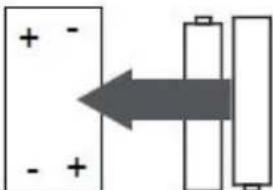
BATTERY INSTALLATION (REMOTE CONTROL)
Battery installation:
- Press the tab on the battery door and slide it off.
- Install two (2) x AAA size batteries into the battery compartment as the figure on right and the polarity markings inside the battery compartment.
- Slide the battery door back
natural_image
Diagram showing two batteries with positive and negative charges, one moving right with arrow indicating direction (no text or symbols)BATTERY INSTALLATION (REMOTE CONTROL)
Battery Precautions:
Follow these precautions when using a battery in this device:
- Use only the size and type of battery specified.
-
Be sure to follow the correct polarity when installing the battery as indicated in the battery compartment. A reversed battery may cause damage to the device. (manufacturer's directions).
-
Do not dispose batteries in fire. They may explode or leak.
-
Clean the battery contacts and also those of the device prior to battery installation.
-
Do not mix different types of batteries together (e.g. Alkaline and Carbon-zinc) or old batteries with fresh ones.
-
If the batteries in the device are consumed or the device is not to be used for a long period of time, remove them.
-
Do not try to re-charge normal batteries; they can overheat and explode
Speaker connect:
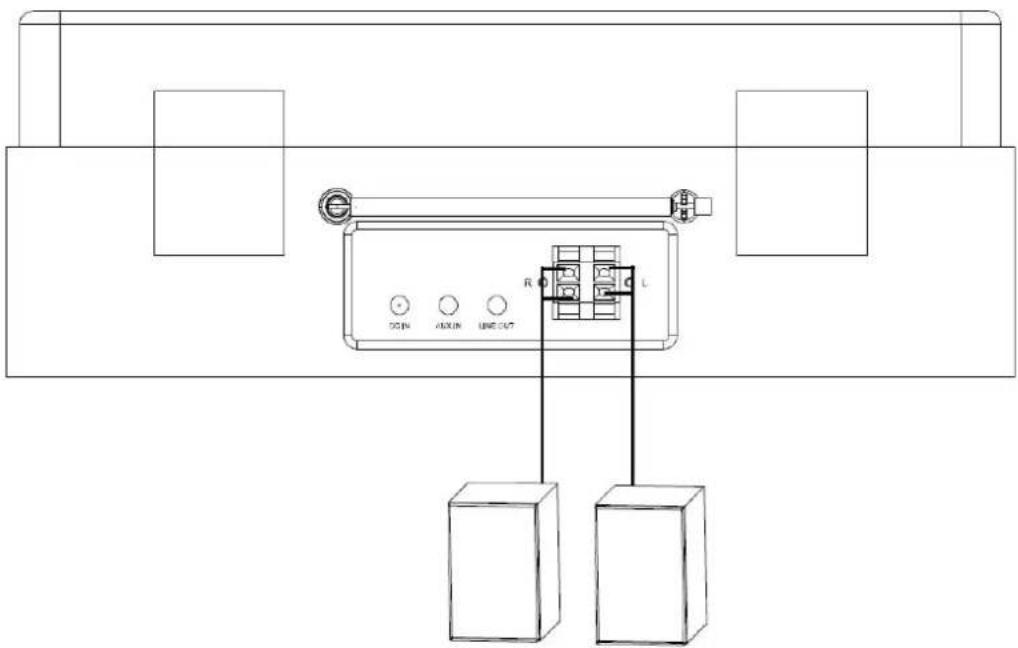
-
The speaker on the left is connected to the L terminals of device, the red cable of speaker is connected to the red terminals, the black cable is connected to the black terminals.
-
The speaker on the right is wired the same as the left speaker.
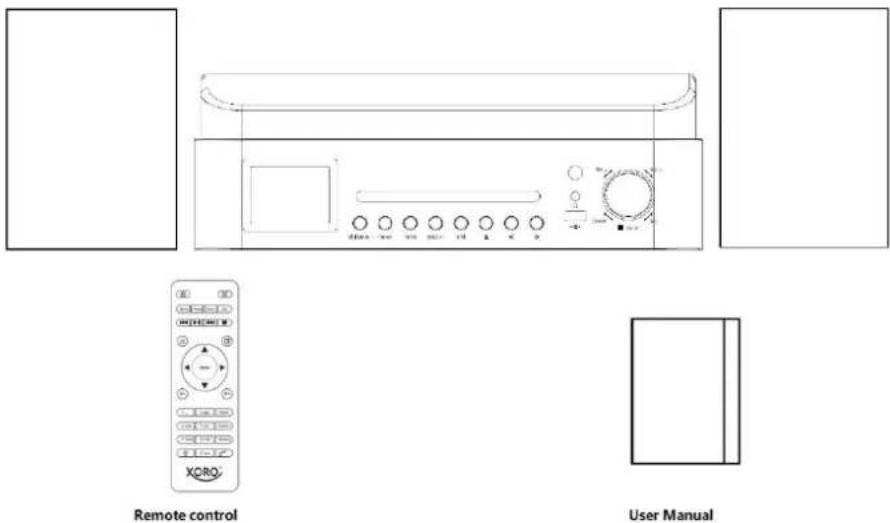
The packaging box contains following items:
Get the network ready
For wireless LAN (WLAN) network connection:
Check if WLAN LINK/ACT light of the wired/wireless access point or router illuminated. Consult the user guide of that for any questions.
Note: WiFi allows date transfer over short distances within 20 meters without the need of cabling between the devices. Any walls or cellings may reduce the quality of the WiFi connectivity.
Therefore try to locate the Lenco MC-460 / MC-660 and/or the access point within the distance above, and avoid any obstacles between two devices.
Make sure you are connecting to a 2.4Ghz Wifi network! (this device is not compatible with 5 Ghz Wifi networks)
INITIAL SETUP
- When it is first time running the device, it will ask you to set Language and Network Configurations.
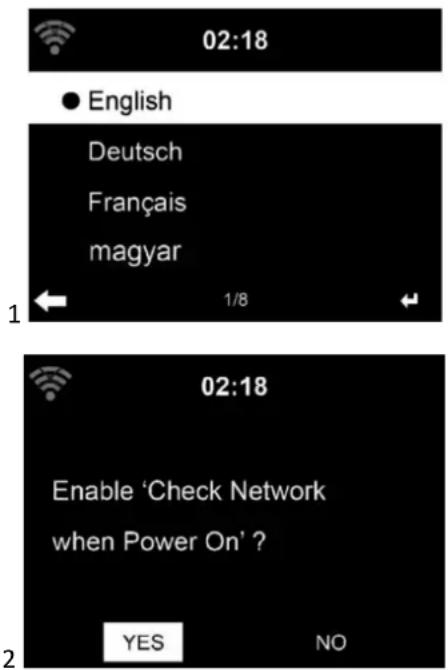
- Do you want to check the WIFI network availability when powering on the device? Use the Navigation wheel to select the desired option and press the Navigation wheel to confirm.
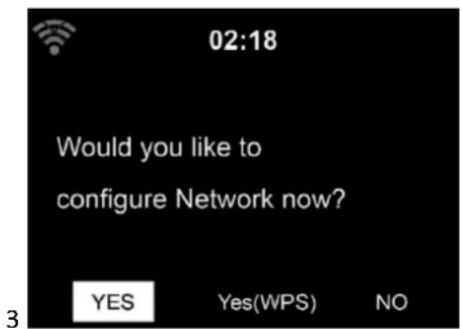
3.1. Select YES if you want to continue and connect to your WIFI network using the standard method. Press the Navigation wheel to confirm. Continue reading 'network configuration' option 1.
3.2. Select YES (WPS) if you would like to set up with the WPS (WIFI PROTECTED SETUP) function of your router (please verify with your router's manual if it's available). Press the Navigation wheel to confirm. Continue reading 'network configuration' option 2.
3.3 Select NO and Press the Navigation wheel to confirm if you want to skip the Wireless network setup. You can configure it later in the configuration menu.
When selecting this option the MC-460 / MC-660 will scan for available WIFI networks.

The display will show the networks it found.
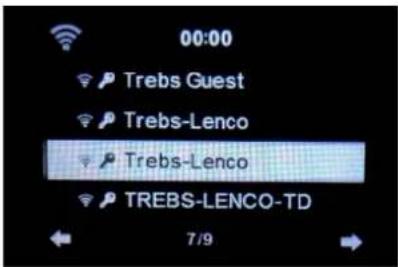
Select your WIFI network by turning the Navigation/OK wheel and confirm by pressing the Navigation/OK wheel.
If your selected WIFI network requires a password, you can enter it in the next screen.
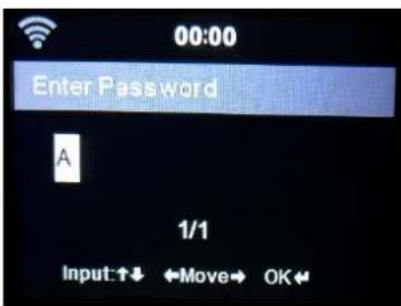
Enter your password by pressing the numeric keys on the remote control, followed by the Navigation right button (NOTE: you have to press the navigation right after every character).
To make a correction, press the Navigation Left to go backwards and delete the last character at the same time. When the password is completed, press the OK button to confirm.
If you want to enter the password directly on the MC-460 / MC-660 front panel, you can turn the Navigation wheel to select the first character and then press the button to move forward to the next character. To make a correction, press the button to go back and delete the last character at the same time.
When the password is completed, press the Navigation/ok button to confirm
Note: following characters can be used:
Numbers (from 0-9)
LATIN letters (from A to Z and from a to z)
Characters (@, Blank,!,",#,\$,%,&,*,'+ and (,)
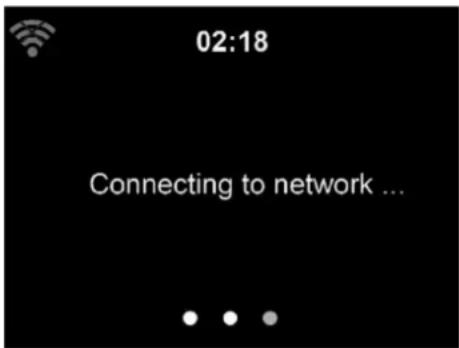
It may take a few seconds to establish the connection to the network.
Main Menu
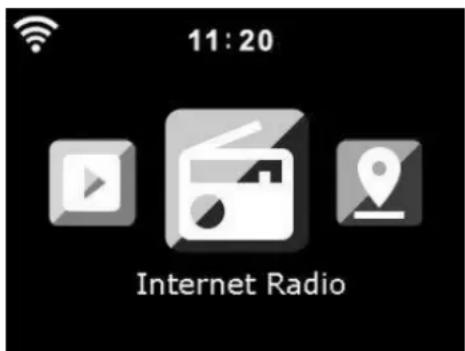
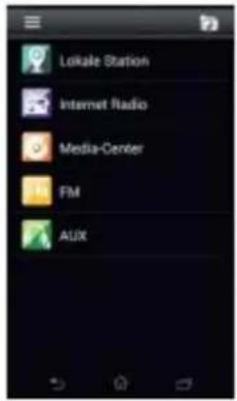
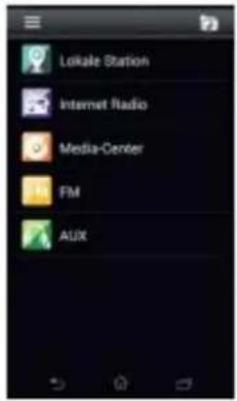
Once the connection is established, the main menu appears with the main menu items:

Internet Radio: For listening radio via the internet.
Media Center: For listening music via USB or UPnP
FM: For listening music via FM.
DAB/DAB+: For listening music via DAB+.
CD: For CD playback
Vinyl: For vinyl playback
AUX: For listening music via an external audio source.
Bluetooth: For Wireless music transmission from smartphone or tablet Bluetooth (range 10m, depending on the environment)
Configuration: For the settings menu.
Local Radio: Shortcut for „Local Radio“ of the section „Internet Radio“.
my mediaU: For listening station via mediaU
CONFIGURATION
Here you can configure various parts of your Lenco MC-460 / MC-660 press 'OK' to select the configuration menu.
Time Display Analog/Digital
Manage When it is enabled, my mediaU will show on the main menu. If vario mediaU accounts exist in the Radio, Select the default login account in my mediaU
Network Wireless Network Configuration: Enable/disable WiFi network. When you enable the WiFi network, the system will automatically select the required AP. Enter WEP or WPA code to connect the WiFi.
Wireless Network (WPS PBC): If you are using a router with WPS/QSS button, you can set up the network connection easily via WPS functio Enter it and go to press the WPS/QSS button on your router within
120 seconds. The connection between the router and device will then configured automatically.
Manual Configuration: You can choose DHCP (which assigns the ip add automatically) or manually input the IP address for wireless network connection. The following information has to be entered: SSID (name of access point), IP Address, subnet mask, default gateway, preferred DNS server, alternate DNS server.
Check Network When Power On: Enable/disable WiFi network. When enable the WiFi network, the system will automatically search for avai AP. Select the required AP.
Setup PIN for APP: Enable/disable this setting.
Date & Time Set Date and Time: Manual Setup or Auto Detect based on local time
Set Time Format: 12 Hour or 24 Hour
Set Date Format: YYYY/MM/DD, DD/MM/YYYY, MM/DD/YYYY
Daylight Saving Time (DST): On of Off
This menu only appear while Set Date and Time with Manual Setup. \ default setting Auto Detect, this menu will be disable.
ON
Tips: When “ON” is selected, the time will be one hour later than the current time.
- OFF
Tips: When "OFF" is selected, the time will be same as the current time was already in "Daylight Saving Time(DST)" and you choose "OFF", the will be deducted by one hour, that's to say, the time will be same as actual time.
Alarm There are 3 independent Alarms which can be set. 2 different Alarms 1, Alarm 2) and one NAP alarm which is a countdown alarm which caused when doing a quick sleep.
Press the Alarm button on the remote control to enter the alarm sett menu directly and follow the following steps.
Setting the alarm
- Press 'Alarm' button on remote control
- Select Alarm 1
- Select Turn On
- Press the 'ok' button on the remote or press the navigation wheel the unit.
- Press the 'ok' on the "Repeat:" option and select the how the alarm should work.
- (Everyday, once or select the required days)
- Press the left arrow key on the remote or unit to return to the previous alarm menu, then select "Time:" and press 'ok'
- You now can use the up down buttons to change the highlighted Hours then press the right arrow button once to switch to the Minutes and use the up/down buttons to change the minutes. Pr the 'ok' button to confirm.
- Select the "Sound:" and press the 'ok' button. Now you can choose between Beep, Melody, Internet Radio, FM, DAB/DAB+, USB, CD mo
When internet radio is selected as wake up sound, you can us of your favorite radio stations (which have to be stored as fav on the MC-460 / MC-660).
Note: when no internet connection is available within 1 minute after the alarm is activated the MC-460 / MC-660 will automat switch to Melody.
When selecting USB as wake up sound, you can select one of music files stored on the inserted usb memory device.
Repeat the above steps to setup the alarm 2
Setting the NAP alarm
- Press 'Alarm' button on remote control
- Select NAP alarm
- Use the up/down buttons to choose the desired minutes
- You can choose 5/10/20/30/60/90 or 120 minutes and then press the 'ok' button to select
- Press the left arrow button to return to the main screen
When the NAP alarm is activated you see a clock icon on the lower 1 corner with the remaining time.
Alarm Volume
Once Alarm setting saved, you can select the desired alarm volume with wake up.
Timer Countdown timer (max. 100min)
Scheduled Allow you to set a time for when the device switches on
- Turn On
Select Repeat: Everyday, Once or Mon to Sun
Select Time: HH:MM to HH:MM
Select Sound: Internet Radio, FM, DAB/DAB+
- Turn Off
Language English/Deutsch/Espanol/Francais/Portuguese/Nederlands/Italiano/Pyccknn/Svenska/Norsk bokmal/Dansk/magyar/Cesky/Slovensky
/Polski/Turkce/Suomi/Greek
Dimmer Power Saving/Turn On
Display Color/Monochrome
| Power Management | This option configures when the MC-460 / MC-660 should go into star mode. |
| You can select Turn off/5 minutes/15 minutes/30 minutes. | |
| When configured, the MC-460 / MC-660 will switch to standby when I music is played for the configured time. | |
| Use the Turn off setting to ignore the standby function. | |
| Sleep Timer | Turn off or set the sleep timer of 15/30/60/90/120/150/180 minutes. (the time is set, there will be a bed icon with the remaining minutes top right corner of the display and the device will turn to standby aft configured time. |
| (You also can use the Sleep button on the remote control to use this | |
| Weather | Activate/deactivate the weather forecast on the standby display. Choos your preferred temperature unit (°F or °C) and then proceed by enter your location. When activated, the weather forecast is shown in turns the clock display on the standby screen (it changes every 10 secs). |
| DAB/FM Setup | ● FM Mode: Set Mono or Set Stereo |
| ● FM Sensitivity: Strong, Default or Weak | |
| ● DAB Sensitivity: Strong, Default or Weak | |
| ● Service following(FM/Wi-Fi): Enable or Disable | |
| ● Service following(DAB/Wi-Fi): Enable or Disable | |
| Local Radio Setup | There is a shortcut Local Radio from the Internet Radio menu so that can easily go to the station list of your location. You can setup your manually or let the system detect your current location. If you choose automatically detect your location, the system will detect the location according to the IP address of your connected network. Press Local St to enter the local radio station list directly. |
| Playback Setup | Select the play mode of the media center. You can select: Off (no rep shuffle), Repeat all, Repeat one,or Shuffle. |
| Menu | You can select “Local Radio, my mediaU, Internet Radio, Sleep Radio, UPnP, Media Center, FM,DAB/DAB+,CD, Vinyl, AUX, Bluetooth, Timer, Alarm” playing mode. |
| Equalizer | The default equalizer setting is “normal”, but you may change it to “F Jazz, Rock, Soundtracks, Classical, Pop, News or my EQ”. Press the “EC button on the remote control to quickly change the equalizer mode. |
| Resume When Power On | The system default setting is to resume the internet radio playback if were listening to internet radio or media center before switching off t unit. If you turn this option off, the system will return to the main m when switching on the unit again. |
| Device | System Information: Here you can see the software version as well as informations.The Lenco MC-460 / MC-660 default device name for DLNA is “AirMus You may rename it for DLNA set upon the PC or mobile. Use the QR for download and install the “AirMusic” control APP. |
| Software Update | If there is a software update on the server, the system will notify you Before starting a software upgrade, ensure that the unit is plugged int stable mains power connection. Disconnecting the power during a software update may permanently damage the unit. |
| Reset to Default | Restore to default settings. After the device is reset, the system will s language menu. Choose the desired language and press the navigate w |

Internet Radio
From the main menu use the Navigation wheel/ok to select INTERNET RADIO and press the Navigation wheel/ok to start.
Now you can use the Navigation wheel again to scroll through the different menu options and select the desired option by pressing the Navigation wheel
Press to return to the previous menu.
After successfully connecting to a radio station, the station information will be shown. This information can be changed by pressing the or button.
Below you find the explanation of the various Internet Radio menu options:
My Favorite
These are your favorite preset stations. It can hold up to 250 entries.
To add a favorite internet radio station, press and hold the "PRESET" button on the remote control to save the station as a favorite.
You can add favorites when playing the station you want to add as favorite or add them directly from the 'Radio Station/Music' list. Press and hold the "PRESET" button on remote control to save it.
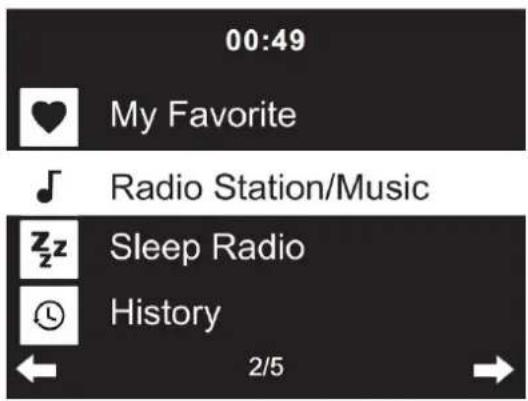
You can replace already saved favorites with a new favorite station.
Favorite radio stations cannot be stored twice The saved stations are showed by selecting this menu. You may also press "PRESET" on remote control to enter the saved station list.
You may enter the number key on the remote control to recall the saved station.
Selecting a radio station from the favorites list.
Press "PRESET" on the remote control to show the favorites list. Rotate the navigation wheel or press the navigation keys on the remote control to move through the favorites list. Press the navigation wheel or press "OK" on the remote control to listen to the selected favorite.
Enter a submenu with button, Delete, Shift Up/Down along the list, Rename, Play, or Use as Alarm (if you chose internet as alarm sound in the alarm configuration).
Radio Station/Music
Radio Stations are categorized into sub categories Global Top 20, Genre, Country/Location (Africa, Asia, Europe, Middle East, North America, Oceania/Pacific and South America) and Highlight. Press the navigation wheel or 'OK' on the remote, to select the subcategories and choose a station to listen to. For each station, press the navigation wheel on the unit or 'OK' on the remote control to play directly.
Press to enter its submenu. When you choose Auto Scan, it plays each station in this subcategory for 30 seconds until all stations have been played. You can cancel the auto scan function by pressing "OK". Press the button to view information about the active radio station.
Sleep Radio:
You can choose Birds, Lullaby, Piano, Rain, Spa, Space, Wave and White Noise as sleep radio.
History:
List of the ten recently listened stations.
Service:
Search Radio Station: Enter a stations name/keyword to search through the list of all radio stations.
Add New Radio Station: by using an IP address/web address, the added station will be stored in the 'My Favorite' list.
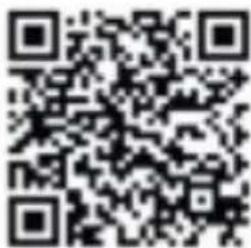
App: scan the QR code to download the AirMusic Control App
Note that the maximum character of the station name is 250
Air Music APP
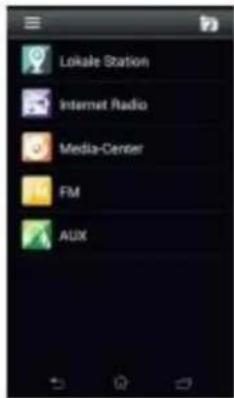
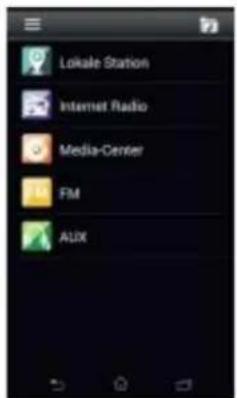
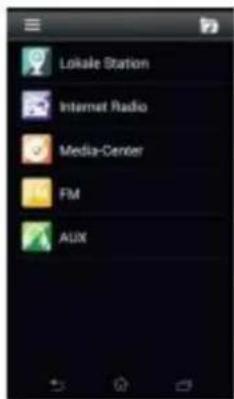
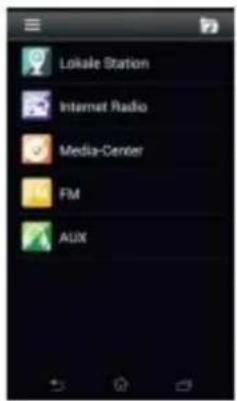
You can use the Air Music control App to control your MC-460 / MC-660 with your smartphone or tablet like you would do with the remote control.
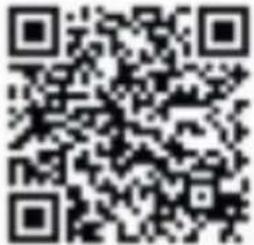
You can download the Air Music App by scanning the QR code from Android or Apple store like below.
Android:
Apple iOS:
My mediaU
Display and playback your own mediaU station list on the mediaU server. Set your account first. To activate your own station list, follow the steps below:
Access http://www.mediayou.net/. Join my mediaU membership. Login to the website;
Enter the wireless MAC address of Radio to the mediaU website. This information can be obtained in the menu -> Configuration > Device > System information > Wireless Info;
When successfully configured, you are able to save and view your own mediaU station playlist(s). Username and password is not required to enter to the Radio.
If there are different devices stored in your MediaU account, you can choose the one you currently use under Configuration menu. On the website, you may save stations to Favorite Station, set Favorite Location/Genre and My Local City, or add stations manually. The stations can be viewed from My Media mode on the Radio.
My Favorite: List of saved favorites. You can call or edit them, e.g. move or delete. To save a station, press and hold the [PRESET] button while a station is being received. The same station can only be saved once.
Radio Station/Music: List of all radio stations. Search for the desired country and radio stations yourself. Categories of channels are Global Top 20, Genre, Country / Region and Highlight.
Local Radio: Automatically accesses the radio station in your area. This has the advantage that you only need to search for the radio station you want to hear (the radio station to be tuned can be changed under the settings).
History: Lists the recently listened radio stations.
Service: Search for radio stations or add new ones.

My MediaU
For using My mediaU, you have to register at the following webpage: www.mediayou.net. After this is done, you have to register your device at this website. This can be done by clicking "my mediaU" >> "Radio". Enter the device's name (free to choose, it's just a name that you can remember), and the serial number, not free to choose. You can find the serial number under: Configuration >> Device >>System Information >> Wireless Info >> MAC Address: You have to input this MAC Address at the website under serial number. Please note that this serial number is case sensitive.
Now you can add new radio stations under my mediaU (2 left of „Radio“).
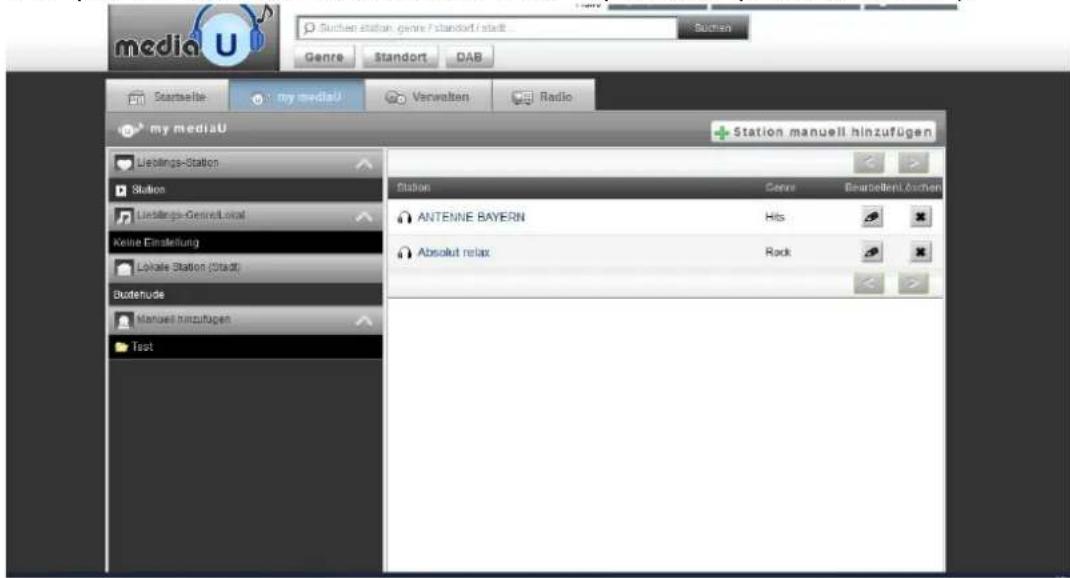
After you have added the radio stations the next steps will be done at the device. Search for Configuration >> Manage my mediaU and ensure, that this setting is set to: „Enabled“
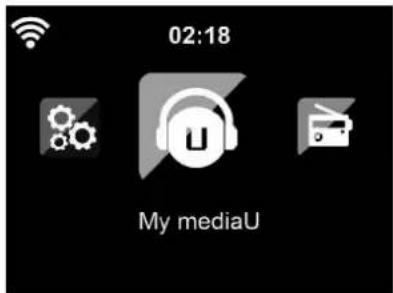

Now select my mediaU at the selection menu. Here you can see your previously added radio stations
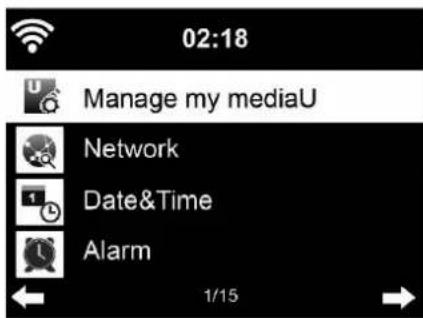
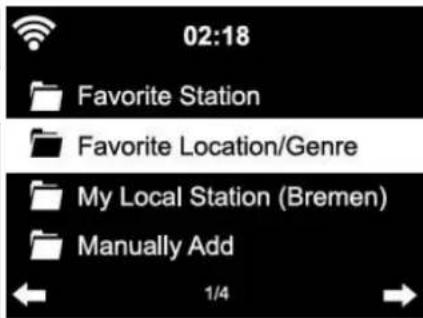

Media Center
With Media center you can play music from USB or UPnP.
Use the Navigation wheel or the navigation buttons on the remote control to select one of the following functions:
USB: Play music from an external USB-Device.
Press button on the device or button on the remote control to start play.
Press button on the device or button on the remote control to Pause.
Press Button on the device or on the remote control to stop play.
Press and hold the <> on the device to skip backward or forward to the desired track.
Press the 🎯 or ▲▼ button on the remote control to skip backward or forward to the desired track.
Press the > button to check the track info.
UPnP: The UPnP service provides a system independent connection to any device for the data transfer. You can stream music from your computer to your speakers as long as the computer has an UPnP software installed as well and is connected with the same Wi-Fi
network as your Lenco MC-460 / MC-660.
My Playlist: Here you can access your playlist.
Clear My Playlist: Here you can delete your playlist

FM Radio
Select 'FM mode' from the main menu by using the navigation wheel or with the navigation buttons on the remote. Press the navigation wheel to enter the FM radio mode. The FM mode will start on 87.5MHz.
To save all stations with strong signal, press the navigation wheel, it will show “auto scan?” choose YES. Then it will start auto scan. Once the auto-scan is complete, stations will be saved in your favorites.
You will then be able to browse through these saved stations by holding down the '<' or '>' buttons to skip between saved stations.
To manually scroll through FM frequency, simply press the '<' or '>' buttons to go backwards or forwards through the frequency wave.
Pre-setting your favourite FM stations
To save presets manually, select and listen to the station frequency number for the station you wish to save.
Press and hold the "PRESET" button on remote control for 1-2 secs and the number '01' will display on the screen. Use the navigation knob to browse through preset numbers (up to 99) and select the chosen preset number you wish to save it as by pressing the navigation wheel.
Recalling preset FM stations
View your favourite FM stations when you are on FM mode by simply selecting the 'PRESET' button on remote control and begin scrolling through saved stations.
Use the „<“ and „>“ keys for searching radio stations. Use the right rotation knob or the „<“ and „>“ keys for searching radio stations manually. One key press is equal to 0,05MHz. Press the scan button, the radio will now begin to scan for all of the available digital radio stations.
Once the scanning process has completed the radio will tune to the first available radio station.
DAB+ (DIGITAL RADIO)
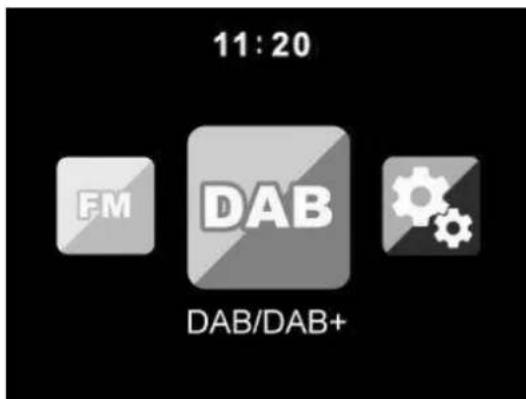
Select 'DAB/DAB+' on the main display screen by turning the knob and pressing the navigation knob or with the remote navigation buttons.
On first use of the DAB on your radio, your radio will begin scanning for DAB stations and will show' Scanning' on the display screen. It will display how many stations have been found as the search continues.
Once all of the available stations have been found, the screen will display the choice of available stations. Scroll through using the navigation knob or navigation buttons to select the station you wish to listen to.
When you have selected a station, the screen will display the station and press navigation knob to play. To choose previous or next station, use the navigation knob to scroll accordingly.
To go back to the list to scroll through manually, select the '<' button to go back. To rescan your stations, go on the main list page for the DAB stations and there will be reminder 'Delete station list?'. Choose 'YES' to do rescan.
When on your chosen station, select the '>' button to show information on the station. The screen will automatically scroll through information and display genre, MHz, song playing, KHz and Kbps.
Pre-setting your favorite DAB/DAB+ stations
When you have found your desired station, press and hold the "PRESET" button on remote control for a few seconds to go to the 'Add to my Favorites' screen. Turn the navigation wheel to choose the preset number (up to 99) and select your option by pressing the navigation wheel
Alternatively, when you are on the list screen of DAB stations you are able to highlight the chosen station and press and hold the “PRESET” on remote control to go to the “Add to my Favorites” screen.
Recalling preset DAB/DAB+ stations
View your favorite DAB/DAB+ stations when you are on DAB mode by selecting the 'PRESET' button and begin scrolling through the saved stations.
Note:
To ensure optimum reception performance, please make sure to have the antenna fully extended. If necessary, you should test different locations to get the best possible reception.
AUX IN
Aux in mode plays audio from an external source such as an MP3 player or other audio device with line out.
To play audio with Aux in mode:
Turn the volume low on both the Radio and if adjustable, the audio source device.
Connect the external audio source to the AUX IN 3.5mm stereo socket.
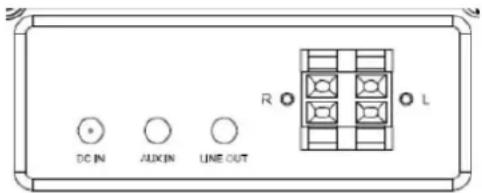
Select AUX mode from the Main menu.
Adjust the volume of the MC-460 / MC-660 and, if necessary, the audio source device as required.

CD playback
CD/MP3 OPERATION
Press Menu button on the Device or on the remote control to select CD mode.
Open the CD door by press the EJECT button.
Insert a CD disc into the CD compartment.
PLAY/PAUSE operation:
Press button on the device or button on the remote control to start play.
Press button on the device or button on the remote control to Pause.
Press button on the device or on the remote control to stop play.
Press and hold the < " and " to skip backward or forward to the desired track.
Press the button on the remote control to skip backward or forward to the desired track.
Press the < button to entry the CD list.
Note: You can also play mp3 files from CD.
Bluetooth
Press the menu button on the Device or on the remote control and select the Bluetooth mode
Make sure that no other Bluetooth device is connected to the MC-460 / MC-660. ("No Connection "will show on the display). When a device is connected already, press and hold the 'enter' button to enter the pairing mode
Activate Bluetooth mode on the device that you want to connect with. Scan for new devices. (refer to the instruction manual of the device how to scan for new devices). The Lenco will appear as "Lenco MC-460 / Lenco MC-660" on the Bluetooth device list.
Select the "Lenco MC-460 / Lenco MC-660" from the list. If you are required to enter a PIN code, enter 0000 (four zeros). Certain devices may also require you to approve the connection.
Once the connection has been successful, "Connected" will appear on the display.
To disconnect a connected Bluetooth device: Press and hold down the [Enter] button for
3 seconds. The message "No Connection" will appear on the display.
Start playback on your Bluetooth device:
Control the playback from the Bluetooth device or from the radio using the Vol+/Vol- on the device and remote control, Adjust the volume both on the Bluetooth device and the radio.
Press and hold the <" and ,">" to skip backward or forward to the desired track .
Press the button on the remote control to skip backward or forward to the desired track.
Press the "enter" button to pause/play the current track
Vinyl playback:
Please note: the counterweight is fixed and can't be altered.
Put the vinyl record on the platter of the device and select the appropriate rotation speed (33, 45 or 78 rpm) according to the information on the vinyl record.
Place the arm on the vinyl record.
When the arm reaches the end of the music, pull up the arm (with the lever) and bring the arm back to the arm holder.
Remark: To avoid Larsen effect or Feedback noise, you can do the following:
- Put your speakers at minimum distance of 60 cm or more from your turntable
- Let the dustcover open when you play a record at higher sound volume
Record:
Press and hold the record button for about 3 second to start recording.
The onc appears in the upper right corner.
WARNING: there is a delay of +/- 4 seconds after you press and hold the record button and the real start of the recording.
Press the Record button again to stop the current recording. After pressing the Record button, please wait until the USB icon displays in the upper right corner. At this time, the file is saved successfully.
The recorded file will be in MP3 file format
Note: when the record button is pressed when no usb drive is inserted, The MC-460 / MC-660 will keep looking for a usb drive. Press the record button again to stop this checking.
The 'no record' symbol will disappear.
Remote Control Via Apps:
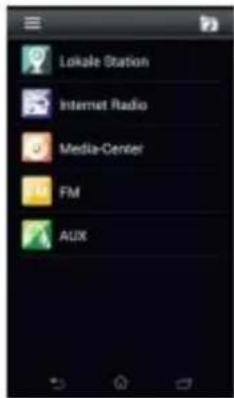
Some apps for Android, e.g. Air Music Control, let you control the internet radio from your smart phone or tablet.
As soon as the devices are connected, the same menu structure shown on the internet radio will appear on the smart phone/tablet. You can select all functions just like on the radio. The selected functions /menu items shown on the radio will change according to the actions taken on your mobile device.
Note: If you are controlling the internet radio by app, an UPnP connection to Windows Media Player may not be possible.
Technical Specifications
| Connections | AC cord, 3.5mm AUX-IN,Line out, L/R speaker output |
| Input | AC 100-240V ~ 50/60Hz, 1.5A Max. |
| Output power | 2 x 20W RMS |
| Remote control batteries (not included) | 2x AAA |
| Power consumption | 45W (Max) |
| Power consumption (standby) | < 1W |
| Power consumption (network standby) | < 2W |
| Bluetooth version | 5.0 |
| WIFI | 2.4 Ghz (n/a/ac) |
| Operating Temperature | 0°C-35°C |
| Operating position | Horizontal |
| Dim. Unit | 372 x 135 x 335mm |
| Dim. Speaker | 200 x 155 x 132mm |
| Weight | 6.5kg |
Guarantee
Lenco offers service and warranty in accordance to European law, which means that in case of repairs (both during and after the warranty period) you should contact your local dealer.
Important note: It is not possible to send products that need repairs to Lenco directly.
Important note: If this unit is opened or accessed by a non-official service center in any way, the warranty expires.
This device is not suitable for professional use. In case of professional use, all warranty obligations of the manufacturer will be voided.
Disclaimer
Updates to Firmware and/or hardware components are made regularly. Therefore some of the instruction, specifications and pictures in this documentation may differ slightly from your particular situation. All items described in this guide for illustration purposes only and may not apply to particular situation. No legal right or entitlements may be obtained from the description made in this manual.
Disposal of the Old Device
natural_image
Symbol of a trash bin crossed out by two diagonal lines, with a blank rectangular base below (no text or labels)This symbol indicates that the relevant electrical product or battery should not be disposed of as general household waste in Europe.
To ensure the correct waste treatment of the product and battery, it dispose them in accordance to any applicable local laws of requirement for disposal of electrical equipment or batteries. In so doing, you will to conserve natural resources and improve standards of environmental protection in treatment and disposal of electrical waste (Waste Electric and Electronic Equipment Directive).
DECLARATION OF CONFORMITY
Hereby, Commaxx declares that the radio equipment type [Lenco MC-460 / Lenco MC-660] is in compliance with directive 2014/53/EU. The full text of the EU declaration of conformity is available at the following internet address:
https://commaxx-certificates.com/doc/mc-460_doc.pdf
https://commaxx-certificates.com/doc/mc-660_doc.pdf
| Type RF | Frequency range (MHz) | Power (dBm) |
| Bluetooth | 2402-2480 | < 6 |
| WiFi 2.4 | 2412-2472 | < 20 |
| DAB | 174-240 | - |
| FM | 87.5-108 | - |
Service
For more information and helpdesk support, please visit www.lenco.com Commaxx B.V. Wiebachstraat 37, 6466 NG Kerkrade, The Netherlands.
Nederlands
LET OP:
This product contains a low power laser device.
CAUTION INVISIBLE LASER RADIATION WHEN OPEN AND INTERLOCKS DEFEATED. AVOID EXPOSURE TO BEAM

| EN | NL |
| CLASS 1 LASER PRODUCT | KLASSE 1 LASERPRODUCT |
| CAUTION | LET OP |
| INVISIBLE LASER RADIATION WHEN OPEN AND INTERLOCKS DEFEATED | ONZICHTBARE STRALING WANNEER OPEN EN BEVEILIGING NIET INTACT. |
| AVOID EXPOSURE TO BEAM | VERMIJD BLOOTSTELLING AAN DE BUNDEL |
| This product contains a low power laser device | Dit product bevat een laser met laag vermogen. |
BATTERIJEN INSTALLEREN (AFSTANDSBEDIENING)
● Service following (FM/W-iFi) (Service na (FM/Wi-Fi)): Inschakelen
of uitschakelen
● Service following(DAB/Wi-Fi) (Service na (DAB/Wi-Fi)):
Apple iOS:
Mijn MediaU

Mediacentrum
| EN | NL |
| DCIN | DCIN |
| AUX IN | AUX IN |
| LINE OUT | LIJNUITGANG |
natural_image
Symbol of a trash bin crossed out by two diagonal lines, with no text or labels present.This product contains a low power laser device.
CAUTION
INVISIBLE LASER RADIATION WHEN OPEN AND INTERLOCKS DEFEATED. AVOID EXPOSURE TO BEAM

| EN | DE |
| CLASS 1 LASER PRODUCT | LASERPRODUKT DER KLASSE 1 |
| CAUTION | ACHTUNG |
| INVISIBLE LASER RADIATION WHEN OPEN AND INTERLOCKS DEFEATED | UNSICHTBARE STRAHLUNG, WENN GEÖFFNET UND BEI UMGANGENER VERRIEGELUNG. |
| AVOID EXPOSURE TO BEAM | SCHAUEN SIE NIE DIREKT IN DEN LASERSTRAHL. |
| This product contains a low power laser device | Dieses Produkt enthält eine Lasereinheit geringer Leistung. |
EINLEGEN DER BATTERIE (FERNBEDIENUNG)
Apple iOS:
My mediaU

Mediencenter
| EN | DE |
| DCIN | DC-Stromversorgungseingang |
| AUX IN | AUX-EINGANG |
| LINE OUT | LINE-OUT |
natural_image
Symbol of a trash bin crossed out by two crossed lines, with a blank rectangular base below (no text or symbols)This product contains a low power laser device.
CAUTION INVISIBLE LASER RADIATION WHEN OPEN AND INTERLOCKS DEFEATED. AVOID EXPOSURE TO BEAM

| EN | FR |
| CLASS 1 LASER PRODUCT | APPAREIL À LASER DE CLASSE 1 |
| CAUTION | ATTENTION |
| INVISIBLE LASER RADIATION WHEN OPEN AND INTERLOCKS DEFEATED | RAYONNEMENT LASER INVISIBLE EN CAS D'OUVERTURE ET DE DÉVERROUILLAGE. |
| AVOID EXPOSURE TO BEAM | ÉVITER D'ÊTRE EXPOSÉ AU FAISCEAU |
| This product contains a low power laser device | Ce produit contient un dispositif laser à faible puissance. |
INSTALLATION DES PILES (TÉLÉCOMMANDE)
Précautions relatives aux piles :
● Service following(FM/Wi-Fi) (Suivi de service (FM/Wi-Fi)) : Enable or Disable (Activer / Désactiver)
● Service following(DAB/Wi-Fi) (Suivi de service (DAB/Wi-Fi)) : Enable
or Disable (Activer / Désactiver)
Apple iOS:

My mediaU

Centre multimédia
| EN | FR |
| DCIN | ENTRÉE CC |
| AUX IN | ENTRÉE AUXILIAIRE |
| LINE OUT | SORTIE DE LIGNE |
natural_image
Symbol of a trash bin crossed out by two crossed lines, with a blank rectangular base below (no text or symbols)Apple iOS:
Mis mediosU

Centro multimedia
| EN | ES |
| DCIN | ENTRADA CC |
| AUX IN | ENTRADA AUX |
| LINE OUT | SALIDA DE LÍNEA |
natural_image
Simple line drawing of a trash bin with crossed lines indicating no waste or discharge (no text or symbols)
This product contains a low power laser device.
CAUTION
INVISIBLE LASER RADIATION WHEN OPEN AND INTERLOCKS DEFEATED. AVOID EXPOSURE TO BEAM

| EN | IT |
| CLASS 1 LASER PRODUCT | PRODOTTO LASER DI CLASSE 1 |
| CAUTION | PERICOLO |
| INVISIBLE LASER RADIATION WHEN OPEN AND INTERLOCKS DEFEATED | RADIAZIONE LASER INVISIBLE QUANDO VIENE APERTO E GLI INTERBLOCCHI SONO DIFETTOSI |
| AVOID EXPOSURE TO BEAM | EVITARE L'ESPOSIZIONE AL RAGGIO |
| This product contains a low power laser device | Questo prodotto contiene un dispositivo laser a bassa potenza |
Apple iOS:
Il mio mediaU

Centro multimediale
| EN | IT |
| DCIN | INGRESSO CC |
| AUX IN | AUX IN |
| LINE OUT | USCITA DI LINEA |
natural_image
Simple line drawing of a trash bin with crossed lines indicating no waste or discharge (no text or symbols)
This product contains a low power laser device.
CAUTION
INVISIBLE LASER RADIATION WHEN OPEN AND INTERLOCKS DEFEATED. AVOID EXPOSURE TO BEAM

| EN | DK |
| CLASS 1 LASER PRODUCT | LASERPRODUKT I KLASSE 1 |
| CAUTION | FORSIGTIG |
| INVISIBLE LASER RADIATION WHEN OPEN AND INTERLOCKS DEFEATED | USYNLIG LASERSTRÅLING HVIS ENHEDEN ÅBNES, OG SIKKERHEDSLÅSE BRYDES OP |
| AVOID EXPOSURE TO BEAM | UNDGÅ EKSPONERING FOR STRÅLE |
| This product contains a low power laser device. | Produktet indeholder en laserenhed med Ia effekt. |
ISÄETNING AF BATTERI (FJERNBETJENING)
Apple iOS:
My mediaU

Mediecenter
| EN | DK |
| DCIN | DCIN (INDGANG TIL JÆVNSTR∅M) |
| AUX IN | AUX-INDGANG |
| LINE OUT | LINJEUDGANG |
Vælg AUX-tilstand i hovedmenuen.
AFSPIL/SÆT PÅ PAUSE:
natural_image
Symbol of a trash bin crossed out by two crossed lines, with a solid black rectangle below (no text or labels)This product contains a low power laser device.
CAUTION
INVISIBLE LASER RADIATION WHEN OPEN AND INTERLOCKS DEFEATED. AVOID EXPOSURE TO BEAM

| EN | SW |
| CLASS 1 LASER PRODUCT | KLASS 1 LASERPRODUKT |
| CAUTION | VAR FÖRSIKTIG |
| INVISIBLE LASER RADIATION WHEN OPEN AND INTERLOCKS DEFEATED | OSYNLIG LASERSTRÅLNING I ÖPPET LÄGE OCH MED ÅSIDOSATTA FÖRREGLINGAR |
| AVOID EXPOSURE TO BEAM | UNDVIK EXPONERING FÖR STRÅLE |
| This product contains a low power laser device. | Den här produkten innehåller en laserenhe med låg effekt. |
- Strömkabel
-
Aux in-uttag
-
Line ut
- V/R-högtalarkontakt

SÄTTA I BATTERIER (FJÄRRKONTROLLEN)
Förbered nätverket
Apple iOS:
My mediaU

Media Center
| EN | SW |
| DCIN | DC IN |
| AUX IN | AUX IN |
| LINE OUT | LINE UT |
natural_image
Simple line drawing of a trash bin with crossed lines indicating no waste or prohibition (no text or symbols)