
V5 Max - Robot vacuum ZACO - Free user manual and instructions
Find the device manual for free V5 Max ZACO in PDF.


| Product type | Robot vacuum |
| Brand | Zaco |
| Model | V5 Max |
| Dimensions | Diameter 330 mm, height 79 mm |
| Weight | 3 kg |
| Power | 30 W |
| Battery | Li-ion, rechargeable |
| Runtime | Over 120 minutes |
| Charging time | Less than 360 minutes (6 hours maximum) |
| Dustbin capacity | 0.3 L |
| Water tank capacity | 0.25 L |
| Cleaning modes | Auto, Spot, Edge, Daily scheduling |
| Navigation | Gyroscope and sensors (anti-fall, anti-collision) |
| Mobile app | ZACO Smart (iOS and Android) |
| Connectivity | Wi-Fi 2.4 GHz |
| Suction function | Main brush + side brushes (2) |
| Mopping function | Water tank with removable mop |
| Filtration | High-performance filter + foam filter |
| Charging station | Automatic return to base |
| Remote control | Included |
| Noise level | Not specified (estimated: ~55-65 dB) |
| Safety | Fall detection, obstacle sensors, lift alarm |
| Maintenance | Dustbin, filters, side brushes, charging contacts to clean regularly |
| Spare parts | Side brushes, filters, mop pad, battery (replaceable) |
| Warranty | Not specified (refer to customer service) |
Frequently Asked Questions - V5 Max ZACO
User questions about V5 Max ZACO
0 question about this device. Answer the ones you know or ask your own.
Ask a new question about this device
Download the instructions for your Robot vacuum in PDF format for free! Find your manual V5 Max - ZACO and take your electronic device back in hand. On this page are published all the documents necessary for the use of your device. V5 Max by ZACO.
USER MANUAL V5 Max ZACO
Robot Vacuum Cleaner
User Manual
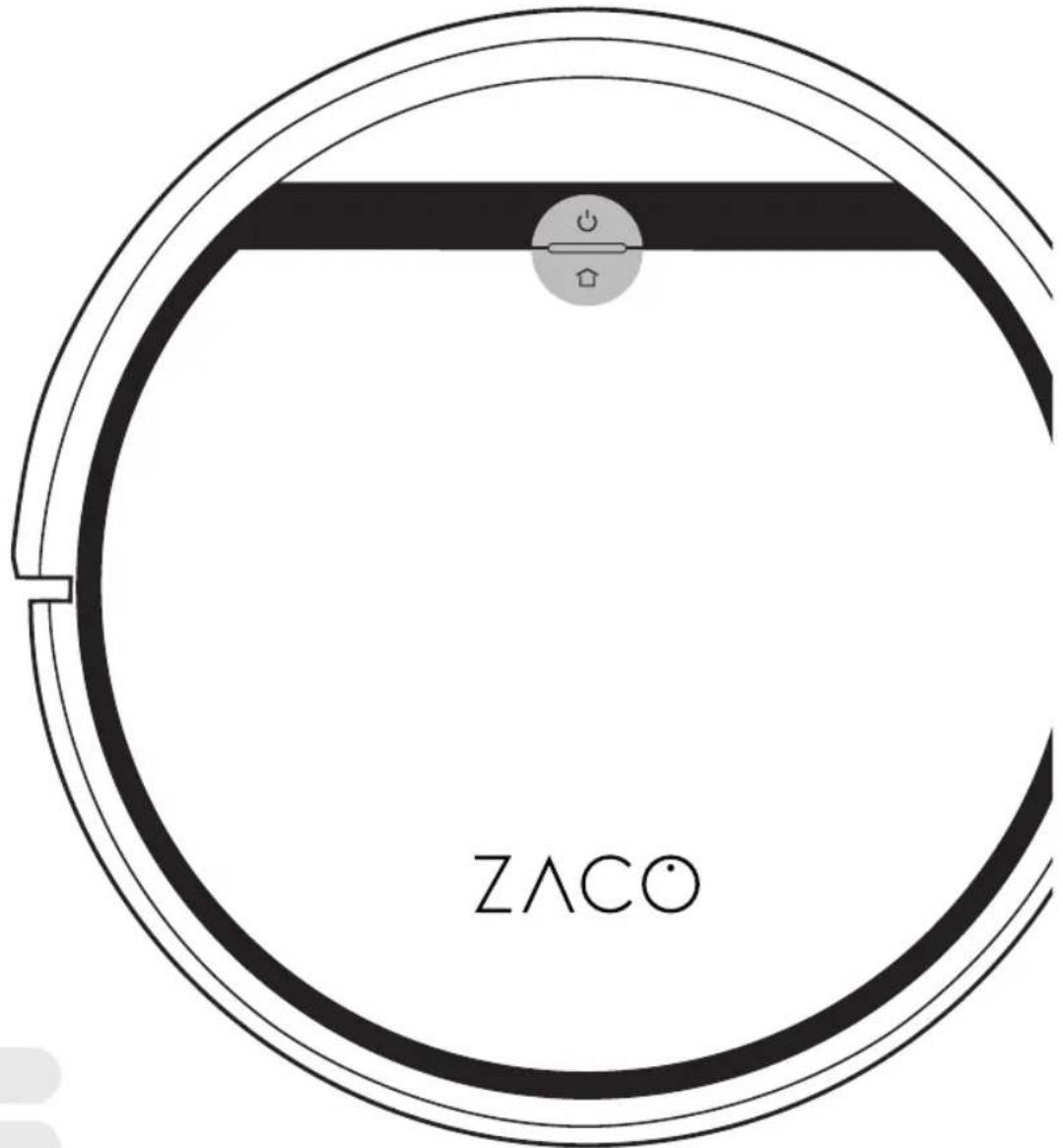
EN English
DE Deutsch
ES Español
FR Français
IT Italiano
Find more information at
www.zaco.eu
ZACO
ZACO
Dear Customer,
thank you for choosing the ZACO V5 Max robotic vacuum cleaner! You are now among the millions of people who clean with robots - the smarter way to get things done.
Please take a few minutes to read this manual and familiarize yourself with your robot so you can get the best performance out of it. If you have a problem, please contact the ZACO customer service first or visit our website www.zaco.eu for more information.
Best regards,
ZACO Customer Service
ZACO Customer Service
Customer Service Number
00800-42377961 (European Free Call)
0209-513038-38 (Direct Line - DE)
support@zaco.eu | www.zaco.eu
Robovox Distributions GmbH
Hamburger Straße 11 | 45889 Gelsenkirchen | Germany
Social Media

RobovoxZACO

robot ZACO Robo

2
Find more information at www.zaco.eu
EN EnglishEnglish EN
ZACO
Contents
Safety instructions 4
Warnings
↓
Product Composition 6
List of Accessories 6
Robot anatomy 7
Charging station
Robot button status 10
Product Operation
Precautions
1
Charging station
+
Select cleaning modes
。
Water tank operation
3
App Download
•
Maintenance
!
Cleaning of dustbin and filters
+
Cleaning of water tank components
3
Cleaning of side brushes
•
Cleaning of charging contacts
;
Troubleshooting
+
Product Specification
r
ErP information
1
Frequency Band
,
EU Declaration of Conformity
,
Find more information at www.zaco.eu
3
ZACO
Safety instructions Safety instructions
Warnings
- This robot must not be used by children under the age of 8 years or mentally handicapped persons if they are not supervised. Children must not sit on the robot or use it as a toy.
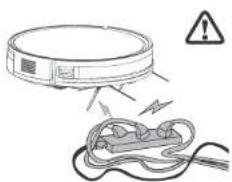
- Attend to the robot immediately if an error occurs during cleaning. Before using the robot, remove all power cords and small objects on the floor. Tuck the fringes under the carpet and make sure that curtains and tablecloths do not come in contact with the floor.
- If there are hanging steps or stairs, please test whether the robot can detect them before use. If not, please set up barriers to avoid falling and make sure that the barriers cause no harm to people.
- Follow the instructions in this user manual. Only use accessories approved or recommended by the manufacturer.
- Make sure that the voltage of the charging station is compatible with the voltage of the power supply.
- Use the robot indoor and in a domestic environment only. Do not use it outdoors or in commercial or industrial spaces.
- Only use adapters and charging stations approved by the manufacturer. Do not use non-rechargeable batteries. Details of the battery standards can be found in the "Product specifications" section.
- Do not immerse the robot in water or rinse it under the water tap.
- Do not clean the robot with a dripping wet cloth.
- Do not use the robot on floors with standing water.
- Do not use the robot near fire or fragile objects.
- Keep cloth, human hair, fingers and other body parts away from the suction opening and drive system of the robot.
EN EnglishEnglish EN
ZACO
- Do not use the robot on floors with decorative stones or whether there is a lot of paper lying around so that these do not get stuck and damage the robot.
- Do not use the robot in areas with flammable substances such as petrol, toner, etc. Also, do not use the robot to clean up burning objects such as cigarettes, ashes or matches or other things that could cause a fire.
- Do not use a damaged charging station.
- Do not lift the robot or the charging dock by the power cord, keep the power cords away from heat and avoid pinching the power cord on doors, sharp edges or corners.
- Damaged power cords must be repaired by manufacturer's repair service or by certified technicians.
• Install dustbin and filters properly before using the robot. - Do not use damaged power cords or charging stations to recharge the robot.
- Do not use the robot if it has been damaged by being dropped or immersed in water.
- Switch the robot off at the power switch if the robot will not be used for a longer period of time.
- Switch the robot off at the power switch before cleaning or servicing it.
- Unplug the power cable from the charging station before cleaning or maintaining the robot.
- Remove the battery before disposing of the robot.
- Robot and battery are to be disposed in accordance with local safety regulations.
- Do not burn the robot to prevent an explosion..
- Follow the instructions in this user manual. Manufacturer is not liable for damage caused by improper use.
ZACO
Product Composition Product Composition
List of Accessories
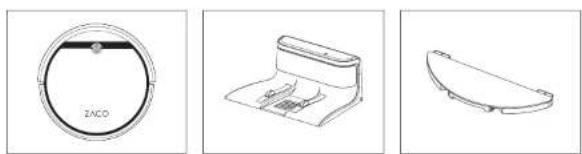
Main Device
Charging station Mapping Plate
Mop Cloth
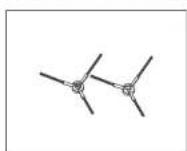
Extra Side Brush 2x High Performance Filter
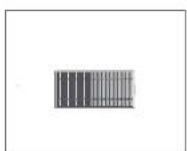
rmance Filter

Sponge
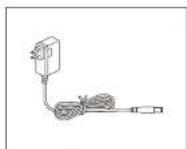
Power Adapter
User Manual
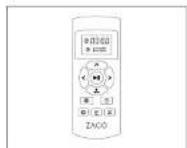
Remote Controle
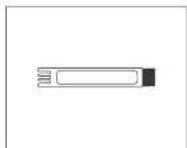
Cleaning tool
6
Find more information at www.zaco.eu
EN EnglishEnglish EN
ZACO
Robot anatomy
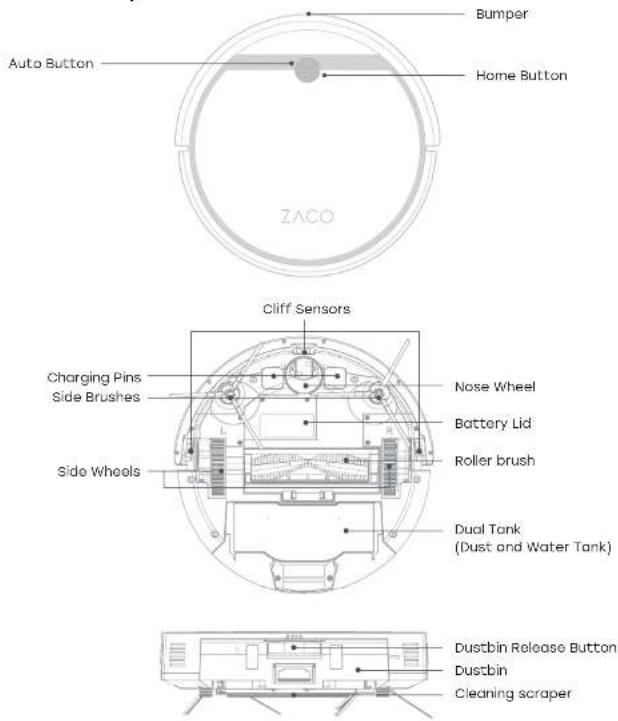
Find more information at www.zaco.eu
7
ZACO
Product Composition Product Composition
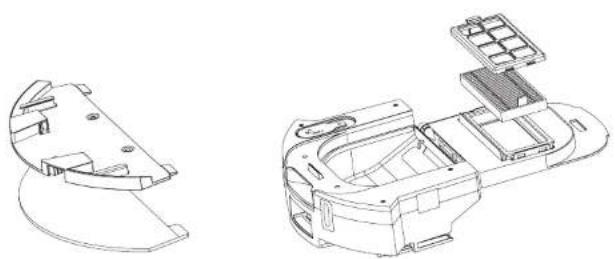
natural_image
Technical line drawing of a mechanical assembly with two views: top shows a circular component, bottom shows a multi-layered housing (no text or symbols)Mopping Plate Assembly Dual Tank (Dust and Water Tank)
Note
If the water tank is filled with water, the robot's ability to drive up slopes may be impaired.
8
Find more information at www.zaco.eu
EN EnglishEnglish EN
ZACO
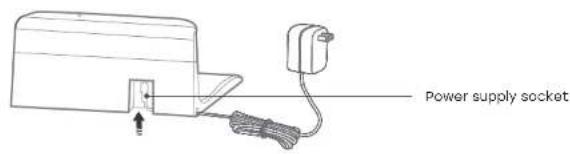
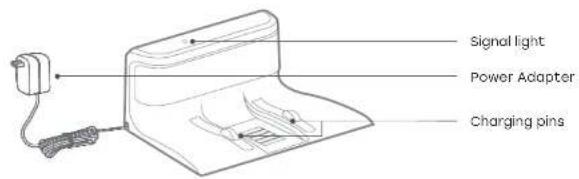
Charging station
Find more information at www.zaco.eu
9
ZACO
Robot button status
| Auto Button | Turn off Press and hold for 3 seconds | Turn on the robot | |
| Turn on Press the button once Start / Stop cleaning | |||
| Home Button | Turn on Press the button once AUTO charge | ||
| Power indicator | Green Battery Power > 15% |
| Orange Battery Power < 15% | |
| Red Failure or abnormality |
EN EnglishEnglish EN
ZACO
Product OperationProduct Composition
Precautions
Due to the complexity of the home environment, the robot may skip some areas. To achieve the best result, we recommend using it daily and removing any obstacles on the floor before starting the robot.
natural_image
Diagram of a robotic vacuum cleaner emitting electrical shockwave waves (no text or symbols)Please remove cables and other objects that could become entangled in the robot before cleaning.
natural_image
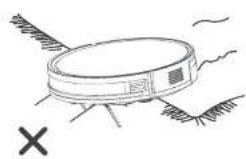
Simple line drawing of a robotic vacuum cleaner with no text or symbolsTuck the carpet fringes under the carpet before cleaning.
natural_image
Line drawing of a simple dining room interior with tables, chairs, and a round table (no text or symbols)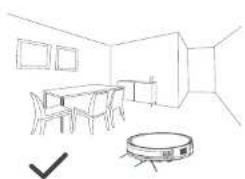
natural_image
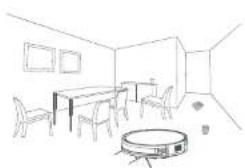
Line drawing of a modern kitchen interior with a vacuum cleaner and a checkmark (no text or symbols)To avoid being stuck during cleaning, please arrange the furniture neatly. Tidy up the room.
ZACO
Product Operation Product Operation
Precautions
natural_image
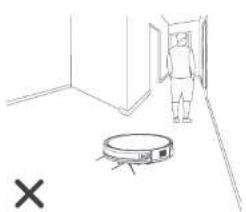
Simple line drawing of a room with a person standing near a door, a robot on the floor, and a cross mark (no text or symbols)Please do not stand in narrow places such as door thresholds or corridors so that the robot is not blocked and skips some areas.
natural_image
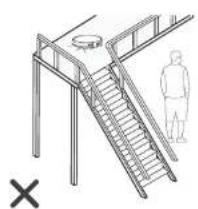
Illustration of a metal staircase with an open lid and a person standing nearby (no text or symbols)Please do not stand underneath when the robot is working above you so that you cannot get injured by any falling objects.
Charging station
1 Placement of charging station
- Connect the adapter with the charging station.
- Placement of the charging station: Place the charging station against the wall horizontally. Keep a minimum distance of 1 m to both the left and right of the charging station and 2 m in front of the charging station. There must also be no reflective objects such as a mirror near the charging station.
- Connect the power.
EN EnglishEnglish EN
ZACO
REMINDER When the charging station is connected to the adapter, the signal lamp of the dock will light up.
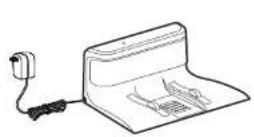
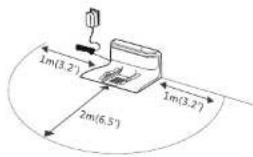
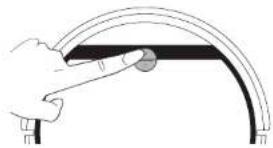
2 Turn on the robot
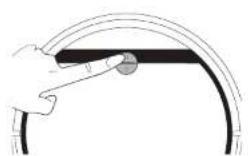
- Press and hold the AUTO button for 3 seconds to turn on, and press and hold it for 5 seconds to turn off.
natural_image
Illustration of a hand holding a curved object with a circular mark, no text or symbols presentNote
After the robot has finished its work, please do not switch it off, but fully charge it for the next use.
If the robot interrupts its work for more than ten minutes, it will switch to sleep mode. If you want to wake the robot up again, you must to press the AUTO button once.
ZACO
Product Operation Product Operation
3 Placement of charging station 4 Start cleaning
- Please place the robot on the charging station.
- If the AUTO button is flashing orange, the robot is charging. The button lights up green when it is fully charged. The light then switches off and the device goes into sleep mode.
- Charge the robot for 6 hours before using it for the first time.
REMINDER
Please keep the charging pins clean during daily use to ensure a smooth charging process. Please leave the robot on the charging station for daily use and make sure that the charging station is connected to the power supply and the switch on the robot is turned on. If you do not use the robot for a long period of time, please fully charge it, switch it off and store it in a well-ventilated, dry place.
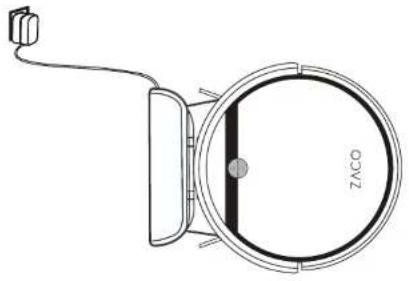
natural_image
Diagram of a circular device with a labeled 'ZACO' and cable, no readable text or symbols beyond the labelEN EnglishEnglish EN
ZACO
After waking up the robot, you can press the AUTO button once, and the robot will start cleaning automatically.
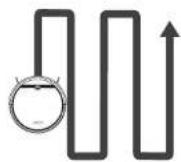
- Before starting cleaning, make sure that the AUTO button and HOME button lights on the robot flash simultaneously and that the robot is in wake-up mode. If the robot is sleeping, please press the AUTO button once to wake it up.
- If you want to select other modes, please operate the APP.
- The robot performs autonomous path planning during the work process. If it is moved manually or operated via the APP (except when paused), the robot will re-plan the path and may clean the cleaned area. To ensure the working efficiency of the robot, please do not manipulate the robot. (If the robot is lifted, it will alarm and stop cleaning, and you need to press the Auto button or operate the APP to restart cleaning)
ZACO
Product Operation Product Operation
5 Pause
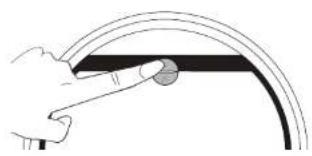
- When the robot is working, you can pause the robot by pressing the robot's AUTO button or the "standby" button in the APP.
REMINDER
The Robot automatically switches to Sleep Mode if no action is taken for 10 minutes. If you want to start the robot again, please press the AUTO button once to wake up the robot. The robot will work out a new cleaning path and clean the areas again which have been cleaned before.
Note
After the sleeping robot has been woken up from pause mode, it needs to be restarted to begin cleaning and the robot will not resume the last unfinished cleaning.
6 Sleep mode
• The robot automatically switches to sleep mode if nothing is done for 10 minutes.
natural_image
Illustration of a hand holding a curved object with a circular mark, no text or symbols present16
Find more information at www.zaco.eu
EN EnglishEnglish EN
ZACO
Select cleaning modes
This product can set a variety of cleaning modes through the APP to adapt to different floor conditions and achieve deep cleaning.
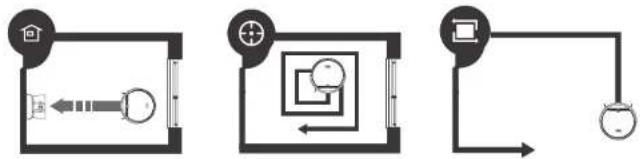
1 Auto charge
- The robot can detect a low power level during the cleaning process and automatically activate self-charging mode and search for the charging station.
2 Spot mode
- This mode is suitable for floors with a high concentration of dirt. The robot follows a "spiral" route in a specific area to remove particularly stubborn dirt.
3 Edge Mode
- This mode is mainly intended for cleaning corners indoors. The robot cleans along the edge of solid objects, such as walls.
flowchart
graph TD
    A["Home"] --> B["Directional Arrow"]
    B --> C["Circular Layout"]
    C --> D["Device"]
    D --> E["Wall-mounted Device"]
Find more information at www.zaco.eu
17
ZACO
Water tank operation
The water tank, including the mop cloth, is already pre-installed when unpacking. Please fill the water tank with water before mopping. It is recommended to vacuum the floor before mopping. For daily care, please read the tips in the corresponding chapter in this manual.
Note
- Please do not allow the robot to map on carpets or rugs.
- To refill the water tank, you must remove it from the robot. Make sure that you refill the water tank and clean the mop and the mopping plate in good time, even during the mopping process if they are very dirty.
- Make sure that you remove the mopping plate with the wet mop after mopping before the robot is charged at the charging station.
EN EnglishEnglish EN
ZACO
Product Operation Product Operation
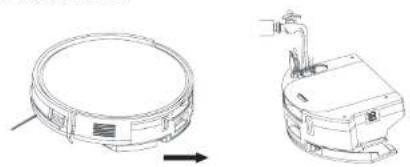
1 Remove the water tank
- Press the release button for the water tank and pull the tank backwards to remove it.
2 Add water
- Open the lid of the water tank and fill the tank with water. Close the lid tightly again after filling with water.
natural_image
Technical line drawing of a circular mechanical component with an arrow indicating direction (no text or symbols)3 Place the mop cloth
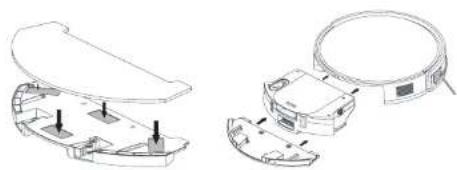
- Attach a mop to the mopping plate before you attach it to the water tank.
4 Install water tank
- After you have connected the mapping plate and the water tank, push them back into the robot. When you hear a "click" sound, it is firmly installed. You can press the mapping button to automatically execute the corresponding mapping mode.
natural_image
Technical line drawing of two views of a mechanical device with mounting holes and internal components (no text or symbols)ZACO
EN EnglishEnglish EN
ZACO
App Download App Download
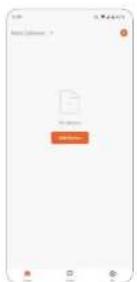
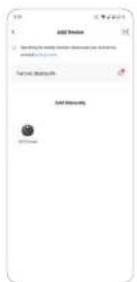
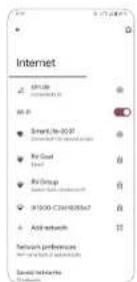
- Scan the QR code to install the app. Or search "ZACO Smart" in the iOS App Store or the Google Play Store and download the App.

- Click "Add a device" or "+" in the top right corner.
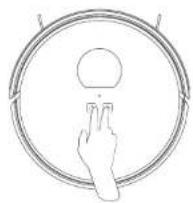
- Register and log in to the app. 6. Press and hold both buttonless (to 34Hz Wi-Fi network and enter the password,
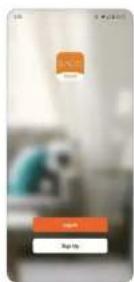
- Select your device model. 8. Return to the ZACO Smart AppSelect the "SMARTlife-XXXX" WiFi on your mobile device to connect to the device.
Find more information at www.zaco.eu

Find more information at www.zaco.eu
Power Button) simultaneously for at least 3 sec., until you hear the voice prompt "AP mode" and the Wi-Fi indicator light flashes.

2120
ZACO
Maintenance Maintenance
Cleaning of dustbin and filters Cleaning of water tank components
Please switch off the robot before cleaning any spare parts. Also remember to cut off the power.
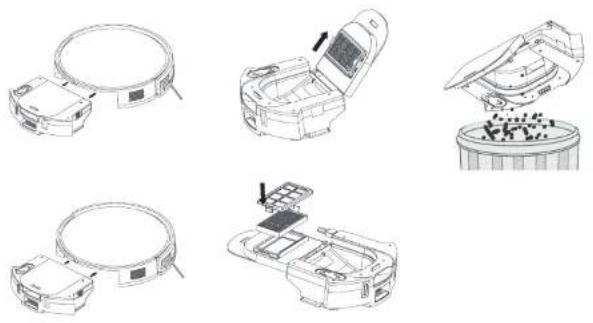
- Press the release button and pull the dust bin (including the high-performance filter) out to the rear. Empty the dust bin into a waste garbage can. Clean the dust tank.
- Remove the high-performance filter. Top it lightly to remove the dust. Put the high-performance filter into place before pushing the dust bin back into the robot.
EN EnglishEnglish EN
ZACO
1 Clean the mop cloth

natural_image
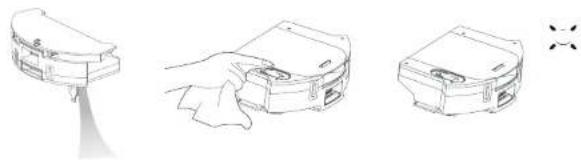
Diagram showing four stages of a robotic device with no visible text or symbolsAfter mopping is finished, please remove the mopping plate and take off the mop cloth. Rinse the mop cloth and allow it to air dry.
2 Clean the water tank
natural_image
Line drawings of three different electronic devices with no visible text or symbolsAfter mopping, remove the mop cloth together with the mopping plate and drain the remaining water from the water tank. Dry the water tank by hand and then allow it to air dry.
ZACO
Maintenance
Cleaning of side brushes
1 Clean the mop cloth 1 Clean the charging contacts
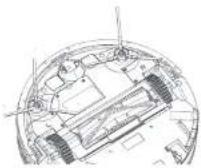
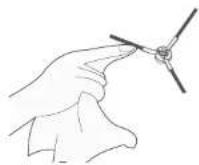
Remove the side brushes. Wipe them with a clean cloth. When replacing the side brush, please ensure that the "L" and "R" side brush are installed in the correct position.
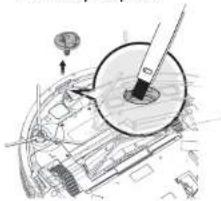
2 Check side wheels
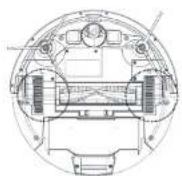
When the signal tone sounds, switch off the power supply, then remove all objects that are blocking the side wheels.
3 Other spare parts
natural_image
Technical diagram of a mechanical assembly with a magnified circular component (no visible text or symbols)First switch off the robot and then pull out the nose wheel vertically. Remove hair and foreign objects that have become entangled in the wheel and wipe it with a cleaning cloth.
EN EnglishEnglish EN
ZACO
Maintenance
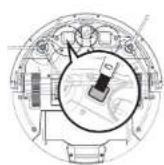
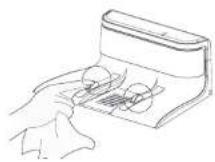
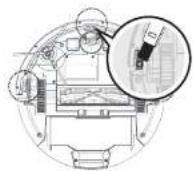
Cleaning of charging contacts
Clean the charging contacts on the robot and the charging station regularly with dry cloth.
2 Sensor
Wipe the sensor regularly with a dry cloth to keep it clean.
REMINDER
If the battery is in deep discharge mode or has not been used for a long time, its capacity will be reduced. In this case, we recommend that you reactivate it. Charge the robot for 3 minutes at the charging station and repeat this process three times. Then fully charge the robot for 5-6 hours. The robot uses batteries with a long service life. There is no need to replace them frequently. Please contact our support team if necessary.
ZACO
Troubleshooting Product Specification
Error codes Main device
The robot reminds you with a beep if it is not working properly.
| No Tone Possible Cause What to do | ||
| 01 • | Wheels or side brushesor fan problems. | Check and clean wheels, side brushes,and fans. |
| 02 • • | OBS or bumper sensoror cliff sensor failure. | Check the bumper and OBS and cleancliff sensor. |
| 03 • • • Robot gets stuck. Move the robot. | ||
| 04 | • • • • Roller brush or gyro failure. | Detect and clean the roller brushand move the robot. |
Note
If the solutions above don't resolve the issue, please try the following:
- First, press and hold the AUTO button for 5 seconds to turn off the robot and then press and hold the AUTO button for 3 seconds to turn the robot back on.
- If restarting the robot does not solve the problem, please send the robot to the service center for repair.
EN EnglishEnglish EN
ZACO
| Item | Specification |
| Diameter | 330 mm |
| Height | 79 mm |
| Weight | 3 kg |
| Power | 30 W |
| Battery type | Li-ion |
| Charging type | Auto Charging / Manual Charging |
| Dustbin capacity | 0.3 L |
| Watertank | 0.25 L |
| Cleaning mode | Auto, Spot, Edge, Daily Schedule |
| Charging time | <360 min |
| Cleaning time | >120min |
| Main body button type | Mechanical Button |
Note
The company reserves the right of final decision on the interpretation of these terms and conditions.
Find more information at www.zaco.eu
Find more information at www.zaco.eu
2726
ZACO
ErP information
| Manufacturer information Dongguan Guanjin | Electronics Technology Co., Ltd |
| Block 16 Giantou New Industrial Park, Niushan, Dongcheng District, 523128 Dongguan City, Guangdong | |
| AC adapter Model identifier K12V190060G, K12V190060B | |
| Input voltage 100-240V | |
| Input AC frequency 50/60Hz | |
| Output voltage 19.0Vdo | |
| Output current 0.6A | |
| Output power 11.4W | |
| Average active efficiency 87.03 % | |
| Efficiency at low load (10%) | 86.06 % |
| No-load power consumption | 0.1W |
Percentage of nameplate output current
| Load condition 1 | 100%±2% |
| Load condition 2 | 75%±2% |
| Load condition 3 | 50%±2% |
| Load condition 4 | 25%±2% |
| Load condition 5 | 10%±1% |
28
Find more information at www.zaco.eu
EN EnglishEnglish EN
ZACO
Frequency Band
Frequency Band and Output Power
| TX Frequency 2.412 ~ 2.472 GHz | |
| RX Frequency 2.412 ~ 2.472 GHz | |
| Antenna Gain 0.86 dBi Max | |
| RF Output Power | 2.4G802.1lb:17 dB802.1lg:14 dB802.1ln:13 dB |
EU Declaration of Conformity
Robovox Distributions GmbH hereby declares that the ZACO V5 Max radio complies with Directive 2014/53/EU. The full text of the EU Declaration of Conformity can be found on the Internet address https://conformity.zaco.eu/download/v6max.pdf
Find more information at www.zaco.eu
29
ZACO
natural_image
Technical line drawing of a mechanical assembly with two views: top shows a circular component, bottom shows a multi-layered housing (no text or symbols)natural_image
Diagram showing a circular device emitting electrical wires with warning symbols (no text or labels)natural_image
Simple line drawing of a robotic vacuum cleaner with no text or symbolsnatural_image
Line drawing of a simple dining room interior with tables, chairs, and a round table (no text or symbols)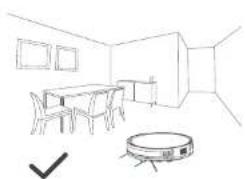
natural_image
Line drawing of a modern kitchen interior with a vacuum cleaner and a checkmark (no text or symbols)natural_image
Simple line drawing of a room with a person standing near a door, a robot on the floor, and a cross mark (no text or symbols)natural_image
Illustration of a metal staircase with an open lid and a person standing nearby (no text or symbols)natural_image
Illustration of a hand pointing at a curved line segment (no text or symbols)Hinweis
natural_image
Technical line drawing of a circular device with a cable and labeled 'ZACO' (no other text or symbols)natural_image
Diagram showing a hand holding a curved object and a zigzag path with an arrow (no text or symbols)natural_image
Illustration of a hand holding a curved object with a circular mark, no text or symbols presentnatural_image
Technical line drawing of a circular mechanical component with an arrow indicating direction (no text or symbols)natural_image
Technical line drawing of a device housing and internal components (no text or symbols)ZACO
App Download App Download


natural_image
Diagram showing four stages of a robotic device with no visible text or symbolsnatural_image
Line drawings of three different electronic devices with no visible text or symbolsnatural_image
Technical line drawing of a mechanical assembly with a magnified circular component (no text or symbols)Fehlercodes Main device
Cleaning of charging contacts 81
natural_image
Diagram showing a circular device emitting electrical wires with warning symbols (no text or labels)natural_image
Line drawing of a modern dining area with table, chairs, and round table (no text or symbols)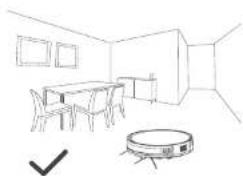
natural_image
Line drawing of a modern kitchen room with a table, chairs, and a vacuum cleaner (no text or symbols)natural_image
Simple line drawing of a room with a person standing near a door, a robot on the floor, and a cross mark (no text or symbols)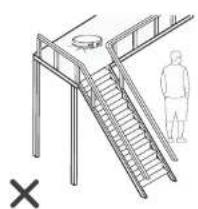
natural_image
Illustration of a metal staircase with an open lid and a person standing nearby (no text or symbols)natural_image
Illustration of a hand holding a curved object with a circular mark, no text or symbols presentNota
natural_image
Diagram of a circular device with a labeled 'ZACO' and cable, no readable text or symbols beyond the labelnatural_image
Diagram showing a hand holding a curved object and a zigzag path with an arrow (no text or symbols)natural_image
Illustration of a hand holding a curved object with a circular mark, no text or symbols presentflowchart
graph TD
    A["Home"] --> B["Directional Arrow"]
    B --> C["Circular Layout"]
    C --> D["Device"]
    D --> E["Wall-mounted Device"]
natural_image
Technical line drawing of a mechanical component with circular housing and attached device (no text or symbols)natural_image
Technical line drawing of a mechanical assembly with no visible text or symbols
natural_image
Technical line drawings of a device's internal components and parts, including a lid, handle, and base (no text or symbols)natural_image
Line drawings of three different electronic devices with no visible text or symbolsnatural_image
Technical diagram of a mechanical assembly with a magnified circular component (no visible text or symbols)Cleaning of charging contacts
natural_image
Diagram showing a circular device emitting electric shock waves above a coiled cable, with warning symbol and warning sign (no text labels)natural_image
Simple line drawing of a robotic vacuum cleaner with no text or symbolsnatural_image
Line drawing of a simple dining room interior with tables, chairs, and a round table (no text or symbols)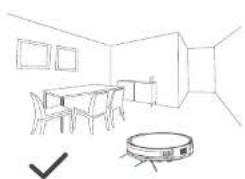
natural_image
Line drawing of a modern kitchen room with a vacuum cleaner and a table (no text or symbols)natural_image
Simple line drawing of a room with a person standing near a door, a robot on the floor, and a cross symbol (no text or labels)natural_image
Illustration of a metal staircase with an open lid and a person standing nearby (no text or symbols)natural_image
Hand pointing at a curved pipe or tube with a circular mark, no text or symbols presentNote
natural_image
Diagram of a circular device with a labeled component 'ZACO' and cable, no readable text or symbols beyond the label.98
natural_image
Diagram showing a hand holding a curved object and a zigzag path with an arrow (no text or symbols)natural_image
Illustration of a hand holding a curved object with a circular mark, no text or symbols presentflowchart
graph TD
    A["Home"] --> B["Circular Layout"]
    B --> C["Directional Flow Arrow"]
    C --> D["Rightward Arrow"]
    D --> E["Downward Arrow"]
natural_image
Technical line drawing of a circular mechanical component with an arrow indicating direction (no text or symbols)3 Placer la serpillière
natural_image
Technical line drawings of a device housing and internal components (no text or symbols)

natural_image
Technical line drawings of a device's internal components and parts, including a lid, handle, and base (no text or symbols)natural_image
Line drawings of three different electronic devices with no visible text or symbolsnatural_image
Technical diagram of a mechanical assembly with a magnified circular component (no visible text or symbols)Cleaning of charging contacts 137
natural_image
Technical line drawing of a mechanical assembly with two views: top shows a circular component, bottom shows a multi-layered housing (no text or symbols)natural_image
Diagram of a robotic vacuum cleaner emitting electrical shockwave waves (no text or symbols)natural_image
Simple line drawing of a robotic vacuum cleaner with no text or symbolsnatural_image
Line drawing of a simple dining room interior with tables, chairs, and a round table (no text or symbols)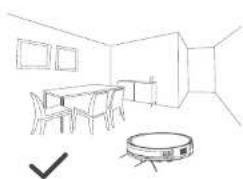
natural_image
Line drawing of a modern kitchen room with a vacuum cleaner and a table, no text or symbols presentnatural_image
Simple line drawing of a room with a person standing near a door, a robot on the floor, and a cross mark (no text or symbols)natural_image
Illustration of a metal staircase with an open lid and a person standing nearby (no text or symbols)natural_image
Illustration of a hand holding a curved object with a circular mark, no text or symbols presentNota
natural_image
Diagram of a circular device with a labeled 'ZACO' and cable, no readable text or symbols beyond the labelnatural_image
Diagram showing a hand holding a curved object and a zigzag path with an arrow (no text or symbols)natural_image
Hand pointing at a curved line segment with a circular mark (no text or symbols)natural_image
Technical line drawing of a circular mechanical component with an arrow indicating direction (no text or symbols)natural_image
Technical line drawing of two mechanical components with mounting holes and a magnifying glass (no text or symbols)natural_image
Technical line drawings of a device's internal components and parts, including a lid, handle, and base (no text or symbols)natural_image
Line drawings of three different electronic devices with no visible text or symbolsnatural_image
Technical diagram showing a mechanical assembly with a tool and a magnified circular component (no text or symbols visible)Cleaning of charging contacts



- User Manual
- ZACO
- Dear Customer,
- ZACO Customer Service
- Contents
- Safety instructions Safety instructions
- Warnings
- Product Composition Product Composition
- Note
- Product OperationProduct Composition
- Precautions
- Product Operation Product Operation
- Charging station
- Placement of charging station
- Turn on the robot
- Placement of charging station 4 Start cleaning
- REMINDER
- Pause
- Sleep mode
- Select cleaning modes
- Auto charge
- Spot mode
- Edge Mode
- Water tank operation
- Remove the water tank
- Add water
- Place the mop cloth
- Install water tank
- App Download App Download
- Maintenance Maintenance
- Maintenance
- Troubleshooting Product Specification
- ErP information
- Frequency Band
- EU Declaration of Conformity
- Hinweis
- Nota
- Placer la serpillière
Brand : ZACO
Model : V5 Max
Category : Robot vacuum