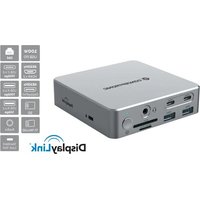
DONN25G - Docking station CONCEPTRONIC - Free user manual and instructions
Find the device manual for free DONN25G CONCEPTRONIC in PDF.


| Product Type | Universal Docking Station |
| Brand | Conceptronic |
| Model | DONN25G |
| Host Interface | USB-C with Power Delivery support up to 100W and DisplayPort Alt Mode |
| USB-A Ports | 2x USB 3.2 Gen 2 (10 Gbit/s) + 2x USB 3.2 Gen 1 (5 Gbit/s) |
| USB-C Ports | 2x USB 3.2 Gen 2 (10 Gbit/s) |
| Video Outputs | 2x HDMI + 1x DisplayPort, maximum resolution 4K at 60 Hz |
| Network Connectivity | RJ45 Gigabit Ethernet (10/100/1000 Mbps) |
| Card Reader | SD 3.0 and MicroSD/TF 3.0 (simultaneous read/write) |
| Audio | Combo audio input/output (headphone + microphone) |
| Power Supply | 20V DC power adapter included |
| Charging Power | USB-C Power Delivery up to 100W for host PC |
| Power Button | Yes, with LED (red in standby, green when operating) |
| Security | Standard Kensington lock slot |
| Supported Operating Systems | Windows 7/8/10/11, macOS, ChromeOS, Ubuntu, Android |
| Required Drivers | DisplayLink (download from Conceptronic website) |
| Maintenance and Cleaning | Unplug before cleaning; wipe with a dry, lint-free cloth |
| Spare Parts and Repairability | No user-serviceable parts; repair by a qualified professional |
| Dimensions (approx.) | 220 x 80 x 30 mm |
| Weight (approx.) | 300 g |
| Package Contents | Docking station, power adapter, USB-C cable, quick installation guide |
| Certifications | CE marking |
Frequently Asked Questions - DONN25G CONCEPTRONIC
User questions about DONN25G CONCEPTRONIC
0 question about this device. Answer the ones you know or ask your own.
Ask a new question about this device
Download the instructions for your Docking station in PDF format for free! Find your manual DONN25G - CONCEPTRONIC and take your electronic device back in hand. On this page are published all the documents necessary for the use of your device. DONN25G by CONCEPTRONIC.
USER MANUAL DONN25G CONCEPTRONIC
DONN25G 100W USB-C to USB-C cable Power adapter (20.0V/6.0A) EU power cord UK power cord Quick Installation Guide
English
Safety & Warnings instructions
Read the operating instructions carefully and especially observe the safety information. If you do not follow the safety instructions and information on proper handling in this manual, we assume no liability for any resulting personal injury or damage to property. Such cases will invalidate the warranty/guarantee.
- Keep the device away from water, humidity, fire or hot environments.
- Keep your device and all its parts and accessories out of the reach of small children.
■ Do not leave the packaging material lying around carelessly. This may become dangerous playing material for children.
■ Do not use the device if there are any signs of damage to the housing, plug, or cable.
■ Avoid dropping, throwing or crushing the device.
■ Confirm that the wall outlet provides the same type of power indicated on the device (both Voltage [V] and frequency [Hz]).
■ Use the power supply only in a socket that is installed as close as possible to the device and easily accessible and easy to unplug.
■ Do not plug the power supply in a socket that is hidden behind of any furniture.
■ Do not cover the power supply connected into the socket.
■ Use the product only in dry indoor rooms and protect it from moisture.
■ If in doubt or if the power adapter malfunctions, discontinue use and contact our customer support or an authorized service centre.
■ Discontinue use immediately if the power adapter shows visible damage, emits unusual odours, or becomes excessively hot.
■ Disconnect the product from the mains before cleaning.
■ Clean the product with a dry, fibre-free cloth.

Disposal of waste electrical equipment: Dispose of the product at a recycling point. Do not dispose of together with household waste. Incorrect storage/disposal can harm the environment and/or cause injury.
CE marking: Conceptronic declares that this product complies with the directives listed in the section 'Declaration of Conformity'.
Product Overview
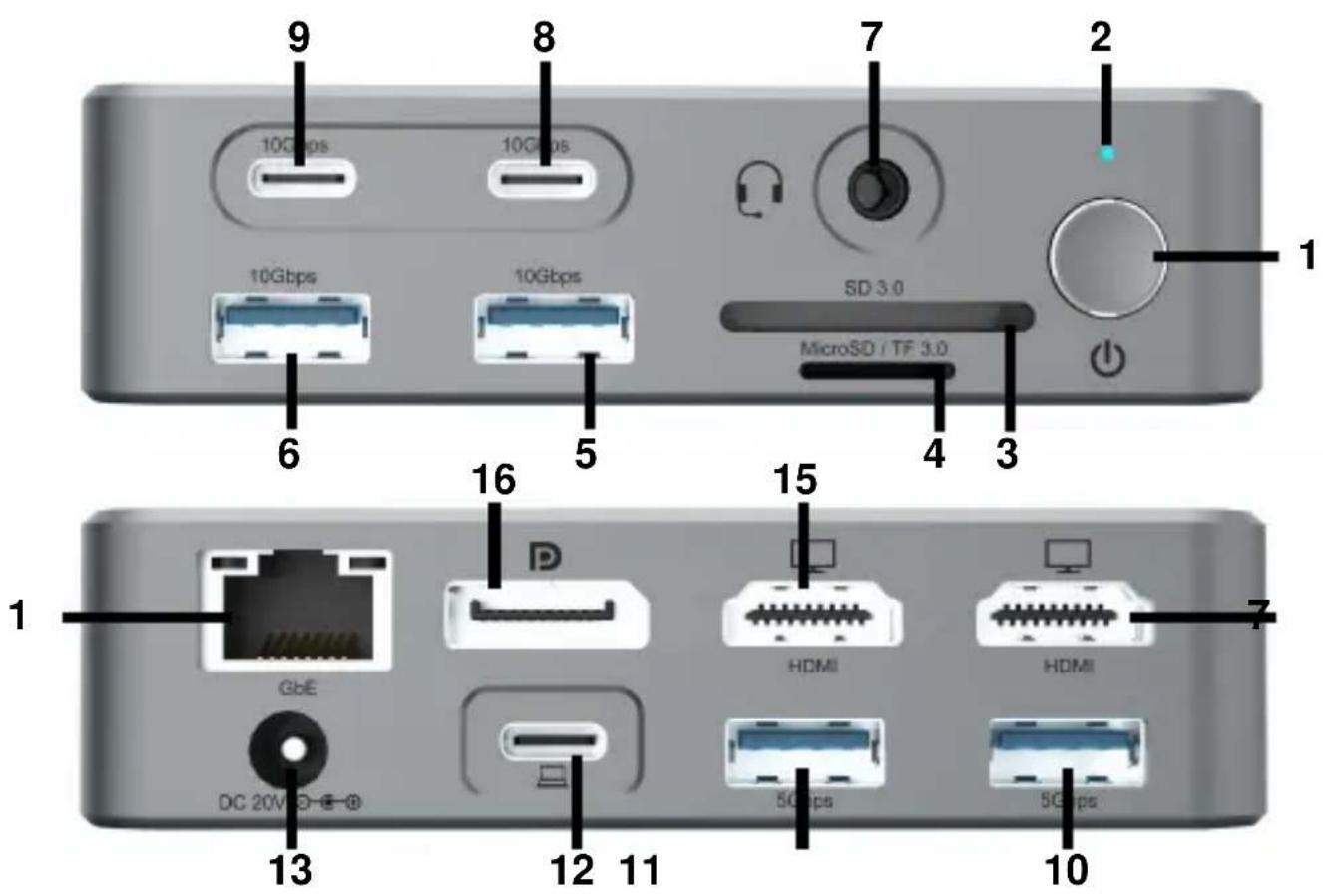
| Number | Component | Description |
| 1 | Power button | Power on or power off the docking station. |
| 2 | Power LED | Standby - Red light; Operation - Green light. |
| 3, 4 | SD/TF 3.0 card slot | Supports simultaneous reading and writing of two cards. |
| 5, 6 | USB-A port | USB 3.2 Gen 2 (10Gbps). |
| 7 | Audio in/out | Connect to audio and microphone. |
| 8, 9 | USB-C port | USB 3.2 Gen 2 (10Gbps). |
| 10, 11 | USB-A port | USB 3.2 Gen 1 (5Gbps). |
| 12 | USB-C host | Connect to the laptop using the included USB-C cable. Supports USB Power Delivery (PD) up to 100W. |
| 13 | DC-in | Connect to the included power adapter. |
| 14, 15 | HDMI | Resolution up to 4K 60Hz |
| 16 | DisplayPort | Resolution up to 4K 60Hz |
| 17 | RJ45 port | Gigabit Ethernet port with speeds up to 1000Mbps. |
| Standard lock slot (on side panel) | Use with a laptop lock to secure the docking station. |
System Requirements
■ Windows 7/8/10/11
■ macOS, ChromeOS, Ubuntu, Android
■ USB-C port supports DisplayPort Alternate Mode (DP Alt Mode)
Driver Installation
Before using the docking station, please ensure you have downloaded and installed the latest DisplayLink drivers for your computer to enable DisplayLink technology. You can download the drivers from the link below or visit the Conceptronic website.
https://www.synaptics.com/products/displaylink-graphics/downloads

Windows

macOS

Android

Chrome OS

Ubuntu
For macOS, you may be prompted to allow installation from the Security & Privacy settings.
Installation & Usage
■ Connect the included power adapter to the DC input on the docking station and to the free wall outlet.
■ Connect the included USB-C cable to the laptop and the USB-C host port of the docking station."
■ Connect your peripheral devices to the docking station.
■ Press the button to power on the docking station.
Deutsch
https://www.synaptics.com/products/displaylink-graphics/downloads

Windows

Mac


Android

Chrome OS

Ubuntu
https://www.synaptics.com/products/displaylink-graphics/downloads

https://www.synaptics.com/products/displaylink-graphics/downloads

https://www.synaptics.com/products/displaylink-graphics/downloads


https://www.synaptics.com/products/displaylink-graphics/downloads

Windows

macOS

Android

Chrome OS

Ubuntu
https://www.synaptics.com/products/displaylink-graphics/downloads

https://www.synaptics.com/products/displaylink-graphics/downloads

Windows

Mac
macOS

Android

Chrome OS

Ubuntu
Brand : CONCEPTRONIC
Model : DONN25G
Category : Docking station