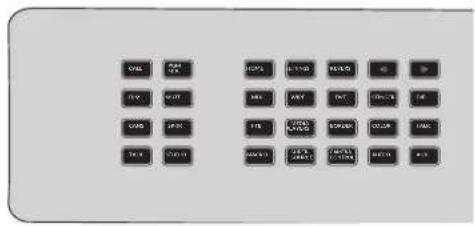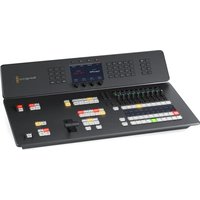
ATEM Television Studio HD8 - Video mixer Blackmagic Design - Free user manual and instructions
Find the device manual for free ATEM Television Studio HD8 Blackmagic Design in PDF.


| Product Type | Video Mixing Console (Live Production Switcher) |
| Brand | Blackmagic Design |
| Model | ATEM Television Studio HD8 |
| Video Processing Format | M/E (Mix Effects) with Program/Preview or direct A/B switching |
| Video Inputs | 8x 3G-SDI inputs with standards converters and frame synchronizers |
| Video Outputs | Multi View (SDI and HDMI), Program output, Preview output, 2 aux outputs |
| Maximum Resolution | Up to 1080p60 (in 3G-SDI) |
| Audio | Built-in Fairlight audio mixer with 6-band parametric EQ, compressor, gate, expander, and limiter per channel |
| Audio Inputs | Embedded SDI, XLR (stereo), RCA, MADI via BNC |
| Audio Outputs | Headphone output (5-pin XLR), Control Out, Studio Out, SDI audio |
| Keyers | 4 upstream keyers, 2 downstream keyers, advanced chroma key |
| Transitions | Mix, Dip, Wipe, DVE, Stinger |
| Streaming | Built-in, compatible with YouTube, Twitch, etc. via Ethernet |
| Recording | To external USB-C disk (HFS+ or exFAT) or optional internal storage |
| Network Control | Ethernet 10/100/1000, control via ATEM Software Control, ATEM Camera Control Panel, etc. |
| Power | 100-240 V AC via IEC (main input); 12 V DC on external DC input |
| Operating Temperature | 0 to 40°C (max 40°C) |
| Safety | FCC Class A; use with protective ground power outlet; do not expose to water; max altitude 2000 m |
| Maintenance and Cleaning | Clean with a soft dry cloth; do not use any liquids or solvents |
| Repairability | No user-serviceable parts; any service must be performed by a Blackmagic Design service center |
| Warranty | 12-month limited (parts and labor) |
Frequently Asked Questions - ATEM Television Studio HD8 Blackmagic Design
User questions about ATEM Television Studio HD8 Blackmagic Design
0 question about this device. Answer the ones you know or ask your own.
Ask a new question about this device
Download the instructions for your Video mixer in PDF format for free! Find your manual ATEM Television Studio HD8 - Blackmagic Design and take your electronic device back in hand. On this page are published all the documents necessary for the use of your device. ATEM Television Studio HD8 by Blackmagic Design.
USER MANUAL ATEM Television Studio HD8 Blackmagic Design
ATEM Television Studio Switchers
natural_image
Man in red polo shirt using a video editing console at a music studio with red curtains and a large 'LAB' backdrop (no readable text or symbols on main subjects)Languages
To go directly to your preferred language, simply click on the hyperlinks listed in the contents below.
English 3
日本語 197
Français 392
Deutsch 587
Español 782
中文 977
한국어 1172
Русский 1367
Italiano 1562
Português 1757
Türkçe 1952
Polski 2147
Українська
2342
natural_image
Circular portrait photo of a smiling man in a black shirt against a gray background (no text or symbols)Welcome
Thank you for purchasing an ATEM Television Studio switcher for your live production work!
If you're new to live production switchers, then you're about to become involved in the most exciting part of the television industry and that's live production! There is nothing like live production and it's so easy to become addicted to the adrenaline rush of editing in real time while the live event unfolds before your eyes. It's real television the way it should be!
Previously, broadcast quality live production has always been way too high in cost for most people to afford, while affordable switchers lacked broadcast features and quality. ATEM Television Studio switchers change this letting you create the most amazing professional live production results. We hope you get years of use from your switcher and have lots of fun creating live production!
This instruction manual should contain all the information you'll need for installing your ATEM Television Studio switcher.
Please check the support page on our web site at www.blackmagicdesign.com for the latest version of software for your ATEM switcher. Simply connect your computer to the ATEM switcher and the ATEM hardware control panel via USB to update software so you get all the latest features! When downloading software, please register with your information so we can keep you updated when new software is released. We are constantly working on new features and improvements, so we would love to hear from you!
Grant Petty
Grant Petty
CEO Blackmagic Design
Contents
Introducing ATEM Television Studio 6
What is an M/E Switcher? 6
What is an A/B Direct Switcher? 8
Understanding the ATEM Switcher 8
Getting Started 9
Plugging in Power 9
Connecting the Multiview 10
Plugging in Sources 10
Plugging in Audio 11
Performing a Transition 12
Setting Your Network 15
Using ATEM Television Studio 16
Control Panel Overview 16
System Control 17
Changing Settings 19
Home 19
Settings 19
Talkback and Call Buttons 21
Mix Effects 24
Transition Control and Upstream Keyers 26
Downstream Keyers 28
Audio Mixer 29
Channel Strips 29
Mode Buttons 31
Channel and Modifier Buttons 33
Audio Controls Workflow Guide 33
Selection Buttons 35
Stream and Record Buttons 36
Storage Media 37
Preparing Storage via a Computer 37
Preparing Storage Using ATEM
Television Studio 38
Accessing Storage 39
Cloud Sync 40
Using the Multiview 42
ATEM Software Control 46
Switcher Control Panel 47
Preferences 48
Changing Switcher Settings 50
General Settings 50
Media Settings 52
Audio Settings 52
Multiview Settings 54
Sources 55
HyperDeck Settings 56
Remote Settings 56
Auxiliary Outputs 56
Audio Output Channel Mapping 58
Using SuperSource 59
Saving and Restoring Switcher Settings 61
Switching with ATEM Software Control 63
Using Keyboard Hot Keys 63
Mix Effects 64
Transition Control and Upstream Keyers 65
Downstream Keyers 66
Processing Palettes 67
Media Tab 68
HyperDeck Tab 68
Output Tab 68
Timecode Generator 72
ATEM Media Pool 73
Using the Audio Mixer 75
Using MADI 77
Headphones Settings 78
Advanced Fairlight Controls 79
6 Band Parametric Equalizer 79
Dynamics Controls 82
Using Camera Control 86
Camera Control Panel 87
DaVinci Resolve Primary Color Corrector 90
Operating your ATEM Switcher 93
Internal Video Sources 93
All Transition Types 94
Keying using ATEM Switchers 110
Understanding Keying 110
Luma Key 110
Linear Key 111
Pre multiplied Key 111
Chroma Key 114
Performing an Advanced Chroma Key 114
Pattern Key 117
DVE Key 119
Performing Upstream Keyer Transitions 122
Performing Downstream
Keyer Transitions 124
Streaming 125
Getting a Stream Key 125
Direct Streaming by Sharing Your Computer Internet 126
Smartphone Tethering 127
Additional Features on ISO Models 128
Connecting Remote Sources over a Local Network 128
Connecting Remote Sources via the Internet 130
Recording ISO Files 132
Benefits of Editing a Live Project 134
Editing in DaVinci Resolve 137
Joystick on ATEM Television Studio 4K8 139
Controlling Cameras using the Joystick 139
Connecting a Remote Head 139
Using Adobe Photoshop with ATEM 141
Using Macros 143
What is a Macro? 143
The Macros Window in ATEM Software Control 143
Recording Macros using ATEM Television Studio 148
HyperDeck Control 150
Introducing HyperDeck Control 150
Controlling HyperDecks with ATEM Software Control 154
Controlling HyperDecks with ATEM Television Studio 156
Using ATEM Camera Control Panel 157
Powering the Panel 158
Connecting the Panel to your Switcher 158
Changing Network Settings 159
Camera Control Panel Layout 161
Controlling Cameras 166
Using Tally 174
Sending Tally Signals via a GPI and Tally Interface 174
Using a Third Party Audio Mixer Control Surface 176
Using a DaVinci Resolve Micro Panel 178
Updating the Software 180
How to update the ATEM Software 180
Adapter Cables for Talkback and Camera Control 181
5 Pin XLR Talkback Headset Connector Pinout Diagram 182
Developer Information 183
Blackmagic SDI Camera Control Protocol 183
Example Protocol Packets 190
Blackmagic Embedded Tally Control Protocol 191
Help 193
Regulatory Notices 194
Safety Information 195
Warranty 196
Introducing ATEM Television Studio
ATEM Television Studio switchers are professional broadcast grade digital production switchers capable of switching and processing a variety of video sources in live video production and broadcast environments. The switcher uses the current and familiar Mix Effects based design with software and hardware control options that provides an intuitive, fast and easy to use workflow for program/preview switching. If you're used to the older A/B direct switcher style, ATEM switchers also support A/B direct switching which makes it easy to get started.
You only need your ATEM switcher to get started as it has a built in control panel so you can switch your live production using just the switcher. However, if you want to add more control flexibility, you can also use ATEM Software Control, or even add one or more hardware control panels if you need a more advanced solution.

natural_image
Line drawing of a video camera setup with monitor, keyboard, and broadband device (no text or symbols)Setting up your ATEM Television Studio switcher can be as simple as plugging the multiview output into a monitor, plugging in a camera and then connecting the program output to a recording deck
What is an M/E Switcher?
If you have used low cost switchers before, then these might not have used the mix effects style of operation that's commonly called an M/E style of operation. If you have used an M/E style switcher, then you might want to skip ahead to install and get working with your new ATEM switcher.
When you're starting out with a switcher for the first time, the ATEM can look a little intimidating with all its buttons and knobs, however it's all very logically laid out so it's very simple to use.
ATEM is a true high-end broadcast switcher that operates using the M/E workflow standards used in the broadcast industry. This means once you get familiar with how it works, you will feel instantly at home on virtually any switcher used in broadcast today.
The M/E style of operation has been developed over decades to help eliminate errors when switching live events and is a broadcast standard. It's extremely easy to see what's going on at any time so you don't get confused and make mistakes. The M/E style of operation lets you check the sources you are about to switch on air, as well as try effects before using them on air. You can see buttons for each keyer and transition, so you instantly know what's going on and what's about to happen.
The best way to learn about how your ATEM works is to grab your switcher and play with it while referencing this manual. You might want to jump ahead and install your switcher before reading the rest of this section.
To start, the most visible part of an M/E based control panel is the transition fader, which typically appears as a T bar or slider on a control panel, and the program and preview rows of source buttons.
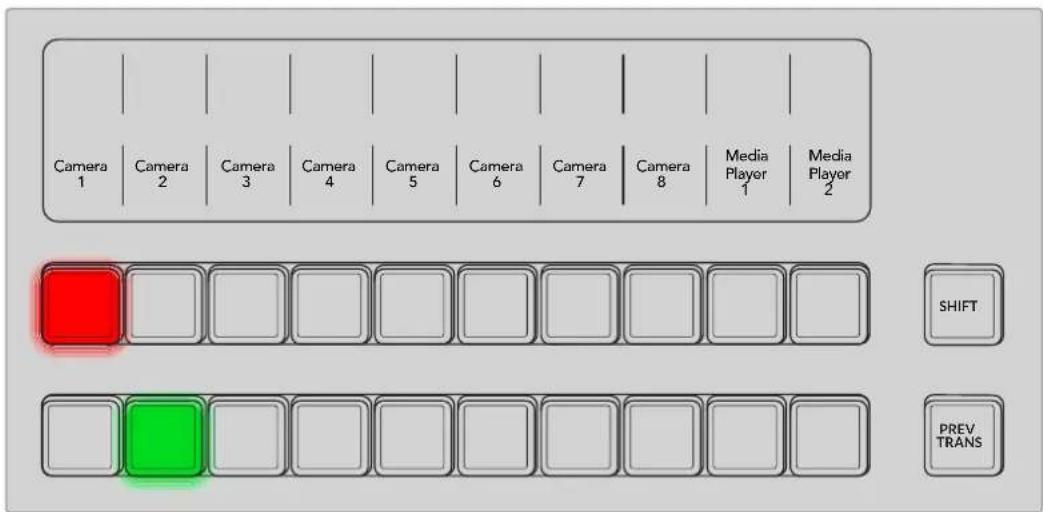
The program and preview rows of buttons let you preview a source and then switch it to air
There are multiple types of transitions available, and they can be selected using the system control buttons to the left of the LCD or by pressing the specific transition button on the panel. You can choose from a wide range of wipe patterns and DVE effects, plus use the LCD menu to adjust the transition rate and other transition settings.
The other concept that is important to know about M/E style switchers, including ATEM, is the video on the program and preview rows is technically called the background video. This is because the upstream (effects) keyers and downstream keyers will overlay on top of this source. So you can load graphics into the keyers and see them with the preview video and when keys are turned on, you will see the overlay on top of the program video. This is very powerful and allows multiple layers to be built up.
Another great advantage of the ATEM M/E style of operation is you can tie keyers to the transition. This means when you do a mix transition, you can also fade on or off keyers at the same time. This allows you to build up a composition, and then bring the whole lot on air at the same time. This is what the next transition buttons do, and you can select background for normal transitions, or select one or more keyers to transition them on air.
You can even press multiple buttons on an ATEM Television Studio switcher's control panel to tie multiple keys and the background at the same time. There are also dedicated downstream key tie buttons to tie downstream keyers to the transition. Downstream keys also have dedicated cut and mix buttons and so are very flexible. Downstream keyers are always layered over the top of everything including the transition, so are a great place to key bugs and logos.
Finally, when your live production is finishing, it's nice to have a dedicated fade to black (FTB) control to fade everything to black. You can see the dedicated fade to black control on the bottom right of the switcher. This lets you fade everything to black, and helps make sure you don't miss a layer. Fade to black is at the extreme end of the processing chain so you get a clean fade of all sources.
The last part of an M/E style switcher is the select bus. This is above the program row, and simply allows sources to be selected for effects processing and other purposes, and there is a label above this to show what you're switching. The select bus is commonly used to select key inputs, and can also be used to run macros directly from the control panel.
As you can see by this quick overview, M/E style of operation allows confident live production with good feedback on what's going on and the state of your switcher and programming at any point in your production. Once you learn the M/E style of operation, you can move between models of production switchers with little retraining as they all work the same.
What is an A/B Direct Switcher?
If you have been using video switchers for a long time, then you might be used to older-style A/B direct switchers.
A/B direct switchers have an A bus and a B bus. One bus is the program bus which shows a red button for the current program output. The other is the preview bus which has a green button for the preview video. As you move the fader bar up and down, the buses switch so that the red program button follows the fader handle. This is where A/B direct switching is really easy to use as the buttons stay lit in the same positions and just switch color between green and red.
A/B direct switching becomes a little more confusing when the fader control is not used to make the switch. If you use a cut or auto transition button to bring your preview source on air, or if you use more than one control panel connected to your switcher, the fader control won't have moved on the control panel that you are using. The red program output always follows the fader control and, as you haven't moved it, the red program light has to move to another button on the same row and the green preview light has to move to another button in its row.
This can become quite confusing when sometimes using the fader control to make switches, and sometimes not, as the rows containing your preview and program buttons will sometimes switch and sometimes stay where they are which has the potential to lead to mistakes.
This is why modern M/E style switching is preferable because you'll always find your green preview button in the preview row, and the red program button in the program row. It's always consistent and there are no surprises with M/E style switching.
Understanding the ATEM Switcher
ATEM Television Studio switchers provide all the video processing, as well as all video input and output connectors.
The switcher has a built in control panel with buttons and knobs so you can switch directly from the switcher itself, or you can connect to a computer via Ethernet and use ATEM Software Control that emulates the same controls on a software panel. Using the software panel together with the built in control panel lets multiple operators switch your production. For example, you could switch cameras using the built in panel while other operators control the camera and audio levels using the software panel. The options are endless.
ATEM Television Studio switchers support HD video up to 1080p60 via 3G-SDI. ATEM Television Studio 4K8 switchers also support 4K video up to 2160p60. All inputs on your switcher have a built in resynchronizer and standards converter so you can plug in different formats and they will automatically convert to the switcher's set output format.
Each switcher features advanced chroma keyers, a Fairlight audio mixer, camera control adjustments and the ability to load stills into the media pool and much more. When connected to a network, you can select streaming inputs or record directly to network storage.
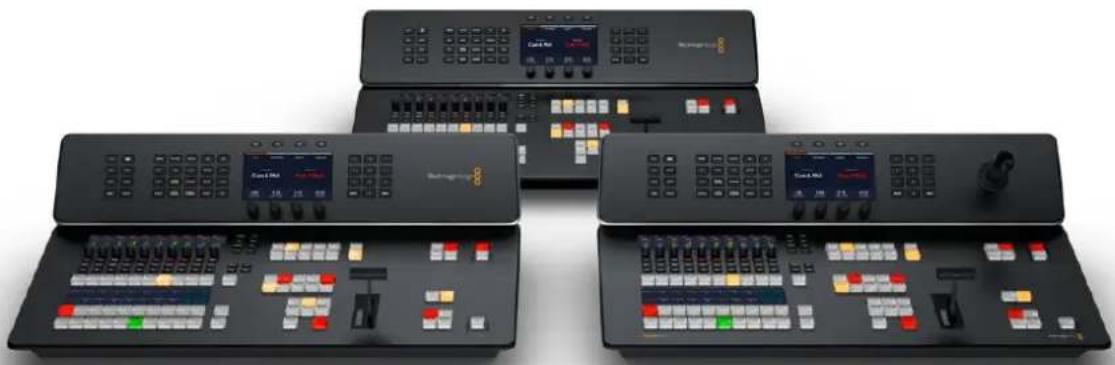
ATEM Television Studio switchers feature auxiliary outputs that can use any internal and external video sources. For example, program feeds if you need more program outputs, or clean feeds without down stream keying, or even specific video inputs. ATEM Television Studio HD8 switchers have 2 auxiliary outputs while the ATEM Television Studio 4K8 models have 10 auxiliary outputs. The extra auxiliary outputs on the ATEM Television Studio 4K8 model can be used to connect to external HyperDeck disk recorders and you can record all the video inputs for later editing. Recording the video inputs is called ISO recording as you are recording the isolated inputs.
ATEM Television Studio HD8 ISO
natural_image
Four black audio recording equipment consoles with control panels and buttons, no visible text or symbols on the devices themselves.ATEM Television Studio HD8 ATEM Television Studio 4K8
Getting Started
Getting started with your ATEM Television Studio is as simple as connecting power, adding your SDI video sources, connecting your multiview and using the built in control panel to check your inputs.
Plugging in Power
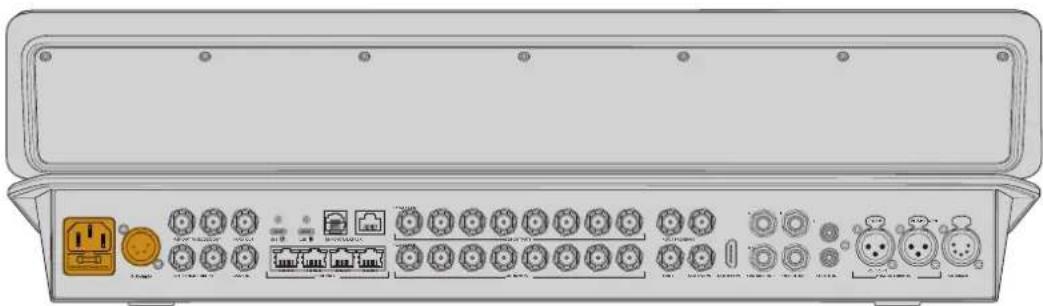
To power your ATEM Television Studio switcher, plug a standard IEC cable to the power input on the rear panel. ATEM Television Studio switchers also feature a DC input, which lets you connect power from an external 12V battery. Once powered the control panel LCDs will turn on and camera buttons will illuminate.
natural_image
Front view of a technical enclosure panel with multiple ports and buttons (no visible text or labels)Connect power via the IEC or DC Inputs on ATEM Television Studio
Connecting the Multiview
To check the inputs, connect a display to the multiview output using either the SDI or HDMI multiview connections.
Once connected, you should see 8 small boxes and 2 large boxes on the display. Each box is a separate view and as you connect additional sources, they will appear on their respective views. You can customize the look of the multiview to show up to 16 views using ATEM Software Control. For more information, see 'using the multiview' later in this manual.
If you can see the multiview, then your ATEM is powered on and running fine and you can now start plugging in sources.
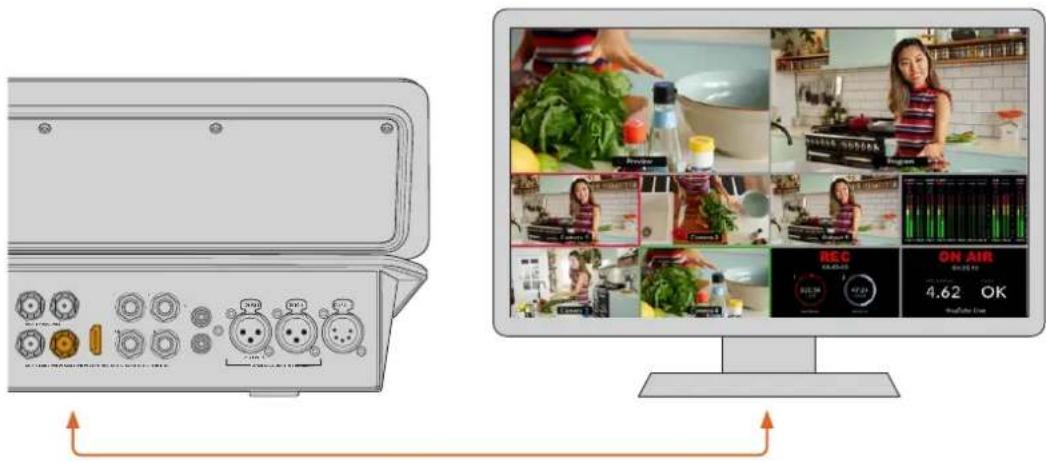
Connect your ATEM Television Studio switcher to a monitor to view the multiview output
Plugging in Sources
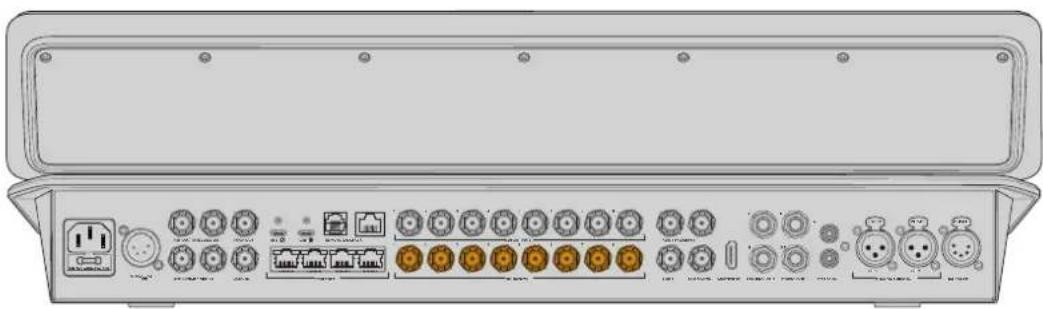
Plug your SDI cameras and other sources into ATEM Television Studio SDI inputs. These SDI connections feature format conversion and frame synchronizers so all sources will conform to the video format set on your switcher.
natural_image
Front view of a dual-panel electronic device back panel with ports, connectors, and indicator lights (no text or symbols visible)ATEM Television Studio SDI Inputs
With ATEM Television Studio HD8 ISO switchers, you can also connect streaming sources via the Ethernet ports, such as Blackmagic Studio Camera 6K Pro. For more information on selecting sources via Ethernet, refer to 'additional features on ISO models' later in this manual.
Plugging in Audio
ATEM Television Studio switchers include a built in audio mixer which allows the use of embedded SDI audio from your cameras as well as external audio from the XLR and RCA inputs as well as the MADI BNC inputs. These additional audio inputs can be used for other audio sources such as camera microphones and pre-recorded audio.
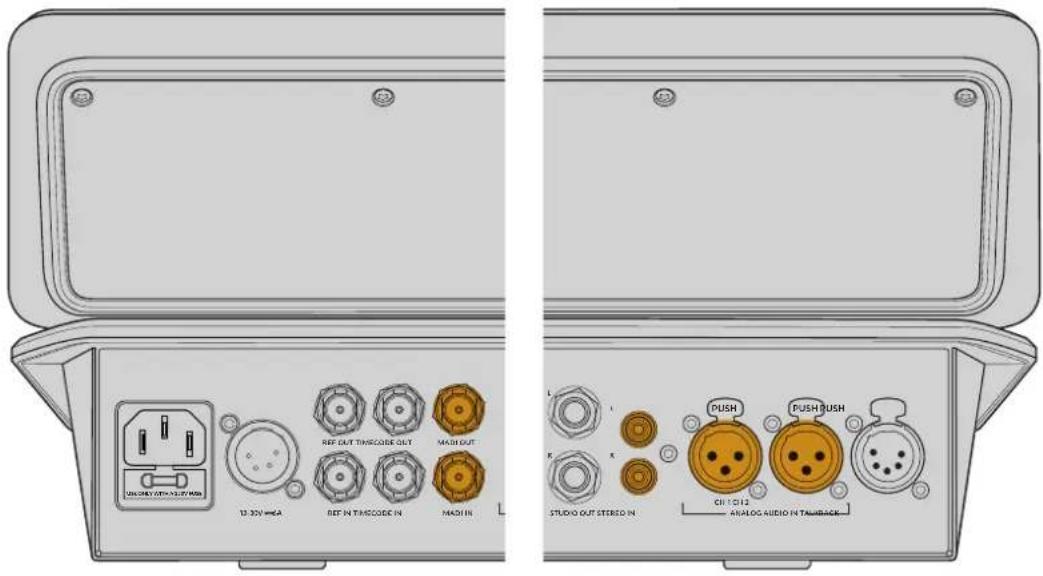
Audio Inputs on ATEM Television Studio
Once your audio is connected, you can confirm the signal on each channel by looking at the levels on the control panel's audio mixer.
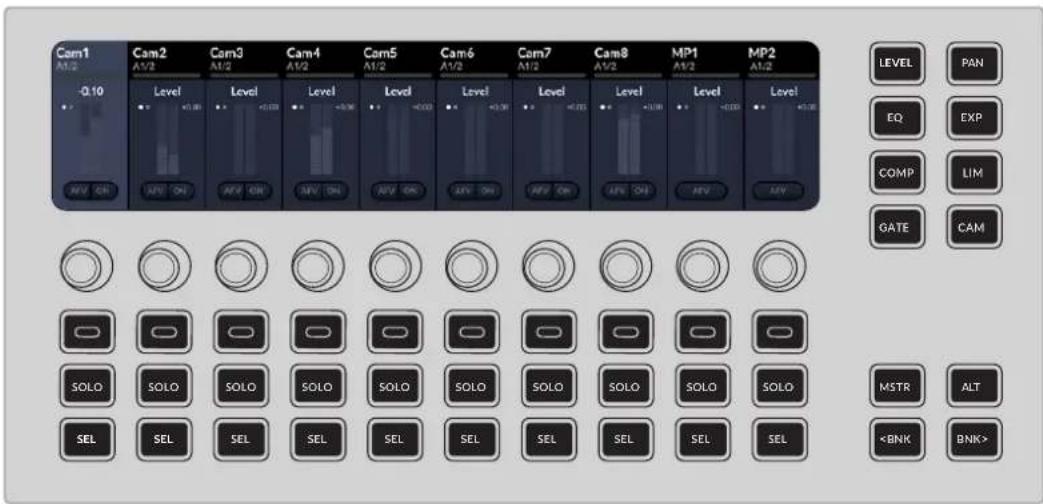
Check audio levels via the meters on the Fairlight audio mixer
For more information refer to the audio mixer section later in this manual.
Performing a Transition
To start, the most visible part of an M/E based control panel is the transition fader, which typically appears as a T bar or slider on a control panel, and the program and preview rows of source buttons.
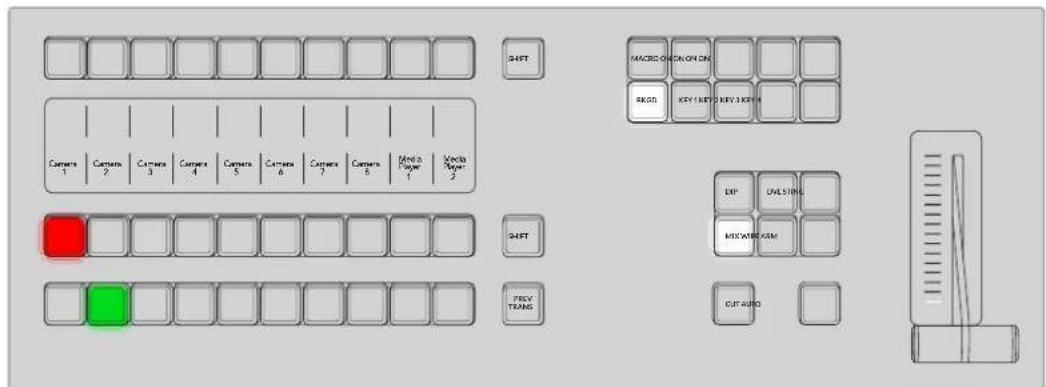
When checking your setup, the first step you may want to try is to perform a transition.
There are two switching modes available on your ATEM Television Studio switcher. The default mode is 'program preview' which lets you preview a source before switching it to air. However the program bus source select buttons in the top row can be used to hot switch sources to the program output. Be careful when selecting sources on this row, as they will instantly be switched on air.
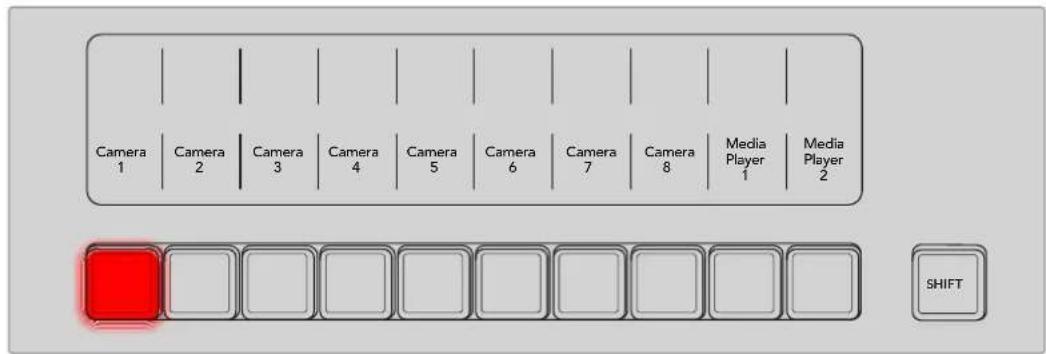
Performing a cut from input 1 to input 3 using the program row:
1 Input 1 is illuminated red to indicate input 1 is currently live on air.
2 In the program row, press input 3.
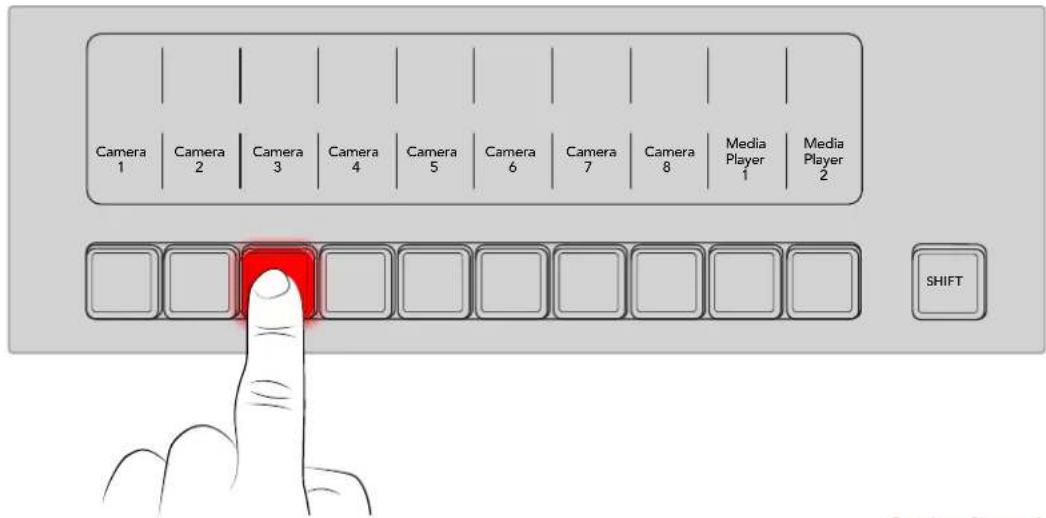
Input 1 will now immediately switch to input 3 and you will see input 3 illuminated red, which means input 3 is now live on air. This is known as a cut as you are ‘cutting’ directly from one source to another.
A safer and more orderly way to do transitions is to select them on the preview row, and then use a transition to cut or transition them on air.
This is a very powerful way to use a switcher, because you can select your source on the preview row, and see it on the preview video output to confirm that you have the correct source before you select the transition you want. You can see what's happening at all stages so it's hard to make mistakes. Only the M/E style of operation allows you to keep track of what's going on.
The bottom row of buttons is the preview bus source selection. This is where you will spend most of your time selecting sources about to go on air. This selected source is sent to the program output when the next transition occurs. The next transition can be triggered by pushing the cut button, the auto button, or by moving the transition fader up or down. You can select between a mix, dip, wipe, DVE or other transition depending on what you have selected in the transition control section.
In the following example a mix transition will be used to transition from source 3 back to source 1.
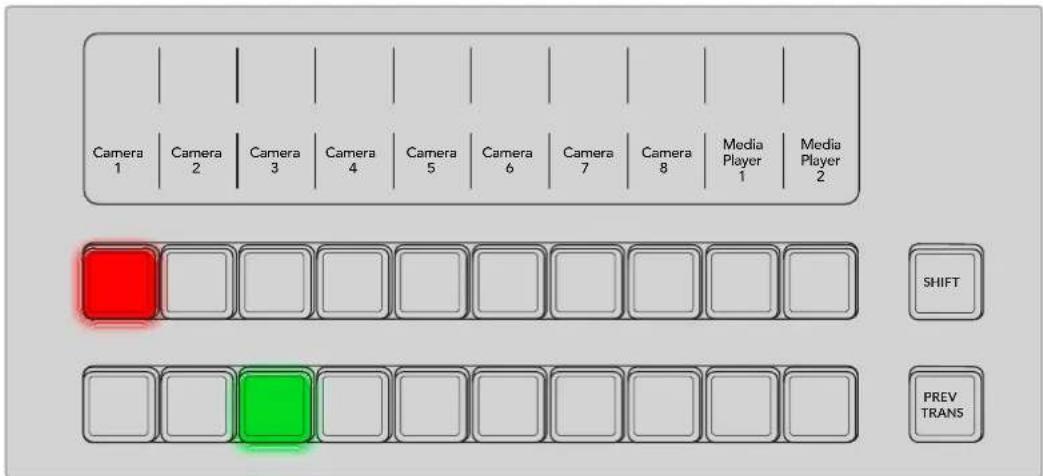
1 Select the next source by pressing button 1 on the preview row. The button will now illuminate green to show it is selected on the preview bus.
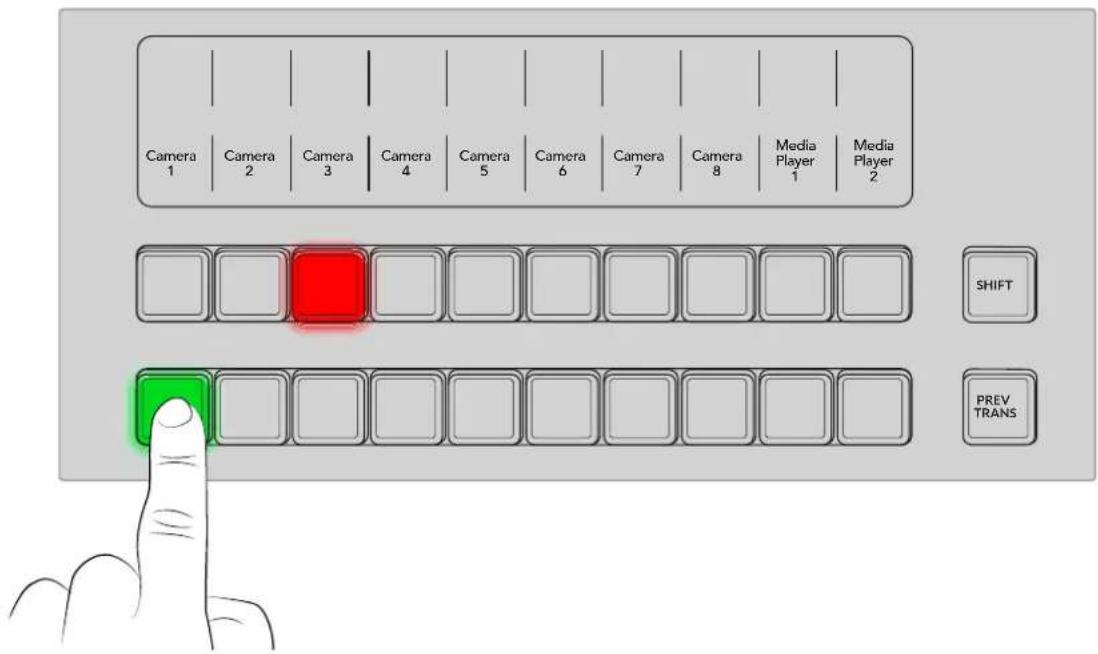
2 Press the dedicated 'mix' transition button.
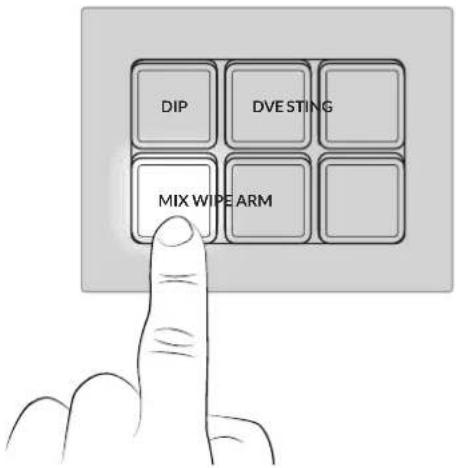
3 Now press the 'auto' button to perform the transition.
During the transition, input buttons on both the program and preview rows illuminate red to indicate they are both on air and the fader bar indicators will light up.
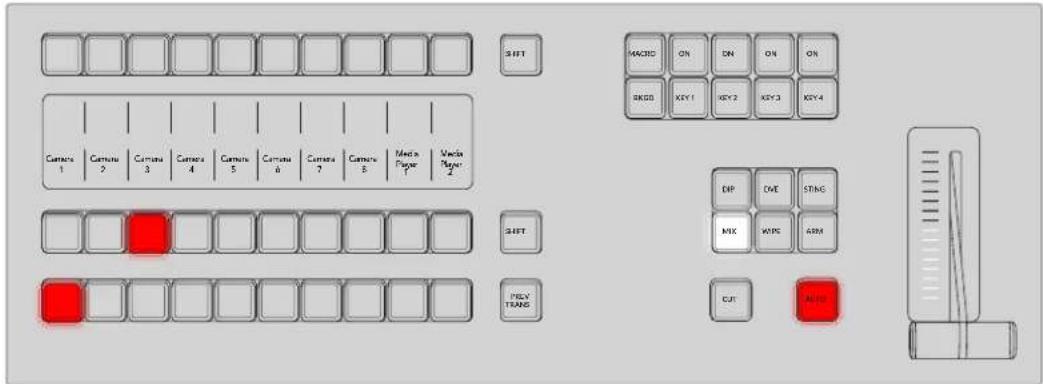
You might also notice that once your transition is complete, the sources selected on the preview and program rows swap over. This is because the source you selected on the preview row is now the new on air source, so it becomes selected on the program row once the transition is complete. Remember the program row always shows what's on air.
Setting Your Network
Your ATEM switcher ships from the factory with settings to allow hardware control panels to simply be connected directly with an Ethernet cable. However your ATEM supports full Ethernet IP protocols so you can place your ATEM Television Studio switcher and external ATEM hardware panel on your network or anywhere on the planet using the internet. Connecting to a network means you have enormous flexibility with how you control your switcher. For example, you can connect an ATEM Camera Control Panel on the same network to your switcher and have one operator switching content while the other operators adjusts the cameras. In addition, you also have the software panel on your computer so you can even have a third operator handling audio, or managing media from the software panel.
ATEM Television Studio switchers default to DHCP so the switcher can get its network information automatically. However you can set a fixed IP address manually.
1 If you're not in the home menu, press the 'home' button to return to the main menu.
2 Press the 'network' soft control button above the LCD and use the right arrow button to navigate to 'IP address'. If your switcher can see the network, the assigned IP address will appear across the bottom of the screen.
3 To set a manual IP address, press the 'DHCP on' soft button above the LCD to turn DHCP off. Set your manual IP address using the corresponding knobs beneath the LCD. When using a static IP the switcher must share the same IP address subnet as any device you which to connect to, for example a HyperDeck, which typically means the first 3 fields in the IP address need to be the same.
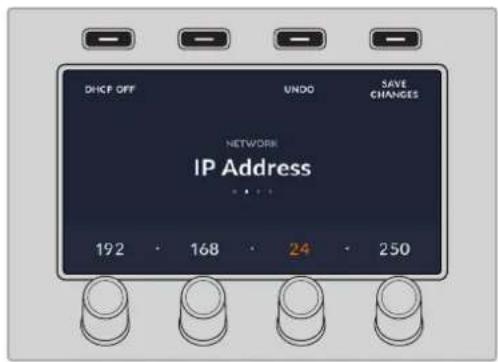
4 Once you've entered your IP address, press the 'save changes' button.
Now your switcher is on your network, you can select your streaming platform via ATEM Software Control and use the 'on air' buttons to start your stream.
For more information on selecting your streaming platform refer to the 'output tab' later in this manual.
That's all there is to getting started! Keep reading this manual for information on how to use all the features and controls on your ATEM Television Studio switcher.
Using ATEM Television Studio
The advanced control panel on your ATEM Television Studio switcher includes program and preview rows, mix effects panel, talkback controls, dedicated Fairlight audio mixer and camera control buttons, menu LCD and T-bar for precise transition control.
The built in panel and the supplied ATEM Software Control panel work together so any change on one panel will be reflected on the other and you can use both panels at the same time. You can also plug in additional hardware control panels, such as ATEM Camera Control Panel, if you have another operator assigned to camera control.
Control Panel Overview
This section provides an introduction to the primary features of the control panel, for example the main system control, LCD menu, program and preview buttons, transition buttons, keyer buttons, Fairlight audio controls and more.
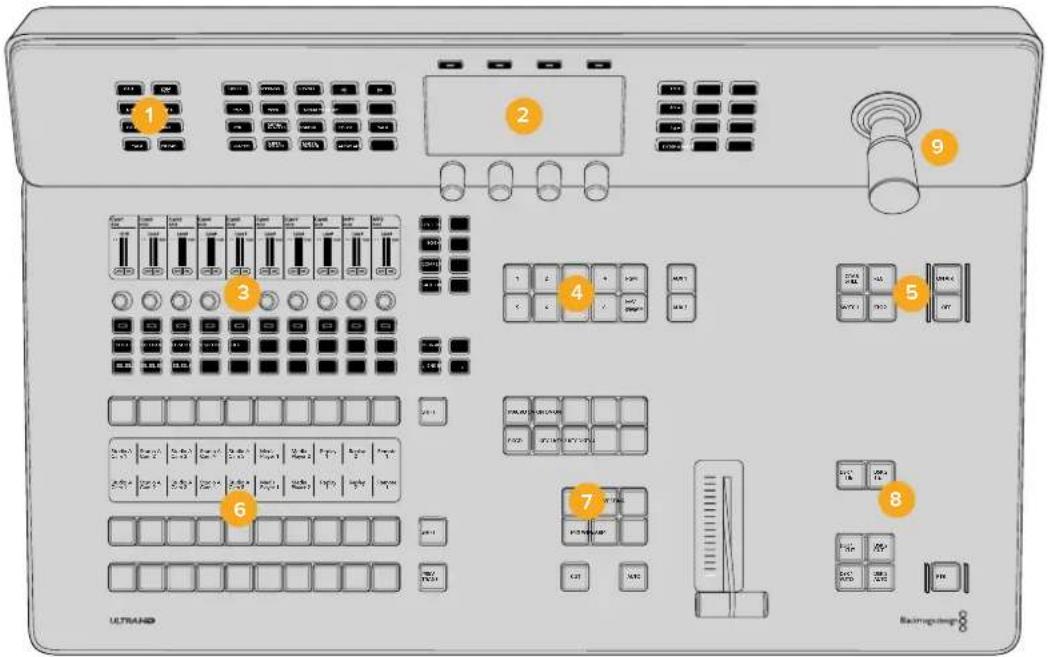
ATEM Television Studio 4K8
1 Talkback and Call Buttons
2 System Control
3 Audio Mixer
4 Aux Selection Buttons
5 Stream and Record buttons
6 Program, Preview and Source Select
7 DVE and Transitions
8 Downstream keyers and Fade to Black
9 Joystick on ATEM Television Studio 4K8 switchers
System Control
The top section of the control panel with the LCD and buttons immediately surrounding it is called system control and is like the switcher's mission control center. This forms the central access menu to change important settings and generally configure your switcher.
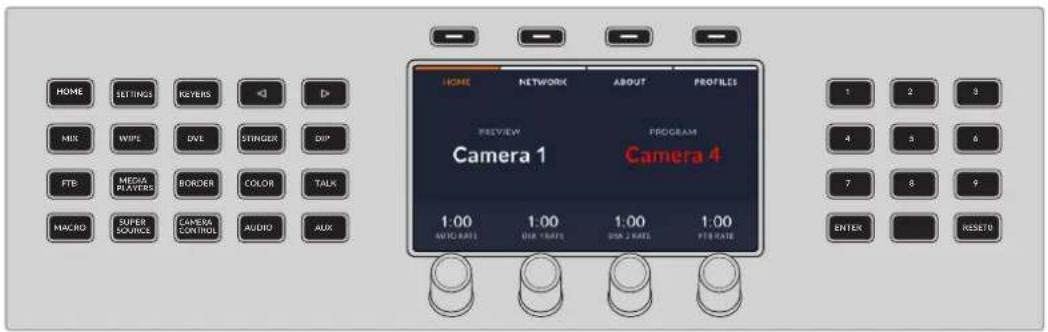
System Control
Navigating the LCD Menu
When you press a system control button, for example the 'home' button, the LCD will change accordingly to show the relevant controls and settings. Use the soft buttons and knobs above and below the LCD to make changes.
Each LCD menu can have one or more pages of settings which are indicated via the dots under the menu name. Navigating between pages of settings can be done by using the left and right arrow buttons or the numerical keypad to the right of the LCD.
For example, to select your switching mode between 'program preview' and 'A/B direct':
1 Press the 'settings' button. Once selected, you will notice the left and right arrow buttons illuminate along with the numbered buttons.
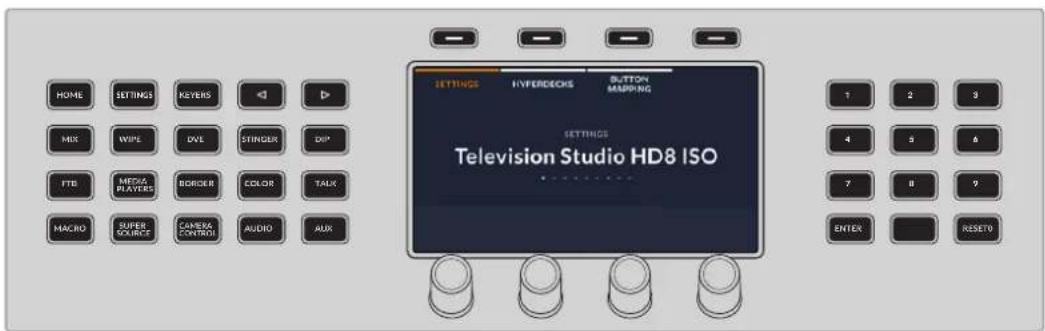
Numbered buttons to the right of the LCD display will illuminate for fast access to each menu page
2 Press the right arrow button repeatedly until the switching mode option appears or press the number 6 button to navigate to the switching mode menu immediately.
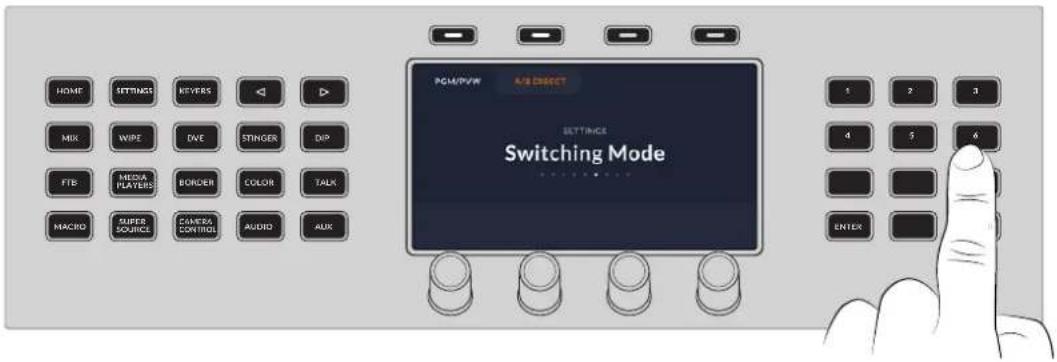
Use the numerical keypad to navigate the menus
3 From the soft selection options at the top of the LCD, select between program preview or a/b direct.
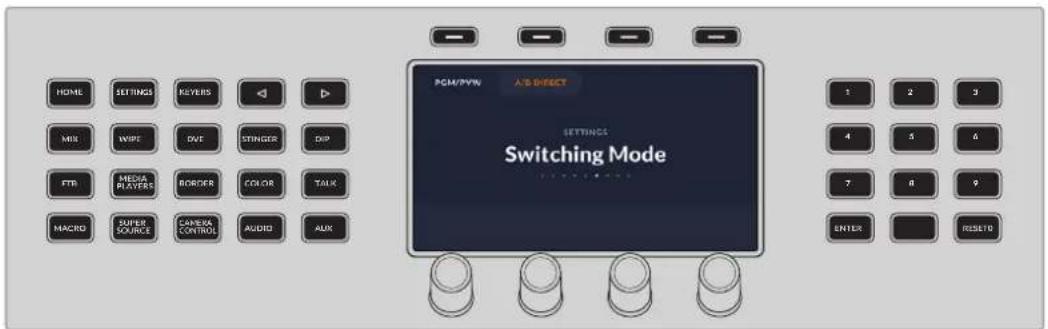
Use the soft selection keys above the LCD to select your switching mode
4 To exit the settings menu, press the home button.
The numerical keypad can also be used enter values directly. For example, to change the duration for auto transitions on the home screen, press the 'auto rate' knob, the keypad button will illuminate.
Enter the new duration value and press enter.
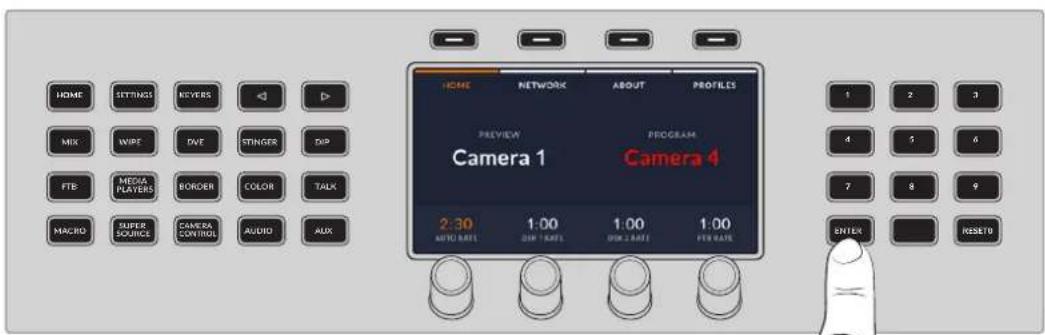
Press enter to confirm changes
Changing Settings
The home screen is the first menu you will see on the LCD and includes network settings and user profiles. Any time you want to return to the home screen all you need to do is press the 'home' button.
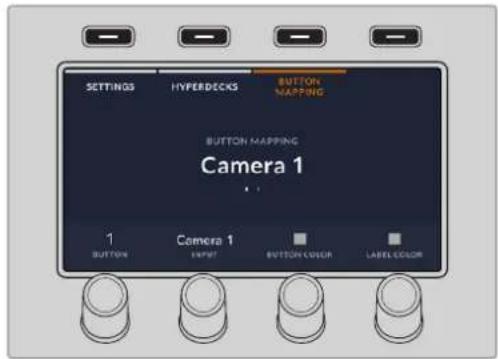
Press the LCD soft button above 'button mapping' to enter the 'button mapping' menu.
Home
The home menu will display the current inputs and transition rates as well as submenus for network settings, software version information and saving profiles.
| Home The main LCD display | |
| Network Set you switcher to DHCP or use a manual address. | |
| About Displays the software version | |
| Profiles | Save all your preferred panel settings and macros and then reload them the next time you are using the panel, perfect for when the switcher will be used by more than one user. |
Settings
Pressing the 'settings' button will display menus including 'settings,' 'HyperDecks,' and 'button mapping' which can be selected using the soft buttons above the LCD.
Changing Settings
Use the knobs, soft buttons and numerical keypad to adjust the options in the settings menu
| Setting the Switcher Video Standard | The video setting is used to select the operating video standard of the ATEM switcher. Any time the video standard is changed, it will erase any frames you have loaded into the media pool. |
| Setting the Multiview Video Standard | If your production video standard is set to 1080p25 or higher, you can adjust the multiview output to a lower frame rate. This way you can set the multiview outputs to be down converted for even greater monitor compatibility. |
| Setting the Brightness | Customize the brightness of the buttons, labels and screens using the knobs in the brightness settings. This can be useful when working in darker environments. |
| Switcher Timecode | The timecode generator automatically runs time of day timecode from the moment you power the switcher. However, you can reset the counter to zero, or manually enter a new timecode value to start from. |
| Switching Mode | When you first receive your ATEM switcher, it will be set to program/preview switching which is the current standard for an M/E switcher. You can change this preference to A/B Direct if you wish to use older style A/B switching. |
| Camera Control | For ATEM Television Studio 4K8 models you can choose the tilt direction of your joystick by selecting 'inverted' or 'normal'. Use the monitoring knob to select the SDI output for camera control monitoring. |
| Fade To Black | The FTB button on ATEM Television Studio 4K8 can be enabled or disabled using the LCD soft buttons in system control. |
| Remote Port Settings | ATEM Television Studio switchers feature a RJ12 remote port on the rear for RS-422 control. You can select how it is used with the remote port menu. |
| Language Selection | ATEM Television Studio switchers can be set to display in English, German, Spanish, French, Italian, Japanese, Korean, Polish, Portuguese, Russian, Turkish, Ukrainian and simplified Chinese languages. |
| Startup State | If your ATEM Television Studio switcher uses the same settings for all your productions you can save the default startup state. Once saved, each time you power your switcher all your presets and preferences will load. These settings can be cleared using the 'clear startup state'. |
| Format Media | The final page of the settings menu lets you format the internal storage. This setting will be disabled for switchers without the optional storage. For more information, refer to 'storage media' later in this manual. |
HyperDeck Settings
You can connect up to 10 HyperDeck disk recorders and control them using system control. When connecting HyperDecks, use these settings to set the inputs, enable auto roll and frame offset settings and configure the IP address. For more information on setting up the HyperDecks, refer to 'HyperDeck Control' later in this manual.
Button Mapping
To access the button mapping settings, press the 'settings' button to open the general switcher settings LCD menu, then press the 'button mapping' soft button.
Use the control knobs under each LCD setting to select the button you want to map and the input you want to change it to. You can also change the button color and label color that is displayed on the panel if you want to highlight specific sources. For example, you may want to highlight your playback sources a different color so you can instantly identify them on the panel. The button will illuminate on both the preview and program rows until the source is switched to the preview or program output, where it will change to green or red respectively.
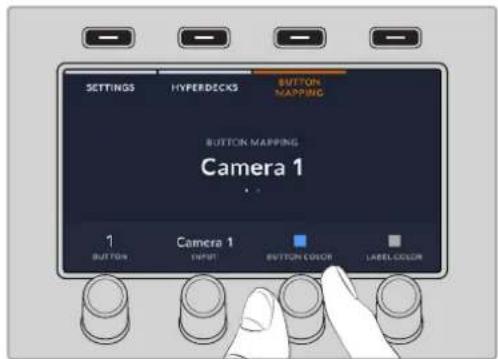
Once you have changed the setting, the change is made instantly and you don't have to worry about saving. Press the 'home' button to return to the home menu.
If you want to change the brightness of the buttons, press the 'settings' button to open the general switcher settings LCD menu, then use the arrows to navigate to the 4th page of the menu or press the number 4 on the numerical keypad. Rotate the corresponding knob to adjust the brightness of the labels and buttons to the desired level. Once you have configured all the button settings, press the 'home' button to return to the home menu. For more information refer to 'brightness settings' earlier in this manual.
Talkback and Call Buttons
Talkback and call buttons on the top left of the panel give you direct access to talkback features without the need for additional hardware. Plug an intercom headset equipped with microphone into the talkback 5 pin XLR socket on the rear of the switcher.
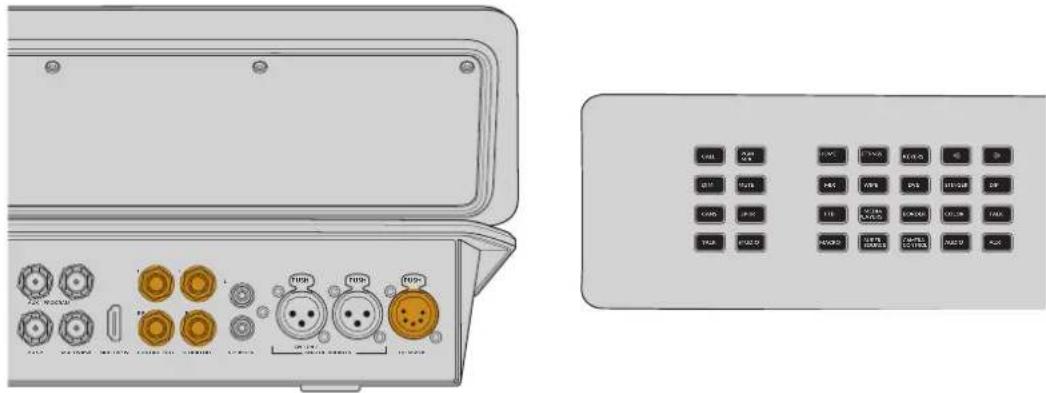
The Call Button
Holding down the 'call' button will flash the tally light on all connected cameras. This is a helpful way of seeking the camera operators' attention, or to let your operators know you are about to go live.
Program Mix
Press PGM MIX to hear the program mix. When cans or speaker is selected, the program mix can be heard via the talkback XLR and speakers attached to the control out connection.
Dim
To temporarily reduce the program mix level without adjusting the fader press DIM. To return to the set levels, press DIM again to return to the original level.
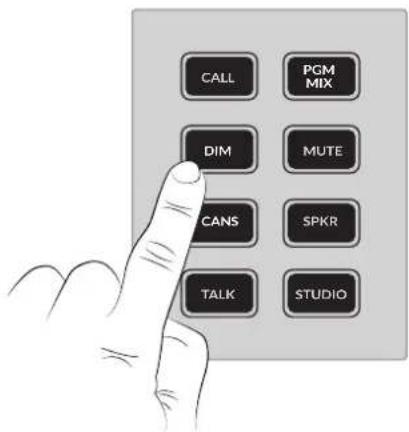
Mute
To temporarily mute the program mix output without adjusting the fader select MUTE.
Cans
When using a headset connected via the 5 pin talkback XLR connection on the back of the switcher, press the CANS button to enable audio via the connection. When selected, press PGM MIX to hear program mix
Speaker
Selecting the SPKR button will enable the audio via the control out connection on the rear of the switcher.
Talk
When using an intercom headset you can enable the microphone output by pressing TALK. Talk can only be heard on the studio output when the studio button is held down or double pressed to stay on.
If you double press the TALK button, the mic stays on and the button stay illuminated until you double press the button again. When both STUDIO and SPKR buttons are selected, the mic will stays on for all talkback channels.
Studio
The STUDIO button turns on the output labelled 'studio out' on rear of panel which could be connected to a speaker in the studio for talent to hear. When 'TALK' is selected, either press and hold the studio button temporarily or double press to hold down and talk.
Levels for the headset, control and studio outputs can be adjusted using the audio and talk buttons in system control.
1 Press the 'TALK' button. The headphone settings are used to adjust the audio mix for the 5 pin XLR headset connection on the rear panel and continue onto the second page.
2 Rotate the corresponding knob to adjust your levels.
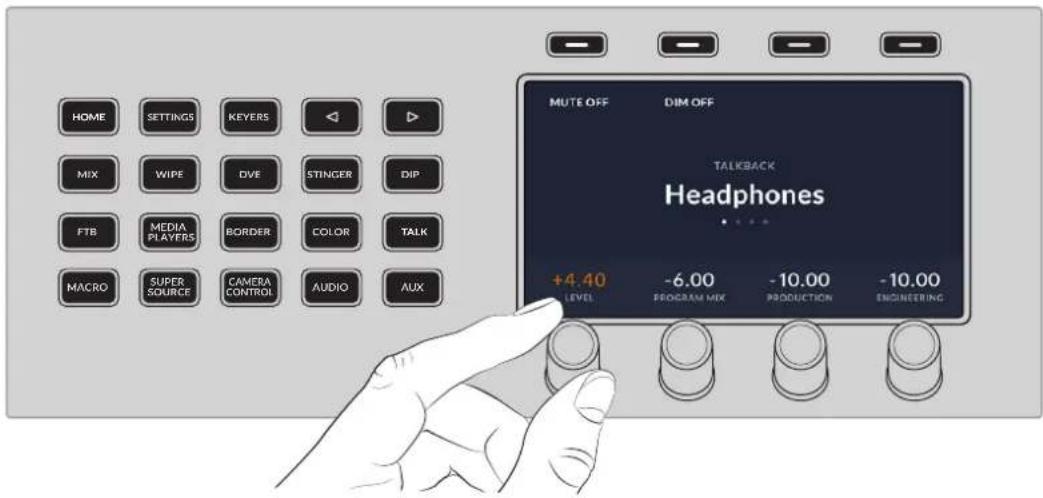
3 Adjust the 'control out' and 'studio out' levels using third and forth screens.
| Settings | |
| Level Adjusts the overall output level for headphones, studio out or control out. | |
| Program Mix Sets the program audio level. | |
| Production Raise or lower the production talkback levels for each output. | |
| Engineering Raise or lower the engineering talkback levels for each output. | |
| SidetoneHeadphones only | Available for headphones only, The sidetone level lets you mix your voice from your headset mic into the monitor output.This is helpful when wearing a headset that supports noise canceling. |
| Mic GainHeadphones only | Some talkback headsets have low microphone levels which can be hard to hear.Adjust the mic gain setting to increase or decrease the microphone volume. |
Mix Effects
The program bus, preview bus and source names display are used together to switch sources on the program and preview outputs.
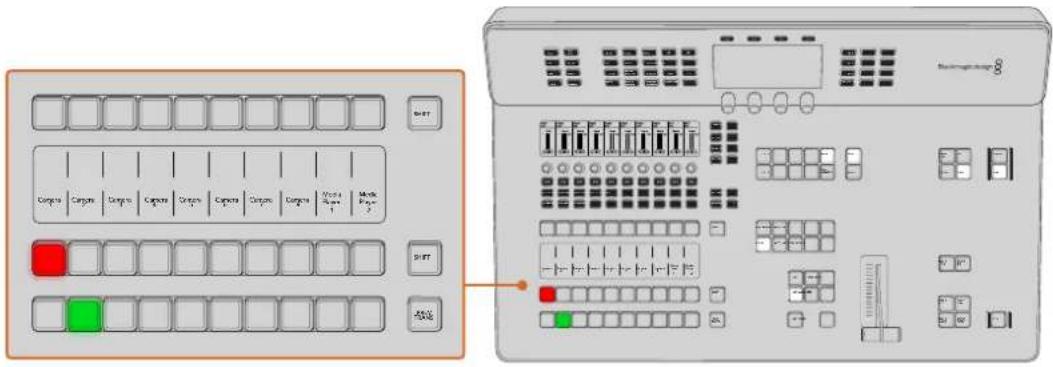
Source Name Displays
The source name displays use labels to represent the switcher's external inputs or internal sources. Labels for the external inputs can be edited on the settings window of the software control panel. Labels for the internal sources are fixed and don't need to be changed.
The displays show the labels for each row of button in the source select row, program row and preview row.

Pressing the SHIFT button will change the source names display to show extra sources, called shifted sources, allowing selection of up to 20 different sources.
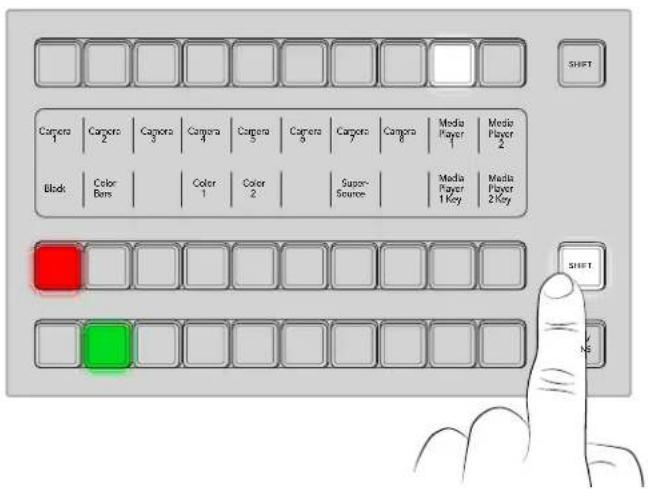
Simultaneously pressing both SHIFT buttons next to the source select and program rows will change the source names display to show protected sources and these are available in the source select row for keyers and routing to auxiliary outputs. Protected sources are program, preview, clean feed 1 and clean feed 2.
Program Bus
The program bus is used to hot switch background sources to the program output. The source currently on air is indicated by a button that is illuminated red. A blinking red button indicates that the shifted source is on air. Pressing the SHIFT button will display the shifted source.
Preview Bus
The preview bus is used to select a source on the preview output. This source is sent to program when the next transition occurs. The selected source is indicated by a button that is illuminated green. A blinking green button indicates that a shifted source is on preview. Pressing the SHIFT button will display the shifted source.
Shift
The SHIFT button provides a global shift and is used to shift the program, preview and select buses along with the label. It also provides a shift for the transition type and other menu functions.
Double-pressing buttons in the preview and select buses, as well as the transition type buttons, is the same as shift-selecting them and can be a faster way to shift-select buttons. Double-pressing is not implemented for the program bus as it would cause the program output to momentarily show the wrong source.
Source Select Bus
The source select bus works in conjunction with the source names display and is used to assign sources to auxiliary outputs and keyers. When the macro button is enabled, this row of buttons is also used for loading and running macros recorded to the corresponding slots. The buttons will illuminate blue when the macro button is enabled.
The destination display and select bus together show you the routing of sources to keys and auxiliary outputs. The currently selected source is indicated by an illuminated button. A blinking button indicates a shifted source. A green illuminated button identifies a protected source.
Protected sources are program, preview, clean feed 1 and clean feed 2.
Transition Control and Upstream Keyers
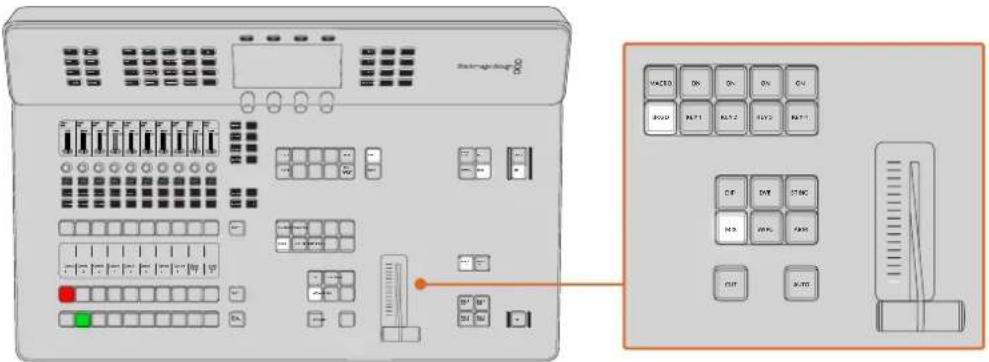
Cut
The CUT button performs an immediate transition of the Program and Preview outputs, regardless of the selected transition type.
Auto
The AUTO button will perform the selected transition at the rate specified in the auto rate setting located in the LCD 'home' menu. The transition rate for each transition type is set in the LCD menu and is displayed when the corresponding transition style button is selected.
The AUTO button illuminates red for the duration of the transition and the fader bar indicator illuminates with sequential LEDs to indicate the progress of the transition. If the software control panel is active, the virtual fader bar also updates to provide visual feedback on the progress of the transition.
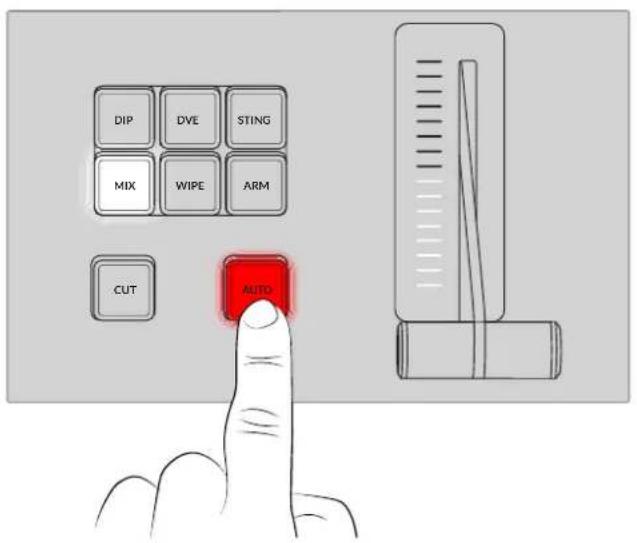
Fader Bar and Fader Bar Indicator
The fader bar is used as an alternative to the AUTO button and allows the operator to manually control the transition. The fader bar Indicator next to the fader bar provides visual feedback on the progress of the transition.
The AUTO button illuminates red for the duration of the transition and the fader bar indicator updates to indicate the progress of the transition. If the software control panel is active, the virtual fader bar updates simultaneously.
Transition Type Buttons
The transition type buttons allow the operator to select one of five types of transitions; mix, wipe, dip, DVE and stinger, labeled STING. Transition types are selected by pressing the appropriately labeled transition type button. The button will illuminate when selected.
When a transition type is selected, the LCD menu shows the transition rate and provides instant access to all the corresponding settings for that transition type. Use the soft buttons and knobs to navigate through the settings and make changes.
The button marked ARM is currently disabled and will be enabled in a future update.
Preview Transition
The PREV TRANS button enables the preview transition mode allowing the operator to verify a transition by performing it on the preview output using the fader bar. Once you press this button the preview transition feature is enabled and you can preview your transition as many times as you like. This lets you test the transition before going to air and make changes and corrections as needed. You can even preview stinger transitions! Once adjusted, press the button again to disable the feature and you are ready to send your transition on air.
Next Transition
The BKGD, KEY 1, KEY 2, KEY 3, KEY 4 buttons are used to select the elements which will transition on air or off air with the next transition. Any combination of background and keys can be selected by pressing multiple buttons simultaneously. Double pressing the BKGD button selects all of the next transition upstream keyers that are currently on air and copies them to the Next Transition buttons.
Pressing any of the next transition buttons will clear selection of all others. When selecting the elements of the next transition, the switcher operator should look at the preview output because it provides an accurate representation of what the program output will look like after the transition is completed. When only the BKGD button is selected, a transition from the current source on the program bus to the source selected on the preview bus will occur.
On Air
The ON AIR indicator buttons above each keyer are labeled ON and indicate which of the upstream keys are currently on air. These can also be used to immediately cut a key on or off air.
Macro
The MACRO button is used to enable the macro feature which changes the source select row of buttons to macro buttons corresponding to macro slots.
There are ten macro buttons in the source select row, so if you have macros recorded to slots greater than ten, you can access these by opening the macro settings in the LCD menu and changing the macro group using the control knob.
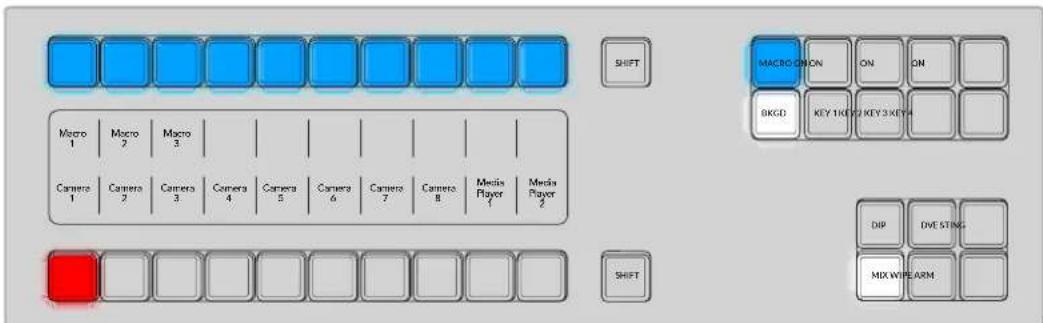
For more information on how to record and run macros using the ATEM Television Studio, refer to ‘using macros’ later in this manual.
Downstream Keyers
Downstream Key Tie
The DSK TIE button will enable the DSK on the preview output, along with the next transition effects and tie it to the main transition control so that the DSK can be taken to air with the next transition.
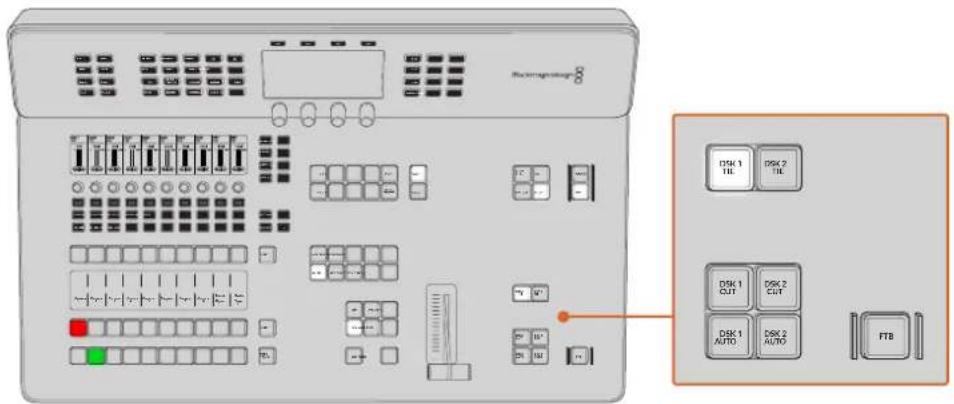
Because the tied downstream keyer is now tied to the main transition, the transition will happen at the rate specified in the auto rate setting in the LCD 'home' menu. When the DSK is tied, the signal routing to the clean feed 1 is unaffected.
Downstream Key Cut
The DSK CUT button is used to cut the DSK on or off air and indicates whether the DSK is currently on or off air. The button is illuminated if the DSK is currently on air.
Downstream Key Auto
The DSK AUTO button will mix the DSK on or off air at the rate specified in the DSK rate LCD menu setting.
Fade to Black
The FTB button will fade the program output to black at the rate specified in the FTB rate LCD menu setting. Once the program output has been faded to black, the FTB button will flash red until it is pressed again, fading the program output up from black at the same rate. A fade to black cannot be previewed.
You can also set your switcher to fade audio together with the fade to black by navigating to the FTB LCD menu and setting AFV to 'on'. This sets the switcher to fade the audio to silence at the rate set for the fade to black. If you want audio to remain on during and after the fade to black, set AFV to 'off'.
Audio Mixer
ATEM Television Studio switchers have advanced audio controls that let you enhance and refine the quality of sound on each input and master output, including input level controls, a 6 band parametric equalizer and powerful dynamics settings. This section of the manual shows the different audio controls you can use to shape and optimize the audio mix in your live production. In addition to adjusting audio, you can use the same knobs and buttons for camera control and to adjust the switcher audio outputs.
The audio mixer comes loaded with an assortment of physical controls that you can use to monitor and mix your live production. Some buttons serve a single purpose, while others serve multiple functions, therefore it's a good idea to understand the different types of controls before moving on to the specific button and knob details.
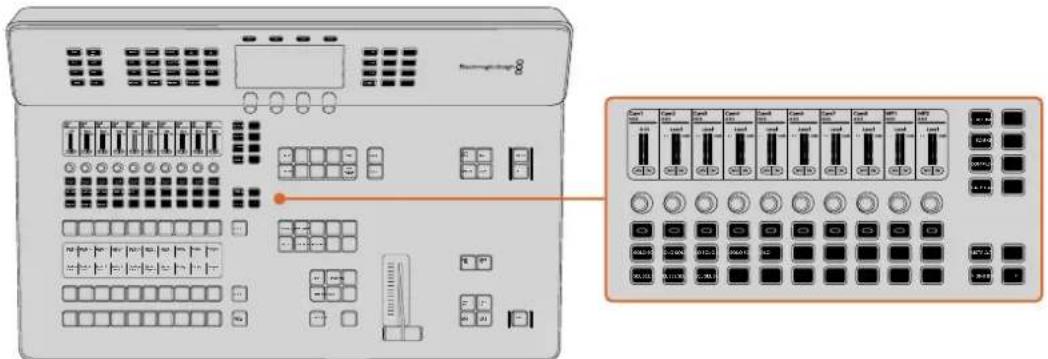
Channel Strips
The most prominent real estate on the audio mixer is dedicated to the channel strips. The default operational mode of the console provides 10 channel strips, each with an on, SOLO and SEL button, a rotary control knob for adjustments and a LCD screen that displays channel information. Any changes applied to the channel strip controls are mirrored in the audio page of ATEM Software Control.
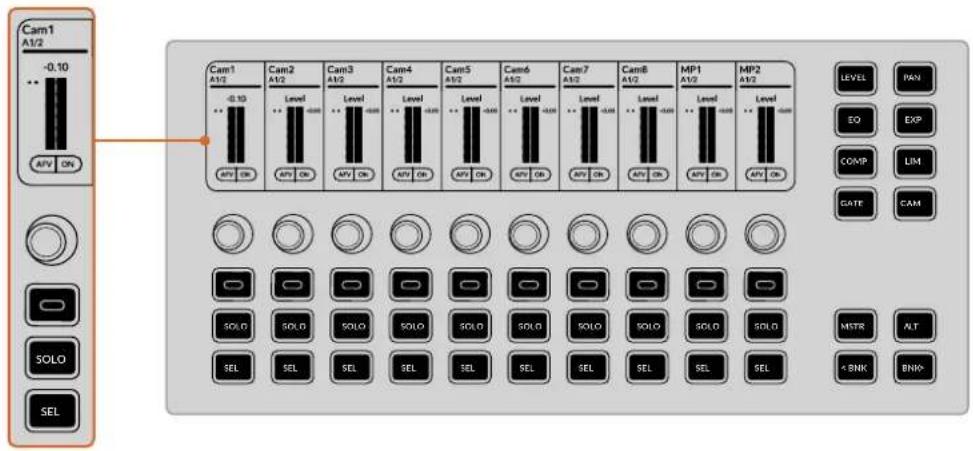
LCD
When you first start your ATEM Television Studio switcher, the LCD at the top of each channel strip displays the input name and a levels meter. The LCD screens display different information based on the current mode selected using the buttons to the right of the channel strip. For example, when PAN is selected, audio meters for 10 inputs are displayed. If any of the inputs are set to split mono, each mono input will have it's own channel strip.
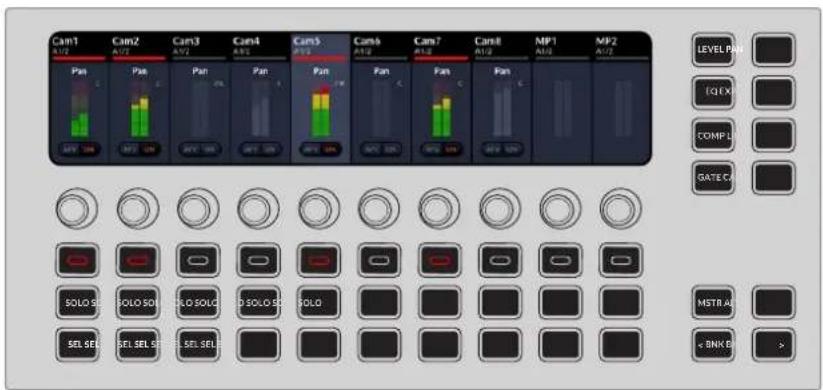
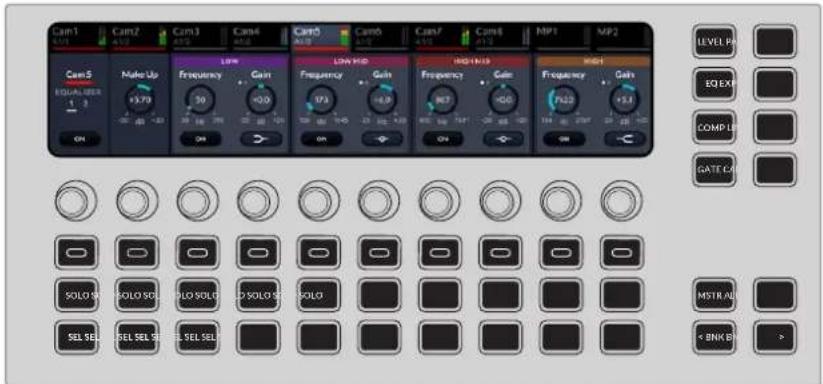
The LCD display will dynamically update when other modes are selected using the buttons to the right of the LCD. For example, when the EQ button is pressed the LCD will change to display the low mid and high filters and the buttons and knobs will control specific EQ parameters that mirror the EQ controls using the audio.
Rotary Knobs
When you want to make fast changes to specific parameters, these versatile knobs give you precision rotary control and are also referred to as encoders. To increase the level of an input, press LEVEL and rotate the knob to the right.
On Button

This soft control button can be used to select the button displayed on the LCD. For example, when LEVEL is selected, this button toggles the audio behavior between audio follows video, on and off. When LEVEL or PAN is selected, the button
will illuminate red to indicate when the input is on air.
Solo Button
Press SOLO to hear only this channel. This can help to refine adjustments to the audio. When selected, a headset icon will appear on the LCD for the selected channel.
Select Button
Use the SEL button to select or de-select a channel.
Mode Buttons
Use the control buttons to assign the corresponding settings to the channel strips.
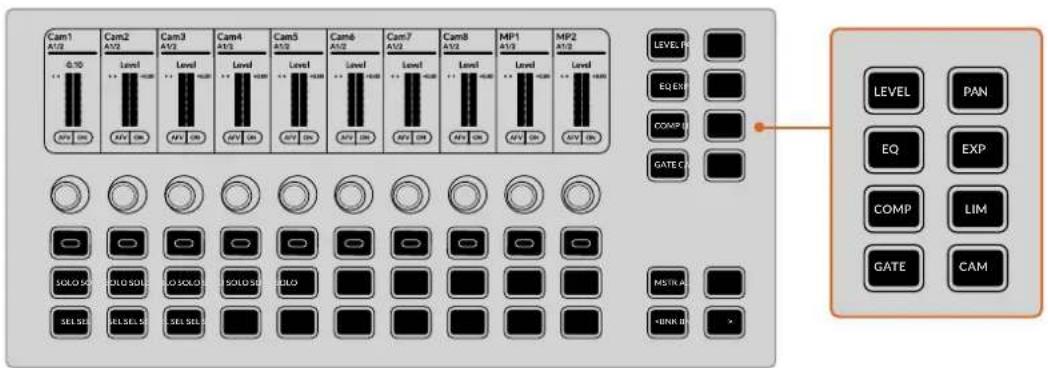
Press EQ a second time to display the high and low pass controls
Some settings contain more than one page of controls indicated on the first channel strip.
To display the additional controls, press the mode button a second time. For example, to access the high and low pass filters, press EQ twice.

Modes
The audio modes available using the audio mixer on the front of the switcher mirror the settings available in ATEM Software Control. You can also use the camera control setting to control Blackmagic cameras including Blackmagic Studio Camera 6K Pro and URSA Broadcast G2 from your ATEM switcher.
| Level | Adjust the audio level output for each channel using the corresponding knobs. The soft button in each channel strip can toggle the audio behavior between audio follows video, on and off. When alt is selected you can adjust the gain for each channel. Adjusting the gain up or down lowers or raises the volume of the selected input. |
| Equalizer | The EQ control set includes two pages of controls. Press the EQ button to load the Page 1 control set, mapped left to right across the encoders and SEL switches. Press EQ again to switch to Page 2. This EQ control set focuses on the High Pass and Low Pass filters on Bands 1 and 6, and the corresponding soft buttons toggle the filters ON/OFF or select shape. Press EQ again to return to Page 1 and repeat as needed to toggle between Page 1 and Page 2. The EQ control set mirrors all of the parameter controls available in the audio page of ATEM Software Control. |
| Compressor | The Compressor control set includes all of the Compressor parameters as available in the Dynamics window. As with all of the other control sets, the Channel 1 position is where you'll find the On/Off switch assigned to the soft button. |
| Gate | The GATE control set includes all of the gate parameter controls available in the audio page in ATEM Software Control. Use the select button to select which track is in focus. Gating is like an exaggerated expander, reducing the level or even silencing parts of a signal that fall below a certain level in order to reduce or eliminate noise in quiet parts of a recording. |
| Pan | Each audio channel has a simple stereo Pan control that lets you pan that input. Pan channel left or right by turning the corresponding channel knob. When adjusting each knob the channel will be selected as indicated by the illuminated SEL button. |
| Expander | The EXP control set includes all of the Expander parameter controls available in the audio page in ATEM Software Control. Use the select button to select which track is in focus. The subsequent seven channel strips include knob control for the Expander parameter in the order they appear on the Dynamics window. |
| Limiter | Like the other dynamics control sets, the Limiter control set includes all Limiter parameter controls assigned to the encoder knobs in the order they appear in the Dynamics window. |
| Camera Control | The audio mixer also has a camera control feature so you can control Blackmagic Cameras via the same knobs and buttons on your ATEM switcher. Press the CAM button to display the settings. Camera control settings are divided into three menu pages you can navigate between pages by pressing CAM again. For more information on camera control, refer to 'using camera control' later in this manual. |
Channel and Modifier Buttons
Beneath the mode buttons are the channel and modifier buttons.
Master
The MSTR button reveals the controls relating to the audio outputs via the rear panel of the switcher including the headset, control and studio outputs. In addition you can adjust the level for the master output.
Alt
Use the ALT button to reveal alternative parameters or functions. For example, when adjusting the level controls, pressing alt will reveal the gain controls.
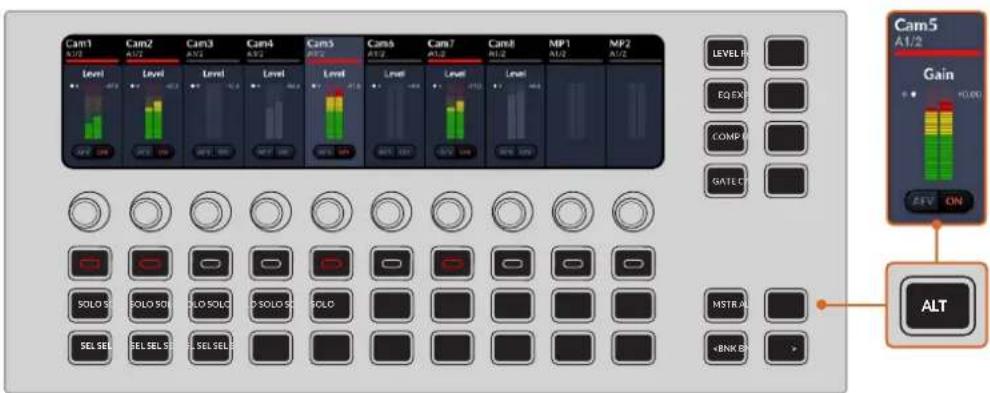
Press the ALT button to reveal the gain controls
Bank
Use the BNK buttons to display the next group of inputs on the LCD. BNK> banks the channel strips to the right in groups of 10. <BNK banks to the previous set of 10 channels.
Audio Controls Workflow Guide
This section describes a basic workflow to help you get started using the audio mixer to refine and enhance your audio mix.
Generally, the first step to optimizing your mix is to normalize all the inputs so they are all at their maximum strength without clipping. This is normally done by increasing or decreasing the input gain level for each input so their signal peaks just below 0dB on the channel strip's level indicator.
2 If you want to split any mono inputs into two separate channels for stereo output, go to the general switcher settings and navigate to the audio tab. Enable the checkboxes for the mono inputs you want to change to stereo. Click 'done'.
TIP If you want to split mono inputs into two separate channels, it's best to do this before normalizing the input as described in step 1, so that you can normalize both channels after they have been split.
3 Now, press the EQ button and make equalization changes to each input.
4 After setting EQ, open the dynamics controls using the EXP and GATE buttons. Make the required dynamics changes to generally improve and refine the input audio.
5 With EQ and dynamics set for each input, you can now open the EQ controls for the master output in ATEM Software Control and sweeten the final audio mix.
6 Now open the master output's dynamics controls and make any required changes to improve the final output.
Once all the audio mixer controls are set, you can then increase or decrease the levels on the audio mixer to set them at their best levels for the live mix and make adjustments where necessary during the production. You can also go back to any of the settings and make further adjustments if needed, but it's best to follow the same order as described above to get the best results from each function. For example, it's important to set EQ controls before making dynamics changes as the processing chain in your switcher applies dynamics to the audio after equalization.
Most important of all is to apply the effects carefully so your audio still sounds natural but exciting too!
For more information on adjusting Fairlight controls, refer to ‘Advanced Fairlight Controls’ later in this manual.
Selection Buttons
ATEM Television Studio switchers feature aux outputs on the rear panel that can have various inputs and internal sources routed to them. They are very similar to router outputs and all video inputs, color generators, media players, program, preview and even color bars can be output. The ten dedicated buttons on the front panel provides shortcuts for selecting any of the 8 inputs, program as well as a button you can toggle between multiview and preview.

The multiview button will illuminate white when multiview is selected and green when preview is selected
Other internal sources and media players including color bars can be selected using the auxiliary menu in system control for all available outputs. If you need a clean feed before all of the down stream keyers, then you can even select this to the output. This will give you a program feed without a logo or bug, so you can capture this as a broadcast master for later post production or transmission.
To select clean feed on aux 1:
1 Press the 'aux' button in system control.
2 Rotate the knob beneath output 1 until clean feed appears.
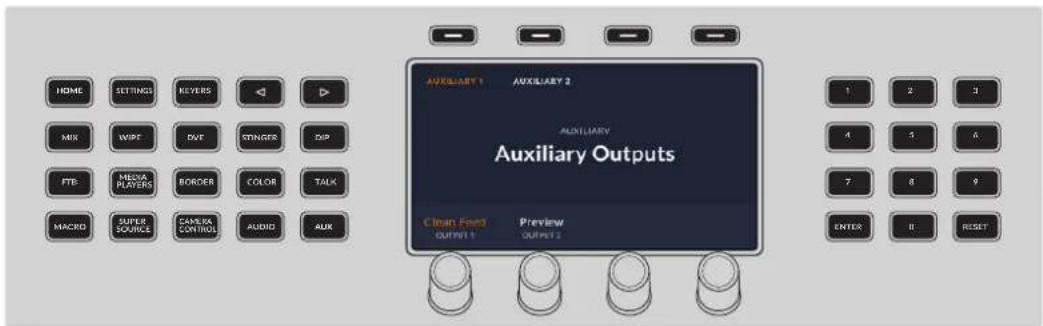
Routing the 2 auxiliary outputs on ATEM Television Studio HD8
The switcher will always perform a clean switch when an auxiliary output changes sources so this means you can use the switcher to cut between sources on the auxiliary output cleanly and without glitches.
The outputs are extremely powerful and can also be routed on the software control panel. The outputs menu available in the menu bar at the top of the software control panel regardless of the window currently selected so they are always available. For more information on setting outputs using ATEM Software control, see the 'auxiliary outputs' section later in this manual.
Stream and Record Buttons
ATEM Television Studio switchers let you both stream and record your production using dedicated buttons on the panel.
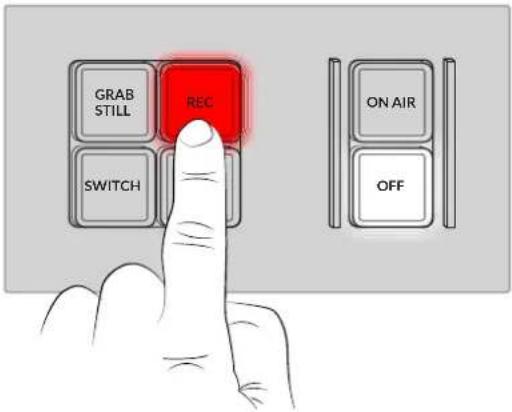
Use the dedicated buttons on the panel to stream and record your production
| Grab Still | If you need to capture a still image from your broadcast simply press the 'grab still' button. This acts like a still store which lets you add capture files to the media pool. You can then immediately load a still into the media player and use it in your broadcast, or save the media pool to your computer. |
| Rec | You can record your stream via USB-C using an external disk or flash drive, or via the optional internal storage when using ISO models. Start recording the production using the 'rec' button. To finish recording press 'stop'. |
| Stop | |
| Switch | When two external drives are connected via USB you can switch between which drive is actively recording using the 'switch' button. |
| On Air | Streaming is built into the switcher so you can stream directly without the need for additional software. Once you've connected to a network and selected your streaming service using ATEM Software Control you can start streaming immediately by pressing the 'on air' button. For more information on streaming settings refer to the 'streaming' section later in this manual. |
| Off |
To start streaming you will need to connect your switcher to your network. In addition to streaming to platforms including YouTube and Twitch, connecting your switcher to your network will also let you use ATEM hardware panels such as ATEM Camera Control and connect to remote sources when using ATEM Television Studio HD8 ISO switchers.
If the video standard is set to an interlaced format, such as 1080i60, you can record or stream but not both at the same time.
For more information on getting a streaming key, refer to the 'streaming' section later in this manual.
Storage Media
ATEM Television Studio switchers let you record your program using an external drive or flash disk via the two USB-C connections on the rear panel. You can also connect to multi port USB-C hubs or the MultiDock 10G allowing you to connect one or multiple SSDs for far greater storage capacity.
You can also record internally on ATEM switchers featuring optional internal storage. This section explains how to prepare both external and internal storage.
Preparing Storage via a Computer
External disks can be formatted via a Mac or Windows computer. HFS+ is also known as Mac OS X Extended and is the recommended format as it supports 'journaling'. Data on journaled media is more likely to be recovered in the rare event that your storage media becomes corrupted. HFS+ is natively supported by Mac. exFAT is supported natively by Mac and Windows without needing any additional software, but does not support journaling. This can be a good choice if you need to read or write to the disk using both Mac and Windows computers.
Formatting Media on a Mac Computer
The Disk Utility application included with your Mac can format a drive in the HFS+ or exFAT formats. Make sure you back up anything important from your disk as you will lose everything on it when it is formatted.
3 Click on the disk icon of your drive and then click the erase tab.
4 Set the format to Mac OS Extended (Journaled) or exFAT.
5 Type a name for the new volume and then click erase. Your media will quickly be formatted and made ready for recording.
1 Connect your disk to your computer with an external dock, USB hub, or cable adapter and dismiss any message offering to use your drive for Time Machine backups.
2 On your computer, go to applications/utilities and launch Disk Utility.
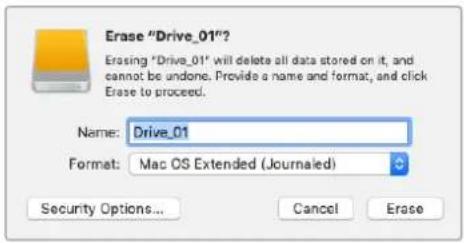
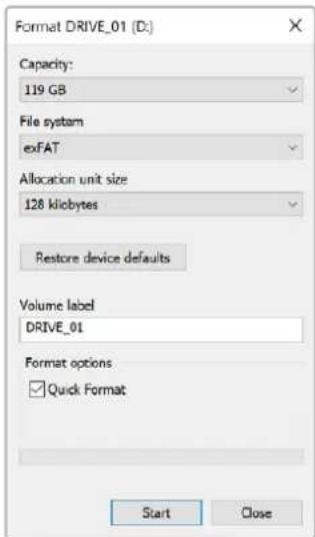
Use the Format dialog box feature in Windows to format your external disk in the exFAT format
Formatting Media on a Windows computer
The format dialog box can format a drive in the exFAT format on a Windows PC. Make sure you back up anything important from your drive as you will lose everything on it when it is formatted.
1 Connect the drive to your computer with an external dock, USB hub, or cable adapter.
2 Open the start menu or start screen and choose computer. Right-click on your drive.
3 From the contextual menu, choose format.
4 Set the file system to exFAT and the allocation unit size to 128 kilobytes.
5 Type a volume label, select quick format and click 'start'.
6 Your drive will quickly be formatted and made ready for recording.
Preparing Storage Using ATEM Television Studio
Internal storage can be formatted using system control on the front panel or using ATEM Setup utility. In addition you can also format external disks as Mac OS Extended or exFAT using your switcher's control panel.
Formatting Storage using ATEM Television Studio System Control
To open the format menu press the 'settings' button and use the arrows to navigate to the format media screen.
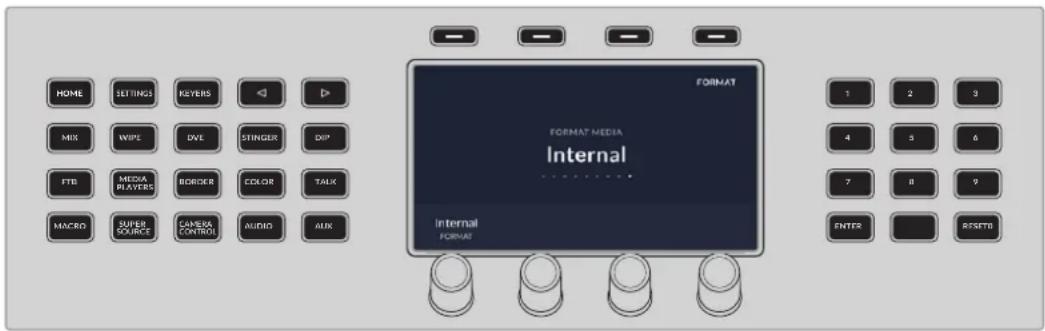
Once you have opened the 'format media' menu, you can select between formatting internal storage or any external drives connected via USB.
1 For internal storage, rotate the 'media' knob and select 'internal'.
For external drives, rotate the 'media' knob to the selected drive and then rotate the 'format' knob to select either Mac OS Extended or exFAT.
2 Press the 'format' button above the LCD.
3 Follow the on screen directions by holding the format button for 3 seconds until the tick appears in the countdown icon. Formatting will begin.
4 Once formatting is complete, the storage is ready to use. Press the 'ok' button above the LCD to return to the format media menu.
Formatting Internal Storage using ATEM Setup
You can also format you storage using the ATEM Setup utility installed with your ATEM switcher software. You will need to connect your switcher via USB to format the drive.
1 Open the ATEM Setup utility. If you are using Mac, it is located in applications in the Blackmagic ATEM Switchers folder. On Windows computers, ATEM setup can be accessed from Start > Programs > Blackmagic Design.
2 Once open, click on 'storage' and then select 'format drive'.
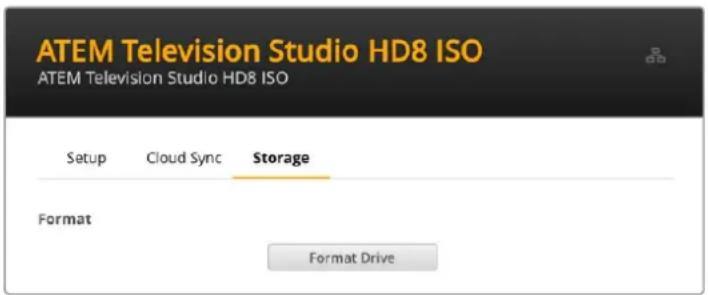
3 A warning screen will appear to let you know formatting will erase all files on the storage. If this is the first time you are formatting the storage. Click 'format' to continue.
4 A second warning screen will appear for you to confirm. This is to make sure people aren't inadvertently deleting media on the storage. Click on 'erase'.
5 A progress status will appear during formatting. Once complete the internal storage is ready to use.
Accessing Storage
If you are using external drives for recording, a simple way to access the video clips and any DaVinci Resolve projects is to disconnect the drive from the rear panel of the switcher and connect it to your computer, but you can also access the files via your network.
To access storage on a Mac computer:
1 Open Finder and click on 'network' in the sidebar menu.
2 Double click on your ATEM Television Studio switcher in the list.
3 Now double click on internal storage.
Your ATEM Television Studio switcher will now appear in the locations sidebar. To access storage on a Windows computer:
1 Click on the 'Network' menu item in File Explorer sidebar. You will see your ATEM Television Studio switcher listed.
2 Double click on your ATEM Television Studio switcher and a Windows security dialog box will appear asking for network credentials.
3 Set the username and password to 'guest'.
NOTE If your computer fails to connect, your ATEM Television Studio switcher may belong to a Windows workgroup. Use 'workgroup\guest' as your username and 'guest' as your password to log into your storage.
4 Click 'OK'.
You will now see your switcher in the File Explorer window and can access the storage like any other network drive.
Alternatively, you can access your storage from the setup utility. On a Mac computer click the 'Show in Finder' button. On a Windows computer this button is 'Show in File Explorer'.
Cloud Sync
Another way to access your media is by using Cloud Sync, where you can sync the internal storage or external drives on ATEM Television Studio model switchers with cloud services including Dropbox and Google Drive.
Setting Date and Time
Cloud services such as Dropbox or Google Drive require the correct date and time to sync to your ATEM switcher internal storage. By default, your ATEM Television Studio will use the Cloudflare NTP server to automatically set the date and time.
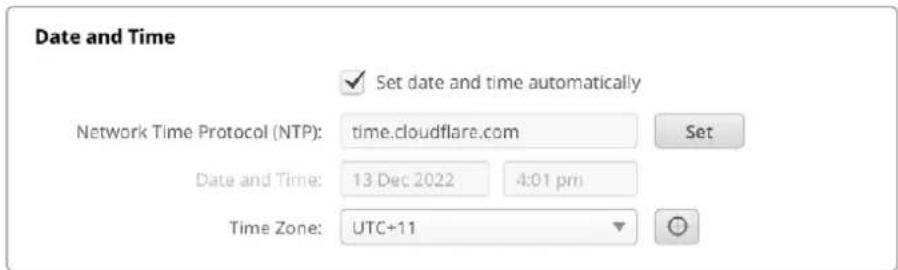
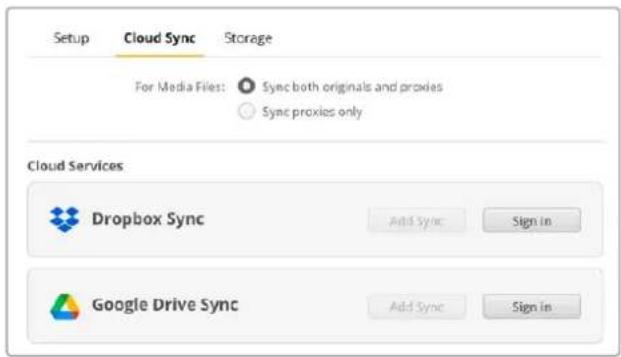
To sync your online account with ATEM Television Studio all you need to do is sign into your online account using the cloud sync settings, set the folder you want to sync to and set the sync direction.
Sign into Dropbox and Google Drive
1 Click on the 'sign in' button for the Dropbox or Google Drive account. A sign in window will appear.
2 Sign into Dropbox or Google Drive.
A confirmation message will indicate that you have successfully connected. If the connection failed, check your computer is connected to the Internet.
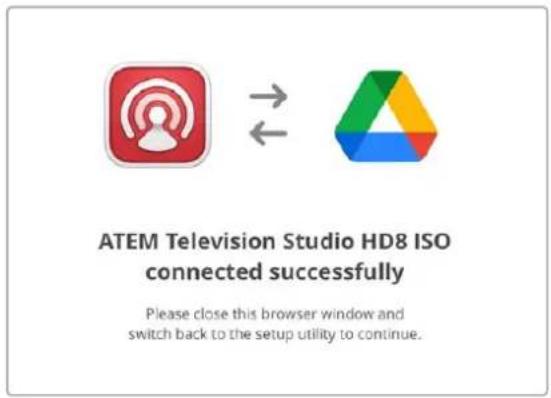
3 Click 'close'.
Sync Folder and Direction
1 You will now see the 'add sync' button enabled. Click on the button to open the 'add sync location' window.
2 Name the sync location and click on the folder icons to point to your desired sync folders. These would typically share the same name.
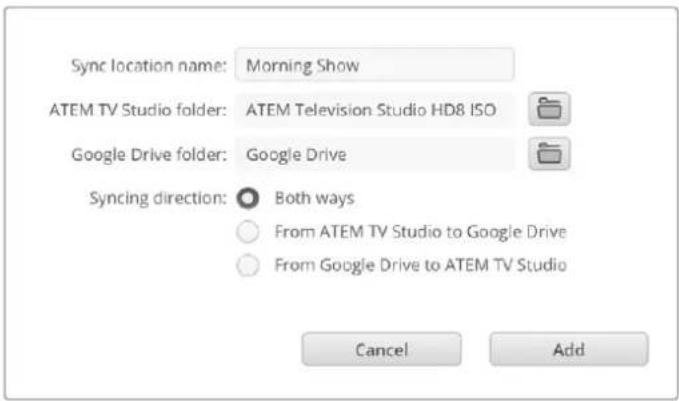
3 Select the sync direction. For example, if you are syncing to Dropbox and you want to sync files from your switcher to Dropbox but not from Dropbox to your switcher, select 'from ATEM TV Studio to Dropbox'.
4 Click 'add'.
Your cloud service is now synced to your ATEM Television Studio switcher.
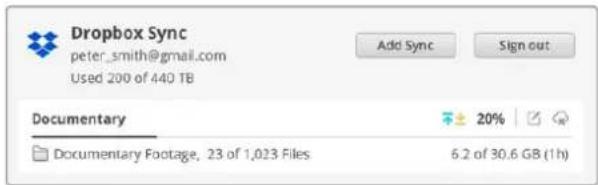
Status indicators provide information about the sync process

The sync arrows show the sync direction. A blue arrow shows that data is being sent from your switcher and a yellow arrow shows that data is being received. If data is being sent and received at the same time, then a blue and yellow arrow will be displayed. A gray arrow indicates when data is not being synced in that direction.
The percentage figure to the right of the sync arrows shows the current status of the sync progress.

Click on the 'edit sync' indicator to change the sync folder name and location.

Click on this indicator to delete the sync location. In the confirmation dialog box, click 'continue' to confirm or 'cancel' to abort the deletion.
If you have Blackmagic Cloud Store or Blackmagic Cloud Pod, you can add these syncs via the Blackmagic Cloud Setup utility to your own storage and keep a live copy as you record.
Using the Multiview
Your ATEM switcher has a powerful multiview feature that lets you monitor all inputs, together with the program and preview outputs as a group of views on one screen. The multiview also displays the media player, streaming status, disk recording disk status, audio levels, plus Fairlight EQ and dynamics indicators.
This feature provides a comprehensive overview so you will always know exactly what is happening with your broadcast!
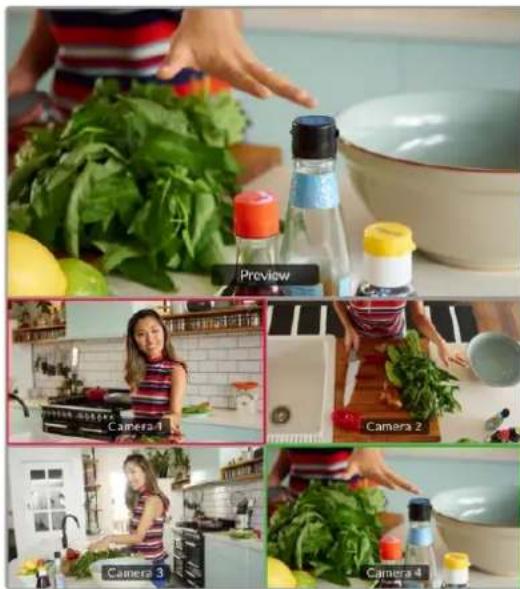
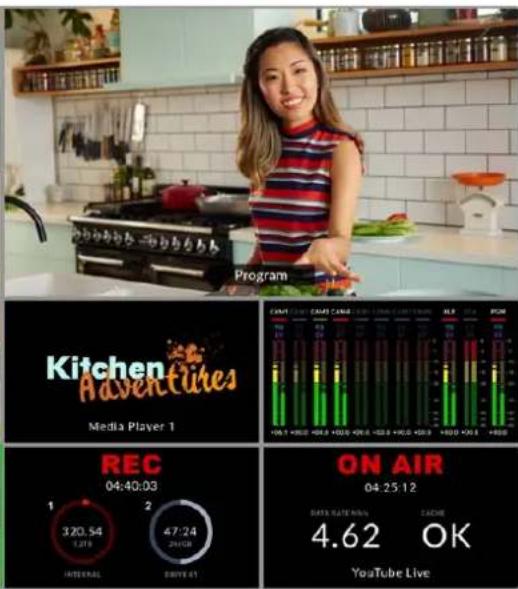
The multiview is a powerful feature that lets you monitor all sources and outputs simultaneously
Below is a description of each view.

natural_image
Two-panel image showing a person cleaning vegetables and a woman cooking in a kitchen (no visible text or symbols)Preview
The preview view lets you monitor the source currently switched to the preview output. This view is helpful to practice switching between sources, previewing transitions or setting up a keyer so you can see what it will look like before switching to the program output. You need to change the switcher operation to program/preview style switching to make use of the preview view. There is more information about this in later sections of this manual.
Program View
The program view displays what is currently switched to the program output. This view will always show exactly what you are broadcasting.

natural_image
Four-panel photo collage showing a woman cooking in a kitchen, with cameras labeled 1 to 4 (no visible text or symbols)Input Views
The input views display all the sources connected to the 8 inputs. Having all inputs on the multiview lets you see the image from every camera so you can make quick decisions. However, they don't always have to be cameras as you could also have a computer's video output or a HyperDeck disk recorder connected to the switcher's inputs and you can monitor them in the input views.
When an input is switched to the preview or program output, a green or red tally border will appear around the input's respective view. Green represents the preview output and red represents the program output, or 'on air'.

Media Player View
This view displays the graphic currently loaded in the media player. To load a graphic, simply go to the media pool in ATEM Software Control and drag a still into the media player. You can read more about how to use the media player and the media pool in the section 'ATEM media pool'.
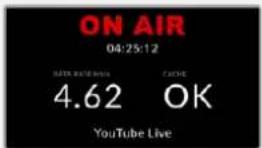
Streaming View
This view displays the streaming on air status, including the broadcast data rate and the cache status. You can also see what streaming platform you are currently broadcasting to as it is displayed at the bottom of the view.
- On Air Indicator Prior to recording, the on air status indicator will display 'off' to let you know the switcher is standing by and ready to broadcast. When streaming begins, the indicator will display a bright red 'on air' status until streaming is stopped.
If there is an interruption during the stream, for example the internet connection speed becomes too slow and the cache is depleted, the on air indicator will begin flashing.
- Broadcast Data Rate The data rate is measured in megabits per second. For ATEM Television Studio switchers to broadcast 1080p60 video without losing frames, the data rate needs to be approximately 5 to 7 Mb per second.
- Cache Status The cache status displays the capacity of the switcher's built in memory buffer. The cache is a small amount of internal memory that continuously records and plays the program output. It acts as a safety measure if the broadcast data rate decreases below a level able to sustain video. The variable nature of the internet is mostly due to network activity or wireless signal strength, so if the broadcast data rate decreases, the buffer data will increase accordingly. If the connection speed becomes slow enough that it cannot support the video stream, the cache will fill with video frames to compensate. However, once the cache is 100% full, the video stream will be compromised, so you will want to avoid a full cache where possible. You can do this by testing the connection speed when you set up your stream. During a broadcast test, watch the cache display in the multiview. If the cache frequently approaches 100% , choose a lower quality in the live stream settings.
- Tethering status The smartphone icon is displayed when the ATEM switcher is connected to the internet using mobile tethering. The icon will become red when on air.
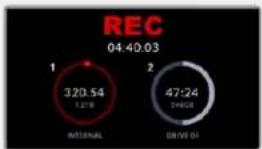
Recording View
If you are recording to external drives via USB-C or to the internal storage, this view will display the current recording status.
- Recording Indicator Prior to recording, or if there are no disks connected, the indicator will display 'stop'. When disks are connected, you will see them appear as icons below the indicator. When a disk is recording, the indicator displays 'rec' and will illuminate bright red.
- Duration Counter Underneath the recording indicator is the duration counter. When you press the record button on the switcher, the duration counter will start running.
- Record Status Indicators These indicators provide details on each drive and its recording status.
For example, if you are using two drives, their drive names will be displayed along with available space and record time remaining. While a disk is recording, the indicator will illuminate red and shows how much disk space is left.
The disks are ordered by capacity. For example, if you have 4 SSDs connected via a Blackmagic MultiDock 10G, the drive with the largest remaining space will be labeled 1. Drive 2 will be the SSD with the next largest available space. When drives 1 and 2 are full, drive 3 will then assume the disk 1 indicator and disk 2 will become drive 4. You can always see what drives are assigned to the disk numbers by looking at the disk names underneath their icons.
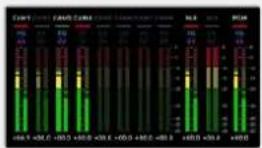
Audio View
During your broadcast you can monitor the audio levels for each source and the levels of the program output using the audio view.
- Audio Meters Each input and the program output has its own audio meter and you can monitor them all simultaneously. If the audio level rises above -10dB the meter will illuminate red to warn you that it is close to the maximum strength of 0dB. Once the level reaches 0dB the audio will clip. Clipping means the audio will distort and you will need to decrease the level using the switcher's audio level buttons or the audio mixer in ATEM Software Control. You can read more about ATEM Software Control in the next section of this manual.
The audio meter is an important tool to monitor your levels so you can make sure your audio always sounds great!
- Fairlight Icons These icons let you know if EQ and dynamics controls are enabled in ATEM Software Control's audio page.
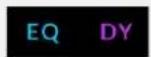
If the Fairlight icons are colored and illuminated, the EQ or dynamics tool is active and the input is on air.
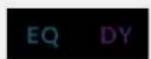
If the icons are colored but dim, it means the tools are active, but the input is not on air.
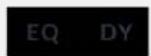
If the icons are dim and colorless, the tools are inactive or bypassed on the audio page.
The multiview is an excellent tool that will let you spot every detail and put you in the moment. For example, it can help you previsualize ideas in the preview window before switching them to the program output. You can monitor each SDI source and test switching between them, set up a chroma key, or even preview a transition to see what it will look like before switching it to the program output!
ATEM Software Control
ATEM Software Control is included with your ATEM switcher and allows you to control your switcher in a similar way to the switcher's built in panel. Instead of menu buttons, the software uses a range of palettes on the right side that shows you all processing features of your production switcher. This allows you to control the switcher from another location, for example when the switcher is rack mounted in a different room to the person operating it.
Before you can get started with ATEM Software Control you will need to install the software.
To install ATEM Software Control:
1 Launch your web browser, navigate to www.blackmagicdesign.com/support and download the latest ATEM switcher drivers.
2 When the file has finished downloading, double click 'install ATEM' icon to run the installer. Follow the prompts to the end and press 'install' to install the software.
3 Once the software is installed, navigate to 'Blackmagic ATEM Switchers' folder in your applications or programs folder and double click 'ATEM Software Control'.
Now the software is installed you will need to connect the switcher to the computer. This can be done by connecting the devices directly via Ethernet or USB.
Connecting Directly
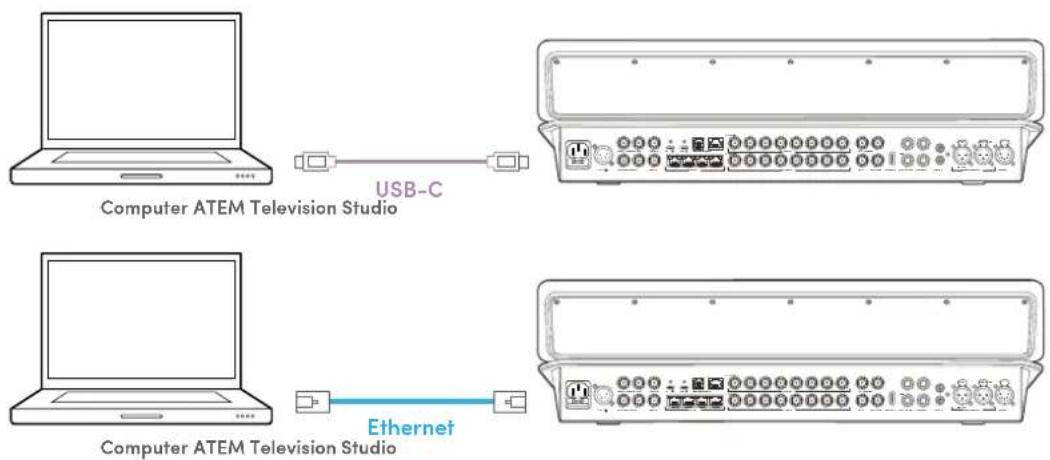
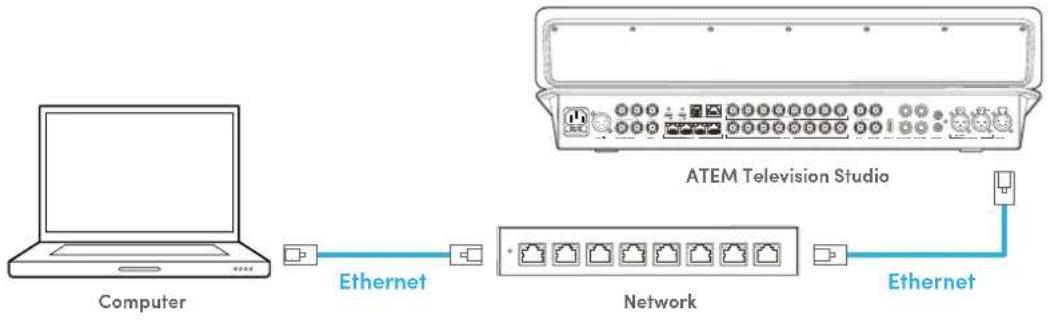
Connecting via a Network
flowchart
graph LR
    A["Computer"] -->|Ethernet| B["ATEM Television Studio"]
    B -->|Ethernet| C["Network"]
    C --> D["Computer"]
Lastly, you need to ensure your computer is connected and working on your network. Then when you launch the ATEM Software Control application, you will be prompted to select a switcher. If it can be seen on the network, you can select it from the list, or enter an IP address manually. Use the IP address you just entered for the switcher. Then the ATEM Software Control can find the switcher and communicate.
Switcher Control Panel
The software control panel has four main control windows: Switcher, Media, Audio and Camera. You can open these windows by selecting the buttons at the bottom of the interface or by pressing the Shift and left/right arrow hot keys. A general settings window can be opened by selecting the gear icon at the lower left of the interface. The switcher, media, audio and camera windows all contain unique settings for the switcher, which can only be made from the software control panel.
Switcher Panel
When first launched, the switcher screen is selected, which is the main control interface for the switcher. The software control panel must be connected to a switcher to run.
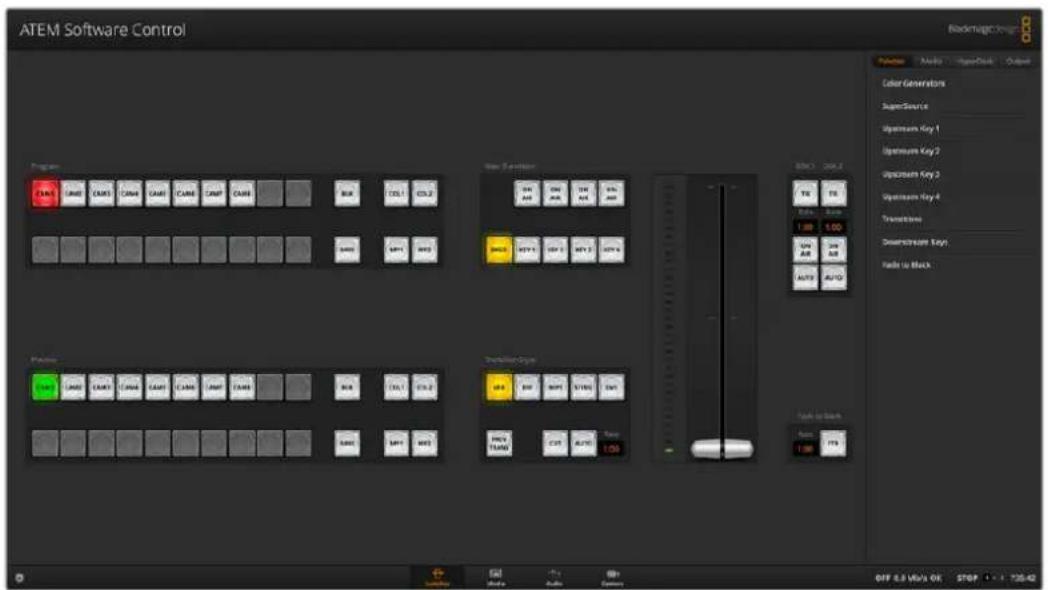
ATEM Software Control window
Preferences
The preferences settings are arranged as 'general' preferences and 'mapping' preferences. General preferences contain settings for transition control, language selection and enabling or disabling midi control. Mapping preferences let you assign inputs to specific buttons on the preview and program rows. Go to the menu bar at the top of your screen, select 'ATEM Software Control' and open the 'preferences'.
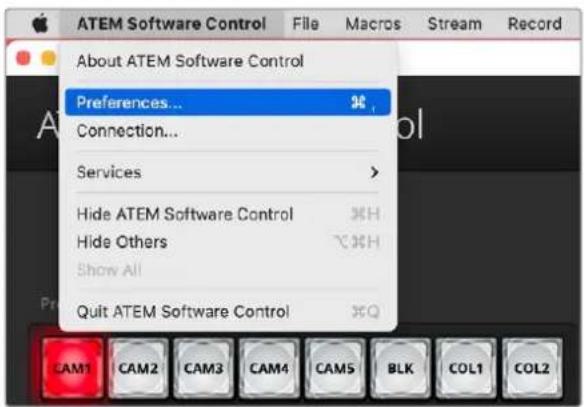
Open preferences from the ATEM Software Control menu
General Preferences
When you first receive your ATEM switcher, it will be set to program/preview switching which is the current standard for an M/E switcher. You can change this preference to A/B Direct if you wish to use older style A/B switching.
ATEM Software Control can be set to display in English, German, Spanish, French, Italian, Japanese, Korean, Polish, Portuguese, Russian, Turkish, Ukrainian and simplified Chinese languages.
When running ATEM Software Control for the first time after installation, a setup dialog box will prompt you to set the language for the software, but you can change the language of the software at any time.
From the language menu select your preferred language. A warning will appear asking you to confirm the action. Click 'change'.
ATEM Software Control will now close and restart in your selected language.
To operate your ATEM switcher using a MIDI controller, check the box to enable MIDI control.
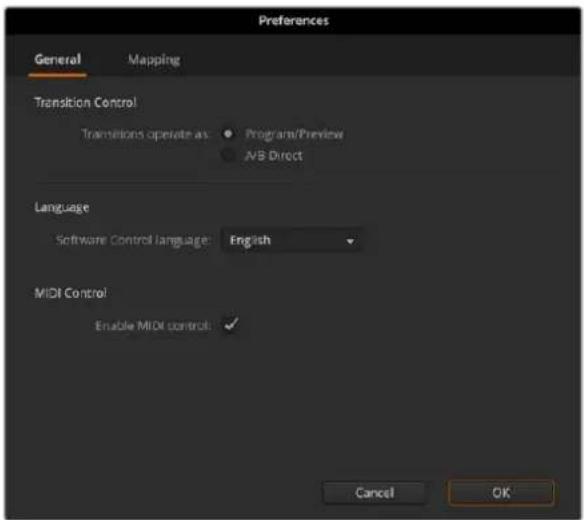
Set your general preferences
Button Mapping
In the mapping preferences, you can assign inputs to specific buttons on the preview and program rows. The camera drop down menu lets you select a Blackmagic camera for each input, or you can select 'generic' or 'none'. Selecting the correct camera for the input will ensure that all the parameters for that camera are set correctly.
ATEM software and hardware control panels support button mapping so you can assign your most important sources, especially cameras, to the most accessible buttons in the program and preview rows. Occasional sources can be assigned to less prominent buttons. Button mapping is set independently for each control panel so button mapping set on a software control panel will not affect the button mapping set on a hardware control panel.
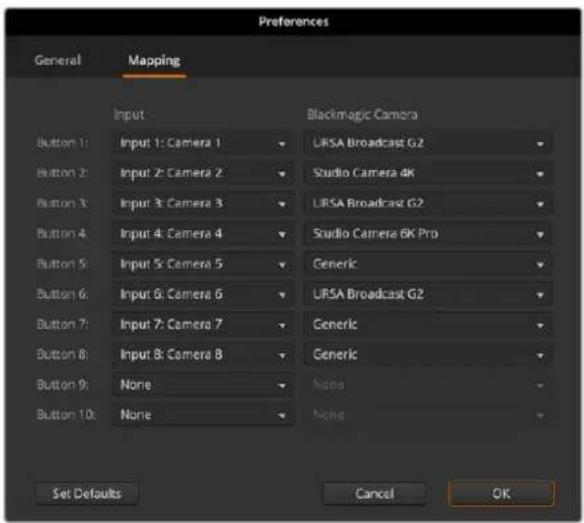
Changing Switcher Settings
Clicking on the switcher settings 'gear' icon in the bottom left hand corner will open the settings window where you can change general switcher settings, audio, multiview, sources, HyperDeck and remote settings. These settings are divided into tabs.
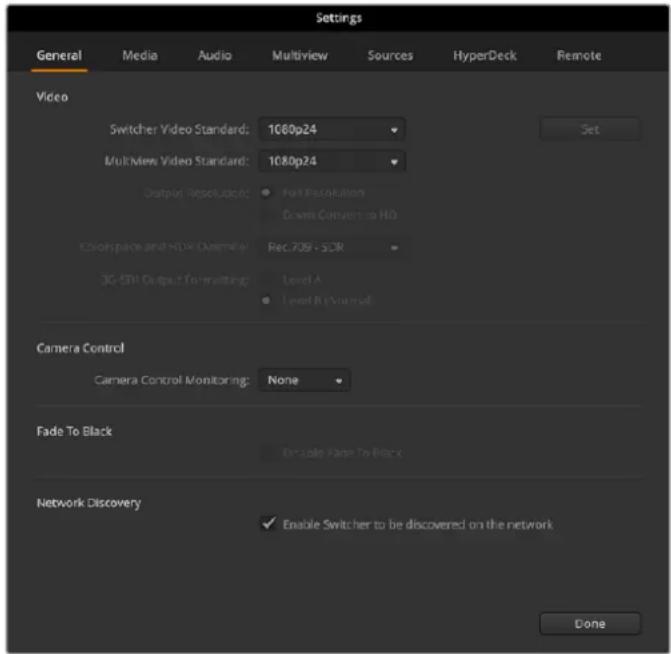
ATEM Television Studio HD8 ISO general settings
General Settings
The general tab contains settings for your video standard, media pool settings as well as choosing the camera control monitoring output.
Video
Setting the Switcher Video Standard
The video setting is used to select the operating video standard of the ATEM switcher. You can set the video standard to suit the region in which you are broadcasting, such as 1080i59.94 or 720p59.94 if you are broadcasting in NTSC based countries. If you are broadcasting in PAL based countries, you can set your video standard to formats such as 1080i50 or 720p50. A good way to work out the video standard you should use is to check cameras and then set the switcher video standard to the same format.
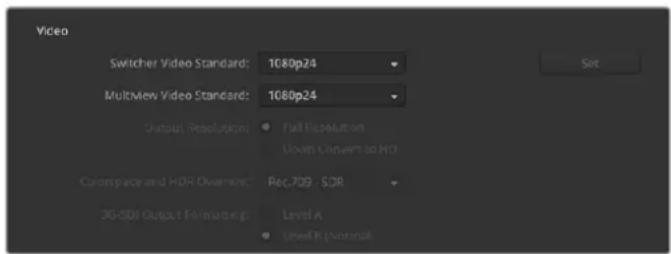
Set your video standard
ATEM Television Studio switchers support the following video standards.
| HD Video Standards | 720p50, 720p59.94, 720p601080p23.98, 1080p24, 1080p25, 1080p29.97,1080p30, 1080p50, 1080p59.94, 1080p601080i50, 1080i59.94, 1080i60 |
ATEM Television Studio 4K8 switchers also support the following video standards.
| Ultra HD | 2160p23.98, 2160p24, 2160p25, 2160p29.97, |
| Standards | 2160p30, 2160p50, 2160p59.94, 2160p60 |
To set the video standard, select the video standard from the menu and then press the 'set' button. Any time the video standard is changed, it will erase any frames you have loaded into the media pool.
Setting the Multiview Video Standard
If your production video standard is set to 1080p25 or higher, you can adjust the multiview output to a lower frame rate. This way you can set the multiview outputs to be down converted for even greater monitor compatibility. For example, if your video standard is set to 1080p60, you can set the multiview output to 1080i60.
Set 3G SDI Output Level
If you're outputting 1080p50 or higher HD video to equipment with 3G-SDI inputs, you may need to toggle between level A and B 3G-SDI output standards to maintain compatibility with equipment that can only accept level A or B 3G-SDI video. Level B is the default setting that works with most equipment, but you can switch to Level A by clicking the 'level A' radio button.
Camera Control
Camera Control Monitoring Output
You can select any SDI output for camera control monitoring. When controlling your cameras via the camera control panel, you can monitor the adjustments via this output. Choose any output from the menu.
Fade To Black
To disable the FTB button on the front panel of the switcher along with ATEM Software Control click the 'disable fade to black' checkbox.
Network Discovery
ATEM Television Studio HD8 ISO model switchers are visible over your local network by default, so if you are planning on streaming directly to the switcher using Blackmagic Studio Camera 6K Pro or URSA Broadcast G2 you can get started straight away. To turn this off, uncheck 'enable switcher to be discovered on the network'.
Media Settings
Media Pool
Adjusting the Media Pool Clip Length
Each ATEM switcher model has memory for graphics that's called the media pool. This memory holds images with an alpha channel as well as video clips that can be assigned to a media player for use in the production.
| ATEM Switcher Model | Still Graphics | Video Clips | Video Format | Clip Length |
| ATEM Television Studio HD8 20 2 | 720p 400 frames | |||
| 1080p 200 frames | ||||
| ATEM Television Studio HD8 ISO 20 2 | 720p 400 frames | |||
| 1080p 200 frames | ||||
| ATEM Television Studio 4K8 20 2 | 720p 1600 frames | |||
| 1080p 800 frames | ||||
| 2160p 200 frames |
Media pool capacities
By default, each clip receives equal amounts of the available memory which determines the maximum number of frames. If you need a clip to be longer, adjust the balance of frames. It's worth remembering that lengthening one clip will shorten the other.

Media pool sharing
Audio Settings
The audio tab contains all the audio settings separated into five categories, split audio, split MADI, talkback, mix minus and general.

Audio settings
Split Audio
ATEM Television Studio switchers can split a stereo input signal into two separate mono channels. This is helpful for mixing a mono input into both channels on the stereo master output. You can also select between splitting all audio into separate channels, or select each input individually.
You can also split MADI channels into separate mono channels.
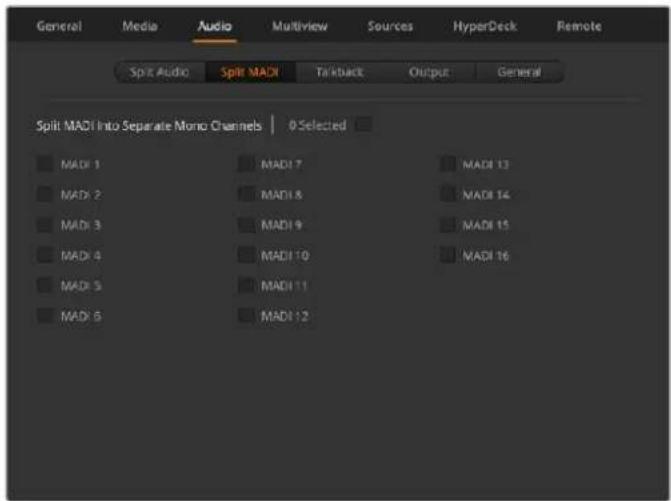
Use the checkboxes to split MADI into separate mono channels
Talkback
Set your talkback behavior via the talkback tab. Production talkback is embedded into SDI channels 15 and 16 and engineering talkback is embedded into SDI channel 13 and 14. Talkback can be enabled or disabled via the check box.
You may want to loop one of your ATEM's outputs to an input to achieve a desired effect. In some cases this can cause a feedback loop in SDI talkback channels. If this occurs, you can mute SDI channels talkback by clicking the 'mute' checkbox beside each input. If you do want to mute incoming talkback, make sure to check the box for both production and engineering talkback.
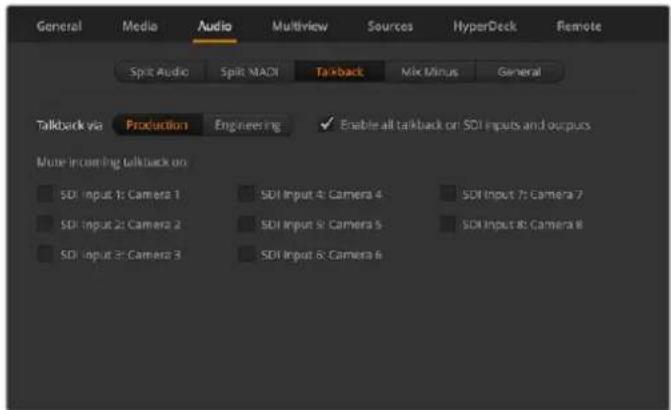
Mute incoming production talkback on inputs
Mix Minus
The mix minus settings on aux outputs let you mute the audio from their return program feed. For example, when doing live crosses there can be a delay in the audio which may be distracting when the presenter can hear his or her own voice delayed on the program return feed. Enabling mix minus for an input will output all program audio in the mix, minus that particular input.
General
Use the general audio tab to set the audio follow video settings.
Audio Follow Video Settings
When using AFV, you can select the audio behavior during transitions using the radio buttons. To crossfade the audio when inputs change, check the radio button to add a transition. The audio will only be sent to the program output when the input is on air.
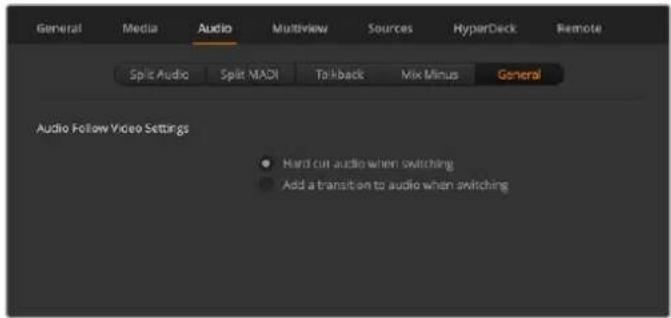
Set the audio follows video behavior
Multiview Settings
The multiview settings allow you to set the multiview orientation. The default view features two large windows at the top and eight smaller windows beneath, however each quadrant of the multiview can be set to either one large view or four smaller views so you can configure 4, 7, 10, 13 or 16 views. Click on each quadrant in the 'view control' to toggle between 1 and 4 views.
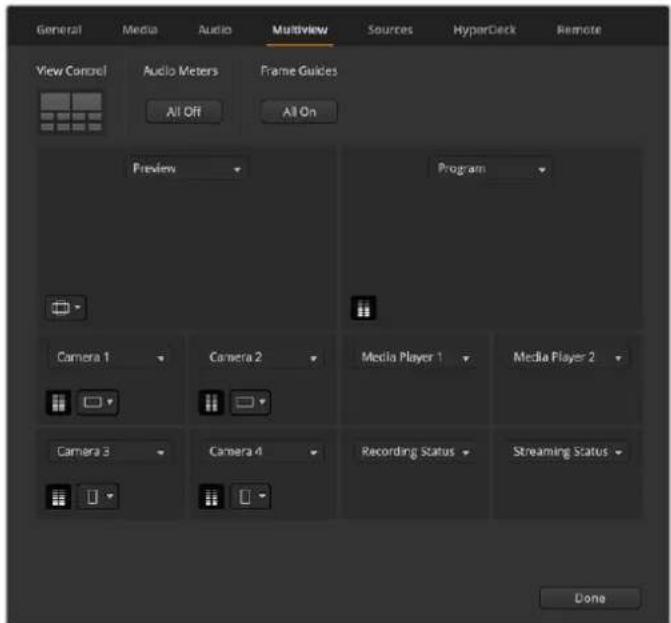
Configure the multiviews
Audio meters can be turned on or off for all the switcher sources and program view by enabling the 'All On' button in the multiview settings, or you can turn them on or off individually by clicking the audio meter icon in each view.
On each source and program view you can turn on safe area markers to make sure your program will look great on any monitor. Frame guides display as 16:9 for horizontal or 9:16 for vertical workflows. Select 'all' to turn on both frame guides.
The multiview will also display tally, so if any of the sources in the multiview are used in a layer on the program or preview outputs, the border will be highlighted red or green. A red border indicates the source is used on the program output and a green border indicates a source is selected on the preview output. A white border means your source is not currently on the preview output, or on air on the program output.
The multiview includes additional status views for streaming, recording and audio so you can monitor the space on hard drives or data rate while streaming. For more information on available views, refer to 'Using the Multiview' in this manual.
Sources
The sources tab can be used to change labels for the switchers inputs, outputs and media players. Each input and output will have a long name and a short name.
The long name supports up to 20 characters in length and are displayed in various source selection boxes on the software control panel, the multiview windows on screen labels and on the LCD displays on the switcher. The short 4 character name is used to identify the input buttons on software control panel.
To change an input name, click in the text field, enter the text and select set. The input name will be updated on the multiview, software control panel and switcher if one is connected. It's a very good idea to change both the short and long labels at the same time, so they match. For example Camera 1 would be entered in as a long label and CAM1 as the short label.
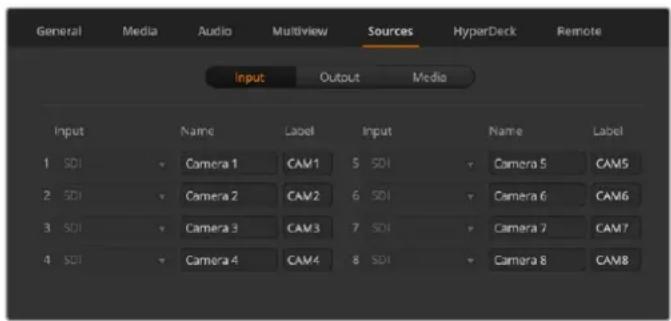
Enter the long and short names for the inputs and outputs
On ATEM Television Studio HD8 ISO model switchers you can use the sources tab to add remote cameras on your local network or via the internet. For more information refer to 'additional features on ISO models' later in this manual.
HyperDeck Settings
With ATEM Television Studio switchers you can connect up to 10 HyperDeck disk recorders and control them using ATEM Software Control. When connecting HyperDecks, use these settings to configure the IP Address, select the inputs your HyperDecks are connected to, turn the auto roll feature for each deck on or off and set their frame offset settings so they can switch cleanly.
Status indicators appear above and below each deck so you can see if they are successfully connected and if their remote buttons are active.
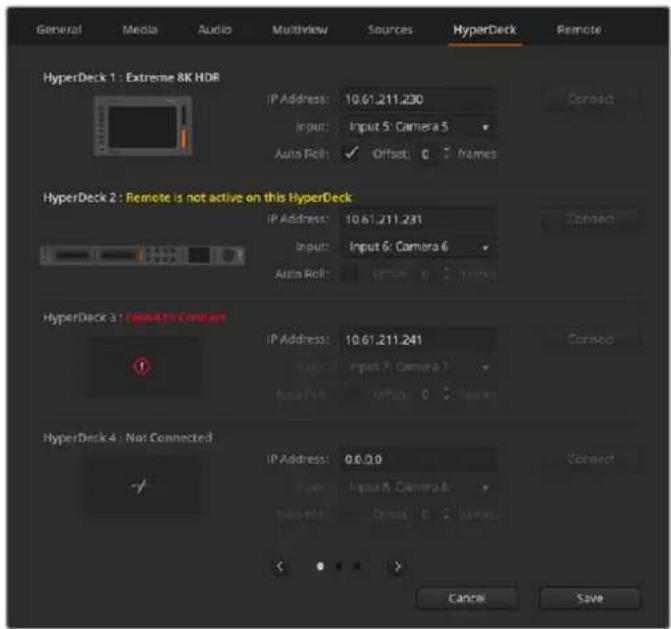
Add up to 10 HyperDecks
Customizing the labels for your HyperDeck inputs can make it easier to pick from the list.
For detailed information on setting up HyperDecks with your ATEM switcher and setting the 'HyperDeck' configuration settings, refer to the 'HyperDeck control' section of this manual.
Remote Settings
ATEM Television Studio switchers feature a RJ12 remote port on the rear for RS-422 control. you can select how it is used with the 'remote' checkbox. The options are 'disabled', VISCA and GVG, where GVG sets it to use GVG100, a common legacy interface for communicating with equipment such as linear editing suites.
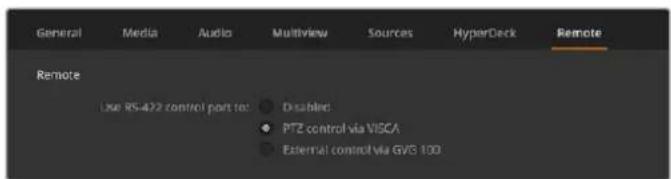
Remote settings
Auxiliary Outputs
The separate SDI auxiliary outputs on your ATEM switcher can have various inputs and internal sources routed to them. They are very similar to router outputs and all video inputs,
color generators, media players, program, preview and even color bars can be output. ATEM Television Studio HD8 switchers have 2 auxiliary outputs and ATEM Television Studio 4K8 switchers have 10 auxiliary outputs.
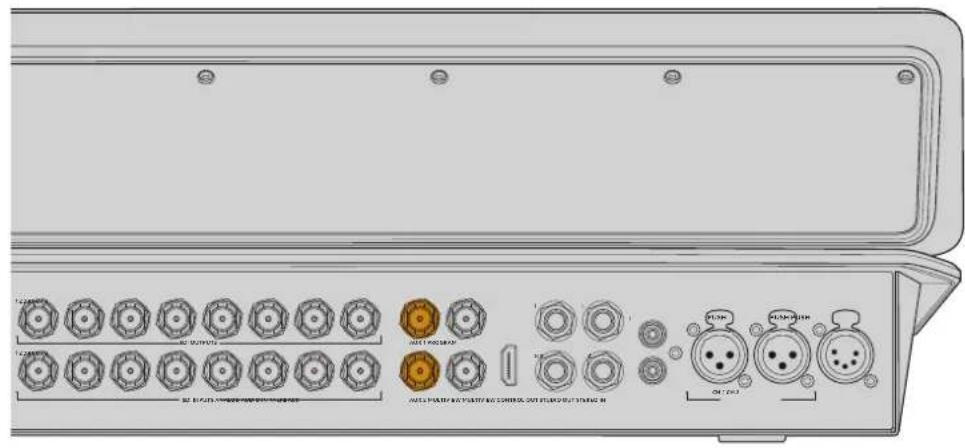
Auxiliary outputs on ATEM Television Studio HD8
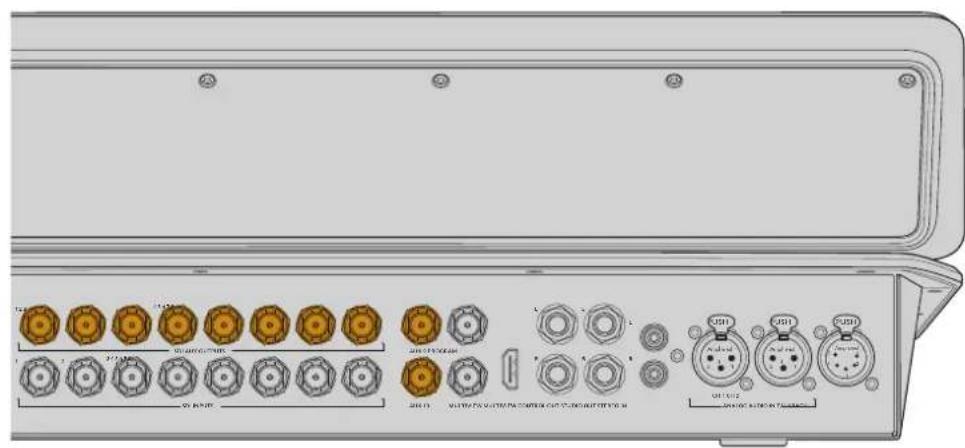
Auxiliary outputs on ATEM Television Studio 4K8
Routing Auxiliary Outputs
Using the dedicated auxiliary or outputs menu to route the auxiliary outputs. Simply select the menu, then scroll the list for the source you want to output. When selected, the output on the selected aux will change immediately. You can see the current source with a tick in the menu item. There is a range of sources available, including black, all video inputs, color bars, media players fill and media player key outputs, program, preview and clean feeds.
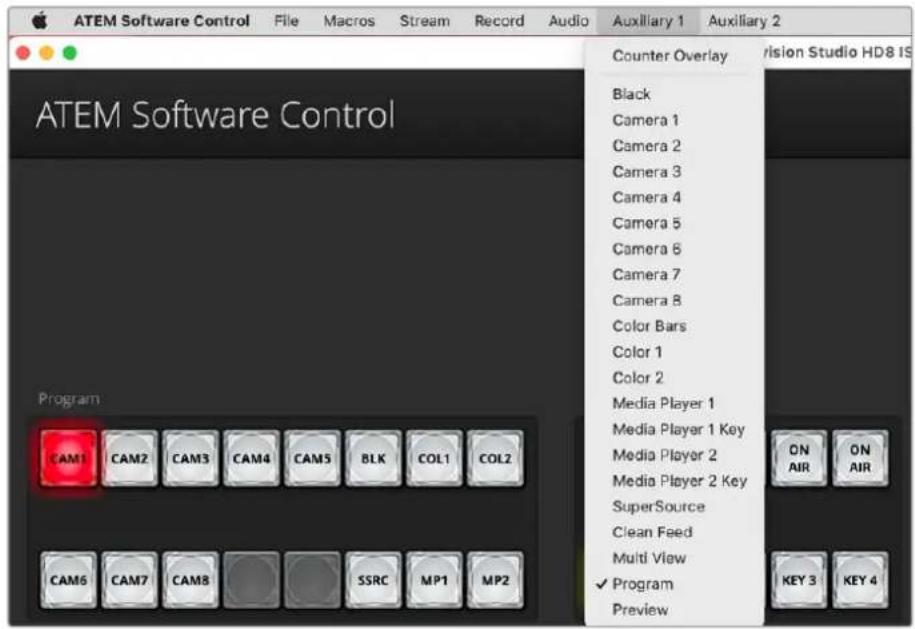
Auxiliary outputs menu on ATEM Television Studio HD8
Aux outputs are extremely powerful and allow many exciting possibilities like alternative switcher outputs, or they are very commonly used for driving video projectors and video walls on stage during concerts and live performances. Most modern live performances have complex multi media aspects to them and the aux outputs are designed to allow you to control all these displays from your ATEM!
Audio Output Channel Mapping
You can map the embedded audio channels in the video output of the switcher. This means you can route various audio sources into channels in the SDI video output so it can be recorded on HyperDeck recorders.
For example, you might want to connect a microphone to a camera and then route this specific input to embedded audio channels 3&4 on the program output. Then if you select to record 4 or more channels of audio in the HyperDeck settings, the recording will have a raw recording of the camera microphones independent of the audio mix, and any audio engineer can get to those specific audio sources when doing an audio mix in post production.
This audio routing feature allows you control over all embedded audio channels in the SDI video output and is very powerful.
Your ATEM switcher can route the program out audio channels individually using the audio menu.
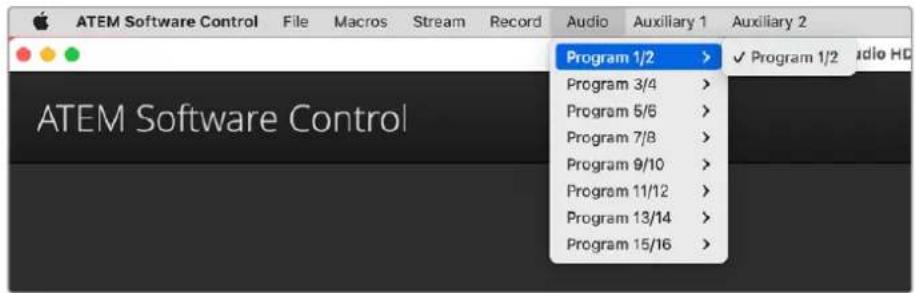
ATEM Television Studio HD8 audio routing options in ATEM Software Control
Program mix will always be assigned to channels 1 and 2, engineering talkback to 13 and 14 and production talkback to channels 15 & 16, but all other channels can be mapped separately using any of the SDI, MADI, XLR, RCA or microphone inputs.
Routing program audio using ATEM Software Control
1 Click on the audio menu in the upper toolbar.
2 Select a pair of program audio out channels and from the menu on the right hand side select the SDI input audio you want to route. For example, to route channels 3 and 4 from SDI input 2 to channels 3 and 4 on the program out, select 'audio out 3/4' in the first list menu and 'SDI input 2 audio 3/4' from the second list.
Using SuperSource
ATEM Television Studio switchers include a feature referred to as SuperSource that will allow you to arrange multiple sources on the monitor at one time. For example, if you are broadcasting a discussion between four presenters, you can superimpose them all over a background. The SuperSource processor appears on your ATEM switcher as a single video input.
Setting up SuperSource
You can set up SuperSource using the palettes tab in ATEM Software Control or by pressing the SuperSource button to the left of the LCD screen.
Viewing SuperSource
To set up SuperSource, first you need to be able to view it on your monitor. Do this by either assigning SuperSource to one of the SDI outputs using the outputs menu or by placing SuperSource on one of the windows of your multiview layout.
Positioning Sources
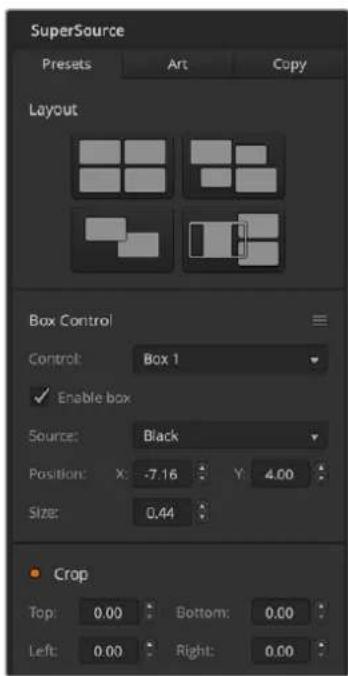
SuperSource settings
Open the SuperSource palette and choose one of the four preset layouts that is closest to the look you want. This will automatically arrange the boxes into the positions indicated in the software. Using the control menu, select which box you want to adjust. You can now change the x and y position along with the size of each box, or uncheck the 'enable box' to remove that box from the SuperSource view. The crop settings allow you to crop the sides of the boxes. Tick the crop checkbox and adjust the parameters for the top, bottom, left or right sides. To reset the position, size or crop of the box or all of the parameters, click the icon to the right of box control.
On the ATEM Television Studio switcher, press the button marked SuperSource and use the system control arrow buttons to navigate through the SuperSource settings. On the second page of the SuperSource menu, rotate the preset knob to pick the layout and then press the soft 'apply preset' button above the LCD. Once a box is selected, all the additional settings will apply to that box along with the joystick control.
Adjusting the size and position of the box can be done via the soft knobs below the LCD on the third menu page but it is much quicker using the panel joystick. Push the joystick around to change both the x and y position together. Twist the joystick clockwise to increase the size or counter clockwise to reduce the size of the box.
Background and Foreground Art
Click on the 'art' tab to reveal the art settings. Choose your fill source from the menu. If you are using the switcher panel, you can select the fill source using the source select bus. Place the source in the background or foreground. With foreground selected you can now select the key source from the menu or the source select bus on the switcher panel.
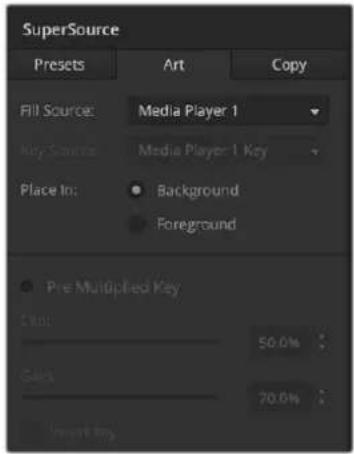
Art Background controls
When the foreground radio button is selected, you will need to choose whether your graphic is pre multiplied or not. If it is pre multiplied then click the checkbox. This will now allow the art to be placed over the enabled boxes. If your art is not pre multiplied then you can use the clip and gain controls as discussed in the 'keying' section of this manual to achieve the desired result. You can also invert the key.
On the panel switcher use the arrow buttons in system control to navigate to the settings. Using the fill source knob select your art and then whether you want it in the foreground or background using the soft buttons above the LCD. If the fill source is pre multiplied then proceed to the following page of settings and and make sure the 'pre multi key on' button is shown. This will now allow the art to be placed over the enabled box or boxes. If your art is not pre multiplied then you can use the clip and gain controls as discussed in the keying section of this manual to achieve the desired result. You may also need to invert the key.
Copying Settings

Copying the settings of Box 1 to Box 2
To perform the copy function using ATEM Software Control, click the copy tab and the copy box settings dialogue will appear. You can quickly and easily copy the settings of the currently selected box to any of the other boxes, making an exact clone in just one click. The copied boxes will appear directly behind the master box and will also share the same source as the master.
If you are adjusting settings using the ATEM Television Studio switcher, navigate to the final page of the SuperSource menu and using the soft knobs below the LCD select the box to copy from and the box you want to copy to. You can also choose to copy to all boxes using the knob.
Putting SuperSource On Air
The entire SuperSource processor appears on your ATEM switcher as a video input. Simply select the SuperSource on the program bus using either ATEM Software Control or and switcher panel to use the composite you have just made.
Saving and Restoring Switcher Settings
After setting up your ATEM switcher, you can save your settings using two different options.
Save Startup State
If your switcher uses the same settings for all your productions you can save the default startup state. Once saved, each time you open ATEM Software Control all your presets and preferences will load. These settings can be cleared using the 'clear startup state'.
Save Settings as an XML
For workflows where you may have multiple productions each with their own setup, you can use the 'save as' feature. This powerful feature is incredibly time saving on live productions where regular settings are used. For example, you can immediately restore saved camera settings, lower third graphics and detailed key setups from a laptop or USB drive.
To save settings:
1 Go to the menu bar in ATEM Software Control and select File>Save As.
2 A window will open asking for a file name and destination folder. After you have made your selection, click Save.
3 The Save Switcher State panel containing checkboxes for all the available settings on each block of your ATEM switcher will open. The Select All checkbox is enabled by default. If you save with Select All enabled, ATEM Software Control saves your entire switcher settings. If you want to choose specific settings to save, you can deselect settings individually, or to remove all settings click Select All once to deselect them. Now you can select specific settings you want to save.
4 Click Save. A saving status will appear in the bottom right hand corner of the panel to confirm the save is complete.
ATEM Software Control saves your settings as an XML file together with a folder for ATEM Media Pool contents.
After you have saved your settings you can quick save at any time by selecting File>Save, or by pressing Command S for Mac, or Ctrl S for Windows. Doing so will not overwrite your previous save, but will add a new XML file to your destination folder which is clearly identified with a time and date stamp. This means you can always restore a previous save if necessary.
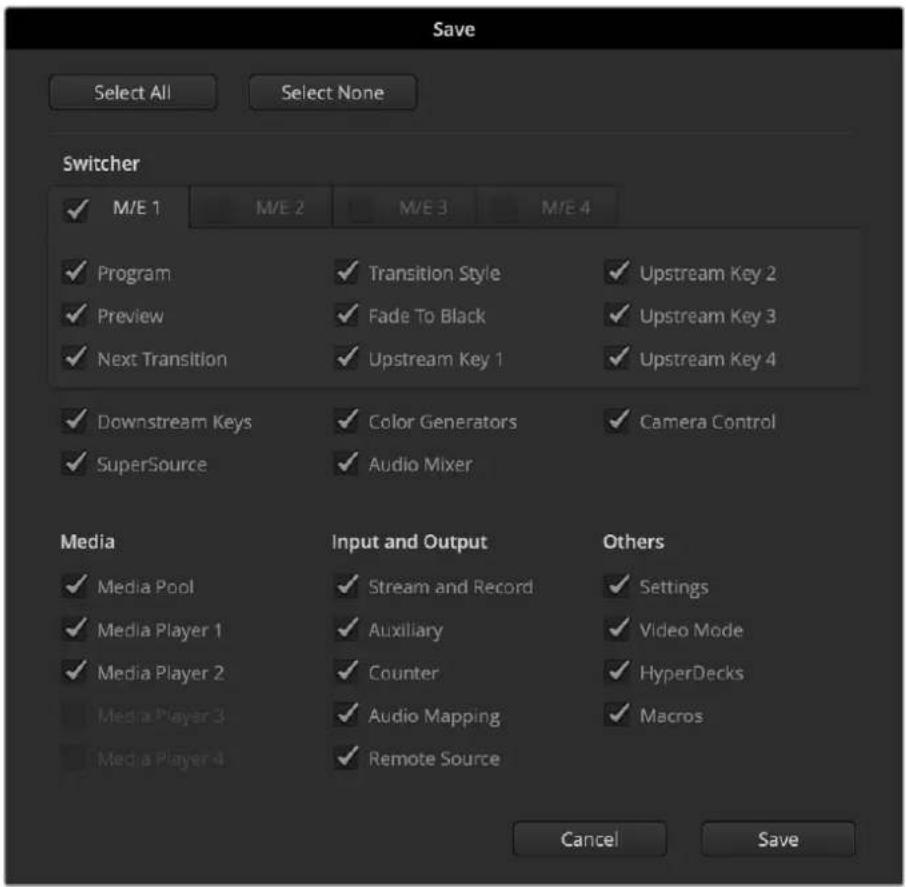
With ATEM Software Control you can save and restore all your switcher settings for your live production, including key settings, transition styles, media pool contents and more
If your switcher settings are saved on a laptop, it's easy to take all your settings with you on location. Connect your laptop to any ATEM switcher and quickly restore your switcher settings.
Live production can be a busy and exciting time and you're always working in the moment, which means you can easily forget to back up your saved files when the production is over.
If you have settings you want to keep, save them to your computer and an external drive, such as a USB drive. This means you can carry your settings with you and have a back up in case your settings are accidentally deleted on your computer.
To restore settings:
1 Go to the menu bar in ATEM Software Control and select File>Restore.
2 A window will ask for the file you want to open. Select your save file and click Open.
3 You'll now see a window containing active checkboxes for your saved settings on each block of your ATEM switcher. Leave Select All enabled to restore all your saved settings, or select only the checkboxes for the settings you want to restore.
4 Click Restore.
Factory Reset
To reset your ATEM switcher to factory settings open the ATEM Setup utility and click 'factory reset'. Switcher settings saved before a factory reset will remain.
Switching with ATEM Software Control
The switcher window is the main control interface for the switcher. During live production, the switcher window can be used to select sources and take them to air.
You can select the transition style, manage upstream/downstream keyers and turn on/off the fade to black. The palettes on the right hand side of the interface are where you adjust transition settings including transition rates, adjust color generators, control media players, and adjust the upstream and downstream keyers as well as control fade to black rate.
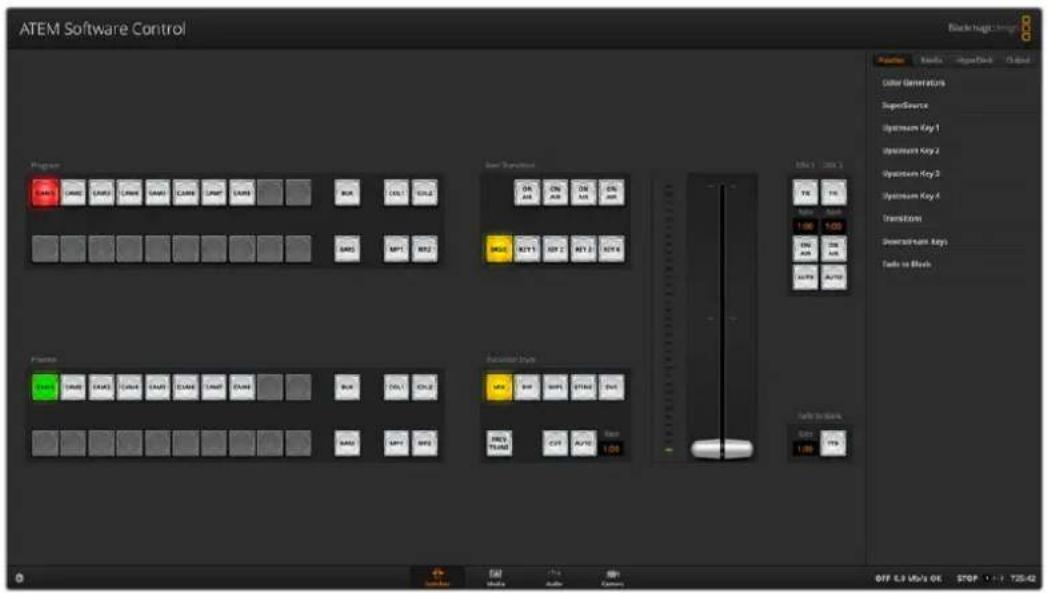
Mouse or Trackpad Operation
The virtual buttons, sliders and fader bar on the Software Control Panel are operated using your computer mouse or trackpad if you're using a laptop.
To activate a button, click once with the left mouse button. To activate a slider, click and hold down the left mouse button while dragging. Similarly, to control the fader bar, click and hold down the left mouse button on the fader bar handle and drag up or down.
Using Keyboard Hot Keys
Hot keys can be used allowing convenient control of some switcher functions using a standard QWERTY keyboard as shown in the following table:
| Hot Keys Function | |
| <1> - <0> Previews source on switcher Inputs 1 - 10. 0 = input 10. | |
| <Shift> <1> - <0> Previews source on switcher Inputs 11 - 20. Shift 0 = input 20. | |
| <Control> <1> - <0> Hot switches source on switcher Inputs 1 - 10 to Program output | |
| Press and release, then <1> - <0> | Hot switches source on switcher Inputs 1 - 10 to Program output. Hot switching remains on and the CUT button is lit red. |
| <Control> <1> - <0> Hot switches source on switcher Inputs 11 - 20 to Program output | |
| Press and release, then <1> - <0> | Hot switches source on switcher Inputs 11 - 20 to Program output. Hot switching remains on and the CUT button is lit red.Turns off hot switching if currently on. The CUT button is lit white. |
| CUT | |
| orAUTO | |
More information on how to use the switcher control panel is included in the next sections.
Mix Effects
The Mix Effects block of the switcher tab contains all the source select buttons for the program and preview buses, allowing external inputs or internal sources to be selected for next transition previewing or switching to air.
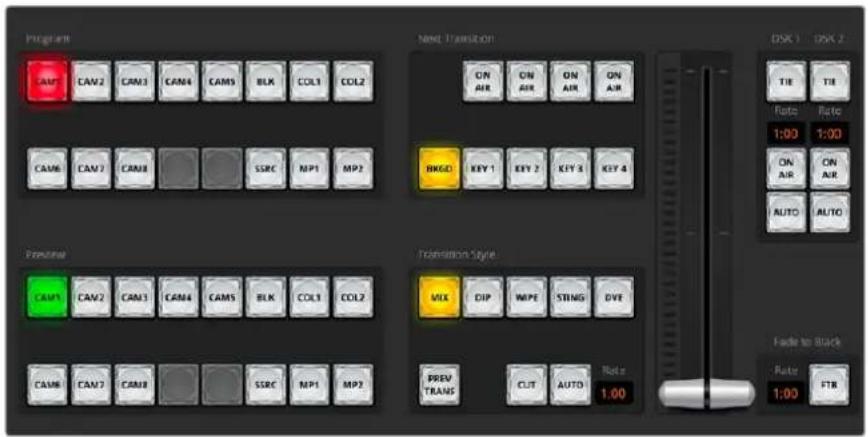
Mix effects panel on ATEM Television Studio
Program Bus Source Select Buttons
The program bus source select buttons are used to hot switch background sources to the program output. The source currently on air is indicated by a button that is illuminated red.
Preview Bus Source Select Buttons
The preview bus source select buttons are used to select a background source on the preview output, this source is sent to the program bus when the next transition occurs. The currently selected preview source is indicated by a button that is illuminated green.
The source select buttons for the Program bus match the Preview bus.
| INPUTS Input buttons match the number of external switcher inputs. | |
| BLACK Color black source internally generated by the switcher. | |
| SUPERSOURCE | Use SuperSource to arrange multiple sources on the monitor at one time.Shift select for Bars. |
| BARS | Color bars source internally generated by the switcher. Shift select SuperSource for bars. |
| COLOR 1 and 2 Color sources internally generated by the switcher. | |
| MEDIA 1 and 2 Internal media players that display stills or clips stored in the switcher. | |
Transition Control and Upstream Keyers
CUT
The CUT button performs an immediate transition of the program and preview outputs, overriding the selected transition style.
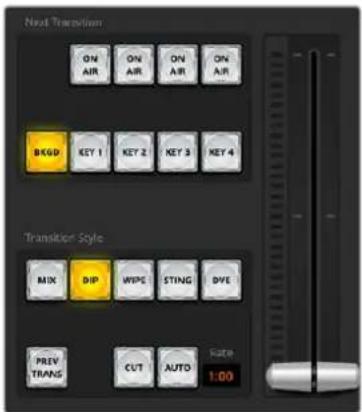
Transition Control
AUTO/RATE
The AUTO button will perform the selected transition at the rate specified in the 'rate' display. The transition rate for each transition style is set in the transition palette for that style and is displayed in the 'rate' window of the transition control block when the corresponding transition style button is selected.
The AUTO button illuminates red for the duration of the transition and the 'rate' display updates to indicate the number of frames remaining as the transition progresses. The fader bar indicator on ATEM Television Studio switchers updates to provide visual feedback on the progress of the transition.
Fader Bar
The fader bar is used as an alternative to the AUTO button and allows the operator to manually control the transition with a mouse. The AUTO button illuminates red for the duration of the transition and the 'rate' display updates to indicate the number of frames remaining as the transition progresses. The fader bar Indicator on the switcher updates to provide visual feedback on the progress of the transition.
Transition Style
The transition style buttons allow the operator to select one of five types of transitions; mix, dip, wipe, DVE, and stinger. The selected transition style is indicated by a yellow illuminated button. Selection of these buttons will be reflected by the corresponding tab in the Transitions processing palette. For example, when you have the transitions processing palette open and click on 'wipe', the palette will automatically reveal the 'wipe' tab so you can make adjustments to the transition such as duration or pattern style.
PREV TRANS
The PREV TRANS button enables the preview transition mode, allowing the operator to verify a mix, dip, wipe or DVE transition by performing it on the preview output using the fader bar. When the PREV TRANS is selected you will see the preview output match the program output, and then it's simple to practice your selected transition with the fader bar to confirm you are going to get what you want. This is a very helpful feature to avoid mistakes on air!
Next Transition
The BKGD, KEY 1, KEY 2, KEY 3, KEY 4 buttons are used to select the elements which will transition on air or off air with the next transition. The number of available keyers depends on your switcher model. All keys can be faded on and off when the main transition occurs, or you can select just keys to transition individually, so the main transition control can be used to fade keys on and off.
When selecting the elements of the next transition, the switcher operator should look at the preview video output because it provides an accurate representation of what the program output will look like after the transition is completed. When only the BKGD button is selected, a transition from the current source on the program bus to the source selected on the preview bus will occur without any keyers. You can also select only keyers to transition, leaving the current background live throughout the transition.
ON AIR
The ON AIR indicator buttons indicate which of the keys are currently on air and can also be used to immediately cut a key on or off air.
Downstream Keyers
TIE
The TIE button will enable the DSK on the preview output, along with the next transition effects, and tie it to the main transition control so that the DSK can be taken to air with the next transition.
The DSK will transition at the rate specified in the RATE display of the transition control block. If the DSK is tied, the signal routing to the clean feed 1 is unaffected.
ON AIR
The ON AIR button is used to cut the DSK on or off air and indicates whether the DSK is currently on or off air. The button is illuminated if the DSK is currently on air.
AUTO
The AUTO button will mix the DSK on or off air at the rate specified in the DSK RATE window. This is similar to the main AUTO rate on the transition control block, however it's limited only to the specific downstream keyer. This can be used to fade up and down bugs and logos, such as live or replay bugs during production, without interfering with the main program production transitions.
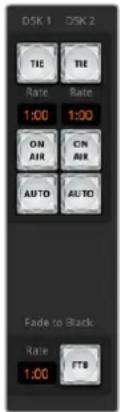
Downstream
Key and
Fade to Black
Fade to Black (FTB)
The FTB button will fade the whole program video output to black at the rate specified in the fade to black RATE window. Once the program output has been faded to black, the FTB button will flash red until it is pressed again. Doing so will fade up from black at the same rate, or you can enter a new rate in the rate window. Fade to black is mostly used at the start of your production, and at the end of your production, or when cutting to commercial breaks. It ensures all layers in the switcher are faded down together. A fade to black cannot be previewed. You can also set the audio mixer to fade the audio with your fade to black by selecting the AFV button on the master audio output fader.
Processing Palettes
The software control panel features tabs for the processing palette, media player, and output options. The palettes show the order of the processing in the switcher. You can expand and minimize palettes to save space and scroll them up and down to get the adjustments you need to set.
Palettes Tab
The Palettes tab contains the following processing controls.
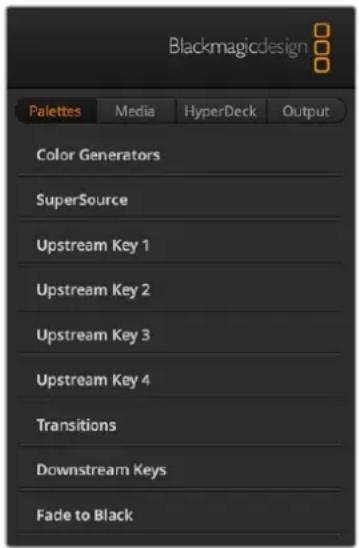
Color Generator 1 and 2
The ATEM switcher has two color matte generators which can be configured from the color generator palette using a color picker or by setting hue, saturation, and luminance levels.
SuperSource
ATEM Television Studio switchers include a feature called SuperSource that will allow you to arrange multiple sources on the monitor at one time. For more information refer to the section 'SuperSource' later in this manual.
Upstream Keys
There are four upstream keyers which can be configured from the upstream key palettes. Each keyer has its own palette. Within each palette the keyer can be configured as a luma key, chroma key, pattern key or DVE.
The selected palette will display all the parameters that are available to configure the keyer. More information on how to use upstream keyers is included later in this manual.
Transitions
The transitions palette is where you can configure the parameters of each transition style. For example, for the dip transition the palette has a drop down menu where you can select the dip source and for the wipe transition the palette displays all the available wipe patterns. There are lots of variations of transitions, and a large number of transitions can be created by combining settings and features in the transitions palette.
NOTE It's worth noting that simply selecting a specific style of transition in this palette will only adjust the settings for these transitions, and you still need to select the style of transition you want to perform in the transition control section on the software or hardware switcher. For ease of use, some people like to use the hardware panel for switching, while using the software panel palettes for setting up the transition. The software and hardware panels work together and mirror all settings, so you can use any combination you like!
Downstream Keys
The downstream keyers which can be configured from the downstream keys palette. The palette has drop down boxes for selecting the fill and key signals to the keyer, sliders to set the clip and gain values, pre-multiplied, and mask settings. ATEM Television Studio switchers feature 2 downstream keyers.
Fade to Black
The Fade to Black palette is where you can set the fade to black transition rate. An 'audio follow video' checkbox is also provided as a shortcut for the audio mixer's master fader AFV button. Selecting this feature lets you fade your audio with your fade to black.
Media Tab
The media tab contains controls for your ATEM Switcher's media players and connected HyperDecks.
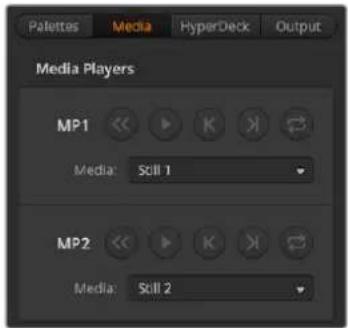
Media Players
Your ATEM switcher has media players which play back the clips and stills that are stored in the media pool memory built into the switcher. The drop down list is used to select the still or clip that will be played or made available on the media player input to the switcher. When a clip is selected, the transport controls in the media player can be used to play, pause and loop the clip. Controls are also provided to step forward and backward through frames of the clip. ATEM Television Studio switchers have 2 media players.
HyperDeck Tab
The HyperDeck tab lets you control up to ten HyperDecks.
HyperDecks
You can connect up to 10 HyperDeck disk recorders and control them using ATEM Software Control's HyperDecks palette. To change the number of HyperDecks displayed click on the cog icon and select the number from the list. For more information refer to the 'HyperDeck control' section of this manual.
Output Tab
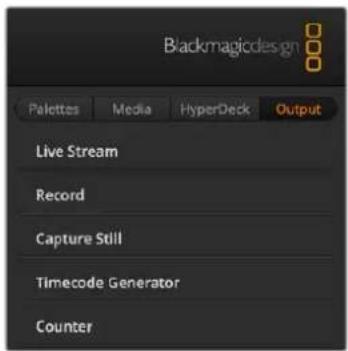
Use the output tab to setup live streaming and recording settings. You can can also use the output tab to adjust the timecode and counter settings as well as to capture stills.
Live Stream
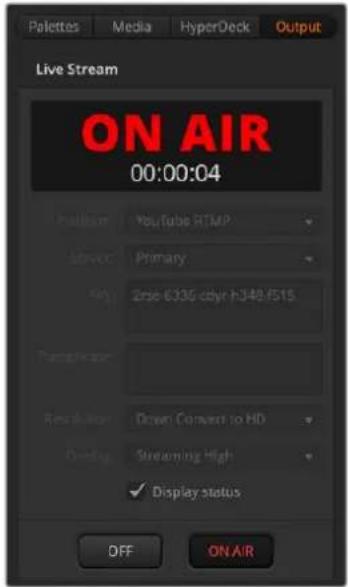
When using your switcher this important output option lets you set up your live stream by entering the streaming details from your streaming platform. After assigning all the settings, you can start your broadcast by clicking the 'on air' button, then stop the broadcast by clicking 'off'.
The live stream status will clearly show you are on air by displaying a large red 'on air' indicator together with the timecode generator, which you can set using the timecode generator options.
| Platform Click in the 'platform' menu and select the streaming platform for your broadcast. Options include Facebook Live, YouTube Live and Twitch. | |
| Server | Select the server that is closest to your location by clicking in the settings window and using the menu. |
| Key Enter the stream key that has been assigned to your broadcast from the streaming platform. For information on how to obtain a stream key, refer to 'getting a stream key' in the 'streaming' section. | |
| Passphrase | If you are using a streaming service with the SRT streaming protocol, enter the passphrase assigned from your streaming platform account. |
| Resolution | When ATEM Television Studio 4K8 switchers are set to 2160p you can downcovert the livestream to HD or keep it at the switcher standard using the resolution option. |
| Quality Select the streaming quality and stream recording quality you want.This setting contains the following options:HyperDeck High 45 to 70 Mb/sHyperDeck Medium 25 to 45 Mb/sHyperDeck Low 12 to 20 Mb/sStreaming High 6 to 9 Mb/sStreaming Medium 4.5 to 7 Mb/sStreaming Low 3 to 4.5 Mb/sMore information about the quality settings is included in this section of the manual. | |
For more information on how to use these options when setting up a live stream directly via Ethernet, including getting a stream key, refer to 'streaming' later in this manual.
Even though the settings are nice and simple and you only need to select the service and a few other options, there is an XML file that has additional settings that knowledgeable users could take advantage of to add other streaming services and customize the streaming menu with low level settings. Refer to the ‘changing switcher settings/saving and restoring switcher settings’ section for more information on how to save and restore using an XML file.
Streaming and HyperDeck Quality Settings
The data rate used by the quality setting will change depending on the video standard your switcher is running at. For example, if you select Streaming High quality and are running at 1080p24 then it would use the 6 Mb/s data rate.
The data rates used on HyperDeck High are 45 to 70 Mb/s, the rates for HyperDeck Medium are 25 to 45 Mb/s and the data rates used for HyperDeck Low are 12 to 20 Mb/s. The streaming data rates are lower to allow for transmitting the data over the internet, so the data rate for Streaming High is 6 to 9 Mb/s, the data rate for Streaming Medium is 4.5 to 7 Mb/s and the data rate for Streaming Low is 3 to 4.5 Mb/s.
You will notice that each setting has 2 data rates mentioned. The lower number is used for the lower frame rates of 24p, 25p and 30p, while the higher data rates are used when you are running higher frame rates of 50p and 60p. It's also worth noting that the default setting for the streaming quality is Streaming High 6 to 9 Mb/s, as this gives a very high quality streaming channel, and a fairly good recording quality.
If you are not streaming, then you could just pick one of the HyperDeck quality settings. These are the same quality as the settings in HyperDeck Studio Mini and are a good quality data rate when you need broadcast quality recordings. However, with the latest software released for HyperDeck Studio Mini, it will also play the lower quality streaming data rates.
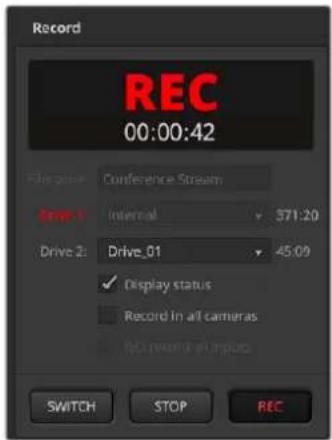
Record
If you are recording your stream, this palette is where you can control your disks and start and stop recording. You can also set a file name and trigger record in all connected Blackmagic cameras. For information on formatting media for recording, refer to the 'storage media' section.
| File Name Prior to recording, set a file name by typing it into the file name window.Click anywhere outside the window to confirm. If you stop and start recording,the file name will assign version numbers incrementally. | |
| Drives Formatted drives connected to your switcher will appear as a list in the recordwindow. You can assign drives by selecting them from the menu. The drivewindow displays the disk capacity and record time remaining.Recording will always begin with the disk containing the largest available space,then proceed to the next disk with the largest available space. However, you canmanually switch the drive you are recording to by clicking the 'switch' button. Thisis helpful if there is less than 5 minutes remaining on the current disk and youwant to switch it over to the next disk at a determined moment in your broadcast. | |
| Switch | Click the 'switch' button to change the drive you are currently recording to thenext drive with the largest available space. |
TIP You can also switch drives by pressing the 'switch' button on the ATEM Television Studio control panel.
| Record button Click the record button marked 'rec' to start recording. | |
| Stop button Click 'stop' to stop recording. | |
| Display status Enable or disable this feature by clicking the display status checkbox in the record options. The display status will appear in ATEM Software Control at the bottom right side of the user interface and shows the recording status. When recording, the record indicator will illuminate red and displays the current drive and record time remaining. | |
| Record in all cameras | This feature lets you set all connected Blackmagic cameras to record when you press the record button. This is helpful if you want isolated recordings from each camera for editing later. Cameras will be automatically set to record using Blackmagic RAW at the quality setting the camera was last set to. |
Capture Still
If you need to capture a still image from your broadcast simply click on the 'capture still' button. This acts like a still store which lets you add capture files to the media pool. You can then immediately load a still into the media player and use it in your broadcast, or save the media pool to your computer.
To save the media pool:
1 Go to the menu bar at the top of your screen and click on 'file/save as'.
2 Choose the location you want to save to.
3 Click 'save'.
Now that your media pool is saved on your computer, you can access the captured stills and use them in your graphics software.
Timecode Generator
The timecode generator automatically runs time of day timecode from the moment you launch ATEM Software Control. However, you can reset the counter to zero, or manually enter a new timecode value to start from.
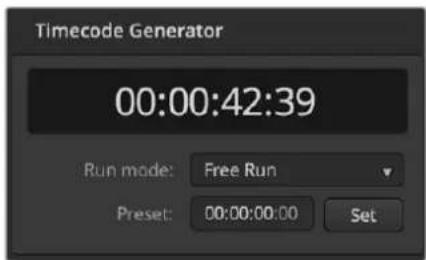
The timecode generator can be set to time of day, or free run timecode where you can set a manual preset timecode.
To manually set a preset timecode value:
1 Click in the 'run mode' menu and select 'free run'.
2 In the smaller timecode counter, type in a defined timecode value. As you type, the new values will appear green.
3 To confirm the change and set the timecode running, click 'set'.
Time of Day
When ATEM Television Studio switchers are connected to your computer, the unit will sync time of day timecode with your computer. The unit has a built-in clock that can continue running for approximately 6 days, so once you disconnect the switcher from your computer, the time of day timecode will continue until the battery is depleted. The battery will charge while connected to your computer via USB.
Counter
You can use the ATEM Television Studio switcher counter option to overlay a timer on output 1. This can be useful for a presenters monitor, where you can display a countdown if there is a time limit for the lecture, or a countup if there is no limit, but to monitor how long the lecture has been going.
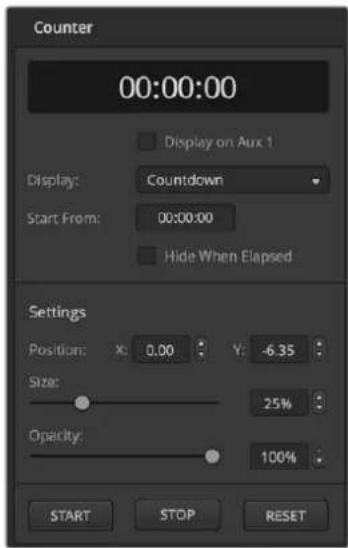
To set the counter:
1 Choose countdown or countup.
2 To set a time limit for the countdown, enter the start from time.
3 Using the settings, you can position the location of the counter on the overlay along with setting the size and opacity.
4 Once the settings are complete, you can start the counter. Make sure the counter overlay is selected by going to the outputs menu in the upper toolbar and check 'counter overlay' is selected on output 1.
ATEM Media Pool
Press the media icon in the lower toolbar of the switcher view to open the media window. The media window on ATEM switchers is where you can add graphics such as stills and video clips to your switcher and assign them to any of your switchers media players. There are two main areas on the switcher window, the browse window on the left hand side and the media pool and media players window to the right .
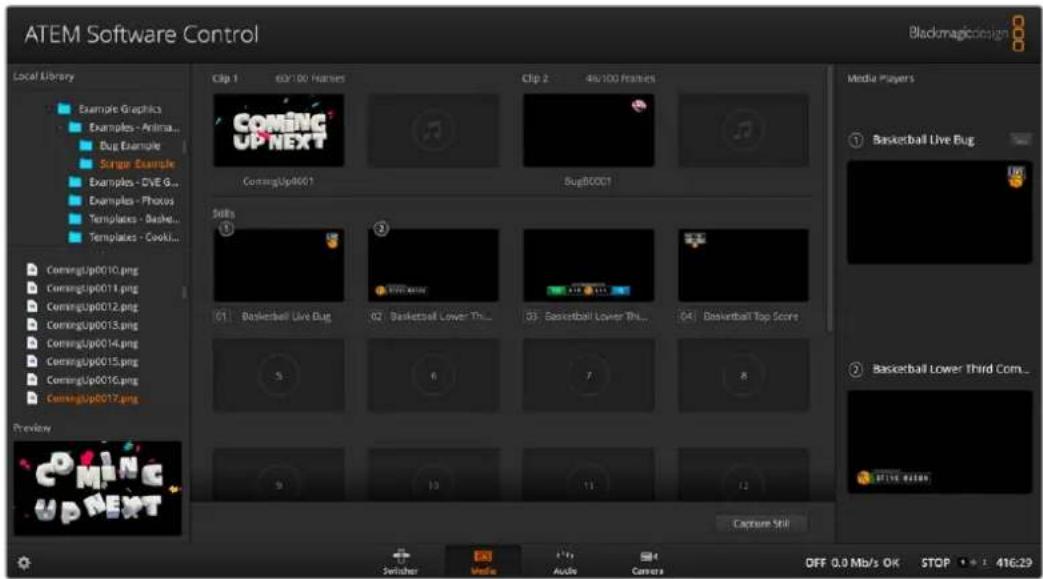
Click on the media tab at the bottom of the panel to open the media pool
The Browse Window
The browse window is a simplified file browser that lets you navigate your computer to look for image files. All attached drives on your computer are displayed and you can select folders from them. View sub folders by clicking on the arrows next to each folder. The Preview window in the lower left corner will show any selected files. The ATEM media pool supports PNG, TGA, BMP, GIF, JPEG and TIFF still image formats. Audio files must be WAV, MP3 or AIFF. These files can then be added to the media pool.
The Media Pool Window
When files have been loaded into the media pool, the still and clip slots will show a thumbnail image. Clip slots will display the image from the middle of its loaded sequence. Above the clip slots you'll see information showing the number of frames in a loaded clip, plus the maximum number of frames that can be loaded for your selected video format. Stills are marked with a slot number so you can identify them when assigning a still image. The file name for each loaded still or clip is displayed underneath the slot so you can keep track of stills and clips you have loaded. The list of loaded clips and stills along with their name and number will appear in the media player palette in the switcher tab, in the media players view on ATEM hardware panels as well as in the Photoshop plug-in. On the switcher front panel, only the still name will appear unless the slot is empty.
Numbers will appear in the top left corner of the thumbnail to clearly show which slots are assigned to the relevant media players. When a media player slot is switched to the program output, the circle surrounding the number changes to red to indicate the slot is on air. When a slot is on the preview output, the color changes to green.
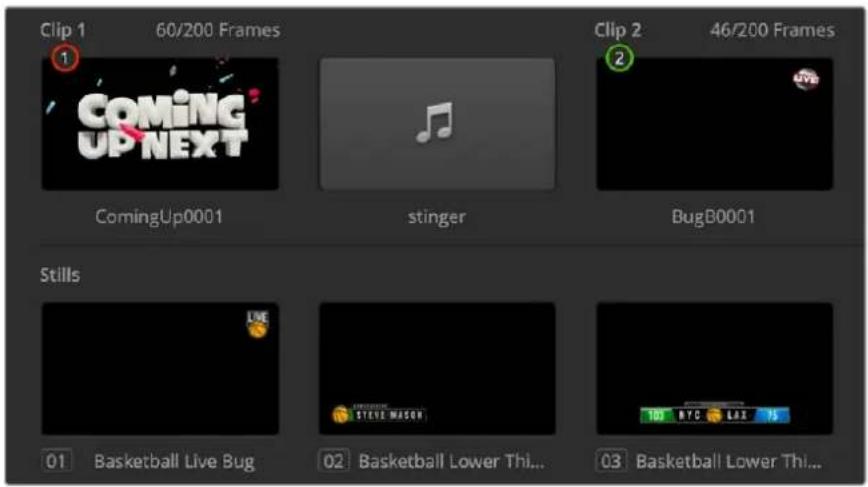
Browsing and loading files
Loading a still is as easy as dragging it from the browse window and dropping it into an empty slot in the Media Pool. To load a motion clip, you'll need to load a sequence of still images. If the sequence is within a folder, click and drag the folder from the browse window and release over either of the two clip slots. If the sequence is not within in its own folder, click on the first file in the sequence, scroll down and shift click on the last file in the sequence. Now the highlighted file sequence can be dragged into any of the two clip slots in the media pool. You can load audio files to accompany your clip, for example when playing a stinger transition, by dragging the audio file from the browser and dropping it into the audio slot next to the clip slot. You can identify the audio slot by its audio icon.
When dropping a still, clip or audio file into a slot, a progress indicator will show the loading status. You can drop multiple files into the media pool, even if the first images have not yet completed loading, as they will continue to load one after the other. If a clip or still is dropped into a window which already has content loaded, the existing content will be replaced.
You can change the media player assignment from the media players tab by selecting your desired clip or still from the 'media' list. Simply click on the arrow in the player 'media' list to select from a list of media pool slots.
You can also change the media assignment using the media players menu in system control, or even when exporting via the ATEM Switcher Media Pool option within Photoshop. For more information on using the Photoshop export plugin, see 'using Adobe Photoshop with ATEM' later in this manual.
Capture Still

Click the capture still button to save a still from the broadcast
You can also capture a still from your broadcast using the capture still button in the lower right hand side of the media pool. Click the button and the still will populate into the next available image slot on your media pool.
Using the Audio Mixer
The audio tab is used to mix audio sources connected to the ATEM switcher via SDI, analog audio, MADI audio and also from the built-in media players.
Cameras, media players, MADI and external audio sources are listed along the top of the audio mixer along with the master audio output for the program outputs of the switcher.
Below each audio source is an audio level meter, a fader for setting the maximum audio level, and a knob for setting the left/right audio channel balance. The master fader on the right side of the audio mixer is used to set the gain on the audio level on the SDI program outputs and has its own audio level meter. The monitor fader and buttons appear below the master fader and set independent audio levels and also allow solo monitoring on the audio outputs.
The buttons below each audio level meter determine whether audio is always available for mixing or only when the source is on air. The solo, or headphones, button determines whether the audio source should be used for solo audio monitoring.
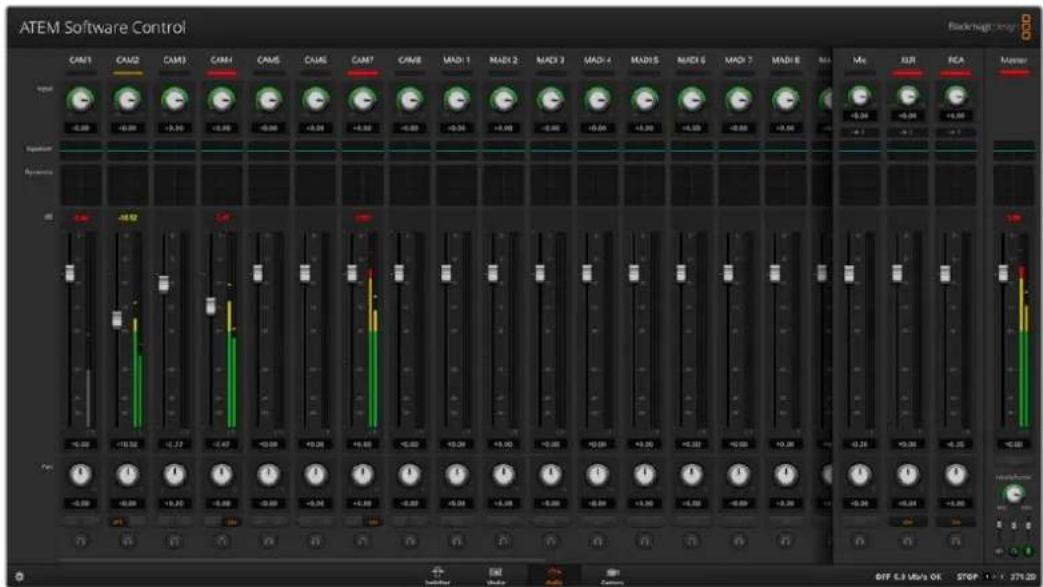
The audio mixer displays tally lights for any audio sources that are currently on air or when AFV is selected, as well as audio level, audio balance and buttons for selecting which audio should be used.
Tally
Any source whose audio is on air is lit with a red tally light in the software. External audio is on air by default so the EXT tally light is usually lit red. In the example on this page, Cam4 and Cam7 are lit because their audio is set to be always on. The tally light will be illuminated dull yellow when AFV is selected and the channel's associated camera is off air. This also applies to the master fader tally light when the master fader AFV button is selected. When FTB is activated, the master fader tally light will blink red.
Audio Level
Drag the audio level fader to set the gain on the audio level for each camera and audio source. The orange number under each audio level meter shows the maximum audio level set by the fader.
The number above the audio meter shows the peak audio level reached by the audio source. A green number represents low to medium audio levels. If the audio meter is regularly showing red, and the red number above it is not changing, then you should reduce the audio level to avoid audio distortion. After adjusting the audio level, you may wish to reset the red number by clicking on it once. Observe the new number to make sure it changes for a while and does not immediately shoot up and become stuck on a red number. If it does, you may need to reduce the audio level even further.
Audio Balance
The audio mixer supports stereo audio from each audio source. If you wish to change the left/right audio channel balance for a camera or other audio source, adjust the knob to the desired balance point.
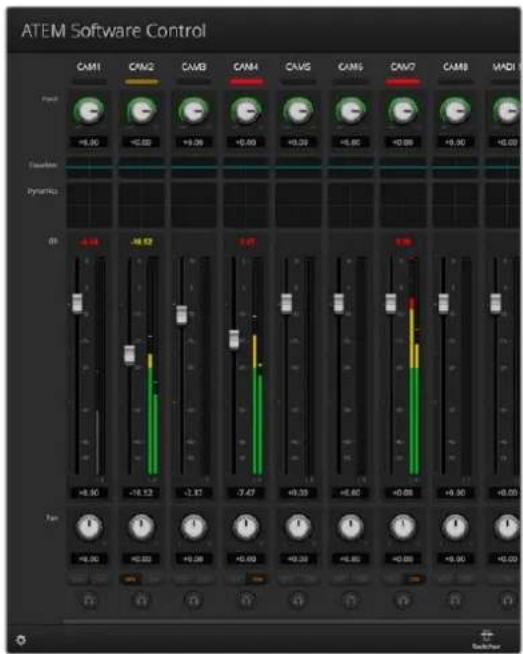
The audio meter for Cam1 is shown in gray to indicate that its audio will not be used as neither of its ON or AFV buttons are enabled. Cam2 has AFV selected but its audio is not currently being used as the camera is not on air as is indicated by its dull yellow tally light. Cam4 and Cam7 have their direct mix set to ON so their mixed audio is always used, and their tally lights remain lit, even if another camera is currently on air. The audio level meters for Cam3, Cam5, Cam6 and Cam8 show that no audio is present on these cameras.
Audio Source Selection
Below each audio level meter, you will find the ON and AFV buttons that select which audio sources are sent to the program output of the switcher.
| ON | Selecting the direct mix to ON allows an audio input to be permanently mixed into the program output, even when the associated video source is not on air. The red tally light will always be lit because the audio is always on air. Selecting this option automatically disables AFV. |
| AFV | Audio-follow-video (AFV) allows audio to crossfade when inputs change. The audio will only be sent to the program output when the input is on air, lighting the red tally light above. When off air, the tally light is lit dull yellow. Selecting this option automatically disables the direct mix ON setting. |
Master Audio Level Output
The master fader on the right side of the audio mixer is used to set the gain on the audio level on the SDI program outputs and has its own audio level meter. Select the AFV button on the master audio output fader to enable the AFV fade to black feature. This lets you fade your master audio when you click on the Fade to Black button.
Using MADI
Your ATEM switcher supports digital audio with the MADI protocol, also known as Multichannel Audio Digital Interface. MADI is popular with most professional audio manufacturers, broadcasters and high end recording facilities. These MADI ports have robust BNC connectors and transmit audio data over 75 ohm coaxial cables up to 100 meters long.
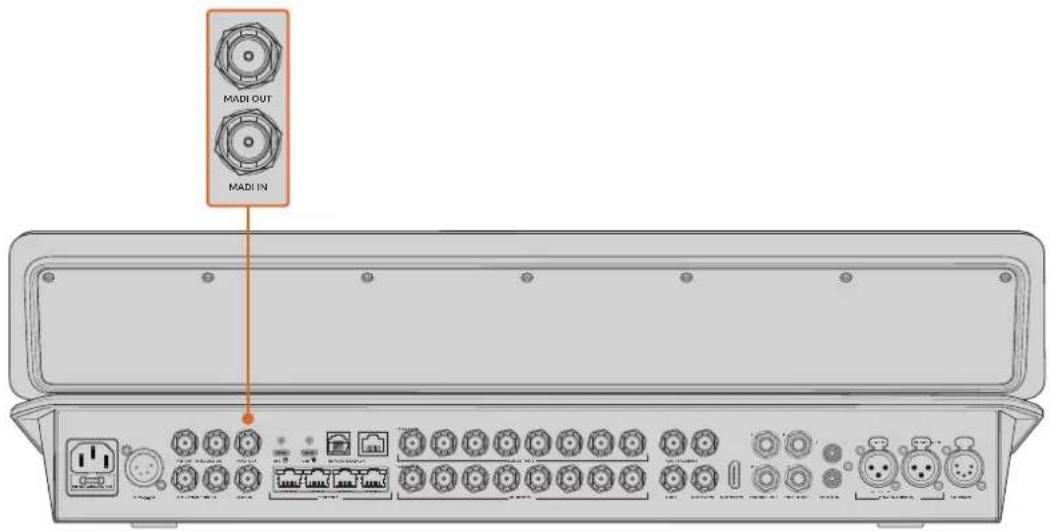
BNC connectors for MADI audio, plus 1/4" TRS connectors for analog audio in and out.
MADI In
MADI channels 1-16 receive digital audio at 24 bit depth with a sampling rate of 48 kHz. These are connected to an extra 16 stereo channels in the audio mixer that you can mix into the program output with the same EQ and dynamics as the video input audio mixing channels. These additional 16 stereo channel inputs mean you can do very complex audio mixing all within your ATEM switcher.
MADI Out 1
MADI Out 1 sends these sources:
| Channels 1-8 | Channels 1 and 2 of SDI inputs 1-8 |
| Channel 9 | Media player 1 audio |
| Channel 10 | Media player 2 audio |
| Channel 11 | External mic |
| Channel 12 | External XLR |
| Channel 13 | External RCA |
| Channel 14 | Program Mix |
| Channel 15 | Monitor Mix |
| Channel 16 | Aux mix 1 |
| Channel 17 | Aux mix 2 |
| Channels 18-25 | Channels 3 and 4 of SDI inputs 1-8 |
| Channels 26-32 | Not used |
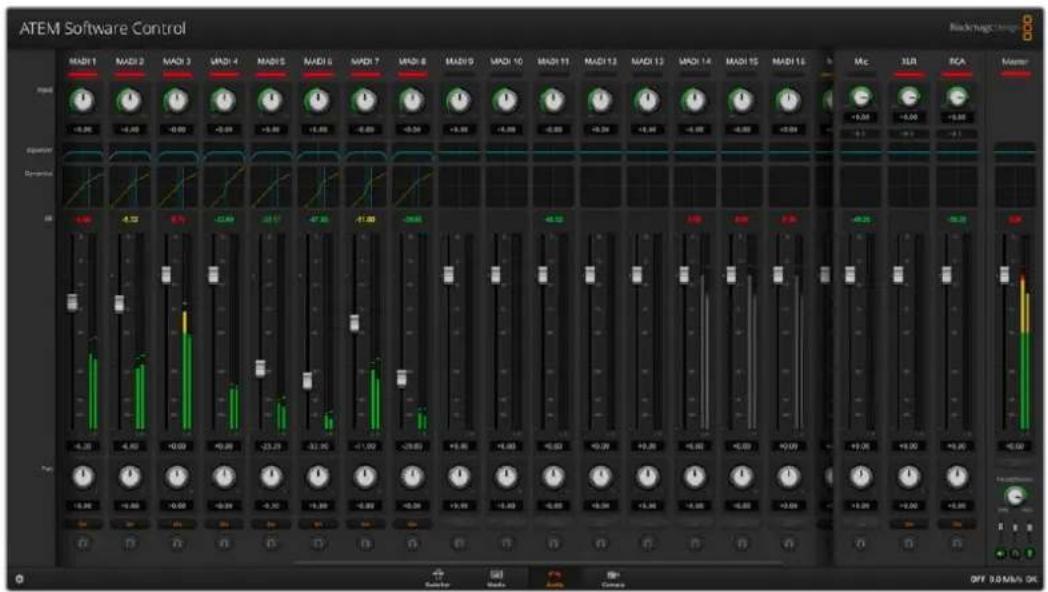
Headphones Settings
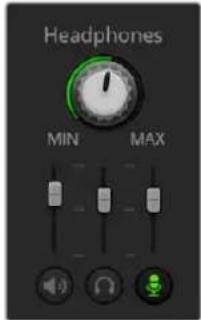
The headphones settings are used to adjust the audio mix for the headphones. A headset can be connected via the 5 pin XLR connector on the rear panel for communicating with camera operators. However, the headset is not just limited to talkback use as you can also use the headset microphone for doing voice overs and you can use the headset headphones for program audio monitoring.
Headphones settings let you mix the levels of each monitoring output. For example, you may want to increase or decrease the level of the talkback audio against the program audio.
Master
Adjust the master level slider to set the program audio level in the headset and if you don't want to listen to program audio, then slide this control fully to the left.
Talkback
The talkback level slider sets the audio level of camera operators who are talking to you and by setting the master and talkback sliders you can get your preferred balance of talkback and program audio into your headset.
Sidetone
The sidetone level slider lets you mix your voice from your headset mic into the monitor output. This is helpful when wearing a headset that supports noise canceling.
Advanced Fairlight Controls
ATEM Television Studio switchers have advanced Fairlight audio controls that let you enhance and refine the quality of sound on each input and master output, including input level controls, a 6 band parametric equalizer and powerful dynamics settings. This section of the manual shows the different Fairlight audio controls you can use to shape and optimize the audio mix in your live production.
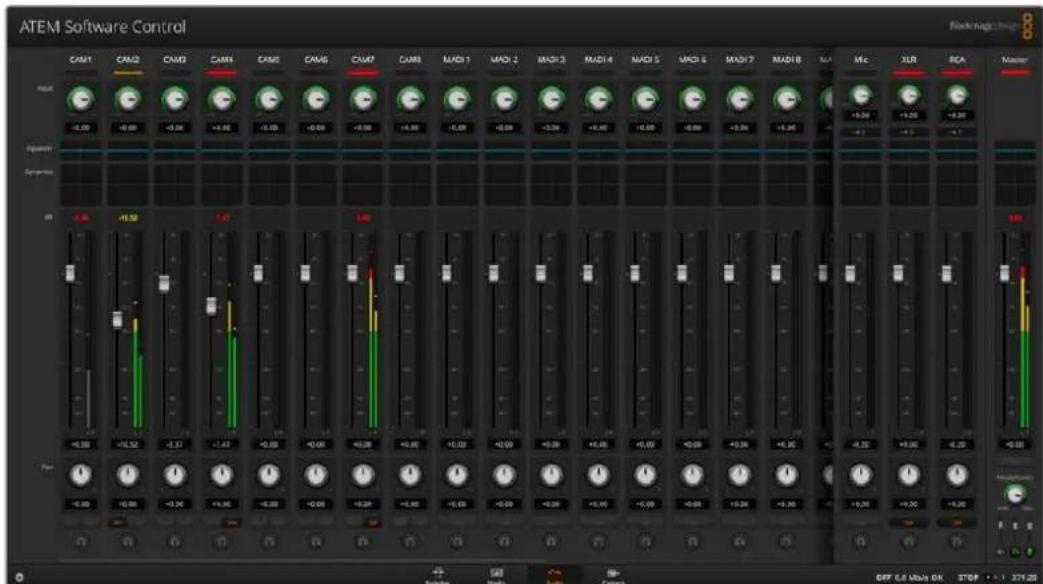
Input Level
Generally, when setting up your audio mix, the first step is to normalize all your inputs. This means adjusting the input level knob on each input so you can optimize all the levels to their highest strength without clipping.
This control is at the top of each track under the tally light. Change the level by clicking on the knob and dragging left to decrease the level, or right to increase. By setting the input control, it brings all the inputs up to a common signal strength so they are all at their strongest without clipping. Then you can start making advanced changes and refinements.
After you have normalized all your input levels, you can now begin optimizing and shaping the qualities in each audio input using the 6 band parametric equalizer and dynamics controls.
6 Band Parametric Equalizer
Each input and the master output, has a 6 band parametric equalizer which can be used to control specific frequencies. This could include reducing low frequency hum or noise on a microphone input, or boosting the low frequencies on a thin sounding track, or even to add uniqueness to each input so they are more distinct in the final mix. You have many creative options.
To open the parametric equalizer for an input or the master output, click on the corresponding equalizer indicator.
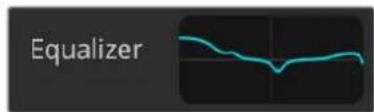
Click on an input's equalizer indicator to open a 6 band parametric equalizer
The first item you will notice is the graph along the top of the window with numbered indicators from 1 to 6. These numbered indicators are adjustable handles that correspond to bands 1 to 6.
Each band of the 6 band parametric equalizer has a column of settings. These settings will differ based on which band you are controlling and what filter type you are using.
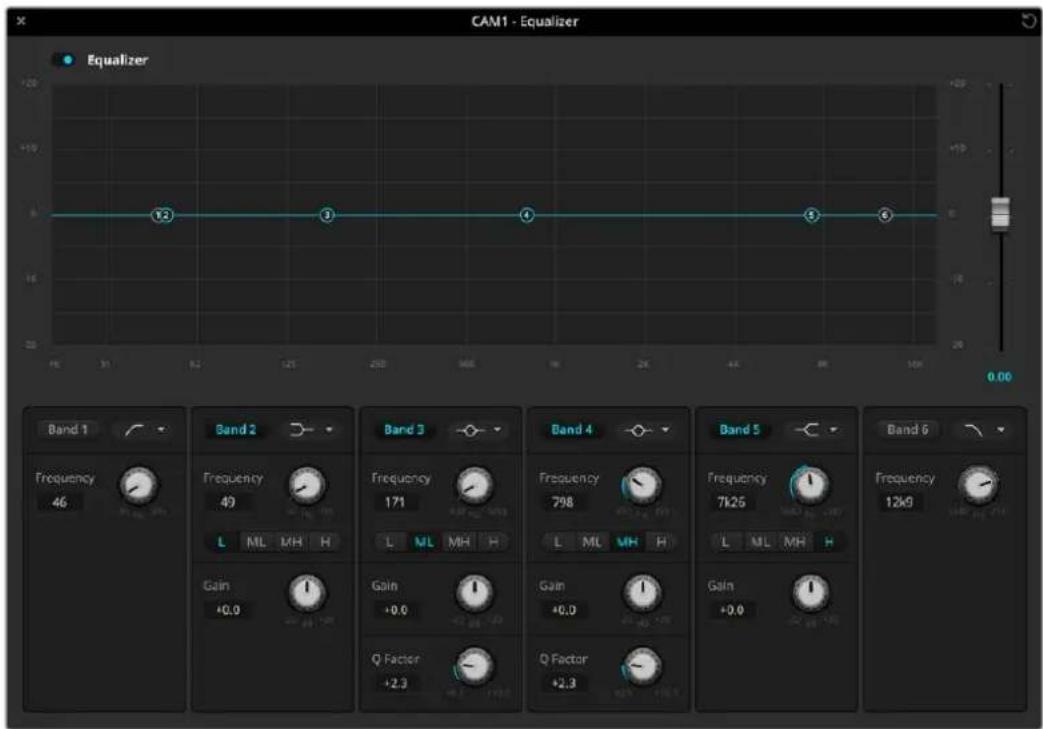
Each audio input has its own 6 band parametric equalizer
If you want to make changes to a setting, you will first need to make sure the band is enabled. Click on a band label to enable it. When enabled, the button label is illuminated blue. Now you can change the settings for that band, or click and drag the handles to make fast adjustments.
TIP You can learn more about band filters later in this section.
Handles
Each band handle is positioned along the line curve displayed in the graph. You can click and drag each handle to choose the frequency you wish to adjust for that band and the gain you want to set. When moving a handle with your mouse, both the frequency and gain settings are affected simultaneously, which gives you a fast way to make quick adjustments to each band across the entire range of frequencies.
NOTE To make changes using a handle, ensure the band is enabled. Simply click on the band you want to adjust. The band label will illuminate blue when enabled.
As you drag a handle left or right, you will notice the frequency and decibels update in the band settings. This will also be reflected by the frequency range preset buttons for low, medium low, medium high and high.
Frequency Knobs
Alternatively, you can use the frequency knobs for each band to select a specific frequency to adjust.
Range Presets
The frequency range for each band is defined by the range preset buttons. For example, low is labeled 'L' and covers the frequency range from 30 to 395 Hz.
As a quick example of how the range presets define the frequency range, select a notch filter from the band filter list and then click on each range preset. You will see the filter effect move to a position along the graph curve that corresponds to the range preset you choose. This lets you quickly define a specific range of frequencies you want the filter to affect.
Below is a table showing the range of frequencies for each range preset setting.
| Range Preset Frequency Range | |
| Low 30 Hz to 395 Hz | |
| Mid Low 100 Hz to 1.48 kHz | |
| Mid High 450 Hz to 7.91 kHz | |
| High 1.4 kHz to 21.7 kHz |
Gain Knobs
Click and drag the gain knob left or right to decrease or increase the volume level for the selected frequency.
Q Factor
The Q factor control is available when the bell filter is applied to bands 2, 3, 4 and 5. This sets the range of frequencies the filter will affect. For example, setting the minimum will allow the filter to affect a wide range of surrounding frequencies and the maximum setting will narrow the effect down to a tiny point. This is important if you have sound qualities in surrounding frequencies that you want to either include or exclude from the change you are making.
As you adjust the Q factor, watch the shape of the effect on the line curve change from a broad, rounded edge to a sharp point. This is a visual representation showing how the regions of frequencies surrounding the target frequency are affected.
TIP Compare the audio with changes against the original unaltered audio by clicking on the bypass button at the very top of the equalizer window. This lets you turn the equalizer on or off.
Band Filters
There are six different types of band filters you can choose from. These filters include bell, high shelf, low shelf, notch, high pass and low pass. These filters let you control specific zones within the frequency range. For example, a low shelf filter lets you increase or decrease the level of volume for lower frequencies on the graph, and a high shelf filter controls the higher frequencies.
Try setting a low shelf filter to band 3 and make changes to the gain setting. You will see the changes are weighted towards the low end frequencies on the graph.
A description for each filter type is provided below.
Bell High Shelf Low Shelf
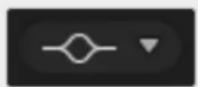
This filter is used to increase or decrease a range of frequencies surrounding a defined frequency.
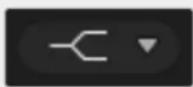
Lets you increase or decrease the level of volume for higher frequencies along the graph.
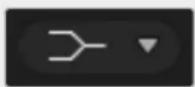
Lets you increase or decrease the level of volume for lower frequencies along the graph.
Notch High Pass Low Pass
This filter lets you remove, or cut, a defined frequency.
Smoothly removes extreme low end frequencies, allowing the high end frequencies to pass unaffected.
Smoothly removes extreme high end frequencies, allowing the low end frequencies to pass unaffected.
TIP It's not uncommon to have filters on each band overlapping on the graph curve with adjustments working together. For example, you may have a low shelf filter applied to band 4 and a notch filter on band 5 reducing a frequency within the same range.
Dynamics Controls
In addition to the 6 band parametric equalizer, you can also enhance and finesse the input and master output audio using dynamics controls. Where the equalizer lets you control the frequencies within a signal, dynamics controls let you set how various levels behave. Levels within the signal can be adjusted including expanding the dynamic range between low levels and high levels, gating an input so you can choose what is stronger or softer within a signal, or you can even use the compressor and limiter so that audio can be generally lifted and made stronger without clipping.
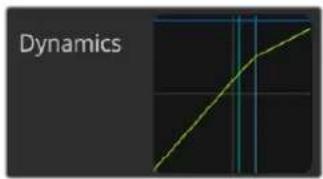
The dynamics controls can be opened for each input and the master output by clicking on its corresponding dynamics indicator
Combined with equalizer controls, these features are extremely powerful, giving you the ability to precisely shape and define the audio to generally optimize the sound of the master output.
This section describes the expander, gate, compressor and limiter controls.
Common Dynamics Settings
The expander/gate, compressor and limiter share common settings that let you shape how each function affects the audio. For example the level at which the function initiates, how long the function is applied, the strength of the function, etc. The settings available differ depending on the dynamics control you are using.
Threshold Sets the sound level at which the function activates. For example, setting the threshold for the compressor to -20dB tells your switcher to activate compression when the signal rises above -20dB. Alternatively, setting the expander to -40dB means the switcher will only initiate the expander once the signal level drops below -40dB.
Range This setting defines the range of decibels affected by the function.
Ratio Defines the maximum strength of the function once initiated.
Attack Sets the smoothness of the function when it initiates. For example, a long attack will allow the function to fade into the signal, blending in better without drawing too much attention, whereas a short attack may be better for complex sound activity with many quick variations where a longer attack may cause artifacts.
Hold Sustains the dynamics function over an adjustable period of time.
Release Similar to attack but occurs at the end of the function activity. For example, lets the dynamics function ease out gradually, or fall away rapidly, once the level moves out of the threshold.
Expander/Gate
The first set of dynamics parameters can be switched between expansion and gating.
Expansion emphasizes differences in volume by lowering the level of soft parts of the signal relative to the level of louder parts. You can use an expander to emphasize the differences between quiet and loud parts of a track, or to increase the dynamic range of a signal and minimize unwanted noise.
Gating is like an exaggerated expander, reducing the level or even silencing parts of a signal that fall below a certain level in order to reduce or eliminate noise in quiet parts of a recording. For example, a range of 15 to 20 dB can reduce breathing in a vocal track but leaves just enough to sound natural.
Gating is extremely effective, but it's also very powerful so requires careful attention. If the gate threshold is set too high it can cause artifacts, such as cutting off the start of a syllable or the quiet end of a word. You can compensate by reducing the threshold slightly, or by increasing the attack or release time.
Compressor
Compression lets you reduce peaks in an audio signal, reducing the dynamic range of a signal, so you can boost the overall level without clipping. This is helpful when you want to make sure the loud elements in a signal don't diminish the strength of quieter sounds, or to smoothen changes in audio levels within the signal.
TIP It's a good idea to apply the compressor after you have set the EQ controls.
Make Up
The make up setting lets you increase the overall signal in combination with compression settings. With loud parts of the audio reduced using compression, you can now use the make up control to boost the overall sound without clipping.
Limiter
The limiter prevents peaks of the signal from exceeding a set maximum level. A limiter is helpful to prevent hard clipping. For example, if you set the limiter to -8 dB, the input signal will never exceed that level. Adjusting the attack, hold and release settings will set how gentle the limiter affects the signal.
Dynamics Controls Characteristics
| Control Minimum Default Maximum | |||
| Expander/Gate | |||
| Expander Controls* | |||
| Threshold -50dB -45dB** 0dB | |||
| Range 0dB 18dB 60dB | |||
| Ratio 1.0:1 1.1:1 10:1 | |||
| Attack 0.5ms 1.4ms 30ms | |||
| Hold | 0.0ms | 0.0ms | 4s |
| Release | 50ms | 93ms | 4s |
| Gate Controls* | |||
| Threshold | -50dB | -45dB** | 0dB |
| Range 0dB 18dB 60dB | |||
| Attack | 0.5ms | 1.4ms | 30ms |
| Hold | 0.0ms | 0.0ms | 4s |
| Release | 50ms | 93ms | 4s |
| Compressor | |||
| Compressor Controls | |||
| Threshold | -50dB | -35dB | 0dB |
| Ratio 1.0:1 | 2.0:1 10:1 | ||
| Attack | 0.7ms | 1.4ms | 30ms |
| Hold | 0.0ms | 0.0ms | 4s |
| Release | 50ms | 93ms | 4s |
| Limiter | |||
| Limiter Controls | |||
| Threshold | -50dB | -12dB | 0dB |
| Attack | 0.7ms | 0.7ms | 30ms |
| Hold | 0.0ms | 0.0ms | 4s |
| Release | 50ms | 93ms | 4s |
* Master Dynamics expander/gate controls are unused in Master Dynamics.
** Master Dynamics expander/gate threshold default is -35dB. Mic Dynamics and XLR Dynamics expander/gate threshold default is -45dB.
Using Camera Control
Clicking on the 'camera' button in ATEM Software Control opens the camera control feature that lets you control Blackmagic cameras including Blackmagic Studio Camera 6K Pro and URSA Broadcast G2 from your ATEM switcher. Blackmagic camera settings such as iris, gain, focus, detail and zoom control are easily adjusted using compatible lenses, plus you can color balance cameras and create unique looks using the DaVinci Resolve primary color corrector that's built into the camera.
ATEM camera control works by broadcasting camera control packets via all the non down converted SDI outputs of your ATEM switcher. This means you can connect an SDI output from your switcher to your camera's SDI return input and the camera will detect the control packets in the SDI link and allow you to control features in the camera itself.

ATEM Camera Control.
To connect cameras:
1 Connect your Blackmagic camera's SDI output to any SDI input on your ATEM switcher.
2 Connect any one of your ATEM switcher's SDI outputs, except multiview outputs, to your camera's program SDI input. Camera control signals are not sent via the multiview outputs.
3 In your camera's settings, set the camera ID number to match your switcher input. For example, if studio camera 1 is connected to 'input 1' on your ATEM switcher, the camera number in your camera settings must also be set to 1. This ensures tally is sent to the correct camera.
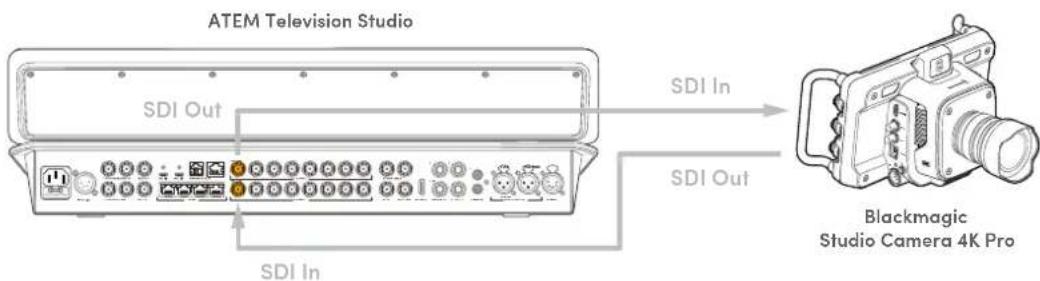
Camera Control Panel
Launch ATEM Software Control and click on the 'camera' button located at the bottom of the software window. You'll see a row of labeled Blackmagic camera controllers containing tools to adjust and refine each camera's image. The controllers are easy to use. Simply click the buttons using your mouse, or click and drag to adjust.
Camera Control Selection
The button row at the top of the camera control page lets you select the camera number you would like to control. If you have more cameras that fit onto the window size, or you are running the color corrector window, then you can use these buttons to select between which camera you would like to control. If you are using an output for monitoring your camera control, pushing these buttons to change the camera to control will also send that camera's video output to the output setup in the switcher preferences.
Channel Status
The channel status at the top of each camera controller displays the camera label, On Air indicator and lock button. Press the lock button to lock all the controls for a specific camera. When on air, the channel status illuminates red and displays the On Air alert.
Camera Settings
The camera settings button near the bottom left of the master wheel lets you turn on the color bars setting on Blackmagic Studio Camera, URSA Mini and URSA Broadcast, plus adjust detail settings for each camera's picture signal.
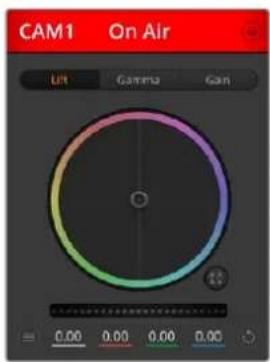
Each camera controller displays the channel status so you know which camera is on air. Use the color wheels to adjust each YRGB channel's lift, gamma and gain settings.
Show/Hide Color Bars
Blackmagic cameras have a color bars setting built in which you can turn on or off by selecting 'show' or 'hide' color bars. This feature can be very useful for visually identifying individual cameras while setting up for your live production. Color bars also provide an audio tone so you can easily check and set the audio levels from each camera.
Detail
Use this setting to sharpen the image from your cameras live. Decrease or increase the level of sharpening by selecting: Detail off, detail default for low sharpening, medium detail and high detail.
Color Wheel
The color wheel is a powerful feature of the DaVinci Resolve color corrector and used to make color adjustments to each YRGB channel's lift, gamma and gain settings. You can select which setting to adjust by clicking on the three selection buttons above the color wheel.
Master Wheel
Use the master wheel below the color wheel to make contrast adjustments to all YRGB channels at once, or luminance only for each lift, gamma or gain setting.
Reset Buttons
The reset button near the bottom right of each camera controller lets you easily choose color correction settings to reset, copy or paste. Each color wheel also has its own reset button.
Press to restore a setting to its default state, or copy/paste a setting. Locked controllers are not affected by the Paste feature.
The master reset button on the bottom right corner of the color corrector panel lets you reset lift, gamma and gain color wheels plus Contrast, Hue, Saturation and Lum Mix settings. You can paste color correction settings to camera controllers individually, or all cameras at once for a unified look. Iris, focus, coarse and pedestal settings are not affected by the Paste feature. When applying Paste to all, a warning message will appear asking you to confirm your action. This is so you don't accidentally paste new settings to any unlocked cameras that are currently on air.
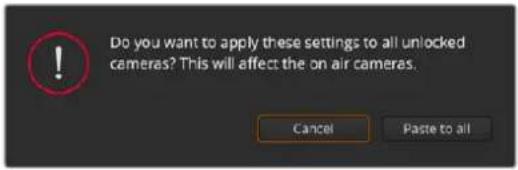
When applying 'paste to all', a warning message will appear asking you to confirm your action. This is so you don't accidentally paste new settings to any unlocked cameras that are currently on air.
Iris/Pedestal Control
The iris/pedestal control is located within the cross hairs of each camera controller. The control illuminates red when its camera is on air.
To open or close the iris, drag the control up or down. Holding the shift key allows only iris adjustments.
To darken or lift the pedestal, drag the control left or right. Holding the command key on a Mac, or the Control key on Windows, allows only pedestal adjustments.
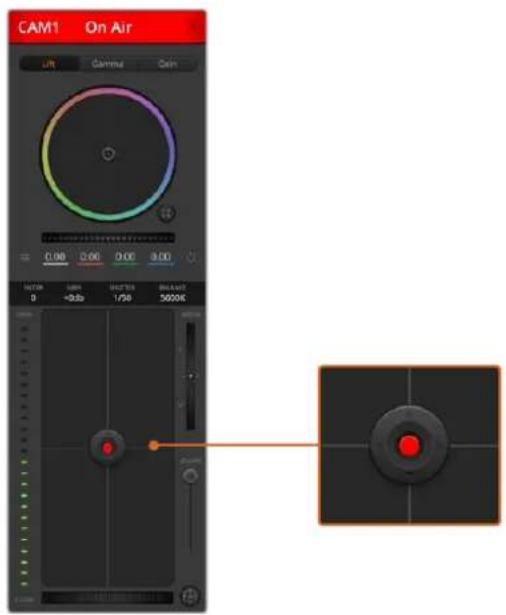
The iris/pedestal control illuminates red when its respective camera is on air.
Zoom Control
When using compatible lenses with an electronic zoom feature, you can zoom your lens in and out using the Zoom control. The controller works just like the zoom rocker on a lens, with telephoto on one end and wide angle on the other. Click on the zoom control, located above the Coarse slider and drag up to zoom in, or drag down to zoom out.
Coarse Setting
The coarse setting is located to the right of the iris/pedestal control and is used to limit the iris range. This feature helps you prevent over exposed images from going to air.
To set your coarse threshold, completely open the iris using the iris control, then drag the coarse setting up or down to set optimum exposure. Now when you adjust the iris, the coarse threshold will prevent it from going above optimum exposure.
Iris Indicator
The iris indicator is located to the left of the iris/pedestal control and displays a visual reference so you can easily see how open or closed the lens aperture is. The iris indicator is affected by the coarse setting.
Auto Focus Button
The auto focus button is located at the bottom right corner of each camera controller. Press to automatically set the focus when you have an active lens that supports electronic focus adjustments. It's important to know that while most lenses support electronic focus, some lenses can be set to manual or auto focus modes and so you need to ensure your lens is set to auto focus mode. Sometimes this is set by sliding the focus ring on the lens forward or backward.
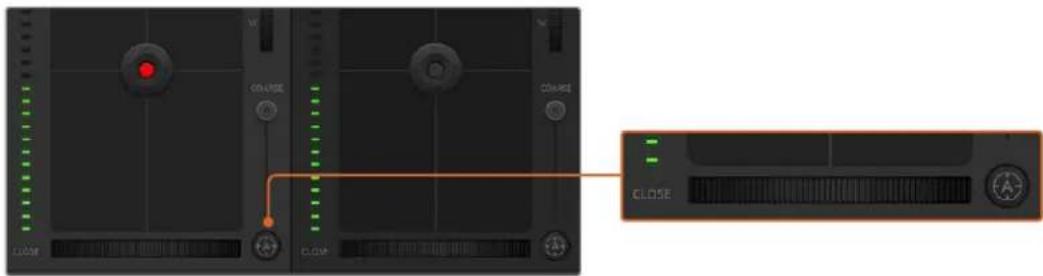
Click on the auto focus button or drag the manual focus adjustment left or right to focus a compatible lens.
Manual Focus Adjustment
When you want to adjust the focus on your camera manually, you can use the focus adjustment located at the bottom of each camera controller. Drag the wheel control left or right to manually adjust focus while viewing the video feed from the camera to ensure your image is nice and sharp.
Camera Gain
The camera gain setting allows you to turn on additional gain in the camera. This is important when you are operating in low light conditions and need extra gain in the front end of the camera to avoid your images being under exposed. You can decrease or increase gain by clicking on the left or right arrows on the dB gain setting.
You can turn on some gain when you need it, such as outdoor shoots when the light fades at sunset and you need to increase your image brightness. It's worth noting that adding gain will increase noise in your images.
Shutter Speed Control
The shutter speed control is located in the section between the color wheel and the iris/pedestal control. Decrease or increase the shutter speed by hovering your mouse pointer over the shutter speed indicator and then clicking on the left or right arrows.
If you see flicker in lights you can decrease your shutter speed to eliminate it. Decreasing shutter speed is a good way to brighten your images without using camera gain because you are
increasing the exposure time of the image sensor. Increasing shutter speed will reduce motion blur so can be used when you want action shots to be sharp and clean with minimal motion blur.
White Balance
The white balance setting next to the shutter speed control can be adjusted by clicking on the left or right arrows on each side of the color temperature indicator. Different light sources emit warm or cool colors, so you can compensate by adjusting the white balance. This ensures the whites in your image stay white.
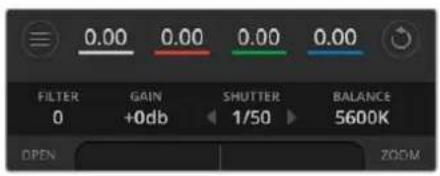
Hovering your mouse pointer over the filter, gain, shutter speed and white balance indicators reveal arrows you can click on to adjust their respective settings.
DaVinci Resolve Primary Color Corrector
If you have a color correction background, then you can change your camera control from a switcher style CCU interface to a user interface that's more like a primary color corrector on a post production color grading system.
Blackmagic cameras feature a DaVinci Resolve primary color corrector built in. If you have used DaVinci Resolve, then creatively, grading in the Blackmagic camera will be identical so you can use your color grading experience for live production. The color corrector panel can be expanded out of any camera controller and provides expanded color correction control with extra settings and a full primary color corrector interface.
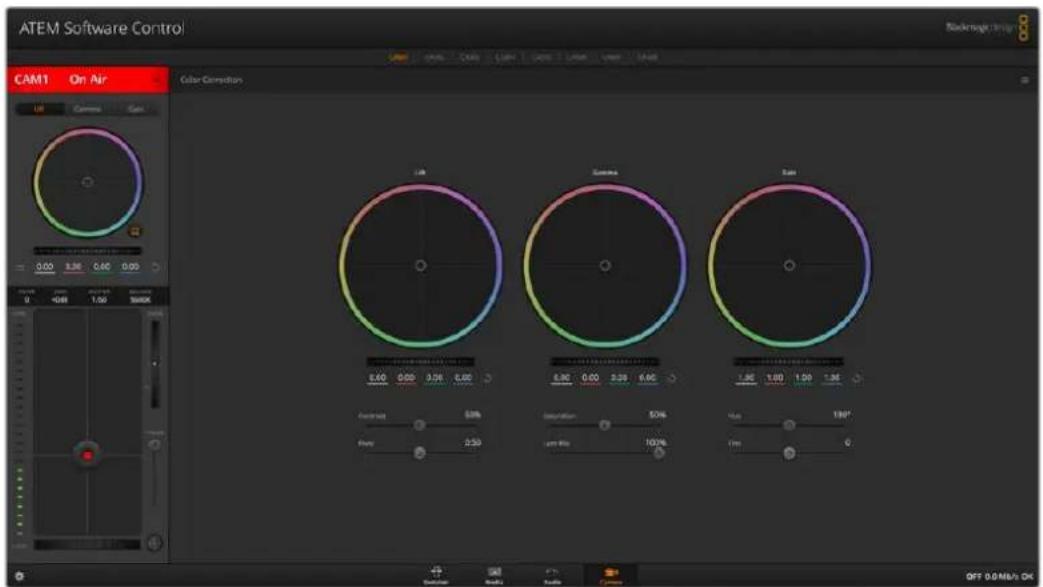
Click on the DaVinci Resolve primary color corrector button to expand the color correction window and adjust settings.
You have color wheels and settings such as saturation available and you can see shadows, mid tones and highlight settings all at the same time. Simply switch between cameras using the camera selection controls at the top of the window as you need.
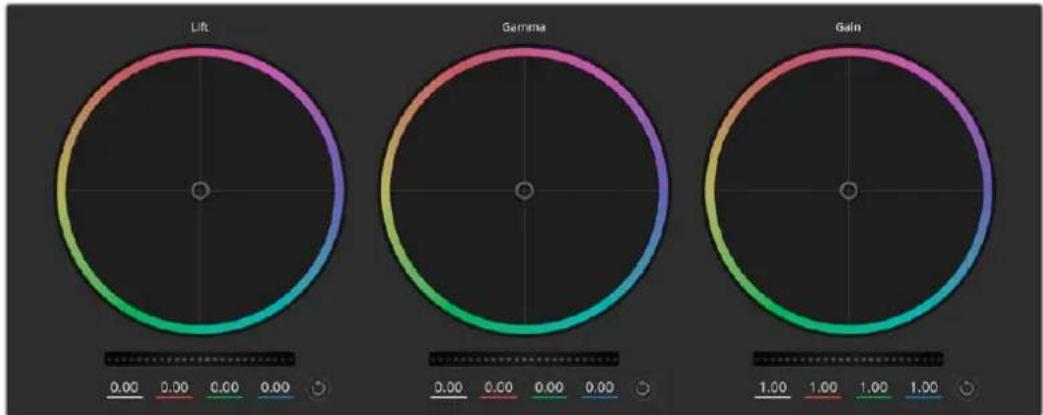
radar
| Metric | Value | |--------|-------| | Lift | 0.00 | | Gamma | 0.00 | | Gain | 1.00 |Lift, gamma and gain color wheels in the color corrector panel.
Color Wheels
Click and drag anywhere within the color ring
Note that you don't need to drag the color balance indicator itself. As the color balance indicator moves, the RGB parameters underneath change to reflect the adjustments being made to each channel.
Shift-Click and drag within the color ring
Jumps the color balance indicator to the absolute position of the pointer, letting you make faster and more extreme adjustments.
Double-click within the color ring
Resets the color adjustment without resetting the master wheel adjustment for that control.
Click the reset control at the upper-right of a color ring
Resets both the color balance control and its corresponding master wheel.
Master Wheels
Use the master wheels below the color wheels to adjust each YRGB channels' lift, gamma and gain controls.
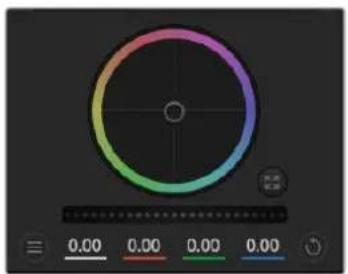
Dragging to the left darkens the selected parameter of the image, dragging to the right lightens that parameter. As you make an adjustment, the YRGB parameters underneath change to reflect the adjustment you're making. To make a Y-only adjustment, hold down the ALT or Command key and drag left or right. Because the color corrector uses YRGB processing, you can get quite creative and create unique affects by adjusting the Y channel only. Y channel adjustments work best when the Lum Mix setting is set to
the right side to use YRGB processing vs the left side to use regular RGB processing. Normally, most DaVinci Resolve colorists use the YRGB color corrector as you get a lot more control of color balance without affecting overall gain, so you spend less time getting the look you want.
Contrast Setting
The Contrast setting gives you control over the distance between the darkest and lightest values of an image. The effect is similar to making opposing adjustments using the lift and gain master wheels. The default setting is 50%.
Pivot Setting
Once the contrast setting is adjusted, modifying the pivot value will adjust the midpoint of the contrast. The Pivot control establishes the contrast balance by placing more or less priority on either side of the luminance scale. By lifting the control, you will increase the overall brightness and clarity of the image, although at the inverse expense of the shadows, which will be reduced.
Saturation Setting
The Saturation setting increases or decreases the amount of color in the image. The default setting is 50%.
Lum Mix Setting
The color corrector built into Blackmagic cameras is based on the DaVinci Resolve primary color corrector. DaVinci has been building color correctors since the early 1980's and most Hollywood films are color graded on DaVinci Resolve than any other method.
This means that your color corrector built into the camera has some unique and creatively powerful features. The YRGB processing is one of those features.
When color grading, you can choose to use RGB processing, or YRGB processing. High end colorists use YRGB processing because you have more precise control over color and you can independently adjust the channels with better separation and more creative options.
When the Lum Mix control is set to the right side, you have the 100% output of the YRGB color corrector. When you have the Lum Mix control set to the left side, you get 100% output of the RGB corrector. You can set the Lum Mix to any position between the left and right to get a blend of output from both the RGB and YRGB correctors.
Which is the correct setting to use? That's up to you, as color correction is a pure creative process and there is no right and wrong. The best setting is what you like the most and what you think looks good!
Hue Setting
The Hue setting rotates all hues of the image around the full perimeter of the color wheel. The default setting of 180 degrees shows the original distribution of hues. Raising or lowering this value rotates all hues forward or backward along the hue distribution as seen on a color wheel.
Tint Setting
Adjusting the tint setting will add green or magenta to the image to help balance the color. This can assist when filming with artificial lighting sources such as fluorescent and sodium vapor lighting fixtures.

Drag the sliders left or right to adjust Contrast, Saturation, Hue and Lum Mix settings.
Synchronizing Settings
When connected, camera control signals are sent from your ATEM switcher to the Blackmagic camera. If a setting is accidentally adjusted from your camera, camera control will automatically reset that setting to maintain synchronization.
Operating your ATEM Switcher
Internal Video Sources
In addition to the SDI inputs, the switcher also has 8 internal sources that can be used in a production. The internal source names are represented on the software control panel using both long and short names. On the ATEM switcher, a long name is used to represent the internal sources and the labels represent what the sources are, so they are easy to understand.
Black
Internally generated black is available as a source and can be used as a black matte in the production.
Color Bars
Internally generated color bars are available as a source. Color bars can be useful for verifying signals going out of the switcher and can also be useful when setting up a chroma key with a vectorscope monitor.
Color Generators
ATEM switchers have two color sources that can be customized to generate any color matte for use in the production. Color sources can be used to add color borders for wipe transitions or as dip through colors for a dip transition such as dip through white.
To adjust a color source on the software control panel, simply go to the color palette and click the color chip and the color picker will appear and you can select colors. On the ATEM switcher, select color on the system control and adjust hue, saturation and luminance.
It's important to know that the deepest colors are set at 50% luminance.
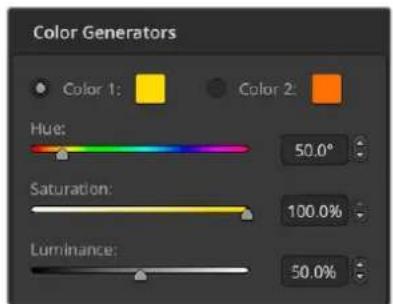
ATEM switchers have two color sources that can be customized to generate any color matte for use in the production
Media Players
Each source has a fill and key (cut) output. Media player fill sources are called media player 1 or 2. Media player key sources are called media player 1 key, media player 2 key, etc.
The media player sources are used to play stills and clips from the media pool. The fill sources show the color channels of the selected clip or still while the key sources show the black and white alpha channel of the selected clip or still. Media players can be used in many parts of the production.
To control media players on ATEM Television Studio switchers:
1 From the system control menu buttons, navigate to the media player menu by pressing the 'media players' button.
2 Select the media player you want to control from the soft buttons above the LCD.
3 Use the control knob to select the clip or still from the media pool.
4 If you have selected a motion clip, press the right arrow button. The play/stop, loop, step back and frame controls will be enabled for controlling the clip.
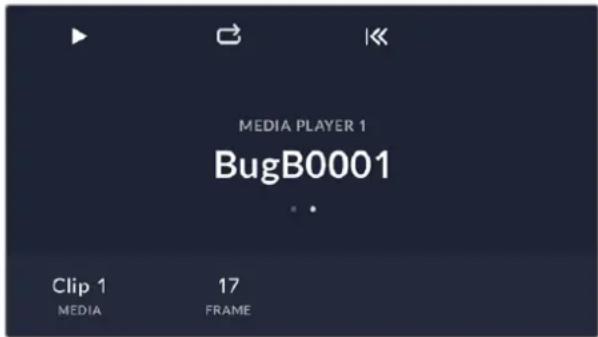
To control media players on the software control panel:
1 From the switcher window, select the media player palette.
2 Use the select media drop down list to select a clip or still from the media pool.
3 If you have selected a motion clip, the begin, step back, play/pause, step forward and loop transport controls will be enabled for controlling the clip. If you want to loop a clip, then select the loop button and press play. The media player will keep looping until selected to stop.
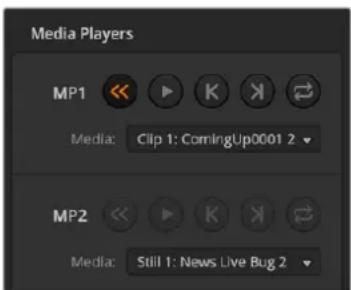
Media players showing a clip loaded into each on ATEM software control
All Transition Types
One of the primary functions of a broadcast switcher is performing transitions from one video source to another. The combinations of transition effects and styles provide endless creative options that can enhance your production in just the right way for the right moment.
You can perform transitions using the ATEM switcher hardware or ATEM Software Control. This section shows you how to perform the various transitions available on your switcher.
Cut Transitions
The cut is the most basic transition that can be performed on the switcher. In a cut transition the program output is immediately changed from one source to another.

Program output for a cut transition.
A cut transition can be performed directly from the program bus, or using the CUT button in the transition control block.
Program Bus
When a cut transition is performed from the program bus, only the background will be changed and all upstream and downstream keys will maintain their current state.
To perform a cut transition from the program bus on ATEM Television Studio:
On the program bus, select the video source that you want on the program output. The program output will immediately change to the new source.
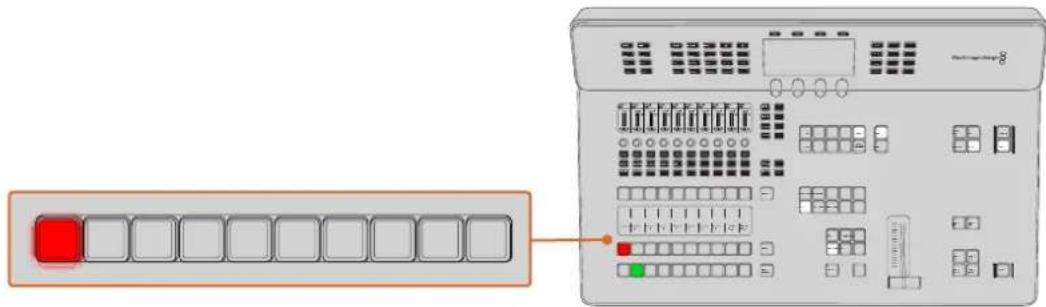
natural_image
Illustration of a control panel with multiple function keys and a red indicator button (no text or symbols present)Press any of the source buttons on the program row to perform a cut transition from the program bus
To perform a cut transition from the program bus on the software control panel:
On the program bus, select the video source that you want on the program output next. The program output will immediately change to the new source.
To perform a cut transition on the software control panel using a keyboard:
1 Enable
2 Press the number key on the keyboard corresponding to the video source that you want on the program output. The program output will immediately change to the new source.
CUT Button
When a cut transition is performed using the CUT button, any upstream keys that were selected in the next transition and any downstream keys that were tied to the transition control will also change state. For example, a downstream key tied to the transition control will cut ON if off air, or cut OFF if on air. Similarly, any upstream keys selected in the next transition will be cut on if they were off air, or cut off if they were on air.
To perform a cut transition using the CUT button on ATEM Television Studio:
1 On the preview bus, select the video source that you want on the program output. The program output will remain unchanged.
2 In the transition control block, press the CUT button. The sources selected on the program and preview buses are exchanged to indicate that the video source that was on preview is now on program and vice versa.
It's recommended to use the transition control block to perform transitions because it provides the opportunity to verify the video content on the preview output before sending it to the program output, for example to verify that a camera is in focus.
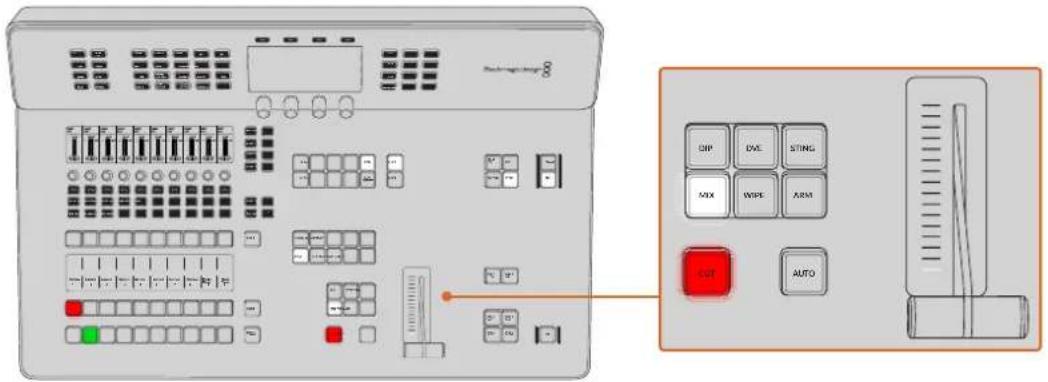
To perform a cut transition using the CUT button on the software control panel:
1 On the preview bus, select the video source that you want on the program output. The program output will remain unchanged.
2 In the transition control block, press the CUT button. The sources selected on the program and preview buses are exchanged to indicate that the video source that was on preview is now on program and vice versa.
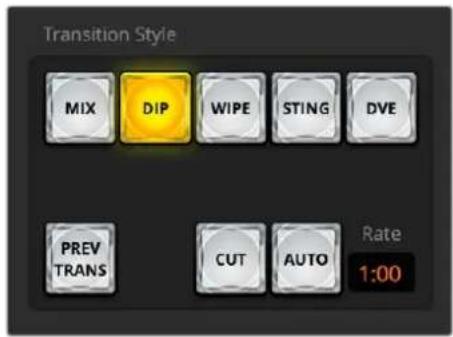
The Cut transition button is part of the Transitions Style group
To perform a cut transition on the software control panel using a keyboard:
1 Ensure that
2 Press the number key on the keyboard corresponding to the video source that you want on the program output. The source will be selected on preview and the program output will remain unchanged.
3 Press
Auto Transitions
An auto transition allows you to automatically transition between program and preview sources at a predetermined rate. Any upstream keys that were selected in the next transition and any downstream keys that were tied to the transition control will also change state. Auto transitions are performed using the auto button in the transition control block. Mix, dip, wipe, DVE and stinger transitions can all be performed as an AUTO transition.
To perform an auto transition on ATEM Television Studio:
1 On the preview bus, select the video source that you want on the program output.
2 Select the transition type using the transition type buttons in the transition control block.
3 In the system control, set the transition rate and adjust any other parameter for the transition as needed.
4 Press the AUTO button in the transition control block to initiate the transition.
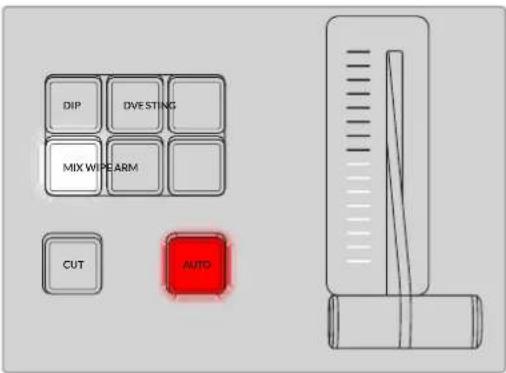
Transition types, for example dip, mix and wipe, have their own independent selection button
During the transition, the red and green buttons on the program and preview buses both turn red to indicate that you are in the middle of a transition. The fader bar indicator displays the position and progress of the transition and the transition rate display updates to indicate the number of frames remaining as the transition progresses.
At the end of the transition, sources selected on the program and preview buses are exchanged to indicate that the video source that was on preview is now on program and vice versa.
Each transition type has its own independent transition rate allowing the operator to perform faster transitions by simply selecting the transition type and pressing the AUTO button. The previously used transition rate is remembered for that transition type until it is changed.
A production switcher provides multiple methods of transitioning from one shot to another. Generally, you use a simple cut transition to move from one background source to another. Mix, dip, wipe and DVE transitions allow you to transition between two background sources by gradually phasing out one and phasing in another. Stinger and Graphic Wipe are special transitions which will be covered in a later section. Mix, dip, wipe and DVE transitions are performed as an auto transition or manual transition using the transition control block.
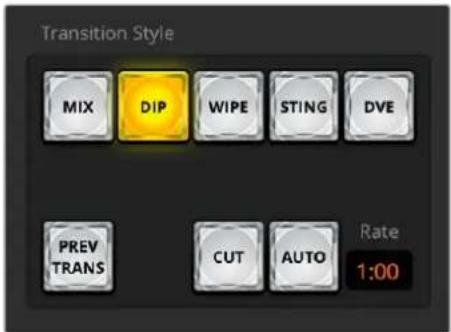
The Auto transition button is part of the Transitions Style group
To perform an auto transition on the software control panel:
1 On the preview bus, select the video source that you want on the program output.
2 Select the transition type using the transition style buttons in the transition control block.
3 In the transition palette, select the settings tab for the same transition type as the transition control block.
4 Set the transition rate and adjust any other parameter for the transition as needed.
5 Press the AUTO button in the transition control block to initiate the transition.
6 During the transition, the red and green buttons on the program and preview buses both turn red to indicate that you are in the middle of a transition. The virtual fader bar automatically follows the progress of the transition and the rate display updates to indicate the number of frames remaining as the transition progresses.
7 At the end of the transition, sources selected on the program and preview buses are exchanged to indicate that the video source that was on preview is now on program and vice versa.
To perform an auto transition on the software control panel using a keyboard:
1 Ensure that
2 Press the number key on the keyboard corresponding to the video source that you want on the program output. The source will be selected on preview and the program output will remain unchanged.
3 Select the transition type using the transition style buttons in the transition control block.
4 In the transition palette, select the settings tab for the same transition type as the transition control block.
5 Set the transition rate and adjust any other parameter for the transition as needed.
6 Press the
During the transition, the red and green buttons on the program and preview buses both turn red to indicate that you are in the middle of a transition. The virtual fader bar automatically follows the progress of the transition and the rate display updates to indicate the number of frames remaining as the transition progresses.
At the end of the transition, sources selected on the program and preview buses are exchanged to indicate that the video source that was on preview is now on program and vice versa.
Mix Transitions
A mix is a gradual transition from one source to another and is achieved by interpolating gradually between two sources, effectively overlapping the sources for the duration of the effect. The length of the transition or length of the overlap can be adjusted by changing the mix rate.

Program output for a mix transition.
To perform a mix transition on ATEM Television Studio:
1 On the preview bus, select the video source that you want on the program output.
2 Press the DIP/MIX or MIX button to select the mix transition type. The system control automatically navigates to the transition menu.
3 Using the LCD panel, use the soft control knob to adjust the mix rate. The transition rate display in the switcher's transition control block will update dynamically. You can also enter a rate duration using the number pad.
4 Perform the transition as an auto transition or manual transition from the transition control block.
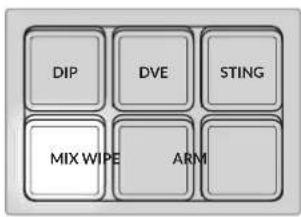
Press the 'mix' button and set the transition rate using the LCD menu and control knob
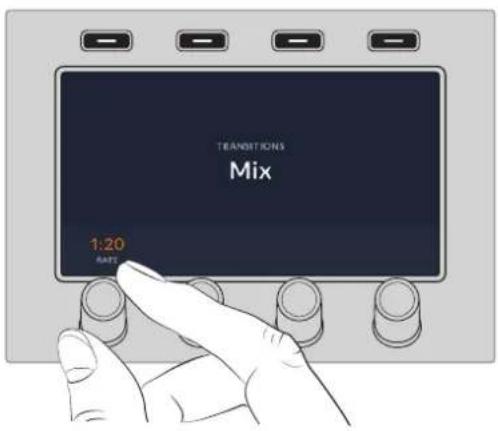
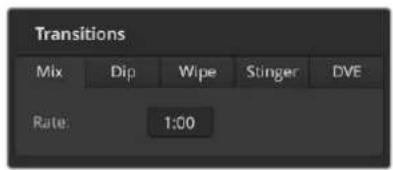
Mix Transition rate setting
To perform a mix transition on the software control panel:
1 On the preview bus, select the video source that you want on the program output.
2 Select the mix transition style in the transition control block.
3 Expand the transition palette and select mix from the transition types bar.
4 Adjust the mix rate by entering a number in the rate window. The rate display in the transition control block will update.
5 Perform the transition as an auto transition or manual transition from the transition control block.
Mix Transition Parameters
| Rate | The mix transition rate in seconds : frames. |
Dip Transitions
A DIP is similar to a mix in that it is a gradual transition that transitions from one source to another. However, a dip transition gradually mixes through a third source, the dip source. For example, the dip transition can be used for a transition that calls for a white flash or a transition that quickly flashes the sponsor logo. The length of the dip transition and the dip source can both be customized.

Program output for a dip transition.
To perform a dip transition on ATEM Television Studio:
1 On the preview bus, select the video source that you want on the program output.
2 Press the DIP button to select the dip transition type. The LCD menu will automatically display the transition settings.
3 Under the LCD use the control knob to adjust the dip rate. You can also enter a rate duration using the number pad.
4 Use the corresponding control knob to select the dip source. You can also use the select bus to select a dip source.
5 Perform the transition as an auto transition or manual transition from the transition control block.
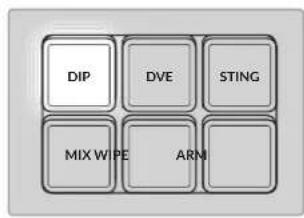
Press the 'dlip' button in the transition control block, then set the dip source and transition rate using the LCD menu and control knobs
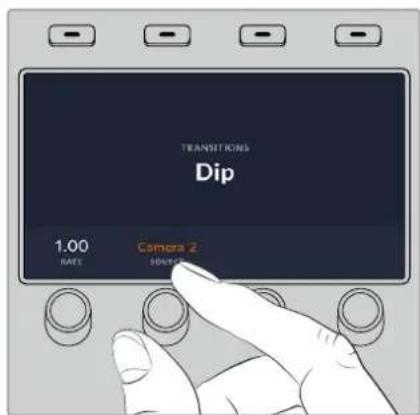
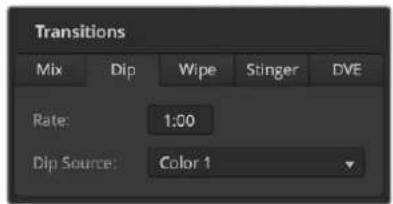
Dip Transition Settings
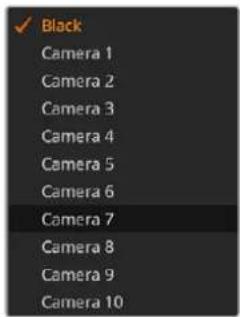
Dip Source Menu
To perform a dip transition on the software control panel:
1 On the preview bus, select the video source that you want on the program output.
2 Select the DIP transition style in the transition control block.
3 Expand the transition palette and select dip from the transition types bar.
4 Adjust the dip rate by entering a number in the rate window. The rate display in the transition control block will update.
5 Select the dip source.
6 Perform the transition as an auto transition or manual transition from the transition control block.
Dip Transition Parameters
Rate The dip transition rate in seconds and frames.
Dip Source The dip source is any video signal in the switcher that will be used as the intermediate picture for the dip transition, usually a color generator or media player.
Wipe Transitions
A wipe is a transition from one source to another and is achieved by replacing the current source by another source with a pattern that forms a shape. For example an expanding circle or diamond.






Program output for a wipe transition.
To perform a wipe transition on ATEM Television Studio:
1 On the preview bus, select the video source that you want on the program output.
2 Press the WIPE button to select the wipe transition type. The LCD menu will automatically display the transition settings.
3 Use the system control knob to select the wipe pattern and rate. The buttons can be used to select the wipe direction.
4 Use the arrow buttons to the left of the LCD button to navigate all the available wipe properties including position, symmetry and border source.
5 Perform the transition as an auto transition or manual transition from the transition control block.
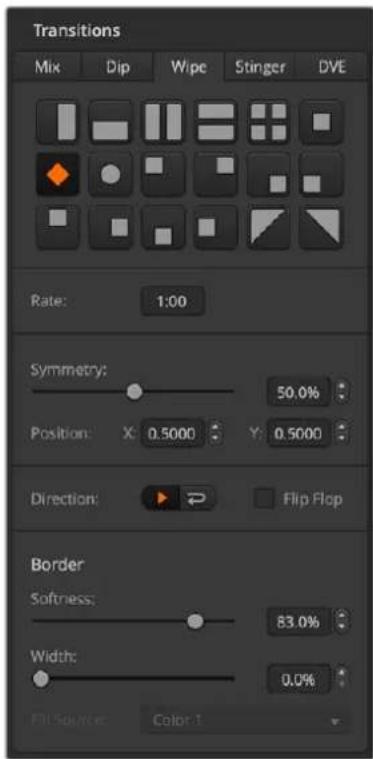
Wipe Transition Settings
To perform a wipe transition on the software control panel:
1 On the preview bus, select the video source that you want on the program output.
2 Select the WIPE transition style in the transition control block.
3 Expand the transition palette and select wipe from the transition types bar.
4 Use the settings in the wipe palette to customize the wipe transition.
5 Perform the transition as an auto transition or manual transition from the transition control block.
Wipe Transition Parameters
| Rate The length of the wipe transition in seconds and frames. | |
| Symmetry Symmetry can be used to control the aspect ratio of the pattern.For example, adjusting the symmetry will allow you to change a circle into an ellipse. On the ATEM switcher symmetry can be adjusted using the control knob. | |
| Position If the wipe pattern has positioning then the control knobs on the switcher or the x position: and y position: boxes in the transition palette of the software control panel can be used to move the center of the pattern. | |
| Reverse Direction Reverse changes the progression of closed patterns such as circles, diamonds and boxes so that the pattern closes in from the edges of the screen toward the center. The text will illuminate orange when selected. | |
| Flip Flop When flip flop mode is toggled on, the transition changes between normal to reverse every time the transition is executed. The text will illuminate orange when selected. | |
| Border Softness The edges of the wipe pattern can be adjusted between sharp and fuzzy by adjusting the softness parameter. | |
| Border Width of the border. | |
| Border Fill Source | The border source used in a wipe transition can be any source in the switcher. For example, a thick border with the media player as its source can be used for sponsorship or branding. |
Stinger Transitions
The stinger transition uses a clip from the media player to perform a transition. The clip is normally a graphic animation that is keyed over the background. As the animation plays, when it is full screen, a cut or mix of the background is performed under the animation. For example, this type of transition is very popular in sports productions for transitioning in and out of instant replays. The stinger transition takes advantage of a special keyer that is built into the transition block, leaving all of the upstream and downstream keyers available for compositing your output. The following section explains how to build and perform stinger transitions.
Performing a Stinger Transition
To perform a stinger transition on ATEM Television Studio:
1 Press the 'sting' transition type button in transition control block.
2 Rotate the LCD menu soft control knob labeled 'source' to select the desired media player. Use the arrow buttons to reveal the additional settings to adjust the preroll, trigger, mix and duration times as needed.
3 Now that you have set the stinger transition to use the correct media player, press the 'media players' button in the system control menu buttons next to the LCD to configure the media player.
4 In the media players menu, select the still or clip you want to use from the media pool by rotating the 'media' soft control knob. If required, set which frame you want to start the clip from using the corresponding 'frame' soft control knob.
5 Perform the transition as an auto transition from the transition control block.
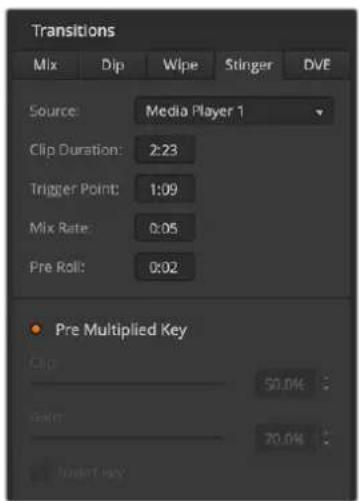
To perform a stinger transition on the software control panel:
1 Select the STING transition style button in the transition control block.
2 From the source menu select the media player for the transition. Make sure the media player source has the clip you plan to use.
3 Adjust the clip duration, trigger point, mix rate and pre roll parameters if required.
4 Perform the transition as an auto transition from the transition control block.
You cannot perform a manual stinger transition using the fader bar.
Stinger Transition Settings
Stinger Transition Parameters
| Source | The media player which will be used to play the clip for the animated transition. |
| Clip Duration Clip duration refers to the length of the animation. The duration should normally match the length of the animation. It can also be used to trim out the end of the clip. | |
| Trigger Point | Trigger point is the time at which the switcher will start the background mix transition, which will occur under the animation. Usually, this is the point when the animation is full screen. |
| Mix Rate The mix rate specifies the duration of the mix that will occur between preview and program under the animation. To specify a cut instead of a mix simply set the rate to 1 frame. | |
| Pre Roll Pre roll is a trim in that can be used to trim the beginning of the clip.The maximum preroll time is 3:00 seconds. | |
| Pre Multiplied Key | Identifies the key signal of the media player clip as a pre-multiplied key. |
| Clip The clip level adjusts the threshold at which the key cuts its hole into the clipthat is playing back through the media player. Decreasing the clip level reveals more of the background. If the background video is completely black then the clip value is too low. | |
| Gain The gain adjustment electronically modifies the value which allows the softening of the edges of the key in the clip that is playing back on the media player. Adjust the gain value until the edge softness is desirable but the background video luminance (brightness) is not affected. | |
| Invert Key Inverts the key. | |
It is important to understand that the trigger, mix and duration times are dependent on one another. For example the trigger + mix rate cannot be larger than the overall duration. Note also that the time displayed in the transition rate window is equal to the overall duration + preroll.
DVE Transitions
Your switcher includes a powerful digital video effects processor for DVE transitions. A DVE transition displaces the image in various ways to transition from one picture to another. For example, a DVE transition can be used to squeeze the current picture off screen revealing a new video under it.
To perform a DVE transition on ATEM Television Studio:
1 On the preview bus, select the video source that you want on the program output.
2 Press the DVE transition type button to select the DVE transition. The DVE settings will appear on the LCD menu.
NOTE If the DVE is already being used in an upstream key, the DVE transition type will not be available for selection until the key is taken off air and off next transition. Refer to 'sharing DVE resources' later in this section for more information.
3 In the DVE LCD menu, use the soft control knobs and buttons to configure the DVE parameters. For example, select the DVE pattern, movement, direction and adjust the DVE transition rate. Use the 'left' and 'right' arrow buttons to the side of the LCD to navigate to the additional settings.
4 Perform the transition as an auto or manual transition using the auto button or fader bar.
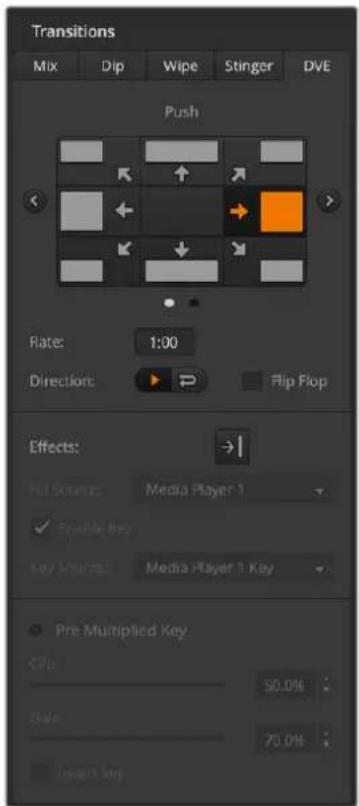
To perform a DVE transition on the software control panel:
1 On the preview bus, select the video source that you want on the program output.
2 Select the DVE transition style in the transition control block.
3 Expand the transition palette and select DVE from the transition types bar.
If the DVE is being used in an upstream key, the DVE transition style button will be unavailable for selection until the key is taken off air and off next transition. Refer to sharing DVE resources below for more information.
Use the settings in the DVE palette to customize the transition.
4 Perform the transition as an auto transition or manual transition from the transition control block.
DVE Transition Settings
DVE Transition Parameters
| Pattern Select between push and squeeze for the DVE pattern | |
| Movement Movement lets you set the direction for the pattern transition. | |
| DVE Rate The duration of the DVE transition in seconds and frames. On ATEM Television Studio switchers rotate the DVE rate knob to adjust the DVE transition rate.The new rate is immediately displayed in the transition rate window in the transition control block. | |
| Direction The normal direction applies the DVE effect on program, revealing the preview channel. | |
| Reverse Direction | Reverse changes the direction so that the DVE effect is applied on the preview channel. In the case of reverse, program is covered by a DVE effect with the preview video. |
| Flip Flop When flip flop mode is toggled on, the transition changes between normal and reverse every time the transition is executed. | |
DVE key parameters
| Enable key Enables/disables the DVE key. The DVE key is enabled when the button is illuminated. |
| PreMult Selects the DVE key as a pre-multiplied key. |
| Clip The clip level adjusts the threshold at which the key cuts its hole. Decreasing the clip level reveals more of the background. If the background video is completely black then the clip value is too low. |
| Gain The gain adjustment electronically modifies the angle between on and off thereby softening the edges of the key. Adjust the gain value until the edge softness is desirable but the background video luminance (brightness) is not affected. |
| Invert Key When the key is not pre-multiplied, inverts the key signal. |
Sharing DVE resources
ATEM features DVE channels which can be used to perform DVE transitions or used in an upstream keyer. When you select a DVE transition, if the DVE is used elsewhere in the system, the DVE transition type will not be available and, on the switcher the DVE button will be disabled. In order to use the DVE transition you must free the DVE from where it is currently used. Verify that the upstream keys currently on program or preview are not DVE keys and do not have flying key enabled. To free DVE from the upstream keyer, change the key type to anything other than DVE or disable flying key. The DVE will be released and therefore available for use as a DVE transition.
The graphic transition is a popular transition that uses the DVE and moves a graphic across the screen over a background transition. For example, the graphic wipe moves a graphic over a horizontal wipe, essentially replacing the wipe border. A graphic mix spins the graphic across the screen over a mix transition. Graphic transitions are perfect for wiping the station logo or spinning a football across the screen revealing a new background. Graphic transitions use a special keyer built into the transition block, leaving all of the upstream and downstream keyers available for compositing the output. The following section explains how to build and perform graphic transitions.





The above image sequence provides an example of the program output for a graphic wipe transition.
Performing a Graphic Transition
To perform a graphic transition on ATEM Television Studio:
1 Press the DVE transition type button in the transition control block. The DVE settings menu will appear on the LCD.
If the DVE is already being used in an upstream key, the DVE transition type will not be available for selection until the key is taken off air and off next transition. Refer to 'sharing DVE resources' in this section for more information.
2 Press the 'effect' soft button in the LCD menu to open the effect settings.
The default direction is left to right, but you can change the direction by selecting 'reverse direction'. You can also enable 'flip flop' which will let the effect move forwards and backwards with each performance of the transition, rather than repeating the same movement direction.
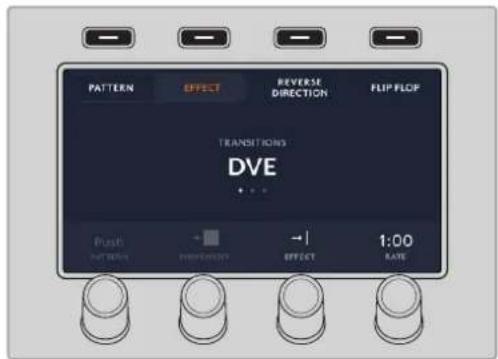
3 Press the right arrow in the system control buttons to adjust the key settings. Enable the key and select the fill and key source. If you need to make adjustments to the key, for example adjusting clip and gain settings, press the right arrow in the system control buttons to access the key parameters.
TIP Typically, for a graphic transition, the source would normally be a graphic loaded in a media player. By default, when you select a media player for the fill source, the key source will automatically select the media player key channel and set pre multiplied key to 'on'. This means a graphic with a key matte embedded in the alpha channel will automatically be selected by the switcher. You can disable pre multiplied key and change the key source if you want to use a separate media file on a different media player, or a different input source.
4 Press the auto button to perform the transition as an auto transition, or use the fader bar for a manual transition.
To perform a graphic transition on the software control panel:
1 Select the DVE transition style button in the transition control block.
If the DVE is being used in an upstream key, the DVE transition style button will be unavailable for selection until the key is taken off air and off next transition. Refer to sharing DVE resources in the next section for more information.
2 Expand the transition palette and select the DVE transition type. Use the previous or next arrows to select a different DVE type.
3 From the effects options select the graphic wipe transition.
4 Select the fill source and key source for the graphic from the drop down list.
5 Adjust the key parameters if required.
6 Perform the transition as an auto transition or manual transition from the transition control block.
Description of Graphic Wipe Parameters
| Rate Rate specifies the length of the transition in seconds and frames. The rate can be adjusted using the rate knob or by entering a number on the number pad and pressing the enter button. | |
| Normal | The normal direction moves the graphic from left to right. On the switcher system control, normal is indicated by a white ‘reverse direction’ setting. |
| Reverse Direction | Reverse changes the direction so that it moves the graphic from right to left.On the ATEM switcher, reverse direction will be orange to indicate it is enabled. |
| Flip Flop When flip flop mode is toggled on, the transition changes between normal and reverse every time the transition is executed. The ‘Normal’ or ‘Reverse’ light indicates the direction of the next transition. | |
| Fill Source | The fill signal is the graphic used to move across the top of the transition. |
| Key Source | The key signal is a grayscale image that defines the region in the graphic that will be removed so that the fill signal can be correctly stacked on top of the wipe. |
Graphic wipe images
The graphic wipe feature requires a static graphic that is used as a moving border for a horizontal wipe. This graphic should be a vertical 'banner' type graphic that is no more than 16% of the total screen width.
natural_image
Abstract dark blue vertical stripe against black background, no text or symbols visible
natural_image
Abstract white vertical stripe on black background (no text or symbols)Graphic Wipe Screen Width Requirements
| 2160p | If ATEM Television Studio 4K8 models are operating at 2160p then the graphic should be no wider than 230 pixels. |
| 1080i | If the switcher is operating at 1080i then the graphic should be no wider than 116 pixels. |
| 720p | If the switcher is operating at 720p than the graphic should be no wider than 77 pixels. |
Manual Transitions
Manual transitions let you manually transition between program and preview sources using the fader bar in the transition control block. Mix, dip, wipe and DVE transitions can all be performed as a manual transition.
To perform a manual transition on the software control panel or ATEM Television Studio:
1 On the preview bus, select the video source that you want on the program output.
2 Select the transition type using the transition type buttons in the transition control block.
3 Manually move the fader bar from one end to the other to execute the transition.
The next fader bar move will begin a new transition.
4 During the transition the red and green buttons on the program and preview buses both turn red to indicate that you are in the middle of a transition. On the switcher, the fader bar indicator also displays the position and progress of the transition. On the software control panel, the virtual fader bar displays the position and progress of the transition.
5 At the end of the transition sources selected on the program and preview buses are exchanged to indicate that the video source that was on preview is now on program and vice versa.
Preview Transition
ATEM switchers have a powerful feature which allows you to review and adjust a transition on the preview output. The preview transition mode lets you verify a transition before actually performing it on air.
To preview a transition on the software control panel or ATEM Television Studio:
1 On the preview bus, select the video source that you want on the program output.
2 Select the transition type using the transition type buttons in the transition control block.
3 Press the PREV TRANS button to put the switcher into preview transition mode. The PREV TRANS button will illuminate red and the preview output will change so that it is a copy of the program output.
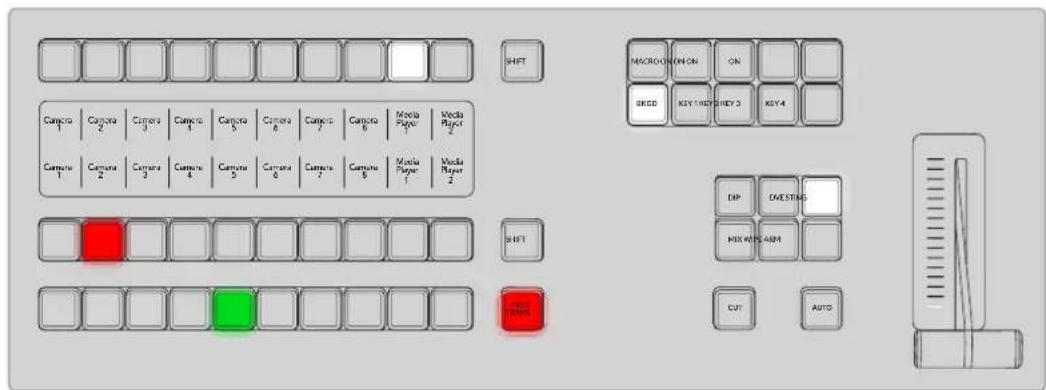
4 Manually move the fader bar from one end to the other to preview the transition on the preview output. The program output will remain unchanged.
5 Press the PREV TRANS button to turn off preview transition mode.
Keying using ATEM Switchers
Keyers are a powerful production tool that allows the arrangement of visual elements from different sources on the same video image.
To do this, multiple layers of video or graphics are stacked on top of the background video. Altering the transparency of various parts of these layers allows the background layer to be visible. This process is called keying. Various techniques are used to create this selective transparency and these correspond to the different types of keyers available on your switcher.
The following section explains luma and linear keyers, which are available either upstream or downstream. It also explains chroma, pattern and DVE keys, which are upstream keyers.
Understanding Keying
A key requires two video sources; the fill signal and the key or cut signal. The fill signal contains a video image which is to be stacked on top of the background, while the key signal is used to select regions of the fill signal to be made transparent. The fill and key signals can be selected from any of the switcher's external inputs or internal sources, allowing both still and moving images to be used as fill or key sources.
Fill and key signals are selected on the software control panel from drop down lists in the upstream and downstream key palettes. On the ATEM switcher, fill and key signals are selected using the select bus.
There are two types of keyers used in the switcher; upstream keyers and downstream keyers. Four upstream keyers, also known as effects keyers, are available in the switcher's M/E block. Each upstream keyer can be set up as a luma, linear, pre-multiplied, chroma, pattern or DVE key. Two downstream keyers are available in the dedicated DSK block. Each downstream keyer can be set up as a luma or linear key.
Luma Key
A luma key or self key consists of one video source containing the video image that will be stacked on top of the background. All of the black areas defined by the luminance in the video signal will be made transparent so that the background can be revealed underneath. Since only one image is used to define the areas to be cut out, a luma key uses the same signal for fill and key. The following images are an example of what background, luma key signals and the resulting combined image might look like.
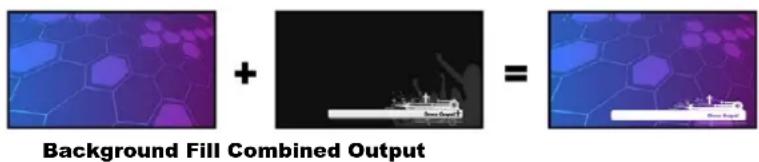
Combining a background and fill/key in a luma key
Background
A full screen image, often a camera source.
Fill
The graphic you plan to display on top of your background video. Notice that the final composition does not retain any black from the graphic because all of the black parts have been cut out of the image.
Linear Key
A linear key consists of two video sources; the fill signal and the key or cut signal. The fill signal contains a video image which is to be stacked on top of the background, while the key signal contains a grayscale mask that is used to define regions of the fill signal to be made transparent. Since both the fill and key signals are video inputs, both signals can be in motion while on screen. The following images are examples of what background, fill, key signals and the resulting combined image might look like.

Combining a background, fill and key in a linear key
Background
A full screen image, often a camera source.
Fill
The graphic you plan to display on top of your background video. Notice that the black parts of the graphic remain intact because the key signal is used to determine the transparency of the fill signal. The fill signal is often provided by a graphics system.
Key
A grayscale image that defines the region in the image that will be removed so that the fill signal can be correctly stacked on top of the background. The key signal is often provided by a graphics system.
Pre multiplied Key
A modern graphics system or character generator that offers fill and key outputs will most likely provide what is known as a pre-multiplied or shaped key. A pre-multiplied key is a special combination of the fill and key signal where the fill signal has been pre-multiplied with the key signal over a black background. Photoshop generated images that contain an alpha channel are pre-multiplied.
ATEM switchers have an auto key adjustment for pre-multiplied keys so that when the pre-multiplied key setting is enabled, the clip and gain parameters are automatically set by the system.
When using a Photoshop generated image, generate graphics over a black background layer and place all content on the upper layers. Add an alpha channel in your Photoshop document that the ATEM can use for blending the graphic over the live video. Then, when saved as a Targa image file, or downloaded direct to the media pool, you can select pre-multiplied in the keyer and you should have a great key!
Photoshop documents are pre-multiplied by nature, so you should always use the pre-multiplied settings on the ATEM switcher when keying them.
Performing an Upstream Luma/Linear Key
Since luma and linear keys use the same parameters, they are set up on the software control panel and the ATEM switcher using a common menu, called the luma key menu. What defines the key as being either luma or linear is in the selection of fill and key sources. In a luma key, fill and key sources are the same. For a linear key, fill and key sources are different.
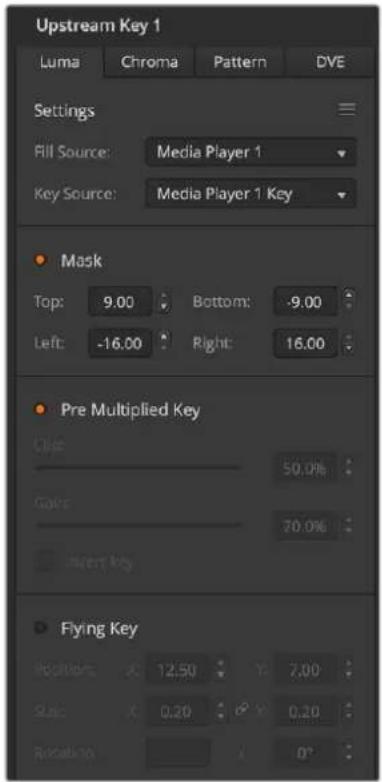
The Upstream Key palette has a menu for resetting parameters at the top of each tab. Select the sections you wish to reset from the menu.
To set up a luma/linear key on upstream keyer 1 on ATEM Television Studio:
1 Press the 'key 1' button to enable the keyer on the preview output. This automatically selects the keyers menu on the system control LCD, but you can also press the 'keyers' button to enter the menu directly.
2 Use the control knob underneath the 'key type' indicator to choose the 'luma' key.
3 Rotate the 'fill source' and 'key source' control knobs to choose a fill and key source.
TIP You can also press the corresponding buttons on the source select bus to select the fill and key source.
4 Once you have chosen a key type, fill and source, press the 'right' arrow button to scroll through to the next menu item and use the control knobs to adjust key parameters such as mask, gain, clip, enable or disable pre multiplied key, etc.
To set up a luma/linear key on upstream keyer 1 on the software control panel:
1 Expand the upstream key 1 palette and select luma tab.
2 Select the fill source and key source.
If performing a luma key, select the same source for both fill and key.
Adjust the key parameters to refine the key. For a description of luma key parameters, refer to the table below.
Upstream key luma/linear key parameters include:
| Mask Enables a rectangular mask that can then be adjusted using the top, bottom,left and right parameters. |
| Pre-Mult Identifies the key signal as a pre-multiplied key. |
| Clip The clip level adjusts the threshold at which the key cuts its hole.Decreasing the clip level reveals more of the background. If the backgroundvideo is completely black then the clip value is too low.Gain The gain adjustment electronically modifies the angle between on and off thereby softening the edges of the key. Adjust the gain value until the edge softness is desirable but the background video luminance or brightness is not affected. |
| Invert Key Inverts the key signal. |
| Flying Key Enables/disables DVE effects. |
Performing a Downstream Luma/Linear Key
To set up a luma/linear key on downstream keyer 1 on ATEM Television Studio:
1 Press the 'DSK 1 tie' button to enable the downstream keyer on the preview output. This automatically selects the downstream key menu on the system control LCD, but you can also press the 'keyers' button and press the right arrow to enter the menu directly.
2 Press the 'DSK 1' or 'DSK 2' soft button to select which downstream keyer you wish to use.
TIP You don't have to select the key type as the downstream keyer is always a luma key.
3 Use the control knobs under the LCD menu to select the fill source and key source. You can also use the corresponding source select buttons to select the fill and key source.
4 Once you have chosen the fill source and key source, use the 'left' and 'right' control buttons to scroll through additional menu screens containing key parameters such as mask, gain, clip, pre multiplied key settings and more.
To set up a luma/linear key on downstream keyer 1 on the software control panel:
1 Select the downstream key 1 palette.
2 Use the drop down controls labeled fill source and key source to specify the fill and key sources. If performing a luma key, select the same source for both fill and key.
3 Adjust the key parameters to refine the key.
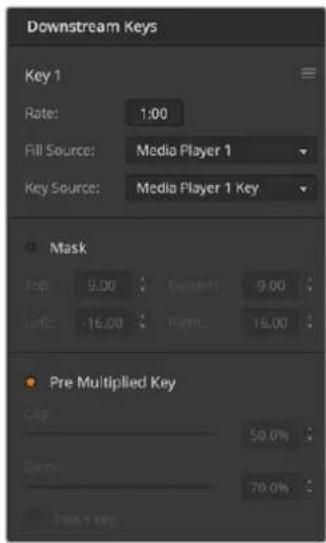
Downstream Keyer Settings
Chroma Key
Chroma key is commonly used for weather broadcasts, where the meteorologist appears to be standing in front of a large map. In the studio the presenter is actually standing in front of a blue or green background. In a chroma key two images are combined using a special technique and a color from one image is removed, revealing another image behind it. This technique is also referred to as color keying, color-separation overlay, green screen, or blue screen.
A very common use for chroma keys for backgrounds is computer generated graphics. It's simple to connect an external computer to your ATEM switcher using the HDMI output of the computer or a video card such as the Blackmagic Design DeckLink or Intensity range and then play back video clips to your ATEM switcher. If you render a green background on your animations, you can then key this green to create fast and clean animations of any length.
Keying is easy as the green is computer generated so it's a very flat color that's easy to key.

Combining a background with a fill and chroma key/cut
Background
A full screen image; in the case of a chroma key it is often a weather map.
Fill
The image you plan to display on top of your background video. In the case of a chroma key, this is video of the meteorologist in front of the green screen.
Key/Cut
In the case of a chroma key the key/cut signal is generated from the fill signal.
Performing an Advanced Chroma Key
Your ATEM switcher features advanced chroma keying, with more detailed chroma sampling and adjustment options. These controls help you achieve the best key, improving the blend of foreground and background so you can create a more convincing visual effect.
To set up a chroma key on upstream keyer 1 on ATEM Television Studio:
1 Press the 'key 1' button to enable keyer 1 on the preview output. This automatically selects the keyers menu on the system control LCD, but you can also press the 'keyers' button to enter the menu directly.
2 Select the 'chroma' key type using the corresponding 'key type' control knob.
3 Select your fill source by turning the corresponding LCD control knob. Typically, this source would be from a camera facing a presenter in front of a green screen, or a graphic loaded in a media player. You can also select a fill source by pressing the corresponding button in the source select bus.
4 Use the 'right' arrow buttons to access the chroma adjustments screen.
5 Click the 'sample chroma' button.
To set up a chroma key on upstream key 1 on the software control panel:
1 Expand the upstream key 1 palette and select 'chroma' from the key types bar.
2 Select the fill source. Typically, this source would be from a camera facing a presenter in front of a green screen, or a graphic loaded in a media player.
3 Click the 'chroma sample' button.
With the chroma sample selected, you'll see a new panel appear with a box cursor. This cursor is also visible on the preview output.
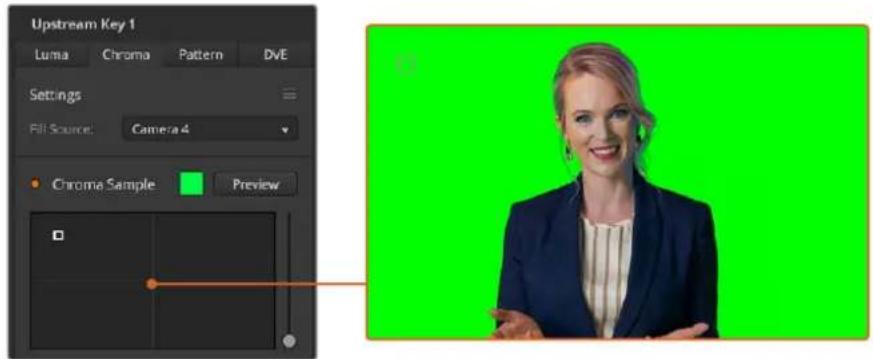
The chroma sample setting lets you position a cursor over the screen area you want to sample
4 Click and drag on the box cursor to move it to the position you want to sample.
Choose a representative area of your green screen that covers as much of the luminance range of the screen as possible. The default size of the box cursor is well suited to most green screens that are relatively evenly lit, however if there is a lot of variance in your green screen, you can adjust the size of the box by clicking on the slider to the right of the sample window and dragging it up or down. On the switcher, use the corresponding knobs to move the position of the box and the z axis to increase or decrease the size.
TIP When sampling uneven green screens, we recommend sampling the darkest area first before increasing the size of the sample box. This can give you a more accurate key.
You can preview your key at any time by clicking the 'preview' button above the chroma sample panel or by pressing the 'preview chroma' button above the LCD screen on the system control.
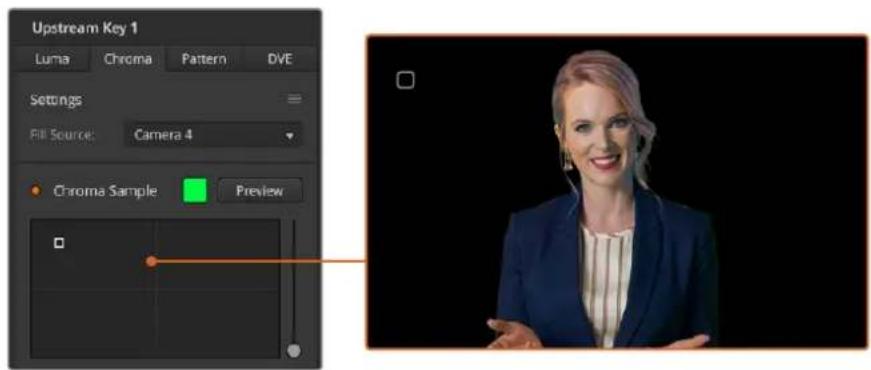
Use the preview button to check what your key will look like in the preview output
Fine Tuning your Key using Key Adjustments
Once you have achieved a good chroma sample that removes most of your green screen while generally retaining foreground elements, it is time to fine tune your key with the 'key adjustments' controls. On ATEM Television Studio switchers, press the right arrow to navigate to the 'chroma adjustments' menu.
Foreground
Use the 'foreground' slider or control knob to adjust how opaque the foreground mask is. This determines the strength of the foreground against the background. By increasing the slider, you can fill in any small areas of transparency inside your foreground image. We recommend moving this slider and stopping as soon as the foreground becomes solid.
Background
The ‘background’ slider and control knob adjusts the opacity of the keyed area. Use this slider to fill in any small foreground artifacts left over in the area of the image you want to remove. We recommend moving the slider until your keyed area is consistently opaque.
Key Edge
The 'key edge' slider and control knob moves the edge of your keyed area in or out, helping to remove background elements from the very edge of your foreground or extending the foreground out a little if your key is too aggressive. This can be especially useful with fine details like hair. We recommend moving this slider until the edge of your key is generally clean, without any background artifacts visible.
Using the key or chroma adjustment controls, your foreground elements should be cleanly separated from the background.
Chroma Correction using Color Spill and Flare Suppression
Light bouncing off a green screen can create a green edge to foreground elements as well as a general tint to the foreground, or fill image. This is called color spill and flare. The 'chroma correction' settings let you improve the areas of the foreground that are affected by color spill and flare. You can correct these areas in the key using the 'chroma correction' settings.
Spill
Adjust the spill slider to remove colored tint from the edges of foreground elements. For example, green reflections bouncing off a green screen.
Flare Suppression
Flare suppression removes overall green tint evenly across all foreground elements.
Matching your foreground and background
Once your foreground is properly separated from your green screen and you have adjusted spill and flare suppression, use the 'color adjustments' controls to match your foreground with the background.
Adjusting the brightness, contrast, saturation and color balance of your foreground image will help blend it with the background so the effect is more convincing.
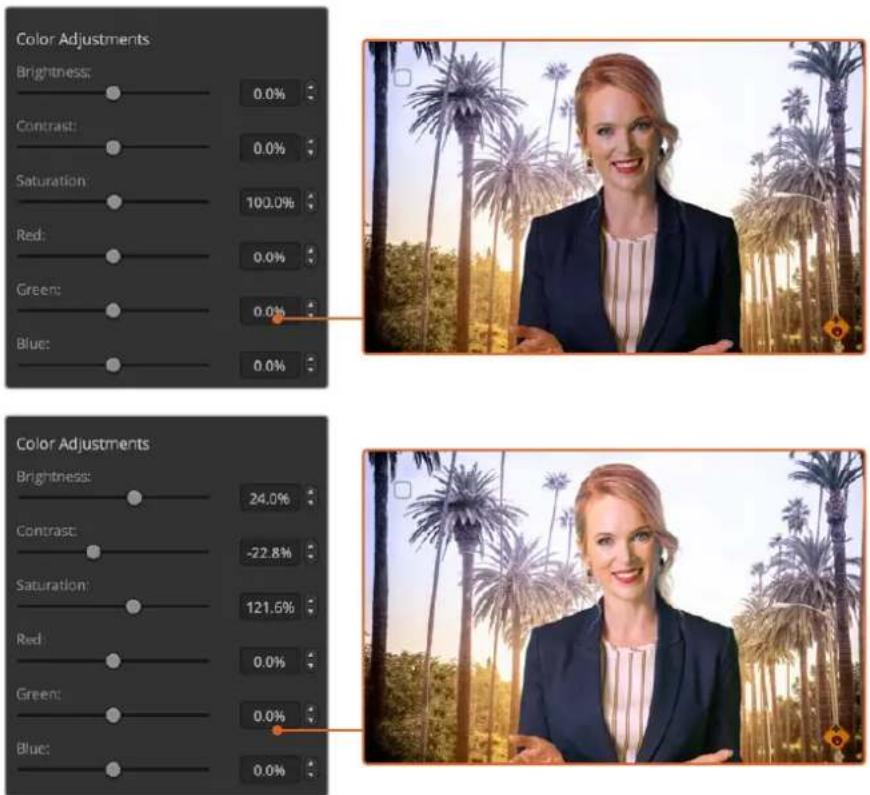
Use the color adjustments controls to match your foreground with the background
Pattern Key
A pattern key is used to display a geometric cut out of one image on top of another image. In a pattern key the key or cut signal is generated using the switcher's internal pattern generator. The internal pattern generator can create 18 shapes that can be sized and positioned to produce the desired key signal.

Combining a background with a fill and pattern key
Background
A full screen image.
Fill
Another full screen image you wish to overlay on top of the background.
Key/Cut
In the case of a pattern key the key/cut signal is generated by the switcher's internal pattern generator.
Performing an Upstream Pattern Key
To set up a pattern key on upstream keyer 1 on ATEM Television Studio:
1 Press the KEY 1 next transition button to enable the key on the preview output. This automatically selects the keyers menu on the system control LCD. Pressing the KEY 1 next transition button ties the key to the next transition so it will transition to air when the next transition is performed.
2 In the keyers LCD menu, select the 'pattern' key type using the corresponding 'key type' control knob.
3 Select the fill source using the corresponding soft control knob or by pressing a source button on the source select bus.
4 Turn the corresponding soft control knobs to choose the 'pattern' you want for the pattern key and set the 'size' of the pattern.
5 Press the system control left and right arrow buttons to navigate through the pattern key parameters and adjust settings using the control knobs. Watch the preview output as you refine the key.
TIP Some patterns can have their center point repositioned. Use the corresponding control knobs to move the position of the pattern. If you need to reset the position, navigate to the 'pattern type' setting, change it to another pattern and then return to your chosen pattern to reset the position to its default.
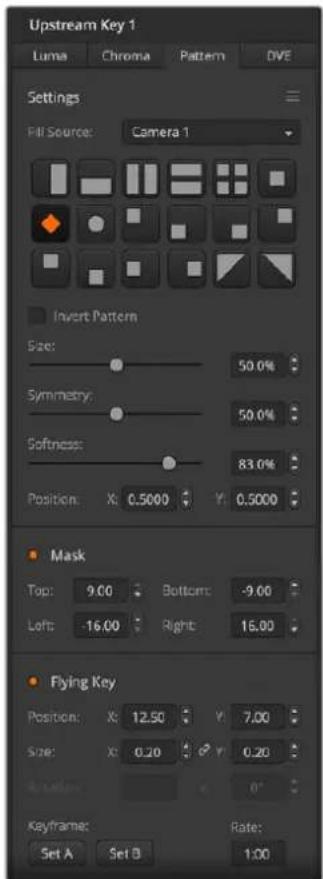
To set up a pattern key on upstream keyer 1 on the software control panel:
1 Expand the upstream key 1 palette and select pattern from the key types bar.
2 Select the fill source.
3 Select the key pattern.
4 Adjust the key parameters to refine the key. For a description of pattern key parameters, refer to the table below.
| Size Increases and decreases the size of the selected pattern. |
| Symmetry Some patterns may have their symmetry or aspect ratio adjusted. Circle patterns may be adjusted to become horizontal or vertical ellipses. |
| Softness Changes the softness of the edge of the key signal. |
| Invert Pattern This button inverts which the region filled with the fill source. For example, fill a region outside of a circle by positioning the circle wipe as desired and then selecting inverse. |
| Flying Key Enables/disables DVE effects |
Pattern Key Settings
Adjusting the X/Y Position of a Pattern
Some of the patterns may have their center point repositioned. To position a pattern, navigate to the pattern selection page of the keyer you are setting up. Use the control knobs to move the pattern vertically and horizontally. To re-center the pattern, press the pattern select button of the current pattern in the menu. This will reset the position and symmetry of the pattern.
DVE Key
DVEs (digital video effects) are used to create picture-in-picture boxes with borders. Most models have 1 channel of 2D DVE that allows scaling, borders and offers a drop shadow.

Combining a background, DVE fill and DVE key/cut
Background
A full screen image.
Fill
Another full screen that has been scaled or has added borders and will be overlaid on top of the background.
Key/Cut
In the case of a DVE key, the key/cut signal is generated by the switcher's internal DVE processor.
Performing an Upstream DVE Key
To set up a DVE key on upstream keyer 1 on ATEM Television Studio:
1 Press the KEY 1 next transition button to enable the keyer on the preview output.
2 In the keyers LCD menu, select the DVE key type using the corresponding soft control knob.
3 Select the fill source using the corresponding control knob or via the a source button on the source select bus.
4 Press the system control left and right arrow buttons to navigate through the DVE parameters and use the soft control knobs to adjust settings, such as position, size, mask settings, light source, border and key frames for movement.
TIP When using the number pad to enter numeric values for settings, hold the 'reset' button down for several seconds to enable negative values. Hold down again to return to standard values.
To set up a DVE key on upstream keyer 1 on the software control panel:
1 Expand the upstream key 1 palette and select DVE from the key types bar.
2 Select the fill source.
3 Adjust the key parameters to refine the key. For a description of DVE key parameters, refer to the table below.
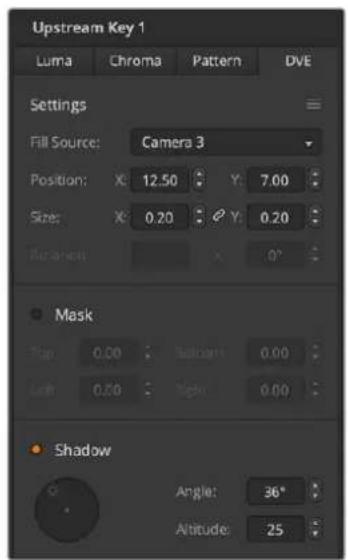
DVE Key Settings
DVE parameters
| Fill Source The source for the DVE to be adjusted. | |
| Size X and Y values adjust horizontal and vertical size of the DVE. | |
| Mask Enables a rectangular mask that can then be adjusted using the top, bottom,left and right parameters. | |
| Shadow | Adjusts the direction of the light source on the DVE or picture in picture. Boththe border and drop shadow, if available, are affected by changes to this setting. |
Adding DVE Borders
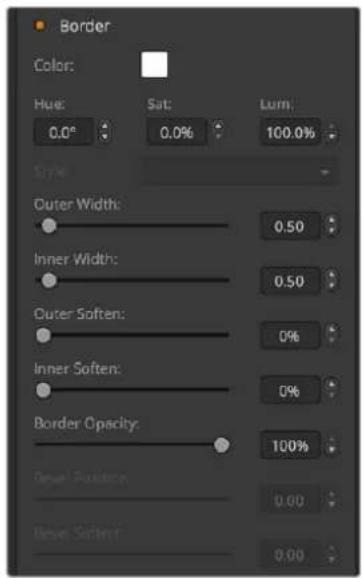
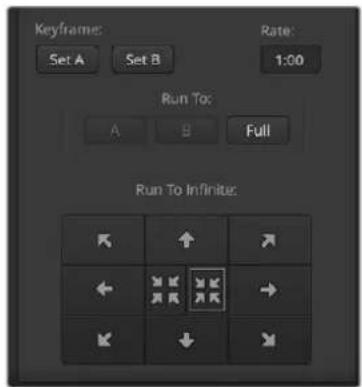
DVE border parameters
The knobs and soft buttons in the system control are used to adjust the border parameters. There are multiple parameters, each requiring an adjustment, therefore the soft/color button and SHIFT button is used to toggle the parameters that each knob adjusts.
| Border Enables or disables the border. | |
| Color Adjusts the color of the border. | |
| Hue Changes the border color. The hue value is a location on the color wheel. | |
| Sat Changes the intensity of the border color. | |
| Luma Change the brightness of the border color. | |
| Outer Width Adjusts the outside width of the border. | |
| Inner Width Adjusts the inside width of the border. | |
| Outer Soften | Outside softness adjusts the outside edge of the border, the edge that touches the background video. |
| Inner Soften | Adjusts inside softness. This softness parameter adjusts the inside edge of the border, the edge that touches the video. |
| Border Opacity | Opacity adjusts the transparency of the border, use this setting to create interesting colored glass borders. |
Key Masking
Both upstream and downstream keyers have an adjustable rectangular mask that can be used to crop out harsh edges and other artifacts in the video signal. The mask consists of left, right, top and bottom crop controls. Masking can also be used as a creative tool to build rectangular cut outs on screen.
On the hardware panel the mask is set up for each upstream and downstream key from the system control mask menu which is available from the EFFECTS KEYS or DSK KEYS menus.
On the software control panel the mask is set up for each upstream or downstream key from the palettes in the settings tab.
Flying Key
Luma, chroma and pattern upstream key types include a flying key setting. If a DVE channel is available the Flying Key setting allows DVE effects to be applied to the key.
Performing Upstream Keyer Transitions
The upstream keyers are accessible from the transition control block or the system control. The upstream keyers are taken on and off the program output using the next transition buttons or ON buttons.
ON buttons
Take the upstream keyers on or off the program output using the ON (on air) buttons as follows:
1 Press the ON button above the corresponding next transition KEY button to immediately turn on or turn off the upstream key on the program output.
2 The ON button also indicates if the upstream keyer is currently on or off the program output.
Next transition buttons
Take the upstream keyers on or off the program output using the next transition buttons as follows:
1 Select the elements you wish to transition using the BKGD, KEY 1, KEY 2, KEY 3 and KEY 4 next transition buttons.
2 Verify the preview output, which will show you exactly what your program output will look like after you perform the transition.
3 Press CUT, AUTO, or use the fader bar to perform the transition.
In order to help you understand the various ways in which multiple keys can be taken on and off the program output, we have provided a few examples. In the examples below KEY 1 contains a live bug on the top left of the screen while KEY 2 contains a bug at the bottom right hand side of the screen.
Example 1:
In this example none of the upstream keyers are currently on-air. The next transition has key 1 selected, therefore the next transition will change the state of key 1 and turn it ON so that it is visible on the program output.
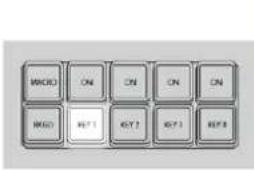
Control panel next transition buttons before transition.
natural_image
Soccer goalkeeper in action at the goalpost with a goal net visible (no text or symbols)Program output before transition.
natural_image
Soccer goalkeeper in action at the goal with a 'LIVE' banner in the corner (no readable text on player or ball)Program output after transition.
Example 2:
In this example, key 1 is currently on air, indicated by the illuminated ON button. The next transition has Key 1 selected, therefore the next transition will change the state of key 1 and turn it OFF so that it is not visible on the program output.
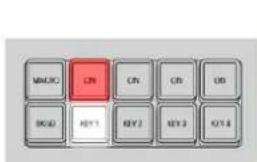
Control panel next transition buttons before transition.
natural_image
Soccer goalkeeper in action at the goal with a 'LIVE' banner in the corner (no readable text on player or ball)Program output before transition.
natural_image
Soccer goalkeeper in action at the goal with a goal net nearby, crowd visible in background (no text or symbols)Program output after transition.
Example 3:
In this example, key 1 and key 2 are on-air, indicated by the illuminated ON buttons. The next transition has the background selected, indicated by the illuminated BKGD button, therefore the next transition will only transition the background leaving both key 1 and key 2 on-air.
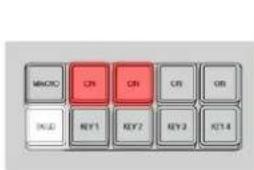
Control panel next transition buttons before transition.
Program output before transition. Program output after transition.
natural_image
Two soccer players in action on a field, one in green and one in red, with 'LIVE' and 'BND TV' logos in the corner (no readable text or symbols on the players or field)Example 4:
In this example, key 1 and key 2 are on-air. The next transition has the background and key 2 selected, therefore the next transition will transition the background and change the state of key 2 turning it OFF so that it is not visible on the program output.
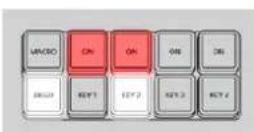
Control panel next transition buttons before transition.
Program output before transition. Program output after transition.
natural_image
Two soccer players in action on a grass field, one in green and one in red, kicking a ball (no visible text or symbols)There are multiple ways to transition a key to the program output. The key can be cut on or off, it can be mixed on or off, or it can be mixed along with a background transition. Upstream keys are transitioned to the program output using the next transition block. Downstream keyers can be transitioned using their own transition buttons or by using the DSK TIE button to link the transition with the main transition control block.
Performing Downstream Keyer Transitions
The downstream keyers have their own transition buttons and transition rate windows. Once a downstream keyer is configured it can be easily taken on and off the program output using one of the following three methods:
1 Press the DSK CUT button to immediately turn on or turn off the downstream key on the program output.
2 Use the DSK AUTO button to gradually transition the downstream key on or off the program output at the rate displayed in the DSK rate window.
3 Use the DSK TIE button to link the downstream key with the main transition control block. Once linked the DSK will be mixed on or off along with any transition type selected in the main transition control block at the rate specified by the transition control block.
Pressing the DSK TIE button shows the downstream keyer on the preview output.
It is not possible to preview a downstream keyer transition when linked with the main transition block. If the DSK TIE button is on when you switch to preview transition mode the tie functionality will be ignored until the preview transition mode is turned off.
DSK parameters
| Clip | The clip level adjusts the threshold at which the key cuts its hole. Decreasing the clip level reveals more of the background. If the background video is completely black then the clip value is too high. |
| Gain The gain adjustment electronically modifies the angle between on and off thereby softening the edges of the key. Adjust the gain value until the edge softness is desirable but the background video luminance (brightness) is not affected. | |
| Rate The mix rate at which the downstream keyer transitions on or off. | |
| Invert Key Inverts the key signal. | |
| Pre-Mult Identifies the key signal as a pre-multiplied key. | |
Streaming
Your ATEM switcher lets you stream directly to platforms including YouTube and Twitch using the dedicated buttons on the control panel. To start streaming you will first need to set up the stream key in ATEM Software Control.
Getting a Stream Key
You can select which platform you want to use in ATEM Software Control and set all the relevant settings for your stream. If you are setting up a broadcast on your channel that you will regularly use, these settings will be stored in your switcher and you can then plug into any internet connection at any time and broadcast directly from the unit.
This section includes how to configure settings for YouTube Studio and Twitch.
TIP As you're setting up your broadcast, it's worth loading a standby graphic into ATEM Software Control's media player and switching it to the program output so you can perform a quick test broadcast before actually going live.
Configuring Settings for YouTube Studio
1 Log into your YouTube account. Click 'go live' from the 'create' menu.
2 If prompted, choose to start your stream 'right now' or at a 'later date' and select 'streaming software' from the options.
3 Set the child protection to the appropriate setting and press save.
4 Select 'edit' and Enter your broadcast name and details. Set the broadcast to 'public' so anyone can watch.
5 An auto generated stream key will appear in the stream settings, click 'copy' to copy the stream key.
Now you have copied the stream key for your broadcast, you will need to paste it into the stream details in ATEM Software Control.
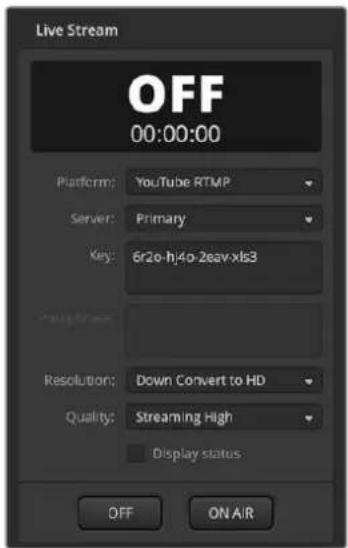
1 In ATEM Software Control's processing palettes, click on the 'output' tab. Open the 'live stream' palette.
2 Set the platform to YouTube by clicking in the menu and selecting YouTube from the menu list. Set the server to 'primary'.
3 In the 'key' setting, paste the stream key you copied from YouTube.
4 Set the streaming quality to low, medium, or high. This will also set the quality for the recording output via USB-C.
5 With all the streaming details now set, it's worth performing a quick test broadcast to make sure everything is working. Press the 'on air' button on your switcher, or click on the on air button in the live stream palette.
YouTube Studio is now ready to start broadcasting. It may take a few moments for the memory buffer to initiate. When the buffering is complete, the 'go live' button will appear in the YouTube Studio manager and all you need to do is click 'go live'.
You are now broadcasting!
To test that everything is working properly, click the 'share' icon, copy the link and paste it into a new window or tab in your internet browser. You can now monitor your live stream just like a member of your audience.
When your production has finished, press the 'off' streaming button on your switcher to stop your broadcast.
Configuring Settings for Twitch
1 Log into your Twitch account. Click on your account avatar in the top right corner.
2 Click on 'creator dashboard'.
3 In the settings options, select 'stream'.
4 A primary stream key will be automatically generated. Click 'copy'.
Now you have copied the stream key for your broadcast, you will need to paste it into the stream details in ATEM Software Control.
1 In ATEM Software Control's processing palettes, click on the 'output' tab. Open the 'live stream' palette.
2 Set the platform to Twitch by clicking in the menu and selecting Twitch from the menu list.
3 Click on the 'server' setting menu list and select the server nearest to your location.
4 In the 'key' setting, paste the stream key you copied from Twitch.
5 Set the streaming quality to low, medium, or high. This will also set the quality for the recording output via USB-C.
6 With all the streaming details now set, it's worth performing a quick test broadcast to make sure everything is working. Press the 'on air' button on your ATEM switcher, or click on the on air button in the live stream palette.
You are now on air! To check your broadcast, click on your account avatar and select 'back to Twitch'. Once in the main Twitch window, click your avatar icon again and select 'channel'. You will now see your broadcast on your channel and the live indicator will appear at the top of the window.
Direct Streaming by Sharing Your Computer Internet
With ATEM Software Control now connected to your switcher, you can set up a direct stream via your computer's internet connection. This means you can use your computers wireless internet connection if a wired connection is not available.
To set up your ATEM switcher for software control and direct streaming:
1 Plug your ATEM into your computer's spare Ethernet port. It may take a moment for DHCP to find the unit and assign an IP address.
2 Launch ATEM Software Control.
3 You will see your ATEM Television Studio switcher listed as a connected ATEM switcher on your network. Simply select your switcher from the list.
4 Click 'connect'.
5 Configure your computer to share its internet connection through its Ethernet port.
To configure Internet sharing on a Mac computer: In System Preferences, click 'sharing' then select 'internet sharing' from the 'service' list. In the 'share your connection from' menu, choose 'wi-fi' if your Mac is connected to the internet over wifi. In the 'to computers using' list, select 'ethernet'. In the 'service' list, tick the 'internet sharing' checkbox. When you are asked if you are sure you want to turn on internet sharing, click 'start'.
To configure Internet sharing on a Windows computer: In the Windows search box, type 'view network connections' and press enter. Right click on the internet connection and select 'properties'. On the 'sharing' tab, tick 'allow other network users to connect through this computer's internet connection'. Select a network connection in the menu then click 'OK'.
ATEM Software Control will now appear with buttons and indicators illuminated. You can now operate your switcher the same way you would via USB-C. Your ATEM switcher is now setup for direct streaming via your computer.
Smartphone Tethering
Once you have set up your ATEM switcher to stream to YouTube, Twitch or other platforms, you can now direct stream using your smartphone. This means you can set up fast and be streaming to the world in any location where your smartphone has a 4G or 5G cellular connection or is capable of reverse tethering your WiFi connection.
1 Simply connect a cable from your smartphone to one of the USB-C ports on your switcher.
2 Once connected, make sure your smartphone device has hotspot activated.
On your iOS device open settings> personal hotspot and make sure 'allow others to join' option is on.
For Android devices, swipe the screen to display the quick menu. Press and hold the hotspot icon and then turn on USB tethering.
Now you can press the On Air button on your ATEM switcher to go live!
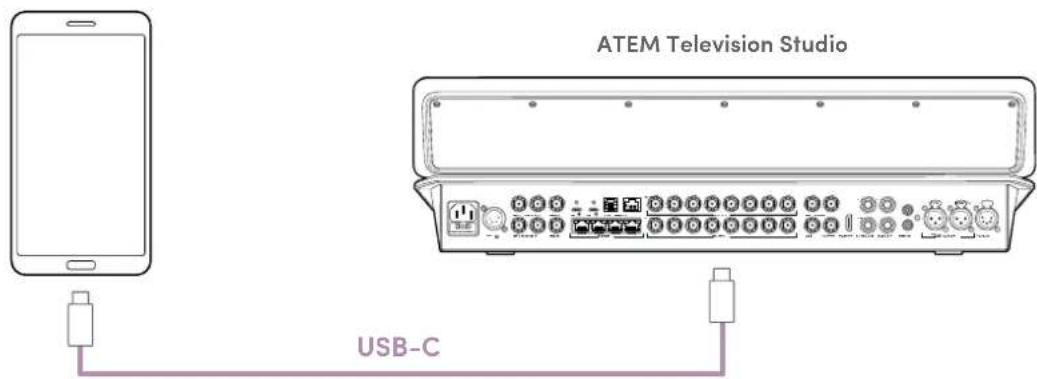
If you have both Ethernet and a smartphone connected to your ATEM switcher, you can use the connection priority in ATEM Setup to choose which connection will be used for streaming.
Additional Features on ISO Models
ATEM Television Studio HD8 ISO switchers have additional features giving you more options for your broadcast including ISO recording each input and connecting to remote sources when streaming via Ethernet. This means you can add cameras on your local network or from across the world.
Some Blackmagic Design cameras such as Blackmagic Studio Camera 6K Pro and URSA Broadcast G2 feature a built in streaming engine that enables the camera to stream directly to ATEM Television Studio HD8 ISO.
Connecting Remote Sources over a Local Network
ATEM Television Studio HD8 ISO and Blackmagic Studio Camera 6K Pro are both set to DHCP by default, so once you connect them via Ethernet there are only a few steps to start streaming.
Connecting Directly
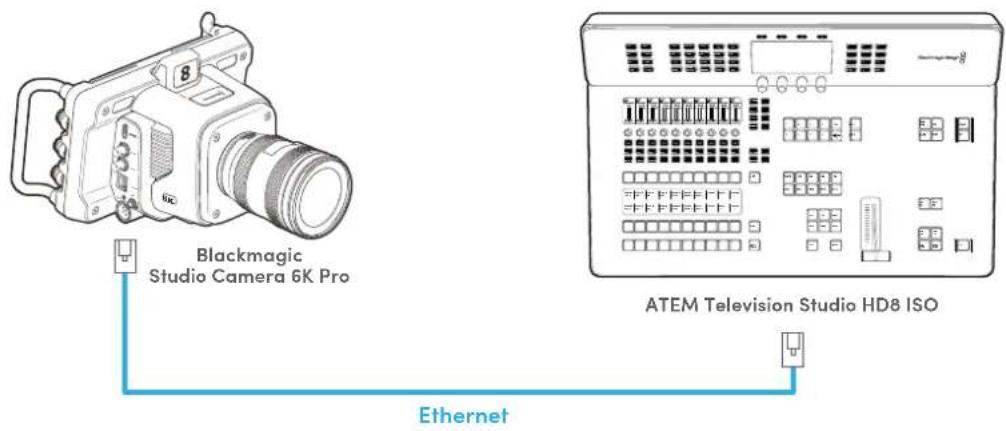
Connecting via a Network Switch
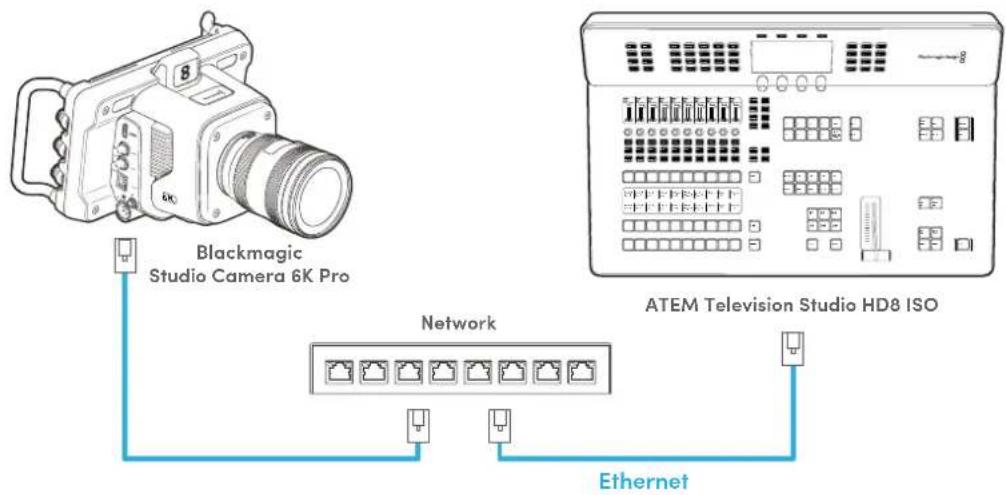
Firstly, you want to make sure your switcher is visible on the network by checking the general settings in ATEM Software Control.
1 Launch ATEM Software Control.
2 Open the 'settings' menu by clicking the gear icon in the lower left corner.
3 Go to the final setting under the 'general' tab and make sure you've ticked the option to enable the switcher to be discovered on the network.
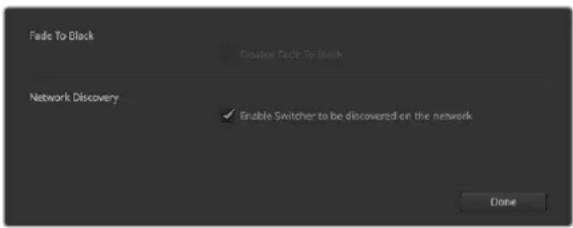
Remote source network settings in ATEM Software Control
Once you've made sure your switcher is visible over the network, you can set your cameras up. When using a local network, each camera will be identified by the switcher using the camera name on the digital slate. This means if you are connecting more than one source it's worth setting each camera with a different camera name, for instance, A, B, C or Cam 1, Cam 2 etc so they're easier to identify on the switcher end. For more information on setting a camera name, refer to the 'entering metadata' section in your camera manual.
To start streaming from the camera:
1 Using your camera press the 'menu' button and tap on the 'setup' tab.
2 Once in the 'setup' tab navigate to the livestream settings and select the ATEM Television Studio HD8 ISO switcher from the platform setting.
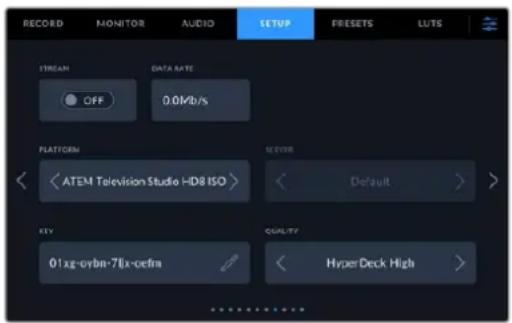
3 Tap the 'stream' button to start streaming. 'Live' will illuminate blue over the setting to indicate you are streaming. If you've enabled stream information on your camera, you will see the data rate information appear on the HUD.
Selecting the Input
Once you've started streaming from a camera, you can select it as an input using the sources tab in ATEM Software Control.
To select the remote source as an input:
1 In the settings menu of ATEM Software Control select the 'sources' tab.
2 Click the menu beside input 1. The camera will appear in the list using the camera ID in the digital slate.

3 Select the source. Once you've selected the input, the camera signal should appear in your multiview. You can now treat the input as you would any SDI input.
To enable tally and camera control the ATEM camera ID on the camera needs to be set to the same number as the input you've assigned on the switcher. This way the camera will detect tally for the input and you can use the camera control settings on the switcher or in ATEM Software Control to make adjustments. Blackmagic Studio cameras will set the camera ID to match the input once the camera starts streaming and the input is assigned. For other cameras, the ATEM camera ID can only be adjusted when the camera is not streaming, so the operator may need to stop and restart once the correct ID is set. For more information on setting the ATEM camera ID, refer to your Blackmagic Design camera manual.
Connecting Remote Sources via the Internet
With ATEM Television Studio HD8 ISO switchers you can also add remote sources from anywhere in the world. This means a remote user can stream their camera signal over the Internet using either a fixed Ethernet connection or tethering their smartphone connection. Using ATEM Software Control to generate a key, you can export an XML file containing the all the connection information needed. Email the XML file to the camera operator, then after they import the file into their camera they can start streaming straight away.
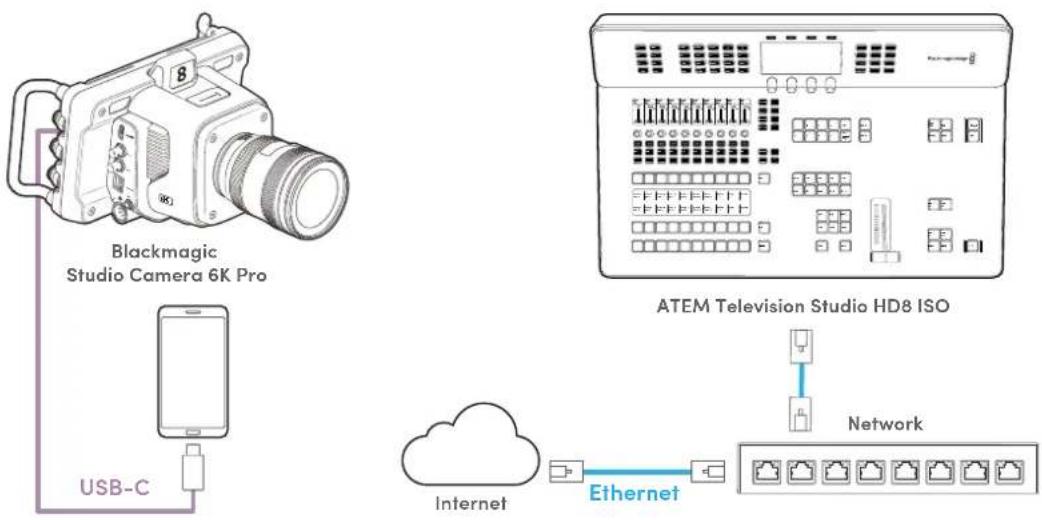
To generate a streaming key:
1 Launch ATEM Software Control and open 'settings' using the cog icon in the lower left hand corner.
2 Select the 'sources' tab and click on 'remote source setup' in the lower left corner.
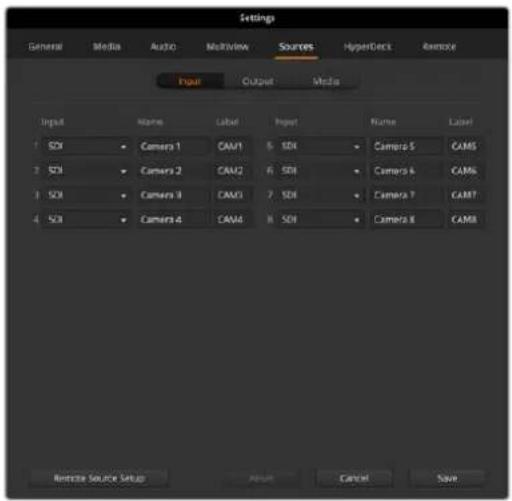
3 Click on 'auto detect'. Your ATEM Television Studio HD8 ISO will analyze the internet connection and display the switchers public IP address, selected port and internet status. If you can see the 'visible worldwide' you are ready to proceed. If 'port forwarding error' appears in the Internet status indicator, there may be further configuration needed with your network or Internet service provider. What this means is you need to ask an Internet provider, or your network administrator to set up port forwarding on your Internet connection to "TCP port 1935". They will know what that means!
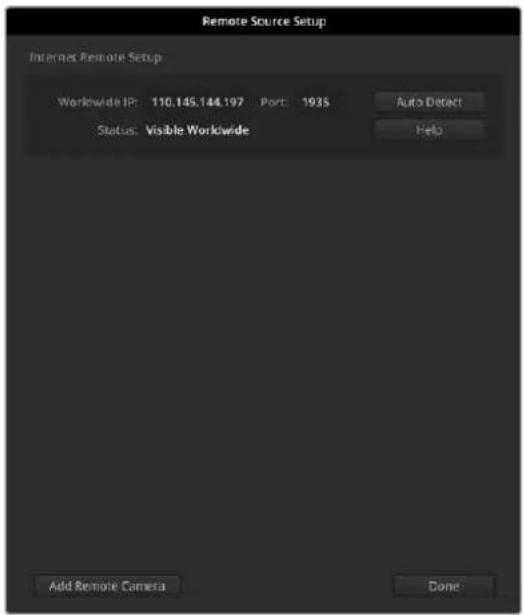
4 Once your status displays 'visible worldwide' click on 'add remote camera'. A key will appear under 'manually added remote cameras'. You can modify the source name by clicking in the text field. Changing the name from the default can assist in identifying the input when selecting the remote source in the sources tab. Clicking on the key icon will generate a new password.
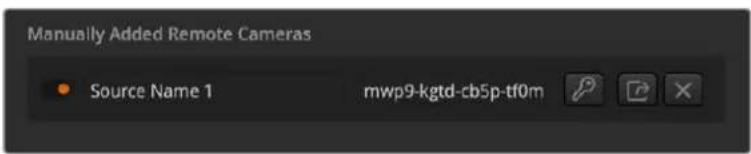
5 Click on the 'share' button and follow the prompts to save the settings to an XML file. Once you have saved the XML file, send the file to the camera operator via email. The camera operator can then copy the file to USB media or an SD card and then import it into the camera.
6 Once a streaming key has been generated you can select the source using the input menu. This means you can assign the input before the remote camera has started streaming. Once the camera starts streaming it will appear on your multiview. In the input tab of the sources window select an input and from the menu click on the source name corresponding to the streaming key you have just exported.
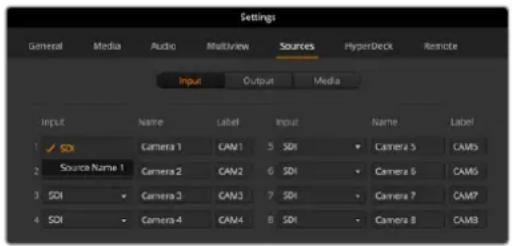
7 Along with emailing the streaming key you can let the operator know which input you've assigned so they can set the ATEM camera ID to the corresponding number. When the ATEM camera ID corresponds to the switcher's input number, your camera will detect tally data for that input and the tally light will work correctly on the camera. You will also be able to make adjustments using the camera control settings on the switcher or via ATEM Software Control. The ATEM camera ID on Blackmagic Studio Cameras will update automatically once the camera is assigned to an input and begins streaming.
For information on setting the ATEM camera ID or importing an XML, refer to the Blackmagic camera manual for the particular model.
Recording ISO Files
ATEM Television Studio HD8 ISO can record video files from each of the video inputs and these are called isolated input files or "ISO" files.
By default, ATEM ISO model switchers will record a video file of the program output. However if you select to record the ISO files, it will change to recording a whole folder of content that includes the input video files as well as audio files, plus a DaVinci Resolve project file.
How to Record ISO Files
To record a folder of ISO files and other items, simply go to the record palette in ATEM Software Control and select the setting "ISO record all inputs". Now your switcher will record the folder of contents when you press record in the palette or on the front panel.
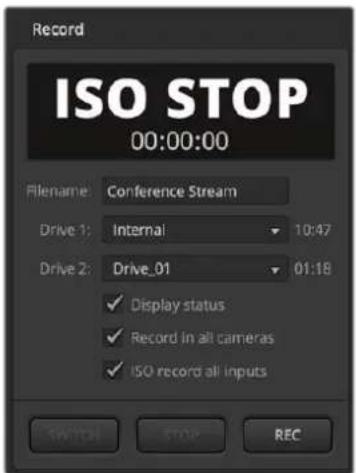
To enable ISO recordings, check the 'ISO record all inputs' checkbox in the record palette.
It's important to use a disk that's fast enough. A good flash disk is recommended as often mechanical disks cannot work fast enough to record the 9 streams of H.264 HD video. For the most up to date list of recommended USB-C flash disks please go to www.blackmagicdesign.com/support.
NOTE If the video standard on your switcher is set to an interlaced format such as 1080i60, ISO recording will be disabled.
What's in the ISO Folder?
The record folder will take the name of the record palette. Even though this folder will have multiple ISO files, it also has the main program recording. But when ISO recording, it will be placed inside this folder with the other items.
The ISO video files are recorded from each input and placed into a sub folder called Video ISO Files. Each video file is recorded from each input and is an exact recording of the video connected to that specific SDI input. The ISO files also have synced timecode and camera number metadata, so you can use any edit software's multi-cam feature. To make editing simpler, all ISO files have program audio, the same as the master video file.
Because the ISO files include camera number metadata and synced timecode, you can also use the DaVinci Resolve Sync Bin to quickly select between views and build an edit.
It's worth noting that if you use any graphic from the media pool, these will be automatically saved into a sub folder called Media Files that's located inside the Video ISO Files folder. This allows you to rebuild the titles in your edit that were used during your live program.
Audio input files from each input as well as the microphone inputs are also recorded. These are placed into a sub folder called Audio Source Files. These files are in broadcast WAV format and are professional stereo audio files that exclude any processing or EQ from the built in audio mixer.
So this means the files are clean and you can use them to create a whole new audio mix using professional audio software. The audio tiles also include timecode so they are synchronized to the video files.
The most exciting item to be saved into the project folder is the DaVinci Resolve project file. This file will have been built based on the switcher actions that occurred since you started recording. It currently allows several switcher functions to be recorded and then when you double click this file, it will open up DaVinci Resolve with a full timeline of all these edits.
ATEM switcher functions that are currently supported include cut and mix edits between all video inputs and the media player, downstream titles and fade to black. These are the most used functions and these will be restored as the video edit in DaVinci Resolve. Further functions will be added in future updates.
Append Recording
If you don't change the project name, when you record, it will append the edit to the DaVinci Resolve project file you have previously recorded on disk. This is very useful as it means you can stop for mistakes, or lunch, and then start recording again. Both recordings will then open into the same timeline and you can knit the recordings together so they appear seamless to the viewer. If you don't want to append record, be sure to change the project name, or use a new blank USB disk.
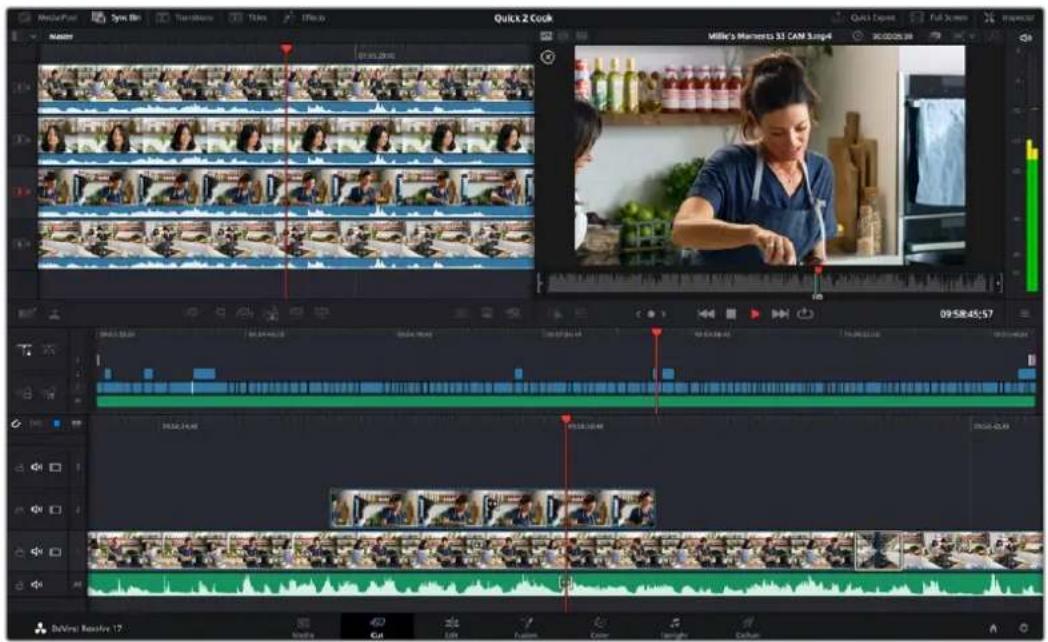
Benefits of Editing a Live Project
There are multiple benefits of editing a live event. Some of the edits you might need to do can be completed very quickly and then you can render out a new master file before uploading. It means you don't have to accept the live edit you did while streaming, as now you can make changes to it before uploading it.
You can also use the ISO recording features and editing to create programs faster, because you can just use ATEM Television Studio HD8 ISO model switchers as a multi track recorder to feed edit stations with multiple camera views!
If you are importing the DaVinci Resolve project, then you are going to see your live production rebuilt as an edit almost instantly. Now you can make some fast creative adjustments to your event before uploading.
What's on the Layers?
The processing in a switcher normally progresses from the switcher inputs on the left of the control panel to the right where the output features are. That's because a switcher is a live processing pipeline from the video inputs, through all the switcher features and then out to the video output.
Editing works very differently. You get a stack of layers in editing software. The lowest layer is covered by layers above. So this means any clip on layer 2 will cover any clip on layer 1. Normally people edit with cuts and dissolves on layer 1, however then other items are placed on layers above. Any clip placed on layer 3 would cover any clips on layers 1 and 2. You can have dozens of layers in complex edits.
So to understand what DaVinci Resolve does when it imports your project file, just look at the project after it's been imported. You can see the various types of processing that have been placed on different edit layers.
| Layer 1 | Layer 1 has all the main editing between your sources. You will see the clips end to end and sometimes the edit points are cuts and sometimes you can see dissolves. This layer was created from your main input switching. All the edits with the video inputs and the still frame source will be placed on layer 1. |
| Layer 2 | Layer 2 is for the downstream keyer. In the ATEM switcher, the downstream keyer is located after the transition block. In editing this means it's on layer 2 so it can override the main switching that's been placed on layer 1. If you place a graphic with an alpha channel in the downstream keyer and put it on air, it will have added this title to the video output. Now this layer is on layer 2 and it overlays the same graphic with alpha channel over layer 1. |
| Layer 3 | Layer 3 is for fade to black. Fade to black is the last processing in the switcher and it fades all layers in the switcher to black. This is commonly used at the end of the program, or to lead into commercial breaks. Fade to black is on layer 3 because it will override all the layers below it, just like it does in the switcher. Fade to black is a black video generator with a dissolve applied to the front and end. |
Shifting Edit Points
An advantage of editing is you can shift your edit points around. When you do a live production, the action can get very fast and it can be difficult to keep up. Imagine an interview program where multiple people are rapidly talking and interrupting each other. The live switch may have struggled to keep up as the conversation moves from person to person.
So rolling the edit points will allow you to move the edits to before a person starts talking. In a live switch you need to keep up so your edits lag behind the person starting to talk. However now you can shift them back in time and the edit will cut to the person just before they start talking. This will transform the feel of the program.
To roll the edit forward, scroll to the edit point in the timeline and then move your mouse to the edit point in the lower timeline. You will see a double bar tool appear. If you click and drag
to the left, the edit point will move to earlier in time. If you click and drag to the right, your edit point will move later in time.
Be sure not to click the half bar tools with the little arrows. These are the trim in and trim out tools. As you move the mouse around the edit point the tools automatically change. So if you use the trim in and trim out tools, you will increase or reduce the duration of your whole video track and the audio will become out of sync with the green audio track below.
Replacing Shots
The sync bin will let you find shots that sync to the point on the timeline where you are currently positioned. This means you can fix situations where you cut to the wrong camera, or you can search for better shots because you have more time to see what alternatives you had.
To use the sync bin, just select it from the top left of the cut page. Once selected, you will see your media pool at the top left and your viewer will change. The media pool will now show a timeline of available clips and the viewer will show a multiview of the shots you have. These are only the shots that sync to the point in the timeline you are positioned on. If you move the timeline, these shots will also track in sync.
Think of the sync bin as an assistant editor that looks for shots for you and displays them in a multiview, so you can use them for editing.
Because ATEM Television Studio HD8 ISO model switchers know what input you have connected, plus it's recording those inputs into video files, it will have placed the camera number metadata into the files for you. This means camera 1 in the sync bin is really the video input you had connected to input 1 on the switcher. Camera 2 is input 2 and so on.
To select an alternative edit, you need to follow 2 steps. First you need to select the shot you want and set its in and out point. The next step is to edit it into your timeline, over the shot you currently have.
So scroll to the position in the timeline that has the start of the shot you want to replace. You are going to edit over the top of this clip. You should see the alternative shots displayed in the multiview. These are the other options you have and you see all the input video files that were recorded from the ISO switcher's inputs.
Now click the shot you want. You will see it display full screen. It will also have an in point set for you, and it will be located at the current timeline position. There is an out point also placed at a clip duration of 4 seconds. It's unlikely you want this exact out point, so now all you need to do is scroll along the timeline to find the point you want the new shot to end and press O. The out point will move to this position.
If you did not select the correct shot, just press escape and it will return you to the multiview and you can select another shot.
Now you have your shot selected, you want to place it in the timeline. This is where you need to use the source overwrite edit mode. The edit modes are centered below the media pool, and the right most one is called source overwrite. You can see which edit mode is which, by hovering your mouse over the buttons to display the tool tips with the edit label.
The source overwrite is intelligent, and it will look at the clip you have selected, then look at the timeline and it will edit that clip into the timeline at the exact timecode match. This means all the shots you are editing into the timeline with source overwrite will stay in sync. Not only that, you don't need to set any in and out points in the timeline, as you can just scroll along, look for shots, and add them into the timeline as cutaways.
The source overwrite edit mode will always place the clip on the layer above the current clip in the timeline. If there is no layer, it will add the layer and then place it. This means it's easy to find your cutaways as they will be on the layers above your original edit.
Simply scroll along your timeline, select your cutaways from the sync bin multiview and replace as many shots as you need.
Adding Dissolves
Another great feature for editing is you can add extra dissolves to your timeline. Often when streaming at low bandwidth, dissolves can look blocky. So this means you might not use them for the live stream. But when you upload your program you might want to add more dissolves to make the feel of the program gentler and more elegant.
You can now add the dissolves to smooth out the flow. DaVinci lets you drag transitions from the transition palette onto each edit point, however there is a faster way to add dissolves. At the bottom right of the media pool on the cut page are 3 transition buttons. One will remove any transition and make the edit point a cut, but the middle button will add a dissolve. You can just scroll along and press the middle button and add dissolves.
If you watch the timeline ruler you will see a little triangle marker bouncing up and down. This will show you the edit point that DaVinci thinks you want to add the dissolve to. This means you don't even need to add in points to the timeline as when you press the dissolve button, it will add it to the marked edit for you. It's very fast and you can just scroll along and add dissolves where you need them.
Cutting Out Boring Bits or Mistakes
Sometimes you might have parts of your show that are a bit slow, or you could have stopped because of a mistake. You can cut out these sections by using the split tool. Below the media pool there is a tool on the left side that looks like a pair of scissors. Click this tool and you will split all the layers in your timeline. Now if you click the clips between the cuts, you can just press delete to remove those clips and the gap in the timeline will close up automatically.
You can see how easy it is to do common fixes to your live event. Now select quick export on the top right of the cut page window and you can get a new master file with all these changes applied.
Editing in DaVinci Resolve
To understand how to use DaVinci Resolve, it's best to watch some tutorial videos online and download the free version to use for training. DaVinci Resolve is very sophisticated and is used by high end Hollywood studios on feature films, however the cut page is a lot simpler and is easy to learn. Check online for more information.
Recording in Camera
ATEM Television Studio HD8 ISO switchers can control Blackmagic Studio Camera 4K Pro, URSA Mini Pro and URSA Broadcast G2 over SDI, using a second SDI cable connected to the camera input from one of the switcher's outputs. ATEM Television Studio HD8 ISO switchers can also control remote cameras connected via Ethernet over a local network or the internet.
This means you can do color correction and adjust lens settings via the camera control panel in the ATEM Software Control app. Please check the section in this manual that describes how this works.
Another advantage of this control is you can select the record in camera setting in the record palette so you can record in the cameras while recording to a USB disk.
The advantage of recording in camera is that the cameras will record in Blackmagic RAW, which is a film gamma file that's perfect for applying advanced color correction. However even more exciting is that the files in camera are 4K, so by using these files you can master your
live production in Ultra HD. Even though these are HD switchers, you can still deliver Ultra HD masters for upload or broadcast.
The connections to the camera will upload timecode as well as camera number and filename information. This means the Blackmagic RAW files will be in sync with the switcher timecode. This makes using them easy.
To use Blackmagic RAW files from the cameras, be sure to select the record in camera setting in the record palette. Then once you have completed recording, be sure to copy the camera files into the Video ISO files folder from the switcher. It's important you do this as DaVinci Resolve needs to see these files when you first open the DaVinci Resolve project file.
However one problem with using both ISO files from the switcher and the Blackmagic RAW files from the camera is they will clash. Both files have the same timecode and the same camera number. This is not an issue because DaVinci Resolve, by default will use the ISO files.
To change to use the higher resolution Blackmagic RAW files in your project, just select the camera originals button on the top right of the cut page window. The icon that looks like a little camera. Once you select this icon, you should see your timeline change as it's now selected the Blackmagic RAW files, which are film gamma.
You might need to add color correction to these files to make your cut look good. Blackmagic RAW files are clean without color correction, so you can use the powerful color correction tools in DaVinci Resolve to create an amazingly graded master.
If you want to deliver in Ultra HD, just select the resolution menu next to the camera originals icon and it allows you to select various resolutions and aspect ratios. The top setting is for Ultra HD. Once you select this, your whole project will be changed over to Ultra HD and you should see your images become sharper.
Any non camera inputs such as slide shows from a computer will be upscaled automatically. HD images from the media pool will also be upscaled automatically. You can replace these images in the media folder if you want them to be replaced by higher resolution versions of your media pool graphics.
Now when you do quick export, you will be exporting an Ultra HD master, all from an HD switcher!
Joystick on ATEM Television Studio 4K8
The Joystick is a 3-axis joystick that is used to size and position keys, DVEs and other elements. You can also use the joystick to control VISCA PTZ remote cameras.

Joystick Control
Controlling Cameras using the Joystick
The joystick can also be used to control a remote camera head using the common VISCA protocol when connected to your switcher.
PTZ, or 'pan, tilt, zoom', control is an extremely powerful tool for controlling pan, tilt and zoom on remote cameras. You can easily control a bank of cameras one at a time by pressing the camera control button and then selecting each camera via the numbered buttons on the numeric keypad. Make your pan and tilt adjustments with the joystick.
You can also choose the tilt direction of your joystick by selecting 'inverted' or 'normal' in the 'VISCA control settings. Selecting 'inverted' will reverse the tilt action of your joystick.
Connecting a Remote Head
ATEM Television Studio 4K8 communicates with remote heads via the RS-422 port labeled 'remote'. The RS-422 port on ATEM Television Studio 4K8 model switchers is an RJ12 connector that look similar to a standard landline phone connector.
You'll also need to make sure the remote behavior for your switcher's RS-422 port is set to 'VISCA' or 'GVG' using the remote port settings menu on the LCD.
When connecting more than one remote head, they will normally be daisy chained together via the RS-422 outputs and inputs between each head.
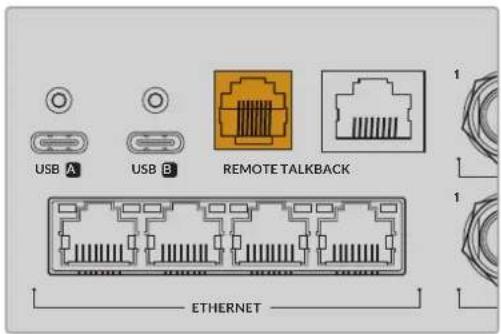
PTZ Setup for Remote Heads
All PTZ setup options are set using the 'settings' LCD menu. Press the arrow buttons or the '8' on the keypad to display the remote port settings menu and set the remote to VISCA. Set the baud rate to match the rate used by your PTZ camera. Refer to your camera's support documentation to confirm the appropriate baud rate.
Pressing the camera control button opens the camera settings, where you can select VISCA control and choose the camera you want to adjust. But first, you will need to make sure the connected cameras are detected.
To detect the connected devices:
1 Press the VISCA soft button to select VISCA control.
2 Press the 'detect' soft button.
The first camera connected to your switcher will appear on the LCD as 'camera 1'. If you have more than one camera connected, they can each be selected by turning the 'camera' soft control knob. Camera numbering is based on consecutive order from the first remote head connected, through to the last in the chain.
If the number of connected cameras that appear on the LCD menu don't match the physical number you have connected, check that all your camera heads are powered and their RS-422 ports are plugged in correctly. Once all your camera heads are visible on your ATEM Television Studio 4K8 switcher, select each camera using the soft control knob or numeric keypad and make some quick adjustments with the joystick to check they are all working properly.
TIP Camera control defaults to SDI for general camera control via SDI, so when using VISCA control, make sure you press the VISCA soft button to access VISCA PTZ cameras.
PTZ Control via SDI
You can also control PTZ camera heads via SDI. For example, by connecting the program return feed from your switcher to a camera, then connecting the SDI output from the camera's expansion cable to your PTZ head, you can control the head via the SDI signal.
Joystick PTZ Controls
Joystick PTZ controls are very intuitive. Turn the joystick knob clockwise or counter clockwise to zoom in and out. Push up and down to tilt the camera and push left and right to pan. The controls are sensitive to the degree of movement of the joystick, letting you ease in and out of your camera moves. The amount of sensitivity may vary between remote heads.
If you want to wire a custom built PTZ unit using a standard RS-422 port DB-9 connector, refer to the section labeled 'Serial Port Pin Connections for Control Cables'.
Using Adobe Photoshop with ATEM
Installing the ATEM software on your computer also installs a Photoshop plug-in that lets you download Photoshop graphics direct to the ATEM media pool.
This means you can accept graphics from designers in the application that 100% of the world's designers use, Adobe Photoshop! You can even use the layers in a Photoshop image to keep variations of graphics, such as different titles in a graphic, then select the layers in Photoshop you want and then simply download them at the press of a button. When downloading the layers are automatically flattened in real time before download. This happens in the background and your document in Photoshop is unchanged by the export.
The ATEM export plug-in requires Adobe Photoshop. Install or reinstall the ATEM software after Photoshop is installed, to ensure the ATEM export plug-in is installed.
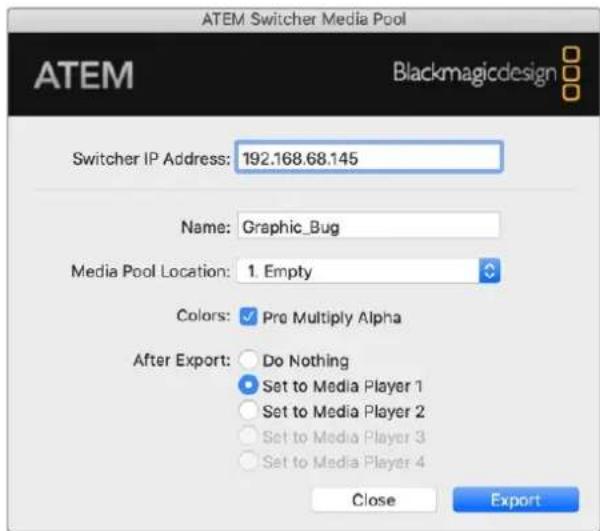
ATEM export plug-in
Setting up Plug-in Switcher Location
The first time the Photoshop export plug-in is run, it will ask you to select your switcher location. This is the IP address of the switcher so the plug-in can find the switcher to communicate with. By default, the IP is set to 192.168.10.240, which is what the switcher IP address is originally set to when first sold. If you want to export several versions of the same Photoshop file, you can use the export plug-in window to name each exported file and also choose whether to set the files to a Media Player after export.
Preparing Graphics for Download
For best results, you will want to use a Photoshop document resolution that matches the video standard you're using with your ATEM switcher. For 1080 HD you should use 1920 x 1080 pixels in resolution. For 720p HD formats you should use 1280 x 720 pixels.
When working with Photoshop documents for ATEM, you should not put any content on the background layer, but add all content to the layers above. The background layer should always be plain full frame black and you should use a pre-multiplied key setting in the ATEM keyers for keying graphics from Photoshop.
To help you get started, we've included a guide and some graphic template files in the Example Graphics folder which was installed on your computer along with the ATEM Switchers software.
To download the graphic to the ATEM media pool, simply select the export menu in Photoshop and then select ATEM Switcher Media Pool to export. A window will appear asking you to choose which position in the media pool you want to download to. The list includes all the file names of graphics currently loaded in the media pool. Select which position you would like to download to and then select export.
If you're in a hurry to get your graphics on air, then you can select to automatically copy this graphic to any of the media players after export. This lets you get images to air fast! If you don't want to interfere with the media player graphic sources, simply select not to copy the media players to this graphic.
Pre Multiply Alpha should almost always be enabled and requires that you also switch on the Pre Multiplied Key setting on the switcher or via ATEM Software Control. Premultiplying mixes the graphic color with its alpha channel when exporting to ensure your graphic has smooth edges which blend in to the video.
Using Macros
What is a Macro?
A macro is an easy way to automate a sequence of switcher actions so you can repeat the sequence at the press, or click, of a button. For example, you can record a sequence of transitions between several video sources, including key effects, audio mixer adjustments, camera control settings and more. Record all your actions to a macro button, then when you press that button all your recorded actions will be instantly performed. Macros are recorded using the macros window in ATEM Software Control, system control on ATEM Television Studio switchers, or a combination of the two and are stored inside your ATEM switcher. Macros are common to all control panels, they can be triggered using any control panel you like.
The Macros Window in ATEM Software Control
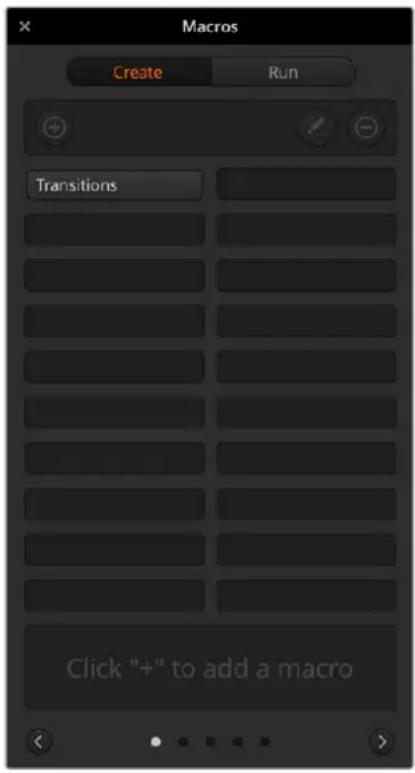
To open the macros window in ATEM Software Control, click on macros in the title bar, or you can also press shift/command/M for Mac, or shift/control/M for Windows. The macros window is a floating window you can move freely about your desktop. This is so you can always access the window when moving between the switcher, media, audio and camera pages. While recording a macro, you can even reduce the size of the window by clicking on the minimize icon at the top right corner.
Macros can be recorded to any of the 100 macro slots. Up to 20 macro slots are visible on each page. Move forwards and backwards through pages by clicking on the arrows on the bottom sides of the window. Clicking on the create and run buttons lets you swap between the create and run pages so you can record your macros and then run them during your live production.
Recording Macros
Macros need to be recorded comprehensively, in clearly defined sequences from start to finish without error. This is because your macro will record every setting, press of a button and switcher action you perform. When you run a macro, all the switcher actions you recorded in that macro will be repeated precisely.
It's worth highlighting that a macro will only record the settings you change. For example, if you want a 3:00 second transition and your switcher's transition rate is already set to 3:00 seconds, you'll need to change the duration, then set it back to 3:00 seconds to record the setting. If not, your desired transition rate will not be recorded and when the macro is run it will simply use the transition rate your switcher was last set to. So you can see why precision is important!
If settings are changed while recording a macro and you want them restored to a particular state, simply restore those settings while recording the final steps of the macro. You can even record macros to restore settings for various projects. You have lots of choices. The important thing to remember when recording a macro is that you change all the settings you need to so you can create the specific effects you want.
Recording a Macro using ATEM Software Control
In the example below, we're going to create a macro that will set your ATEM switcher to perform a 3 second mix transition from color bars to color 1, pause for 2 seconds, then perform a 3 second mix transition to black. Try building this macro on your ATEM switcher so you can learn the steps in creating macros.
1 Launch ATEM Software Control and open the macros window.
2 Click on the create button in the macros window to select the create page.
3 Click on a macro slot you want to record your macro to. In this example, click on macro slot 1. An orange border will appear around the slot you have selected.
4 Click on the create macro button ('plus' icon) to open the create macro popup window.
If you want to, you can enter the name of your macro and type a description. This lets you easily keep track of your macros and quickly see what each macro does. When you click on a macro, your notes will appear in the status window.
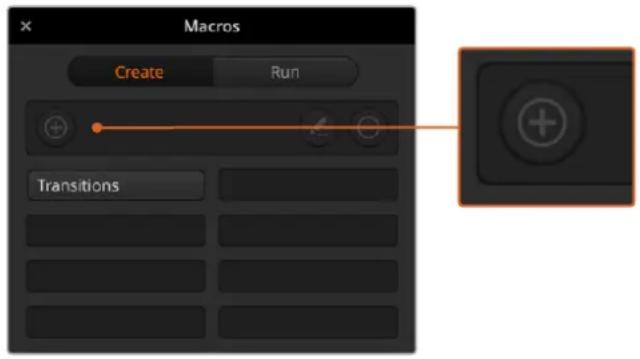
To start recording a macro, select a macro slot, then click on the create macro button. Type in your notes and click 'record'.
5 Click the 'record' button.
The popup window will close and a red border will appear around your ATEM Software Control panel indicating your macro is now recording. Notice the red 'add pause' button at the top of the border.
Now that your macro is recording, you can start performing your switcher actions.
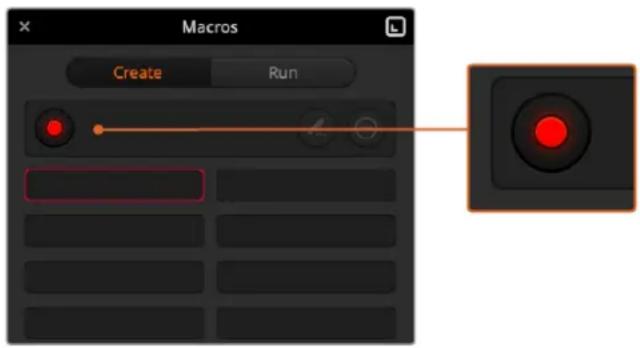
While recording, the create macro button will change to a 'record' button. When you have completed your switcher actions, click on the 'record' button to stop recording.
6 Click on the bars button in the program panel on the switcher page. This sets bars to your switcher's program output.
7 Select color 1 on the preview panel.
8 Open the transitions palette and set it to mix.
If mix is already selected, make sure your macro records the setting by selecting a different transition type, for example the wipe transition, then clicking on mix again.
9 Now change the transition Rate to 3:00. This sets the mix transition duration to 3 seconds.
10 Click on the auto button in the transition style panel. Your switcher will perform a mix transition from color bars to color 1.
11 To set the switcher to wait for 2 seconds before applying another transition, click on the add pause button at the top of the red border. The 'insert pause' window will open. Set the pause to 5 seconds and 0 frames and click 'add pause' to confirm.
Why set a 5 second pause when you only want a 2 second pause? That's because when the mix transition occurs, it takes 3 seconds to complete. So if you want to add a pause, you need to consider the transition duration, plus the pause you want to happen before the next transition occurs.
In this example, it takes 3 seconds for the transition to complete, then 2 seconds for your 2 second pause, so you should enter a pause of 5 seconds. Another way is to add two separate pauses, one for the duration of the transition and then another for the pause you want. It's up to you.
12 Now select black on the preview panel and click the auto button in the transition style panel. Your ATEM switcher will perform a mix transition to black.
13 Click the record icon in the macros window to stop recording your macro.
The macro you just recorded will now appear as a button in your selected macro slot. To preview your macro, click the run button in the macros window to enter the run page. Select recall and run, which sets the macros window to run a macro as soon as you click on a macro button. Now click on your new macro button, named 'Transitions'.
14 If you want your macro to instantly run as soon as you select it, click on the 'recall and run' button. By enabling this feature you can load and play your macros with only one click of a button.
If your macro was successful, you should see your ATEM switcher perform a mix from color bars to color 1 using a 3 second transition, pause for 2 seconds, then perform another 3 second mix transition to black, all by clicking one button in the macros window! Your ATEM switcher will also display an orange border around your software control panel to indicate a macro is playing.
If your macro doesn't perform the way you expect it to, simply rerecord the macro you just created following the previous steps.
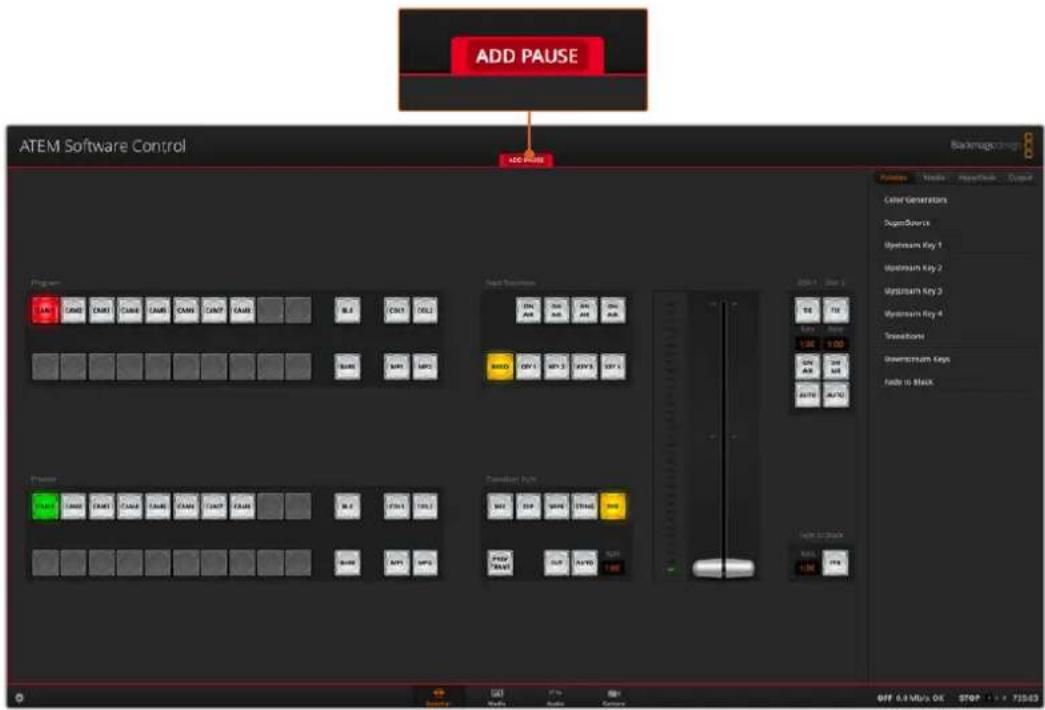
ATEM Software Control displays a red border to indicate when you are recording a macro. The 'add pause' button located at the top of the red border lets you enter durations for pauses between switcher actions.
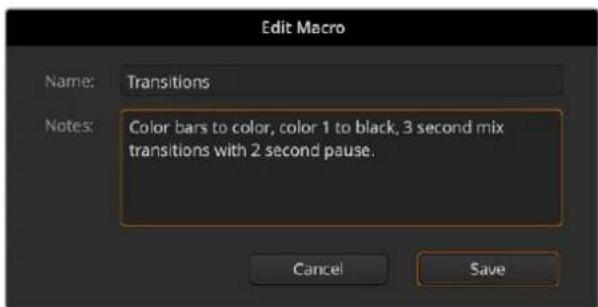
Enter a name for your macro and a description so you can keep track of the switcher actions recorded in the macro.
Building Large Macros
Macros can even include triggering other macros as part of recording a macro. This lets you easily build larger macros from multiple smaller macros, i.e., recording macros with limited actions, then compiling them into a large macro. This is because if there are any mistakes while recording a large macro in one complete sequence, you'll need to go back to the start of your sequence and rerecord it. It's a lot easier to work with segments containing a small number of actions.
By recording a large macro using small macros, you can also edit your large macro by rerecording only the small macros you want to change, then compiling your small macros back into your large macro.
To compile small macros into a large macro:
1 Start recording a new macro, then while the macro is recording, click on the 'run' button to enter the run page.
2 Select 'recall and run' to automatically run macros at the push or click of a button, or deselect to load a macro and play it manually.
3 Run your sequence of small macros, with pauses between each one to cover the duration of each small macro, until you've completed the large macro.
4 Stop recording. You now have a complex, powerful large macro built from small macros you can easily change later if you need to.
There is no limit to the amount of actions you can perform. You can easily build complex transitions, create unique repeatable effects using keyers, or set up frequently used Blackmagic Studio Camera settings, graphic overlays and DVEs so you don't have to reconstruct them every time you start a new program. Macros are fun and will save you a lot of time!
Macros Window Create Page
Create macro button:
Click this button to open the create macro popup window. From here you can name a new macro to be recorded, write a description of your macro in the notes section, and click record to start recording your macro.
Arrow buttons and page Icons:
To access or record more than 20 macros, simply click on the right arrow at the bottom corner of the macros window to open a new page of macros. To move to the previous page of macros, click on the left arrow. You can see which page of macros you are viewing by observing the page icons between the arrows.
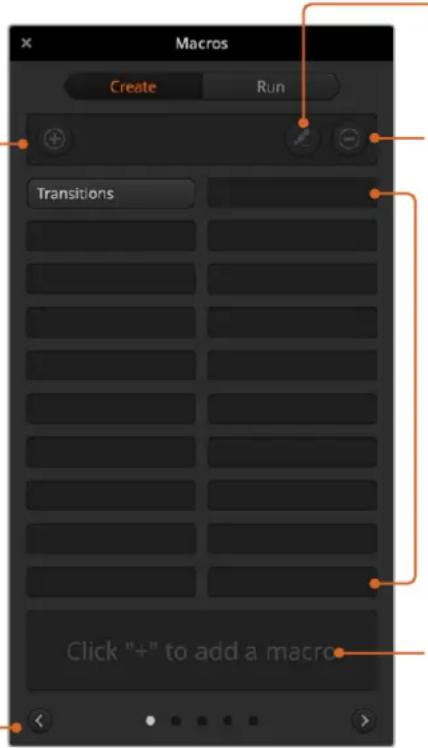
Edit macro button:
First select the macro you want to edit, then click on the edit macro button to edit the name and description of the macro.
Delete macro button: Select the macro you want to delete, then click on the delete macro button to delete the selected macro.
Macro buttons:
After recording a macro to a selected macro slot, your macro will appear as a macro button. 20 macro buttons can be displayed on one page. If a macro is unnamed when recording, the number of the selected macro slot will be used.
Status window:
This window provides helpful prompts and status messages to help you get started recording and running your macros. When a macro is selected, it also displays any notes you have Included.
Macros Window Run Page
Recall and Run:
Selecting the Recall and Run feature lets you instantly run a macro by clicking a macro button. Deselecting the Recall and Run feature lets you load a macro by clicking on your macro button. Run the macro by clicking the play button.
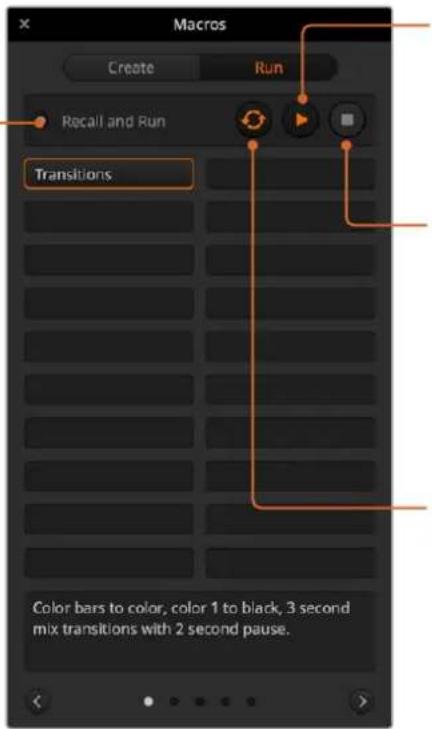
Play:
When Recall and Run is deselected and you have loaded a macro by clicking on a macro button, click the play icon to start playing the macro.
Stop:
Clicking the stop button will stop the playback of a macro, but will complete the current action first. For example, if you press stop half way into a transition, the switcher will finish the transition and then stop.
Loop:
When the loop button is selected and you run a macro, your macro will run continuously until you click the stop button. When loop is deselected, your macro will run until it is completed.
Recording Macros using ATEM Television Studio
You can record and run macros using the ATEM Television Studio switchers independently of ATEM Software Control. All actions on the ATEM Software Control switcher page can be performed using your switcher's panel. If you need to arrange graphics in the media pool, or adjust camera settings, simply access those settings using ATEM Software Control.
The buttons used to record and run macros on ATEM Television Studio are located in the system control buttons. The names of your macro buttons are displayed in the source select names display.
Follow the steps below to create the 'transitions' macro demonstrated earlier using ATEM Software Control. This time you will create a macro in macro slot 6.
1 Press the 'macro' soft button to open the macros LCD menu.
2 Using the 'macro' knob under the LCD, select the macro slot you want to record to. For this example, select slot '6 Empty'.
3 Press the 'record' soft button at the top of the LCD to start recording. The record icon appears as a red circle. When recording, this icon becomes a red square and a red border will appear around the LCD.
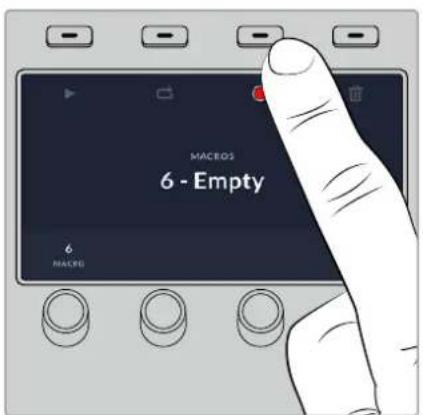
Press the 'record' soft button to start recording your macro
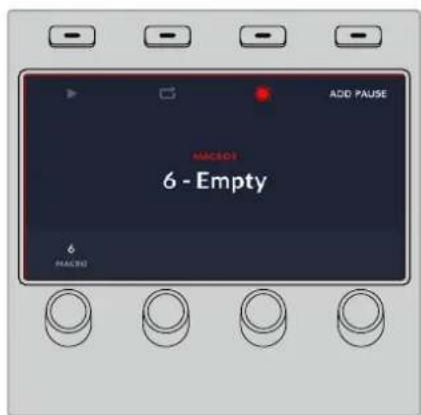
While recording, a red border will appear around the LCD
4 Shift select 'color bars' on the program bus. The button will flash indicating it's a shifted source.
5 Shift select 'color 1' on the preview bus. If you wish, you can map buttons such as color bars, black and color generators to any of the main 10 buttons of the program and preview bus for easier access. See the 'button mapping' section of this manual for instructions.
6 Press the wipe button in transition control to ensure the macro records the wipe transition selection.
7 In the 'wipe' LCD menu, set the rate to 2:00 seconds.
8 Press the 'auto' button in transition control to perform the wipe transition from color bars to color 1.
9 Press the 'macro' button to return to the macro screen.
10 To set the macro to wait for 2 seconds before applying the next transition, press the 'add pause' soft button in the LCD menu and set the duration to 2 seconds by rotating the 'seconds' knob. Press the 'confirm' soft button to record the pause.
11 Now shift select 'black' on the preview bus, press the 'mix' button in transition control and press the 'auto' transition button. Your ATEM switcher will perform a mix transition to black.
12 Press the Macro button to navigate back to the Macro menu, then press the 'stop' soft button to stop recording.
You have just recorded a macro using an ATEM Television Studio. The macro will appear as a macro button named 'Macro 6' because it is located in macro slot 6. You can name your macro and add notes by clicking on the 'edit macro' button in ATEM Software Control.
To run the macro, press the macro button to set your panel's source select row to macro mode. The buttons will illuminate blue when in macro mode. Now press the macro 6 button. You can easily see when a macro is running because the macro button will flash green and an orange border appears around the LCD menu.
If your macro was successful, you should see your ATEM switcher mix from color bars to color 1 using a 2 second mix transition, pause for 2 seconds, then perform another 2 second mix transition to black, all by pressing one button on your ATEM switcher. If you want the macro to loop so it keeps running, press the 'loop' soft button to enable loop. Press again to disable loop.
It's worth frequently testing your macros using different switcher settings to make sure the macro performs all the specific functions you intended and doesn't miss any instructions or produce something unexpected.
HyperDeck Control
Introducing HyperDeck Control
You can connect up to 10 HyperDeck disk recorders to your switcher and control them using the system control buttons on the ATEM switcher or using the HyperDecks palette in ATEM Software Control. This is a very powerful feature! With ten HyperDecks connected to your switcher, it's like having a portable videotape department able to record outputs from your switcher, play back graphics, or you can even set your switcher to roll prerecorded segments at the press of a button!
Transport controls are located in the system control menu on an ATEM Television Studio and in the HyperDecks palette in ATEM Software Control, which lets you play back video, jog and shuttle, skip clips, pause and more. You can also record video.
When you combine this feature with ATEM's powerful macros feature, it opens up a world of creative possibilities that can really enhance your live production!
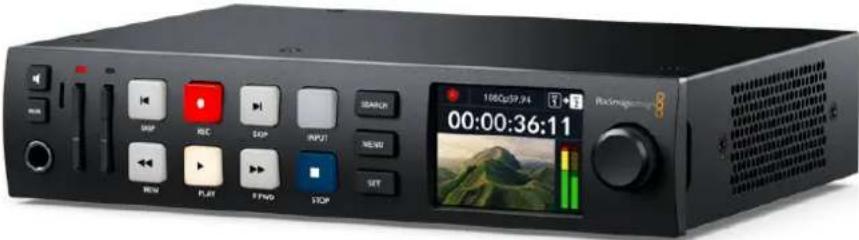
HyperDeck Studio HD Plus
Connecting HyperDecks
Connecting HyperDecks to your switcher is very similar to connecting cameras and other video sources via your switcher's SDI inputs. The only additional connection is Ethernet which lets your ATEM switcher communicate with the HyperDeck disk recorder.
1 Using the Ethernet connector, connect your HyperDeck disk recorder to the same network your ATEM switcher is connected to.
2 Press the remote button marked 'REM' on the HyperDeck's control panel. The 'REM' button will illuminate which means the HyperDeck has remote control enabled. If you are using a HyperDeck Studio HD Mini, turn remote on via the settings tab on the LCD menu.
3 Plug the SDI output of your HyperDeck into the SDI inputs of your ATEM switcher.
4 If you want to record your ATEM switcher's program output with your HyperDeck, plug one of the switcher's SDI outputs into the SDI input of your HyperDeck.
5 Repeat the process for each HyperDeck you want to connect.
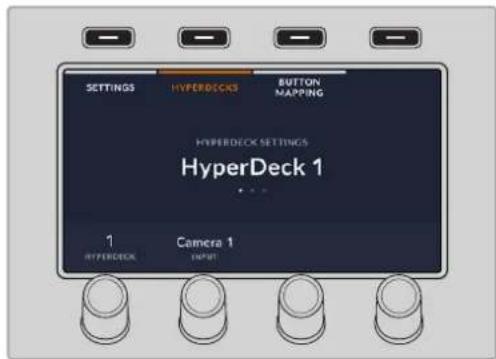
In the first menu page, you'll see the 'HyperDeck' indicator in the bottom left corner and an 'input' indicator. Use the control knob under the 'HyperDeck' indicator to cycle through the available HyperDecks.
Once you have selected a HyperDeck, rotate the knob under the 'input' indicator to select which input that HyperDeck is connected to on your switcher. For example, if HyperDeck 1 is connected to SDI In 4 on your switcher, rotate the knob under the 'input' indicator to select 'camera 4.' Press the 'input' knob to confirm your selection.
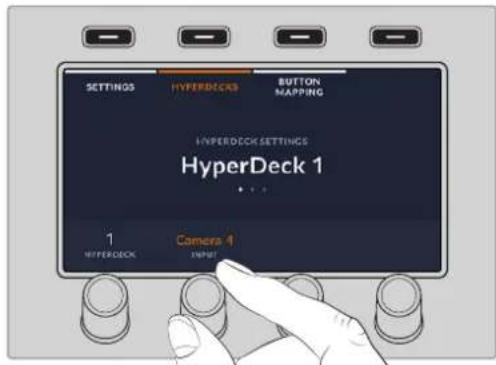
Using the second page you can turn enable or disable the auto roll feature and set a value for frame offset. When auto roll is enabled, the HyperDeck disk recorder will automatically roll video when it is switched to the program output. For example, you can cue a HyperDeck to the point you want your source to begin, then roll the source by pressing its input button on the mix effects program row. If you want to cue to a still frame of video or manually trigger video playback on your HyperDeck, you can also deselect the 'auto roll' feature.
As HyperDecks must buffer a couple of frames before commencing playback, the actual cut will be delayed a preset number of frames to ensure a clean transition. This is just like setting a preroll on a videotape machine. You can adjust the length of this delay by changing the number in the 'offset' box. We've found that five frames usually ensures a clean cut.
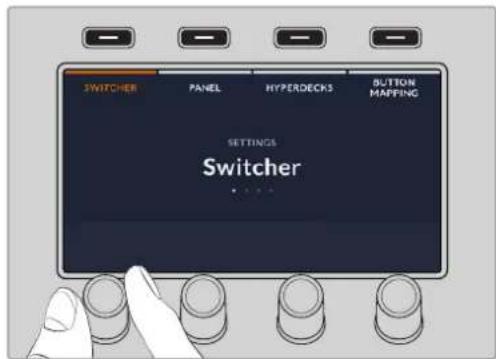
Once you've assigned an input to a HyperDeck, you'll need to enter its IP address. This allows ATEM Television Studio switchers to control the HyperDeck via Ethernet.
To enter a HyperDeck's IP address, navigate to the third HyperDeck settings page with the 'left' or 'right' arrow buttons, or pressing '3' on the numeric keypad while in the HyperDeck settings menu.
In this page, you'll see an IP address for the currently selected HyperDeck. Each IP address number corresponds to a rotary knob below it. To change these numbers, you can rotate the corresponding knob, or press the knob once and enter a number using the numeric keypad. Do this for each number in the IP address.
Once you've entered the IP address for your HyperDeck, press the soft button corresponding to the 'save changes' indicator to confirm the address. To cancel, press 'undo'.
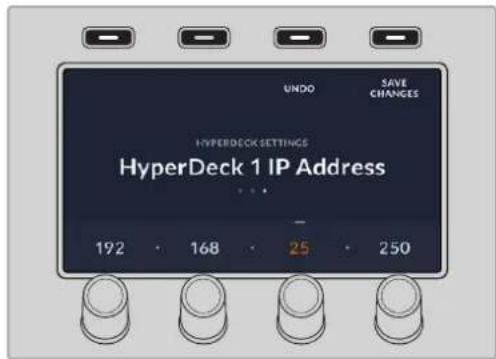
To enter the IP address for subsequent HyperDecks, you'll need to select the HyperDeck using the first page of the HyperDeck settings menu.
You can control HyperDecks via the switcher using the 'media players' button. For more information, refer to 'HyperDeck control' later in this manual.
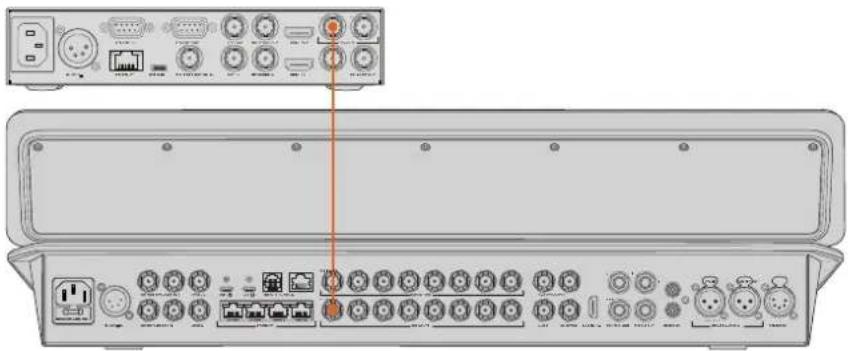
Plugging the SDI output from Hyperdeck Studio HD Plus into an SDI input on ATEM Television Studio
Now all you have to do is tell your ATEM switcher which input and IP address each HyperDeck is using. You can do this in the HyperDeck tab in ATEM Software Control switcher settings, or using the system control soft buttons on ATEM Television Studio switchers.
HyperDeck Settings
HyperDeck connection settings are located in the 'HyperDeck' tab of the ATEM Software Control switcher settings. Here you'll see setup options for up to ten HyperDecks.
Entering the necessary details is as easy as typing in your HyperDeck's IP address in the 'IP Address' box and choosing the source it's plugged into from the 'input' menu. Click 'connect' and your HyperDeck is ready to be controlled.
Status indicators appear above and below each HyperDeck icon to let you know the connection status. A green tick means your HyperDeck is connected, in remote and ready to go.
If your HyperDeck is connected and recognized, but does not have its remote button enabled, you will see an indicator letting you know remote is not active.
If your HyperDeck is not recognized, you will see a 'failed to connect' indicator. If you see this indicator, check the HyperDeck's Ethernet port is connected to your network and the IP address is entered correctly.
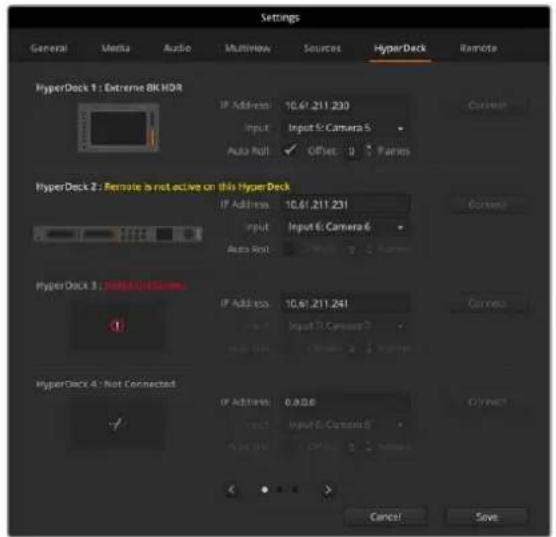
Auto Roll
You can set a HyperDeck disk recorder to automatically roll video when it is switched to the program output. For example, you can cue a HyperDeck to the point you want your source to begin, then roll the source by pressing its input button on the mix effects program row.

As HyperDecks must buffer a couple of frames before commencing playback, the actual cut will be delayed a preset number of frames to ensure a clean transition. This is just like setting a preroll on a videotape machine. You can adjust the length of this delay by changing the number in the 'offset' box. We've found that five frames usually ensures a clean cut.
If you want to cue to a still frame of video or manually trigger video playback on your HyperDeck, you can also deselect the 'auto roll' feature.
Controlling HyperDecks with ATEM Software Control
To control the HyperDecks connected to your switcher, click the 'media players' tab in the software control panel and choose the 'HyperDecks' palette.
Here you can choose between each of the HyperDecks connected to your system by clicking one of the buttons along the top of the panel. These are named according to the labels entered in ATEM settings. Available HyperDecks are shown with white text, while the HyperDeck you are currently controlling is shown in orange.
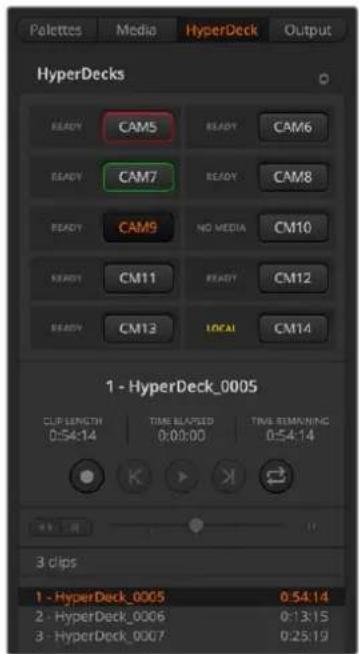
Choose from up to ten HyperDecks by clicking their selection buttons in the HyperDecks palette.
In addition to the text color, each HyperDeck's selection button also has a tally indicator.
| Green Outline Indicates a HyperDeck that is currently switched to the preview output. | |
| Red Outline | Indicates a HyperDeck that is currently switched to the program output, meaning it is currently live to air. You may also see one of the following status indicators above the selection buttons for your HyperDecks. |
| Ready HyperDeck is set to remote and a disk is inserted. It is ready for playback and recording if space is available. | |
| Record HyperDeck is currently recording. | |
| No Disk HyperDeck has no disk inserted. | |
| Local HyperDeck is not set to ‘remote’ and cannot currently be controlled by your ATEM switcher. | |
When you select a HyperDeck, you'll see information about the currently selected clip such as the name and length, as well as time elapsed and time remaining. Below this you'll see the control buttons.
 | RecordClick on this button to start recording on your HyperDeck. Click again to stop recording. |
 | Previous ClipMoves to the previous clip in your HyperDeck's media list. |
 | PlayClicking 'play' once initiates playback, clicking it again stops playback. If you have 'auto roll' enabled in your HyperDeck settings, playback will commence automatically when your HyperDeck is switched to the program output. |
 | Next ClipMoves to the next clip in your HyperDeck's media list. |
 | LoopClick 'loop' once to loop the currently selected clip and again to loop all of the clips in your HyperDeck's media list. |
To move through a clip use the shuttle/jog slider underneath your HyperDeck's control buttons. This lets you move quickly, or shuttle through a selected clip, or jog frame by frame. You can switch between these modes with the buttons next to the shuttle/jog slider.

natural_image
User interface control bar with playback and scroll icons (no text or symbols)Choose between shuttle and jog transport controls with the buttons to the left of the transport slider. Adjust the slider left and right to move forward or backwards through your clip.
The clip list below the transport control shows all of the clips currently available on the selected HyperDeck. You can expand or collapse the list by pressing the arrow to the right of the clip list.
Playback
Playing media on your HyperDeck is easy. Switch your HyperDeck to the preview output and select the clip you want to show. Use the transport controls to cue to the preferred point in your clip. When you switch your HyperDeck to program output, the 'auto roll' feature will automatically start playback from this point.
If you want to manually trigger the playback, for example holding on a still frame then rolling, disable the respective HyperDeck's auto roll checkbox in the 'HyperDeck' tab in ATEM software's 'settings' menu.
Recording
To record to a HyperDeck with a formatted disk inserted, press the 'record' button in the HyperDeck palette transport controls. The 'time remaining' indicator in the HyperDeck palette will let you know the approximate recording time remaining in the SSD.
Controlling HyperDecks with ATEM Television Studio
Once you have connected your HyperDecks to your switcher as described in the 'connecting HyperDecks' section, you can use the system control buttons and LED menu on your panel to set up and control each HyperDeck.
Controlling HyperDecks with ATEM Television Studio
HyperDeck controls are available in the ‘media players’ menu in system control. To access this menu, press the ‘media players’ control panel button and press the soft button above the ‘HyperDecks’ indicator to access HyperDeck control. If your switcher has more than two media players, you may need to navigate to the next menu page to access HyperDeck controls.
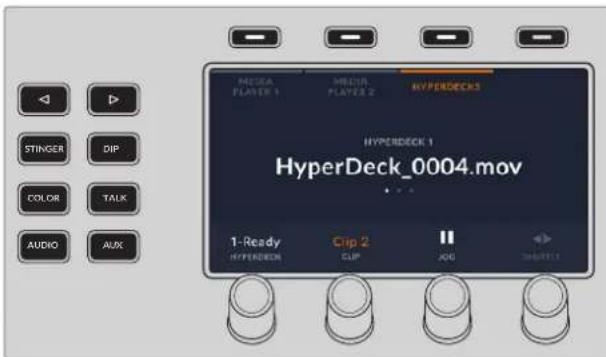
You can now use the rotating knobs below the 'hyperdeck,' 'clip,' 'jog' and 'shuttle' indicators to select HyperDecks, select clips and jog and shuttle these clips.
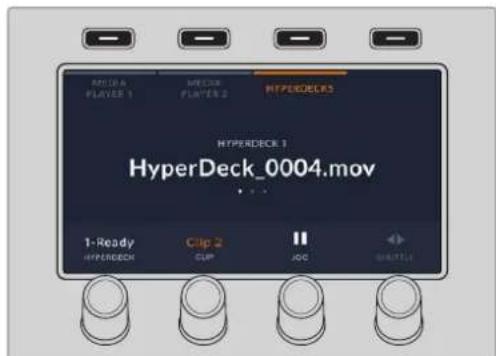
The text in the center of the HyperDeck control menu will change to reflect the HyperDeck and clip that you have selected.
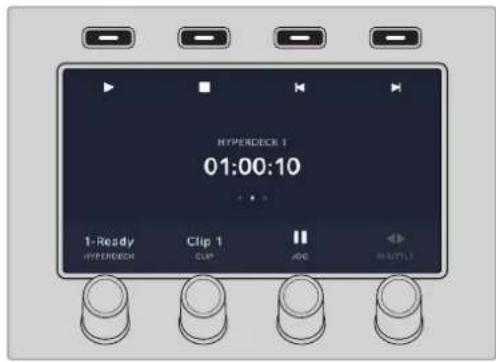
Use the second and third pages of the 'media players' LCD menu for more HyperDeck controls, including play, stop, loop playback and forward and reverse skip for moving between clips.
TIP To play all clips, hold down the shift button and press the 'play' soft button.
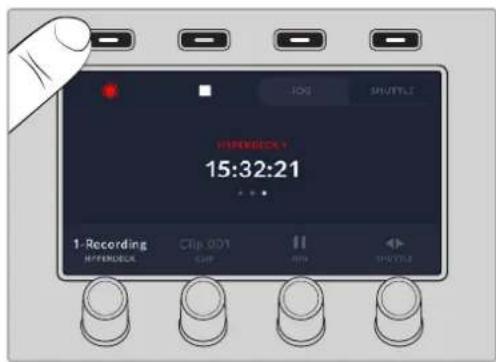
In the third menu page, press the 'record' button to record the program output of your switcher to your HyperDeck. Use the 'jog' and 'shuttle' commands to scrub through recorded footage.
Using ATEM Camera Control Panel
Traditionally, camera control units, or CCUs, have been designed for mounting inside a desk with independent units for each camera. ATEM Camera Control Panel is a portable solution that can be placed on a desk or solid surface with 4 CCUs built in so you can control up four Blackmagic Design cameras at once. However, you aren't locked into controlling one single camera for each CCU because you can select which camera you want to control.
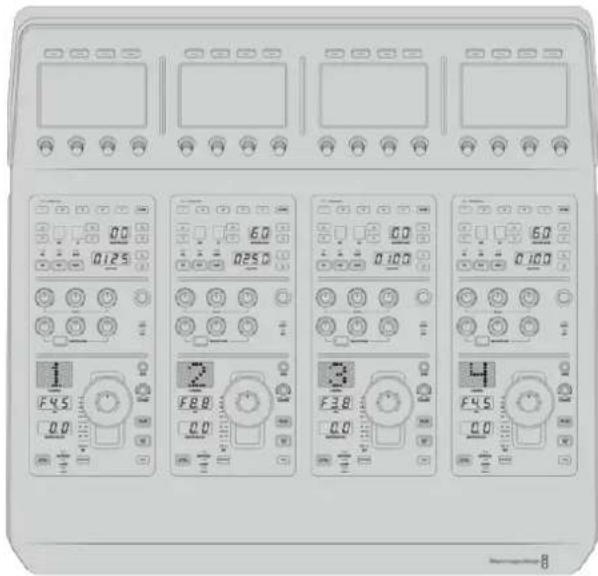
This means you can control any number of Blackmagic Design cameras using the four CCUs on one single panel, or if you have more than four cameras, you can use additional panels if you want to assign each camera with a dedicated CCU. It's completely up to you.
NOTE Blackmagic Design cameras that can be controlled using ATEM Camera Control Panel include URSA Broadcast G2, URSA Mini Pro 4.6K G2 and Blackmagic Studio Camera 4K.
Powering the Panel
To power your camera control panel, connect power via the IEC power input on the rear panel using a standard IEC power cable. You can also use the 12V DC input if you want to connect external power or redundancy via an external power supply, for example a UPS uninterrupted power supply or external 12V battery.
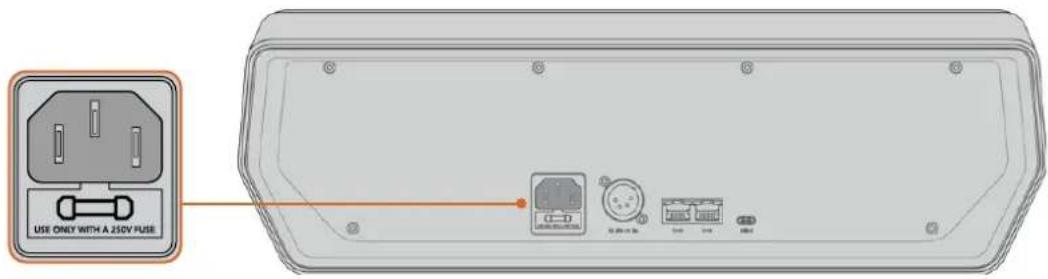
Connect power via the power input on the rear panel
Connecting the Panel to your Switcher
To connect ATEM Camera Control Panel to your switcher, all you need to do is add the panel into your ATEM Ethernet connection chain.
If you are using the camera control panel with just your switcher and a computer on a shared network, connect the panel to your switcher, then the spare Ethernet port to your computer.

flowchart
graph TD
    A["Computer"] -->|Ethernet| B["ATEM Camera Control Panel"]
    B -->|Ethernet| C["ATEM Television Studio"]
    B --> D["Computer"]
After connecting the camera control panel to your ATEM equipment, you should see the lights on the panel illuminate and the LCDs on each CCU will display their respectively assigned cameras. The panel is now powered, connected to your switcher and ready to start controlling your cameras!
The connection process is fast because all the network settings for each ATEM unit have a different default IP address when shipped from the factory. This means when you connect them all to each other, their network settings are automatically configured and will work straight away.
However, if you are adding a camera control panel to an already existing system, or you need to manually assign a different IP address to avoid potential conflicts on your network, you can enable DHCP so your panel determines the best IP address, or disable DHCP and set the IP address manually.
Changing Network Settings
Changing network settings means manually setting the panel's IP address so it can join your network, then entering the switcher's IP address on your panel so the switcher can be identified by your panel. These settings are located in your camera control panel's 'settings' LCD menu.
The home screen is the first menu item you will see on the CCU's LCD. To access the network settings, press the 'panel settings' soft button.
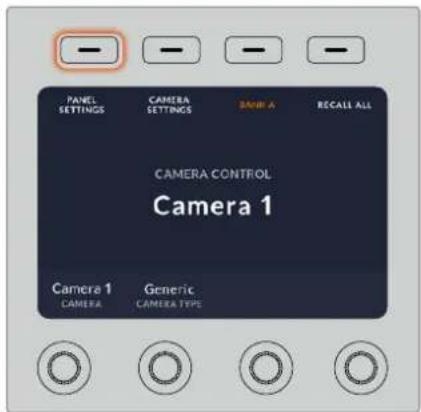
Press the 'settings' soft button on the LCD home screen to access all the camera control panel's settings
The DHCP setting is the first setting in the sequence of menu pages. Under this setting is a row of small dot icons. As you press the arrow soft button to navigate through the pages of settings, the dot icons will illuminate to show which page you are on. All your camera control panel settings are available via these pages.
To set the camera control panel's IP address:
1 If you want the panel to automatically set a compatible IP address, select the DHCP setting by pressing the 'on' soft button.
TIP If you know your network's IP address, you can navigate to the next setting page and check the panel's IP address setting to confirm it has selected an address compatible with your network.
2 If you want to set the IP address manually, make sure the DHCP setting is set to 'off', then press the arrow soft button to navigate to the 'panel IP address' setting.
3 Rotate the corresponding knobs to change the IP address fields.
4 Now press the arrow button to move to the subnet mask and gateway settings and make the necessary changes.
5 Once all the subnet mask and gateway number fields are set, press the 'save changes' soft button to confirm your settings.
With your camera control panel's IP address set, the network can now communicate with your panel.
The next step is to assign the switcher's IP address on the camera control panel. By telling your camera control panel your switcher's IP address, the panel can then identify your switcher on the network.
TIP If your switcher is located near the camera control panel, it's helpful to open the network settings menu on the switcher so you can observe your switcher's IP address while entering the IP address number fields on the camera control panel. This is also a good way to cross check your network settings between each unit.
To set the switcher's IP address on your camera control panel:
1 Press the arrow soft button to navigate to the 'switcher IP address' setting.
2 Using the knobs underneath the LCD, set the numbers for each address field.
3 Press 'save changes' to confirm your settings.
Now that your panel has identified the switcher, all the controls on your panel should illuminate. This lets you know the panel is communicating with your switcher and is now able to control your cameras via the program return SDI outputs from the switcher to each camera.
If the lights are not illuminated on your panel, check your network settings and ensure the Ethernet cables are connected correctly.
Camera Control Panel Layout
Each CCU on your camera control panel is exactly the same with the same controls. The menu settings are primarily controlled using the left CCU's LCD and soft buttons.
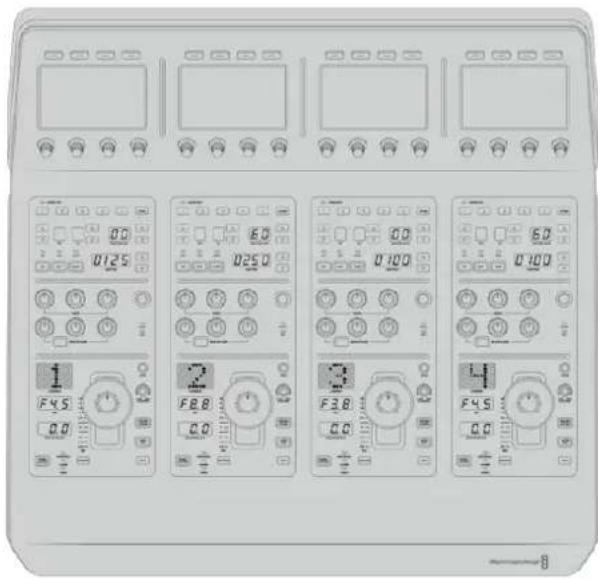
natural_image
Front panel of a control room with multiple dials and switches (no readable text or symbols)Each CCU has exactly the same controls.
LCD Menu Settings
Pressing the 'home' soft button returns you to main home screen. From the home screen, you can access all your camera control panel's settings including the network settings, auxiliary for camera control, master black enable and disable settings and the brightness settings for adjusting the lights on the various panel controls. You can also identify the software version installed on your camera control panel and the ATEM switcher your panel is connected to.
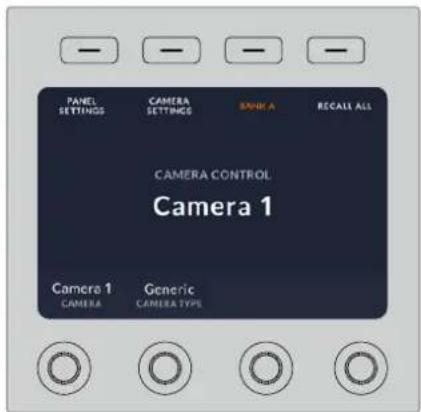
The home screen displays features you may need access to at all times, for example selecting the desired camera bank and recalling scene files for all cameras
Camera Banks A and B
When the LCD is set to the home screen, you will see the camera bank setting at the top of the display. This setting displays which bank of cameras you are controlling.
For example, imagine you are controlling 8 cameras and you want to have a dedicated CCU assigned to each camera. You can assign cameras 1 to 4 for each CCU on bank A, then assign cameras 5 to 8 to each CCU on bank B.
Now when switching your live production, you can press the 'bank' soft button to swap between banks A and B, which lets you instantly access camera control for cameras that have been assigned to dedicated CCUs. This is a faster and more organized way of controlling cameras compared to swapping between multiple cameras on each CCU during production.
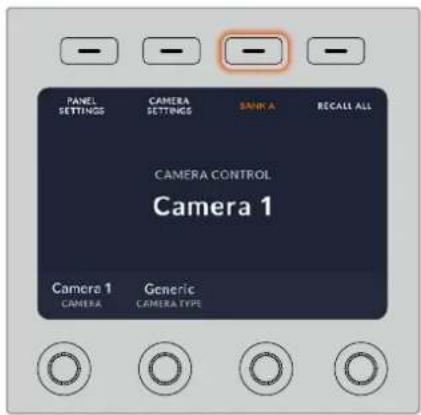
Press the bank soft button to cycle between camera banks A and B, or hold the button down to disable or enable camera banks
You can also disable the banks by holding down the bank soft button until the 'bank off' setting appears on the LCD.
Turning the banks off lets you change the CCUs to other cameras when needed, with a defined set of cameras ready on each bank you can access at any time. To enable banks, simply press the bank button again.
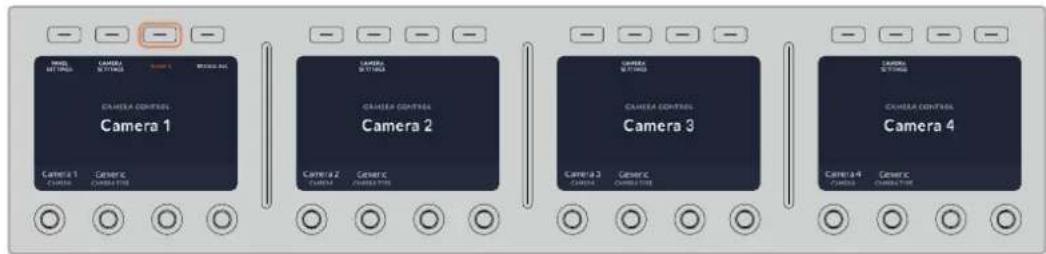
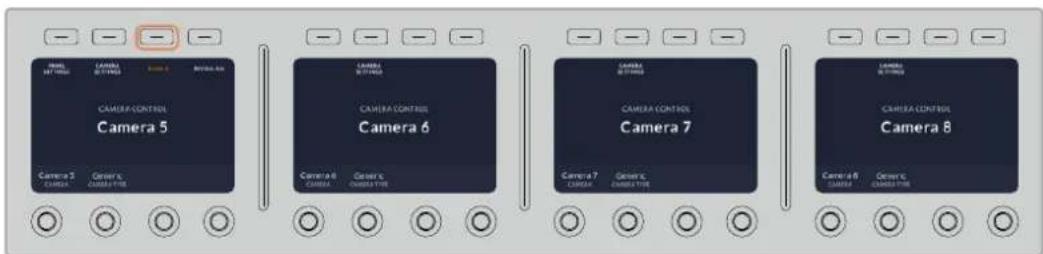
The bank setting lets you assign 2 banks of cameras to the four CCUs and then instantly swap between them by pressing the 'bank' soft button
TIP Any camera can be selected on each CCU in both banks. For example, imagine you want to have constant control over camera 1, even after switching to another bank of cameras. All you need to do is make sure one CCU in each bank always has camera 1 selected.
Panel Settings
Pressing the 'panel settings' button on the home screen opens all settings for your camera control panel. Navigate through the pages of settings by pressing the arrow soft button. The network settings, including DHCP and IP address settings, are the first pages in the sequence. These settings are described in the section that shows how to change network settings when connecting the camera control panel to your ATEM switcher. Keep reading this section for information on the additional settings for your camera control panel.
Auxiliary Select
Select the output you want to assign to camera control. Turn the output control knob underneath the LCD clockwise or counter clockwise to choose an auxiliary output.
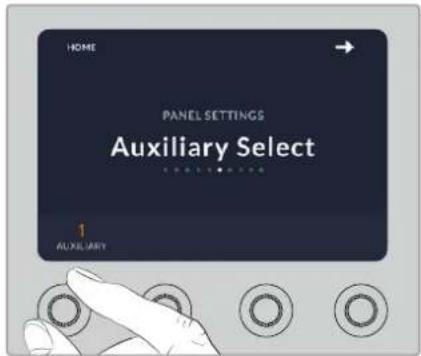
Rotate the auxiliary select knob to assign a dedicated auxiliary output for camera control
Master Black
Setting the master black setting to on or off enables or disables the master black control, also known as the pedestal control. This is helpful if you want to lock the pedestal so it cannot be accidentally adjusted during production. The pedestal is controlled by turning the ring wheel on the joystick control knob clockwise or counter clockwise. More information on the joystick control is provided in the following sections.
Brightness
These settings let you adjust the brightness for the buttons, indicators, LEDs and LCDs on your camera control panel. Rotate the corresponding control knobs for each setting clockwise or counter clockwise to brighten or dim the lights.
Camera Settings
Use the camera settings menu to adjust your cameras shutter speed and adjust focus as well as making color adjustments. Press the soft button with the right arrow to navigate between all the available settings.
Auto Focus Button
Press the auto focus soft button to automatically set the focus when you have an active lens that supports electronic focus adjustments. It's important to know that while most lenses support electronic focus, some lenses can be set to manual or auto focus modes and so you
need to ensure your lens is set to auto focus mode. Sometimes this is set by sliding the focus ring on the lens forward or backward.
Zoom
When using compatible lenses with an electronic zoom feature, you can zoom your lens in and out using the zoom control. The controller works just like the zoom rocker on a lens, with telephoto on one end and wide angle on the other. Turn the knob clockwise or counter clockwise to adjust.
Manual Focus Adjustment
When you want to adjust the focus on your camera manually, you can use the focus adjustment. Turn the knob left or right to manually adjust focus while viewing the video feed from the camera to ensure your image is nice and sharp.
Shutter Speed Control
Decrease or increase the shutter speed by turning the knob right or left. You can also use the dedicated shutter speed buttons on the CCU. Decreasing shutter speed is a good way to brighten your images without using camera gain because you are increasing the exposure time of the image sensor. Increasing shutter speed will reduce motion blur so can be used when you want action shots to be sharp and clean with minimal motion blur.
Color Adjustments
| Contrast | The Contrast setting gives you control over the distance between the darkest and lightest values of an image. The effect is similar to making opposing adjustments using the lift and gain master wheels. The default setting is 50%. |
| Pivot When the contrast value is adjusted, you can use the pivot setting to adjust the midpoint of the contrast balance. Darker images may require a lower pivot value to avoid crushing the shadows too much when stretching image contrast, while lighter images may benefit from a higher pivot value to increase shadow density adequately. | |
| Lum Mix Adjust the balance between RGB and YRGB processing using Lum mix. When set to 100, you can adjust the color balance independent of brightness. | |
| Hue | The Hue setting rotates all hues of the image around the full perimeter of the color wheel. The default setting of 180 degrees shows the original distribution of hues. Raising or lowering this value rotates all hues forward or backward along the hue distribution as seen on a color wheel. |
| Saturation | The Saturation setting increases or decreases the amount of color in the image. The default setting is 50%. |
| Tint | Adjusting the tint setting will add green or magenta into the image to help balance the color. |
CCU Panel Controls
The panel controls for each CCU are separated into three general sections. These include:
Scene Files and Camera Settings
Scene files are for storing all the camera parameters for each CCU. Camera settings can be changed such as shutter speed, master gain, white balance and enabling color bars. More information for these settings, plus the relative and absolute mode settings, are described in detail in the following ‘controlling cameras’ section.
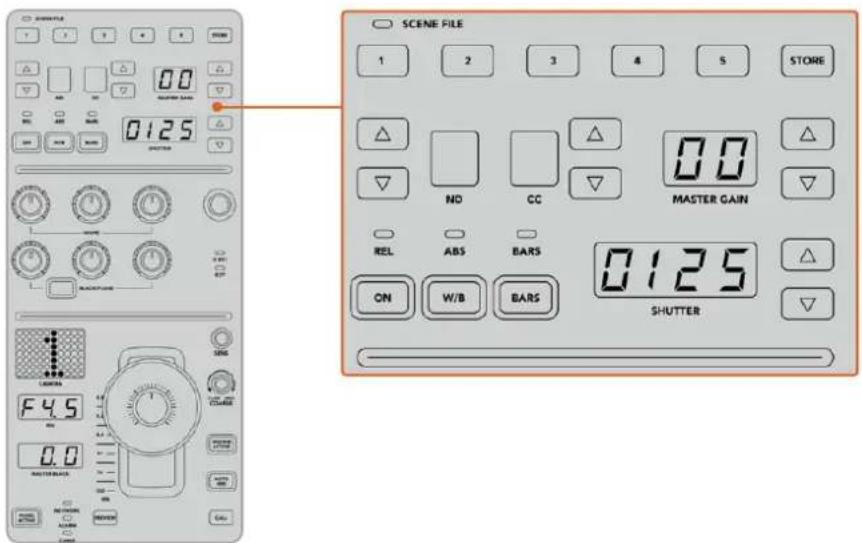
The upper section of each CCU is used to store and recall scene files, plus control camera settings such as shutter speed, master gain, white balance and color bars
Color Balance Controls
The red, green and blue color balance knobs in the panel's mid section are for adjusting the color balance of the lift, gamma and gain levels. The white controls are for adjusting the RGB values for the gain, or highlights and the black controls are for adjusting RGB values of the lift, or the shadows. The black/flare button lets you adjust the RGB values for the gamma, or mid tones, by holding down the button and adjusting the lift RGB knobs.
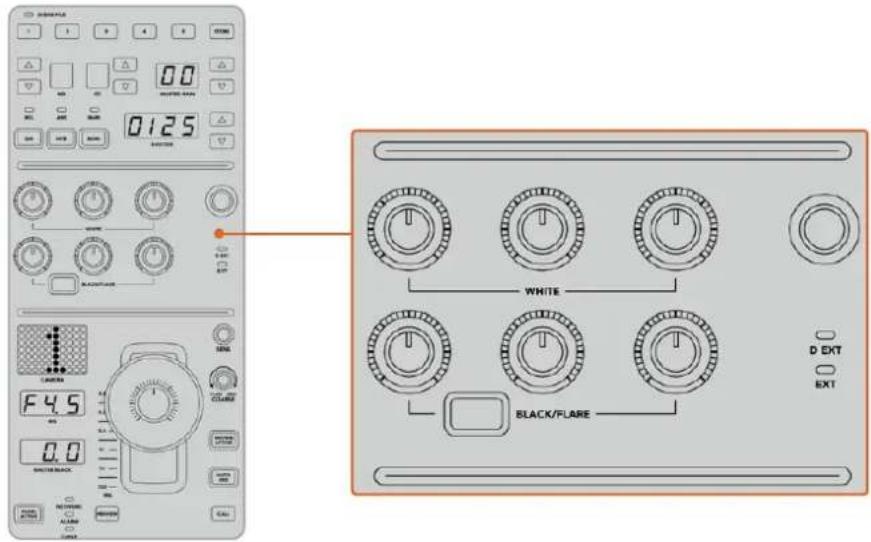
The color balance controls let you make fine adjustments to the red, green, blue channels for the master gain/white, gamma and pedestal/black levels
There is also a custom control that will be uniquely assignable in a future update. Currently, the custom control knob is set to Y gain control. This increases or decreases the overall luminance, or brightness, of the image. More information about color balance control is provided in the following 'controlling cameras' section.
Lens Controls
The lower section of the panel is where most of the control will occur during production.
The first item you will probably notice is the joystick control. This is used to open and close the iris, also known as the white level or gain control and for adjusting the master black level, also known as the pedestal control.
TIP You can also press the joystick down to switch its camera to the auxiliary preview for camera control.
Gain is adjusted by leaning the joystick forwards or backwards to open or close the iris. Increase or decrease the pedestal by rotating the ring wheel underneath the joystick's knob clockwise or counter clockwise. This gives you fine control over both parameters using the same controller.
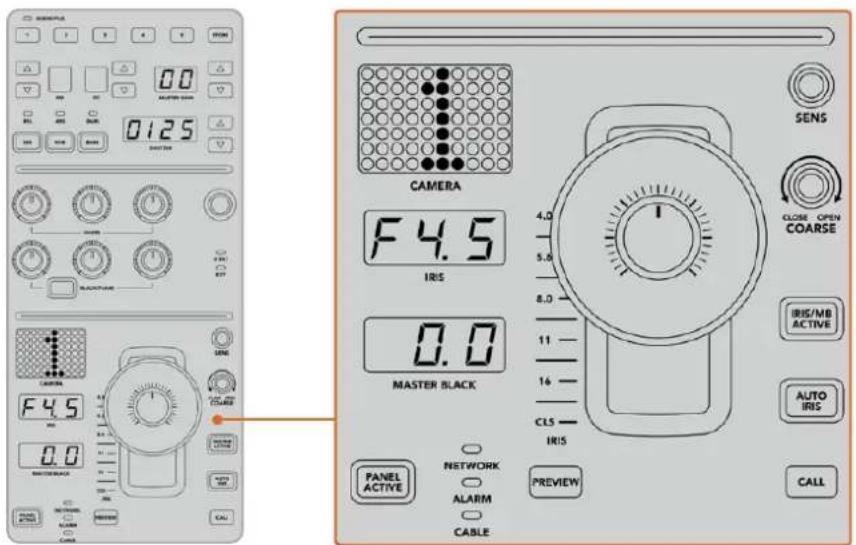
The lower section of the CCU is where most of the camera control occurs during live production
Other buttons and knobs in this section of the CCU are for adjusting the sensitivity of the joystick control, setting the coarse level, locking and unlocking the CCU and more. Details on all the features are provided in the following section.
Controlling Cameras
This section describes all the features on each CCU and a general overview on how to approach camera control.
The first step to controlling cameras is to assign a camera for a CCU.
Assigning a Camera to a CCU
At the bottom of the LCD home screen for each CCU, you will see its camera number displayed and a soft control knob underneath it. Simply turn the knob to change the camera number.
You will also see the camera name change on the LCD. The camera name will illuminate red when on air.
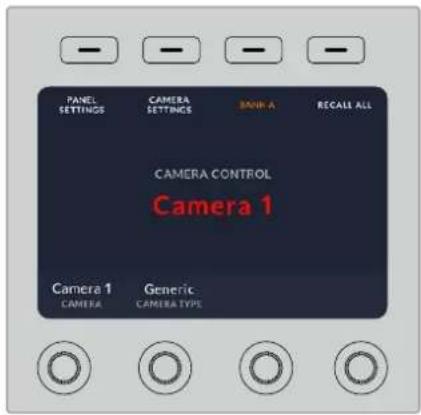
The camera name and number on the LCD home screen shows the camera currently selected for each CCU
TIP The large camera number next to the CCU's joystick control will also change when you assign a camera. This large identifying number is easy to see and will illuminate red when its camera is live on the program output.
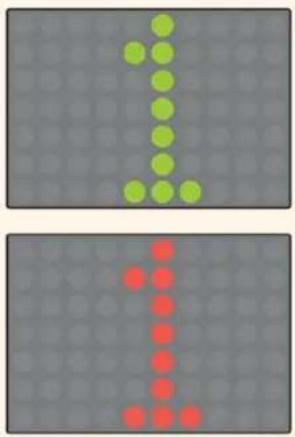
natural_image
Two vertical dot patterns: green dots above and red dots below, on a gray grid background (no text or symbols)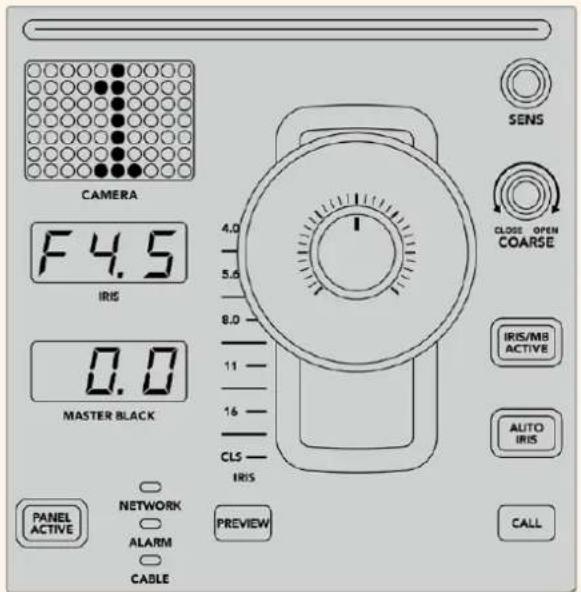
Scene Files
The numbered buttons along the top of each CCU let you quickly store and recall up to 5 scene file presets. For example, once you have arranged all your settings for a camera and you are set up for broadcast, you can then save all the parameters for each camera and recall them later. It's a very fast process!
To store a scene file:
1 Press the 'store' button on a CCU. The button will illuminate red to indicate the panel is ready to store a file.
2 Press a numbered scene file button.
The scene file indicator and buttons will illuminate, indicating when a scene file is stored or recalled.
To recall a scene file:
Press the numbered button for the scene file you want to recall.
That's all you need to do!
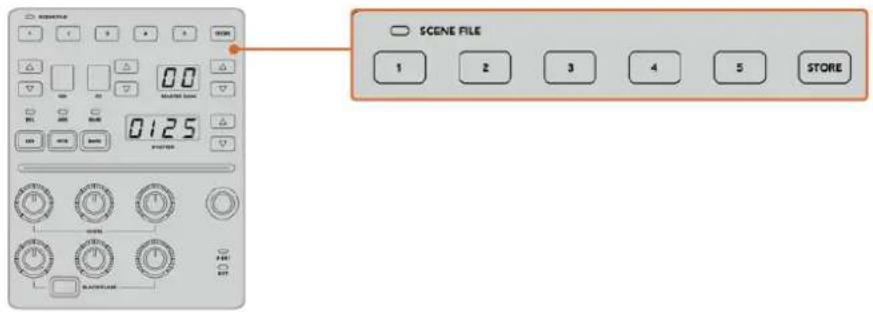
The scene file buttons are used for storing and recalling all settings for CCU controls
Recall All
When this feature is enabled, you can recall a stored scene file on all cameras simultaneously when you press the corresponding scene file button on a single CCU.
For example, you may have a specific setup for each camera that is optimized for a set in your live production. This will likely be a large number of settings that you will want to recall later when you return to that set.
The following is an example of how you can recall complex settings for multiple cameras simultaneously.
To recall a scene file to multiple cameras:
1 Once all your cameras are set up, store a scene file for each camera on scene file 1.
2 Enable the 'recall all' setting by pressing the corresponding soft button in the LCD home menu.
3 Now make any changes you want to each camera.
4 Press the scene file 1 button on any CCU. You will notice that all CCUs have recalled the settings stored in scene file 1 for each independent CCU.
NOTE While this feature is very powerful and helpful, please use with care as it affects all cameras, including the camera switched to the program output. We recommend enabling 'recall all' for specific setups prior to air and then immediately disabling the feature until you need it again.
ND
This setting will be enabled in a future update.
CC
This setting will be enabled in a future update.
Master Gain
Blackmagic Design cameras have ISO and gain settings that can be set using the master gain buttons on the camera control panel. To increase the master gain, press the up arrow next to the master gain indicator. To decrease gain, press the down arrow.
Increasing or decreasing the master gain lets you allow for more light in dimly lit shooting conditions, however it's worth being careful with the master gain as electronic noise can appear in the image as it reaches its highest settings.
TIP When a negative gain value is set, the down arrow will illuminate. When positive gain is set, the up arrow will illuminate.
Relative Control and Absolute Control
The camera control panel has two control modes that determine how the panel maintains synchronization between the physical controls and their settings. The two control modes are relative control and absolute control.
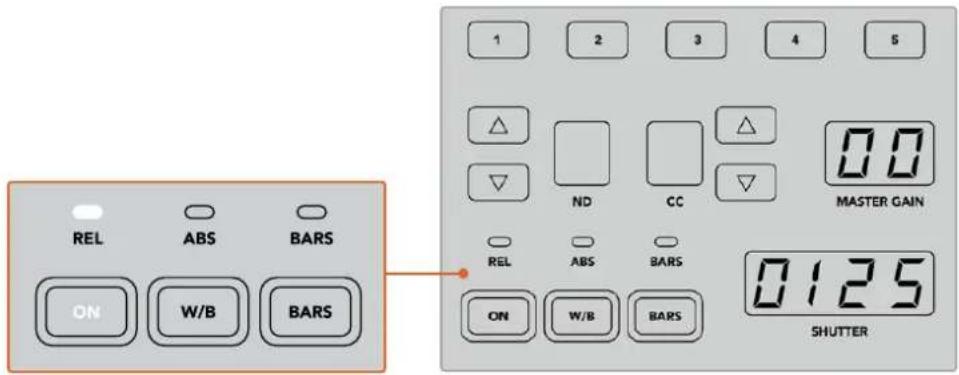
Pressing the 'ON' button repeatedly will cycle between relative and absolute control modes
Relative Control
In relative control mode, when a setting is adjusted externally and becomes out of sync with the original controller, the next time a change is made to the original controller, its setting will gradually return to sync as the new adjustment is performed.
For example, if the camera's iris is set to f2.8 on the camera control panel and then set to f5.6 using ATEM Software Control, the joystick will still be physically placed at f2.8, but the setting is now f5.6. In relative mode, when you then adjust the joystick to decrease the gain level, the setting will continue from f5.6 and gently return to sync with the controller as you make changes. The process is almost invisible and it's likely you won't even notice.
Absolute Control
In absolute control mode, the settings are always synchronized to their corresponding controls.
NOTE When the panel is in absolute control mode, it's worth keeping in mind that if a control's setting is changed using ATEM Software Control or a different CCU, the next adjustment on the original controller will result in an initially harsh settings change as it snaps back to its originally set position.
For example, if the joystick has set the iris to f2.8 on the camera control panel and then the setting is changed to f5.6 using ATEM Software Control, the next time you adjust the gain level using the joystick, the gain level will immediately snap to f2.8 and begin adjusting from there. That is because the joystick is still positioned at f2.8 on the camera control panel.
For this reason, it's important to decide before going to air which control mode you want to use when controlling your cameras so you can be sure there is no risk of unintended changes when live to air.
White Balance
You can adjust the white balance of each camera by holding down the white balance button, marked 'W/B' and pressing the shutter up and down arrow buttons to warm or cool the image. The shutter setting indicator displays white balance values so you can monitor the color temperature in degrees Kelvin. Check the white balance setting at any time by holding down the white balance button and observing the shutter setting indicator.
TIP When changing a white balance or shutter speed setting, you can increase their speed of change by holding down the corresponding up or down arrow buttons.
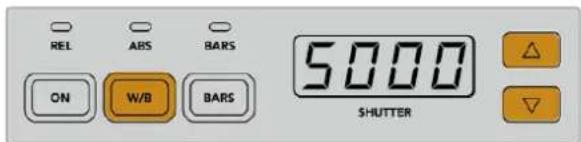
Hold down the W/B button and press the shutter up and down arrow buttons to set a white balance in degrees Kelvin
Color Bars
Pressing the 'bars' button will set the camera to display color bars. Press again to turn bars off.
Shutter Speed
The arrow buttons next to the shutter display let you change the camera's shutter speed. Press the up arrow to increase the shutter speed and down to decrease. For general production use, the shutter speed is typically set to 50, meaning 1/50th of a second, which produces a pleasing motion blur. If you want crisper images with reduced motion blur, for example when shooting sport, a faster shutter speed may be preferred.
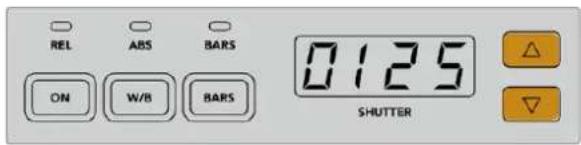
Press the shutter up and down buttons to set the camera's shutter speed
White and Black Balance Controls
The two rows of color balance knobs are used to adjust the color balance of the white and black levels, also known as gain and pedestal. Turn the red, green and blue knobs clockwise or counter clockwise to make changes.
TIP For achieving accurate color settings while adjusting the color balance, it's best to view scopes. For example, a waveform, parade or vectorscope as provided on a Blackmagic SmartScope 4K.
Black/Flare Button
Adjust the color of the gamma or mid tones by holding down the black/flare button and adjusting the black balance RGB controls.
D EXT/EXT
This feature will be enabled in a future update.
Camera Number
Each CCU has its own large camera number that shows you which camera is being controlled. This large display is illuminated green when in a neutral state and red when its camera is switched to the program output.
Gain and Pedestal Level Control
The joystick control lets you make fine adjustments to the gain/iris and pedestal/master black levels.
Leaning the joystick forwards or backwards opens or closes the camera's iris, also known as the gain level. As you lean the joystick forwards and backwards, its indicator strip will illuminate, providing an approximate display of the camera's exposure. For a precise assessment of the exposure f-stop, observe the iris indicator.
Located around the collar of the joystick's handle is a ring wheel that controls the pedestal level. The ring wheel has small ridges built in for firm control and a position indicator is located on the top of the knob to show the physical positioning of the wheel. Turn the wheel clockwise to increase the master black level, or counter clockwise to decrease.
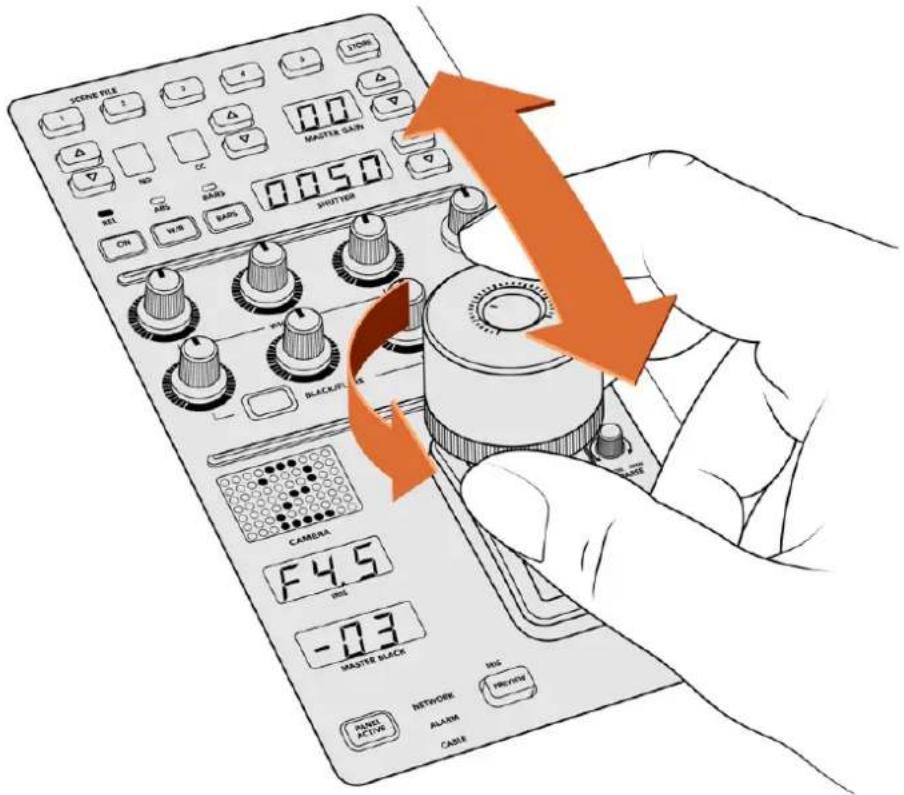
The joystick lets you adjust the gain level by leaning the controller forwards and backwards. The master black level can be adjusted by turning the ring wheel clockwise or counter clockwise. Corresponding indicators are provided for accurate measurement.
Iris and Master Black Indicators
The indicators for the iris and master black joystick control displays the gain value, shown as the f-stop exposure level for the camera lens and the level of the master black setting.
Preview
When making changes with the camera controls, you can monitor your changes before switching to air by pressing the CCU's preview button. This performs the same function as pressing the joystick, which immediately switches the camera to the dedicated auxiliary output for camera control. This dedicated auxiliary output is set using the 'auxiliary select' setting on your camera control panel, or the general camera control settings in ATEM Software Control.
Sensitivity
The sensitivity setting lets you define a specific range between the highest and lowest gain levels so you can achieve finer control using the joystick. For example, when sensitivity is at its maximum setting, you can lean the joystick all the way forwards or backwards, however it will only affect a narrow range of gain.
You can define how narrow the range is by increasing or decreasing the sensitivity.
Coarse Control Knob
The coarse setting lets you define a limit to the maximum gain control. For example, you may want to ensure your gain never rises higher than a determined exposure.
To do this:
1 Lean the joystick to its highest position to increase the gain setting to its maximum.
2 Now decrease the coarse setting by rotating the coarse knob counter clockwise until the gain reaches the limit you want to set.
You can now lean the joystick all the way up and down and the gain will never rise higher than the limit you have set.
TIP When the coarse control is combined with the sensitivity control, you can define an upper and lower limit to the gain control.
For example, imagine you want to limit the gain so it never rises above f4.0 because gain above that level will clip highlights in your image. You also want to limit the gain so its minimum setting will be f8.0 to maintain the optimum sharpness range for your lens.
To do this:
1 Increase the gain control to its maximum position by leaning the joystick all the way to its top position.
2 Now decrease the coarse setting until it reaches the upper limit you want to set. In this case, f4.0.
3 To set the lower limit, lean the joystick all the way to its bottom position.
4 Now increase the sensitivity setting until the gain reaches the lower limit you want to set. In this case, f8.0.
Now you can lean the joystick all the way from top to bottom and the gain will stay within the limits you have set. This is a powerful way to define your exposure limits, plus gain finer control with the joystick due to allowing its maximum travel forwards and backwards.
Iris and Master Black Active
Once your levels are set and you want to lock them so they are not accidentally changed, press the 'iris/MB active' button. This enables a lock on the gain and master black so that any accidental movements of the joystick will not affect your settings. The 'Iris/MB active' button label will illuminate red when the lock is active. To disable the lock, press the button again.
TIP You can lock the black/pedestal level independently by disabling the 'master black' option in the 'settings' menu. When disabling master black, the black level is locked but the iris/gain level can still be adjusted. Don't forget to enable the master black setting if you want to make changes to the black/pedestal level.
Auto Iris
If your camera is using a compatible lens with electronic iris control via the camera, then you can press the 'auto iris' button for a quick automatic exposure setting. The camera will set exposure based on average brightness, providing an average exposure that is a balance between the brightest highlights and the darkest shadows.
Call
Holding down the 'call' button will flash the tally light on the CCU's selected camera. This is a helpful way of seeking the camera operators' attention, or to let your operators know you are about to go live.
While holding down the call button, the large camera number next to the joystick will also flash so you can visually confirm the call is being sent.
Panel Active
After you are happy with your camera settings, you may want to lock all the controls so they cannot be accidentally adjusted. Pressing the 'panel active' button enables the CCU lock so all controls cannot be changed. Press the button again to disable the CCU lock. This can be a helpful feature when you are recording a locked off shot and don't want the setting adjusted by accident, for example a wide shot of a stadium filling as the crowd enters.
ATEM Camera Control Panel is an exciting, practical and efficient way to control
Blackmagic Design cameras in your live production. We believe you will enjoy the experience of hands on camera control using CCUs, which lets you take control of exposure and other camera settings, freeing up your camera operators so they can concentrate on framing and focus.
Using Tally
Sending Tally Signals via a GPI and Tally Interface
Your ATEM switcher can send tally signals to monitors and cameras to make it clear which source is on the program output, i.e. which source is on air.
Tally is commonly used to light the red light on top of a camera or monitor so the talent knows they are on air. Tally can also illuminate a border on a monitor such as a Blackmagic SmartView 4K. The border allows production staff to know which camera is on air.
The GPI and Tally Interface by Blackmagic Design, is an Ethernet device which provides eight mechanical relay contact closures to ground that can be used for tally. Tally signals are sent from the Ethernet port of your ATEM switcher to a GPI and Tally Interface on the same network as the switcher. By following the wiring guide on the back of the GPI and Tally Interface, a breakout cable can be connected to video equipment that supports contact closure tally signals, such as Blackmagic SmartView Duo and SmartView HD. Up to 8 tally receiving devices can be supported with a single GPI and Tally Interface. Only one GPI and Tally Interface unit is needed when used with ATEM Television Studio.
GPI and Tally Interface
The GPI inputs are optical isolators which are triggered by connection to ground with a maximum of 5V at 14mA.
The tally outputs are mechanical relay contact closures to ground with a maximum of 30V at 1A.
Changing the Network and Tally Settings
ATEM Setup is used to configure the network settings in the GPI and Tally Interface so it will communicate with your ATEM switcher. The GPI and Tally Interface must be connected via USB in order to configure its settings with ATEM Setup.
1 Connect the GPI and Tally Interface to the same Ethernet network as your ATEM switcher.
2 Connect the GPI and Tally Interface to a USB port on your computer and also connect the included power supply.
3 Launch ATEM Setup.
4 If your ATEM switcher connects directly to your computer without an Ethernet network switch, choose to "Configure Address Using Static IP". The GPI and Tally Interface defaults to a fixed IP address of 192.168.10.2 when shipped and we suggest you use this number for simplicity.
If you want to choose a different static IP address, you can set it to anything you like that's in the same range as the ATEM switcher, so long as it's not already in use by another device on your network. Default IP addresses for ATEM products are best avoided for this reason, including: 192.168.10.1, 192.168.10.2, 192.168.10.3, 192.168.10.10, 192.168.10.50, 192.168.10.60 and 192.168.10.240.
If your ATEM switcher connects via an existing Ethernet network switch, you may wish to choose "Configure Address Using DHCP" as this setting automatically obtains the IP Address, Subnet Mask and Gateway information from your DHCP server.
5 Type in the IP address of your ATEM switcher in the "Switcher Address" field. Your ATEM switcher defaults to DHCP when shipped or you can set it to a static IP address.
6 "Set tally outputs" should be set to "Switcher Inputs 1-8".
7 Click "Apply". The white LED to the right of the USB port should stop flashing and remain on to indicate it has successfully found the ATEM switcher. The GPI and Tally Interface is now ready.
8 Close ATEM Setup and disconnect your USB cable.
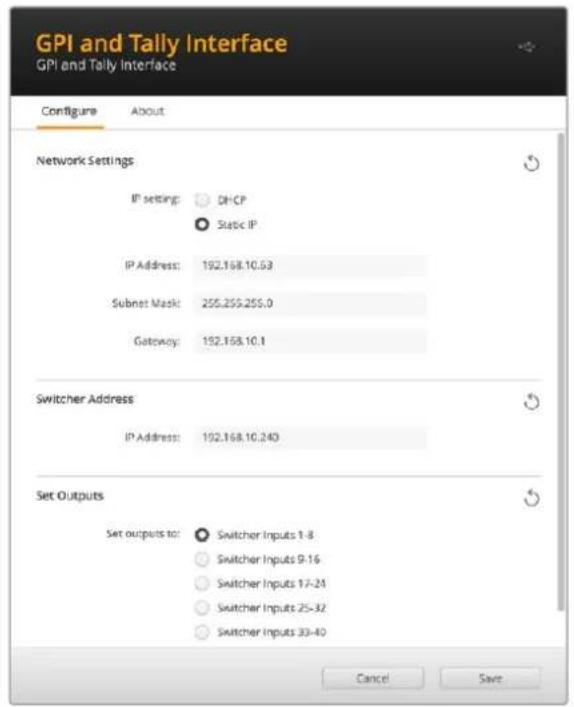
Network and output settings for the GPI and Tally Interface
Using a Third Party Audio Mixer Control Surface
Using an Audio Mixer Control Surface
In the fast-paced world of live TV production, using a mouse to make adjustments can sometimes feel too slow! If you need to mix more than one audio source at a time on your ATEM switcher then here's an idea that can really help. Connecting a hardware audio mixer control surface to your ATEM switcher provides you with the ability to use both hands and adjust multiple audio levels at the same time.
An audio mixer control surface can be connected to your Mac or PC as a MIDI device using Mackie Control commands to communicate with the ATEM switcher.
Many third party MIDI control surfaces are compatible with your ATEM switcher but please check with the manufacturer of your control surface if in doubt.
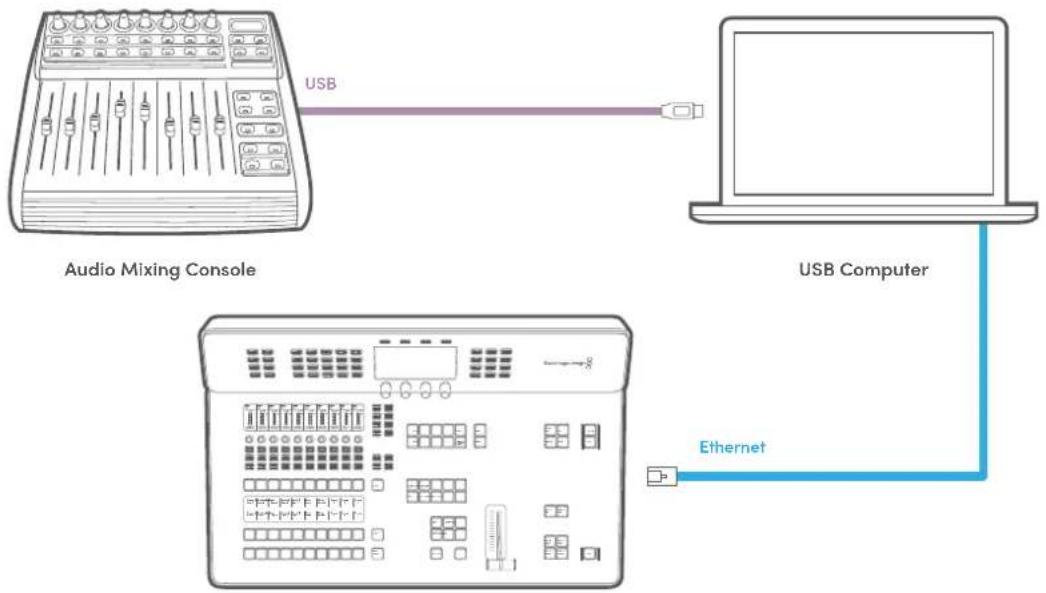
flowchart
graph TD
    A["Audio Mixing Console"] -->|USB| B["USB Computer"]
    B -->|Ethernet| C["Internet"]
ATEM Television Studio
You can adjust multiple audio levels at the same time by connecting a hardware audio mixer to the computer which is running ATEM Software Control.
Connecting Your Audio Mixer Control Surface
1 Connect your compatible MIDI control surface to your Mac or PC. Most modern control surfaces use USB.
2 Verify your control surface is recognized by your computer as a MIDI device.
For Mac computers, go to Applications/Utilities/Audio MIDI Setup and launch the application. Go to the Window menu and choose Show MIDI Window. Ensure your control surface appears as a MIDI device in this window.
For Windows computers, go to Device Manager/Sound, Video and Game Controllers and ensure your control surface appears in the list of icons.
3 The ATEM audio mixer is designed to communicate with your control surface using Mackie Control commands so your control surface will need to support Mackie Control. You'll also need to make sure your control surface is configured to use native Mackie Control or Mackie Control emulation. Please refer to your control surface's user manual for configuration details.
Some control surfaces offer several types of Mackie Control emulation and you should choose the one that activates the most features on your control surface. For example, with the Behringer BCF 2000, choosing "Mackie Control Mapping for Cakewalk Sonar 3 [MCSo]" enables level faders, bank selectors, balance control, AFV and ON/MUTE functions and also activates the LED screen which displays which bank of faders you have selected for your audio mix. The LED screen will not activate if you choose another Mackie Control emulation.
4 Launch ATEM Software Control and it will automatically look for your control surface using the first port on the first MIDI device that it finds. Click on the Audio tab in ATEM Software Control to display the ATEM audio mixer. Try sliding the gain faders up and down on your hardware control surface and verify that the audio mixer faders show a corresponding increase and decrease in the software on your computer screen. If so, you have successfully configured your control surface to work with the ATEM switcher.
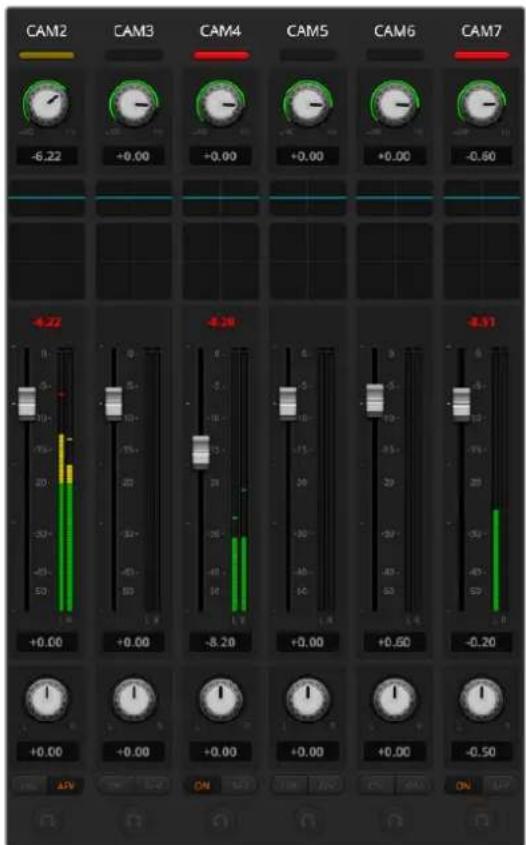
Try sliding the gain faders up and down on your hardware control surface and verify that the audio mixer faders show a corresponding movement in the software on your computer screen
The MUTE button
In the ATEM audio mixer interface, audio is always on, or present in the mix, when the ON button is selected. When the ON button is deselected, audio is not present or is muted. To match the software interface, you'll find the MUTE button on your audio mixer control surface will be lit when audio is always on or present in the mix. The MUTE button will be unlit when audio is not present or is muted.
Decibel Scales
All hardware mixers are made differently and the scale printed on your control surface may not match the scale in the ATEM audio mixer interface. Always refer to the ATEM audio mixer levels for the true decibel scales.
Using a DaVinci Resolve Micro Panel
The DaVinci Resolve primary color corrector in each camera controller can be controlled using a DaVinci Resolve Micro panel. This lets you make fast and precise color adjustments using a hardware control panel.
To set up the panel:
1 Connect the DaVinci Resolve Micro Panel to your computer via USB-C and launch ATEM Software Control.
2 Click on the 'camera' tab and select a camera by clicking anywhere in the desired camera controller.
3 On the DaVinci Resolve Micro Panel, rotate the trackballs and turn the knobs to adjust the corresponding controls in the primary color corrector.
Making Color Correction Adjustments
The DaVinci Resolve Micro panel is primarily designed for use with DaVinci Resolve software, but you can also use it to make adjustments in the color corrector panel of ATEM Software Control in the following way:
The Trackballs
The three trackballs control the lift, gamma and gain color wheels in the color corrector panel. The ring surrounding each trackball adjusts the corresponding master wheels beneath the color wheels.
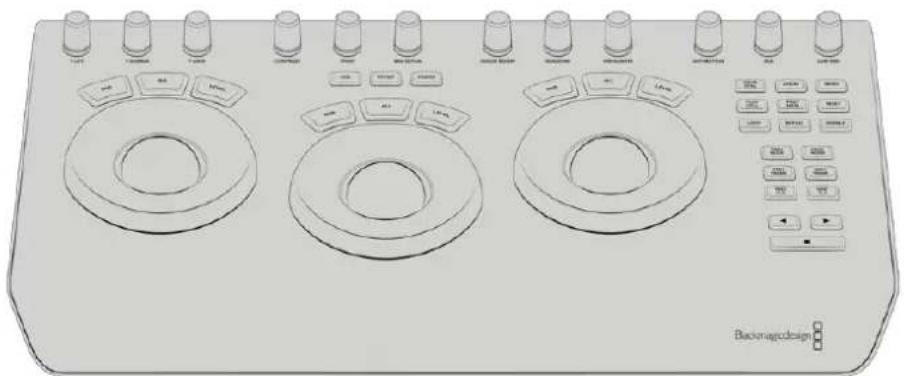
natural_image
Line drawing of a beige audio recording device with three dials and control knobs (no text or symbols)DaVinci Resolve Micro Panel
Control Knobs
As you change settings with the hardware panel, you will see the corresponding settings on the software panel change as well. Use the following control knobs to make adjustments.
| Y Lift Allows you to modify image contrast via a Y-only adjustment for the black level. | |
| Y Gamma Allows you to modify image contrast via a Y-only adjustment for gamma. | |
| Y Gain Allows you to modify image contrast via a Y-only adjustment for highlights. | |
| Contrast Rotate clockwise to increase contrast and counterclockwise to reduce contrast. | |
| Highlights | The 'highlights' knob controls the iris on your selected camera. Rotate the knob clockwise to open the iris and counterclockwise to close. |
| Saturation | Rotate clockwise or counterclockwise to increase or decrease color saturation. |
| Hue | Adjust the hue along the hue distribution as seen on a color wheel by rotating the 'hue' knob clockwise or counterclockwise. |
| Lum Mix | Rotate clockwise or counterclockwise to set the output blend between the RGB and YRGB correctors. |
Control Buttons
Left Arrow Select the previous camera number
Right Arrow Select the next camera number
For more information on how each control affects the image, refer to the details provided earlier in this section.
Updating the Software
How to update the ATEM Software
From time to time Blackmagic Design will release new software for your ATEM switcher and hardware panel, with new features, bug fixes, and increased compatibility with third party software and video devices.
To update your ATEM switcher with new software, you need to use ATEM Setup to connect to the ATEM switcher and hardware panels. ATEM Setup will check your switcher's internal software and will ask if you wish to update if you have a newer version installed on your computer.
Always update all your equipment at the same time so it's all running the same version of software.
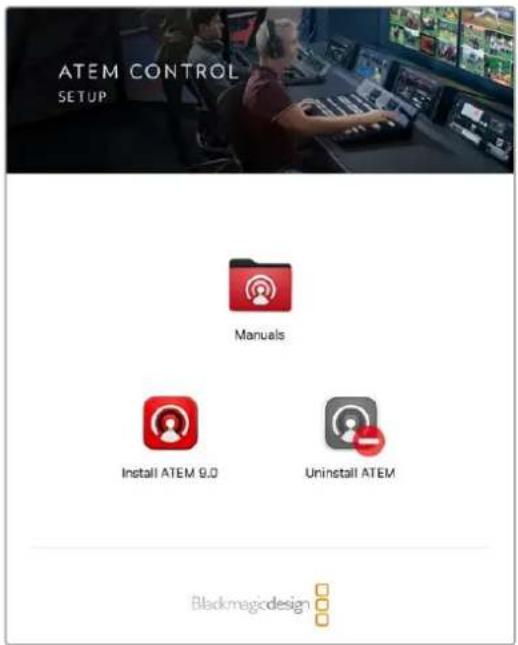
ATEM Software Installer
To perform an update, you can directly connect your ATEM switcher to the computer via USB.
Alternatively, if you already have your switcher connected to your computer via Ethernet, you can simply update via the Ethernet connection.
First, download the latest Blackmagic ATEM Switcher software and install it on your Mac or PC using the instructions listed previously in the Installing Software section of this manual. Once installed, the new software for your ATEM switcher will be included in the ATEM Setup utility.
Updating the Switcher Software
1 Connect the switcher via the USB port.
If you already have your switcher connected to your computer via Ethernet, you can update via the Ethernet connection.
When upgrading software via USB, make sure the switcher is the only ATEM device connected via USB to the computer running the setup utility software. If more than one ATEM device is connected, the switcher may not be recognized.
2 Launch ATEM Setup.
3 If the switcher software requires updating, you will be prompted by a window asking if you would like to update the software. Click 'update' to initiate the update process, which may take a few minutes. It's important you don't unplug the power from the switcher during the software update.
4 Once the software update is complete, a window will prompt you to cycle power on the switcher. Turn your switcher off and on, then 'close' the dialog box.
Updating via Ethernet
Updating your ATEM switcher via Ethernet is generally faster and easier, however there are some instances, such as those below, where it may not be possible and you will need to update via USB:
- Updating the internal software for the first time.
- Your ATEM network settings are already configured to work straight away, however if your are connecting to a network with other video equipment, there may be potential IP address conflicts which may prevent communication between your computer and your switcher. Network settings can only be set via USB.
Adapter Cables for Talkback and Camera Control
Talkback Pin Connections
The ‘talkback’ connector on the back panel of ATEM Television Studio switcher is for routing engineering talkback and production talkback. You can make an adapter cable with an RJ45 connector using this pinout diagram.
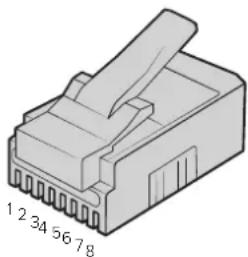
natural_image
Isometric illustration of a 12-pin electrical connector (no text or symbols)| Eng TX+ | Eng TX- | Prod TX+ | Prod RX+ | Prod RX- | Prod TX- | Eng RX+ | Eng RX- | ||
| 1 | 2 | 3 | 4 | 5 | 6 | 7 | 8 |
RJ45 pinout for 'talkback' connector on the back panel of ATEM Television Studio.
Serial Port Pin Connections for Control Cables
RS-422 Pin Connections for Control Cables
RS-422 is a broadcast standard using a common DE 9 or RJ12 connector. You can easily rewire these types of connectors in a custom built PTZ control unit if you want to design one yourself.
A pinout diagram of the RS-422 DE 9 and RJ12 connector is provided below.
54321
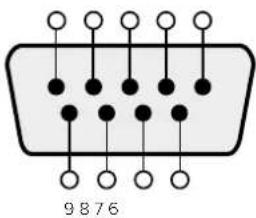
natural_image
Pure electrical connector pinout diagram without any text or symbols| Receive (−) Receive (+) Transmit (−) | Transmit (+) Ground | Pins | |
| 8 3 2 7 1,4,6,9 |
RS-422 PTZ pin connections.
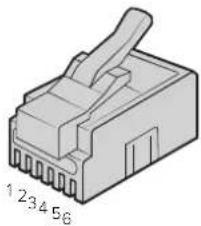
natural_image
Isometric illustration of a 12-pin electrical connector (no text or symbols)| TX+ TX- GND GND RX- RX+ | ||||
| 123456 |
RJ12 Pinout for PTZ remote on ATEM Television Studio.
5 Pin XLR Talkback Headset Connector Pinout Diagram
| External views | Pins | Signal | I/O | Description |
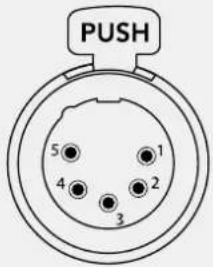 | 1 | Intercom MIC (Y) | In - The intercom mic input supports | |
| 2 | Intercom MIC (X) | In + | dynamic mics, which can be balanced or unbalanced. Pin 1 is the mic signal common, and pin 2 is the mic signal input for both types. With electret mics, an external DC bias supply adapter is required which allows for aviation headsets to be used. | |
| 5 pin XLR‘talkback’ headset connector | 3 | GND | GND | GND |
| 4 | Intercom left | Out | ||
| 5 | Intercom right | Out | ||
Developer Information
Blackmagic SDI Camera Control Protocol
Version 1.3
If you are a software developer you can use the SDI Camera Control Protocol to construct devices that integrate with our products. Here at Blackmagic Design our approach is to open up our protocols and we eagerly look forward to seeing what you come up with!
Overview
The Blackmagic SDI Camera Control Protocol is used by ATEM switchers, Blackmagic 3G-SDI Shield for Arduino and the Blackmagic Camera Control app to provide Camera Control functionality with supported Blackmagic Design cameras. Please refer to the 'Understanding Studio Camera Control' chapter section of this manual, or the ATEM Switchers Manual and SDK manual for more information. These can be downloaded at www.blackmagicdesign.com/support.
This document describes an extensible protocol for sending a uni directional stream of small control messages embedded in the non-active picture region of a digital video stream. The video stream containing the protocol stream may be broadcast to a number of devices. Device addressing is used to allow the sender to specify which device each message is directed to.
Assumptions
Alignment and padding constraints are explicitly described in the protocol document. Bit fields are packed from LSB first. Message groups, individual messages and command headers are defined as, and can be assumed to be, 32 bit aligned.
Blanking Encoding
A message group is encoded into a SMPTE 291M packet with DID/SDID x51/x53 in the active region of VANC line 16.
Message Grouping
Up to 32 messages may be concatenated and transmitted in one blanking packet up to a maximum of 255 bytes payload. Under most circumstances, this should allow all messages to be sent with a maximum of one frame latency.
If the transmitting device queues more bytes of message packets than can be sent in a single frame, it should use heuristics to determine which packets to prioritize and send immediately. Lower priority messages can be delayed to later frames, or dropped entirely as appropriate.
Abstract Message Packet Format
Every message packet consists of a three byte header followed by an optional variable length data block. The maximum packet size is 64 bytes.
| Destination device (uint8) | Device addresses are represented as an 8 bit unsigned integer. Individual devices are numbered 0 through 254 with the value 255 reserved to indicate a broadcast message to all devices. |
| Command length (uint8) | The command length is an 8 bit unsigned integer which specifies the length of the included command data. The length does NOT include the length of the header or any trailing padding bytes. |
| Command id (uint8) | The command id is an 8 bit unsigned integer which indicates the message type being sent. Receiving devices should ignore any commands that they do not understand. Commands 0 through 127 are reserved for commands that apply to multiple types of devices. Commands 128 through 255 are device specific. |
| Reserved (uint8) | This byte is reserved for alignment and expansion purposes. It should be set to zero. |
| Command data (uint8[]) | The command data may contain between 0 and 60 bytes of data. The format of the data section is defined by the command itself. |
| Padding (uint8[]) | Messages must be padded up to a 32 bit boundary with 0x0 bytes.Any padding bytes are NOT included in the command length. |
Receiving devices should use the destination device address and or the command identifier to determine which messages to process. The receiver should use the command length to skip irrelevant or unknown commands and should be careful to skip the implicit padding as well.
Defined Commands
Command 0 : change configuration
| Category (uint8) | The category number specifies one of up to 256 configuration categories available on the device. |
| Parameter (uint8) | The parameter number specifies one of 256 potential configuration parameters available on the device. Parameters 0 through 127 are device specific parameters. Parameters 128 though 255 are reserved for parameters that apply to multiple types of devices. |
| Data type (uint8) | The data type specifies the type of the remaining data. The packet length is used to determine the number of elements in the message. Each message must contain an integral number of data elements. |
Currently defined values are:
| 0: void / boolean | A void value is represented as a boolean array of length zero.The data field is a 8 bit value with 0 meaning false and all other values meaning true. |
1: signed byte Data elements are signed bytes
2: signed 16 bit integer Data elements are signed 16 bit values
3: signed 32 bit integer Data elements are signed 32 bit values
4: signed 64 bit integer Data elements are signed 64 bit values
5: UTF-8 string Data elements represent a UTF-8 string with no terminating character.
Data types 6 through 127 are reserved.
| 128: signed 5.11 fixed point | Data elements are signed 16 bit integers representing a real number with 5 bits for the integer component and 11 bits for the fractional component.The fixed point representation is equal to the real value multiplied by 2^11 .The representable range is from -16.0 to 15.9995(15 + 2047/2048). |
Data types 129 through 255 are available for device specific purposes.
| Operation type (uint8) | The operation type specifies what action to perform on the specified parameter. Currently defined values are: |
| 0: assign value | The supplied values are assigned to the specified parameter. Each element will be clamped according to its valid range. A void parameter may only be 'assigned' an empty list of boolean type. This operation will trigger the action associated with that parameter. A boolean value may be assigned the value zero for false, and any other value for true. |
| 1: offset / toggle value | Each value specifies signed offsets of the same type to be added to the current parameter values. The resulting parameter value will be clamped according to their valid range. It is not valid to apply an offset to a void value. Applying any offset other than zero to a boolean value will invert that value. |
Operation types 2 through 127 are reserved.
Operation types 128 through 255 are available for device specific purposes.
| Data (vold) | The data field is 0 or more bytes as determined by the data type and number of elements. |
The category, parameter, data type and operation type partition a 24 bit operation space.
| Group | ID | Parameter | Type | Index | Minimum | Maximum | Interpretation |
| Lens | 0.0 | Focus | fixed16 | - | 0 | 1 | 0.0 = near, 1.0 = far |
| 0.1 | Instantaneous autofocus | void | - | - | - | trigger instantaneous autofocus | |
| 0.2 | Aperture (f-stop) | fixed16 | - | -1 | 16 | Aperture Value (where fnumber = sqrt(2^AV)) | |
| 0.3 | Aperture (normalised) | fixed16 | - | 0 | 1 | 0.0 = smallest, 1.0 = largest | |
| 0.4 | Aperture (ordinal) | int16 | - | 0 | n | Steps through available aperture values from minimum (0) to maximum (n) | |
| 0.5 | Instantaneous auto aperture | void | -- | - | trigger instantaneous auto aperture | ||
| 0.6 | Optical image stabilisation | boolean | - | - | - | true = enabled, false = disabled | |
| 0.7 | Set absolute zoom (mm) | int16 | - | 0 | max | Move to specified focal length in mm, from minimum (0) to maximum (max) | |
| 0.8 | Set absolute zoom (normalised) | fixed16 - 0 1 | Move to specified focal length: 0.0 = wide, 1.0 = tele | ||||
| 0.9 | Set continuous zoom (speed) | fixed16 - -1 +1.0 | Start/stop zooming at specified rate: -1.0 = zoom wider fast, 0.0 = stop, +1 = zoom tele fast | ||||
| Video | 1.0 Video mode int8 | [0] = frame rate - - 24, 25, 30, 50, 60 | |||||
| [1] = M-rate - - 0 = regular, 1 = M-rate | |||||||
| [2] = dimensions - - | 0 = NTSC, 1 = PAL, 2 = 720, 3 = 1080, 4 = 2k, 5 = 2k DCI, 6 = UHD | ||||||
| [3] = interlaced | -- | 0 = progressive, 1 = interlaced | |||||
| [4] = Color space | -- 0 = YUV | ||||||
| 1.1 | Gain | int8 | 1 | 16 | 1 = 100 ISO, 2 = 200 ISO, 4 = 400 ISO, 8 = 800 ISO, 16 = 1600 ISO | ||
| 1.2 | Manual White Balance | int16 | [0] = color temp | 2500 | 10000 | Color temperature in K | |
| int16 | [1] = tint | -50 | 50 | tint | |||
| 1.3 | Set auto WB | void | - | - | - | Calculate and set auto white balance | |
| 1.4 | Restore auto WB | void | - | - | - | Use latest auto white balance setting | |
| 1.5 | Exposure (us) | int32 | 1 | 42000 | time in us | ||
| 1.6 | Exposure (ordinal) | int16 | - | 0 | n | Steps through available exposure values from minimum (0) to maximum (n) | |
| 1.7 | Dynamic Range Mode | int8 enum | - | 0 | 1 | 0 = film, 1 = video, | |
| 1.8 | Video sharpening level | int8 enum | - | 0 | 3 | 0 = off, 1 = low, 2 = medium, 3 = high | |
| 1.9 | Recording format | int16 | [0] = file frame rate | - | - | fps as integer (eg 24, 25, 30, 50, 60, 120) | |
| [1] = sensor frame rate | - | - | fps as integer, valid when sensor-off-speed set (eg 24, 25, 30, 33, 48, 50, 60, 120), no change will be performed if this value is set to 0 | ||||
| [2] = frame width | -- in pixels | ||||||
| [3] = frame height | -- in pixels | ||||||
| [4] = flags | -- [0] = file-M-rate | ||||||
| - | - | [1] = sensor-M-rate, valid when sensor-off-speed-set | |||||
| -- [2] = sensor-off-speed | |||||||
| -- [3] = interlaced | |||||||
| -- [4] = windowed mode | |||||||
| 1.10 | Set auto exposure mode | int8 | - | 0 | 4 | 0 = Manual Trigger, 1 = Iris, 2 = Shutter, 3 = Iris + Shutter, 4 = Shutter + Iris | |
| 1.11 | Shutter angle | int32 | - | 100 | 36000 | Shutter angle in degrees, multiplied by 100 | |
| 1.12 | Shutter speed | int32 | - | 24 | 2000 | Shutter speed value as a fraction of 1, so 50 for 1/50th of a second | |
| 1.13 | Gain | int8 | - | -128 | 127 | Gain in decibel (dB) | |
| 1.14 | ISO | int32 | - | 0 | 2147483647 | ISO value | |
| Audio | 2.0 Mic level fixed16 - 0 1 | 0.0 = minimum, 1.0 = maximum | |||||
| 2.1 | Headphone level | fixed16 | - | 0 | 1 | 0.0 = minimum, 1.0 = maximum | |
| 2.2 | Headphone program mix | fixed16 | - | 0 | 1 | 0.0 = minimum, 1.0 = maximum | |
| 2.3 | Speaker level | fixed16 | - | 0 | 1 | 0.0 = minimum, 1.0 = maximum | |
| 2.4 | Input type | int8 | - | 0 | 2 | 0 = internal mic, 1 = line level input, 2 = low mic level input, 3 = high mic level input | |
| 2.5 Input levels | fixed16 | [0] ch0 | 0 1 | 0.0 = minimum, 1.0 = maximum | |||
| [1] ch1 0 1 | 0.0 = minimum, 1.0 = maximum | ||||||
| 2.6 | Phantom power | boolean | - | - | - | true = powered, false = not powered | |
| Output | 3.0 Overlay enables | uint16 bit field | --- | bit flags: [0] = display status, [1] = display frame guides Some cameras don't allow separate control of frame guides and status overlays. | |||
| 3.1 | Frame guides style (Camera 3.x) | int8 | [0] = frame guides style | 0 | 8 | 0 = HDTV, 1 = 4:3, 2 = 2.4:1, 3 = 2.39:1, 4 = 2.35:1, 5 = 1.85:1, 6 = thirds | |
| 3.2 | Frame guides opacity (Camera 3.x) | fixed16 | [1] = frame guide opacity | 0.1 | 1 | 0.0 = transparent, 1.0 = opaque | |
| 3.3 | Overlays (replaces .1 and .2 above from Cameras 4.0) | int8 | [0] = frame guides style | - | - | 0 = off, 1 = 2.4:1, 2 = 2.39:1, 3 = 2.35:1, 4 = 1.85:1, 5 = 16:9, 6 = 14:9, 7 = 4:3 | |
| [1] = frame guide opacity | 0 100 | 0 = transparent, 100 = opaque | |||||
| [2] = safe area percentage | 0 100 | percentage of full frame used by safe area guide (0 means off) | |||||
| [3] = grid style | -- | bit flags: [0] = display thirds, [1] = display cross hairs, [2] = display center dot | |||||
| Display | 4.0 | Brightness | fixed16 | - | 0 | 1 | 0.0 = minimum, 1.0 = maximum |
| 4.1 Overlay enables | int16 bit field | --- | 0x4 = zebra | ||||
| --- | 0x8 = peaking | ||||||
| --- | |||||||
| 4.2 Zebra level | fixed16 - 0 1 | 0.0 = minimum, 1.0 = maximum | |||||
| 4.3 | Peaking level | fixed16 | - | 0 | 1 | 0.0 = minimum, 1.0 = maximum | |
| 4.4 | Color bars display time (seconds) | int8 | -0 30 | 0 = disable bars, 1-30 = enable bars with timeout (s) | |||
| 4.5 Focus Assist | int8 | [0] = focus assist method | - | - | 0 = Peak, 1 = Colored lines | ||
| [1] = focus line color | - | - | 0 = Red, 1 = Green, 2 = Blue, 3 = White, 4 = Black | ||||
| Tally | 5.0 | Tally brightness | fixed16 | - | 0 | 1 | Sets the tally front and tally rear brightness to the same level. 0.0 = minimum, 1.0 = maximum |
| 5.1 | Front tally brightness | fixed16 | - | 0 | 1 | Sets the tally front brightness. 0.0 = minimum, 1.0 = maximum | |
| 5.2 | Rear tally brightness | fixed16 | - | 0 | 1 | Sets the tally rear brightness. 0.0 = minimum, 1.0 = maximum Tally rear brightness cannot be turned off | |
| Reference | 6.0 Source | int8 enum - 0 2 | 0 = internal, 1 = program, 2 = external | ||||
| 6.1 | Offset | int32 | - | - | - | +/- offset in pixels | |
| Configuration | 7.0 Real Time Clock | int32 | [0] time | - | - | BCD - HHMMSSFF (UCT) | |
| [1] date | - | - | BCD - YYYYMMDD | ||||
| 7.1 | System language | string | - | - | - | ISO-639-1 two character language code | |
| 7.2 | Timezone | int32 | - | - | - | Minutes offset from UTC | |
| 7.3 | Location | int64 | [0] latitude | - | - | BCD - sDDDdddddddddd where s is the sign: 0 = north (+), 1 = south (-); DD degrees, dddddddddddd decimal degrees | |
| [1] longitude | - | - | BCD - sDDDdddddddddd where s is the sign: 0 = west (-), 1 = east (+); DDD degrees, dddddddddddd decimal degrees | ||||
| Color Correction | 8.0 Lift Adjust | fixed16 | [0] red | -2 | 2 | default 0.0 | |
| [1] green | -2 | 2 | default 0.0 | ||||
| [2] blue | -2 | 2 default 0.0 | |||||
| [3] luma | -2 | 2 | default 0.0 | ||||
| 8.1 Gamma Adjust | fixed16 | [0] red | -4 | 4 | default 0.0 | ||
| [1] green | -4 | 4 | default 0.0 | ||||
| [2] blue | -4 4 | default 0.0 | |||||
| [3] luma | -4 | 4 | default 0.0 | ||||
| 8.2 Gain Adjust | fixed16 | [0] red | 0 16 default 1.0 | ||||
| [1] green | 0 16 default 1.0 | ||||||
| [2] blue | 0 16 default 1.0 | ||||||
| [3] luma | 0 16 default 1.0 | ||||||
| 8.3 Offset Adjust | fixed16 | [0] red | -8 | 8 | default 0.0 | ||
| [1] green | -8 | 8 | default 0.0 | ||||
| [2] blue | -8 | 8 default 0.0 | |||||
| [3] luma | -8 | 8 | default 0.0 | ||||
| 8.4 Contrast Adjust | fixed16 | [0] pivot | 0 | 1 | default 0.5 | ||
| [1] adj | 0 2 | default 1.0 | |||||
| 8.5 | Luma mix | fixed16 | - | 0 | 1 | default 1.0 | |
| 8.6 Color Adjust | fixed16 | [0] hue | -11 | default 0.0 | |||
| [1] sat 0 2 | default 1.0 | ||||||
| 8.7 | Correction Reset Default | void | - | - | - | reset to defaults | |
| Media | 10.0 Codec | int8 enum | [0] = basic codec - - | 0 = RAW,1 = DNxHD,2 = ProRes,3 = Blackmagic RAW | |||
| [1] = codec variant | - | - | RAW:0 = Uncompressed,1 = lossy 3:1,2 = lossy 4:1 | ||||
| - | - | ProRes:0 = HQ,1 = 422,2 = LT, 3 = Proxy,4 = 444, 5 = 444XQ | |||||
| - | - | Blackmagic RAW:0 = Q0,1 = Q5,2 = 3:1,3 = 5:1,4 = 8:1,5 = 12:1 | |||||
| 10.1 Transport mode int8 | [0] = mode - - | 0 = Preview,1 = Play,2 = Record | |||||
| [1] = speed - - | -ve = multiple speeds backwards,0 = pause,+ve = multiple speeds forwards | ||||||
| [2] = flags | -- | 1<<0 = loop,1<<1 = play all,1<<5 = disk1 active,1<<6 = disk2 active,1<<7 = time-lapse recording | |||||
| [3] = active storage medium | - | - | 0 = CFast card,1 = SD | ||||
| PTZ Control | 11.0 | Pan/Tilt Velocity | fixed 16 | [0] = pan velocity | -1.0 | 1.0 | -1.0 = full speed left,1.0 = full speed right |
| [1] = tilt velocity -1.0 | 1.0 | -1.0 = full speed down,1.0 = full speed up | |||||
| 11.1 | Memory Preset | int8 enum | [0] = preset command | - | - | 0 = reset,1 = store location,2 = recall location | |
| int8 | [1] = preset slot | 0 5 - | |||||
Example Protocol Packets
| Operation | Packet Length Byte | ||||||||||||||||
| 0 | 1 | 2 | 3 | 4 | 5 | 6 | 7 | 8 | 9 | 10 | 11 | 12 | 13 | 14 | 15 | ||
| header | |||||||||||||||||
| destination | length | command | reserved | category | parameter | type | operation | ||||||||||
| trigger instantaneous auto focus on camera 4 | 8 4 4 0 0 0 1 0 0 | ||||||||||||||||
| turn on OIS on all cameras 12 255 5 0 0 0 6 0 0 1 0 0 0 | |||||||||||||||||
| set exposure to 10 ms on camera 4 (10 ms = 10000 us = 0x00002710) | 12 | 4 | 8 | 0 | 0 | 1 | 5 | 3 | 0 | 0x10 | 0x27 | 0x00 | 0x00 | ||||
| add 15% to zebra level (15 % = 0.15 f = 0x0133 fp) | 12 | 4 | 6 | 0 | 0 | 4 | 2 | 128 | 1 | 0x33 | 0x01 | 0 | 0 | ||||
| select 1080p 23.98 mode on all cameras | 16 | 255 | 9 | 0 | 0 | 1 | 0 | 1 | 0 | 24 | 1 | 3 | 0 | 0 | 0 | 0 | 0 |
| subtract 0.3 from gamma adjust for green & blue (-0.3 ~= 0xfd9a fp) | 16 | 4 | 12 | 0 | 0 | 8 | 1 | 128 | 1 | 0 | 0 | 0x9a | 0xfd | 0x9a | 0xfd | 0 | 0 |
| all operations combined | 76 | 4 | 4 | 0 | 0 | 0 | 1 | 0 | 0 | 255 | 5 | 0 | 0 | 0 | 6 | 0 | 0 |
| 1 | 0 | 0 | 0 | 4 | 8 | 0 | 0 | 1 | 5 | 3 | 0 | 0x10 | 0x27 | 0x00 | 0x00 | ||
| 4 | 6 | 0 | 0 | 4 | 2 | 128 | 1 | 0x33 | 0x01 | 0 | 0 | 255 | 9 | 0 | 0 | ||
| 1 | 0 | 1 | 0 | 24 | 1 | 3 | 0 | 0 | 0 | 0 | 0 | 4 | 12 | 0 | 0 | ||
| 8 | 1 | 128 | 1 | 0 | 0 | 0x9a | 0xfd | 0x9a | 0xfd | 0 | 0 | ||||||
Blackmagic Embedded Tally Control Protocol
Version 1.0 (30/04/14)
This section is for third party developers or users who may wish to add support for the Blackmagic Embedded Tally Control Protocol to their products or system. It describes the protocol for sending tally information embedded in the non-active picture region of a digital video stream.
Data Flow
A master device such as a broadcast switcher embeds tally information into its program feed which is broadcast to a number of slave devices such as cameras or camera controllers. The output from the slave devices is typically fed back to the master device, but may also be sent to a video monitor.
The primary flow of tally information is from the master device to the slaves. Each slave device may use its device id to extract and display the relevant tally information.
Slave devices pass through the tally packet on their output and update the monitor tally status, so that monitor devices connected to that individual output may display tally status without knowledge of the device id they are monitoring.
Assumptions
Any data alignment / padding is explicit in the protocol. Bit fields are packed from LSB first.
Blanking Encoding
One tally control packet may be sent per video frame. Packets are encoded as a SMPTE 291M packet with DID/SDID x51/x52 in the active region of VANC line 15. A tally control packet may contain up to 256 bytes of tally information.
Packet Format
Each tally status consists of 4 bits of information:
uint4
bit 0: program tally status (0=off, 1=on)
bit 1: preview tally status (0=off, 1=on)
bit 2-3: reserved (0x0)
The first byte of the tally packet contains the monitor device tally status and a version number.
Subsequent bytes of the tally packet contain tally status for pairs of slave devices. The master device sends tally status for the number of devices configured/supported, up to a maximum of 510.
struct tally
uint8
bit 0: monitor device program tally status (0=off, 1=on)
bit 1: monitor device preview tally status (0=off, 1=on)
bit 2-3: reserved (0b00)
bit 4-7: protocol version (0b0000)
uint8[0]
bit 0: slave device 1 program tally status (0=off, 1=on)
bit 1: slave device 1 device preview tally status (0=off, 1=on)
bit 2-3: reserved (0b00)
bit 4: slave device 2 program tally status (0=off, 1=on)
bit 5: slave device 2 preview tally status (0=off, 1=on)
bit 6-7: reserved (0b00)
uint8[1]
bit 0: slave device 3 program tally status (0=off, 1=on)
bit 1: slave device 3 device preview tally status (0=off, 1=on)
bit 2-3: reserved (0b00)
bit 4: slave device 4 program tally status (0=off, 1=on)
bit 5: slave device 4 preview tally status (0=off, 1=on)
bit 6-7: reserved (0b00)
...
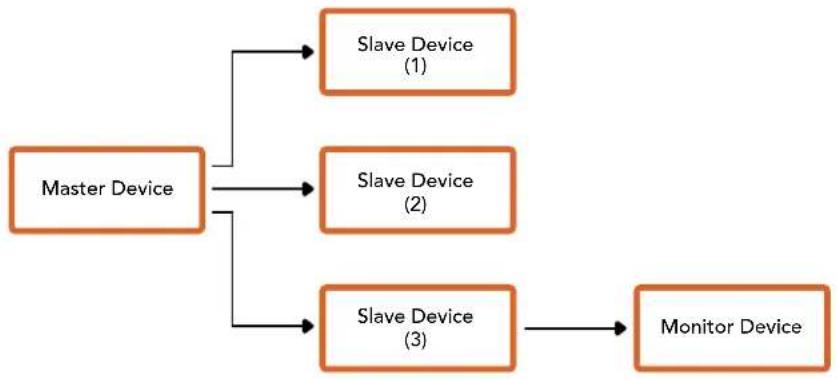
flowchart
graph TD
    A["Master Device"] --> B["Slave Device (1)"]
    A --> C["Slave Device (2)"]
    A --> D["Slave Device (3)"]
    D --> E["Monitor Device"]
| Byte 7 | MSB 6 5 4 3 2 1 0 LSB | |||||||
| 0 | Version(0b0) | Version(0b0) | Version(0b0) | Version(0b0) | Reserved(0b0) | Reserved(0b0) | MonitorPreview | MonitorProgram |
| 1 | Reserved(0b0) | Reserved(0b0) | Slave 1Preview | Slave 1Program | Reserved(0b0) | Reserved(0b0) | Slave 0Preview | Slave 0Program |
| 2 | Reserved(0b0) | Reserved(0b0) | Slave 3Preview | Slave 3Program | Reserved(0b0) | Reserved(0b0) | Slave 2Preview | Slave 2Program |
| 3 | ... | |||||||
Help
Getting Help
The fastest way to obtain help is to go to the Blackmagic Design online support pages and check the latest support material available for your ATEM switcher.
Blackmagic Design online support pages
The latest manual, software and support notes can be found at the Blackmagic Design support center at www.blackmagicdesign.com/support.
Contacting Blackmagic Design support
If you can't find the help you need in our support material, please use the "Send us an email" button on the support page to email a support request. Alternatively, click on the "Find your local support team" button on the support page and call your nearest Blackmagic Design support office.
Checking the version currently installed
To check which version of ATEM software is installed on your computer, open the About ATEM Software Control window.
- On Mac, open ATEM Software Control from the Applications folder. Select About ATEM Software Control from the application menu to reveal the version number.
- On Windows, open ATEM Software Control from your 'start' menu. Click on 'help' in the menu bar and select 'about' to reveal the version number.
How to get the latest updates
After checking the version of ATEM software installed on your computer, please visit the Blackmagic Design support center at www.blackmagicdesign.com/support to check for the latest updates. While it is usually a good idea to run the latest updates, it is a wise practice to avoid updating any software if you are in the middle of an important project.
Regulatory Notices

Disposal of Waste of Electrical and Electronic Equipment Within the European Union.
The symbol on the product indicates that this equipment must not be disposed of with other waste materials. In order to dispose of your waste equipment, it must be handed over to a designated collection point for recycling. The separate collection and recycling of your waste equipment at the time of disposal will help conserve natural resources and ensure that it is recycled in a manner that protects human health and the environment. For more information about where you can drop off your waste equipment for recycling, please contact your local city recycling office or the dealer from whom you purchased the product.

This equipment has been tested and found to comply with the limits for a Class A digital device, pursuant to Part 15 of the FCC rules. These limits are designed to provide reasonable protection against harmful interference when the equipment is operated in a commercial environment. This equipment generates, uses and can radiate radio frequency energy and, if not installed and used in accordance with the instructions, may cause harmful interference to radio communications. Operation of this product in a residential area is likely to cause harmful interference, in which case the user will be required to correct the interference at personal expense.
Operation is subject to the following two conditions:
1 This device may not cause harmful interference.
2 This device must accept any interference received, including interference that may cause undesired operation.

R-R-BMD-20220729001
R-R-BMD-20220729002
R-R-BMD-20230316001
R-REM-BMD-201805002
ISED Canada Statement
This device complies with Canadian standards for Class A digital apparatus.
Any modifications or use of this product outside its intended use could void compliance to these standards.
Connection to HDMI interfaces must be made with high quality shielded HDMI cables.
This equipment has been tested for compliance with the intended use in a commercial environment. If the equipment is used in a domestic environment, it may cause radio interference.
Safety Information
For protection against electric shock, the equipment must be connected to a mains socket outlet with a protective earth connection. In case of doubt contact a qualified electrician.
To reduce the risk of electric shock, do not expose this equipment to dripping or splashing.
Ensure any DC power source connected to the units is compatible with the input voltage and current rating marked at the DC IN connector.
Product is suitable for use in tropical locations with an ambient temperature of up to 40^ C.
Ensure that adequate ventilation is provided around the product and that it is not restricted.
No operator serviceable parts inside product. Refer servicing to your local Blackmagic Design service center.

Use only at altitudes not more than 2000m above sea level.
State of California statement
This product can expose you to chemicals such as trace amounts of polybrominated biphenyls within plastic parts, which is known to the state of California to cause cancer and birth defect or other reproductive harm.
For more information go to www.P65Warnings.ca.gov.
European Office
Blackmagic Design B.V, Amsterdam Sloterdijk Teleport Towers Office 2.17, Kingsfordweg 151, Amsterdam, 1043GR.
Warning for Authorized Service Personnel

Disconnect power from both power inlets before servicing!
Caution — Double Pole/ Neutral Fusing
The power supply contained in this equipment has a fuse in both line and neutral conductors and is suitable for connection to the IT power distribution system in Norway.
Warranty
12 Month Limited Warranty
Blackmagic Design warrants that this product will be free from defects in materials and workmanship for a period of 12 months from the date of purchase. If a product proves to be defective during this warranty period, Blackmagic Design, at its option, either will repair the defective product without charge for parts and labor, or will provide a replacement in exchange for the defective product.
In order to obtain service under this warranty, you the Customer, must notify Blackmagic Design of the defect before the expiration of the warranty period and make suitable arrangements for the performance of service. The Customer shall be responsible for packaging and shipping the defective product to a designated service center nominated by Blackmagic Design, with shipping charges pre paid. Customer shall be responsible for paying all shipping charges, insurance, duties, taxes and any other charges for products returned to us for any reason.
This warranty shall not apply to any defect, failure or damage caused by improper use or improper or inadequate maintenance and care. Blackmagic Design shall not be obligated to furnish service under this warranty: a) to repair damage resulting from attempts by personnel other than Blackmagic Design representatives to install, repair or service the product, b) to repair damage resulting from improper use or connection to incompatible equipment, c) to repair any damage or malfunction caused by the use of non Blackmagic Design parts or supplies, or d) to service a product that has been modified or integrated with other products when the effect of such a modification or integration increases the time or difficulty of servicing the product. THIS WARRANTY IS GIVEN BY BLACKMAGIC DESIGN IN LIEU OF ANY OTHER WARRANTIES, EXPRESS OR IMPLIED. BLACKMAGIC DESIGN AND ITS VENDORS DISCLAIM ANY IMPLIED WARRANTIES OF MERCHANTABILITY OR FITNESS FOR A PARTICULAR PURPOSE. BLACKMAGIC DESIGN'S RESPONSIBILITY TO REPAIR OR REPLACE DEFECTIVE PRODUCTS IS THE WHOLE AND EXCLUSIVE REMEDY PROVIDED TO THE CUSTOMER FOR ANY INDIRECT, SPECIAL, INCIDENTAL OR CONSEQUENTIAL DAMAGES IRRESPECTIVE OF WHETHER BLACKMAGIC DESIGN OR THE VENDOR HAS ADVANCE NOTICE OF THE POSSIBILITY OF SUCH DAMAGES. BLACKMAGIC DESIGN IS NOT LIABLE FOR ANY ILLEGAL USE OF EQUIPMENT BY CUSTOMER. BLACKMAGIC IS NOT LIABLE FOR ANY DAMAGES RESULTING FROM USE OF THIS PRODUCT. USER OPERATES THIS PRODUCT AT OWN RISK.
© Copyright 2024 Blackmagic Design. All rights reserved. 'Blackmagic Design', 'DockLink', 'HDLink', 'Workgroup Videohub', 'Multibridge Pro', 'Multibridge Extreme', 'Intensity' and 'Leading the creative video revolution' are registered trademarks in the US and other countries. All other company and product names may be trade marks of their respective companies with which they are associated.
Thunderbolt and the Thunderbolt logo are trademarks of Intel Corporation in the U.S. and/or other countries.
natural_image
Man in red polo shirt operating a CDL control console at a music studio with red curtains and a large 'LAB' backdrop (no visible text or symbols on main subjects)
natural_image
Circular portrait photo of a smiling man in a dark shirt against a gray background (no text or symbols)ようこそ
Blackmagic Design CEO
目次
ATEM Television Studio 201
M/Eスイッチャーとは?201
A/Bスイッチ ヤーとは? 203
ATEMスイッチャーとは 203
始めに 204
電源の接続 204
マルチビューの接 続 205
ソースの 接 続 205
オーディオの接 続 206
トランジションの実行 207
ネットワークの設定
natural_image
Line drawing of a video camera setup with monitor, control panel, and cable (no text or symbols)natural_image
Four black audio recording equipment consoles with control knobs and buttons, no visible text or symbols on the devices themselves.ATEM Television Studio HD8
ATEM Television Studio 4K8
始めに
natural_image
Front view of a computer rack with multiple ports and connectors (no visible text or labels)natural_image
Front view of a computer rack with multiple ports and connectors (no visible text or labels)2 プログラム列で入力3を押します。
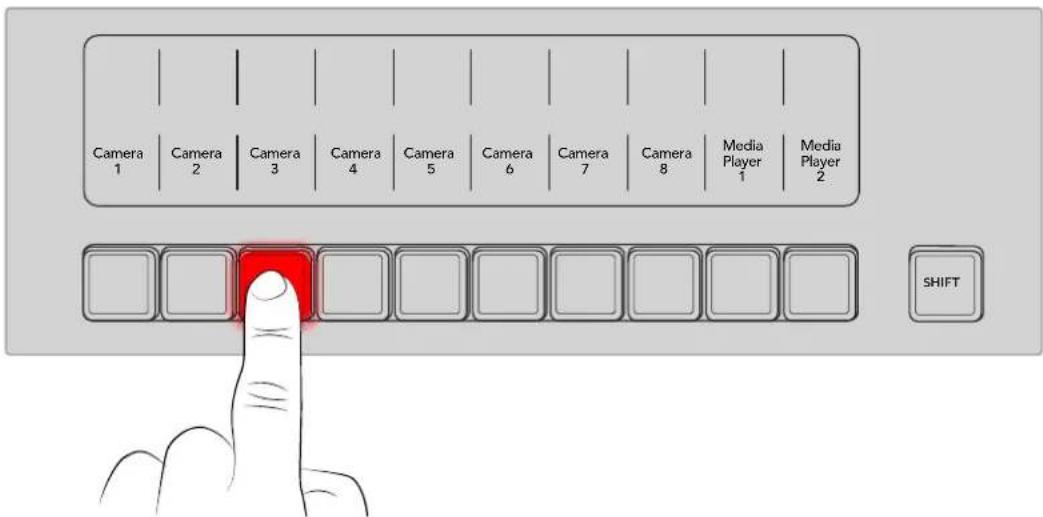
ネットワークの設定
ATEM Television Studio 4K8
natural_image
Hand gesture pointing upward with a small object in the background (no text or symbols)設定の変更
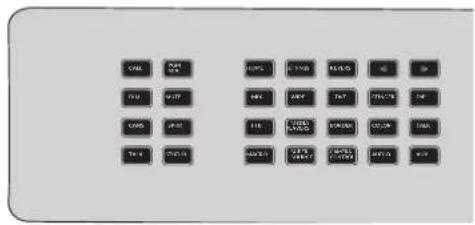
CALLボタン
ソース名ディスプ レイ
CUT
チャンネルストリップ
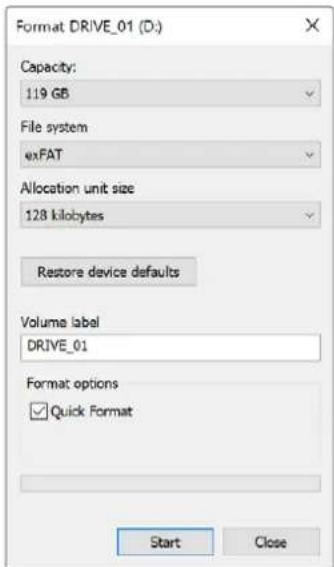
ATEM Television Studio HD8 ISO connected successfully
Please close this browser window and switch back to the setup utility to continue.
3 「Close」をクリックします。
フォルダーと方向を同期
natural_image
Child preparing fresh vegetables with a bowl of water in the background (no visible text or symbols)
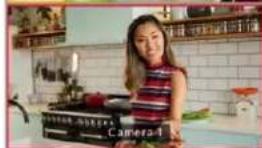
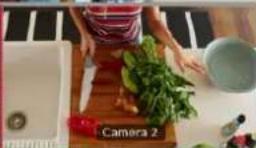

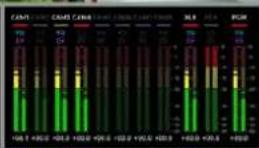
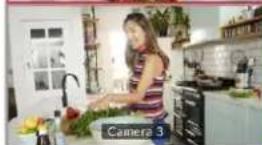
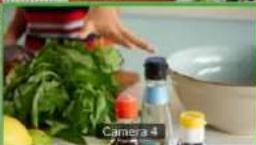
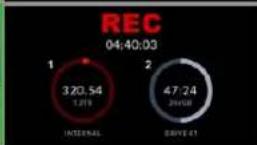
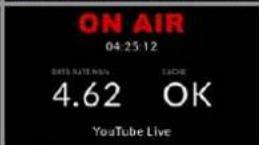
natural_image
Two-panel image showing a hand pouring liquid into a bowl and a woman cooking in a kitchen with a pot (no visible text or symbols)プレビュー
natural_image
Four-panel photo collage showing a woman cooking vegetables in a kitchen, with no visible text or symbols.入 カビュー
natural_image
Dark abstract image with a vertical blue stripe and a horizontal gold line (no text or symbols)
natural_image
Abstract black and white geometric shape with no text or symbolsnatural_image
Soccer goalkeeper in action at the goal with a goal net, blurred stadium crowd in background (no visible text or symbols)
natural_image
Soccer goalkeeper in action at the goal with a 'LIVE' banner in the corner (no readable text on player or ball)natural_image
Soccer goalkeeper in action at the goal with a 'LIVE' banner in the corner (no readable text on player or ball)トランジション前のプログラム出力
natural_image
Soccer goalkeeper in action at the goal with a goal net, blurred stadium crowd in background (no visible text or symbols)トランジション後のプログラム出力
例3:
natural_image
Two soccer players in action on a grass field, one in green and one in red, with 'LIVE' and 'BMD TV' logos in the corner (no readable text or symbols)トランジション後のプログラム出力
例4:
natural_image
Two soccer players in action on a grass field, one in green and one in red, kicking up the ball (no visible text or symbols)トランジション後のプログラム出力
ジョイスティックコントロール
ジョイスティックでカメラをコントロール
ATEMエクス ポートプラ グイン
HyperDeck Studio HD Plus
HyperDeckの接続
natural_image
Front view of a computer interface panel with ports and buttons (no visible text or labels)HyperDeck Studio HD PlusのSDI出力をATEM Television StudioのSDI入力に接続
natural_image
User interface panel with playback controls and a horizontal bar (no text or symbols)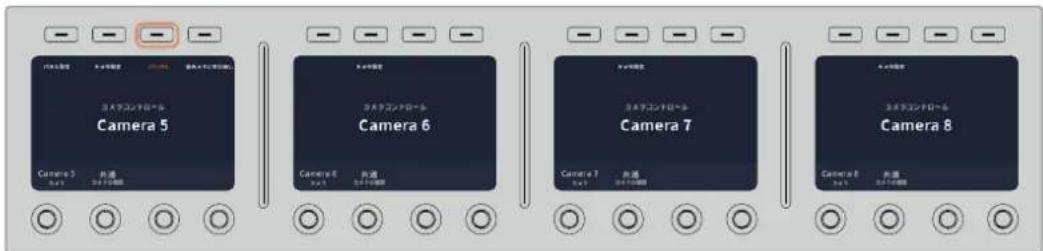
natural_image
Grid of red dots arranged in a vertical column pattern (no text or symbols)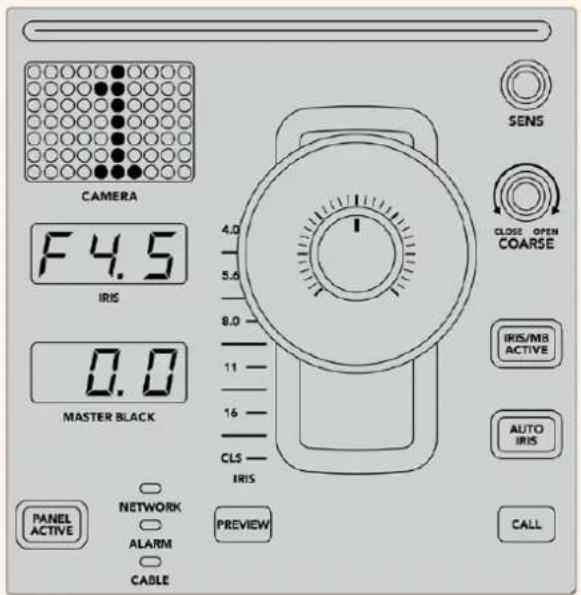
シーンファイル
GPI and Tally Interface
natural_image
Line drawing of a beige analog oscilloscope with three dials and control knobs (no text or symbols on the device itself)DaVinci Resolve Micro Panel
コントロールノブ
natural_image
3D rendering of a mechanical connector with pin numbering (no text or symbols on the component itself)| Eng TX+ | Eng TX- | Prod TX+ | Prod RX+ | Prod RX- | Prod TX- | Eng RX+ | Eng RX- |
| 1 | 2 | 3 | 4 | 5 | 6 | 7 | 8 |
natural_image
3D rendering of a 12-pin electrical connector (no text or symbols visible)| TX+ | TX- | GND | GND | RX- | RX+ |
| 1 | 2 | 3 | 4 | 5 | 6 |
If you are a software developer you can use the SDI Camera Control Protocol to construct devices that integrate with our products. Here at Blackmagic Design our approach is to open up our protocols and we eagerly look forward to seeing what you come up with!
Overview
The Blackmagic SDI Camera Control Protocol is used by ATEM switchers, Blackmagic 3G-SDI Shield for Arduino and the Blackmagic Camera Control app to provide Camera Control functionality with supported Blackmagic Design cameras. Please refer to the 'Understanding Studio Camera Control' chapter section of this manual, or the ATEM Switchers Manual and SDK manual for more information. These can be downloaded at www.blackmagicdesign.com/support.
This document describes an extensible protocol for sending a uni directional stream of small control messages embedded in the non-active picture region of a digital video stream. The video stream containing the protocol stream may be broadcast to a number of devices. Device addressing is used to allow the sender to specify which device each message is directed to.
Assumptions
Alignment and padding constraints are explicitly described in the protocol document. Bit fields are packed from LSB first. Message groups, individual messages and command headers are defined as, and can be assumed to be, 32 bit aligned.
Blanking Encoding
A message group is encoded into a SMPTE 291M packet with DID/SDID x51/x53 in the active region of VANC line 16.
Message Grouping
Up to 32 messages may be concatenated and transmitted in one blanking packet up to a maximum of 255 bytes payload. Under most circumstances, this should allow all messages to be sent with a maximum of one frame latency.
If the transmitting device queues more bytes of message packets than can be sent in a single frame, it should use heuristics to determine which packets to prioritize and send immediately. Lower priority messages can be delayed to later frames, or dropped entirely as appropriate.
Abstract Message Packet Format
Every message packet consists of a three byte header followed by an optional variable length data block. The maximum packet size is 64 bytes.
| Destination device (uint8) | Device addresses are represented as an 8 bit unsigned integer. Individual devices are numbered 0 through 254 with the value 255 reserved to indicate a broadcast message to all devices. |
| Command length (uint8) | The command length is an 8 bit unsigned integer which specifies the length of the included command data. The length does NOT include the length of the header or any trailing padding bytes. |
| Command id (uint8) | The command id is an 8 bit unsigned integer which indicates the message type being sent. Receiving devices should ignore any commands that they do not understand. Commands 0 through 127 are reserved for commands that apply to multiple types of devices. Commands 128 through 255 are device specific. |
| Reserved (uint8) | This byte is reserved for alignment and expansion purposes. It should be set to zero. |
| Command data (uint8[]) | The command data may contain between 0 and 60 bytes of data. The format of the data section is defined by the command itself. |
| Padding (uint8[]) | Messages must be padded up to a 32 bit boundary with 0x0 bytes.Any padding bytes are NOT included in the command length. |
Receiving devices should use the destination device address and or the command identifier to determine which messages to process. The receiver should use the command length to skip irrelevant or unknown commands and should be careful to skip the implicit padding as well.
Defined Commands
Command 0 : change configuration
| Category (uint8) | The category number specifies one of up to 256 configuration categories available on the device. |
| Parameter (uint8) | The parameter number specifies one of 256 potential configuration parameters available on the device. Parameters 0 through 127 are device specific parameters. Parameters 128 though 255 are reserved for parameters that apply to multiple types of devices. |
| Data type (uint8) | The data type specifies the type of the remaining data. The packet length is used to determine the number of elements in the message. Each message must contain an integral number of data elements. |
Currently defined values are:
| 0: void / boolean | A void value is represented as a boolean array of length zero.The data field is a 8 bit value with 0 meaning false and all other values meaning true. |
1: signed byte Data elements are signed bytes
2: signed 16 bit integer Data elements are signed 16 bit values
3: signed 32 bit integer Data elements are signed 32 bit values
4: signed 64 bit integer Data elements are signed 64 bit values
5: UTF-8 string Data elements represent a UTF-8 string with no terminating character.
Data types 6 through 127 are reserved.
| 128: signed 5.11 fixed point | Data elements are signed 16 bit integers representing a real number with 5 bits for the integer component and 11 bits for the fractional component. The fixed point representation is equal to the real value multiplied by 2^11 . The representable range is from -16.0 to 15.9995(15 + 2047/2048). |
Data types 129 through 255 are available for device specific purposes.
| Operation type (uint8) | The operation type specifies what action to perform on the specified parameter. Currently defined values are: |
| 0: assign value | The supplied values are assigned to the specified parameter. Each element will be clamped according to its valid range. A void parameter may only be 'assigned' an empty list of boolean type. This operation will trigger the action associated with that parameter. A boolean value may be assigned the value zero for false, and any other value for true. |
| 1: offset / toggle value | Each value specifies signed offsets of the same type to be added to the current parameter values. The resulting parameter value will be clamped according to their valid range. It is not valid to apply an offset to a void value. Applying any offset other than zero to a boolean value will invert that value. |
Operation types 2 through 127 are reserved.
Operation types 128 through 255 are available for device specific purposes.
| Data (vold) | The data field is 0 or more bytes as determined by the data type and number of elements. |
The category, parameter, data type and operation type partition a 24 bit operation space.
| Group | ID | Parameter | Type | Index | Minimum | Maximum | Interpretation |
| Lens | 0.0 | Focus | fixed16 | - | 0 | 1 | 0.0 = near, 1.0 = far |
| 0.1 | Instantaneous autofocus | void | - | - | - | trigger instantaneous autofocus | |
| 0.2 | Aperture (f-stop) | fixed16 | - | -1 | 16 | Aperture Value (where fnumber = sqrt(2^AV)) | |
| 0.3 | Aperture (normalised) | fixed16 | - | 0 | 1 | 0.0 = smallest, 1.0 = largest | |
| 0.4 | Aperture (ordinal) | int16 | - | 0 | n | Steps through available aperture values from minimum (0) to maximum (n) | |
| 0.5 | Instantaneous auto aperture | void | -- | - | trigger instantaneous auto aperture | ||
| 0.6 | Optical image stabilisation | boolean | - | - | - | true = enabled, false = disabled | |
| 0.7 | Set absolute zoom (mm) | int16 | - | 0 | max | Move to specified focal length in mm, from minimum (0) to maximum (max) | |
| 0.8 | Set absolute zoom (normalised) | fixed16 - 0 1 | Move to specified focal length: 0.0 = wide, 1.0 = tele | ||||
| 0.9 | Set continuous zoom (speed) | fixed16 - -1 +1.0 | Start/stop zooming at specified rate: -1.0 = zoom wider fast, 0.0 = stop, +1 = zoom tele fast | ||||
| Video | 1.0 Video mode int8 | [0] = frame rate - - 24, 25, 30, 50, 60 | |||||
| [1] = M-rate - - 0 = regular, 1 = M-rate | |||||||
| [2] = dimensions - - | 0 = NTSC, 1 = PAL, 2 = 720, 3 = 1080, 4 = 2k, 5 = 2k DCI, 6 = UHD | ||||||
| [3] = interlaced | -- | 0 = progressive, 1 = interlaced | |||||
| [4] = Color space | -- 0 = YUV | ||||||
| 1.1 | Gain | int8 | 1 | 16 | 1 = 100 ISO, 2 = 200 ISO, 4 = 400 ISO, 8 = 800 ISO, 16 = 1600 ISO | ||
| 1.2 | Manual White Balance | int16 | [0] = color temp | 2500 | 10000 | Color temperature in K | |
| int16 | [1] = tint | -50 | 50 | tint | |||
| 1.3 | Set auto WB | void | - | - | - | Calculate and set auto white balance | |
| 1.4 | Restore auto WB | void | - | - | - | Use latest auto white balance setting | |
| 1.5 | Exposure (us) | int32 | 1 | 42000 | time in us | ||
| 1.6 | Exposure (ordinal) | int16 | - | 0 | n | Steps through available exposure values from minimum (0) to maximum (n) | |
| 1.7 | Dynamic Range Mode | int8 enum | - | 0 | 1 | 0 = film, 1 = video, | |
| 1.8 | Video sharpening level | int8 enum | - | 0 | 3 | 0 = off, 1 = low, 2 = medium, 3 = high | |
| 1.9 | Recording format | int16 | [0] = file frame rate | - | - | fps as integer (eg 24, 25, 30, 50, 60, 120) | |
| [1] = sensor frame rate | - | - | fps as integer, valid when sensor-off-speed set (eg 24, 25, 30, 33, 48, 50, 60, 120), no change will be performed if this value is set to 0 | ||||
| [2] = frame width | -- in pixels | ||||||
| [3] = frame height | -- in pixels | ||||||
| [4] = flags | -- [0] = file-M-rate | ||||||
| - | - | [1] = sensor-M-rate, valid when sensor-off-speed-set | |||||
| -- [2] = sensor-off-speed | |||||||
| -- [3] = interlaced | |||||||
| -- [4] = windowed mode | |||||||
| 1.10 | Set auto exposure mode | int8 | - | 0 | 4 | 0 = Manual Trigger, 1 = Iris, 2 = Shutter, 3 = Iris + Shutter, 4 = Shutter + Iris | |
| 1.11 | Shutter angle | int32 | - | 100 | 36000 | Shutter angle in degrees, multiplied by 100 | |
| 1.12 | Shutter speed | int32 | - | 24 | 2000 | Shutter speed value as a fraction of 1, so 50 for 1/50th of a second | |
| 1.13 | Gain | int8 | - | -128 | 127 | Gain in decibel (dB) | |
| 1.14 | ISO | int32 | - | 0 | 2147483647 | ISO value | |
| Audio | 2.0 Mic level fixed16 - 0 1 | 0.0 = minimum, 1.0 = maximum | |||||
| 2.1 | Headphone level | fixed16 | - | 0 | 1 | 0.0 = minimum, 1.0 = maximum | |
| 2.2 | Headphone program mix | fixed16 | - | 0 | 1 | 0.0 = minimum, 1.0 = maximum | |
| 2.3 | Speaker level | fixed16 | - | 0 | 1 | 0.0 = minimum, 1.0 = maximum | |
| 2.4 | Input type | int8 | - | 0 | 2 | 0 = internal mic, 1 = line level input, 2 = low mic level input, 3 = high mic level input | |
| 2.5 Input levels | fixed16 | [0] ch0 | 0 1 | 0.0 = minimum, 1.0 = maximum | |||
| [1] ch1 0 1 | 0.0 = minimum, 1.0 = maximum | ||||||
| 2.6 | Phantom power | boolean | - | - | - | true = powered, false = not powered | |
| Output | 3.0 Overlay enables | uint16 bit field | --- | bit flags: [0] = display status, [1] = display frame guides Some cameras don't allow separate control of frame guides and status overlays. | |||
| 3.1 | Frame guides style (Camera 3.x) | int8 | [0] = frame guides style | 0 | 8 | 0 = HDTV, 1 = 4:3, 2 = 2.4:1, 3 = 2.39:1, 4 = 2.35:1, 5 = 1.85:1, 6 = thirds | |
| 3.2 | Frame guides opacity (Camera 3.x) | fixed16 | [1] = frame guide opacity | 0.1 | 1 | 0.0 = transparent, 1.0 = opaque | |
| 3.3 | Overlays (replaces .1 and .2 above from Cameras 4.0) | int8 | [0] = frame guides style | - | - | 0 = off, 1 = 2.4:1, 2 = 2.39:1, 3 = 2.35:1, 4 = 1.85:1, 5 = 16:9, 6 = 14:9, 7 = 4:3 | |
| [1] = frame guide opacity | 0 100 | 0 = transparent, 100 = opaque | |||||
| [2] = safe area percentage | 0 100 | percentage of full frame used by safe area guide (0 means off) | |||||
| [3] = grid style | -- | bit flags: [0] = display thirds, [1] = display cross hairs, [2] = display center dot | |||||
| Display | 4.0 | Brightness | fixed16 | - | 0 | 1 | 0.0 = minimum, 1.0 = maximum |
| 4.1 Overlay enables | int16 bit field | --- | 0x4 = zebra | ||||
| --- | 0x8 = peaking | ||||||
| --- | |||||||
| 4.2 Zebra level | fixed16 - 0 1 | 0.0 = minimum, 1.0 = maximum | |||||
| 4.3 | Peaking level | fixed16 | - | 0 | 1 | 0.0 = minimum, 1.0 = maximum | |
| 4.4 | Color bars display time (seconds) | int8 | -0 30 | 0 = disable bars, 1-30 = enable bars with timeout (s) | |||
| 4.5 Focus Assist | int8 | [0] = focus assist method | - | - | 0 = Peak, 1 = Colored lines | ||
| [1] = focus line color | - | - | 0 = Red, 1 = Green, 2 = Blue, 3 = White, 4 = Black | ||||
| Tally | 5.0 | Tally brightness | fixed16 | - | 0 | 1 | Sets the tally front and tally rear brightness to the same level. 0.0 = minimum, 1.0 = maximum |
| 5.1 | Front tally brightness | fixed16 | - | 0 | 1 | Sets the tally front brightness. 0.0 = minimum, 1.0 = maximum | |
| 5.2 | Rear tally brightness | fixed16 | - | 0 | 1 | Sets the tally rear brightness. 0.0 = minimum, 1.0 = maximum Tally rear brightness cannot be turned off | |
| Reference | 6.0 Source | int8 enum - 0 2 | 0 = internal, 1 = program, 2 = external | ||||
| 6.1 | Offset | int32 | - | - | - | +/- offset in pixels | |
| Configuration | 7.0 Real Time Clock | int32 | [0] time | - | - | BCD - HHMMSSFF (UCT) | |
| [1] date | - | - | BCD - YYYYMMDD | ||||
| 7.1 | System language | string | - | - | - | ISO-639-1 two character language code | |
| 7.2 | Timezone | int32 | - | - | - | Minutes offset from UTC | |
| 7.3 | Location | int64 | [0] latitude | - | - | BCD - sDDDdddddddddd where s is the sign: 0 = north (+), 1 = south (-); DD degrees, dddddddddddd decimal degrees | |
| [1] longitude | - | - | BCD - sDDDdddddddddd where s is the sign: 0 = west (-), 1 = east (+); DDD degrees, dddddddddddd decimal degrees | ||||
| Color Correction | 8.0 Lift Adjust | fixed16 | [0] red | -2 | 2 | default 0.0 | |
| [1] green | -2 | 2 | default 0.0 | ||||
| [2] blue | -2 | 2 default 0.0 | |||||
| [3] luma | -2 | 2 | default 0.0 | ||||
| 8.1 Gamma Adjust | fixed16 | [0] red | -4 | 4 | default 0.0 | ||
| [1] green | -4 | 4 | default 0.0 | ||||
| [2] blue | -4 4 | default 0.0 | |||||
| [3] luma | -4 | 4 | default 0.0 | ||||
| 8.2 Gain Adjust | fixed16 | [0] red | 0 16 default 1.0 | ||||
| [1] green | 0 16 default 1.0 | ||||||
| [2] blue | 0 16 default 1.0 | ||||||
| [3] luma | 0 16 default 1.0 | ||||||
| 8.3 Offset Adjust | fixed16 | [0] red | -8 | 8 | default 0.0 | ||
| [1] green | -8 | 8 | default 0.0 | ||||
| [2] blue | -8 | 8 default 0.0 | |||||
| [3] luma | -8 | 8 | default 0.0 | ||||
| 8.4 Contrast Adjust | fixed16 | [0] pivot | 0 | 1 | default 0.5 | ||
| [1] adj | 0 2 | default 1.0 | |||||
| 8.5 | Luma mix | fixed16 | - | 0 | 1 | default 1.0 | |
| 8.6 Color Adjust | fixed16 | [0] hue | -11 | default 0.0 | |||
| [1] sat 0 2 | default 1.0 | ||||||
| 8.7 | Correction Reset Default | void | - | - | - | reset to defaults | |
| Media | 10.0 Codec | int8 enum | [0] = basic codec - - | 0 = RAW,1 = DNxHD,2 = ProRes,3 = Blackmagic RAW | |||
| [1] = codec variant | - | - | RAW:0 = Uncompressed,1 = lossy 3:1,2 = lossy 4:1 | ||||
| - | - | ProRes:0 = HQ,1 = 422,2 = LT, 3 = Proxy,4 = 444, 5 = 444XQ | |||||
| - | - | Blackmagic RAW:0 = Q0,1 = Q5,2 = 3:1,3 = 5:1,4 = 8:1,5 = 12:1 | |||||
| 10.1 Transport mode int8 | [0] = mode - - | 0 = Preview,1 = Play,2 = Record | |||||
| [1] = speed - - | -ve = multiple speeds backwards,0 = pause,+ve = multiple speeds forwards | ||||||
| [2] = flags | -- | 1<<0 = loop,1<<1 = play all,1<<5 = disk1 active,1<<6 = disk2 active,1<<7 = time-lapse recording | |||||
| [3] = active storage medium | - | - | 0 = CFast card,1 = SD | ||||
| PTZ Control | 11.0 | Pan/Tilt Velocity | fixed 16 | [0] = pan velocity | -1.0 | 1.0 | -1.0 = full speed left,1.0 = full speed right |
| [1] = tilt velocity -1.0 | 1.0 | -1.0 = full speed down,1.0 = full speed up | |||||
| 11.1 | Memory Preset | int8 enum | [0] = preset command | - | - | 0 = reset,1 = store location,2 = recall location | |
| int8 | [1] = preset slot | 0 5 - | |||||
Example Protocol Packets
| Operation | Packet Length Byte | ||||||||||||||||
| 0 | 1 | 2 | 3 | 4 | 5 | 6 | 7 | 8 | 9 | 10 | 11 | 12 | 13 | 14 | 15 | ||
| header command data | |||||||||||||||||
| destination | length | command | reserved | category | parameter | type | operation | ||||||||||
| trigger instantaneous auto focus on camera 4 | 8 4 4 0 0 0 1 0 0 | ||||||||||||||||
| turn on OIS on all cameras 12 255 5 0 0 0 6 0 0 1 0 0 0 | |||||||||||||||||
| set exposure to 10 ms on camera 4 (10 ms = 10000 us = 0x00002710) | 12 | 4 | 8 | 0 | 0 | 1 | 5 | 3 | 0 | 0x10 | 0x27 | 0x00 | 0x00 | ||||
| add 15% to zebra level (15 % = 0.15 f = 0x0133 fp) | 12 | 4 | 6 | 0 | 0 | 4 | 2 | 128 | 1 | 0x33 | 0x01 | 0 | 0 | ||||
| select 1080p 23.98 mode on all cameras | 16 | 255 | 9 | 0 | 0 | 1 | 0 | 1 | 0 | 24 | 1 | 3 | 0 | 0 | 0 | 0 | 0 |
| subtract 0.3 from gamma adjust for green & blue (-0.3 ~= 0xfd9a fp) | 16 | 4 | 12 | 0 | 0 | 8 | 1 | 128 | 1 | 0 | 0 | 0x9a | 0xfd | 0x9a | 0xfd | 0 | 0 |
| all operations combined | 76 | 4 | 4 | 0 | 0 | 0 | 1 | 0 | 0 | 255 | 5 | 0 | 0 | 0 | 6 | 0 | 0 |
| 1 | 0 | 0 | 0 | 4 | 8 | 0 | 0 | 1 | 5 | 3 | 0 | 0x10 | 0x27 | 0x00 | 0x00 | ||
| 4 | 6 | 0 | 0 | 4 | 2 | 128 | 1 | 0x33 | 0x01 | 0 | 0 | 255 | 9 | 0 | 0 | ||
| 1 | 0 | 1 | 0 | 24 | 1 | 3 | 0 | 0 | 0 | 0 | 0 | 4 | 12 | 0 | 0 | ||
| 8 | 1 | 128 | 1 | 0 | 0 | 0x9a | 0xfd | 0x9a | 0xfd | 0 | 0 | ||||||
Blackmagic Embedded Tally Control Protocol
Version 1.0 (30/04/14)
This section is for third party developers or users who may wish to add support for the Blackmagic Embedded Tally Control Protocol to their products or system. It describes the protocol for sending tally information embedded in the non-active picture region of a digital video stream.
Data Flow
A master device such as a broadcast switcher embeds tally information into its program feed which is broadcast to a number of slave devices such as cameras or camera controllers. The output from the slave devices is typically fed back to the master device, but may also be sent to a video monitor.
The primary flow of tally information is from the master device to the slaves. Each slave device may use its device id to extract and display the relevant tally information.
Slave devices pass through the tally packet on their output and update the monitor tally status, so that monitor devices connected to that individual output may display tally status without knowledge of the device id they are monitoring.
Assumptions
Any data alignment / padding is explicit in the protocol. Bit fields are packed from LSB first.
Blanking Encoding
One tally control packet may be sent per video frame. Packets are encoded as a SMPTE 291M packet with DID/SDID x51/x52 in the active region of VANC line 15. A tally control packet may contain up to 256 bytes of tally information.
Packet Format
Each tally status consists of 4 bits of information:
uint4
bit 0: program tally status (0=off, 1=on)
bit 1: preview tally status (0=off, 1=on)
bit 2-3: reserved (0x0)
The first byte of the tally packet contains the monitor device tally status and a version number.
Subsequent bytes of the tally packet contain tally status for pairs of slave devices. The master device sends tally status for the number of devices configured/supported, up to a maximum of 510.
struct tally
uint8
bit 0: monitor device program tally status (0=off, 1=on)
bit 1: monitor device preview tally status (0=off, 1=on)
bit 2-3: reserved (0b00)
bit 4-7: protocol version (0b0000)
uint8[0]
bit 0: slave device 1 program tally status (0=off, 1=on)
bit 1: slave device 1 device preview tally status (0=off, 1=on)
bit 2-3: reserved (0b00)
bit 4: slave device 2 program tally status (0=off, 1=on)
bit 5: slave device 2 preview tally status (0=off, 1=on)
bit 6-7: reserved (0b00)
uint8[1]
bit 0: slave device 3 program tally status (0=off, 1=on)
bit 1: slave device 3 device preview tally status (0=off, 1=on)
bit 2-3: reserved (0b00)
bit 4: slave device 4 program tally status (0=off, 1=on)
bit 5: slave device 4 preview tally status (0=off, 1=on)
bit 6-7: reserved (0b00)
...
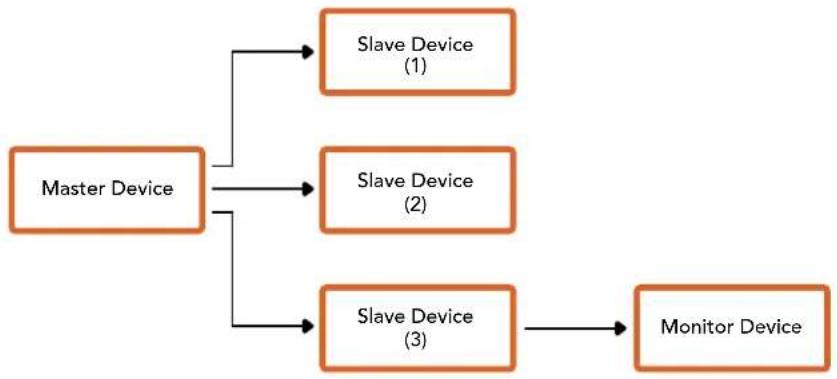
flowchart
graph TD
    A["Master Device"] --> B["Slave Device (1)"]
    A --> C["Slave Device (2)"]
    A --> D["Slave Device (3)"]
    D --> E["Monitor Device"]
| Byte 7 | MSB 6 5 4 3 2 1 0 LSB | |||||||
| 0 | Version (0b0) | Version (0b0) | Version (0b0) | Version (0b0) | Reserved (0b0) | Reserved (0b0) | Monitor Preview | Monitor Program |
| 1 | Reserved (0b0) | Reserved (0b0) | Slave 1 Preview | Slave 1 Program | Reserved (0b0) | Reserved (0b0) | Slave 0 Preview | Slave 0 Program |
| 2 | Reserved (0b0) | Reserved (0b0) | Slave 3 Preview | Slave 3 Program | Reserved (0b0) | Reserved (0b0) | Slave 2 Preview | Slave 2 Program |
| 3 | ... | |||||||
ヘルプ
ヘルプライン
natural_image
Man in red polo shirt using a video editing console at a music studio with red curtains and a large 'LAB' backdrop (no visible text or symbols on main subjects)
natural_image
Circular portrait photo of a smiling man in a dark shirt against a gray textured background (no text or symbols)Chère cliente, cher client,
Connector le multi view 400
Connector des sources 400
Brancher l'audio 401
Supports de stockage 427
Incrustation DVE 509
natural_image
Line drawing of a video camera setup with monitor, keyboard, and cable (no text or symbols)natural_image
Four black audio recording equipment consoles with control panels and buttons, no visible text or symbols on the devices themselves.ATEM Television Studio HD8 ATEM Television Studio 4K8
Mise en route
natural_image
Front view of a device rear panel with various electronic components and indicator lights (no visible text or labels)Connector le multi view
natural_image
Front view of a dual-panel electronic device back panel with ports, connectors, and indicator lights (no text or symbols visible)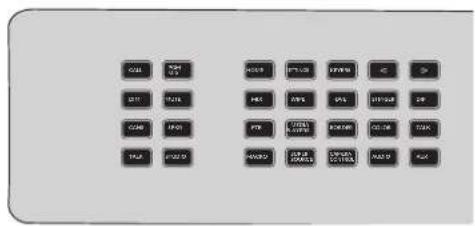
Bouton Call
Cut
Tranches de console
Supports de stockage
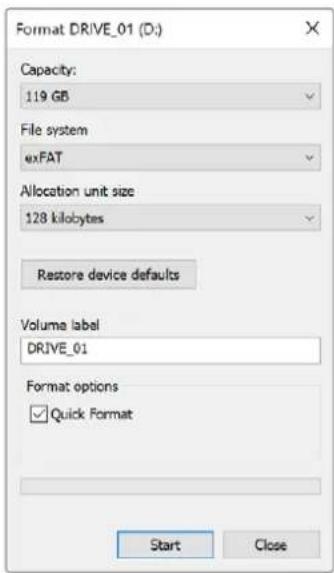
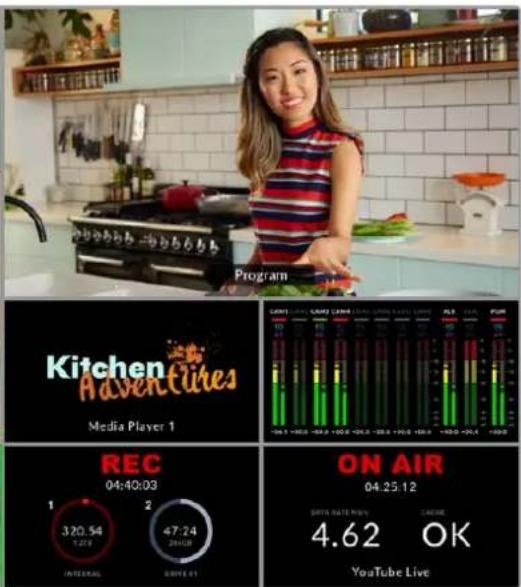
natural_image
Two-panel image showing a hand pouring liquid into a bowl and a woman preparing food in a kitchen (no visible text or symbols)natural_image
Three-panel photo sequence showing a woman cooking with vegetables in kitchen, no visible text or symbolsVue des entrées
Pour installer l'ATEM Software Control :
Bell High Shelve Low Shelve
Bus Program/Programme
natural_image
Front view of a computer control panel with indicator lights and ports (no text or symbols visible)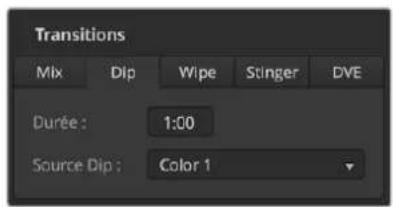
natural_image
Dark abstract image with a vertical blue stripe and a horizontal yellow line against a black background (no text or symbols)
natural_image
Abstract white vertical stripe on black background (no text or symbols)natural_image
Two-panel image showing a hexagonal grid pattern and a black bar with a ship silhouette, both without any readable text or symbols.natural_image
Soccer goalkeeper in action at the goal with a goal net nearby, crowd visible in background (no text or symbols)natural_image
Soccer goalkeeper in action at the goal with a 'LIVE' banner in the corner (no readable text on player or ball)natural_image
Soccer goalkeeper in action at the goal with a 'LIVE' banner in the corner (no readable text on player or ball)natural_image
Soccer goalkeeper standing near the goal with a soccer ball in the background (no visible text or symbols)natural_image
Two soccer players in action on a grass field, one in green and one in red, with 'LIVE' and 'BMD TV' logos in the corner (no readable text or symbols)natural_image
Two soccer players in action on a grass field, one in green and one in red, kicking up a ball (no visible text or symbols)HyperDeck Studio HD Plus
Connector les HyperDecks
natural_image
Back view of a computer interface panel with ports, connectors, and a highlighted cable (no text or symbols visible)natural_image
User interface bar with playback controls and a blurred video player icon (no readable text or symbols)flowchart
graph TD
    A["Computer"] -->|Ethernet| B["ATEM Camera Control Panel"]
    B -->|Ethernet| C["ATEM Television Studio"]
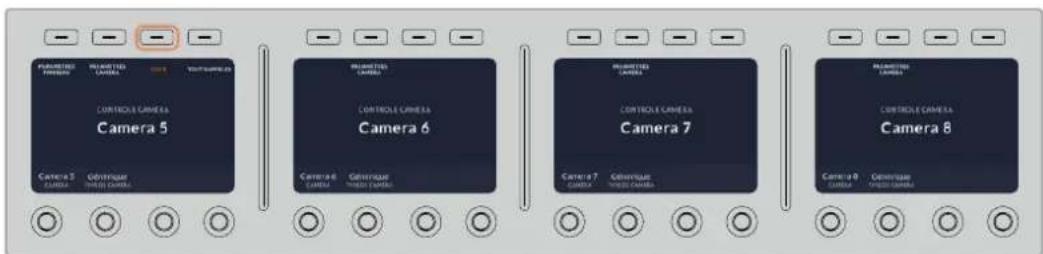
natural_image
Two vertical dot patterns: green dots ascending to the right and red dots descending to the left, on a gray grid background (no text or symbols)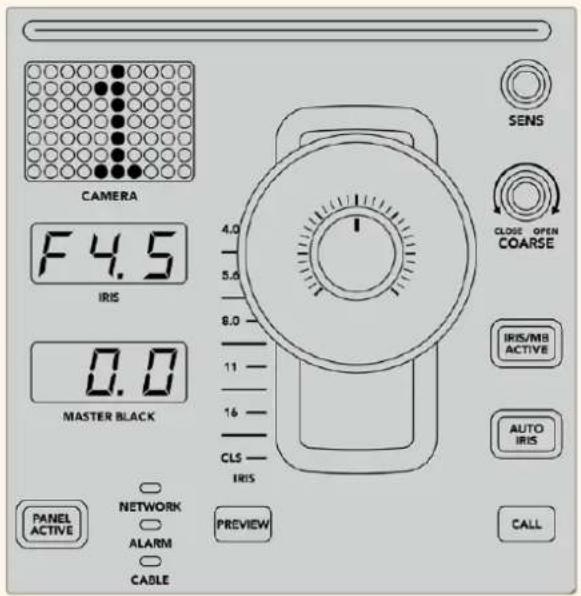
GPI and Tally Interface
natural_image
Line drawing of a beige industrial control panel with three circular dials and control knobs (no text or symbols)DaVinci Resolve Micro Panel
natural_image
3D rendering of a 12-pin electrical connector (no text or symbols visible)| Ing TX+ Ing | TX- Prod | TX+ Prod RX+ | Prod RX- | Prod TX- Ing | RX+ Ing RX- | ||
| 1234 | 567 | 8 |
natural_image
Pure electrical connector pinout diagram without any text or symbolsnatural_image
Isometric illustration of a 12-pin Ethernet connector (no text or symbols)| TX+ TX- GND GND RX- RX+ | ||||
| 1 2 3 4 5 | 6 | |||
If you are a software developer you can use the SDI Camera Control Protocol to construct devices that integrate with our products. Here at Blackmagic Design our approach is to open up our protocols and we eagerly look forward to seeing what you come up with!
Overview
The Blackmagic SDI Camera Control Protocol is used by ATEM switchers, Blackmagic 3G-SDI Shield for Arduino and the Blackmagic Camera Control app to provide Camera Control functionality with supported Blackmagic Design cameras. Please refer to the 'Understanding Studio Camera Control' chapter section of this manual, or the ATEM Switchers Manual and SDK manual for more information. These can be downloaded at www.blackmagicdesign.com/support.
This document describes an extensible protocol for sending a uni directional stream of small control messages embedded in the non-active picture region of a digital video stream. The video stream containing the protocol stream may be broadcast to a number of devices. Device addressing is used to allow the sender to specify which device each message is directed to.
Assumptions
Alignment and padding constraints are explicitly described in the protocol document. Bit fields are packed from LSB first. Message groups, individual messages and command headers are defined as, and can be assumed to be, 32 bit aligned.
Blanking Encoding
A message group is encoded into a SMPTE 291M packet with DID/SDID x51/x53 in the active region of VANC line 16.
Message Grouping
Up to 32 messages may be concatenated and transmitted in one blanking packet up to a maximum of 255 bytes payload. Under most circumstances, this should allow all messages to be sent with a maximum of one frame latency.
If the transmitting device queues more bytes of message packets than can be sent in a single frame, it should use heuristics to determine which packets to prioritize and send immediately. Lower priority messages can be delayed to later frames, or dropped entirely as appropriate.
Abstract Message Packet Format
Every message packet consists of a three byte header followed by an optional variable length data block. The maximum packet size is 64 bytes.
| Destination device (uint8) | Device addresses are represented as an 8 bit unsigned integer. Individual devices are numbered 0 through 254 with the value 255 reserved to indicate a broadcast message to all devices. |
| Command length (uint8) | The command length is an 8 bit unsigned integer which specifies the length of the included command data. The length does NOT include the length of the header or any trailing padding bytes. |
| Command id (uint8) | The command id is an 8 bit unsigned integer which indicates the message type being sent. Receiving devices should ignore any commands that they do not understand. Commands 0 through 127 are reserved for commands that apply to multiple types of devices. Commands 128 through 255 are device specific. |
| Reserved (uint8) | This byte is reserved for alignment and expansion purposes. It should be set to zero. |
| Command data (uint8[]) | The command data may contain between 0 and 60 bytes of data. The format of the data section is defined by the command itself. |
| Padding (uint8[]) | Messages must be padded up to a 32 bit boundary with 0x0 bytes.Any padding bytes are NOT included in the command length. |
Receiving devices should use the destination device address and or the command identifier to determine which messages to process. The receiver should use the command length to skip irrelevant or unknown commands and should be careful to skip the implicit padding as well.
Defined Commands
Command 0 : change configuration
| Category (uint8) | The category number specifies one of up to 256 configuration categories available on the device. |
| Parameter (uint8) | The parameter number specifies one of 256 potential configuration parameters available on the device. Parameters 0 through 127 are device specific parameters. Parameters 128 though 255 are reserved for parameters that apply to multiple types of devices. |
| Data type (uint8) | The data type specifies the type of the remaining data. The packet length is used to determine the number of elements in the message. Each message must contain an integral number of data elements. |
Currently defined values are:
| 0: void / boolean | A void value is represented as a boolean array of length zero.The data field is a 8 bit value with 0 meaning false and all other values meaning true. |
1: signed byte Data elements are signed bytes
2: signed 16 bit integer Data elements are signed 16 bit values
3: signed 32 bit integer Data elements are signed 32 bit values
4: signed 64 bit integer Data elements are signed 64 bit values
5: UTF-8 string Data elements represent a UTF-8 string with no terminating character.
Data types 6 through 127 are reserved.
| 128: signed 5.11 fixed point | Data elements are signed 16 bit integers representing a real number with 5 bits for the integer component and 11 bits for the fractional component.The fixed point representation is equal to the real value multiplied by 2^11 .The representable range is from -16.0 to 15.9995(15 + 2047/2048). |
Data types 129 through 255 are available for device specific purposes.
| Operation type (uint8) | The operation type specifies what action to perform on the specified parameter. Currently defined values are: |
| 0: assign value | The supplied values are assigned to the specified parameter. Each element will be clamped according to its valid range. A void parameter may only be 'assigned' an empty list of boolean type. This operation will trigger the action associated with that parameter. A boolean value may be assigned the value zero for false, and any other value for true. |
| 1: offset / toggle value | Each value specifies signed offsets of the same type to be added to the current parameter values. The resulting parameter value will be clamped according to their valid range. It is not valid to apply an offset to a void value. Applying any offset other than zero to a boolean value will invert that value. |
Operation types 2 through 127 are reserved.
Operation types 128 through 255 are available for device specific purposes.
| Data (vold) | The data field is 0 or more bytes as determined by the data type and number of elements. |
The category, parameter, data type and operation type partition a 24 bit operation space.
| Group | ID | Parameter | Type | Index | Minimum | Maximum | Interpretation |
| Lens | 0.0 | Focus | fixed16 | - | 0 | 1 | 0.0 = near, 1.0 = far |
| 0.1 | Instantaneous autofocus | void | - | - | - | trigger instantaneous autofocus | |
| 0.2 | Aperture (f-stop) | fixed16 | - | -1 | 16 | Aperture Value (where fnumber = sqrt(2^AV)) | |
| 0.3 | Aperture (normalised) | fixed16 | - | 0 | 1 | 0.0 = smallest, 1.0 = largest | |
| 0.4 | Aperture (ordinal) | int16 | - | 0 | n | Steps through available aperture values from minimum (0) to maximum (n) | |
| 0.5 | Instantaneous auto aperture | void | -- | - | trigger instantaneous auto aperture | ||
| 0.6 | Optical image stabilisation | boolean | - | - | - | true = enabled, false = disabled | |
| 0.7 | Set absolute zoom (mm) | int16 | - | 0 | max | Move to specified focal length in mm, from minimum (0) to maximum (max) | |
| 0.8 | Set absolute zoom (normalised) | fixed16 - 0 1 | Move to specified focal length: 0.0 = wide, 1.0 = tele | ||||
| 0.9 | Set continuous zoom (speed) | fixed16 - -1 +1.0 | Start/stop zooming at specified rate: -1.0 = zoom wider fast, 0.0 = stop, +1 = zoom tele fast | ||||
| Video | 1.0 Video mode int8 | [0] = frame rate - - 24, 25, 30, 50, 60 | |||||
| [1] = M-rate - - 0 = regular, 1 = M-rate | |||||||
| [2] = dimensions - - | 0 = NTSC, 1 = PAL, 2 = 720, 3 = 1080, 4 = 2k, 5 = 2k DCI, 6 = UHD | ||||||
| [3] = interlaced | -- | 0 = progressive, 1 = interlaced | |||||
| [4] = Color space | -- 0 = YUV | ||||||
| 1.1 | Gain | int8 | 1 | 16 | 1 = 100 ISO, 2 = 200 ISO, 4 = 400 ISO, 8 = 800 ISO, 16 = 1600 ISO | ||
| 1.2 | Manual White Balance | int16 | [0] = color temp | 2500 | 10000 | Color temperature in K | |
| int16 | [1] = tint | -50 | 50 | tint | |||
| 1.3 | Set auto WB | void | - | - | - | Calculate and set auto white balance | |
| 1.4 | Restore auto WB | void | - | - | - | Use latest auto white balance setting | |
| 1.5 | Exposure (us) | int32 | 1 | 42000 | time in us | ||
| 1.6 | Exposure (ordinal) | int16 | - | 0 | n | Steps through available exposure values from minimum (0) to maximum (n) | |
| 1.7 | Dynamic Range Mode | int8 enum | - | 0 | 1 | 0 = film, 1 = video, | |
| 1.8 | Video sharpening level | int8 enum | - | 0 | 3 | 0 = off, 1 = low, 2 = medium, 3 = high | |
| 1.9 | Recording format | int16 | [0] = file frame rate | - | - | fps as integer (eg 24, 25, 30, 50, 60, 120) | |
| [1] = sensor frame rate | - | - | fps as integer, valid when sensor-off-speed set (eg 24, 25, 30, 33, 48, 50, 60, 120), no change will be performed if this value is set to 0 | ||||
| [2] = frame width | -- in pixels | ||||||
| [3] = frame height | -- in pixels | ||||||
| [4] = flags | -- [0] = file-M-rate | ||||||
| - | - | [1] = sensor-M-rate, valid when sensor-off-speed-set | |||||
| -- [2] = sensor-off-speed | |||||||
| -- [3] = interlaced | |||||||
| -- [4] = windowed mode | |||||||
| 1.10 | Set auto exposure mode | int8 | - | 0 | 4 | 0 = Manual Trigger, 1 = Iris, 2 = Shutter, 3 = Iris + Shutter, 4 = Shutter + Iris | |
| 1.11 | Shutter angle | int32 | - | 100 | 36000 | Shutter angle in degrees, multiplied by 100 | |
| 1.12 | Shutter speed | int32 | - | 24 | 2000 | Shutter speed value as a fraction of 1, so 50 for 1/50th of a second | |
| 1.13 | Gain | int8 | - | -128 | 127 | Gain in decibel (dB) | |
| 1.14 | ISO | int32 | - | 0 | 2147483647 | ISO value | |
| Audio | 2.0 Mic level fixed16 - 0 1 | 0.0 = minimum, 1.0 = maximum | |||||
| 2.1 | Headphone level | fixed16 | - | 0 | 1 | 0.0 = minimum, 1.0 = maximum | |
| 2.2 | Headphone program mix | fixed16 | - | 0 | 1 | 0.0 = minimum, 1.0 = maximum | |
| 2.3 | Speaker level | fixed16 | - | 0 | 1 | 0.0 = minimum, 1.0 = maximum | |
| 2.4 | Input type | int8 | - | 0 | 2 | 0 = internal mic, 1 = line level input, 2 = low mic level input, 3 = high mic level input | |
| 2.5 Input levels | fixed16 | [0] ch0 | 0 1 | 0.0 = minimum, 1.0 = maximum | |||
| [1] ch1 0 1 | 0.0 = minimum, 1.0 = maximum | ||||||
| 2.6 | Phantom power | boolean | - | - | - | true = powered, false = not powered | |
| Output | 3.0 Overlay enables | uint16 bit field | --- | bit flags: [0] = display status, [1] = display frame guides Some cameras don't allow separate control of frame guides and status overlays. | |||
| 3.1 | Frame guides style (Camera 3.x) | int8 | [0] = frame guides style | 0 | 8 | 0 = HDTV, 1 = 4:3, 2 = 2.4:1, 3 = 2.39:1, 4 = 2.35:1, 5 = 1.85:1, 6 = thirds | |
| 3.2 | Frame guides opacity (Camera 3.x) | fixed16 | [1] = frame guide opacity | 0.1 | 1 | 0.0 = transparent, 1.0 = opaque | |
| 3.3 | Overlays (replaces .1 and .2 above from Cameras 4.0) | int8 | [0] = frame guides style | - | - | 0 = off, 1 = 2.4:1, 2 = 2.39:1, 3 = 2.35:1, 4 = 1.85:1, 5 = 16:9, 6 = 14:9, 7 = 4:3 | |
| [1] = frame guide opacity | 0 100 | 0 = transparent, 100 = opaque | |||||
| [2] = safe area percentage | 0 100 | percentage of full frame used by safe area guide (0 means off) | |||||
| [3] = grid style | -- | bit flags: [0] = display thirds, [1] = display cross hairs, [2] = display center dot | |||||
| Display | 4.0 | Brightness | fixed16 | - | 0 | 1 | 0.0 = minimum, 1.0 = maximum |
| 4.1 Overlay enables | int16 bit field | --- | 0x4 = zebra | ||||
| --- | 0x8 = peaking | ||||||
| --- | |||||||
| 4.2 Zebra level | fixed16 - 0 1 | 0.0 = minimum, 1.0 = maximum | |||||
| 4.3 | Peaking level | fixed16 | - | 0 | 1 | 0.0 = minimum, 1.0 = maximum | |
| 4.4 | Color bars display time (seconds) | int8 | -0 30 | 0 = disable bars, 1-30 = enable bars with timeout (s) | |||
| 4.5 Focus Assist | int8 | [0] = focus assist method | - | - | 0 = Peak, 1 = Colored lines | ||
| [1] = focus line color | - | - | 0 = Red, 1 = Green, 2 = Blue, 3 = White, 4 = Black | ||||
| Tally | 5.0 | Tally brightness | fixed16 | - | 0 | 1 | Sets the tally front and tally rear brightness to the same level. 0.0 = minimum, 1.0 = maximum |
| 5.1 | Front tally brightness | fixed16 | - | 0 | 1 | Sets the tally front brightness. 0.0 = minimum, 1.0 = maximum | |
| 5.2 | Rear tally brightness | fixed16 | - | 0 | 1 | Sets the tally rear brightness. 0.0 = minimum, 1.0 = maximum Tally rear brightness cannot be turned off | |
| Reference | 6.0 Source | int8 enum - 0 2 | 0 = internal, 1 = program, 2 = external | ||||
| 6.1 | Offset | int32 | - | - | - | +/- offset in pixels | |
| Configuration | 7.0 Real Time Clock | int32 | [0] time | - | - | BCD - HHMMSSFF (UCT) | |
| [1] date | - | - | BCD - YYYYMMDD | ||||
| 7.1 | System language | string | - | - | - | ISO-639-1 two character language code | |
| 7.2 | Timezone | int32 | - | - | - | Minutes offset from UTC | |
| 7.3 | Location | int64 | [0] latitude | - | - | BCD - sDDDdddddddddd where s is the sign: 0 = north (+), 1 = south (-); DD degrees, dddddddddddd decimal degrees | |
| [1] longitude | - | - | BCD - sDDDdddddddddd where s is the sign: 0 = west (-), 1 = east (+); DDD degrees, dddddddddddd decimal degrees | ||||
| Color Correction | 8.0 Lift Adjust | fixed16 | [0] red | -2 | 2 | default 0.0 | |
| [1] green | -2 | 2 | default 0.0 | ||||
| [2] blue | -2 | 2 default 0.0 | |||||
| [3] luma | -2 | 2 | default 0.0 | ||||
| 8.1 Gamma Adjust | fixed16 | [0] red | -4 | 4 | default 0.0 | ||
| [1] green | -4 | 4 | default 0.0 | ||||
| [2] blue | -4 4 | default 0.0 | |||||
| [3] luma | -4 | 4 | default 0.0 | ||||
| 8.2 Gain Adjust | fixed16 | [0] red | 0 16 default 1.0 | ||||
| [1] green | 0 16 default 1.0 | ||||||
| [2] blue | 0 16 default 1.0 | ||||||
| [3] luma | 0 16 default 1.0 | ||||||
| 8.3 Offset Adjust | fixed16 | [0] red | -8 | 8 | default 0.0 | ||
| [1] green | -8 | 8 | default 0.0 | ||||
| [2] blue | -8 | 8 default 0.0 | |||||
| [3] luma | -8 | 8 | default 0.0 | ||||
| 8.4 Contrast Adjust | fixed16 | [0] pivot | 0 | 1 | default 0.5 | ||
| [1] adj | 0 2 | default 1.0 | |||||
| 8.5 | Luma mix | fixed16 | - | 0 | 1 | default 1.0 | |
| 8.6 Color Adjust | fixed16 | [0] hue | -11 | default 0.0 | |||
| [1] sat 0 2 | default 1.0 | ||||||
| 8.7 | Correction Reset Default | void | - | - | - | reset to defaults | |
| Media | 10.0 Codec | int8 enum | [0] = basic codec - - | 0 = RAW,1 = DNxHD,2 = ProRes,3 = Blackmagic RAW | |||
| [1] = codec variant | - | - | RAW:0 = Uncompressed,1 = lossy 3:1,2 = lossy 4:1 | ||||
| - | - | ProRes:0 = HQ,1 = 422,2 = LT, 3 = Proxy,4 = 444, 5 = 444XQ | |||||
| - | - | Blackmagic RAW:0 = Q0,1 = Q5,2 = 3:1,3 = 5:1,4 = 8:1,5 = 12:1 | |||||
| 10.1 Transport mode int8 | [0] = mode - - | 0 = Preview,1 = Play,2 = Record | |||||
| [1] = speed - - | -ve = multiple speeds backwards,0 = pause,+ve = multiple speeds forwards | ||||||
| [2] = flags | -- | 1<<0 = loop,1<<1 = play all,1<<5 = disk1 active,1<<6 = disk2 active,1<<7 = time-lapse recording | |||||
| [3] = active storage medium | - | - | 0 = CFast card,1 = SD | ||||
| PTZ Control | 11.0 | Pan/Tilt Velocity | fixed 16 | [0] = pan velocity | -1.0 | 1.0 | -1.0 = full speed left,1.0 = full speed right |
| [1] = tilt velocity -1.0 | 1.0 | -1.0 = full speed down,1.0 = full speed up | |||||
| 11.1 | Memory Preset | int8 enum | [0] = preset command | - | - | 0 = reset,1 = store location,2 = recall location | |
| int8 | [1] = preset slot | 0 5 - | |||||
Example Protocol Packets
| Operation | Packet Length Byte | ||||||||||||||||
| 0 | 1 | 2 | 3 | 4 | 5 | 6 | 7 | 8 | 9 | 10 | 11 | 12 | 13 | 14 | 15 | ||
| header command data | |||||||||||||||||
| destination | length | command | reserved | category | parameter | type | operation | ||||||||||
| trigger instantaneous auto focus on camera 4 | 8 4 4 0 0 0 1 0 0 | ||||||||||||||||
| turn on OIS on all cameras 12 255 5 0 0 0 6 0 0 1 0 0 0 | |||||||||||||||||
| set exposure to 10 ms on camera 4 (10 ms = 10000 us = 0x00002710) | 12 | 4 | 8 | 0 | 0 | 1 | 5 | 3 | 0 | 0x10 | 0x27 | 0x00 | 0x00 | ||||
| add 15% to zebra level (15 % = 0.15 f = 0x0133 fp) | 12 | 4 | 6 | 0 | 0 | 4 | 2 | 128 | 1 | 0x33 | 0x01 | 0 | 0 | ||||
| select 1080p 23.98 mode on all cameras | 16 | 255 | 9 | 0 | 0 | 1 | 0 | 1 | 0 | 24 | 1 | 3 | 0 | 0 | 0 | 0 | 0 |
| subtract 0.3 from gamma adjust for green & blue (-0.3 ~= 0xfd9a fp) | 16 | 4 | 12 | 0 | 0 | 8 | 1 | 128 | 1 | 0 | 0 | 0x9a | 0xfd | 0x9a | 0xfd | 0 | 0 |
| all operations combined | 76 | 4 | 4 | 0 | 0 | 0 | 1 | 0 | 0 | 255 | 5 | 0 | 0 | 0 | 6 | 0 | 0 |
| 1 | 0 | 0 | 0 | 4 | 8 | 0 | 0 | 1 | 5 | 3 | 0 | 0x10 | 0x27 | 0x00 | 0x00 | ||
| 4 | 6 | 0 | 0 | 4 | 2 | 128 | 1 | 0x33 | 0x01 | 0 | 0 | 255 | 9 | 0 | 0 | ||
| 1 | 0 | 1 | 0 | 24 | 1 | 3 | 0 | 0 | 0 | 0 | 0 | 4 | 12 | 0 | 0 | ||
| 8 | 1 | 128 | 1 | 0 | 0 | 0x9a | 0xfd | 0x9a | 0xfd | 0 | 0 | ||||||
Blackmagic Embedded Tally Control Protocol
Version 1.0 (30/04/14)
This section is for third party developers or users who may wish to add support for the Blackmagic Embedded Tally Control Protocol to their products or system. It describes the protocol for sending tally information embedded in the non-active picture region of a digital video stream.
Data Flow
A master device such as a broadcast switcher embeds tally information into its program feed which is broadcast to a number of slave devices such as cameras or camera controllers. The output from the slave devices is typically fed back to the master device, but may also be sent to a video monitor.
The primary flow of tally information is from the master device to the slaves. Each slave device may use its device id to extract and display the relevant tally information.
Slave devices pass through the tally packet on their output and update the monitor tally status, so that monitor devices connected to that individual output may display tally status without knowledge of the device id they are monitoring.
Assumptions
Any data alignment / padding is explicit in the protocol. Bit fields are packed from LSB first.
Blanking Encoding
One tally control packet may be sent per video frame. Packets are encoded as a SMPTE 291M packet with DID/SDID x51/x52 in the active region of VANC line 15. A tally control packet may contain up to 256 bytes of tally information.
Packet Format
Each tally status consists of 4 bits of information:
uint4
bit 0: program tally status (0=off, 1=on)
bit 1: preview tally status (0=off, 1=on)
bit 2-3: reserved (0x0)
The first byte of the tally packet contains the monitor device tally status and a version number.
Subsequent bytes of the tally packet contain tally status for pairs of slave devices. The master device sends tally status for the number of devices configured/supported, up to a maximum of 510.
struct tally
uint8
bit 0: monitor device program tally status (0=off, 1=on)
bit 1: monitor device preview tally status (0=off, 1=on)
bit 2-3: reserved (0b00)
bit 4-7: protocol version (0b0000)
uint8[0]
bit 0: slave device 1 program tally status (0=off, 1=on)
bit 1: slave device 1 device preview tally status (0=off, 1=on)
bit 2-3: reserved (0b00)
bit 4: slave device 2 program tally status (0=off, 1=on)
bit 5: slave device 2 preview tally status (0=off, 1=on)
bit 6-7: reserved (0b00)
uint8[1]
bit 0: slave device 3 program tally status (0=off, 1=on)
bit 1: slave device 3 device preview tally status (0=off, 1=on)
bit 2-3: reserved (0b00)
bit 4: slave device 4 program tally status (0=off, 1=on)
bit 5: slave device 4 preview tally status (0=off, 1=on)
bit 6-7: reserved (0b00)
...
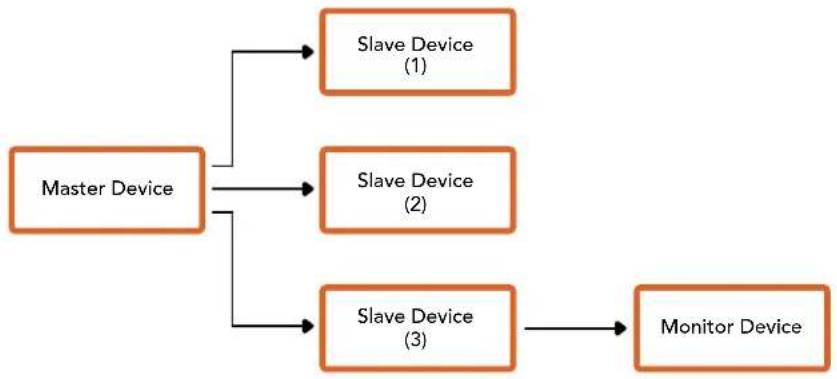
flowchart
graph TD
    A["Master Device"] --> B["Slave Device (1)"]
    A --> C["Slave Device (2)"]
    A --> D["Slave Device (3)"]
    D --> E["Monitor Device"]
| Byte 7 | MSB 6 5 4 3 2 1 0 LSB | |||||||
| 0 | Version(0b0) | Version(0b0) | Version(0b0) | Version(0b0) | Reserved(0b0) | Reserved(0b0) | MonitorPreview | MonitorProgram |
| 1 | Reserved(0b0) | Reserved(0b0) | Slave 1Preview | Slave 1Program | Reserved(0b0) | Reserved(0b0) | Slave 0Preview | Slave 0Program |
| 2 | Reserved(0b0) | Reserved(0b0) | Slave 3Preview | Slave 3Program | Reserved(0b0) | Reserved(0b0) | Slave 2Preview | Slave 2Program |
| 3 | ... | |||||||
Aide
Obtenir de l'aide
natural_image
Man in red polo shirt using a video editing console at a music studio with red curtains and a large 'LAB' backdrop (no visible text or symbols on main subjects)
natural_image
Circular portrait photo of a smiling man in a dark shirt against a gray textured background (no text or symbols)Willkommen!
CEO Blackmagic Design
Inhaltsverzeichnis
Vorgestellt: ATEM Television Studio 591
DaVinci Resolve Primary Color Corrector
Joystick am ATEM Television
Studio 4K8 724
Resolve Micro Panel 763
Blackmagic SDI Camera
Control Protocol 768
Example Protocol Packets 775
Blackmagic Embedded
Tally Control Protocol 776
Hilfe 778
natural_image
Line drawing of a video camera setup with monitor, control panel, and cable (no text or symbols)natural_image
Front view of a dual-chamber electronic device chassis with ports, connectors, and indicator lights (no text or symbols visible)natural_image
Front view of a dual-chamber electronic device rear panel with ports, connectors, and indicator lights (no visible text or labels)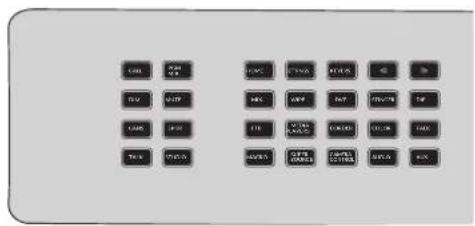
Die CALL-Taste
Quellnamen-Displays
CUT
Downstream-Keyer Cut (DSK CUT)
Kanalzüge
Drehregler
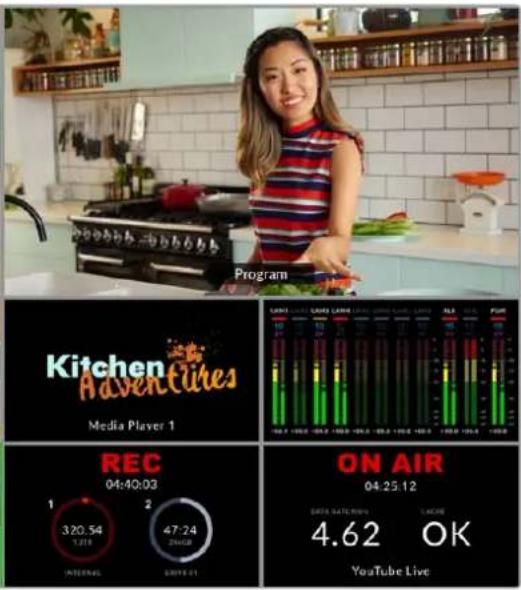
natural_image
Two kitchen photos: one showing a hand pouring liquid into a bowl, the other showing a girl cooking with a stove (no visible text or symbols)Vorschau-Ansicht
natural_image
Four-panel photo sequence showing a woman cooking with vegetables in a kitchen, no visible text or symbolsEingabe-Ansichten
bar
| Category | Value | |---|---| | 1 | +64.0 | | 2 | +80.0 | | 3 | +90.0 | | 4 | +100.0 | | 5 | +99.6 | | 6 | +60.0 | | 7 | +30.0 | | 8 | +40.0 | | 9 | +39.4 | | 10 | +40.0 |Audio-Ansicht
ATEM Software Control Bedienfenster
Einstellungen
| HD-Videonormen | 720p/50; 720p/59,94; 720p/601080p/23,98; 1080p/24; 1080p/25; 1080p/29,97;1080p/30; 1080p/50; 1080p/59,94; 1080p/601080i/50; 1080i/59,94; 1080i/60 |
Auxiliary-Ausgänge am ATEM Television Studio HD8
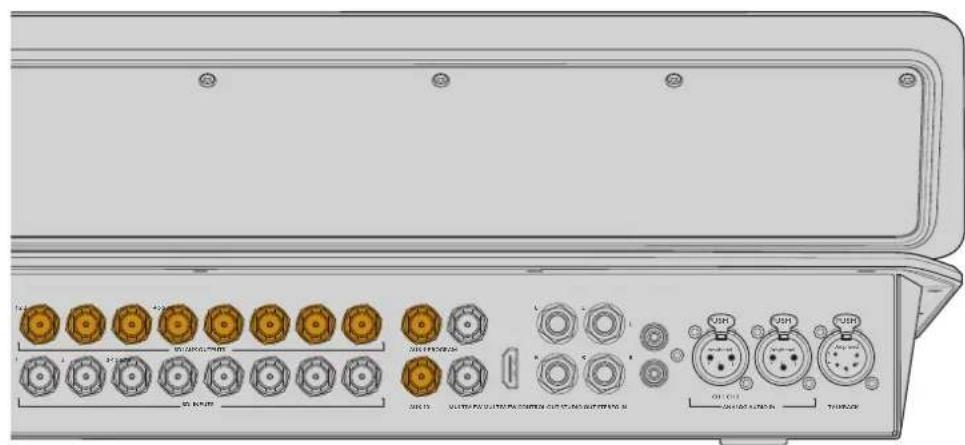
Auxiliary-Ausgänge am ATEM Television Studio 4K8
DaVinci Resolve Primary Color Corrector
natural_image
Abstract dark blue vertical stripe with a yellow horizontal line across the center (no text or symbols)
natural_image
Abstract white vertical stripe on black background (no text or symbols)natural_image
Soccer goalkeeper in action hitting the goal net while defended (no visible text or symbols)
natural_image
Soccer player in action shot at the goal with a 'LIVE' banner in the corner (no readable text on player or goal)
natural_image
Soccer goalkeeper standing at the goal with a goal net in the foreground (no visible text or symbols)natural_image
Two soccer players in action on a field, one in green and one in red, with 'LIVE' and 'BMD TV' logos in the corner (no readable text or symbols)Beispiel 4:
natural_image
Two soccer players in action on a grass field, one white and one red, with no visible text or symbols.Videoschnitt in DaVinci Resolve
HyperDeck Studio HD Plus
natural_image
Diagram of a front panel with labeled ports and connectors, no text or symbols presentnatural_image
User interface control bar with playback and volume controls (no text or symbols)flowchart
graph TD
    A["Computer"] -->|Ethernet| B["ATEM Camera Control Panel"]
    B -->|Ethernet| C["ATEM Television Studio"]
natural_image
Two grid-based dot patterns: top shows green dots forming a vertical line, bottom shows red dots forming a downward arrow (no text or symbols)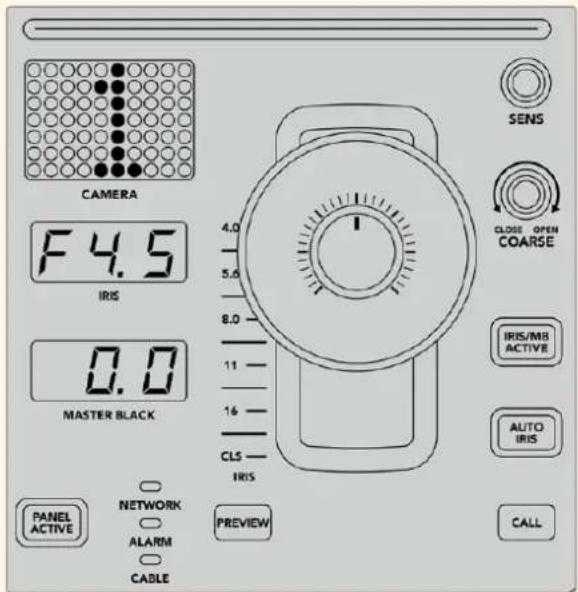
SCENE FILE
GPI and Tally Interface
natural_image
Line drawing of a beige analog oscilloscope with three rotary dials and control knobs (no text or symbols)DaVinci Resolve Micro Panel
Die Steuerregler
natural_image
Isometric illustration of a 12-pin electrical connector (no text or symbols)| Eng TX+ Eng TX- Prod | TX+ Prod RX+ Prod RX- | Prod TX- Eng RX+ Eng RX- | ||||
| 1234 | 567 | 8 | ||||
natural_image
Pure electrical connector pinout diagram without any text or symbolsnatural_image
Isometric illustration of a 12-pin Ethernet connector (no text or symbols)| TX+ TX- GND GND RX- RX+ | ||||
| 123456 |
If you are a software developer you can use the SDI Camera Control Protocol to construct devices that integrate with our products. Here at Blackmagic Design our approach is to open up our protocols and we eagerly look forward to seeing what you come up with!
Overview
The Blackmagic SDI Camera Control Protocol is used by ATEM switchers, Blackmagic 3G-SDI Shield for Arduino and the Blackmagic Camera Control app to provide Camera Control functionality with supported Blackmagic Design cameras. Please refer to the 'Understanding Studio Camera Control' chapter section of this manual, or the ATEM Switchers Manual and SDK manual for more information. These can be downloaded at www.blackmagicdesign.com/support.
This document describes an extensible protocol for sending a uni directional stream of small control messages embedded in the non-active picture region of a digital video stream. The video stream containing the protocol stream may be broadcast to a number of devices. Device addressing is used to allow the sender to specify which device each message is directed to.
Assumptions
Alignment and padding constraints are explicitly described in the protocol document. Bit fields are packed from LSB first. Message groups, individual messages and command headers are defined as, and can be assumed to be, 32 bit aligned.
Blanking Encoding
A message group is encoded into a SMPTE 291M packet with DID/SDID x51/x53 in the active region of VANC line 16.
Message Grouping
Up to 32 messages may be concatenated and transmitted in one blanking packet up to a maximum of 255 bytes payload. Under most circumstances, this should allow all messages to be sent with a maximum of one frame latency.
If the transmitting device queues more bytes of message packets than can be sent in a single frame, it should use heuristics to determine which packets to prioritize and send immediately. Lower priority messages can be delayed to later frames, or dropped entirely as appropriate.
Abstract Message Packet Format
Every message packet consists of a three byte header followed by an optional variable length data block. The maximum packet size is 64 bytes.
| Destination device (uint8) | Device addresses are represented as an 8 bit unsigned integer. Individual devices are numbered 0 through 254 with the value 255 reserved to indicate a broadcast message to all devices. |
| Command length (uint8) | The command length is an 8 bit unsigned integer which specifies the length of the included command data. The length does NOT include the length of the header or any trailing padding bytes. |
| Command id (uint8) | The command id is an 8 bit unsigned integer which indicates the message type being sent. Receiving devices should ignore any commands that they do not understand. Commands 0 through 127 are reserved for commands that apply to multiple types of devices. Commands 128 through 255 are device specific. |
| Reserved (uint8) | This byte is reserved for alignment and expansion purposes. It should be set to zero. |
| Command data (uint8[]) | The command data may contain between 0 and 60 bytes of data. The format of the data section is defined by the command itself. |
| Padding (uint8[]) | Messages must be padded up to a 32 bit boundary with 0x0 bytes.Any padding bytes are NOT included in the command length. |
Receiving devices should use the destination device address and or the command identifier to determine which messages to process. The receiver should use the command length to skip irrelevant or unknown commands and should be careful to skip the implicit padding as well.
Defined Commands
Command 0 : change configuration
| Category (uint8) | The category number specifies one of up to 256 configuration categories available on the device. |
| Parameter (uint8) | The parameter number specifies one of 256 potential configuration parameters available on the device. Parameters 0 through 127 are device specific parameters. Parameters 128 though 255 are reserved for parameters that apply to multiple types of devices. |
| Data type (uint8) | The data type specifies the type of the remaining data. The packet length is used to determine the number of elements in the message. Each message must contain an integral number of data elements. |
Currently defined values are:
| 0: void / boolean | A void value is represented as a boolean array of length zero.The data field is a 8 bit value with 0 meaning false and all other values meaning true. |
1: signed byte Data elements are signed bytes
2: signed 16 bit integer Data elements are signed 16 bit values
3: signed 32 bit integer Data elements are signed 32 bit values
4: signed 64 bit integer Data elements are signed 64 bit values
5: UTF-8 string Data elements represent a UTF-8 string with no terminating character.
Data types 6 through 127 are reserved.
| 128: signed 5.11 fixed point | Data elements are signed 16 bit integers representing a real number with 5 bits for the integer component and 11 bits for the fractional component.The fixed point representation is equal to the real value multiplied by 2^11 .The representable range is from -16.0 to 15.9995(15 + 2047/2048). |
Data types 129 through 255 are available for device specific purposes.
| Operation type (uint8) | The operation type specifies what action to perform on the specified parameter. Currently defined values are: |
| 0: assign value | The supplied values are assigned to the specified parameter. Each element will be clamped according to its valid range. A void parameter may only be 'assigned' an empty list of boolean type. This operation will trigger the action associated with that parameter. A boolean value may be assigned the value zero for false, and any other value for true. |
| 1: offset / toggle value | Each value specifies signed offsets of the same type to be added to the current parameter values. The resulting parameter value will be clamped according to their valid range. It is not valid to apply an offset to a void value. Applying any offset other than zero to a boolean value will invert that value. |
Operation types 2 through 127 are reserved.
Operation types 128 through 255 are available for device specific purposes.
| Data (vold) | The data field is 0 or more bytes as determined by the data type and number of elements. |
The category, parameter, data type and operation type partition a 24 bit operation space.
| Group | ID | Parameter | Type | Index | Minimum | Maximum | Interpretation |
| Lens | 0.0 | Focus | fixed16 | - | 0 | 1 | 0.0 = near, 1.0 = far |
| 0.1 | Instantaneous autofocus | void | - | - | - | trigger instantaneous autofocus | |
| 0.2 | Aperture (f-stop) | fixed16 | - | -1 | 16 | Aperture Value (where fnumber = sqrt(2^AV)) | |
| 0.3 | Aperture (normalised) | fixed16 | - | 0 | 1 | 0.0 = smallest, 1.0 = largest | |
| 0.4 | Aperture (ordinal) | int16 | - | 0 | n | Steps through available aperture values from minimum (0) to maximum (n) | |
| 0.5 | Instantaneous auto aperture | void | -- | - | trigger instantaneous auto aperture | ||
| 0.6 | Optical image stabilisation | boolean | - | - | - | true = enabled, false = disabled | |
| 0.7 | Set absolute zoom (mm) | int16 | - | 0 | max | Move to specified focal length in mm, from minimum (0) to maximum (max) | |
| 0.8 | Set absolute zoom (normalised) | fixed16 - 0 1 | Move to specified focal length: 0.0 = wide, 1.0 = tele | ||||
| 0.9 | Set continuous zoom (speed) | fixed16 - -1 +1.0 | Start/stop zooming at specified rate: -1.0 = zoom wider fast, 0.0 = stop, +1 = zoom tele fast | ||||
| Video | 1.0 Video mode int8 | [0] = frame rate - - 24, 25, 30, 50, 60 | |||||
| [1] = M-rate - - 0 = regular, 1 = M-rate | |||||||
| [2] = dimensions - - | 0 = NTSC, 1 = PAL, 2 = 720, 3 = 1080, 4 = 2k, 5 = 2k DCI, 6 = UHD | ||||||
| [3] = interlaced | -- | 0 = progressive, 1 = interlaced | |||||
| [4] = Color space | -- 0 = YUV | ||||||
| 1.1 | Gain | int8 | 1 | 16 | 1 = 100 ISO, 2 = 200 ISO, 4 = 400 ISO, 8 = 800 ISO, 16 = 1600 ISO | ||
| 1.2 | Manual White Balance | int16 | [0] = color temp | 2500 | 10000 | Color temperature in K | |
| int16 | [1] = tint | -50 | 50 | tint | |||
| 1.3 | Set auto WB | void | - | - | - | Calculate and set auto white balance | |
| 1.4 | Restore auto WB | void | - | - | - | Use latest auto white balance setting | |
| 1.5 | Exposure (us) | int32 | 1 | 42000 | time in us | ||
| 1.6 | Exposure (ordinal) | int16 | - | 0 | n | Steps through available exposure values from minimum (0) to maximum (n) | |
| 1.7 | Dynamic Range Mode | int8 enum | - | 0 | 1 | 0 = film, 1 = video, | |
| 1.8 | Video sharpening level | int8 enum | - | 0 | 3 | 0 = off, 1 = low, 2 = medium, 3 = high | |
| 1.9 | Recording format | int16 | [0] = file frame rate | - | - | fps as integer (eg 24, 25, 30, 50, 60, 120) | |
| [1] = sensor frame rate | - | - | fps as integer, valid when sensor-off-speed set (eg 24, 25, 30, 33, 48, 50, 60, 120), no change will be performed if this value is set to 0 | ||||
| [2] = frame width | -- in pixels | ||||||
| [3] = frame height | -- in pixels | ||||||
| [4] = flags | -- [0] = file-M-rate | ||||||
| - | - | [1] = sensor-M-rate, valid when sensor-off-speed-set | |||||
| -- [2] = sensor-off-speed | |||||||
| -- [3] = interlaced | |||||||
| -- [4] = windowed mode | |||||||
| 1.10 | Set auto exposure mode | int8 | - | 0 | 4 | 0 = Manual Trigger, 1 = Iris, 2 = Shutter, 3 = Iris + Shutter, 4 = Shutter + Iris | |
| 1.11 | Shutter angle | int32 | - | 100 | 36000 | Shutter angle in degrees, multiplied by 100 | |
| 1.12 | Shutter speed | int32 | - | 24 | 2000 | Shutter speed value as a fraction of 1, so 50 for 1/50th of a second | |
| 1.13 | Gain | int8 | - | -128 | 127 | Gain in decibel (dB) | |
| 1.14 | ISO | int32 | - | 0 | 2147483647 | ISO value | |
| Audio | 2.0 Mic level fixed16 - 0 1 | 0.0 = minimum, 1.0 = maximum | |||||
| 2.1 | Headphone level | fixed16 | - | 0 | 1 | 0.0 = minimum, 1.0 = maximum | |
| 2.2 | Headphone program mix | fixed16 | - | 0 | 1 | 0.0 = minimum, 1.0 = maximum | |
| 2.3 | Speaker level | fixed16 | - | 0 | 1 | 0.0 = minimum, 1.0 = maximum | |
| 2.4 | Input type | int8 | - | 0 | 2 | 0 = internal mic, 1 = line level input, 2 = low mic level input, 3 = high mic level input | |
| 2.5 Input levels | fixed16 | [0] ch0 | 0 1 | 0.0 = minimum, 1.0 = maximum | |||
| [1] ch1 0 1 | 0.0 = minimum, 1.0 = maximum | ||||||
| 2.6 | Phantom power | boolean | - | - | - | true = powered, false = not powered | |
| Output | 3.0 Overlay enables | uint16 bit field | --- | bit flags: [0] = display status, [1] = display frame guides Some cameras don't allow separate control of frame guides and status overlays. | |||
| 3.1 | Frame guides style (Camera 3.x) | int8 | [0] = frame guides style | 0 | 8 | 0 = HDTV, 1 = 4:3, 2 = 2.4:1, 3 = 2.39:1, 4 = 2.35:1, 5 = 1.85:1, 6 = thirds | |
| 3.2 | Frame guides opacity (Camera 3.x) | fixed16 | [1] = frame guide opacity | 0.1 | 1 | 0.0 = transparent, 1.0 = opaque | |
| 3.3 | Overlays (replaces .1 and .2 above from Cameras 4.0) | int8 | [0] = frame guides style | - | - | 0 = off, 1 = 2.4:1, 2 = 2.39:1, 3 = 2.35:1, 4 = 1.85:1, 5 = 16:9, 6 = 14:9, 7 = 4:3 | |
| [1] = frame guide opacity | 0 100 | 0 = transparent, 100 = opaque | |||||
| [2] = safe area percentage | 0 100 | percentage of full frame used by safe area guide (0 means off) | |||||
| [3] = grid style | -- | bit flags: [0] = display thirds, [1] = display cross hairs, [2] = display center dot | |||||
| Display | 4.0 | Brightness | fixed16 | - | 0 | 1 | 0.0 = minimum, 1.0 = maximum |
| 4.1 Overlay enables | int16 bit field | --- | 0x4 = zebra | ||||
| --- | 0x8 = peaking | ||||||
| --- | |||||||
| 4.2 Zebra level | fixed16 - 0 1 | 0.0 = minimum, 1.0 = maximum | |||||
| 4.3 | Peaking level | fixed16 | - | 0 | 1 | 0.0 = minimum, 1.0 = maximum | |
| 4.4 | Color bars display time (seconds) | int8 | -0 30 | 0 = disable bars, 1-30 = enable bars with timeout (s) | |||
| 4.5 Focus Assist | int8 | [0] = focus assist method | - | - | 0 = Peak, 1 = Colored lines | ||
| [1] = focus line color | - | - | 0 = Red, 1 = Green, 2 = Blue, 3 = White, 4 = Black | ||||
| Tally | 5.0 | Tally brightness | fixed16 | - | 0 | 1 | Sets the tally front and tally rear brightness to the same level. 0.0 = minimum, 1.0 = maximum |
| 5.1 | Front tally brightness | fixed16 | - | 0 | 1 | Sets the tally front brightness. 0.0 = minimum, 1.0 = maximum | |
| 5.2 | Rear tally brightness | fixed16 | - | 0 | 1 | Sets the tally rear brightness. 0.0 = minimum, 1.0 = maximum Tally rear brightness cannot be turned off | |
| Reference | 6.0 Source | int8 enum - 0 2 | 0 = internal, 1 = program, 2 = external | ||||
| 6.1 | Offset | int32 | - | - | - | +/- offset in pixels | |
| Configuration | 7.0 Real Time Clock | int32 | [0] time | - | - | BCD - HHMMSSFF (UCT) | |
| [1] date | - | - | BCD - YYYYMMDD | ||||
| 7.1 | System language | string | - | - | - | ISO-639-1 two character language code | |
| 7.2 | Timezone | int32 | - | - | - | Minutes offset from UTC | |
| 7.3 | Location | int64 | [0] latitude | - | - | BCD - sDDDdddddddddd where s is the sign: 0 = north (+), 1 = south (-); DD degrees, dddddddddddd decimal degrees | |
| [1] longitude | - | - | BCD - sDDDdddddddddd where s is the sign: 0 = west (-), 1 = east (+); DDD degrees, dddddddddddd decimal degrees | ||||
| Color Correction | 8.0 Lift Adjust | fixed16 | [0] red | -2 | 2 | default 0.0 | |
| [1] green | -2 | 2 | default 0.0 | ||||
| [2] blue | -2 | 2 default 0.0 | |||||
| [3] luma | -2 | 2 | default 0.0 | ||||
| 8.1 Gamma Adjust | fixed16 | [0] red | -4 | 4 | default 0.0 | ||
| [1] green | -4 | 4 | default 0.0 | ||||
| [2] blue | -4 4 | default 0.0 | |||||
| [3] luma | -4 | 4 | default 0.0 | ||||
| 8.2 Gain Adjust | fixed16 | [0] red | 0 16 default 1.0 | ||||
| [1] green | 0 16 default 1.0 | ||||||
| [2] blue | 0 16 default 1.0 | ||||||
| [3] luma | 0 16 default 1.0 | ||||||
| 8.3 Offset Adjust | fixed16 | [0] red | -8 | 8 | default 0.0 | ||
| [1] green | -8 | 8 | default 0.0 | ||||
| [2] blue | -8 | 8 default 0.0 | |||||
| [3] luma | -8 | 8 | default 0.0 | ||||
| 8.4 Contrast Adjust | fixed16 | [0] pivot | 0 | 1 | default 0.5 | ||
| [1] adj | 0 2 | default 1.0 | |||||
| 8.5 | Luma mix | fixed16 | - | 0 | 1 | default 1.0 | |
| 8.6 Color Adjust | fixed16 | [0] hue | -11 | default 0.0 | |||
| [1] sat 0 2 | default 1.0 | ||||||
| 8.7 | Correction Reset Default | void | - | - | - | reset to defaults | |
| Media | 10.0 Codec | int8 enum | [0] = basic codec - - | 0 = RAW,1 = DNxHD,2 = ProRes,3 = Blackmagic RAW | |||
| [1] = codec variant | - | - | RAW:0 = Uncompressed,1 = lossy 3:1,2 = lossy 4:1 | ||||
| - | - | ProRes:0 = HQ,1 = 422,2 = LT, 3 = Proxy,4 = 444, 5 = 444XQ | |||||
| - | - | Blackmagic RAW:0 = Q0,1 = Q5,2 = 3:1,3 = 5:1,4 = 8:1,5 = 12:1 | |||||
| 10.1 Transport mode int8 | [0] = mode -- | 0 = Preview,1 = Play,2 = Record | |||||
| [1] = speed -- | -ve = multiple speeds backwards,0 = pause,+ve = multiple speeds forwards | ||||||
| [2] = flags | -- | 1<<0 = loop,1<<1 = play all,1<<5 = disk1 active,1<<6 = disk2 active,1<<7 = time-lapse recording | |||||
| [3] = active storage medium | - | - | 0 = CFast card,1 = SD | ||||
| PTZ Control | 11.0 | Pan/Tilt Velocity | fixed 16 | [0] = pan velocity | -1.0 | 1.0 | -1.0 = full speed left,1.0 = full speed right |
| [1] = tilt velocity -1.0 | 1.0 | -1.0 = full speed down,1.0 = full speed up | |||||
| 11.1 | Memory Preset | int8 enum | [0] = preset command | - | - | 0 = reset,1 = store location,2 = recall location | |
| int8 | [1] = preset slot | 0 5 - | |||||
Example Protocol Packets
| Operation | Packet Length Byte | ||||||||||||||||
| 0 | 1 | 2 | 3 | 4 | 5 | 6 | 7 | 8 | 9 | 10 | 11 | 12 | 13 | 14 | 15 | ||
| header | |||||||||||||||||
| destination | length | command | reserved | category | parameter | type | operation | ||||||||||
| trigger instantaneous auto focus on camera 4 | 8 4 4 0 0 0 1 0 0 | ||||||||||||||||
| turn on OIS on all cameras 12 255 5 0 0 0 6 0 0 1 0 0 0 | |||||||||||||||||
| set exposure to 10 ms on camera 4 (10 ms = 10000 us = 0x00002710) | 12 | 4 | 8 | 0 | 0 | 1 | 5 | 3 | 0 | 0x10 | 0x27 | 0x00 | 0x00 | ||||
| add 15% to zebra level (15 % = 0.15 f = 0x0133 fp) | 12 | 4 | 6 | 0 | 0 | 4 | 2 | 128 | 1 | 0x33 | 0x01 | 0 | 0 | ||||
| select 1080p 23.98 mode on all cameras | 16 | 255 | 9 | 0 | 0 | 1 | 0 | 1 | 0 | 24 | 1 | 3 | 0 | 0 | 0 | 0 | 0 |
| subtract 0.3 from gamma adjust for green & blue (-0.3 ~= 0xfd9a fp) | 16 | 4 | 12 | 0 | 0 | 8 | 1 | 128 | 1 | 0 | 0 | 0x9a | 0xfd | 0x9a | 0xfd | 0 | 0 |
| all operations combined | 76 | 4 | 4 | 0 | 0 | 0 | 1 | 0 | 0 | 255 | 5 | 0 | 0 | 0 | 6 | 0 | 0 |
| 1 | 0 | 0 | 0 | 4 | 8 | 0 | 0 | 1 | 5 | 3 | 0 | 0x10 | 0x27 | 0x00 | 0x00 | ||
| 4 | 6 | 0 | 0 | 4 | 2 | 128 | 1 | 0x33 | 0x01 | 0 | 0 | 255 | 9 | 0 | 0 | ||
| 1 | 0 | 1 | 0 | 24 | 1 | 3 | 0 | 0 | 0 | 0 | 0 | 4 | 12 | 0 | 0 | ||
| 8 | 1 | 128 | 1 | 0 | 0 | 0x9a | 0xfd | 0x9a | 0xfd | 0 | 0 | ||||||
Blackmagic Embedded Tally Control Protocol
Version 1.0 (30/04/14)
This section is for third party developers or users who may wish to add support for the Blackmagic Embedded Tally Control Protocol to their products or system. It describes the protocol for sending tally information embedded in the non-active picture region of a digital video stream.
Data Flow
A master device such as a broadcast switcher embeds tally information into its program feed which is broadcast to a number of slave devices such as cameras or camera controllers. The output from the slave devices is typically fed back to the master device, but may also be sent to a video monitor.
The primary flow of tally information is from the master device to the slaves. Each slave device may use its device id to extract and display the relevant tally information.
Slave devices pass through the tally packet on their output and update the monitor tally status, so that monitor devices connected to that individual output may display tally status without knowledge of the device id they are monitoring.
Assumptions
Any data alignment / padding is explicit in the protocol. Bit fields are packed from LSB first.
Blanking Encoding
One tally control packet may be sent per video frame. Packets are encoded as a SMPTE 291M packet with DID/SDID x51/x52 in the active region of VANC line 15. A tally control packet may contain up to 256 bytes of tally information.
Packet Format
Each tally status consists of 4 bits of information:
uint4
bit 0: program tally status (0=off, 1=on)
bit 1: preview tally status (0=off, 1=on)
bit 2-3: reserved (0x0)
The first byte of the tally packet contains the monitor device tally status and a version number.
Subsequent bytes of the tally packet contain tally status for pairs of slave devices. The master device sends tally status for the number of devices configured/supported, up to a maximum of 510.
struct tally
uint8
bit 0: monitor device program tally status (0=off, 1=on)
bit 1: monitor device preview tally status (0=off, 1=on)
bit 2-3: reserved (0b00)
bit 4-7: protocol version (0b0000)
uint8[0]
bit 0: slave device 1 program tally status (0=off, 1=on)
bit 1: slave device 1 device preview tally status (0=off, 1=on)
bit 2-3: reserved (0b00)
bit 4: slave device 2 program tally status (0=off, 1=on)
bit 5: slave device 2 preview tally status (0=off, 1=on)
bit 6-7: reserved (0b00)
uint8[1]
bit 0: slave device 3 program tally status (0=off, 1=on)
bit 1: slave device 3 device preview tally status (0=off, 1=on)
bit 2-3: reserved (0b00)
bit 4: slave device 4 program tally status (0=off, 1=on)
bit 5: slave device 4 preview tally status (0=off, 1=on)
bit 6-7: reserved (0b00)
...
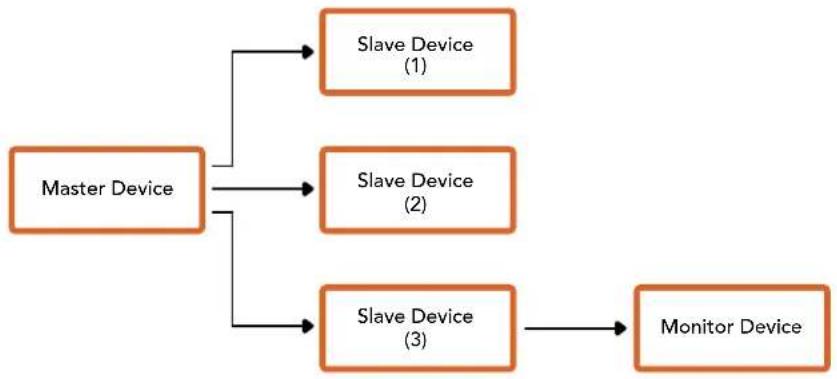
flowchart
graph TD
    A["Master Device"] --> B["Slave Device (1)"]
    A --> C["Slave Device (2)"]
    A --> D["Slave Device (3)"]
    D --> E["Monitor Device"]
| Byte 7 | MSB 6 5 4 3 | 2 1 0 LSB | ||||||
| 0 | Version(0b0) | Version(0b0) | Version(0b0) | Version(0b0) | Reserved(0b0) | Reserved(0b0) | MonitorPreview | MonitorProgram |
| 1 | Reserved(0b0) | Reserved(0b0) | Slave 1Preview | Slave 1Program | Reserved(0b0) | Reserved(0b0) | Slave 0Preview | Slave 0Program |
| 2 | Reserved(0b0) | Reserved(0b0) | Slave 3Preview | Slave 3Program | Reserved(0b0) | Reserved(0b0) | Slave 2Preview | Slave 2Program |
| 3 | ... |
Hilfe
California Proposition 65
natural_image
Man in red polo shirt using a video editing console at a music studio with red curtains and a large 'LAB' backdrop (no visible text or symbols on main subjects)
natural_image
Circular portrait photo of a smiling man in a dark shirt against a gray background (no text or symbols)Bienvenido
DaVinci Resolve Micro Panel 958
Actualizaciones 960
Blackmagic SDI Camera
Control Protocol 963
Example Protocol Packets 970
Blackmagic Embedded
Tally Control Protocol 971
Ayuda 973
Normativas 974
Seguridad 975
Garantía 976
ATEM Television Studio
natural_image
Line drawing of a video camera setup with monitor, control panel, and connected device (no text or symbols)natural_image
Four black video camera modules with control panels and buttons, no visible text or symbols on the devices themselves.ATEM Television Studio HD8 ATEM Television Studio 4K8
Primeros pasos
natural_image
Front view of a device rear panel with multiple ports and connectors (no visible text or labels)Entradas SDI del modelo ATEM Television Studio
ATEM Television Studio 4K8
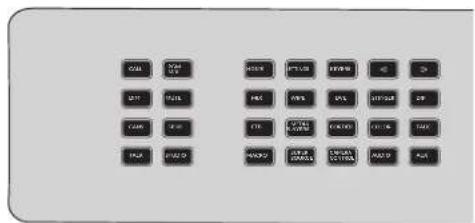
Botón de llamada
Cortes directos
Columnas de canales
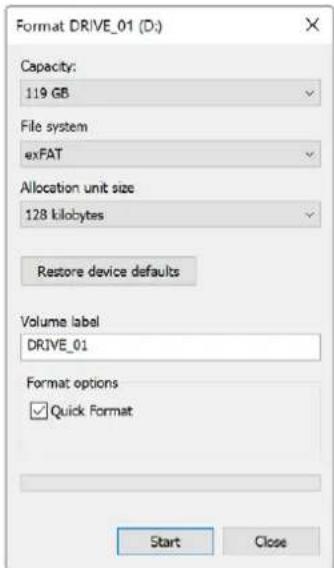
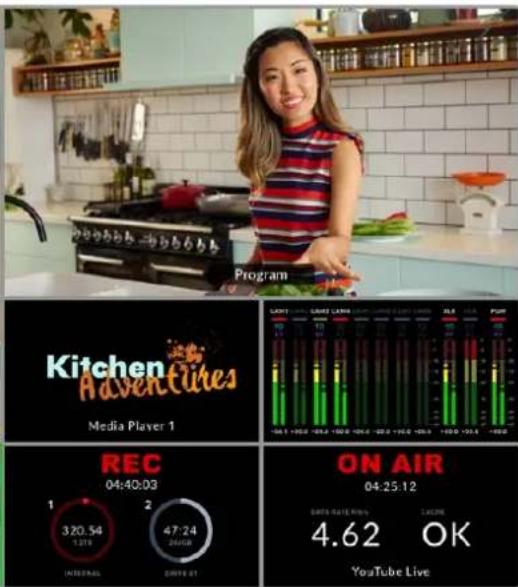
natural_image
Two-panel image showing a kitchen scene: one with a hand preparing vegetables and the other with a girl at a kitchen (no visible text or symbols)Anticipo
natural_image
Four-panel photo sequence showing a woman cooking with vegetables in a kitchen, no visible text or symbolsFuentes
natural_image
Illustration of a control panel with multiple function keys and a red indicator button (no text or symbols present)natural_image
Abstract dark blue vertical stripe with a horizontal gold stripe at the center (no text or symbols)
natural_image
Abstract white vertical stripe on black background (no text or symbols)natural_image
Two-panel image showing a hexagonal grid pattern with blue and purple tones, one with a black bar and silhouette, the other with a white bar (no text or symbols)Reproducir:
HyperDeck Studio HD Plus
natural_image
Back panel of a computer setup with ports, connectors, and an external control panel (no visible text or labels)natural_image
User interface control bar with playback and volume slider (no text or symbols)natural_image
Two pixelated dot patterns on a grid background, one green and one red, with no text or symbols.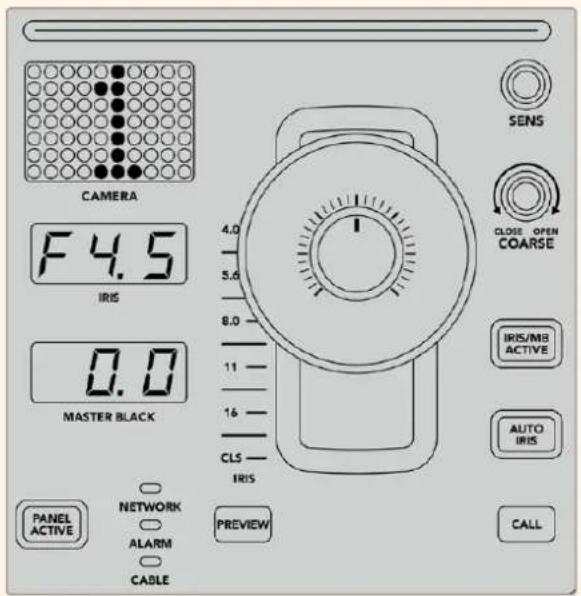
Ajustes predeterminados
Dispositivo GPI and Tally Interface
DaVinci Resolve Micro Panel
natural_image
Line drawing of a vintage analog device control panel with three circular dials and adjustment knobs (no text or symbols)DaVinci Resolve Micro Panel
Controles
natural_image
Isometric illustration of a 12-pin electrical connector (no text or symbols)| Eng TX+ Eng TX- Prod | TX+ Prod RX+ Prod RX- | Prod TX- Eng RX+ Eng RX- | |
| 12345678 |
natural_image
Pure electrical connector pinout diagram without any text or symbolsnatural_image
3D illustration of a 12-pin Ethernet connector (no text or symbols on the component itself)| TX+ TX- Tierra Tierra RX- RX+ | ||||
| 1 2 3 4 5 | 6 | |||
If you are a software developer you can use the SDI Camera Control Protocol to construct devices that integrate with our products. Here at Blackmagic Design our approach is to open up our protocols and we eagerly look forward to seeing what you come up with!
Overview
The Blackmagic SDI Camera Control Protocol is used by ATEM switchers, Blackmagic 3G-SDI Shield for Arduino and the Blackmagic Camera Control app to provide Camera Control functionality with supported Blackmagic Design cameras. Please refer to the 'Understanding Studio Camera Control' chapter section of this manual, or the ATEM Switchers Manual and SDK manual for more information. These can be downloaded at www.blackmagicdesign.com/support.
This document describes an extensible protocol for sending a uni directional stream of small control messages embedded in the non-active picture region of a digital video stream. The video stream containing the protocol stream may be broadcast to a number of devices. Device addressing is used to allow the sender to specify which device each message is directed to.
Assumptions
Alignment and padding constraints are explicitly described in the protocol document. Bit fields are packed from LSB first. Message groups, individual messages and command headers are defined as, and can be assumed to be, 32 bit aligned.
Blanking Encoding
A message group is encoded into a SMPTE 291M packet with DID/SDID x51/x53 in the active region of VANC line 16.
Message Grouping
Up to 32 messages may be concatenated and transmitted in one blanking packet up to a maximum of 255 bytes payload. Under most circumstances, this should allow all messages to be sent with a maximum of one frame latency.
If the transmitting device queues more bytes of message packets than can be sent in a single frame, it should use heuristics to determine which packets to prioritize and send immediately. Lower priority messages can be delayed to later frames, or dropped entirely as appropriate.
Abstract Message Packet Format
Every message packet consists of a three byte header followed by an optional variable length data block. The maximum packet size is 64 bytes.
| Destination device (uint8) | Device addresses are represented as an 8 bit unsigned integer. Individual devices are numbered 0 through 254 with the value 255 reserved to indicate a broadcast message to all devices. |
| Command length (uint8) | The command length is an 8 bit unsigned integer which specifies the length of the included command data. The length does NOT include the length of the header or any trailing padding bytes. |
| Command id (uint8) | The command id is an 8 bit unsigned integer which indicates the message type being sent. Receiving devices should ignore any commands that they do not understand. Commands 0 through 127 are reserved for commands that apply to multiple types of devices. Commands 128 through 255 are device specific. |
| Reserved (uint8) | This byte is reserved for alignment and expansion purposes. It should be set to zero. |
| Command data (uint8[]) | The command data may contain between 0 and 60 bytes of data. The format of the data section is defined by the command itself. |
| Padding (uint8[]) | Messages must be padded up to a 32 bit boundary with 0x0 bytes.Any padding bytes are NOT included in the command length. |
Receiving devices should use the destination device address and or the command identifier to determine which messages to process. The receiver should use the command length to skip irrelevant or unknown commands and should be careful to skip the implicit padding as well.
Defined Commands
Command 0 : change configuration
| Category (uint8) | The category number specifies one of up to 256 configuration categories available on the device. |
| Parameter (uint8) | The parameter number specifies one of 256 potential configuration parameters available on the device. Parameters 0 through 127 are device specific parameters. Parameters 128 though 255 are reserved for parameters that apply to multiple types of devices. |
| Data type (uint8) | The data type specifies the type of the remaining data. The packet length is used to determine the number of elements in the message. Each message must contain an integral number of data elements. |
Currently defined values are:
| 0: void / boolean | A void value is represented as a boolean array of length zero.The data field is a 8 bit value with 0 meaning false and all other values meaning true. |
1: signed byte Data elements are signed bytes
2: signed 16 bit integer Data elements are signed 16 bit values
3: signed 32 bit integer Data elements are signed 32 bit values
4: signed 64 bit integer Data elements are signed 64 bit values
5: UTF-8 string Data elements represent a UTF-8 string with no terminating character.
Data types 6 through 127 are reserved.
| 128: signed 5.11 fixed point | Data elements are signed 16 bit integers representing a real number with 5 bits for the integer component and 11 bits for the fractional component.The fixed point representation is equal to the real value multiplied by 2^11 .The representable range is from -16.0 to 15.9995(15 + 2047/2048). |
Data types 129 through 255 are available for device specific purposes.
| Operation type (uint8) | The operation type specifies what action to perform on the specified parameter. Currently defined values are: |
| 0: assign value | The supplied values are assigned to the specified parameter. Each element will be clamped according to its valid range. A void parameter may only be 'assigned' an empty list of boolean type. This operation will trigger the action associated with that parameter. A boolean value may be assigned the value zero for false, and any other value for true. |
| 1: offset / toggle value | Each value specifies signed offsets of the same type to be added to the current parameter values. The resulting parameter value will be clamped according to their valid range. It is not valid to apply an offset to a void value. Applying any offset other than zero to a boolean value will invert that value. |
Operation types 2 through 127 are reserved.
Operation types 128 through 255 are available for device specific purposes.
| Data (vold) | The data field is 0 or more bytes as determined by the data type and number of elements. |
The category, parameter, data type and operation type partition a 24 bit operation space.
| Group | ID | Parameter | Type | Index | Minimum | Maximum | Interpretation |
| Lens | 0.0 | Focus | fixed16 | - | 0 | 1 | 0.0 = near, 1.0 = far |
| 0.1 | Instantaneous autofocus | void | - | - | - | trigger instantaneous autofocus | |
| 0.2 | Aperture (f-stop) | fixed16 | - | -1 | 16 | Aperture Value (where fnumber = sqrt(2^AV)) | |
| 0.3 | Aperture (normalised) | fixed16 | - | 0 | 1 | 0.0 = smallest, 1.0 = largest | |
| 0.4 | Aperture (ordinal) | int16 | - | 0 | n | Steps through available aperture values from minimum (0) to maximum (n) | |
| 0.5 | Instantaneous auto aperture | void | -- | - | trigger instantaneous auto aperture | ||
| 0.6 | Optical image stabilisation | boolean | - | - | - | true = enabled, false = disabled | |
| 0.7 | Set absolute zoom (mm) | int16 | - | 0 | max | Move to specified focal length in mm, from minimum (0) to maximum (max) | |
| 0.8 | Set absolute zoom (normalised) | fixed16 - 0 1 | Move to specified focal length: 0.0 = wide, 1.0 = tele | ||||
| 0.9 | Set continuous zoom (speed) | fixed16 - -1 +1.0 | Start/stop zooming at specified rate: -1.0 = zoom wider fast, 0.0 = stop, +1 = zoom tele fast | ||||
| Video | 1.0 Video mode int8 | [0] = frame rate - - 24, 25, 30, 50, 60 | |||||
| [1] = M-rate - - 0 = regular, 1 = M-rate | |||||||
| [2] = dimensions - - | 0 = NTSC, 1 = PAL, 2 = 720, 3 = 1080, 4 = 2k, 5 = 2k DCI, 6 = UHD | ||||||
| [3] = interlaced | -- | 0 = progressive, 1 = interlaced | |||||
| [4] = Color space | -- 0 = YUV | ||||||
| 1.1 | Gain | int8 | 1 | 16 | 1 = 100 ISO, 2 = 200 ISO, 4 = 400 ISO, 8 = 800 ISO, 16 = 1600 ISO | ||
| 1.2 | Manual White Balance | int16 | [0] = color temp | 2500 | 10000 | Color temperature in K | |
| int16 | [1] = tint | -50 | 50 | tint | |||
| 1.3 | Set auto WB | void | - | - | - | Calculate and set auto white balance | |
| 1.4 | Restore auto WB | void | - | - | - | Use latest auto white balance setting | |
| 1.5 | Exposure (us) | int32 | 1 | 42000 | time in us | ||
| 1.6 | Exposure (ordinal) | int16 | - | 0 | n | Steps through available exposure values from minimum (0) to maximum (n) | |
| 1.7 | Dynamic Range Mode | int8 enum | - | 0 | 1 | 0 = film, 1 = video, | |
| 1.8 | Video sharpening level | int8 enum | - | 0 | 3 | 0 = off, 1 = low, 2 = medium, 3 = high | |
| 1.9 | Recording format | int16 | [0] = file frame rate | - | - | fps as integer (eg 24, 25, 30, 50, 60, 120) | |
| [1] = sensor frame rate | - | - | fps as integer, valid when sensor-off-speed set (eg 24, 25, 30, 33, 48, 50, 60, 120), no change will be performed if this value is set to 0 | ||||
| [2] = frame width | -- in pixels | ||||||
| [3] = frame height | -- in pixels | ||||||
| [4] = flags | -- [0] = file-M-rate | ||||||
| - | - | [1] = sensor-M-rate, valid when sensor-off-speed-set | |||||
| -- [2] = sensor-off-speed | |||||||
| -- [3] = interlaced | |||||||
| -- [4] = windowed mode | |||||||
| 1.10 | Set auto exposure mode | int8 | - | 0 | 4 | 0 = Manual Trigger, 1 = Iris, 2 = Shutter, 3 = Iris + Shutter, 4 = Shutter + Iris | |
| 1.11 | Shutter angle | int32 | - | 100 | 36000 | Shutter angle in degrees, multiplied by 100 | |
| 1.12 | Shutter speed | int32 | - | 24 | 2000 | Shutter speed value as a fraction of 1, so 50 for 1/50th of a second | |
| 1.13 | Gain | int8 | - | -128 | 127 | Gain in decibel (dB) | |
| 1.14 | ISO | int32 | - | 0 | 2147483647 | ISO value | |
| Audio | 2.0 Mic level fixed16 - 0 1 | 0.0 = minimum, 1.0 = maximum | |||||
| 2.1 | Headphone level | fixed16 | - | 0 | 1 | 0.0 = minimum, 1.0 = maximum | |
| 2.2 | Headphone program mix | fixed16 | - | 0 | 1 | 0.0 = minimum, 1.0 = maximum | |
| 2.3 | Speaker level | fixed16 | - | 0 | 1 | 0.0 = minimum, 1.0 = maximum | |
| 2.4 | Input type | int8 | - | 0 | 2 | 0 = internal mic, 1 = line level input, 2 = low mic level input, 3 = high mic level input | |
| 2.5 Input levels | fixed16 | [0] ch0 | 0 1 | 0.0 = minimum, 1.0 = maximum | |||
| [1] ch1 0 1 | 0.0 = minimum, 1.0 = maximum | ||||||
| 2.6 | Phantom power | boolean | - | - | - | true = powered, false = not powered | |
| Output | 3.0 Overlay enables | uint16 bit field | --- | bit flags: [0] = display status, [1] = display frame guides Some cameras don't allow separate control of frame guides and status overlays. | |||
| 3.1 | Frame guides style (Camera 3.x) | int8 | [0] = frame guides style | 0 | 8 | 0 = HDTV, 1 = 4:3, 2 = 2.4:1, 3 = 2.39:1, 4 = 2.35:1, 5 = 1.85:1, 6 = thirds | |
| 3.2 | Frame guides opacity (Camera 3.x) | fixed16 | [1] = frame guide opacity | 0.1 | 1 | 0.0 = transparent, 1.0 = opaque | |
| 3.3 | Overlays (replaces .1 and .2 above from Cameras 4.0) | int8 | [0] = frame guides style | - | - | 0 = off, 1 = 2.4:1, 2 = 2.39:1, 3 = 2.35:1, 4 = 1.85:1, 5 = 16:9, 6 = 14:9, 7 = 4:3 | |
| [1] = frame guide opacity | 0 100 | 0 = transparent, 100 = opaque | |||||
| [2] = safe area percentage | 0 100 | percentage of full frame used by safe area guide (0 means off) | |||||
| [3] = grid style | -- | bit flags: [0] = display thirds, [1] = display cross hairs, [2] = display center dot | |||||
| Display | 4.0 | Brightness | fixed16 | - | 0 | 1 | 0.0 = minimum, 1.0 = maximum |
| 4.1 Overlay enables | int16 bit field | --- | 0x4 = zebra | ||||
| --- | 0x8 = peaking | ||||||
| --- | |||||||
| 4.2 Zebra level | fixed16 - 0 1 | 0.0 = minimum, 1.0 = maximum | |||||
| 4.3 | Peaking level | fixed16 | - | 0 | 1 | 0.0 = minimum, 1.0 = maximum | |
| 4.4 | Color bars display time (seconds) | int8 | -0 30 | 0 = disable bars, 1-30 = enable bars with timeout (s) | |||
| 4.5 Focus Assist | int8 | [0] = focus assist method | - | - | 0 = Peak, 1 = Colored lines | ||
| [1] = focus line color | - | - | 0 = Red, 1 = Green, 2 = Blue, 3 = White, 4 = Black | ||||
| Tally | 5.0 | Tally brightness | fixed16 | - | 0 | 1 | Sets the tally front and tally rear brightness to the same level. 0.0 = minimum, 1.0 = maximum |
| 5.1 | Front tally brightness | fixed16 | - | 0 | 1 | Sets the tally front brightness. 0.0 = minimum, 1.0 = maximum | |
| 5.2 | Rear tally brightness | fixed16 | - | 0 | 1 | Sets the tally rear brightness. 0.0 = minimum, 1.0 = maximum Tally rear brightness cannot be turned off | |
| Reference | 6.0 Source | int8 enum - 0 2 | 0 = internal, 1 = program, 2 = external | ||||
| 6.1 | Offset | int32 | - | - | - | +/- offset in pixels | |
| Configuration | 7.0 Real Time Clock | int32 | [0] time | - | - | BCD - HHMMSSFF (UCT) | |
| [1] date | - | - | BCD - YYYYMMDD | ||||
| 7.1 | System language | string | - | - | - | ISO-639-1 two character language code | |
| 7.2 | Timezone | int32 | - | - | - | Minutes offset from UTC | |
| 7.3 | Location | int64 | [0] latitude | - | - | BCD - sDDDdddddddddd where s is the sign: 0 = north (+), 1 = south (-); DD degrees, dddddddddddd decimal degrees | |
| [1] longitude | - | - | BCD - sDDDdddddddddd where s is the sign: 0 = west (-), 1 = east (+); DDD degrees, dddddddddddd decimal degrees | ||||
| Color Correction | 8.0 Lift Adjust | fixed16 | [0] red | -2 | 2 | default 0.0 | |
| [1] green | -2 | 2 | default 0.0 | ||||
| [2] blue | -2 | 2 default 0.0 | |||||
| [3] luma | -2 | 2 | default 0.0 | ||||
| 8.1 Gamma Adjust | fixed16 | [0] red | -4 | 4 | default 0.0 | ||
| [1] green | -4 | 4 | default 0.0 | ||||
| [2] blue | -4 4 | default 0.0 | |||||
| [3] luma | -4 | 4 | default 0.0 | ||||
| 8.2 Gain Adjust | fixed16 | [0] red | 0 16 default 1.0 | ||||
| [1] green | 0 16 default 1.0 | ||||||
| [2] blue | 0 16 default 1.0 | ||||||
| [3] luma | 0 16 default 1.0 | ||||||
| 8.3 Offset Adjust | fixed16 | [0] red | -8 | 8 | default 0.0 | ||
| [1] green | -8 | 8 | default 0.0 | ||||
| [2] blue | -8 | 8 default 0.0 | |||||
| [3] luma | -8 | 8 | default 0.0 | ||||
| 8.4 Contrast Adjust | fixed16 | [0] pivot | 0 | 1 | default 0.5 | ||
| [1] adj | 0 2 | default 1.0 | |||||
| 8.5 | Luma mix | fixed16 | - | 0 | 1 | default 1.0 | |
| 8.6 Color Adjust | fixed16 | [0] hue | -11 | default 0.0 | |||
| [1] sat 0 2 | default 1.0 | ||||||
| 8.7 | Correction Reset Default | void | - | - | - | reset to defaults | |
| Media | 10.0 Codec | int8 enum | [0] = basic codec - - | 0 = RAW,1 = DNxHD,2 = ProRes,3 = Blackmagic RAW | |||
| [1] = codec variant | - | - | RAW:0 = Uncompressed,1 = lossy 3:1,2 = lossy 4:1 | ||||
| - | - | ProRes:0 = HQ,1 = 422,2 = LT, 3 = Proxy,4 = 444, 5 = 444XQ | |||||
| - | - | Blackmagic RAW:0 = Q0,1 = Q5,2 = 3:1,3 = 5:1,4 = 8:1,5 = 12:1 | |||||
| 10.1 Transport mode int8 | [0] = mode - - | 0 = Preview,1 = Play,2 = Record | |||||
| [1] = speed - - | -ve = multiple speeds backwards,0 = pause,+ve = multiple speeds forwards | ||||||
| [2] = flags | -- | 1<<0 = loop,1<<1 = play all,1<<5 = disk1 active,1<<6 = disk2 active,1<<7 = time-lapse recording | |||||
| [3] = active storage medium | - | - | 0 = CFast card,1 = SD | ||||
| PTZ Control | 11.0 | Pan/Tilt Velocity | fixed 16 | [0] = pan velocity | -1.0 | 1.0 | -1.0 = full speed left,1.0 = full speed right |
| [1] = tilt velocity -1.0 | 1.0 | -1.0 = full speed down,1.0 = full speed up | |||||
| 11.1 | Memory Preset | int8 enum | [0] = preset command | - | - | 0 = reset,1 = store location,2 = recall location | |
| int8 | [1] = preset slot | 0 5 - | |||||
Example Protocol Packets
| Operation | Packet Length Byte | ||||||||||||||||
| 0 | 1 | 2 | 3 | 4 | 5 | 6 | 7 | 8 | 9 | 10 | 11 | 12 | 13 | 14 | 15 | ||
| header | |||||||||||||||||
| destination | length | command | reserved | category | parameter | type | operation | ||||||||||
| trigger instantaneous auto focus on camera 4 | 8 4 4 0 0 0 1 0 0 | ||||||||||||||||
| turn on OIS on all cameras 12 255 5 0 0 0 6 0 0 1 0 0 0 | |||||||||||||||||
| set exposure to 10 ms on camera 4 (10 ms = 10000 us = 0x00002710) | 12 | 4 | 8 | 0 | 0 | 1 | 5 | 3 | 0 | 0x10 | 0x27 | 0x00 | 0x00 | ||||
| add 15% to zebra level (15 % = 0.15 f = 0x0133 fp) | 12 | 4 | 6 | 0 | 0 | 4 | 2 | 128 | 1 | 0x33 | 0x01 | 0 | 0 | ||||
| select 1080p 23.98 mode on all cameras | 16 | 255 | 9 | 0 | 0 | 1 | 0 | 1 | 0 | 24 | 1 | 3 | 0 | 0 | 0 | 0 | 0 |
| subtract 0.3 from gamma adjust for green & blue (-0.3 ~= 0xfd9a fp) | 16 | 4 | 12 | 0 | 0 | 8 | 1 | 128 | 1 | 0 | 0 | 0x9a | 0xfd | 0x9a | 0xfd | 0 | 0 |
| all operations combined | 76 | 4 | 4 | 0 | 0 | 0 | 1 | 0 | 0 | 255 | 5 | 0 | 0 | 0 | 6 | 0 | 0 |
| 1 | 0 | 0 | 0 | 4 | 8 | 0 | 0 | 1 | 5 | 3 | 0 | 0x10 | 0x27 | 0x00 | 0x00 | ||
| 4 | 6 | 0 | 0 | 4 | 2 | 128 | 1 | 0x33 | 0x01 | 0 | 0 | 255 | 9 | 0 | 0 | ||
| 1 | 0 | 1 | 0 | 24 | 1 | 3 | 0 | 0 | 0 | 0 | 0 | 4 | 12 | 0 | 0 | ||
| 8 | 1 | 128 | 1 | 0 | 0 | 0x9a | 0xfd | 0x9a | 0xfd | 0 | 0 | ||||||
Blackmagic Embedded Tally Control Protocol
Version 1.0 (30/04/14)
This section is for third party developers or users who may wish to add support for the Blackmagic Embedded Tally Control Protocol to their products or system. It describes the protocol for sending tally information embedded in the non-active picture region of a digital video stream.
Data Flow
A master device such as a broadcast switcher embeds tally information into its program feed which is broadcast to a number of slave devices such as cameras or camera controllers. The output from the slave devices is typically fed back to the master device, but may also be sent to a video monitor.
The primary flow of tally information is from the master device to the slaves. Each slave device may use its device id to extract and display the relevant tally information.
Slave devices pass through the tally packet on their output and update the monitor tally status, so that monitor devices connected to that individual output may display tally status without knowledge of the device id they are monitoring.
Assumptions
Any data alignment / padding is explicit in the protocol. Bit fields are packed from LSB first.
Blanking Encoding
One tally control packet may be sent per video frame. Packets are encoded as a SMPTE 291M packet with DID/SDID x51/x52 in the active region of VANC line 15. A tally control packet may contain up to 256 bytes of tally information.
Packet Format
Each tally status consists of 4 bits of information:
uint4
bit 0: program tally status (0=off, 1=on)
bit 1: preview tally status (0=off, 1=on)
bit 2-3: reserved (0x0)
The first byte of the tally packet contains the monitor device tally status and a version number.
Subsequent bytes of the tally packet contain tally status for pairs of slave devices. The master device sends tally status for the number of devices configured/supported, up to a maximum of 510.
struct tally
uint8
bit 0: monitor device program tally status (0=off, 1=on)
bit 1: monitor device preview tally status (0=off, 1=on)
bit 2-3: reserved (0b00)
bit 4-7: protocol version (0b0000)
uint8[0]
bit 0: slave device 1 program tally status (0=off, 1=on)
bit 1: slave device 1 device preview tally status (0=off, 1=on)
bit 2-3: reserved (0b00)
bit 4: slave device 2 program tally status (0=off, 1=on)
bit 5: slave device 2 preview tally status (0=off, 1=on)
bit 6-7: reserved (0b00)
uint8[1]
bit 0: slave device 3 program tally status (0=off, 1=on)
bit 1: slave device 3 device preview tally status (0=off, 1=on)
bit 2-3: reserved (0b00)
bit 4: slave device 4 program tally status (0=off, 1=on)
bit 5: slave device 4 preview tally status (0=off, 1=on)
bit 6-7: reserved (0b00)
...
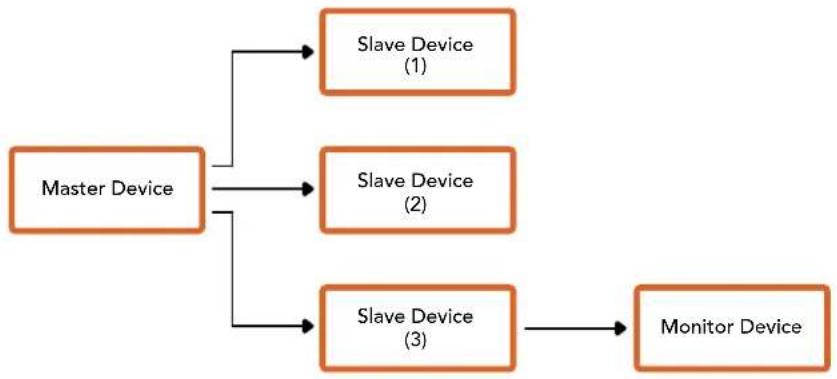
flowchart
graph TD
    A["Master Device"] --> B["Slave Device (1)"]
    A --> C["Slave Device (2)"]
    A --> D["Slave Device (3)"]
    D --> E["Monitor Device"]
| Byte 7 | MSB 6 5 4 3 | 2 1 0 LSB | ||||||
| 0 | Version(0b0) | Version(0b0) | Version(0b0) | Version(0b0) | Reserved(0b0) | Reserved(0b0) | MonitorPreview | MonitorProgram |
| 1 | Reserved(0b0) | Reserved(0b0) | Slave 1Preview | Slave 1Program | Reserved(0b0) | Reserved(0b0) | Slave 0Preview | Slave 0Program |
| 2 | Reserved(0b0) | Reserved(0b0) | Slave 3Preview | Slave 3Program | Reserved(0b0) | Reserved(0b0) | Slave 2Preview | Slave 2Program |
| 3 | ... |
Ayuda
Cómo obtener ayuda
natural_image
Man in red polo shirt using a video editing console at a music studio with red curtains and a large 'LAB' backdrop (no visible text on main subject)
natural_image
Circular portrait photo of a smiling man in a dark shirt against a gray textured background (no text or symbols)致用户
感谢您选购ATEM Television Studio切换台从事现场制作!
通过GPI and Tally Interface发送Tally信号 1149
使用第三方调音台控制器 1151
使用DaVinci Resolve Micro Panel 1153
更新软件 1155
如何更新ATEM软件 1155
对讲和摄影机控制转接线 1156
5针XLR对讲耳麦接口引脚图 1157
Developer Information 1158
Blackmagic SDI Camera
Control Protocol 1158
Example Protocol Packets 1165
Blackmagic Embedded
Tally Control Protocol 1166
帮助 1168
监管声明 1169
安全信息 1170
保修 1171
ATEM Television Studio简介
natural_image
Line drawing of a video camera setup with monitor, keyboard, and broadband device (no text or symbols)节目和预监母线按钮可让您预览某个信号源然后再将其切换到直播
natural_image
Four black industrial control console modules with various function keys and buttons, arranged in a row (no visible text or labels)ATEM Television Studio HD8 ATEM
Television Studio 4K8
开始使用
natural_image
Front view of a computer rack unit with multiple ports and connectors (no visible text or labels)将您的ATEM Television Studio切换台连接至监视器来查看多画面分割输出
连接信号源
natural_image
Front view of a portable electronic device back panel with ports, connectors, and indicator lights (no text or symbols visible)ATEM Television Studio的SDI输入
2 在节目列中, 按输入3。
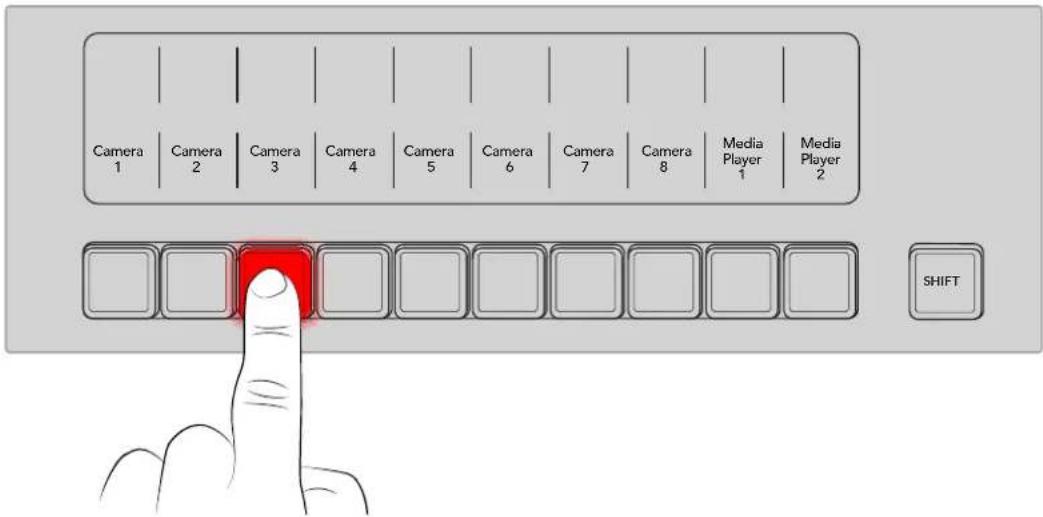
2 按下专门的“MIX”转场按钮。
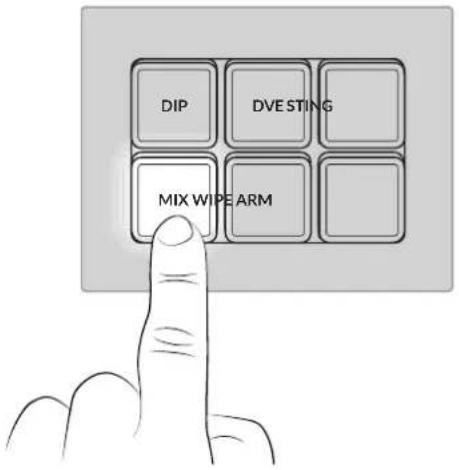
设置您的网络