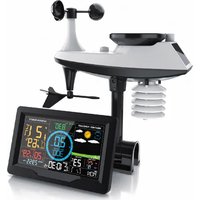
Brandson 304577 - Weather Station

304577 - Weather Station Brandson - Free user manual and instructions

Find the device manual for free 304577 Brandson in PDF.

📄 56 pages English EN Download 💬 AI Question 10 questions ⚙️ Specs
Notice Brandson 304577 - page 13
View the manual : Français FR Deutsch DE English EN Español ES Italiano IT
Pick your language and provide your email: we'll send you a specifically translated version.
Product type Connected weather station
Brand Brandson
Model 304577
Dimensions (indoor unit) Approximately 150 x 100 x 30 mm
Weight (indoor unit) Approximately 200 g
Power supply 5V DC power adapter (included) or backup batteries
Outdoor sensors Temperature, humidity, pressure, wind and rain sensor (included)
Connectivity WiFi 802.11 b/g/n, Access Point mode
Main functions Local weather display, forecasts, data transmission to online services (Wunderground, Weathercloud, Ecowitt, WOW)
Mobile app WS View (iOS/Android)
Display Backlit LCD
Data display Indoor/outdoor temperature, humidity, pressure, wind, rain, forecasts
Sensor radio range Up to 150 m in open field
Care and cleaning Clean with a soft, dry cloth; avoid water and abrasive products. Check batteries regularly.
Safety Use only the supplied adapter. Do not open the device. Keep out of reach of children.
Spare parts and repairability Parts are not available separately. Contact customer service if problems arise.
General information Manual available in multiple languages. Weight and dimensions are approximate.

Frequently Asked Questions - 304577 Brandson

How to connect the weather station to WiFi?
Press the WIND (+) and PRESSURE (-) keys for 5 seconds to enter AP mode. The WiFi symbol flashes. Connect to the 'EasyWeather-WIFIxxxx' network with your smartphone, then open the WS View app to complete the setup.
How to transmit data to Wunderground?
Create an account on wunderground.com, add a personal weather station (choose 'other'). You will receive a Station ID and a Station Key. Enter them in the station interface via the WS View app.
How to transmit data to Weathercloud?
Sign up on weathercloud.net, create an account and add a station (type 'Other'). Get the Station ID and Station Key from the settings, then enter them in the WS View app.
What to do if WiFi does not connect?
Check that your router broadcasts on 2.4 GHz (5 GHz is not supported). Make sure the password is correct. Reset the station by pressing the WIND+PRESSURE keys for 5 seconds.
How to display the MAC address of the station?
In normal mode, briefly press the SET key. The MAC address appears on the screen. Press LIGHT/SNOOZE to return to normal display.
What sensors are included with the station?
The station includes an outdoor sensor measuring temperature, humidity, pressure, wind direction and speed, as well as rainfall. The indoor unit displays the data.
Can I use the station without an Internet connection?
Yes, the station works autonomously to display local data. An Internet connection is only needed for online forecasts and data sharing.
How to reset the station?
Press and hold the WIND (+) and PRESSURE (-) keys for 10 seconds until the screen flashes. Release and the station restarts.
What to do if the screen stays black?
Check the power supply: plug in the power adapter or replace the batteries. If the problem persists, contact technical support.
Where to download the full manual?
The manual is available for free in PDF on notice-facile.com for the Brandson 304577 model. You can also request a translation by email.

User questions about 304577 Brandson

0 question about this device. Answer the ones you know or ask your own.

Ask a new question about this device

The email remains private: it is only used to notify you if someone responds to your question.

No questions yet. Be the first to ask one.

Download the instructions for your Weather Station in PDF format for free! Find your manual 304577 - Brandson and take your electronic device back in hand. On this page are published all the documents necessary for the use of your device. 304577 by Brandson.

USER MANUAL 304577 Brandson

Weather station WIFI information sheet WDP-304577

text_image QR code image containing encoded data, no visible human-readable text

Android Apple

Brandson 304577 - 1

text_image QR code image containing encoded data, no visible human-readable text
text_image Search Locations | Log in | Join
text_image Member Settings EMAIL & PASSWORD HOME & FAVORITES MY DEVICES API KEYS Manage Devices Add New Device
text_image Add a New PWS TYPE LOCATION DETAILS DONE Select a Device Type 25% Personal Weather Station other Next Outdoor Webcam Select camera type Next Cancel
text_image Add a New PWS TYPE LOCATION DETAILS DONE: Set Device Name & Location 50% Device Locations: Address Manual Hanover Your Location has been verified and added! Elevation: 53 m. Lat. Low: 52.417, 9.728
text_image Add a New PWS TYPE LOCATION DETAILS DONE Tell Us More About Your Device 75% Name:(Required) Todesystem Elevation:(Required) 30 Device (Hardware)(Required): dthair Height Above Ground: F1 Above Ground Surface Type: asphalt Associate Webcam: Select WebCams You Make Our Forecasts More Accurate, We Respect Your Privacy Contribute to the Weather Underground community by sharing some information about yourself and your sensor. We use this information to manage your account and to improve the experience from the Weather Underground community. We may also share certain data for commercial purposes, such as your sensor location. Learn more about how we take your privacy seriously (Required) I Accept I Deiry Email Preferences: I would like to receive PWS notifications. Back Next
text_image You Make Our Forecasts More Accurate, We Respect Your Privacy Contribute to the Weather Underground community by sharing some information about yourself and your sensor. We use this information to manage your account and to improve the experience from the Weather Underground community. We may also share certain data for commercial purposes, such as your sensor location. Learn more about how we take your privacy seriously (Required) ● I Accept ○ I Deny Email Preferences: □ I would like to receive PWS notifications Back Next
text_image Add a New PWS TYPE LOCATION DETAILS DONE Registration Complete! 100% Congratulations! Your personal weather station is now registered with Weather Underground. Enter the information below to your weather station software. Your PWS Station ID: Station Key: Configure Your Software
text_image weathercloud About us Plans Projects Blog FAQ Home Map Sign in EN Català Čeština Deutsch English Español Français Italiano Nederlands Polski Português Русский Welcome to Weathercloud The easiest way to share your weather data with the world. Join us today Username Email Password Sign up By clicking Sign up, you agree to our Terms of Service and Privacy Policy

Connect the weather station to the internet

You have the option to connect the weather station to the Internet to run the time synchronization via the internet time server and to display, for example the weather data on external weather pages such as "Wunderground.com" or "Weathercloud.net". Further information is given later in this user manual.

  1. When you switch on the weather station for the first time or press the "WIND (+)" and "PRESSURE (-)" buttons for about 5 seconds in normal mode, the Wifi symbol "flashes" on the display of the weather station to indicate that the weather station is in AP (Access Point) mode and is ready for WiFi settings.
  2. Use a Wi-Fi enabled device such as a smartphone, tablet or computer to establish a connection with the weather station via Wi-Fi.
  3. Go to the Wi-Fi network settings of your device to locate the SSID of the weather station: "EasyWeather-WIFIxxxx". Connect to the weather station. It then takes several seconds to establish a connection.
  4. Once the connection is established, download the app "WS View".
  5. Install the app and then open it.

Brandson 304577 - Connect the weather station to the internet - 1

text_image QR code image containing encoded data, no visible human-readable text

Android Apple

Brandson 304577 - Connect the weather station to the internet - 2

text_image QR code image containing encoded data, no visible human-readable text
  1. Select the weather station tab. Then click on "NEXT" in the top right corner of the web interface and enter the details of your WiFi to connect the weather station to the internet.
  2. Follow the instructions given in the app and enter your router's SSID and password to connect the weather station to the Internet.
  3. You will then come to the upload pages. If you choose to upload weather data from the weather station to a website, such as Wunderground.com, Weathercloud.net, ecowitt.net, the WeatherObservations website or your own website and make it avapublic, then please refer to this leaflet.

Note:

- If the Wi-Fi setup is complete, your mobile phone resumes your default Wi-Fi connection.

- The weather station restores your previous setting.

  1. You can then below the status of the Wi-Fi symbol on the weather station display:
Connection symbol Description
Brandson 304577 - Note: - 1Stable: The weather station is connected to WiFi router
Brandson 304577 - Note: - 2Flashes: Access point mode active.

Show MAC address

If you want to view the Mac address of the Weather station, press the "SET" button once briefly. The MAC address is now shown on the display. Press the "LIGHT/SNOOZE" button to view the normal mode again.

Weather server

The weather station can upload weather data using the WiFi router to "Weather Underground" (https://www.wunderground.com/), "Weather Cloud" (https://weathercloud.net/), "Weather Observation Website (WOW)" (https://wow.metoffice.gov.uk/) and "Ecowitt Weather" (https://www.ecowitt.net/) or any "Custom Website" of your choice. You can follow the step given below to setup your device.

Brandson 304577 - Weather server - 1

Note: The websites are subject to change. The data privacy policy of each website is applicable. Make sure that you read the license terms completely and understood them before accepting it! Accept the terms only if you really agree with them.

The following chapters explain how to upload data to "Weather Underground" and "Weather Cloud".

Wunderground (Please note! Available only in English)

Open your Internet browser and navigate to the following website: "https://www.wunderground.com" Click then click on "Join" in the upper right corner to open the registration page. Follow the instructions to create your account.

Brandson 304577 - Wunderground (Please note! Available only in English) - 1

text_image Search Locations | Log in | Join

Note: Use a valid e-mail address to register your account.

After creating your account and validating your email, please go back to Wunderground website. Click at the top on "My Profile" to open the drop-down menu, and click on "My Devices".

Brandson 304577 - Wunderground (Please note! Available only in English) - 2

text_image Member Settings EMAIL & PASSWORD HOME & FAVORITES MY DEVICES API KEYS Manage Devices Add New Device

Then select "Add New Device" to add a device.

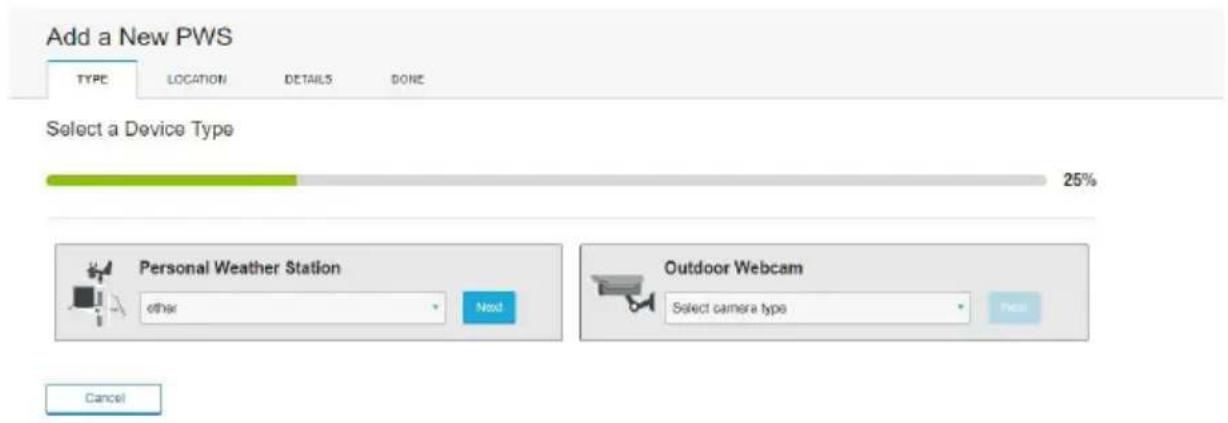
Select "Other" in the drop-down menu under "Personal Weather Station" and click "Next".
Brandson 304577 - Wunderground (Please note! Available only in English) - 3

text_image Add a New PWS TYPE LOCATION DETAILS DONE Select a Device Type 25% Personal Weather Station other Need Outdoor Webcam Select camera type Cancel

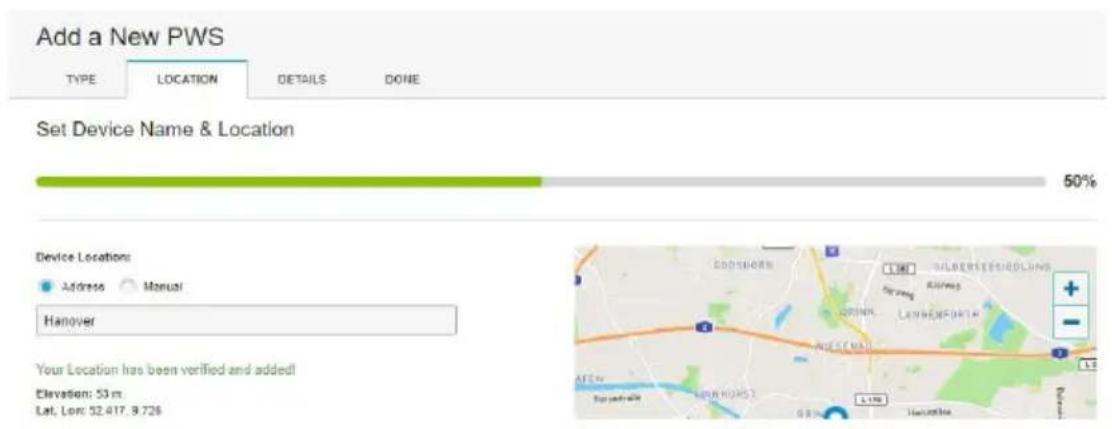
Select the desired location by entering the address in the appropriate field and then click on the address in the drop-down menu.
Brandson 304577 - Wunderground (Please note! Available only in English) - 4

text_image Add a New PWS TYPE LOCATION DETAILS DONE Set Device Name & Location 50% Device Location: Address Manual Hanover Your Location has been verified and added! Elevation: 53 m Lat. Low: 52.417.9.726

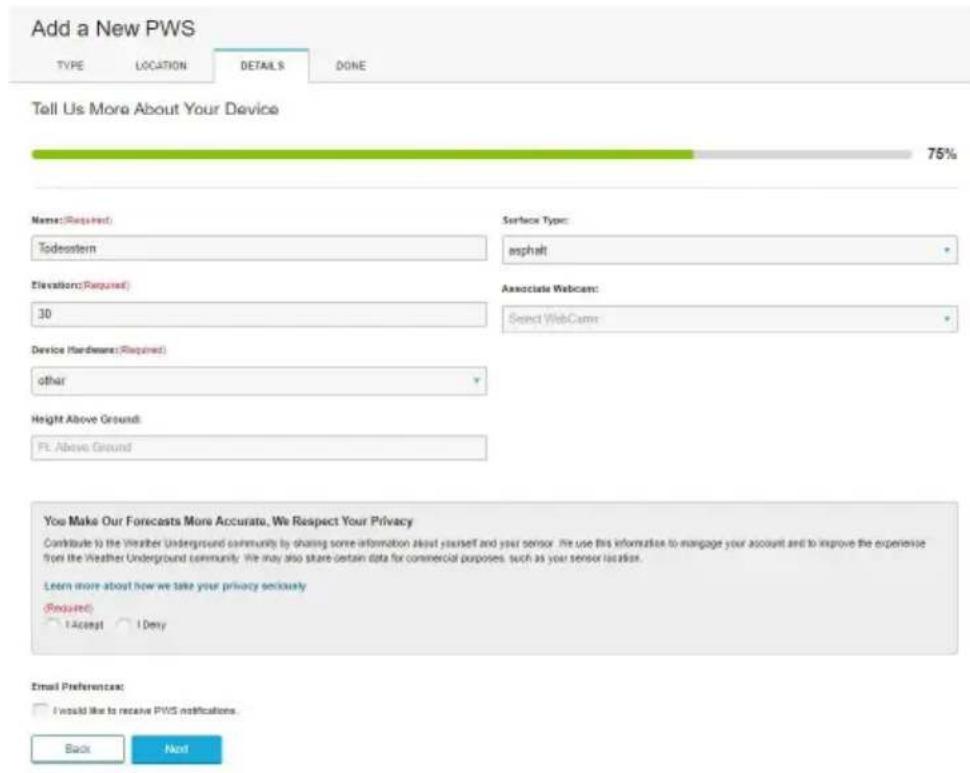
In the menu that follows, you have to enter a name for the weather station (Name), the altitude of the region and the location of the device (Elevation). You can see the elevation in the previous point of "LOCATION" for the entered address. You then have to select "other" under "Device Hardware".

Alternatively, you can set the surface type and the height above the ground.
Brandson 304577 - Wunderground (Please note! Available only in English) - 5

text_image Add a New PWS TYPE LOCATION DETAILS DONE Tell Us More About Your Device 75% Name:(Required) Todestern Surface Type: asphalt Elevation:(Required) 30 Associate Webcam: Select WebCam Device Hardware:(Required) other Height Above Ground: PL Above Ground You Make Our Forecasts More Accurate, We Respect Your Privacy Contribute to the Weather Underground community by sharing some information about yourself and your sensor. We use this information to manage your account and to improve the experience from the Weather Underground community. We may also share certain data for commercial purposes, such as your sensor location. Learn more about how we take your privacy seriously (Required) 1 Accept 1 Deny Email Preferences: I would like to receive PWS notifications. Back Next

After making the settings, you still have to agree to the privacy policy. Please read the data privacy policy thoroughly first. If you accept this, click "I Accept" and "Next".
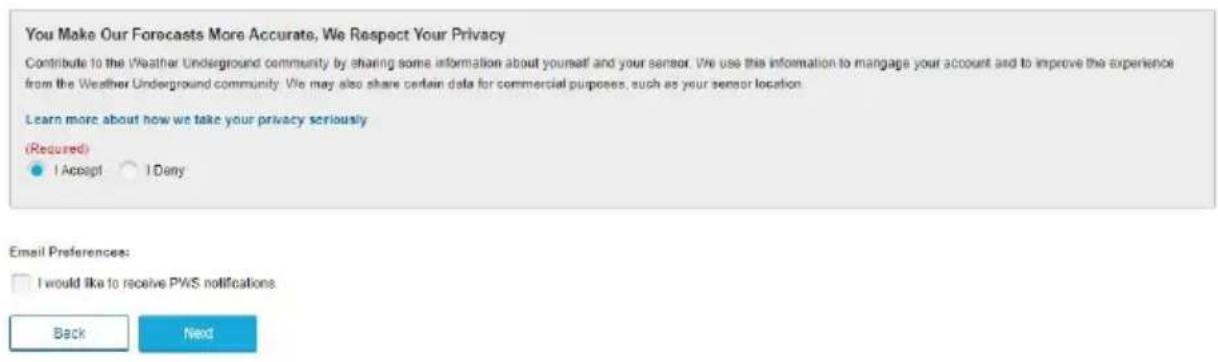
Brandson 304577 - Wunderground (Please note! Available only in English) - 6

text_image You Make Our Forecasts More Accurate, We Respect Your Privacy Contribute to the Weather Underground community by sharing some information about yourself and your sensor. We use this information to manage your account and to improve the experience from the Weather Underground community. We may also share certain data for commercial purposes, such as your sensor location. Learn more about how we take your privacy seriously (Required) ● I Accept ○ I Deny Email Preferences: □ I would like to receive PWS notifications Back Next

At the end of the registration you get a station ID and a station key, which need to be entered into the web interface of the weather station, so that your weather station sends the data to the corresponding weather server and you can access your weather station online.
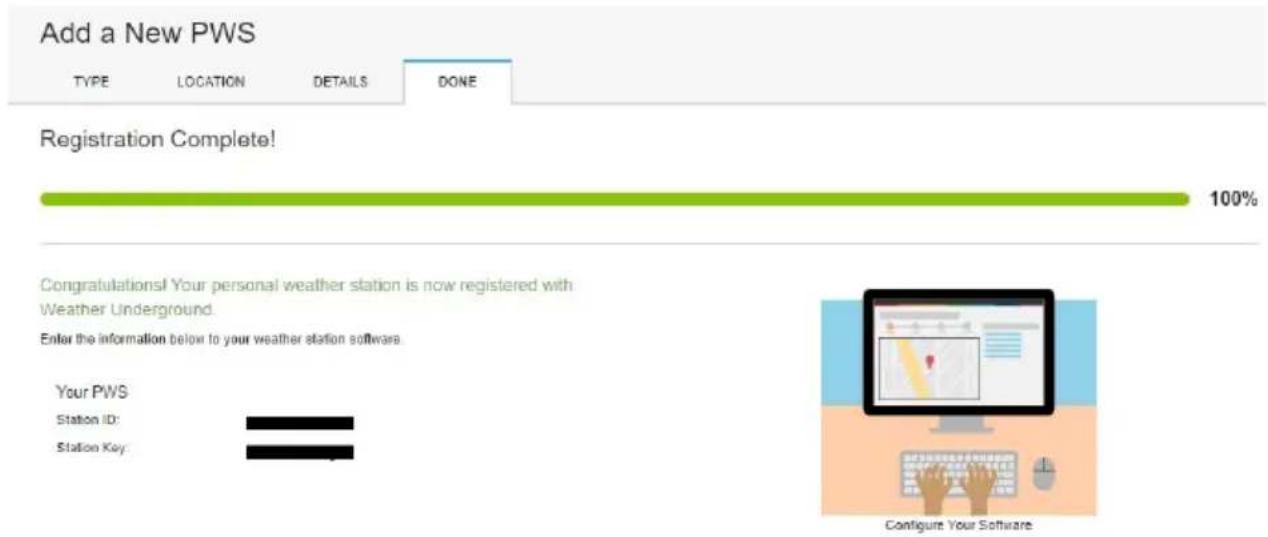
Brandson 304577 - Wunderground (Please note! Available only in English) - 7

text_image Add a New PWS TYPE LOCATION DETAILS DONE Registration Complete! 100% Congratulations! Your personal weather station is now registered with Weather Underground. Enter the information below to your weather station software. Your PWS Station ID: Station Key: Configure Your Software

Note that the weather station has to be connected to the Internet to send the weather data!

Weathercloud

Open your Internet browser and navigate to the following website: "https://www.weathercloud.net" Then click on the language setting at the top right and select the desired language. You now have to create an account under "Register Now" (Join us today) by entering the username, email and password.

Then confirm your previously entered email address. You can now access your account.
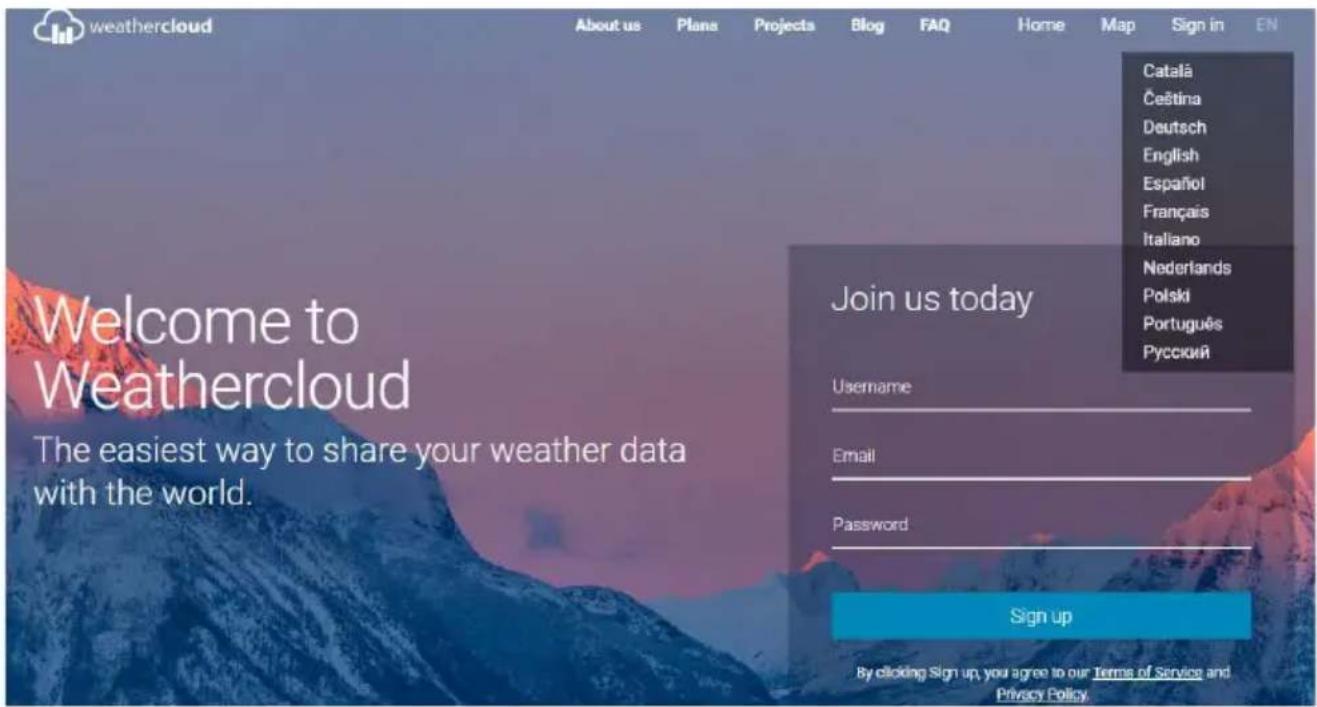
Brandson 304577 - Weathercloud - 1

text_image weathercloud About us Plans Projects Blog FAQ Home Map Sign in EN Catalá Čeština Deutsch English Español Français Italiano Nederlands Polski Português Русский Welcome to Weathercloud The easiest way to share your weather data with the world. Join us today Username Email Password Sign up By clicking Sign up, you agree to our Terms of Service and Privacy Policy.

Note: Use the valid e-mail address to register your account.

Select "Login" in the top right corner and log in to your account.

Now click on your profile image in the top right corner and select "Settings".
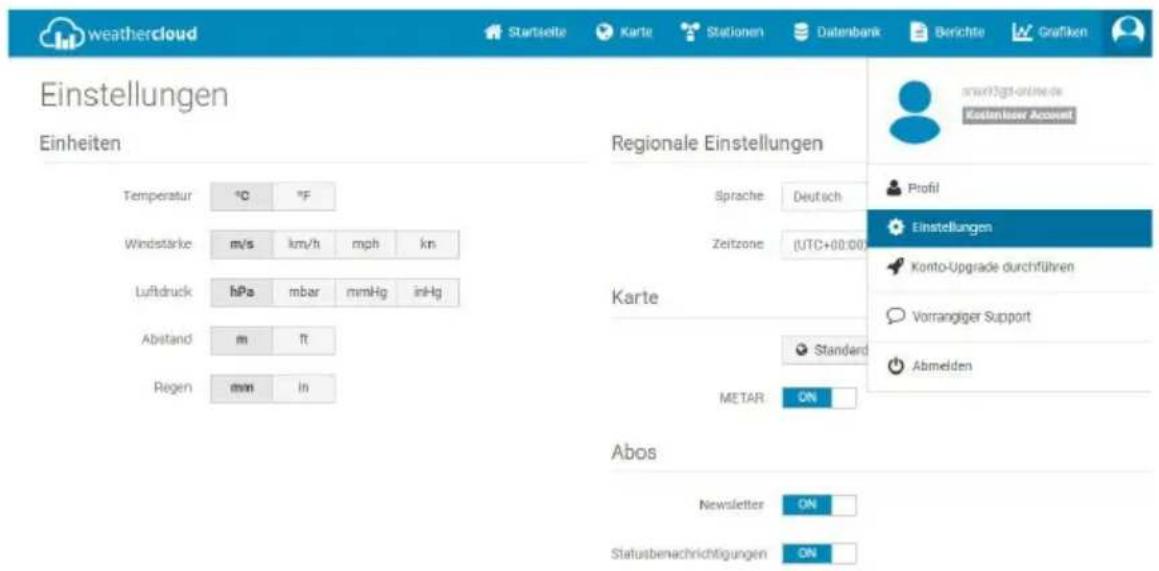
Brandson 304577 - Weathercloud - 2

You can select and setup the language, time zone and all the units here. Select the desired details and press the "Save".

Now select the "Stations" (Devices) tab and click on "Register Station" (Create Device).
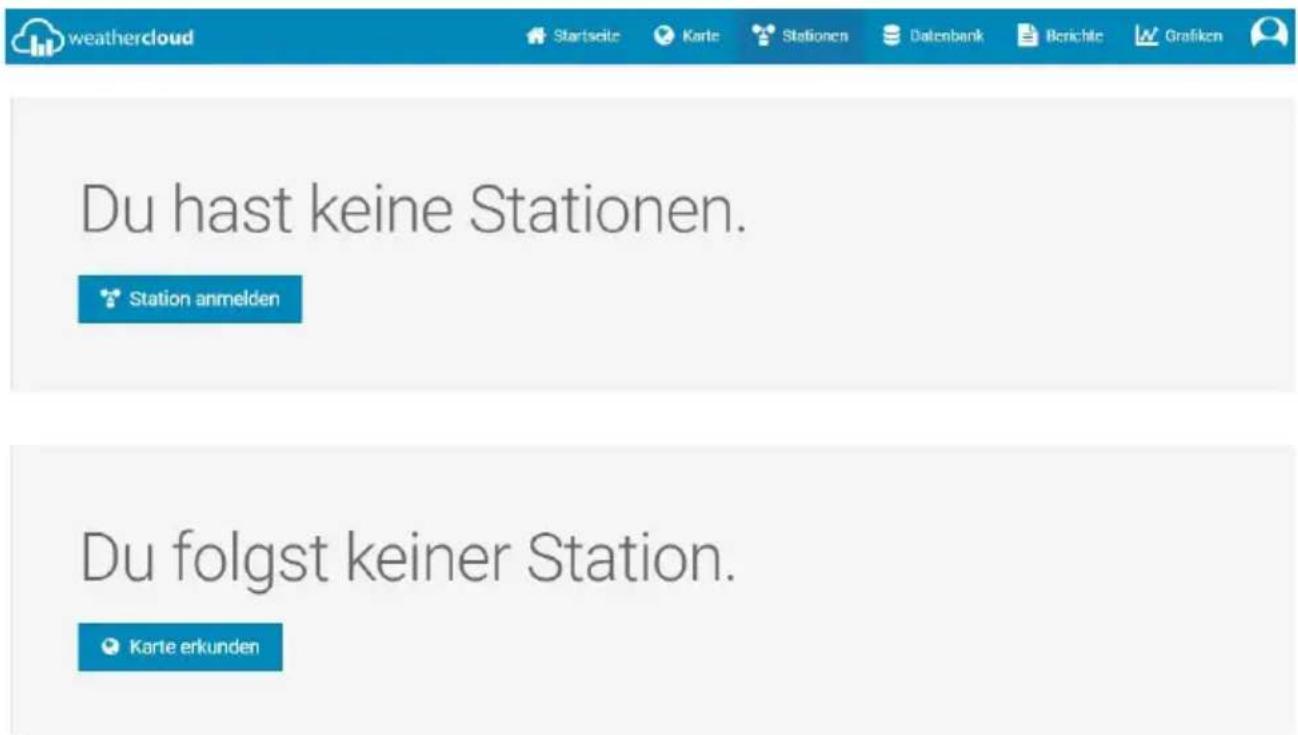
Brandson 304577 - Weathercloud - 3

Enter all the details of your weather station in the following window. Choose from "Other" in the dropdown menu "Other".

Under type of connection, select "Other".

Then enter the location of the weather station. Clicking on "Select coordinates" opens a world map, where you can define the location of the weather station. The latitude and longitude are then entered automatically.

Under "Height above sea level" and "Height" enter the height above sea level and for height enter the height above the ground.

Exit the setup by clicking on "Setting".
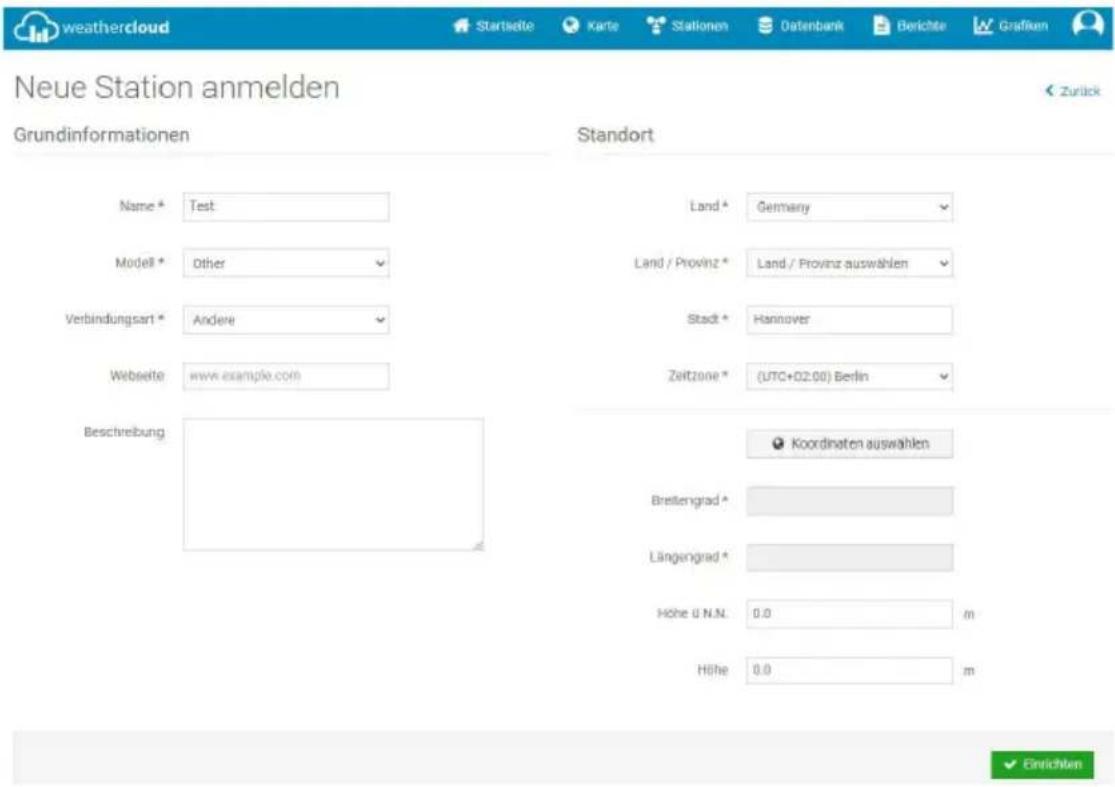
Brandson 304577 - Weathercloud - 4

A list of all the weather stations logged into the account is then displayed. To obtain the station ID and a station key, press "Settings" and then on "Link".

Brandson 304577 - Weathercloud - 5

This ID and the key have to be entered in the web interface of the weather station, so that your weather station sends the data to the corresponding weather server and you can access your weather station online.

Connecting the weather station via app

Open the "WS View" app and select the previously registered weather station.

  1. A tab now appears with a website. Using the "NEXT" button in the top right corner of the app, you can go to the next tab until you reach, e.g., "Weather Cloud" or "Weather Underground".

  2. Enter the station ID and the station key that you previously received during registration.

  3. The weather station is now shown in your previously created account and uploads the weather data to the corresponding website so that you can access your weather station's data from anywhere.

text_image QR code image containing encoded data, no visible human-readable text

Android Apple

Brandson 304577 - Connecting the weather station via app - 1

text_image QR code image containing encoded data, no visible human-readable text
text_image Search Locations | Log in | Join
text_image Member Settings EMAIL & PASSWORD HOME & FAVORITES MY DEVICES API KEYS Manage Devices Add New Device
text_image Add a New PWS TYPE LOCATION DETAILS DONE Select a Device Type 25% Personal Weather Station other Next Outdoor Webcam Select camera type Cancel
text_image Add a New PWS TYPE LOCATION DETAILS DONE Set Device Name & Location 50% Device Locations Address Manual Hanover Your Location has been verified and added! Elevation: 53 m Lat. Lon: 52.417, 9.728
text_image Add a New PWS TYPE LOCATION DETAILS DONE Tell Us More About Your Device 75% Name:(Required) Todeystem Elevation:(Required) 30 Device Hardware:(Required): dthat Height: Above Ground: F1: Above Ground Surface Type: asphalt Associate Webcam: Select WebCams You Make Our Forecasts More Accurate, We Respect Your Privacy Contribute to the Weather Underground community by sharing some information about yourself and your sensor. We use this information to manage your account and to improve the experience from the Weather Underground community. We may also share certain data for commercial purposes, such as your sensor location. Learn more about how we take your privacy seriously (Request) I Accept I Deny Email Preferences: I would like to receive PWS notifications Back Next
text_image You Make Our Forecasts More Accurate, We Respect Your Privacy Contribute to the Weather Underground community by sharing some information about yourself and your sensor. We use this information to manage your account and to improve the experience from the Weather Underground community. We may also share certain data for commercial purposes, such as your sensor location. Learn more about how we take your privacy seriously (Required) I Accept I Deny Email Preferences: I would like to receive PWS notifications Back Next
text_image Add a New PWS TYPE LOCATION DETAILS DONE Registration Complete! 100% Congratulations! Your personal weather station is now registered with Weather Underground. Enter the information below to your weather station software. Your PWS Station ID: Station Key: Configure Your Software
text_image weathercloud About us Plans Projects Blog FAQ Home Map Sign in EN Català Čeština Deutsch English Español Français Italiano Nederlands Polski Português Русский Welcome to Weathercloud The easiest way to share your weather data with the world. Join us today Username Email Password Sign up By clicking Sign up, you agree to our Terms of Service and Privacy Policy
text_image QR code image containing encoded data, no visible human-readable text

Android Apple

Brandson 304577 - Connecting the weather station via app - 2

text_image QR code image containing encoded data, no visible human-readable text
text_image Search Locations | Log in | Join
text_image Member Settings EMAIL & PASSWORD HOME & FAVORITES MY DEVICES API KEYS Manage Devices Add New Device
text_image Add a New PWS TYPE LOCATION DETAILS DONE Select a Device Type 25% Personal Weather Station other Need Outdoor Webcam Select camera type Cancel
text_image Add a New PWS TYPE LOCATION DETAILS DONE Set Device Name & Location 50% Device Location: Address Manual Hanover Your Location has been verified and added! Elevation: 53 m. Lat, Lon: 52.417.9.728
text_image Add a New PWS TYPE LOCATION DETAILS DONE Tell Us More About Your Device 75% Name:(Required) Todestern Surface Type: asphalt Elevation:(Required) 30 Associate Webcam: Select WebCam Device Hardware:(Required) other Height Above Ground: PL Above Ground You Make Our Forecasts More Accurate, We Respect Your Privacy Contribute to the Weather Underground community by sharing some information about yourself and your sensor. We use this information to manage your account and to improve the experience from the Weather Underground community. We may also share certain data for commercial purposes, such as your sensor location. Learn more about how we take your privacy seriously (Required) 1 Accept 1 Deny Email Preferences: I would like to receive PWS notifications. Back Next
text_image You Make Our Forecasts More Accurate, We Respect Your Privacy Contribute to the Weather Underground community by sharing some information about yourself and your sensor. We use this information to manage your account and to improve the experience from the Weather Underground community. We may also share certain data for commercial purposes, such as your sensor location. Learn more about how we take your privacy seriously (Required) ● I Accept ○ I Deny Email Preferences: □ I would like to receive PWS notifications Back Next
text_image Add a New PWS TYPE LOCATION DETAILS DONE Registration Complete! 100% Congratulations! Your personal weather station is now registered with Weather Underground. Enter the information below to your weather station software. Your PWS Station ID: Station Key: Configure Your Software
text_image weathercloud About us Plans Projects Blog FAQ Home Map Sign in EN Català Čeština Deutsch English Español Français Italiano Nederlands Polski Português Русский Welcome to Weathercloud The easiest way to share your weather data with the world. Join us today Username Email Password Sign up By clicking Sign up, you agree to our Terms of Service and Privacy Policy.
text_image QR code image containing encoded data, no visible human-readable text

Android Apple

Brandson 304577 - Connecting the weather station via app - 3

text_image QR code image containing encoded data, no visible human-readable text
text_image Search Locations | Log in | Join
text_image Member Settings EMAIL & PASSWORD HOME & FAVORITES MY DEVICES API KEYS Manage Devices Add New Device
text_image Add a New PWS TYPE LOCATION DETAILS DONE Select a Device Type 25% Personal Weather Station other Next Outdoor Webcam Select camera type Cancel
text_image Add a New PWS TYPE LOCATION DETAILS DONE: Set Device Name & Location 50% Device Locations: Address Manual Hanover Your Location has been verified and added! Elevation: 53 m. Lat. Low: 52.417, 9.728
text_image Add a New PWS TYPE LOCATION DETAILS DONE Tell Us More About Your Device 75% Name:(Required) Todeystem Elevation:(Required) 30 Device Hardware:(Required): dthat Height: Above Ground: F1 Above Ground Surface Type: asphalt Associate Webcam: Select WebCams You Make Our Forecasts More Accurate, We Respect Your Privacy Contribute to the Weather Underground community by sharing some information about yourself and your sensor. We use this information to manage your account and to improve the experience from the Weather Underground community. We may also share certain data for commercial purposes, such as your sensor location. Learn more about how we take your privacy seriously (Request) I Accept I Deny Email Preferences: I would like to receive PWS notifications Back Next
text_image You Make Our Forecasts More Accurate, We Respect Your Privacy Contribute to the Weather Underground community by sharing some information about yourself and your sensor. We use this information to manage your account and to improve the experience from the Weather Underground community. We may also share certain data for commercial purposes, such as your sensor location. Learn more about how we take your privacy seriously (Required) I Accept I Deny Email Preferences: I would like to receive PWS notifications Back Next
text_image Add a New PWS TYPE LOCATION DETAILS DONE Registration Complete! 100% Congratulations! Your personal weather station is now registered with Weather Underground Enter the information below to your weather station software. Your PWS Station ID: Station Key: Configure Your Software
text_image weathercloud About us Plans Projects Blog FAQ Home Map Sign in EN Català Čeština Deutsch English Español Français Italiano Nederlands Polski Português Русский Welcome to Weathercloud The easiest way to share your weather data with the world. Join us today Username Email Password Sign up By clicking Sign up, you agree to our Terms of Service and Privacy Policy
Manual assistant
Powered by Anthropic
Waiting for your message
Product information

Brand : Brandson

Model : 304577

Category : Weather Station