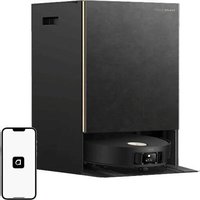
Bot X30 Ultra - Robot vacuum DREAME - Free user manual and instructions
Find the device manual for free Bot X30 Ultra DREAME in PDF.


| Product type | Robot vacuum |
| Brand | Dreame |
| Model | Bot X30 Ultra |
| Power supply | 120 V~60 Hz, 8.5 A (base station) |
| Battery | 15 V nominal, charging time ~4.5 h |
| Rated power | 75 W (suction) / 1240 W (hot water washing) |
| Main functions | Suction, mopping, automatic dust bin emptying, mop cleaning and drying, quick mapping, automatic cleaning resume, Do Not Disturb mode |
| Maintenance and cleaning | Clean brushes, filters, sensors, charging contacts regularly; empty dirty water tank after each use; replace dust bag every 4-8 weeks |
| Safety | Grounding required; do not use with flammable liquids; do not expose to rain; operating temperature 0-40°C |
| Spare parts and repairability | Dust bag, mop pads, side and main brushes, filter, clean and dirty water tanks |
| General information | Wi-Fi 2.4 GHz connection; Dreamehome app; laser distance sensor (LDS); AI camera; sound level not specified |
Frequently Asked Questions - Bot X30 Ultra DREAME
User questions about Bot X30 Ultra DREAME
0 question about this device. Answer the ones you know or ask your own.
Ask a new question about this device
Download the instructions for your Robot vacuum in PDF format for free! Find your manual Bot X30 Ultra - DREAME and take your electronic device back in hand. On this page are published all the documents necessary for the use of your device. Bot X30 Ultra by DREAME.
USER MANUAL Bot X30 Ultra DREAME
The word "dreamer" is the abbreviation of Dromeine Technology Co., Ltd. and its subsidiaries in China. It is the translation of the company's Chinese name "H.R.", which means arising for excellence in every encounter and reflects the company's vision of continuous pursuit, exploitation and search in technology.

Far more support, contact us via support.us@dreame.tech
Website: https://global.dreamatch.com
Manufactured by: Dreame Trading (Tianjin) Co., Ltd.
Address: Room 2112 1 1, South District, Finance and Trade Center, No.6975 Yazhou Road,
Dongjiang Bonded Port Area, Tianjin Pilot Free Trade Zone, Tianjin, China
Made in China

RLX56CE-US-A00
DreameBot X30
Ultra
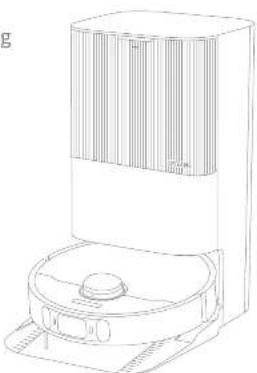
Robot Vacuum and Mop with Auto-Empty and Mop Self-Cleaning User Manual
natural_image
Line drawing of a robotic vacuum cleaner with control panel and fan (no text or symbols)The illustrations in this manual are for reference only. Please refer to the actual product.
DREAME
Contents
E74 User Manual
EUR Manuel d'utilisation 28
Manual de usuario
Safety Information
IMPORTANT SAFETY INSTRUCTIONS
When using an electrical appliance, basic precautions should always be followed, including the following: READ ALL INSTRUCTIONS BEFORE USING (THIS APPLIANCE), Failure to follow the warnings and instructions may result in electric shock, fire and/or serious injury.
SAVE THESE INSTRUCTIONS
Household use only.
WARNING - To reduce the risk of fire, electric shock, or injury:
- Do not use outdoors or on wet surfaces.
- Do not allow to be used as a toy. Close attention is necessary when used by or near children, pets or plants.
- Use only as described in this manual. Use only manufacturer's recommended attachments.
- Do not use with damaged cord or plug. If appliance is not working as it should, has been dropped, damaged, left outdoors, or dropped into water, return it to a service center.
- Do not pull or carry by cord, use cord as a handle, close a door on cord, or pull cord around sharp edges or corners. Do not run appliance over cord. Keep cord away from heated surfaces.
- Do not unplug by pulling on cord. To unplug, grasp the plug, not the cord.
- Do not handle the base station, including charger plug, and charger terminals with wet hands.
- Do not put any object into openings. Do not use with any opening blocked; keep free of dust, lint,
EN Safety Information
hair, and anything that may reduce air flow.
- Keep hair, loose clothing, fingers, and all parts of body away from openings and moving parts.
- Turn off all controls before unplugging.
- Do not use to pick up flammable or combustible liquids, such as gasoline, or use in areas where they may be present.
- Connect to a properly grounded outlet only. See Grounding Instructions.
- Do not pick up anything that is burning or smoking, such as cigarettes, matches, or hot ashes.
• To Reduce the Risk of Fire and Electric Shock due to internal component damage, use only Dreame Trading (Tianjin) Co., Ltd. cleaning fluid intended for use with this appliance. See the Cleaning Fluid section of this manual.
• Do not use without dust bag.
- Prevent unintentional starting. Ensure the switch is in the off-position before connecting to battery pack, picking up or carrying the appliance. Carrying the appliance with your finger on the switch or energizing appliance that have the switch on invites accidents.
- Do not use and store in extremely hot or cold environments (below 0°C/32°F or above 40°C/104°F). Please charge the robot in temperature above 0°C/32°F and below 40°C/104°F.
- Recharge only with the charger specified by the manufacturer. A charger that is suitable for one type of battery pack may create a risk of fire when used with another battery pack.
- Use appliances only with specifically designated battery packs. Use of any other battery packs may create a risk of injury and fire.
- When battery pack is not in use, keep it away from other metal objects, like paper clips, coins, keys, nails, screws or other small metal objects, that can make a connection from one terminal to another. Shorting the battery terminals together may cause burns or a fire.
• Under abusive conditions, liquid may be ejected from the battery; avoid contact. If contact accidentally occurs, flush with water. If liquid contacts eyes, additionally seek medical help. Liquid ejected from the battery may cause irritation or burns.
- Do not use a battery pack or appliance that is damaged or modified. Damaged or modified batteries may exhibit
2
Safety Information
unpredictable behavior resulting in fire, explosion or risk of injury.
- Do not expose a battery pack or appliance to fire or excessive temperature. Exposure to fire or temperature above 130°C/266 °F may cause explosion.
- Follow all charging instructions and do not charge the battery pack or appliance outside of the temperature range specified in the instructions. Charging improperly or at temperatures outside of the specified range may damage the battery and increase the risk of fire.
- Have servicing performed by a qualified repair person using only identical replacement parts. This will ensure that the safety of the product is maintained.
- Do not modify or attempt to repair the appliance or the battery pack except as indicated in the instructions for use and care.
- Place the cords from other appliances out of the area to be cleaned.
- Do not operate the vacuum in a room where an infant or child is sleeping.
- Do not operate the vacuum in an area where there are lit candles or fragile objects on the floor to be cleaned.
- Do not operate the vacuum in a room that has lit candles on furniture that the vacuum may accidentally hit or bump into.
• Do not allow children to sit on the vacuum.
- Do not use the vacuum on a wet surface.
• Use only with RCXE0304 supply unit
- Risk Of Injury. Brush May Start Unexpectedly. Switch off the appliance and Remove the brush Before Cleaning or Servicing.
• Unplug before cleaning or servicing.
(二)交易对方
Caidor: This device complies with Part 15 of the FCC Rules / Innovation, Science and Economic Development Canada's licence-exempt RSS(s). Operation is subject to the following two conditions: (1) this device may not cause harmful interference. (2) this device must accept any interference received, including interference that may cause undesired operation.
Changes or modifications not expressly approved by the party responsible for compliance could void the user's authority to operate the equipment.
3

Safety Information
This equipment has been tested and found to comply with the limits for a Class B digital device, pursuant to part 15 of the FCG Rules. These limits are designed to provide reasonable protection against harmful interference in a residential installation. This equipment generates uses and can radiate radio frequency energy and, if not installed and user in accordance with the instructions, may cause harmful interference to radio communications. However, there is no guarantee that interference will not occur in a particular installation. If this equipment does cause harmful interference to radio or television reception, which can be determined by turning the equipment off and on, the user is encouraged to try to correct the interference by one or more of the following measures:
—Reorient or relocate the receiving antenna.
—Increase the separation between the equipment and receiver.
Connect the equipment into an outlet on a circuit different from that to which the receiver is connected.
MPT Remindino
To satisfy FCC / ERF exposure requirements, a separation distance of 8' (20 cm) or more should be maintained between the antenna of this device and persons during device operation.
To ensure compliance, operations at closer than this distance is not recommended.
To disable Wi-Fi module on robot, master the robot ON. Place the robot on the Base Station. Ensure the Champion Contacts on robot and the
Class Statista Pins make a connection.
Press and hold the Dock Button on the robot for 20 seconds until the W. E module is turned off.
When the Wi-Fi module is turned off, press any button on the robot to turn the Wi-Fi module on.
| — | Direct current |
| ~ | Alternating current |
This Device Complies with DHHS Radiation Rules, 21CFR Chapter 1, Subchapter J.
E ON
O: OFF
GROUNDING INSTRUCTIONS
This appliance must be grounded. If it should malfunction or breakdown, grounding provides a path of least resistance for electric current to reduce the risk of electric shock. This appliance is equipped with a cord having an equipment grounding conductor and grounding plug. The plug must be inserted into an appropriate outlet that is properly installed and grounded in accordance with all local codes and ordinances.
WARNING - Improper connection of the equipment-grounding conductor can result in a risk of electric shock. Check with a qualified electrician or service person if you are in doubt as to whether the outlet is properly grounded. Do not modify the plug provided with the appliance - if it will not fit the outlet, have a proper outlet installed by a qualified electrician.
This appliance is for use on a nominal 120-V circuit and has a grounding attachment plug that looks like the plug illustrated as below. Make sure that the appliance is connected to an outlet having the same configuration as the plug. No adaptor should be used with this appliance.
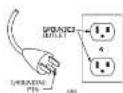
3
5

Product Overview
Package Contents
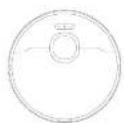
value
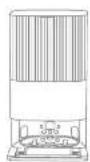
Base Station
Other Accessories

Side Brinh

Fever Cost
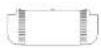
Base Station Ramp Extension Flare

User Minus:

elergent
Lampartment
(see-installed)

×spread × 2
(pre-installed)

×opexel
Holder × 2

(1 ore-installed)

Cleaning Toolset Sign Marking Solution
Product Overview
Robot
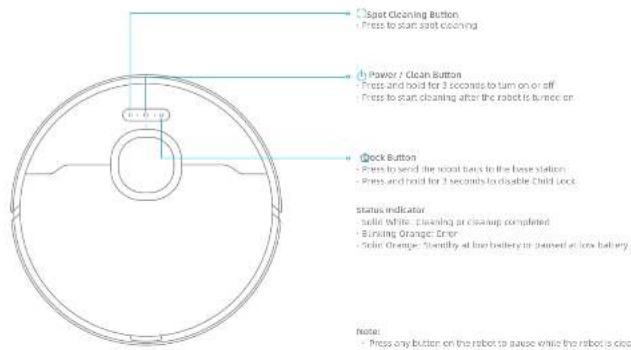
Spot Cleaning Button
Press to start spot cleaning
b) Power / Clean Button
- Press and hold for 3 seconds to turn on or off
Press to start cleaning after the robot is burned on
Dock Button
- Press to send the route bars to the base station
- Press and hold for 1 seconds to disable child lock
status indicator
- Solid White cleaning at cleanup completed
- Banking Orange Error
- 50in Orange: Standby at low battery in poured at low battery.
Note:
- Press any button on the robot to cause while the robot is cleaning
er returning to charge.
- Child loss can be enabled/sealed through the co-beehorse
e

Product Overview
Robot and Sensors
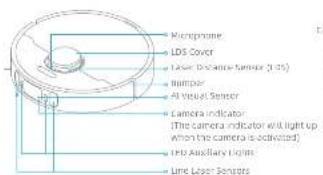
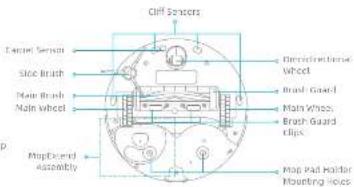

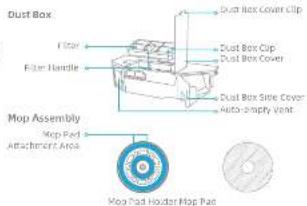
3
Product Overview
Base Station


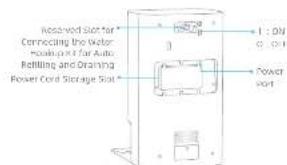
Note: The water hookup kit for aura refilling and drawing needs to be purchased separately. (Only available in specific regions)
3

Preparing Your Home
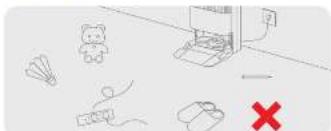
Before cleaning, please move away unstable, fragile, valuable or dangerous items, and clean up cables, clothes, toys, hard objects and sharp objects on the ground to avoid being entangled, scratched or knocked over by the robot and causing losses.
natural_image
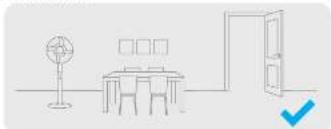
Simple line drawing of a dining table with a fan, chair, and door (no text or symbols)Given the door of the room to be cleaned, and put the furniture in its proper place to leave more space.
Note:
- When operating the robot for the first time, follow it around while closing to remove any potential obstacles in time. - Two auxiliary lights will provide auxiliary lighting in dimly environment.
Do not vacuum hard objects like stones, steel balls and toy parts, or share objects like construction waste, broken glass and nails, otherwise the ground may be scratched.
20
natural_image
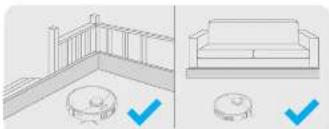
Architectural diagram showing a railing and a sofa with checkmarks indicating selection (no text or symbols present)Before cleaning, place a physical barrier at the edge of the stairs and sofa to ensure the secure and smooth operations of the robot.
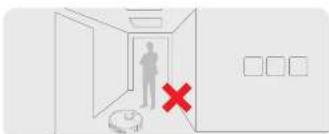
To prevent the robot from not recognizing areas that need to be cleaned, do not stand in front of the robot, threshold, hallway, or narrow places.
(1) 2017年公司利润分配预案
ove any potential obstacles in time.
[Non-Text]
like construction waste, broken glass and nails, otherwise the ground may be
Before Use
- Place the base station and Connect to an Electrical Outlet Place the base station in a location that is as open as possible with a good Wi-Fi signal. Remove any objects that are closer than 60° (1.5 m) from the front and 2° (5 cm) from either side of the base station. Insert the power port into the base station and plug it into the socket.
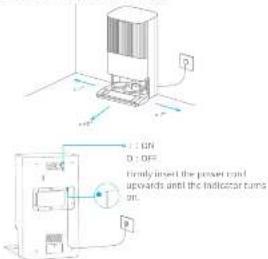
Note:
- Make sure that no objects might block the signaling area. - In prevent water slabs from wall rig and fluid flutes in layers, placing the base slabbing on the floor or membrane flutes is recommended.
- Remove the Protection of Washboard and Install the Ramp Extension Plate Remove the protection of washboard, and then put the washboard back into the base station downward in an infrared way. Then install the ramp extension plate down to the base station.
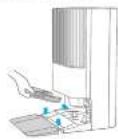
- Remove Robot Protections and Install the Side Brush and Mop Assembly
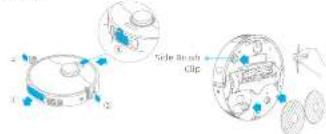
Note: install the side brush until it clicks into place.
EN Before Use
- Connect the Robot to the Base Station
Press and hold the button (on the robot for 5 seconds to turn it on). Place the robot onto the base station with the mode assembly facing toward the wash/mach. Then you will hear a voice notification when the robot successfully connects to the base station.
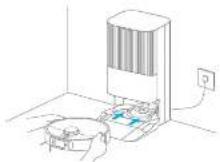
Note: It is recommended to fully charge the robot before its first use. When the robot cannot be turned on after the battery is depleted, manually connects the robot with the station to charge it.
- Add the Cleaning Solution (Cleaning Fluid Section)
(1) Remove the dust tank cover and pull out the soil allergen compartment. (2) Open the upper lid of the compartment and add the cleaning solution. (3) Close the lid of the compartment, put it hard into the base station, and then reinstall the dust tank cover. The cleaning solution will be added automatically while working.
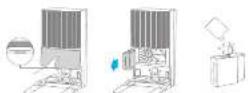
Note:
- Do not add any liquid other than the officially-approved cleaning solution
Install the auto-danger compartment until it clicks into place.
WARNING: to reduce the risk of the and electric shock due to internal component damage, use only Oreme Trading [Tianjin] Co., Ltd. cleaning fluid (for Dreametal 330 ultra) interfered for use with this appliance
- Add Water to the Clean Water Tank
Take out the clean water back from the base station and fill up the sand with clean water. Then install it back into the base station.
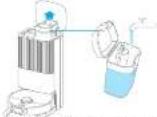
Note: Do not add hot water into the water tank, as this may cause the tank to become deformed.
Connecting with the Dreamehome App
- Download the Dreamhome App
near the eye code on the robot, or search "unisename" in the app store to download and install the app.
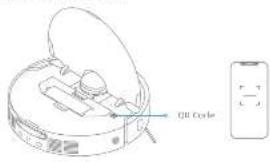
Note:
. Only 24 GRC (W=1) supported
Due to upgrades in the app software, the actual operations may differ from the directions in this manual. Please follow the instructions based on the current application.
- Add Device
open the dreamhome app, 60 * in the upper right corner, and scan the same QR code on the robot again to add the device. Please follow the prompts to finish the Wi-Fi connection.
Note: If you want to reset Wi-Fi, repeat step 2 and then follow the prompts to finish the Wi-Fi connection.
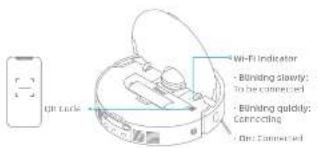

How to Use
Turn On/Off
Press and hold the button for 3 seconds to turn on the robot. The power indicator should be illuminated. Place the robot onto the base station, the robot should turn on automatically and begin charging. To turn off the robot, press the robot away from the base station and press and hold the button for 3 seconds.
Fast Mapping
After configuring the network for the first time, follow the instructions in the map to quickly create a map. The robot will start mapping without cleaning. When the robot returns to the base station, the mapping process has been completed and the map will be seen automatically.
Pause/Sleep
When the robot is running, across any button to pause it. If the robot is paused for more than 10 minutes, it automatically enters sleep more. All indicators on the robot will turn off. Press any button on the robot, or use the soap to wake up the robot.
Note: If the robot is painted and placed onto the base station, the current cleaning process will end.
Auto Resume Cleaning
If the battery is too low, the robot will automatically return to the base station to charge. After charging to the appropriate battery level, it will resume unfinished cleaning tasks.
Note: To use this function, processes on scale in the space.
Do Not Disturb (DND) Made
When the robot is set to the bus train disturbance (DNO) mode, the robot will be prevented from resuming cooling and the power indicator goes out. The DNO mode is disabled by default at the factory. You can use the app to exercise the DNO mode or modify the DNO period. The DNO period is 22:00-8:00 by default.
Name:
. The scheduled cleaning tasks will be performed as usual during the day
p.s. 49
- The total net become a close-up (which it has 12+ after the total partial sequence).
Spot Cleaning
when the robot is on standby, press briefly the button [to enable the spot cleaning mode. In this mode, the robot cleans a square-shaped area of 1.5 × 1.4 meters around it and returns to its starting point over the sand cleaning is completed.
Robot Restarting
If the robot stops responding or cannot be turned off, press and hold the button (for 10 seconds to forcefully turn it off. Then press and hold the button (for 3 seconds to turn the robot on.
How to Use
Vacuum and Moon
Note: When using the map assembly for the first time, the robot performs the "Vacuum and Map" test by default.
1. Star cleaning
Press the button on the robot, or use the app to move the robot start from the base station. Then the robot will plan the optimal cleaning route and perform the cleaning task based on the created map.
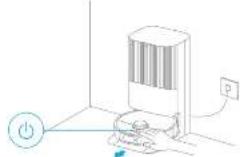
Note:
To ensure the robot easily returns to the base station after clearing, it is
The property will be closed at the end of the property, including
The map patches and the channel to the 'Routier island' mapping, which are perfectly.
Do not move the base station, the clean-water tank. Use used water tank, or the washboard during operation.
Hot water cleaning can be enabled in the app for mop pad and washboom base cleaning tasks, which applies to all modes. To prevent standing, do not touch the water outlet when the function is on.
2. Auto map washing
When cleaning, the robot will automatically return to the base station to wash crop parts based on the crop part necessary frequently specified in the space. The base station will automatically refill the robot's water tank and the robot will resume cleanup.
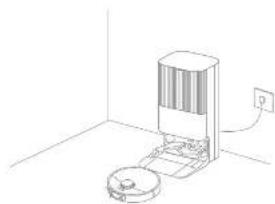
natural_image
Line drawing of a vacuum cleaner in a room with a battery and power outlet (no text or symbols)
How to Use
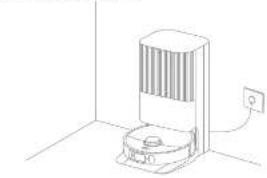
- Automatically empty the dust box and wash and dry the mop pads
After the roof finishes a cleaning task and returns to the base station to charge, the base station will automatically start emptying the road box. The it will wash and dry the mop pads.
natural_image
Line drawing of a robotic vacuum cleaner inside a room with an electrical outlet (no text or symbols)Notes
- if the auto empty function is turned off in the app, the base station will not automatically employ the dust box.
The base station will empty the dust box according to the setting in the app.
- Clean the used water tank
After the root has completed its tank, please clean the user water tank to prevent any odor.
Mop after Vacuuming
Enable the mapping after vacuuming function in the app, and the robot will automatically remove the mop assembly on the base station to vacuum the floor. After vacuuming is completed, the robot will return to the base station to install the mop assembly and the base station will automatically start omatifying the dust box. And then, the robot will start mapping after the main brush is raised.
Vacuum Only
Tensile the size running functions in the app, and the round will automatically remove the map assembly on top base station and start vacuuming.
Mop Only
enable the mapping function in the map, and the robot will automatically check if the map assembly is installed on the base station. If not, the robot will install the map assembly and start mapping after the main brush is raised.
Routine Maintenance
Parts
To keep the robot in good condition, it is recommended to refer to the accessory usage in the app or the following table for routine maintenance.
| Part Maintenance Frequency Replacement Period | ||
| Used water tank After each use | ||
| Clear water tank | Once every month / | / |
| Main brush Every 5 to 12 months | ||
| Bust bank's filter | Every 3 to 6 months | |
| Side brush | ||
| Map pad holder / | ||
| Wearborn | ||
| Base station's Signaling area | ||
| Base station's Changing contacts | ||
| Base station's Air empty vent | ||
| Grindirectional wheel | ||
| Edge sensor | ||
| Laser Distance Sensor (bits) | ||
| Low base sensor | ||
| Avivalial sensor | ||
| Part Maintenance Frequency Replacement Period | ||
| Carpel sensor | Once every month | / |
| Cliff sensors | ||
| LED auxiliary lights | ||
| Roofit's charging contacts | ||
| Bumper | ||
| Roofit's auto empty vent | ||
| Roofit's automatic water refilling inlet | ||
| Bottom of the robot | ||
| Dust box clean it asoped | ||
| Dust bag | / | n 8 weeks |
| Map pad every 1 to 3 months | ||
Note: The replacement frequency will depend on your usage of the robot. If an exception occurs due to several circumstances, the parts should be replaced.

Routine Maintenance
Washboard Base
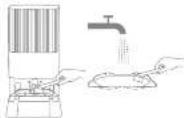
The base station will perform washboard self cleaning along with each mode pad cleaning. For deep cleaning, please refer to the following steps.
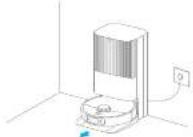
- Enable the washboard base cleaning function in the area, and the robot will exit the base station automatically. Take out the washboard and wait for water to fill the washboard base:
- Rinse the washboard with clean water, and use the cleaning tool to clean the washboard base.
- After a moment, the base station will automatically pump out the used water. Then wipe the washboard base with a soft and dry cloth, and put the washboard back into place.
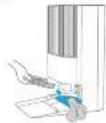
Name: When the cleaning test is done, put the sandwiched back into the lower station downwards in an inclined way.
- Use the app or briefly press the button on the button to make a return to the base station.
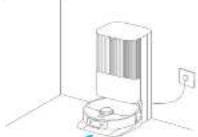
Note: During cleaning, do not make the robot return to the base station.
Routine Maintenance
Dust Bag
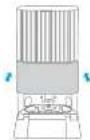
- Remove the dust tank cover and discard the dust bag.
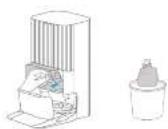
Note: Pulling upwards on the handle will seal the bag to prevent the dust and doors from accidentally falling out.
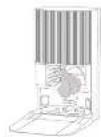
- install a new dust bag.
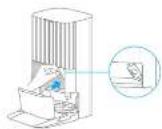
- Reinstall the curtain tree root, remove the dust and debris from the filter with a dry

Routine Maintenance
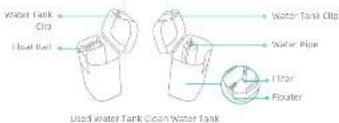
Used Water Tank
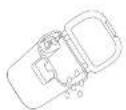
- Remove the water-water tank, open its cover and pour out the used water.
- Fill the used water tank with clean water, and use the provided cleaning tool to clean the inner wall of the used water tank.
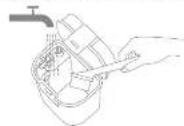
Note: The float ball in the used water tank is a movable part. Do not apply too much force when cleaning it to avoid damaging it.
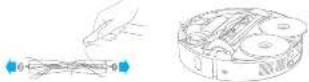
Main Brush
- Frag the brush guard dips towards remove the brush guard and lift the brush out of the robot.
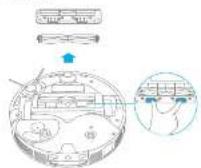
- Full out the brush covers at both ends of the brush as shown in the figures, use the provided cleaning tool to remove any hair tangled in the brush. Reinstall the brush covers on both ends of the brush, and then reinstall the brush. Press on the brush guard to lock it in place.
Routine Maintenance
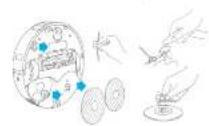
Side Brush & Map Pad Holder
tornaves and clean the side brush and crop pad holder.
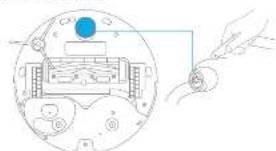
Omnidirectional Wheel
natural_image
Diagram of a device with a blue circular component and a hand holding a small electronic device (no text or symbols present)Note:
Use a tool such as a small screwdriver to separate the axis and tire of the omnidirectional wheel. Do not use excessive force.
- Rinse the omnidirectional wheel under the running water and put it back after crying it completely.
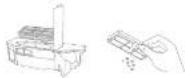
Dust Box
- Open the radio case and press the must hex clip to remove the dust box.
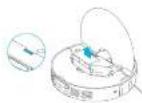
- Open the dust box side cover and employ the dust box as shown in the diagram.


Routine Maintenance
Filter
- Remove the filter and tap its basket gently.
Note: Do not attempt to clean the filter with a brush, a finger or sharp objects to prevent damage.
- Rinse the third box and filter with water and dry them completely before restating.
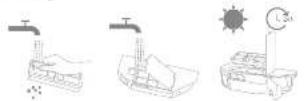
Note:
- Rinse the dust box and filter with clean water only. Do not use any detergent. Use the dust box and filter only when they are completely dry.
Robot Sensors and Charging Contacts
Wipe serrars and chapping contacts of the rubber by using a salt and dry cloth, as shown in the below figure:
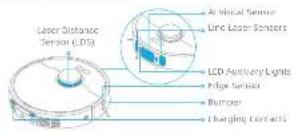
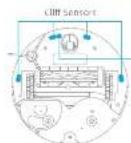
Note: A wel cloth tan damage sensitive elements within the rebel and the base station. Please use a dry cloth for cleaning.
Routine Maintenance
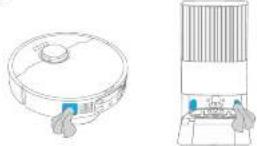
Charging Contacts
clean the charging contacts and the signaling area of the base station with a soft and dry cloth.
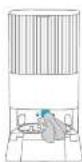
Auto-empty Vents
clear the auto empty parts of the labor and the base station with a salt and dry cloth.
Mop Pad
remove the moa part from the moa part hulce to replace it.

Battery
The robot contains a high-performance titanium battery back. Make sure that the battery remains well charged for daily use to maintain nominal battery performance. If the robot is not used for an extended period at time, turn it off and put it away. To prevent damage from over-discharging, change the robot at least once every three months.

Troubleshooting
| Problem solution | |
| The robot will not turn on. | The battery is low. Recharge the roost on the base and try again.The temperature of the battery is too low or too high. It is recommended to operate the appliance at a temperature between 32°F (30°C) and 194°F (46°C). |
| The robot will not change. | The base station is not connected to power, please make sure both ends of its power card are correctly plugged in.The contact between the charging contacts on the base station and the roost is poor, please clean the charging contacts.Check whether there is any foreign object at the connector of the robot and remove the foreign object if any. |
| The robot fails to connect to Wi-Fi. | The Wi-Fi network password is incurred. Make sure the password used to connect to your Wi-Fi network is correct.The robot does not support a 5 GHz Wi-Fi connection. Make sure the robot is connected to a 2.4 GHz Wi-Fi connection.The Wi-Fi signal is weak. Make sure the robot is in an area with good Wi-Fi coverage.The robot may not be ready to be configured. Please sell and re-enter the app, and then try again as instructed. |
| The robot cannot time and return to the base station. | The base station is disconnected from power or moved when the robot is not on it. Please connect the base station to the power supply or place the robot onto the base station on to charge.There are too many obstructions around the base station. Place the base station in a more open area.Moving the robot may cause a bit re-position itself, and it will recreate a bit of re-positioning fails. If the robot is too far from the base station, it might not be able to automatically return on its own, in which leave you still need to mentally place the robot onto the base station.Wipe the signaling area on the base station to remove dust or debris. |
| The robot gets stuck in front of the base station and cannot return to it. | Clear any obstruction within 2^ (5 cm) on the left and right sides in within 4^ (5 cm) in front of the base station to prevent the robot from aging blocks.The route for returning to change is blocked, e.g. the door is closed.The robot may slip if the floor in front of the base station is overly wet, if so, clean the excess water before trying again.It is recommended to move the base station to a different place and try again.Make sure the some extension plate is installed properly. |
| The robot will not turn off. | The robot cannot be turned off when it is charging. It is recommended to move the robot from the base station, and then press end hold the button (or 3 seconds to turn it off.If the robot cannot be turned off by performing step 1, access and hold the button 1) for 10 seconds to forcibly turn off the robot, if the problem lasts, please contact after-sales service. |
Troubleshooting
| Problem Solution | |
| The charging speed is slow. | It takes about 4.5 hours to fully charge the robot when its battery is slow.If you operate the robot at temperatures outside of the specified range, the charging speed will automatically slow down to extend the battery life.The charging contacts on both the robot and the base may be dirty, please wipe them with a dry cloth. |
| The noise increases while the robot is operating. | Check whether the dust box filter is slopped. If so, clean it or replace it.Al a bit object may be caught in the main brush or the dust flux. Check and remove any hard object.The main brush or the side brush may become angled. Check and remove any foreign objects.Switch the section mode to standard or Outlet. |
| The robot moves without following the set route. | Objects such as power cards and slippers should be organized before using the robot.Working on wet slippery surfaces causes the main wheel to slip. It is recommended to dry the wet places before using the robotwipe the line laser sensors and the Air visual sensor on the robot with a clean, soft cloth to keep them clean and unconstructed. |
| The robot misses the room to be cleaned. | Make sure that the doors of the rooms to be cleaned are open.Check whether there is a threshold higher than 0.6" 12 cml at the door of the room. The robot cannot climb over high thresholds or steps.The place in front of the room to be cleaned may be wet and slippery, causing the robot to slip and work abnormally.Please try drying the floor before using the robot. |
| The robot will not resume cleaning after charging. | Make sure that the robot is not sort to the Bo Vot Disturb (BAS) mode, which will prevent it from resuming cleaning.The robot will not resume cleaning after you manually place the robot on the base station or send the robot to change via the app at the button. |

Troubleshooting
| Problem solution | |
| The station cannot automatically empty the dust box. | Check whether the dust box in the dust tank is full.If the dust leg is not full, check whether there is any obstruction at the auto empty seat of the round, the base station, or the dust box if any, clean the blocked part in time. |
| The water level in the washboard is abnormal. | Check whether the seat on the used water tank is loose or not correctly installed, and manually reset it if so. If the problem persists, please contact the after-sales service team.Gently press down on the used water tank to make sure it is installed correctlyremove the washboard and check whether the sewage drain is blocked and clean it.Chock the cleaning solution. Do not aid any liquid other than the officially-approved cleaning solution. |
| The map part holder is raised abnormally. | Please remove the map pad holder to check if there is any foreign object stuck in it, and try to restart the round. If the problem persists, please contact the after-sales service team. |
| There is water under the clean water tank or around the sea. | When failing out the clean water tank, some water in the pipe may be left under the tank or around the sea. This is normal. Please wipe with a dry cloth. |
For additional services, please contact us via support us@desme.ath
Tel: +1 (855) 977-5177
Specifications
Robot
| Model RX56CE | |
| Charging Time Approx. 4.5 hours | |
| Rated Voltage 16.4 V | ... |
| Rated Power 75 kW | |
| Operation Frequency 2480-295.5 MHz | |
| Maximum Output Power <20 dBm | |
Base Station
| Model RCKE0304 | |
| Rated input 129 V, 60 Hz, 2.5 A (during dust emptying) | |
| Rated Output 20 V DC, 2 A | |
| Rated power (during hot water cleaning) | 1240 W |
Under normal use of condition, this equipment should be kept as
separation distance of at least 8" (20 cm) between the antenna and the body of the user.
(1) 2007. 10:45
Note: Rated Power (during hot water cleaning) is determined by the power
value during the representative period (water temperature 23°C/77°F).

natural_image
Simple line drawing of a room with scattered items including a teddy bear, umbrella, mouse, and a red X mark (no text or symbols)natural_image
Simple line drawing of a room layout with a desk, lamp, and door (no text or symbols)natural_image
Architectural line drawing showing a balcony and sofa with checkmark indicators (no text or symbols)Soil be W-12,4 GHz exp. only on charge
natural_image
Line drawing of a mechanical device with a mounted base and a wall-mounted power outlet (no text or symbols)natural_image
Line drawing of a microwave oven with a power outlet connected to the wall (no text or symbols)Екатеран
natural_image
Diagram of a computer monitor with a blue screen and control panel, no text or symbols presentRemarque
For the services applicable, we will only consider a support for all other telephone: +1 (666) 977-5177.

Spécifications
Rabat
natural_image
Simple line drawing of a dining area with table, lamp, and door (no text or symbols)natural_image
Architectural line drawing showing exterior wall and side view of a sofa with circular fixtures (no text or symbols)1. Empezar a limpian:
natural_image
Line drawing of a robotic vacuum cleaner in a room with a power outlet (no text or symbols)Como utilizar
natural_image
Line drawing of a microwave oven with a power outlet (no text or symbols)Note:
natural_image
Diagram of a device with a blue circular component and a hand holding a small object, no text or symbols present.Note: