303084 - Wifi repeater CSL - Free user manual and instructions
Find the device manual for free 303084 CSL in PDF.


| Product type | Wi-Fi Repeater |
| Brand | CSL |
| Model | 303084 |
| Wi-Fi standards | IEEE 802.11b/g/n |
| Frequency band | 2.4 GHz (2412-2472 MHz) |
| Maximum speed | Up to 300 Mbps |
| Transmission power (EIRP) | 18.87 dBm (0.0771 W) |
| Network interface | 1 LAN port (RJ45) |
| Operating modes | Repeater, Access Point |
| Configuration | Web Assistant (WPS, manual) |
| WLAN security | WPS, WPA/WPA2 encryption |
| LED indicators | Status LED (on/off/flashing) |
| Power supply | 100-240 V AC, 50/60 Hz |
| Reset | Reset button (7-8 seconds) |
| Firmware update | Via web interface |
| Package contents | WLAN Repeater, user manual |
| Compatibility | Any standard WLAN router |
| Standards and certifications | Directive 2014/53/EU, WEEE |
| WEEE number | DE 67896761 |
| Maintenance | Protect from humidity and high temperatures |
Frequently Asked Questions - 303084 CSL
User questions about 303084 CSL
0 question about this device. Answer the ones you know or ask your own.
Ask a new question about this device
Download the instructions for your Wifi repeater in PDF format for free! Find your manual 303084 - CSL and take your electronic device back in hand. On this page are published all the documents necessary for the use of your device. 303084 by CSL.
USER MANUAL 303084 CSL
ENG: Latest information, drivers, user manuals and data sheets can be found at www.ganzeinfach.de in our download area.
flowchart
graph LR
    A["ADSL Router"] -->|WAN| B["Device with WiFi"]
    B --> C["Device with Wi-Fi"]
    B --> D["Device with Wi-Fi"]
    B --> E["Device with Wi-Fi"]
    B --> F["Device with Wi-Fi"]
    B --> G["Device with Wi-Fi"]
    B --> H["Device with Wi-Fi"]
    B --> I["Device with Wi-Fi"]
    B --> J["Device with Wi-Fi"]
    B --> K["Device with Wi-Fi"]
    B --> L["Device with Wi-Fi"]
    B --> M["Device with Wi-Fi"]
    B --> N["Device with Wi-Fi"]
    B --> O["Device with Wi-Fi"]
    B --> P["Device with Wi-Fi"]
    B --> Q["Device with Wi-Fi"]
    B --> R["Device with Wi-Fi"]
    B --> S["Device with Wi-Fi"]
    B --> T["Device with Wi-Fi"]
    B --> U["Device with Wi-Fi"]
    B --> V["Device with Wi-Fi"]
    B --> W["Device with Wi-Fi"]
    B --> X["Device with Wi-Fi"]
    B --> Y["Device with Wi-Fi"]
    B --> Z["Device with Wi-Fi"]
    B --> AA["Device with Wi-Fi"]
    B --> AB["Device with Wi-Fi"]
    B --> AC["Device with Wi-Fi"]
    B --> AD["Device with Wi-Fi"]
    B --> AE["Device with Wi-Fi"]
    B --> AF["Device with Wi-Fi"]
    B --> AG["Device with Wi-Fi"]
    B --> AH["Device with Wi-Fi"]
    B --> AI["Device with Wi-Fi"]
    B --> AJ["Device with Wi-Fi"]
    B --> AK["Device with Wi-Fi"]
    B --> AL["Device with Wi-Fi"]
    B --> AM["Device with Wi-Fi"]
    B --> AN["Device with Wi-Fi"]
    B --> AO["Device with Wi-Fi"]
    B --> AP["Device with Wi-Fi"]
    B --> AQ["Device with Wi-Fi"]
    B --> AR["Device with Wi-Fi"]
    B --> AS["Device with Wi-Fi"]
    B --> AT["Device with Wi-Fi"]
    B --> AU["Device with Wi-Fi"]
    B --> AV["Device with Wi-Fi"]
    B --> AW["Device with Wi-Fi"]
    B --> AX["Device with Wi-Fi"]
    B --> AY["Device with Wi-Fi"]
Thank you for choosing a CSL product. Please read the following user manual carefully so as to be able to get the most from the product you have purchased.
1. Scope of delivery
- WiFi repeater
- User manual
2. Product details
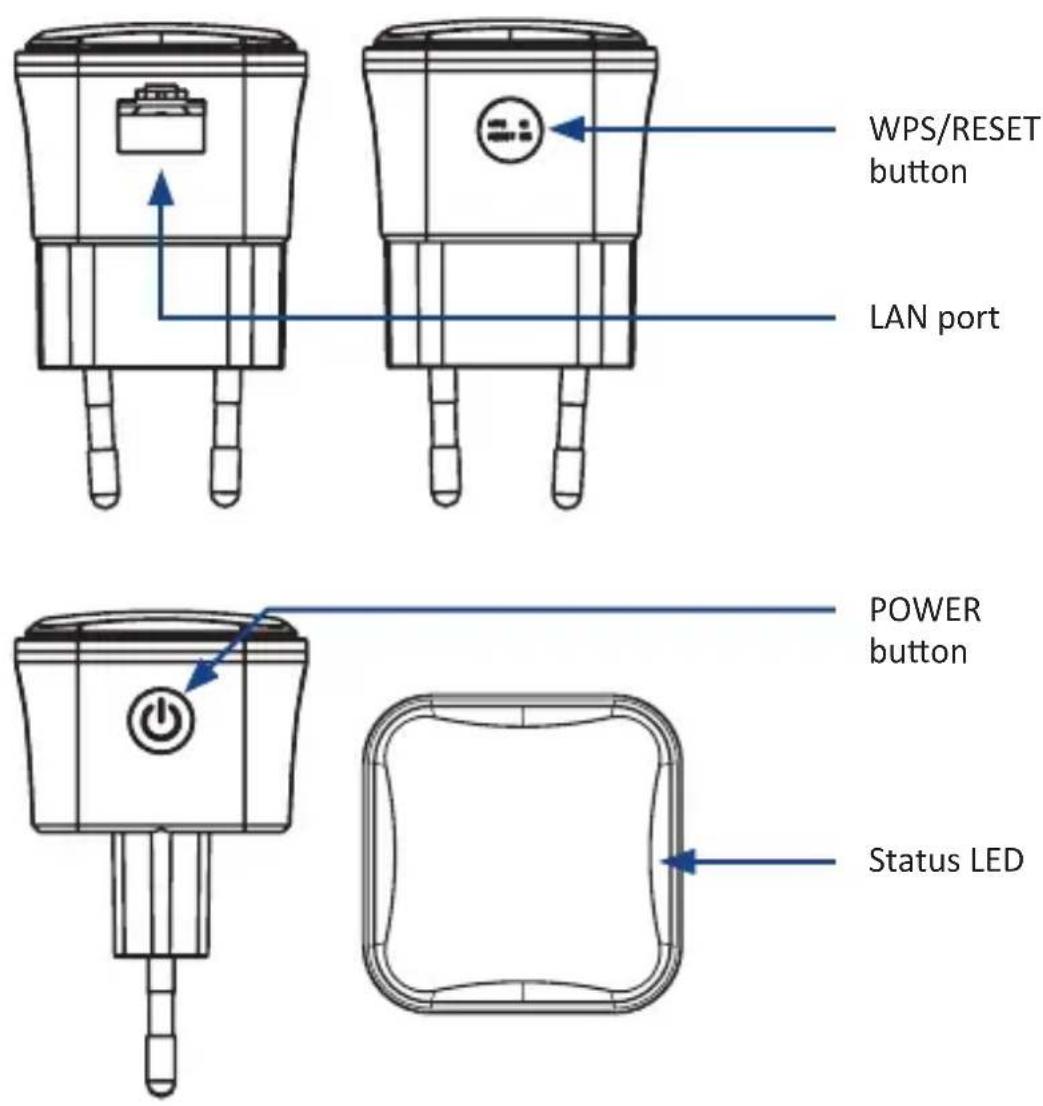
3. Display
| Status LED | On In operation (connection is established) |
| Off No power supply | |
| Flashing Establishing the connection |
4. Overview of the operating modes
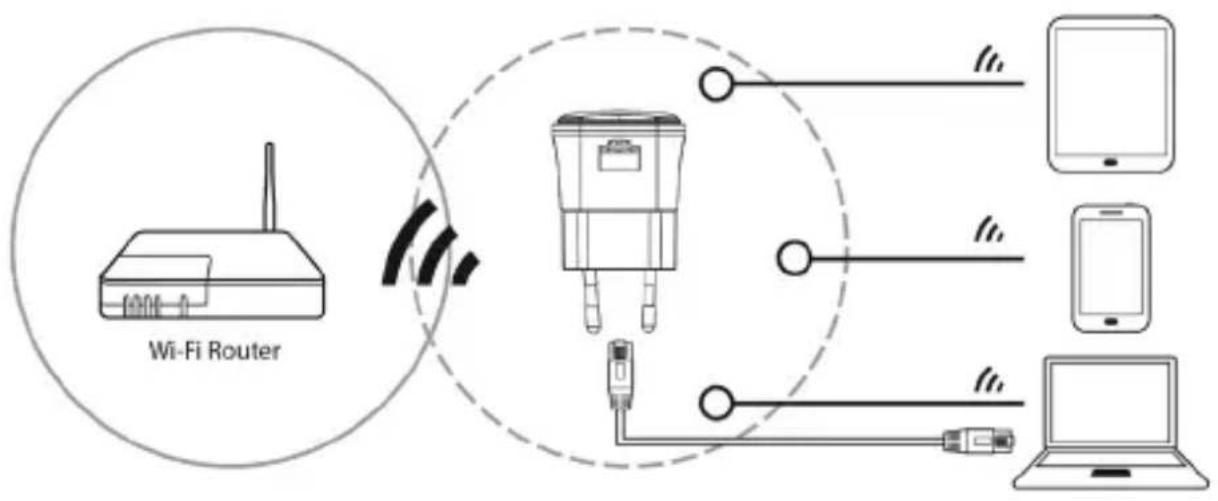
Repeater:
In the recommended "Repeater" mode, the WiFi Repeater copies and extends the range of your existing WiFi network or your existing WiFi access points. Network devices can be optionally connected via the WiFi or LAN interface of the WiFi Repeater.
flowchart
graph TD
    A["Wi-Fi Router"] -->|Wireless Signal| B["Switch"]
    B --> C["Device 1"]
    B --> D["Device 2"]
    B --> E["Device 3"]
    B --> F["Device 4"]
    B --> G["Device 5"]
    B --> H["Device 6"]
    B --> I["Device 7"]
    B --> J["Device 8"]
    style A fill:#f9f,stroke:#333
    style B fill:#ccf,stroke:#333
    style C fill:#cfc,stroke:#333
    style D fill:#fcc,stroke:#333
    style E fill:#cff,stroke:#333
    style F fill:#ffc,stroke:#333
    style G fill:#cfc,stroke:#333
    style H fill:#fcc,stroke:#333
    style I fill:#ffc,stroke:#333
    style J fill:#fcc,stroke:#333
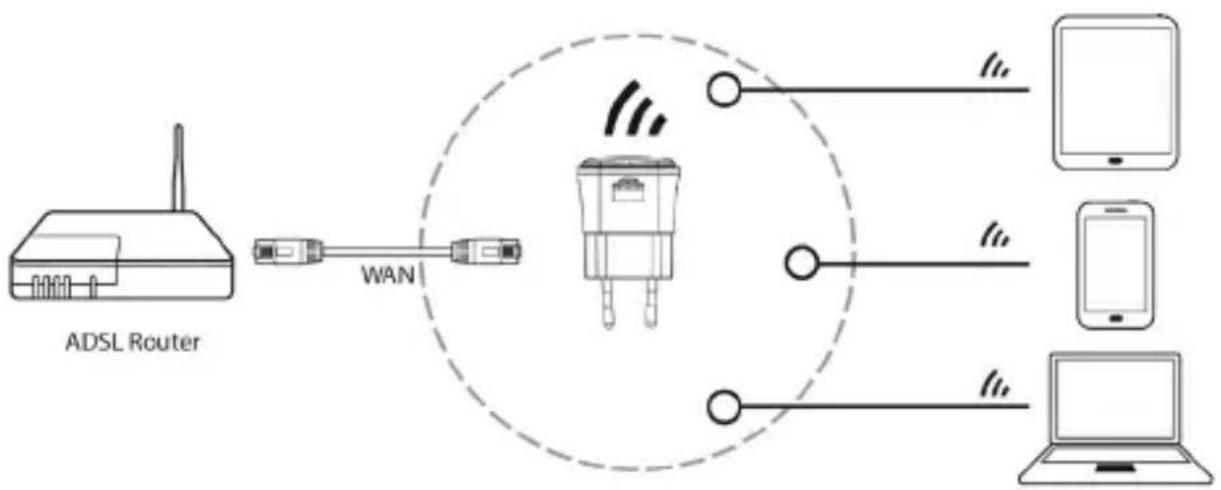
AP (Access Point): (Network knowledge is necessary)
In the "AP" (Access Point) mode, the WiFi Repeater acts as the access point through which several WiFi devices can connect to the device connected to the LAN/WAN interface (for example, router).
Thus, a WiFi function can be added to routers without WiFi functionality. Caution! WiFi devices connected to the WiFi Repeater do not get an IP address from the WiFi Repeater, but from the device connected to the LAN interface, such as a router with so-called DHCP server.
flowchart
graph LR
    A["ADSL Router"] -->|WAN| B["Device with WiFi"]
    B --> C["Device with Wi-Fi"]
    B --> D["Device with Wi-Fi"]
    B --> E["Device with Wi-Fi"]
    B --> F["Device with Wi-Fi"]
    B --> G["Device with Wi-Fi"]
    B --> H["Device with Wi-Fi"]
    B --> I["Device with Wi-Fi"]
    B --> J["Device with Wi-Fi"]
    B --> K["Device with Wi-Fi"]
    B --> L["Device with Wi-Fi"]
    B --> M["Device with Wi-Fi"]
    B --> N["Device with Wi-Fi"]
    B --> O["Device with Wi-Fi"]
    B --> P["Device with Wi-Fi"]
    B --> Q["Device with Wi-Fi"]
    B --> R["Device with Wi-Fi"]
    B --> S["Device with Wi-Fi"]
    B --> T["Device with Wi-Fi"]
    B --> U["Device with Wi-Fi"]
    B --> V["Device with Wi-Fi"]
    B --> W["Device with Wi-Fi"]
    B --> X["Device with Wi-Fi"]
    B --> Y["Device with Wi-Fi"]
    B --> Z["Device with Wi-Fi"]
    B --> AA["Device with Wi-Fi"]
    B --> AB["Device with Wi-Fi"]
    B --> AC["Device with Wi-Fi"]
    B --> AD["Device with Wi-Fi"]
    B --> AE["Device with Wi-Fi"]
    B --> AF["Device with Wi-Fi"]
    B --> AG["Device with Wi-Fi"]
    B --> AH["Device with Wi-Fi"]
    B --> AI["Device with Wi-Fi"]
    B --> AJ["Device with Wi-Fi"]
    B --> AK["Device with Wi-Fi"]
    B --> AL["Device with Wi-Fi"]
    B --> AM["Device with Wi-Fi"]
    B --> AN["Device with Wi-Fi"]
    B --> AO["Device with Wi-Fi"]
    B --> AP["Device with Wi-Fi"]
    B --> AQ["Device with Wi-Fi"]
    B --> AR["Device with Wi-Fi"]
    B --> AS["Device with Wi-Fi"]
    B --> AT["Device with Wi-Fi"]
    B --> AU["Device with Wi-Fi"]
    B --> AV["Device with Wi-Fi"]
    B --> AW["Device with Wi-Fi"]
    B --> AX["Device with Wi-Fi"]
    B --> AY["Device with Wi-Fi"]
    B --> AZ["Device with Wi-Fi"]
    B --> BA["Device with Wi-Fi"]
    B --> BB["Device with Wi-Fi"]
    B --> BC["Device with Wi-Fi"]
    B --> BD["Device with Wi-Fi"]
    B --> BE["Device with Wi-Fi"]
    B --> BF["Device with Wi-Fi"]
    B --> BG["Device with Wi-Fi"]
    B --> BH["Device with Wi-Fi"]
    B --> BI["Device with Wi-Fi"]
    B --> BJ["Device with Wi-Fi"]
    B --> BK["Device with Wi-Fi"]
    B --> BL["Device with Wi-Fi"]
    B --> BM["Device with Wi-Fi"]
    B --> BN["Device with Wi-Fi"]
5. Repeater mode setup via WPS (recommended)
Requirements:
The router or the access point of the WiFi network to be expanded should support WPS. WPS has to be enabled for this purpose.
The SSID (network name) has to be visible. If a MAC address filtering is enabled, then it is absolutely necessary to enter the MAC address of the WiFi Repeater as an exception.
First, check if your wireless router supports the "WPS" function. If you are not sure, refer to the user manual of the device.
Proceed as follows to setup the Repeater:
- Connect the device to a properly installed socket.
- Press the WPS button at the top of the Repeater for about 1-2 seconds. The status LED now flashes for about two minutes.
- You have to enable the WPS function of your router within these two minutes. Please read the user manual of your router for additional details.
The WiFi Repeater automatically connects to your wireless router and copies the network key and the SSID from the settings. You can access the wireless repeater using the same SSID and the network key of your wireless router. The mobile device automatically selects the access point depending on the signal strength.
5.1 Manual repeater mode setup (wireless)
- Connect the device to a properly installed socket.
- Click on the network icon ("or") in the lower right side of your desktop. You can see the signal of the WiFi Repeater there (CSL_303084). Click on "Connect" and wait for a few seconds till you are connected. If a password is required, then it is "12345678".
- Open your Internet browser and type "http://192.168.10.1" or "http://ap.setup" in the address line and confirm with "Enter".
Note: If you are unable to access the Web interface by entering these addresses, you should reset your WiFi Repeater once. To do this press the "Reset button" for approx. eight seconds. Then try it again. Fixed IP addresses can prevent access.
- The Web interface is displayed once you login via the Web browser. Enter the user name and password. The default details are as follows: User name: "admin" and password: "admin"
The Web interface of the Repeater is displayed once you login successfully. Click on "Repeater Wizard".
A list of available wireless devices is then displayed. Select the desired network by clicking the box in the "Choose" field. After selecting a WiFi network, you need to enter the security key for your network under "Key" and the desired name of your network under "2.4G SSID".
Click on "Save" after completing the entry. Once the device is restarted, the WiFi Repeater can be accessed with the corresponding SSID and the corresponding security key.
5.2 Connecting via LAN
To set up the WiFi Repeater via LAN, connect your computer using a LAN cable to the LAN interface of the WiFi Repeater. Manual IP settings can prevent the connection here as well.
5.3 Accessing the web page
After connecting to the WiFi Repeater, you can access the WiFi Repeater via an Internet browser in order to configure it.
Enter "http://ap.setup" in the browser's address line and press enter. If this doesn't work, configure your computer as given in Chapter 5.4 and instead type the IP address 192.168.10.1 in the browser as the default IP address of the WiFi Repeater.
You can then configure the WiFi Repeater appropriately. It may be necessary to restart after changing the settings.
5.4 IP address setting of the computer (good networking knowhow is required)
The procedure for manually setting the IP address is explained below using the example of Windows 7 Configure your network card or your network adapter manually as follows:
Click the right mouse button on the icon in the taskbar and select "Open network and sharing centre".
Problembehandlung
In the new window for "Connections", click on the network card or the WiFi network adapter via which you want to connect to the WiFi Repeater.
Note: You can connect exclusively to the WiFi Repeater via the LAN interface in Client mode for configuring.
Now select the "Properties" option.

Eigenschaften

Deaktivieren
Diagnose
Double-click on "Internet protocol version 4 (TCP/IPv4)".
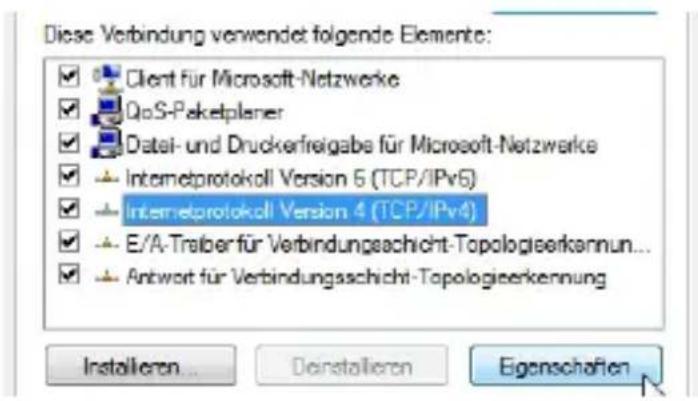
Configure the IP address of your computer to 192.168.10.X (where X is an integer between 2 and 252), and the subnet mask to 255.255.255.0. Determine the gateway and the IP address of the DNS server (according to the settings in your router). You can leave the two address fields blank if you do not know the gateway and DNS server. Click on "OK".
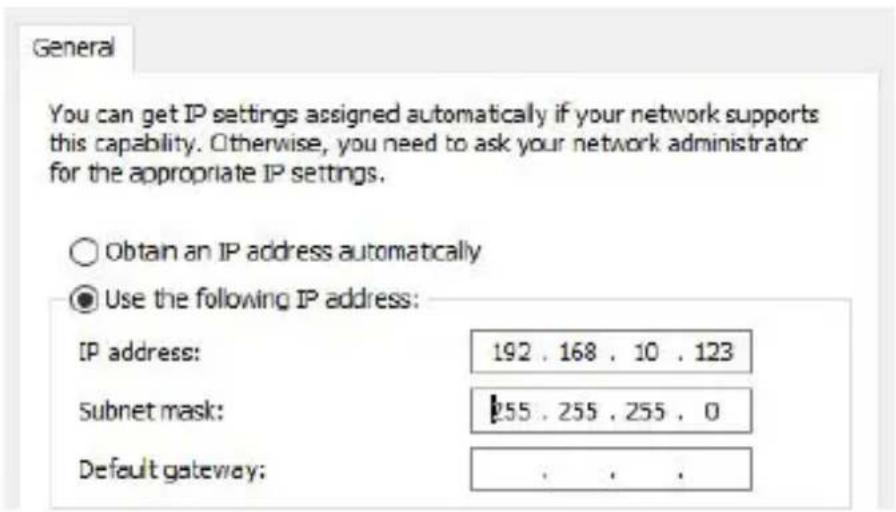
Remember to set the IP address and the DNS server address back to "get automatically" after completing the configuration.
6. Access Point mode
Connect the WiFi Repeater using a LAN cable to the LAN port on your device, to which you want to add the WiFi function (E.g. router).
6.1 AP mode setup
- Connect the device to a properly installed socket.
- Click on the network icon ("or") in the lower right side of your desktop. You can see the signal of the WiFi Repeater there (CSL_303084). Click on "Connect" and wait for a few seconds till you are connected.
- Open your Internet browser and type 'http://192.168.10.1' or "http://ap.setup" in the address line and confirm with "Enter".
Note: If you are unable to access the Web interface by entering these addresses, you should reset your WiFi Repeater. To do this press the "Reset button" for approx. eight seconds. Then try again.
Click on "AP Wizard" after logging into the Web interface. You can then select the SSID, the encryption method, the security key and the corresponding channel and save it by clicking on "Save".
The WiFi Repeater restarts. After restarting, you can access the Repeater using the data entered previously.
7. Other settings via the WEB browser
Connect the WiFi Repeater to a properly installed power socket. Connect your DSL modem to the LAN port of the Repeater using a RJ45 cable.
Connect the WiFi Repeater via WiFi or using a LAN cable to the network port of your Repeater.
Access the repeater as described in section 5.1 and open the web interface.
In the "WiFi Settings" area, you can configure these wireless settings as you like (e.g. SSID, channel, etc.).
7.1 LAN settings
In these settings, you have the option to change the IP address or subnet mask of the repeater.
7.2 Changing the password / user name of the Web interface
Click on "Password Settings" to change the password of the Web interface. You can change the user name and password in this menu.
7.3 Taking a backup / restoring and resetting to factory settings
Click on the menu item "Save / Import Settings" to open the backup menu.
In this menu, you can restore existing backups (import) or create a backup file with the current settings (export).
If you want to reset the device to factory settings, press the "Reset" button on the device for about 7-8 seconds or press the menu item "Save / Import Settings" on the "Reset" button.
7.4 Upgrading the firmware
Click on "Upgrade Firmware" to update the firmware.
Press the "Select File" button to upload the desired firmware. Press the "Upload" button after selecting the file.
Note: Never close your Internet browser during an update. Also, do not disconnect your computer from the network. If the upload is interrupted, then the firmware is corrupted and the device may not work properly.
7.5 Restarting the device
Press the "Restart Device" button to restart the device. A pop-up menu is displayed in which you can confirm the device restart or cancel it.
Alternatively, you can switch the device on or off by pressing the "Power" button on your device.
7.6 Status LED
You can determine whether the status LED should be generally switched on or off in the menu item "LED Control".
8. Frequently asked questions (FAQ)
1. What should I do if my router does not have WPS function?
Follow the instructions in Chapter 5.
Note: Networking know-how is necessary to do this.
2. How can I reset the device back to factory settings?
Press the "Reset button" for about 7-8 seconds. Alternatively, you can also reset the device using the web interface.
3. Why can't I open the web interface, although I have entered "192.168.10.1" in the browser?
Make sure that your device, using which you have opened the web interface, is connected to the repeater network and that manual network settings are not preventing this.
4. The repeater signal is low and gets disconnected sometimes.
Ensure that the repeater is placed in an ideal position between the router and device and you get at least three reception bars in your device.
9. Technical data
| Input voltage 100-240V AC 50/60Hz | |
| Frequency range | IEEE 802.11b/g/n HT 20 : 2412MHz-2472MHzIEEE 802.11n HT40 : 2422MHz-2462MHz |
| Transmission power (EIRP) | 18.87dBm (0.0771W) |
| WiFi data rates up to 300Mbps | |
| Modulation method | IEEE 802.11b: DSSS (CCK)IEEE 802.11g: OFDM (64QAM, 16QAM, QPSK, BPSK)IEEE 802.11n HT20/HT40: OFDM (64QAM, 16QAM, QPSK, BPSK) |
10. Safety instructions and disclaimer
Never try to open the device to repair or make modifications. Avoid contact with the mains voltage. Do not short-circuit the product. The device is not waterproof, hence please use it only in dry surroundings. Protect it from high humidity, water and snow. Keep the device away from high temperatures.
Do not expose the device to sudden changes in temperature or strong vibrations, as this could damage the electronic components. Check the device for any damage before using it. The device should not be used if it was subject to impact or has been damaged in some other manner. Please comply with the local regulations and restrictions. Do not use the device for purposes other than those described in the user manual. This product is not a toy.
Keep it out of the reach of children or mentally disabled persons. Any repair or modifications to the device, which is not carried out by the original supplier will void any warranty and guarantee claims. The device should only be used by those who have read and understood this user manual. The specifications of the device may be changed without prior intimation.
11. Disposal instructions
In line with the European WEEE directive, electrical and electronic devices should not be disposed of along with domestic waste. Their components have to be separately sent for recycling or disposal, because improper disposal of toxic and dangerous components may permanently damage the environment. According to the Electrical and Electronic Equipment Act (ElektroG), you are obliged (as a consumer) to return (free of charge) all electrical and electronic devices to the manufacturer, the point of sale, or public collection points at the end of their service life. The relevant local laws regulate the details in this regard.
The symbol displayed on the product, in the user manual or/and on the packaging refers to these regulations. With this manner of sorting, recycling and disposal of used devices, you make an important contribution towards protecting our environment.

WEEE directive: 2012/19/EU WEEE Register no.: DE 67896761
The company WD Plus GmbH hereby certifies that the device 303084/20190717SZ207 complies with the fundamental requirements and all other relevant stipulations of the directive 2014/53/EU. A complete conformity statement can be obtained from: WD Plus GmbH, Wohlenbergstraße 16, 30179 Hannover, http://downloads.ganzeinfach.de/search/model/303084
flowchart
graph LR
    A["ADSL Router"] -->|WAN| B["Device with WiFi"]
    B --> C["Device with Wi-Fi"]
    B --> D["Device with Wi-Fi"]
    B --> E["Device with Wi-Fi"]
    B --> F["Device with Wi-Fi"]
    B --> G["Device with Wi-Fi"]
    B --> H["Device with Wi-Fi"]
    B --> I["Device with Wi-Fi"]
    B --> J["Device with Wi-Fi"]
    B --> K["Device with Wi-Fi"]
    B --> L["Device with Wi-Fi"]
    B --> M["Device with Wi-Fi"]
    B --> N["Device with Wi-Fi"]
    B --> O["Device with Wi-Fi"]
    B --> P["Device with Wi-Fi"]
    B --> Q["Device with Wi-Fi"]
    B --> R["Device with Wi-Fi"]
    B --> S["Device with Wi-Fi"]
    B --> T["Device with Wi-Fi"]
    B --> U["Device with Wi-Fi"]
    B --> V["Device with Wi-Fi"]
    B --> W["Device with Wi-Fi"]
    B --> X["Device with Wi-Fi"]
    B --> Y["Device with Wi-Fi"]
    B --> Z["Device with Wi-Fi"]
    B --> AA["Device with Wi-Fi"]
    B --> AB["Device with Wi-Fi"]
    B --> AC["Device with Wi-Fi"]
    B --> AD["Device with Wi-Fi"]
    B --> AE["Device with Wi-Fi"]
    B --> AF["Device with Wi-Fi"]
    B --> AG["Device with Wi-Fi"]
    B --> AH["Device with Wi-Fi"]
    B --> AI["Device with Wi-Fi"]
    B --> AJ["Device with Wi-Fi"]
    B --> AK["Device with Wi-Fi"]
    B --> AL["Device with Wi-Fi"]
    B --> AM["Device with Wi-Fi"]
    B --> AN["Device with Wi-Fi"]
    B --> AO["Device with Wi-Fi"]
    B --> AP["Device with Wi-Fi"]
    B --> AQ["Device with Wi-Fi"]
    B --> AR["Device with Wi-Fi"]
    B --> AS["Device with Wi-Fi"]
    B --> AT["Device with Wi-Fi"]
    B --> AU["Device with Wi-Fi"]
    B --> AV["Device with Wi-Fi"]
    B --> AW["Device with Wi-Fi"]
    B --> AX["Device with Wi-Fi"]
    B --> AY["Device with Wi-Fi"]
flowchart
graph LR
    A["ADSL Router"] -->|WAN| B["Device with WiFi"]
    B --> C["Device with Wi-Fi"]
    B --> D["Device with Wi-Fi"]
    B --> E["Device with Wi-Fi"]
    C --> F["Laptop"]
    D --> G["Laptop"]
    E --> H["Laptop"]

- Scope of delivery
- Product details
- Display
- Overview of the operating modes
- Repeater:
- AP (Access Point): (Network knowledge is necessary)
- Repeater mode setup via WPS (recommended)
- Manual repeater mode setup (wireless)
- Connecting via LAN
- Accessing the web page
- IP address setting of the computer (good networking knowhow is required)
- Problembehandlung
- Eigenschaften
- Deaktivieren
- Diagnose
- Access Point mode
- AP mode setup
- Other settings via the WEB browser
- LAN settings
- Changing the password / user name of the Web interface
- Taking a backup / restoring and resetting to factory settings
- Upgrading the firmware
- Restarting the device
- Status LED
- Frequently asked questions (FAQ)
- What should I do if my router does not have WPS function?
- How can I reset the device back to factory settings?
- Why can't I open the web interface, although I have entered "192.168.10.1" in the browser?
- The repeater signal is low and gets disconnected sometimes.
- Technical data
- Safety instructions and disclaimer
- Disposal instructions
Brand : CSL
Model : 303084
Category : Wifi repeater