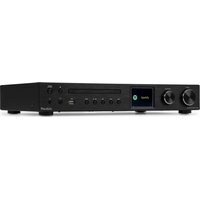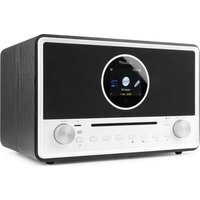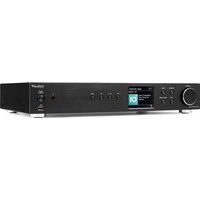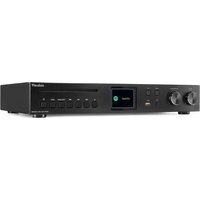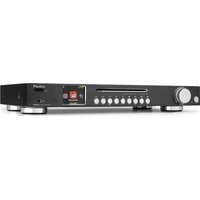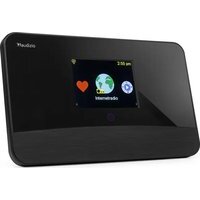
Livorno - Radio Audizio - Free user manual and instructions
Find the device manual for free Livorno Audizio in PDF.


User questions about Livorno Audizio
0 question about this device. Answer the ones you know or ask your own.
Ask a new question about this device
Download the instructions for your Radio in PDF format for free! Find your manual Livorno - Audizio and take your electronic device back in hand. On this page are published all the documents necessary for the use of your device. Livorno by Audizio.
USER MANUAL Livorno Audizio
UNPACKING INSTRUCTION....6
POWERSUPPLY 6
CONTROLS 6
REMOTE CONTROL....6
USING REMOTE CONTROL....7
BEFORE YOU START 7
GETTING STARTED....7
NETWORK SETUP....7
OVERVIEW OF FEATURES AND FUNCTIONS 8
CLOCK STYLE....8
INTERNET RADIO 8
MEDIA CENTRE....9
DAB + 10
FM RADIO 10
BT PLAYBACK 10
ALARM SETTING....11
SLEEP TIMER....11
CONFIGURATION....11
REMOTE CONTROL VIA PC / SMART PHONE....13
NEDERLANDS....15
UITPAKKEN 16
AANSLUITSPANNING 16
BEDIENING 16
AFSTANDSBEDIENING 16
GEBRUIK VAN DE AFSTANDSBEDIENING....17
VOORDAT JE BEGINT 17
AAN DE SLAG GAAN....17
NETWERK INSTELLING....17
OVERZICHT VAN KENMERKEN EN FUNCTIES....18
KLOKSTIJLEN 18
INTERNET RADIO 18
MEDIA CENTRE 20
DAB+ 20
FM RADIO 20
BT AFSPELEN 21
ALARM INSTELLEN....21
SLEEP TIMER 21
CONFIGURATIE....21
BEDIENING VIA PC/SMARTPHONE 24
DEUTSCH....25
AUSPACKEN 26
NETZANSCHLUSS 26
BEDIENUNG 26
FERNBEDIENUNG......26
Congratulations to the purchase of this Audizio product. Please read this manual thoroughly prior to using the unit in order to benefit fully from all features.
Read the manual prior to using the unit. Follow the instructions in order not to invalidate the warranty. Take all precautions to avoid fire and/or electrical shock. Repairs must only be carried out by a qualified technician in order to avoid electrical shock. Keep the manual for future reference.
- Prior to using the unit, please ask advice from a specialist. When the unit is switched on for the first time, some smell may occur. This is normal and will disappear after a while.
- The unit contains voltage carrying parts. Therefore do NOT open the housing.
- Do not place metal objects or pour liquids into the unit This may cause electrical shock and malfunction.
- Do not place the unit near heat sources such as radiators, etc. Do not place the unit on a vibrating surface. Do not cover the ventilation holes.
- The unit is not suitable for continuous use.
- Be careful with the mains lead and do not damage it. A faulty or damaged mains lead can cause electrical shock and malfunction.
- When unplugging the unit from a mains outlet, always pull the plug, never the lead.
- Do not plug or unplug the unit with wet hands.
- If the plug and/or the mains lead are damaged, they need to be replaced by a qualified technician.
- If the unit is damaged to such an extent that internal parts are visible, do NOT plug the unit into a mains outlet and DO NOT switch the unit on. Contact your dealer. Do NOT connect the unit to a rheostat or dimmer.
- To avoid fire and shock hazard, do not expose the unit to rain and moisture.
- All repairs should be carried out by a qualified technician only.
- Connect the unit to an earthed mains outlet (220-240Vac/50Hz) protected by a 10-16A fuse.
- During a thunderstorm or if the unit will not be used for a longer period of time, unplug it from the mains. The rule is: Unplug it from the mains when not in use.
- If the unit has not been used for a longer period of time, condensation may occur. Let the unit reach room temperature before you switch it on. Never use the unit in humid rooms or outdoors.
-
To prevent accidents in companies, you must follow the applicable guide lines and follow the instructions.
-
Do not repeatedly switch the fixture on and off. This shortens the life time.
- Keep the unit out of the reach of children. Do not leave the unit unattended.
- Do not use cleaning sprays to clean switches. The residues of these sprays cause deposits of dust and grease. In case of malfunction, always seek advice from a specialist.
- Do not force the controls.
- This unit is with speaker inside which can cause magnetic field. Keep this unit at least 60cm away from computer or TV.
- If this product have a built-in lead-acid rechargeable battery. Please recharge the battery every 3 months if you are not going to use the product for a long period of time. Otherwise the battery may be permanently damaged.
- If the battery is damaged please replace with same specifications battery. And dispose the damaged battery environment friendly.
- If the unit has fallen, always have it checked by a qualified technician before you switch the unit on again.
- Do not use chemicals to clean the unit. They damage the varnish. Only clean the unit with a dry cloth.
- Keep away from electronic equipment that may cause interference.
- Only use original spares for repairs, otherwise serious damage and/or dangerous radiation may occur.
- Switch the unit off prior to unplugging it from the mains and/or other equipment. Unplug all leads and cables prior to moving the unit.
- Make sure that the mains lead cannot be damaged when people walk on it. Check the mains lead before every use for damages and faults!
- The mains voltage is 220-240Vac/50Hz. Check if power outlet match. If you travel, make sure that the mains voltage of the country is suitable for this unit.
- Keep the original packing material so that you can transport the unit in safe conditions.

This mark attracts the attention of the user to high voltages that are present inside the housing and that are of sufficient magnitude to cause a shock hazard.

This mark attracts the attention of the user to important instructions that are contained in the manual and that he should read and adhere to.
The unit has been certified CE. It is prohibited to make any changes to the unit. They would invalidate the CE certificate and their guarantee!
NOTE: To make sure that the unit will function normally, it must be used in rooms with a temperature between 5^ C/41°F and 35^ C/95°F.

Electric products must not be put into household waste. Please bring them to a recycling centre. Ask your local authorities or your dealer about the way to proceed. The specifications are typical. The actual values can slightly change from one unit to the other. Specifications can be changed without prior notice.
Do not attempt to make any repairs yourself. This would invalid your warranty. Do not make any changes to the unit. This would also invalid your warranty. The warranty is not applicable in case of accidents or damages caused by inappropriate use or disrespect of the warnings contained in this manual. Audizio cannot be held responsible for personal injuries caused by a disrespect of the safety recommendations and warnings. This is also applicable to all damages in whatever form.
UNPACKING INSTRUCTION
CAUTION! Carefully unpack the box upon receipt. Check the contents to ensure that all parts are present and have been received in good condition. Notify the shipper immediately and retain packaging material if any parts appear damaged from shipping or the package itself shows signs of mishandling. Save the package and all packaging materials. If the product must be returned, it is important that the product is returned in the original factory box and packaging. If the device has been exposed to drastic temperature fluctuation (e.g. after transportation), do not switch it on immediately. The arising condensation water might damage your device. Leave the device switched off until it has reached room temperature.
POWERSUPPLY
The label on the back/under side of the product indicates the mains voltage to which it must be connected. Check that the mains voltage corresponds to this. Any other voltage than the one indicated may cause irreparable damage to the unit. The unit must also be connected directly to the mains voltage and no dimmer or adjustable power supply may be used.

Always connect the device to a protected circuit (circuit breaker or fuse). Make sure the device has an appropriate electrical ground to avoid the risk of electrocution or fire.
CONTROLS
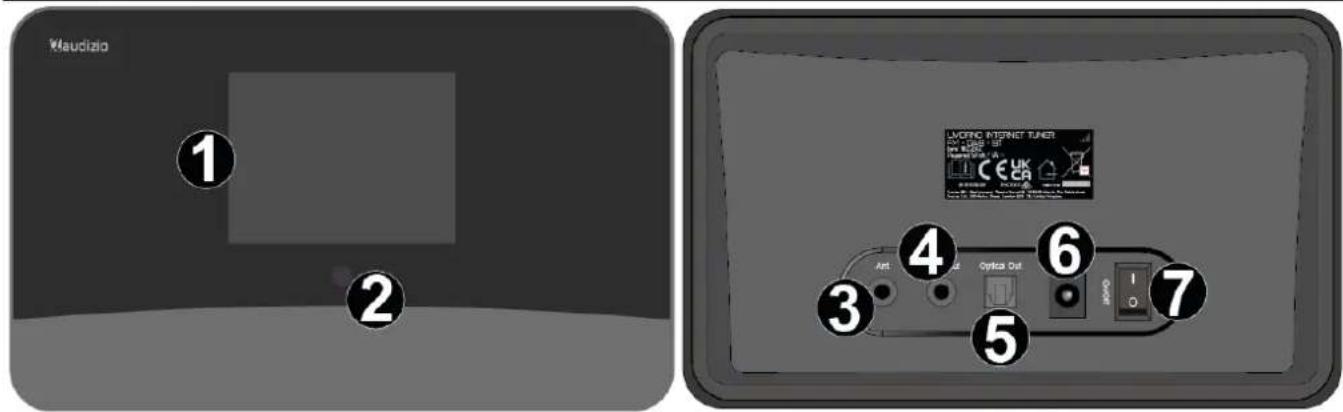
text_image
Maudizio 1 2 3 4 5 6 7 LIVORC INTERNET TUNER LIVORC INTERNET TUNER LIVORC INTERNET TUNER LIVORC INTERNET TUNER LIVORC INTERNET TUNER LIVORC INTERNET TUNER LIVORC INTERNET TUNER LIVORC INTERNET TUNER LIVORC INTERNET TUNER LIVORC INTERNET TUNER LIVORC INTERNET TUNERA LIVORC INTERNET TUNERA LIVORC INTERNET TUNERA LIVORC INTERNET TUNERA LIVORC INTERNET TUNERA LIVORC INTERNET TUNERA LIVORC INTERNET TUNERA LIVORC INTERNET TUNERA LIVORC INTERNET TUNERA LIVORC INTERNET TUNERA LIVORC INTERNET TUNER LIVORC INTERNET TUNERA LIVORC INTERNET TUNERA LIVORC INTERNET TUNERA LIVORC INTERNET TUNERA LIVORC INTERNET TUNERA LIVORC INTERNET TUNERA LIVORC INTERNET TUNERA LIVORC INTERNET TUNERA LIVORC INTERNET TUNER LIVORC INTERNET TUNER LIVORC INTERNET TUNERA LIVORC INTERNET TUNERA LIVORC INTERNET TUNERA LIVORC INTERNET TUNERA LIVORC INTERNET TUNERA LIVORC INTERNET TUNERA LIVORC INTERNET TUNERA LIVORC INTERNET TUNER LIVORC INTERNET TUNERA LIVORC INTERNET TUNER LIVORC INTERNET TUNERA LIVORC INTERNET TUNERA LIVORC INTERNET TUNERA LIVORC INTERNET TUNERA LIVORC INTERNET TUNERA LIVORC INTERNET TUNERA LIVORC INTERNET TUNERA LIVORC INTERNET TUNER LIVORC INTERNET TUNER LIVORC INTERNET TUNER LIVORC INTERNET TUNERA LIVORC INTERNET TUNERA LIVORC INTERNET TUNERA LIVORC INTERNET TUNERA LIVORC INTERNET TUNERA LIVORC INTERNET TUNERA LIVORC INTERNET TUNER LIVORC INTERNET TUNERA LIVORC INTERNET TUNERA LIVORC INTERNET TUNER LIVORC INTERNET TUNERA LIVORC INTERNET TUNERA LIVORC INTERNET TUNERA LIVORC INTERNET TUNERA LIVORC INTERNET TUNERA- Display
- Infrared remote control sensor
- Wired antenna input socket
- Audio output
3.5mm jack output socket to connect external speakers - Optical output
Digital optical output connector - DC power input
- Power
On/off switch
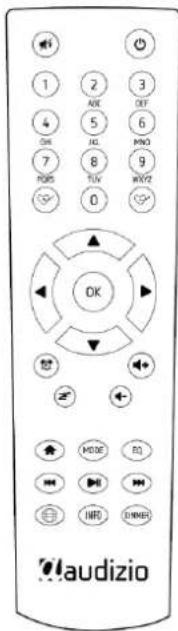
REMOTE CONTROL
☐: Press to toggle between standby and operation
Mute
0-9: Input index number on the list / input characters for WiFi password
❤️: Preset the current playing station
▲ : Cursor up
◀: Cursor left / back to previous menu
: Alarm button
Z: Sleep Timer
Mode: Switch between radio modes
Home
: Previous station on the list/previous track on media sources
: Show network info of the radio unit
: Recall the preset list
OK: Confirm button
▶ : Cursor right
▼: Cursor down
Vol+: Volume up
Vol-: Volume down
EQ: Equalizer
▶ Next station on the list/next track on media sources
▶ Play/pause for media sources, Play/stop for Internet radio
Dimmer: Access the Dimmer menu to adjust the brightness of the display
Info: Press to cycle through the station's information
text_image
1 2 3 4 5 6 7 8 9 10 11 12 OK OK MOUT MIND MIND MIND laudizioUSING REMOTE CONTROL
On the alpha-numeric keypad, press a button repeatedly to cycle through the characters assigned to each button. Refer to the following list. To input a character, highlight it and press the [▶] button to confirm and input the next character. When it comes to the last character of the password, press [OK] to complete the entry.
Button 1: 1 and different kind of symbols !@#\$%^&*()_+[]{};:"|,./<>?
Button 2: 2ABCabc
Button 3: 3DEFdef
Button 4: 4GHIghi
Button 5: 5JKLjkl
Button 6: 6MNOmno
Button 7: 7PQRSpqrs
Button 8: 8TUVtuv
Button 9: 9WXYZwxyz
Button 0: 0
BEFORE YOU START
Please ensure the following is ready: You have a broadband internet connection. A wireless broadband router is connected to the internet. The radio supports Wireless B, G and N connection (Wireless N router can also be used with the setting on B or G). You know the Wired Equivalent Privacy (WEP) or Wi-Fi Protected Access (WPA) data encryption code/password. You need to key in the correct code when the radio is connected to the wireless router for network connection. If you do not know the code/password, please contact the person/technician who set up the router/network for you. The radio can work via Wireless network connection (Wi-Fi connection).
GETTING STARTED
- Remove the tuner from the package box.
- Setup a connection with external speakers.
- Plug in the power adapter and set the power on/off switch (on the rear of the device) to ON.
Caution: Use only the adapter supplied with the radio. Connecting a power supply with a different rating can cause permanent damage to the radio and may be hazardous.
NETWORK SETUP
Internet connection can be setup via Wireless LAN (WiFi). Your Radio requires a broadband Internet connection.
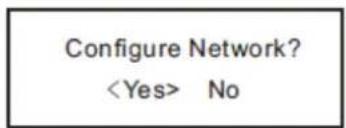
- If this is first time use, the Configure Network wizard will be displayed. Choose Yes to start configuring the network. Navigate by using the directional buttons to highlight Yes and press [OK] to confirm.
text_image
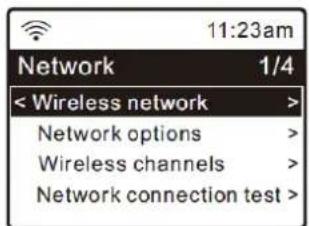
Configure Network?- Select Wireless Network and choose Add Wireless Network from the list, press [OK] to confirm, then select Scan & Select.
text_image
11:23am Network 1/4 < Wireless network > Network options > Wireless channels > Network connection test >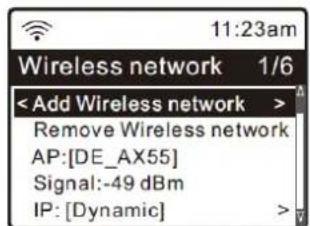
text_image
11:23am Wireless network 1/6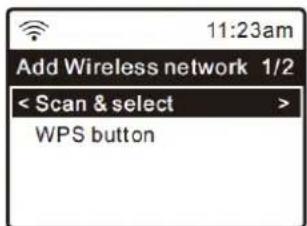
text_image
11:23am Add Wireless network 1/2 < Scan & select > WPS button- It will start scanning for available Wi-Fi networks. Scroll to your network and confirm your selection. If your wifi network is password protected, it will ask you to enter the passphrase/password.
Note: The password is case sensitive. Please consult with the one who setup your network if you don't know the password.
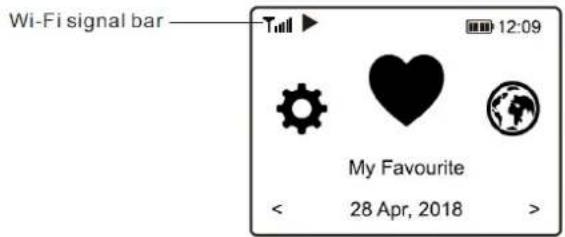
- When the Wi-Fi connection is successful, "Association Complete" will be shown briefly. The WiFi signal bar will appear on the top left corner of the display.
text_image
Wi-Fi signal bar Tull ▶ 12:09 My Favourite < 28 Apr, 2018 >OVERVIEW OF FEATURES AND FUNCTIONS
Press [▲] to enter the home screen. Scroll by pressing the directional buttons on the remote.
My Favorite - Shows the list of favorite stations which have been assigned to the presets. There are up to 150 presets available.
Internet Radio - Start exploring the worldwide radio stations and music here.
Media Centre - You can browse and stream music from your network via UPnP or DLNA compatible devices.
DAB+/DAB Radio - Pick up DAB+ and DAB radio signal if available in your local area (no internet connection required).
FM Radio - Receive FM radio stations in your local area (no internet connection required).
BT - BT playback, to play audio stream from another BT enabled device after pairing.
Alarm - Alarm clock. Two alarm settings available.
Sleep Timer - Enable the timer to turn the radio in standby after the selected time elapsed.
Configuration - More options/settings available to personalize as you desire.
CLOCK STYLE
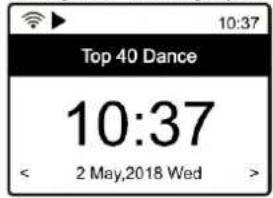
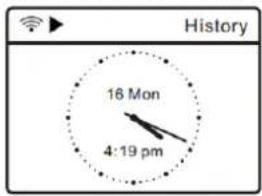
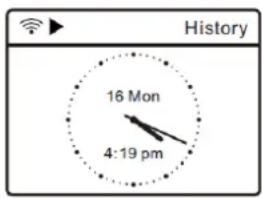
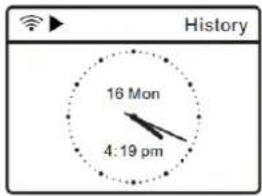
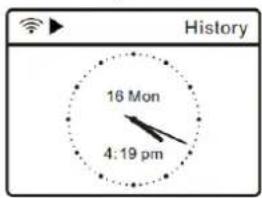
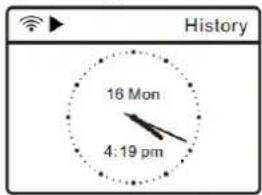
Change the clock graphic between digital- or analog styles under Configuration> Date & Time> Set clock style.
text_image
10:37 Top 40 Dance 10:37 < 2 May,2018 Wed >Digital style
text_image
History 16 Mon 4:19 pmAnalog style
INTERNET RADIO
On the home screen, choose Internet Radio and you will find the options below:
| Skylune |
| Search |
| History |
Skytune
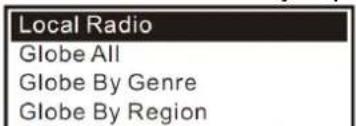
Select Skytune to start enjoying thousands of radio stations over the world. You can filter your search by Region, Music Genre and talks. Local Radio lets you quickly access the stations available in your local area through internet connection.
text_image
Local Radio Globe All Globe By Genre Globe By RegionNote: You can change the Local Radio area under Configuration> Local radio.
When you scroll along the list of Globe All and want to quickly reach to a certain point of the long list, input the index number on the remote control to quickly jump to that point. For example, on the remote control, input 28 and press [OK], it will highlight the station no. 28.
Search
Instead of browsing the radio station list, you can input a few characters of the desired station to filter out / short list the stations.
History
The radio memorizes the stations you have listened up to 99 stations. If you have listened more than 99 stations, it will supersede the first station that you have listened.
Start playing internet radio
When a radio station starts playing, more radio information can be displayed. Press the [Info] button in the state of the playing screen below:
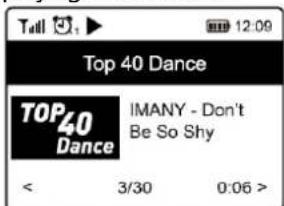
text_image
Toll 12:09 Top 40 Dance TOP40 Dance IMANY - Don't Be So Shy < 3/30 0:06 >Every time you press the [Info] button, it will cycle through information at a time such as the streaming bit rate, name of the song, artist name (if available), the big time clock and the radio's station logo (if available) or return to now playing screen:
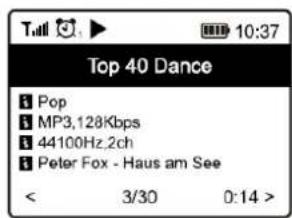
text_image
Top 40 Dance Pop MP3,128Kbps 44100Hz.2ch Peter Fox - Haus am See < 3/30 0:14 >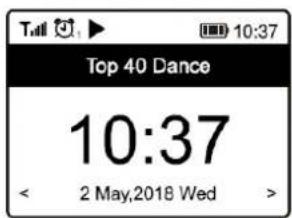
text_image
Top 40 Dance 10:37 < 2 May,2018 Wed >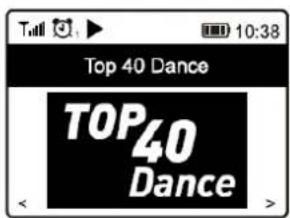
text_image
Top 40 Dance TOP40 DanceMy Favorite
This is to show the list of your saved stations which have been assigned to the presets.
Preset a station
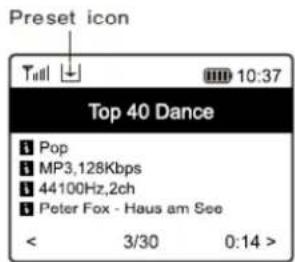
When a radio station is playing, press the [♥] button on the remote control, you will see the 📁 icon appear as below. It means the station is added to the Favorite list.
text_image
Preset icon Toll 10:37 Top 40 Dance Pop MP3,128Kbps 44100Hz,2ch Peter Fox - Haus am See < 3/30 0:14 >The new added station will always show in the last item on the Favorite list. You can store up to 150 presets.
Recall a station
Press [♥] on the remote control to recall the list of presets or navigate to My Favorite on the home screen and select it to confirm.
Create new categories - making custom favorite lists
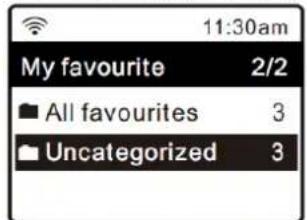
There are two selectable items in the My Favorite list as below, All Favorites and Uncategorized.
text_image
11:30am My favourite 2/2 ■ All favourites 3 ■ Uncategorized 3You can create custom categories of favorites and name it as desired, for example "Morning mix", "My Jazz", "After work"...etc. to sort your favorites. In My Favorite, press [▶], the "Create Category" edit menu will be entered.

flowchart
graph LR
    A["My favourite 2/2<br>All favourites 3<br>Uncategorized 3"] --> B["Edit 1/1<br>Create category"]
    B --> C["My favourite 3/3<br>All favourites 3<br>Uncategorized 3<br>My Jazz"]
Once a category is created, you can then assign the stations to the category as desired. "Uncategorized" gathers the stations not assigned to any categories yet. To move stations to the desired category, enter either the "All Favorites" or "Uncategorized" folder, choose the desired station from the list and select "move to category". Highlight the category to move it to and press [OK] to confirm. You can always move the station from one category to the other.

flowchart
graph LR
    A["My favourite 1/3<br>< 101 SMOOTH JAZZ<br>FM 106.30 MHZ<br>FM 98.90 MHz"] --> B["Edit 1/2<br>Move to category<br>Delete"]
    B --> C["My favourite 3/3<br>■ All favourites 3<br>■ Uncategorized 2<br>■ My Jazz 1"]
MEDIA CENTRE
The device supports UPnP and is DLNA-compatible. This provides the opportunity to stream music from your network. However, this requires you to have a compatible device in your network that can function as a server. This can be e.g., a network hard drive or a conventional PC with e.g., Windows 8 via which access to the shared folder or media sharing is permitted. The folders can then be browsed and played on the tuner. Note: Please make sure your computer laptop is on the same Wi-Fi network as the tuner before you start using this function.
Music streaming
- Once the UPnP/DLNA compatible server is configured to share media files with your radio, you can start streaming music.
- On the main menu, select Media Centre and choose UPnP.
- It may take a few seconds for the radio to complete the scan for available UPnP servers. If no UPnP servers are found, it will show Empty List.
- After a successful scan is done, select your UPnP server.
• The radio will show the media categories available from the UPnP server, e.g. 'Music', 'Playlists' etc. - Choose the media files you wish to play. You can set the mode of playback under Configuration > Playback setup.
My Playlist
You can make your own playlist for the UPnP music files. Choose and highlight the song you want to add to a playlist, press [P] until the sign appears. The song will be added to My playlist.
Clear My Playlist
Remove all songs in "My Playlist" to allow a new playlist to be prepared.
Note: If you have DLNA compatible servers available, follow the steps described above to browse the audio files from DLNA compatible device on the tuner to play.
DAB +
If there is Digital Audio Broadcasting (DAB) in your area, the tuner can pick up the DAB stations as well (no internet connection is required). The tuner supports both DAB and DAB+. Connect the supplied wire antenna with the antenna connector on the rear of the tuner. Place the tuner close to the window and extend the antenna as far as it can go to get the best reception. On the main menu, scroll to DAB Radio or use the [Mode] button on remote to switch to DAB Radio.
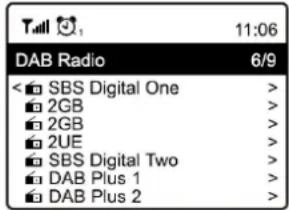
Choose DAB full scan to confirm scanning if this is the first time using the DAB radio. Start scanning, the progress will be shown (number of channels received) on the display. When done scanning, a preset page will be displayed.
text_image
11:06 DAB Radio 6/9 < □ SBS Digital One > □ 2GB > □ 2GB > □ 2UE > □ SBS Digital Two > □ DAB Plus 1 > □ DAB Plus 2 >You can select the channel and start listening to it. Whenever you want to add a channel to My Favourite, press [💡] on remote. Press the [◀] button to return to the Preset list.
Note: When a DAB station is playing, press [Info] to view more channel information. Each time you press [Info], a different form of information will be displayed such as radio frequency, rolling texts (if available), etc. New digital radio stations should be picked up automatically by the radio if they are part of a multiplex you already received. Otherwise, initiate a full scan once more.
FM RADIO
To receive FM stations (no internet connection is required), Connect the supplied wire antenna with the antenna connector on the rear of the tuner. Place the tuner close to the window and extend the antenna as far as it can go to get the best reception. On the home screen, scroll to FM Radio or use the [Mode] button on remote to switch to FM Radio. Press [OK] to start.
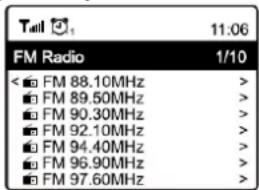
Choose FM full scan to scan for FM stations. When done scanning, the tuner will automatically save the found stations and present you with a list.
text_image
Tall 11:06 FM Radio 1/10 < □ FM 88.10MHz > □ FM 89.50MHz > □ FM 90.30MHz > □ FM 92.10MHz > □ FM 94.40MHz > □ FM 96.90MHz > □ FM 97.60MHz >You can select the channel and start listening to it. Whenever you want to add to My Favorite, press [♥] on remote.
Press [◀] to return to the Preset list.
Note: When it is playing FM radio, press the [Info] to view more radio information. Each time you press [Info], a different form of information will be displayed such as radio frequency, rolling texts (if available), etc.
Manual Tune
To manual tune to the frequency, press [▶] or [◀]. Long press to skip to the previous/next available station.
BT PLAYBACK
Before transmission between your BT device and the radio is possible, both devices must be coupled. This process is called "pairing". The radio is served as a receiver, to receive music stream to play on the radio.
If you have already coupled to a BT device before, this connection will be restored automatically when both devices are in range and BT operation has been selected on the radio. "Pairing" does not have to be repeated. This function may need to be activated in your BT device, however.
- Push [icon] to display the selection menu for the different operating modes.
- Use the up/down button to select the operating mode BT and push [OK].
- Switch your BT device to which you want to connect the radio on and activate the pairing mode here. The device scans for BT devices in the reception range.
- When the radio is found, your BT device shows its name Audizio Livorno-XXXX (the XXXX is an identification code for your radio unit).
- Select the radio on your BT device.
- Start playback on your BT device.
- Playback now takes place using the radio.
ALARM SETTING
- Choose Alarm from the home screen or press the [icon] button on the remote control.
- Select either Alarm 1 or Alarm 2, choose Turn on to activate the alarm.
- Follow the alarm wizard instructions to set the alarm.
- The wizard will guide you through the settings below:
Time - Set the time for the alarm.
Sound - You can choose Wake to Tone, My Favourite, Wake to FM Radio or Wake to DAB Radio as the alarm source.
Note:
Wake to FM or Wake to DAB Radio - only the preset stations can be used for the radio alarm (if the preset scan has been completed).
Wake to My Favourite - Preset your favorite station before setting this as the alarm source.
Repeat - You can schedule the alarm as you desire: Everyday, Once or multiple days.
Alarm Volume - Adjust the volume of the alarm as you like by using the directional buttons on the remote.
Alarm Duration - Set the duration of the alarm from the preset options ranging from 30 to 180 minutes. The radio will be turned to standby when the selected duration of time is due.
- After the above settings are completed, press the [◀] button to exit and make sure the alarm is turned on. You will see that the alarm icon has appeared on the display when activated correctly.
SLEEP TIMER
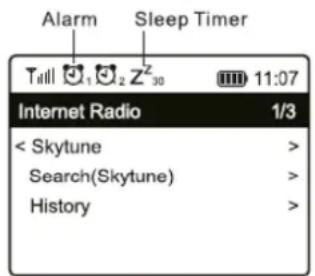
You can set the timer to let the radio go into standby mode after the selected time elapsed in the range of 15 minutes to 180 minutes. Press [Z] on the remote control to set the timer. You will see the icon appear on the display when the timer is set.
text_image
Alarm Sleep Timer Till 1 2 Z 30 11:07 Internet Radio 1/3 < Skytune > Search(Skytune) > History >CONFIGURATION
Here you will find the complete settings / options available to configure your own radio. On the Main Menu, navigate to Configuration setting. Press [OK] and you will see a list of options available.
Network
- Wireless Network
○ Add wireless network
Scan & select - It will scan out a list of wireless networks around.
WPS button - Choose this option to connect your Wi-Fi router via WPS if the router has a WPS button.
- Remove wireless network
If you have already set up a network and want to remove it, choose this option.
Note: Always bring the tuner within 2 meters of the Wi-Fi router for setup.
○ AP:[ ]
If you have added more than one network and want to switch to another one, select this option to change.
○ Signal
Shows the strength of the wireless signal of the router as received by the tuner. Usually signal levels lower than -70dBm is at weaker level and if reception is affected, you may need to optimize the router location and/or check for any problems of the router itself.
○ IP
The IP is set to Dynamic by default. Select Fixed IP according to your network condition.
○ DNS
The DNS is set Dynamic by default. Select to change
• Network Options
Always on: The WLAN function remains switched on (faster access when switching from other modes of radio).
Auto off in 15/30s: The WLAN function shuts down after 15/30 seconds when not in use to save energy.
• Wi-Fi Channels
Not all of the Wi-Fi channels are available in every country. There may be variation between different countries.
Therefore it is necessary to choose the Wi-Fi channels to ensure the Wi-Fi performs satisfactory.
We have already set the channels according to the requirement in different countries. Choose the country you are staying from the list to get the correct channel.
• Network connection test
In case there are any issues in connecting to Skytune, select this option to check out any failed items of the network parameters for further diagnosis.
Date and Time
The radio will set your local time automatically after the internet connection is completed. If you want to do a manual setting, change it by the following options.
- Time zone
Auto-set Time Zone: This option is set by default.
Manual-set Time Zone: Choose this option if you want to set the time in another region.
Choose and highlight the region/city you prefer and press [OK] to confirm.
Coupled with NTP (use network time) and DST (Daylight time saving) will be adjusted automatically if you choose to use network time (NTP).
- Set Time Format
Choose either 12-hour or 24-hour notation.
- Clock style
You can choose a digital- or analog style clock graphic. The selected style will apply in standby as well as the big clock display in radio playback.
- Set Date Format
• DST (Day Light Saving)
Enable on/off.
• NTP (Use network time)
NTP is designed to synchronize a device's clock with a time server. Your radio will synchronize the time server by default every time it powers up and connects to Internet. This ensures a very high degree of accuracy in the radio's clock. You can change to use other time server by inputting the URL address (see below NTP server). You can choose "Do not use network time" if you don't want it to. If you choose not to use NTP for clock synchronization, highlight the NTP (Network time protocol) and press [OK] to make the change. You will see the Set Date & Time appeared on the menu. Select it and adjust the date and time as desired.
- NTP Server
NTP is designed to synchronize a device's clock with a time server. This sub-menu shows the server being used.
Language
The default language is English, you can choose other languages as preferred. Scroll with the [▲ /▼] buttons on remote to the item with □ and press [OK]. Scroll to highlight- and press [OK] to select your language of choice. Multiple languages are available.
DAB Setup
- DAB full scan
You can always carry out a new DAB scan by selecting this option. All current presets and channels will be erased.
• DAB station status
This is to show the number of stations and signals received of each DAB frequency.
- DAB station list
The scanned DAB stations will be listed here for management. You can move position or delete any station. Scroll to the station and press [▶]. A pop-up window will be presented: Move up, Move down and Delete.
FM Setup
- Scan setting
Either "All stations" or "Strong stations" (with stronger signal) can be selected.
- Audio setting
You can choose to set "Auto Stereo" or "Forced mono" for the reception.
- FM full scan
You can always carry out a new scan of FM channels by selecting this option. All current presets and channels will be erased. The radio channel at the lowest frequency of the scanned values will be highlighted. The preset list will be saved unless a new preset scan is carried out.
- FM station list
You can adjust the preset ranking by Move down, Move up or Delete it. Highlight one of the presets, then press the [▶] button, it will enter the Edit menu. Press the [◀] button to return to the Preset list.
Local Radio
The radio is set by default to detect the radio stations in your local area automatically by internet connection and these stations can be accessed in the Local Radio menu in the Skytune menu. You can also set "Local" in another region if desired. Highlight Local Radio and press [OK]. Choose Manual-set Local radio to change the region setting.
Playback Setup
This is to set the mode of playback under UPnP/DLNA compatible streaming: Repeat All, Repeat One or Shuffle.
Power-On Options
Select the state of the radio after a power reset/cut, or the next power up from standby. There are 3 options available:
- Go to Standby
- Resume once ready: the radio will resume playing the last listened station.
- Ready to use: the radio will stay in the main menu without action.
Dimmer
You can set the backlight level for the display as you prefer. There are two settings: Mode and Level.
• Mode - Normal or Power Saving
Normal - the display will stay with the same level of brightness all the time without dimming down. Dim - the display will dim down after 20 seconds, if no input is made on the radio.
• Level - Bright and Dim
Bright - This is to adjust the level of brightness in Normal mode. Dim - This is to adjust the level of brightness in Dim mode.
- Dimmer in Standby
The display brightness in standby mode can be adjusted manually by pressing the [/] buttons on the remote. Increasing the backlight beyond the system level will illuminate for 20 seconds and then dim to default setting automatically.
EQ (Equalizer)
Various music genres can be set.
Buffer Time
Sometimes you may experience uneven playback of the internet radio. This can happen if the internet connection is slow or network congestion occurs. To help improve the situation, you can choose longer buffer time to get a few seconds of radio stream before beginning to play. The default value is 2 seconds. You can choose 5 seconds if you prefer to have a longer buffer time.
Network information
View the network signal and other parameters. To access quickly to this information, press [⊕] on the remote control. When you use your PC to manage the My favorite stations, you have to use the IP address and you can view this info from here. Then type in the IP address (Configuration > Network Information > IP) to your PC browser's input window.
System information
The model number, system MID and software version (App version) can be found here.
Software Update
There may be software released to upgrade features of the radio from time to time.
Check the update regularly to keep your radio up to date with the latest software.
Reset to Default
You can do the reset to clear all the settings and return to default settings.
Note: all the station presets, settings and configurations will be erased after you have performed the reset.
REMOTE CONTROL VIA PC / SMART PHONE
Experience an easy way to control tuning internet radio channels and manage your favourite list via PC or Smart phone's web browser. The supported browsers are Internet Explorer and Chrome.
- Connect your PC or Smart phone to the same Wi-Fi network as your radio.
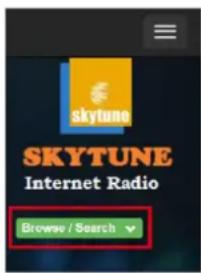
- Visit www.skytune.net
- On the home page, click "Browse/Search"
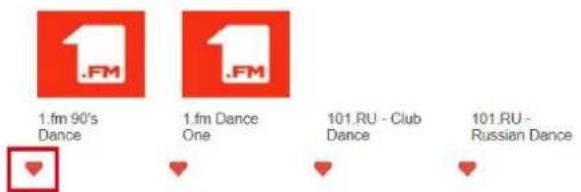
- Browse or enter the name to search the radio channel, a list of internet radio channels will be displayed.
- Click the "symbol.
text_image
skytune SKYTUNE Internet Radio Browse / SearchResult for Searching 'dance'
1.fm 90's Dance
1.fm Dance One
101.RU - Club Dance
101.RU - Russian Dance

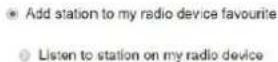
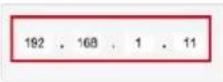
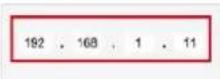
- It will prompt you whether to "Add Favourite" or "Listen to Station". Enter the IP address of your radio (e.g. 192.168.1.11):
Add Favourite / Listen to Station
Which operation do you want to apply to the station?
1. Im Dance One
Please enter your radio device's IP below.
Sens
Close
The IP address can be located on the radio unit as follow:
* On the remote control, press the [⊕] button, choose Network and scroll to IP to view the IP address.
* On the radio, return to the home screen. Navigate to Configuration > Information > Network Information > IP.
- Select "Listen to Station", click "Send" and the radio unit will switch playing the channel and the "My Favourite" page will pop up on the web browser.
You can then choose to add the playing station to favourite or manage your list by other edit options. Any changes will synchronize to the radio unit immediately.
MY FAVOURITE
Channel Group 1007
| Channel Name | URL | |
| DJ AAM Radio FM | ***** | Edit Delete Top Up Down Bottom |
| Country Radio Switzerland | ***** | Edit Delete Top Up Down Bottom |
| Bigbeat | ***** | Edit Delete Top Up Down Bottom |
| 24Radio Switzerland | ***** | Edit Delete Top Up Down Bottom |
| AFN American Freedom | ***** | Edit Delete Top Up Down Bottom |
| Energy Berlin | http://energyradio.de/bremen | Edit Delete Top Up Down Bottom |
| MP3 Pro | http://www.katrafm.com/katrafm_mp3pro.m2 | Edit Delete Top Up Down Bottom |
| 2 | http://www.ultranet.biz/vegasandanski.m3u | Edit Delete Top Up Down Bottom |
| stream 2 | http://lindowsradio.com:8600/listen.pls | Edit Delete Top Up Down Bottom |
| aac 128 | http://eastlondonradio.com:8100/bighigh.aac | Edit Delete Top Up Down Bottom |
| Seoul Shoutcast | http://yp.shoutcast.com/sbin/tunein-station. | Edit Delete Top Up Down Bottom |
Add Channel
Channel Name
单位
Submit
Reset
You can also add the radio channel if you know the published audio stream URL with the streaming format as follow:
- Audio formats: MP3, AAC, AAC+
- Stream formats: Shoutcast, Icecast (HTTP, HTTPS) and HLS
- Playlist formats: PLS, M3U
- Sampling frequency: 44.1 KHz and 48 KHz
text_image
Waudizio 1 2 3 4 5 6 7 Live-time Internet User CE UK CAtext_image
11:23am Network 1/4 < Wireless network > Network options > Wireless channels > Network connection test >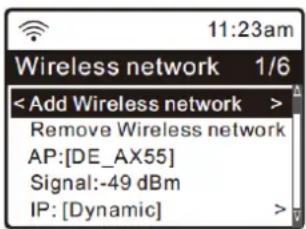
text_image
11:23am Wireless network 1/6 < Add Wireless network > Remove Wireless network AP:[DE_AX55] Signal:-49 dBm IP: [Dynamic]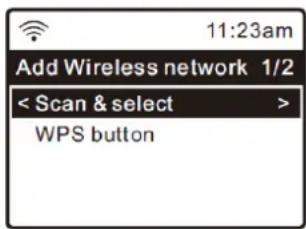
text_image
11:23am Add Wireless network 1/2 < Scan & select > WPS buttontext_image
Wi-Fi signal bar Tull ▶ 12:09 My Favourite < 28 Apr, 2018 >OVERZICHT VAN RENMERKEN EN FUNCTIES
text_image
10:37 Top 40 Dance 10:37 < 2 May,2018 Wed >Digital style
text_image
History 16 Mon 4:19 pmAnalog style
INTERNET RADIO
| Local Radio |
| Globe All |
| Globe By Genre |
| Globe By Region |
text_image
Toll 📋₁ ▶ 12:09 Top 40 Dance TOP40 Dance IMANY - Don't Be So Shy < 3/30 0:06 >text_image
11:30am My favourite 2/2 ■ All favourites 3 ■ Uncategorized 3- Add wireless network
- Remove wireless network
• DST (Day Light Saving)
In-/uitschakelen.
• DAB station status
text_image
Result for Searching 'dance' 1.fm 90's Dance 1.fm Dance One 101.RU - Club Dance 101.RU - Russian Dancetext_image
Add Favourite / Listen to Station Which operation do you want to apply to the station ? 1.fm Dance One • Add station to my radio device favourite • Listen to station on my radio device Please enter your radio device's IP below. 192 . 168 . 1 . 11 Send Close| Channel Name | URL | |||||||
| 1. | DJ AAM Radio FM | ****** | Edit | Delete | Up | Up | Down | Button |
| 2. | Country Radio Switzerland | ****** | Edit | Delete | Up | Up | Down | Button |
| 3. | Bigbeat | ****** | Edit | Delete | Up | Up | Down | Button |
| 4. | 24Radio Switzerland | ****** | Edit | Delete | Up | Up | Down | Button |
| 5. | AFN American Freedom | ****** | Edit | Delete | Up | Up | Down | Button |
| 6. | Energy Berlin | http://energyradio.de/bremen | Edit | Delete | Up | Up | Down | Button |
| 7. | MP3 Pro | http://www.katrafm.com/katrafm_mp3pro.m2 | Edit | Delete | Up | Up | Down | Button |
| 8. | 2 | http://www.ultranet.biz/vegasandanski.m3u | Edit | Delete | Up | Up | Down | Button |
| 9. | stream 2 | http://windowsradio.com.8600/listen.pls | Edit | Delete | Up | Up | Down | Button |
| 10. | aac 128 | http://eastlondonradio.com.8100/bighigh.aac | Edit | Delete | Up | Up | Down | Button |
| 11. | Seoul Shoutcast | http://yp.shoutcast.com/sbn/tunein-station. | Edit | Delete | Up | Up | Down | Button |

text_image
Add Channel Channel Name URL Submit Resettext_image
Waudizio 1 2 3 4 5 6 7 LIVING INTERFACE TUBE LIVING INTERFACE TUBE LIVING INTERFACE TUBE LIVING INTERFACE TUBE LIVING INTERFACE TUBE LIVING INTERFACE TUBE LIVING INTERFACE TUBE LIVING INTERFACE TUBE LIVING INTERFACE TUBE LIVING INTERFACE TUBE LIVING INTERFACE TUBE LIVING INTERFACE TUBEtext_image
11:23am Network 1/4 < Wireless network > Network options > Wireless channels > Network connection test >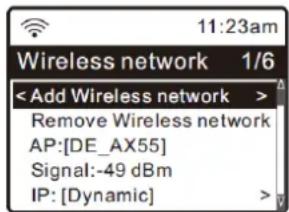
text_image
11:23am Wireless network 1/6 < Add Wireless network > Remove Wireless network AP:[DE_AX55] Signal:-49 dBm IP: [Dynamic]
text_image
11:23am Add Wireless network 1/2 < Scan & select > WPS buttontext_image
Wi-Fi signal bar 12:09 My Favourite < 28 Apr, 2018 >text_image
Local Radio Globe All Globe By Genre Globe By RegionStart playing internet radio
text_image
Top 40 Dance 10:37 < 2 May,2018 Wed >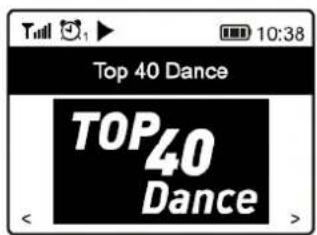
text_image
Toll Top 40 Dance TOP40 DanceMein Favorit
text_image
11:30am My favourite 2/2 ■ All favourites 3 □ Uncategorized 3flowchart
graph LR
    A["12:48am My favourite 1/3"] --> B["12:48am Edit 1/2"]
    B --> C["11:30am My favourite 3/3"]
    A --> D["< 101 SMOOTH JAZZ FM 106.30 MHZ FM 98.90 MHz"]
    B --> E["Move to category Delete"]
    C --> F["All favourites 3"]
    C --> G["Uncategorized 2"]
    C --> H["My Jazz 1"]
MEDIA ZENTRUM
• NTP (Use network time)
• DAB station status
Result for Searching 'dance'
text_image
1.fm 90's Dance 1.fm Dance One 101.RU - Club Dance 101.RU - Russian Dance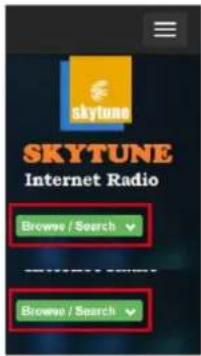
text_image
SKYTUNE Internet Radio Browse / Search Browse / Searchtext_image
Add Favourite / Listen to Station Which operation do you want to apply to the station ? 1.1m Dance One • Add station to my radio device favourite • Listen to station on my radio device Please enter your radio device's IP below. 192 , 168 , 1 , 11 Send Closetext_image
11:23am Network 1/4 < Wireless network > Network options > Wireless channels > Network connection test >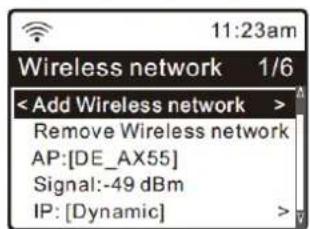
text_image
11:23am Wireless network 1/6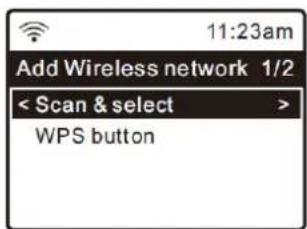
text_image
11:23am Add Wireless network 1/2 < Scan & select > WPS buttontext_image
10:37 Top 40 Dance 10:37 < 2 May,2018 Wed >Digital style
text_image
History 16 Mon 4:19 pmAnalog style
RADIO INTERNET
| Local Radio |
| Globe All |
| Globe By Genre |
| Globe By Region |
text_image
Top 40 Dance 10:37 < 2 May,2018 Wed >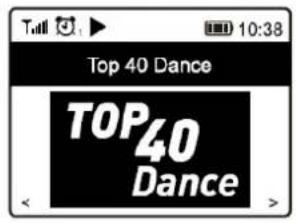
text_image
Top 40 Dance TOP40 DanceMi favorito
text_image
11:30am My favourite 2/2 All favourites 3 Uncategorized 3Result for Searching 'dance'

1.fm 90's Dance

1. fm Dance One
101.RU - Club Dance
101.RU - Russian Dance


text_image
Add Favourite / Listen to Station Which operation do you want to apply to the station ? 1.m Dance One • Add station to my radio device favourite • Listen to station on my radio device Please enter your radio device's IP below. 182 . 168 . 1 . 11 Beng Closetext_image
Channel Name URL 1. DJ AAM Radio FM ***** 2. Country Radio Switzerland ***** 3. Bigbeat ***** 4. 24Radio Switzerland ***** 5. AFN American Freedom ***** 6. Energy Berlin http://energyradio.de/bremen 7. MP3 Pro http://www.katrafm.com/katrafm_mp3pro.m2 8. 2 http://www.ultranet.biz/vegasandanski.m3u 9. stream 2 http://lindowsradio.com:8600/listen.pls 10. aac 128 http://eastlondonradio.com:8100/bighigh.aac 11. Seoul Shoutcast http://yp.shoutcast.com/sbin/tunein-station. Edit Delete Top Up Down Bottom Edit Delete Top Up Down Bottom Edit Delete Top Up Down Bottom Edit Delete Top Up Down Bottom Edit Delete Top Up Down Bottom Edit Delete Top Up Down Bottom Edit Delete Top Up Down Bottom Edit Delete Top Up Down Bottom Edit Delete Top Up Down Bottom Edit Delete Top Up Down Bottom
text_image
Add Channel Channel Base URL Submit Reset: Preset station favorite
text_image
1 2 3 4 5 6 7 8 9 10 OK OK MDDC RQ M M M M M M M M M laudizioUTILISATION TELECOMMANDE
text_image
11:23am Network 1/4 < Wireless network > Network options > Wireless channels > Network connection test >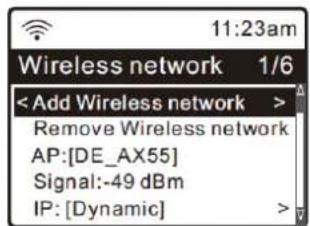
text_image
11:23am Wireless network 1/6 < Add Wireless network > Remove Wireless network AP:[DE_AX55] Signal:-49 dBm IP: [Dynamic]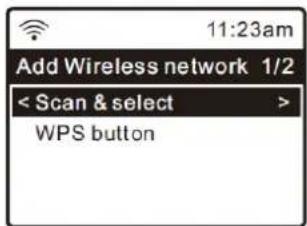
text_image
11:23am Add Wireless network 1/2 < Scan & select > WPS buttontext_image
Wi-Fi signal bar Tull ▶ 12:09 My Favourite < 28 Apr, 2018 >PRESENTATION DES CARACTERISTIQUES ET FONCTIONS
text_image
10:37 Top 40 Dance 10:37 < 2 May,2018 Wed >Digital style
text_image
History 16 Mon 4:19 pmAnalog style
RADIO INTERNET
| Local Radio |
| Globe All |
| Globe By Genre |
| Globe By Region |
text_image
Top 40 Dance 10:37 < 2 May,2018 Wed >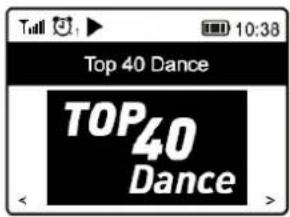
text_image
Top 40 Dance TOP40 DanceMy Favorite – liste favoris
text_image
11:30am My favourite 2/2 ■ All favourites 3 ■ Uncategorized 3• DST (Day Light Saving)
Activation/désactivation.
Result for Searching 'dance'
1.fm 90's Dance
1.fm Dance One
101.RU - Club Dance
101.RU - Russian Dance

text_image
Add Favourite / Listen to Station Which operation do you want to apply to the station ? 1.fm Dance One • Add station to my radio device favourite • Listen to station on my radio device Please enter your radio device's IP below. 102 . 168 . 1 . 11 Send Closetext_image
Channel Name URL 1. DJ AAM Radio FM ***** Edit Delete Top Up Down Button 2. Country Radio Switzerland ***** Edit Delete Top Up Down Button 3. Bigbeat ***** Edit Delete Top Up Down Button 4. 24Radio Switzerland ***** Edit Delete Top Up Down Button 5. AFN American Freedom ***** Edit Delete Top Up Down Button 6. Energy Berlin http://energyradio.de/bremen Edit Delete Top Up Down Button 7. MP3 Pro http://www.katrafm.com/katrafm_mp3pro.m2 Edit Delete Top Up Down Button 8. 2 http://www.ultranet.biz/vegasandanski.m3u Edit Delete Top Up Down Button 9. stream 2 http://windowsradio.com:8500/listen.pls Edit Delete Top Up Down Button 10. sac 128 http://eastlondonradio.com:8100/bighhigh.aac Edit Delete Top Up Down Button 11. Seoul Shoutcast http://yp.shoutcast.com/sbn/tunein-station Edit Delete Top Up Down Button
text_image
Add Channel Channel Name URL Submit Resettext_image
I/VERIC FIRST TUNES 4 3 April 4 April 5 Digital Oral 6 COVID-19 7text_image
11:23am Network 1/4 < Wireless network > Network options > Wireless channels > Network connection test >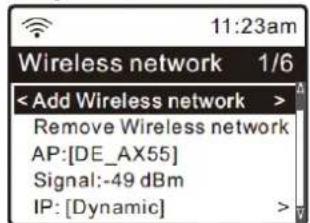
text_image
11:23am Wireless network 1/6 < Add Wireless network > Remove Wireless network AP:[DE_AX55] Signal:-49 dBm IP: [Dynamic]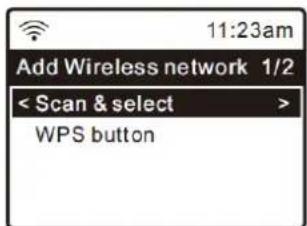
text_image
11:23am Add Wireless network 1/2 < Scan & select > WPS buttontext_image
Wi-Fi signal bar My Favourite < 28 Apr, 2018 >text_image
10:37 Top 40 Dance 10:37 < 2 May,2018 Wed >Digital style
text_image
History 16 Mon 4:19 pmAnalog style
RADIO INTERNETOWE
| Local Radio |
| Globe All |
| Globe By Genre |
| Globe By Region |
text_image
Top 40 Dance 10:37 < 2 May,2018 Wed >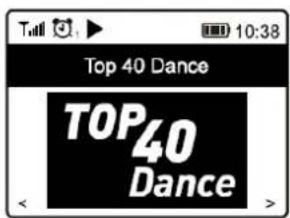
text_image
Top 40 Dance TOP40 DanceMy Favorite
text_image
11:30am My favourite 2/2 ■ All favourites 3 ■ Uncategorized 3flowchart
graph LR
    A["12:48am My favourite 1/3 < 101 SMOOTH JAZZ FM 106.30 MHZ FM 98.90 MHz"] --> B["12:48am Edit 1/2 Move to category Delete"]
    B --> C["11:30am My favourite 3/3 All favourites 3 Uncategorized 2 My Jazz 1"]
MEDIA CENTRE
- Remove wireless network
• DST (Day Light Saving)
• NTP (Use network time)
• DAB station status
Result for Searching 'dance'
1.fm 90's Dance
1.fm Dance One
101.RU - Club Dance
101.RU - Russian Dance

Add Favourite / Listen to Station
Which operation do you want to apply to the station? 1. Im Dance One
- Add station to my radio device favourite
- Listen to station on my radio device
Please enter your radio device's IP below.
Sens
Close
Output connections : 3.5mm Jack, Optical, RCA
Power supply : 100-240VAC 50/60Hz (5V Adapter)
Dimensions (L x W x H) : 50 x 170 x 105mm
Weight (kg) : 0,30
The specifications are typical. The actual values can slightly change from one unit to the other. Specifications can be changed without prior notice.
The products referred to in this manual conform to the European Community Directives to which they are subject:
European Union
Tronios B.V.,
7602KR Almelo, The Netherlands
2014/35/EU
2014/30/EU
2011/65/EC
2014/53/EU

United Kingdom
Tronios Ltd.,
130 Harley Street,
London W1G 7JU, United Kingdom
S.I. 2016:1101
S.I. 2016:1091
S.I. 2012:3032
S.I. 2017:1206

Specifications and design are subject to change without prior notice.
www.audizio.com
Copyright © 2023 by Tronios The Netherlands