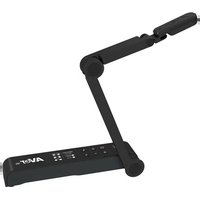
AVerVision M15W - Document camera AVer - Free user manual and instructions
Find the device manual for free AVerVision M15W AVer in PDF.


| Product Type | Document Camera |
| Brand | AVer |
| Model | AVerVision M15W |
| Sensor | CMOS 1/3.06 inch, 13 megapixels |
| Maximum Frame Rate | 60 frames per second |
| Optical Zoom | Up to x23 |
| HDMI Output | 4K, 1080p 60 Hz, 720p 60 Hz |
| Focus | Automatic / Manual / Zone (software) |
| Power Supply | DC 5 V / 2 A, AC power adapter 100-240 V |
| Power Consumption | 4 W (light on), 3.5 W (light off) |
| Dimensions (operating) | 518 x 84 x 351 mm (L x W x H) |
| Dimensions (folded) | 280 x 84 x 42 mm (L x W x H) |
| Weight | 0.68 kg |
| WiFi | Dual band 5/2.4 GHz, 802.11a/b/g/n/ac, range 13.7 m |
| Miracast | Yes |
| Built-in LED Lamp | Yes |
| Built-in Microphone | Yes |
| Connectivity | USB 2.0 Type-A (WiFi dongle), USB Type mini-B, DC 5V jack |
| Supported Software | AVerTouch, ePTZ, image capture, annotation, recording |
| Included Accessories | Power adapter, USB cable, warranty card, user manual |
| Optional Accessories | Carrying case, anti-glare film |
| Main Functions | Live display, capture, annotation, recording, zoom, focus, WiFi/Miracast |
| Safety | Do not expose to rain or humidity; use correct voltage |
| Maintenance and Cleaning | Avoid shocks; do not pull on the arm; clean with a soft cloth |
| Spare Parts and Repairability | Battery not user replaceable (contact dealer) |
| General Information | Warranty included; contact: www.avereurope.com |
Frequently Asked Questions - AVerVision M15W AVer
User questions about AVerVision M15W AVer
0 question about this device. Answer the ones you know or ask your own.
Ask a new question about this device
Download the instructions for your Document camera in PDF format for free! Find your manual AVerVision M15W - AVer and take your electronic device back in hand. On this page are published all the documents necessary for the use of your device. AVerVision M15W by AVer.
USER MANUAL AVerVision M15W AVer
natural_image
Line drawing of a mechanical device with two arms, one labeled 'AVER' and the other showing a battery (no text or symbols on the device itself)M15W(v2)
ULTRA HD
The items below are included with this product. If any item is missing, contact the dealer from whom you purchased this product.
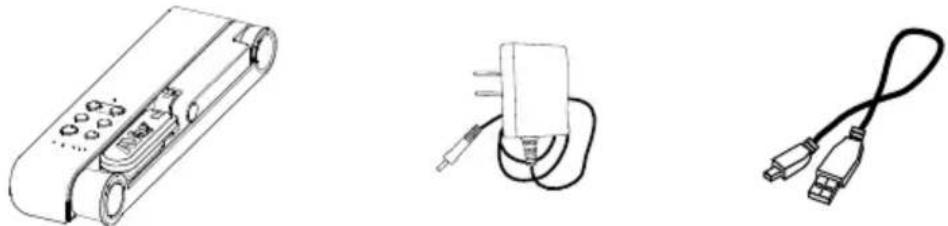
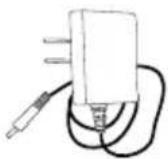
M15W(v2) unit Power adapter/ Power plug USB cable
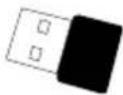
Warranty card* Instruction manual
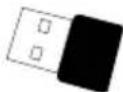
Wi-Fi Dongle (Optional)
*Only for Japan, Taiwan, and Europe
Optional Accessories
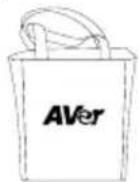
Carrying bag Anti-glare sheet
Hardware Parts
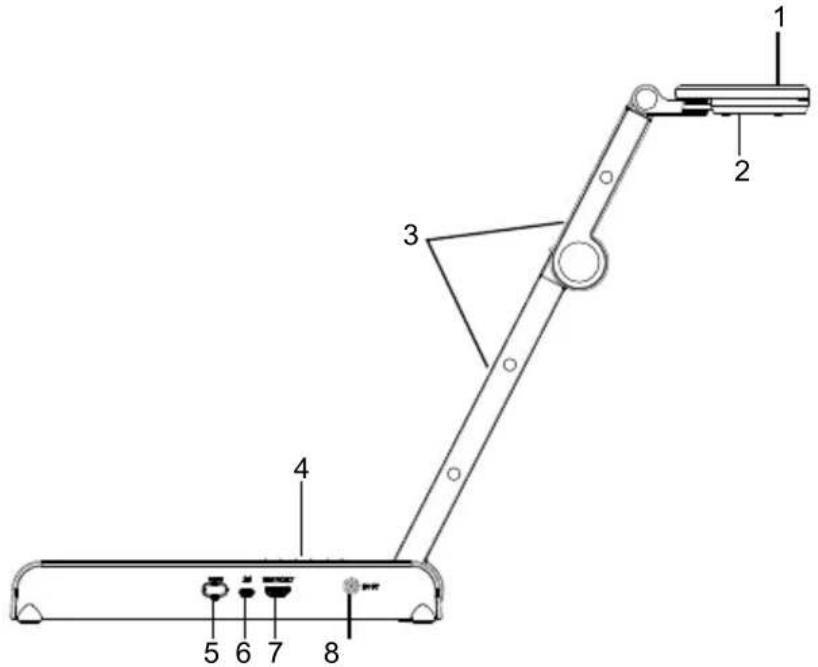
| 1. Camera head 2. | LED lighting |
| 3. Arm 4. Control panel | |
| 5. Wi-Fi dongle 6. | USB port |
| 7. HDMI output 8. DC power jack | |
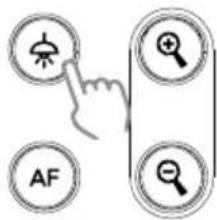
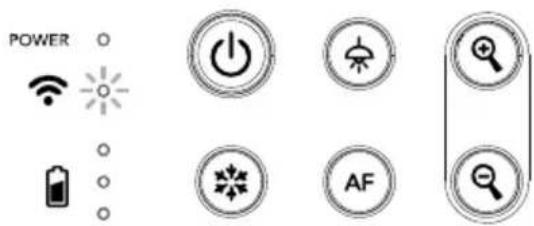
Control Panel
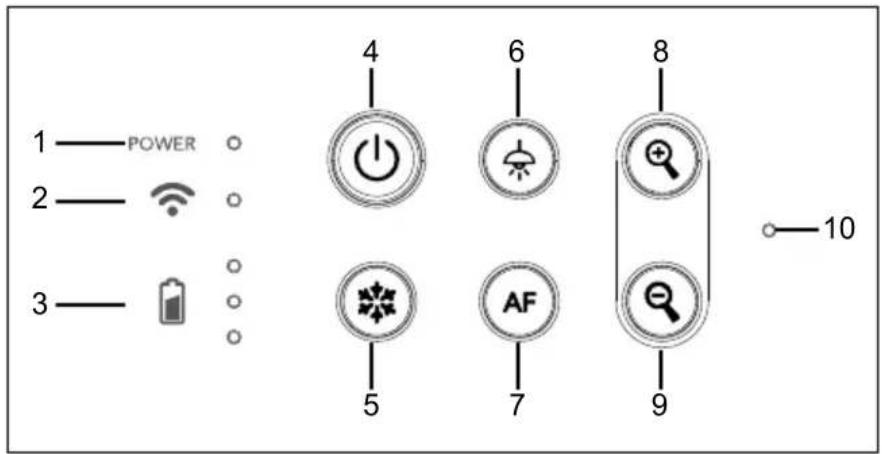
- Power indicator 6. Lamp(on/off)
- Wi-Fi indicator 7. Auto focus
- Battery indicator 8. Zoom in
- Power button 9. Zoom out
(on/off/standby*) - Built-in MIC
- Freeze
* Standby mode is supported when power plugged in.
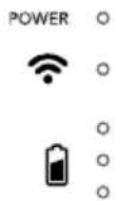
LED Indicator
| Power | Solid green: Power onNo light: Power offSolid red: Standby mode** Standby mode is supported when power plugged in. |
Wi-Fi | Solid blue: AP Mode Ready / STA connectedSlow flashing blue: Software connection with cameraShort flashing blue: Create AP mode / STA connectingSolid green: Miracast mode readySlow flashing green: Miracast streaming startQuick flashing green: Miracast device scan / connecting |
Battery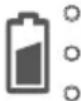 | Solid green(x3): Battery is full(100% ~ 60%)Solid green(x2): Battery is 60% ~ 30%Solid green(x1): Battery is 30% ~ 5%Solid red (x1): Battery is 5% ~ 0%Flashing red (x1): Battery is out of powerSolid orange(x3): Battery is abnormal |
[Note]
The battery will be exhausted for long-term usage. Do not replace the battery yourself. Please contact your dealer.
Compound Key
Press and hold for 3 seconds to operate the compound key function.

MORE INFO / BATTERY
: Display system information and battery power status.

CAPTURE
: Snapshot the current screen image to software or cloud.
Press keys to operate the compound key function.
FACTORY RESET
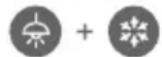
RESOLUTION

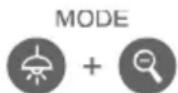
: Back to factory default settings.
: Press to switch between following modes:
- Auto detects the best resolution(4K, 720P, 1080P)
- 1024x768 (If HDMI device support)
- 4K 60Hz (If HDMI device support)
:Press to switch between following modes:
- Normal: Adjust the gradient of image.
- Motion: Increase frame rate. Sufficient lighting is required when using this mode.
- High quality: Better image quality.
Device Connection
1
Plug in power adapter and turn on M15W(v2).
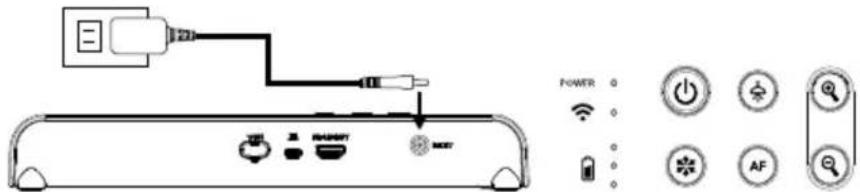
[Note]
■ Please fully charge the camera for the first time use.
- When the camera is power on, the camera is in "Standby" mode. In standby mode, it can be charging with the USB connection between other devices; but the power supply is required 5V2A and the charging time will be longer.
■ The laptop, projector, or monitor cannot provide the power through the USB connection to the camera while the camera is operating.
■ When the camera is charging with the wall outlet, the battery indicator is in green flashing.
■ Press AF + 📄 to reboot when the camera doesn't work properly.
2
Connect M15W(v2) to laptop and HDMI display.
![AVer AVerVision M15W - [Note] - 1](/content/2026/04/681455/images/26c1c53dc8cff27ece08f349a99a5910e3396c979d376d45cc4a2ec3456dc336.jpg)
flowchart
graph TD
    A["Laptop"] --> B["USB cable (Type A to Mini-Type B)"]
    B --> C["HDWR"]
    C --> D["HDMI cable (Not incuded)"]
    D --> E["HDMI monitor"]
    E --> F["LCD/OLP projector"]
[Note]
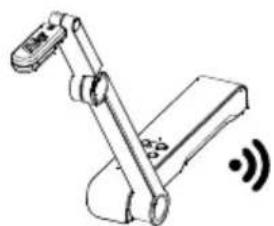
■ The Wi-Fi mode is on when the camera is powered up.
■ When camera connects to a laptop through the USB port, the Wi-Fi mode is disabled. Please follow the direction on HDMI device.
P2P connection via Wi-Fi Dongle(Optional)
1 Plug-in the WiFi dongle to PC/laptop and Install the AVerTouch application.
natural_image
Mechanical linkage device with sensor icon and signal waves (no text or symbols)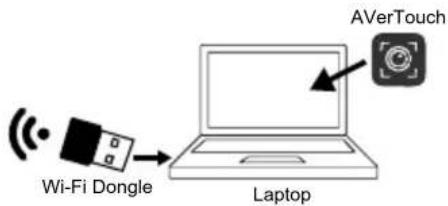
2 Open AVerTouch application, click to connect the camera.
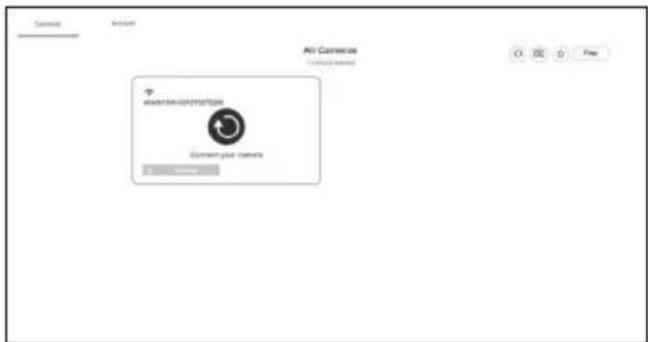
[Note] Check serial number at bottom of the camera to find your camera.
3 Click Next to continue.
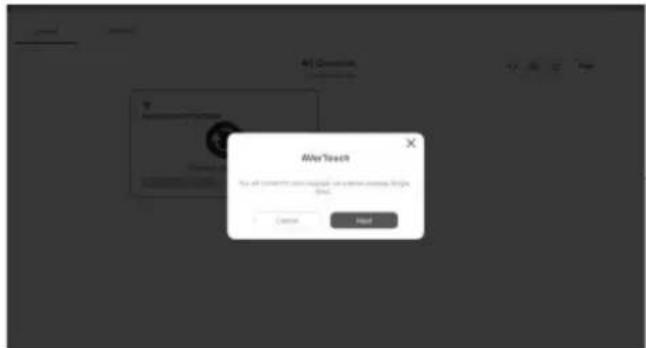
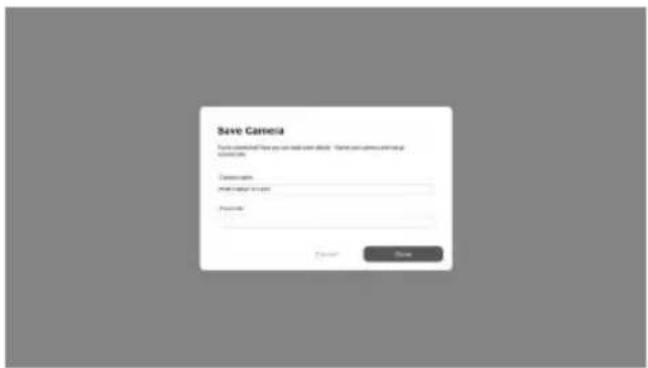
4
Entering the Camera Name and Passcode, click Done to continue.
5
Click Done button to connect camera.
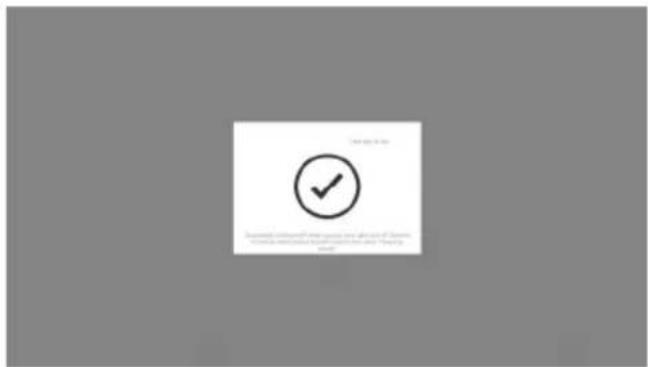
[Note] It takes about 60 seconds to complete connection.
6
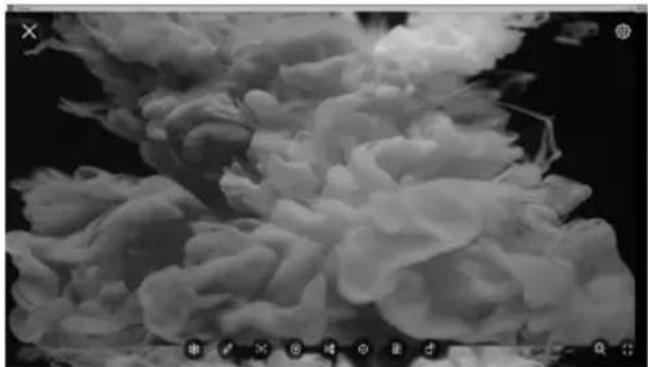
Select X can exit the live view page.
natural_image
Abstract grayscale texture resembling cloud or smoke plume, no text or symbols visible[Note] When connecting is successful, you should see the live view of the camera.
Wi-Fi Connection
1 Power on the camera.
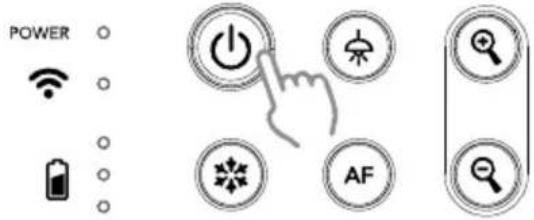
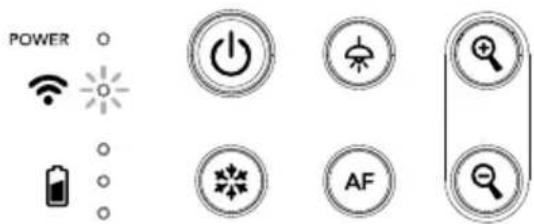
Check the Wi-Fi status – Blue light on.
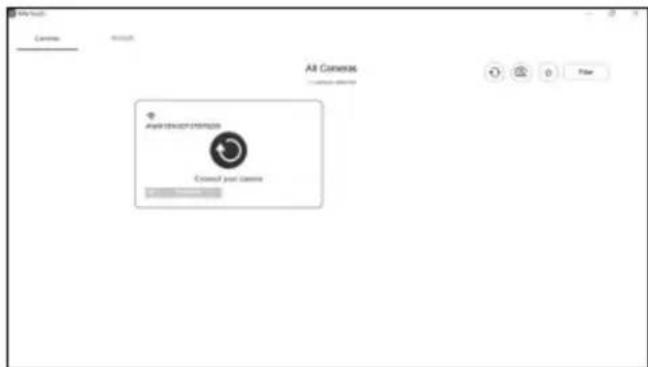
2 Open AVerTouch and follow on-screen instruction to enable Wi-Fi function on camera.
[Note]
■ The software will auto detect the camera on your network.
■ Select the camera that you want to connect with it.
■ The camera name will be "AVer 'model name' - WiFi dongle Mac address". The Mac address will be different from the device.
Wi-Fi Connection(Cont.)
3
Select to make a connection with camera.
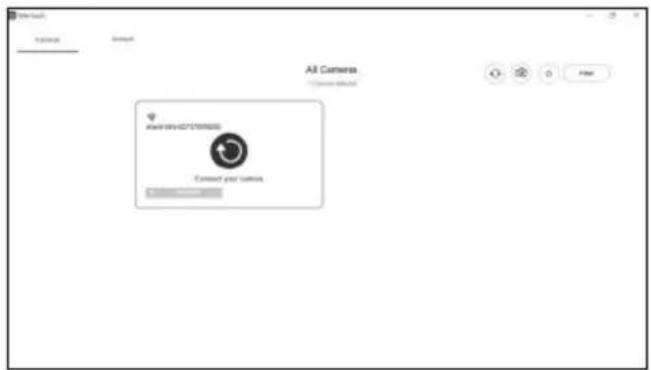
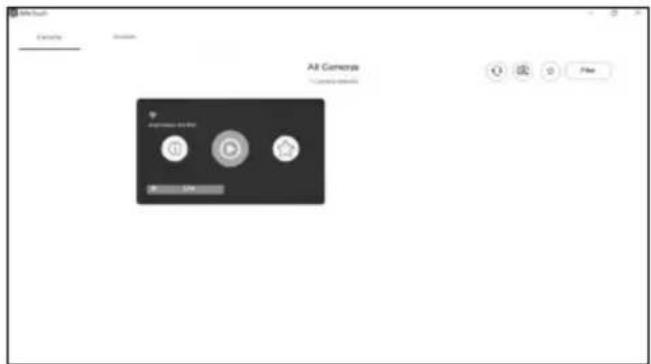
4
Select to switch to camera live screen.
Miracast Connection
1
Press

to enter selection menu.

flowchart
graph TD
    A["Mouse Icon"] --> B["Magnifying Glass Icon"]
    C["AF Symbol"] --> D["AF Symbol"]
    E["Other Icon"] --> F["Other Icon"]
[Note]
■ Using 🔒 and 🔒 button to go to the selection and press
![AVer AVerVision M15W - [Note] - 1](/content/2026/04/681455/images/41b72a043333cb0492f9fe259ab810581a5e392d3733063b8724e2f1da554460.jpg)
button to confirm the selection.
■ A commercial Miracast Dongle (Wireless Adapter) is required for the display device.
2
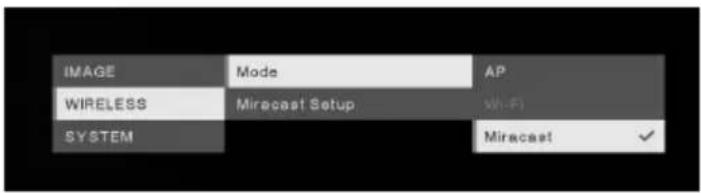
Select Wireless > Mode > Miracast to enable Miracast mode.
3
Select Miracast > display device.
![IMAGE Mode A1561000308-33 WIRELESS Miracast Setup [LG] webOS TV UK6... SYSTEM Cynap-01101591 MD-20_BFAA0093 .](/content/2026/04/681455/images/91e339f40072de8f1c26624f834229ef63eed1693b99a49fc65d0f9a915f39c9.jpg)
[Note]
■ The detected display devices will be list out.
■ Press 🙏 back to the menu.
■ The camera image will display on the display device's screen after connecting.
Using the Camera
Storage the Camera
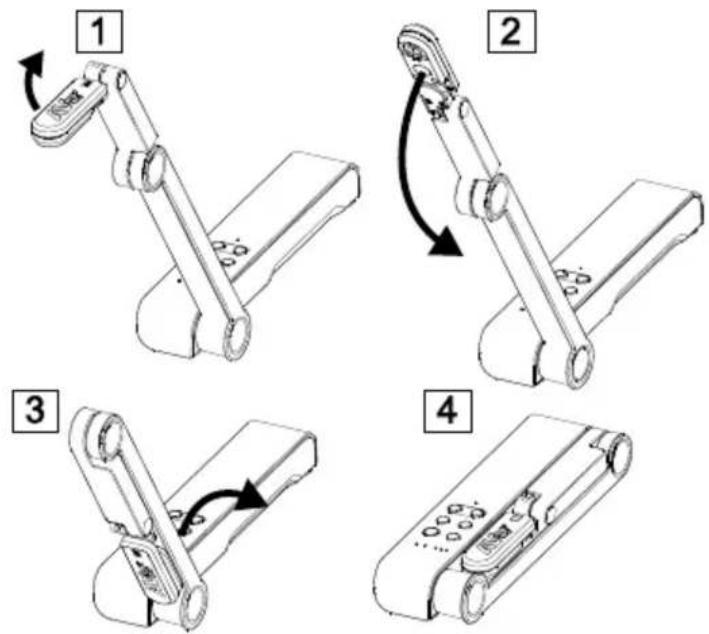
Using the Camera (continue)
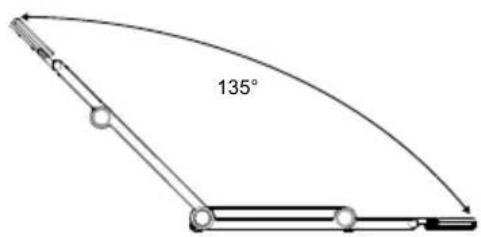
Using Angle of the Camera
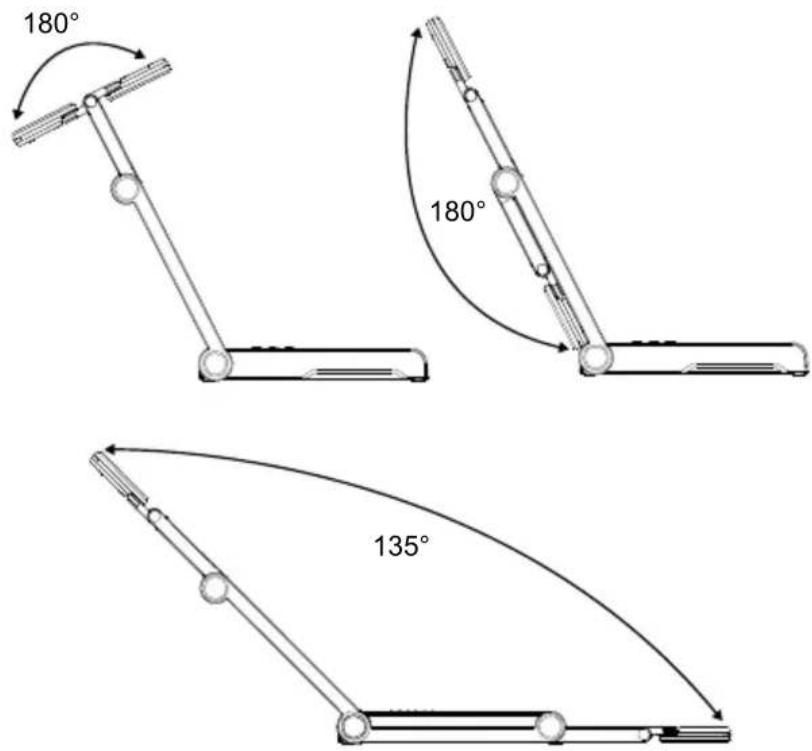
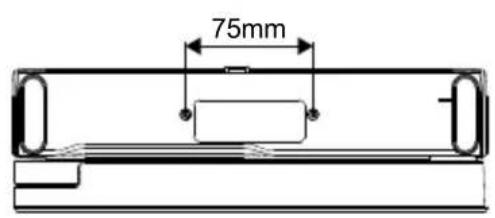
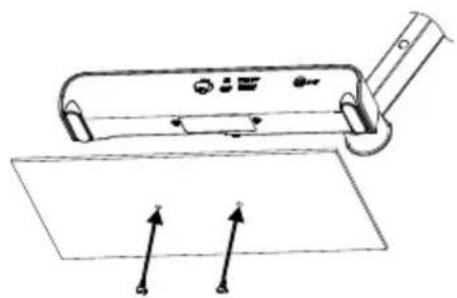
Mounting the Camera on a Flat Surface
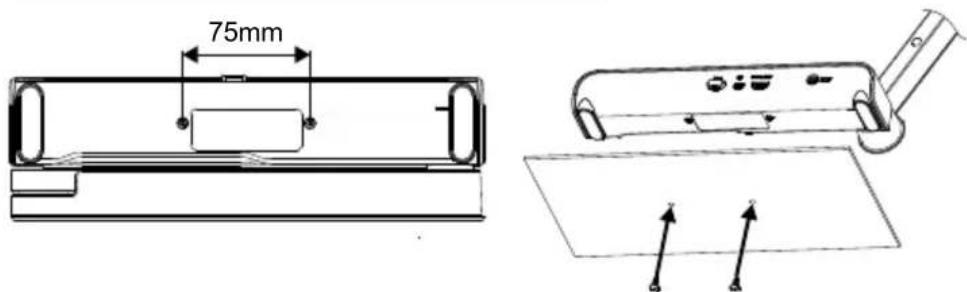
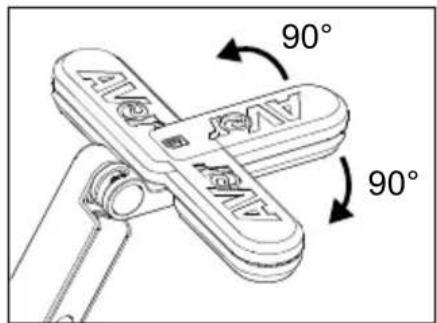
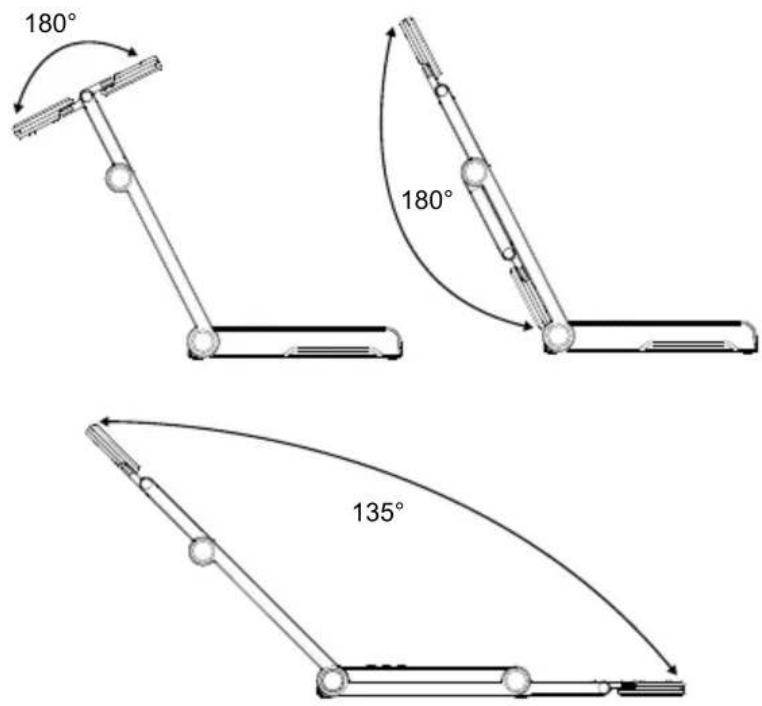
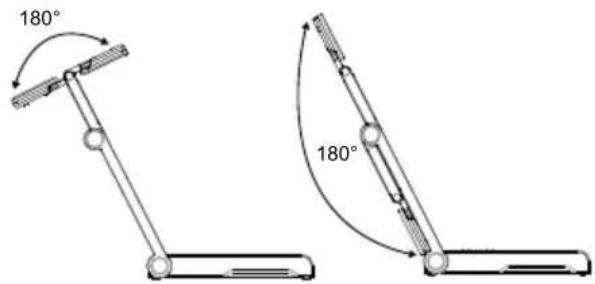
Rotate the Camera Head
Move the camera head as figure shown.
[CAUTIION] To avoid damage the camera head, hold the edge of the camera head to rotation the camera head.
Shooting Area
When camera position is 330mm high, the shooting area will be A3 size. Place the object as illustrate show, the object image is in positive direction.
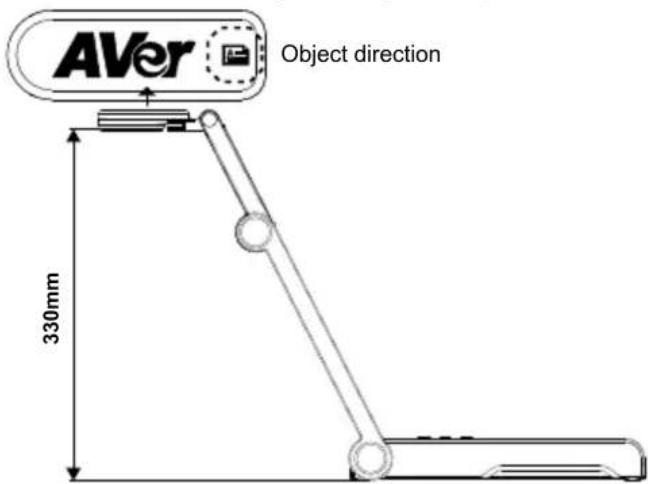
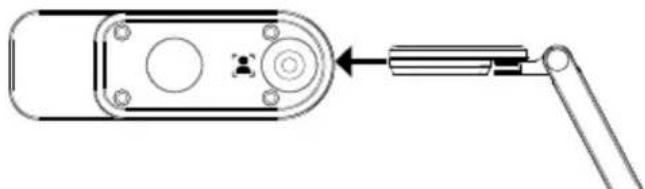
Image Shooting Direction
To shoot people, adjust the camera lens as illustrate shown; the people image is in positive direction.
natural_image
Pure mechanical diagram showing a lever and handle without any text, numbers, or symbolsEnglish-11
Specification
| Sensor 1/3.06" CMOS | |
| Pixel Count | 13 megapixels |
| Frame Rate | 60 fps (max.) |
| Image mode Normal | / High Frame / High Quality |
| Effect Rotate / Freeze | |
| HDMI Output 4K; 1080p 60Hz; 720p 60Hz | |
| Focusing Auto / Manual/ Area (SW) | |
| Shooting Area 426mm x313mm @ 330 mm | |
| Zooming Total 23X maximum | |
| Dual Mode AP / Station DHCP(Server/Client) | |
| WiFi Streaming 1080P@30fps, up to 4K@30fps | |
| Dual Band 5GHz/2.4GHz | |
| Miracast Yes | |
| Compatibility 802.11a/b/g/n/ac (45 ft effective range) | |
| Wireless Security | SUPPORT WEP, WPA/WPA2-PSK,WPA/WPA2-Enterprise**EAP-PEAP, EAP-TLS |
| Power Source | DC5V/ 2A, AC 100-240V |
| Consumption | 4 Watts(lamp on)3.5 Watts(lamp off) |
| Lamp Type | LED light |
| USB | USB2.0 Type-A(WiFi Dongle)USB Type mini-B x 1 |
| DC 5V Input | Power Jack |
| MIC | Built-in |
| Operating | 518mm(L)*84 mm(W)*351mm(H)(+/-2mm include rubber foot) |
| Folded | 280mm(L)*84mm(W)*42mm(H)(+/-2mm include rubber foot) |
| Weight 0.68 kg (about 1.5lbs) | |
| Software Supported | ePTZImage/ Area capturePicture by PictureTimerCloud libraryRecordingAnnotation |
CE Class A
Warning:
This is a class A product. In a domestic environment this product may cause radio interference in which case the user may be required to take adequate measures.
NOTICE
SPECIFICATIONS ARE SUBJECT TO CHANGE WITHOUT PRIOR NOTICE. THE INFORMATION CONTAINED HEREIN IS TO BE CONSIDERED FOR REFERENCE ONLY.
COPYRIGHT
©2023 AVer Information Inc. All rights reserved. | June 27, 2023
The information contained in this documentation is subject to change without notice.
TRADEMARKS
“AVer” is a trademark owned by AVer Information Inc. Other trademarks used herein for description purpose only belong to each of their companies.
CAUTION
Risk of Explosion if Battery is replaced by an Incorrect Type. Dispose of Used Batteries According to the Instructions.
DISCLAIMER
No warranty or representation, either expressed or implied, is made with respect to the contents of this documentation, its quality, performance, merchantability, or fitness for a particular purpose. Information presented in this documentation has been carefully checked for reliability; however, no responsibility is assumed for inaccuracies. The information contained in this documentation is subject to change without notice.
In no event will AVer be liable for direct, indirect, special, incidental, or consequential damages arising out of the use or inability to use this product or documentation, even if advised of the possibility of such damages.
WARNING
■ Do not drop the camera or subject it to physical shock.
■ Use the correct power supply voltage to avoid the damaging camera.
■ Do not place the camera where the cord can be stepped on as this may result in fraying or damage to the lead or the plug.
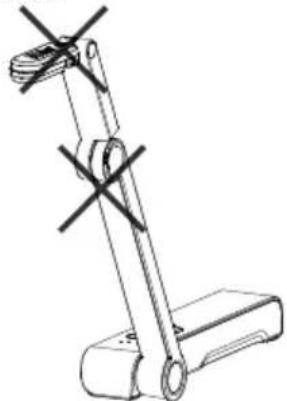
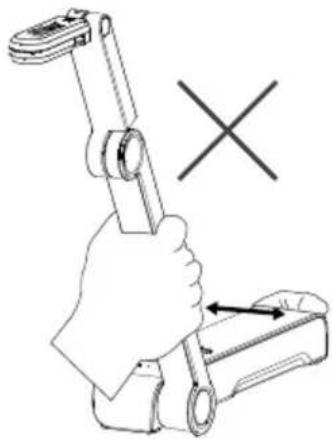
■ Do not pull the mechanical arm and camera part in the opposite direction.
natural_image
Technical line drawing of a mechanical device with no visible text or symbols■ To reduce the risk of fire or electric shock, do not expose this appliance to rain or moisture. Warranty will be void if any unauthorized modifications are done to the product.
■ Hold the bottom of the camera with both hands to move the camera. Do not grab the lens or Flexible arm to move the camera.
natural_image
Illustration of a hand holding a tool with a cross mark, no text or symbols presentRADIO FREQUENCY
FOR PORTABLE DEVICE USAGE (<20m from body/SAR needed eg. BT dongle, smartphone)
Radiation Exposure Statement:
The product comply with the FCC portable RF exposure limit set forth for an uncontrolled environment and are safe for intended operation as described in this manual. The further RF exposure reduction can be achieved if the product can be kept as far as possible from the user body or set the device to lower output power if such function is available.
FOR MOBILE DEVICE USAGE (>20cm/low power eg. AP routers)
Radiation Exposure Statement:
This equipment complies with FCC radiation exposure limits set forth for an uncontrolled environment. This equipment should be installed and operated with minimum distance 20cm between the radiator & your body.
RADIO FREQUENCY
Europe – EU Declaration of Conformity
This device complies with the essential requirements of the Radio Equipment Directive (2014/53/EU). The following test methods have been applied in order to prove presumption of conformity with the essential requirements of the Radio Equipment Directive (2014/53/EU)
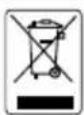
THE MARK OF CROSSED-OUT WHEELED BIN INDICATES THAT THIS PRODUCT MUST NOT BE DISPOSED OF WITH YOUR OTHER HOUSEHOLD WASTE. INSTEAD, YOU NEED TO DISPOSE OF THE WASTE EQUIPMENT BY HANDING IT OVER TO A DESIGNATED COLLECTION POINT FOR THE RECYCLING OF WASTE ELECTRICAL AND ELECTRONIC EQUIPMENT. FOR MORE INFORMATION ABOUT WHERE TO DROP OFF YOUR WASTE EQUIPMENT FOR RECYCLING, PLEASE CONTACT YOUR HOUSEHOLD WASTE DISPOSAL SERVICE OR THE SHOP WHERE YOU PURCHASED THE PRODUCT.
MORE HELP
For FAQs, technical support, software and user manual download, please visit:
Download Center Technical Support
Headquarters
https://www.aver.com/download-center
https://www.aver.com/technical-support
Europe Branch Office
https://www.avereurope.com/download-center
https://www.avereurope.com/technical-support
CONTACT INFORMATION
Headquarters
AVer Information Inc.
https://www.aver.com
8F, No.157, Da-An Rd., Tucheng Dist., New Taipei City 23673, Taiwan
Tel: +886 (2) 2269 8535
Europe Branch office
AVer Information Europe B.V.
https://www.avereurope.com
Westblaak 134, 3012 KM, Rotterdam, The Netherlands
Tel: +31 (0) 10 7600 550
Technical support: eu.rma@aver.com
Japan Branch Office
アバー・インフォメーション株式会社
https://jp.aver.com
Vietnam Branch Office
Công ty TNHH AVer Information (Việt Nam)
[註]
[註] 約需等待 60 秒來完成連接。
6
點選 X 可離開即時影像顯示畫面。
![AVer AVerVision M15W - [註] - 1](/content/2026/04/681455/images/d43a2178ced52429a34906b9938e4a914ca926df99f05e0e68b0dbad7787abcd.jpg)
natural_image
Microscopic view of a fibrous or cellular structure with no visible text or symbols確認無線連線狀態為「藍燈恆亮」狀態。
flowchart
graph TD
    A["AF"] --> B["Question Mark"]
    B --> C["Magnifying Icon"]
    C --> D["Single Circle"]
[註]
natural_image
Mechanical linkage diagram showing a lever and fulcrum with no text or symbols![AVer AVerVision M15W - [註] - 1](/content/2026/04/681455/images/b3a47e316ca2816f37417dce27c9080bc12e2accc6fb2c3c9060ac37311db186.jpg)
natural_image
Mechanical diagram showing a lever mechanism with a curved arrow indicating rotational motion (no text or symbols)![AVer AVerVision M15W - [註] - 2](/content/2026/04/681455/images/4e7b7e18e1b270b6e51c9fc3850d3a9357816c34f690eb2c8aa54df7bb8e01a3.jpg)
natural_image
Technical line drawing of a mechanical component with no visible text or symbols使用 M15W(v2)(接續)
可使用角度
安裝 M15 於平面上
natural_image
Diagram of a handheld device with two arrows pointing to a blank sheet, no text or symbols present旋轉鏡頭
natural_image
Technical line drawing of a mechanical component with a lever and housing (no text or symbols)規格
natural_image
Technical line drawing of a mechanical device with no visible text or symbols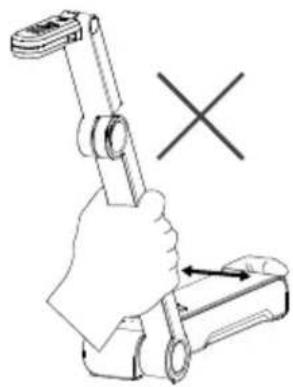
natural_image
Illustration of a hand holding a handheld device with a cross symbol indicating cancellation or disassembly (no text or symbols present)免責聲明
https://www.aver.com
https://www.aver.com/download-center
常見問題、技術支援,請到下面網址:
https://www.aver.com/technical-support
パッケージ同梱物
[注意]
natural_image
Mechanical linkage diagram showing a lever with a curved arrow indicating motion (no text or symbols)![AVer AVerVision M15W - [注意] - 1](/content/2026/04/681455/images/3b618260bfd762aa09b6939a6e6f25d20a33308821e35e8caf949727563bdb8d.jpg)
natural_image
Mechanical assembly diagram showing a lever mechanism with a curved arrow indicating motion (no text or symbols)![AVer AVerVision M15W - [注意] - 2](/content/2026/04/681455/images/907d3dedfcfafcd46c14bad43337a75dd8968bf602d626eb53a63ba86e3fa514.jpg)
natural_image
Technical line drawing of a mechanical component with no visible text or symbolsカメラを使用する(続き)
カメラの角度調節
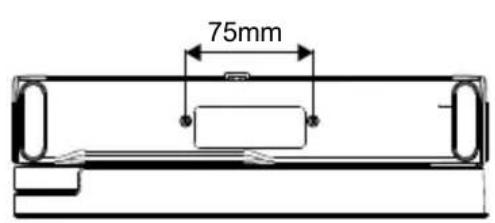
カメラのねじ固定を行う箇所・寸法
![AVer AVerVision M15W - [注意] - 6](/content/2026/04/681455/images/ffb9b25beb0705946716248a5c949ef74539beaa185029a0be19af6fb66cd37a.jpg)
natural_image
Diagram of a device with three arrows pointing to a blank sheet, no text or symbols present日本語-37
カメラを使用する(続き)
カメラヘッドの回転
図のようにカメラヘッドを動かします。
natural_image
Pure mechanical assembly diagram showing a lever and handle without any text or symbols日本語-38
仕様
natural_image
Illustration of a hand holding a mechanical clamp with an 'X' symbol indicating no text or labelsnatural_image
Line drawing of a mechanical device with a vertical rod and base, featuring intersecting rods (no text or symbols)製品サポート
https://jp.aver.com/download-center
ヘルプセンター
https://jp.aver.com/helpcenter
お問い合わせ先
アバー・インフォメーション株式会社
https://jp.aver.com
natural_image
Technical line drawing of a rectangular electronic device with circular ports and a central internal component (no text or symbols)M15W(v2)-Gerät
Netzadapter/Netzstecker

USB-Kabel
Garantiekarte*
Bedienungsanleitung
WLAN-Dongle (Option)
[Hinweis]
4
5
natural_image
Black and white abstract cloud-like texture with no visible text or symbols![AVer AVerVision M15W - [Hinweis] - 1](/content/2026/04/681455/images/fd3bab4f11a3663d25c6ff26c95aa0b37e87af2c33351969f656671083ba6c52.jpg)
natural_image
Technical line drawing of a mechanical device with two arrows indicating movement or force, no text or symbols presentKamerakopf drehen
natural_image
Pure mechanical assembly diagram showing a lever and housing component without any text or symbolsTechnische Daten
natural_image
Technical line drawing of a mechanical device with no visible text or symbols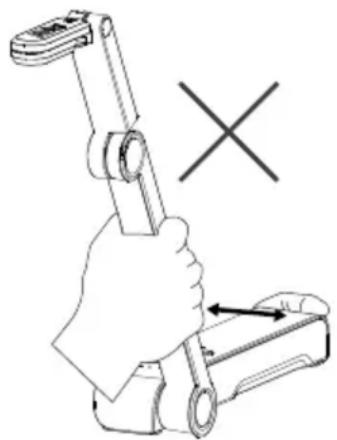
natural_image
Illustration of a hand holding a mechanical clamp or tool, with a cross symbol indicating a specific movement (no text or labels present)Mehr Hilfe
https://www.avereurope.com/download-center
https://www.avereurope.com/technical-support
Westblaak 134, 3012 KM, Rotterdam, The Netherlands
Tel: +31 (0) 10 7600 550
natural_image
Technical line drawing of a rectangular electronic device with ports and buttons (no text or symbols)Appareil M15W(v2)
[Remarque]
natural_image
Simple line drawing of a mechanical device with a sensor icon and signal waves (no text or symbols)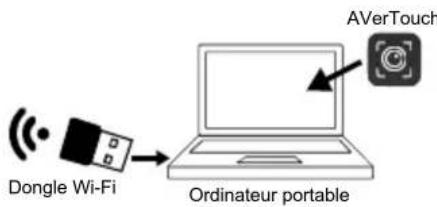
2
4
5
natural_image
Abstract grayscale texture with flowing, cloud-like forms against a dark background (no text or symbols)
4
Connexion Miracast
natural_image
Technical line drawing of a handheld device with two arrows pointing to a blank sheet (no text or symbols)Français-66
natural_image
Pure mechanical component diagram showing a lever and handle without any text or symbolsCaractéristiques
natural_image
Technical line drawing of a mechanical device with no visible text or symbolsnatural_image
Illustration of a hand holding a mechanical clamp with a cross mark, no text or symbols presentAide Supplémentaire
https://www.avereurope.com/download-center
Assistance Technique:
https://www.avereurope.com/technical-support
Westblaak 134, 3012 KM, Rotterdam, The Netherlands
Tel: +31 (0) 10 7600 550
Assistance technique: eu.rma@aver.com
natural_image
Line drawing of a remote control device with buttons and ports (no text or symbols)Unidad M15W(v2)
[Nota]
natural_image
Mechanical linkage device with sensor icon and sound waves (no text or symbols)![AVer AVerVision M15W - [Nota] - 1](/content/2026/04/681455/images/b4685798378f38fc6a8b4910d92f5d83ba5465a95457afe70b8778ae853caa5b.jpg)
flowchart
graph LR
    A["Llave Wi-Fi"] --> B["Portátil"]
    C["AVerTouch"] --> B
4
natural_image
Microscopic view of a porous, fibrous material structure (no text or symbols visible)![AVer AVerVision M15W - [Nota] - 2](/content/2026/04/681455/images/7d6269f39301ffaa30e87d79e027094c4a994bb52f823ed4ceacfe70ee8cea0a.jpg)
flowchart
graph TD
    A["AF"] --> B["Icon"]
    C["AF"] --> D["Icon"]
    E["AF"] --> F["Icon"]
    G["AF"] --> H["Icon"]
[Nota]
natural_image
Diagram of a device with two arrows pointing to a blank sheet, no text or symbols presentEspañol-80
natural_image
Technical line drawing of a mechanical component with a lever and housing (no text or symbols)Especificaciones
natural_image
Technical line drawing of a mechanical device with no visible text or symbolsnatural_image
Illustration of a hand holding a tool with a cross mark and directional arrow (no text or symbols)Ayuda Adicional
https://www.avereurope.com/download-center
Soporte técnico:
https://www.avereurope.com/technical-support
Westblaak 134, 3012 KM, Rotterdam, The Netherlands
Tel: +31 (0) 10 7600 550
natural_image
Technical line drawing of a remote control device with buttons and ports (no text or symbols)Unità M15W(v2)
[Nota]
natural_image
Simple line drawing of a mechanical lever with a sensor icon and signal waves (no text or symbols)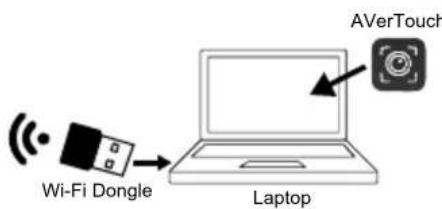
4
5
natural_image
Abstract grayscale image of a textured, cloud-like shape with no visible text or symbols
[Nota]
3
natural_image
Mechanical lever diagram showing a rotating arm and fulcrum (no text or symbols)![AVer AVerVision M15W - [Nota] - 1](/content/2026/04/681455/images/daeb66dc040b0465da6632ac7b80837c285a281c8612ae0e569a1e8536589175.jpg)
natural_image
Mechanical assembly diagram showing a lever mechanism with a curved arrow indicating rotation (no text or symbols)![AVer AVerVision M15W - [Nota] - 2](/content/2026/04/681455/images/0e25f1366bc09ffead5c265bb73e2407a52f7d18c588d631ea69c12286c58473.jpg)
natural_image
Technical line drawing of a mechanical component with no visible text or symbolsnatural_image
Technical line drawing of a mechanical device with two arrows indicating force or movement (no text or symbols present)Italiano-95
natural_image
Pure mechanical component diagram without any text, numbers, or symbolsSpecifiche tecniche
natural_image
Technical line drawing of a mechanical lever assembly (no text or symbols)natural_image
Illustration of a hand holding a tool with a cross mark, no text or symbols presentAltro Aiuto
https://www.avereurope.com/download-center
Assistenza tecnica:
https://www.avereurope.com/technical-support
Westblaak 134, 3012 KM, Rotterdam, The Netherlands
Tel: +31 (0) 10 7600 550
- M15W(v2)
- Optional Accessories
- Hardware Parts
- Control Panel
- LED Indicator
- [Note]
- Compound Key
- Device Connection
- P2P connection via Wi-Fi Dongle(Optional)
- Wi-Fi Connection
- Power on the camera.
- Open AVerTouch and follow on-screen instruction to enable Wi-Fi function on camera.
- Wi-Fi Connection(Cont.)
- 3
- 4
- Miracast Connection
- 1
- 2
- Using the Camera
- Storage the Camera
- Mounting the Camera on a Flat Surface
- Rotate the Camera Head
- Shooting Area
- Image Shooting Direction
- CE Class A
- NOTICE
- COPYRIGHT
- TRADEMARKS
- CAUTION
- DISCLAIMER
- WARNING
- RADIO FREQUENCY
- MORE HELP
- CONTACT INFORMATION
- Headquarters
- Europe Branch office
- Japan Branch Office
- Vietnam Branch Office
- [註]
- 使用 M15W(v2)(接續)
- 旋轉鏡頭
- 免責聲明
- パッケージ同梱物
- [注意]
- 製品サポート
- お問い合わせ先
- [Hinweis]
- Kamerakopf drehen
- Mehr Hilfe
- [Remarque]
- Connexion Miracast
- Aide Supplémentaire
- [Nota]
- Ayuda Adicional
- Altro Aiuto
Brand : AVer
Model : AVerVision M15W
Category : Document camera