CA-505 - Air purifier Clean Air Optima - Free user manual and instructions
Find the device manual for free CA-505 Clean Air Optima in PDF.


| Product Type | Air Purifier |
| Brand | Clean Air Optima |
| Model | CA-505 Smart |
| Dimensions (L x W x H) | 220 x 220 x 375 mm |
| Weight | 2.7 kg |
| Power Supply - Adapter | Input: AC 100-240 V, 50/60 Hz, 0.9-1.5 A; Output: 24 V, 1.5 A |
| Nominal Power | Max. 25 W |
| Capacity (CADR) | 250 m³/h |
| Coverage Area | Up to 50 m² / 125 m³ |
| Filters | Pre-filter, activated carbon filter, photocatalytic filter, true HEPA H13 filter |
| Filter Performance | 99.97% |
| Noise Level | 10 dB(A) (standby), 15 dB(A) (speed 1), 25 dB(A) (speed 2), 35 dB(A) (speed 3), 50 dB(A) (speed 4) |
| Operating Modes | Auto, Standby, 4 manual speeds |
| Digital Display | Real-time PM2.5 measurement, air quality color indicator |
| WiFi Function | Yes, compatible with CleanAirOptima app (iOS/Android) |
| Child Lock | Yes (lock by long press on speed button) |
| Filter Lifespan | Approximately 1400 operating hours, about 4 to 5 months |
| Warranty | 2 years (excl. filters) |
| Maintenance and Cleaning | Clean the pre-filter and HEPA filter with a brush or vacuum cleaner (do not wet) |
| Operating Temperature | 10 °C to 45 °C |
| Color | Light grey / white |
Frequently Asked Questions - CA-505 Clean Air Optima
User questions about CA-505 Clean Air Optima
0 question about this device. Answer the ones you know or ask your own.
Ask a new question about this device
Download the instructions for your Air purifier in PDF format for free! Find your manual CA-505 - Clean Air Optima and take your electronic device back in hand. On this page are published all the documents necessary for the use of your device. CA-505 by Clean Air Optima.
USER MANUAL CA-505 Clean Air Optima
Clean Air Optima Air Purifier CA-505 Smart
(EN) User manual
(DE) Gebrauchsanweisung
(NL) Gebruiksaanwijzing
(FR) Mode d'emploi
(ES) Manual del usuario
(PL) Instrukcja obsługi
(CZ) Uživatelská příručka
(RO) Manual de utilizare
(LT) Naudotojo vadovas
(EE) Kasutusjuhend
(LV) Lietošanas pamācība
Find more languages on: www.cleanairoptima.com/info/manuals
English
Thank you for purchasing the Clean Air Optima Air Purifier CA-505 Smart.
We wish you many years of healthy indoor air with this efficient and effective product.
Ensure that all safety precautions are followed when using this electrical appliance for the proper operation of the device. These instructions describe the safety precautions to be observed during operation. They are meant to prevent injuries and to avoid damaging the device.
Before using your new Clean Air Optima Air Purifier CA-505 Smart.
Remove the sealing from the filters first, see page 4. How to use.
CA-505 Smart / Description of the device
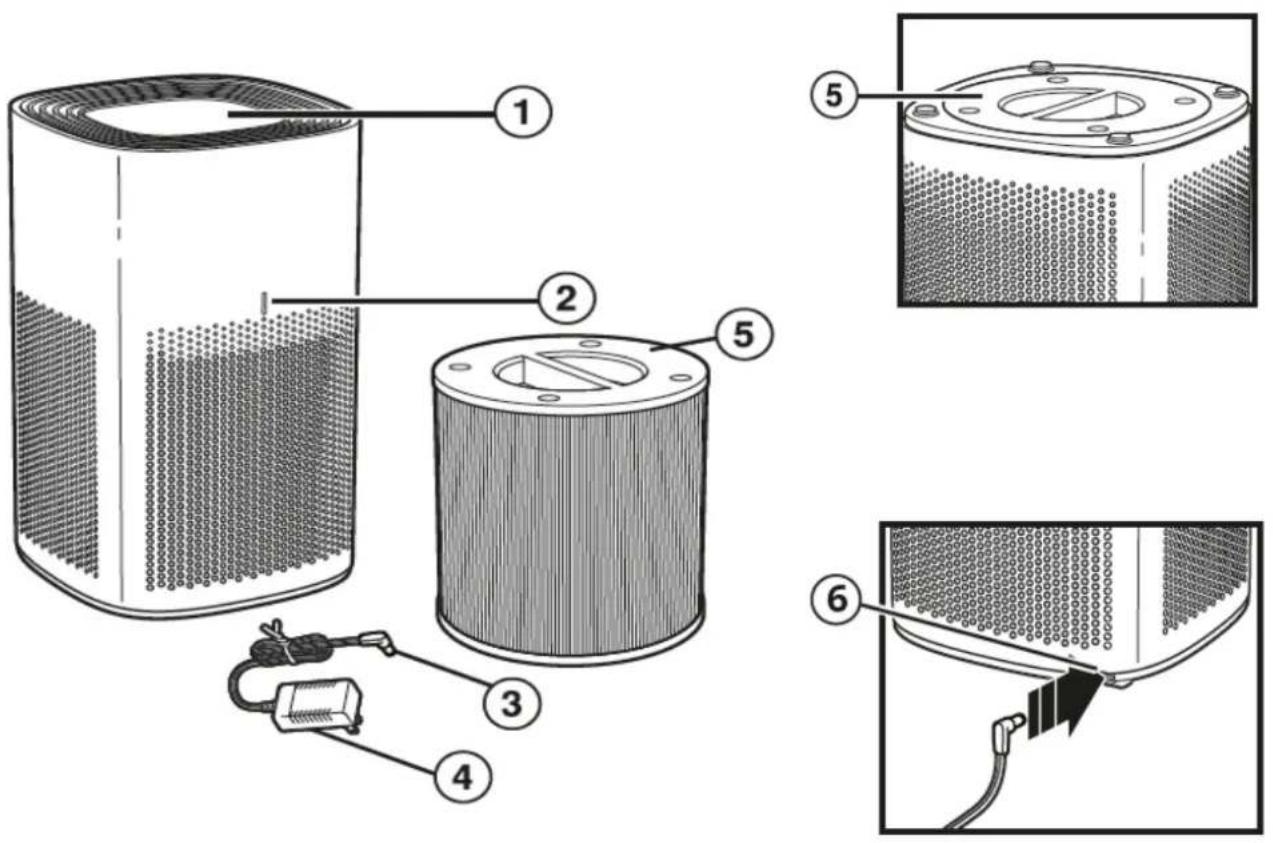
- Control panel
- Air quality indicator
- Power cord
- Power adapter
- True HEPA H13 filter, active carbon filter and pré filter
- Adapter opening
Safety warnings
This device may only be used in accordance with this safety instructions. Take the following steps to minimize the risk of personal injury caused by for example electric shocks or fire.
- Only for indoor use. Do not use or store outdoors.
- This device can be used by children aged from 8 years and above and persons with reduced physical, sensory or mental capabilities or lack of experience and knowledge if they have been given supervision or instruction concerning use of the device in a safe way and understand the hazards involved. Children shall not play with the device. Cleaning and user maintenance shall not be made by children without supervision.
- Do not use the device when there is visible damage on the electrical cord or on the device itself. Do not repair the device yourself in case of damage. Never pull the device by its cord. If the power cord is damaged, then it must be replaced by an authorized service person to prevent electric shock or fire.
- Repairs may only performed by authorized service personal. Do not try to repair the device yourself to prevent electric shock or fire.
- Always remove the plug from the cord when the device is not being used.
- Only use power power adapters and cords provided. Check if adapter voltage matches local voltage.
- Pull the plug when you do not use the device or when you clean internal or external parts of it.
- For safety use put the device in a steady, horizontal position. Do not move while using.
- Do not use the device in rooms where inflammable liquids or gases are stored, close to heat sources or in particular humid rooms like the bathroom.
- Never insert any other object into the body to avoid breakdown.
- Never cover the air inlet and air outlet grid.
- Never dissemble or replace the device's inner parts.
- When the device is running, do not touch the air inlet and outlet grilles, and do not insert the handle or any object into the air outlet to avoid injury or damage to the air purifier.
- To keep the inlet and outlet air grille of the air purifier unimpeded, do not place objects above or near the front cover of the air purifier.
- Do not put heavy objects on the unit.
- Please avoid places with direct sunlight. There is a risk that the device discolors.
- Never immerse the unit in water or other liquids.
- Do not touch the power cord with wet hands.
- Clean the Pre-filter regularly, if the Pre-filter is saturated with dust, it will lead to poor purifying effect. The power consumption will increase, it can cause failure.
- The normal operating environment of the device is 10 °C to 45 °C degrees.
- Use, maintain and clean the device as described in this manual.
Clean Air Optima®
How to use
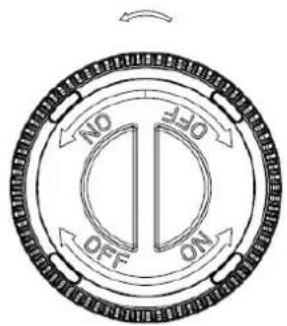
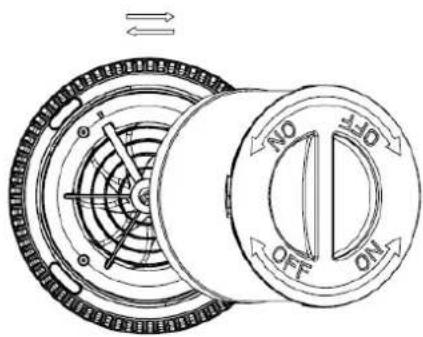
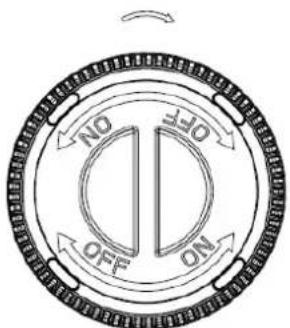
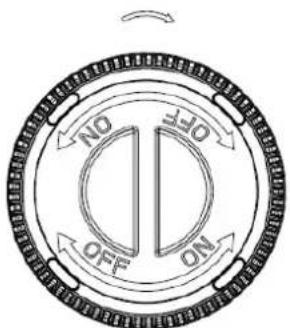
- Turn open the bottom plate.
- Remove the HEPA filter.
-
Remove the packaging from the filter.
-
Place the filter back in the device.
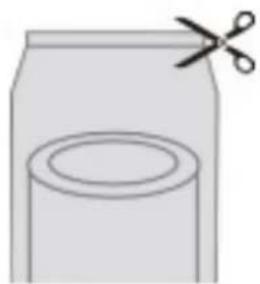
natural_image
Simple line drawing of a container with scissors above it, no text or symbols present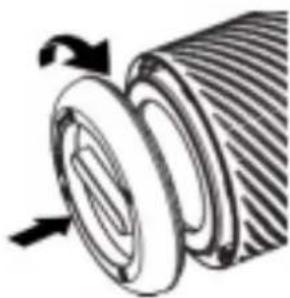
natural_image
Mechanical component diagram showing a cylindrical assembly with internal grooves and a directional arrow (no text or symbols)- Tighten the bottom plate.
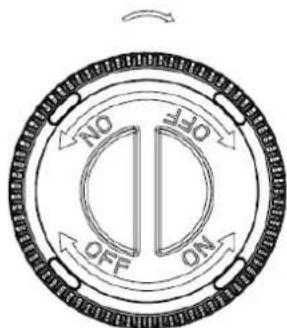
Do not use the device with the filter removed.
Insert the adapter into the adapter opening on the back of the air purifier and plug it into the wall socket. You will hear one beep and the air quality indicator light will go on and then go off.
The device needs to be positioned at least 30 cm from walls and furniture to obtain a good air flow. Make sure that the air in-and outlets are not blocked.
Control Panel / Operation Instruction
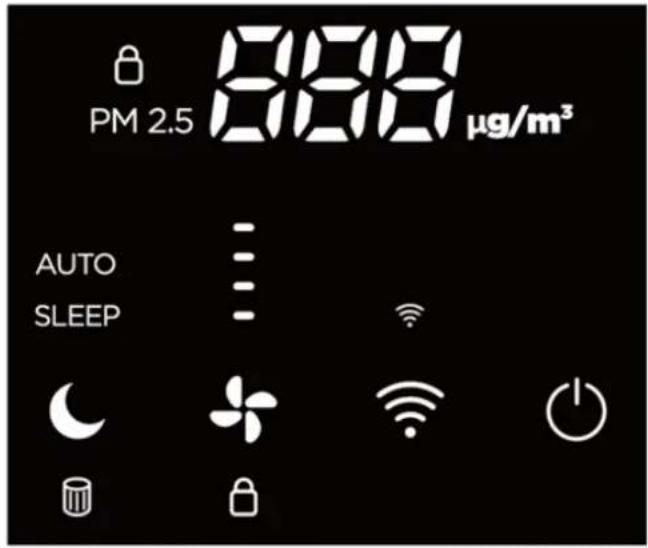

Power Button
sing the Power button you turn the device on and off.
(Default is Auto mode after turning on the device).
Air Quality Indicator Light on front of Air Purifier will illuminate different colors as PM2.5 sensor evaluates air quality. Once complete, color will reflect current air quality. See chart for air quality levels.
The ionizer switches on automatically.

eed mode
nessing the Speed button, you can change the speed level. There are several fands available. You can choose the auto mode, speed 1, 2, 3 or 4. Touch the fan speed button repeatedly to select the mode.
In the setting Auto the integrated smart sensor (Intelligent Particle Sensor™) measures and regulates air quality automatically. The fan, controlled by a sensor anticipates automatically to what extent indoor air is polluted by particles size PM2.5 and adapting to the 4 different speeds accordingly.
The similarity to automatic mode is shown as follows:
If the PM2.5 value is between 0 and 12, the speed indicator light will show a 1.
If the PM2.5 value is between 13 and 35, the speed indicator light will show a 2.
If the PM2.5 value is between 36 and 55, the speed indicator light will show a 3.
If the PM2.5 value is between 56 and 999, the speed indicator light will show a 4.

eep
en the sleep mode is activated, the display will turn off. Only the sleep mode light
is on. The fan speed goes to the lowest setting. Touch the sleep button twice for full operation.

child Lock
d lock protects from unwanted use of the device.
The child lock is switched on/off by pressing and holding the speed button for 3 seconds until a beep sounds.
5 Filter replacement
The Clean Air Optima Air Purifier CA-505 Smart is equipped with a filter lifespan surveillance mechanism that signals that the filters have to be replaced after 1400 working hours. To show that the composite filters (HEPA + Activated Carbon Filter) need
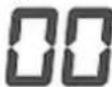
to be replaced, the indicator light will light up, and the device emits a double zero indicator light. Reset the timer for the filter by pressing and holding the sleep button for about 3 seconds. If the indicator light goes out, the timer has been successfully reset.

'IFI
indicator.
Digital Monitor
The digital monitor on the top of the air purifier CA-505 Smart indicates automatically and exactly current air quality by measuring the level of Particle measurement PM2.5
| Particle measurement (PM 2.5) | Air quality: |
| 0-12 | Green - Good |
| 13-35 | Yellow - Moderate |
| 36-55 | Orange - Very moderate |
| 56-150 | Red-Poor |
| 151-250 | Purple - Very poor |
| 250-999 | Maroon / brown - Unhealthy |
Particulate matter of 10um (PM10) and smaller 2,5 um (PM2.5) can get into the lungs and belongs to the top 10 threats for human health. These small particles develop through typical indoor processes such as cooking, baking, frying, smoking, as well as heating or are also transported in big quantities into indoor air because of transportation, industry, construction, biological material (pollen, bacteria, mites, and viruses), imported particles from other regains such as (airplane) exhaust gases and volcano eruptions.
Allergens such as pollen and dust cause serious and long-term health threats to millions of persons each spring: the numbers are increasing constantly.
Measurement of relative humidity and temperature
Important aspects for effective air purification: relative humidity between 45 - 60% and room temperature of about 20 - 23 °C.
Operation with Clean Air Optima® App
Connectivity
Compatibility with smartphone and tablet:
iPhone, iPad and Android devices
Device connets via WiFi with App:
CleanAirOptima
Attention: The router must be set to the 2.4 GHz broadband. If the router is set to the 5.0 GHz, it is impossible to establish a connection.
Set up WiFi connection
-
Download and install the Clean Air Optima® App in the App Store or Google Play Store.
-
Make an account and log in.
-
Plug the device into the power socket and switch it on. After power on, long press the WIFI button for 3 seconds, the WIFI indicator light will flash quickly. The connection can be started, only when the WIFI indicator light flashes.
-
The router must be set to the 2.4 GHz broadband. If the router is set to the 5.0 GHz, no connection can be established.
-
Make sure Bluetooth is enabled on your smartphone.
-
Make sure that your smartphone or tablet is successfully connected to your WiFi network.
-
Open the Clean Air Optima® App and click on 'Add device'. Your device is listed and you can select it. If not choose 'Auto Scan'. Follow the on-screen instructions to connect the device to your network.
-
Choose to add the Clean Air Optima ^® device on the App, follow the instructions in the App.
-
When the device is paired, the WiFi indicator light stays on constantly.
-
After the configuration is successful, you can use the Clean Air Optima® App to operate the device.
Note:
- If your default network has changed, reset the WiFi connection, follow step 3 to 8 in the 'Set up WiFi connection' section.
- If you want to pair multiple devices to your smartphone or tablet, you have to do this one after the other.
- Make sure that the distance between your smartphone or tablet and the device is less than 5 meters and there are no obstacles. Also make sure you are in the same room as the device.
Reset the WiFi function:
- Reset the WiFi by pressing the 'WiFi' button for 3 seconds, the indicator light of the WiFi will blink rapidly.
Clean Air Optima®
Connect devices to multiple phones
Note: First the other person needs to install the Clean Air Optima® App on his/her phone and create a new account.
Share the device with limited access:
You can choose to share 1 device with several persons.
This person will then have access, but will not be able to manage all the settings.
Follow the instructions below to share the device with several persons:
- Go to the relevant device.
- Go to the pencil or three dots in the top right.
- Select 'Share device.'
- Choose 'Add sharing'.
- Choose the sharing method e.g. via email, whatsapp, sms etc. and continue.
- The device will automatically appear in the Clean Air Optima® App with the other account.
Share device with full access:
You can add a person or several persons to your home management.
That person will then have access to all your devices that are already linked and has full rights and permissions. You will always remain the main administrator.
Follow the instructions below to add someone to your home management:
- Open the Clean Air Optima ^® App and go to 'Me'.
- Then choose 'Home Management'.
- Choose 'Create a home'.
- Select the relevant 'Home' and 'Add member'.
- Choose the sharing method e.g. via email, whatsapp, sms etc. and continue.
- The corresponding 'Home' will automatically appear in the Clean Air Optima® App of the person with whom you have shared your 'Home'.
- On the other account:
Go to the home screen from the Clean Air Optima® App. Go to the top left and select the 'Home'.
Maintenance
Cleaning the outside of the air purifier
- Switch off the device and pull the plug.
- Use a soft and humid piece of cloth to clean the device from dust and dirt.
- Make sure that no water gets into the device.
Clean Air Optima® air purifier storage
- Unplug the device and fold up the power supply cord.
- Remove and clean the filters. After cleaning reinstall the filters back into the device.
- It is recommended to wrap the Filter and the unit in a plastic bag and place in a cool, dry area.
Avoid moisture as it can damage the True HEPA filter.
Replacing of filters
The Clean Air Optima Air Purifier CA-505 Smart is equipped with a filter lifespan surveillance mechanism that signals that the filters have to be replaced after 1400 working hours. To show that the composite filters (HEPA + Activated Carbon Filter) need to be replaced, the indicator
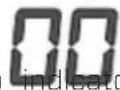
light will light up, and the device emits a double zero indicator light. Reset the timer for the filter by pressing and holding the sleep button for about 3 seconds. If the indicator light goes out, the timer has been successfully reset.
Depending on the use, the composite filters (HEPA + Activated Carbon Filter) has a lifespan of approx. 4-5 months.
Filter cleaning
The best effect is reached by cleaning the filters once a month. If indoor air is extremely polluted, more cleaning can be required.
Clean the Pre-filter and the HEPA filter with a brush or your vacuum cleaner. That way bigger dust particles like lint, hair and dander of pets can be removed from the filter.
Warning! Do never wet or rinse the composite filters (HEPA + Activated Carbon Filter) with water.
natural_image
Pure technical diagram of a mechanical component with hatched background and no visible text or symbolsSigns for used up filters
Increased sound, reduced air flow, congested filters, rising presence of smells. The filter needs to be replaced by a new one when the HEPA filter changes its color from white to grey or black. If the HEPA filter remains white, there is NO need to replace the filter.
How to order filters:
Contact Clean Air Optima Customer Service tel. + 31 (0) 742670145 or visit our webshop:
https://www.cleanairoptima.com/-accessoires
Troubleshooting
The following is a troubling shooting guide to help you solve any issues that you may have using the Clean Air Optima Air Purifier CA-505 Smart.
| Problem Possible Cause Solution | ||
| Device does not switch on. | The power cord does not connect correctly.The power cord is broken.The filter is not installed correctly. | Connect the power plug and power socket correctly.Replace the power cord.Install the filter correctly.See chapter: How to use. |
| The air outlet smells foul. | The filter traps too much odor or dust.The lifetime of the filters has expired. | Replace the composite filters.Replace the composite filters. |
| Poor purification effect. | Check if the humidity in the room is too dry.The device is placed in an unventilated room or surrounded by obstacles. | Increase the humidity.Remove the obstacles. |
| No air is blowing out of the device. | The airinlet or airoutlet is being blocked. | Remove the obstacles. |
| Operation with Clean Air Optima® App does not work. | Smartphone or tablet is not connected to WiFi network.The device has no connection to the network. | Turn on the device and reset the WiFi on the device by pressing the WIFI button for 3 seconds, the indicator light of the WiFi will blink. Than follow step 3 to 10 from chapter Operation with Clean Air Optima® App. |
| Code EO is shown on the display. | PM2.5 Sensor not working. | Switch off the device and pull the plug from the socket.Connect the plug to the socket and switch the device on again. |
| Code FFF is shown on the display. | Motor is blocked or stopped. | Switch off the device and pull the plug from the socket.Connect the plug to the socket and switch the device on again. |
| Code EEE is shown on the display. | PM2.5 Sensor and motor not working. | Switch off the device and pull the plug from the socket.Connect the plug to the socket and switch the device on again. |
WARNING!
If the above recommended solutions do not work, please contact Clean Air Optima technical support at the telephone number for your region. Do not attempt to disassemble, reassemble, or repair the device as this may void the warranty.
Specifications
Model CA-505 Smart
For rooms up to 50m²/125m³/538ft²
Adapter rated voltage Input: AC 100V - 240V, 50Hz/60Hz, 0.9A - 1.5A Output: 24V, 1.5A
Rated power Max. 25W, 24V
Fan capacity (CADR) 250 m³/h
Filter performance 99,97%
Sound level 10dB(A) Silent Sleepmode/15dB(A) Low 1/25dB(A)
Middle 2/35dB(A) Middle 3/50dB(A) High 4
Dimensions 220 x 220 x 375mm
Weight 2.7kg
Colour Light gray/ white
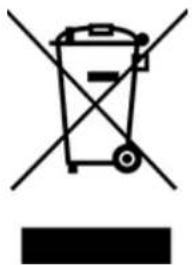
Complies with EU regulations CE/WEEE/RoHS
Ask your retailer or your municipality for updated information regarding the disposal of the packaging and of the device.
natural_image
Simple line drawing of a trash bin with crossed lines indicating no waste or discharge (no text or symbols)Clean Air Optima®
Service
Warranty Certificate for the Clean Air Optima Air Purifier CA-505 Smart.
Date of purchase: ..... Customers name: ..... Address: ..... Telephone: ..... Email: ..... Seller's name: ..... Address: ....
- Please fill in completely this Warranty Certificate. Send it with the invoice and the unit, postage pre-paid and using the original packing box, to your distributor. Make sure to include the appropriate return postage for the package.
- Please enclose a short description of the damage, fault or malfunction, and the circumstances under which these problems arose.
The Clean Air Optima Air Purifier CA-505 Smart is subjected to strict testing procedures before leaving the factory. If within 2 years from the date of purchase the product does not perform according to the specifications, because of factory defects, the purchaser is entitled to free repairs or replacement of parts upon presentation of this warranty (provided that the malfunction or damage to the device and/or parts occurred under normal operating conditions). What is covered: All parts defective in material and workmanship. For how long: two years from purchase date. What we will do: Repair or replace any defective parts. Exclusions: Regular replacement filters.
Other Conditions
The provisions of this warranty are in lieu of any other written warranty whether express or implied, written or oral, including any warranty of merchantability or fitness for a particular purpose. The manufacturer's maximum liability shall not exceed the actual purchase price paid by you for the product. In no event shall the manufacturer be liable for special, incidental, consequential, or indirect damages. This warranty does not cover a defect that has resulted from improper or unreasonable use or maintenance, faulty assembly, accident, natural catastrophes, improper packing, or unauthorized tampering, alteration, or modification as determined solely by us. This warranty is void if the label bearing the serial number has been removed or defaced.
Thank you for reading!

Share your feedback about the Clean Air Optima Air Purifier CA-505 Smart on: www.cleanairoptima.com

For frequently asked questions about the CA-505 Smart go to: www.cleanairoptima.com and search for the CA-505 Smart.

Download PDF instruction manual on: www.cleanairoptima.com/info/manuals

Watch all Clean Air Optima Product animation video's on: www.youtube.com
Clean Air Optima International B.V. | David Ricardostraat 9-7 / 9-9 | 7559 SH Hengelo (ov) The Netherlands | Phone: +31 (0) 74 - 2670145
Clean Air Optima Germany GmbH | Enschedestraße 14 | 48529 Nordhorn | Germany Phone: +49 (0) 5921 879-121
E-mail: info@cleanairoptima.com Internet: www.cleanairoptima.com
Deutsch
natural_image
Simple line drawing of a container with scissors above it (no text or symbols)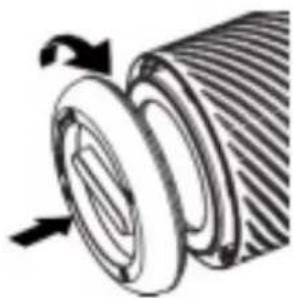
natural_image
Technical illustration of a mechanical component with threaded ends and a curved arrow indicating direction (no text or symbols)Reset the WiFi function:
natural_image
Abstract geometric diagram with diagonal hatching and a central oval shape (no text or symbols)natural_image
Symbol of a trash bin crossed with no visible text or labelsClean Air Optima®
Service
natural_image
Simple line drawing of a container with scissors above it (no text or symbols)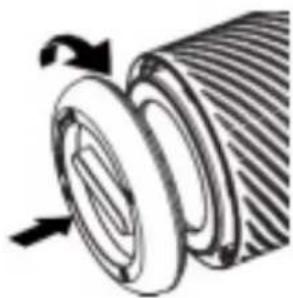
natural_image
Technical illustration of a mechanical component with threaded ends and a curved arrow indicating direction (no text or symbols)WiFi-verbinding opzetten
Reset the WiFi function:
natural_image
Abstract geometric diagram with diagonal hatching and a central oval shape (no text or symbols)natural_image
Symbol of a trash bin crossed with two crossed lines, no text or labels presentClean Air Optima®
Service
natural_image
Simple line drawing of a container with scissors placed above it, no text or symbols present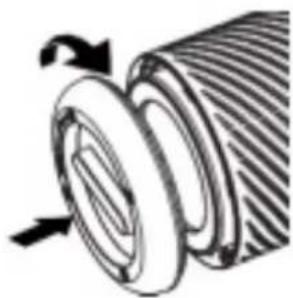
natural_image
Technical illustration of a mechanical component with threaded ends and a curved arrow indicating direction (no text or symbols)Configurer la connexion wifi
natural_image
Pure technical diagram showing a curved pipe or channel within a hatched rectangular area, without any text, numbers, or symbols.natural_image
Symbol of a trash bin with crossed lines indicating no waste or restriction, and a solid black rectangle below (no text or labels)Clean Air Optima®
Service après-vente
natural_image
Simple line drawing of a container with scissors above it (no text or symbols)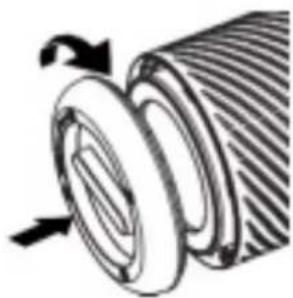
natural_image
Technical illustration of a mechanical component with threaded ends and a curved arrow indicating direction (no text or symbols)- Apriete la placa inferior.
natural_image
Pure technical diagram of a mechanical component with hatched background (no text or symbols)natural_image
Symbol of a trash bin with no text or labelsClean Air Optima®
Servicio
natural_image
Simple line drawing of a container with scissors above it (no text or symbols)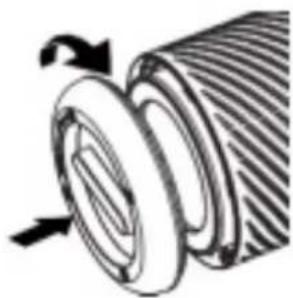
natural_image
Technical illustration of a mechanical component with threaded ends and a curved arrow indicating direction (no text or symbols)- Dokreć dolną płytę.
natural_image
Abstract geometric diagram with diagonal hatching and a central oval shape (no text or symbols)natural_image
Symbol of a trash bin with crossed lines indicating no waste or restriction, plus a solid black rectangle below (no text or symbols)Clean Air Optima®
Obstuga serwisowa
natural_image
Simple line drawing of a jar with scissors above it, no text or symbols present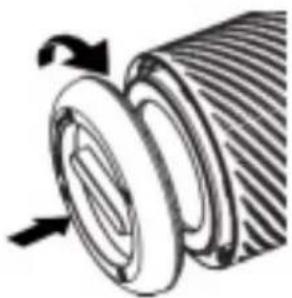
natural_image
Diagram of a mechanical component with threaded ends and directional arrows (no text or symbols)natural_image
Abstract geometric diagram with diagonal hatching and a central oval shape (no text or symbols)natural_image
Symbol of a trash bin crossed with no visible text or labelsClean Air Optima®
Servis
natural_image
Simple line drawing of a container with scissors placed above it (no text or symbols)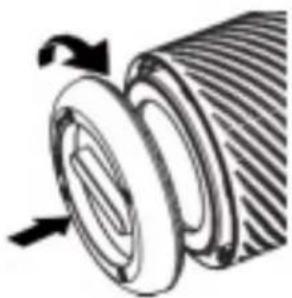
natural_image
Diagram of a mechanical component with threaded ends and directional arrows (no text or symbols)natural_image
Abstract geometric diagram with diagonal hatching and a central oval shape (no text or symbols)natural_image
Symbol of a trash bin with crossed lines indicating no waste or discharge, and a solid black rectangle below (no text or labels)Clean Air Optima®
Service
natural_image
Simple line drawing of a container with scissors above it (no text or symbols)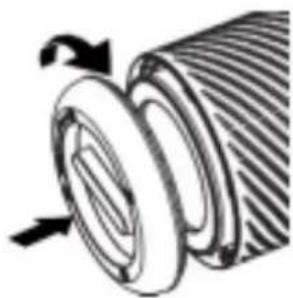
natural_image
Technical illustration of a mechanical component with threaded ends and a curved arrow indicating direction (no text or symbols)natural_image
Pure technical diagram of a mechanical component with hatched background and no visible text or symbolsnatural_image
Symbol of a trash bin with crossed lines indicating no waste or restriction, and a solid black rectangle below (no text or labels)Clean Air Optima®
Seadistage WiFi-ühendus
natural_image
Abstract geometric diagram with diagonal hatching and a central oval shape (no text or symbols)natural_image
Symbol of a trash bin with crossed lines indicating no waste or restriction, and a solid black rectangle below (no text or labels)Clean Air Optima®
Remont
Garantiitõend õhukuivatile Clean Air Optima CA-505 Smart.
natural_image
Simple line drawing of a container with scissors above it (no text or symbols)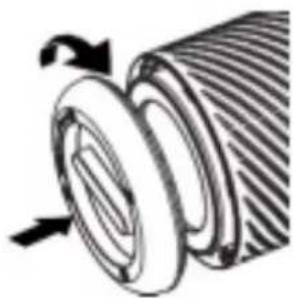
natural_image
Technical illustration of a mechanical component with threaded ends and a curved arrow indicating direction (no text or symbols)WiFi savienojuma izveide
natural_image
Abstract geometric diagram with diagonal hatching and a central oval shape (no text or symbols)natural_image
Symbol of a trash bin with crossed lines indicating no waste or restriction, accompanied by a solid black rectangle below (no text or symbols)Clean Air Optima®
Apkope
A guarantee for healthy indoor air quality!

- Clean Air Optima Air Purifier CA-505 Smart
- English
- Safety warnings
- Clean Air Optima®
- How to use
- Control Panel / Operation Instruction
- Power Button
- eed mode
- eep
- child Lock
- Filter replacement
- 'IFI
- Digital Monitor
- Measurement of relative humidity and temperature
- Operation with Clean Air Optima® App
- Connectivity
- Compatibility with smartphone and tablet:
- Device connets via WiFi with App:
- Set up WiFi connection
- Note:
- Reset the WiFi function:
- Connect devices to multiple phones
- Share the device with limited access:
- Share device with full access:
- Maintenance
- Cleaning the outside of the air purifier
- Clean Air Optima® air purifier storage
- Replacing of filters
- Filter cleaning
- Signs for used up filters
- How to order filters:
- Troubleshooting
- WARNING!
- Specifications
- Service
- Other Conditions
- Thank you for reading!
- Deutsch
- WiFi-verbinding opzetten
- Configurer la connexion wifi
- Service après-vente
- Servicio
- Obstuga serwisowa
- Servis
- Seadistage WiFi-ühendus
- Remont
- WiFi savienojuma izveide
- Apkope
- A guarantee for healthy indoor air quality!
Brand : Clean Air Optima
Model : CA-505
Category : Air purifier