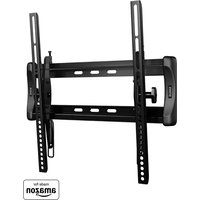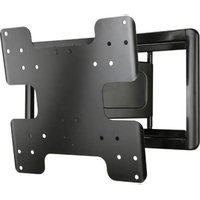
VMF408 - Flat screen mount SANUS - Free user manual and instructions
Find the device manual for free VMF408 SANUS in PDF.


| Product Type | Wall mount for flat screen |
| Brand | Sanus |
| Model | VMF408 |
| Maximum load capacity | 27.22 kg (60 lb) |
| Swivel | ±35° |
| Tilt | +0° to -10° |
| Leveling | ±1.5° |
| VESA Compatibility | Up to 600x400 mm (estimated) |
| Mounting Types | Wood studs, poured concrete or concrete blocks |
| Material | Steel (estimated) |
| Approximate Dimensions | Max. support width: ~100 cm (estimated) |
| Approximate Weight | ~5 kg (estimated) |
| Cable Management | Yes, optional system with covers |
| Required Tools | Drill, drill bits, level, hex keys provided |
| Box Contents | Wall plate, mounting brackets, hardware, covers, cable management system |
| Safety | Contains a magnet – keep 13 cm away from medical implants |
| Repairability | Spare parts available via customer service |
| Warranty | Not specified, contact SANUS |
Frequently Asked Questions - VMF408 SANUS
User questions about VMF408 SANUS
0 question about this device. Answer the ones you know or ask your own.
Ask a new question about this device
Download the instructions for your Flat screen mount in PDF format for free! Find your manual VMF408 - SANUS and take your electronic device back in hand. On this page are published all the documents necessary for the use of your device. VMF408 by SANUS.
USER MANUAL VMF408 SANUS
VMF408
Instruction Manual
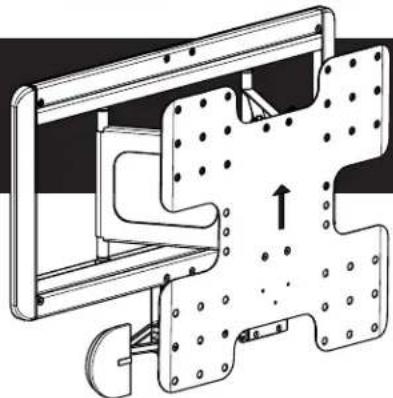
natural_image
Technical line drawing of a mechanical assembly with mounting flanges and a central component (no text or symbols)sanus.com
Customer Service
Americas: 800-359-5520 · 952-225-6013 · info@sanus.com
UK: 0800 056 2853 • info@sanus.com
Europe, Middle East, and Africa: +31 (0) 495 580 852 • europe.sanus@milestone.com
Asia Pacifi c: 86 755 8996 9226 • sanus.ap@milestone.com
SANUS • 6436 City West Parkway • Eden Prairie, MN 55344 USA
©2013 Milestone AV Technologies, a Duchossois Group Company. All rights reserved. Sanus is a division of Milestone. All other brand names or marks are used for identification purposes and are trademarks of their respective owners.
We are here
to help!
Please contact
Customer
Service with
any questions.
IMPORTANT SAFETY INSTRUCTIONS - SAVE THESE INSTRUCTIONS - PLEASE READ ENTIRE MANUAL PRIOR TO USE
Before You Begin

WARNING: This product contains a magnet. If an implanted medical device such as a pacemaker or implantable cardioverter defibrillator (ICD) is in use, magnetic fields may affect the operation of those devices, resulting in serious injury or death. If you have an implanted medical device, keep at least 13 cm (5 in.) between your device and the magnet. Please consult with your physician or medical professional prior to using this product.
CAUTION: Avoid potential personal injuries and property damage!
Refer to the documentation that came with your TV for additional considerations
Do not use this product for any purpose not explicitly specified by manufacturer
The wall must be capable of supporting five times the weight of the monitor and mount combined
This product includes directions and hardware for use with wood stud, solid concrete and concrete block walls
If you do not understand these instructions, or have doubts about the safety of the installation, assembly or use of this product, contact Customer Service or call a qualified contractor
Manufacturer is not responsible for damage or injury caused by incorrect assembly or use
Required Tools

Specifications
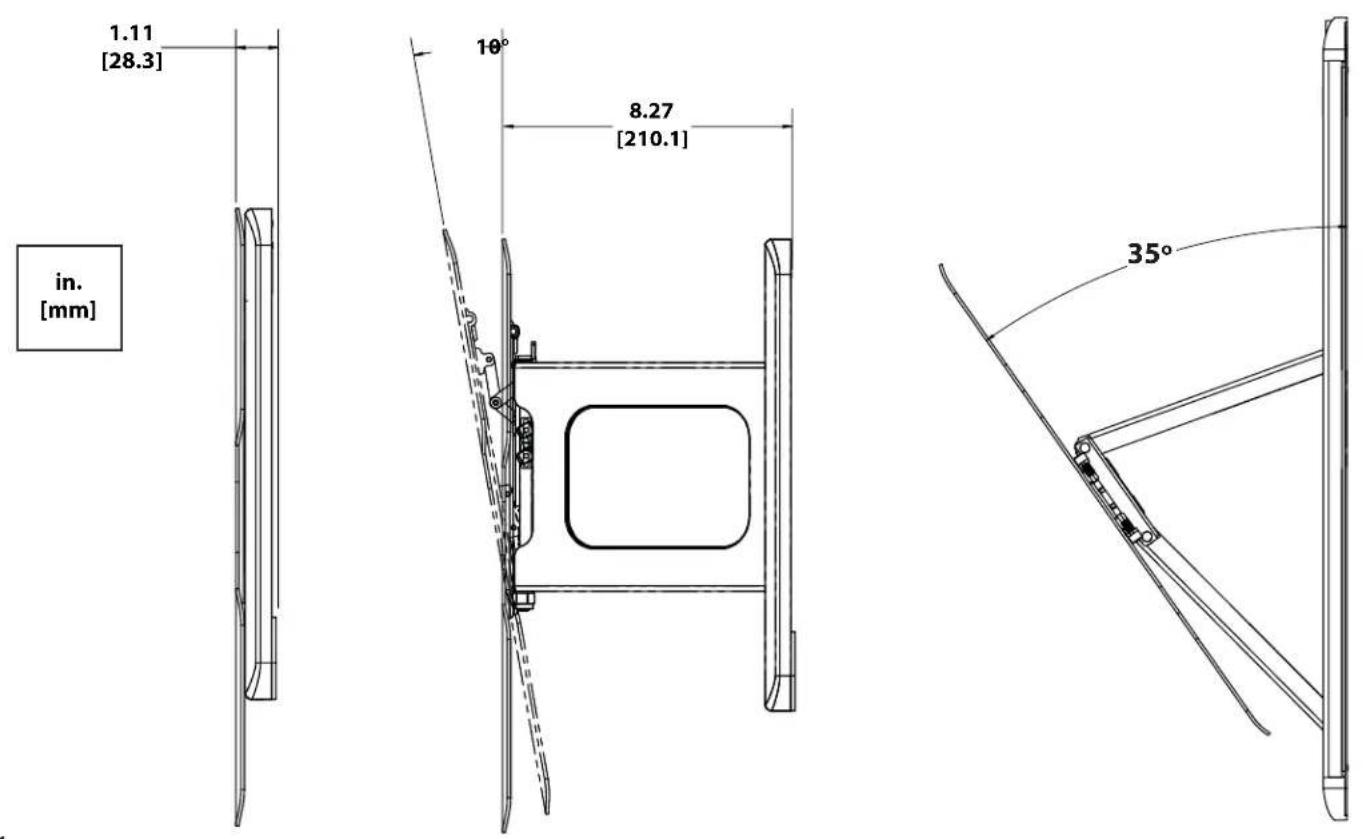
■ Weight capacity-DO NOT EXCEED: 27.22 kg (60 lb) includes TV and any accessories
Swivel: ±35°
Tilt: +0° to -10°
Level: ±1.5°
Technical Specifications
![in. [mm] 15.75 [400.0] 11.81 [300.0] 7.87 [200.0] 15.75 [400.0] 11.81 [300.0] 7.87 [200.0] 25.20 [640.1] 12.30 [312.4] 13.50 [342.9] 17.00 [431.8] 5.01 [127.4]](/content/2026/04/673724/images/5e6b59ce97fd35de93932a4c35ddabbd240afb7497e65305f33cbeb740ca550b.jpg)
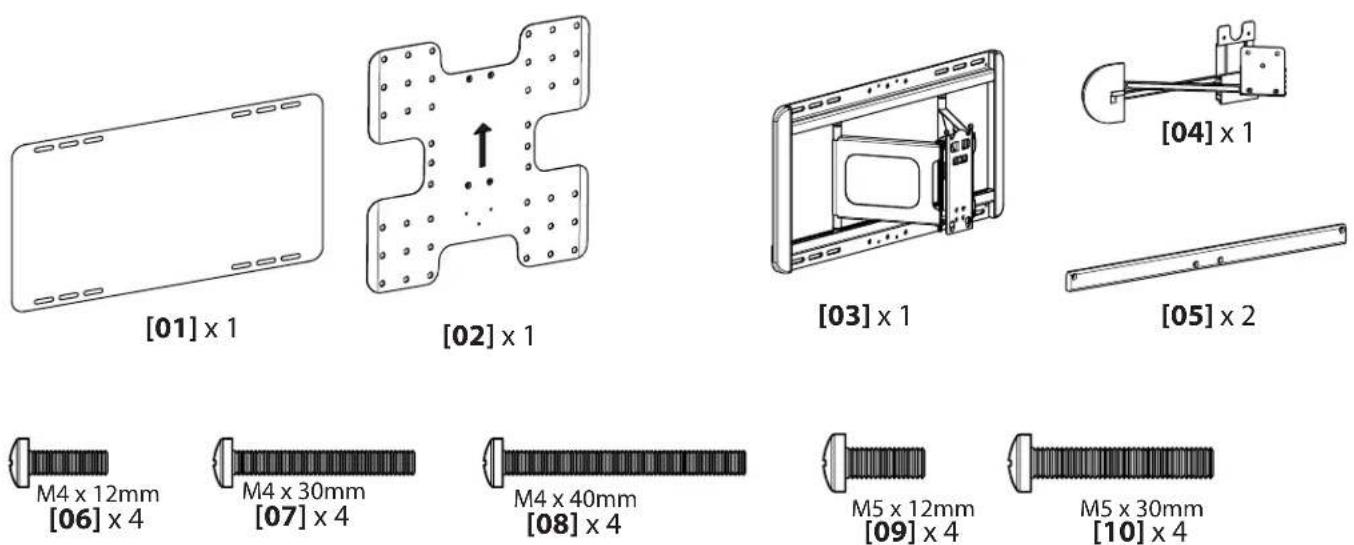
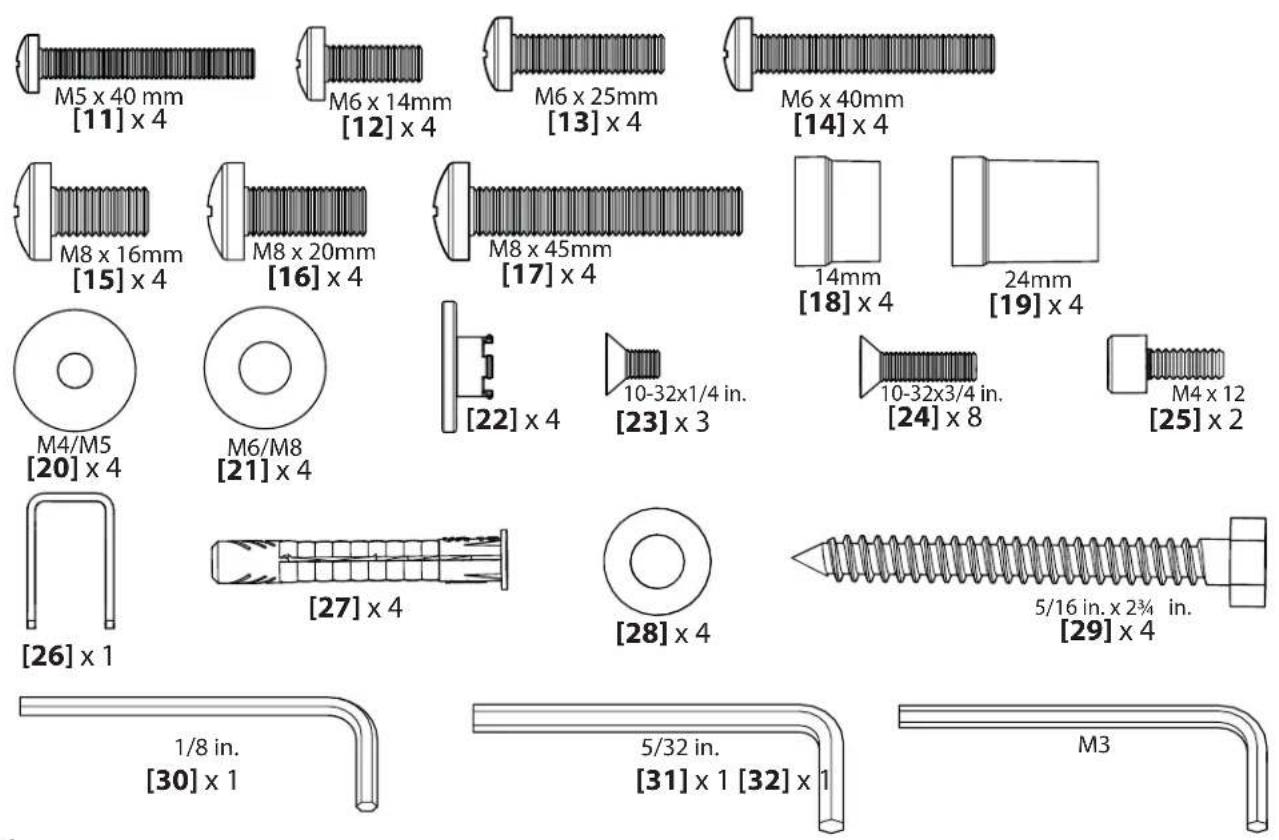
Supplied Parts and Hardware
⚠ WARNING: This product contains small items that could be a choking hazard if swallowed.
Before starting assembly, verify all parts are included and undamaged. If any parts are missing or damaged, do not return the damaged item to your dealer; contact Customer Service. Never use damaged parts!
NOTE: M4, M5, M6, or M8 describes the diameter, mm describes the length of screws that are labeled M# X ##mm. Not all hardware included will be used.
1 Select TV Hardware
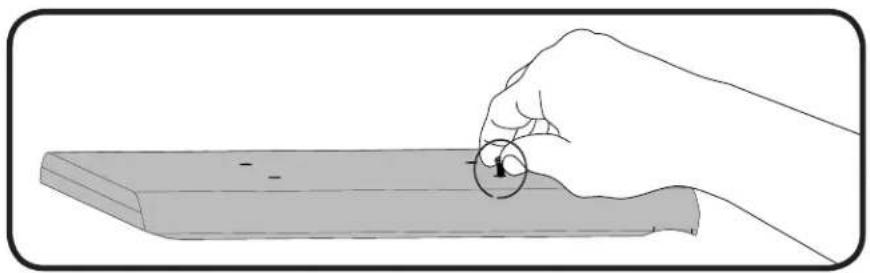
Hand thread screws into the threaded inserts on the back of your TV to determine the correct screw diameter (M4, M5, M6, or M8). Try using a screw alone first. If you need more space, try a screw with a spacer.
CAUTION: Avoid potential personal injuries and property damage! Using hardware that is too long may damage your TV. If you encounter resistance, stop immediately and contact customer service.
natural_image
Illustration of a hand holding a circular object on a wooden surface (no text or symbols)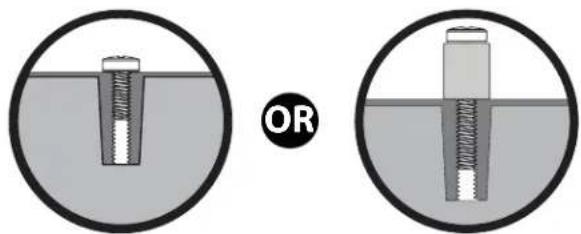
natural_image
Diagram showing two views of a bolt inside a liquid container, one with a circular arrow labeled 'OR' (no text or symbols on the diagram itself)1-1 Attach bracket to TV
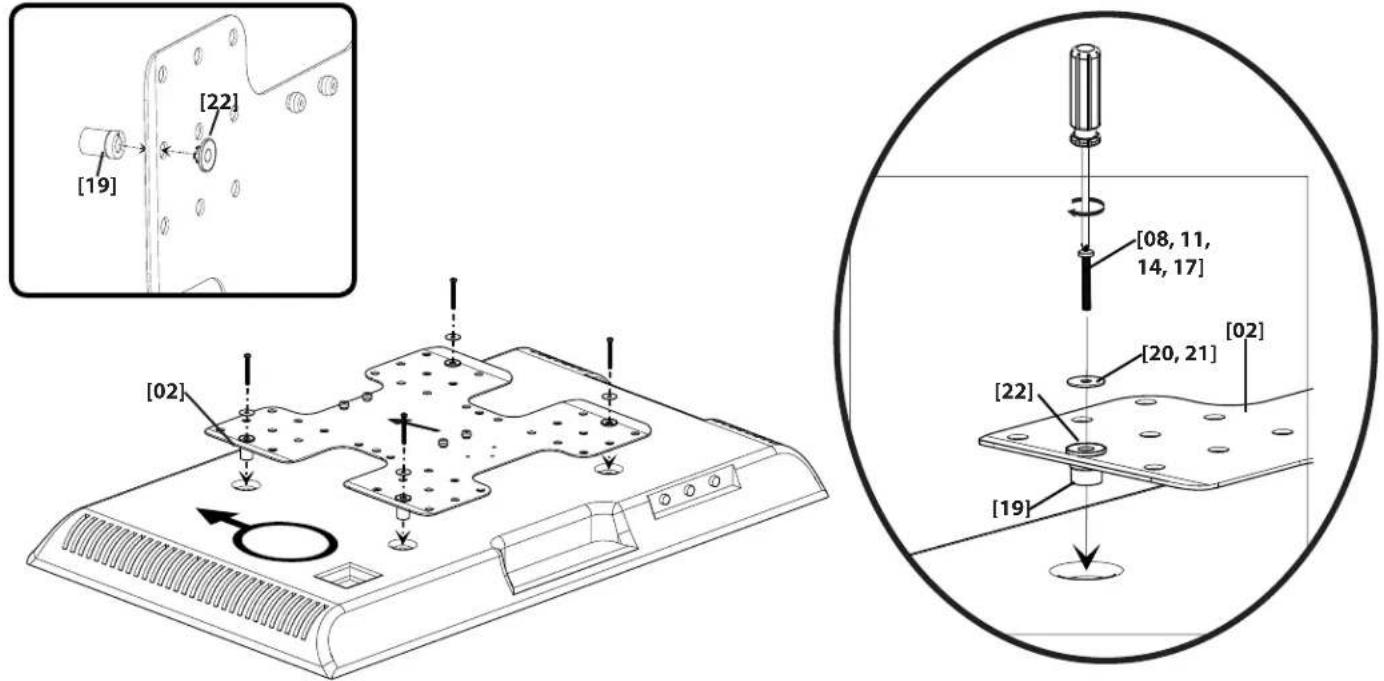
For TVs with a flat back. Ensure that the bracket is level on the back of the TV. Standard configurations are shown. If you need extra space to accommodate cables, recesses, or protrusions, see an installation option (1-2 or 1-3) that uses spacers. For special applications, or if you are uncertain about your hardware selection, contact Customer Service.
![[06, 09, 12, 15] [20, 21] [02]](/content/2026/04/673724/images/0b6b3a62a86355a468de05cfead258bb89e47b868eee19c80b9e5a138801e2f7.jpg)
1-2 Attach bracket to TV
For TVs with an irregular/obstructed back. Ensure that the bracket is level on the back of the TV. Standard configurations are shown. For special applications, or if you are uncertain about your hardware selection, contact Customer Service.
![[07, 10, 13, 16] [02] [20, 21] [22] [18] [18] [22]](/content/2026/04/673724/images/f5c069910c58e42bedc75c1392338de49ef8efe63b6f87cd6c50bf6292da04e1.jpg)
1-3 Attach bracket to TV
For TVs with an irregular/obstructed back. Ensure that the bracket is level on the back of the TV. Standard configurations are shown. For special applications, or if you are uncertain about your hardware selection, contact Customer Service.
2 Prepare the Wall Plate for Mounting
Slide the arms of the wall plate [03] together and insert the slide lock [26] into place. This will lock the arms into full extension making the wall plate mounting and TV attachment easier.
Install the locking screws [25] into the sides of the face plate using the M3 hex key [32]. Screw in only until the end of the screw is flush with the inside of the plate. This will allow the TV to be mounted without interference.
![[03] [26] [26] [32] [25] [25]](/content/2026/04/673724/images/a98987ea475dbdac8f7ecdfcba2a2042de08bffe675e077b025e8709e7a18ebb.jpg)
3 Mount the Wall Plate (Wood stud)
3-1 Locate studs and mark the wall
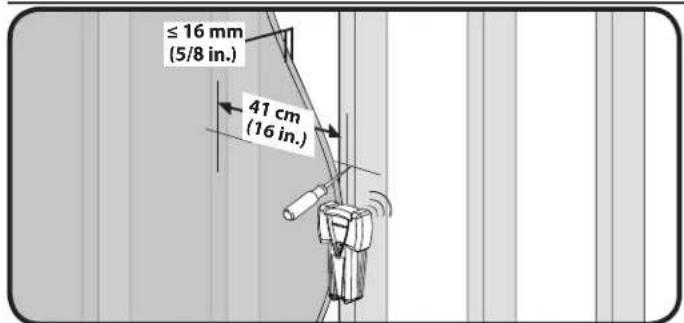
Verify the center of the stud(s) using an awl, a thin nail, or an edge to edge stud finder.
CAUTION: Avoid potential personal injuries and property damage!
Drywall covering the wall must not exceed 16 mm (5/8 in.)
Minimum wood stud size: common 51 x 102 mm (2 x 4 in.) nominal 38 x 89 mm ( 1^1/2 x 3^1/2 in.)
Minimum horizontal space between lag bolts: 41 cm (16 in.).
For assistance in determining wall plate location, see Height Finder at sanus.com. Level the wall plate template, [01] and mark the hole locations.
3-2 Drill pilot holes and tighten lag bolts
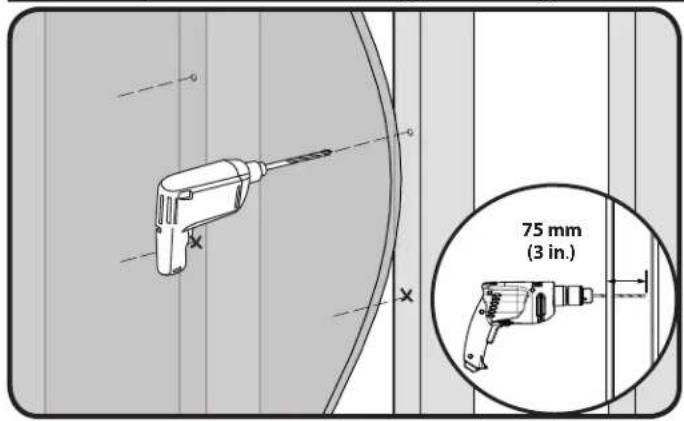
CAUTION: Avoid potential injuries or property damage! Pilot holes MUST be drilled to a depth of 75 mm (3 in.), using a 5.5 mm (7/32 in.) diameter drill bit.
CAUTION: Improper use could reduce the holding power of the lag bolt. To avoid potential injuries or property damage:
DO NOT over-tighten the lag bolts [29].
- Tighten the lag bolts [29] only until the washers [28] are pulled firmly against the wall plate [03].
3-1 Locate studs and mark the wall
![[01] 5.5 mm (7/32 in.)](/content/2026/04/673724/images/d3d6c9946b56d10376c78424924747ad624d998925d7669eb92fd17c5c1378c7.jpg)
3-2 Drill pilot holes and tighten lag bolts
![[03] [29] [28] 13 mm (1/2 in.)](/content/2026/04/673724/images/1a0c4643edc00f6fd1e95a7bbecbee5facb6666620e4dd5d0ac6211c34a063fe.jpg)
3 Mount the Wall Plate (Solid concrete or concrete block)
3-1 Mark the wall and drill pilot holes
For assistance in determining wall plate location, see Height Finder at sanus.com.
Level the wall plate template [01] and mark the hole locations.
▲ CAUTION: Avoid potential injuries or property damage!
★ Mount the wall plate [03] directly onto the concrete surface
Minimum solid concrete thickness: 203mm (8 in.)
Minimum concrete block size: 203 x 203 x 406 mm (8 x 8 x 16 in.)
Minimum horizontal space between lag bolts: 41 cm (16 in.).
3-2 Insert anchors and lag bolts
CAUTION: Avoid potential injuries or property damage!
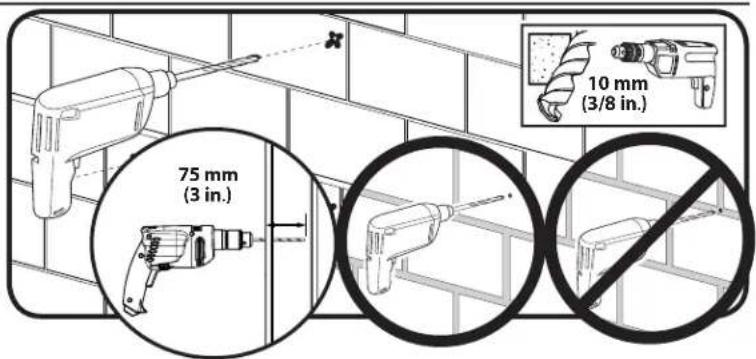
- Pilot holes MUST be drilled to a depth of 75 mm (3 in.) using a 10 mm (3/8 in.) diameter drill bit
■ Never drill into the mortar between blocks
Insert lag bolt anchors [27]. Then insert lag bolts [29] through the washers [28], the wall plate [03], and into the anchors.
CAUTION: Improper use could reduce the holding power of the lag bolt. To avoid potential injuries or property damage:
Be sure the anchors [27] are seated flush with the concrete surface
* Tighten the lag bolts [29] only until the washers [28] are pulled firmly against the wall plate [03]
DO NOT over-tighten the lag bolts [29]
3-1 Mark the wall and drill pilot holes
![[01] 41 cm (16 in.)](/content/2026/04/673724/images/fbd123cff3955993832495e80e43d967c4766e27ed6bf56f8a28da3134ac6d31.jpg)
3-2 Insert anchors and lag bolts
![[27] [27]](/content/2026/04/673724/images/51c9f3128ae758c81f44d9dcf5e573cca587425b5174064eab55f702960d62d9.jpg)
![[03] [28] [29] 13 mm (1/2 in.)](/content/2026/04/673724/images/a99af6dd3678c9afcc2f6198249b5e7e5bd1462908b694c2d9e8f8f12c28ad92.jpg)
4 Install Wall Plate Covers and Cable Management (Optional)
- Mount the upper cover [05] using the 18 in. hex key [30] and four screws [24].
- Mount the lower cover [05] using the 1 / 8 in. hex key [30] and four screws [24] while (optional) fitting the rear mount of the cable management assembly [04] between the cover [05] and the lower horizontal of the wall plate [03].
NOTE: Do not install the rear mount of the cable management assembly [04] unless you intend to install the front mount of the cable management assembly [04] in Step 6.
![[05] [24] [24] [30] [05]](/content/2026/04/673724/images/1a66522ba9d61b1726ea3c5674c4ac0f77eb526f4eb0bf49880d6b82e21a44eb.jpg)
5 Attach TV to Wall Plate
HEAVY! You will need assistance with this step.
- Hang the TV with mounting bracket [02] onto the face of the wall plate [03]. The lower mounting knobs of the mounting bracket [02] will fit into the keyhole slots of the face of the wall plate [03] while the upper knobs will drop into the top slots of the face of the wall plate [03].
- Secure the TV to the face of the wall plate [03] by tightening the locking screws [25] with the 3mm hex key [32] until they capture the upper knobs of the bracket [03].
![Technical diagram showing exploded and assembled views of a device with labeled components such as [02], [03], [25], and [32].](/content/2026/04/673724/images/18fecdae4a9e8572f73dc98ab93f15f6d7ef7586155819b8c6b3f8c3e8160f93.jpg)
6 Complete Cable Management Installation (Optional)
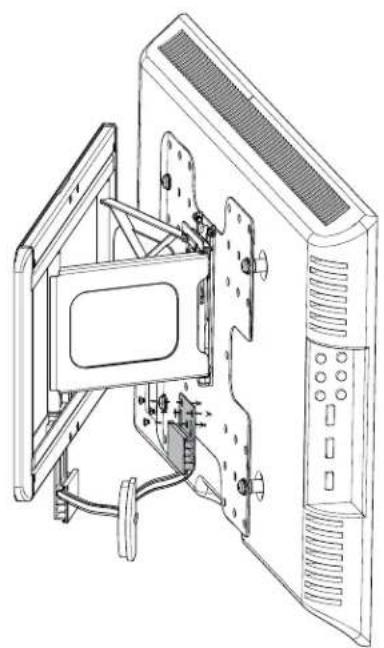
Fit the front mount of the cable managment assembly [04] onto the back of the TV bracket [02] using the 18 in. hex key [30] to install three screws [23].
NOTE: Do not install the front mount of the cable management assembly [04] unless you have installed the rear mount of the cable management assembly [04] in Step 4.
natural_image
Technical line drawing of an open computer monitor with internal components and wiring (no text or symbols)![[02] [04] [23] [30]](/content/2026/04/673724/images/2bc0355de5da3d0d319a3994e381d699007f86eef97bb66f09e13936f4e8cf66.jpg)
6-1 Manage Cables (Optional)
![1 [04]](/content/2026/04/673724/images/4433061676e0a0c8c93320e4f9ff8da722b212583983097ebddacf337481528c.jpg)
natural_image
Technical line drawing of a mechanical assembly with coiled components and labeled section [04] (no text or symbols beyond label)Plug the required cables into the TV.
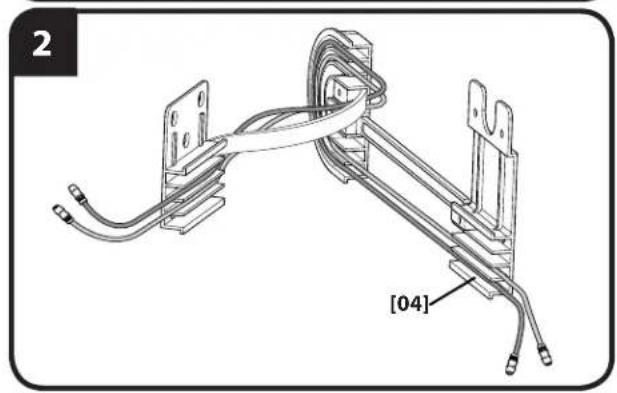
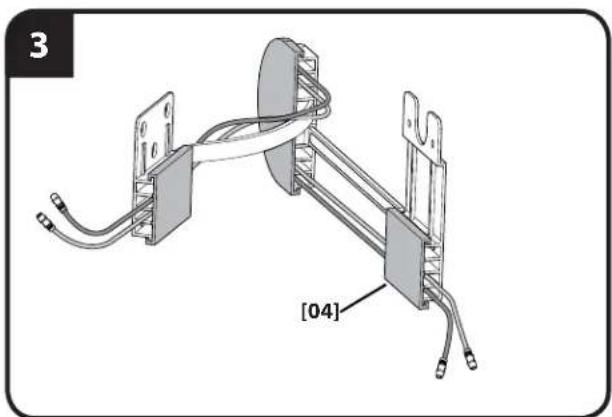
- Slide the three covers of the cable management assembly [04] off the front (face plate mount), rear (wall plate mount), and center (floating).
- Route the cables through the three sections.
- Replace the covers.
natural_image
Mechanical assembly diagram showing two connected components with wires and connectors, labeled [04] (no text or symbols beyond label)7 Adjust Tilt Tensions
Adjust up / down tilt tension by hand or using the M3 hex key [32]. Adjust level with the 5/32 hex key [31].
![[32] [31] 20](/content/2026/04/673724/images/c93ef180930f2ba00df1048bac4e914be7df2e211b7bcc044d06af5ce09b6360.jpg)
8 Store the Slide Lock
After setup is complete:
A. Remove slide lock [26] from the locking position
B. Fit the slide lock [26] into the grooves of one of the slides for storage
![A [01] [26]](/content/2026/04/673724/images/48116e5400a14b6603a4d39ba59a903206be2f6044b3dda1827e96b051bc4f60.jpg)
![B [26] [01]](/content/2026/04/673724/images/16d8113265008b7604e3cd7c16184c2d5a43373e802f8d036727986787c33625.jpg)
Optional-Remove Your TV
To remove your TV from the mount, see step 5.
Français
CONSIGNES DE SÉCURITÉ IMPORTANTES – CONSERVEZ CES INSTRUCTIONS – VEUILLEZ LIRE ATTENTIVEMENT LE MANUEL AVANT D'UTILISER CE PRODUIT
Milestone AV Technologies and its affiliated corporations and subsidiaries (collectively, "Milestone"), intend to make this manual accurate and complete. However, Milestone makes no claim that the information contained herein covers all details, conditions, or variations. Nor does it provide for every possible contingency in connection with the installation or use of this product. The information contained in this document is subject to change without notice or obligation of any kind. Milestone makes no representation of warranty, expressed or implied, regarding the information contained herein. Milestone assumes no responsibility for accuracy, completeness or sufficiency of the information contained in this document.