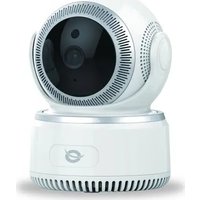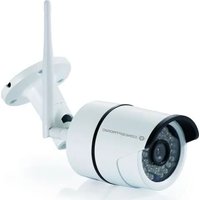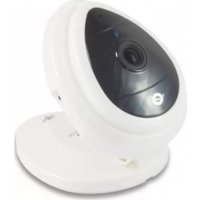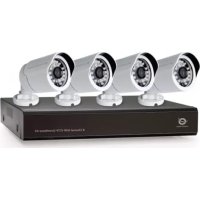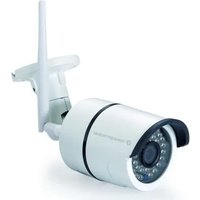
JARETH02W - Surveillance Camera CONCEPTRONIC - Free user manual and instructions
Find the device manual for free JARETH02W CONCEPTRONIC in PDF.


User questions about JARETH02W CONCEPTRONIC
0 question about this device. Answer the ones you know or ask your own.
Ask a new question about this device
Download the instructions for your Surveillance Camera in PDF format for free! Find your manual JARETH02W - CONCEPTRONIC and take your electronic device back in hand. On this page are published all the documents necessary for the use of your device. JARETH02W by CONCEPTRONIC.
USER MANUAL JARETH02W CONCEPTRONIC
natural_image
White security camera with antenna and side-mounted sensor (no visible text or symbols)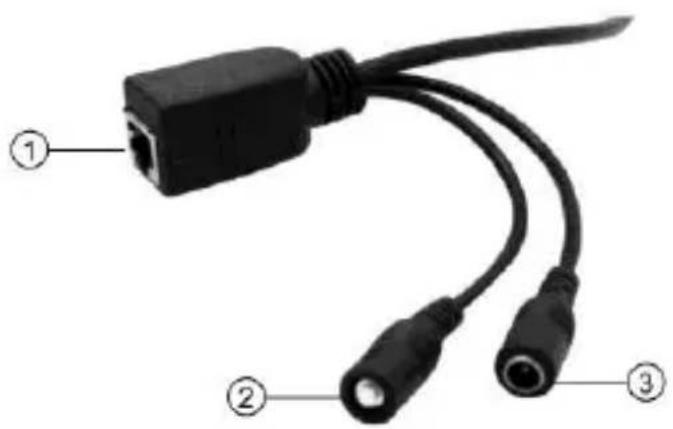
text_image
Diagram of a USB cable with labeled components: port, connector, and connector terminals①
EN Ethernet port
FR Port Ethernet
| Resolution | 1280*720, 640*360, 320*180 |
| Image sensor | 1.3 mega pixels, 1/4" CMOS Sensor |
| Encryption | WEP, WPA, WPA2, WPS |
| Used Frequency Band of Wireless connection | 2.4GHz |
| Maximum RF power 3dB (Antenna) | |
| Power input DC 5.0V/1.0A | |
| Operating temperature -10°C ~ 50°C | |
| Storage temperature -40°C ~ 70°C | |
| Operating humidity 10% ~ 90% RH | |
| Storage humidity 3% ~ 90% RH | |
| Size 67.5 x 67.5 x 180 mm | |
| Weight | 379g |
English
Congratulations on the purchase of your Conceptronic JARETH02W. When problems occur, we advise you to visit our support site (go to www.conceptronic.net and click on 'Support'). If you have other questions about your product and cannot find it on our website, please contact us at support@concepttronic.net.
For more information about Conceptronic products, please visit the Conceptronic website: www.conceptronic.net.
Safety and Warnings instructions
Read the operating instructions carefully and especially observe the safety information. If you do not follow the safety instructions and information on proper handling in this manual, we assume no liability for any resulting personal injury or damage to property. Such cases will invalidate the warranty/guarantee.
- Keep the device away from water, humidity, fire or hot environments.
- Keep your device and all its parts and accessories out of the reach of small children.
■ Do not leave the packaging material lying around carelessly. This may become dangerous playing material for children.
■ Do not use the device if there are any signs of damage to the housing, plug, or cable.
■ Avoid dropping, throwing or crushing the device.
■ Do not open, change or damage the device.
■ Disconnect the product from the mains before cleaning.
■ Clean the product with a dry, fibre-free cloth.
Safety instructions for power supply and disconnect from power:
■ Confirm that the wall outlet provides the same type of power indicated on the device (both Voltage [V] and frequency [Hz]).
■ Use the power supply only in a socket that is installed as close as possible to the device and easily accessible and easy to unplug.
■ Do not plug the power supply in a socket that is hidden behind of any furniture.
■ Do not cover the power supply connected into the socket.
■ Use the product only in dry indoor rooms and protect it from moisture.
■ If in doubt or if the power adapter malfunctions, discontinue use and contact our customer support or an authorized service center.
■ Discontinue use immediately if the power adapter shows visible damage, emits unusual odors, or becomes excessively hot.
Disposal of waste electrical equipment: Dispose of the product at a recycling point. Do not dispose of together with household waste. Incorrect storage/disposal can harm the environment and/or cause injury.

CE marking: Conceptronic declares that this product complies with the directives listed in the section 'Declaration of Conformity'.
Installation & usage
Get ready for camera
- Connect the power adapter into your camera. Note: Please use the power adapter attached with camera, in order to avoid damage the camera.
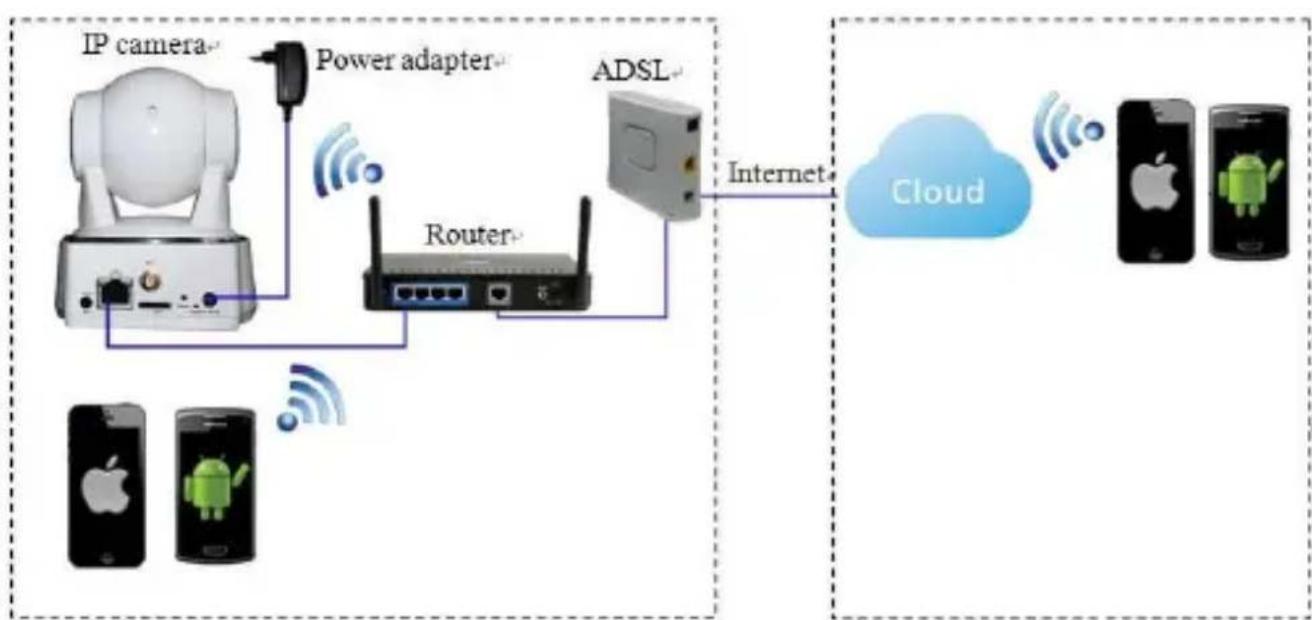
flowchart
graph LR
    A["IP camera"] --> B["Power adapter"]
    B --> C["Router"]
    C --> D["ADSL"]
    D --> E["Internet"]
    E --> F["Cloud"]
    G["Mobile Phone 1"] --> H["Android Product"]
    I["Mobile Phone 2"] --> J["Android Product"]
    K["Mobile Phone 3"] --> L["Android Product"]
    M["Mobile Phone 4"] --> N["Android Product"]
Note: Please make sure your router is connected to the Internet.
Android / iOS Phone Application
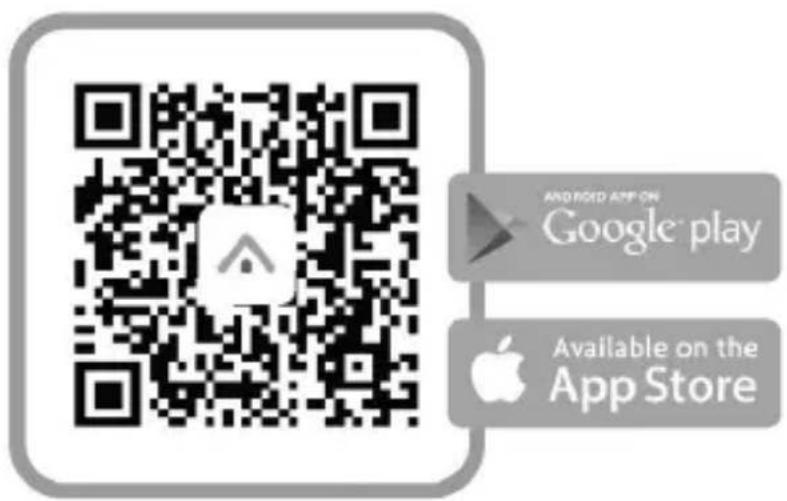
Search and download "AJCloud" from Google Play or APP Store.
natural_image
Simple gray house icon with a triangular roof and an arched doorway (no text or symbols)AJCloud icon
text_image
ANDROID APP ON Google play Available on the App StoreWireless Setup
text_image
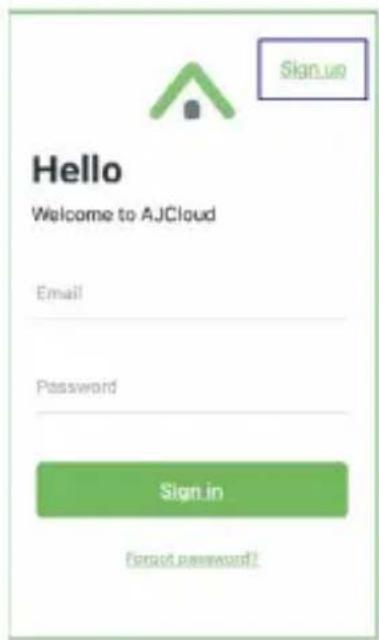
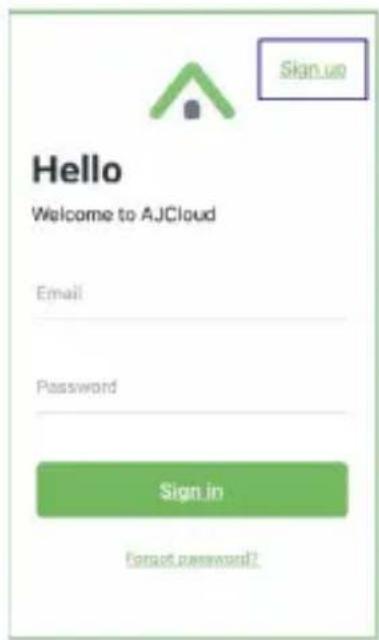
Hello Welcome to AJCloud Email Password Sign in Forgot password?- Connect your phone to 2.4G Wi-Fi (5G is not supported).
- Open AJCloud app and register an account with your email.
- Check the email and verify your account.
text_image
Devices No device paired Add device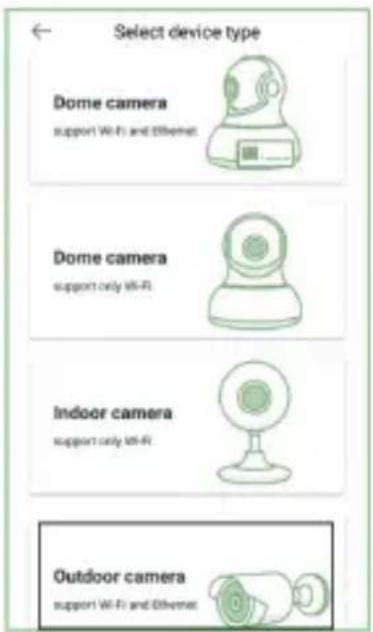
text_image
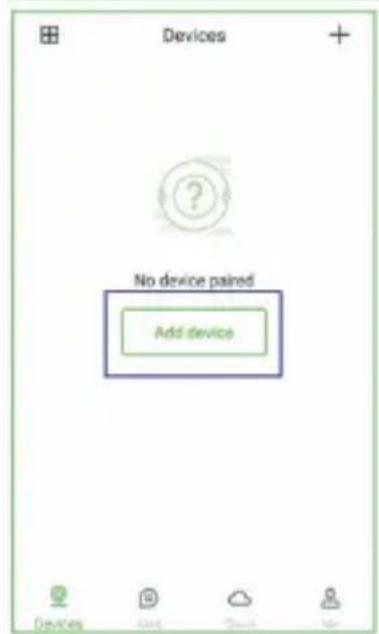
Select device type Dome camera support Wi-Fi and Ethernet Dome camera support only Wi-Fi Indoor camera support only Wi-Fi Outdoor camera support Wi-Fi and Ethernet- Please tap "Add device", and choose your camera model.
There are 2 ways to add device:
a) Search in LAN to Add
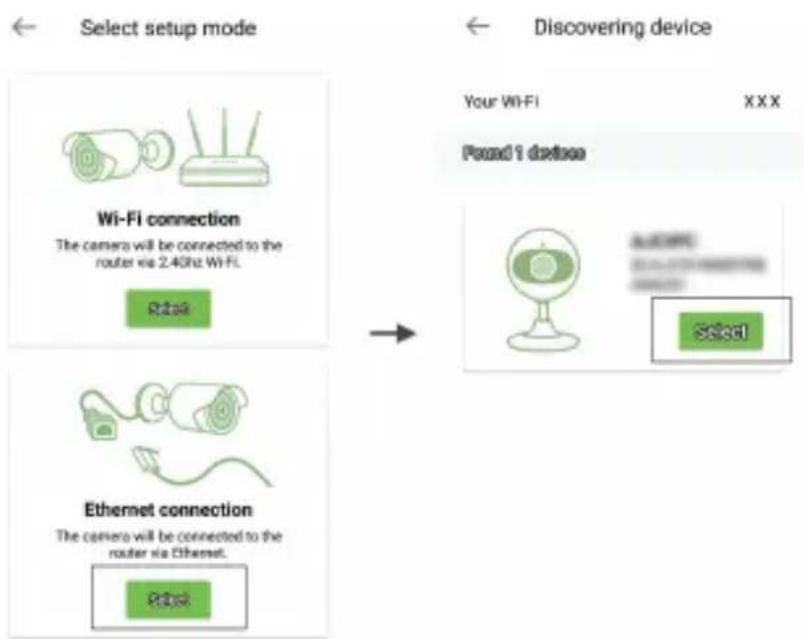
flowchart
graph LR
    A["Select setup mode"] --> B["Wi-Fi connection"]
    B --> C["Rise"]
    D["Discovering device"] --> E["Your WiFi XXXX Found 1 device"]
    F["Ethernet connection"] --> G["Select"]
b) Scan QR to Add
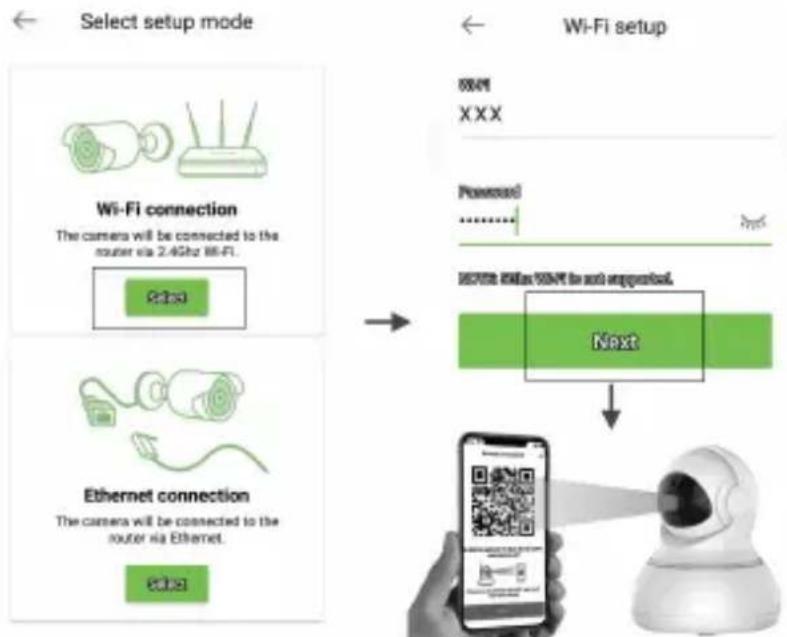
You will see your Wi-Fi name, inputting the correct Wi-Fi password and tap "Next".
The app will show a QR code, please put the phone in front of camera (3-8 inches), then please tap "Next" if you hear "QR code scanning is successful".
flowchart
graph TD
    A["Select setup mode"] --> B["Wi-Fi connection"]
    B --> C["The camera will be connected to the router via 2.4GHz Hi-Fi."]
    C --> D["Next"]
    D --> E["Mobile robot with QR code and signal output"]
    style A fill:#f9f,stroke:#333
    style B fill:#ccf,stroke:#333
    style C fill:#cfc,stroke:#333
    style D fill:#fcc,stroke:#333
    style E fill:#ffc,stroke:#333
text_image
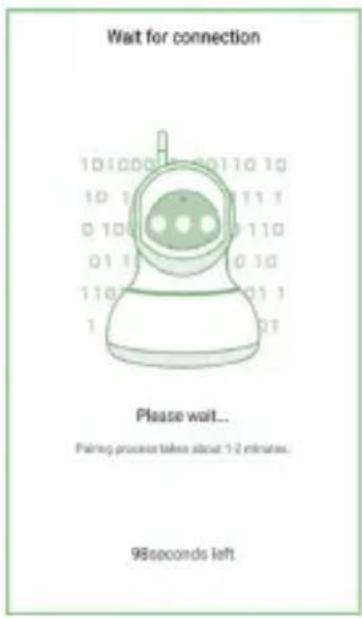
Wait for connection 10 10 00 01 10 10 10 1 01 11 1 0 10 01 10 11 0 01 1 01 10 10 11 02 01 1 1 01 Please wait... Painup process takes about 1/2 minutes. 98 seconds left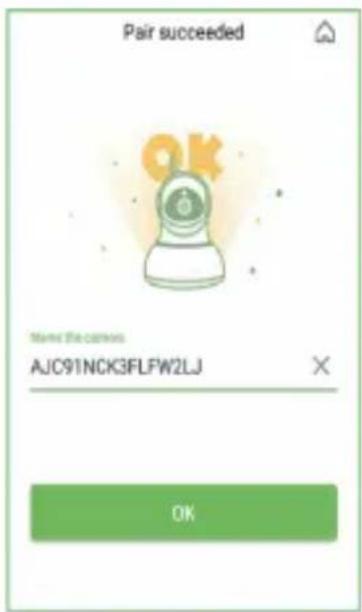
text_image
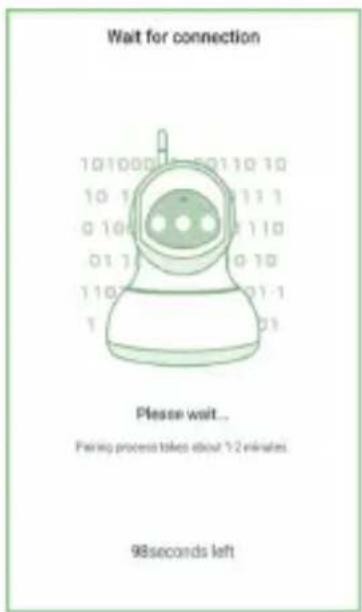
Pair succeeded OK Named the camera AJC91NCK3FLFW2LJ OKOnce it's connected, camera will say "Wi-Fi is connected" and the blue light will flash slowly. When the blue light is steady, the app will switch to a page that you can change camera name.
You can view the video after successful adding camera.
Deutsch
natural_image
Simple gray house icon with a triangular roof and arched entrance (no text or symbols)AJCloud icon
text_image
ANDROID APP ON Google play Available on the App StoreWLAN-Einrichtung
text_image
Hello Welcome to AJCloud Email Password Sign in Forgot password?text_image
Devices No device paired Add device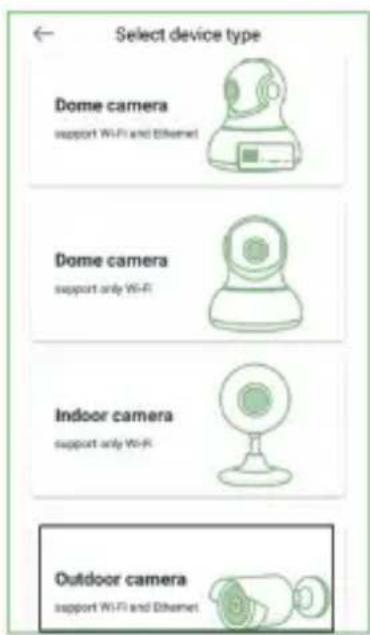
text_image
Select device type Dome camera support Wi-Fi and Ethernet Dome camera support only Wi-Fi Indoor camera support only Wi-Fi Outdoor camera support Wi-Fi and Ethernetflowchart
graph LR
    A["Select setup mode"] --> B["Wi-Fi connection"]
    A --> C["Ethernet connection"]
    B --> D["Your Wi-Fi"]
    C --> E["Discovering device"]
    D --> F["Found 1 device"]
    E --> G["Select"]
text_image
Wait for connection 10 1000 10 10 11 10 10 1 1 1 1 1 1 0 10 0 1 1 1 0 01 1 1 0 1 0 1 1 1 0 1 1 1 Please wait... Facing process takes about 1/2 minutes. 98 seconds left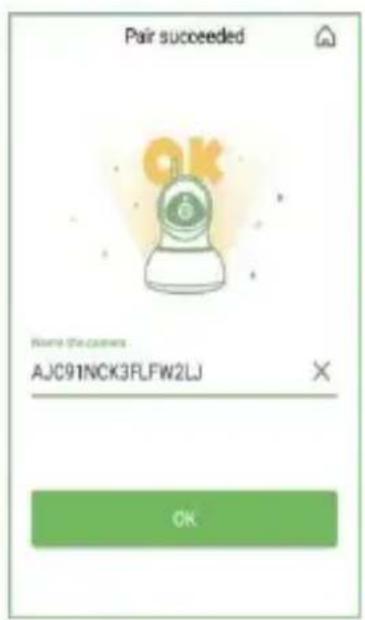
text_image
Pair succeeded OK Where the games AJC91NCK3FLFW2LJ OKnatural_image
Simple gray house icon with a triangular roof and arched entrance (no text or symbols)AJCloud icon
text_image
ANDROID APP ON Google play Available on the App Storetext_image
Skin up Hello Welcome to AJCloud Email Password Sign in Forgot password?text_image
Devices No device paired Add device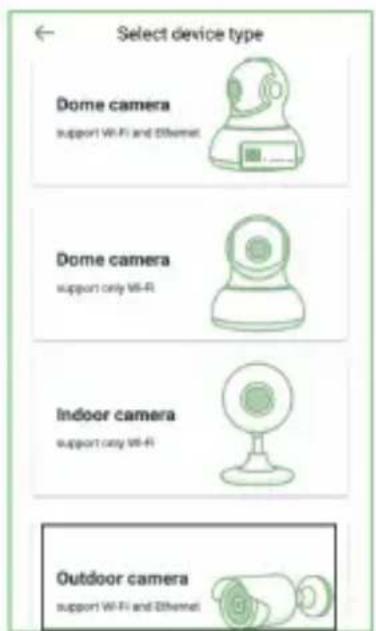
text_image
Select device type Dome camera support WiFi and Ethernet Dome camera support only WiFi Indoor camera support only WiFi Outdoor camera support WiFi and Ethernetflowchart
graph LR
    A["Select setup mode"] --> B["Wi-Fi connection"]
    A --> C["Ethernet connection"]
    D["Discovering device"] --> E["Your Wi-Fi"]
    D --> F["Found I device"]
    G["Select"] --> H["Discovering device"]
flowchart
graph TD
    A["Select setup mode"] --> B["Wi-Fi connection"]
    B --> C["Ethernet connection"]
    C --> D["Wi-Fi setup"]
    D --> E["Next"]
    E --> F["QR code payment via robot"]
text_image
Wait for connection Please wait... Farring process takes about 1-2 minutes. 98seconds left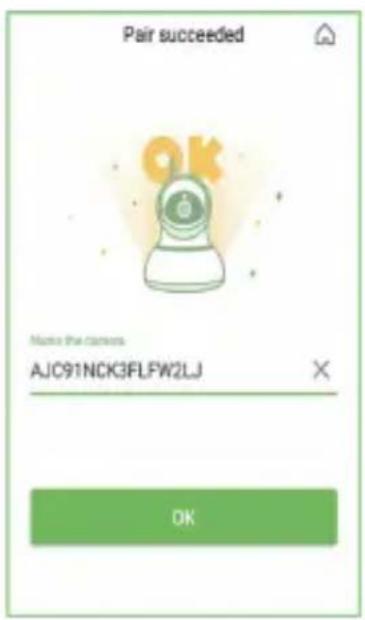
text_image
Pair succeeded OK Name the camera AJC91NCK3FLFW2LJ OKnatural_image
Simple gray house icon with a triangular roof and arched door (no text or symbols)AJCloud icon
text_image
AND HOLD APP ON Google play Available on the App Storetext_image
Hello Welcome to AJCloud Email Password Sign in forgot password?text_image
Devices No device paired Add devices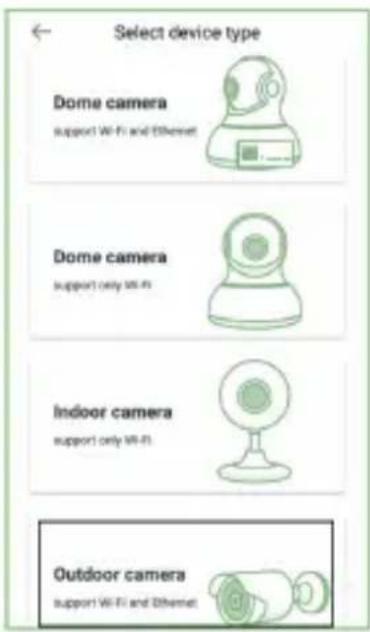
text_image
Select device type Dome camera support Wi-Fi and Ethernet Dome camera support only Wi-Fi Indoor camera support only Wi-Fi Outdoor camera support Wi-Fi and Ethernetflowchart
graph LR
    A["Select setup mode"] --> B["Wi-Fi connection"]
    A --> C["Ethernet connection"]
    B --> D["Your WiFi XXX"]
    C --> E["Found 1 device"]
    D --> F["Select"]
    E --> F
flowchart
graph TD
    A["Select setup mode"] --> B["Wi-Fi connection"]
    B --> C["The camera will be connected to the router via 2.4GHz Wi-Fi."]
    C --> D["Next"]
    D --> E["Robot with QR code and hand icon"]
    F["Wi-Fi setup"] --> G["OK/OK<br>XXX"]
    G --> H["Processed<br>............"]
    H --> I["Next: Next can not suggest"]
    I --> J["Robot with QR code and hand icon"]
text_image
Wait for connection Please wait... Pairing processor takes about 1-2 minutes. 98seconds left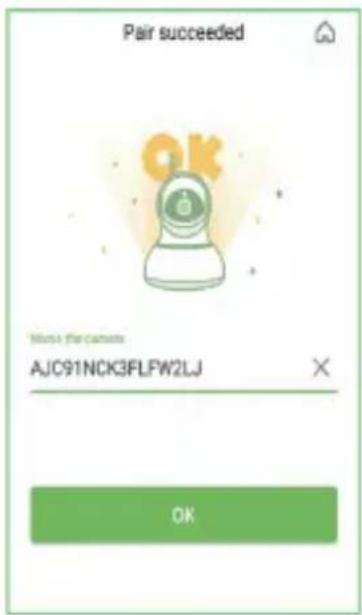
text_image
Pair succeeded OK Movie the camera AJC91NCK3FLFW2LJ OKnatural_image
Simple gray house icon with a triangular roof and arched entrance (no text or symbols)AJCloud icon
text_image
Hello Welcome to AJCloud Email Password Sign in Forgot password?text_image
Devices No device paired Add device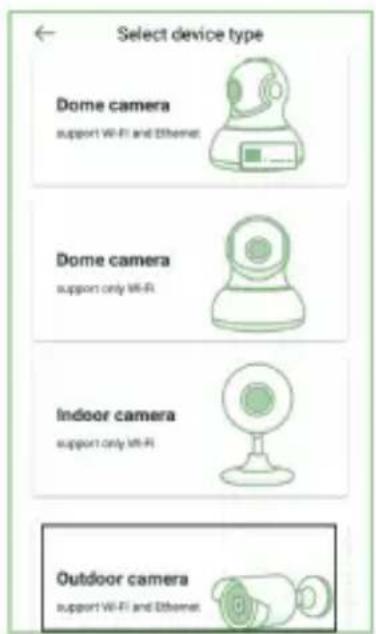
text_image
Select device type Dome camera support Wi-Fi and Ethernet Dome camera support only Wi-Fi Indoor camera support only Wi-Fi Outdoor camera support Wi-Fi and Ethernetflowchart
graph TD
    A["Select setup mode"] --> B["Wi-Fi connection"]
    B --> C["The camera will be connected to the router via 2.4GHz Wi-Fi."]
    B --> D["Ethernet connection"]
    D --> E["The camera will be connected to the router via Ethernet."]
    F["Wi-Fi setup"] --> G["Next"]
    G --> H["Robot with QR code"]
    I["Next"] --> H
text_image
Wait for connection Please wait... Pairing process takes about 12 minutes. 98 seconds left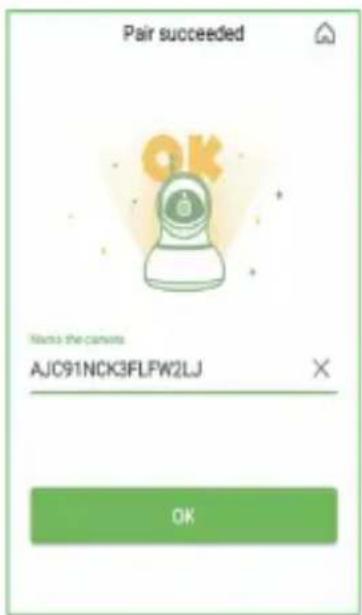
text_image
Pair succeeded OK Names the canvas AJC91NCK3FLFW2LJ OKnatural_image
Simple gray house icon with a triangular roof and arched doorway (no text or symbols)AJCloud icon
text_image
ANDROID APP ON Google play Available on the App Storetext_image
Hello Welcome to AJCloud Email Password Sign in Forgot password!text_image
Devices No device paired Add device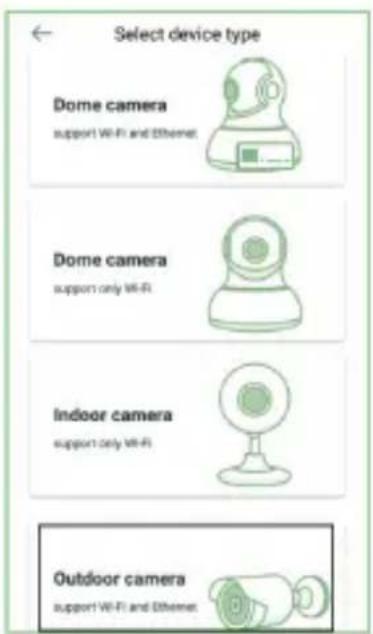
text_image
Select device type Dome camera support WiFi and Ethernet Dome camera support only WiFi Indoor camera support only WiFi Outdoor camera support WiFi and Ethernetflowchart
graph LR
    A["Select setup mode"] --> B["Wi-Fi connection"]
    A --> C["Ethernet connection"]
    D["Discovering device"] --> E["Your Wi-Fi"]
    D --> F["Pound 1 device"]
    G["Select"] --> H["User"]
    G --> I["User"]
flowchart
graph TD
    A["Select setup mode"] --> B["Wi-Fi connection"]
    B --> C["The camera will be connected to the router via 2.4GHz Wi-Fi"]
    C --> D["Next"]
    D --> E["Hi/Hi: 100% or 100% is not supported"]
    E --> F["QR code"]
    G["Wi-Fi setup"] --> H["Password"]
    H --> I["Next"]
    I --> J["Smart robot"]
text_image
Pair succeeded Name that complete AJC91NCK3FLFW2LJ OKtext_image
Hello Welcome to AJCloud Email Password Sign in Forgot password!text_image
Devices No device paired Add device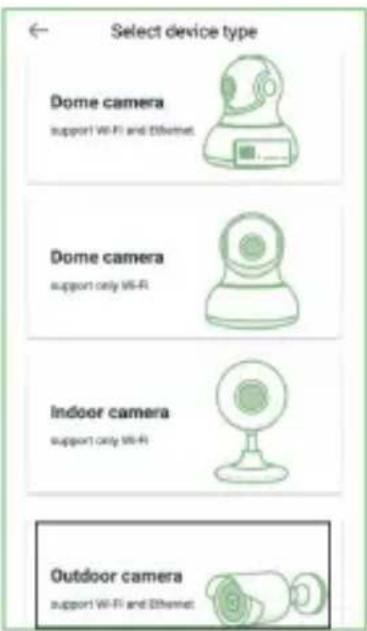
text_image
Select device type Dome camera support Wi-Fi and Ethernet Dome camera support only Wi-Fi Indoor camera support only Wi-Fi Outdoor camera support Wi-Fi and Ethernetflowchart
graph LR
    A["Select setup mode"] --> B["Wi-Fi connection"]
    B --> C["The camera will be connected to the router via 2.4GHz Wi-Fi."]
    B --> D["Ethernet connection"]
    D --> E["The camera will be connected to the router via Ethernet."]
    F["Discovering device"] --> G["Your Wi-Fi XXX"]
    G --> H["Found I device"]
    H --> I["Select"]
text_image
Wait for connection 101000 0110 10 10 1 0 11 1 0 10 0 110 01 1 0 10 110 01 1 1 01 Please wait... Pairing process takes about 5-2 minutes. 98seconds left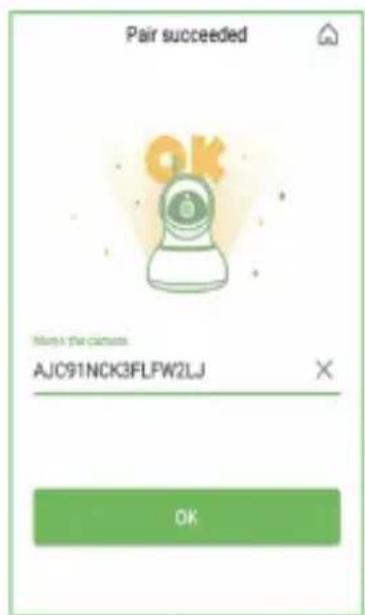
text_image
Pair succeeded OK Remove the camera: AJC91NCK3FLFW2LJ OKDigital Data Communications GmbH - Im Defdahl 10 F, 44141 Dortmund, Germany CONCEPTRONIC® is a registered trademark of Digital Data Communications GmbH © Copyright Digital Data Communications GmbH. All Rights Reserved.