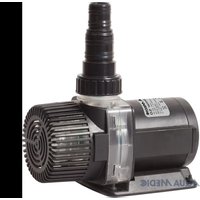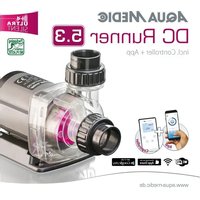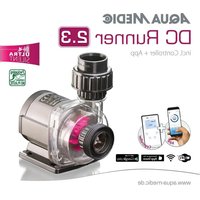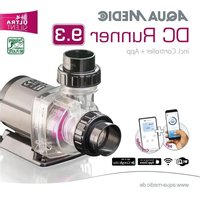
DC Runner 9.3 - Water filter Aqua Medic - Free user manual and instructions
Find the device manual for free DC Runner 9.3 Aqua Medic in PDF.


User questions about DC Runner 9.3 Aqua Medic
0 question about this device. Answer the ones you know or ask your own.
Ask a new question about this device
Download the instructions for your Water filter in PDF format for free! Find your manual DC Runner 9.3 - Aqua Medic and take your electronic device back in hand. On this page are published all the documents necessary for the use of your device. DC Runner 9.3 by Aqua Medic.
USER MANUAL DC Runner 9.3 Aqua Medic
ENG Operation manual
Please read the manual carefully before use! P. 8-13
F Mode d'emploi
Operation Manual for the App to control Aqua Medic pumps of the DC Runner x.3 series
1. APP Download
The APP name "Aqua Medic", is available in App Store for Apple users and Google Play for Android system users. User can search "Aqua Medic" in either APP Store or Google Play to download the application. Alternatively, user can scan the barcode on the package or on our homepage (www.aqua-medic.de) to download the application. (Note: Scan function in certain countries or areas may not be able to read the barcode properly.) We recommend to only use the APP on smartphones, since using it on tablets can lead to errors in the display.
2. User registration, login and password reset
2.1. Account registration
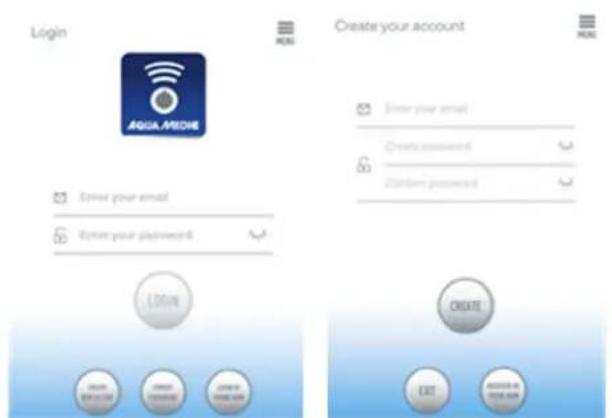
Fig. 1: Aqua Medic App for controlling current, circulation and dosing pumps
Open Aqua Medic App and tap „CREATE NEW ACCOUNT".
Fill in the information as required and tap CREATE NEW ACCOUNT.
After registration, return to the login page and create an account and password to log in.
Note: Please only use your e-mail address to register (no phone number), because registration by telephone number cannot be used in Europe.
After successful registration, the desired pump can be installed and connected to the power supply via the controller.
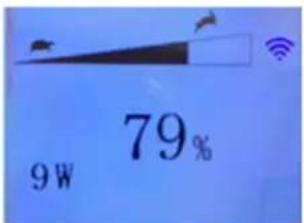
Fig. 2: Display pump controller
Press the WiFi button for about 5 seconds and the flashing icon indicates entering the smart network distribution mode (WLAN). Press the WiFi button for about 10 seconds and the flashing icon and AP word in the lower right corner indicate entering the AP network distribution mode.
The smartphone used has to be in the same WiFi network as the pump to be linked to.
2.2. Reset password
Tap "Forgot password" on the login page. Enter your e-mail address and tap "Send link". Check your e-mail and follow the instructions to reset your password.
AQUAMEDIC
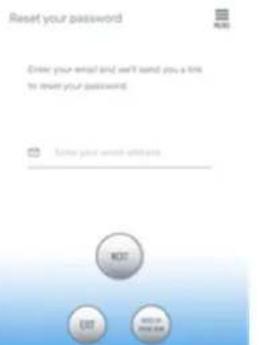
Fig. 3: Reset password
3. Add a pump to a network
Click on "Add" in the lower left corner of the APP and on the following page select the device type to be added. In case of a circulation pump of the DC Runner x.3 series, choose the pump symbol "Pump".
Configuration mode: Make sure your phone is connected to 2.4 G band WiFi before configuration. It doesn't work in the 5 G band WiFi.
There are two types of configuration modes: Smart configuration and AP configuration modes. Choose the "Smart Configuration Mode" to link your device. The AP-mode is not available at the moment.
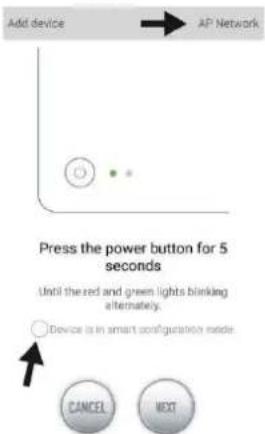
Fig. 4: The desired mode is confirmed by tapping on the circle above the lower arrow. By tapping on "AP Network" or "Smart Network" next to the upper arrow (the arrow is not available in the APP), you can switch between the two modes. (The "Smart Configuration Mode" must be selected here. The green and red LEDs only flash in the case of dosing pumps; in the case of pumps, the blue WiFi symbol flashes in the controller).
3.1. Smart configuration (WiFi-mode)
This is the mode for pump control via WiFi. Press the WIFI button for about 5 seconds and the WIFI indicator flashes. The device is in WiFi configuration mode.
When the WIFI symbol flashes in the upper right corner of the pump controller, tap "Device is in smart configuration mode" and click "NEXT". Positioning must be switched on in the settings of the smartphone used. Follow the instructions. Check that the network name is correct (if not, the smartphone is in the wrong network), then enter the correct WiFi password and tap "NEXT".
Make sure your pump, phone, and router are as close together as possible during the configuration process.
Fig. 5: The tick must be set after the device's name before tapping on "NEXT".
Now, select the device in the APP that you want to add, tap on the device's name (a tick appears after the device's name) and then tap on "NEXT".
AP network: Not available at the moment.
4. Pump control
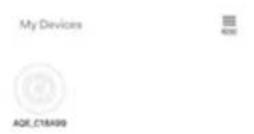
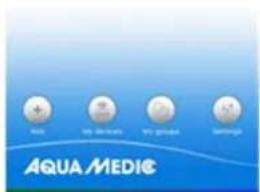
Fig. 6: Page „My Devices"
In the APP, on the page "My Devices", tap the device's symbol of the desired pump for two seconds to call up the device control. If you only briefly tap the symbol, the respective device is switched on (blue symbol) or off (grey symbol). After successfully adding the pump, press and hold the pump icon for two seconds to enter the pump control page.
4.1. Manual mode
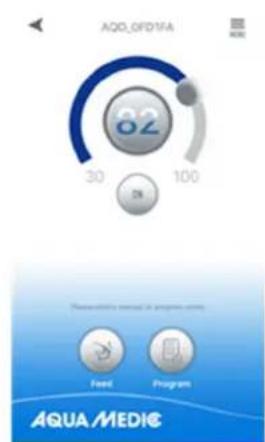
Fig. 7: Pump control
AQUAMEDIC
By adjusting the semicircular bar, the pump power can be varied between 30 and 100% . The selected power is displayed in the circle.
Manual feeding mode (FEED):
Within this time, the pump stops operating according to the set feeding time. Touch the FEED icon for two seconds to enter the feeding settings.
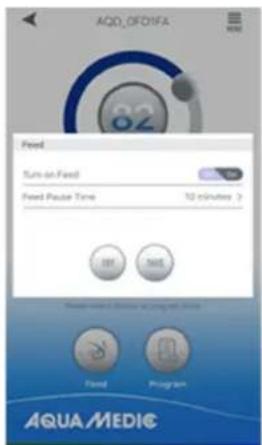
Fig. 8: Feeding settings
Program mode:
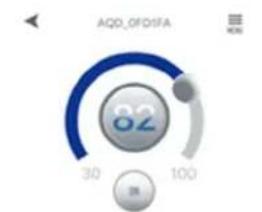
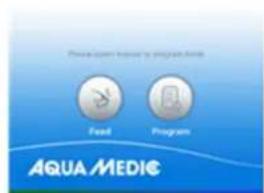
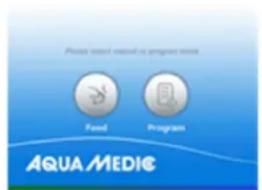
Fig. 9: The "PROGRAM" button takes you to the programming function.
Press the "PROGRAM" icon for two seconds to enter the settings page and set the pump's operating mode at different times of the day including pump stop, automatic and feeding.
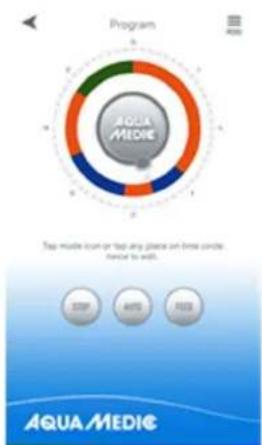
Fig. 10: Touch the "STOP, AUTO, FEED" symbol or double-touch the circle to edit the respective period.
AQUAMEDIC
Double-tap the circle to go to the time setting page. The time can be set by using the slider or the time buttons below. Then, select the working mode for the set period (STOP, AUTO, FEED). Tap "SAVE" to save the setting made. If you want to delete the current adjustment, tap "DELETE".
After completing the settings, return to the main page and tap the program icon to enter Program mode. Program mode is exited when you make manual settings.
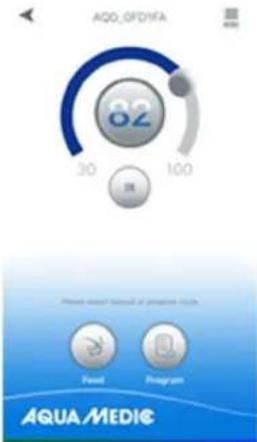
Fig. 11: In the menu at the top right it is possible to rename or delete pumps.
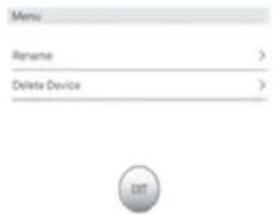
Fig. 12: Rename pumps or delete
5. Group operation
My Devices


Fig. 13: Under the menu item "My groups" it is possible to combine several pumps into a group and to program them jointly.
AQUAMEDIC
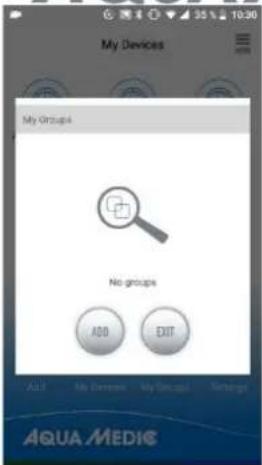
Fig. 14: First of all, select "ADD" ...
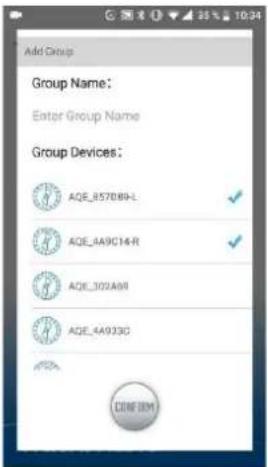
Fig. 15: ... and then select the pumps from the list that are to be combined into a group.
6. Error code and APP error description
Er01: Controller overcurrent. Abnormal working current. Check whether the pump is live or the controller is defective.
Er02: Controller overheated. Check if the controller is exposed to sunlight or in a high temperature environment.
Er03: Pump is running dry or idling. Check the water level, clean the pump.
Er04: The pump blocked. The impeller stops running. Clean the impeller, bearings and pump. The impeller must be able to turn freely.
Er05: Controller overvoltage. Abnormal working voltage. Check the input supply voltage.
AB Aqua Medic GmbH - Gewerbepark 24 - 49143 Bissendorf/Germany - Technical changes reserved - 02/2021/v4
Mode programme (PROGRAM):
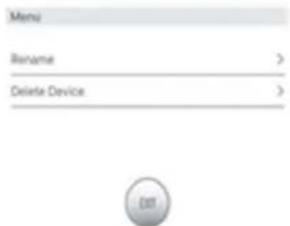
Fig. 12: Rinomina pompie (Rename) o cancella (Delete Device).
Pnc.11:B MeHIO BBepxCy CnpBa MoXHO NOMbI IpeeIMeHOBaTb IIN ydaJIHTb.
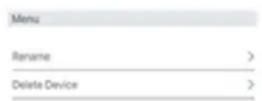

Pnc.12:nomnbI nepeHMeHOBaTb (Rename) nn ydaNTb (Delete Device)
5. Pa6ota B rpynne
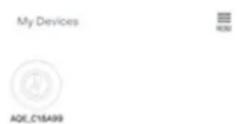

Pnc. 13: B nyHKTe MeHIO «My groups» moXHo o6beHNHTb HeCKoJbKO NOMB rpynny n 3anporpaMMnpBaTb nx Bmecte.
AQUA/MEDIC
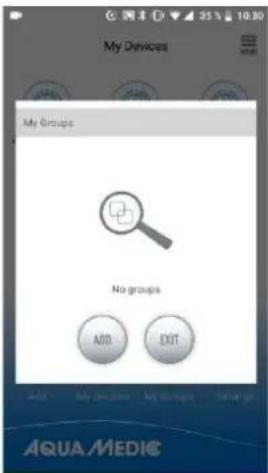
Pnc.14:chauana Bbl6epnte «ADD»...
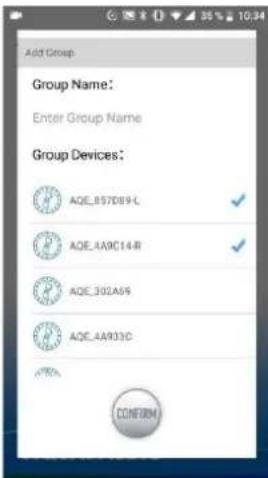
Pnc.15:...a 3aTeM BbIbepnTe n3 cnNcKa NOMnbl, KOTOpBle HxKHO o6beHNHTB rpynny.
6. Kod own6kn n onncahne own6kn npniloxeHna
Er01: Nperpy3ka no TOKy KOHTpoJIpepa. HeHOpMaIbHbI pa6OuN ToK. IPOBepbTe, HaxoIITcI IN NOMNa NOd HAnpJxKeHHem nn HeNCnPaBeH KOHTpoJIepe.
Er02:KoHTpOJIep neperepe. IpoBepTe, He noDBepraetc JI KONTPOJIep BO3dEiCTBnIO COJHeuHbIX Lyue nn BbICOKI TemnepeTpybl.
Er03: POMna pa6oTaET BCyXIO, NOMna pa6oTaET Ha xOIOCTOM XOy. PpOBepNTb yPOBeHb BOdi, npOCHNTb NOMny.
Er04: Nomna 3a6loKnpoBaHa. KpbIbUaTka nepeCTaET pa6OtaTb. OunchTe potOp, noDunHnKn n nomny. BeryH dOnJKeH IMeTb BO3MOXHOCTb CBO6OdHo NOBOPaUHBaTbcra.
Er05: NpehenpajxkeHne KOHTpoJIlepa. HeOpMaJIbHOe pa6Ouee HapJxKeHne. IpoBepuTb BXoIHOe HApJxKeHne nITAHn.
AB Aqua Medic GmbH - Gewerbepark 24 - 49143 Bissendorf/Germany
- octablanem 3a co6oI npabo Ha TexHnueckne n3MeHeHna KOHcTpkykun - 02/2021/v4