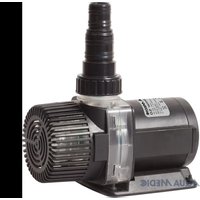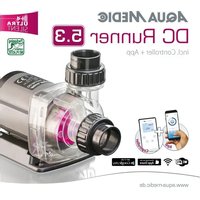
DC Runner 2.3 - Water filter Aqua Medic - Free user manual and instructions
Find the device manual for free DC Runner 2.3 Aqua Medic in PDF.


User questions about DC Runner 2.3 Aqua Medic
0 question about this device. Answer the ones you know or ask your own.
Ask a new question about this device
Download the instructions for your Water filter in PDF format for free! Find your manual DC Runner 2.3 - Aqua Medic and take your electronic device back in hand. On this page are published all the documents necessary for the use of your device. DC Runner 2.3 by Aqua Medic.
USER MANUAL DC Runner 2.3 Aqua Medic
ENG Operation manual
Please read the manual carefully before use! P. 8-13
F Mode d'emploi
text_image
Reset your password Enter your email and we'll send you a link to reset your password. Enter your email address NEXT EXIT EXIT FOR YOUR NAMEAbb. 3: Passwort Reset
text_image
Add device AP Network Press the power button for 5 seconds Until the red and green lights blinking alternately. Device is in smart configuration mode. CANCEL NEXTtext_image
Add My devices My groups Settings AQUA MEDICtext_image
AQD_DFDIFA 82 30 100 OK Please select previous to program media. Fixed Program AQUA MEDICtext_image
AQO_OF01FA 82 30 100 OK Please click "Import all program minutes" Feed Program AQUA MEDICtext_image
Program AQUA MEDIC Tap inside soon or too any, please call time circle today to add. EXP APPS ADD AQUA MEDICtext_image
AQO_OF1FA 82 30 100 OK Please select manual if paragraph needs Fixed Program AQUA MEDICtext_image
Menu Rename > Delete Device >text_image
My Devices My Groups No groups ADD EXIT Add My Group My Group AQUA MEDICtext_image
Add Group Group Name: Enter Group Name Group Devices: ADE_857089-L ADE_4A1C14-R ADE_302A69 ADE_AA933C OK CONFIRMOperation Manual for the App to control Aqua Medic pumps of the DC Runner x.3 series
1. APP Download
The APP name "Aqua Medic", is available in App Store for Apple users and Google Play for Android system users. User can search "Aqua Medic" in either APP Store or Google Play to download the application. Alternatively, user can scan the barcode on the package or on our homepage (www.aqua-medic.de) to download the application. (Note: Scan function in certain countries or areas may not be able to read the barcode properly.) We recommend to only use the APP on smartphones, since using it on tablets can lead to errors in the display.
2. User registration, login and password reset
2.1. Account registration
text_image
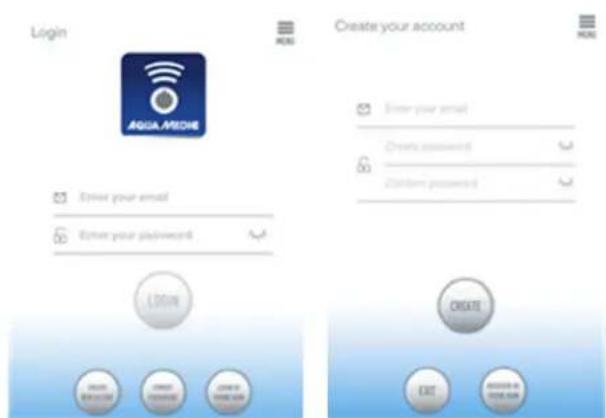
Login AGUA.MEDIA Create your account Enter your email Create accounts Custom passwords CREATE EXITFig. 1: Aqua Medic App for controlling current, circulation and dosing pumps
Open Aqua Medic App and tap „CREATE NEW ACCOUNT“.
Fill in the information as required and tap „CREATE NEW ACCOUNT“.
After registration, return to the login page and create an account and password to log in.
Note: Please only use your e-mail address to register (no phone number), because registration by telephone number cannot be used in Europe.
After successful registration, the desired pump can be installed and connected to the power supply via the controller.
text_image
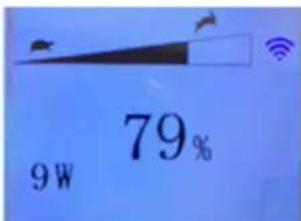
79% 9WFig. 2: Display pump controller
Press the WiFi button for about 5 seconds and the flashing icon indicates entering the smart network distribution mode (WLAN). Press the WiFi button for about 10 seconds and the flashing icon and AP word in the lower right corner indicate entering the AP network distribution mode.
The smartphone used has to be in the same WiFi network as the pump to be linked to.
2.2. Reset password
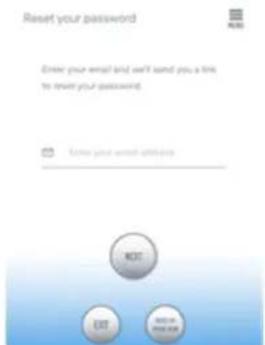
Tap "Forgot password" on the login page. Enter your e-mail address and tap "Send link". Check your e-mail and follow the instructions to reset your password.
AQUA MEDIC
text_image
Reset your password Enter your email bird, we'll need you a link to reset your password. Make your email attributes NEXT EXIT EXIT OR SELECTFig. 3: Reset password
3. Add a pump to a network
Click on "Add" in the lower left corner of the APP and on the following page select the device type to be added. In case of a circulation pump of the DC Runner x.3 series, choose the pump symbol "Pump".
Configuration mode: Make sure your phone is connected to 2.4 G band WiFi before configuration. It doesn't work in the 5 G band WiFi.
There are two types of configuration modes: Smart configuration and AP configuration modes. Choose the „Smart Configuration Mode“ to link your device. The AP-mode is not available at the moment.

text_image
Add device AP Network Press the power button for 5 seconds Until the red and green lights blinking alternately. Device is in smart configuration mode. CANCEL NEXTFig. 4: The desired mode is confirmed by tapping on the circle above the lower arrow. By tapping on "AP Network" or "Smart Network" next to the upper arrow (the arrow is not available in the APP), you can switch between the two modes. (The "Smart Configuration Mode" must be selected here. The green and red LEDs only flash in the case of dosing pumps; in the case of pumps, the blue WiFi symbol flashes in the controller).
3.1. Smart configuration (WiFi-mode)
This is the mode for pump control via WiFi. Press the WIFI button for about 5 seconds and the WIFI indicator flashes. The device is in WiFi configuration mode.
When the WIFI symbol flashes in the upper right corner of the pump controller, tap "Device is in smart configuration mode" and click "NEXT". Positioning must be switched on in the settings of the smartphone used. Follow the instructions. Check that the network name is correct (if not, the smartphone is in the wrong network), then enter the correct WiFi password and tap "NEXT".
Make sure your pump, phone, and router are as close together as possible during the configuration process.
AQUA MEDIC
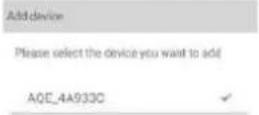
Fig. 5: The tick must be set after the device's name before tapping on "NEXT".
Now, select the device in the APP that you want to add, tap on the device's name (a tick appears after the device's name) and then tap on "NEXT".
AP network: Not available at the moment.
4. Pump control
text_image
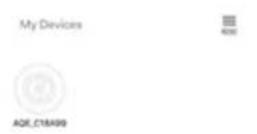
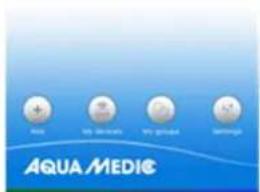
Aqua Aqua MEDIC Aqua Healthcare Aqua Healthcare Aqua Healthcare Aqua HealthcareFig. 6: Page „My Devices“
In the APP, on the page "My Devices", tap the device's symbol of the desired pump for two seconds to call up the device control. If you only briefly tap the symbol, the respective device is switched on (blue symbol) or off (grey symbol). After successfully adding the pump, press and hold the pump icon for two seconds to enter the pump control page.
4.1. Manual mode
text_image
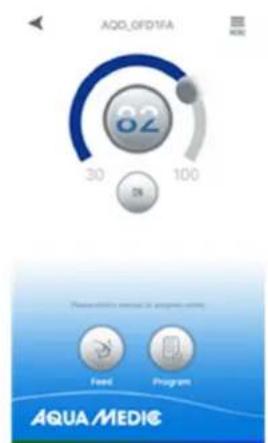
AQD_OFID1FA 82 30 100 OK Planesuitable version of a program code Feed Program AQUA MEDICFig. 7: Pump control
AQUA MEDIC
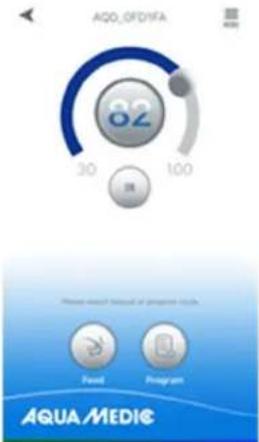
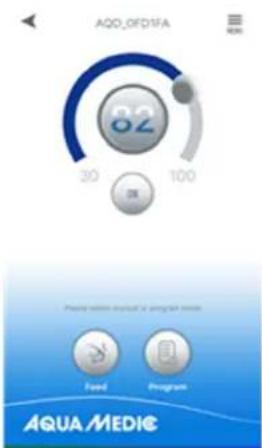
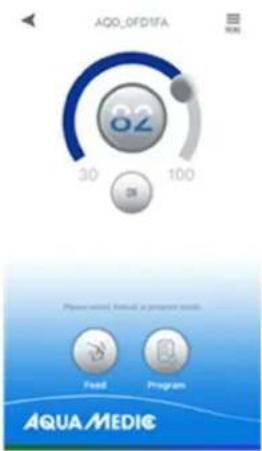
By adjusting the semicircular bar, the pump power can be varied between 30 and 100% . The selected power is displayed in the circle.
Manual feeding mode (FEED):
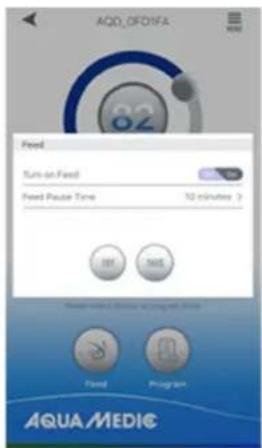
Within this time, the pump stops operating according to the set feeding time. Touch the FEED icon for two seconds to enter the feeding settings.
text_image
AQD_0FD1FA Feed Turn-on Feed Feed Pause Time 10 minutes ? OFF NOB Please check if to close your home. Feed Program AQUA MEDICFig. 8: Feeding settings
Program mode:
text_image
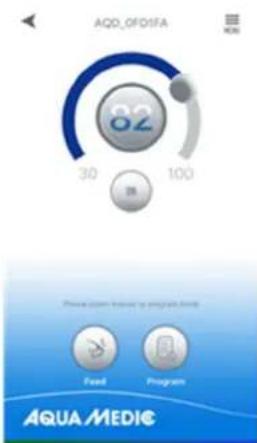
AQD_OF01FA 82 30 100 Phone:com/rents or program.AQUA MEDIC Feed Program AQUA MEDICFig. 9: The "PROGRAM" button takes you to the programming function.
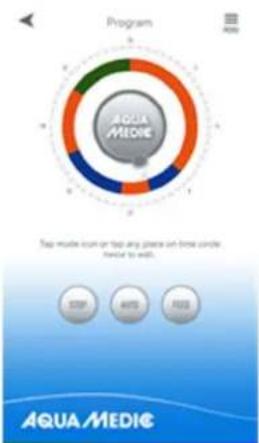
Press the "PROGRAM" icon for two seconds to enter the settings page and set the pump's operating mode at different times of the day including pump stop, automatic and feeding.
text_image
Program AQUA MEDIC Tap music icon or tap any plane on time circle local to add. STOP ADD FREE AQUA MEDICFig. 10: Touch the "STOP, AUTO, FEED" symbol or double-touch the circle to edit the respective period.
AQUA MEDIC
Double-tap the circle to go to the time setting page. The time can be set by using the slider or the time buttons below. Then, select the working mode for the set period (STOP, AUTO, FEED). Tap "SAVE" to save the setting made. If you want to delete the current adjustment, tap "DELETE".
After completing the settings, return to the main page and tap the program icon to enter Program mode. Program mode is exited when you make manual settings.
text_image
AQO.OFO/IFA 82 30 100 Fixed AQUA MEDIC Fixed InstagramFig. 11: In the menu at the top right it is possible to rename or delete pumps.
text_image
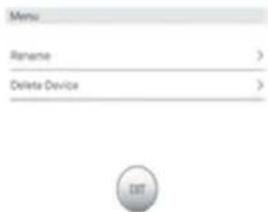
Menu Rename > Delete Device >Fig. 12: Rename pumps or delete
5. Group operation



text_image
Add My Biocaine My Greenish Saiming AQUA MEDICFig. 13: Under the menu item "My groups" it is possible to combine several pumps into a group and to program them jointly.
AQUA MEDIC
text_image
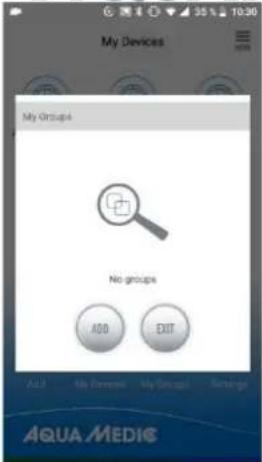
My Devices My Groups No groups ADD EXIT Aua3 My Documents My Social Settings AQUA MEDICFig. 14: First of all, select „ADD“ ...
text_image
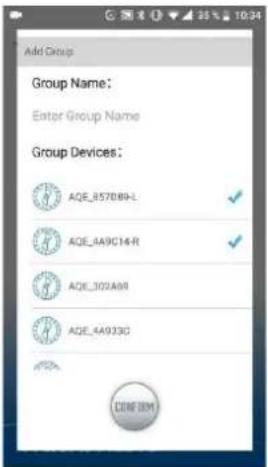
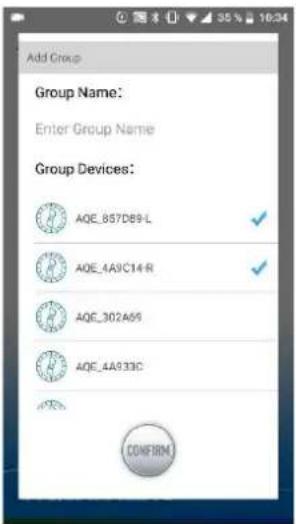
Add Group Group Name: Enter Group Name Group Devices: AQE_857089-L AQE_4A9C14-R AQE_302A68 AQE_4A933C CODE IBMFig. 15: ... and then select the pumps from the list that are to be combined into a group.
6. Error code and APP error description
Er01: Controller overcurrent. Abnormal working current. Check whether the pump is live or the controller is defective.
Er02: Controller overheated. Check if the controller is exposed to sunlight or in a high temperature environment.
Er03: Pump is running dry or idling. Check the water level, clean the pump.
Er04: The pump blocked. The impeller stops running. Clean the impeller, bearings and pump. The impeller must be able to turn freely.
Er05: Controller overvoltage. Abnormal working voltage. Check the input supply voltage.
AB Aqua Medic GmbH - Gewerbepark 24 - 49143 Bissendorf/Germany - Technical changes reserved - 02/2021/v4
text_image
Reset your password Enter your email and we'll send you a link to reset your password. Enter your email without: NEXT EXIT EXIT OR FREE!text_image
Add device AP Network Press the power button for 5 seconds Until the red and green lights blinking alternately. Device is in smart configuration mode. CANCEL NEXTtext_image
AQD_DTORFA 82 Feed Turn-on-Feed Feed Pause Time 10 minutes > SBT SBRL Sleep, sweet, sweet or quick eat fresh. Feed Program AQUA MEDICMode programme (PROGRAM):
text_image
AQO.OFD1FA 82 30 100 Prevent online input/12 program Fed Program AQUA MEDICtext_image
Program AQUA MEDIC Tap mobile room or tap any phone on time circle twice to exit. STOP AUTO STOP AQUA MEDICtext_image
AQD_0FD1FA 82 30 100 OK Please call to the following of your own website: Food Program AQUA MEDICtext_image
Menu Rename > Delete Device >text_image
My Devices My Groups No groups ADD EXIT AQUA MEDICtext_image
Login MORE Create your account MORE AQUA MEDIC Enter your email Enter your password Enter your email Create your account Create password Confirm password LOGIN CREATE EXIT REDACT BY YOUR NAMEtext_image
AQUA MEDIC Reset your password NEW Enter your email and we'll send you a link to insert your password. Cancel your email password MOST OK Next or Your EmailFig. 3: Reset password
text_image
Add device → AP Network Press the power button for 5 seconds Until the red and green lights blinking alternately. Device is in smart configuration mode. CANCEL NEXTtext_image
Physical asset, manual or program tools Fixed Program AQUA MEDICFig. 7: Pump aansturing
AQUA MEDIC
text_image
AQD_DFOIFA 82 Feed Turn on Feed Feed Pause Time 10 minutes > OFF 3MEL Sleep sweet, Descent of Cigarette Drink. Feed Program AQUA MEDICFig. 8: Voeder instellingen
Programma mode (PROGRAM):
text_image
AQO_OF01FA 82 30 100 5% Pre-saved: field at project site. Field Program AQUA MEDICtext_image
Program AQUA MEDI Tap mobile from or keep any phone on time circle twice to add. STOP AND STOP AQUA MEDItext_image
Menu Rename > Delete Device >text_image
My Devices AQA_C18A09 Add My device My group Settings AQUA MEDICtext_image
My Devices My Groups No groups ADD EXIT AQUA MEDICFig. 14: Allereerst, kies „ADD“ ...
text_image
Add Group Group Name: Enter Group Name Group Devices: AQE_857D89-L AQE_4A9C14-R AQE_302A69 AQE_4A933C CONFIRMtext_image
Login NEW Create your account NEW your email Create password. Confirm password Enter your email Enter your password LOGIN CREATE EXIT REGISTER BY HOME KEYtext_image
AQUA MEDIC Reset your password Enter your email and we'll send you a link to have your password. Enter your email solution NEXT EXIT ANY YOU NOWtext_image
Add device AP Network Press the power button for 5 seconds Until the red and green lights blinking alternately. Device is in smart configuration mode. CANCEL NEXTtext_image
AQO.OFOIFA 82 30 100 OK Please select features in your own account Fond Program AQUA MEDICFig. 7: Control de la bomba
AQUA MEDIC
text_image
AQO_QFD1FA 82 Feed Turn on Feed Feed Route Time 50 minutes > OK Cancel AQUA MEDICtext_image
AQO_OF01FA 82 30 100 OK Please request feedback or program needs Feed Program AQUA MEDICtext_image
Program AQUA MEDIC Take mobile icon or help any phone on time clock has to exit. STOP AUTO FREE AQUA MEDICtext_image
Menu Rename > Delete Device >text_image
My Devices AQL C18A95 Aqua MEDIC My group Sunshinetext_image
My Devices My Groups No groups ADD EXIT AQUA MEDIC- Technical changes reserved - 02/2021/v4
text_image
AQUA MEDIC Reset your password NEW Enter your email and we'll send you a link to reset your password. Entry your email address NEXT EXIT EXIT BY 2019-04-08 2019-04-08Fig. 3: Reimposta password
text_image
Add device AP Network Press the power button for 5 seconds Until the red and green lights blinking alternately. Device is in smart configuration mode. CANCEL NEXTtext_image
AQO.OFO1RA 82 30 100 Please click request of your email Food Program AQUA MEDICtext_image
AQO, OFD1FA 82 Feed Turn on Feed Feed Pause Time 10 minutes OK SAVE Send about services to people in terms. Feed Program AQUA MEDICtext_image
Program AQUA MEDIC Tap mode blow or twice any phone on time, click help to exit! STOP ADD ADD AQUA MEDICtext_image
AQO_OF01FA 82 30 100 返回 Please select the following of a program: clinic Feed Program AQUA MEDICtext_image
Menu Rename > Delete Device >Fig. 12: Rinomina pompe (Rename) o cancella (Delete Device).