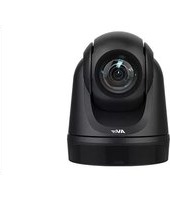
DL30 - Webcam AVer - Free user manual and instructions
Find the device manual for free DL30 AVer in PDF.


| Product Type | PTZ Camera for Distance Learning |
| Brand | AVer |
| Model | DL30 |
| Power Supply | AC adapter (12V DC) or PoE+ (IEEE 802.3at) |
| Connections | USB, HDMI (not supported on this model), RJ-45 (PoE+), audio input, HDMI output (not supported) |
| Main Functions | Presenter tracking, presets (0-9), zoom, pan/tilt, zone mode, image capture, streaming |
| Included Software | CaptureShare (USB), AVer PTZ Management (network), AVer PTZ Control Panel (iPad) |
| Remote Control | IR remote control (AAA batteries), web interface, PTZ software |
| LED Indicator | Blue (tracking active), orange (standby/initialization), red (firmware update) |
| Network Configuration | DHCP by default, static IP via remote (press 8 eight times) |
| Included Accessories | Camera module, AC adapter, power cord, USB cable, remote control, cable fixing plate, cable ties, M2 screws, installation guide |
| Optional Accessories | Wall mount (60S5000000AC), ceiling mount (60S5000000AB) |
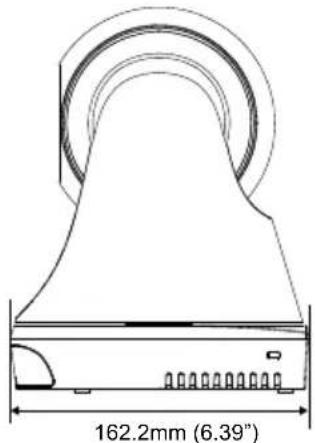
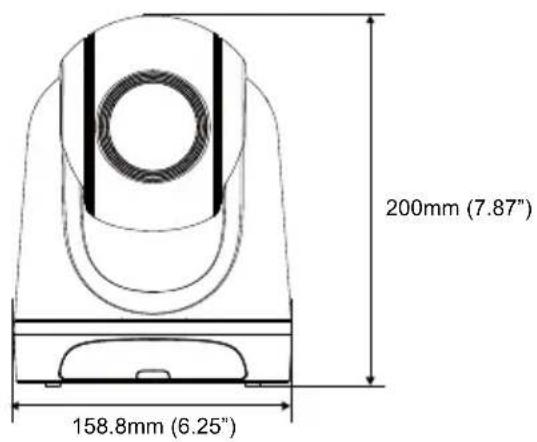
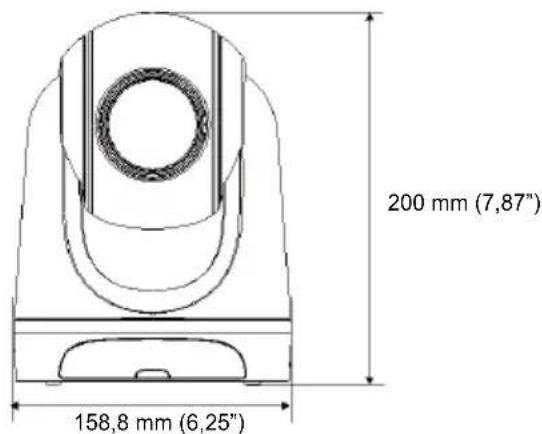
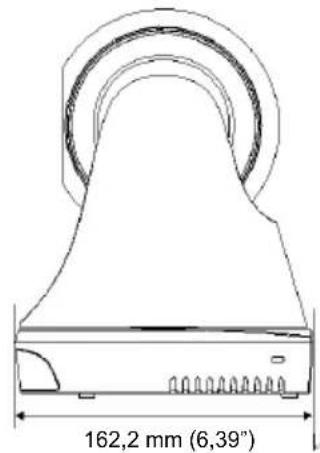
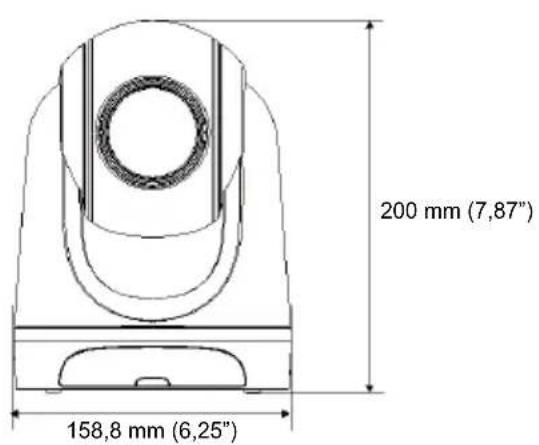
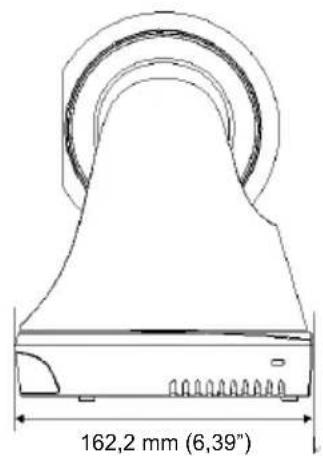
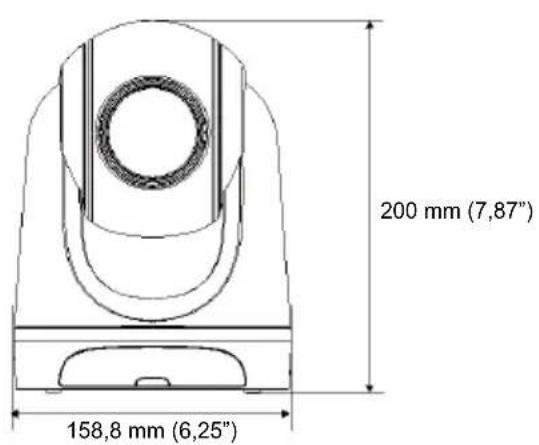
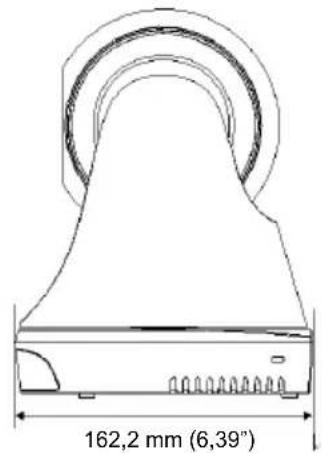
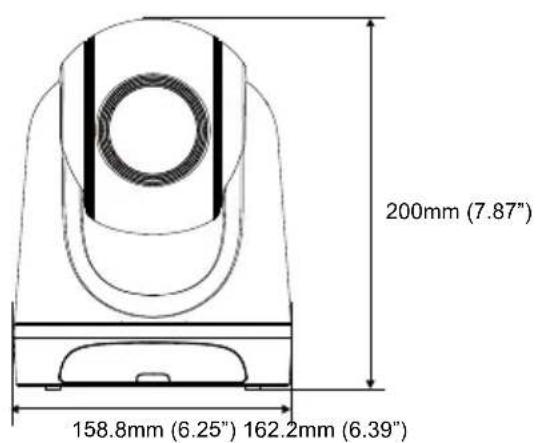
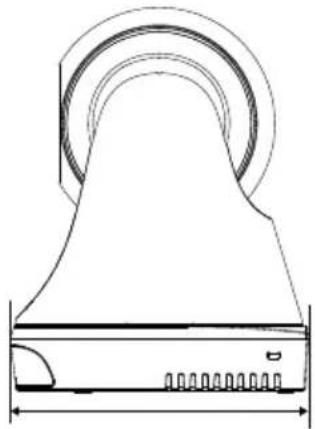
| Dimensions (approx.) | 200 x 150 x 150 mm (estimated) |
| Weight (approx.) | 1.5 kg (estimated) |
| Care and Cleaning | Use a soft, dry cloth. Do not use solvents. |
| Safety | Class A product (possible radio interference in domestic environment). Battery warning: do not replace with incorrect type. |
| Spare Parts and Repairability | Contact the reseller for parts. Software and manuals download available on the AVer download center. |
| General Information | ©2021 AVer Information Inc. Registered trademark. Made in China (presumed). |
Frequently Asked Questions - DL30 AVer
User questions about DL30 AVer
0 question about this device. Answer the ones you know or ask your own.
Ask a new question about this device
Download the instructions for your Webcam in PDF format for free! Find your manual DL30 - AVer and take your electronic device back in hand. On this page are published all the documents necessary for the use of your device. DL30 by AVer.
USER MANUAL DL30 AVer
natural_image
Line drawing of a mechanical device with a dome-shaped top and internal curved components (no text or symbols)DL30/DL50 Distance Learning
Tracking Camera
Quick Start Guide | 快速安装指南
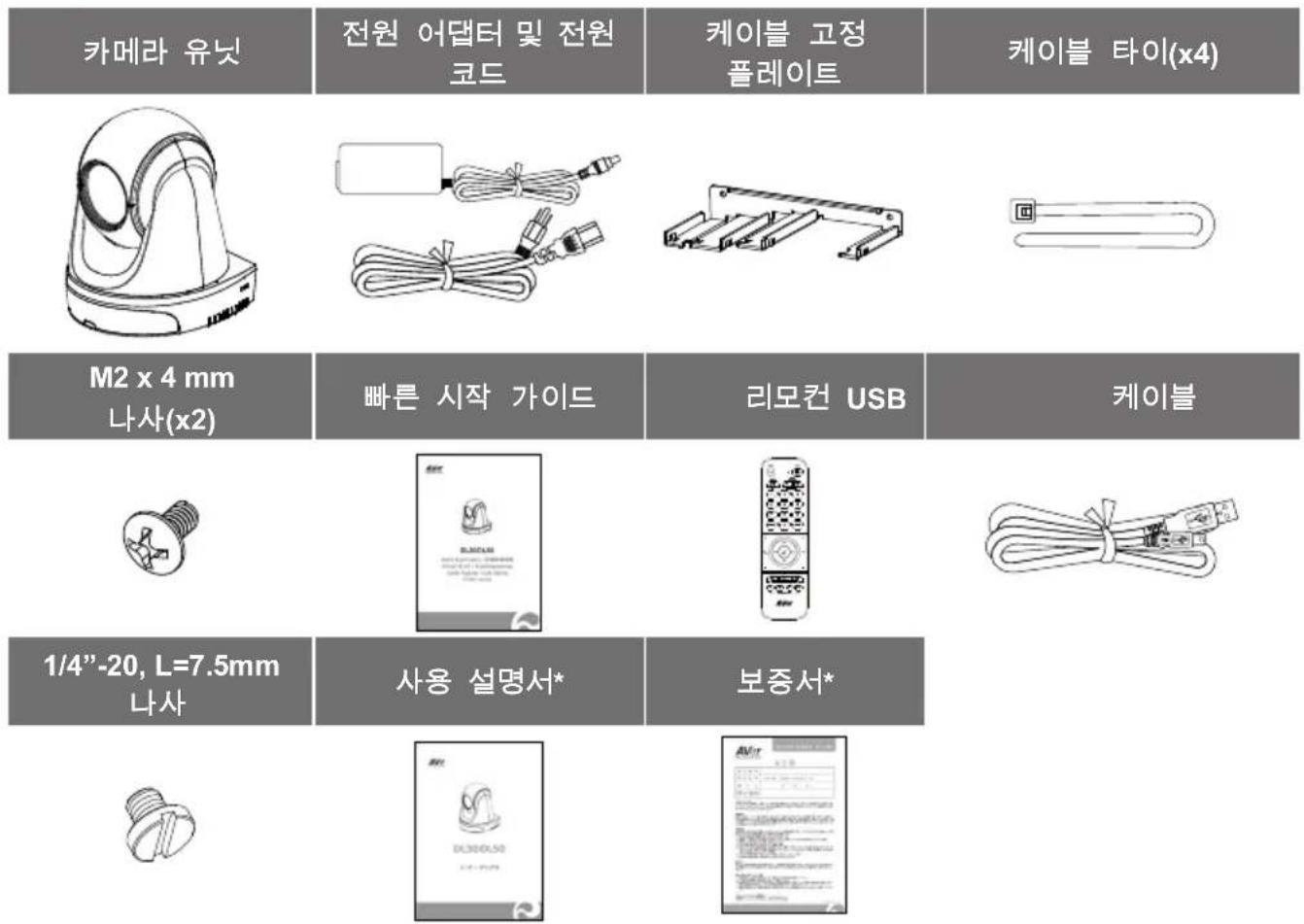
| Camera Unit | Power Adapter & Power Cord | Cable Fixing Plate | Cable Ties (x4) |
| M2 x 4mm Screws (x2) | Quick Start Guide | Remote Control | USB Cable |
| 1/4"-20, L=7.5mm Screw | User Manual* Warranty Card* | ||
*Only for Japan
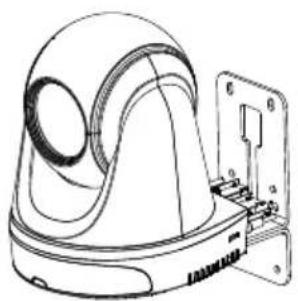
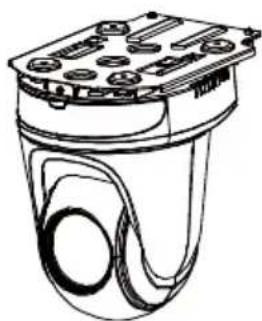
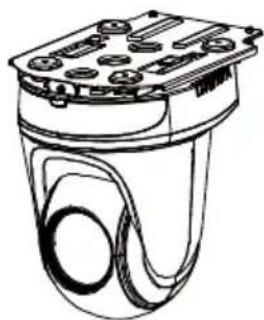
Camera Mount Suggestions (Optional Accessories)
For details on optional accessories, consult your local dealer.
Wall mount (Part# 60S5000000AC)
natural_image
Technical line drawing of a mechanical component with no visible text or symbolsCeiling mount (Part#60S5000000AB)
natural_image
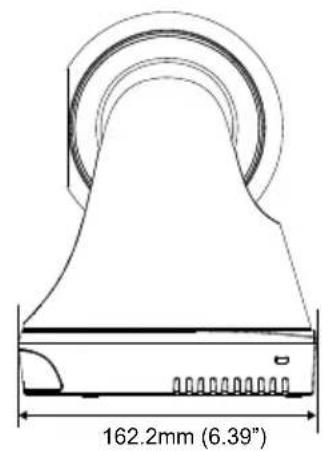
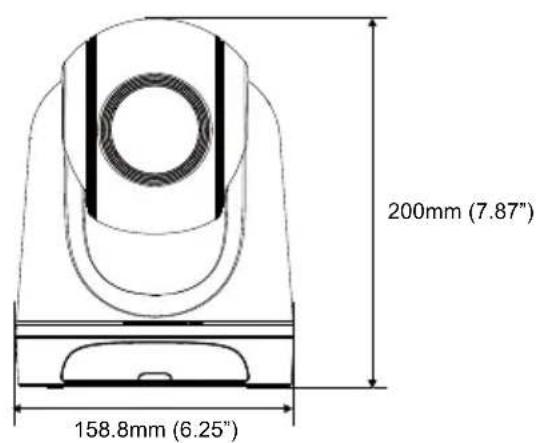
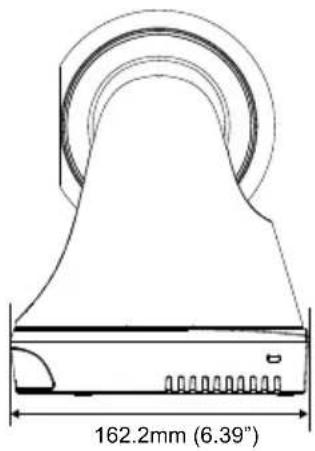
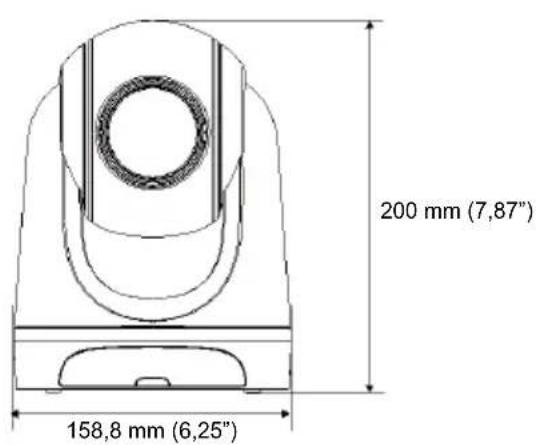
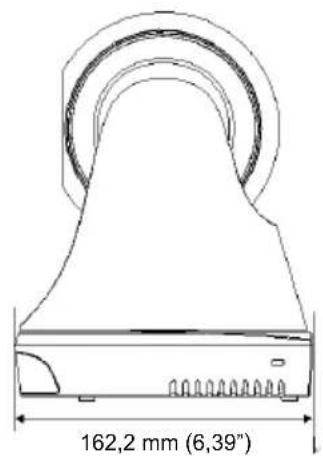
Technical line drawing of a mechanical component with no visible text or symbolsDimension
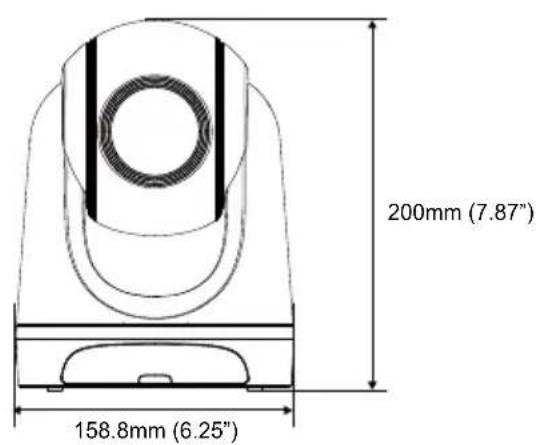
Cable Fixing Plate Installation
① Secure the cable fixing plate to the camera with two M2 x 4mm screws in the package.
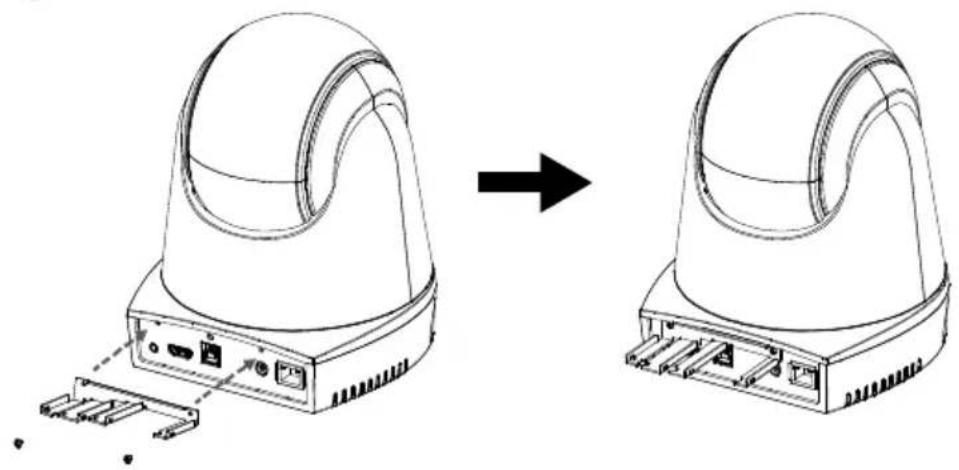
natural_image
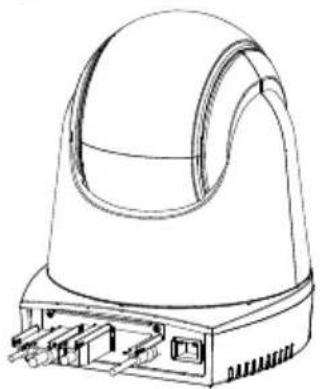
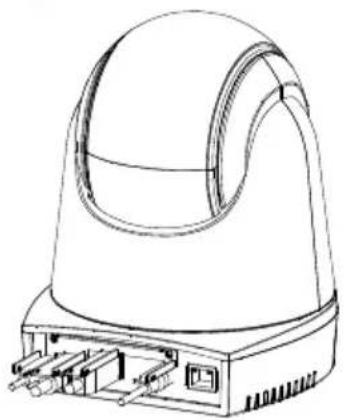
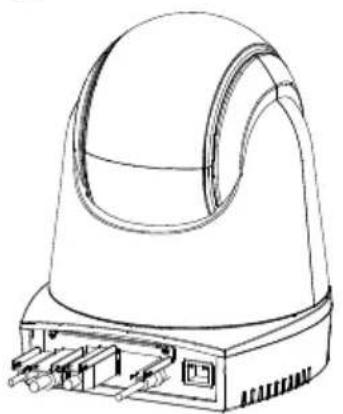
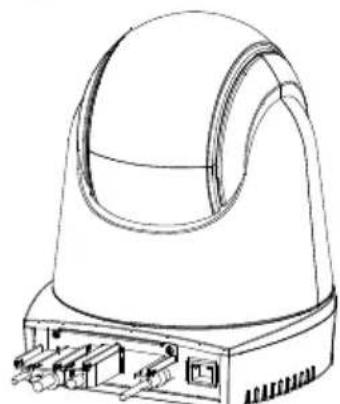
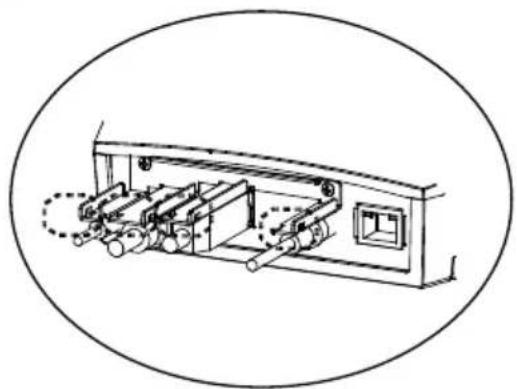
Diagram showing a device being processed from a base to a top, with no visible text or symbols.② Plug in cables.
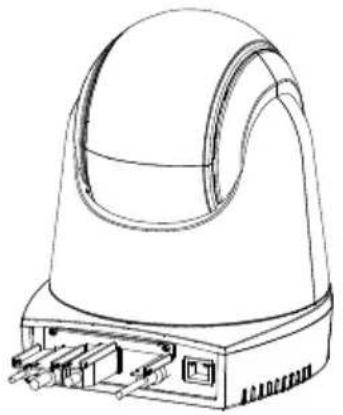
natural_image
Technical line drawing of a dome-shaped electronic device with internal components (no text or symbols)③ Use four cable ties in the package to secure the cables and cable fixing plate.
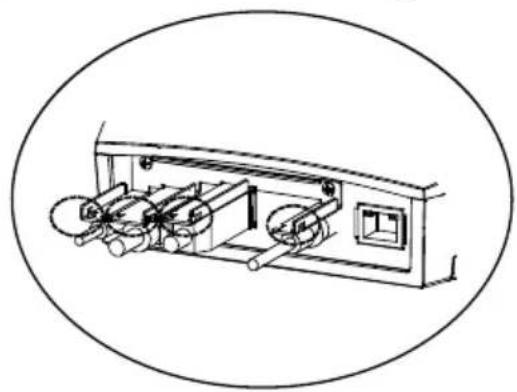
natural_image
Technical line drawing of a mechanical device with three wheels and a control panel (no text or symbols)[Note] DL30 does not support HDMI port.
Connections
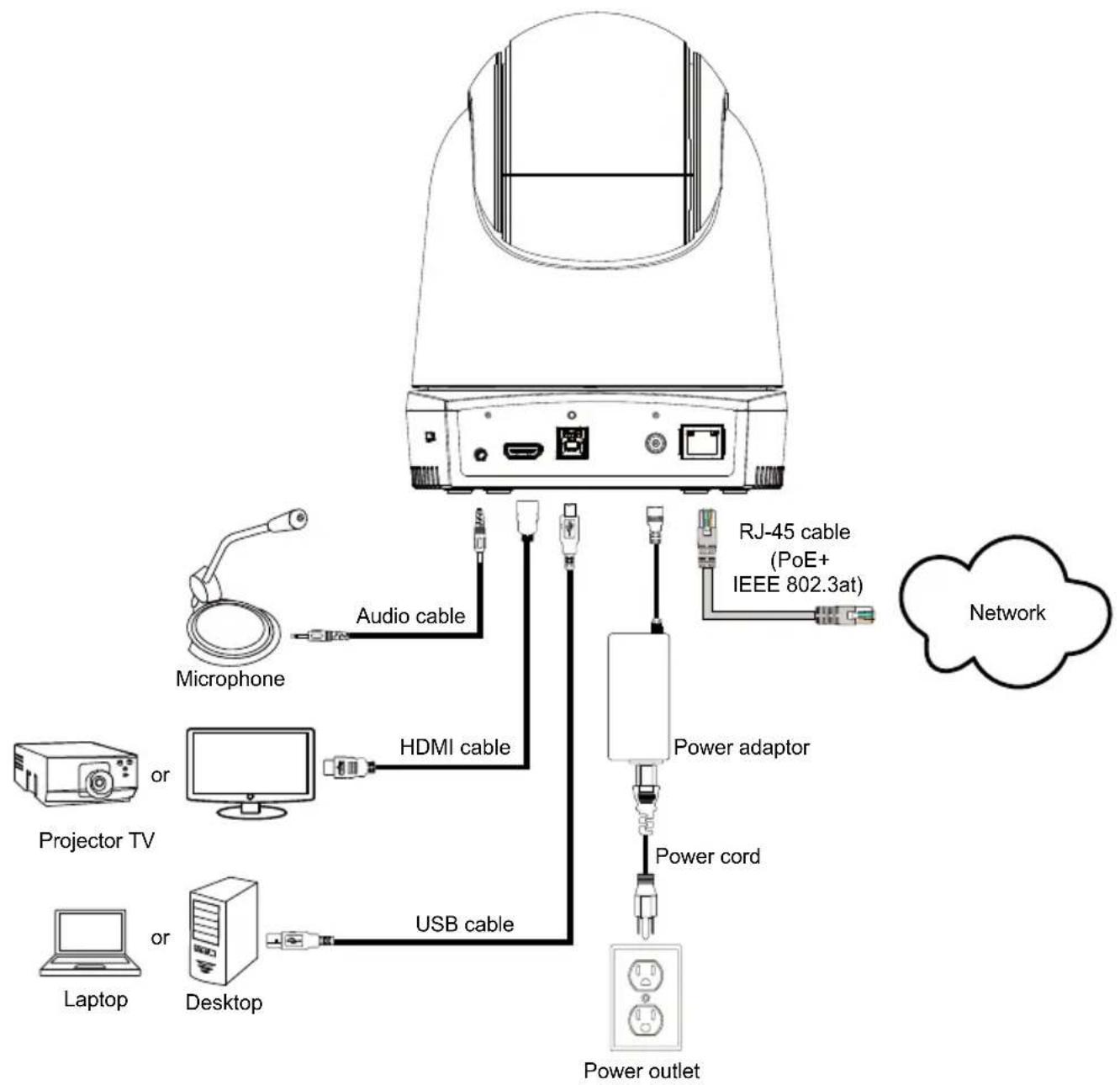
flowchart
graph TD
    A["Device"] --> B["Microphone"]
    A --> C["Projector TV"]
    A --> D["Laptop"]
    A --> E["Desktop"]
    A --> F["USB cable"]
    A --> G["Power adaptor"]
    G --> H["Power cord"]
    G --> I["Power outlet"]
    B --> J["Audio cable"]
    C --> K["HDMI cable"]
    D --> L["Power cord"]
    E --> M["Power outlet"]
    F --> N["RJ-45 cable (PoE+ IEEE 802.3at)"]
    G --> O["Network"]
[Note] DL30 does not support HDMI port.
Remote Control
The remote control requires two "AAA" size batteries. Make sure batteries are installed properly before use.
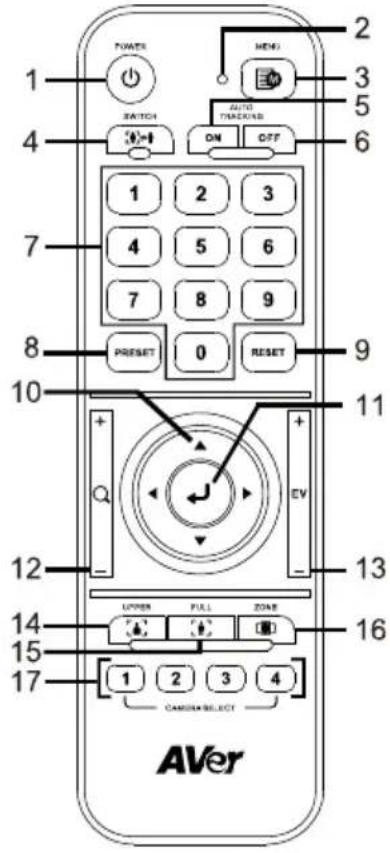
| Name Function | |
| (1) Power | Turn the unit on/standby/privacy:■ Press once to turn on privacy mode. Press again to turn off privacy mode.■ Long press for 3 seconds to turn on standby mode. Short press again to turn off standby mode. |
| (2) Remote Control LED | It will be on when pressing other buttons. |
| (3) Menu | Open and exit the OSD menu.[Note] DL30 does not support OSD menu. |
| (4) Switch | Switch from presenter to another presenter. |
| (5) Auto Tracking On | Turn on auto tracking. |
| (6) Auto Tracking Off | Turn off auto tracking. |
| (7) Number buttons | Use for setting the preset position 0~9. |
| (8) Preset | User can use below two ways to set the preset position:a) press “Preset” + “Number button (0~9)” simultaneously, orb) hold “Preset” then press “Number button (0~9)”.Remote control LED and camera button LED will not light when pressing Preset button alone. |
| (9) Reset | User can use below two ways to cancel pre-configured preset position:a) press “Reset” + “Number button (0~9)” simultaneously, orb) hold “Reset” then press “Number button (0~9)”.Remote control LED and camera button LED will not light when pressing Reset button alone. |
| (10) ▲,▼,◀, & ▶ | Pan and tilt the camera. Pan/Tilt speed by remote control is fixed. You may change pan/tilt speed by using web browser. For setting details of web browser, please refer to user manual. |
| (11) Enter | After opening the OSD menu, confirm the selection or make a selection in OSD menu. |
| (12) Zoom In/Out | Zoom in/out. Zoom in/out speed by remote control is fixed. You may change zoom in/out speed by using web browser. For setting details of web browser, please refer to user manual. |
| (13) EV +/- | EV level adjustment. |
| (14) Upper Body | Presenter's size on screen is upper body. |
| (15) Full Body | Presenter's size on screen is full body. |
| (16) Zone | Zone mode. |
| (17) Camera Select | CAM1 to CAM4 buttons. Select a camera to operate. Once a camera is selected, the CAM button LED will be on when pressing other buttons. |
LED Indicator
| LED Status | |
| Blue (Blinking every 2 seconds) Tracking On | |
| Blue (Solid) Normal Operation and Tracking Off | |
| Orange (Blinking) | Camera Initialization |
| Orange (Solid) Standby Mode | |
| Red (Blinking) Firmware Update | |
CaptureShare
CaptureShare is a software tool that you can use with cameras to setup, record, streaming, capture image, and use whiteboard function via a USB cable. It is a powerful application that helps teachers turn AVer cameras into an even more effective distance learning collaboration tool.
[Note] If teachers need to use DL tracking camera as webcam or camera for teaching, use the supplied USB cable to connect the camera to the computer, open video collaboration application such as Zoom, Skype, or Microsoft ^® Teams, and choose DL tracking camera for video source.
IP Address Setup
DL cameras' default setting is DHCP on.
■ If there is DHCP environment
- Connect your camera to the internet and wait for your camera to get IP address.
- From your server, you can find your new camera IP address.
- If necessary, modify the IP address.
■ Or if you want to configure by yourself
- Use the remote control and press the button "8" eight times to switch to Static IP mode.
- The default IP for the camera would be set to 192.168.1.168.
- Set up your computer with static IP 192.168.1.x and then type in 192.168.1.168 in your web browser to access the camera.
AVer PTZ Management
When your camera is all setup on the network, you can download our free camera control and management software AVer PTZ Management. This software enables complete control of its devices on Windows PCs and laptops. And it offers convenient and simultaneous control of up to 128 cameras.
AVer PTZ Control Panel
AVer PTZ Control Panel puts you in charge of all the basic controls and relevant settings of your AVer Distance Learning Tracking cameras. PTZ Control Panel gives you access to live video and audio streams from your cameras on an iPad screen, and it allows you to control the camera's capture and PTZ functions. You can even enable or disable tracking features like Presenter or Zone mode, and store and call up to 256 preset positions.
Our developers are continuously working to create even more advanced settings to make this application a perfect replacement for a physical remote.
WARNING:
This is a class A product. In a domestic environment this product may cause radio interference in which case the user may be required to take adequate measures.
CAUTION:
Risk of explosion if battery is replaced by an incorrect type. Dispose of used batteries in a safe and proper manner.
COPYRIGHT
©2021 AVer Information Inc. All rights reserved.
MORE HELP
For FAQs, technical support, software and user manual download, please visit:
Global: https://www.aver.com/download-center
Europe: https://www.avereurope.com/download-center
CONTACT INFORMATION
Global
AVer Information Inc.
https://www.aver.com
8F, No.157, Da-An Rd., Tucheng Dist.,
New Taipei City 23673, Taiwan
Tel: +886 (2) 2269 8535
European Headquarters
AVer Information Europe B.V.
https://www.avereurope.com
Westblaak 140, 3012KM,
Rotterdam, Netherlands
Tel: +31 (0) 10 7600 550
Technical support: eu.rma@aver.com
包装内容物
natural_image
Technical line drawing of a mechanical component with no visible text or symbols吸頂支架(料號:60S5000000AB)
natural_image
Technical line drawing of a mechanical component with no visible text or symbols繁體中文-7
尺寸
電線固定板安裝
natural_image
Diagram showing a device before and after transformation, with no visible text or symbols② 連接連接線。
natural_image
Technical line drawing of a dome-shaped electronic component with ports at the base (no text or symbols)natural_image
Technical line drawing of a mechanical device with three wheels and a control panel (no text or symbols)AVer PTZ Control Panel
https://www.aver.com
警告使用者
natural_image
Technical line drawing of a mechanical component with no visible text or symbols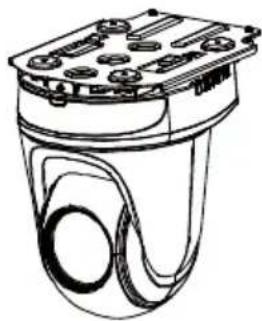
natural_image
Technical line drawing of a mechanical component with no visible text or symbols製品寸法
ケーブル固定プレートの取付
natural_image
Diagram showing a device before and after transformation, with no visible text or symbols② 各ケーブルをカメラに接続します。
natural_image
Technical line drawing of a device with a dome-shaped top and base (no text or symbols)natural_image
Technical line drawing of a mechanical device with three circular components and a control panel (no text or symbols)AVer PTZ Control Panel
natural_image
Technical line drawing of a mechanical component with a dome-shaped top and mounting bracket (no text or symbols)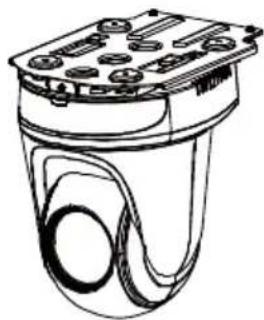
natural_image
Technical line drawing of a mechanical component with no visible text or symbolsDeutsch-21
Abmessungen
natural_image
Diagram showing a device with a dome-shaped top and connector ports, before and after transformation (no text or symbols)natural_image
Technical line drawing of a mechanical component with a dome-shaped top and base (no text or symbols)natural_image
Technical line drawing of a mechanical device with three circular components and a central control panel (no text or symbols)AVer PTZ Control Panel
Download Center: https://www.avereurope.com/download-center
Technischer Support: https://www.avereurope.com/technical-support
8F, No.157, Da-An Rd.
Tucheng Dist.
New Taipei City 23673,
Taiwan
Tel: +886 (2) 2269 8535
European Headquarters
AVer Information Europe B.V.
https://www.avereurope.com
Westblaak 140, 3012KM
Rotterdam, Netherlands
Tel: +31(0)10 7600 550
natural_image
Technical line drawing of a mechanical component with no visible text or symbols
natural_image
Technical line drawing of a mechanical component with mounting holes and internal cavities (no text or symbols)Français-28
Dimensions
natural_image
Diagram showing a device before and after transformation, with no visible text or symbolsnatural_image
Technical line drawing of a mechanical component with a dome-shaped top and base (no text or symbols)natural_image
Technical line drawing of a mechanical device with rollers and a control panel, enclosed in an oval frame (no text or symbols)Assistance Technique: https://www.avereurope.com/technical-support
8F, No.157, Da-An Rd.
Tucheng Dist.
New Taipei City 23673,
Taiwan
Tel: +886 (2) 2269 8535
Siège européen
AVer Information Europe B.V.
https://www.avereurope.com
Westblaak 140, 3012KM
Rotterdam, Netherlands
Tel: +31(0)10 7600 550
Assistance technique:
eu.rma@aver.com
natural_image
Technical line drawing of a mechanical component with no visible text or symbols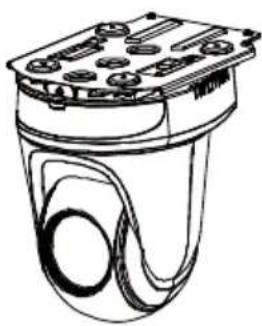
natural_image
Technical line drawing of a mechanical component with mounting holes and internal cavities (no text or symbols)Español-35
Dimensiones
natural_image
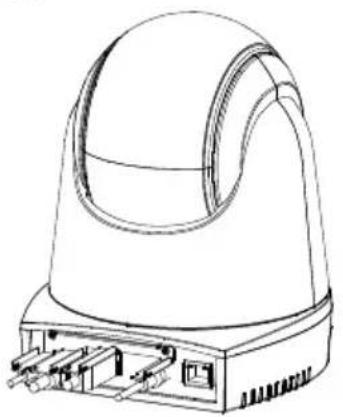
Diagram showing a device before and after transformation, with no visible text or symbols② Conecte los cables.
natural_image
Technical line drawing of a dome-shaped electronic device with ports and connectors (no text or symbols)natural_image
Technical line drawing of a mechanical device with rollers and housing (no text or symbols)https://www.aver.com
8F, No.157, Da-An Rd.
Tucheng Dist.
New Taipei City 23673,
Taiwan
Tel: +886 (2) 2269 8535
Sede europea
AVer Information Europe B.V.
https://www.avereurope.com
Westblaak 140, 3012KM
Rotterdam, Netherlands
Tel: +31(0)10 7600 550
Soporte técnico:
eu.rma@aver.com
natural_image
Technical line drawing of a mechanical component with a dome-shaped top and mounting bracket (no text or symbols)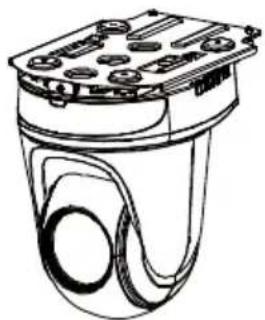
natural_image
Technical line drawing of a mechanical component with no visible text or symbolsDimensioni
natural_image
Diagram showing a device being processed from a base to a top, with no visible text or symbols.② Collegare i cavi.
natural_image
Technical line drawing of a mechanical component with a dome-shaped top and base (no text or symbols)natural_image
Technical line drawing of a mechanical device with rollers and a control panel (no text or symbols)[Nota] DL30 non supporta la porta HDMI.
Italiano-43
Collegamenti
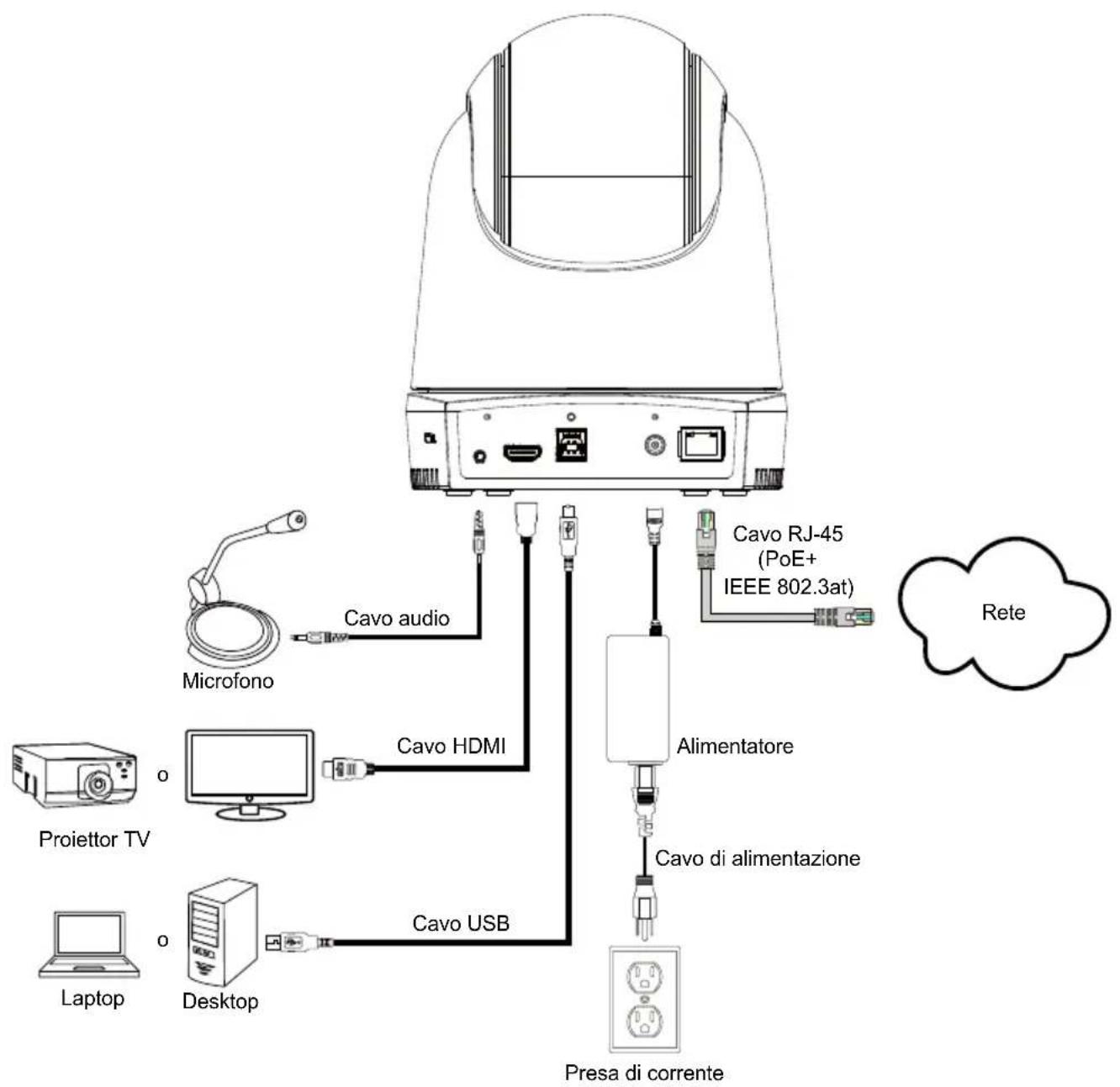
flowchart
graph TD
    A["Device"] --> B["Cavo audio"]
    A --> C["Cavo HDMI"]
    A --> D["Cavo USB"]
    A --> E["Alimentatore"]
    A --> F["Presa di corrente"]
    G["Laptop"] --> H["Desktop"]
    I["Proiettor TV"] --> J["Laptop"]
    K["Microfono"] --> L["Cavo audio"]
    M["Cavo RJ-45 (PoE+ IEEE 802.3at)"] --> N["Rete"]
[Nota] DL30 non supporta la porta HDMI.
Telecomando
Centro download: https://www.avereurope.com/download-center
Assistenza tecnica: https://www.avereurope.com/technical-support
8F, No.157, Da-An Rd.
Tucheng Dist.
New Taipei City 23673,
Taiwan
Tel: +886 (2) 2269 8535
European Headquarters
AVer Information Europe B.V.
https://www.avereurope.com
Westblaak 140, 3012KM
Rotterdam, Netherlands
Tel: +31(0)10 7600 550
Assistenza tecnica:
eu.rma@aver.com
패키지 내용물
natural_image
Technical line drawing of a mechanical component with a dome-shaped top and attached bracket (no text or symbols)natural_image
Technical line drawing of a mechanical component with no visible text or symbols치수
natural_image
Technical line drawing of a mechanical component with no visible text or symbols케이블 고정 플레이트 설치
natural_image
Technical line drawing of a device component before and after assembly, showing a dome-shaped top with internal components and connectors (no text or symbols)패키지에 포함된 네 개의 케이블을
이용하여 케이블과 케이블 고정
②케이블을 연결합니다.
natural_image
Technical line drawing of a dome-shaped electronic device with internal components (no text or symbols)③플레이트를 고정합니다.
natural_image
Technical line drawing of a mechanical device with multiple ports and a control panel (no text or symbols)글로벌: https://www.aver.com/download-center
연락처 정보
글로벌
AVer Information Inc.
https://www.aver.com
8F, No.157, Da-An Rd.,
Tucheng Dist.,
New Taipei City 23673,
Taiwan
전화: +886 (2) 2269 8535
- DL30/DL50 Distance Learning
- Tracking Camera
- Camera Mount Suggestions (Optional Accessories)
- Dimension
- Cable Fixing Plate Installation
- Remote Control
- LED Indicator
- CaptureShare
- IP Address Setup
- ■ If there is DHCP environment
- ■ Or if you want to configure by yourself
- AVer PTZ Management
- AVer PTZ Control Panel
- WARNING:
- CAUTION:
- COPYRIGHT
- MORE HELP
- CONTACT INFORMATION
- Global
- European Headquarters
- 尺寸
- 電線固定板安裝
- 警告使用者
- 製品寸法
- ケーブル固定プレートの取付
- Abmessungen
- Dimensions
- Siège européen
- Dimensiones
- Sede europea
- Dimensioni
- Telecomando
- 패키지 내용물
- 치수
- 케이블 고정 플레이트 설치
Brand : AVer
Model : DL30
Category : Webcam