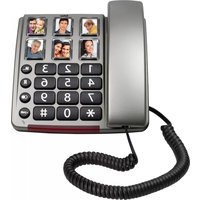
USER MANUAL F15 Fysic
Inleiding
Building 8, Zhengzhong Industrial Plant, Xintian Community, Fuhai Street,
Baoan District, Shenzhen, China
Model-ID: EE-0501000DPE
Introduction
Importer/Exporter 12
Autres....12
Message 13
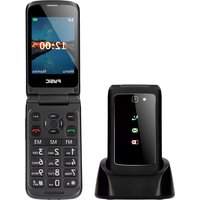
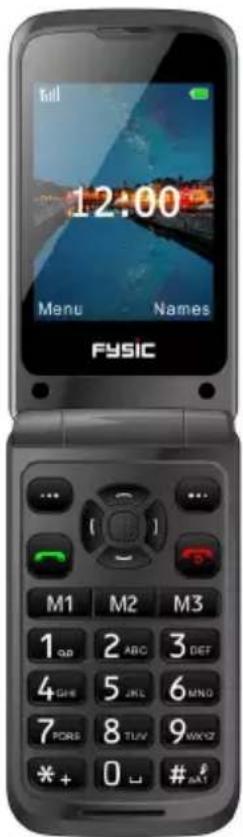
Flip mobile phone with panic button

Introduction
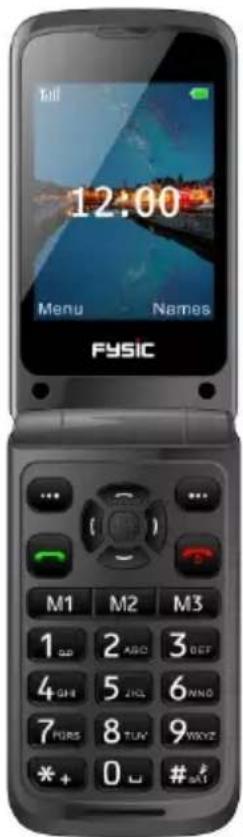
Thank you on purchasing the Fysic F15 telephone. This easy to use mobile phone for seniors is compatible and suitable for 4G mobile network. It offers many functions such as a SOS alarm button which sends SMS with SOS message to emergency numbers or calls emergency numbers in handsfree mode.
The font size on the color LCD display is large and the buttons on the buttonpad are easy to see and use with big buttons, speed dial buttons, zoom function, built-in flashlight, long stand-by and operating time, calendar, calculator, camera, video, FM-Radio, phonebook, speakerphone and no SIM-lock. It is important that you read the instructions below in order to use your Fysic F15 telephone to its full potential. Keep this user guide in a safe place for future reference.
Description phone
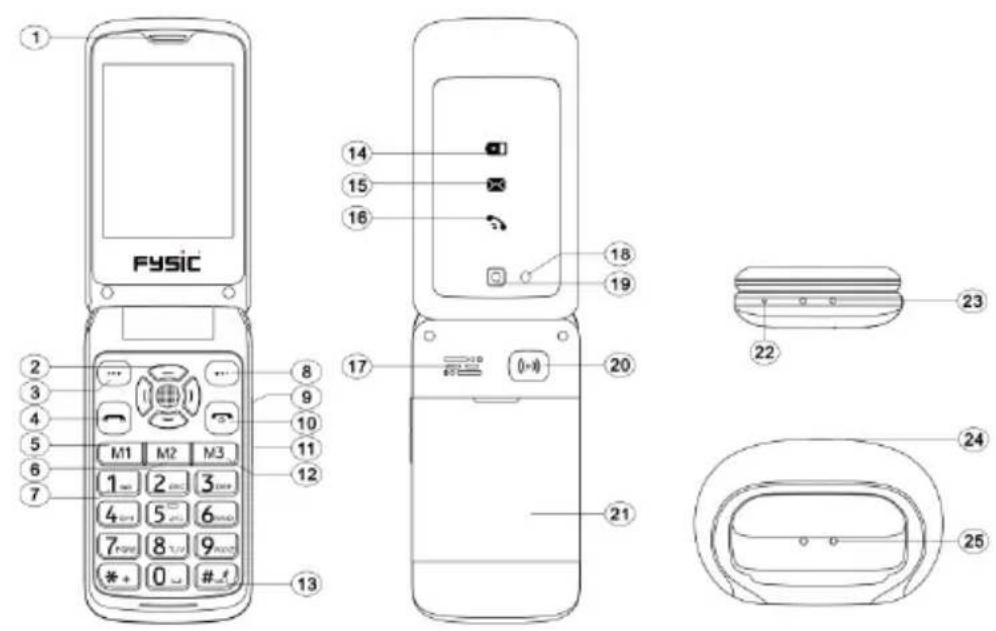
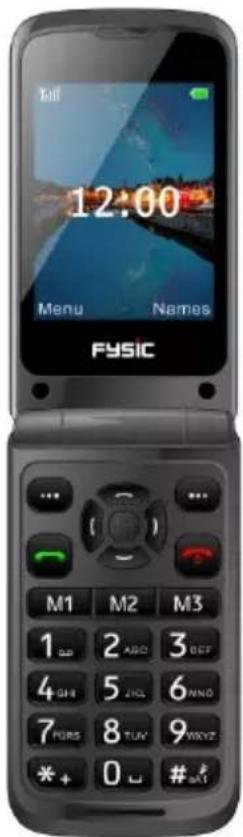
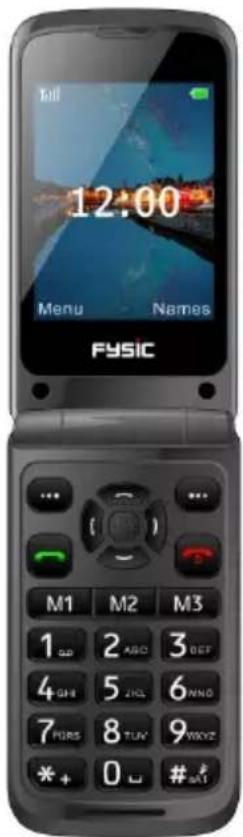
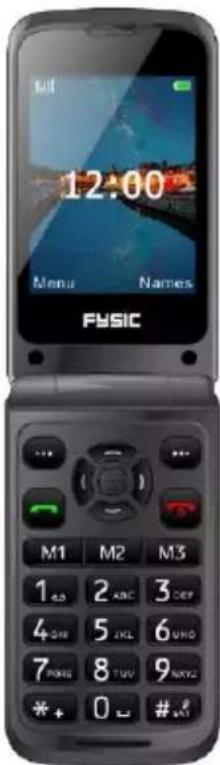
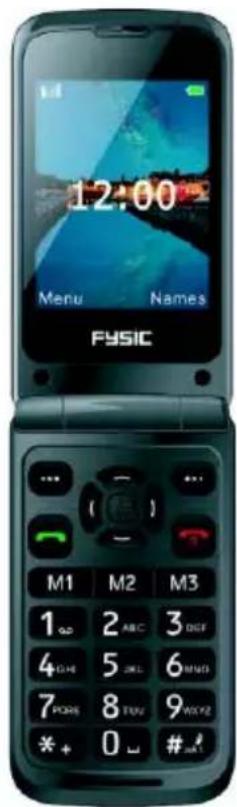
Instructions buttons and telephone appearance
| 1. Earpiece | 2. Arrow buttons |
| 3. Left-selection button | 4. Call button |
| 5. Speed dial button: M1 | 6. Speed dial button: M2 |
| 7. Voice mail | 8. Right-section button/Back button |
| 9. + Volume button/Torch button | 10. End call button/Power on/Power off |
| 11. - Volume button | 12. Speed dial button: M3 |
| 13. Silent-Vibrate mode/Input method | 14. Red charging LED |
| 15. Missed message | 16. Missed call LED |
| 17. Loudspeaker | 18. Torch light |
| 19. Rear-facing camera | 20. SOS button |
| 21. Battery cover | 22. Microphone |
| 23. Cradle socket | 24. USB charging socket |
| 25. Charging Cradle socket | |
Contents
Installation....7
Installing the SD card....7
Installing the SIM card....8
Installing the battery....8
Menu 9
Phonebook....9
Add new contact....10
Photo contact....11
Delete multiple....12
Import/Export 12
Others....12
Messages....12
Write Message....13
Inbox 13
Outbox....14
Drafts....14
Sentbox 15
Security inbox 15
Templates 15
Broadcast message 15
Voice mail server....16
Settings....16
Message capacity 16
Call logs....16
Alarm 17
Camera 17
Magnifier....18
Recorder 19
Organizer....19
Calendar 19
Calculator....20
Alarm 21
Torch 21
Multimedia....21
Settings.... 23
SOS setting....24
Phone settings 24
Call settings....25
Display 26
Profiles 26
Security settings 27
Connections....27
Bluetooth....27
Speed dial....28
Dial Num Voice 29
Specifications 29
EU declaration of conformity 31
Installation
IMPORTANT
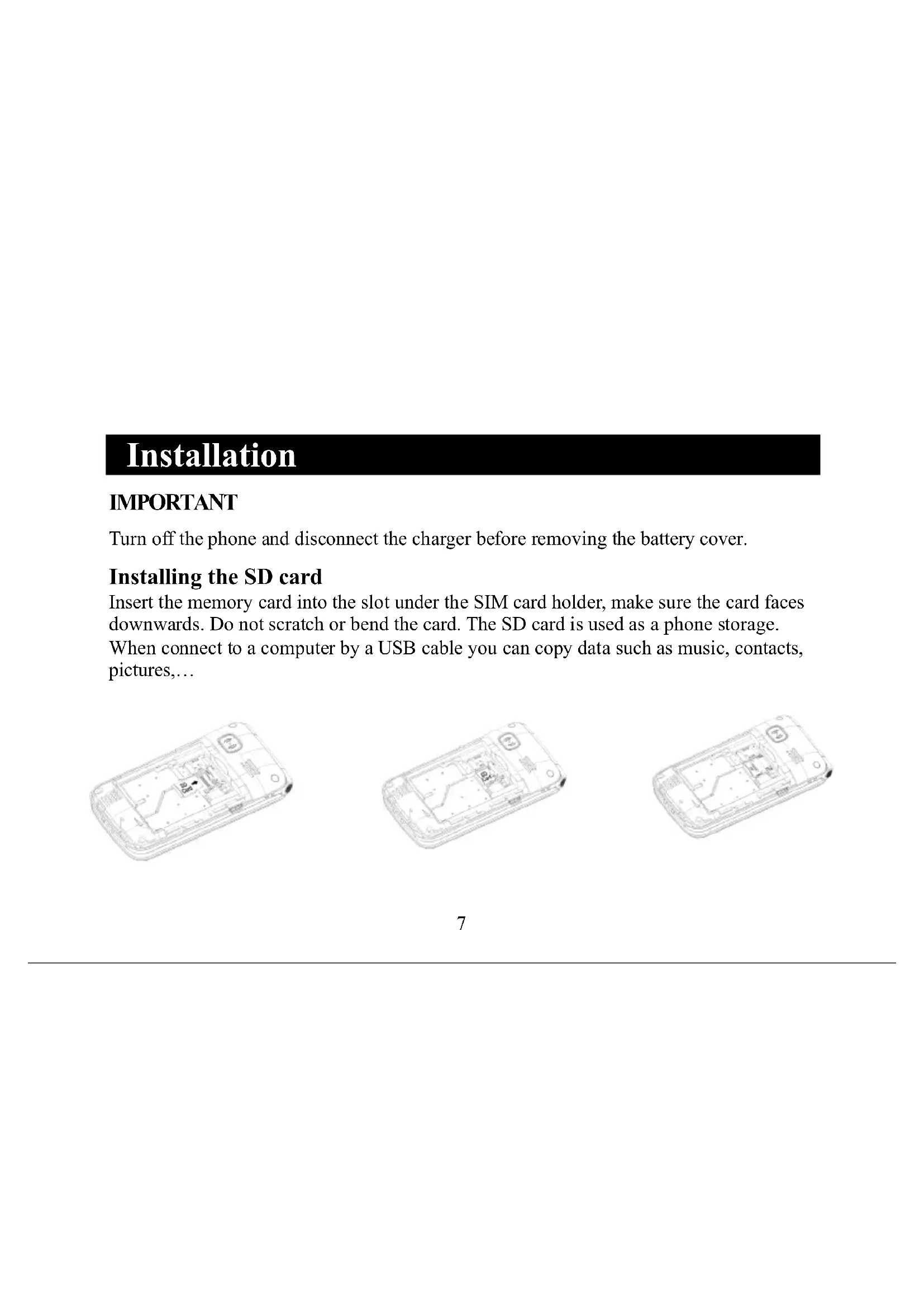
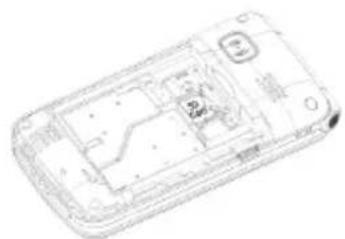
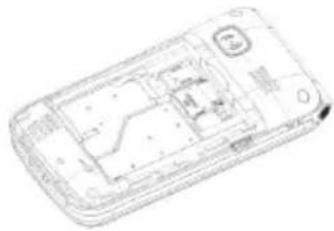
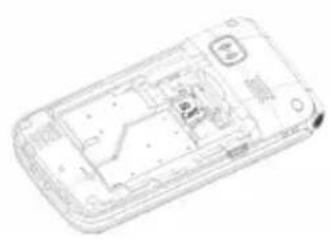
Turn off the phone and disconnect the charger before removing the battery cover.
Installing the SD card
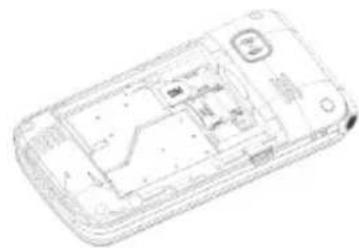
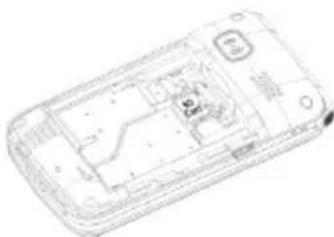
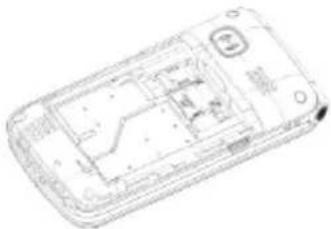
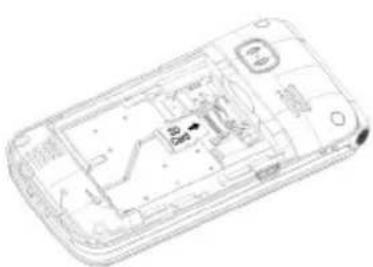
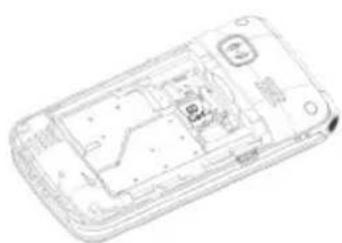
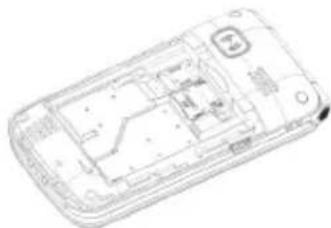
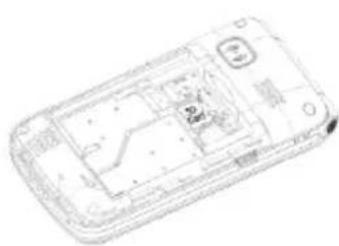
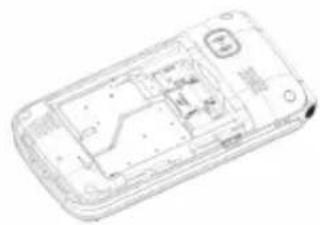
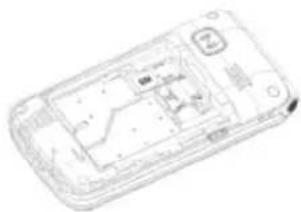
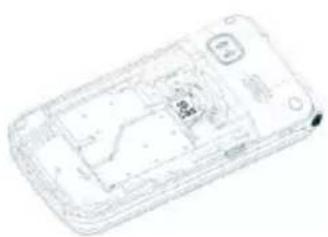
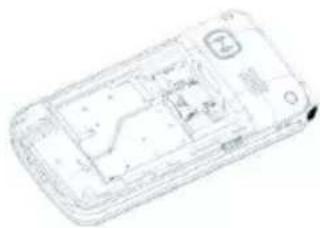
Insert the memory card into the slot under the SIM card holder, make sure the card faces downwards. Do not scratch or bend the card. The SD card is used as a phone storage. When connect to a computer by a USB cable you can copy data such as music, contacts, pictures,...
Installing the SIM card
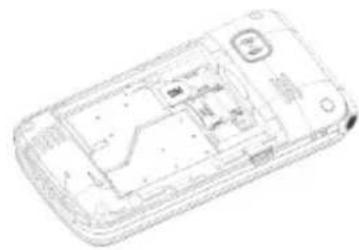
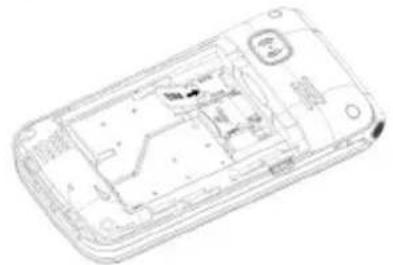
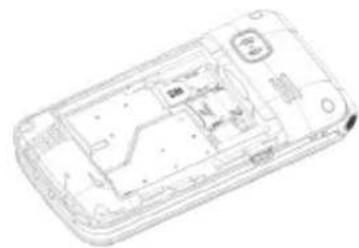
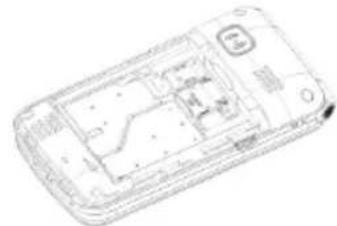
- Insert the SIM card into the SIM card slot upon the memory card holder. (Make sure the card is facing inwards.)
- First, turn off the phone before taking out the SIM card.
Installing the battery
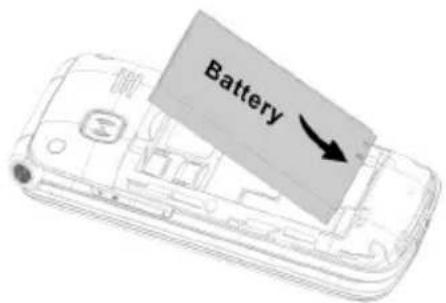
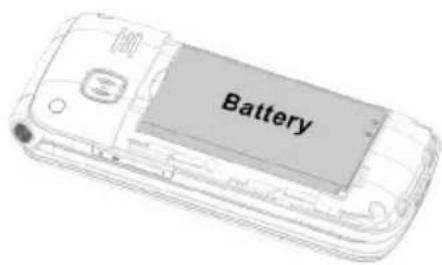
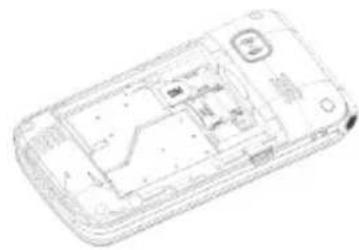
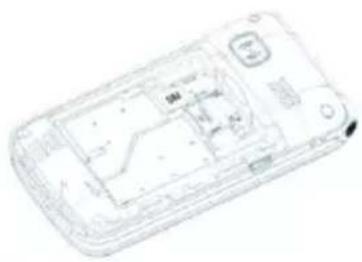
When you use the phone for the first time, charge the battery for 4 hours to achieve the best state of the battery. Remove the battery cover, insert the battery into the battery compartment and replace the cover.
When in standby mode, you can choose by the Left-selection button ⬙ “Menu” different options by scrolling the buttons 📄 and you can choose the options “Phonebook”, “Message”, “Call logs”, “Alarm”, “Camera”, “Magnifier”, “Recorder”, “Organiser”, “Multimedia”, “Settings”. The chapters below explain each section in detail.
Phonebook
When you enter the menu Phonebook you can immediately start adding contacts or by pressing the Left-selection button ⬙ you can choose Options where you can find: "New", "Photo contact", "Delete multiple", "Import/Export", "Others".
You can enter these options by scrolling ☐ and select with the Left-selection button ⬆ to choose the required option.
Note: You can enter the menu “Phonebook” by pressing the Right-section button/Back button ⬙ or the Left-selection button ⬙ and choose the icon “Phonebook”. Or you press the center of the navigator button ⬙.
You can add a new contact to the SIM card or Phone.
- Go to Phonebook ---> Add contacts ---> Select Phone or SIM to add you contact --->
New and press the center of the navigator buttons

- Create a name for the Contact. When typing a name you can choose with the silent input use button ##nA1 your entry choice of using the numeric keypad.
- You can choose a picture, enter a mobile and/or home number and choose a ringtone.
- Save your contact.
You can view your contacts by “Menu” → “ok” → and use ▼ and ▲ to scroll through the list until you find the required contact. Or you can search for your contact in the phonebook via an alphabetic search. Simply, type the first character of the name and you will be automatically positioned at the correct part of the phonebook. The right-section button ⬙ also gives you instant access to your added contacts.
You can also create a Contact with a picture associated with it. This is particularly useful when you receive an incoming call as the picture will be displayed on the inside screen. Therefore you can see who is calling by simply looking at the photograph of the contact.
- Go to Phonebook ---> Options ---> Photo contact ---> Edit name (When typing a name you can choose with the silent input use button # your entry choice of using the numeric keypad.)
- Enter a number for the phonebook entry.
- Default icon ---> select a picture of the album or take a picture of the person that you are adding to the phonebook. Press "ok" and save your picture.
- Default ringtones ---> select a ring tone from the phone or your files.
- Save ---> Back
- Scroll with the arrow buttons to choose your photo contact. By pressing the number of the photo contact, the phone will dial your contact.
- Go to phonebook ---> Options ---> Photo contact ---> choose your photo contact by scrolling the arrow buttons
Delete multiple:
You can multi-select the contacts and delete them.
Import/Export:
You can import or export contacts.
Others:
Indicates the memory status of your contacts.
Message
In standby mode you press Menu and scroll to Message. You can choose the following options: "Write message", "Inbox", "Outbox", "Drafts", "Sentbox", "Security inbox", "Templates", "Broadcast message", "Voice mail", "Settings", "Message capacity".
Note: you can also use the center of the navigator buttons 📋 to scroll to the menu "Message".
Write message:
- Menu ---> Message ---> Write message
- Enter the number or select a number from the phonebook list by using the center of the navigator buttons and scroll to choose your contact number.
- Use the button 📋 to go to the next rule to type your text message.
- Options -->> Send
When receiving a text message, an alert tone will be audible. 1 NEW MESSAGE will be displayed on the LCD.
- Press READ followed by the navigator button 📋 to display the message.
- Press OPTIONS to see all the options available that can be performed on this selected text message.
Inbox:
- Press Menu enter into Message and press OK.
- Select Inbox and press OK.
- Select a message from the list and press the OK button to view the message.
Others options as below:
a) Reply by SMS: Input your message and send to the sender.
b) Forward: Choose another contact to forward the same message.
c) Delete: Press select to delete the message.
d) Delete all: Press to delete all messages.
e) Call: Press "call" to make a phone call.
f) Move: Press "move" to move the messages to Security inbox or SIM
g) Mark: Mark or Unmark the messages you select.
h) Sort: There are options Time/Phonebook/Subject/Type you can select.
Outbox:
- Press Menu enter into Message and press OK.
- Select Outbox and press OK.
- Select a message from the list and press Options to Resend/Delete/Delete all/Move/Mark/Sort message.
Drafts:
Here you can see the messages which you saved. The draft box stores messages that you have saved but not sent yet. You now get the chance to send the message, resume editing or delete.
- Menu ---> Message ---> Drafts.
- Scroll to the message you wish to review.
- Press the central navigator button to view.
- Press OPTIONS to see all the options available that can be performed on this selected text message.
Sentbox:
Here you can check all messages you sent out.
Security inbox:
Here you can check all security messages you moved and default password is “1234”.
Templates:
Here you can check the messages templates you like when sending a message. You can also create your own message by choose “Edit” and create you own text.
Broadcast message:
Here you can check and activate a Broadcast message. A broadcast message is a message you can send to all of your contacts or a group of contacts.
Voice mail server:
Here you can save the voice mail number.
Settings:
Here you can check SMS validity, Status report, Reply path, Save sent messages, Preferred storages (in SIM card or Phone), Export SMS.
Message capacity:
Here you can check the SMS memory on SIM card or Phone (max: 200).
Note: You can delete messages in the Inbox, Outbox, Draftbox or Sent Message.
- Menu ---> Message ---> Select either Inbox, Outbox, Drafts or Sentbox ---> Options - --> Delete All ---> Yes
Call logs
- In the standby mode, press Menu, scroll to Call logs and press OK.
- All missed, dialed, received, rejected calls are saved in Call logs
- Use the buttons 📄 and scroll to view Missed calls/Dialed calls/Received calls/Rejected calls, Delete call logs or check Call timers.
Alarm
- To edit an alarm press “Menu” ⬙ or the center of the navigator buttons 📋 and scroll to “Alarm” to edit an Alarm 1, 2 and/or 3. Select with the center navigator button an alarm and edit Message (name of the alarm), Time, Ringtone and Repeat mode.
- When using the Repeat mode you can select Once/Daily/Working days.
- To stop the alarm, press Off / ⬙ to select the Status On/Off.
Note: The alarm is working even when the phone is turned off.
Camera
- Press "Menu" scroll to "Camera" and press OK.
- Press the center button of the navigator buttons 📋 to take a picture which you can "Delete", "Set as wallpaper" or "save to Image viewer".
- To view photos, press Options and select Image viewer. By tapping “Options” you can “Delete”, “Mark” or “Rename” you pictures. You can “Slide play” to see them
all and see the “Details” of your picture.
- Choose Options, set More options to choose “camera mode” or “video mode”. Thereafter you can use the right and left arrow buttons to set your pictures of movie settings.
- Choose Options, Settings to set some settings of the camera, images you want.
Warning! If the memory card is insufficient, delete some documents or expand the storage with another card with more memory.
Magnifier
In standby mode, Press Menu, or use the center button of the navigator buttons and scroll to Magnifier. With the camera's magnifier, users can zoom in by adjusting the focus distance. With this function, the elderly users can read the newspapers, magazines and other books more easily. With the buttons you can zoom in and out.
Recorder
In standby mode, press “Menu” to scroll to Recorder, press OK and start recording to press the center button on the navigator buttons ● to record the voice, press to pause the recording, press to get on with recording. When choose “Stop”, the record will be automatically saved.
Press Options and choose “Start recording, “Play”, “Record again”, “Delete”, “Record file list”, “Storage”, “file format”.
Note: It's better before you start recording you set your required settings first!
Organiser
In standby mode, press “Menu” and you scroll to use the options “Calendar”, Calculator”, “Alarm”, “Torch”.
Calendar:
- Press Menu enter into Organiser, press OK to select Calendar.
Today's day and date is shown on the display.
- Press Options to do the following settings:
a) Add new schedule: for some important reminder
• Input subject for the event.
• Enter a start date and time for the event.
• Activate Ringtone and repeat mode for the event.
- Save the event.
b) View schedules: Show the event for the selected date.
c) All schedules: View all events
d) Clear today's schedules: Clear today's event.
e) Clear all: Clear all events.
f) Go to date: Shown today date
g) Weekly: Show the date for whole week.
h) Daily: Show the clock for whole day.
Calculator:
-
Press Menu enter into Organiser, press OK to select Calculator.
-
Calculate the number according to the following steps:
a) Enter the first number and use #3/RAT to input into negative or use

to use decimal.
b) Use 📋 to select (+ - * ÷).
c) Enter the second number and press the left button OK. The result is shown on the screen.
Alarm:
- Press Menu enter into Oraniser, press OK to select Alarm.
- You can set 3 different alarms. Please refer to chapter "Alarm" to set your required settings.
Torch:
- Press Menu enter into Organiser, press OK to select Torch.
- You can select "on" or "off" to use the flashlight.
In standby mode, press Multimedia and press OK. You can scroll and choose the following options: "Image", "Camera", "DV", "Audio", "Video", "FM radio", "My files".
- Image: View all saved photos under this menu.
- Camera: See details in chapter "Camera" to use the camera.
- DV: You can record a video which you can send or save.
- Audio: All audio files can be shown in this menu. With the scroll button you can adjust the volume. By pressing 'Options', you can choose for "Music list", "Refresh", "Add", "Set as ringtone", "Shuffle", "Repeat", "Settings", "Exit"
Video: All video files can be shown in this menu. With the scroll button you can adjust the volume.
FM radio:
a) Select Auto search and save to auto search your local radio channels.
b) Press OK enter into FM radio.
c) Press Options to view Channel list.
d) Press Save to save the channel you like.
e) Select Manual search to choose the channel you like.
f) Select Open speaker, when you insert earphones on the phone, you can press open speaker to make the sound out.
g) Press Background play to set the radio on the background. When exit the background play you go back to the menu “Background play”, choose “Back” and then “Exit”.
h) Select Record, you can record the sound from the current channel.
i) View Timing record and Predefined time & frequency if you like
j) Select Record file list to view record list.
k) Select Storage to choose the storage path on Phone or MemoryCard.
1) Press the arrow buttons ☐, ☐ button to change the current channel.
m) Press the volume button to adjust the volume.
n) Press the button 📋 to turn on or turn off the FM radio when you are in the FM radio menu.

- My files: Manage all files, you can view, rename, copy, delete, move the files from the Phone and Memory Card. You can check all saved documents such as Audio, My music, Photos, Video etc.
Settings
In standby mode, Press Menu and scroll to Settings. You can choose the following options: "SOS", "Phone settings", "Call settings", "Display", "Profiles", "Security", "Connections", "Bluetooth", "Speed dial", "Dial Num Voice".
SOS settling:
- Scroll to Menu --> Settings --> SOS setting, select Status "On".
- SOS number list: There are 5 contact numbers as options to add.
- Send SOS SMS: If you would like to send SOS notification message when SOS button activated, please select Status "On".
- SOS message settings: The default message is “Please help me! I am in an emergency”. You can edit any SMS you like.
- Warning Tone Status: If you would like an alert to sound when the SOS button is activated, select Status "On".
In this case the alert can remind people around that the elderly is in danger.
Phone settings:
Press Menu, scroll to Settings and select Phone settings and press OK.
Then you can setup as below:
1. Time and date
a) Select Time and date and press OK.
b) Select Set time/date to set time, and date.
c) Select Set format to set the format of Time (12 or 24) and Date.
d) Select Date format to set the format of Date (Year-Mon-Day or Mon-Day-Year or Day-Mon-Year).
e) Select World clock to add city, delete city or set daylight saving system.
f) Select Update time settings
1) Enable or disable Auto update time.
2) You can also select Manual update time when there's a SIM card.
- Language settings: Set default language.
- Power management: You can see status of the battery.
- Restore factory setting:
In this menu Restore factory settings, after you input the phone password and the phone powers on again, you can let all the settings of the phone back to the original settings.
The default restore password of the phone is “123-8”.
Call settings:
- Press Menu, scroll to Settings, select Call settings and press OK.
- You can set Incoming call light, Flip to answer, Call divert, Call waiting,
Call barred, Hide ID, Flight mode, Flight mode select when Power on, and Others
(some advanced settings like Reply SMS after reject, Flight mode and Auto record voice call, etc.)
Display:
- Set Wallpaper form the phone or memory card.
- Set LCD Brightness by pressing ⏻ and ⏻ buttons.
- Set LCD backlight Time.
- Set buttons backlight time.
Profiles:
- Press Menu, scroll to Settings, select Profiles and press OK.
- Scroll to select available mode, you can see four modes: Normal / Silent / Meeting / Outdoor.
- In the standby mode, long press #w1# , and change into Meeting mode.
- After you select Normal mode, Options, Settings, you can setup its Ring settings like Caller ringtone, Message ringtone, Adjust volume, Ring type, Other alert rings like Button tone, Battery low alert, Dial tone, Flip tone, and Flip on tone.
Security:
- SIM security: Under this menu, you can turn on or turn off PIN lock and change the PIN code.
- Phone locked: Under this menu, you can turn on or turn off Phone lock and modify the phone password. The default phone password is "1234".
- Fixed dialing number: How to use this function? For example, when you lent your mobile phone, but don't want somebody to make random calls. You can just set up a fixed dial number. So somebody can only call these fixed numbers, and can't call other numbers.
4. Blacklist:
Here you can block the specific contacts by input the number or import contacts from phonebook. Select Blacklist settings to choose Audio call interception or Message interception you like to operate for the blacklist contacts.
Connections:
You can find Network selection, Network type and VoLTE here.
Bluetooth:
-
Press Menu scroll to Settings and press OK.
-
Scroll to Bluetooth and Press OK for the below settings:
a) Activate: Select left button Activate/Close to enable or disable bluetooth.
b) Visibility: Select left button Activate/Close to make the phone visible or invisible to other devices.
c) Pair device: Allow you to search new available devices and pair new devices.
d) Device name: Bluetooth name for current device.
e) Bluetooth file storage, you can select to save the file from the Phone or Memory Card.
Speed dial:
- M1/M2/M3 button: Press Menu, scroll to Settings, select Speed dial and press OK, select Status to set the status On/Off, then select Set numbers and set the
M1 M2 M3 button number from the phonebook, then press OK to save.
Remark: When in standby mode, long press button M1/M2/M3, Popup" No speed number. Assign now?" press Yes to set number from the phonebook.
- 2-9 Number: press OK, select Status to set the status On/Off, then select Set numbers and set the 2-9 numbers from the phonebook, then press OK to save.
Dial Num voice:
Here you can enable or disable button pad voice by pressing Activate or Off.
Specifications
Network:
GSM900 class 4 / 880.2-959.8 MHz / < 33 dBm
DCS1800 class 1/1710.2-1879 MHz / < 30 dBm
WCDMA class 3 band I / 1922.4-2167.6 MHz / < 24 dBm
WCDMA class 3 band VIII / 882.4-957.6 MHz / < 24 dBm
LTE class 3 band 1,3,7,8,20,28 / 703-2170 MHz / < 24 dBm
Bluetooth 5.0 FHSS / 2402-2480 MHz / < 20 dBm
FM receive / 87.5-108 MHz
GNSS GPS / 1575.42 MHz
Battery: Li-Ion 3.7V 1000mAh
SAR/DAS: Head: 0.116W/kg - Body: 1.163W/kg - Limb: 2,109W/kg
Manufacturers name and address : Shenzhen YingQin Electronic Co., Ltd, Floor 5, Building 8, Zhengzhong Industrial Plant, Xintian Communinity, Fuhai Street, Baoan District, Shenzhen, China
Model Identifier: EE-0501000DPE
Input voltage: 100-240VAC
Input AC frequency : 50/60 Hz
Output voltage: 5.0V DC
Output current: 0.5 A
Output Power: 5.0 W
Average active efficiency: 73.78 %
No load Power consumption: 0.08 W
Hereby, Commaxx declares that the radio equipment type F15 is in compliance with Directive 2014/53/EU. The full text of the EU declaration of conformity is available at the following internet address: https://commaxx-certificates.com/doc/F15_doc.pdf
FYSIC®
Einleitung
SIM-Karte einsetzen
Akku einsetzen
Herstellername und Anschrift: Shenzhen YingQin Electronic Co., Ltd, Floor 5, Building 8, Zhengzhong Industrial Plant, Xintian Community, Fuhai Street, Baoan District, Shenzhen, China
Modellidentifikator: EE-0501000DPE
Introduktion
Voicemail-server: 16
Indstillinger: 16
Beskedkapacitet: 16
Opkaldslogge....17
Alarm 17
Kamera 18
Zoom 19
Optager....19
Organisator 20
Kalender: 20
Lommeregner: 21
Alarm: 21
Lygte: 22
Multimedie 22
Indstillinger....24
SOS-indstilling: 25
Ilægning af batteri
Producentens navn og adresse: Shenzhen YingQin Electronic Co., Ltd, Floor 5, Building 8, Zhengzhong Industrial Plant, Xintian Community, Fuhai Street, Baoan District, Shenzhen, Kina
Modelnr. EE-0501000DPE
Inledning
Delete multiple (ta bort flera): 12
Import/Export (importera/exportera): 12
Others (övrigt): 12
Meddelande....12
Write message (skriv meddelande):....13
Inbox (inkorg):....14
Outbox (utkorg): 15
Drafts (utkast): 15
Sentbox (skickade meddelanden):...... 15
Security inbox (säker inkorg):......16
Templates (mallar): 16
Broadcast message (broadcast-meddelande):....16
Sätta i simkortet
Sätta i batteriet
Delete multiple (ta bort flera):