PDX-8400TE - Phone Fysic - Free user manual and instructions
Find the device manual for free PDX-8400TE Fysic in PDF.



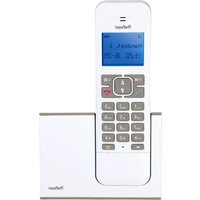
| Product type | DECT/GAP cordless phone |
| Brand | Fysic |
| Model | PDX-8400TE |
| Base power supply | AC adapter 100-240 VAC, 50/60 Hz, output 6 VDC / 450 mA |
| Handset power supply | 2 NiMH AAA rechargeable batteries 1.2 V / 400 mAh |
| Directory capacity | 20 numbers (up to 24 digits and 12 characters for name) |
| Call list capacity | 20 entries |
| Caller ID | DTMF and FSK, automatic recognition |
| Indoor range | Up to 50 meters |
| Outdoor range | Up to 300 meters |
| Standby time | More than 100 hours |
| Talk time | More than 10 hours |
| Maximum number of handsets | 5 cordless handsets |
| Main features | Hands-free, key lock, intercom, conference, flash, mute, handset locator, alarm, directory, call list, voicemail (FSK) |
| Ring tones | 10 melodies, 5 volume levels, can be turned off |
| Display | Multifunction display with indicators (out of range, speakerphone, alarm, key lock, voicemail, ring off, battery status) |
| Maintenance and cleaning | Clean with a damp cloth; do not use chemicals; unplug before cleaning |
| Safety | Do not expose to moisture; do not disassemble; use only supplied adapter; keep away from heat sources |
| Spare parts and repairability | Contact Profoon (Commaxx) customer service or the supplier |
| Warranty | 24 months from date of purchase |
| Operating temperature | 0 °C to 40 °C |
| Storage temperature | -20 °C to 60 °C |
Frequently Asked Questions - PDX-8400TE Fysic
User questions about PDX-8400TE Fysic
0 question about this device. Answer the ones you know or ask your own.
Ask a new question about this device
Download the instructions for your Phone in PDF format for free! Find your manual PDX-8400TE - Fysic and take your electronic device back in hand. On this page are published all the documents necessary for the use of your device. PDX-8400TE by Fysic.
USER MANUAL PDX-8400TE Fysic
natural_image
Three white rectangular devices with blank internal labels, arranged in a staggered pattern (no readable text or symbols)1 INHOUDSOPGAVE....2
2 OVERZICHTEN
2.1 Handset....4
2.2 Display.... 5
2.3 Basis.... 5
2.4 Oplader.... 5
3 INSTALLEREN
3.1 Basis.... 6
3.2 Handset....6
3.3 Extra handset(s) en oplader(s)....7
4 GEBRUIKEN
: alarm (wekker) is ingeschakeld
natural_image
Pure electrical circuit lines without any symbols
GEBRUIK ALLEEN DE MEEGELEVERDE ADAPTER. HET AANSLUITEN VAN ANDERE ADAPTERS ZAL GEVAAR-LIJKE SITUATIES TOT GEVOLG HEBBEN OF ZAL SCHA-
DE AAN DE ELECTRONICA VAN DE TELEFOON TOEBRENGEN.
3.2 Handset:
natural_image
Line drawings of two mobile phones with keypad and buttons, one open and one closed (no text or symbols)
PLAATS ALLEEN OPLAADBARE NiMH (NIKKEL-METAAL-HYDRIDE) BATTERIJEN IN DE HANDSET(S). HET GE-BRUIK VAN NIET OPLAADBARE BATTERIJEN ZAL LEI-
DEN TOT GEVAARLIJKE SITUATIES OF ONTPLOFFINGSGEVAAR.
natural_image
Red and white abstract geometric shape with no text or symbols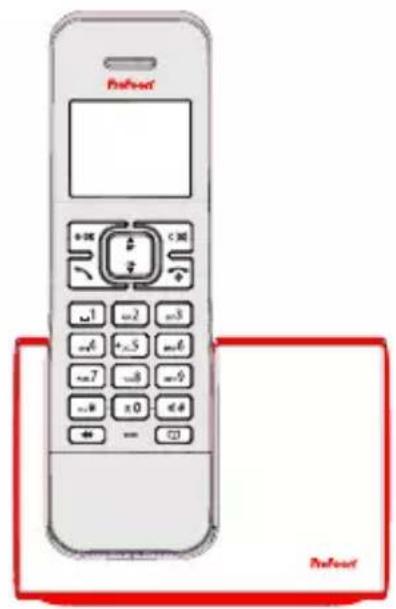
text_image
Pareout +1 +2 +3 +4 +5 +6 +7 +8 +9 +* +0 +4 ← ← → Pareout3.3 Extra handset(s) en oplader(s):
natural_image
Line drawing of a wall-mounted electrical outlet connected to a base (no text or symbols)4 GEBRUIKEN
4.1 Handenvrij:
9.5 Afmelden handsets:
11.10 Voeding handset:
Manufacturers name and address : Vtech Telecommunications LTD, 23/F., Tai Ping Industrial Centre, Block 1, 57 Ting
Kok Road, Tai Po, Hong Kong.
Model Identifier : VT05EEU06045
Average active efficiency : 74.2 %
Efficiency at low 10% load : -
No load Power consumption : 0.07 W
15 VERKLARING VAM CONFORMITEIT
natural_image
Three ProFoan 3D devices with blank display panels, no visible text or symbols on the devices themselves.1 SOMMAIRE....2
2 APERCUS
natural_image
Line drawing of a device connected to a wall-mounted power outlet and plug (no text or symbols)
UTILISEZ SEULEMENT LES ADAPTATEURSLIVRES. LE BRANCHEMENT D'UN AUTRE ADAPTATEUR PEUT MENER A DES SITUATIONS DANGEREUSES OU PEUT ENDOMMAGER L'ELECTRONIQUE DU TELEPHONE.
3.2 Combiné :
natural_image
Line drawing of a mobile phone with keypad and mouse (no text or symbols)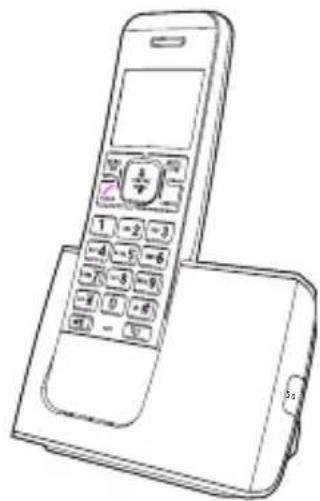
natural_image
Line drawing of a mobile phone with keypad and keypad (no text or symbols)
METTEZ SEULEMENT DES PILES RECHARGEABLES TYPE NiMH (NIKKEL METAL HYDRIDE). L'USAGE DES PILES NON RECHARGEABLES PEUT MENER A DES
SITUATIONS DANGEREUSES OU AU DANGER D'EXPLOSION.
natural_image
Red rectangular object with a small inset square, partially overlapping a white rectangle (no text or symbols)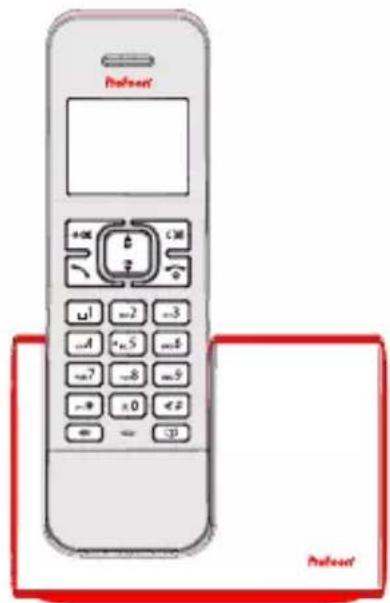
text_image
Prelcoat Prelcoatnatural_image
Line drawing of a wall-mounted electrical outlet connected to a device (no text or symbols)4 UTILISER
4.1 Mains-libres :
Manufacturers name and address : Vtech Telecommunications LTD, 23/F., Tai Ping Industrial Centre, Block 1, 57 Ting
Kok Road, Tai Po, Hong Kong.
Model Identifier : VT05EEU06045
Average active efficiency : 74.2 %
Efficiency at low 10% load : -
No load Power consumption : 0.07 W
15 DÉCLARATION DE CONFORMITÉ
natural_image
Three white rectangular devices with blank internal labels, arranged in a staggered pattern (no readable text or symbols)1 TABLE OF CONTENTS......2
2 OVERVIEWS
2.1 Handset....4
2.2 Display.... 5
2.3 Base 5
2.4 Charger 5
3 INSTALLATION
3.1 Base station....6
3.2 Handset....6
3.3 Extra handsets and chargers 7
4 OPERATION
4.1 Hands-free 8
4.2 Answering calls 8
4.3 Making calls....8
4.4 End the call....8
4.5 Handset volume 9
4.6 R/Flash 9
4.7 Mute (microphone off) 9
4.8 Search handset 9
4.9 Key lock....9
4.10 Call timer 9
4.11 Quick key bell off....9
5 PHONE BOOK MEMORY
5.1 Introduction.... 10
5.2 Programming....10
5.3 Dialing 10
5.4 Changes....10
5.5 Delete memory selectively 11
5.6 Delete memory completely....11
5.7 Memory status....11
6 LAST NUMBER MEMORY
6.1 Introduction.... 12
6.2 Redialling.... 12
6.3 Copying to the phone book memory 12
6.4 Delete last dialed number selectively....12
6.5 Delete the complete last number memory.... 12
7 CALLER IDENTIFICATION
7.1 Introduction.... 13
7.2 Indication new calls 13
7.3 View memory and callback....13
7.4 Copying to the phone book memory 13
7.5 Delete call selectively....13
7.6 Delete complete call history 14
7.7 Additional information.... 14
8 VOICEMAIL INDICATION 14
9 MULTIPLE HANDSETS
9.1 Introduction.... 15
9.2 Intercom 15
9.3 Forwarding/conference.... 15
9.4 Registering additional handsets 16
9.5 Deregistration of handsets 16
10 PHONE SETTINGS
10.1 Introduction.... 17
10.2 Menu structure 17
10.3 Base Settings:
To remove the handset (de-registering).... 17
Flash time.... 17
PIN code.... 17
ECO MODE....17
10.4 Handset Instellingen: Alarm (alarm function)....18 Ring tones handset....18
Handset tones....18 Language....19
Name handset....19
Answering automatically.... 19 Date and time.... 19
10.5 Factory settings....20
11 TIPS AND WARNINGS
11.1 General.... 21
11.2 Installation 21
11.3 Placement 21
11.4 Range....22
11.5 Power failure 22
11.6 Hearing aids 22
11.7 Eavesdropping 22
11.8 Maintenance....22
11.9 Medical equipment 22
11.10 Power supply handset....23
11.11 Environment 23
12 POSSIBLE PROBLEMS AND SOLUTIONS....24
13 FORGOT PIN CODE....25
14 SPECIFICATIONS 26
15 DECLARATION OF CONFORMITY 26
16 WARRANTY....27
2 OVERVIEWS
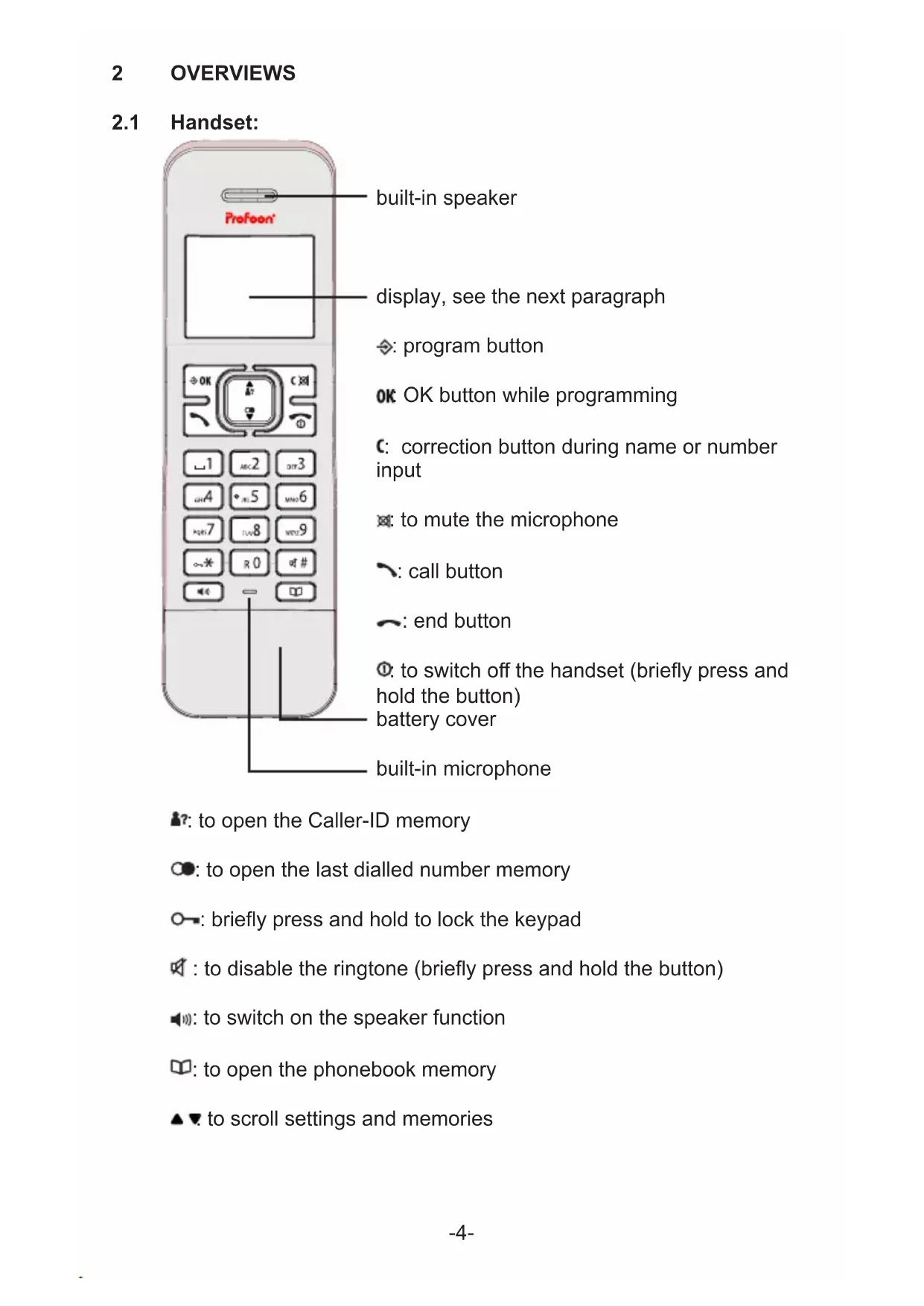
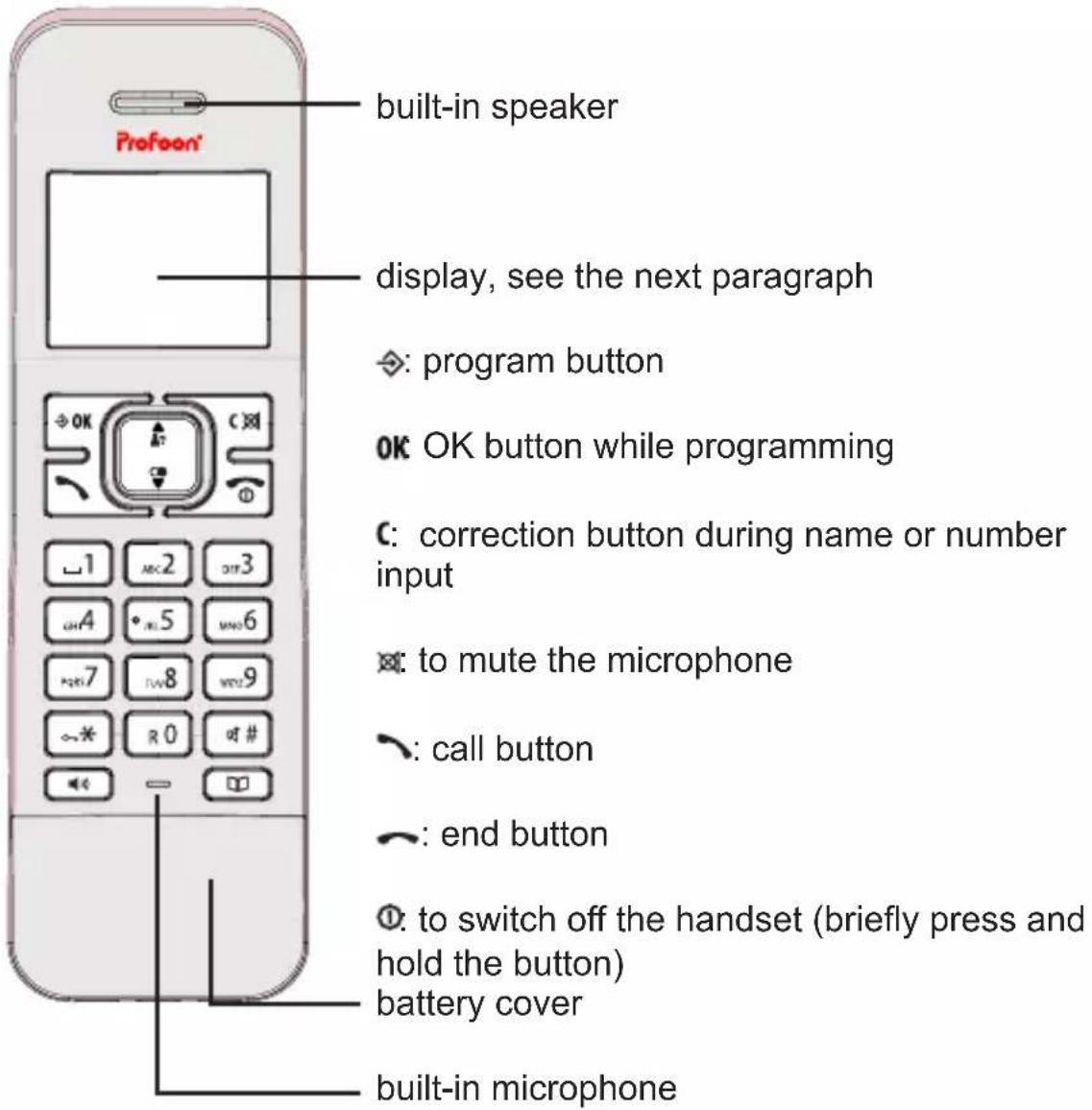
2.1 Handset:
text_image
built-in speaker display, see the next paragraph ✓: program button OK OK button while programming ✓: correction button during name or number input ✓: to mute the microphone ✓: call button ✓: end button ✓: to switch off the handset (briefly press and hold the button) battery cover built-in microphone: to open the Caller-ID memory
●: to open the last dialled number memory
○: briefly press and hold to lock the keypad
: to disable the ringtone (briefly press and hold the button)
: to switch on the speaker function
: to open the phonebook memory
▲▼. to scroll settings and memories
2.2 Display:
■: illuminates when the handset is within reach of the base
speaker function is enabled
☐: (wake-up) alarm is enabled
: keypad is locked
: you have new messages in your Voicemail
: ringtone is disabled
■: battery charge state
: flashes when receiving a call, remains lit during a call
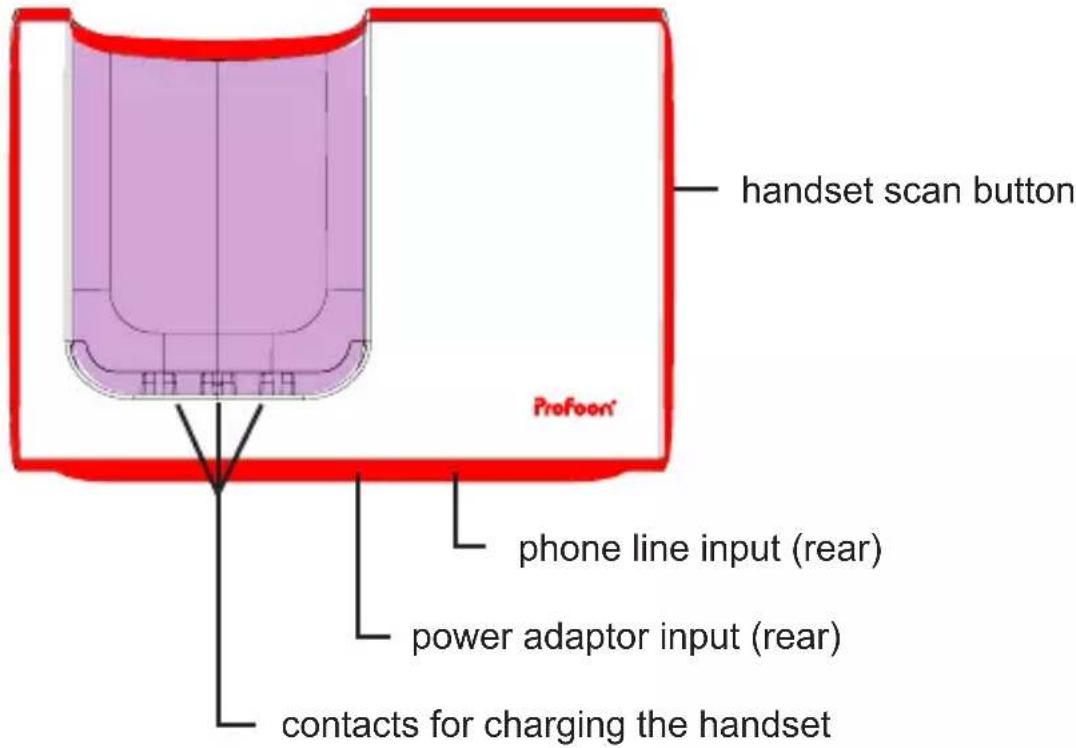
2.3 Base:
text_image
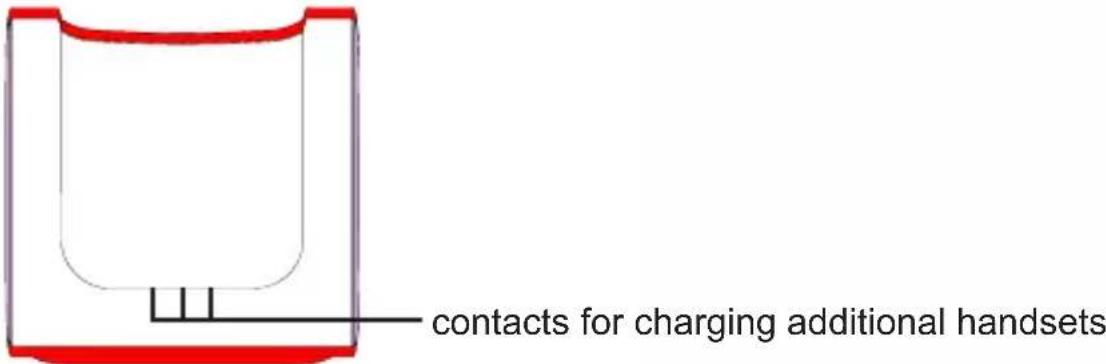
handset scan button ProFoort* phone line input (rear) power adaptor input (rear) contacts for charging the handset2.4 Charger: (only for models with additional handsets)
text_image
contacts for charging additional handsets3 INSTALLATION
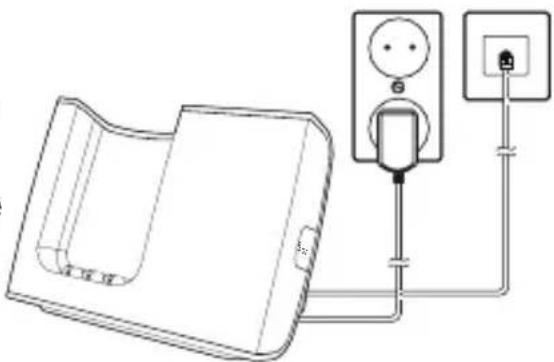
3.1 Base station:
-
Plug the small connector at the phone cable into the back of the base station (press the connector until you hear a click).
-
Plug the phone connector into the phone socket.
-
Plug the low voltage connector of the adapter into the backside of the phone, and plug the adapter into a 230 Volt mains socket.
natural_image
Pure electrical circuit lines without any symbols
ONLY CONNECT THE INCLUDED ADAPTER. CONNECTING OTHER ADAPTERS MAY RESULT IN DANGEROUS SITUATIONS OR MAY CAUSE DAMAGE TO THE ELEC-TRONICS OF THE PHONE.
3.2 Handset:
-
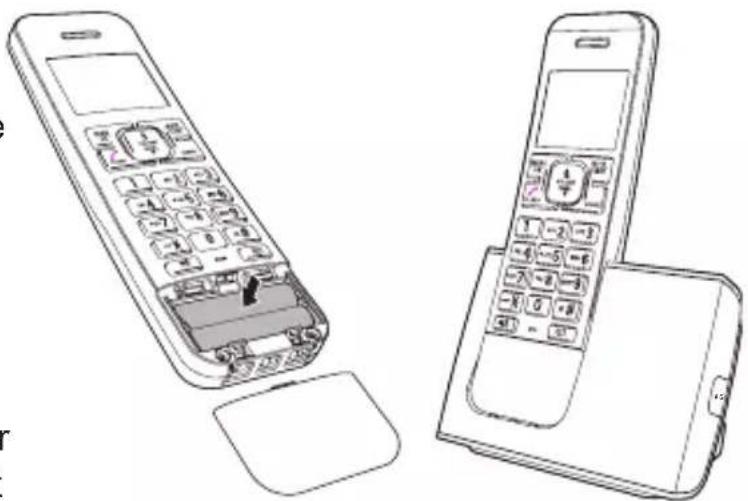
Open the battery compartment of the handset, by sliding the battery cover down.
-
Insert the batteries into the battery compartment; at this, pay attention to the polarity (+ and -).
-
Slide the battery cover back onto the handset and place the handset on the base station.
-
Leave the handset continuously during 15 hours on the base station, to charge the batteries properly.
natural_image
Line drawings of two mobile phones with keypad and buttons, one open and one closed (no text or symbols)
INSERT ONLY RECHARGEABLE NiMH (NICKEL METAL HYDRIDE) BATTERIES. THE USE OF NOT RECHARGEABLE BATTERIES MAY CAUSE DANGEROUS SITUA-
TIONS OR EXPLOSION HAZARD.
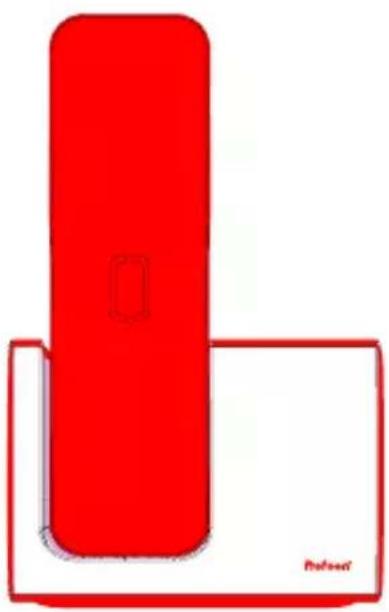
You can choose to place the handset onto the base/charger aimed to the front or to the back to charge the batteries.
natural_image
Red and white abstract geometric shape with no text or symbols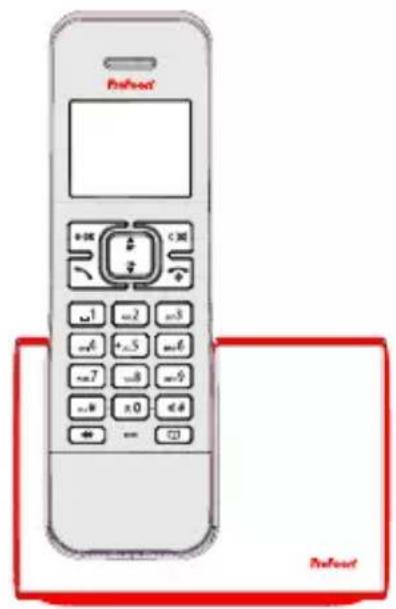
text_image
Prefoot +1 -2 +3 -4 +5 -6 +7 -8 +9 -10 -11 +12 -13 +14 -15 +16 -17 +18 -19 +20 -21 +22 -23 +24 -25 +26 -27 +28 -29 +30 -31 +32 -33 +34 -35 +36 -37 +38 -39 +40 -41 +42 -43 +44 -45 +46 -47 +48 -49 +50 -51 +52 -53 +54 -55 +56 -57 +58 -59 +60 -61 +62 -63 +64 -65 +66 -67 +68 -69 +70 -71 +72 -73 +74 -75 +76 -77 +78 -79 +80 -81 +82 -83 +84 -85 +86 -87 +88 -89 +90 -91 +92 -93 +94 -95 +96 -97 +98 -99 +1003.3 Extra handsets and chargers:
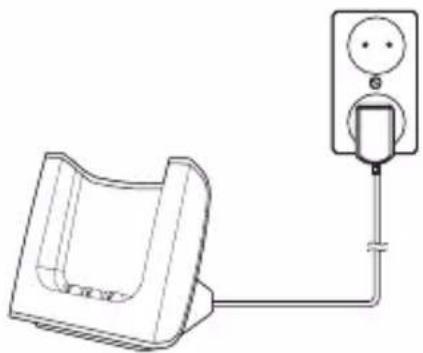
If your phone has been delivered with multiple handsets, 2 batteries and a charger with adapter will be included for every handset. Plug the adapter of these chargers in a 230 Volt mains socket, insert the batteries into the handset(s) and place the handset(s) 15 hours of continuous in the charger(s) to charge the batteries.
natural_image
Simple line drawing of a wall-mounted electrical outlet connected to a base (no text or symbols)4 OPERATION
4.1 Hands-free:
You can make calls holding the handset to your ear or via the built-in speaker function.
- press the 🔊 button to switch on the speaker function
- press the 🔊 button again to switch off the speaker function (the call remains connected)
4.2 Answering calls:
- Press the key phone-on to accept a call. See the item Automatic answer in paragraph 10.4 to answer calls directly by simply picking up the handset from the base.
4.3 Making calls:
Block dialing:
-
Enter the phone number through the keyboard. You can delete an incorrect entry with key C, briefly press and hold the # button to insert a dialling pause.
-
Press the phone-on key to dial the number.
Direct dialing:
- Press the phone-on key and wait for the dial tone.
- Enter the phone number through the keyboard; this number will be dialed directly.
dialling from the phonebook memory: (see also chapter 5)
- Press the key
- Search the desired contact, using keys ▲ and ▼.
- Press the phone-on key to dial the number.
dialling from the last dialled number memory: (see also chapter 6)
- Press the key
- Search the desired memory, using keys▲ and ▼.
- Press the phone-on key to dial the number.
dialling from the Caller-ID memory: (see also chapter 7)
- Press the key 🔒?
- Search the desired memory, using keys ▲ and ▼.
- Press the phone-on key to dial the number.
4.4 End the call:
- Press the key phone-off to end a call The end the call, you can also place the handset back on the base station or the charger.
4.5 Handset volume:
- During the call, press the keys ▲ or ▼ to increase or decrease the volume.
4.6 R/Flash:
- During the call, shortly press the key R to give a FLASH pulse. The interruption time of the FLASH pulse is adjustable; for this, see the item Flash duration in paragraph 10.3
4.7 Mute (microphone off):
- To disable the microphone, shortly press the key during the call You can still hear the other party, but they cannot hear you.
- To enable the microphone again, shortly press the key again.
4.8 Search handset:
- Shortly press the key 🔔 on the base station. During 60 seconds, a signal will sound from the handset, and the word 'PAGING' flashes on the display of the handset. Press the key phone-off to end the signal prematurely.
4.9 Key lock:
- To enable the key lock, keep the key ☐ pressed for more than 2 seconds, a locked keypad is indicated in the display by the 🔒 symbol
- To disable the key lock, keep the key ⬆ pressed for more than 2 seconds again.
4.10 Call timer:
- During the phone call, the elapsed call duration is displayed on the display.
4.11 Quick key bell off:
- To disable the bell of the handset, press key during more than 2 seconds.
when the ringtone is disabled, the ➕ symbol will appear in the display - To enable the bell again, press key during more than 2 seconds.
5 PHONE BOOK MEMORY
5.1 Introduction:
The handset is provided with a phonebook memory with a capacity of 20 contacts, each with a phonenumber of up to 24 digits and a name of up to 12 characters.
The phone book memory in the handset is connected to the function Caller Identification. When you are called by somebody, whose name and number you have programmed in the memory, the name of this person is also displayed beside the number on the display of your handset. However, for this you need to subscribe to the service Caller Identification.
5.2 Programming:
- press the key ◇.
- use the ▲ and ▼button to select the option PHONEBOOK
- press 3x the key OK.
-
Enter the name through the keyboard (see the ABC on the dial keys).
press the 1 and 0 buttons to insert various special characters and press the c button to delete any incorrect input -
press the key OK
-
Enter the number through the keyboard. You can delete an incorrect input with key c. briefly press and hold the # button to insert a dialling pause
-
press the key OK
-
Select the desired VIP ring tone for this number, using ▲ and ▼
-
Press the key OK to store the memory.
5.3 Dialing:
- press the key 📄.
- Search the desired memory, using keys▲ and ▼
- Press on the phone key to dial this number.
5.4 Changes:
- Press the key
- Search the desired memory, using keys ▲ and ▼ and press the key OK
- Search the option [ EDIT ] with the keys ▲ and ▼press the key OK
- Use key C to delete the old name and enter the new name through the keyboard.
- Press the key OK
-
Use key C to delete the old number and enter the new number through the keyboard.
-
Press the key OK
- Select the desired VIP ring tone for this number with ▲ and ▼ and press the key OK to save the corrected memory.
5.5 Delete memory selectively:
- Press the key
- Search the desired memory, using keys ▲ and ▼ and press the key .OK
- Search the option [ DELETE ] with the keys ▲ and ▼
- Press key OK to delete this memory.
5.6 Delete memory completely:
- Press the key 📄.
- Press the key OK
- Search the option [ DELETE ALL ] with the keys ▲ and ▼
- Press key OK twice to delete the memory completely.
5.7 Memory status:
You can see how many storage locations you have available:
- Press the key 📎.
- Press the key OK
- Search the option [PB STATUS] with the keys▲ and ▼
- Press the key OK; the following appears on the display: 15/50 USED (15 of the 50 memories are in use)
- Press 3x the key phone-off to return to the idle mode of the handset.
6 LAST NUMBER MEMORY
6.1 Introduction:
The handset remembers the last 10 numbers you've dialled using the handset. These numbers can be redialled, copied to the phonebook memory or deleted with a single action.
6.2 Redialling:
- press the ⚙ button, the last number you've dialled will appear in the display
- Search the desired number with ▲ and ▼
- press the Call button to dial this number
6.3 Copying to the phone book memory:
- Press the key ∞.
- Search the desired number with ▲ and ▼
- Press the key OK twice.
- Enter the name through the keyboard.
- Press the key OK twice.
- Select the desired VIP ring tone for this number with ▲ and ▼
- Press the key OK to store the memory.
6.4 Delete last dialed number selectively:
- Press the key ⚙.
- Search the desired number with ▲ and ▼
- Press the key OK
- Select the option [ DELETE ] with ▲ and ▼
- Press the key OK to delete this memory.
6.5 Delete the complete last number memory:
- Press the key ∞.
- Press the key OK
- Select the option [ DELETE ALL ] with ▲ and ▼
- Press the key OK twice, to delete the complete last number memory.
7 CALLER IDENTIFICATION
7.1 Introduction:
If you have the service Caller Identification at your disposal, the number of the calling party is displayed on the display of your handset(s). If your carrier also transmits names, or you have programmed this number including name and the phone book memory of the handset, the name is also displayed on the display. The Caller Identification memory has a capacity of 20 numbers. Attention: when this memory is full, every following incoming call will overwrite the oldest call in the memory.
7.2 Indication new calls:
This display indicates whether and how many new calls are stored in the Caller Identification memory that you have not seen yet. As soon as you have viewed the memory, this notification goes off.
7.3 View memory and callback:
- Press the key ; the name or the number of the last received call appears on the display.
- Browse through the memory by using and. press the key OK twice to view the time and date of the call
- Press the phone-off key to call back this subscriber.
7.4 Copying to the phone book memory:
- Press the key : the name of the number of the last received call appears on the display.
- Search the desired call with and .
- press the button and use and to select the option [ ADD TO PB ], press the button
- Enter the name through the keyboard; and press button twice.
- Select the desired VIP ring tone with and and press the button
7.5 Delete call selectively:
- Press the key ; the name or the number of the last received call appears on the display.
- Search the desired call with and .
- Press the key and select the option [ DELETE ] with and .
- Press the key to delete this call.
7.6 Delete complete call history:
- Press the key ⚠?; the name or the number of the last received call appears on the display.
- Press the key and select the option [ DELETE ALL ] with and .▼
- Press the key ok twice, to delete the complete call history.
7.7 Additional information:
- The Caller-ID service often requires an additional subscription; please contact your telephone service provider for more information.
- Each handset has a capacity of 20 incoming calls. Attention: when this memory is full, any incoming call will overwrite the oldest call in this memory. The memory must be deleted separately in each handset.
- If the display shows [WITHHELD], [PRIVATE] or [0000000000], the calling subscriber has blocked sending his or her name and number.
- The names/numbers of the calls you've answered are also saved.
- Name display:
- the DTMF system doesn't send any names; the name will only appear in the display when you've programmed it in the phonebook memory of the handset
- the FSK system does send names (ask your telephone service provider for more information)
• Time and date of calls:
- the FSK system sends the date and time of the calls
- the DTMF system does NOT send time / date information, but uses the time and date you've set yourself (see paragraph 10.4)
8 VOICEMAIL INDICATION: ( مه)
In case the carrier left a Voicemail message for you, this is shown on the display with an illuminating 📄. This symbol goes off as soon as you have listened to this message.
Attention: this function is only available on the FSK system and when this is supported by the carrier.
9 MULTIPLE HANDSETS
9.1 Introduction:
You can connect (register) up to 5 wireless handsets to the PDX-8400. With multiple registered handsets, you can call each other for free in and around the house and forward calls or even call with three people. If the phone has been delivered with one handset, u can purchase extra handsets (*), which you shall register first (see the concerning instructions further in this user manual). If the phone has been delivered with multiple handsets, you can make internal calls and forward calls directly.
9.2 Intercom:
-
Press the key (
-
2 handsets in use: In case 2 handsets have been registered with your phone, the other handset will ring immediately.
More than 2 handsets in use: In case more than 2 handsets have been registered with your phone, you'll first have to select the desired handset using the ▲ and ▼buttons and then press OK
- You can make the intercom call, as soon as the called handset answers.
When receiving a call from an outside line during an intercom call, the handsets will emit a special notification tone. You can end your call, wait for the normal ringtone and then answer the outside call. When you've registered more than 2 handsets to the base, you can also answer the outside call using one of the other handsets
9.3 Forwarding/conference:
-
During the call with the outside line, press the key OK twice.
-
2 handsets in use: In case 2 handsets have been registered with your phone, the other handset will ring immediately.
More than 2 handsets in use: In case more than 2 handsets have been registered with your phone, you'll first have to select the desire handset using the ▲ and ▼buttons and then press OK
- Forwarding: As soon as the called handset answers, press on the phone-off key; the outside line is now forwarded.
Conference: As soon as the called handset answers, press the key * (star) during 2 seconds; the outside line is now included.
9.4 Registering additional handsets:
- press the ✿ button on the new handset and select the option [ REGISTER ]
- press the key OK and enter the PIN code (de factory code 0000 or your own PIN code) and press the key OK. The handset will search for the concerning base station.
- now press and hold the 🔔 button on the base for 5 seconds.
- After a few seconds a beep tone will sound from the handset, and the handset has been registered. At the right side of the display the internal number of this handset is displayed (1\~5).
9.5 Deregistration of handsets:
Handsets that are faulty shall be deregistered.
- Press the key ◇ and select buttons ▲ and ▼ the option [ BS SET-TINGS ].
- Press the key OK twice, and enter the PIN code (de factory code 0000 or your own PIN code).
- Press the key OK and select buttons ▲ and ,the handset that you want to deregister (*).
- Press the key OK; the selected handset is deregistered now.
* You can only deregister other handsets; you cannot deregister your own handset.
10 PHONE SETTINGS
10.1 Introduction:
You can use the menu in the handset to fully customize the handset to your preferences.
- Open the menu by pressing the key
- Browse through the menu options by using ▲ and ▼
- Press the key OK to open the desired option.
- Make a choice or select 'on' or 'off' with the keys ▲ and ▼
- Finally, press the key OK to save the settings.
10.2 Menu structure:
The menu structure of the PDX-8400 series looks as follows:
CALL LIST
PHONEBOOK
BS SETTINGS
DELETE HS
FLASH TIME
CHANGE PIN
ECO MODE
HS SETTINGS
ALARM
RING SETUP
EXT. RING
INT. RING
RING VOLUME
TONE SETUP
LANGUAGE
RENAME HS
AUTO ANSWER
DATE & TIME
REGISTRATION
DEFAULT
10.3 Base Settings:
To remove the handset: (de-registering)
This function is explained in detail in paragraph 9.5.
Flash time:
A flash pulse is a very short interruption the phone connection.
You can set the interruption time of the FLASH pulse on [SHORT] (100 ms), [MEDIUM] (300 ms) or [LONG] (600 ms).
Refer to the user manual of your home or office switchboard or consult your carrier concerning the desired interruption time. 100 ms is the standardized interruption time, and this time is set at the factory.
CHANGE PIN:
You can change the PIN code, which you need with registering and deregistering of (new) handset, with [CHANGE PIN]. The factory PIN code is 0000.
See chapter 13 (forget PIN code), in case you have lost or forgotten the new PIN code.
ECO MODE:
When setting the ECO Mode to ON, you decrease the transmitting power of the handset and base. This results in a lower emission, but also a shorter range (+/- 50%).
10.4 Handset Instellingen:
Alarm: (alarm function)
You can set the phone to sound an alarm tone during 45 seconds at a preset moment (or press any key to switch off the signal prematurely).
Select ON to enable this function, and enter the alarm time through the keyboard (24 hour system). After this, you can enable or disable the snooze function (7 minutes snooze). The alarm must be reset daily.
Ring tones handset:
Select the option [ RING SETUP ] to set the ring tones of the handset:
- You can set different melodies for intercom calls and calls from outside.
- At [INT. RING] and [EXT. RING], you can choose from 10 different melodies.
- At [RING VOLUME], you can choose from 5 volume levels and 'volume-off'.
Handset tones:
You can enable or disable the following tones through the option [ TONE SETUP ]:
- [KEY TONE]: the tones that sound when you press a key.
- [BATTERY TONE]: the tones that sound when the batteries are low.
- [OUT OF RANGE]: the tones that sound when you get out of reach.
Language:
Here you can set the language in which the various instructions are displayed on the display.
Instructions to revert to the English language, in case you have set a foreign language accidentally:
- Press the key 'phone-off' 3 times.
- Press the key ✦ once.
- Press ▼ key 3 times.
- Press the key OK once.
- Press ▼ key 3 times.
- Press the key OK once.
- Select the English language with ▲ and ▼
- Press the key OK once.
- Press the key phone-off to return to the idle mode of the handset.
Name handset:
You can name your handset through the option (RENAME HS). Use key c to delete the old name and enter the new name of at most 10 characters through the keyboard. Press the key OK to save the name.
Answering automatically
When the function [ AUTO ANSWER ] is enabled, you can accept calls by only taking the handset from the base station or charger; then you do not need to use the phone key. Attention: In case the handset is not placed on the base station or the charger, you always need to press the phone-on to accept a call.
Date and time:
At idle, you can display the time on the display of the handset, an at Caller Identification, the time and date of the call are registered. Enter the time and the date at the respective options [ SET TIME ] and [ SET DATE ].
You can chose from the formats day-month-year or month-day-year at [DATE FORMAT], and you can chose from 12 hour or 24 hour time format at [TIME FORMAT].
When using multiple handsets: you only have to set the time/date in one handset, the other handset(s) will be automatically set to the same time.
10.5 Factory settings:
You can reset the settings the way they were when the phone left the factory, through the option [ DEFAULT ]:
Name handset: handset
Display language: Dutch
Ring volume: level 3
Call melody external call: melody 6
Call melody internal call: melody 1
Reception volume: level 3
Show handset: on
Key lock: off
Alarm: off
Auto answer: off
Date format: day-month-year
Hour format: 24 hours
Flash time: short (100 ms)
Redialling memory: empty
Caller-ID memory: empty
PIN code: 0000
The memories stay undisturbed with this reset instruction.
11 TIPS AND WARNINGS
11.1 General:
- Read the user manual carefully and follow all instructions.
- Never place or use the phone in a wet or moist room or environment.
- Take care of proper heat dissipation; never cover the phone and/or the power supply adapter(s), and do not place them directly beside a heat source.
- Use only the included adapter(s); connecting another type of adapter may cause damage to the electronics.
• Take care that the cable of the phone and the adapter do not get damaged, and prevent that they cause tripping or falling. - Never disassemble the base station, the handset(s), the charger(s) and the adapter(s). This may only be done by qualified personnel.
11.2 Installation:
- Connect or disconnect the cables of the phone and the power supply adapter only to the base station when the power supply adapter has been unplugged from the mains socket, and the phone connector has been disconnected from the phone socket.
- Do not install the phone during a lightning storm.
- Do not install a phone connection point in a wet or moist environment.
- Do not touch uninsulated phone or adapter cables, unless they are disconnected from the phone network or the mains power.
11.3 Placement:
- Preferably, do not place the device on surfaces that have been treated with cellulose; the rubber feet can leave traces on these.
- Do not place the phone in the direct vicinity of other phones or other electronic (medical) devices, TL tubes and other gas discharge lamps; the emitted radio waves of these (and other) wireless phone(s) may disrupt the functioning of the equipment, or the emitted signals of the equipment disrupt the functioning of the phone.
11.4 Range:
- The range of the phone is up to 300 meters in the open field and up to 50 meters inside; the range depends on local circumstances. When you get out of range of the base, the symbol will disappear and the text [ OUT OF RANGE ] starts flashing in the display. In case the power supply adapter of the base station is unplugged from the mains socket, the handset will lose contact with the base station, the display will display [SEARCHING], and the antenna symbol will start flashing. The handset will restore contact with the base station within several minutes after the power supply adapter has been plugged in again.
11.5 Power failure:
- This phone obtains its power supply from the mains power. In case of failure of the mains power, this phone cannot be used. Therefore it is advisable to keep a wired phone in reserve.
11.6 Hearing aids:
- Users of older generation hearing aids always shall keep into account a possible uncomfortable buzzing tone when using DECT phones.
11.7 Eavesdropping:
- Eavesdropping on a DECT phone is virtually impossible. Not only shall one be within reach of the DECT phone, one also needs expensive equipment.
11.8 Maintenance:
- Clean the phone only with a moist cloth; do not use any chemical detergents.
- The adapter and the phone cable shall be disconnected before cleaning.
11.9 Medical equipment:
- It is possible that enabled DECT phones interfere with sensitive medical equipment. When the phone is kept in the vicinity of the medical device, interference can occur. Do not place a DECT phone on or near a medical device, not even when it is in standby mode.
11.10 Power supply handset:
- The display of the handset is provided with a built-in battery capacity meterWhen the battery symbol is full (☐), the battery is fully charged; when the battery symbol is empty (☐), the battery should be charged. While charging, the symbol will keep scrolling until the battery is fully charged.
- We recommend placing the handset every evening on the base station or charger, for optimal use. This does not have an adverse effect on the rechargeable batteries.
- Rechargeable batteries or battery packs shall not be exposed to fire or extreme heat.
- Never cut open batteries of battery packs. The content is chemical and poisonous.
11.11 Environment:
- The packaging of this telephone can be collected as old paper. However, we recommend you to save it, to adequately protect the phone during transport.
- When replacing this telephone, please return it to the supplier to ensure environment-friendly processing.
- You shall dispose of faulty or exhausted batteries at your local depot for small chemical waste, or at the specially designated battery collection points.
- Never dispose of batteries with the household waste.

12 POSSIBLE PROBLEMS AND SOLUTIONS
Problems with incoming calls:
- No notification of incoming calls:
- The bell is disabled; enable it.
- You are continuously busy:
- Check whether a 2nd phone or a 2nd handset that has been registered with the base station, is using the line.
- Connect another phone to your phone connection, and use this to check whether the malfunction originates from your connection or your carrier.
Problems with outgoing calls:
- Beep tones sound only when pressing a button:
- The key lock function is enabled. Press and hold the ○ button for 2 seconds to disable the key lock function.
Problems during calling:
- Beep tones during an intercom call:
- You are called from outside during an intercom call; end this call, wait until the phone rings normally and answer the call.
- Noise and other distortions:
- You are getting out of reach of the base station; reduce the distance.
- There are other electrical devices in the vicinity that interfere with the radio waves of your DECT phone; try another location.
Problems with Caller Identification:
- You do not receive Name or Caller Identification information on the display of your handset.
- Check whether your carrier transmits these signals (you shall subscribe to this service with some providers).
- You do receive the numbers on the display of your phone, but not the name.
- The carrier does not forward names; consult your carrier for this.
- The name has not been programmed in the memory of your handset; program it.
- The name has been programmed in the memory, but the accompanying phone number has been programmed without area code; program the number including area code.
Other:
• The display stays blank:
- The batteries are empty. Place the handset on the base station or on the charger to charge the batteries, and let the handset charge during at least 15 hours uninterrupted.
- The handset does not switch on:
- The battery voltage is too low; place the handset on the base station or the charger and charge the batteries for 15 hours.
- The batteries have not been inserted; check this.
• The batteries get low too fast:
- Check the charging contacts of the base station or the charger and of the handset, and clean them if necessary.
- The batteries shall be replaced; replace them.
- The handset does not have contact with the base station:
- You are too far from the base station; reduce the distance.
- The base station has been switched off (adapter from the mains socket); correct this.
- The handset is not registered with the base station (anymore); register it (again).
In case the failure has not been solved with aforementioned solutions:
- Remove the batteries from the handset, and unplug the power supply adapter and the phone connector from their sockets; connect everything again after several minutes.
- You can also contact the Profoon service center or the supplier of this phone.
13 FORGOT PIN CODE
If you have lost or forgotten the new PIN code, you can restore the factory code 0000 as follows.

Keep in mind that this action deletes ALL phonebook memories, last dialled number memories and Caller-ID memories.
-
Press the key
-
Now press the buttons ⇔ # - # - * - * - 7 - 9 - 3 one after the other
The text ‘PLEASE WAIT’ will appear in the display, followed by ‘OK’. The PIN code is now 0000 again.
14 SPECIFICATIONS
Protocol: DECT / GAP, 5 handsets
Call history: DTMF & FSK, auto recognition, 20 memories
Dialling: tone (DTMF)
FLASH : 100/300/600mS, adjustable.
Phone book: 20 memories
Power supply base station: through adapter AC100 - 240V
Power supply charger: through 2 batteries
voltage: 1.2 V
capacity: 400 mAh
material: NiMH
format: AAA
Power supply charger: through adapter
Operational life (with full batteries): (**)
Standby:> 100 hours / use:> 10 hours
Connection factor: 12.5 (according to the old method, this corresponds with a connection factor of 0.5)
Operational temperature: 0°C to 40°C
Storage temperature: -20°C to 60°C
*: depends on local situations
**: depends on the battery condition and usage
Information Power Adapter:
Manufacturers name and address : Vtech Telecommunications LTD, 23/F., Tai Ping Industrial Centre, Block 1, 57 Ting
Kok Road, Tai Po, Hong Kong.
Model Identifier : VT05EEU06045
Average active efficiency : 74.2 %
Efficiency at low 10% load : -
No load Power consumption : 0.07 W
15 DECLARATION OF CONFORMITY
Hereby, Commaxx declares that the radio equipment type Profoon PDX-8400 / PDX-8420 is in compliance with directive 2014/53/EU. The full text of the EU declaration of conformity is available at the following internet address:
http://DOC.hesdo.com/PDX-8400-DOC.pdf
http://DOC.hesdo.com/PDX-8420-DOC.pdf
16 WARRANTY
For the PDX-8400 series DECT telephone you have a warranty of 24 months from the date of purchase. During this period, we guarantee the free repair of defects caused by material and workmanship errors. All this subjected to the final assessment of the importer. If you notice any defect, first refer to the user's manual. Please contact the supplier of this telephone or contact customer service of Profoon.
THE WARRANTY BECOMES NULL AND VOID: In case of improper use, incorrect connections, leaking and/or incorrectly installed batteries, use of unoriginal parts or accessories, negligence and in case of defects caused by moisture, fire, flooding, lightning and natural disasters. In case of unauthorised modifications and/or repairs performed by third parties. In case of incorrect transportation of the device without adequate packaging and when the device is not accompanied by this warranty card and proof of purchase. The warranty does not cover connecting cables, plugs and batteries. All further liability, especially concerning any consequential damages, is excluded.
ProFoon®
Service
Help




WWW.PROFOON.NL
SERVICE@PROFOON.NL

Commaxx B.V.
Wiebachstraat 37
6466 NG Kerkrade
The Netherlands
BEDIENUNGSANLEITUNG
natural_image
Three white rectangular devices with blank display panels, one labeled 'Profoon' (no visible text or symbols on the devices themselves)1 INHALT 2
2 ÜBERSICHT
2.1 Mobilteil 4
2.2 Display.... 5
2.3 Basis.... 5
2.4 Ladegerät 5
3 INSTALLATION
3.1 Basisstation 6
3.2 Mobilteil 6
natural_image
Simple line drawing of a container with a handle and side supports (no text or symbols)natural_image
Line drawing of a medical device connected to a wall-mounted electrical outlet (no text or symbols)
natural_image
Line drawing of a mobile phone with keypad and keypad (no text or symbols)
NUR NiMH AKKUS (NICKEL-METALL-HYDRID) EINLEGEN. DIE VERWENDUNG NICHT AUFLADBARER BATTERIEN KANN GEFAHRENSITUATIONEN ODER EXPLOSI-ONSGEFAHR VERURSACHEN.
natural_image
Red and white abstract geometric shape with no text or symbols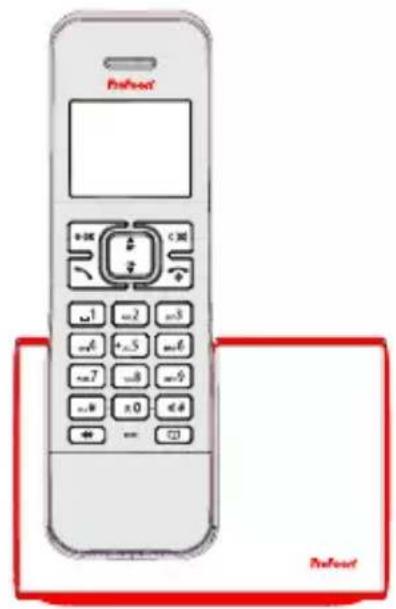
text_image
Prefoot +10 -2 +3 -1 -2 -3 -4 +5 -6 -7 -8 -9 -10 -11 -12 -13 -14 -15 -16 -17 -18 -19 -20 -21 -22 -23 -24 -25 -26 -27 -28 -29 -30 -31 -32 -33 -34 -35 -36 -37 -38 -39 -40 -41 -42 -43 -44 -45 -46 -47 -48 -49 -50 -51 -52 -53 -54 -55 -56 -57 -58 -59 -60 -61 -62 -63 -64 -65 -66 -67 -68 -69 -70 -71 -72 -73 -74 -75 -76 -77 -78 -79 -80 -81 -82 -83 -84 -85 -86 -87 -88 -89 -90natural_image
Line drawing of a wall-mounted electrical outlet connected to a base (no text or symbols)4 BETRIEB
4.1 Freisprechen:
Manufacturers name and address : Vtech Telecommunications LTD, 23/F., Tai Ping Industrial Centre, Block 1, 57 Ting
Kok Road, Tai Po, Hong Kong.
Model Identifier : VT05EEU06045
Average active efficiency : 74.2 %
Efficiency at low 10% load : -
No load Power consumption : 0.07 W