
Smart Optics Mini - Baby monitors Luvion - Free user manual and instructions
Find the device manual for free Smart Optics Mini Luvion in PDF.

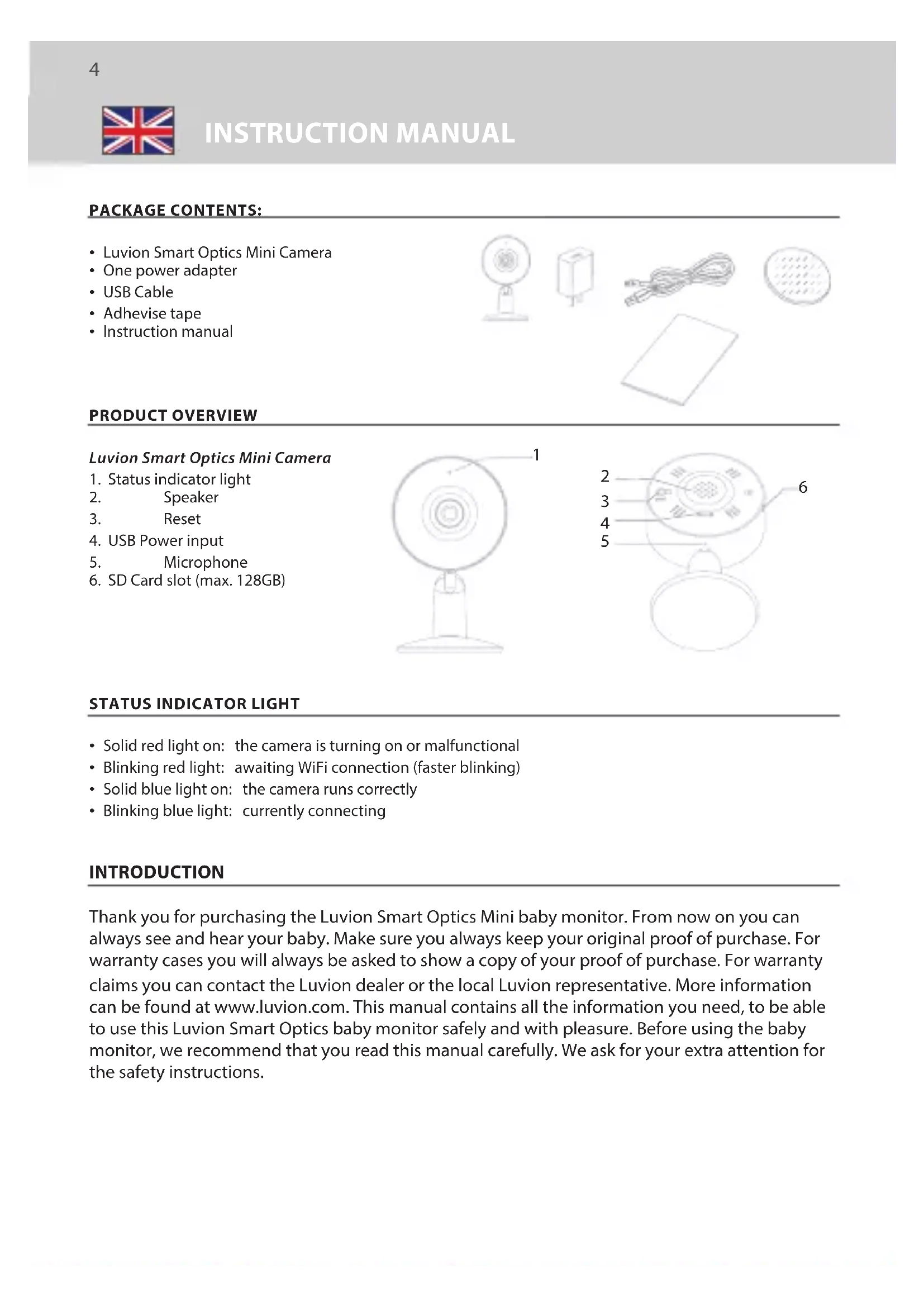


| Product type | Video baby monitor |
| Brand and model | Luvion Smart Optics Mini |
| Dimensions | 60 x 55 x 103 mm |
| Power supply | AC adapter 5 V / 1 A (input 100-240 V~, 50/60 Hz) |
| Power consumption | Less than 2.5 W |
| Video resolution | 1920 x 1080 pixels (Full HD) |
| Viewing angle | 100° |
| Night vision | Infrared, range < 10 meters |
| Connectivity | Wi-Fi 2.4 GHz (IEEE 802.11 b/g/n), WPA/WPA2 |
| Mobile app | Smart Life (iOS 9+ / Android 5+) |
| Sound and motion detection | Yes, notifications can be enabled in the app |
| SD card recording | Micro SD up to 128 GB (FAT32 format) |
| Two-way audio | Yes (built-in microphone and speaker) |
| Status LED indicator | Solid red: power on/error; flashing red: waiting for Wi-Fi; solid blue: normal operation; flashing blue: connecting |
| Operating temperature | 0°C to 40°C |
| Maintenance and cleaning | Clean with a soft, dry cloth. Do not expose to moisture. Unplug before cleaning. |
| Safety instructions | Does not replace adult supervision. Power cables more than 1 m from the crib. Indoor use only. Keep out of reach of children. |
| Spare parts and repairability | AC adapter, USB cable, and adhesive tape included. Do not attempt to repair yourself (warranty void). |
Frequently Asked Questions - Smart Optics Mini Luvion
User questions about Smart Optics Mini Luvion
0 question about this device. Answer the ones you know or ask your own.
Ask a new question about this device
Download the instructions for your Baby monitors in PDF format for free! Find your manual Smart Optics Mini - Luvion and take your electronic device back in hand. On this page are published all the documents necessary for the use of your device. Smart Optics Mini by Luvion.
USER MANUAL Smart Optics Mini Luvion
natural_image
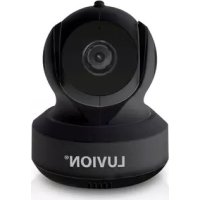
LUVION® digital camera with white base and black lens (no text or symbols on device)INSTRUCTION MANUAL

HANDLEIDING

MANUAL D'INSTRUCTIONS

BEDIENUNGSANLEITUNG

ENGLISH....4
NEDERLANDS....12
FRANÇAIS....20
DEUTSCH....28
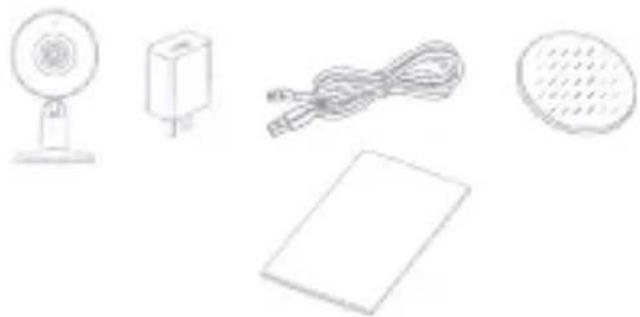
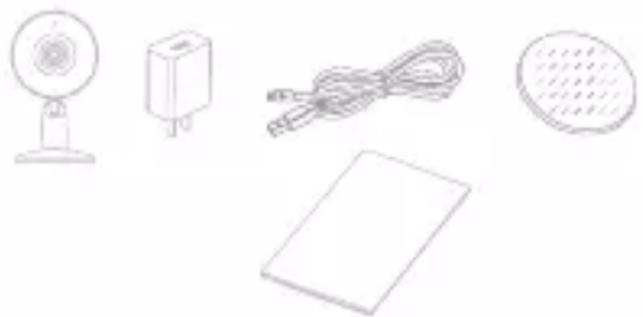
PACKAGE CONTENTS:
• Luvion Smart Optics Mini Camera
• One power adapter
- USB Cable
- Adhevise tape
- Instruction manual
natural_image
Line drawings of five household appliances: a fan, a box, cord, and a plate (no text or symbols)PRODUCT OVERVIEW
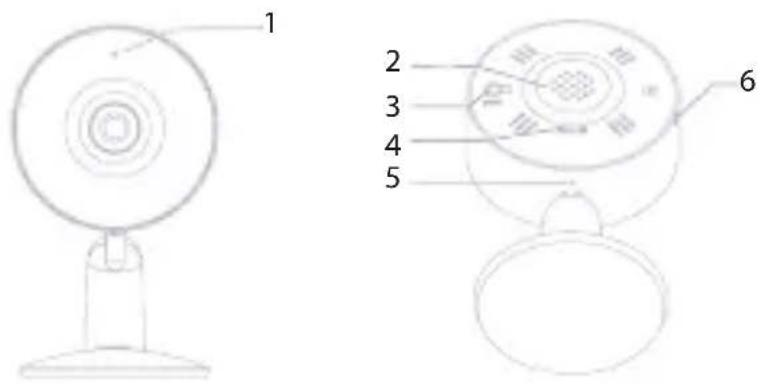
Luvion Smart Optics Mini Camera
- Status indicator light
- Speaker
- Reset
- USB Power input
- Microphone
- SD Card slot (max. 128GB)
STATUS INDICATOR LIGHT
• Solid red light on: the camera is turning on or malfunctional
- Blinking red light: awaiting WiFi connection (faster blinking)
• Solid blue light on: the camera runs correctly
- Blinking blue light: currently connecting
INTRODUCTION
Thank you for purchasing the Luvion Smart Optics Mini baby monitor. From now on you can always see and hear your baby. Make sure you always keep your original proof of purchase. For warranty cases you will always be asked to show a copy of your proof of purchase. For warranty claims you can contact the Luvion dealer or the local Luvion representative. More information can be found at www.luvion.com. This manual contains all the information you need, to be able to use this Luvion Smart Optics baby monitor safely and with pleasure. Before using the baby monitor, we recommend that you read this manual carefully. We ask for your extra attention for the safety instructions.
SAFETY INSTRUCTIONS
- Read and keep the instructions. All the safety and operating instructions should be read before use.
- This device can't replace responsible adult supervision.
- This device is designed for indoor use only.
- The units should not be exposed to rain or moisture.
- The units should not be exposed to direct heat sources.
- This product is not a toy and should be kept out of children's reach.
- This product contains small parts, take care when unpacking and assembling the product.
- Children can become entangled in the cords, therefore power cords should be kept more than 1 meter away from the crib and baby's reach at all times.
- The units should be only be used with the AC power adapter included in this package (rated 5V; 1.0A).
- Don't use the units if the cord or plug is damaged.
- Don't attempt to repair or adjust any of the electrical or mechanical functions of the unit. If you do, the guarantee will be made void.
- This product should not be used on or under surfaces that may block the ventilation openings.
- This product must not be placed in a enclosed area that may impede the air flow.
Attention!
- Make sure that the camera is within range of router during the registration.
- The camera only supports 2.4GHz Wi-Fi networks.
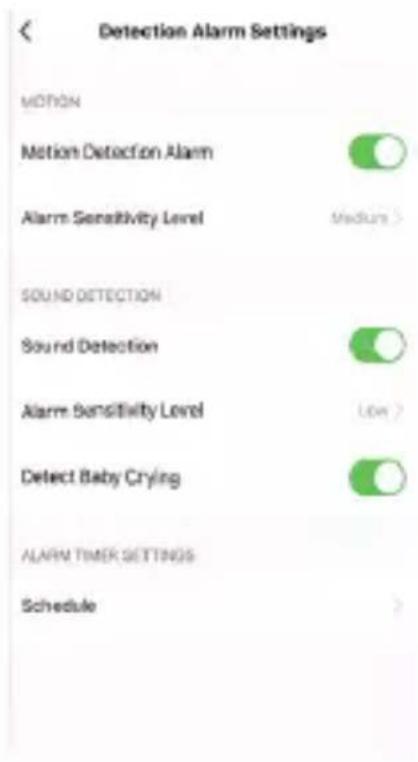
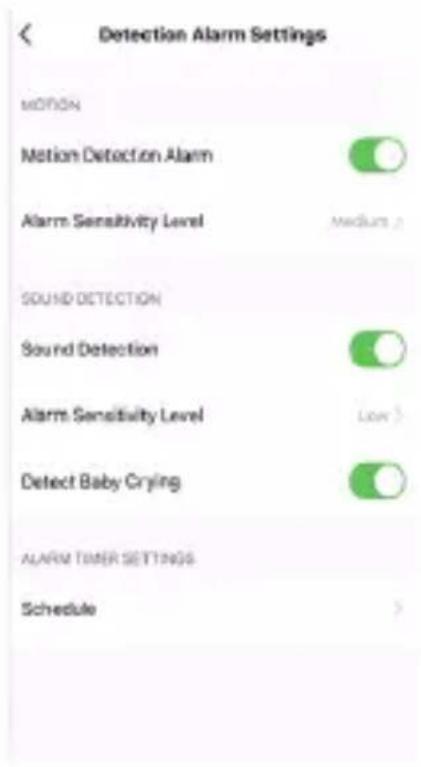
- As standard, the sound and motion detection alarms are off; Make sure to activate the desired notifications immediately after installation.
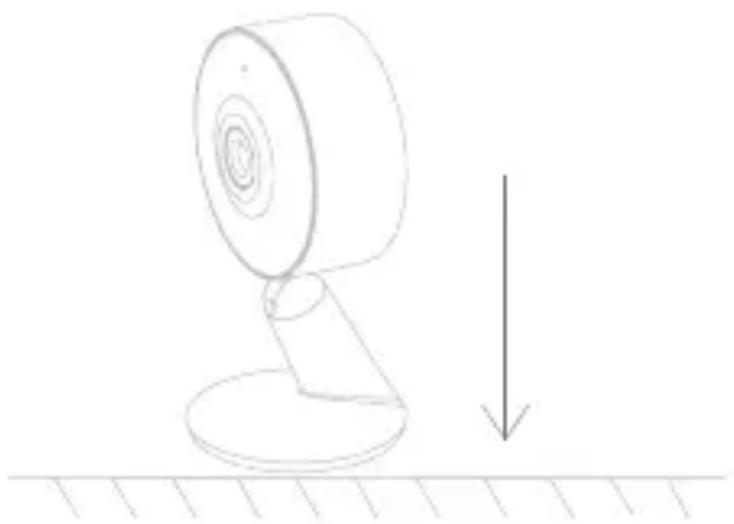
PLACEMENT
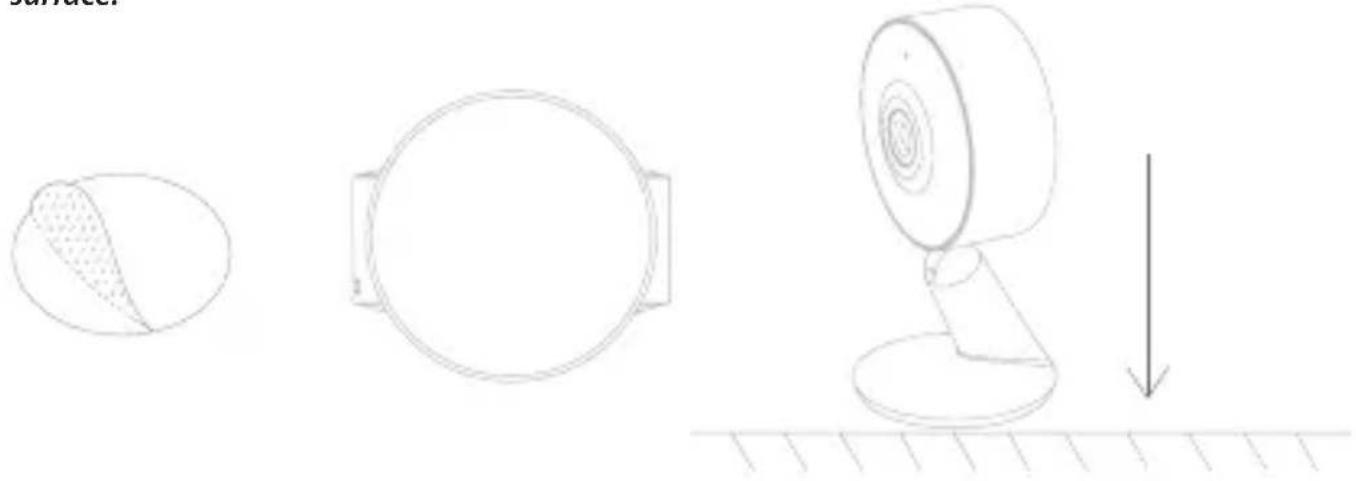
Option 1 Place the camera on a fl at surface
natural_image
Simple line drawing of a webcam with a downward arrow indicating compression or force (no text or symbols)Option 2 Stick the adhesive tape in the middle of camera bottom and stick the camera to a clean surface.
natural_image
Line drawing of a mechanical device with a textured circular component, a circular housing, and a camera-like device on a surface (no text or symbols)SET UP/CAMERA INSTALLATION
- Plug the included USB cable into the Luvion Smart Optics Mini Camera.
- After the USB cable has been plugged into the included power adapter, insert the power adapter into a wall socket.
- Make sure the router is set to 2.4GHz WiFi (the Luvion Smart Optics Mini doesn't work with 5GHz WiFi).
- Make sure you have the SSID and password of your WiFi ready and that the Smart Optics Mini Camera and your smartphone are within range of the router.
CONNECTING WITH THE APP
Step 1 Search and download the 'Smart Life App' in Apple Store/Google Play Store or scan the QR code to download the app. Open the Smart Life app and Sign Up before use.
![1 DOWNLOAD SMART LIFE APP Log In Sign Up Try new User Agreement and Privacy Policy We understand the importance of privacy in order to more fully prevent our collection and use of your personal information, we have retained our privacy policy and user agreement in detail in accordance with my latest info and regulations. When you click [Aberit], you have fully read, write ahead and installed all of the updated Privacy Policy and User Agreement. Please make some time to become similar with your privacy policy, and if you have any questions, please tell this to contact us. Privacy Policy and User Releseled! Disagree Agree](/content/2026/04/653189/images/4ffd37702d7988890fa4646671cd140b89ec94a3548f59b4aad4b56c708de090.jpg)
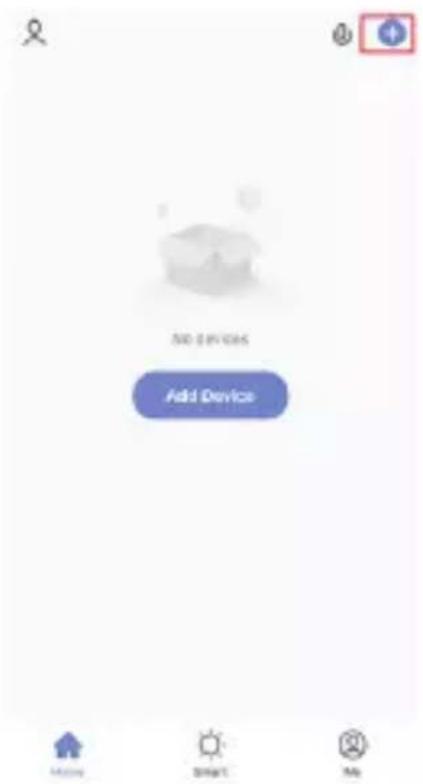
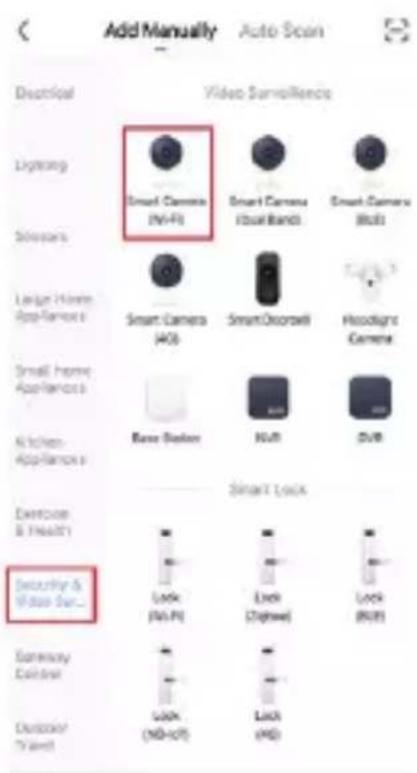
Step 2 Add device by pressing on the "+" icon in the upper right corner and choose "Security &
Video Surveillance and select "Smart Camera (Wi-Fi)" as shown below.
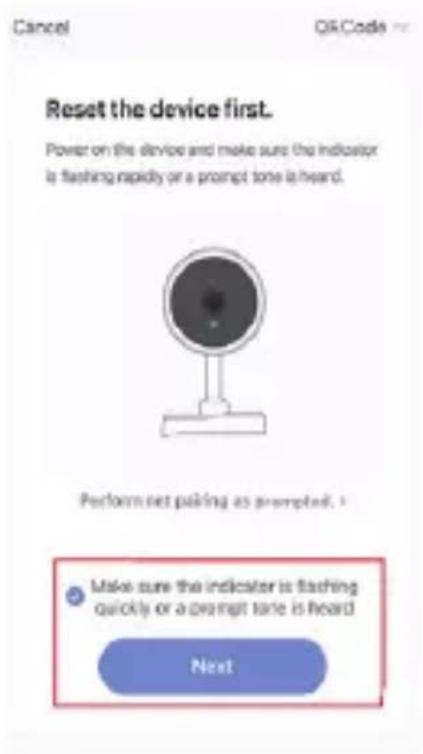
Step 3 Check the box next to "make sure that the indicator is flashing or a prompt tone is heard" and press "Next" to connect with the Wi-Fi Network. If the indicator is not flashing, go to point 3 under 'set up/camera installation'.
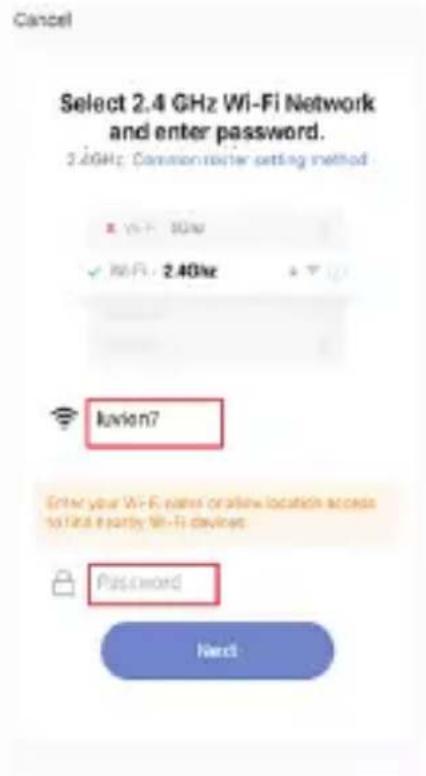
Step 4 Select your own Wi-Fi Network and enter the password of your Wi-Fi network and then press 'Next'. Please note: this device only supports 2,4GHz networks.
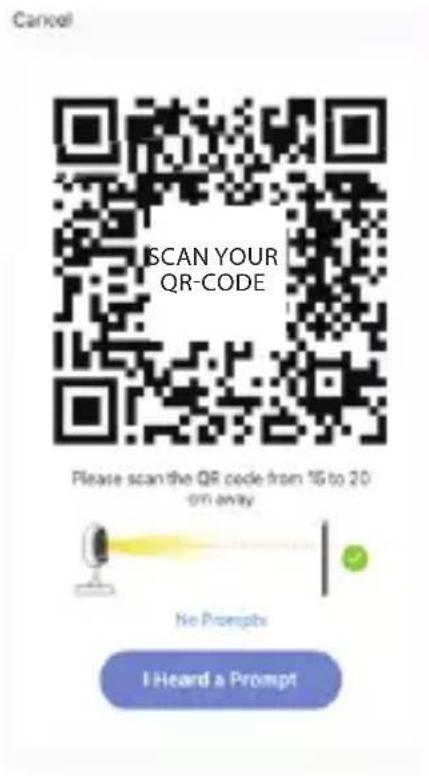
Step 5 Scan the QR code with the camera. Make sure to keep a distance of 15 to 20 cm between the camera and the QR code shown in the App. If you heard a beep tone, press on "I heard a prompt".
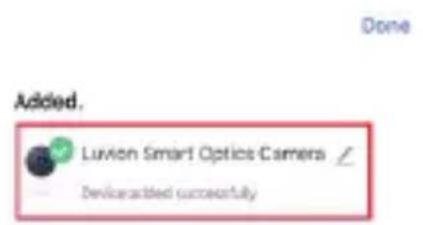
Step 6 Once connected and paired successfully, you will be able to rename the device according to your preference. Please note: if you are unable to pair the camera with the App, please unplug the power adapter from the wall socket and retry by following again the steps in this manual.
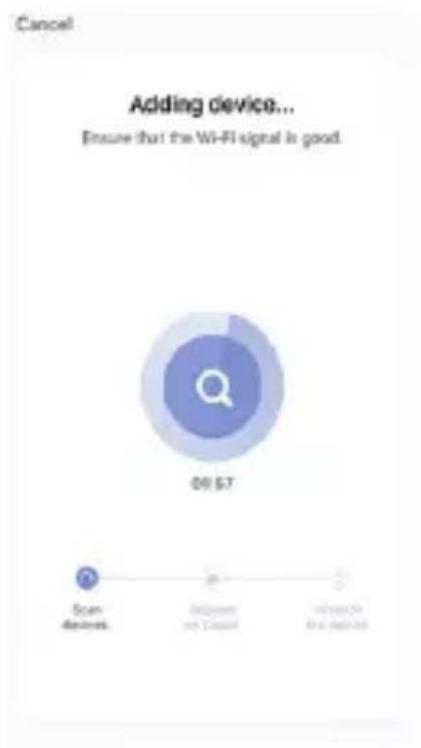
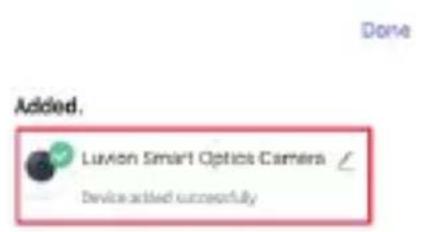
Step 7 When paired successfully, you will be able to monitor the baby. Press on the upper right to activate detection alarms such as sound and motion detections, while using the camera.
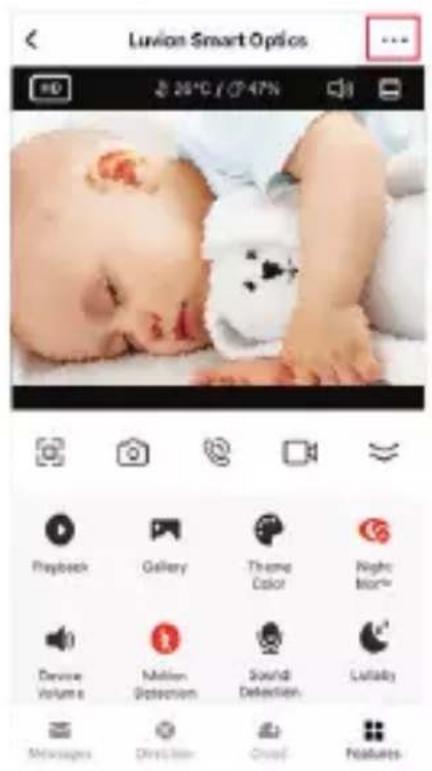
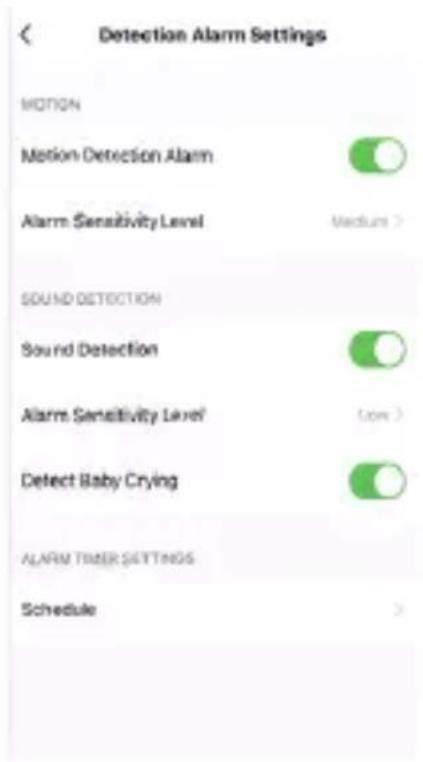
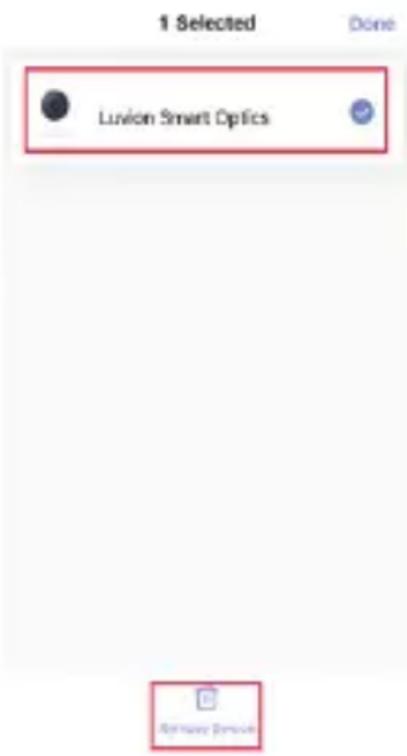
Step 8 Please note: The camera device can only be registered to one account. Make sure you remove the device from the app before changing ownership. Press on the name of the device in the App and hold it for a few seconds. The screen to remove the device will then appear. In case you don't follow this step and the device has not been removed in the app yet, you will receive a notification when returning the device to the (online) store. This notification confirms that the device has been reset to its factory settings.
APP FUNCTIONS
Take a screenshot
Microphone button
Video recording button
Playback of recordings on SD card (if available)
Motion and sound detection settings
Photo album: storage of screenshots and videos
SPECIFICATIONS
| Adapter | voltage: | 100-240VAC | ||
| Frequency: | 50/60Hz | |||
| Input | voltage: | 5V | ||
| Input | power: | 1A | ||
| Rated | power: | <2.5W | ||
| Image sensor: | 1/2.9" 2 Megapixel CMOS | |||
| Frame rate: | 1~25fps | |||
| Shutter: | 1/25~1/10,000 | per | second | |
| Lens: | 3.6mm | |||
| Viewing | angle: | 100° |
IR distance: <10 meters
Image resolution: 1920 x 1080P
WDR:
Digital
WDR
Video Compression:
H.264
Bit rate:
32Kbps\~2Mbps
SD-card supported: Micro SD card (max. 128gb, format: FAT32)
Wireless RF mode frequency band: 2412-2472 MHz
Wireless communication protocol: 2.4F WIFI (IEEE 802.11 b/g/n)
Wireless Security: WPA/WPA2, WPA-PSK/WPA2-PSK, WPS
Communication Protocol: TCP/IP, HTTP, DHCP, DNS, RTSP
Operating system: Android 5+ or iOS9+
Operate temperature: 0 °C to 40 °C
Dimensions: 60 x 55 x 103mm
DISPOSAL OF PRODUCT
Your baby monitor is classed as electrical or electronic equipment, so DO NOT put it in your normal rubbish bin. Take this product to the collection points designated by the local authorities for the correct collection and processing of these products.
EU DECLARATION OF CONFORMITY
Luvion declares that the radio equipment type Luvion Smart Optics Mini is in compliance with Directive 2014/53/EU. The full text of the EU declaration of conformity is available at: luvion.com/doc/smart-optics-mini

This device is for indoor use only
INHOUD DOOS:
• Luvion Smart Optics Mini Camera
- Eén voedingsadapter
- USB-kabel
- Plakstrip
- Instruction manual
natural_image
Line drawings of five household appliances: a remote control fan, a rectangular device with cable, a circular box, and a flat panel (no text or symbols)PRODUCT OVERZICHT
Luvion Smart Optics Mini Camera
natural_image
Simple line drawing of a webcam with a downward arrow indicating compression or drag (no text or symbols)INSTELLEN/CAMERA-INSTALLATIE
APP FUNCTIONS
luvion.com/doc/smart-optics-mini

This device is for indoor use only
CONTENU DE L'EMBALLAGE:
natural_image
Line drawings of five household appliances: a fan, a battery, cord, and a flat panel (no text or symbols)PRÉSENTATION DU PRODUIT
Caméra Luvion Smart Optics Mini
natural_image
Simple line drawing of a webcam with a downward arrow indicating compression or force (no text or symbols)natural_image
Line drawings of a camera and its side mirror components, showing a drop in the base (no text or symbols)INSTALLATION
luvion.com/doc/smart-optics-mini
This device is for indoor use only
PAKETINHALT:
natural_image
Line drawings of five household appliances: a fan, a box, cord, and a flat plate (no text or symbols)PRODUKTÜBERSICHT
Luvion Smart Optics Mini Kamera
natural_image
Simple line drawing of a webcam with a downward arrow indicating compression or force (no text or symbols)APP-FUNKTIONEN
luvion.com/doc/smart-optics-mini
This device is for indoor use only
Luvion Premium Babyproducts
Visit us at:
www.Luvion.com


- PACKAGE CONTENTS:
- PRODUCT OVERVIEW
- Luvion Smart Optics Mini Camera
- STATUS INDICATOR LIGHT
- INTRODUCTION
- SAFETY INSTRUCTIONS
- Attention!
- PLACEMENT
- SET UP/CAMERA INSTALLATION
- CONNECTING WITH THE APP
- APP FUNCTIONS
- DISPOSAL OF PRODUCT
- EU DECLARATION OF CONFORMITY
- INHOUD DOOS:
- PRODUCT OVERZICHT
- INSTELLEN/CAMERA-INSTALLATIE
- CONTENU DE L'EMBALLAGE:
- PRÉSENTATION DU PRODUIT
- Caméra Luvion Smart Optics Mini
- INSTALLATION
- PAKETINHALT:
- PRODUKTÜBERSICHT
- Luvion Smart Optics Mini Kamera
- APP-FUNKTIONEN
Brand : Luvion
Model : Smart Optics Mini
Category : Baby monitors