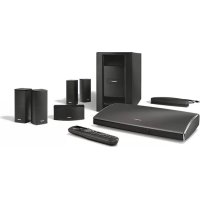
Smart Ultra Soundbar - Home theater audio system BOSE - Free user manual and instructions
Find the device manual for free Smart Ultra Soundbar BOSE in PDF.



User questions about Smart Ultra Soundbar BOSE
0 question about this device. Answer the ones you know or ask your own.
Ask a new question about this device
Download the instructions for your Home theater audio system in PDF format for free! Find your manual Smart Ultra Soundbar - BOSE and take your electronic device back in hand. On this page are published all the documents necessary for the use of your device. Smart Ultra Soundbar by BOSE.
USER MANUAL Smart Ultra Soundbar BOSE
Start on a high note.
BOSE
Please read and keep all safety, security, and use instructions.

Bose Corporation hereby declares that this product is in compliance with the essential requirements and other relevant provisions of Directive 2014/53/EU and all other applicable EU directive requirements. The complete declaration of conformity can be found at: ____ www.Bose.cc

This product conforms to all applicable Electromagnetic Compatibility Regulations 2016 and all other applicable UK regulations. The complete declaration of conformity can be found at: ____ www.Bose.com/compliance
Bose Corporation hereby declares that this product is in compliance with the essential requirements per Radio Equipment Regulations 2017 and all other applicable UK regulations. The complete declaration of conformity can be found at: ____ www.Bose.com/compliance
Important Safety Instructions
Read these instructions.
Clean only with a dry cloth.
Do not block any ventilation openings. Install in accordance with the manufacturer's instructions.
Only use attachments/accessories specified by the manufacturer.
Refer all servicing to qualified personnel. Servicing is required when the apparatus has been damaged in any way, such as power-supply cord or plug is damaged, liquid has been spilled or objects have fallen into the apparatus, the apparatus has been exposed to rain or moisture, does not operate normally, or has been dropped.
WARNINGS/CAUTIONS
- To avoid accidental ingestion, keep the product away from children and pets. The product contains a battery, and may be hazardous if swallowed. If ingested, seek immediate medical attention. When not in use, store the product out of reach of children and pets.

This symbol on the product means there is uninsulated, dangerous voltage within the product enclosure that may present a risk of electrical shock.

This symbol on the product means there are important operating and maintenance instructions in this guide.

Do not ingest battery, chemical burn hazard. The remote control supplied with this product contains a coin/button cell battery. If the coin/button cell battery is swallowed, it can cause severe internal burns in just 2 hours and can lead to death. Keep new and used batteries away from children. If the battery compartment does not close securely, stop using the remote control and keep it away from children. If you think batteries might have been swallowed or placed inside any part of the body, seek immediate medical attention. To avoid risk of explosion, fire or chemical burn, use caution in replacing the battery and replace only with an agency approved (e.g., UL) CR2032 or DL2032 3-volt lithium battery. Properly and promptly dispose of used batteries. Do not recharge, disassemble, heat above 212°F (100°C) or incinerate.

Contains small parts which may be a choking hazard. Not suitable for children under age 3.

This product contains magnetic material. Consult your physician on whether this might affect your implantable medical device.

This product contains a tempered glass surface. Use caution to avoid impact. In the event of breakage, use care in handling broken glass.
• To reduce the risk of fire or electrical shock, do NOT expose this product to rain, dripping, splashing, or moisture and do not place liquid filled objects such as vases, on or near the product.
- Keep the product away from fire and heat sources. Do NOT place naked flame sources, such as lighted candles, on or near the product.
- Do NOT make unauthorized alterations to this product.
- Do NOT use a power inverter with this product.
- Do NOT use in vehicles or boats.
- Where the mains plug or an appliance coupler is used as the disconnect device, the disconnect device shall remain readily operable.
- Only use the following hardware to mount this product: Bose Soundbar Wall Bracket.
- When positioning the product, make sure it is not blocking any ventilation openings on your TV or monitor. Refer to the owner's guide that came with your TV or monitor and install in accordance with the manufacturer's instructions.
- Due to ventilation requirements, Bose does not recommend placing the product in a confined space such as in a wall cavity or in an enclosed cabinet.
- Do not place or install near any heat sources such as fireplaces, radiators, heat registers, stoves, or other apparatus (including amplifiers) that produce heat.
- Keep batteries out of reach of children.
- Batteries may cause a fire or chemical burn if mishandled. Do not recharge, disassemble, heat, or incinerate.
- The battery provided with this product may present a risk of fire, explosion or chemical burn if mishandled, incorrectly replaced or replaced with an incorrect type.
NOTE: This equipment has been tested and found to comply with the limits for a Class B digital device, pursuant to Part 15 of the FCC Rules. These limits are designed to provide reasonable protection against harmful interference in a residential installation. This equipment generates, uses, and can radiate radio frequency energy and, if not installed and used in accordance with the instructions, may cause harmful interference to radio communications. However, there is no guarantee that interference will not occur in a particular installation. If this equipment does cause harmful interference to radio or television reception, which can be determined by turning the equipment off and on, the user is encouraged to try to correct the interference by one or more of the following measures:
- Reorient or relocate the receiving product or antenna.
- Increase the separation between the equipment and receiver.
- Connect the equipment into an outlet on a circuit different from that to which the receiver is connected.
- Consult the dealer or an experienced radio/TV technician for help.
Changes or modifications not expressly approved by Bose Corporation could void the user's authority to operate this equipment.
This device complies with part 15 of the FCC Rules and with ISED Canada license-exempt RSS standard(s). Operation is subject to the following two conditions: (1) This device may not cause harmful interference, and (2) this device must accept any interference received, including interference that may cause undesired operation.
This equipment should be installed and operated with a minimum distance of 20 cm between radiator and your body.
This device for operation in the 5150 - 5250 MHz is only for indoor use to reduce the potential for harmful interference to co-channel mobile satellite systems.
CAN ICES-3(B)/NMB-3(B)
For Europe:
Frequency bands of operation 2400 to 2483.5 MHz, 5150 to 5350 MHz, and 5470 to 5725 MHz. | Maximum transmit power less than 20 dBm EIRP. | Frequency band of operation 5725 to 5850 MHz. | Maximum transmit power less than 14 dBm (25mW) EIRP.
Maximum transmit power is below regulatory limits such that SAR testing is not necessary and exempt per applicable regulations.
This device is restricted to indoor use when operating in the 5150 to 5350 MHz frequency range in all EU Member States listed in the table.
| BE DK IE UK(NI) FR CY SK HU AT SE | |||||||||
| BG DE PT EL HR LV LT MT PL | |||||||||
| CZ EE FI ES IT RO LU NL SI | |||||||||

This symbol means the product must not be discarded as household waste, and should be delivered to an appropriate collection facility for recycling. Proper disposal and recycling helps protect natural resources, human health and the environment. For more information on disposal and recycling of this product, contact your local municipality, disposal service, or the shop where you bought this product.
Low-power Radio-frequency Devices Technical Regulations: Without permission granted by the NCC, any company, enterprise, or user is not allowed to change frequency, enhance transmitting power or alter original characteristic as well as performance to an approved low power radio-frequency devices. The low power radio-frequency devices shall not influence aircraft security and interfere legal communications; If found, the user shall cease operating immediately until no interference is achieved. The said legal communications means radio communications is operated in compliance with the Telecommunications Management Act. The low power radio-frequency devices must be susceptible with the interference from legal communications or ISM radio wave radiated devices.
Product Power State Table
The product, in accordance with the Ecodesign Requirements for Energy Related Products Directive 2009/125/EC and the Ecodesign for Energy-Related Products and Energy Information (Amendment) (EU Exit) Regulations 2020, is in compliance with the following norm(s) or document(s): Regulation (EC) No. 1275/2008, as amended by Regulation (EU) No. 801/2013.
| Required Power State Information | Power Modes | |
| Standby Networked Standby | ||
| Power consumption in specified power mode, at 230V/50Hz input | < 0.5 W | all network types < 2.0 W |
| Time after which equipment is automatically switched into mode | < 2.5 hours | ≤ 20 minutes |
| Power consumption in networked standby if all wired network ports are connected and all wireless network ports are activated, at 230V/50Hz input | N/A | ≤ 2.0 W |
| Wireless network port activation/deactivation procedures. Deactivating all networks will enable standby mode. | Wi-Fi®: Tap the Microphone button atop the soundbar until the microphone is turned on and the indicator light is no longer a solid red. Activate Wi-Fi using the Bose Music app. Deactivate Wi-Fi by pressing and holding the Mute and Bluetooth buttons on the remote simultaneously. Bluetooth®: Tap the Microphone button atop the soundbar until the microphone is turned on and the indicator light is no longer a solid red. Activate by pairing with a Bluetooth source by pressing the Bluetooth button on the remote then selecting the soundbar in your mobile device Bluetooth list or by using the Bose Music app. Deactivate by clearing the pairing list by pressing and holding the Bluetooth button on the remote for 10 seconds. | |
| Wired network port activation/deactivation procedures. Deactivating all networks will enable standby mode. | Ethernet: Tap the Microphone button atop the soundbar until the microphone is turned on and the indicator light is no longer a solid red. Activate by inserting the Ethernet cable. Deactivate by removing the Ethernet cable. | |


Please dispose of used batteries properly, following local regulations. Do not incinerate.
China Restriction of Hazardous Substances Table
| Names and Contents of Toxic or Hazardous Substances or Elements | ||||||
| Toxic or Hazardous Substances and Elements | ||||||
| Part Name | Lead (Pb) | Mercury (Hg) | Cadmium (Cd) | Hexavalent (CR(VI)) | Polybrominated Biphenyl (PBB) | Polybrominated diphenylether (PBDE) |
| PCBs X O O O O O | ||||||
| Metal Parts X O O O O O | O | |||||
| Plastic Parts O O O O O | O O | |||||
| Speakers X O O O O O | ||||||
| Cables X O O O O O | ||||||
| This table is prepared in accordance with the provisions of SJ/T 11364.O: Indicates that this toxic or hazardous substance contained in all of the homogeneous materials for this part is below the limit requirement of GB/T 26572. |  | |||||
| X: Indicates that this toxic or hazardous substance contained in at least one of the homogeneous materials used for this part is above the limit requirement of GB/T 26572. | ||||||
Taiwan Restriction of Hazardous Substances Table
| Equipment name: Powered Speaker Type designation: 441451 | ||||||
| Restricted substances and its chemical symbols | ||||||
| Unit | Lead (Pb) | Mercury (Hg) | Cadmium (Cd) | Hexavalent chromium (Cr+6) | Polybrominated biphenyls (PBB) | Polybrominated diphenyl ethers (PBDE) |
| PCBs | - | ○ | ○ ○ | ○ | ○ | |
| Metal Parts | - | ○ | ○ ○ | ○ | ○ | |
| Plastic Parts | ○ | ○ | ○ ○ | ○ | ○ | |
| Speakers | - | ○ | ○ ○ | ○ | ○ | |
| Cables | - | ○ | ○ ○ | ○ | ○ | |
| Note 1: “○” indicates that the percentage content of the restricted substance does not exceed the percentage of reference value of presence. Note 2: The “-” indicates that the restricted substance corresponds to the exemption. | ||||||
Date of Manufacture: The eighth digit in the serial number indicates the year of manufacture; "3" is 2013 or 2023.
China Importer: Bose Electronics (Shanghai) Company Limited, Level 6, Tower D, No. 2337 Gudai Rd. Minhang District, Shanghai 201100 | EU Importer: Bose Products B.V., Gorslaan 60, 1441 RG Purmerend, The Netherlands | Mexico Importer: Bose de México S. de R.L. de C.V., Avenida Prado Sur #150, Piso 2, Interior 222 y 223, Colonia Lomas de Chapultepec V Sección, Miguel Hidalgo, Ciudad de México, C.P. 11000 Phone Number: +5255 (5202) 3545 | Taiwan Importer: Bose Limited Taiwan Branch (H.K.), 9F., No.10, Sec. 3, Minsheng E. Road, Zhongshan Dist. Taipei City 10480, Taiwan Phone Number: +886-2-2514 7676 | UK Importer: Bose Limited, Bose House, Quayside Chatham Maritime, Chatham, Kent, ME4 4QZ, United Kingdom
Input Rating: 100 - 240V ∼ 50/60Hz, 65W
The CMIIT ID is located on the product label on the back of the soundbar.
California: Contains lithium ion battery with Perchlorate Material - special handling may apply.
See www.dtsc.ca.gov/hazardouswaste/perchlorate
License Disclosures: To view the license disclosures that apply to the third-party software packages included as components of your Bose Smart Ultra Soundbar product:
- On the remote, press and hold the Play/Pause button ▷II and Volume up button + for 5 seconds.
- Connect a USB cable to the SERVICE connector on the back of the soundbar.
- Connect the other end of the cable to a computer.
- On the computer, enter http://203.0.113.1/opensource in a browser window to display the EULA and license disclosure.
The Bose Terms of Use are available at ____ worldwide.bose.com/termsofuse
Amazon, Alexa, Amazon Music, and all related marks are trademarks of Amazon.com, Inc. or its affiliates.
Apple, the Apple logo, Apple Music, and AirPlay are trademarks of Apple Inc., registered in the U.S. and other countries. App Store is a service mark of Apple Inc.
Use of the Works with Apple badge means that an accessory has been designed to work specifically with the technology identified in the badge and has been certified by the developer to meet Apple performance standards.
The Bluetooth ^® word mark and logos are registered trademarks owned by Bluetooth SIG, Inc. and any use of such marks by Bose Corporation is under license.
Dolby Atmos
Dolby, Dolby Atmos, and the double-D symbol are registered trademarks of Dolby Laboratories Licensing Corporation. Manufactured under license from Dolby
Laboratories. Confidential unpublished works. Copyright © 2012-2021 Dolby Laboratories. All rights reserved.
Google, Google Play, and Chromecast built-in are trademarks of Google LLC.
HDMI
The terms HDMI, HDMI High-Definition Multimedia Interface, HDMI trade dress and the HDMI logos are trademarks or registered trademarks of HDMI Licensing Administrator, Inc.
This product contains the iHeartRadio service. iHeartRadio is a registered trademark of iHeartMedia, Inc.
This product is protected by certain intellectual property rights of Microsoft. Use or distribution of such technology outside of this product is prohibited without a license from Microsoft.
Pandora is a trademark of Pandora Media, Inc. used with permission.
QuickSet is a registered trademark of Universal Electronics Inc. in the United States and Internationally. ©UEI 2000-2023
This product incorporates Spotify software which is subject to third-party licenses found here:
www.spotify.com/connect/third-party-licenses
Spotify is a registered trademark of Spotify AB.
Wi-Fi is a registered trademark of Wi-Fi Alliance®.
ADAPTiQ, Bose, Bose Music, the Bose Music logo, QuietComfort, SimpleSync, SoundLink, SoundLink Revolve, and Voice4Video are trademarks of Bose Corporation. | Bose Corporation Headquarters: 1-877-230-5639 | ©2023 Bose Corporation. No part of this work may be reproduced, modified, distributed, or otherwise used without prior written permission.
Please complete and retain for your records
The serial and model numbers are located on the back of the soundbar.
Serial number: ____
Model number: 441451
Please keep your receipt with your owner's guide. Now is a good time to register your Bose product.
You can easily do this by going to ____ worldwide.Bose.com/ProductRegistration
WHAT'S IN THE BOX
Contents 12
DOLBY ATMOS® TECHNOLOGY 13
SOUNDBAR PLACEMENT
Recommendations.... 14
Wall mount the soundbar 15
Adjust audio for wall mounting.... 15
SET UP THE SOUNDBAR
Connect the soundbar to power 16
Network standby 16
BOSE MUSIC APP SETUP
Download the Bose Music app.... 17
EXISTING BOSE MUSIC APP USERS
Add the soundbar to an existing account.... 18
Connect to a different Wi-Fi ^® network.... 18
ADAPTIQ AUDIO CALIBRATION
Run ADAPTiQ audio calibration 19
SOUNDBAR CONTROLS
Remote functions 20
Power on/off 21
Auto-wake (optical connection only).... 21
Sources.... 22
Media playback and volume 23
Voice assistant controls 24
Adjust the audio.... 24
AMAZON ALEXA
Access Amazon Alexa.... 25
Use your voice.... 25
Use the soundbar controls.... 26
Calling and Messaging with Amazon Alexa.... 27
Set up Alexa Calling and Messaging.... 27
Use your voice.... 27
Set up Do Not Disturb 28
Use your voice.... 28
Control audio with Bose Voice4Video 29
Set up Voice4Video 29
Use your voice.... 29
WORKS WITH GOOGLE ASSISTANT
Access Google Assistant.... 31
STREAM AUDIO WITH CHROMECAST 32
STREAM AUDIO WITH AIRPLAY
Stream audio from the Control Center 33
Stream audio from an app 33
BLUETOOTH® CONNECTIONS
Connect a mobile device 34
Disconnect a mobile device 35
Reconnect a mobile device 35
Connect an additional mobile device.... 35
Clear the soundbar device list.... 35
SOUNDBAR STATUS
Wi-Fi status 36
Bluetooth status 36
Amazon Alexa status 37
Microphone off light.... 38
Media playback and volume status.... 38
Update and error status 39
ADVANCED FEATURES
Disable/enable Wi-Fi capability 40
CONNECT BOSE PRODUCTS
Connect accessories (optional).... 41
Connect a Bose SoundLink Bluetooth speaker or Bose headphones using SimpleSync technology.... 41
Benefits 41
Compatible products.... 41
Connect using the Bose Music app 42
Reconnect a Bose SoundLink Bluetooth speaker or Bose headphones 42
CARE AND MAINTENANCE
Update the soundbar 43
Replace the remote battery.... 43
Clean the soundbar 45
Replacement parts and accessories 45
Limited warranty 45
TROUBLESHOOTING
Try these solutions first.... 46
Other solutions.... 46
Restore the soundbar 53
APPENDIX: SETUP REFERENCE
Connection options 54
Connect the soundbar to your TV 55
Option 1 (preferred): HDMI eARC or ARC 55
Option 2: Optical.... 56
Check for sound 57
CONTENTS
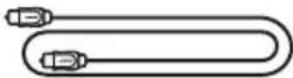
Confirm that the following parts are included:

natural_image
Simple line drawing of a rectangular object with two square holes and a horizontal bar labeled 'BOSE' (no text or symbols beyond the label)Bose Smart Ultra Soundbar

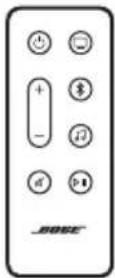
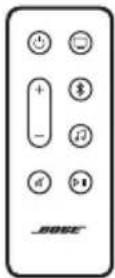
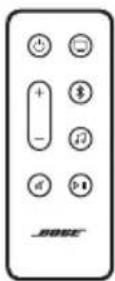
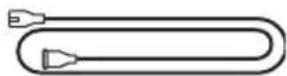
Remote (battery included) Power cord*
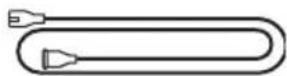
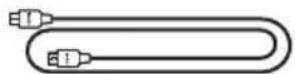
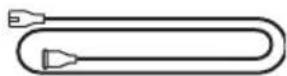
HDMI cable Optical cable

natural_image
Simple line drawing of a medical or laboratory device with a U-shaped connector and curved body (no text or symbols)ADAPTiQ headset
* May ship with multiple power cords. Use the power cord for your region.
NOTE: If any part of the product is damaged, don't use it. Contact your authorized Bose dealer or Bose customer service.
Visit: ____ worldwide.Bose.com/contact
The Bose Smart Ultra Soundbar supports Dolby Atmos® technology. The soundbar uses up-firing and side-firing speakers to deliver high-quality sound from all directions, achieving a superb, immersive, and fully-encompassing surround-sound experience.
NOTE: To use Dolby Atmos technology, both your TV and your content must support Dolby Atmos.
TIP: To deliver the Dolby Atmos surround-sound experience, connect the soundbar to the HDMI eARC or ARC port on your TV (see page 55). If your TV doesn't have an eARC or ARC port, you can connect the optical cable to the optical port to receive spacious and life-like sound (see page 56).
RECOMMENDATIONS
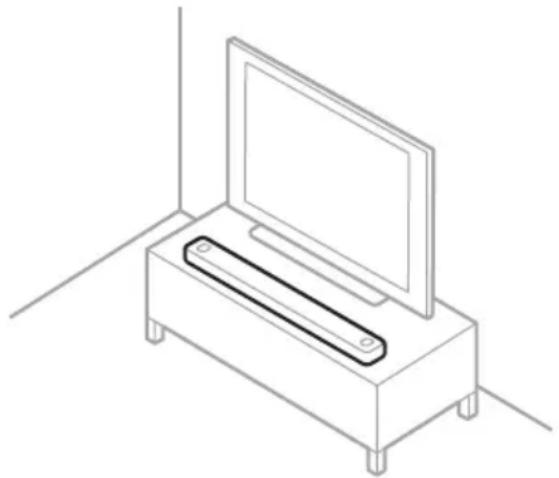
- Place the soundbar below and in front of the TV (preferred) or above your TV with the front of the soundbar facing into the room.
- For best sound quality, make sure the up-firing speakers on the top of the soundbar and the side-firing speakers on the side of the soundbar aren't blocked.
- When the soundbar is mounted to the wall, make sure the top of the soundbar is at least 4 in (10 cm) away from the TV.
- If placing the soundbar on a shelf or TV stand, position the front of the soundbar as close as possible to the front edge of the shelf or stand for best sound quality.
- Place the soundbar outside of and away from metal cabinets, other audio/video components, and direct heat sources.
- Place the soundbar on its rubber feet on a stable and level surface. For proper support, both feet must be resting on the surface. Vibration can cause the soundbar to move, particularly on smooth surfaces like marble, glass, or highly polished wood.
- Keep the back side of the soundbar at least 0.4 in (1 cm) from any other surface. Blocking the port(s) affects sound quality.
- Make sure there is an AC (mains) outlet nearby.
- To avoid wireless interference, keep other wireless equipment at least 1 – 3 ft (0.3 – 0.9 m) away from the soundbar.
- To avoid wireless interference, some Wi-Fi access points may need to be placed up to 8 – 10 ft (2.4 – 3.0 m) away from the soundbar, optional bass module, and optional surround speakers.
- For best sound quality, don't place the soundbar in an enclosed cabinet or diagonally in a corner.
- Don't place any objects on top of the soundbar.
natural_image
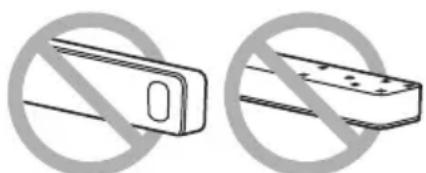
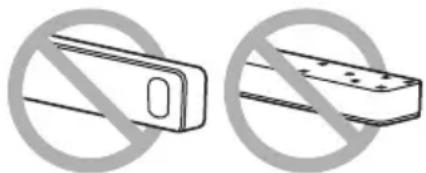
Isometric line drawing of a TV set with a flat-screen monitor and a rectangular screen mounted on a base (no text or symbols)CAUTION: Do NOT place the soundbar on its front, back, or top when in use.
text_image
Two safety symbols: a crossed-out door and an eraser, both marked with a 'no' prohibition symbol.WALL MOUNT THE SOUNDBAR
You can mount the soundbar on a wall. To purchase the Bose Soundbar Wall Bracket, contact your authorized Bose dealer.
Visit: ____support.Bose.com/UltraSB
NOTE: Make sure the top of the soundbar is at least 4 in (10 cm) away from the TV.

text_image
4" / 10 cmCAUTION: Do NOT use any other hardware to mount the soundbar.
Adjust audio for wall mounting
After you mount the soundbar, you must run ADAPTiQ (see page 19).
NOTE: If you remove the soundbar from the wall, run ADAPTiQ again.
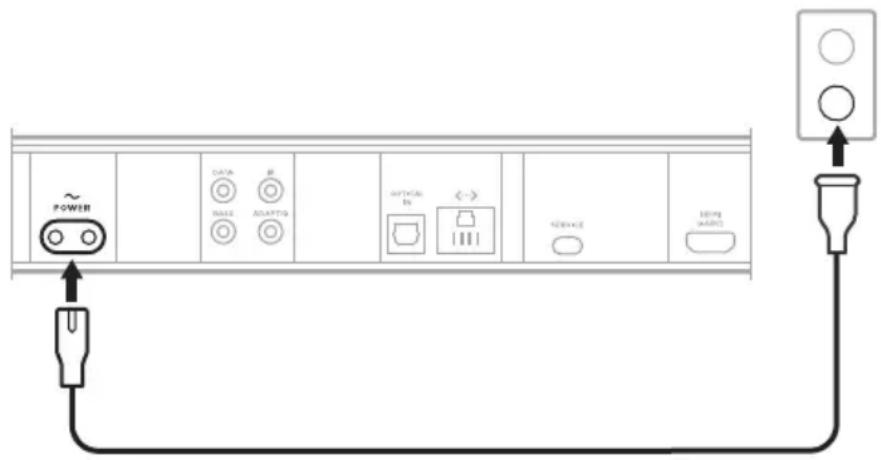
- Connect the power cord to the POWER port on the back of the soundbar.
- Plug the other end of the power cord into an AC (mains) power outlet.
text_image
POWER DATA MAX AF ADAPTOS OPTICAL IN SERVICE BEING MARESThe soundbar powers on, and the light bar glows solid amber.
- Download and use the Bose Music app to connect the soundbar to your TV.
NETWORK STANDBY
The soundbar transitions to network standby when audio has stopped and you have not pressed any buttons or talked to Amazon Alexa or your Google Assistant-enabled device for 20 minutes.
To wake the soundbar from network standby:
- On the remote, press the Power button ⏻, a source button (see page 22), or the Play/Pause button ▷|| (see page 20).
- Play or resume audio using your mobile device or using the Bose Music app.
- Talk to Amazon Alexa or your Google Assistant-enabled device.
NOTES:
- To access Amazon Alexa in network standby, make sure the soundbar has been set up using the Bose Music app (see page 17) and the microphone is on (see page 38).
- You can disable the standby timer using the Bose Music app. You can access this option from the Settings menu.
The Bose Music app lets you set up and control the soundbar from any mobile device, such as a smartphone or tablet.
Using the app, you can stream music, add music services, explore internet radio stations, configure Amazon Alexa, enable Chromecast built-in, choose your voice prompt language, manage soundbar settings, define presets, and get new features.
NOTE: If you have already created a Bose Music account for another Bose product, add the soundbar to your existing account (see page 18).
DOWNLOAD THE BOSE MUSIC APP
- On your mobile device, make sure that both your Bluetooth and Location Services are enabled.
- On your mobile device, download the Bose Music app.

text_image
BOSE MUSIC
text_image
GET IT ON Google Play- Follow the app instructions.
ADD THE SOUNDBAR TO AN EXISTING ACCOUNT
To add your Bose Smart Ultra Soundbar, open the Bose Music app and add your soundbar.
CONNECT TO A DIFFERENT WI-FI NETWORK
Connect to a different network if your network name or password has changed, or if you want to change or add another network.
- On the remote, press and hold the Mute button ✗ and Bose Music app button ⏻ until the light bar glows amber.

text_image
+ - + - + - + - + - + - + - + - + - + - + - + - + - + - + - + - + - + - + - + - + - + - + - + - + - + - + - + - + - + - + - + - + - + - + - + - + - + - + - + - + - + - + - + - + - + - + - + - + - + - + - + --
On your mobile device, open your Wi-Fi settings.
-
Select Bose Smart Ultra Soundbar.
-
Open the Bose Music app and follow the app instructions.
NOTE: If the app doesn't prompt you for setup, go to the main screen and add the soundbar.
After you set up the soundbar using the Bose Music app, the app prompts you to run ADAPTiQ audio calibration for best sound quality. ADAPTiQ audio calibration customizes the sound of the system to the acoustics of your listening area by taking audio measurements at multiple locations in the room. To run an audio calibration, you need 10 minutes when the room is quiet.
During ADAPTiQ audio calibration, a microphone on the top of the ADAPTiQ headset (provided with the soundbar) measures the sound characteristics of your room to determine optimal sound quality.
RUN ADAPTIQ AUDIO CALIBRATION
If you later connect an optional bass module or surround speakers, move the soundbar, or move any furniture, run ADAPTiQ audio calibration again to ensure optimal sound quality.
To run ADAPTiQ audio calibration, use the Bose Music app. You can access this option from the Settings menu.
The soundbar controls are located on the top of the soundbar and on the remote.
TIP: You can also control your soundbar using the Bose Music app.
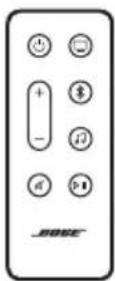
REMOTE FUNCTIONS
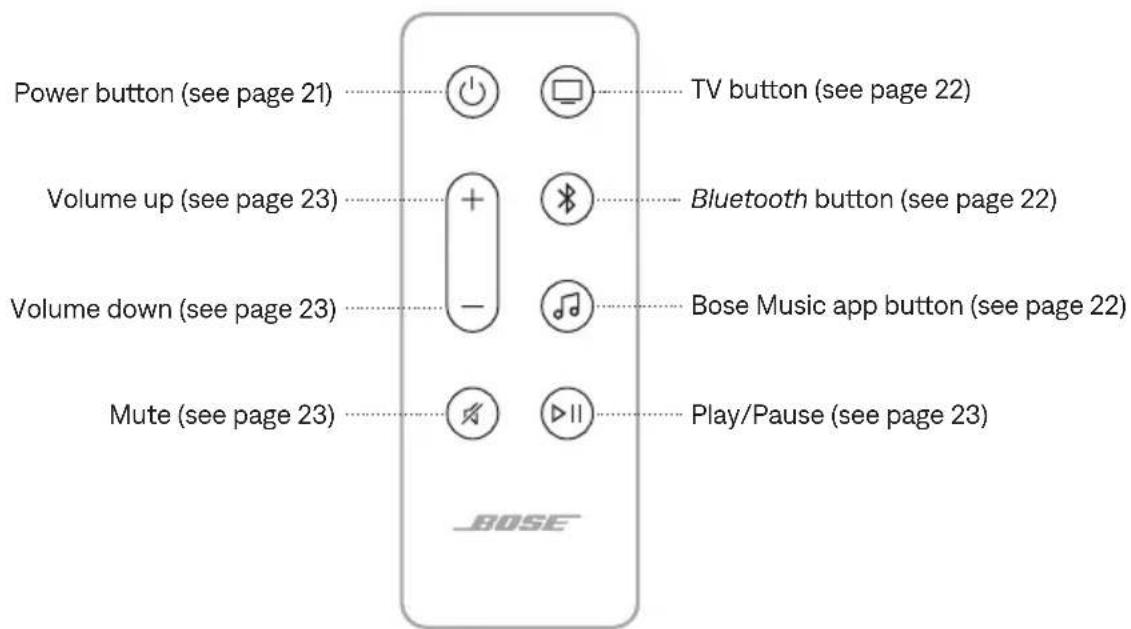
Use the remote to control the soundbar, select the source, and manage Bluetooth connections.
text_image
Power button (see page 21) TV button (see page 22) Volume up (see page 23) Bluetooth button (see page 22) Volume down (see page 23) Bose Music app button (see page 22) Mute (see page 23) Play/Pause (see page 23)Power on/off
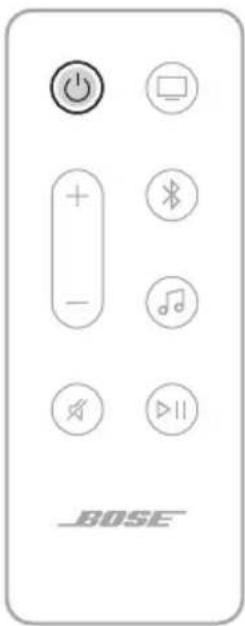
On the remote, press the Power button ⏻ to power the soundbar on/off.
text_image
BOSENOTES:
- When you plug the soundbar into an AC (mains) outlet, the soundbar automatically powers on.
- When the soundbar is powered off, you can still use your voice to access Amazon Alexa or your Google Assistant-enabled device to control the soundbar (see page 25).
TIP: You can also use Bose Voice4Video along with Amazon Alexa to power the soundbar on/off, switch TV inputs, change the TV channel, and more (see page 29).
Auto-wake (optical connection only)
You can set the soundbar to power on whenever a sound signal is received.
To toggle between auto-wake and default power settings, press and hold ⏻ for 5 seconds until you hear a tone and the light bar pulses white twice.
TIP: You can also control auto-wake using the Bose Music app. You can access this option from the Settings menu.
Sources
On the remote, press the appropriate button (TV □, Bluetooth ✗, or Bose Music app ⬆) to select the source.

text_image
BOSETIPS:
- You can also use Bose Voice4Video along with Amazon Alexa to select your Bluetooth source (see page 29).
- You can also use the Bose Music app to select a source.
Media playback and volume
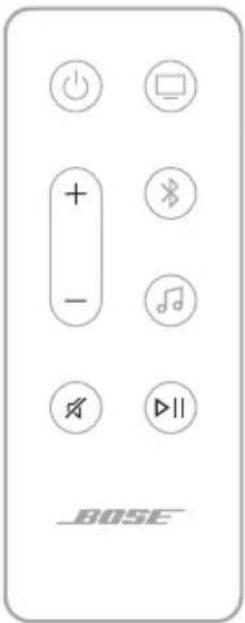
text_image
+ - + - BOSEFUNCTION WHAT TO DO
| Play/Pause | Press ▷II .NOTES:When audio is paused, two lights in the center of the light bar glow solid white until audio resumes.You can't play/pause audio on a TV source. |
| Skip forward Double-press | ▷II . |
| Skip backward Triple-press | ▷II . |
| Volume up | Press +.NOTE: To quickly increase the volume, press and hold +. |
| Volume down | Press —.NOTE: To quickly decrease the volume, press and hold —. |
| Mute/Unmute | Press ⌘.When audio is muted, the left end of the light bar glows solid white until audio resumes.TIP: You can also press + to unmute audio. |
TIP: You can also use Bose Voice4Video along with Amazon Alexa to control media playback and volume for certain sources (see page 29).
VOICE ASSISTANT CONTROLS
You can use the Action button to control Amazon Alexa (page 26). You use the Microphone off button ♀ to turn the microphone off (see page 26).

text_image
Microphone off button Action buttonTIP: You can also use your voice to control Amazon Alexa (see page 25).
ADJUST THE AUDIO
To adjust the bass, treble, center channel, height channel, and surround channels, use the Bose Music app. You can access these options from the Settings menu.
ACCESS AMAZON ALEXA
With Alexa on your soundbar, you can simplify your life and use your voice to control your music and much more. Using Alexa is as easy as asking a question. Just ask and Alexa can play your favorite song, skip to the next track, change the volume, read you the news and more. Alexa on your soundbar makes it easier than ever to control your smart home, just by using your voice.
For more information about what Alexa can do, visit: ____ https://www.amazon.com/usealexa
To set up Amazon Alexa on the soundbar, use the Bose Music app. You can access this option from the Settings menu.
NOTES:
- Alexa is not available in all languages and countries. Alexa features and functionality may vary by location.
- When setting up Alexa, make sure you use the same audio service account that you used in the Bose Music app.
- If you have multiple Bose Music products in your household, for a seamless voice assistant experience, Bose recommends one person use their Bose Music account and Amazon Alexa account to set up Alexa for all Bose Music products.
Use your voice
Start with "Alexa," then say:
THINGS TO TRY EXAMPLES OF WHAT TO SAY
| Talk to Alexa Help me get started. | |
| Play audio | Play rock music.NOTE: Amazon Music is set as the default music service. To change the default music service, use the Alexa app. |
| Pause audio Pause. | |
| Control volume Turn the volume up. | |
| Skip to the next song Skip. | |
| Play from a specific audio service | Play NPR on Tuneln.NOTE: Amazon Alexa doesn’t support all audio services. |
THINGS TO TRY EXAMPLES OF WHAT TO SAY
| Play on a specific speaker | Play jazz in the “Kitchen.”NOTE: Make sure you say the speaker name you assigned in the Bose Music app. If multiple speakers have the same name, use the name assigned in the Alexa app or change the name in the Bose Music app. |
| Set a timer Set a timer for 15 minutes. | |
| Discover more skills Help me get started with skills. | |
| Stop Alexa Stop. |
Use the soundbar controls
You can use the Action button to control Amazon Alexa. You use the Microphone off button ♀ to turn the microphone off. They are located on the top of the soundbar.
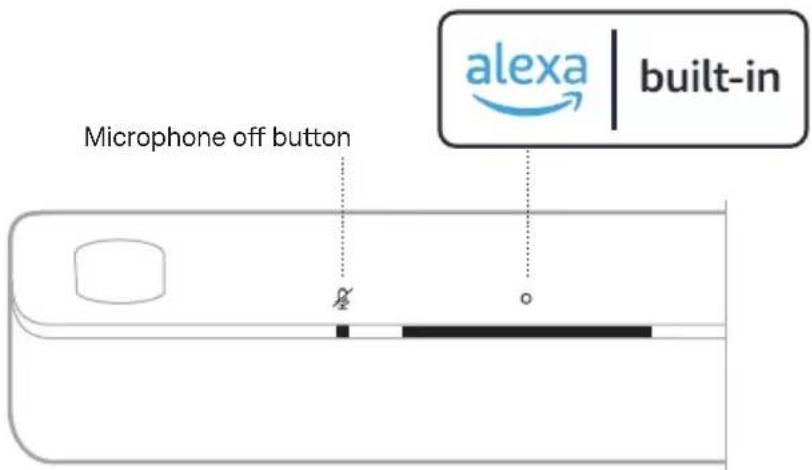
text_image
microphone off button alexa built-inTHINGS TO TRY WHAT TO DO
| Talk to Alexa | Tap ○ then say your request.For a list of things to try, visit:____https://www.amazon.com/u |
| Stop alarms and timers Tap ○. |
THINGS TO TRY WHAT TO DO
| Stop Alexa Tap ○. | |
| Turn the microphone on/off | Tap ⚠.NOTE: When the microphone is off, the Microphone off light glows solid red, and you can’t access Alexa. |
CALLING AND MESSAGING WITH AMAZON ALEXA
Help your household and family stay better connected. Let Alexa turn your device into an intercom to open up instant two-way conversations between rooms or homes, or send one-way announcements from any room. Use Alexa to call or message almost anyone for free on your supported Alexa device or the Alexa app on your supported mobile phone or tablet.
NOTES:
- Both parties must have an Alexa-enabled device, the Alexa Calling and Messaging feature available and enabled, and given permission to the other party in the Alexa app.
- The microphone must be on to use Alexa calling and messaging (see page 38).
Set up Alexa Calling and Messaging
To set up Alexa Calling and Messaging, use the Alexa app.
Use your voice
Start with "Alexa," then say:
THINGS TO TRY EXAMPLES OF WHAT TO SAY
| Drop in on a device in your home | Drop in on “Kitchen.”NOTE: If the device is a Bose product, make sure you say the speaker name you assigned in the Bose Music app. If multiple speakers have the same name, use the name assigned in the Alexa app or change the name in the Bose Music app. |
| Drop in on a family member or friend outside your home | Drop in on “Mom’s Kitchen.”NOTE: Make sure you say the speaker name assigned in the owner’s Bose Music app and/or Alexa app. |
THINGS TO TRY EXAMPLES OF WHAT TO SAY
| Make a call Call Mom. | |
| Answer a call Answer. | |
| Decline a call or message Decline. | |
| End a call End call. | |
| Play a message Play message. | |
| Call an emergency contact Call my emergency contact. | |
| Make an announcement Announce that dinner is ready. |
SET UP DO NOT DISTURB
You can temporarily disable all incoming notifications, announcements, and calls to the soundbar.
Use your voice
Start with "Alexa," then say:
THINGS TO TRY EXAMPLES OF WHAT TO SAY
| Enable Do Not Disturb Turn on Do Not Disturb. |
| Disable Do Not Disturb Turn off Do Not Disturb. |
TIP: You can also set up Do Not Disturb using the Alexa app.
CONTROL AUDIO WITH BOSE VOICE4VIDEO
Bose Voice4Video technology expands your Amazon Alexa voice capabilities like no other soundbar can. In addition to controlling your smart soundbar, you can control your TV and cable or satellite box with just your voice. With one simple ask of Alexa, you can turn on your TV and smart soundbar, switch to your video source, tune to a station by network name or channel number, and start watching your favorite shows instantly.
NOTE: Voice4Video is only available for TV, cable, and satellite boxes.
Set up Voice4Video
To set up Voice4Video, use the Bose Music app.
NOTE: Before setting up Voice4Video, you must set up Alexa in the Bose Music app (see page 25).
Use your voice
Start with "Alexa," then say:
THINGS TO TRY EXAMPLES OF WHAT TO SAY
| Power on TV Turn on TV. | |
| Power off TV Turn off TV. | |
| Play video Play. | |
| Pause video Pause. | |
| Resume video Resume. | |
| Skip video forward Next. | |
| Skip video backward Previous. | |
| Switch input to Bluetooth audio | Switch to Bluetooth. |
| Switch input to HDMI TV input | Switch to HDMI2. |
THINGS TO TRY EXAMPLES OF WHAT TO SAY
| Watch a specific network Watch NFL Network. | |
| Watch a specific channel number Watch channel 802. | |
| Skip to the next channel Next channel. | |
| Skip backward to the previous channel | Previous channel. |
ACCESS GOOGLE ASSISTANT
The soundbar is compatible with a Google Assistant-enabled device connected to your network. Control the soundbar using just your voice with help from Google.
Start with saying “Hey Google,” then say your request on
NOTES:
- Voice control is disabled by default. To set up voice control, use the Bose Music app to enable Chromecast built-in and set up voice casting for your Google Assistant-enabled device. You can access these options from the Settings menu.
- Make sure you say the soundbar name you assigned in the Bose Music app. If multiple soundbars have the same name, use the name assigned in the Google Assistant app or change the name in the Bose Music app.
- Google Assistant isn't available in all languages and countries.
- For more information on what Google Assistant can do, visit: https://support.google.com/assistant
The soundbar comes with Chromecast built-in. With Chromecast built-in, you can stream audio from supported apps by simply tapping the Cast button.
NOTES:
- To use Chromecast built-in, you must have a Wi-Fi connection.
- Chromecast built-in is disabled by default. In the Bose Music app, use the Settings menu to enable Chromecast built-in.
- Support for new apps is added periodically.
Your phone is your remote
- Simply tap the Cast button from apps you already know and love. No new logins or downloads required.
- Use your phone to search, play, pause, and turn up the volume from anywhere in the home.
- While you're streaming, you can keep using your phone for other things – scroll through social media, send a text, and even accept calls.
- Enjoy music throughout your house when you use multi-room casting with Chromecast-enabled soundbars.
Unlimited entertainment, all on your schedule
Choose from millions of songs from popular music services like Pandora, Spotify, and TuneIn.
The soundbar is capable of playing AirPlay 2 audio, which allows you to quickly stream audio from your Apple device to the soundbar or multiple speakers.
NOTES:
- To use AirPlay 2, you need an Apple device running iOS 14.1 or later.
- Your Apple device and soundbar must be connected to the same Wi-Fi network.
• For more information about AirPlay, visit: https://www.apple.com/airplay
STREAM AUDIO FROM THE CONTROL CENTER
- On your Apple device, open the Control Center.
- Tap and hold the audio card in the top-right corner of the screen, then tap the AirPlay icon 🔒.
- Select your soundbar.
STREAM AUDIO FROM AN APP
- Open a music app (like Apple Music), and select a track to play.
- Tap 🔒.
- Select your soundbar.
CONNECT A MOBILE DEVICE
- On the remote, press the Bluetooth button ✝.

text_image
BOSEThe light bar pulses blue.
- On your mobile device, turn on the Bluetooth feature.
NOTE: The Bluetooth menu is usually found in the Settings menu.
- Select your soundbar from the device list.
NOTE: Look for the name you entered for your soundbar in the Bose Music app. If you didn't name your soundbar, the default name appears.
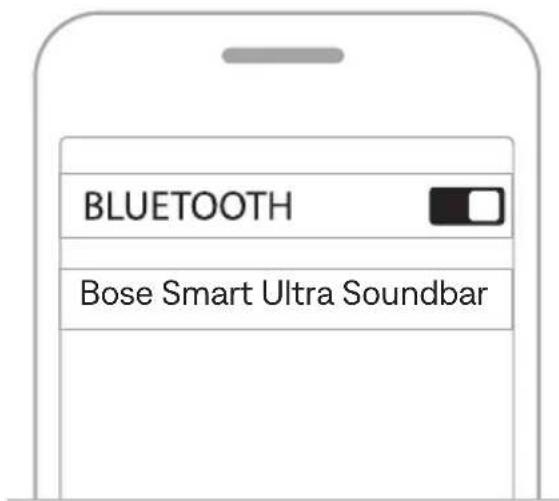
text_image
BLUETOOTH Bose Smart Ultra SoundbarOnce connected, you hear a tone, and the light bar glows solid white then fades to black. The soundbar's name appears in the mobile device list.
DISCONNECT A MOBILE DEVICE
Use the Bose Music app to disconnect your mobile device.
TIP: You can also use Bluetooth settings on your mobile device. Disabling Bluetooth disconnects all other devices.
RECONNECT A MOBILE DEVICE
On the remote, press the Bluetooth button ✗.
The soundbar tries to connect with the most recently-connected devices.
NOTES:
- Make sure Bluetooth is enabled on your mobile device.
- The device must be within 30 ft (9 m) and powered on.
CONNECT AN ADDITIONAL MOBILE DEVICE
You can store up to eight devices in the soundbar device list.
NOTE: You can play audio from only one device at a time.
- On the remote, press and hold ✝ until the light bar pulses blue.
- On your mobile device, select your soundbar from the device list.
NOTE: Make sure Bluetooth is enabled on your mobile device.
CLEAR THE SOUNDBAR DEVICE LIST
- On the remote, press and hold ✝ for 10 seconds until the light bar pulses white twice then fades to black.
The light bar pulses blue.
- Delete the soundbar from the Bluetooth pairing list on your device.
All devices are cleared from the pairing list, and the soundbar is ready to connect to new mobile devices (see page 34).
The LED light bar located on the front of the soundbar shows the soundbar status.
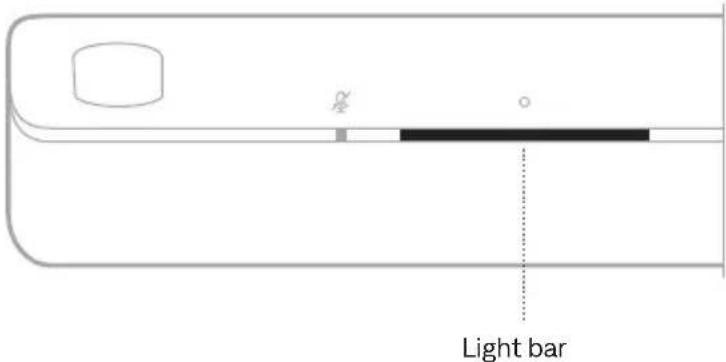
text_image
Light barNOTE: The light bar displays one status at a time of the selected source.
WI-FI STATUS
Shows the Wi-Fi connection status of the soundbar.
LIGHT BAR ACTIVITY SYSTEM STATE
| Pulsing white | Connecting to Wi-Fi | |
| Solid white then fades to black | Connected to Wi-Fi |
BLUETOOTH STATUS
Shows the Bluetooth connection status of mobile devices.
LIGHT BAR ACTIVITY SYSTEM STATE
| Pulsing blue |  | Ready to connect to mobile device |
| Pulsing white |  | Connecting to mobile device |
| Solid white then fades to black |  | Connected to mobile device |
 | ||
| White light pulses twice then fades to black |  | Clearing device list |
 |
AMAZON ALEXA STATUS
Shows the status of Amazon Alexa.
LIGHT BAR ACTIVITY SYSTEM STATE
| Off |  | Amazon Alexa is idle |
| White light slides to the center then glows solid |   | Amazon Alexa is listening |
| White light slides to the sides |  | Amazon Alexa is thinking |
| Pulsing white (full) |  | Amazon Alexa is speaking |
| Pulsing yellow |  | Notification from Amazon Alexa |
| Solid white then white light slides to the sides |    | Alert from Amazon Alexa |
| Pulsing green |  | Receiving or making call |
| Solid green |  | Connected to callNOTE: When the call is disconnected, the light bar fades to black. |
| Solid purple then fades to black |   | Do Not Disturb is enabledNOTE: When Do Not Disturb is enabled, the light bar pulses purple each time you try to interact with Alexa. |
Microphone off light

text_image
Microphone off lightLIGHT ACTIVITY SYSTEM STATE
Solid red The microphone is off
MEDIA PLAYBACK AND VOLUME STATUS
Shows the soundbar status when controlling media playback and volume.
LIGHT BAR ACTIVITY SYSTEM STATE

bar
| Condition | Value | | --- | --- | | Two center lights glow solid white | Pause | | Right end of the light bar pulses white | Volume up | | Left end of the light bar pulses white | Volume down | | Left end of the light bar glows solid white | Mute |UPDATE AND ERROR STATUS
Shows the status of software updates and error alerts.
LIGHT BAR ACTIVITY SYSTEM STATE
| Solid amber |  | Wi-Fi setup in progress |
| White light slides from right to left |  | Downloading update |
| White light slides from left to right |  | Updating soundbar |
| Pulses amber 4 times |  | Source error - refer to the BoseMusic app |
| Pulses red 4 times |  | Request is temporarily unavailable - try again later |
| Solid red |  | Error - contact Bose customerservice |
DISABLE/ENABLE WI-FI CAPABILITY
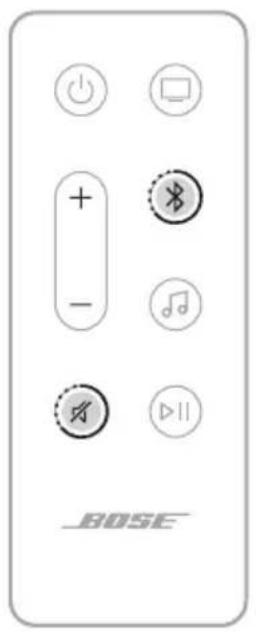
On the remote, press and hold the Mute button ✗ and Bluetooth button ✗ until the light bar pulses white twice then fades to black.
text_image
+ - + - Bluetooth Music 播放器 BOSECONNECT ACCESSORIES (OPTIONAL)
You can connect any of these accessories to your soundbar. For more information, refer to your accessory owner's guide.
- Bose Bass Module 700: Bose.com/BM700
- Bose Bass Module 500: Bose.com/BM500
- Bose Surround Speakers 700: Bose.com/SS700
- Bose Surround Speakers: Bose.com/SS
CONNECT A BOSE SOUNDLINK BLUETOOTH SPEAKER OR BOSE HEADPHONES USING SIMPLESYNC TECHNOLOGY
With Bose SimpleSync technology, you can connect certain Bose SoundLink Bluetooth speakers or Bose headphones to the soundbar for a new way to hear your music and movies.
Benefits
- A personal TV listening experience: Listen to TV without disturbing others by connecting your Bose headphones to the soundbar. Use independent volume controls on each product to lower or mute the soundbar while keeping your headphones as loud as you like.
- Another room of audio: Listen to the same song in two different rooms at the same time by connecting your Bose SoundLink Bluetooth speaker to the soundbar.
NOTE: SimpleSync technology has a Bluetooth range of up to 30 ft (9 m). Walls and construction materials can affect reception.
Compatible products
You can connect most Bose SoundLink Bluetooth speakers to the soundbar, as well as Bose headphones.
Popular compatible products include:
- Bose SoundLink Revolve+ Bluetooth speaker
- Bose SoundLink Mini Bluetooth speaker
- Bose SoundLink Micro Bluetooth speaker
- Bose SoundLink Flex Bluetooth Speaker
- Bose Noise Cancelling Headphones 700
- Bose QuietComfort 35 wireless headphones
- Bose QuietComfort 45 headphones
New products are added periodically. For a complete list and more information, visit: ____ support.Bose.com/Groups
Connect using the Bose Music app
To connect your Bose SoundLink Bluetooth speaker or Bose headphones to the soundbar, use the Bose Music app. For more information, visit:
_support.Bose.com/UltraSBGrouping
NOTES:
- Make sure that the product you're connecting is powered on, within 30 ft (9 m) of the soundbar, and ready to connect to another device. For more information, refer to your product owner's guide.
- You can connect only one product at a time to the soundbar.
RECONNECT A BOSE SOUNDLINK BLUETOOTH SPEAKER OR BOSE HEADPHONES
Power on your Bose SoundLink Bluetooth speaker or Bose headphones.
Your speaker or headphones try to connect to the most recently-connected Bluetooth device, including the soundbar.
NOTES:
- The soundbar must be within range (30 ft or 9 m) and powered on.
- If your speaker doesn't connect, see "Soundbar doesn't reconnect to a previously-connected Bose SoundLink Bluetooth speaker" on page 52.
- If your headphones don't connect, see "Soundbar doesn't reconnect to previously-connected Bose headphones" on page 52.
UPDATE THE SOUNDBAR
The soundbar updates automatically when connected to the Bose Music app and your Wi-Fi network.
REPLACE THE REMOTE BATTERY

Do not ingest battery, chemical burn hazard. The remote control supplied with this product contains a coin/button cell battery. If the coin/button cell battery is swallowed, it can cause severe internal burns in just 2 hours and can lead to death. Keep new and used batteries away from children. If the battery compartment does not close securely, stop using the remote control and keep it away from children. If you think batteries might have been swallowed or placed inside any part of the body, seek immediate medical attention. To avoid risk of explosion, fire or chemical burn, use caution in replacing the battery and replace only with an agency approved (e.g., UL) CR2032 or DL2032 3-volt lithium battery. Properly and promptly dispose of used batteries. Do not recharge, disassemble, heat above 212^ F ( 100^ C) or incinerate.
- Using a coin, turn the battery compartment cover left (counter-clockwise) and remove the cover.

natural_image
Simple line drawing of a smartphone with a circular button and arrow symbol (no text or labels)- Insert the new battery flat side up, with the + symbol facing up.

text_image
Diagram showing a smartphone screen with a plus sign and two circular buttons labeled '+' and '-', indicating status or options.NOTE: Use only an agency approved (e.g., UL) CR2032 or DL2032 3-volt lithium battery.
- Reset the cover and turn it right (clockwise) to lock in place. The cover is completely closed when the slot is vertical.

natural_image
Simple line drawing of a mobile phone with a circular button containing an arrow and a vertical bar, no text or symbols present.CLEAN THE SOUNDBAR
Wipe the outside surfaces of the soundbar with a soft, dry cloth.
NOTE: The microphone may be inadvertently turned off during the cleaning procedure. Use the Microphone off button ⚙ on top of the soundbar to turn the microphone on and off.
CAUTIONS:
- Do NOT allow liquids to spill onto the soundbar or into any openings.
- Do NOT blow air into the up-firing speakers or soundbar.
- Do NOT use a vacuum to clean the up-firing speakers or soundbar.
- Do NOT use any sprays near the up-firing speakers or soundbar.
- Do NOT use any solvents, chemicals, or cleaning solutions containing alcohol, ammonia, or abrasives.
- Do NOT allow objects to drop into any openings.
REPLACEMENT PARTS AND ACCESSORIES
Replacement parts and accessories can be ordered through Bose customer service.
Visit: ____support.Bose.com/UltraSB
LIMITED WARRANTY
The soundbar is covered by a limited warranty. Visit our website at ____ worldwide.Bose.com/Warranty for details of the limited warrant
To register your product, visitworldwide.Bose.com/ProductRegistration for instructions. Failure to register will not affect your limited warranty rights.
TRY THESE SOLUTIONS FIRST
If you experience problems with the soundbar:
- Make sure the soundbar is connected to a live AC (mains) outlet.
- Secure all cables.
- Check the state of the soundbar (see page 36).
- Download the Bose Music app and run available software updates.
- Place the soundbar according to the placement guidelines (see page 14).
- Move the soundbar within the recommended range of your mobile device for properoperation.
- Make sure the soundbar is at least 1 – 3 ft (0.3 – 0.9 m) away from wirelesssequipment.
- Check that any Wi-Fi access points are placed up to 8 – 10 ft (2.4 – 3.0 m) away from the soundbar, optional bass module, and optional surround speakers.
OTHER SOLUTIONS
If you could not resolve your issue, see the table below to identify symptoms and solutions to common problems. You can also access troubleshooting articles, videos, and other resources at: support.Bose.com/UltraSB
If you are unable to resolve your issue, contact Bose customer service.
Visit: ____ worldwide.Bose.com/contact
SYMPTOM SOLUTION
| No HDMI eARC port on your TV | Use your TV's HDMI ARC port.If your TV doesn't have an HDMI ARC port, use the optical cable to connect the soundbar to your TV. |
| No HDMI eARC, HDMI ARC, or optical port on your TV | If your TV is connected to a cable or satellite box, connect the HMDI cable from the soundbar to the cable or satellite box.Connect to your TV using an audio converter and separate audio cable, such as a coaxial, 3.5 mm or analog audio cable (not provided). The type of converter and cable you need depends on the audio output ports available on your TV. |
| Soundbar doesn't power on | Plug the power cord into a different AC (mains) outlet.Use the remote control to power on the soundbar (see page 20).Unplug the power cords for the soundbar and optional bass module or surround speakers, wait 30 seconds, and plug them firmly into a live AC (mains) outlet. |
SYMPTOM SOLUTION
| Soundbar doesn't power off | The soundbar may be in network standby mode. On the remote, press the Power button ⏻ to wake the soundbar. Press ⏻ again to power off the soundbar. |
| Audio isn't playing in Dolby Atmos | Make sure the soundbar is connected to your TV's HDMI eARC or ARC port.Check the Bose Music app Now Playing screen to make sure the audio is streaming in Dolby Atmos. If it's not streaming in Dolby Atmos, make sure the advanced audio settings of your TV is allowing Dolby Atmos to pass through to the soundbar. Refer to your TV owner's guide.Check that the content is available in Dolby Atmos.Check that the streaming or cable service supports the use of Dolby Atmos. |
| Remote is inconsistent or doesn't work | Replace the battery (see page 43).Make sure the remote is within operating range (20 ft or 6 m) of the soundbar.Make sure there are no obstructions between the remote and the soundbar. |
| Bose Music app doesn't work on mobile device | Make sure your mobile device is compatible with the Bose Music app and meets minimum system requirements. For more information, refer to the app store on your mobile device.Uninstall the Bose Music app on your mobile device then reinstall the app (see page 17). |
| Soundbar isn't visible to add toanother Bose account | Make sure sharing is enabled on your soundbar using the Bose Music app.Make sure the soundbar and your mobile device are connected to the same Wi-Fi network. |
| Soundbar and source don't power on/off simultaneously | Press the Power button ⏻ to power on/off the source. |
SYMPTOM SOLUTION
| Intermittent or no audiofromsoundbar | Make sure that the soundbar's HDMI cable is inserted into a port on your TV labeledHDMI eARC(Enhanced Audio Return Channel), not a standard HDMI port. If your TV doesn't have an HDMI eARC port, connect to the HDMI ARC port. If your TV doesn't have an ARC port, connect to the soundbar using the optical cable (see page 56).If the soundbar is connected to your TV's HDMI eARC (or ARC) port, make sure thatConsumer Electronics Control (CEC)is enabled in your TV system menu. Your TV may refer to CEC by a different name. Refer to your TV owner's guide.If the soundbar is connected to your TV's optical port, make sure the optical cable is inserted into a port on your TV labeledOutputor OUT, not Input or IN.Unplug the power cords for the soundbar and optional bass module or surround speakers, wait 30seconds, and plug them firmly into a live AC (mains) outlet.Adjust the Advanced CEC setting in the Bose Music app. You can access this option from the Settings menu. For more information, visit: ____support.Bose.com/UltraSB_CECIncrease the volume on the soundbar (see page 23) or your mobile device.If the left end of the light bar is glowing solid white, the soundbar is muted. Press the Mute button ⚫ to unmute the soundbar.Make sure your mobile device isn't muted.Make sure you're using a compatibleBluetoothmobile device.Restart your mobile device.Restart your audio source.Switch to a different source (see page 22).Play audio from a different application or music service.If the audio is from a Wi-Fi source, reset the router.Restart your TV.Check the TV audio settings. Refer to your TV owner's guide.Update the TV software. Refer to your TV owner's guide.Disconnect the HDMI cable from your TV's HDMI eARC (or ARC) port and reconnect it. |
| Soundbar doesn't connect to bass module or surround speakers | Refer to your bass module or surround speakers owner's guide for troubleshooting (see page 41).Make sure your bass module or surround speakers are compatible with the soundbar (see page 41).Unplug the power cords for the soundbar and optional bass module or surround speakers, wait 30 seconds, and firmly plug them into the AC (mains) outlet. |
SYMPTOM SOLUTION
| No audio from bass module or surround speakers | Make sure your bass module or surround speakers are compatible with the soundbar (see page 41).Make sure the software is current in the Bose Music app.Adjust the bass level using the Bose Music app (see page 24).Switch to a different source (see page 22). |
| Sound is coming fromTVspeaker | Turn off your TV speakers. Refer to your TV owner's guide.Make sure that the soundbar's HDMI cable is inserted into a port on your TV labeled HDMI eARC (Enhanced Audio Return Channel), not a standard HDMI port. If your TV doesn't have an HDMI eARC port, connect to the HDMI ARC port. If your TV doesn't have an ARC port, connect to the soundbar using the optical cable (see page 56).Disconnect the HDMI cable from your TV's HDMI eARC (or ARC) port and reconnect it.Unplug the power cords for the soundbar and optional bass module or surround speakers, wait 30 seconds, and firmly plug them into the AC (mains) outlet.Decrease your TV volume to its lowest setting.If the soundbar is connected to your TV's HDMI eARC (or ARC) port, make sure thatConsumer Electronics Control (CEC)is enabled in your TV system menu. Your TV may refer to CEC by a different name. Refer to your TV owner's guide.Adjust the Advanced CEC setting in the Bose Music app. You can access this option from the Settings menu. For more information, visit: ____support.Bose.com/UltraSB_CEC |
| Poor or distorted audio | Test different sources if available.Make sure that your TV can output surround sound audio. Refer to your TV owner's guide.If the audio is being played from another device, reduce the volume of that device.Adjust the bass level using the Bose Music app (see page 24).Power off your TV speakers. Refer to your TV owner's guide.Check for sound (see page 57).Run ADAPTiQ audio calibration (see page 19). |
SYMPTOM SOLUTION
| Soundbar doesn't play audio from the correct source or selects the incorrect source after a delay | Check the Advanced CEC setting in the Bose Music app. You can access this option from the Settings menu. For more information, visit:support.Bose.com/UltraSB_CEDisable CEC on your source. Refer to the source owner's guide. |
| Soundbar doesn't connectto Wi-Fi network | In the Bose Music app, select the correct network name, and enter the network password (case-sensitive).Make sure the soundbar and your mobile device are connected to the same Wi-Fi network.If your network information has changed, see page 18.Enable Wi-Fi on the mobile device you are using for setup.Close other open applications on your mobile device.Restart your mobile device and router.If your router supports both 2.4 GHz and 5G Hz bands, make sure both the device (mobile or computer) and soundbar are connecting to the same band.NOTE: Give each band a unique name to make sure you're connecting to the correct band.Reset the router.Unplug the power cords for the soundbar and optional bass module or surround speakers, wait 30 seconds, and firmly plug them into the AC (mains) outlet. Uninstall the Bose Music app on your mobile device, reinstall the app, and restart setup.If connecting to a different network and the app doesn't prompt you for setup, go to the main screen and add the soundbar. |
| Soundbar doesn't connect with Bluetooth device | On your mobile device, turn theBluetoothfeature off and then on. Delete the soundbar from theBluetoothlist. Connect again (see page 34).Connect a different mobile device (see page 34).Make sure you're using a compatibleBluetoothmobile device.Visit: ____ support.Bose.com/UltraSB_BTDelete the soundbar from your mobile deviceBluetoothlist. Connect again (see page 34).Clear the soundbar device list (see page 35). Connect again (see page 34). |
SYMPTOM SOLUTION
| Soundbar doesn't stream audio using AirPlay | Make sure your soundbar is powered on and in range (see page 21).Make sure your Apple device and your soundbar are connected to the same Wi-Fi network.Update your Apple device.Make sure the soundbar is up-to-date (see page 43).If you can't find the AirPlay icon Ⓤ in the music app you are streaming from, stream audio from the Control Center.For additional support, visit: https://www.apple.com/airplay |
| Alexa doesn't respond | Make sure the Microphone off light isn't glowing red. To turn on the microphone, see page 26.Make sure Alexa has been set up using the Bose Music app (see page 25).NOTE: The soundbar must be set up and connected to your Wi-Fi network using the Bose Music app.Connect your mobile device to Wi-Fi.Make sure you're in a country where Amazon Alexa is available.Make sure you are using the most up-to-date version of the Alexa app.Make sure your mobile device is compatible.Make sure the wake word is enabled (see page 25).Remove Alexa from the soundbar using the Bose Music app. Add Alexa again.Make sure you say the name you assigned in the Bose Music app. If multiple soundbars have the same name, use the name assigned in the Alexa app or change the name in the Bose Music app.If using Bose Voice4Video:Make sure there are no obstructions between the soundbar, your TV, and/or cable or satellite box.Make sure the soundbar is connected using the HDMI cable (see page 55).Make sure you have set up this feature using the Bose Music app and connected your TV and/or cable or satellite box.Make sure you have entered your postal code and service provider for your cable/satellite box.Alexa may not support your request. New features are added periodically.For additional support, visit: https://www.ar |
SYMPTOM SOLUTION
| Google Assistant can't control the soundbar | Make sure you have a Google Assistant-enabled device connected to your network (see page 31).Make sure Chromecast built-in is enabled in the Bose Music app (see page 31).Connect your mobile device to Wi-Fi.Make sure you're in a country where Google Assistant is available.Make sure you are using the most up-to-date version of the Google Assistant app.Make sure your mobile device is compatible.For additional support, visit: https://suppc |
| Soundbar doesn't connect to a Bose SoundLink Bluetooth speaker or Bose headphones | Make sure that your speaker or headphones are powered on, within 30 ft (9 m) of the soundbar, and ready to connect to another device. For more information, refer to your product owner's guide. |
| Soundbar doesn't reconnect to a previously-connected Bose SoundLink Bluetooth speaker | Make sure voice prompts are enabled on the speaker in the Bose Music app (see page 17). You can access this option from the Settings menu.On your speaker, use the product controls to cycle through the product device list until you hear the name for your soundbar. For product-specific instructions, refer to your speaker owner's guide. |
| Soundbar doesn't reconnect to previously-connected Bose headphones | Connect using the Bose Music app (see page 17). |
| Poor audio quality from a connected Bose SoundLink Bluetooth speaker or Bose headphones | If your router supports both 2.4 GHz and 5 GHz bands, and the soundbar is connected to a 2.4 GHz frequency, connect to the 5 GHz frequency.Not all Bose SoundLink Bluetooth speakers can play audio in perfect sync when connected to the soundbar. To check if your product is compatible, visit: support.Bose.com/GroupsMake sure Sync with Group is enabled in the Bose Music app (see page 17). You can access this option from the Settings menu.Install any available software updates for your speaker or headphones. To check for updates, open the appropriate Bose app for your product on your mobile device or visit btu.Bose.com on your computer. |
RESTORE THE SOUNDBAR
Restoring the factory settings clears all source, volume, network, and ADAPTiQ audio calibration settings from the soundbar and returns the soundbar to its default settings.
- On the Bose Music app, remove the soundbar from your Bose account.
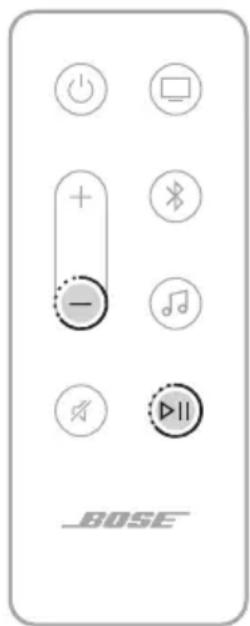
- On the remote, press and hold the Volume down button — and Play/Pause button ▷II for 5 seconds until the light bar pulses white twice then fades to black.
text_image
BOSEThe soundbar reboots. When the reset is complete, the light bar glows solid amber.
- To restore the soundbar's network and audio settings:
a. Launch the Bose Music app on your mobile device and add the soundbar to your network (see "Add the soundbar to an existing account" on page 18).
b. Run ADAPTiQ audio calibration using the Bose Music app (see page 19).
CONNECTION OPTIONS
Connect the soundbar to your TV using one of the following connection options:
- Option 1 (preferred): HDMI eARC (Enhanced Audio Return Channel) or ARC
- Option 2: Optical
NOTES:
- To deliver the Dolby Atmos surround-sound experience, connect the soundbar to the HDMI eARC or ARC port on your TV (see page 55). If your TV doesn't have an eARC or ARC port, you can connect the optical cable to the optical port to receive spacious and life-like sound (see page 56).
-
To use your TV remote to control the power, volume, and mute functions of the soundbar, the soundbar must be connected to the HDMI eARC or ARC port on your TV.
-
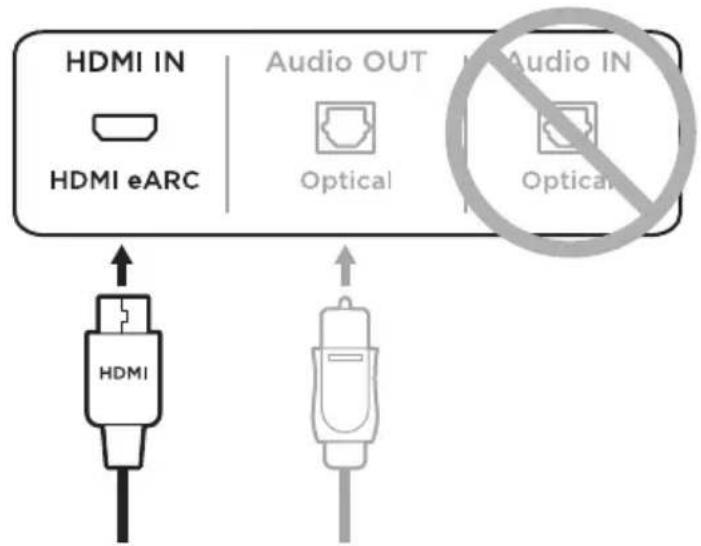
On the back of your TV, locate the HDMI IN and Audio OUT (optical) ports.
NOTE: Your TV port panel may not appear as shown. Look for the shape of the port.

- Choose an audio cable.
CONNECT THE SOUNDBAR TO YOUR TV
After choosing an audio cable, connect the soundbar to your TV.
Option 1 (preferred): HDMI eARC or ARC
- Insert one end of the HDMI cable into your TV's HDMI eARC or ARC port.
- Insert the other end of the cable into the HDMI (eARC) port on the soundbar.

text_image
POWER HDMI HDMI HDMI HDMIOption 2: Optical
If your TV doesn't have an HDMI eARC (or ARC) port, use the optical cable to connect the soundbar to your TV.
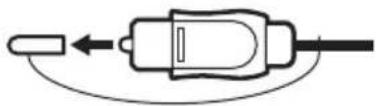
- Remove the protective cap from both ends of the optical cable.
natural_image
Pure electrical circuit lines without any symbolsCAUTION: Inserting the plug with the cap attached can damage the plug and/or the port.
- Insert one end of the optical cable into your TV's Optical OUT port.
CAUTION: Inserting the plug with the wrong orientation can damage the plug and/or the port.
-
Hold the plug at the other end of the optical cable.
-
Align the plug with the soundbar's OPTICAL IN port, and insert the plug carefully.

text_image
OPTICAL INNOTE: The port has a hinged door that swings inward when inserting the plug.
- Firmly push the plug into the port until you hear or feel a click.

natural_image
Simple line drawing of a flashlight with radiating lines, enclosed in a circle (no text or symbols)CHECK FOR SOUND
- Power on your TV using your TV remote.
- In the audio section of your TV's menu, turn off your TV speakers.
NOTE: Refer to your TV owner's guide for more information.
- If you are using a cable/satellite box or other secondary source:
a. Power on this source.
b. Select the appropriate TV input.
- Power on the soundbar (see page 21).
You hear sound coming from the soundbar.
- On the soundbar remote, press the Mute button ✗.
You don't hear sound coming from the TV speakers or soundbar.
NOTE: If you hear sound coming from your TV after your soundbar is muted, see "Sound is coming from TV speaker" on page 49.
STREAM LYD MED CHROMECAST 32
STREAM LYD MED AIRPLAY
TILSLUT PRODUKTER FRA BOSE
natural_image
Simple line drawing of a rectangular object with two square holes and a horizontal bar labeled 'BOSE' (no text or symbols beyond the label)Bose Smart Ultra Soundbar

natural_image
Simple line drawing of a medical or laboratory device with a U-shaped connector and curved body (no text or symbols)ADAPTiQ-hovedtelefon
* Leveres muligvis med flere netledninger. Anvend netledningen til din region.
natural_image
Line drawing of a flat-screen TV set mounted on a box, with no text or symbols present.FORSIGTIG: Placer IKKE soundbaren på dens front, bagside eller top, när den er i brug.
natural_image
Two prohibition symbols: a smartphone icon and a rectangular object with holes, both crossed out by a diagonal line (no text or labels)MONTERING AF SOUNDBAR PÅ VÆGGEN
https://www.amazon.com/usealexa
FÅ ADGANG TIL GOOGLE ASSISTENT
- Bose Bass Module 700: Bose.com/BM700
- Bose Bass Module 500: Bose.com/BM500
- Bose Surround Speakers 700: Bose.com/SS700
- Bose Surround Speakers: Bose.com/SS
TILSLUT EN BOSE SOUNDLINK BLUETOOTH-H∅JTTALER ELLER BOSE-HOVEDTELEFONER VED HJÆLP AF SIMPLESYNC-TEKNOLOGI
natural_image
Simple line drawing of a smartphone with a circular button and arrow symbol (no text or labels)text_image
Diagram showing a smartphone screen with a plus sign and two circular buttons labeled '+' and '-', indicating status or options.natural_image
Simple line drawing of a mobile phone with a circular button and an arrow, no text or symbols present.RENG∅RING AF SOUNDBAR
TILSLUTNING AF SOUNDBAREN TIL DIT TV
natural_image
Pure electrical circuit lines without any symbolsnatural_image
Illustration of a flashlight with radiating lines indicating illumination (no text or symbols)TJEK LYDEN
natural_image
Simple line drawing of a rectangular object with two square holes and a horizontal bar labeled 'BOSE' (no text or symbols beyond the label)Bose Smart Ultra Soundbar
natural_image
Simple line drawing of a medical or anatomical device with a loop and connector (no text or symbols)ADAPTiQ-Headset
natural_image
Line drawing of a simple TV setup with a flat-screen monitor and a rectangular screen mounted on a base (no text or symbols)natural_image
Two crossed-out electronic devices with no visible text or symbols, one crossed out by a diagonal line and the other by a horizontal line (no text or symbols present)WANDMONTAGE DER SOUNDBAR
text_image
4" / 10 cmtext_image
Power + - Bluetooth Music speaker BOSEtext_image
+ - + - × × × × × BOSEFUNKTION VORGEHENSWEISE
- Bose Bass Module 700: Bose.com/BM700
- Bose Bass Module 500: Bose.com/BM500
- Bose Surround Speakers 700: Bose.com/SS700
- Bose Surround Speakers: Bose.com/SS
BOSE SOUNDLINK BLUETOOTH-LAUTSPRECHER ODER BOSE-KOPFHÖRER MITHILFE VON SIMPLESYNC-TECHNOLOGIE VERBINDEN
natural_image
Simple line drawing of a smartphone with a circular button and arrow symbol (no text or labels)text_image
Diagram showing a smartphone screen with a plus sign and two circular buttons labeled '+' and '-', indicating status or options.natural_image
Simple line drawing of a smartphone with a circular button containing an arrow and a vertical bar, no text or symbols present.natural_image
Pure electrical circuit lines without any symbolsnatural_image
Simple line drawing of a flashlight with radiating lines, no text or symbols present.ÜBERPRÜFEN DES TONS
AUDIO STREAMEN MET AIRPLAY
natural_image
Simple line drawing of a rectangular object with two square holes and a label 'ROSE' at the bottom (no other text or symbols)Bose Smart Ultra Soundbar
natural_image
Simple line drawing of a medical or anatomical device with a U-shaped tube and attached curved arm (no text or symbols)ADAPTiQ-headset
natural_image
Line drawing of a simple TV setup with a flat-screen monitor and a rectangular device on a stand (no text or symbols)natural_image
Two prohibition symbols: a smartphone and an eraser, both crossed out by a diagonal line (no text or labels present)DE SOUNDBAR AAN DE MUUR BEVESTIGEN
text_image
Power + - + Bluetooth Music Audio ▶ Off _BOSEhttps://www.amazon.com/usealexa
Alexa Calling and Messaging instellen
Gebruik de Alexa-app om Alexa Calling and Messaging in te stellen.
Uw stem gebruiken
AFSPEEL- EN VOLUMESTATUS
- Bose Bass Module 700: Bose.com/BM700
- Bose Bass Module 500: Bose.com/BM500
- Bose Surround Speakers 700: Bose.com/SS700
- Bose Surround Speakers: Bose.com/SS
EEN BOSE SOUNDLINK BLUETOOTH-LUIDSPREKER OF BOSE-HOOFDTELEFOON VERBINDEN MET BEHULP VAN SIMPLESYNC
- Bose SoundLink Revolve+ Bluetooth speaker
- Bose SoundLink Mini Bluetooth speaker
- Bose SoundLink Micro Bluetooth speaker
- Bose SoundLink Flex Bluetooth Speaker
- Bose Noise Cancelling Headphones 700
- Bose QuietComfort 35 wireless headphones
- Bose QuietComfort 45 headphones
natural_image
Simple line drawing of a smartphone with a circular button and arrow symbol (no text or labels)text_image
Diagram showing a smartphone screen with a plus sign and two circular buttons labeled '+' and '-', indicating status or options.natural_image
Simple line drawing of a smartphone with a circular button and an arrow, no text or symbols present.DE SOUNDBAR SCHOONMAKEN
natural_image
Pure electrical circuit lines without any symbolsnatural_image
Simple line drawing of a flashlight with radiating lines, no text or symbols present.HET GELUID CONTROLEREN
natural_image
Simple line drawing of a rectangular object with two square holes and a label 'BOSE' at the bottom (no other text or symbols)Bose Smart Ultra Soundbar


natural_image
Simple line drawing of a medical or anatomical device with a U-shaped connector and curved body (no text or symbols)Auriculares ADAPTiQ
Visite: ____ worldwide.Bose.com/contact
natural_image
Line drawing of a flat-screen TV set with a black cable, placed on a wooden box (no text or symbols)natural_image
Two prohibition symbols: a smartphone icon and a rectangular object with dots, both crossed out by a diagonal line (no text or labels)MONTAR LA BARRA DE SONIDO EN LA PARED
Visite: support.Bose.com/UltraSB
natural_image
Pure technical line drawing of a remote control panel without any text, numbers, or symbolsBarra de luces
- Bose Bass Module 700: Bose.com/BM700
- Bose Bass Module 500: Bose.com/BM500
- Bose Surround Speakers 700: Bose.com/SS700
- Bose Surround Speakers: Bose.com/SS
CONECTAR UN ALTAVOZ BOSE SOUNDLINK BLUETOOTH O AURICULARES BOSE USANDO LA TECNOLOGÍA SIMPLESYNC
_support.Bose.com/UltraSBGrouping
NOTAS:
natural_image
Simple line drawing of a smartphone with a circular button and arrow symbol (no text or labels)text_image
Diagram showing a smartphone screen with a plus sign and two circular buttons, one with an arrow pointing to it.natural_image
Simple line drawing of a mobile phone with a circular button labeled '1' and an arrow, no text or symbols present.LIMPIAR LA BARRA DE SONIDO
Visite: support.Bose.com/UltraSB
GARANTÍA LIMITADA
Visite: ____ worldwide.Bose.com/contact
SÍNTOMA SOLUCIÓN
natural_image
Pure electrical circuit lines without any symbolsnatural_image
Simple line drawing of a flashlight with radiating lines, no text or symbols present.VERIFICAR EL SONIDO
natural_image
Simple line drawing of a rectangular object with two square holes and a horizontal bar labeled 'BOSE' (no text or symbols beyond the label)Bose Smart Ultra Soundbar
natural_image
Simple line drawing of a medical or anatomical device with a U-shaped connector and curved body (no text or symbols)ADAPTiQ-kuulokkeet
natural_image
Line drawing of a flat-screen TV set with a black cable, placed on a wooden box (no text or symbols)natural_image
Two crossed-out electronic devices with no visible text or symbols, one crossed out by a diagonal line and the other by a horizontal line (no text or symbols present)SOUNDBARIN KIINNITTÄMINEN SEINÄÄN
KAUKOSÄÄTIMEN TOIMINNOT
- Bose Bass Module 700: Bose.com/BM700
- Bose Bass Module 500: Bose.com/BM500
- Bose Surround Speakers 700: Bose.com/SS700
- Bose Surround Speakers: Bose.com/SS
BOSE SOUNDLINK BLUETOOTH -KAIUTTIMEN TAI BOSE-KUULOKKEIDEN YHDISTÄMINEN SIMPLESYNC- TEKNOLOGIALLA
natural_image
Simple line drawing of a mobile phone with a circular button and arrow symbol (no text or labels)text_image
Diagram showing a smartphone screen with a plus sign and two circular buttons labeled '+' and '-', indicating status or options.natural_image
Simple line drawing of a smartphone with a circular button containing an arrow and a vertical bar, no text or symbols present.SOUNDBARIN PUHDISTAMINEN
natural_image
Pure electrical circuit lines without any symbolsnatural_image
Illustration of a flashlight with radiating lines indicating illumination (no text or symbols)ÄÄNEN TARKISTAMINEN
The following table is provided in the image.
CONNEXION DES PRODUITS BOSE
natural_image
Simple line drawing of a rectangular object with two square holes and a horizontal bar labeled 'BOSE' (no text or symbols beyond the label)Bose Smart Ultra Soundbar
natural_image
Simple line drawing of a medical or laboratory device with a U-shaped connector and curved body (no text or symbols)Casque ADAPTiQ
natural_image
Line drawing of a simple TV setup with a flat-screen monitor and a rectangular screen mounted on a base (no text or symbols)natural_image
Two prohibition symbols: a smartphone icon and a rectangular block with holes, both crossed out by a diagonal line (no text or labels)FIXATION MURALE DE LA BARRE DE SON
https://www.amazon.com/usealexa
natural_image
Simple line drawing of a mobile phone with a circular button and arrow symbol (no text or labels)text_image
Diagram showing a smartphone with a plus sign and two circular buttons, one with an arrow pointing to it.natural_image
Simple line drawing of a mobile phone with a circular button and an arrow, no text or symbols present.NETTOYAGE DE LA BARRE DE SON
natural_image
Pure electrical circuit lines without any symbolsnatural_image
Illustration of a flashlight with radiating lines indicating illumination (no text or symbols)VÉRIFICATION DU SON
www.spotify.com/connect/third-party-licenses
STREAMING AUDIO CON CHROMECAST 32
STREAMING AUDIO CON AIRPLAY
natural_image
Simple line drawing of a rectangular object with two square holes and a label 'ROSE' at the bottom (no other text or symbols)Bose Smart Ultra Soundbar
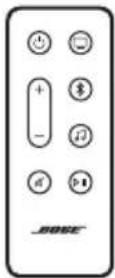
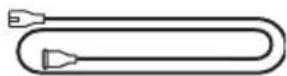
natural_image
Simple line drawing of a medical or anatomical device with a U-shaped connector and curved body (no text or symbols)Cuffie ADAPTiQ
Visitare ____ worldwide.Bose.com/contact
natural_image
Line drawing of a simple TV setup with a flat-screen monitor and a rectangular screen mounted on a base (no text or symbols)natural_image
Two prohibition symbols: a smartphone icon and an eraser, both without any accompanying text or labels.MONTARE A PARETE LA SOUNDBAR
Visitare support.Bose.com/UltraSB
CONNETTERSI A UNA RETE WI-FI DIVERSA
text_image
Power + - - + Bluetooth Music Audio ▶ Off _BOSEhttps://www.amazon.com/usealexa
ACCEDERE AD ASSISTENTE GOOGLE
STREAMING AUDIO DAL CENTRO DI CONTROLLO
STREAMING AUDIO DA UN'APP
- Bose Bass Module 700: Bose.com/BM700
- Bose Bass Module 500: Bose.com/BM500
- Bose Surround Speakers 700: Bose.com/SS700
- Bose Surround Speakers: Bose.com/SS
CONNETTERE UN DIFFUSORE BLUETOOTH BOSE SOUNDLINK O LE CUFFIE BOSE MEDIANTE LA TECNOLOGIA SIMPLESYNC
_support.Bose.com/UltraSBGrouping
NOTE:
natural_image
Simple line drawing of a smartphone with a circular button and arrow symbol (no text or labels)text_image
Diagram showing a smartphone screen with a plus sign and two circular buttons, one with an arrow pointing to it.natural_image
Simple line drawing of a smartphone with a circular button containing an arrow and a vertical bar, no text or symbols present.PULIRE LA SOUNDBAR
Visitare support.Bose.com/UltraSB
GARANZIA LIMITATA
natural_image
Pure electrical circuit lines without any symbolsnatural_image
Simple line drawing of a flashlight with radiating lines, no text or symbols present.VERIFICARE IL SUONO
natural_image
Simple line drawing of a rectangular object with two square ends and a label 'ROSE' at the bottom (no other text or symbols)Bose Smart Ultra Soundbar
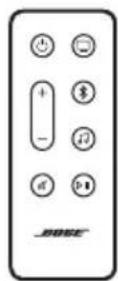
natural_image
Simple line drawing of a medical or anatomical device with a U-shaped connector and curved body (no text or symbols)ADAPTiQ fejhallgató
natural_image
Line drawing of a flat-screen TV set with a black cable, placed on a wooden box (no text or symbols)natural_image
Two prohibition symbols: one with a diagonal line and the other with a rectangular block (no text or labels)A HANGSUGÁRZÓ FELSZERELÉSE A FALRA
https://www.amazon.com/usealexa
- Bose Bass Module 700: Bose.com/BM700
- Bose Bass Module 500: Bose.com/BM500
- Bose Surround Speakers 700: Bose.com/SS700
- Bose Surround Speakers: Bose.com/SS
A BOSE SOUNDLINK BLUETOOTH-HANGSZÓRÓ VAGY A BOSE FEJHALLGATÓ CSATLAKOZTATÁSA A SIMPLESYNC TECHNOLÓGIA HASZNÁLATÁVAL
natural_image
Simple line drawing of a mobile phone with a circular button and arrow symbol (no text or labels)text_image
Diagram showing a smartphone screen with a plus sign and two circular buttons labeled '+' and '-', indicating status or options.natural_image
Simple line drawing of a smartphone with a circular button and an arrow, no text or symbols present._support.Bose.com/UltraSB
natural_image
Line drawing of a flat-screen monitor with a central control panel (no text or symbols)
text_image
HDMI IN HDMI eARC Audio OUT Optical HDMI Audio IN Optical HDMInatural_image
Pure electrical circuit lines without any symbolsnatural_image
Simple line drawing of a flashlight with radiating lines, no text or symbols present.ELLENÖRIZZE A HANGOT
KONFIGURERE LYDPLANKEN
STR∅MME LYD MED CHROMEKAST 32
STR∅MME LYD MED AIRPLAY
Status for Amazon Alexa 37
Lys for mikrofon av.... 38
KOBLE TIL BOSE-PRODUKTER
STELL OG VEDLIKEHOLD
natural_image
Simple line drawing of a rectangular object with two square holes and a horizontal bar labeled 'BOSE' (no text or symbols beyond the label)Bose Smart Ultra Soundbar

natural_image
Simple line drawing of a medical or laboratory device with a U-shaped connector and curved body (no text or symbols)ADAPTiQ-hodetelefoner
* Kan leveres med flere strømledninger. Bruk strømledningen for ditt område.
natural_image
Line drawing of a flat-screen TV mounted on a box, no text or symbols presentnatural_image
Two prohibition symbols: a smartphone icon and a rectangular object with diagonal lines, both without any text or labels.VEGGMONTERING AV LYDPLANKEN
Du kan montere lydplanken på veggen. Du kan kjøpe Bose Soundbar Wall Bracket hos en autorisert Bose-forhandler.
KOBLE LYDPLANKEN TIL STR∅M
KOBLE TIL MOBILENHETER PÅ NYTT
Trykk på Bluetooth-knappen ✝ på fjernkontrollen.
text_image
x LysfeltMERKNAD: Lysfeltet viser én status om gangen for den valgte kilden.
WI-FI-STATUS
- Bose Bass Module 700: Bose.com/BM700
- Bose Bass Module 500: Bose.com/BM500
- Bose Surround Speakers 700: Bose.com/SS700
- Bose Surround Speakers: Bose.com/SS
KOBLE TIL BOSE SOUNDLINK BLUETOOTH SPEAKER ELLER BOSE-HODETELEFONER MED SIMPLESYNC-TEKNOLOGI
OPPDATERE LYDPLANKEN
natural_image
Simple line drawing of a mobile phone with a circular button and arrow symbol (no text or labels)text_image
Diagram showing a smartphone with a plus sign and two circular buttons, one with an arrow pointing to it.natural_image
Simple line drawing of a mobile phone with a circular button containing an 'I' and an arrow, no text or symbols present.RENGJ∅RE LYDPLANKEN
Tørk av overflatene på utsiden av lydplanken med en myk, tørr klut.
TILBAKESTILLE LYDPLANKEN
KOBLE LYDPLANKEN TIL TV-EN
natural_image
Pure electrical circuit lines without any symbolsFORSIKTIG: Hvis du setter inn pluggen med hetten på, kan det føre til skade på pluggen og/eller porten.
- Sett den ene enden av den optiske kabelen inn i Optical OUT-porten på TV-en.
FORSIKTIG: Hvis du setter inn pluggen feil vei, kan det føre til skade på pluggen og porten.
natural_image
Simple line drawing of a flashlight with radiating lines, no text or symbols present.KONTROLLERE LYDEN
Importer – Chiny: Bose Electronics (Shanghai) Company Limited, Level 6, Tower D, No. 2337 Gudai
Rd. Minhang District, Shanghai 201100 | Importer — UE: Bose Products B.V., Gorslaan 60, 1441 RG
Purmerend, The Netherlands | Importer — Meksyk: Bose de México S. de R.L. de C.V., Avenida Prado Sur
(H.K.), 9F., No. 10, Sec. 3, Minsheng E. Road, Zhongshan Dist. Taipei City 10480, Taiwan Numer telefonu:
+886-2-2514 7676 | Importer — Wielka Brytania: Bose Limited, Bose House, Quayside Chatham Maritime,
Chatham, Kent, ME4 4QZ, United Kingdom
Zasilanie: 100–240 V ∼ 50/60 Hz, 65 W
natural_image
Simple line drawing of a rectangular object with two square holes and a label 'ROSE' at the bottom (no other text or symbols)Bose Smart Ultra Soundbar
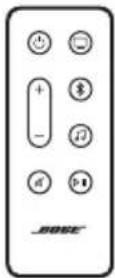
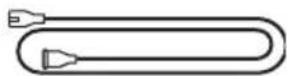
natural_image
Simple line drawing of a medical or laboratory device with a U-shaped connector and curved body (no text or symbols)natural_image
Line drawing of a simple TV setup with a flat-screen monitor and a rectangular device on a base (no text or symbols)natural_image
Two crossed-out electronic devices with no visible text or symbols, one without prohibition and the other with prohibition (no text or symbols present)MONTAŻ LISTWY DŻWIĘKOWEJ NA ŚCIANIE
- Bose Bass Module 700: Bose.com/BM700
- Bose Bass Module 500: Bose.com/BM500
- Bose Surround Speakers 700: Bose.com/SS700
- Bose Surround Speakers: Bose.com/SS
POŁĄCZENIE Z GŁOŚNIKIEM BOSE BLUETOOTH SOUNDLINK LUB SŁUCHAWKAMI BOSE PRZY UŻYCIU TECHNOLOGII SIMPLESYNC
natural_image
Simple line drawing of a smartphone with a circular button and arrow symbol (no text or labels)text_image
Diagram showing a smartphone screen with two circular buttons labeled '+' and '-', indicating status or options.natural_image
Simple line drawing of a mobile phone with a circular button containing an 'I' and an arrow, no text or symbols present.CZYSZCZENIE LISTWY DźWIĘKOWEJ
natural_image
Pure electrical circuit lines without any symbolsnatural_image
Simple line drawing of a flashlight with radiating lines, enclosed in a circle (no text or symbols)SPRAWDZANIE DŻWIĘKU
ANSLUTA BOSE-PRODUKTER
natural_image
Simple line drawing of a rectangular object with two square holes and a horizontal bar labeled 'BOSE' (no text or symbols beyond the label)Bose Smart Ultra Soundbar
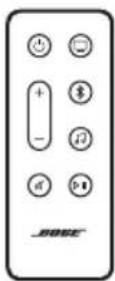
natural_image
Simple line drawing of a medical or anatomical device with a U-shaped connector and curved body (no text or symbols)ADAPTiQ-headset
natural_image
Line drawing of a flat-screen TV set with a black cable, placed on a wooden box (no text or symbols)text_image
Two crossed-out icons with a diagonal line and the same symbol, each marked as 'no stop' or 'stop'.VÄGGMONTERING AV SOUNDBARHÖGTALAREN
UPPDATERING OCH FELSTATUS
- Bose Bass Module 700: Bose.com/BM700
- Bose Bass Module 500: Bose.com/BM500
- Bose Surround Speakers 700: Bose.com/SS700
- Bose Surround Speakers: Bose.com/SS
ANSLUTA EN BOSE SOUNDLINK BLUETOOTH-HÖGTALARE ELLER BOSE-HÖRLURAR MED SIMPLESYNC-TEKNIK
UPPDATERA SOUNDBARHÖGTALAREN
natural_image
Simple line drawing of a mobile phone with a circular button and arrow symbol (no text or labels)text_image
Diagram showing a smartphone screen with a plus sign and two circular buttons labeled '+' and '-', indicating status or options.natural_image
Simple line drawing of a mobile phone with a circular button labeled 'I' and an arrow indicating refresh (no text or symbols beyond the button)RENGÖRA SOUNDBARHÖGTALAREN
ANSLUTA SOUNDBARHÖGTALAREN TILL TV:N
natural_image
Pure electrical circuit lines without any symbolsnatural_image
Simple line drawing of a flashlight with radiating lines, no text or symbols presentKONTROLLERA LJUDET
natural_image
Simple line drawing of a rectangular object with two square ends and a label 'NOSE' at the bottom (no other text or symbols)Bose Smart Ultra Soundbar
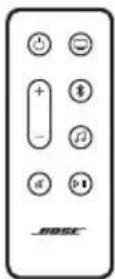
리모콘(배터리 포함)

전원 코드*
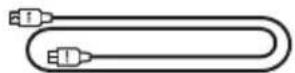
HDMI 케이블 광 케이블


natural_image
Simple line drawing of a medical or anatomical device with a U-shaped tube and a separate looped structure (no text or symbols)ADAPTiQ 헤드셋
natural_image
Line drawing of a simple TV setup with a flat-screen monitor and a rectangular screen mounted on a box (no text or symbols)natural_image
Two crossed-out electronic devices with no prohibition symbols (no text or labels)사운드바 월 마운팅
text_image
+ - + - Ø Ø Ø Ø Ø Ø Ø Ø Ø Ø Ø Ø Ø Ø Ø Ø Ø Ø Ø Ø Ø Ø Ø Ø Ø Ø Ø Ø Ø Ø Ø Ø Ø Ø Ø Ø Ø Ø Ø Ø Ø Ø Ø Ø Ø Ø Ø Ø Ø Ø Ø기능 작동 방법
- Bose Bass Module 700: __Bose.com/BM700
- Bose Bass Module 500: Bose.com/BM500
- Bose Surround Speakers 700: Bose.com/SS700
- Bose Surround Speakers: Bose.com/SS
support.Bose.com/UltraSBGrouping
참고:
natural_image
Simple line drawing of a smartphone with a circular button and an arrow, no text or symbols present.text_image
Diagram showing a smartphone screen with a plus sign and two circular buttons, one with an arrow pointing to it.natural_image
Simple line drawing of a mobile phone with a circular button and an arrow, no text or symbols present.사운드바 청소
natural_image
Pure electrical circuit lines without any symbolsnatural_image
Simple line drawing of a flashlight with radiating lines, enclosed in a circle (no text or symbols)사운드 확인
natural_image
Simple line drawing of a rectangular object with rounded corners and a horizontal bar, no text or symbols present.Bose Smart Ultra Soundbar

遥控器(含电池) 电源线 *
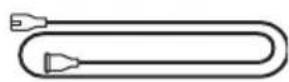
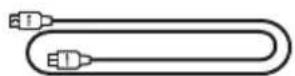
HDMI 连接线 光缆
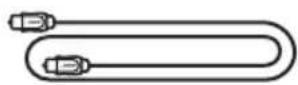
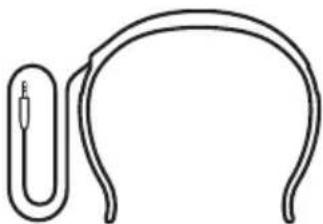
natural_image
Simple line drawing of a medical or anatomical device with a U-shaped tube and a separate looped structure (no text or symbols)ADAPTiQ 耳机
natural_image
Line drawing of a simple TV setup with a flat-screen monitor and a rectangular base (no text or symbols)natural_image
Two prohibition symbols: a smartphone icon and a rectangular object with dots, both crossed out by a diagonal line (no text or labels)墙式安装条形音箱
请访问:support.Bose.com/UltraSB
text_image
麦克风关闭按钮 alexa built-in尝试方式 操作方法
- Bose Bass Module 700: __Bose.com/BM700
- Bose Bass Module 500: Bose.com/BM500
- Bose Surround Speakers 700: Bose.com/SS700
- Bose Surround Speakers: Bose.com/SS
support.Bose.com/Groups
使用 Bose Music 应用连接
natural_image
Simple line drawing of a smartphone with a circular button and an arrow indicating rotation (no text or symbols)text_image
Diagram showing a smartphone screen with a plus sign and two circular buttons, one with an arrow pointing to it.natural_image
Simple line drawing of a mobile phone with a circular button containing an 'I' and an arrow, no text or symbols present.清洁条形音箱
请使用柔软的干布擦拭条形音箱外表面。
请访问:support.Bose.com/UltraSB
有限质保
natural_image
Line drawing of a flat-screen monitor displaying a small rectangular button with three buttons (no text or symbols)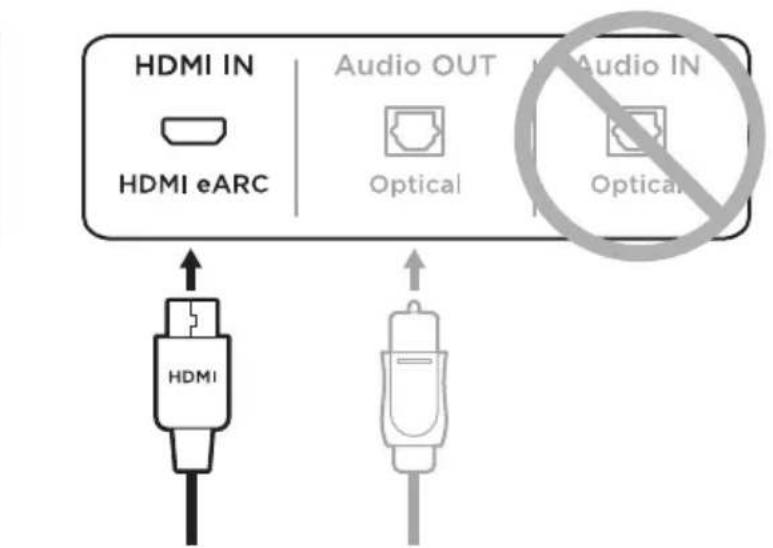
text_image
HDMI IN HDMI eARC Audio OUT Optical HDMI Audio IN Optical HDMInatural_image
Pure electrical circuit lines without any symbolsnatural_image
Simple line drawing of a flashlight with radiating lines, no text or symbols present检查声音效果
存取 Google Assistant 31
natural_image
Simple line drawing of a rectangular object with two square holes and a label 'NOSE' at the bottom (no other text or symbols)Bose Smart Ultra Soundbar
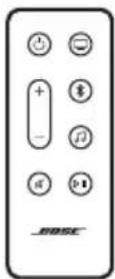
遙控器(隨附電池)電源線 *
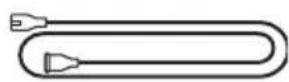
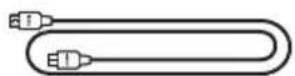
HDMI 連接線 光纜
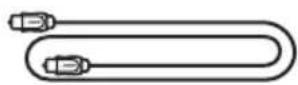

natural_image
Simple line drawing of a medical or anatomical device with a U-shaped tube and a curved arm (no text or symbols)ADAPTiQ 耳機
natural_image
Line drawing of a simple TV setup with a flat-screen monitor and a rectangular device on a base (no text or symbols)natural_image
Two crossed-out electronic devices with no visible text or symbols, one without a prohibition symbol.牆式安裝條形音箱
請造訪:support.Bose.com/UltraSB
text_image
alexa built-in 麥克風關閉按鈕嘗試方式 操作方法
natural_image
Simple line drawing of a smartphone with a circular button and an arrow indicating rotation (no text or symbols)text_image
Diagram showing a smartphone screen with a plus sign and two circular buttons labeled '+' and '-', indicating status or options.natural_image
Simple line drawing of a mobile phone with a circular button and an arrow, no text or symbols present.清潔條形音箱
用柔軟的乾布擦拭條形音箱外部表面。
請造訪:support.Bose.com/UltraSB
有限保固
natural_image
Line drawing of a flat-screen monitor displaying a small rectangular button with three buttons (no text or symbols)
text_image
HDMI IN HDMI eARC Audio OUT Optical H Audio IN Optical HDMInatural_image
Pure electrical circuit lines without any symbolstext_image
POMEER SACCA 6.023 ADJ7756 OPTICAL R SERVICE ITEMS MARTSnatural_image
Simple line drawing of a flashlight with radiating lines, no text or symbols present檢查聲音效果
natural_image
Simple line drawing of a rectangular object with two square ends and a label 'NOSE' at the bottom (no other text or symbols)Bose Smart Ultra Soundbar
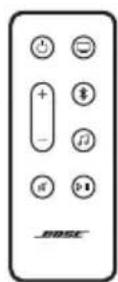
リモコン(電池付属) 電源コード*


HDMIケーブル 光ケーブル


natural_image
Simple line drawing of a medical or anatomical device with a loop and handle (no text or symbols)ADAPTiQ用ヘッドセット
natural_image
Line drawing of a simple TV setup with a flat-screen monitor and a rectangular screen mounted on a base (no text or symbols)natural_image
Two prohibition symbols: a smartphone icon and a rectangular object with dots, both crossed out by a diagonal line (no text or labels)サウンドバーを壁に取り付ける
text_image
Power + - BOSE注:
text_image
+ - + - Ø Ø Ø Ø Ø Ø Ø Ø Ø Ø Ø Ø Ø Ø Ø Ø Ø Ø Ø Ø Ø Ø Ø Ø Ø Ø Ø Ø Ø Ø Ø Ø Ø Ø Ø Ø Ø Ø Ø Ø Ø Ø Ø Ø Ø Ø Ø Ø Ø Ø Ø機能 操作方法
- Bose Bass Module 700: __Bose.com/BM700
- Bose Bass Module 500: Bose.com/BM500
- Bose Surround Speakers 700: Bose.com/SS700
- Bose Surround Speakers: Bose.com/SS
- Bose SoundLink Revolve+ Bluetooth speaker
- Bose SoundLink Mini Bluetooth speaker
- Bose SoundLink Micro Bluetooth speaker
- Bose SoundLink Flex Bluetooth speaker
- Bose Noise Cancelling Headphones 700
- Bose QuietComfort 35 wireless headphones
- Bose QuietComfort 45 headphones
_support.Bose.com/UltraSBGrouping
注:
natural_image
Simple line drawing of a smartphone with a circular button and an arrow indicating rotation (no text or symbols)text_image
Diagram showing a smartphone with a plus sign and two circular buttons, one with an arrow pointing to it.natural_image
Simple line drawing of a smartphone with a circular button containing an arrow and a vertical bar, no text or symbols present.サウンドバーのお手入れについて
natural_image
Pure electrical circuit lines without any symbolsnatural_image
Simple line drawing of a flashlight with radiating lines, no text or symbols present.音が出ることを確認する
. Dholy Laboratories. Dholy Laboratories. Dholy Laboratories. Dholy Laboratories. Dholy Laboratories. Dholy Laboratories. Dholy Laboratories. Dholy Laboratories. Dholy Laboratories. Dholy Laboratories. Dholy Laboratories. Dholy Laboratories. Dholy Laboratories. Dholy Laboratories. Dholy Laboratories. Dholy Laboratories. Dholy Laboratories. Dholy Laboratories. Dholy Laboratories. Dholy Laboratories. Dholy Laboratories. Dholy Laboratories. Dholy Laboratories. Dholy Laboratories. Dholy Laboratories. Dholy Laboratory
natural_image
Simple line drawing of a rectangular object with rounded corners and a small square cutout at the top (no text or symbols)Bose Smart Ultra Soundbar
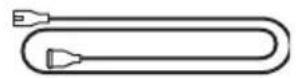
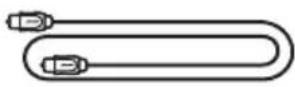
کبل ضوئى
natural_image
Simple line drawing of a medical or anatomical device with a curved tube and connector (no text or symbols)ADAPTiQ سماعات رأس
عى بمنطقتك.*.
natural_image
Line drawing of a simple TV setup with a flat-screen monitor and a rectangular screen mounted on a box (no text or symbols)text_image
Two safety symbols: a block with a stopper and a smartphone with a lock, both marked as no prohibition.text_image
+ - + - Blot Music Audio ▶▶▶ _BOSEنصائح:
https://support.google.com/assistant
Bose.com/SS : Bose Surround Speakers
support.Bose.com/Groups
natural_image
Simple line drawing of a smartphone with a circular button and an arrow indicating rotation (no text or symbols)text_image
Diagram showing a smartphone with two circular buttons labeled '+' and '-', indicating status or options.natural_image
Simple line drawing of a mobile phone with a circular button and an arrow, no text or symbols present.تنظيف مكبر الصوت
natural_image
Line drawing of a flat-screen monitor with a small screen showing three buttons (no text or symbols)