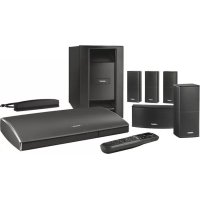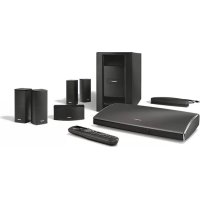
Lifestyle SoundTouch 535 - Home theater audio system BOSE - Free user manual and instructions
Find the device manual for free Lifestyle SoundTouch 535 BOSE in PDF.



| Product type | Home theater audio system |
| Brand | Bose |
| Model | Lifestyle SoundTouch 535 |
| Console power supply | 100-240 V~, 50/60 Hz, 1.0 A |
| Acoustimass module power supply | 100-120 V~ 350 W / 220-240 V~ 350 W (dual voltage) |
| Acoustimass module consumption | 350 W |
| Remote control frequency | 2.4 GHz |
| Remote control range | 10 m |
| Wireless technologies | Wi-Fi (SoundTouch), Bluetooth |
| HDMI connectivity | HDMI inputs and outputs |
| Front USB input | Yes (for photos and updates) |
| Front analog A/V input | Yes |
| Headphone output | 3.5 mm mini-jack |
| Built-in radio | AM/FM with 25 presets per band |
| Audio calibration | Automatic ADAPTiQ |
| Integration system | UNIFY |
| iPod/iPhone compatibility | Via 30-pin dock (optional) |
| Video formats | 3D, upscaling to 1080p |
| Software update | Via USB flash drive or SoundTouch app |
| Cleaning | Soft, dry cloth; low-power vacuum for grilles |
Frequently Asked Questions - Lifestyle SoundTouch 535 BOSE
User questions about Lifestyle SoundTouch 535 BOSE
0 question about this device. Answer the ones you know or ask your own.
Ask a new question about this device
Download the instructions for your Home theater audio system in PDF format for free! Find your manual Lifestyle SoundTouch 535 - BOSE and take your electronic device back in hand. On this page are published all the documents necessary for the use of your device. Lifestyle SoundTouch 535 by BOSE.
USER MANUAL Lifestyle SoundTouch 535 BOSE
Lifestyle® SoundTouch™ 535/525/235/135 entertainment systems
Please refer to your system's setup guide for Important Safety Information. Please read this guide carefully and save it for future reference.
Important USA and Canada compliance Information
- This device complies with part 15 of the FCC rules and Industry Canada license-exempt RSS standard(s). Operation is subject to the following two conditions: (1) This device may not cause harmful interference, and (2) this device must accept any interference received, including interference that may cause undesiredoperation.
- This device complies with FCC and Industry Canada RF radiation exposure limits set forth for general population.
- This device must not be co-located or be operating in conjunction with any other antennas or transmitters.
For SoundTouch Wireless Adapter:
- This equipment should be installed and operated with a minimum distance of 8 in. (20 cm) between this device and your body.
CANICES-3 (B)/NMB-3(B)
This Class B digital apparatus complies with Canadian ICES-003.
Information about products that generate electrical noise
This equipment has been tested and found to comply with the limits for a Class B digital device, pursuant to Part 15 of the FCC Rules. These limits are designed to provide reasonable protection against harmful interference in a residential installation. This equipment generates, uses, and can radiate radio frequency energy and, if not installed and used in accordance with the instructions, may cause harmful interference to radio communications. However, there is no guarantee that interference will not occur in a particular installation. If this equipment does cause harmful interference to radio or television reception, which can be determined by turning the equipment off and on, the user is encouraged to try to correct the interference by one or more of the following measures:
- Reorient or relocate the receiving antenna.
- Increase the separation between the equipment and receiver.
- Connect the equipment into an outlet on a circuit different from that to which the receiver is connected.
- Consult the dealer or an experienced radio/TV technician for help.
Applicable only for Lifestyle® SoundTouch™ 535 and 525 home entertainmentsystems


Digital Surround
For DTS patents, see http://patents.dts.com. Manufactured under license from DTS Licensing Limited. DTS, the Symbol, & DTS and the Symbol together are registered trademarks, and DTS Digital Surround is a trademark of DTS, Inc. © DTS, Inc. All Rights Reserved.
The Bluetooth® word mark and logos are registered trademarks owned by Bluetooth SIG, Inc. and any use of such marks by Bose Corporation is under license.
Blu-Ray Disc^TM and Blu-ray are trademarks of the Blu-ray Disc Association.


Manufactured under license from Dolby Laboratories. Dolby and the double-D symbol are trademarks of Dolby Laboratories.
Designed with UEI Technology™ Under License from Universal Electronics Inc. ©UEI 2000-2015.
The terms HDMI and HDMI High-Definition Multimedia Interface and the HDMI Logo are trademarks or registered trademarks of HDMI Licensing, LLC in the United States and other countries.
iPhone and iPod are trademarks of Apple, Inc., registered in the U.S. and other countries. The trademark "iPhone" is used with a license from Airphone K.K.
This product is protected by certain intellectual property rights of Microsoft. Use or distribution of such technology is prohibited without a license from Microsoft
Xbox is a trademark of Microsoft Corporation.
TiVo is a trademark of TiVo, Inc. or its subsidiaries.
Other trademarks are property of their respective owners.
SoundTouch and the wireless note design are trademarks of Bose Corporation in the U.S. and other countries.
Wi-Fi is a registered trademark of Wi-Fi Alliance
©2015 Bose Corporation. No part of this work may be reproduced, modified, distributed, or otherwise used without written permission.
Introduction
About your Lifestyle® SoundTouch™ system 6
System features 6
SoundTouch™ features 6
Remote control
Using the remote. 7
Function buttons 8
Display 8
Remote glow button 8
To adjust the illumination level of the display 8
MORE buttons
Activating a MORE button function 9
MORE button functions 9
Power On/Off Controls
Powering on the system 11
Powering on your TV 11
Shutting down the system 11
Using the SOURCE Menu
Selecting a source 12
Watching TV
Using a cable/satellite box 13
Using the tuner in your TV 13
To return to other sources 13
Tuning to a TV station 13
SoundTouch
Accessing SoundTouch 14
Using the SoundTouch™ app. 14
Using the SoundTouch source 14
Getting help. 14
Contents
Bluetooth®
Accessing Bluetooth® wireless technology 15
Using the Bluetooth® source 15
Using the Radio
Selecting the Radio 16
Tuning to a station 16
Setting a preset station 16
Recalling a preset station 16
16
Optional radio tuner settings. 16
Using Other Connected Devices
Playing audio/video sources 17
Playing content from an iPod or iPhone 17
Using the front console inputs 18
Front USB input 18
Front Analog A/V input 18
Front HDMI™ input 18
Changing System Options
Using the system OPTIONS menu 19
OPTIONS menu 19
Changing Your System Setup
UNIFY system overview 22
Using the UNIFY menu 22
Changing the image view 23
System Status Indicators
Control Console 24
Soundbar (Lifestyle® SoundTouch™ 135 systems) 25
Acoustimass® Module (Lifestyle® SoundTouch™ 135 systems) 25
Care and Maintenance
Troubleshooting 26
Resetting the system 29
Pairing the remote with the console 29
Performing a system software update 29
Replacing the remote control's batteries. 30
Cleaning. 31
Customer service 31
Limited warranty 31
Technical information 31
Licensing information 32
Appendix: Source Remote Control Functions
Function definitions. 33
About your Lifestyle® SoundTouch™ system
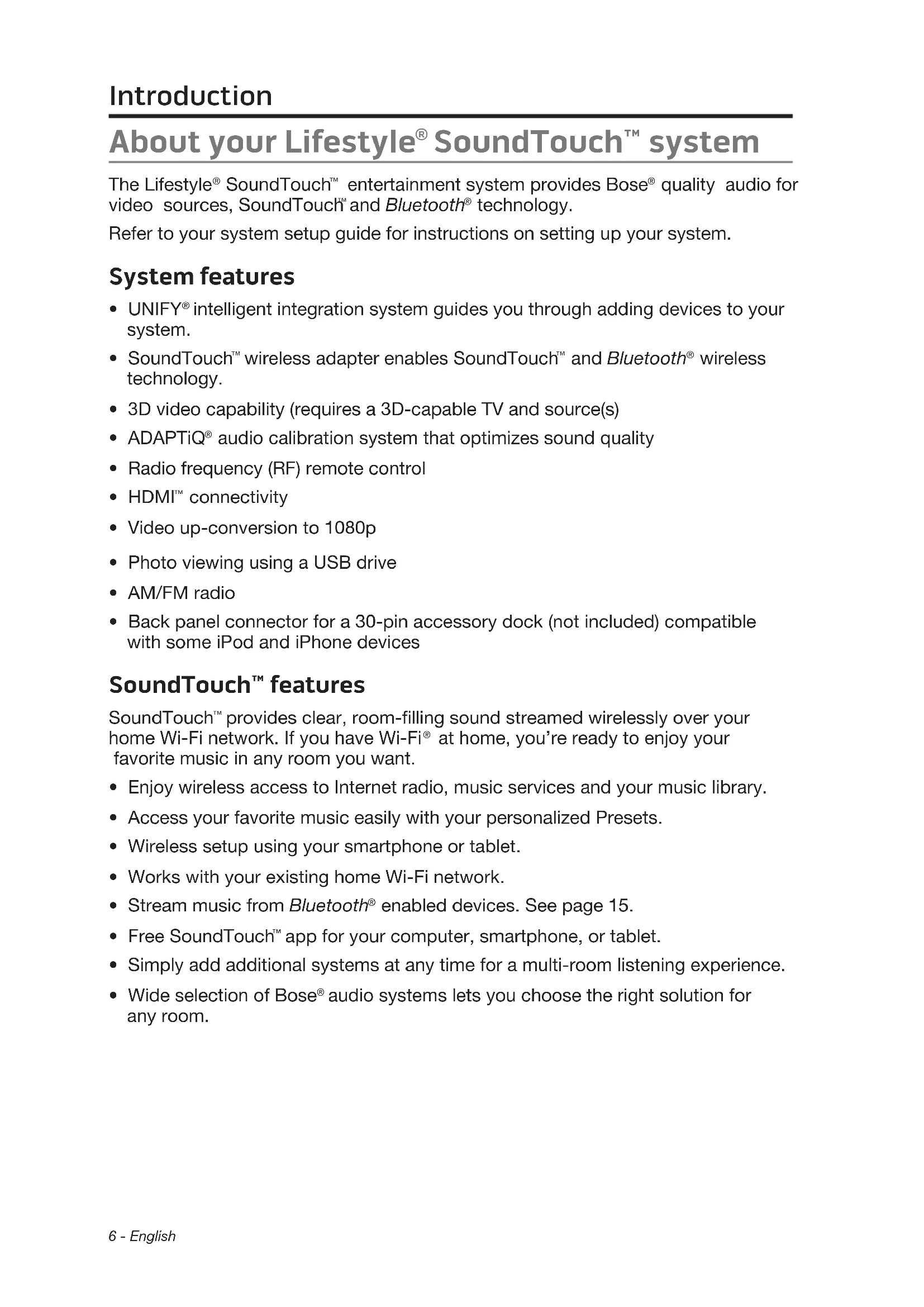
The Lifestyle® SoundTouch™ entertainment system provides Bose® quality audio for video sources, SoundTouch™ and Bluetooth® technology.
Refer to your system setup guide for instructions on setting up your system.
System features
- UNIFY® intelligent integration system guides you through adding devices to your system.
- SoundTouch™ wireless adapter enables SoundTouch™ and Bluetooth® wireless technology.
- 3D video capability (requires a 3D-capable TV and source(s)
- ADAPTiQ® audio calibration system that optimizes sound quality
- Radio frequency (RF) remote control
- HDMI™ connectivity
Video up-conversion to 1080p - Photo viewing using a USB drive
AM/FM radio - Back panel connector for a 30-pin accessory dock (not included) compatible with some iPod and iPhone devices
SoundTouch™ features
SoundTouch™ provides clear, room-filling sound streamed wirelessly over your home Wi-Fi network. If you have Wi-Fi® at home, you're ready to enjoy your favorite music in any room you want.
- Enjoy wireless access to Internet radio, music services and your music library.
- Access your favorite music easily with your personalized Presets.
- Wireless setup using your smartphone or tablet.
- Works with your existing home Wi-Fi network.
- Stream music from Bluetooth® enabled devices. See page 15.
- Free SoundTouch™ app for your computer, smartphone, or tablet.
- Simply add additional systems at any time for a multi-room listening experience.
- Wide selection of Bose® audio systems lets you choose the right solution for any room.
Using the remote
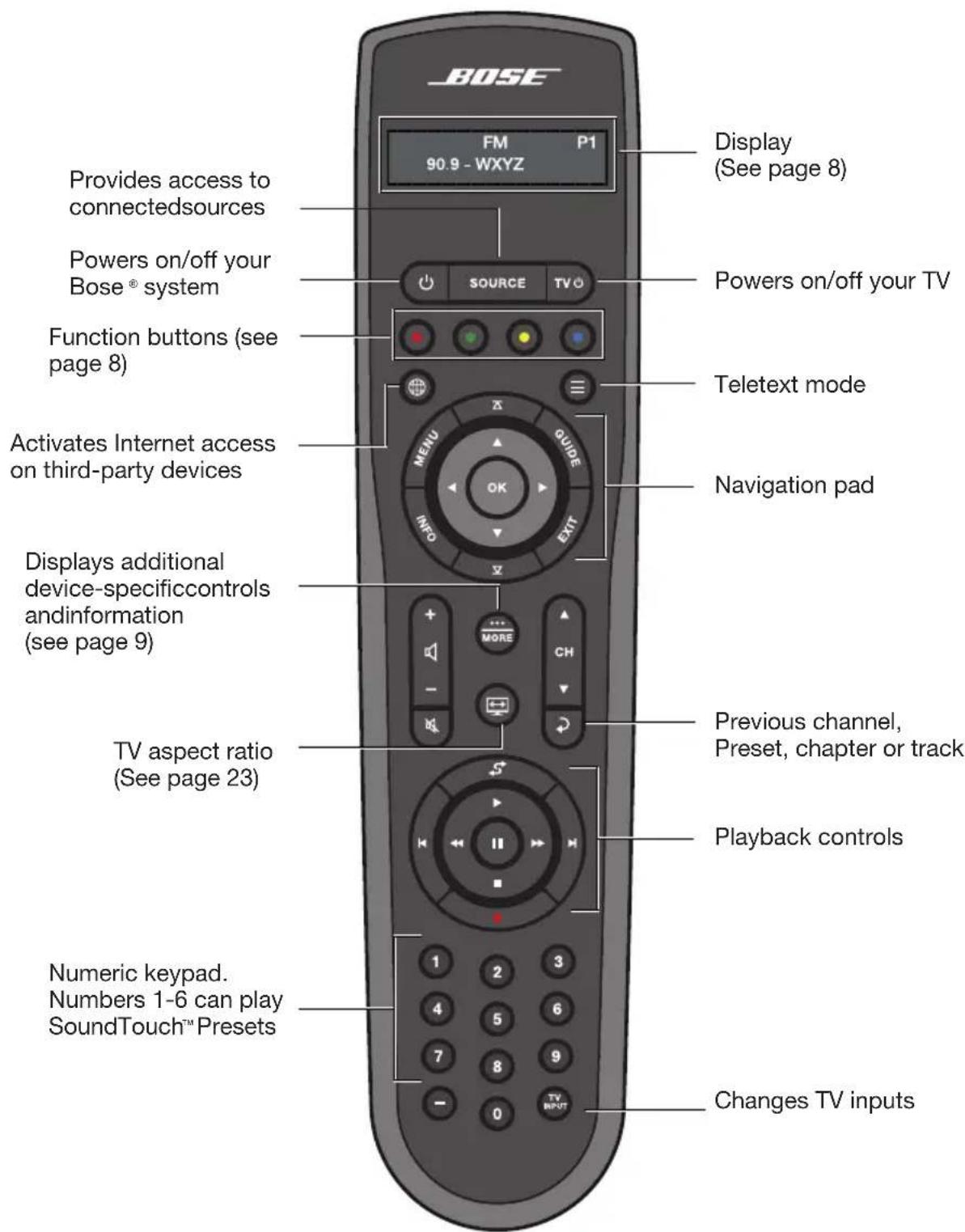
This advanced RF remote works throughout the room without aiming it at the control console.
Function buttons
The red, green, yellow and blue buttons on the remote control correspond with the color-coded function buttons on your cable/satellite box or teletext functions.
- Cable/satellite box functions: refer to your cable/satellite box owner's guide.
- Teletext functions: correspond with color-coded page numbers, headings or shortcuts on a teletext display.
Display
The display provides operating and system status information.
Examples:
Source identification
Cable
Radio tuner
FM P1 90.9 -WXYZ90.9
Volume
Cable 43
iPod
iPod Album
Operating prompt
Hold number key to set preset
SoundTouch
SoundTouch Presets
Bluetooth®
BLUETOOTH
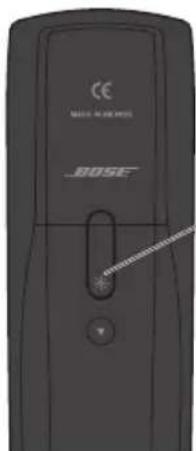
Remote glow button
Pressing on the rear of the remote illuminates the remote buttons and theisplay.
To adjust the illumination level of the display
Note: If the currently selected source is AM or FM, switch to another source to prevent deleting a radio preset.
- Press and hold 念 and OK simultaneously for 5 seconds.
- Press or to select Brightness or Contrast.
- Press or to decrease or increase the illumination level.
- Press either OK or to return to normal operation.
Activating a MORE button function
Press display additional button functions applicable to the current source on your TV screen.
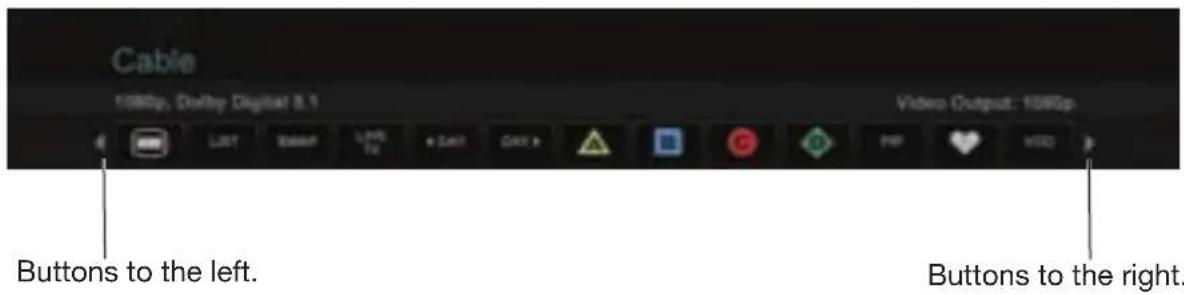
- Press.
- Press or to highlight the function.
- Press OK.
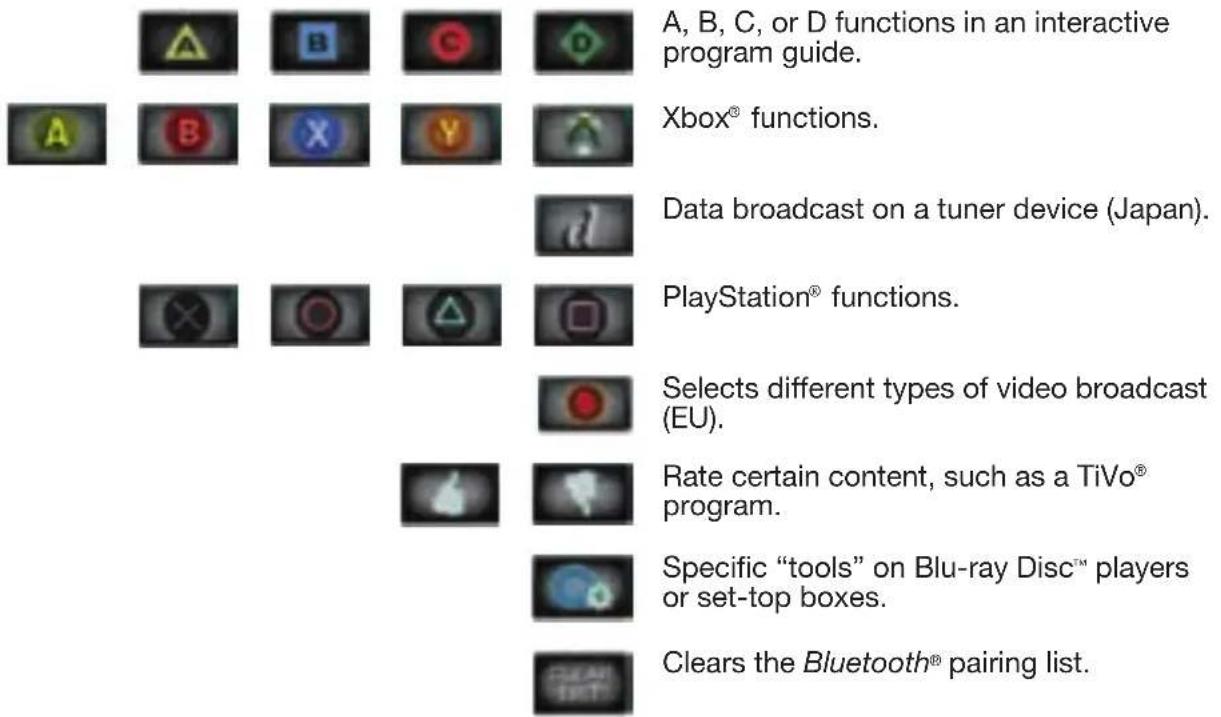
MORE button functions
Below is a list of common MORE buttons. Not all buttons are available for all sources.
Powers device on/off. Switches your TV to live programming.

Lists favorite channels or works as a "thumbs up" for certain music services.
Switches between main features (from DVD to VCR, for example) on a combo device.
Displays program guide for next day.
Moves to device's "Home" state.
Displays program guide for previous day.
Repeats option on current source.
Displays playlist of recorded programs.
Switches tuners in a multi-tuner device.
Picture-in-picture mode. Switches between TV and radio on a set-top box.
Video on demand. Switches tune multi-tuner device.
Enables entering 3-digit numbers (Japan).
Displays OPTIONS menu. See page 19.
Displays system menu for set-top box.
Displays Top Menu (or Title Menu) on Blu-ray Disc™ players.
Powering on the system
Press on the remote or the console.
The system status indicator on the console changes from blinking to solid green. The system is now ready to use.
To power your system and open the SOURCE menu
Press SOURCE on the remote or the control console.
To power your system and open the UNIFY® menu
Press Setup on the control console.
Note: The system operates in a power saving mode when it is off to keep energy consumption low, so it may take several seconds to start.
Powering on your TV
Press TV
Note: If you did not program your remote during the initial setup using UNIFY®, use the remote that came with your TV.
Shutting down the system
Press on the remote or the console.
The system shuts down after a few seconds.
Note: If you decide to access the power controls for connected devices, automatic shutdown is stopped and you must complete the shutdown using the onscreencontrols.
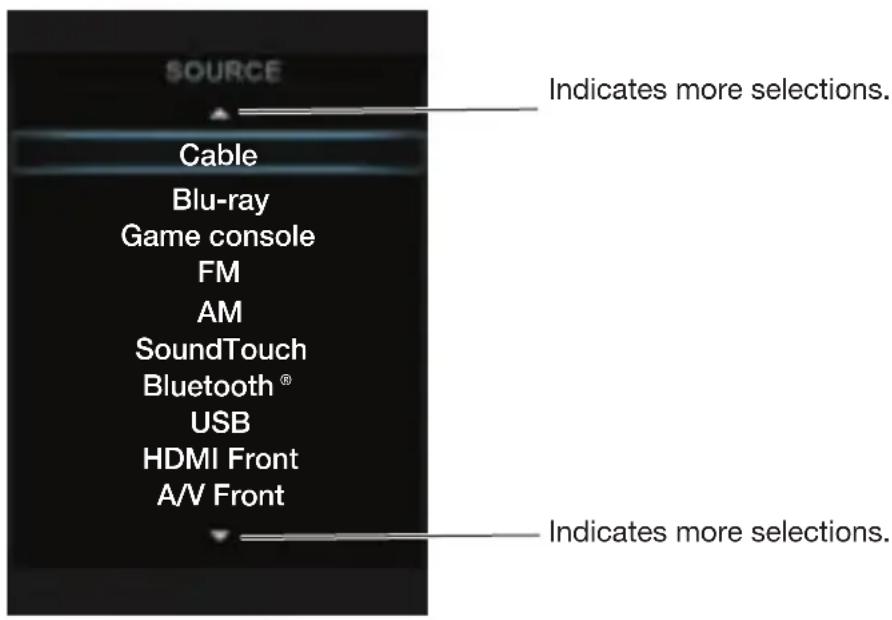
Selecting a source
The SOURCE menu allows you to select your sources and connected devices.
- Press SOURCE on the remote to display a list of connected devices.
-
Press to move the highlight down the list.
-
You can also use ▲ or ▽ to move through the list.
- Unnamed devices appear as generic inputs such as "Input 1 (HDMI)".
3. Press OK.
Note: The UNIFY® intelligent integration system sets up your Bose® remote to control each of your devices. If one or more of these devices does not respond to the Bose remote, see "Troubleshooting" on page 26.
Screensaver mode
When listening to audio sources, the system automatically enters Screenshotaver mode to prevent the risk of screen burn-in. Press any button on the Bose remote to restore the picture. To disable the screenshotaver, see "OPTIONS menu" on page 19.
Using a cable/satellite box
Your TV may be receiving its program content through a cable/satellite box. Cable/ satellite boxes connected to your TV appear in the SOURCE menu.
- Press SOURCE and select the device that provides your TV programs.
- Tune to a station. See "Tuning to a TV station"
Using the tuner in your TV
If you are using the tuner in your TV to receive TV programs:
- Press SOURCE and select TV.
- Press to select the internal tuner in your TV.
- Tune to a station. See "Tuning to a TV station"
To return to other sources
- Press and select the input for the Bose system.
- Press SOURCE
- Select a source.
Tuning to a TV station
You can tune to a TV station using any of the following methods:
Enter the channel number and press OK. Use the dash button as a dash or period.
Press or to change channels.
Press to tune to last selected channel.
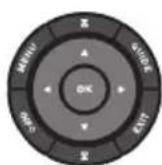
Press GUIDE. Use the navigation, page up/down, and OK buttons to select a station from the program guide.
Note: Since most televisions come with an IR (infrared) remote, you may need to point the Bose® remote at your TV to operate it.
Accessing SoundTouch
You can access SoundTouch™ through the SoundTouch™ app or through the SOURCE menu on your system.
Using the SoundTouch™ app
The SoundTouch™ app is a software application that offers full control of SoundTouch™, enabling you to set up and control SoundTouch™ from your smartphone, tablet or computer. Using the app, your smart device acts as a rich remote for the SoundTouch™ source.
- Easily personalize Presets to your favorite music.
Explore Internet radio, music services and your music library. - Manage system settings.
- Manage paired and connected Bluetooth® enabled devices.
Using the SoundTouch™ source
The SoundTouch™ source offers a subset of SoundTouch™ features. Once you have set up SoundTouch™, select SoundTouch™ from the SOURCE menu.
Use the remote to access the SoundTouch™ source and control a subset of features on your system:
- Personalize and play Presets.
- Play Recents.
View available artist information in the NOW PLAYING panel.
Control playback (play, pause, stop, skip to the next track, etc.).
View the music source of the content on the NOW PLAYING panel.
Getting help

SoundTouch.com
Provides access to the owner support center, which includes: owner's manuals, articles, tips, tutorials, a video library, and the owner community where you post questions and answers.
- Open a browser.
- In the address field, type SoundTouch.com
In-app help
Provides help articles for using SoundTouch™.
- On your device, select

to open the app.
- From the EXPLORE panel, select HELP.
For more information on using SoundTouch, download the SoundTouchseries II wireless adapter owner's guide from SoundTouch.com
Accessing Bluetooth® wireless technology
Your system has Bluetooth® wireless technology which lets you stream music from Bluetooth enabled devices to your system. You can access Bluetooth wireless technology through the SoundTouch™ app or through the SOURCE menu on your system.
Using the Bluetooth® source
Select Bluetooth from the SOURCE menu.
You can use the remote to control a subset of Bluetooth features on your system:
- Pair and connect Bluetooth enabled devices.
View available artist information in the NOW PLAYING panel.
View connected devices. - Control playback (play, pause, stop, skip to the next track, etc.).
- Clear the pairing list.
For more information on using Bluetooth wireless technology, download the SoundTouch™ series II wireless adapter owner's guide from SoundTouch.com
Selecting the Radio
- Press
SOURCE
- Select FM or AM in the SOURCE menu.
Tuning to a station
- Press or to tune up or down the frequency band.
- Press or to find the next/previous strong station.
Setting a preset station
The built-in radio tuner can store up to 25 FM and 25 AM preset stations.
- Tune to a radio station.
- For presets 1-9, press and hold the number key. For 10-25, press and hold the OK button to store the station in the next available preset.
FM P1 Preset number 90.9 - WXYZ90.9
Recalling a preset station
Press or go to the next or previous preset.



Press the number key for presets 1-9.
Deleting a preset station
- Tune to the preset station you want to delete.
- Press and hold OK until the preset number disappears from the display.
Optional radio tuner settings
- Press

select
- See "OPTIONS menu" on page 19 for available actions.
Playing audio/video sources
During the interactive setup process, you may have connected a CD, DVD, DVR, Blu-ray Disc™ player or other source.
If you programmed the Bose® remote for the source See "Appendix: Source Remote Control Functions" on page 33 for button functions.
Playing content from an iPod or iPhone
Your Lifestyle® SoundTouch™ system can play audio and video from some iPod or iPhone models using the 30-pin accessory dock (not included) available from Bose®.
Your iPod or iPhone menus and content appear on the left side of your screen. The "Now Playing" track appears on the right.
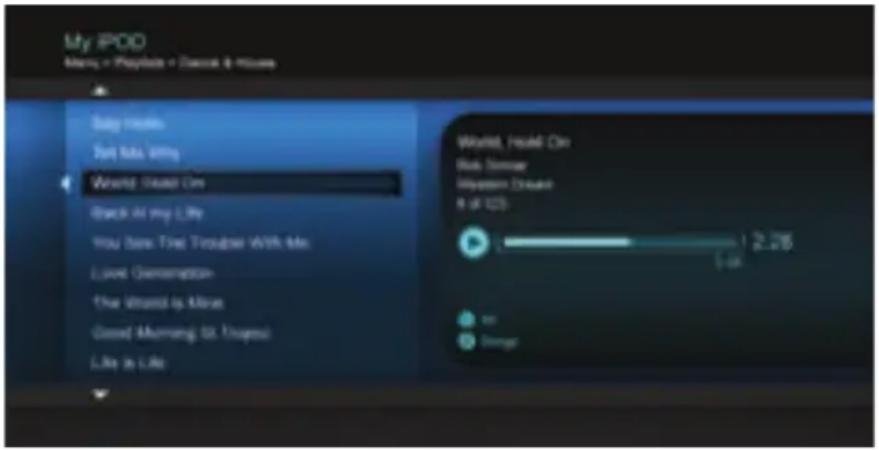
For available controls, see "Appendix: Source Remote Control Functions" on page 33.
Using the front console inputs
The front of the console has analog A/V inputs, a USB and an HDMI™ input. These inputs appear in the SOURCE menu as A/V (Front), USB, and HDMI (Front) when a device is connected. They can be used to connect digital cameras and video cameras.
Front USB input
Your Lifestyle® SoundTouch™ system can display photo files (.jpg or .jpeg format only) from a USB storage device.
When using the USB source, folders appear at the top of the list on the left with single image files. Selecting a folder displays its contents.
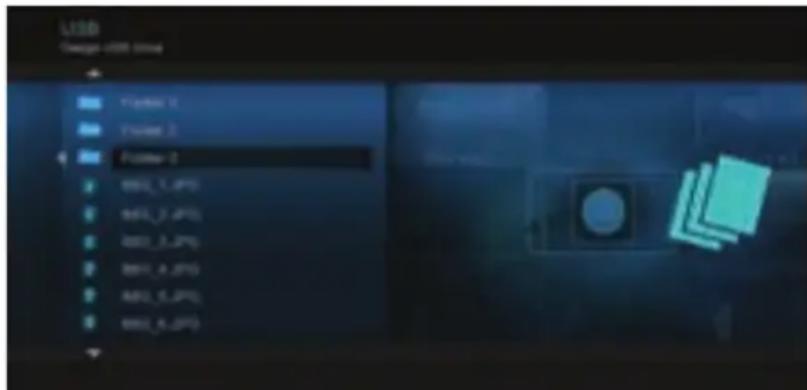
For available controls, see "Appendix: Source Remote Control Functions" on page 33.
Front Analog A/V input
You can use this input for devices that have composite video and left/right audio outputs. The Bose® remote does not control a device connected to this input. You need to use the controls on the device itself or the remote that came with it.
Front HDMI™ input
You can use this input for devices that have an HDMI output. The Bose remote does not control a device connected to this input. You need to use the controls on the device itself or the remote that came with it.
Using the system OPTIONS menu
The number of items appearing in the OPTIONS menu depends on which source is currently selected.
- Press on your remote.
- Highlight
- Press OK to display the OPTIONS menu for the current source.
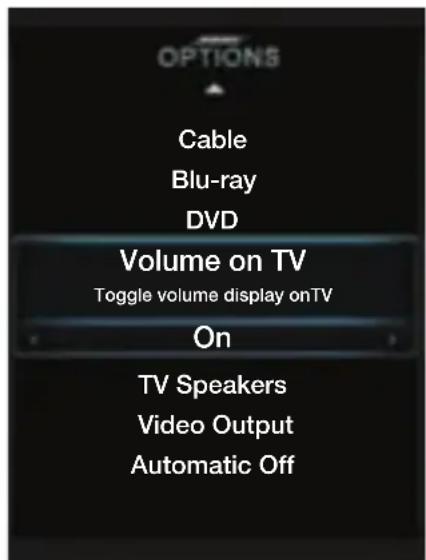
- Press to highlight the option you want to change.
- Press or to select the setting.
- Press EXIT when done.
OPTIONS menu
| Option Available Settings | |
| Sound (Lifestyle® SoundTouch™ 535/525 systems) | Original: Plays stereo audio received from the sourceRecommended: (Default) Plays 5-channel audio whether 2- or 5-channel audio is received from the sourceAlternative: Plays 5-channel audio when either stereo or 5-channel audio is received from the sourceEnhanced Mono: Plays simulated surround sound when monaural audio is received from the source |
| Current Station | Allow Stereo: (Default) Allows stereo sound from stereo FM radio stationStereo Off: Changes the station to mono, (helpful with weak radio stations) |
| RDS On: (Default) Displays RDS information on the remoteOff: No RDS information on the remote | |
| Game Mode On: Reduces video processing and delayOff: (Default) Normal performance | |
| Audio Compression | Off: No change to audio trackEnhance Dialog: (Default) Enhances sound output to hear movie dialogs more distinctlySmart Volume: Reduces the range of volume levels in a movie soundtrack so differences between loud and soft sounds are less noticeable |
| Audio Track | Track 1: (Default) Selects track 1 from external audio streamTrack 2: Selects track 2 from external audio streamBoth Tracks: Selects tracks 1 and 2 from external audio streamNot Available: Automatically selected when only one track is received |
| Volume Offset | Increases the volume of selected source relative to other sources (0 to 10) |
| Source Overscan (2D only) | On: Applies video overscan to the current video sourceOff: (Default) Video source unaffectedNote: When a 3D source is playing, Source Overscan is not available. |
| System Bass Adjusts bass level: -9 to Normal to +6 (after ADAPTiQ calibration)-14 to Normal to +14 (no ADAPTiQ calibration) | |
| System Treble | Adjusts treble level: -9 to Normal to +6 (after ADAPTiQ calibration)-14 to Normal to +14 (no ADAPTiQ calibration) |
| 2D A/V Sync (2D only) | Adjusts the audio delay to synchronize audio with the 2D video:-2 to Normal to +5 |
| 3D (3D only) Sets the 3D image to display correctly with the appropriate 3D glassesAutomatic: (Default) Sets the correct 3D image format automaticallySide by side: Selects the side by side formatTop and bottom: Selects the top/bottom format | |
| 3D A/V Sync (3D only) | Adjusts the audio delay to synchronize audio with the 3D video-2 to Normal to +10 |
| Power Down Normal: (Default) System shuts down without the Power Down MenuPower Down Menu: View Power Down Menu when shutting down | |
| Screensaver On: (Default) Displays a screensaver after 20 minutes of no user activity when playing audio-only sourcesOff: Enables screensaver mode | |
| Rear Speak-ers (Lifestyle®SoundTouch™535/525 systems) | Adjusts the volume level of the rear speakers relative to front speakers:(−10 to Normal to +6)Note: Unavailable if the Speakers option is set to Stereo (2) or Front (3). |
| Center Speaker (Lifestyle®SoundTouch™535/525 systems) | Adjusts the volume level of the front center speaker relative to otherspeakers: −8 to Normal to +8Note: Unavailable if the Speakers option is set to Stereo (2) |
| Speakers (Lifestyle® SoundTouch™ 535/525 systems) | Stereo (2): Activates only front left and right speakers Front (3): Activates only front left, center, and right speakers Surround (5): (Default) Activates all front and rear speakers |
| Volume on TV | On: (Default) Enables the system to display the volume level meter and mute indicator on your TV Off: Prevents the display of the volume level meter and mute indicator |
| TV Speakers On | On: Sends HDMI ™ audio to your TV (audio from the TV is not affected by plugging headphones into the control console or by pressing Mute or Volume on the remote) Off: (Default) Sends HDMI audio to the Lifestyle® SoundTouch ™ system speakers |
| Video Output | Changes the resolution (Standard Definition/720p/1080i/1080p) of the video signal sent to your TV (only settings supported by your TV appear as options) Note: When a 3D source is playing, the output resolution always matches the resolution of the connected 3D source. You cannot change resolutions while a 3D source is playing. |
| Automatic Off | Enabled: (Default) The system automatically powers off: · After four hours of inactivity. · After 15 minutes of no audio or video from a video source or audio from an audio source. · After 25 minutes of inactivity from the iPod source. Disabled: The system will not turn power off automatically |
UNIFY® system overview
The UNIFY intelligent integration system guides you through the initial process of setting up and configuring your system. It helps you choose the right cables and inputs, and program the Bose® remote to operate your connected devices.
After completing the initial setup, you can use the UNIFY system at any time to change your system setup and configuration.
Using the UNIFY menu
To display the UNIFY menu on your TV, press the Setup button on the front of the control console. Using the navigation buttons on the remote, select the function you want and follow the instructions on the screen.
| Menu item What you can do | |
| Resume initial setup | Return to the UNIFY setup process at the last completed event if initial setup is incomplete. |
| Restart initial setup | Start the UNIFY setup process from the beginning if initial setup is incomplete. |
| Reconnect Acoustimass® (Lifestyle® SoundTouch™ 135 systems) | Reconnect the soundbar with the Acoustimass module. |
| Language Change the language of the on-screen display. | |
| ADAPTiQ® | Start the ADAPTiQ audio calibration process. After ADAPTiQ has been run, this menu disables or enables ADAPTiQ. |
| TV setup After your TV | TV is connected to the console: · Program the Bose remote to control your TV · Manually enter remote control IR device codes · Replace your TV · Add, change, or remove the TV audio connection |
| Source setup For sources connected to Input 1-5 of the control console: · Rename the device · Program your remote to control the device and add the IR emitter · Manually enter remote control IR device codes · Remove the device · Add or change the type of audio or video connection | |
| Add a new device Add another device or accessory to your system. | |
| Network setup Connect your SoundTouch™ wireless adapter to your system. | |
| Update Perform a system software update (see “Performing a system soft-ware update” on page 29). | |
| Teach mode Send IR codes to program a learning remote. | |
| Exit UNIFY Close the UNIFY menu. | |
Changing the image view
Press display a menu of video formatting choices. Continue to press this button to highlight your choice.
Note: The image view cannot be changed when watching 3D video.

Normal Leaves original video image unchanged.
Auto-Wide Fills width of the screen without cropping any content.
Stretch 1 Stretches video image evenly from the center.
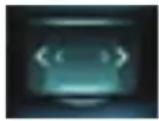
Stretch 2 Stretches the edges of the video image much more than the center portion of the image.
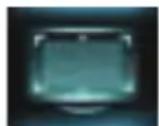
Zoom Enlarges the video image (press or vertically offset the image on your screen).
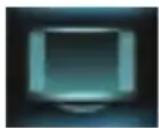
Gray Bars Places vertical gray bars on the left and right of a standard-definition video image.
System Status Indicators
Control console
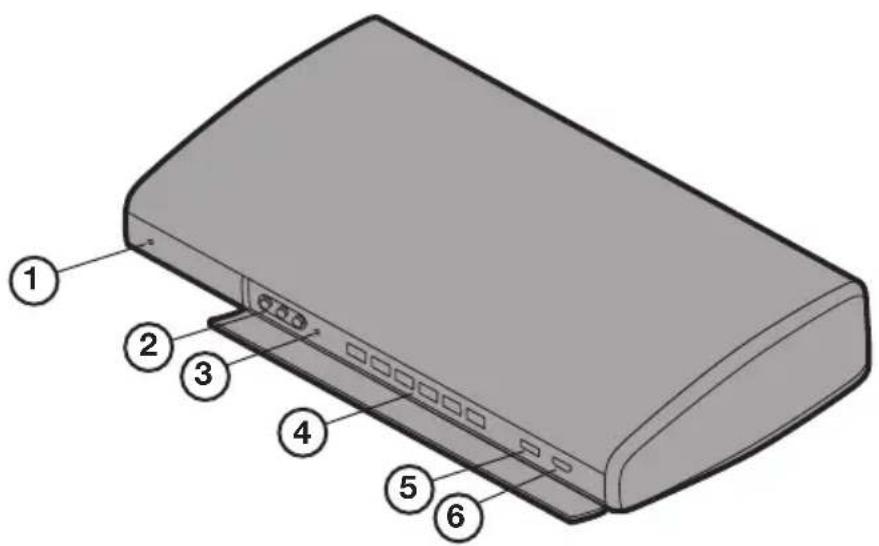
① System Status indicator
| Off System is off | |
| Red Network standby | |
| Blinking green System starting | |
| Solid green System powered on | |
| Amber System is powering off or charging iPod/iPhone in accessory dock (available from Bose). |
(2) Front A/V inputs
Temporarily connect an audio/video device such as a camcorder.
3 Headphones output
Accepts stereo headphones with a 3.5 mm stereo plug.
(4) Control buttons
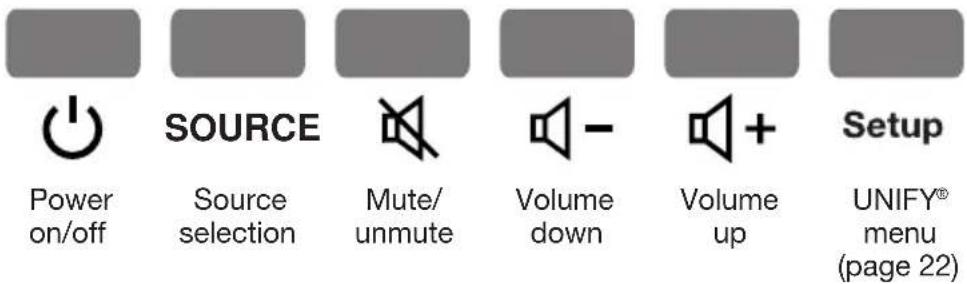
(5) Front USB input
View photo files from a USB device including a digital camera, or update systemsoftware.
(6) Front HDMI™ input
Temporarily connect an HDMI device such as a video camera.
Soundbar (Lifestyle® SoundTouch™ 135 systems)

| Indicator activity Soundbar state | |
| Off Connected to the Acoustimass® module. | |
| Blinking amber Disconnected from the Acoustimass module. | |
| Slow blinking amber Available to make a wireless connection to the Acoustimass module. | |
| Red System error (call Bose Customer Service). |
Acoustimass® module (Lifestyle® SoundTouch™ 135 systems)
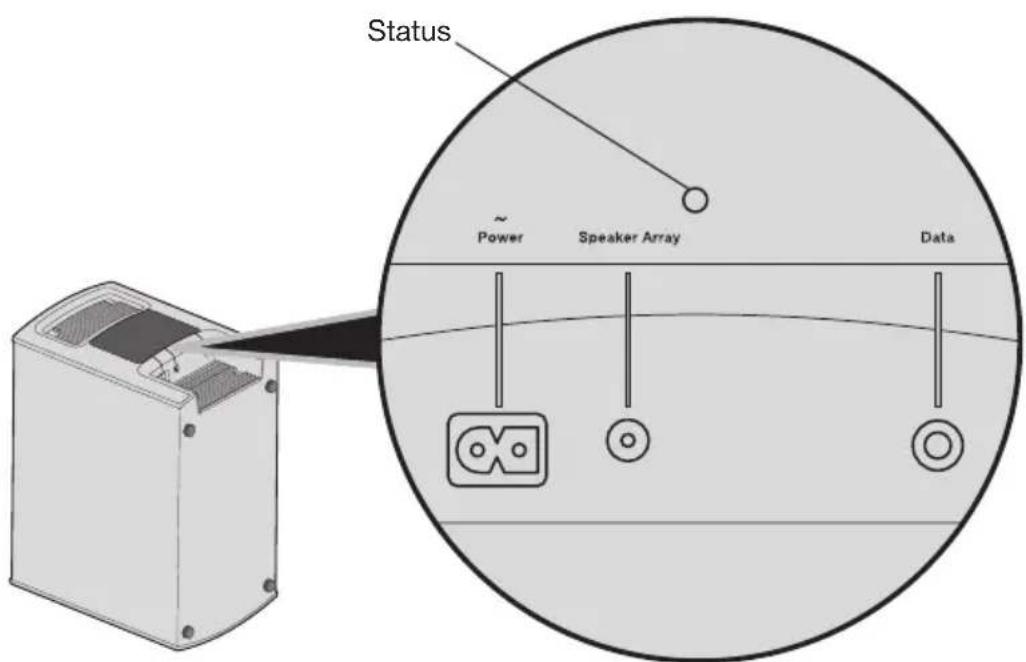
| Indicator activity Acoustimass module state | |
| Solid amber Connected to the soundbar. | |
| Blinking amber Disconnected from the soundbar. | |
| Slow blinking amber Available to make a wireless connection to the soundbar. | |
| Red System error (call Bose Customer Service). |
Troubleshooting
| Problem What to do | |
| The system is not responding to initial operation of Bose® remote | ·Power on the control console. ·Ensure the remote batteries are installed correctly and do not need replacement. See “Replacing the remote control's batteries” on page 30. ·Reset the system. See “Resetting the system” on page 29. ·Press any remote key. The system status indicator on the control console should blink with each press. If not, see “Pairing the remote with the console” on page 29 |
| The Bose remote does not control a device added during initial setup | ·Try setting up the device again. Press the Setup button on the control console. Select the device options and follow the on-screen instructions to set up the device again. ·Your system may need a software update. See “Performing a system software update” on page 29. |
| Poor video connection from a source | Press the Setup button on the control console and select “device setup options”. Follow the on-screen instructions to change a video connection. |
| System doesn’t do anything | ·Connect all components of the system to AC (mains) power. ·Select a connected device from the SOURCE menu. ·Reset the system. See “Resetting the system” on page 29. |
| No sound • Connect all components of the system to AC (mains) power. ·Increase the volume. ·Press the mute button to ensure the system is not muted. ·Ensure that you have selected the correct source (check the input connections on the control console). ·Connect audio input cable firmly into the Audio Out connector (not Bose link) on the control console, and the other end into the Media Center connector on the Acoustimass module. ·(135 series IV systems) Connect the audio input cable firmly into the Audio Out connector (not Bose link) on the control console, and the other end into the Audio In connector on the soundbar. ·(135 series IV systems) Move system away from potential interference, such as a wireless router, cordless phone, television, microwave, etc. ·Connect the FM and AM antennas for radio operation. ·Reset the system. See “Resetting the system” on page 29. | |
| Sound quality has changed / soundbar status indicator blinkingamber (Lifestyle® SoundTouch™ 135 systems). | Press the Setup button on the control console and select the “Reconnect Acoustimass” menu item. Follow the on-screeninstructions. |
| TV does not respond to remote commands (Lifestyle® SoundTouch™ 135 systems) | ·Ensure soundbar is not blocking the IR sensor on the TV. ·Refer to the owner's guide that came with your TV for details on the location of the TV's IR sensor. |
| Intermittent bass (Lifestyle® SoundTouch™ 135 systems) | Check that the status indicator on the Acoustimass® module is solid amber. See page 25. If the soundbar status indicator is blinking amber: —Connect the Acoustimass module to AC (mains) power (The status indicator glows amber). —Press the Setup button on the control console. Select “Reconnect Acoustimass”. Follow the on-screen instructions. —Move system away from potential interference, such as a wireless router, cordless phone, television, microwave, etc. |
| Sound is impaired by a loud hum or buzz, which may be electrical in nature | Contact Bose® Customer Service to determine if and how other electrical devices in the room create unwanted signals, and to obtain possible remedies. |
| Radio does not work | Connect antennas. Move AM antenna at least 20 inches (50 cm) from the control console and Acoustimass module. Adjust antenna position. Ensure the AM antenna is upright. Move antennas farther from control console, TV, or other electronic equipment. Select another station. |
| FM sound is distorted | Adjust antenna position. Fully extend the FM antenna. |
| Picture is blurry when viewing 3D content | Ensure your 3D glasses are powered on (if necessary). Change the 3D system option to a different setting. Ensure the soundbar is not blocking the IR sensor on the TV. |
| Sound is distorted | Ensure the audio input cable is connected and not damaged. Reduce the volume output level from any external devices connected to the control console. (Lifestyle® SoundTouch™ 135 systems) Remove all protective films from the system. |
| No sound from a connected device | Check the connections. Do not make coaxial or optical audio connections to the same input on the control console. Power on the device. Refer to the owner's manual that came with the device. |
| No TV picture, but audio is heard | Ensure the TV video input selection is correct for the video source. Ensure cables are securely connected. |
| A connected device not responding consistently to remote commands | Connect the included external IR emitter to the control console. For guidance, press the Setup button on the control console. Select device options and follow on-screen instructions. |
| Intermittent audio dropouts heard on coaxial digital audio inputs | Contact Bose Customer Service to request a composite video cable for the coaxial digital audio connection. |
| Cannot complete networksetup | Plug the SoundTouch™ wireless adapter into the Bose link connector on the control console. Connect the system to AC (mains) power. Select the correct network name and enter password. Connect the device and SoundTouch™ system to the same Wi-Fi network. Place the wireless adapter within range of the router. Enable Wi-Fi on the device (mobile or computer) you are using for setup. If network name does not appear or is hidden, select Manually Connect to Another Network on the CONNECT TO HOME WI-FI NETWORK screen. Close other open applications. Test your internet connection by loading www.SoundTouch.com Restart your mobile device or computer, and router. Reboot your SoundTouch™ system (refer to the help system in the app). Uninstall the app, reset the system, and restart setup. Unhide your network if it is hidden to complete setup. |
| Cannot connect to network | If your network has changed or to connect your system to another network, refer to the Help system in the app. Connect to the network using an ethernet cable. |
| "SoundTouch™" or "Bluetooth®" does not appear in the SOURCE menu | Update the control console. Ensure the Bose link cable is fully connected to the wireless adapter and the control console. Ensure the USB cable is fully connected to the wireless adapter and the control console. Complete the Network Setup process in UNIFY. Refer to your Lifestyle® SoundTouch™ setup guide. |
| Cannot play Bluetooth® audio | On your system: Pair a device (page 30). Try pairing a different device. See "No sound". Set up SoundTouch™ first, and perform all system updates. Clear the system's pairing list using the SoundTouch™ source: - In the Bluetooth source, press your remote. - Select CLEAR LIST. On your mobile device: Disable and re-enable the Bluetooth feature. Remove the system from the Bluetooth menu. Pair again. Refer to your Bluetooth enabled device's documentation. |
Resetting the system
- Press and hold on the control console for 5 seconds or until the system status indicator on the control console changes to red.
- Release on the control console to restart the system. The system status indicator changes to solid green when the system is on.
Note: If you still cannot operate the system using the remote, try to pair the remote with the control console.
Pairing the remote with the console
You may need to perform this procedure if you are replacing a remote or if troubleshooting instructions recommend.
- Power on your system.
- Hold the remote close to the control console.
- Press and hold on the control console and OK on the remote for five seconds. The system status indicator blinks when pairing is complete.
- Press any remote button and verify that the system status indicator on the control console blinks with each button press.
Performing a system software update
To manually update your system, download the software from the Bose® website to the USB drive included with your system.
- Press Setup on the control console to display the UNIFY 假 menu.
- Select Update.
- Follow the onscreen instructions.
Note: When performing an update, place your Bose® remote near the front of the control console to ensure it is also up to date.
Replacing the remote control's batteries
Replace all four batteries when you notice a marked decrease in the range or response of your remote control, or when you see the low battery icon on the remote display.
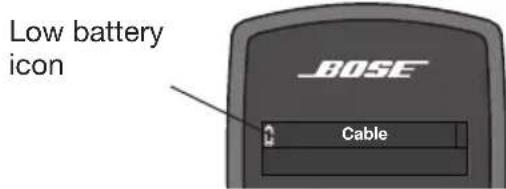
- Slide open the battery compartment cover on the back of the remote control.
- Install four AA (IEC LR6) 1.5V batteries. Match the + and - symbols on the batteries with the + and - markings inside the compartment.
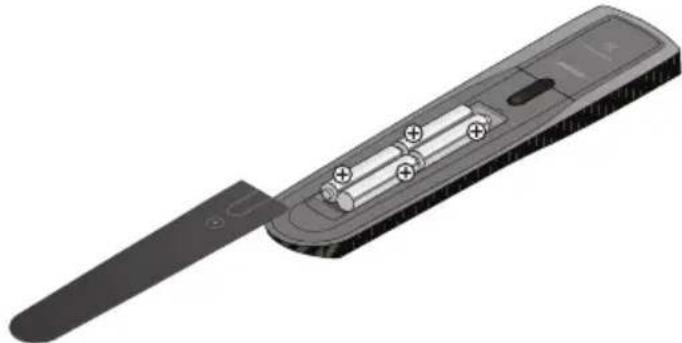
- Slide the battery compartment cover back into place.
Cleaning
You can wipe the outside surfaces using a soft dry cloth. You can also lightly vacuum the speaker grilles.
DO NOT use solvents, chemicals, or sprays for cleaning.
- DO NOT allow liquids to spill or objects to drop into any openings.
Customer service
For additional help using the system:
- Visit SoundTouch.com
- Contact Bose® Customer Service. Refer to the quick start guide in the carton for contact information.
Limited warranty
Your system is covered by a limited warranty. Details of the limited warranty are provided on the product registration card that is in the carton. Please refer to the card for instructions on how to register. Failure to register will not affect your limited warranty rights.
The warranty information provided with this product does not apply in Australia and New Zealand. See our website at www.bose.com.au/warranty or www.bose.co.nz/warranty for details of the Australia and New Zealand warranty.
Technical information
Remote control
Frequency: 2.4 GHz
Range: 33 ft (10 m)
Control console power supply rating
AC input: 100 - 240V 50 / 60~Hz 1.0A (1,0A)
DC output: 12V = -35W Max.
Acoustimass® module rating for Lifestyle® SoundTouch™ 535, 525 and 235 systems
USA/Canada: 100-120V~50/60 Hz 350W
International: 220 - 240V 50 / 60~Hz 350W
Dual voltage: 100-120/220-240V\~50/60 Hz 350W
Acoustimass® module rating for Lifestyle® SoundTouch™ 135 systems
AC input power: 100 - 240V 50 / 60Hz150W
Soundbar rating for Lifestyle® SoundTouch™ 135 systems
AC input power: 100 - 240V 50 / 60Hz60W
Wireless connection rating for Lifestyle® SoundTouch™ 135 systems
Output power: 5 mW @ 2400-2480 MHz
Range: 20 ft (6.1 m)
Licensing information
This product contains one or more free or open source software programs originating from third parties and distributed as part of the STLinux software package. Visit www.stlinux.com/download for further details. This free and open source software is subject to the terms of the GNU General Public License, GNU Library/L Lesser General Public License, or other different and/or additional copyright licenses, notices, and disclaimers. To understand your rights under these licenses, please refer to the specific terms of the licenses, notices, and disclaimers, which are provided to you in an electronic file, named "licenses.pdf," located within the product's control console. To read this file, you will need a computer with a USB port and a software program that can view .pdf files.
To download "licenses.pdf" from your product's control console:
- Press and hold the Setup button on the front of the control console to display the System Information screen.
- Insert a USB drive (there should be one included in your system package) into the USB input on the front of the control console.
- Press the OK button on the remote control to copy the file to the USB drive. This download process should be completed within 30 seconds. You may then remove the USB drive.
- To read the file "licenses.pdf," plug the USB drive into a computer with a USB port, navigate to the USB root directory, and open "licenses.pdf" with a software program that can view .pdf files.
To receive a copy of the source code for the open source software programs included in this product, please mail your written request to: Licensing Manager, Mailstop 6A2, Bose Corporation, The Mountain, Framingham, MA 01701-9168. Bose Corporation will distribute such source code to you on a disc for a charge covering the cost of performing such distribution, such as the cost of media, shipping and handling. All of the above referenced licenses, notices, and disclaimers are reproduced and available with such source code. This offer is valid for a period of three (3) years following the date of distribution of this product by Bose Corporation.
Function definitions
The remote has specific controls for Audio/video devices, iPods or iPhones, and Digital photos.
| Remote button | Audio/video device | iPod or iPhone Digital photos | |
| MENU | Device menu (if available) or system setup menu | Up one menu level (press and hold to top menu level). If playing video, pause and return to menu | Up one folder level, or exit slideshow and return to browsing folders |
| GUIDE | Blu-ray Disc player pop-upmenuN/A | ||
| INFO | Device information N/A | ||
| EXIT | Exit menu N/A | Exit slideshow and return to browsing folders | |
| ▲ | Up one item | Up one menu item (press and hold to scroll quickly) | Up one menu item (press and hold to repeat) |
| ▼ | Down one item | Down one menu item (press and hold to scroll quickly | Down one menu item (press and hold to repeat) |
| ▲ | Move left | Up one menu level. If playing video, pause and return to menu | Up one folder level, or exit slideshow and return to browsing folders |
| ▲ | Move right Down one menu level | Play slideshow or highlightedfolder | |
| OK | Select Down one menu level | Down one folder level, or play slideshow (if high-lighted) | |
| Δ | Next page, channel, or disc Up | one page Up nine items | |
| √ | Previous page, channel, or disc Down | one page Down nine items | |
| ▲ | Play | Play slideshow of highlightedfolder | |
| II | Pause Pause slideshow | ||
| ■ | Stop | Return to browsing folders from slideshow | |
| ● | Record N/A | ||
| ▲ | Fast forward or search forward Fast | forward N/A | |
| ▲ | Fast rewind or search reverse | Fast rewind | N/A |
| ■ | Quick skip or skip forward | Next track or audio book-mark | Next image |
| ■ | Quick replay or skip backward | Previous track or audio bookmark | Previous image |
| S | Shuffle mode | N/A | |
Rango: 10 m (33 pies)
Lecture de sources audio/video 17
Hold number key to set preset
Bluetooth®
BLUETOOTH
Volume
Cable 43
iPod
iPod Album
SoundTouch
SoundTouch Presets