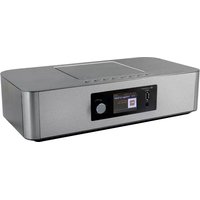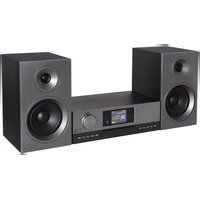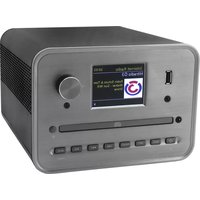
Soundmaster ICD1050 - Hi-fi system

ICD1050 - Hi-fi system Soundmaster - Free user manual and instructions

Find the device manual for free ICD1050 Soundmaster in PDF.

📄 150 pages English EN 💬 AI Question
Notice Soundmaster ICD1050 - page 22

Download the instructions for your Hi-fi system in PDF format for free! Find your manual ICD1050 - Soundmaster and take your electronic device back in hand. On this page are published all the documents necessary for the use of your device. ICD1050 by Soundmaster.
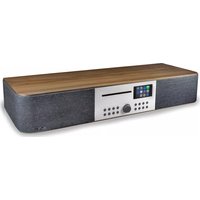
USER MANUAL ICD1050 Soundmaster

Do not dispose of this product with the normal household waste at the end of its life cycle. Return it to a collection point for the recycling of electrical and electronic devices. This is indicated by the symbol on the product, user manual or packaging The materials are recyclable according to their labeling. By reusing materials or other forms of recycling old devices and packaging, you are making an important contribution to protecting our environment. If necessary, remove batteries and personal data before disposal free of charge and ask your local authority about the responsible disposal point.

Risk of electric shock Do not open! Caution: To reduce the risk of electric shock, do not remove the cover (or back). There are no user serviceable parts inside. Refer servicing to qualified service personnel.

This symbol indicates the presence of dangerous voltage inside the enclosure, sufficient enough to cause electric shock.

This symbol indicates the presence of important operating and maintenance instructions for the device

Used batteries are hazardous waste and NOT to be disposed of with the household waste! As a consumer you are legally obligated to return all batteries for environmentally responsible recycling – no matter whether or not the batteries contain harmful substances*)

Return batteries free of charge to public collection points in your community or shops selling batteries of the respective kind. Only return fully discharged batteries *) marked Cd = cadmium, Hg = mercury, Pb = lead

  • Only use mercury and cadmium-free batteries.
  • Used batteries are hazardous waste and NOT to be disposed of with the household waste!!!
  • Keep batteries away from children. Children might swallow batteries.
  • Contact a physician immediately if a battery was swallowed.
  • Check your batteries regularly to avoid battery leakage.
  • Batteries shall not be exposed to excessive heat such as sunshine, fire or the like.
  • CAUTION: Danger of explosion if battery is incorrectly replaced
  • Replace only with the same or equivalent type

RADIATION WHEN OPENING THE

To prevent possible hearing damage, do not listen at high volume levels for long periods

  • Use the device in dry indoor environments only.
  • Protect the device from humidity.
  • This apparatus is for moderate climates areas use, not suitable for use in tropical climates countries.
  • No objects filled with liquids, such as vases, shall be placed on the apparatus.
  • The mains plug or an appliance coupler is used as the disconnect device, the disconnect devices shall remain readily operable.
  • Connect this device to a properly installed and earthed wall outlet only. Make sure the mains voltage corresponds with the specifications on the rating plate.
  • Make sure the mains cable stays dry during operation. Do not pinch or damage the mains cable in any way.
  • A damaged mains cable or plug must immediately be replaced by an authorized service center.
  • In case of lightning, immediately disconnect the device from the mains supply.
  • Children should be supervised by parents when using the device.
  • Clean the device with a dry cloth only.
  • Do NOT use CLEANING AGENTS or ABRASIVE CLOTHS!
  • Do not expose the device to direct sunlight or other heat sources.
  • Install the device at a location with sufficient ventilation in order to prevent heat accumulation.
  • Do not cover the ventilation openings!
  • Install the device at a safe and vibration-free location.
  • Install the device as far away as possible from computers and microwave units; otherwise radio reception may be disturbed.
  • Do not open or repair the enclosure. It is not safe to do so and will void your warranty. Repairs only by authorized service/ customer center.
  • No naked flame sources, such as lighted candles, should be placed on the unit.
  • When you are necessary to ship the unit store it in its original package. Save the package for this purpose.
  • In case of malfunction due to electrostatic discharge or fast transient (burst), remove and reconnect the power supply.
  • If the unit is not using for a long period of time, disconnect it from the power supply by unplugging the power plug. This is to avoid the risk of fire.ICD1050 / English Instruction Manual
  • Connect to a USB device for music playback *Connect to charge mobile device
  • Rotate to increase or decrease the volume level.
  • Press to select or skip selection. *Rotate to move down or move up on the menu screen
  • Press to open the CD-door
  • Press and hold for power on and power off
  • Press to change the source
  • Press to show the information in CD/USB/DAB/FM and Internet radio mode
  • Press to select previous track in CD/ USB/FM/Internet Radio mode
  • Press to select next track in CD/USB/DAB/FM, Internet radio
  • Press to play and pause in CD, USB Internet radio and BT
  • Press and hold to activate the pairing function in BT or disconnect the existing paired BT device
  • Press to start browsing of all tracks in
  • Press to automatically search for channel in DAB and FM; when in searching, press again can stop it.
  • Press to select a repeat playback mode in CD
  • Press to adjust the BASS in USER mode

USER *Press to allow you to adjust the Bass and Treble in USER mode

*Press to move up on the menu screenICD1050 / English Instruction Manual

  • Press and hold for fast backward in CD and USB
  • Press to select previous track in CD and USB
  • Press to display the channel list in DAB, FM and internet radio
  • Press for fine tuning in FM
  • Press and hold for manual tuning in
  • Press to stop playing in CD/USB mode
  • Press to skip the beginning of current/previous/subsequent album
  • Press to select previous/next preset channel in FM and DAB
  • Press to show the information in CD/USB/DAB/FM and Internet radio mode
  • Press to select the internet radio/Podcast
  • Press to set sleep timer
  • Press to select the corresponding AUDIO source. (CD/USB/DAB/FM/BT/AUDIO)
  • Press to play tracks randomly in CD
  • Press to adjust the TREBLE in USER mode
  • Press to program in CD and preset channel in DAB, FM and internet radio
  • Press to return to previous menu
  • Press and hold to activate the pairing function in BT or disconnect the existing paired BT device
  • Press to play/pause in BT/CD/USB and internet radio
  • To select or skip to subsequent menu in BT/CD/USB and internet radio

*Press and hold for fast forward in CD and USB *Press to select the next track in CD and USB *Press to display channel list in DAB/FM and internet radio *Press for fine tuning in FM *Press and hold for manual tuning in FM

  • Press to move down on the menu screen
  • Press to mute or resume the sound
  • Press and hold to set clock
  • Press to set the Timer

DIM *Press to select different levels of brightness for the display screenICD1050 / English Instruction Manual

1. Press and slide the back cover to open the battery compartment of the remote control.

2. Insert two AAA size batteries. Make sure the (+) and (-) ends of the batteries match

the (+) and (-) ends indicated in the battery compartment.

3. Close the battery compartment cover.

GETTING STARTED / SET UP

Connect the unit to a suitable power source using the power supply provided. After showing a starting screen, it will enter the last used listening mode. When the unit is started for the first time, the setup wizard will be launched automatically.

GET THE NETWORK ENVIRONMENT READY

Make sure you have setup the wireless network and you have the WEP, WPA or WPA2 security password to activate the connection. You may also use the WPS (WiFi Protected Setup) function for easy pairing between the network device and ICD1050. Check if the light indicators on the network device are in appropriate status. MAIN MENU Under the main menu, you can select the following modes: Internet Radio, Podcast, USB, DAB, FM, Bluetooth®, CD, AUX-In, Sleep and Alarm.

SYSTEM SETTINGS At the first time operation, system asks if you want to start the Setup Wizard. The Setup wizard guides you through the basic setup parameters for Time/Date and Network connection. To change any settings later all setting functions are accessible from the Settings Menu. Note: If the setup wizard is terminated prematurely without a network setup, the device generates its own WiFi access so that the device can be configured using the UNDOK APP. Network connection indicator: = Network connection established. = Network connection not established.ICD1050 / English Instruction Manual

Select English/Finnish/French/Italian/Danish/Dutch/German/Norwegian Polish/Portuguese/Spanish/Swedish/Turkish as menu language

2. Product privacy policy

So that the installation can continue, please confirm the privacy policy with the "NAVIGATE / OK" button. Further information is available under www.frontiersmart.com/privacy

Select the “YES” option to continue with the setup. If you select the “NO” option, the next display asks you whether the setup wizard should be started the next time the device is switched on.

4. Time/Date Display format

Select 12 or 24 as the time format.

The time and date can be updated manually or automatically from DAB, FM or network. Auto update works with data sent over DAB, FM or the Internet. The clock is only updated when it is in a corresponding mode, so it is suggested to select a mode you use regularly. DAB and FM use time signals broadcast with radio transmissions. Network uses a time signal sent from the Internet radio portal when in any network connected mode.

6. Time zone/daylight

Set your time zone. If your country uses daylight saving and it is in effect, turn on the Daylight saving option (only available when Auto update from Internet is selected) Manual update If you set No update, the wizard prompts you to set the time and date manually. The date and time are displayed as dd-mm-yyyy and hh:mm. The active value appears as flashing. Adjust each value with the “NAVIGATE” knob. Once the value is set, press the knob to continue setting with next value.

Keep Network connected Select this option when the unit should the network connection in standby keep, when the function is confirmed, the unit wills faster connecting the internet and it is possible to switch on the unit with the “UNDOK” app. Note: The standby power consumption is slightly increased with this function. WLAN region Select the WLAN region to obtain the optimal WLAN connectivity: Europe. Scanning for the network ICD1050 is compatible with all common network protocols and encryption methods. It searches for the available networks and list them out for you.ICD1050 / English Instruction Manual

There will be hints for the type of network – if your network devices support WPS function, it will be [WPS] before the SSID (the name of the network device). Select the one you want to connect. For the wireless connection, you will be asked for input the encryption in the next step. To enter the network’s key, use the “NAVIGATE” knob to move the cursor through the characters and press “OK” to confirm. As each character is selected, the key is built up near the top of the display. There are three options accessible by tuning the navigate reel back before the first characters – Backspace, OK and Cancel.

WPS encrypted network WPS encrypted networks are identified by WPS at the start of the network name when the ICD1050 searches the available AP. Use one of the following methods of connection: There is the shortcut WPS key on the unit. Push button ICD1050 prompts you to press the connect button on the router. It then scans for a ready Push Button Connect network and connects.

Pin ICD1050 generates an 8-digit code number which you enter into the wireless router, access point, or an external registrar.

Skip WPS Enter key as for a standard encrypted network. For more information on setting up a WPS encrypted network, see your WPS router’s instructions. Completion ICD1050 attempts to connect to the selected network.ICD1050 / English Instruction Manual

It will show connected if the setup is successful. If connecting fails, ICD1050 returns to a previous screen to try again. Press “OK” to quit the setup wizard.

EQUALISER Several preset EQ modes are available: Normal, Jazz, Rock, Classic, Pop and My EQ. In the My EQ settings, you can create your own EQ with custom bass and treble settings.

  • Network wizard Enter to search AP SSID, then input the WEP / WPA key or choose Push Button/Pin/Skip WPS to connect to the wireless network.
  • PBC Wlan setup Push Button Configuration, it is to connect the AP that supports WPS (Wi-Fi Protected Setup).
  • View settings View the information of current connected network: Active connection, MAC address, Wlan region, DHCP, SSID, IP address, Subnet mask, Gateway address, Primary DNS and Secondary DNS.
  • Manual settings Choose wireless network connection and enable or disable DHCP (Dynamic Host Configuration Protocol).
  • Network profile ICD1050 remembers the last four wireless networks it has connected to, and automatically tries to connect to whichever one of them it can find. From here you can see the list of registered networks. You can delete unwanted networks by turning and pressing then choosing “YES” to confirm delete.ICD1050 / English Instruction Manual
  • Keep network connected If you choose to keep network connected, the WiFi will not disconnect even you are in standby mode. Otherwise, the connection will only available in internet radio and music player modes. When Keep network connected is selected the standby power consumption is raised.

TIME/DATE Set the time manually or automatically update, time format, time zone and daylight. BRIGHTNESS You can set the display brightness in 2 levels in standby and in 3 levels during operation. LANGUAGE Change it as your preference. SOFTWARE UPDATE From time to time, software upgrades may be created with bug fixes and/or additional features. You can either check manually or set ICD1050 to check periodically automatically (this is the default). If newer available software is detected, you will be asked if you want to go ahead with an update. If you agree, the new software is then downloaded and installed. After a software upgrade, all user settings are maintained. NOTE: Before starting a software upgrade, ensure that ICD1050 is plugged into a stable main power connection. Disconnecting power during an upgrade may permanently damage the unit. INFO View the firmware version and the radio ID. INTERNET RADIO ICD1050 can play thousands of radio stations and podcasts from around the world though a broadband Internet connection. When you select Internet radio, ICD1050 directly contacts the Frontier Silicon Internet radio portal (which is supported by Airable) to get a list of stations.

The portal also enables multiple lists of favorite stations that you can personalize. If you are already listening to an Internet radio station, you can press “BACK” button to quickly return to the last visited branch of the menu tree, rather than “MENU” to go to the first menu of Internet radio mode.ICD1050 / English Instruction Manual

  • Last listened When Internet radio mode restarts, the last-listened station is selected. To select another recently used station, enter here to select the listed station. Most recent stations appear at the top of the list.
  • Station list Browse Internet broadcasts that organized into different categories, Location, Genre, Popular and New. You can also find the station with Search by keyword.
  • Presets storing and recall To store an Internet radio station to preset, press and hold the “PROGRAM” key on Remote Control or “PRESET” at the unit until the display shows the “Save preset” screen. Select one of the 40 presets to save the current station and press “OK” to confirm. To recall a preset, press briefly the “PRESET” button or “PROGRAM” on Remote Control, then select one of the listed preset stations and press “OK” to confirm. Or press 0 to 9 on the remote control.
  • Now playing information While the stream is playing, the screen shows its name and description. To view further information, press “INFO” button on the radio or Remote Control. Each time you press “INFO” button, another set of information is displayed, cycle through name/description, genre/location, reliability, codec/sampling rate, playback buffer and today’s date. DAB DAB mode receives DAB or DAB plus digital radio signal and displays information about the station, streaming audio and the program details.ICD1050 / English Instruction Manual
  • Scanning for stations To start a scan manually, choose “Full scan”. Once the scan is complete, the radio shows a list of available stations. To remove stations that are listed but not unavailable, choose Prune invalid.
  • Presets storing and recall Storing and recall of DAB stations to preset is same functionality as described in the internet radio section.
  • Now playing information While the stream is playing, the screen shows its name and DLS (Dynamic Label Segment) information broadcast by the station giving real-time information such as program name, track title and contact details. Stereo broadcasts are indicated with an icon at the bottom of the screen. To view further information, press “INFO” button on the radio.
  • SETTINGS Dynamic range compression (DRC) If you are listening to music with a high dynamic range in a noisy environment, you may wish to compress the audio dynamic range. This makes quiet sounds louder, and loud sounds quieter. You can change DRC as off, low or high. Station order You can choose the order of the DAB station list to be either Alphanumeric, Ensemble or Valid. Ensemble lists groups of stations that are broadcast together on the same ensemble. Valid lists valid stations first, alphanumerically, then off-air stations. The first time you select DAB radio mode, or if the station list is empty, ICD1050 automatically performs a full scan to see what stations are available. You may also need to start a scan manually to update the list of stations for one of the following reasons:
  • Available stations change from time to time.
  • If reception was not good for the original scan, this may result in an empty or incomplete list of available stations.
  • If you have poor reception of some stations (burbling), you may wish to list only stations with good signal strength.ICD1050 / English Instruction Manual

FM radio mode receives analogue radio from the FM band and displays RDS (Radio Data System) information about the station and where broadcast.

  • Automatic station storage To full scan, press “INTRO” remote key. The frequency display starts to run and scans the FM full band. The found stations will be stored to the FM pre-sets.
  • Automatic and manual channel search To automatic tune, press and hold “ ” or “ ” button on panel or “P+” or “P-“ remote key. The frequency display starts to run and scans the FM band and stops at the next station. To manual fine tune press the “ “ or “ ” remote key. The unit search in 0.05 MHz steps.
  • Presets storing and recall Storing and recall of FM stations to preset is same functionality as described in the internet radio section.
  • Now playing information While the stream is playing, the screen shows its frequency, or if RDS signal is available, station name and any further RDS information such as program name, title and other details. Stereo broadcasts are indicated with an icon at the bottom of the screen. To view further information, press Info button on the radio. Each time you press “INFO” button on the radio, another set of information is displayed, cycling through Radio text, program type, frequency and today’s date. SETTINGS
  • Scan settings Choose FM at first, it will go to a specific station playing. Then press “MENU” on the radio to get above table. By default, FM scans stop at any available station. This may result in a poor signal-to-noise ratio (hiss) from weak stations. To change the scan settings to stop only at stations with good signal strength, select “Yes” after choosing Strong station only.
  • Audio settings All stereo stations are reproduced in stereo. For weak stations, this may result in a poor signal- to-noise ratio (hiss). To play weak stations in mono, select FM weak reception: Listen in mono only and then YES.ICD1050 / English Instruction Manual

CD MODE Notice! Improper operation can result in material damages! Do not insert any recording media that deviate from the standard CD format (eg: mini-discs) into the CD player. These may not be played and ejected correctly. Insert only one disc at a time into the CD player.

1. Press button on the unit and press till “CD” displayed, then press “OK” on the knob

or press the “CD” button on remote control to choose CD.

2. Put a disc (with printing side facing up) inside. The display will say “Loading” and the disc

functions will not work while the disc is loading. After Reading the display shows the following information in CD mode:

  • Elapsed playback time in minutes
  • Playback status (playing/pause) The Playback will begin automatically once the table of contents is read. The display will show “No Disc” when the unit is set to CD mode and there is no CD inside.
  • To pause/resume playback of the CD, press the “ ” button
  • To switch to the next track, press the “ ” button once
  • To fast forward through a track, press and hold the “ ” button.
  • To switch to the previous track, press the “ ” button twice
  • To fast backward through a track, press and hold “ ” button.

1. Set the unit in Stop mode

2. Press the “PROGRAM” button on the Remote Control. The display will show “T01 P01”

3. Choose with “ ” or “ ” or 0 to 9 on the Remote Control, the track which should be

programmed and confirm the track by pressing the “PROGRAM” button on the Remote Control. The display changes to “P02”.

4. To choose more tracks do step 3 again.

5. If all tracks are programmed press the “ ” button on the unit or Remote Control to start the

programmed playback. Shuffle mode Press the “RANDOM” button on the Remote Control. The display will show the Shuffle indicator. Repeat one track During playback press the “REPEAT” button on the Remote Control once to repeat playback of the song you are listening to.ICD1050 / English Instruction Manual

Repeat all tracks During playback press the “REPEAT” button on the Remote Control twice to repeat all songs from the CD. To cancel the Repeat mode, press the “REPEAT” button on the Remote Control until all symbols in the display disappear. USB In USB mode, files in MP3 format can be played back from a USB storage device. Pls connect USB Stick with max 16GB storage and FAT32 format to the unit. You can use the “ ” or “ ” buttons to play the previous or next track. Press the “OK” button or use the “UNDOK APP” to start playback

  • Playing modes / Program playback The USB playback options are equal to the CD playback options. BLUETOOTH

When you select the Bluetooth mode, the device is entering to pairing and the BT icon at the bottom of the screen will flash. Turn on your smartphone, tablet or other Bluetooth devices to search for the device. The Bluetooth pairing name is “ICD1050”.

When pairing is successful, the Bluetooth indicator will light up and stop flashing. To release BT pairing, turn off or unpair your smartphone, table or other Bluetooth devices.

Press “ ” on the radio or Remote Control to start or pause the playback. You can press “ ” or “ ” on the radio or Remote Control to play the previous or next track. IMPORTANT! This unit only contains a Bluetooth receiver. It is not possible to connect a Bluetooth Headset or similar it! AUX IN Connecting DVD player / Set-Top Box / TV outputs to analogue inputs from the sound board. Use a RCA audio cable to connect the DVD player/TV outputs with the AUX (L/R) input socket from the sound board. SLEEP To set the sleep timer, press “SLEEP” on the unit or Remote Control. Choose from Sleep OFF, 15mins, 30mins, 45mins or 60mins. Once you select a sleep period, the system returns to the “Now playing” screen. If you go under Main Menu to Sleep press “MENU” on the unit or Remote Control to return to the “Now playing” screen.ICD1050 / English Instruction Manual

ALARM There are two versatile wake-up alarms with snooze facility, and a sleep function to turn the system off after a set period. Each alarm can be set to start in a particular mode. Select Alarm under Main menu to set or change an alarm.

  • Enable: on/off, Frequency: Daily, Once, Weekends or Weekdays,
  • Mode: Buzzer, Internet Radio, DAB or FM, CD or USB
  • Preset: Last listened, 1 - 40,
  • Volume: 0 - 32 To activate the new settings, scroll down and select Save. The screen shows active alarms with an icon at the bottom left. UNDOK The ICD1050 supports remote control from Apple iPhone, iPad and Android using the UNDOK app. The apps are available in Apple’s app store and Google’s android play. The UNDOK app allows you to:
  • Control all the modes of the ICD1050 (Internet Radio, USB playback, DAB, FM, Bluetooth
  • Adjust the volume level of current playback
  • Setting EQ for various audio presets
  • Store and recall of preset station HEADPHONE

To listen to music privately, use headphones with a 3.5 stereo jack plug and connect it to the headphones socket. The speakers will then be muted. To prevent possible hearing damage, do not listen at high volume levels for long periods. FACTORY RESET A factory reset resets all user settings to default values, so that time and date, network configuration and presets are lost. However, the ICD1050 ‘s current software version is maintained.ICD1050 / English Instruction Manual

TROUBLESHOOTING Error Remedy The device does not switch on. Check it the power adaptor is connected properly. Switch automatically off Due to ErP2 requirements and environmental protection, the unit automatically switches to standby mode when no music is played for more than 15 minutes. No sound.

1. Turn on the sound as it may be muted

2. Increase the volume.

3. Pull any connected headphone or speaker from the connector

jack. No network connection can be established.

1. Check the WLAN function.

2. Try to set an IP address at the device.

3. Activate the DHCP function on the router and make the

connection again at the device.

4. A firewall is activated on the network – set the respective

program in such a way that access is possible.

5. Reboot the router

WiFi connection cannot be established.

1. Check the availability of WLAN network on the router.

2. Place the device closer to the router.

3. Make sure the password is correct.

No station is found.

1. Check the network as well as the access point and firewall.

2. The station may not be available currently, try it again later or

select another station.

3. The link of the station is changed or the station no longer

transmits – ask the provider for information.

4. The link of manual added station is not correct, make sure it is

correct and re-enter. Hiss in FM mode Check/move the FM antenna or move the radio No stations available / burbling / intermittent in DAB mode.

2. Rescan local stations only (high-strength).

3. Check the local DAB coverage.

Alarm does not work.

1. Switch on the alarm.

2. Due to the volume setting, refer to the solutions of “No sound”.

3. The source of alarm was set to be station but there is no

network connection. Change the source of alarm or reconfigure the connection.ICD1050 / English Instruction Manual

USB driver or MP3 player is not detected.

1. Check if the USB driver or MP3 player is plugged properly.

2. Some USB hard disks need external power supply, make sure it

is connected to the power.

3. Not all MP3 players can be read directly on the device – use an

USB drive instead. NetRemote does not show or connect to ICD1050

2. If you have several streaming from several devices at the same

time, it may cause crash, reboot ICD1050 and/or your device. All other undetermined cases. ICD1050 may process large amount of data after a period of operation, no matter in which mode, it will cause the system freeze or malfunction. Reboot ICD1050 if necessary. The normal function of the product may be disturbed by strong Electro-Magnetic Interference. If so, simply reset the product to resume normal operation by following the instruction manual. In case the function could not resume, please use the product in other location. The device may malfunction when used in areas with strong radio interference. The device will work properly again once there is no more interference. Under the environment with Conducted Immunity disturbance, the sample may malfunction. It will automatically recover to normal when the Conducted Immunity disturbance stopped.

CLASS 1 LASER PRODUCT

KLASSE 1 LASER PRODUKT

CLASS 1 LASER PRODUCT

KLASSE 1 LASER PRODUKT

BEHUIZING GEOPEND WORDT OF

3. Choose with “ ” or “ ” or 0 to 9 on the Remote Control, the track which should be

programmed and confirm the track by pressing the “PROGRAM” button on the Remote Control. The display changes to “P02”.

4. To choose more tracks do step 3 again.

INNEHÅLLSFÖRTECKNING

Manual assistant
Powered by ChatGPT
Waiting for your message
Product information

Brand : Soundmaster

Model : ICD1050

Category : Hi-fi system