IPCam 360° FHD mini 10825 - Surveillance Camera Kerbl - Free user manual and instructions
Find the device manual for free IPCam 360° FHD mini 10825 Kerbl in PDF.

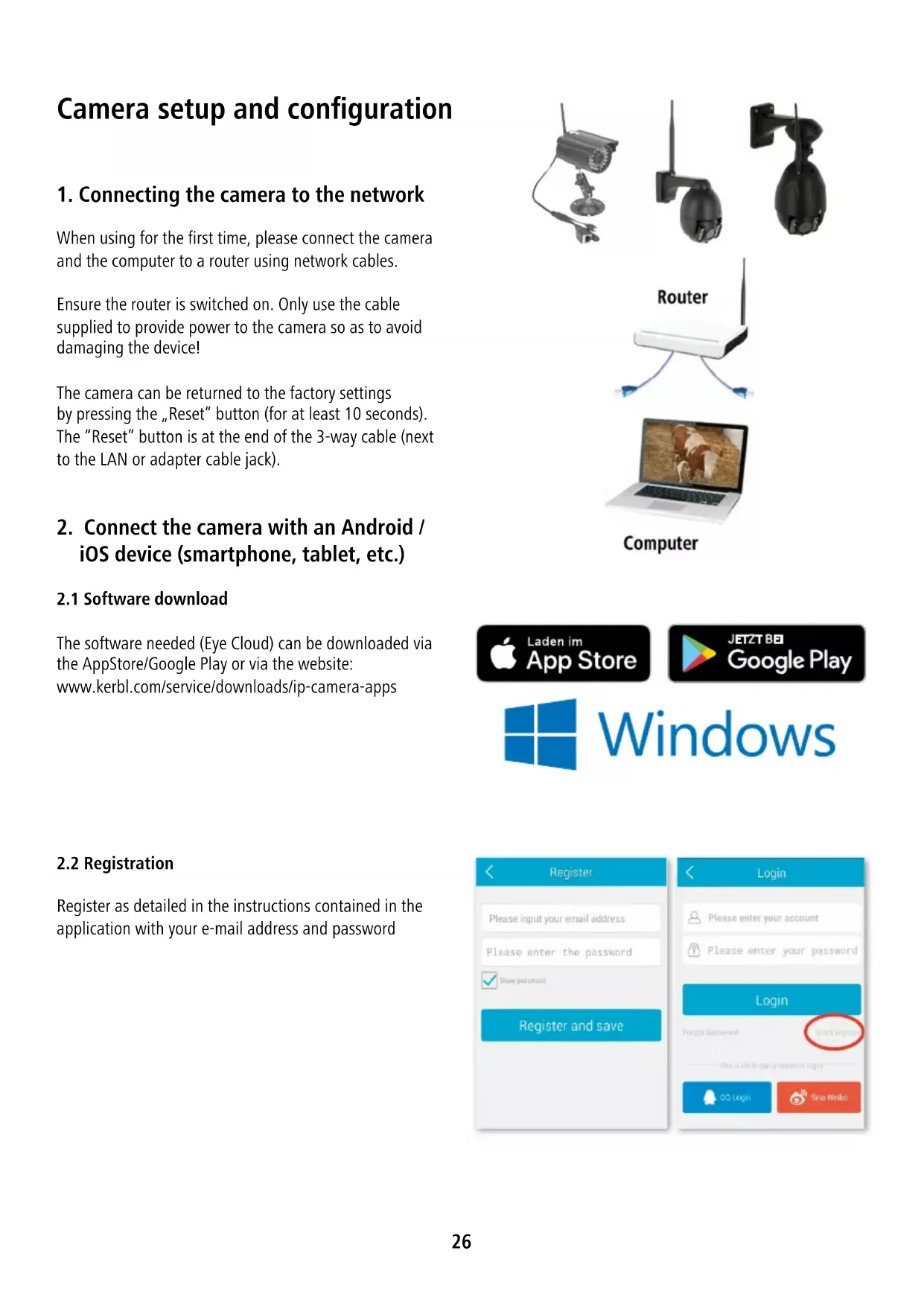


| Product Type | Indoor PTZ IP Surveillance Camera |
| Model | IPCam 360° FHD mini 10825 |
| Brand | Kerbl |
| Image Resolution | FHD 1080p (1920x1080), HD 720p (1280x720), VGA (640x480), QVGA (320x240) |
| Sensor | Progressive CMOS 1/2.7" |
| Lens | 2.8 mm, F1.4 |
| Viewing Angle | Horizontal: 31~103°, Vertical: 23~74° |
| Rotation | Horizontal: 355°, Vertical: 95° |
| Video Compression | H.264, MJPEG/JPEG |
| Frame Rate | FHD/VGA/QVGA: 0-15 FPS |
| Night Vision | 6 IR LEDs, range approx. 30 meters |
| Network Connectivity | Ethernet 10/100 Mbps (RJ-45), WiFi 802.11 b/g/n |
| Supported Protocols | TCP/IP, HTTP, RTSP, TCP, UDP, SMTP, FTP, DHCP, DNS, DDNS, NTP, UPnP, P2P |
| Storage | Micro SD card up to 16 GB |
| Main Features | Motion detection, OSD, snapshot, recording, simultaneous HTTP/RTSP stream, multiple access (up to 4 users) |
| Power Supply | DC 12V / 2.0A |
| Power Consumption | 6.72 W (IR LEDs on) / max 16.32 W (motors running) |
| Weight | 1200 g |
| Operating Temperature | -20 to 50 °C |
| Operating Humidity | 10 to 80% |
| Protection Rating | IP66 |
| Included Accessories | Camera, power adapter, WiFi antenna, network cable, user manual |
| Warranty | 2 years |
| Maintenance and Cleaning | Clean with a dry, soft cloth. Do not use abrasive products. Avoid moisture and dust. |
| Security | Authentication by UID and password, WEP/WPA encryption, warning against illegal use. |
| Spare Parts and Repairability | Do not disassemble or repair yourself. Contact technical support or an authorized workshop. |
| General Information | Compliant with directive 2014/53/EU. Disposal in accordance with WEEE regulations. |
Frequently Asked Questions - IPCam 360° FHD mini 10825 Kerbl
User questions about IPCam 360° FHD mini 10825 Kerbl
0 question about this device. Answer the ones you know or ask your own.
Ask a new question about this device
Download the instructions for your Surveillance Camera in PDF format for free! Find your manual IPCam 360° FHD mini 10825 - Kerbl and take your electronic device back in hand. On this page are published all the documents necessary for the use of your device. IPCam 360° FHD mini 10825 by Kerbl.
USER MANUAL IPCam 360° FHD mini 10825 Kerbl
natural_image
Close-up of a black security camera mounted on a stand with a red LED indicator (no visible text or symbols)
natural_image
Exterior view of a black security camera with antenna and dual-mounted sensor (no text or symbols visible)
natural_image
Exterior view of a black security camera with mounted sensor array and two additional devices against a green background (no text or symbols visible)DE Bedienungsanweisung......3
FR Mode d'emploi....13
EN Instructions for use....23
IT Istruzioni per l'uso ....33
NL Gebruiksaanwijzing ....43
SV Bruksanvisning....53

Snapshot = Schnappschuss
Record = Aufnahme
2.7 Videoptionen

Vertical Cruise = balayage verticaln
Horizontal = inversion horizontale
Vert Mirror = inversion verticale
Night Vision = vision de nuit
2.5 Configuration sans fil
2.7 Options vidéo
Please read these instructions carefully in their entirety before using the product, and keep them handy for future reference.
Thank you for your interest in our product and for ordering the IPCam. It can be controlled using any PC/laptop via the Intranet or Internet via a common web browser (recommended: Internet Explorer or Safari), via smartphone (iPhone, iPad, Android phone and pad) or via the client software installed on the PC. It can be easily integrated into your LAN or WLAN environment via a user-friendly installation process and intuitive interface. We are certain that you will value the quality and features of this product.
Note
This product can interfere with other wireless devices that use the 2.4 GHz ISM band. Please turn off these devices to avoid interference.
Product safety
This product transmits electromagnetic waves just like other wireless products. Its signal power, however, is less than other wireless devices, for example, mobile phones. During operation, IPCam meets the safety standards for radio frequencies and the recommended indices.
Restrictions
- Do NOT use this product to violate the privacy rights of others. Monitoring the activities of other people without their consent is unlawful. This product was not designed or manufactured for this purpose.
- Do NOT place this product in proximity to medical devices. Radio waves can cause the malfunction of electronic medical devices.
- This product should be kept at least 30 cm away from all pacemakers. Radio waves can interfere with pacemakers.
- Do NOT use this product for unlawful activities. The user must ensure that the camera is only used in accordance with the law.
Care and maintenance
- Make sure that the camera and its power supply has sufficient ventilation;
- Do not shake, hit or allow the product to fall to the ground;
- Make sure that the camera remains dry and dust-free, and is not exposed to direct sunlight;
- Do not place this product in proximity to magnetic objects;
- Do not place the product in locations that have constant temperature or humidity fluctuations;
- Keep the product away from heat sources;
- Do not use this product in proximity to aggressive chemicals;
- Do not place this product in rooms that are surrounded by metal. The surrounding metal can shield electromagnetic waves so that no signal is received;
- Please note the local environmental protection regulations of your area;
- Please turn the device off when not in use;
- Do not take the product apart and do not attempt to repair it. This can damage the product.
Main features
Easy installation
The camera comes with an integrated wireless capability (IEEE802.11b/g/n) and web server function. Therefore, driver installation is not necessary. Thanks to P2P technology (peer-to-peer), the user can view the IPCam stream easily via a PC/smartphone/client software by simply entering the UID/password. The camera can automatically speak to the router via the network cable or WLAN. You can see images picked up by the camera as soon as the connection is made.
802.11 b/g/n WLAN connection available
The camera was designed to work with both wired networks as well as standard 802.11 b/g/n wireless networks. The camera has SSID filtering, powerful 64/128 bit encryption and the latest security standard for WPA encryption in order to protect against illegal access.
3GPP mobile surveillance
The camera allows you to view images on your mobile phone as a live video stream. It supports the telecommunication standard for the 3GPP streaming format. All 3G-enabled mobile devices are compatible. This means that the images can be viewed via your mobile phone's browser.
Simultaneous high-speed MPEG-4 and Motion JPEG
The camera enables the simultaneous live streaming of MPEG-4 and Motion JPEG. The camera has H.264/MPEG4 compression that compresses the video to make the transmission faster and more efficient. The H.264/MPEG4 and MJPEG image can be transmitted at 30 frames per second.
Simultaneous HTTP and RTSP streaming
The camera supports the HTTP and RTSP/RTP/RTCP protocol and supplies several HTTP and RTSP streams simultaneously.
Snapshot and record function
You can take a snapshot from the images sent to your PC by the camera and then save the image in JPG or BMP format. In addition, you can also record the video stream sent from the camera to your PC and save it in ASF format.
Motion sensor function
The camera can detect changes to the image being viewed. As soon as there is a change, the selected actions are run by the software. You can find the camera's options in the user software menu.
OSD function
The OSD function (on screen display) can show the system name, date and time, and user-defined info on the screen.
Authentication
You must enter your user ID and password in the authentication window. The password prevents unregistered users access to your camera.
Multiple access
The camera enables access for up to 4 users simultaneously. Please note that the output of moving images can decrease as more users connect to the camera simultaneously.
Infrared night vision
The camera uses infrared LEDs. When the environment is dark, the LEDs activate automatically via a light sensor. The video switches from colour to black & white. The range is approx. 11 m. It is possible to switch the LED operation from "auto" to "manual".
Adapter
When using the power adapter, make sure that the nominal voltage matches that of the device to avoid damage due to incorrect use of the power supply.
PC system requirements
The PC and network must meet the following technological specifications in order for the camera to function.
Processor: Intel Pentium III, 1GHz or higher (Pentium IV, 2 GHz or higher recommended)
RAM: 256 MB or more
Colour monitor: We recommend at least 800 x 600 and the latest driver for the display adapter
Operating system: Microsoft Windows 98 / Windows ME / Windows 2000 / Windows XP / Windows Vista / Windows 7 / Windows 8 / Windows 10
Web browser: Internet Explorer Version 5.0 or higher, DirectX 9.0c or higher, Safari, Firefox (requires QuickTime), Google Chrome (requires QuickTime)
Network protocol: TCP/IP network protocol installed Interface: 10/100 Mbps Ethernet connection or wireless network connection (WLAN)
Technical data #10810 #10825 #10809
| Image sensor | 1/4" Progressive CMOS sensor | 1/2.7" Progressive CMOS sensor | 1/2.7" Progressive CMOS sensor |
| Display resolution 1280 x 720p 1920 x 1080p 1920 x 1080p | |||
| Lens 3,6 mm 2.8 mm, F1.4 2.8 ~ 12 mm, F1.4 electronic | optical Zoom + Focus | ||
| Viewing angle • Horizontal: 51°, | • Vertical: 94°, | • Horizontal: 31 ~ 103°,• Vertical: 23 ~ 74°, | |
| min. Illumination | 1.0 Lux / F1.2 | • 0.8 Lux / F1.4 (color mode)• 0.3 Lux / F1.4 (b/w mode) | • 0.5 Lux / F1.4 (color mode)• 0.1 Lux / F1.4 (b/w mode) |
| Video | |||
| Image compression | H.264, MJPEG/JPEG | ||
| Image resolution | • HD 720p (1280x720p)• VGA (640x480p)• QVGA (320x240p) | • FHD 1080p (1920 x 1080p)• HD 720p (1280x720p)• VGA (640x480p)• QVGA (320x240p) | • FHD 1080p (1920 x 1080p)• HD 720p (1280x720p)• VGA (640x480p)• QvGA (320x240p) |
| Frame rate | HD/VGA/QVGA15 BpS | FHD/VGA/QVGA0-15 FpS | FHD/VGA/QVGA0-15 FpS |
| Bit rate | CBR/VBR, output range: 32 Kbps ~ 40 Mbps | ||
| Infrared mode | Automatic/Dual Filter | ||
| Night vision | 30 IR LEDs,IR distance ca. 15 m | 6 IR LEDs,IR distance ca. 30 m | 6 IR LEDs,IR distance ca. 30 m |
| Network | |||
| Ethernet | 10/100 Mbps, RJ-45 | ||
| Supported protocols | TCP/IP, HTTP, RTSP, TCP, UDP, SMTP, FTP, DHCP, DNS, DDNS, NTP, UPnP, P2P, etc. | ||
| Wireless standard: | Wi-Fi (IEEE802.11b/g/n) | ||
| Support IP address | static, dynamic | ||
| max. number concurrent | 4 | ||
| Hardware Interface | |||
| Storage | Micro SD Card 16 GB | ||
| Power supply DC 12V/1.0 A | DC 12 V/2.0 A DC 12 V/2.0 A | ||
| Power consumption, typical | - | • 4.68 W (IR LED turned on)• max: 9.48 W (P&T turned on) | • 6.72 W (IR LED turned on)• max: 16.32 W (P&T turned on) |
| Pan/Tilt angle | - | • Horizontal: 355°• Vertical: 95° | • Horizontal: 355°• Vertical: 90° |
| Others | |||
| Waterproof level | IP65 | IP66 | IP66 |
| Operating temperature -20 ~ 50 °C | |||
| Operating humidity | 10 ~ 80 % | ||
| Weight | - | 1200 g | 1200 g |
| Accessory | Camera, power adapter, Wi-Fi antenna, network cable, user manual | ||
| Warranty | 2 years | ||
Camera setup and configuration
1. Connecting the camera to the network
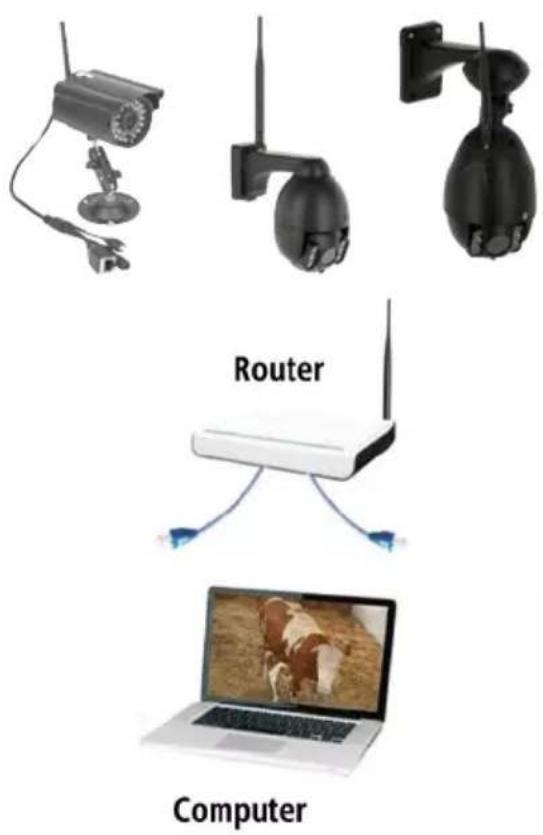
When using for the first time, please connect the camera and the computer to a router using network cables.
Ensure the router is switched on. Only use the cable supplied to provide power to the camera so as to avoid damaging the device!
The camera can be returned to the factory settings by pressing the „Reset“ button (for at least 10 seconds). The “Reset” button is at the end of the 3-way cable (next to the LAN or adapter cable jack).
2. Connect the camera with an Android / iOS device (smartphone, tablet, etc.)
2.1 Software download
The software needed (Eye Cloud) can be downloaded via the AppStore/Google Play or via the website: www.kerbl.com/service/downloads/ip-camera-apps
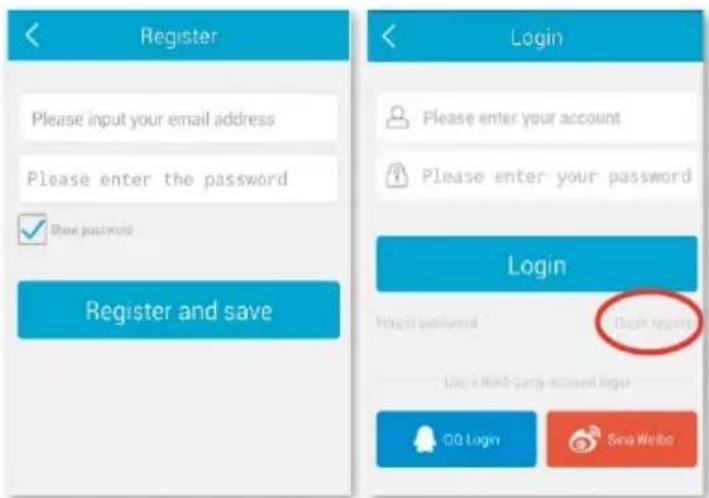
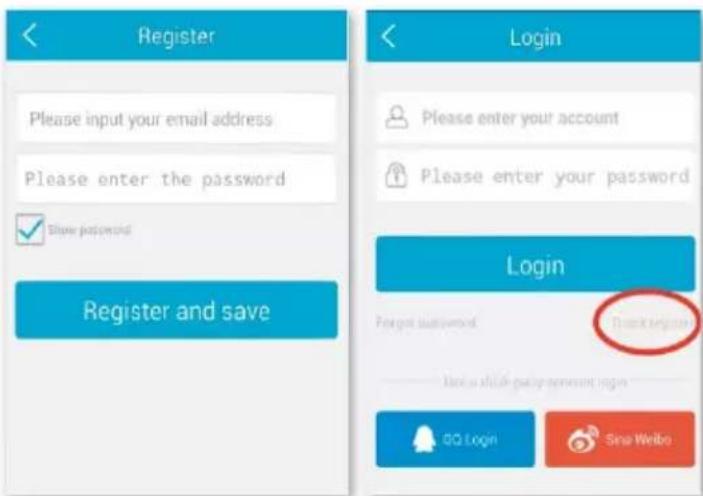
2.2 Registration
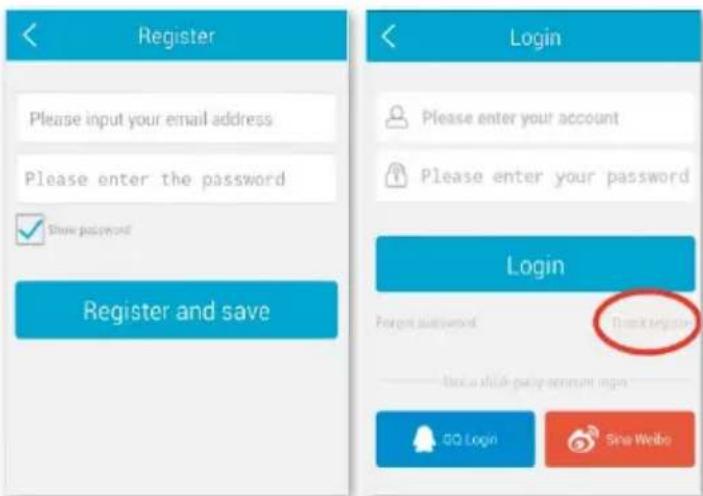
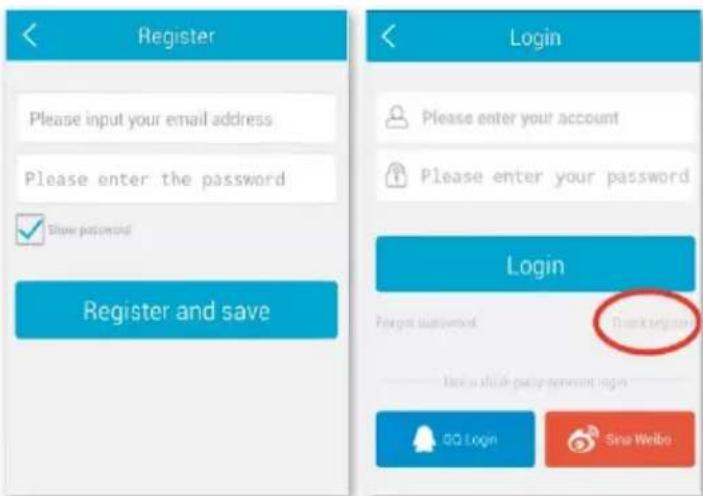
Register as detailed in the instructions contained in the application with your e-mail address and password

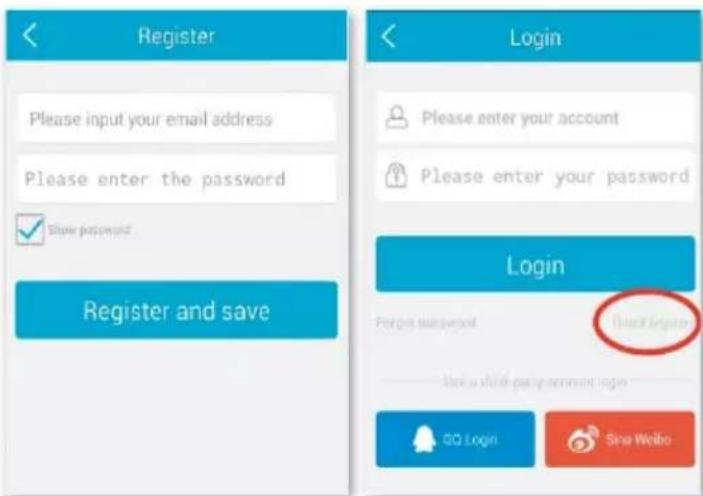
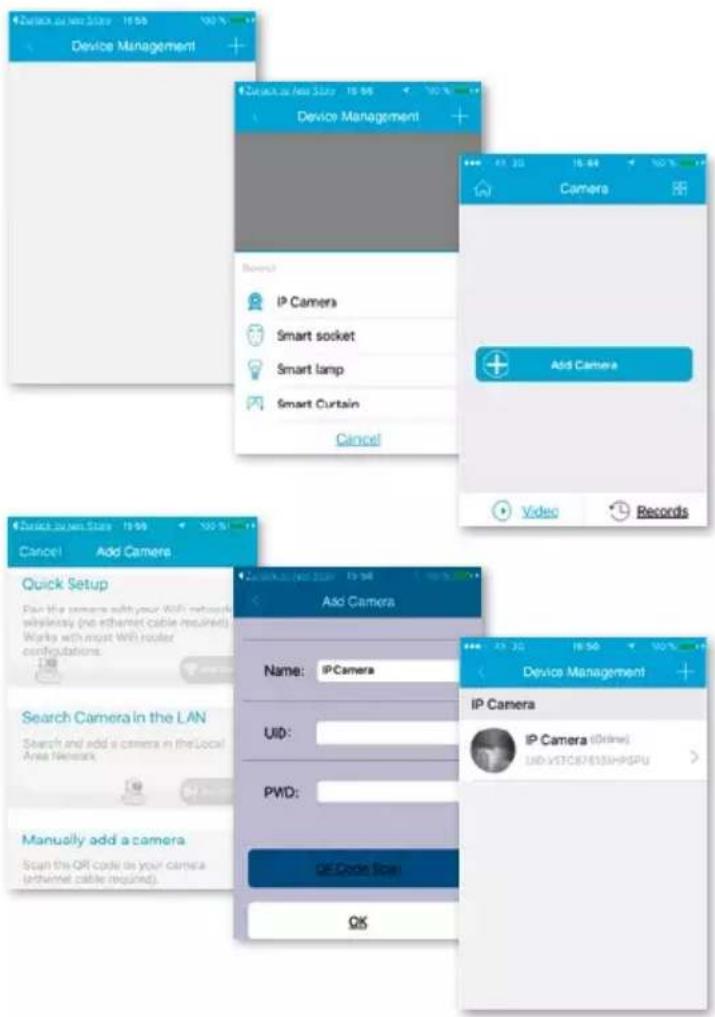
2.3 Add a camera with the software from the App store

Note: The user interface can look different in newer versions of the application. Please contact our support team if required.
Click „+“ at the top right to add a new camera, and select „IP Camera“. There are four options for choosing a camera:
Quick Setup: Pressing the WPS button on the camera and router links the camera automatically (does not work with every router)
LAN search: Click „Search“ to find the camera on the network. The default password is 888888 and the username is admin. Change these details as soon as you find the camera in order to protect your privacy as effectively as possible
Scan: Click „Scan“ and allow your smartphone to scan the QR code. If you hear a beep, the code has been scanned in and the unique camera number (UID) appears in the relevant field.
Manual entry of the UID code: You can also enter the UID manually. Please note that the entry is case-sensitive.
Once you have successfully installed the camera, click the relevant icon and the camera appears.
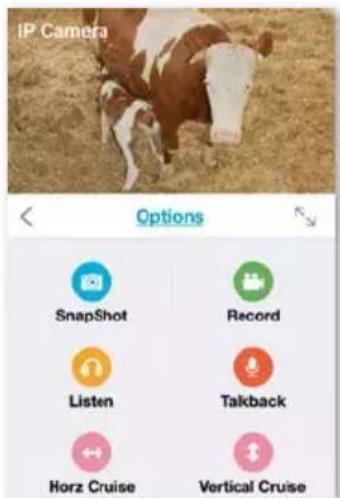
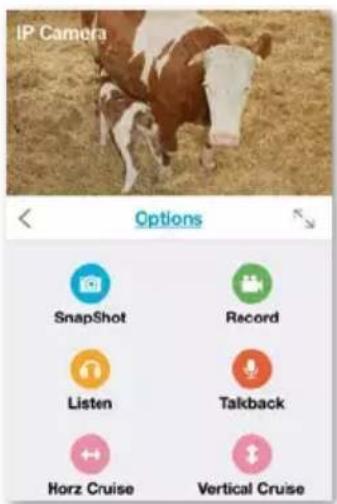
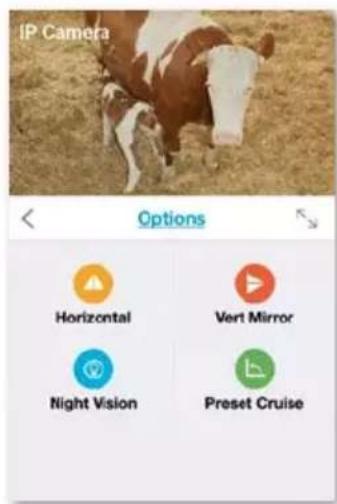
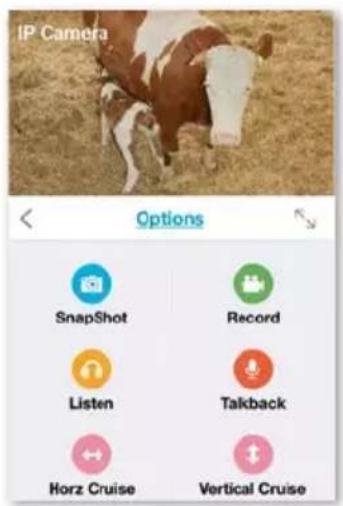
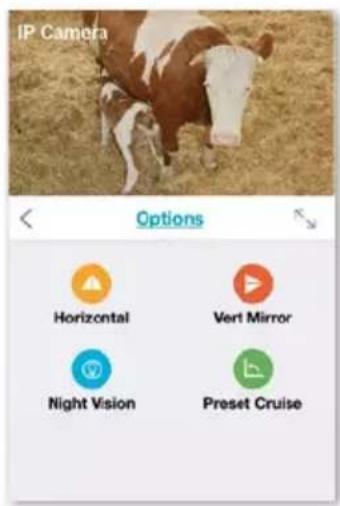
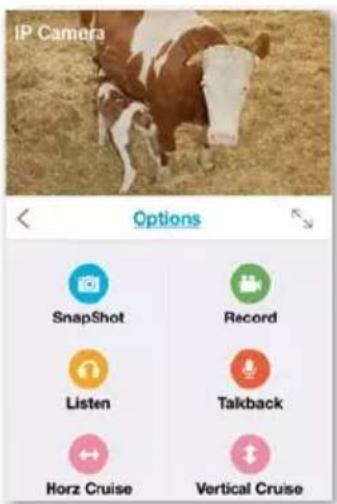
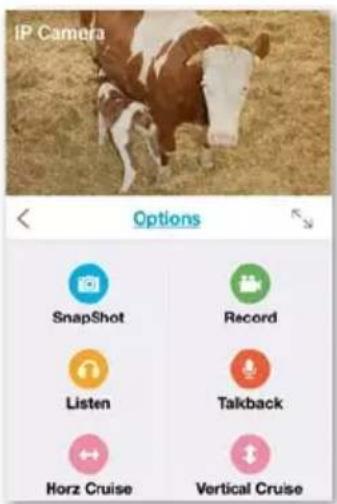
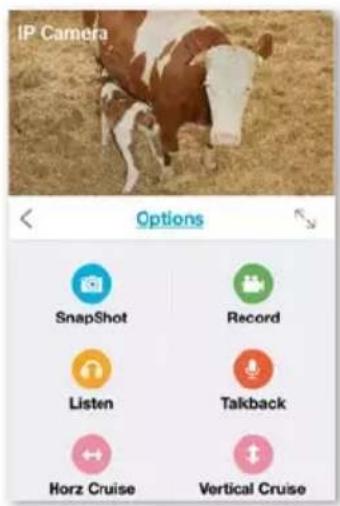
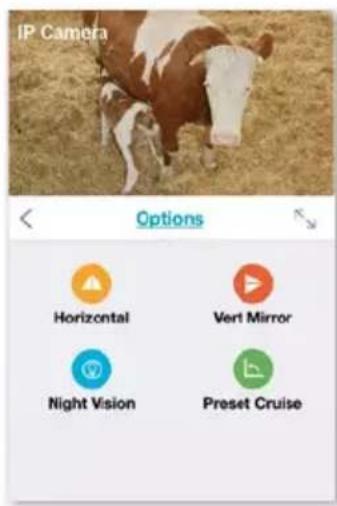
2.4 Video options
Snapshot
Record
Listen (no function)
Talkback (no function)
Horz Cruise
Vertical Cruise
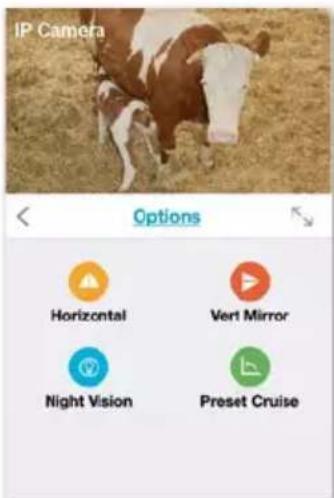
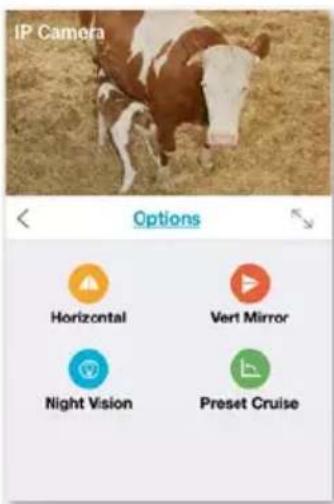
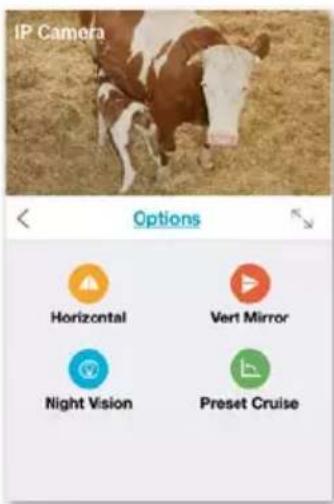
Horizontal
Vert Mirror
Night Vision
Preset Cruise
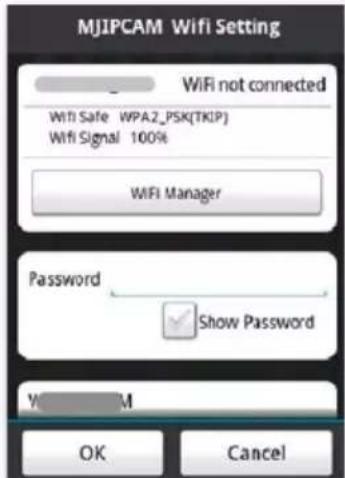
2.5 WLAN setup
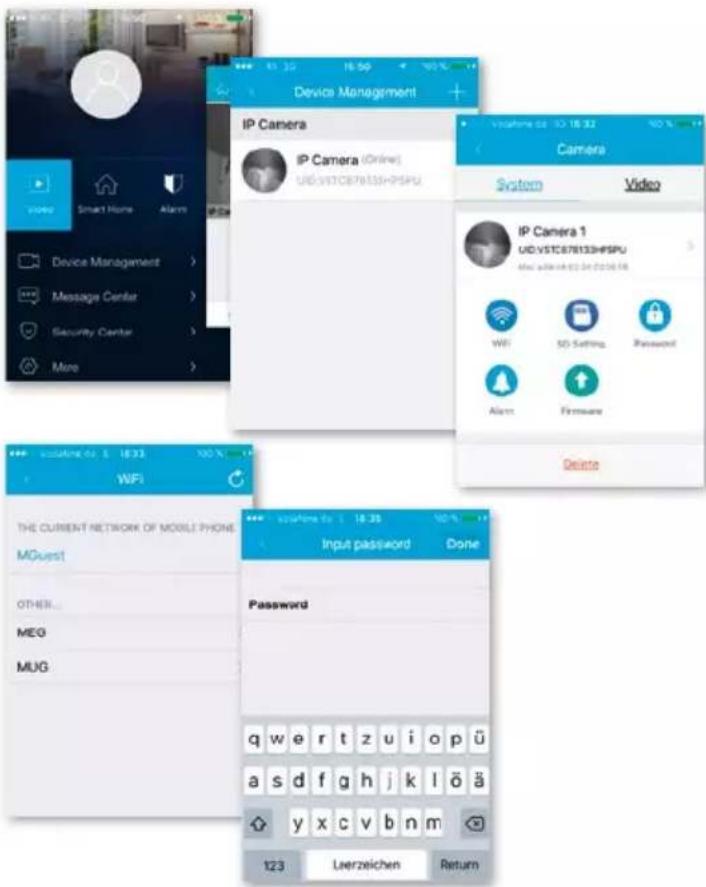
Click the „House“ icon at the top left and the main menu appears. Clicking „Device Management“ gives you a list of all the cameras that have been installed on the network via LAN cable.
Click the „>” symbol on the right next to the camera to activate the settings. Click the blue „WiFi“ icon to display the WLAN networks available.
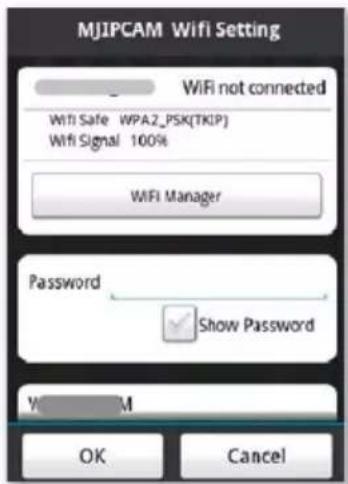
Choose a router and enter the password (WPA or WPA2). Once you have confirmed this by clicking the „OK” symbol, the WLAN network is set up.
Now disconnect the camera from the RJ-45 cable. The camera will dial in and connect automatically to your network.
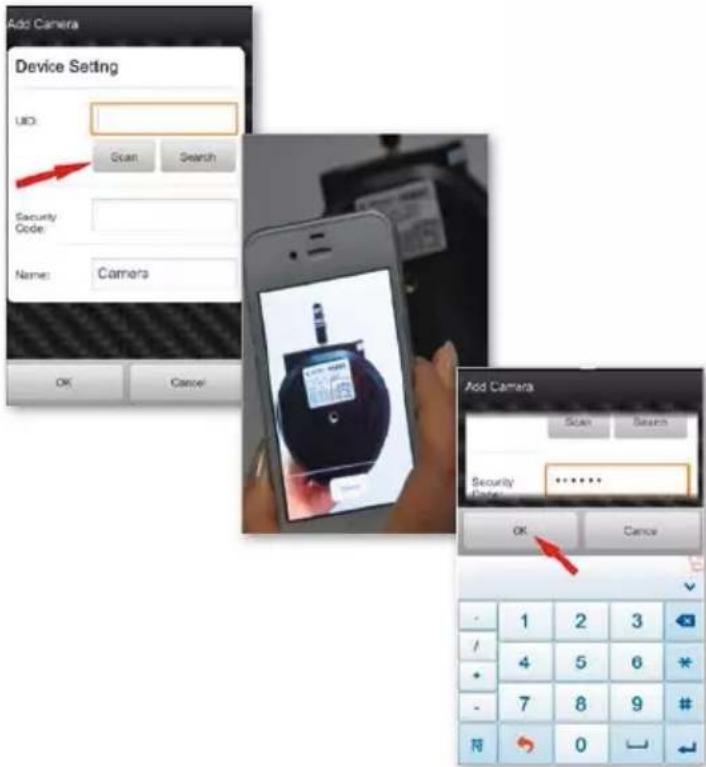
2.6 Add a camera with the software from the Google Playstore

Note: The user interface can look different in newer versions of the application. Please contact our support team if required.
Scan: Click „Scan“ and allow your smartphone to scan the QR code. If you hear a beep, the code has been scanned in and the unique camera number (UID) appears in the relevant field.
LAN search: Click „Search“ to find the camera on the network. The default password is 888888 and the username is admin. Change these details as soon as you find the camera in order to protect your privacy as effectively as possible
Manual entry of the UID code: You can also enter the UID manually. Please note that the entry is case-sensitive.
Once you have successfully installed the camera, click the relevant icon and the camera appears.
2.7 Video options
← Horizontal cruise
↑ Vertical cruise
Preset position
Full screen
Sound off (no function)
Sound on (no function)
No communication (no function)
Communication (no function)
Snapshot
Record
2.8 WLAN setup
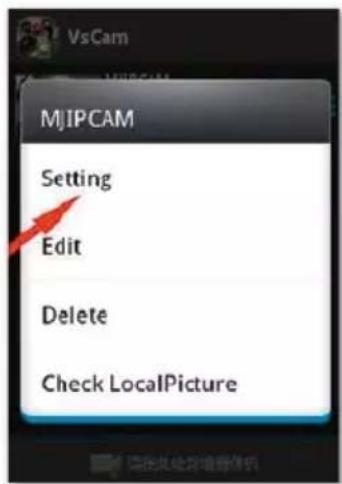
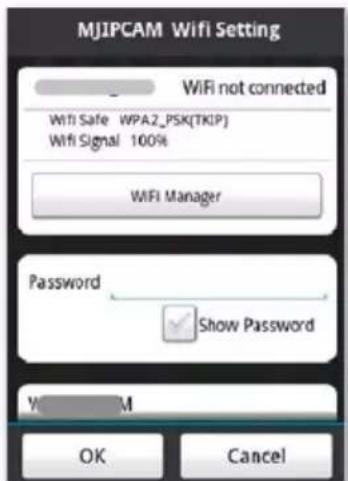
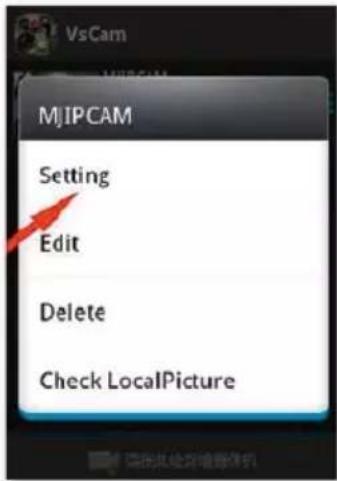
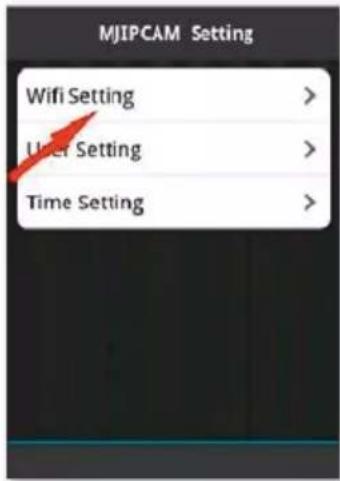
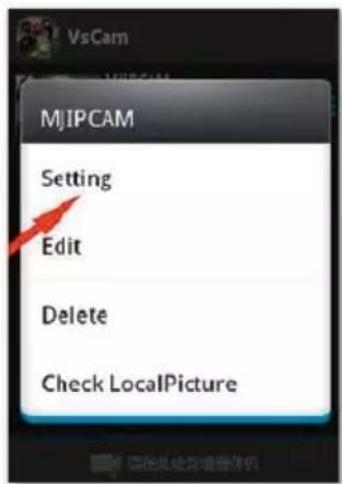
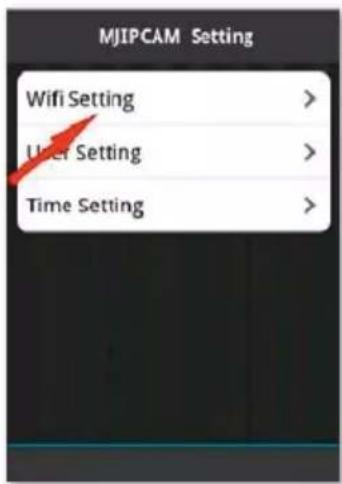
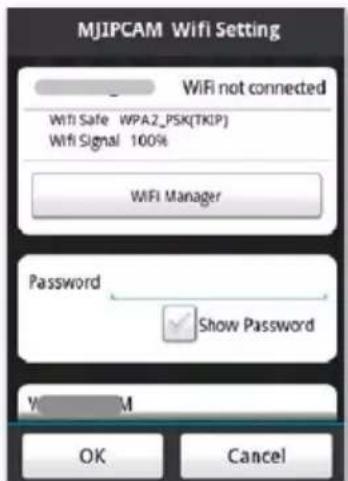
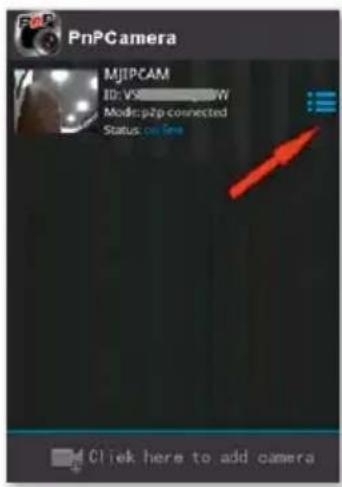
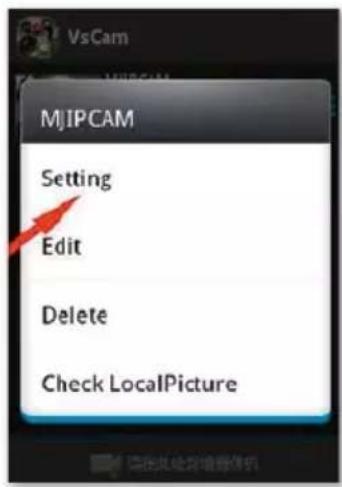
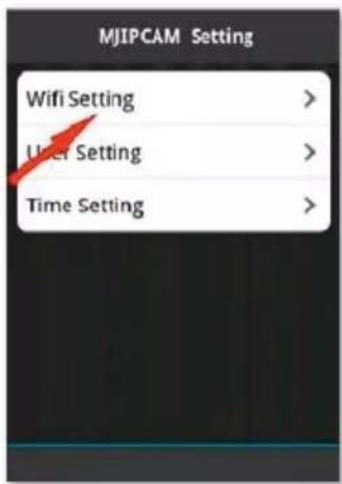
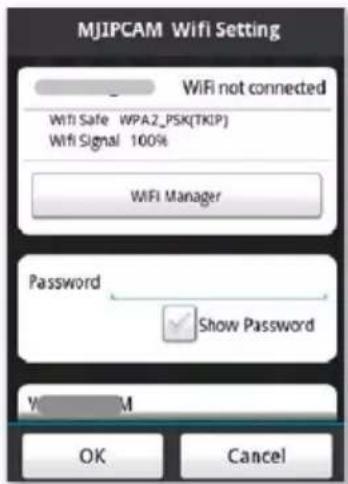
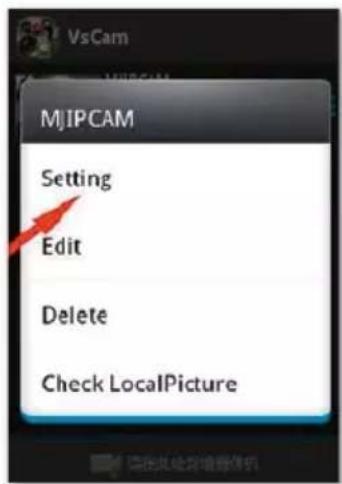
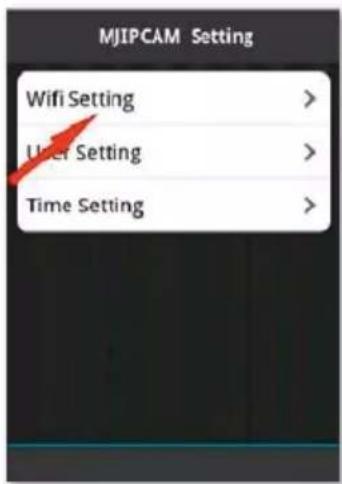
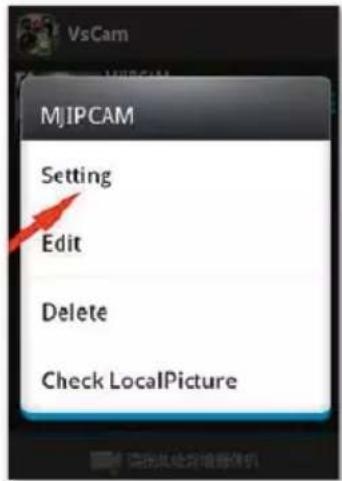
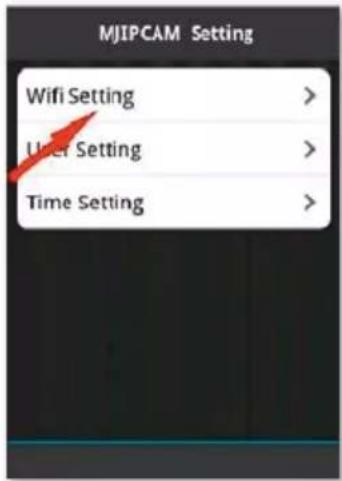
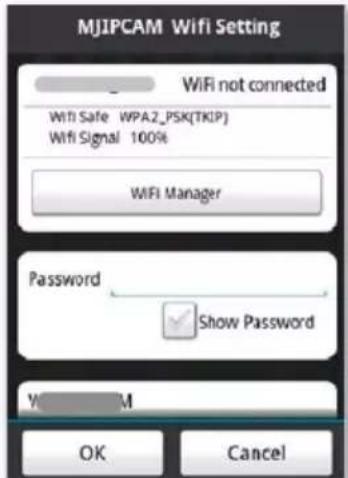
Click the symbol on the right next to the camera to activate the settings. Click „Setting“ and „WiFi Setting“. The available WLAN routers are listed. Choose a router and enter the password (WPA or WPA2). Once you have confirmed this by clicking the „OK“ symbol, the WLAN network is set up. Now disconnect the camera from the RJ-45 cable. The camera will dial in and connect automatically to your network.
2.9 Other settings
Delete camera: Select the camera and sliding it with the finger on the touchpad to the left causes „Delete“ to appear. Tap it and the camera is deleted.
Reset to factory settings: Hold the reset button for around 15 seconds.
Video history: Tapping "history records" allows you to list videos that have been stored locally and on the SD card.
Version update: Tapping „Firmware upgrade“ searches for new versions of the software.
The application supports settings for the alarm, saving, password changes, firmware updates, image quality (brightness, contrast, mirroring, infra-red options). The commands are self-explanatory thanks to the icons and are easy to understand.
3. Camera setup via PC software
Proceed in the same way as with downloading for smartphones and go to the www.kerbl.de/service website. Click „Download“ under the Windows icon.
Run the „app-Smart.exe" file and allow the program to install. The following icon appears on your desktop following successful installation:
Note: The user interface can look different in newer versions of the application. Please contact our support team if required.
Tip: We have created a video tutorial for you. This explains all the program details in detail. Click the link: www.kerbl.com/service/product-consulting/ip-camera/video-tutorial-ip-cameras
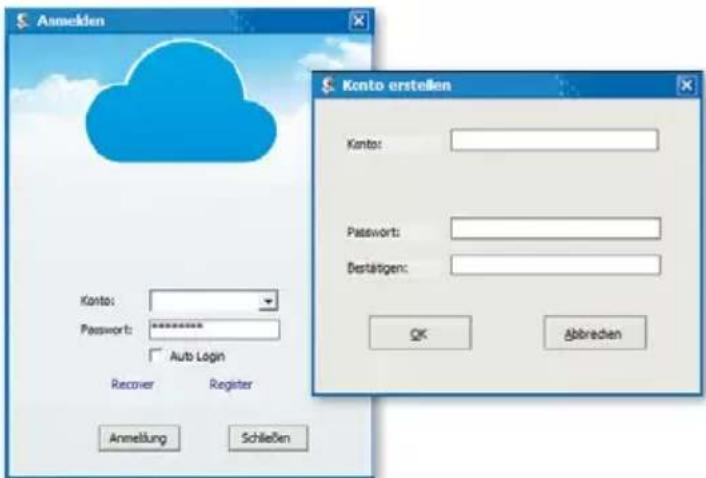
After double-clicking the icon, the following window appears:
Recover: Forgotten password and request a new one Register: New registration (tip: Use your e-mail address as the account)
After entering the details successfully, the program interface appears. Pressing „+“ allows you to add cameras.
Name: Assign a unique name so that you know which camera you want to control if you have multiple cameras.
UID: Here, you can either enter the camera's unique code that can be found on a separate sticker or click „Search“. All of the cameras on the network are displayed (see Setup via smartphone).
Click „Refresh“ if not all of the cameras on the network are listed. Check during initial installation that all of the cameras are connected with the RJ-45 network cable to the router or that the cameras were linked correctly to the WLAN.
Password: For security reasons, change your password promptly and follow the instructions under „Changing passwords“

Windows
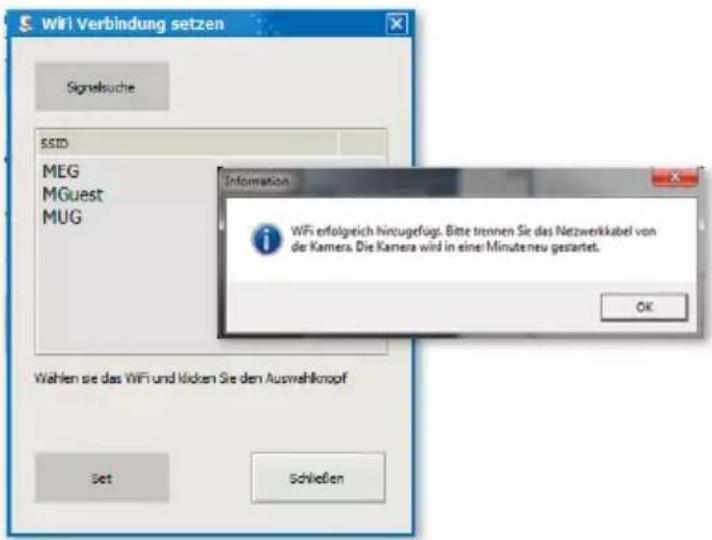
Select WiFi: Clicking this button allows you to list the WiFi networks available with a click on „Find signal". Select the appropriate network, click „Set“ and enter, if requested, the WPA or WPA2 key. This is often found on the underside of the router. After successfully setting up the WLAN network, the following message appears
Confirm with "OK". The camera is now successfully set up! Now disconnect the camera from the RJ-45 cable. The camera will dial in and connect automatically to your network.
3.1 Operating the camera
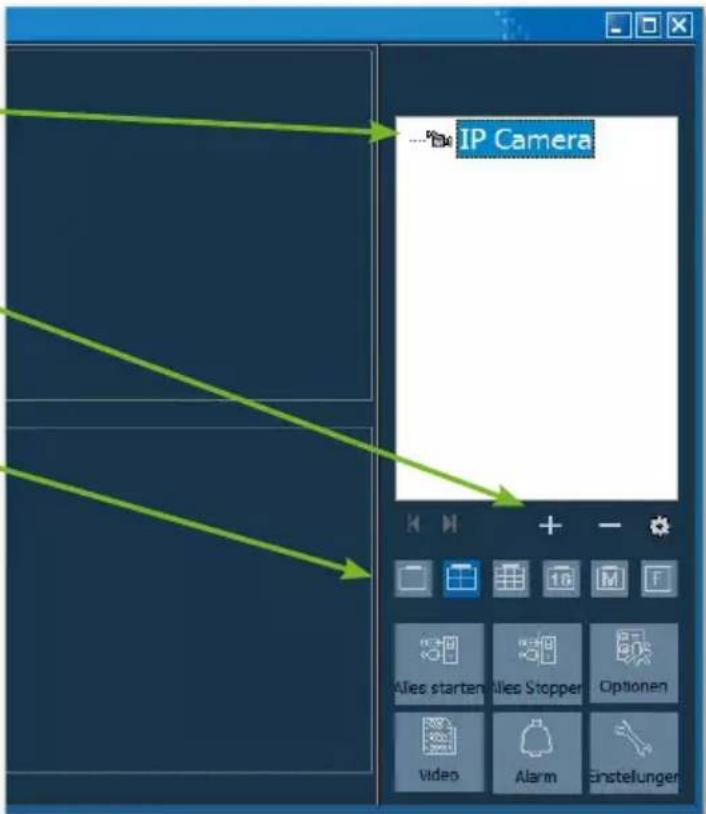
• Display of the added cameras
• „+“: Add camera
- "Delete camera
- "Cogwheel": This is where you can set recording and alarm functions
- Select menu for the number of cameras that are to be displayed in the summary window. The setting from left to right: Single camera, 4 cameras, 8 cameras, 16 cameras, manual setting, full screen
Start all: Bring all cameras online simultaneously
Stop all: Take all cameras offline simultaneously
Options: Settings for memory functions, on-screen display and other details
Video: Access to saved videos
Alarm: Access to videos that were triggered due to an alarm
Settings: Change password, search for software updates
3.2 Control elements
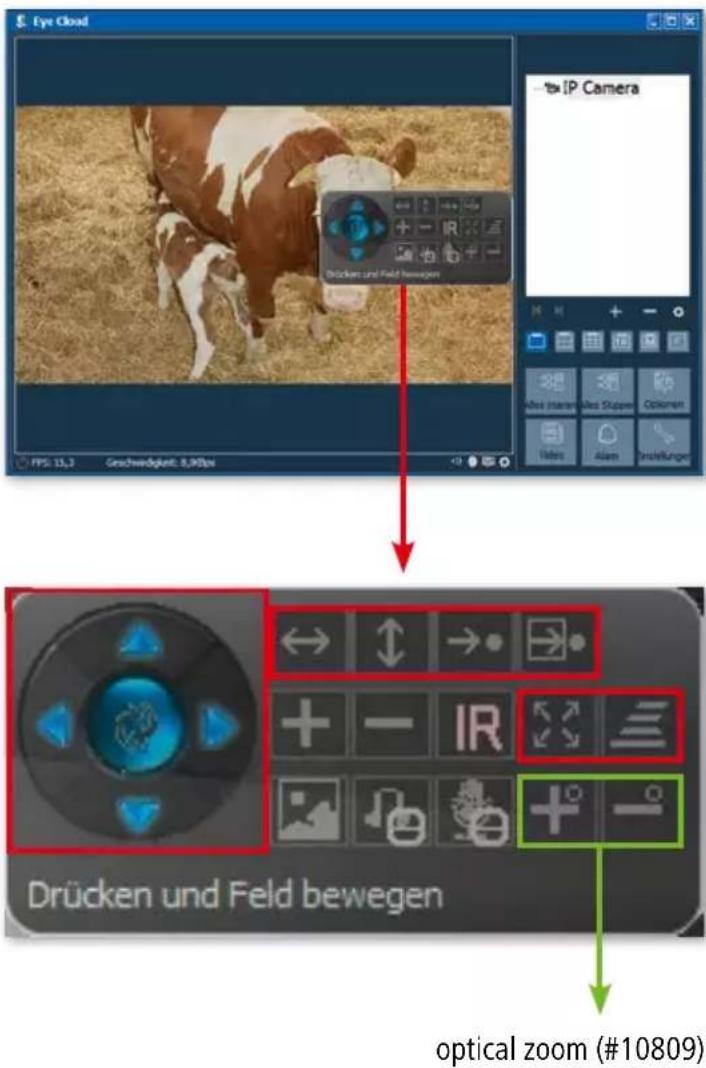
Clicking with the left-hand mouse button on the window of the camera in question displays a control element with various control options:
The control options framed in red only apply to IPCam 360° HD/F-HD (#10811, #10809). These functions relate to the movement of the camera via remote control.
The explanation of the function can be made to appear by briefly holding the mouse point over the icon. The menu is clear and self-explanatory.
Further information and assistance in the event of installation problems can be obtained here:
Tel: +49 8086 933-545
E-Mail: support_ipcam@kerbl.com
Tip: We have created a video tutorial for you. This explains all the program details in detail. Click the link: www.kerbl.com/service/product-consulting/ip-camera/video-tutorial-ip-cameras
Based on our General Terms and Conditions of Business, we offer a 2 YEARS WARRANTY for this device covering damage caused by material or manufacturing defects. This warranty begins on the date of purchase.
The warranty does not cover:
- damaged caused by natural wear and tear (wear parts, sliding parts), excessive strain and incorrect use (non-compliance with operating instructions).
- Damage caused by force majeure or sustained during transport.
- Damage to rubber parts, e.g. on connecting lines. Warranty repairs are only carried out by the manufacturing plant or an authorised contracted workshop. The manufacturer reserves the right to reject any warranty claims in the event of non-compliance. The device must for this purpose be returned to the point of sale, at the risk of the device owner, complete, packaged and with sufficient postage, including the original invoice and the warranty card. (address see dealer stamp). Please provide as much information as possible on the nature of the problem. Costs incurred as a result of unjustified defect claims will be invoiced to the device's owner.

CE Declaration of Conformity
Albert Kerbl GmbH hereby declares that the IPCams #10810, #10809 and #10811 comply with the 2014/53/EU Directive. The full text of the EU
Declaration of Conformity can be found on the following website: www.kerbl.com/doc

Electrical waste
It is up to the operator to dispose of the IPCam responsibly in accordance with local regulations. Consult the relevant regulations for your country. The device must not be disposed of in household waste. Under the terms of the EU Directive on the disposal of old electrical and electronic equipment, the
device can be taken to local authority-run refuse sites or recycling plants free of charge, or returned to dealers who offer a returns service. Correct disposal protects the environment and prevents any possible harmful impacts on humans and the environment.

2.7 Opzioni video

2.5 WLAN-apparaat
2.7 Video-opties
3. Camera instellen via PC software

Vertical Cruise = vertical panorering
Horizontal = horisontell spegling
Vert Mirror = vertikal spegling
Night Vision = mörkerseende
2.5 WiFi-installation
2.7 Videoalternativ
2.8 WiFi-installation