Precision M70 - Laptop DELL - Free user manual and instructions
Find the device manual for free Precision M70 DELL in PDF.



| Product type | Professional laptop (mobile workstation) |
| Brand | Dell |
| Model | Precision M70 |
| Processor | Intel Pentium M (up to 2.13 GHz) |
| Memory (RAM) | Up to 2 GB DDR2 SDRAM |
| Hard drive | Up to 80 GB |
| Screen | 15.4 inches (resolution up to 1920 x 1200) |
| Graphics card | NVIDIA Quadro FX Go1400 (128 MB) |
| Battery | Lithium-Ion, battery life 3 to 4 hours (standard) |
| Weight | Approximately 2.9 kg |
| Dimensions (W x D x H) | 363 x 258 x 33 mm |
| Power supply | 90 W AC adapter |
| Connectivity | Ethernet 10/100/1000, V.92 56K modem, Wi-Fi 802.11b/g (optional) |
| Ports | 4 USB 2.0, VGA, S-Video, parallel, serial, audio jacks, AC adapter connector |
| Optical drive | CD/DVD-ROM combo or burner (optional) |
| Operating system | Windows XP Professional |
| Main features | High-performance mobile workstation, modular bay for second hard drive or battery, support for Dell D/Dock docking stations |
| Maintenance and cleaning | Use a soft lint-free cloth, avoid solvents, clean vents regularly |
| Security | Kensington lock slot, BIOS password, Dell QuickSet software |
| Spare parts and repairability | Battery, AC adapter, hard drive, memory, Wi-Fi card |
Frequently Asked Questions - Precision M70 DELL
User questions about Precision M70 DELL
0 question about this device. Answer the ones you know or ask your own.
Ask a new question about this device
Download the instructions for your Laptop in PDF format for free! Find your manual Precision M70 - DELL and take your electronic device back in hand. On this page are published all the documents necessary for the use of your device. Precision M70 by DELL.
USER MANUAL Precision M70 DELL
Dell Precision™ M70 Mobile
Workstation
Quick Reference Guide
Notes, Notices, and Cautions

NOTE: A NOTE indicates important information that helps you make better use of your computer.

NOTICE: A NOTICE indicates either potential damage to hardware or loss of data and tells you how to avoid the problem.

CAUTION: A CAUTION indicates a potential for property damage, personal injury, or death.
Abbreviations and Acronyms
For a complete list of abbreviations and acronyms, see the User's Guide (depending on your operating system, double-click the User's Guide icon on your desktop, or click the Start button, click Help and Support Center, and then click User and system guides).
If you purchased a Dell ^™ n Series computer, any references in this document to Microsoft ^® Windows ^® operating systems are not applicable.
The Drivers and Utilities CD and the Operating System CD are optional and may not ship with all computers.
Information in this document is subject to change without notice.
© 2004 Dell Inc. All rights reserved.
Reproduction in any manner whatsoever without the written permission of Dell Inc. is strictly forbidden.
Trademarks used in this text: Dell, the DELL logo, and Dell Precision are trademarks of Dell Inc.; Microsoft and Windows are registered trademarks of Microsoft Corporation; Intel and Pentium are registered trademarks of Intel Corporation.
Other trademarks and trade names may be used in this document to refer to either the entities claiming the marks and names or their products. Dell Inc. disclaims any proprietary interest in trademarks and trade names other than its own.
Model PP15L
October 2004 P/N Y4303 Rev. A00
Contents
Finding Information for Your Computer 5
Setting Up Your Computer 7
About Your Computer 9
Front View 10
Left View 11
Right View 11
Back View 12
Bottom View 13
Using a Battery 13
Battery Performance 13
Checking the Battery Charge 14
Charging the Battery 16
Removing a Battery 16
Installing a Battery 17
Storing a Battery 17
Solving Problems 17
Notebook System Software (NSS) 17
Lockups and Software Problems 18
Running the Dell Diagnostics 20
Finding Information for Your Computer

NOTE: Some features may not be available for your computer or in certain countries.

NOTE: Additional information may ship with your computer.
What Are You Looking For? Find It Here
• A diagnostic program for my computer
- Drivers for my computer
• My computer documentation
• My device documentation
• Notebook System Software (NSS)
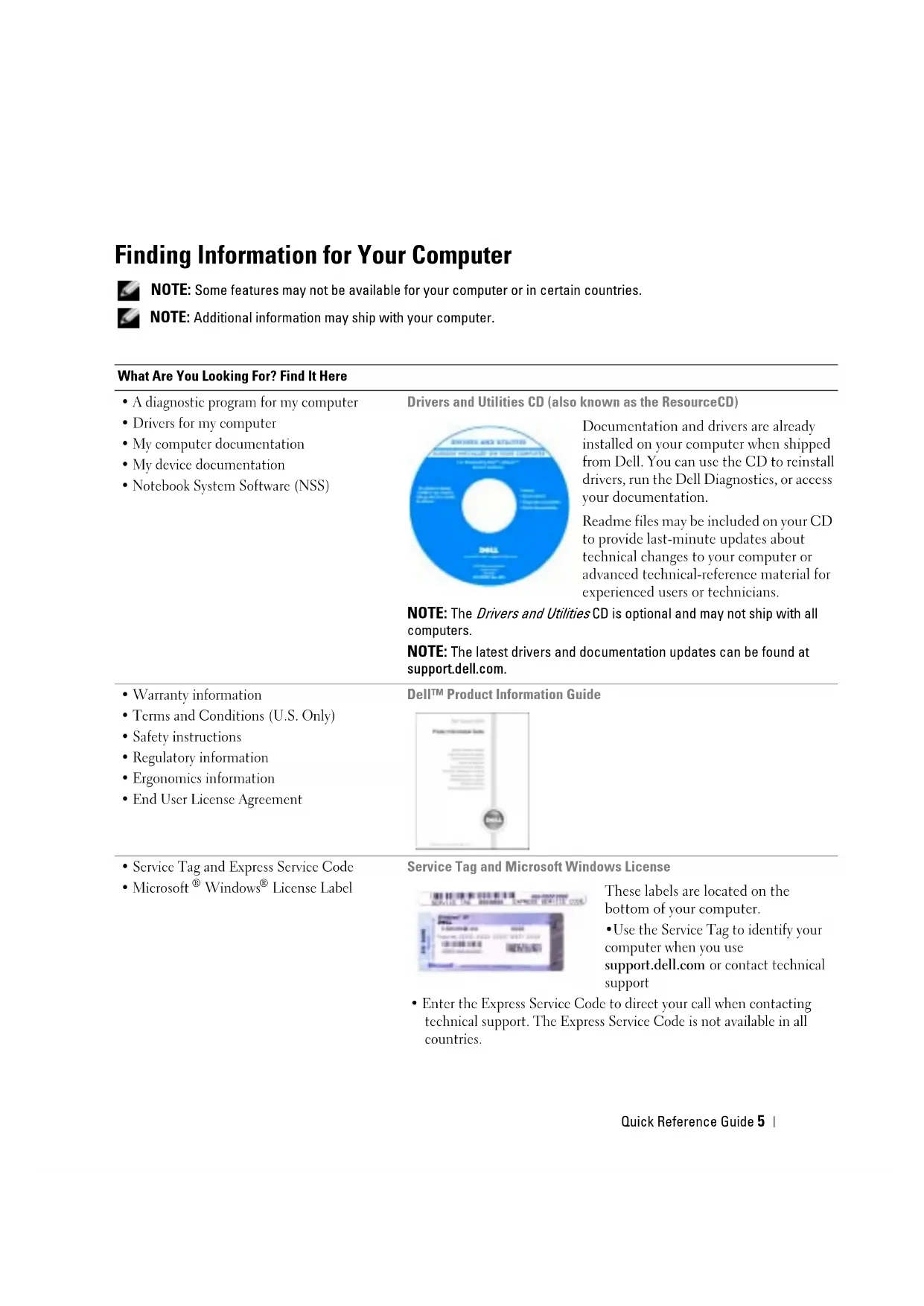
Drivers and Utilities CD (also known as the ResourceCD)
![DHRS-AND STUDIES Authorial works in the Canadian Dr. Konsley's 2017 [1] Schuldinger DALL [2] Schuldinger [3] Schuldinger [4] Schuldinger [5] Schuldinger [6] Schuldinger [7] Schuldinger [8] Schuldinger [9] Schuldinger [10] Schuldinger [11] Schuldinger [12] Schuldinger [13] Schuldinger [14] Schuldinger [15] Schuldinger [16] Schuldinger [17] Schuldinger [18] Schuldinger [19] Schuldinger [20] Schuldinger [21] Schuldinger [22] Schuldinger [23] Schuldinger [24] Schuldinger [25] Schuldinger [26] Schuldinger [27] Schuldinger [28] Schuldinger [29] Schuldinger [30] Schuldinger [31] Schuldinger [32] Schuldinger [33] Schuldinger [34] Schuldinger [35] Schuldinger [36] Schuldinger [37] Schuldinger [38] Schuldinger [39] Schuldinger [40] Schuldinger [41] Schuldinger [42] Schuldinger [43] Schuldinger [44] Schuldinger [45] Schuldinger [46] Schuldinger [47] Schuldinger [48] Schuldinger [49] Schuldinger [50] Schuldinger [51] Schuldinger [52] Schuldinger [53] Schuldinger [54] Schuldinger [55] Schuldinger [56] Schuldinger [57] Schuldinger [58] Schuldinger [59] Schuldinger [60] Schuldinger [61] Schuldinger [62] Schuldinger [63] Schuldinger [64] Schuldinger [65] Schuldinger [66] Schuldinger [67] Schuldinger [68] Schuldinger [69] Schuldinger [70] Schuldinger [71] Schuldinger [72] Schuldinger [73] Schuldinger [74] Schuldinger [75] Schuldinger [76] Schuldinger [77] Schuldinger [78] Schuldinger [79] Schuldinger [80] Schuldinger [81] Schuldinger [82] Schuldinger [83] Schuldinger [84] Schuldinger [85] Schuldinger [86] Schuldinger [87] Schuldinger [88] Schuldinger [89] Schuldinger [90] Schuldinger [91] Schuldinger [92] Schuldinger [93] Schuldinger [94] Schuldinger [95] Schuldinger [96] Schuldinger [97] Schuldinger [98] Schuldinger [99] Schuldinger](/content/2026/04/644063/images/1a53a29de9381b2262c674a38b8b98823eabc5b19d32167d1f6fedaede835883.jpg)
Documentation and drivers are already installed on your computer when shipped from Dell. You can use the CD to reinstall drivers, run the Dell Diagnostics, or access your documentation.
Readme files may be included on your CD to provide last-minute updates about technical changes to your computer or advanced technical-reference material for experienced users or technicians.
NOTE: The Drivers and Utilities CD is optional and may not ship with all computers.
NOTE: The latest drivers and documentation updates can be found at support.dell.com.
- Warranty information
- Terms and Conditions (U.S. Only)
- Safety instructions
• Regulatory information
• Ergonomics information
• End User License Agreement
DeII™ Product Information Guide

• Service Tag and Express Service Code
- Microsoft ^® Windows ^® License Label
Service Tag and Microsoft Windows License

These labels are located on the bottom of your computer.
- Use the Service Tag to identify your computer when you use support.dell.com or contact technical support
- Enter the Express Service Code to direct your call when contacting technical support. The Express Service Code is not available in all countries.
What Are You Looking For? Find It Here
| How to remove and replace partsSpecificationsHow to configure system settingsHow to troubleshoot and solve problems | Dell PrecisionTM M70 User's GuideMicrosoft® Windows® XP Help and Support Center1 Click the Start button and click Help and Support.2 Click User and System Guides and click User Guides. |
| Solutions — Troubleshooting hints and tips, articles from technicians, online courses, frequently asked questionsCommunity — Online discussion with other Dell customersUpgrades — Upgrade information for components, such as memory, the hard drive, and the operating systemCustomer Care — Contact information, service call and order status, warranty, and repair informationService and support — Service call status and support history, service contract, online discussions with technical supportReference — Computer documentation, details on my computer configuration, product specifications, and white papersDownloads — Certified drivers, patches, and software updates | Dell Support Website — support.dell.comNOTE: Select your region to view the appropriate support site.NOTE: Corporate, government, and education customers can also use the customized Dell Premier Support website at premier.support.dell.com. The website may not be available in all regions. |
| Notebook System Software (NSS) | Drivers and Utilities CD or Dell Support WebsiteIf you reinstall the operating system for your computer, you should also reinstall the NSS utility (available on the optional Drivers and Utilities CD or on the Dell Support Site). NSS provides critical updates for your operating system and support for DellTM 3.5-inch USB floppy drives, Intel® Pentium® M processors, optical drives, and USB devices. NSS is necessary for correct operation of your Dell computer. The software automatically detects your computer and operating system and installs the updates appropriate for your configuration. |
| How to use Windows XPDocumentation for my computerDocumentation for devices (such as a modem) | Windows Help and Support Center1 Click the Start button and click IHelp and Support.2 Type a word or phrase that describes your problem and click the arrow icon.3 Click the topic that describes your problem.4 Follow the instructions on the screen. |
What Are You Looking For? Find It Here
• How to reinstall my operating system
Operating System CD
The operating system is already installed on your computer. To reinstall your operating system, use the Operating System CD. See your Dell Precision User's Guide for instructions.
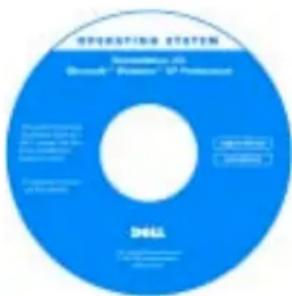
After you reinstall your operating system, use the Drivers and Utilities CD to reinstall drivers for the devices that came with your computer.
The operating system product key is located on your computer.
NOTE: The color of your CD varies based on the operating system you ordered.
NOTE: The Operating System CD is optional and may not ship with all computers.
Setting Up Your Computer

CAUTION: Before you begin any of the procedures in this section, follow the safety instructions located in the Product Information Guide.
1 Unpack the accessories box.
2 Set aside the contents of the accessories box, which you will need to complete your computer setup.
The accessories box also contains user documentation and any software or additional hardware (such as PC Cards, drives, or batteries) that you have ordered.
3 Connect the AC adapter to the AC adapter connector on the computer and to the electrical outlet.

NOTICE: When using the AC adapter, secure the cable so that the cable is not pulled, tangled, stepped on, or crushed by objects such as chair legs or desk supports.
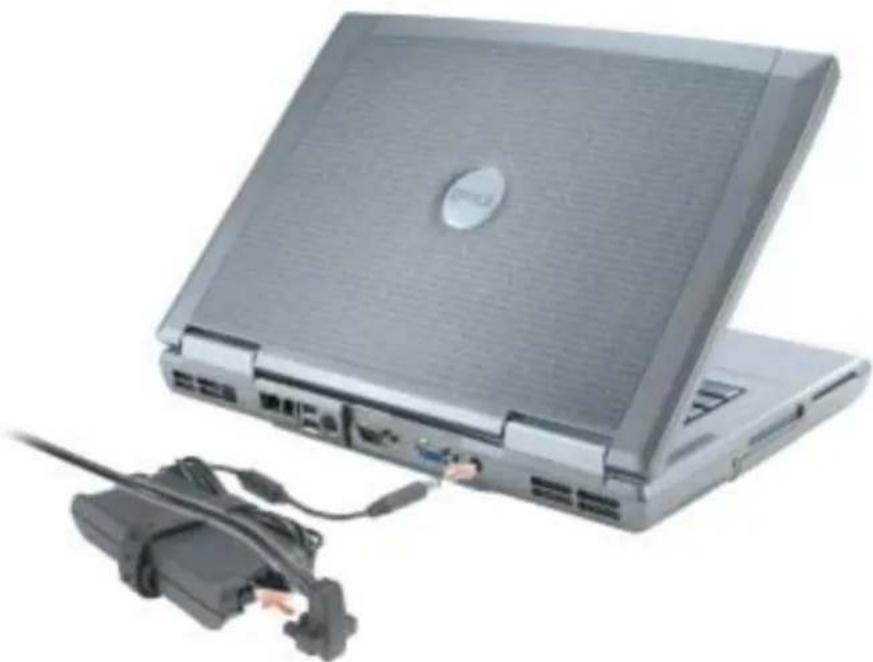
natural_image
Exterior view of a silver laptop with attached cable and power cord (no visible text or symbols)NOTE: Do not connect the computer to the docking device until the computer has been turned on and shut down at least once.
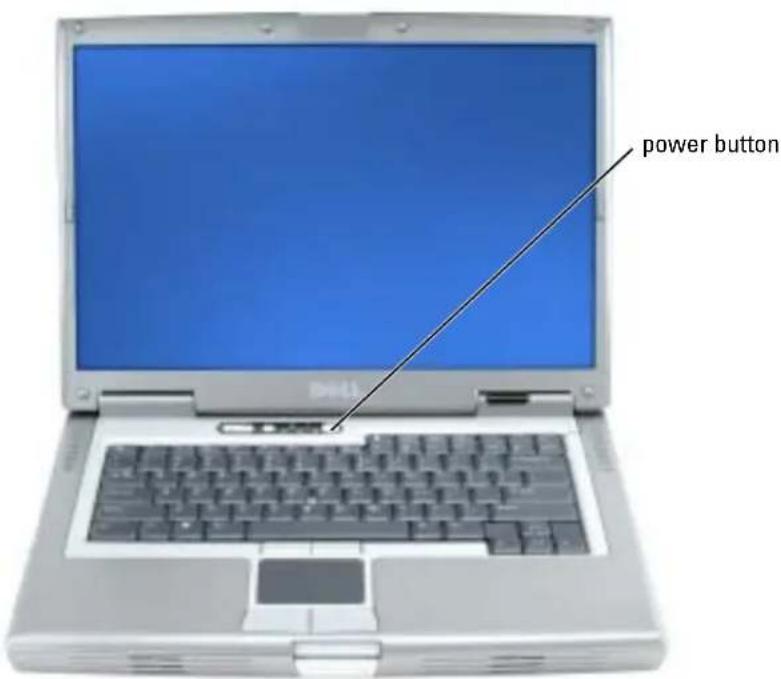
4 Open the computer display and press the power button to turn on the computer.
About Your Computer
See your online User's Guide for detailed information about your computer. Depending on your operating system, double-click the User's Guide icon on your desktop, or click the Start button, click Help and Support Center and then click User and system guides. The following items address some of the more commonly asked questions about the computer.
- Modem and network adapter: The computer may include both a v.92 56K modem and a 10/100/1000 Ethernet LOM network adapter. For connector locations, see "Back View" on page 12. For more information on ports and connectors, see "About Your Computer" in your online User's Guide.
- Battery life and usage: Various batteries are available for use with your computer. Using the battery that comes standard with the computer, you can expect from 3 to 4 hours of operating time from a single fully charged battery with average usage. Performing certain types of operations, such as extended wireless operation, can significantly reduce battery life.
- For more information on battery performance, usage, and conserving power, see your online User's Guide.
- For information on an optional second battery, see your online User's Guide.
- Module bay devices: For information on the module bay and the devices it supports, see "Using the Module Bay" in your online User's Guide.
- Docking devices: Your computer supports the Dell D/Dock Expansion Station and the Dell D/Port Advanced Port Replicator.
NOTE: Docking devices may not be available in all countries.
For information on your optional docking device, see the documentation that accompanied the device.
For information on obtaining optimal performance when using a docking device with this computer, see "Solving Problems" in your online User's Guide.
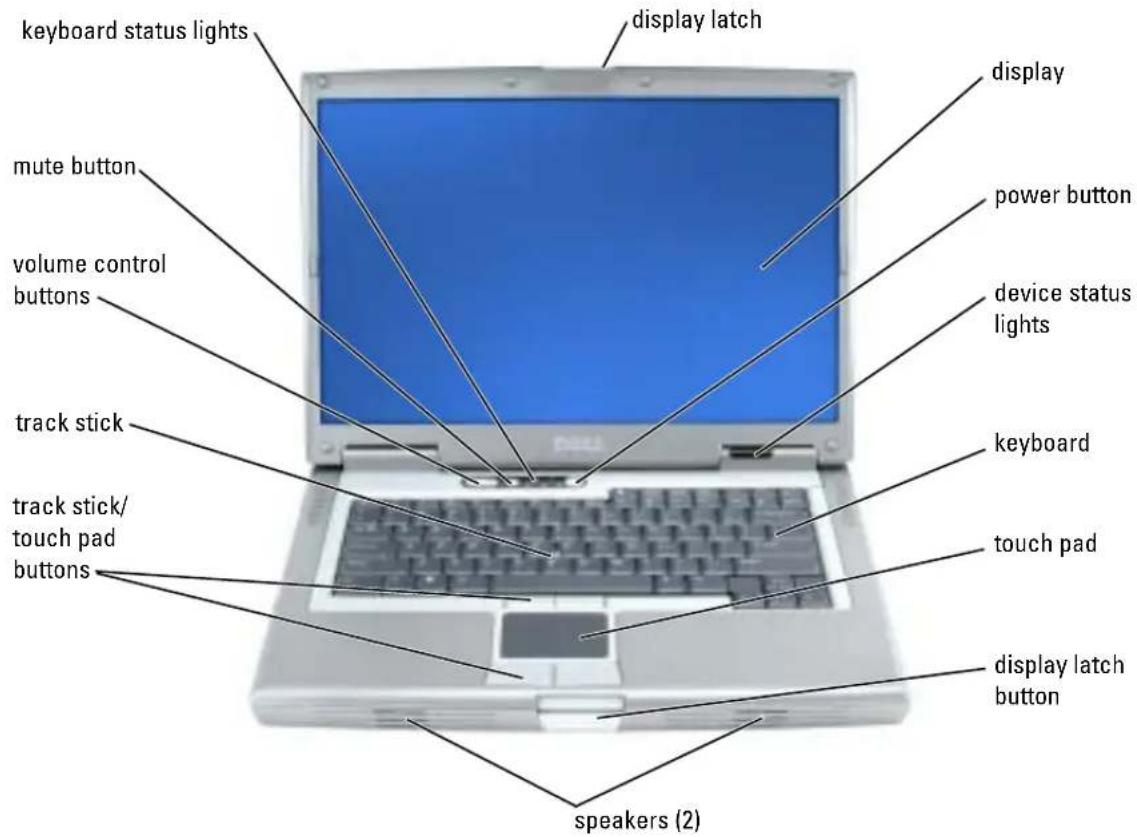
Front View
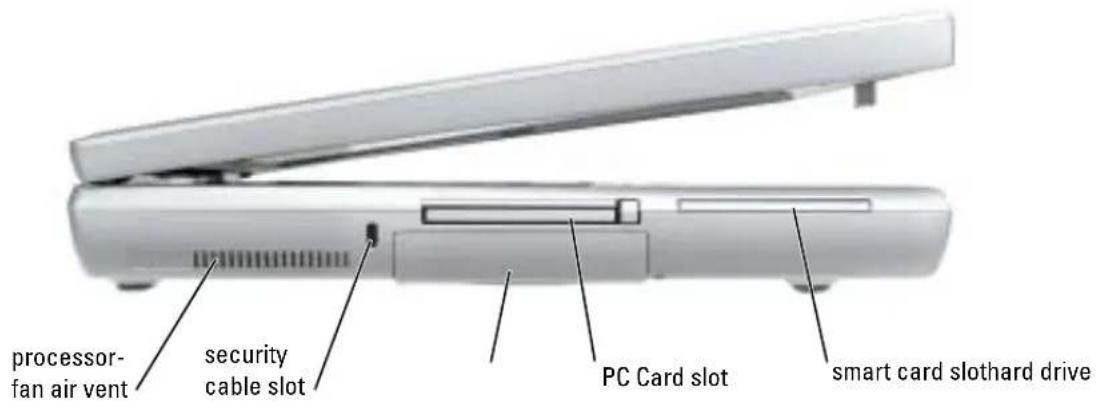
Left View
Right View

Back View

CAUTION: Do not block, push objects into, or allow dust to accumulate in the air vents. Do not store your computer in a low-airflow environment, such as a closed briefcase, while it is running. Restricting the airflow can damage the computer or cause a fire.

NOTICE: To avoid damaging the computer, wait 5 seconds after you turn off the computer before you disconnect an external device.

Bottom View

CAUTION: Before you begin any of the procedures in this section, follow the safety instructions located in the Product Information Guide.

NOTE: For information about the Dell warranty for your computer, see the Product Information Guide or separate paper warranty document that shipped with your computer.
For optimal computer performance and to help preserve BIOS settings, operate your Dell™ portable computer with the main battery installed at all times. Use a battery to run the computer when it is not connected to an electrical outlet. One battery is supplied as standard equipment in the battery bay. Battery operating time varies depending on operating conditions. You can install an optional second battery in the module bay to significantly increase operating time. For more information about the optional second battery, see your User's Guide.

NOTE: Battery operating time (the time it can hold a charge) decreases over time. Depending on how often the battery is used and the conditions under which it is used, you may need to purchase a new battery during the life of your computer.
Operating time is significantly reduced when you perform operations including, but not limited to, the following:
• Using CD, DVD, or other optical drives
- Using wireless communications devices, PC Cards, or USB devices
- Using high-brightness display settings, 3D screen savers, or other power-intensive programs such as 3D games
- Running the computer in maximum performance mode

NOTE: It is recommended that you connect your computer to an electrical outlet when writing to a CD or DVD.
You can check the battery charge before you insert the battery into the computer. You can also set power management options to alert you when the battery charge is low.

CAUTION: Using an incompatible battery may increase the risk of fire or explosion. Replace the battery only with a compatible battery purchased from Dell. The lithium-ion battery is designed to work with your Dell computer. Do not use a battery from other computers with your computer.

CAUTION: Do not dispose of batteries with household waste. When your battery no longer holds a charge, call your local waste disposal or environmental agency for advice on disposing of a lithium-ion battery. See "Battery Disposal" in the Product Information Guide.

CAUTION: Misuse of the battery may increase the risk of fire or chemical burn. Do not puncture, incinerate, disassemble, or expose the battery to temperatures above 65^ C ( 149^ F). Keep the battery away from children. Handle damaged or leaking batteries with extreme care. Damaged batteries may leak and cause personal injury or equipment damage.
Checking the Battery Charge
The Dell QuickSet Battery Meter, the Microsoft® Windows® Power Meter window and icon, the battery charge gauge and health gauge, and the low-battery warning provide information on the battery charge. For information about checking the charge on the optional second battery, see your User's Guide.
Dell QuickSet Battery Meter
If Dell QuickSet is installed, press
The Battery Meter window displays status, charge level, and charge completion time for the battery in your computer.

NOTE: You can use your docking device to charge a computer battery. However, a battery in a docking device does not power the docking device or computer.
In addition, when your computer is connected to a docking device (docked), the Battery Meter window includes a Dock Battery tab, which displays the charge level and current status of the docking device battery.
The following icons appear in the Battery Meter window:
| The computer or docking device is running on battery power.The battery is discharging or idle. | |
| The computer or docking device is connected to an electrical outlet and running on AC power.The battery is charging. | |
| The computer or docking device is connected to an electrical outlet and running on AC power.The battery is discharging, idle, or charging. |
For more information about QuickSet, right-click the Icon in the taskbar, and click Help.
Microsoft Windows Power Meter
The Windows Power Meter indicates the remaining battery charge. To check the Power Meter, double-click the icon on the taskbar. For more information about the Power Meter tab, see your User's Guide.
If the computer is connected to an electrical outlet, a icon appears.
Charge Gauge
Before you install a battery, press the status button on the battery charge gauge to illuminate the charge-level lights. Each light represents approximately 20 percent of the total battery charge. For example, if the battery has 80 percent of its charge remaining, four of the lights are on. If no lights appear, the battery has no charge.
Health Gauge
The battery operating time is largely determined by the number of times it is charged. After hundreds of charge and discharge cycles, batteries lose some charge capacity, or battery health. To check the battery health, press and hold the status button on the battery charge gauge for at least 3 seconds. If no lights appear, the battery is in good condition, and more than 80 percent of its original charge capacity remains. Each light represents incremental degradation. If five lights appear, less than 60 percent of the charge capacity remains, and you should consider replacing the battery. See your User's Guide for more information about the battery operating time.

NOTE: When you press and hold the status button on the battery charge gauge for at least 3 seconds, the charge-level lights will first light to display the current charge status. Then they switch to Health status where they represent incremental degradation when lit.
Low-Battery Warning
NOTICE: To avoid losing or corrupting data, save your work immediately after a low-battery warning. Then connect the computer to an electrical outlet. You can also turn the computer off and install a second battery in the module bay. If the battery runs completely out of power, hibernate mode begins automatically.
A low-battery warning occurs when the battery charge is approximately 90 percent depleted. The computer beeps once, indicating that minimal battery operating time remains. During that time, the speaker beeps periodically. If two batteries are installed, the low-battery warning means that the combined charge of both batteries is approximately 90 percent depleted. The computer enters hibernate mode when the battery charge is at a critically low level. For more information about low-battery alarms, see "Power Management" in your User's Guide.
Charging the Battery
NOTE: The AC adapter charges a completely discharged battery in approximately 1 hour with the computer turned off. Charge time is longer with the computer turned on. You can leave the battery in the computer as long as you like. The battery's internal circuitry prevents the battery from overcharging.
When you connect the computer to an electrical outlet or install a battery while the computer is connected to an electrical outlet, the computer checks the battery charge and temperature. If necessary, the AC adapter then charges the battery and maintains the battery charge.
If the battery is hot from being used in your computer or being in a hot environment, the battery may not charge when you connect the computer to an electrical outlet.
The battery is too hot to start charging if the ⏻ light flashes alternately green and orange. Disconnect the computer from the electrical outlet and allow the computer and the battery to cool to room temperature. Then connect the computer to an electrical outlet to continue charging the battery.
For more information about resolving problems with a battery, see yourUser's Guide.
Removing a Battery
CAUTION: Before performing these procedures, disconnect the modem from the telephone wall jack
NOTE: For information about removing the optional second battery, see your User's Guide.
1 Ensure that the computer is turned off and disconnected from the electrical outlet.
2 If the computer is connected to a docking device (docked), undock it. See the documentation that came with your docking device for instructions. Slide and hold the battery-bay latch release on the bottom of the computer, and then remove the battery from the bay.

natural_image
Close-up of a silver computer case with a button and orange directional arrows indicating movement (no text or symbols)Installing a Battery
Ensure that the computer is turned off. Slide the battery into the bay until the latch release clicks. For information about installing the optional second battery, see yourUser's Guide.
Storing a Battery
Remove the battery when you store your computer for an extended period of time. A battery discharges during prolonged storage. After a long storage period, recharge the battery fully before you use it.
Solving Problems
Notebook System Software (NSS)
If you reinstall the operating system for your computer, you should also reinstall the NSS utility. This utility is available on the optional Drivers and Utilities CD and on the Dell Support Website.
To download the utility from the Dell Support Website, go to the Downloads section of the website and select your computer model from the pull-down menu. Select the Download Category "System and Configuration Utilities," select your operating system and language, and then follow the posted instructions.
NSS provides critical updates for your operating system and support for Dell™ 3.5-inch USB floppy drives, Intel® Pentium® M processors, optical drives, and USB devices. NSS is necessary for correct operation of your Dell computer. The software automatically detects your computer and operating system and installs the updates appropriate for your configuration.
NOTE: NSS is critical for the correct operation of USB devices, including the Dell D/Bay, D/Dock, D/Port, and D/View devices.
Lockups and Software Problems
CAUTION: Before you begin any of the procedures in this section, follow the safety instructions in the Product Information Guide.
The computer does not start up
ENSURE THAT THE AC ADAPTER IS FIRMLY CONNECTED TO THE COMPUTER AND TO THE ELECTRICAL OUTLET
The computer stops responding
NOTICE: You might lose data if you are unable to perform an operating system shutdown.
TURN THE COMPUTER OFF — If you are unable to get a response by pressing a key on your keyboard or moving your mouse, press and hold the power button for at least 8 to 10 seconds until the computer turns off. Then restart your computer.
A program stops responding
END THE PROGRAM —
1 Press
2 Click Applications.
3 Click the program that is no longer responding.
4 Click End Task
A program crashes repeatedly
NOTE: Software usually includes installation instructions in its documentation or on a floppy disk or CD.
CHECK THE SOFTWARE DOCUMENTATION — If necessary, uninstall and then reinstall the program.
A program is designed for an earlier Windows operating system
IF YOU ARE USING WINDOWS XP, RUN THE PROGRAM COMPATIBILITY WIZARD —
The Program Compatibility Wizard configures a program so it runs in an environment similar to non-Windows XP operating system environments.
1 Click the Start button, point to All Programs→Accessories, and then click Program Compatibility Wizard.
2 In the welcome screen, click Next.
3 Follow the instructions on the screen.
A solid blue screen appears
TURN THE COMPUTER OFF — If you are unable to get a response by pressing a key on your keyboard or moving your mouse, press and hold the power button for at least 8 to 10 seconds until the computer turns off. Then restart your computer.
Other software problems
CHECK THE SOFTWARE DOCUMENTATION OR CONTACT THE SOFTWARE MANUFACTURER FOR TROUBLESHOOTING INFORMATION —
- Ensure that the program is compatible with the operating system installed on your computer.
- Ensure that your computer meets the minimum hardware requirements needed to run the software. See the software documentation for information.
- Ensure that the program is installed and configured properly.
- Verify that the device drivers do not conflict with the program.
- If necessary, uninstall and then reinstall the program.
BACK UP YOUR FILES IMMEDIATELY
USE A VIRUS-SCANNING PROGRAM TO CHECK THE HARD DRIVE, FLOPPY DISKS, OR CDs
SAVE AND CLOSE ANY OPEN FILES OR PROGRAMS AND SHUT DOWN YOUR COMPUTER THROUGH THE Start MENU
SCAN THE COMPUTER FOR SPYWARE — If you are experiencing slow computer performance, you frequently receive pop-up advertisements, or you are having problems connecting to the Internet, your computer might be infected with spyware. Use an anti-virus program that includes anti-spyware protection (your program may require an upgrade) to scan the computer and remove spyware. For more information, go to support.dell.com and search for the keyword spyware.
RUN THE DELL DIAGNOSTICS — If all tests run successfully, the error condition is related to a software problem.
Running the Dell Diagnostics

CAUTION: Before you begin any of the procedures in this section, follow the safety instructions located in the Product Information Guide.
When to Use the Dell Diagnostics
If you experience a problem with your computer, perform the checks in "Solving Problems" (see your online User's Guide) and run the Dell Diagnostics before you contact Dell for technical assistance.

NOTICE: The Dell Diagnostics works only on Dell™ computers.
Start the Dell Diagnostics from either your hard drive or from the optional Drivers and Utilities CD (also known as the ResourceCD).
Starting the Dell Diagnostics From Your Hard Drive
The Dell Diagnostics is located on a hidden diagnostic utility partition on your hard drive.

NOTE: If your computer cannot display a screen image, contact Dell.
1 Shut down the computer.
2 If the computer is connected to a docking device (docked), undock it. See the documentation that came with your docking device for instructions.
3 Connect the computer to an electrical outlet.
4 Turn on the computer. When the DELL ^™ logo appears, press

NOTE: If you cannot see anything on your display, hold down the mute button and press the computer's power button to begin the Dell Diagnostics. The computer automatically runs the Pre-boot System Assessment.

NOTE: If you see a message stating that no diagnostics utility partition has been found, run the Dell Diagnostics from your Drivers and Utilities CD.
If you wait too long and the operating system logo appears, continue to wait until you see the Microsoft ^® Windows ^® desktop. Then shut down your computer and try again.
5 When the boot device list appears, highlight Diagnostics and press
The computer runs the Pre-boot System Assessment, a series of initial tests of your system board, keyboard, hard drive, and display.
- During the assessment, answer any questions that appear.
- If a failure is detected, the computer stops and beeps. To stop the assessment and restart the computer, press
; to continue to the next test, press ; to retest the component that failed, press . - If failures are detected during the Pre-boot System Assessment, write down the error code(s) and contact Dell before continuing on to the Dell Diagnostics.
If the Pre-boot System Assessment completes successfully, you receive the messageBooting Dell Diagnostic Utility Partition. Press any key to continue.
6 Press any key to start the Dell Diagnostics from the diagnostics utility partition on your hard drive.
Starting the Dell Diagnostics From the Optional Drivers and Utilities CD
1 Insert the Drivers and Utilities CD.
2 Shut down and restart the computer.
When the DELL logo appears, press
If you wait too long and the Windows logo appears, continue to wait until you see the Windows desktop. Then shut down your computer and try again.
NOTE: The next steps change the boot sequence for one time only. On the next start-up, the computer boots according to the devices specified in system setup.
3 When the boot device list appears, highlight CD/DVD/CD-RW Drive and press
4 Select the CD/DVD/CD-RW Drive option from the CD boot menu.
5 Select the Boot from CD-ROM option from the menu that appears.
6 Type 1 to start the ResourceCD menu.
7 Type 2 to start the Dell Diagnostics.
8 Select Run the 32 Bit Dell Diagnostics from the numbered list. If multiple versions are listed, select the version appropriate for your computer.
9 When the Dell Diagnostics Main Menu appears, select the test you want to run.
Dell Diagnostics Main Menu
1 After the Dell Diagnostics loads and the Main Menu screen appears, click the button for the option you want.
| Option Function | |
| Express Test | Performs a quick test of devices. This test typically takes 10 to 20 minutes and requires no interaction on your part. Run Express Test first to increase the possibility of tracing the problem quickly. |
| Extended Test Performs a thorough check of devices. This test typically takes 1 hour or more and requires you to answer questions periodically. | |
| Custom Test Tests a specific device. You can customize the tests you want to run. | |
| Symptom Tree Lists the most common symptoms encountered and allows you to select a test based on the symptom of the problem you are having. | |
2 If a problem is encountered during a test, a message appears with an error code and a description of the problem. Write down the error code and problem description and follow the instructions on the screen.
If you cannot resolve the error condition, contact Dell.
NOTE: The Service Tag for your computer is located at the top of each test screen. If you contact Dell, technical support will ask for your Service Tag.
3 If you run a test from the Custom Test or Symptom Tree option, click the applicable tab described in the following table for more information.
| Tab Function | |
| Results Displays the results of the test and any error conditions encountered. | |
| Errors | Displays error conditions encountered, error codes, and the problem description. |
| Help Describes the test and may indicate requirements for running the test. | |
| Configuration | Displays your hardware configuration for the selected device.The Dcll Diagnostics obtains configuration information for all devices from system setup, memory, and various internal tests, and it displays the information in the device list in the left pane of the screen. The device list may not display the names of all the components installed on your computer or all devices attached to your computer. |
| Parameters | Allows you to customize the test by changing the test settings. |
4 When the tests are completed, if you are running the Dell Diagnostics from the Drivers and Utilities CD, remove the CD.
5 When the tests are complete, close the test screen to return to the Main Menu screen. To exit the Dell Diagnostics and restart the computer, close the Main Menu screen.
Index
A
about your computer, 9
back view, 12
bottom view, 13
front view, 10
left side view, 11
right side view, 11
air vents
location, 11
audio connectors
location, 11
B
battery
battery life and usage, 9
charge gauge, 15
charging, 16
checking the charge, 14
health gauge, 15
installing, 17
low-battery warning, 16
performance, 13
power meter, 15
removing, 16
storing, 17
C
computer
crashes, 18-19
slow performance, 20
stops responding, 18
D
Dell
support site, 6
Dell Premier Support website, 6
Diagnostics, 5
Dell, 20
Documentation, 5
device, 5
ResourceCD, 5
documentation
online, 6
Drivers, 5
H
Help and Support Center, 6
0
Operating System
CD, 7
P
problems
blue screen, 19
computer crashes, 18-19
computer does not start up, 18
computer stops responding, 18
lockups, 18
program crashes, 18
program stops responding, 18
programs and Windows compatibility, 19
slow computer performance, 20
software, 18-19
solving, 17
spyware, 20
s
software
problems, 19
spyware, 20
T
troubleshooting
Help and Support Center, 6
W
Windows XP
Help and Support Center, 6
Program Compatibility
Wizard, 19
wizards
Program Compatibility
Wizard, 19
natural_image
Exterior view of a silver laptop with attached power cord and cable (no visible text or symbols)natural_image
Top-down view of a laptop back panel showing a button and drive mechanism (no text or symbols visible)Instalace baterie
Dell Premier Support website, 32
natural_image
Exterior view of a silver laptop with attached cable and power adapter (no visible text or symbols)natural_image
Top-down view of a laptop back panel showing a button and scroll with an orange arrow indicating direction (no text or symbols)Dell Diagnostics Main Menu (Hovedmenu for Dell-diagnoser)
Dell Premier Support website, 58
Diagnosticering Dell, 72
Diagnostik, 57
Dokumentation, 57 enhed, 57
ResourceCD, 57
-dokumentationonline, 58
Drivere, 57
F
FejlfindingHelp og Support Center, 59
for anden information om computeren, 61
G
guider
Programkompatibilitetsguide, 71
H
Help and Support Center (Hjælp og supportcenter), 59
L
natural_image
Exterior view of a silver Lenovo laptop with attached cable and power adapter (no visible text or symbols)
natural_image
Close-up of a gray electronic device back panel with a highlighted internal component and orange directional arrows indicating flow or movement (no text or symbols)Operating System CD, 85
ordinateur
blocages, 97-98
ne répond plus, 97
performances lentes, 98
P
Pilotes, 83
problèmes
natural_image
Exterior view of a silver L983 laptop with attached power cord and cable (no visible text or symbols)
natural_image
Close-up of a gray electronic device casing with a black connector and orange directional arrows indicating movement (no text or symbols)Support-Website, 110
Dell Premier Support-Website, 110
Diagnose, 109
Dell, 124
Dokumentation, 109
Gerät, 109
Online, 110
ResourceCD, 109
H
natural_image
Exterior view of a silver laptop with attached cable and power adapter (no visible text or symbols)natural_image
Close-up of a gray electronic device back panel with a highlighted switch and orange arrow indicating motion (no text or symbols)natural_image
Close-up of a gray electronic device casing with a highlighted internal component and orange arrows indicating motion (no text or symbols)- Dell Precision™ M70 Mobile
- Workstation
- Quick Reference Guide
- Notes, Notices, and Cautions
- Abbreviations and Acronyms
- Contents
- Finding Information for Your Computer 5
- Setting Up Your Computer 7
- About Your Computer 9
- Using a Battery 13
- Solving Problems 17
- Finding Information for Your Computer
- What Are You Looking For? Find It Here
- Drivers and Utilities CD (also known as the ResourceCD)
- DeII™ Product Information Guide
- Service Tag and Microsoft Windows License
- Operating System CD
- Setting Up Your Computer
- About Your Computer
- NOTE: Docking devices may not be available in all countries.
- Back View
- Bottom View
- Checking the Battery Charge
- Dell QuickSet Battery Meter
- Microsoft Windows Power Meter
- Charge Gauge
- Health Gauge
- Low-Battery Warning
- Charging the Battery
- Removing a Battery
- Installing a Battery
- Storing a Battery
- Solving Problems
- Notebook System Software (NSS)
- Lockups and Software Problems
- The computer stops responding
- A program stops responding
- END THE PROGRAM —
- A program crashes repeatedly
- A program is designed for an earlier Windows operating system
- IF YOU ARE USING WINDOWS XP, RUN THE PROGRAM COMPATIBILITY WIZARD —
- A solid blue screen appears
- Other software problems
- CHECK THE SOFTWARE DOCUMENTATION OR CONTACT THE SOFTWARE MANUFACTURER FOR TROUBLESHOOTING INFORMATION —
- BACK UP YOUR FILES IMMEDIATELY
- Running the Dell Diagnostics
- When to Use the Dell Diagnostics
- Starting the Dell Diagnostics From Your Hard Drive
- Starting the Dell Diagnostics From the Optional Drivers and Utilities CD
- Dell Diagnostics Main Menu
- Index
- A
- B
- C
- D
- H
- 0
- P
- s
- T
- W
- Instalace baterie
- Dell Diagnostics Main Menu (Hovedmenu for Dell-diagnoser)
- F
- G
- L
Brand : DELL
Model : Precision M70
Category : Laptop