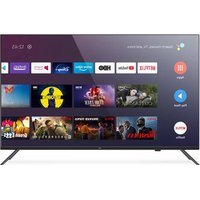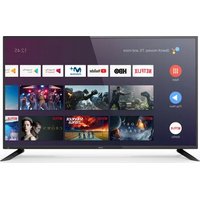
LE 5090 ATV - TV Engel - Free user manual and instructions
Find the device manual for free LE 5090 ATV Engel in PDF.



User questions about LE 5090 ATV Engel
0 question about this device. Answer the ones you know or ask your own.
Ask a new question about this device
Download the instructions for your TV in PDF format for free! Find your manual LE 5090 ATV - Engel and take your electronic device back in hand. On this page are published all the documents necessary for the use of your device. LE 5090 ATV by Engel.
USER MANUAL LE 5090 ATV Engel
natural_image
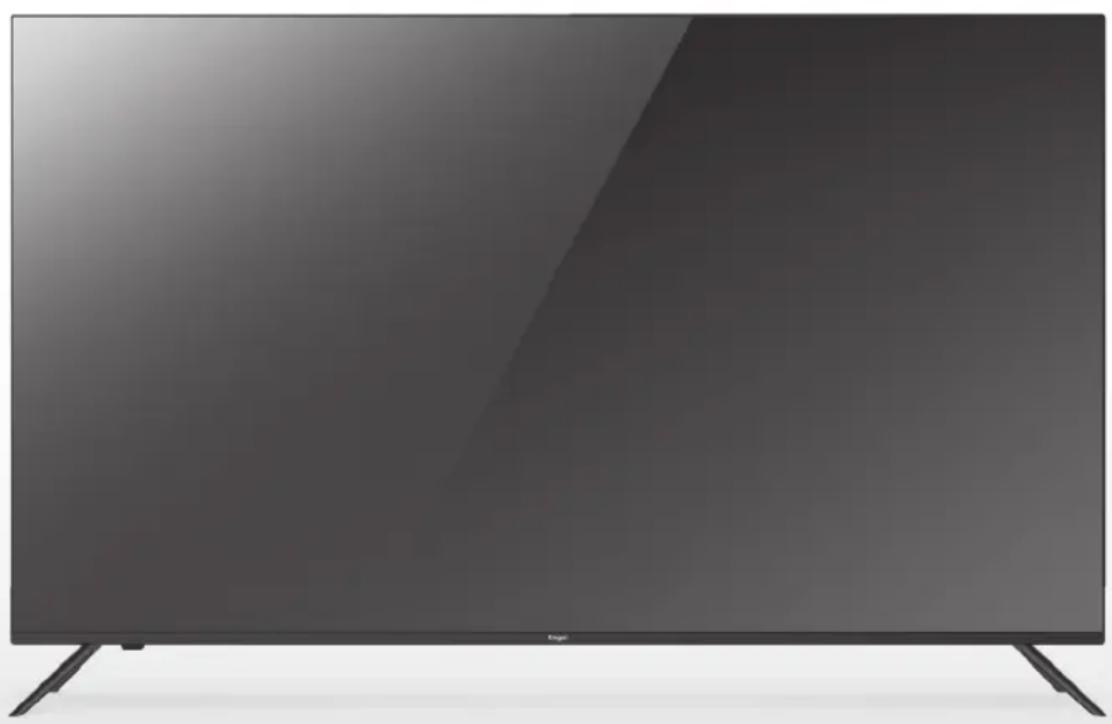
Front view of a modern flat-screen TV displaying a black screen with glossy surface and stand (no visible text or symbols)LE 5090 ATV
MANUAL DE USUARIO MANUEL D'UTILISATION MANUALE D'USO USER MANUAL MANUAL DO USUÁRIO

androidtv
Television LED
natural_image
Front view of a modern flat-screen TV with a black logo and 'feng' branding on the front screen (no additional text or symbols visible)ESPAÑOL
CONTENIDOS
natural_image
Cartoon illustration of a smiling computer monitor holding a book titled 'POSTA LIB' (no text on screen or background)natural_image
Cartoon illustration of a computer monitor with a sad face and a money bag, symbolizing online shopping or digital commerce (no text present)natural_image
Illustration of a smiling man presenting to a computer monitor with a dollar bill nearby (no text or symbols)natural_image
Cartoon illustration of a computer monitor with a sad face and raised arms, surrounded by clouds (no text or symbols)natural_image
Cartoon illustration of a computer monitor with a sad face and two hands, accompanied by a printer (no text or symbols present)natural_image
Symbolic icon of a person climbing a ladder inside a circle (no text or symbols)natural_image
Cartoon illustration of a smiling computer monitor with power cord and lightning bolt, no text or symbols presentES
natural_image
Illustration of a smiling computer monitor and a worker in a hard hat pointing at a box (no text or symbols)natural_image
Technical diagram showing front and side views of a server rack with indicator lights (no text or labels)PANEL FRONTAL Y TRASERO
text_image
Diagram showing TV setup with remote control, screen, and cable assembly with labeled componentsES
text_image
Searching for accessories... For enable Google Accessories on your website control, press and hold iOS button and MSCI button simultaneously for 5 seconds. When the turnover the name of the website control appears in the upper right corner of the server, which their name and press the iOS button. If calling it unsuccessful, please wait a few minutes and try again. Please decide key to exit immediately taking 5stext_image
Quickly set up your TV with your Android phone? You can easy transfer your Android phone's WiFi network and Google Account for your TVtext_image
Select your Wi-Fi network You can also connect an Ethernet cable to connect to the Internet. Read 2.45.33693 Read 2.45.33708 TRUNK_2.HOLI/ESTAS ZZZZ20864177 + Other network... ← Use Ethernet → Skiptext_image
Google Terms of Service Be certifying, you agree to the Google Terms of Service, the Google Privacy Policy, and the Google Play Terms of Service. Terms of Device Privacy Rules Play Terms of Service This device may also remove and install updates and apps from Google, your device's manufacturer or your operator. Some of these apps may offer optional in-app purchases. You can remove them or adjust their permissions at any time from the device settings. Google also collects and anticipates store the video and audio history from microphone use to improve the product experience.text_image
Google Location Let Google use your device's location to improve your experience. Certain application or platform capabilities, such as streaming local content or live programming, may require your device's location to function correctly. You may choose whether to share this information with a third party app at the moment that app is installed once. You can select these permissions on any other linkages.text_image
Google Help improve Android Automatically send diagnostic information to Google, like user reports and setup data from your device, apps, and commercial buttons. This information isn't be used to identify you. You can adjust these permissions at any time from device settings. Learn more at: g pour Android/learning and g sort based/device_data.text_image
Your Engel 4K Android TV is powered by androids Get apps from Google Play Google Play Cast to your TVtext_image
Country Private-sector-technical industry* Delhiurny Denmark Spain Finland Pratiostext_image
Input Password New Passwordtext_image
Confirm Password Confirm Passwordtext_image
Select TV mode "Home" mode is optimized broadband audio usage for home use. "Data" mode is addressed to desktop music with band audio. Home Retailtext_image
Select Home Mode? If you plan to use this home, please select "Yes" or "No" Yes Notext_image
Chromecast built-in always available Let this service be directed to a Google Cart device with active usage, wireless, and other resources to maintain the Web. Use all devices to Cart networks, from which usage is used for the Web.text_image
Tuner Mode Please select your tuner mode Antenna Cable Satellitetext_image
Channel Scan First, given content samples. Start obtained scan level? If you stop the task, then channel scan would be performed in Mean Scan Step Scantext_image
Setup is completed. Enjoy! compliance Final Setup is completed. Please press OK to exit the system.text_image
Disclaimer Trademark acknowledgements: Google, Android TV and Google Play and Trademarks of Google I.L.C.text_image
1 2 3 Search video, TV admatics 4:39 Apps NETFLIX prime within YouTube Play Monos 5 TV Google Take Pro Play Monos 5 TVtext_image
Channels TV options Original Mode Speakers Power UI Card Achievable Options Settings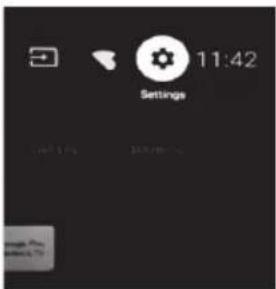
text_image
Settings 11:42text_image
Settings Quick Settings Take bug report General Settings Network & internet No network corrected Channel Accounts & sign-in No accounts Apps Device Preferences Remotes & accessoriestext_image
Network & internet WiFi Available networks China_Mobile CTS_WIFI DIRECT-LDA4003996NmsL. See all Other options Add new network Scanning always available Let Goopin location service and other apps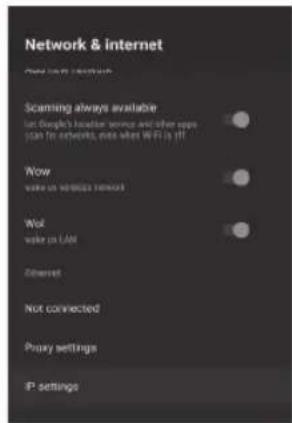
text_image
Network & Internet Scanning always available Let Google's location server and other apps scan for networks, news when WiFi is it! Wow write on wireless network Wol write on Web Ethernet Not connected Proxy settings IP settingsCANAL
text_image
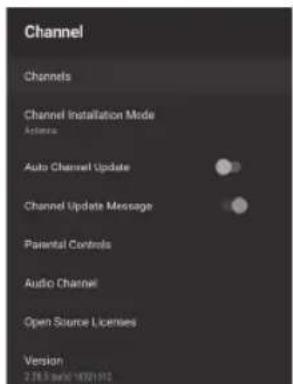
Channel Channels Channel Installation Mode Actions Auto Channel Update Channel Update Message Parental Controls Audio Channel Open Source Licenses Version 2.38.3 (mail: 14721192)text_image
Channel Installation Mode Antenna Cable Satellite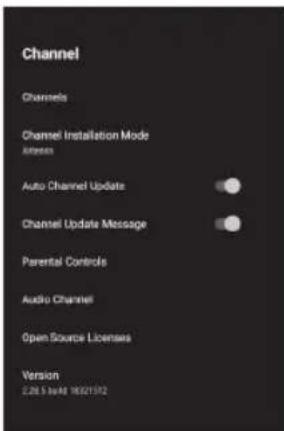
text_image
Channel Channels Channel Installation Mode Airflow Auto Channel Update Channel Update Message Parental Controls Audio Channel Open Source Licenses Version 2.28.5 N/A 18021542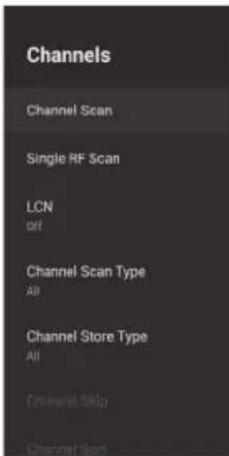
text_image
Channels Channel Scan Single RF Scan LCN off Channel Scan Type All Channel Store Type All Channel Skip Channel Sorttext_image
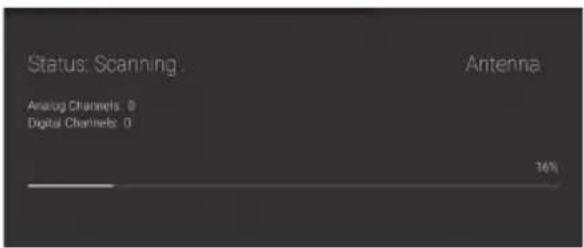
Status: Scanning. Analog Channels: 0 Digital Channels: 0 Antenna 16%text_image
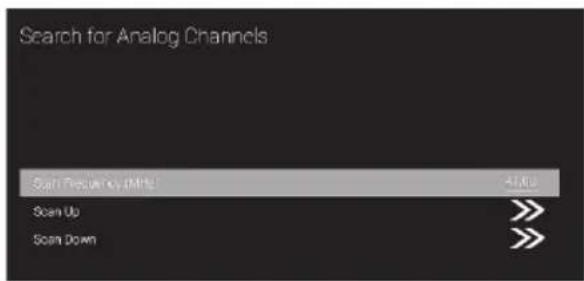
Search for Analog Channels Scan Frequency (MHz) 42.4Ω Scan Up Scan Downtext_image
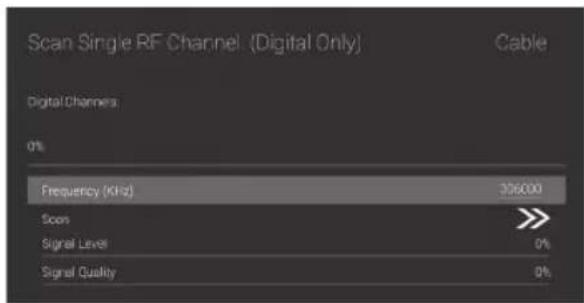
Scan Single RF Channel. (Digital Only) Cable Digital Channels 0% Frequency (kHz) 106000 Scan Signal Level 0% Signal Quality 0%text_image
Channels Channel Scan Single RF Scan LCN UP Channel Scan Type AF Channel Scan Type AF Channel Scan Channel Type U-1 U-2 U-3 U-4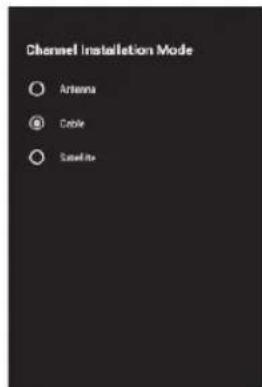
text_image
Channel Installation Mode ○ Antenna ● Cable ○ Satellitetext_image
Scan all channels Cable Analog Channels: Digital Channels 0% Scan Mode Advance Channel Scan Type Only Digital Channels Frequency (kHz) 306000 Network ID Auto Scan Scan Single RF Channel, (Digital Only) Cable Digital Channels 0% Frequency (kHz) 306000 Scan Signal Level 0% Signal Quality 0%text_image
Channel Installation Mode Antenna Cable Satellite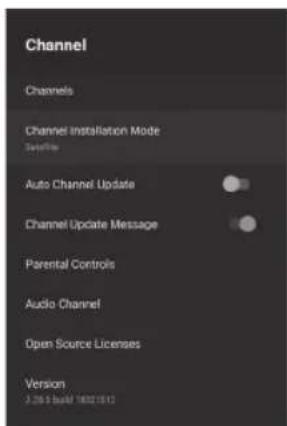
text_image
Channel Channels Channel Installation Mode SyncInfo Auto Channel Update Channel Update Message Parental Controls Audio Channel Open Source Licenses Version 3.265 bus# 18021812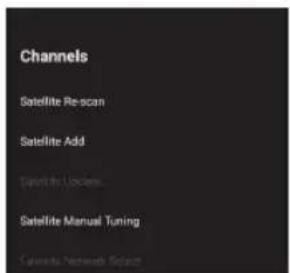
text_image
Channels Satellite Re-scan Satellite Add Satellite Lockers Satellite Manual Tuning Network Securitytext_image
Scan all channels 0% Scan Mode Full < > Scan Type AI < > Store Type AI < > Scantext_image
Satellite Manual Tuning Satellite Detail Swimming Status Satellite Name LME Power LME Frequencytext_image
Google Make the most of your TV Sign it to get new apps, recommendations, movies, and more from Google Google Play Google Play TBD Google Play Google Play Discover new apps for videos, music and games on Google Playtext_image
Apps Recently opened apps Live TV 55 minutes ago See all apps Permissions App permissions Special app access Security & restrictionstext_image
Date & time Automatic date & time Use network-provided time Set date August 8, 2019 Set time 11:12 AM Set time zone Use broadcast-provided timezone Use 24-hour format 1:00 PMtext_image
Keyboard Current keyboard Gboard Gboard Settings Manage keyboardstext_image
Inputs Composite Composite Consumer Electronics Control (CES) HDMI control Allow the TV to control HDMI devices Device auto power off Power off HDMI devices with the TV TV auto power on Power off the TV with HDMI device HDMI ECD Version USB port GEC Device List
bar
Picture | Picture Mode User | Value | |---|---| | Backlight | 100 | | Brightness | 50 | | Contrast | 50 | | Saturation | 50 | | HUE | 0 | | Sharpness | 12 | | Gamma Mode | |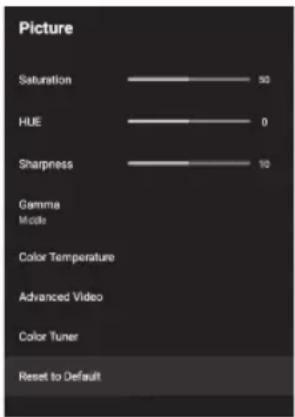
text_image
Picture Saturation 50 HUE 0 Sharpness 10 Gamma Mode Color Temperature Advanced Video Color Tuner Reset to Defaulttext_image
Sound Sound Style Standard Balance 0 Sound Surround Equalizer Detail Speakers External Audio System Digital Output PCM SPDIF Delay 0 Auto Volume Control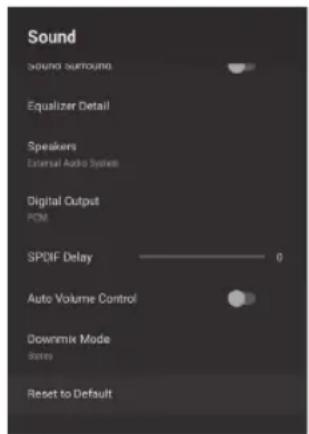
text_image
Sound Sound surround Equalizer Detail Speakers External Audio System Digital Output PCM SPQIF Delay ———— 0 Auto Volume Control Downmix Mode Stories Reset to Defaulttext_image
Storage Device storage Internal shared storage Total space: 4.6 GB Removable storage KINGSTON Total space: 15 GBtext_image
Home screen Channels Customize channels Enable video previews Enable audio previews Apps Reorder apps Reorder games Open source licenses Android TV Home Android TV Core Servicestext_image
Retail Mode Retail Mode Offtext_image
Google Accounts View permissions Searchable apps Select which apps to include in search results. SafeSearch filter Block offensive words Open source licensesCHROMECAST INCORPORADO
text_image
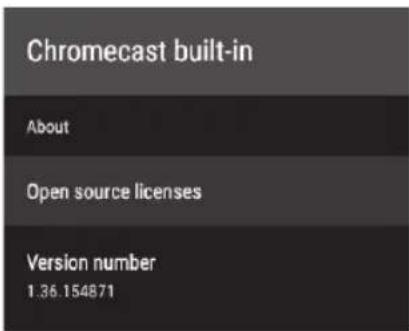
Chromecast built-in About Open source licenses Version number 1.36.154871text_image
Screen saver Screen saver Backdrop When to start After 5 minutes of inactivity Put device to sleep After 30 minutes of inactivity Start nowtext_image
Location Location status Use Wi-Fi to estimate location Recent location requests No apps have requested location recentlytext_image
Usage & Diagnostics On Automatically send diagnostic information to Google, like crash reports and usage data from your device, apps, and Chromecast built-in. This information won't be used to identify you. You can adjust these permissions at any time from device settings. Learn more at: g.co/AndroidUsageHelp and g.co/cast/device_stats.text_image
Sanskios, Fit and more Accessibility Audio Description Internet Subscribers Capture High contrast feel Copyrightstext_image
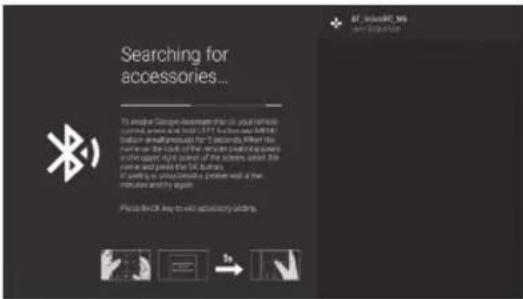
Searching for accessories... To replace Google Awardset not on your own name and name without LIFT. Before and after LIFT button permission, to ensure that the store is on the sale of the original control room in the open right end of the store called the store and signed the LIFT button. If there is no additional access or use a free-time card and the store. Press (MIP) keys to any necessary adding.
text_image
Searching for accessories... To ensure Google's access to all your own current, new and build a USB-based B213 B213 button simultaneously on the next page. When the current, the load of the B213 button is required on the upper right corner of the screen, which the name and power of the UK button. If playing up a keyboard, please call at the minutes and again. Please be OK key to add accessory editing.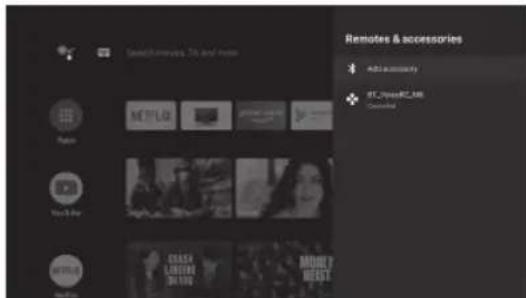
text_image
Select customers, TV and video Rapid YouTube Netflix Remote & accessories Add to security RT_PaperRC_488 Commercetext_image
Search movies, TV and more 9:59 Appin YouTube Netflix Multi Media Player FAKE FUNDS THE WORLD'S FUTURE KINGHOU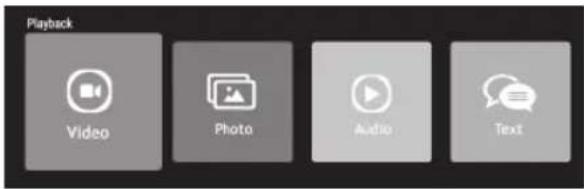
text_image
Playback Video Photo Audio Textnatural_image
Front view of a modern flat-screen TV with a black screen and stand (no visible text or symbols)FRANÇAIS
SOMMAIRE
• AVERTISSEMENT 32
• INSTRUCTIONS DE SÉCURITÉ ...... 33
• FIXATION DE SUPPORT ...... 35
• DIAGRAMME DE PANNEAU AVANT ET ARRIÈRE ..... 37
• COMMENCEMENT 38
- CONNECTION ET CONFIGURATION .... 39
• TÉLÉCOMMANDE....40
• OPÉRATION DE BASE 42
• OPÉRATION DE MENU....43
• INSTRUCTIONS DE SÉCURITÉ....56
• GUIDE DE DÉPANNAGE....57
AVERTISSEMENT
INFORMATIONS RÉGLEMENTAIRES
natural_image
Cartoon illustration of a smiling computer monitor holding a book titled 'FUCHEN LIB' (no text on screen or background)natural_image
Cartoon illustration of a computer monitor with hands holding a document and a money bag, symbolizing online shopping or financial loss (no text present)natural_image
Illustration of a smiling man presenting to a computer monitor with a power cord (no text or symbols)natural_image
Cartoon illustration of a computer monitor with a sad face and raised arms, surrounded by clouds (no text or symbols)natural_image
Cartoon illustration of a computer monitor with an angry face and electrical plugging, showing electrical shock (no text or symbols)natural_image
Symbolic icon of a person climbing a ladder inside a circle (no text or symbols)natural_image
Cartoon illustration of a smiling computer monitor with hands and electrical components, no text or symbols present
natural_image
Illustration of a smiling computer monitor and a worker holding a toolbox (no text or symbols)LORS DE L'ÉLIMINATION
natural_image
Technical line drawing of a front panel with internal components and arrows indicating assembly (no text or symbols)natural_image
Technical diagram showing two views of a server rack with internal components and directional arrows indicating movement (no text or symbols)DIAGRAMME DE PANNEAU AVANT ET ARRIÈRE
text_image
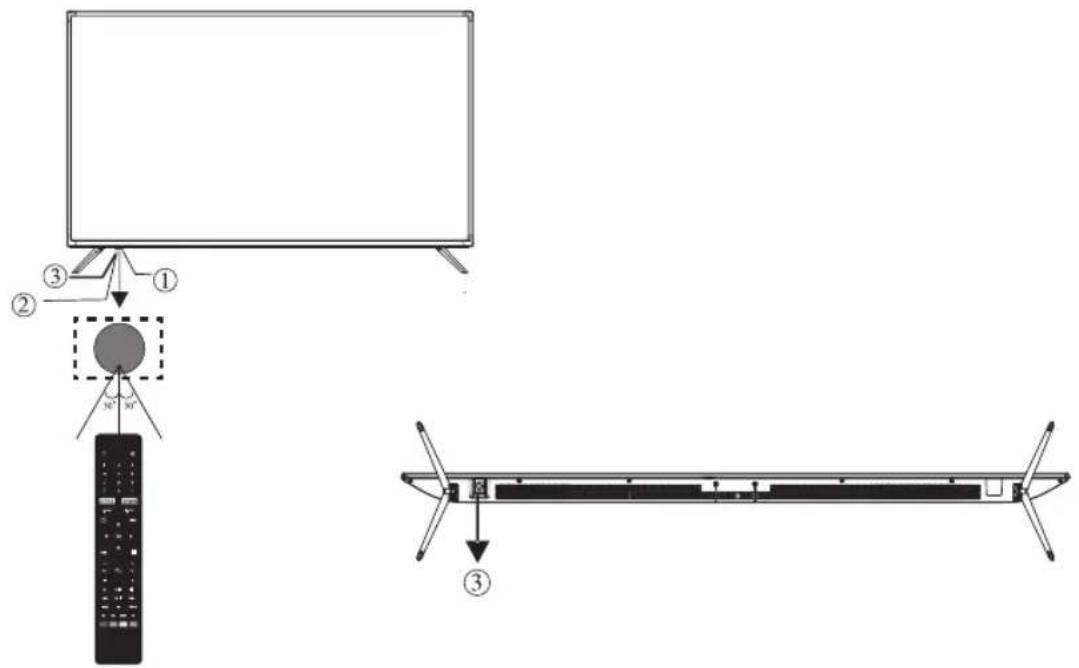
Diagram showing TV setup with labeled components including a remote, screen, and cable assemblyFR
text_image
Searching for accessories... To enable Google Assistant mix on your remote control, press and load off 7 seconds, button and MING button simultaneously for 3 seconds when the operation is the back of the remote control appairs on the upper right corner of the user, select the name and press the OK button. If playing in entertainment, please add a few minutes and try again. Press RACS key to sell accessory adding: 5stext_image
Welcome Canvas Ceiling Draft Sketch Drafttext_image
Quickly set up your TV with your Android phone? You can easy filter your Android phone's WiFi network and Google Account for your TVtext_image
Select your Wi-Fi network You can also connect as Ethernet cable to connect to the internet. Read_2.46.31508 TP-Link_2.46.31508 22212964777 + Other network... ← > Use Internet → OKtext_image
Google Terms of Service the continuing, you agree to the Google Terms of Service, the Google Privacy Policy, and the Google Pte. Terms of Service. Terms of Service Privacy Policy Pte Terms of Service This device may also receive and install updates and apps from Google, your devices' manufacture or your operation. Some of these apps may offer optional in-app purchases. You can remove them or adjust their permissions at any time from the device settings. Google also collect and temporarily store the voice and audio historytext_image
Google Location Let Google use your device's locations to improve your experience. Certain application or platform capabilities, such as dreaming local context in this programming, may require your device's location to function correctly. You may choose whether to share this information with a third party app of the moment that app is installed here. You can adjust these permissions at any time from Settings.text_image
Google Help improve Android Automatically term diagnostic information for Google, like search reports and usage data from your device, app, and Chomcast database. This information won't be used to identify you. You can adjust these permissions at any time from device settings. Learn more at your Android/Android/9.9.9.9.9.9.9.9.9.9.9.9.9.9.9.9.9.9.9.9.9.9.9.9.9.9.9.9.9.9.9.9.9.9.9.9.9.9.9.9.9.9.9.9.9.9.9.9.9.9.9.text_image
Your Engel 4K Android TV is powered by android Get apps from Google Play Google Play Cast to your TVtext_image
Germany Denmark Country Please adopt local country* Spain Finland Francetext_image
Password Please check password, POST is empty Input Passwordtext_image
Input Password New Passwordtext_image
Confirm Password Confirm Passwordtext_image
Select TV mode "Other" mode in optimized broadband energy range for home use. "Data" mode is optimized to account on fixed website Home http://text_image
Select Home Mode? If you plan to use this home, please select "Yes" or process. Yes Notext_image
Chromecast built-in always available Let this service is directly as a Google Cast center will allow much greater access and other resources to build up a district up its support to Cast networks, which can be used and the system is off OKtext_image
Tuner Mode Arena Cable Satellitetext_image
Channel Scan Find pixels, search engine. Show zoomed out your? If you stop that step, the channel switches will be performed in here. Scan Skip Scantext_image
Setup is completed. Enjoy! compliance Final Setup is completed. Please press OK to exit the system.text_image
Disclaimer Trademark acknowledgements: Google, Android TV and Google Play are trademarks of Google LLC.text_image
Channels TV options Supply Mode Speakers Power O Cart Advection Options Settings 11:42 Settingstext_image
Settings Quick Settings Take bug report General Settings Network & internet No network connected Channel Accounts & sign-in No accounts Apps Device Preferences Remotes & accessoriestext_image
Network & internet Wi-Fi Available networks China_Mobile CTS_WIFI DIRECT-LDA4003996NmsL See all Other options Add new network Scanning always available Let Google's location service and other apps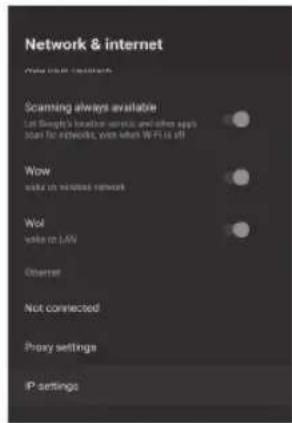
text_image
Network & internet New Internet Settings Scanning always available Let People's location sensitive and other apps start for networking, even when WiFi is off Wow write on wireless network Wol write on LAN Ethernet Not connected Proxy settings IP settingsCHAÎNE
text_image
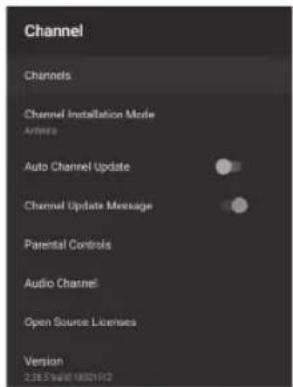
Channel Channels Channel Installation Mode Articles Auto Channel Update Channel Update Message Parental Controls Audio Channel Open Source Licenses Version 2.38.74/01 1902142text_image
Channel Channels Channel Installation Mode Antenna Auto Channel Update Channel Update Message Parental Controls Audio Channel Open Source Licenses Version 2.28.5 build 18321592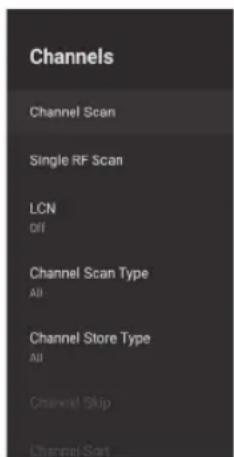
text_image
Channels Channel Scan Single RF Scan LCN Off Channel Scan Type All Channel Store Type All Channel Skip Channel Sorttext_image
Status: Scanning. Analog Channels: 0 Digital Channels: 0 Antenna 16%text_image
Search for Analog Channels Scan Frequency (MHz) 47.62 Scan Up Scan Downtext_image
Scan Single RF Channel. (Digital Only) Cable Digital Channels: 0% Frequency (KHz) $36000 Scan Signal Level 0% Signal Quality 0%text_image
Channels Channel Scan Single RF Scan LCN ON Channel Scan Type All Channel Scan Type All Channel Day Channel Day Channel Day Clarke No.1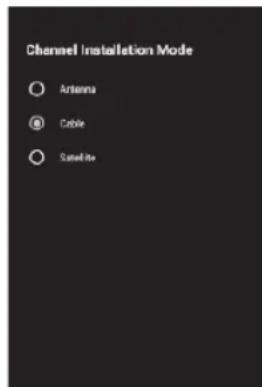
text_image
Channel Installation Mode ○ Antenna ● Cable ○ Satellitetext_image
Scan all channels. Cable Analog Channels: Digital Channels 0% Scan Mode Advance <> Channel Scan Type Only Digital Channels <> Frequency (kHz) 326000 Network ID Auto Scan Scan Single RF Channel. (Digital Only) Cable Digital Channels 0% Frequency (kHz) 306000 Scan Signal Level 0% Signal Quality 0%Scannage RF simple: station de recherche manuelle.
SATELLITE
text_image
Channel Installation Mode Antenna Cache Satellite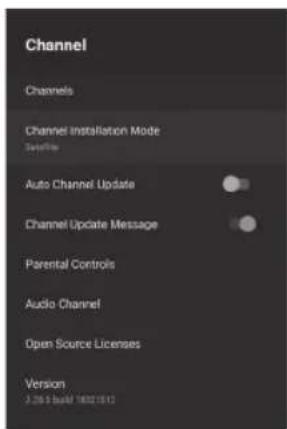
text_image
Channel Channels Channel Installation Mode Schedule Auto Channel Update Channel Update Message Parental Controls Audio Channel Open Source Licenses Version 2.205 build 1802-1812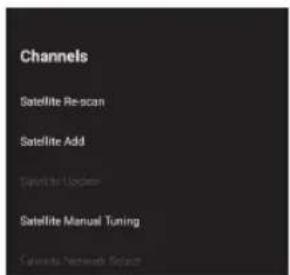
text_image
Channels Satellite Re-scan Satellite Add Satellite Locker Satellite Manual Tuning Calculus Network Selecttext_image
Scan all channels 0% Scan Mode Full < > Scan Type AI < > Store Type AI < > Scantext_image
Google Make the most of your TV Sign it to get new apps, recommendations, movies, and more from Google Google Play Google Play TBD Google Play Google Play Discover new apps for videos, music and games on Google Play
text_image
Apps Recently opened apps Live TV 55 minutes ago See all apps Permissions App permissions Special app access Security & restrictionstext_image
Date & time Automatic date & time Use network-provided time Set date August 8, 2019 Set time 11:32 AM Set time zone Use broadcast-provided timezone Use 24-hour format 1:00 PMtext_image
Keyboard Current keyboard Gboard Gboard Settings Manage keyboardstext_image
Inputs Composite Composite Consumer Electronics Control (CEC) HDMI control Allow the TV to control HDMI devices Device auto power off Power off HDMI devices with the TV TV auto power on Power off the TV with HDMI device HDMI ECD Version USB port CEC Device List
bar
Picture | Picture Mode User | Value | |---|---| | Backlight | 100 | | Brightness | 50 | | Contrast | 50 | | Saturation | 50 | | HUE | 0 | | Sharpness | 12 | | Gamma Mode | |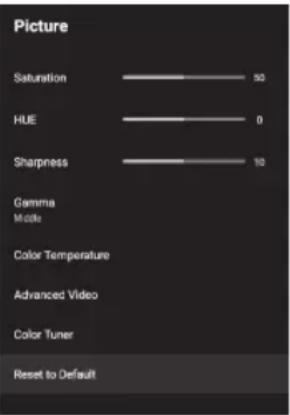
text_image
Picture Saturation 50 HUE 0 Sharpness 10 Gamma Mode Color Temperature Advanced Video Color Tuner Reset to Defaulttext_image
Sound Sound Style (Standard) Balance 0 Sound Surround Equalizer Detail Speakers External Audio System Digital Output PCM SPDIF Delay 0 Auto Volume Control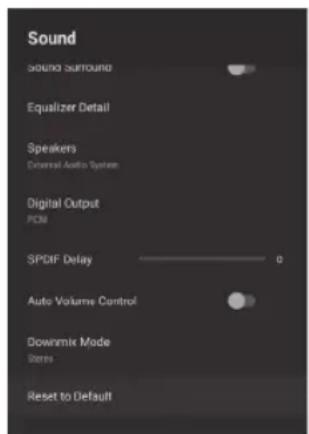
text_image
Sound Sound Surround Equalizer Detail Speakers Universal Audio System Digital Output PCM SPDF Delay 0 Auto Volume Control Downmix Mode Steris Reset to Defaulttext_image
Storage Device storage Internal shared storage Total space: 4.6 GB Removable storage KINGSTON Total space: 15 GBtext_image
Home screen Channels Customize channels Enable video previews Enable audio previews Apps Reorder apps Reorder games Open source licenses Android TV Home Android TV Core Servicestext_image
Retail Mode Retail Mode Offtext_image
Google Accounts View permissions Searchable apps Select which apps to include in search results. SafeSearch filter Block offensive words Open source licensestext_image
Chromecast built-in About Open source licenses Version number 1.36.154871text_image
Screen saver Screen saver Backdrop When to start After 5 minutes of inactivity Put device to sleep After 30 minutes of inactivity Start nowtext_image
Location Location status Use Wi-Fi to estimate location Recent location requests No apps have requested location recentlytext_image
Usage & Diagnostics On Automatically send diagnostic information to Google, like crash reports and usage data from your device, apps, and Chromecast built-in. This information won't be used to identify you. You can adjust these permissions at any time from device settings. Learn more at: g.co/AndroidUsageHelp and g.co/cast/device_stats.text_image
Searching for accessories... To replace Google Awardset risk on your own name and name certificate LIFT. button and LIFT button permission, by 3.0 seconds. When the store is on the button and the owner's right side of the store called the owner and signed the LIFT button. If coming to any important person want a free-time offer and the store. Press (MIP) keys to any accessory adding.
text_image
Searching for accessories... To another Gargan Express that is your lifetime current, when and built a USB button on the BAT button simultaneously for 1 second. When we took the circuit of the next circuit to open the current right section of the screen, select the home and press the UK button. If calling up a wireless network, please call 4 min minutes and again. Please be OK key to exit accessory editing.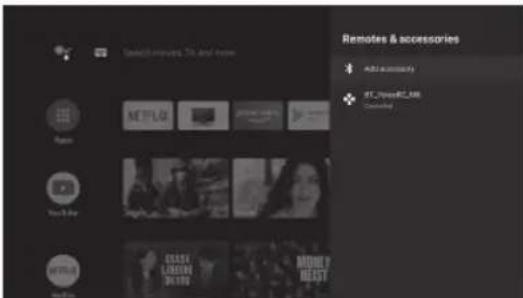
text_image
Sales/Commissions, TV and Home Remote & accessories Add to community RT_PowerRC_488 Community NETFLG You're the MTFLG You're the COME LISSE DRIVE MONEY BEASTtext_image
Search movies, TV and more 9:59 Appin YouTube Netflix Multi-Week Player FAKE FUNDS KINGHUAO MILK SOX ECONATION CHINESE LANDING ON YOU RIOHEY MEASY NEEFLER KINGHUAO
text_image
Playback Video Photo Audio Textnatural_image
Front view of a modern flat-screen TV with a black screen and stand (no visible text or symbols)ITALIANO
CONTENUTO
• AVVERTIMENTO....60
• ISTRUZIONI DI SICUREZZA ......61
• FISSAGGIO DEL SUPPORTO 63
• SCHEMA DEL PANNELLO ANTERIORE / POSTERIORE ..... 65
• GUIDA INTRODUTTIVA....66
- CONNESSIONE E CONFIGURAZIONE ...... 67
• TELECOMANDO....68
• OPERAZIONE DI BASE ....70
• FUNZIONAMENTO DEL MENU....71
• ISTRUZIONI DI SICUREZZA....84
• RISOLUZIONE DEI PROBLEMI....85
AVVERTIMENTO
natural_image
Cartoon illustration of a smiling computer monitor holding a book titled 'FUCHA LIB' (no text on screen or background)natural_image
Cartoon illustration of a computer monitor with hands holding a document, surrounded by a money bag and explosion (no text or symbols)natural_image
Illustration of a smiling man presenting to a computer monitor with a power cord (no text or symbols)natural_image
Cartoon illustration of a computer monitor with a sad face and raised arms, surrounded by clouds (no text or symbols)natural_image
Cartoon illustration of a computer monitor with a sad face and two hands, accompanied by a printer (no text or symbols)natural_image
Cartoon illustration of a computer monitor with an angry face and a power plug, showing electrical shock (no text or symbols)natural_image
Symbolic icon of a person climbing a ladder inside a circle (no text or symbols)natural_image
Cartoon illustration of a smiling computer monitor with hands and electrical components, no text or symbols presentnatural_image
Illustration of a smiling computer monitor and a worker in a hard hat pointing at a box (no text or symbols)上
SU SMALTIMENTO
natural_image
Technical line drawing of a front panel with internal components and mounting holes (no text or symbols)natural_image
Technical line drawing of a server rack with mounting hardware and directional arrows indicating movement (no text or symbols)SCHEMA DEL PANNELLO ANTERIORE / POSTERIORE
text_image
Diagram showing TV setup with remote control, screen, and cable assembly with labeled components
text_image
Searching for accessories... To enable Google Assistant Inc. on your static control, press and load of T busition and MEMS button simultaneously for 3 seconds when there are the lack of the remote control key entry in the upper right corner of the server, enabled the name and press the OK button. Planning is wireless terminal phone wall at low times and try again. Press BIOS key to enhance any setting.text_image
Welcome English Call Facebook Search Disney+ Basistext_image
Quickly set up your TV with your Android phone? You can easy monitor your Android phone's RF network and Google Account to your TVtext_image
Select your Wi-Fi network You can also connect an Ethernet cable to connect to the Internet. Download: 2.45.33693 Download: 2.45.37308 TFLINK: 2.46HU/FEETU 2.46U/2.46UA177 + Other network... ←→ Use Ethernet → Skiptext_image
Google Terms of Service Be continuing, you agree to the Google Terms of Service, the Google Privacy Policy, and the Google Play Terms of Service Terms of Service This device may also receive and install updates and install from Google, your device's manufacture or your operator. Some of these apps may offer optional in-app purchases. You can rewrite them or adjust their permissions at any time from the device settings. Play Terms of Service Google also collects and temporarily alters the voice and audio history from microphone use to improve the product experience.
text_image
Google Location Let Google use your device's location to improve your experience. Certain application or platform royalties, such as preparing local content or this upcoming, may require your device's location to function correctly. You may choose whether to share this information with a file of party app of the moment that app is installed online. You can adjust these partitions at any time from Settings.text_image
Google Help improve Android Automatically send diagnostic information@Google, like each app ms and usage data from your device, apps, and Commocast buttons. This information won't be used to identify you. You can adjust these preferences at any time from device settings. Learn more at g car Android/Aggularity and g auto/microdvice_datatext_image
Your English ex. Android TV is powered by android Can call through the Android TV format Get apps from Google Play Google Play Google Play Cast to your Tvtext_image
Country Please select your country: Delhiurny Denmark Spain Finland Francetext_image
Password Project card password: 0008 & mgmt Input Passwordtext_image
Input Password New Passwordtext_image
Confirm Password Confirm Passwordtext_image
Select TV mode "How much is optimized for software a range of output into home can" "Total" mode is optimized to save versions with fixed settings Home Detailtext_image
Select Home Mode? If you plan to use the TV or home, please select "Yes" or proceed. Yes Notext_image
Chromecast built-in always available List the service for detailed data on which it is available and also known as an important and other services by adding this service up to a desired to Cash commands, then when in line-by-line or the service is off.text_image
Tuner Mode Please offer about Tuner mode Amenia Cable Sustainabletext_image
Channel Scan Find, please comment website. Start channel scan now? If you help this task, then channel scan could be performed in Web Scan Skip Scantext_image
Setup is completed. Enjoy! FINISH Complications Work Setup is completed. Please press DOC to exit the outlettext_image
Disclaimer Trademark acknowledgements: Google, Android TV and Google Play and trademarks of Google LLC. Awardtext_image
Channels TV options Display Modi Speakers Power UI Card Advection Options Settings Record 11:42 Settings Details By Description By Images Pro Water Onlytext_image
Settings Quick Settings Take bug report General Settings Network & Internet No network connected Channel Accounts & sign-in No accounts Apps Device Preferences Remotes & accessoriestext_image
Network & internet Wi-Fi Available networks China_Mobile CTS_WIFI DIRECT-LDA4003996NmsL. See all Other options Add new network Scanning always available Let Google's location service and other apps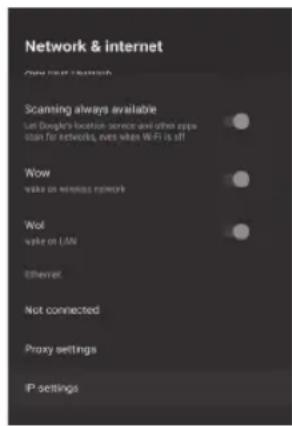
text_image
Network & internet New User Search Scanning always available Let Doyle's location, service and other apps than for networks, even when WiFi is still Wow wake on wireless network Wol wake on LOW Ethernet Not connected Proxy settings IP settingsCANALE
text_image
Channel Channels Channel Installation Mode Antenna Auto Channel Update Channel Update Message Parental Controls Audio Channel Open Source Licenses Version 2.28.0 Signal 18021/12text_image
Channel Installation Mode Antenna Cable Satellite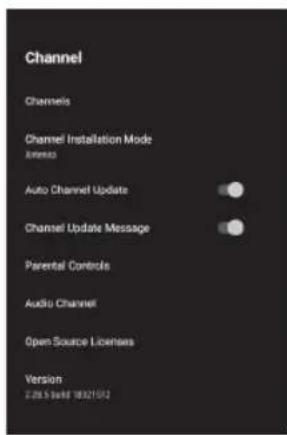
text_image
Channel Channels Channel Installation Mode References Auto Channel Update Channel Update Message Parental Controls Audio Channel Open Source Licensee Version 2.08.5.9488 18321512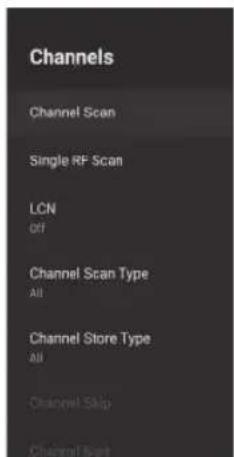
text_image
Channels Channel Scan Single RF Scan LCN Off Channel Scan Type All Channel Store Type All Channel Skip Channel Loadtext_image
Status: Scanning. Analog Channels: 0 Digital Channels: 0 Antenna 16%text_image
Search for Analog Channels Scan Frequency, MHz Scan Up Scan Down
text_image
Scan Single RF Channel, (Digital Only) Cable Digital Channels: 0% Frequency (KHz) 106000 Scan Signal Level 0% Signal Quality 0%text_image
Channels Channel Scan Single RF Scan LON UP Channel Scan Type All Channel Scan Type All Channel type Local Panel Local Input
text_image
Channel Installation Mode Antenna Cable Satellitetext_image
Scan all channels. Cable Analog Channels: Digital Channels 0% Scan Mode Advance <> Channel Scan Type Only Digital Channels <> Frequency (kHz) 326000 Network ID Auto Scan >> Scan Single RF Channel. (Digital Only) Cable Digital Channels 0% Frequency (kHz) 326000 Scan Signal Level 0% Signal Quality 0%text_image
Channel Installation Mode Antenna Cable Satellite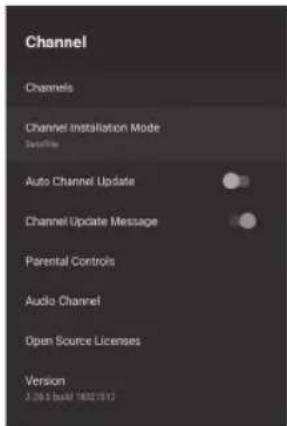
text_image
Channel Channels Channel Installation Mode Session Auto Channel Update Channel Update Message Parental Controls Audio Channel Open Source Licenses Version 2.205 build 1802.19.12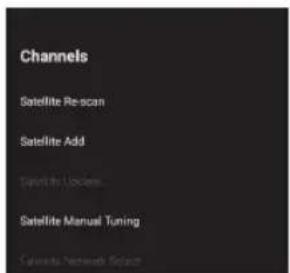
text_image
Channels Satellite Re-scan Satellite Add Satellite Lockers Satellite Manual Tuning Cancels Network Securitytext_image
Scan all channels 0% Scan Mode Full < > Scan Type AI < > Store Type AI < > Scantext_image
Apps Recently opened apps Live TV 55 minutes ago See all apps Permissions App permissions Special app access Security & restrictionstext_image
Date & time Automatic date & time Use network-provided time Set date August 8, 2019 Set time 11:12 AM Set time zone Use broadcast-provided timezone Use 24-hour format 1:00 PMtext_image
Keyboard Current keyboard Gboard Gboard Settings Manage keyboardstext_image
Inputs Composite Consumer Electronics Control (ECE) HDM control Allow the TV to control HDMI devices Device auto power off Power off HDMI devices with the TV TV auto power on Power on the TV with HDMI device HDMI ECO Version HDMI 2.0 GEC Device List
bar
Picture | Picture Mode user | Value | |---|---| | Backlight | 100 | | Brightness | 50 | | Contrast | 50 | | Saturation | 50 | | HUE | 0 | | Sharpness | 12 | | Gamma Mode | |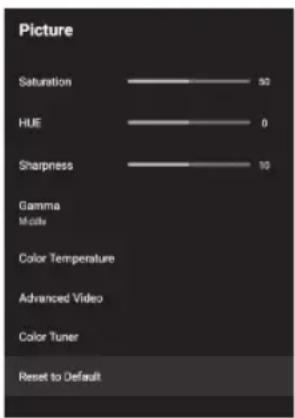
text_image
Picture Saturation 52 HUE 0 Sharpness 10 Gamma Modify Color Temperature Advanced Video Color Tuner Reset to Defaulttext_image
Sound Sound Style Standard Balance 0 Sound Surround Equalizer Detail Speakers External Audio System Digital Output PCM SPDIF Delay 0 Auto Volume Control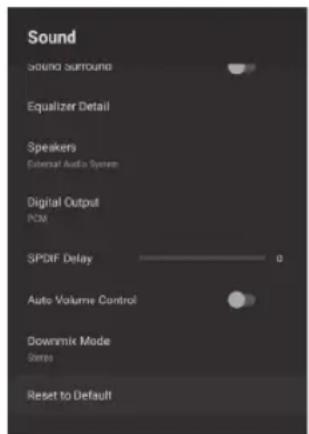
text_image
Sound Sound Surround Equalizer Detail Speakers External Audio System Digital Output PSU SPDF Delay 0 Auto Volume Control Downmix Mode Series Reset to Defaulttext_image
Storage Device storage Internal shared storage Total space: 4.6 GB Removable storage KINGSTON Total space: 15 GBtext_image
Home screen Channels Customize channels Enable video previews Enable audio previews Apps Reorder apps Reorder games Open source licenses Android TV Home Android TV Core Servicestext_image
Retail Mode Retail Mode Offtext_image
Google Accounts View permissions Searchable apps Select which apps to include in search results. SafeSearch filter Block offensive words Open source licensesCHROMECAST INCORPORATO
text_image
Chromecast built-in About Open source licenses Version number 1.36.154871text_image
Screen saver Screen saver Backdrop When to start After 5 minutes of inactivity Put device to sleep After 30 minutes of inactivity Start nowtext_image
Location Location status Use Wi-Fi to estimate location Recent location requests No apps have requested location recentlytext_image
Usage & Diagnostics On Automatically send diagnostic information to Google, like crash reports and usage data from your device, apps, and Chromecast built-in. This information won't be used to identify you. You can adjust these permissions at any time from device settings. Learn more at: g.co/AndroidUsageHelp and g.co/cast/device_stats.text_image
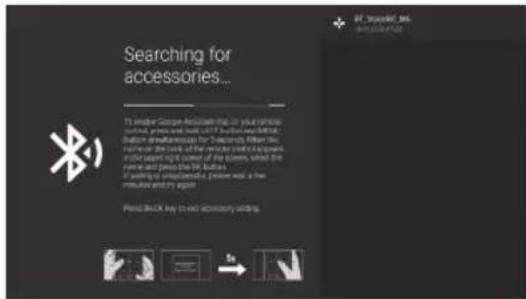
Searching for accessories... To enable Google AUSAM or your own server press and press within USB button and will better install your device. When the server is on the window of the primary computer, it allows us to access right users of the server, which the user can press the USB button. If a server is processed, please want a free mouse and its app Press/APP help to switch accessory adding.
text_image
Searching for accessories... To trigger Google Accessories that do your entire control, where we are back off! Business/AMT Switch simultaneous for 10 years. When the control is the role of the Google point app/sales on the upper right corner of the screen, which the control and press the Google if a point is put out to help you use it at the time and try again. Press BLOCK key to add accessory writing.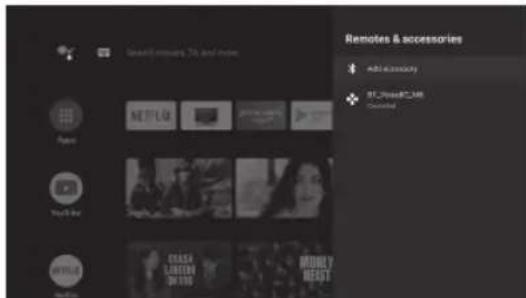
text_image
Shared resources, 3G and video Remote & accessories Add accessory 82.0000000 Connectedtext_image
Search movies, TV and more 9:59 Appin YouTube Netflix Multi-Week Player FAKE FUNDS THE WORLD'S FUTURE KINGHOU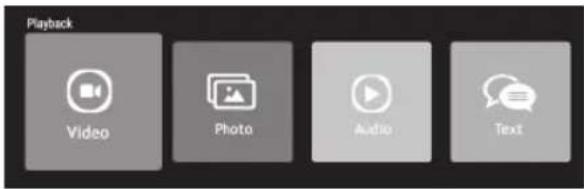
text_image
Playback Video Photo Audio Textflowchart
graph TD
    A["Red Block"] --> C["Bottom"]
    B["Green Block"] --> C["Bottom"]
    D["Blue Block"] --> C["Bottom"]
Pixel scuro
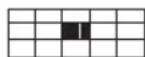
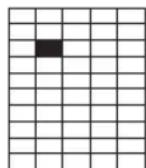

Sub-pixel
natural_image
Front view of a modern flat-screen TV with a black screen and stand (no visible text or symbols)ENGLISH
CONTENT
• WARNING....88
- IMPORTANT SAFETY INSTRUCTIONS ....89
• FIXING THE STAND 91
• FRONT AND REAR PANEL 93
• GETTING STARTED....94
• CONNECTION AND SET UP 95
• REMOTE CONTROL....96
• BASIC OPERATION ..... 98
• MENU OPERATION....99
• SAFETY INSTRUCTIONS....112
• TROUBLESHOOTING GUIDE....113
WARNING
REGULATORY INFORMATION
This equipment generates and user can radiate radio frequency energy and, if not installed and used in accordance with the instructions, may cause harmful interference to radio communication. However, there is no guarantee that interference will not occur in a particular installation. If this equipment does cause harmful interference to radio or television reception, which can be determined by turning the equipment off and on, the user is encouraged to try to correct the interference by one or more of the following measures:
- Relocate the receiving antenna.
- Increase the separation between the equipment and receiver.
- Connect the equipment into an outlet on a circuit different from that to which the receiver is connected.
- Consult the dealer or experienced radio/TV technician for help.
Any changes or modifications not expressly approved by the party responsible for compliance could void the user's authority to operate the equipment.
CAUTION
Do not attempt to modify this product in any way without written authorization from supplier. Unauthorized modification could void the user's authority to operate this product.
It is not recommended to keep a certain still image displayed on the screen for a long time as well as displaying extremely bright images on screen.
Figures and illustrations in this User Manual are provided only and may differ from actual product appearance. Product design and specifications may be changed without notice.
WARNING
WARNING
To reduce the risk of fire or electric shock, do not expose this apparatus to rain or moisture. Don't use the apparatus in tropical climates.
The ventilation should not be impeded by covering the ventilation openings with items, such as newspapers, table-cloths, curtains, etc.
The apparatus shall not be exposed to dripping or splashing and that no objects filled with liquids, such as vases, shall be placed on the apparatus.
Attention should be drawn to the environmental aspects of battery disposal. Don't throw used batteries in dustbin. Please contact your retailer in order to protect the environment.
Keep minimum distances(5cm) around the apparatus for sufficient ventilation;
(Minimum distance around the apparatus for sufficient ventilation.)
No naked flame sources, such as lighted candles, should be placed on the apparatus;
To prevent the spread offire, keep candles or other open flames away from this product at all times.
SAFETY INSTRUCTIONS
The device may malfunction when under electrostatic discharge. It can be manually resumed by turning it off and on again.
CAUTION
Connecting the power cable.
Most devices recommend that they be placed on a specialized circuit; that is, only one plug circuit provides electricity to the appliances, without additional plugs or auxiliary circuits. Do not overload power outlets. Overloaded wall outlets, loose or damaged wall outlets, extension cords, frayed power cords, or insulation from damaged or cracked cables are dangerous. Any of these cases can cause electricity or fire. Periodically check the equipment power line and it is replaced by an accurate commercial replacement from authorized service. Protect the power cord from physical or mechanical abuse, such as being twisted, pinched, closed on a door, or stepped on. Pay particular attention to plugs, sockets, and the point where the cord exits the appliance. The mains plug is used as the disconnecting device, and the disconnecting device will remain easily operable.
IMPORTANT INFORMATION
If a television is not positioned in a sufficiently stable location, it can be potentially hazardous due to falling. Many injuries, particularly to children, can be avoided by taking simple precautions such as:
- Using cabinets or stands recommended by the manufacturer of the television.
- Only using furniture that can safely support the television.
- Ensuring the television is not overhanging the edge of the supporting furniture.
- Not placing the television on tall furniture (for example, cupboards or bookcases) without anchoring both the furniture and the television to a suitable support.
- Not standing the television on cloth or other materials placed between the television and supporting furniture.
- Educating children about the dangers of climbing on furniture to reach the television or its controls.
IMPORTANT SAFETY INSTRUCTIONS
- Read these instructions.
- Keep these instructions.
- Heed all warnings.
- Follow all instructions.

natural_image
Cartoon illustration of a smiling computer monitor holding a book titled 'FUCHEN LIB' (no text on screen or background)- Do not use this apparatus near water.
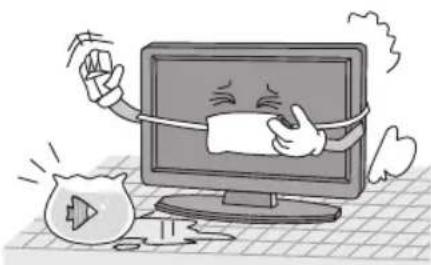
natural_image
Cartoon illustration of a computer monitor with a bandaged face and a money bag, symbolizing online shopping or digital commerce (no text present)- Clean only with a dry cloth.
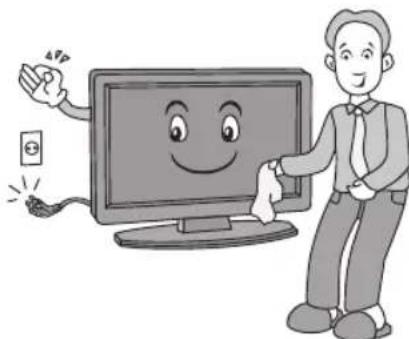
natural_image
Illustration of a smiling man holding a cloth next to a computer monitor, with a small battery and cable nearby (no text or symbols)- Do not block any of the ventilation openings. Install according to the manufacturer's instructions.
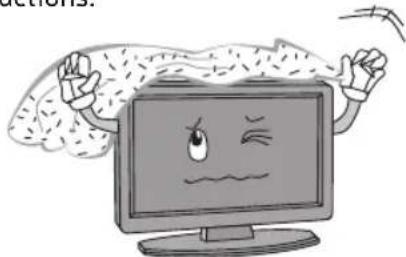
natural_image
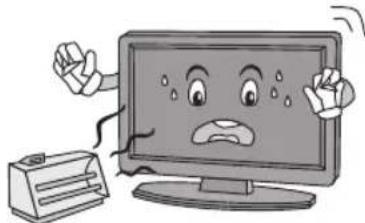
Cartoon illustration of a computer monitor with a sad face and raised arms, surrounded by clouds (no text or symbols)- Do not install near any heat source such as radiators, heat registers, stoves, or other apparatus(including amplifiers)that produce heat.
natural_image
Cartoon illustration of a computer monitor with a sad face and two people reacting, next to a printer (no text or symbols present)-
Do not defeat the safety purpose of the polarized or grounding type plug. A polarized plug has two blades with one wider than other. A grounding type plug has two blades and a third grounding prong. The wide blade or the third prong is provided for your safely. When the provided plug does not fit into your outlet, consult an electrician for replacement of the obsolete outlet.
-
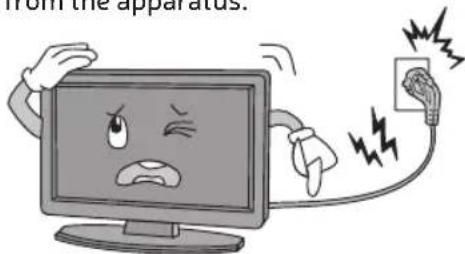
Protect the power cord from being walked on or prinched particularly at plugs, convenience receptacles, and the point where they exit from the apparatus.
text_image
from the apparatus.-
Only use the attachments/accessories specified by the manufacturer.
-
Use only with a cart, stand, tripod, bracket, or table specified by the manufacturer, or sold with the apparatus. When a cart is used, use caution when moving the cart/ apparatus combination to avoid injury from tip over.

natural_image
Symbolic icon of a person using a laptop inside a circle (no text or symbols)IMPORTANT SAFETY INSTRUCTIONS
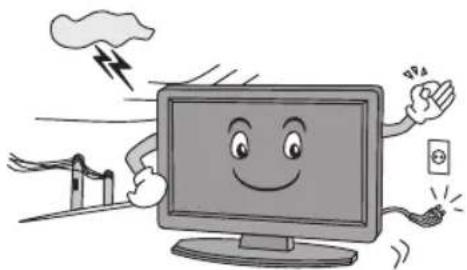
- Unplug the power cord and antenna during lightning storms or when unused for long periods of time.
natural_image
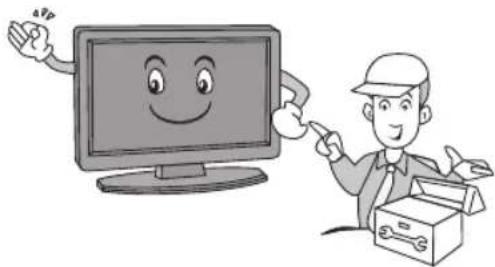
Cartoon illustration of a smiling computer monitor with hands and electrical components, no text or symbols present- Refer all services to qualified service personnel. Maintenance is necessary when the appliance has been damaged in any way, such as the power cord or plug is damaged, liquid has been spilled, or objects have fallen into the appliance, the appliance has been exposed to rain or moisture, does not work normally, or has been discarded.
natural_image
Illustration of a smiling computer monitor and a worker pointing at a box (no text or symbols)
ON DISPOSAL
- The fluorescent lamp used in this product a small amount of mercury.
- Do not dispose of this product with general household waste.
- Disposal of this product must be carried out in accordance to regulation of your local authority.
NOTE
- If the TV feels cold to the touch, there may be a small "flicker" when it is turned on. This is normal, there is nothing wrong with TV.
- Some minute dot defects may be visible on the screen, appearing as tiny red, green, or blue spots. However these have no adverse effect on the monitor's performance.
- Avoid touching the screen or holding your finger(s) against it for long periods of time. Doing so may produce some temporary distortion effect on the screen.
FIXING THE STAND
Your TV is packaged with the stand and the cabinet separated. Before using the TV, install the stand as described below, or if you want to mount it to wall, see page 6 for mounting advice; the wall mount itself is not supplied.
¡Important!
- Make sure the TV set is unplugged from the power supply before installing or removing the stand.
- The TV panel may be awkward to install on your own. We recommend you ask someone to help with installation and/or removal of the stand.
FIXING THE STAND
Wall mount installation
- Use the expansion bolts(4*36PWA) to fix the wall mount brackets into the wall.
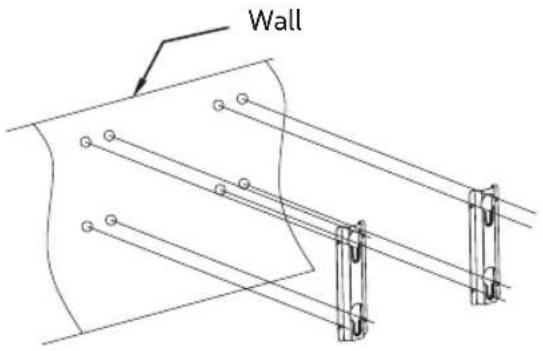
text_image
Wall- Fix the wall mount screws (M6x12mm/4pcs) into the rear side of the LED TV, using the torque of 8kgf.cm.
* The TV appearance subject to material object.
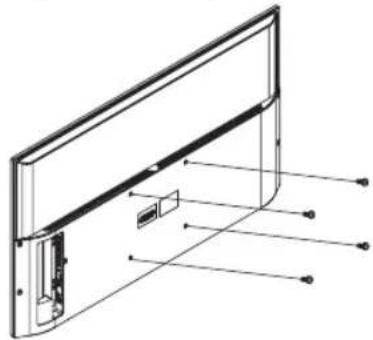
natural_image
Technical line drawing of a front panel with internal components and arrows indicating assembly (no text or symbols)- Put the LCD TV with wall mount screws onto the wall mount brackets. Warning: the angle between the TV and wall must not be bigger than 3^ .
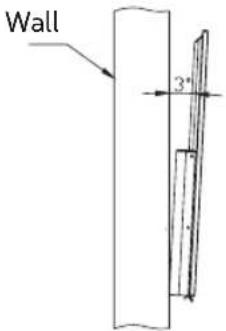
text_image
Wall 3°Attaching the stand
-
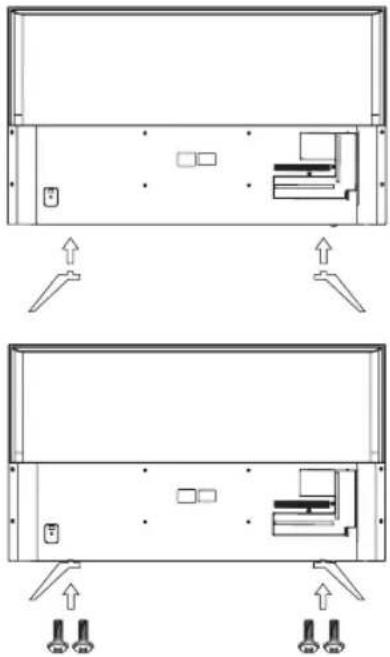
Place the TV with the display side down on a flat surface, Use a cloth to protect the display. Place the panel side of TV on the platform and insert the two stands into TV, making the screws holes of stands correspond to the right holes of TV.
-
The screws are attached to the bottom of the back, two on each side, and it is ready for mounting.
natural_image
Technical diagram showing front and side views of a server rack with indicator lights (no text or labels)FRONT AND REAR PANEL
text_image
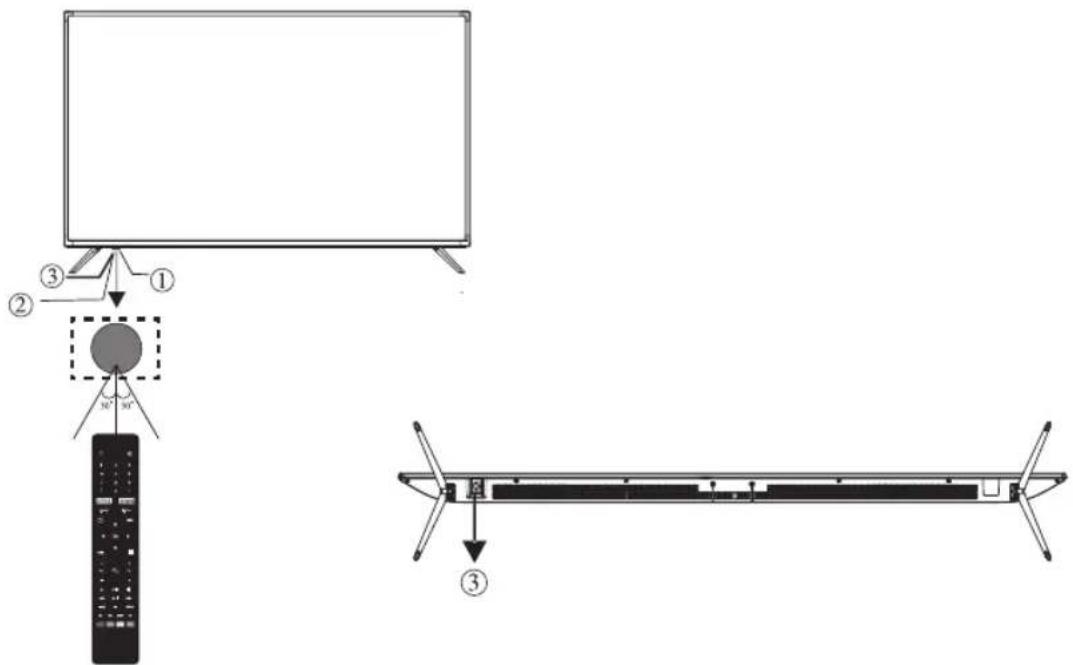
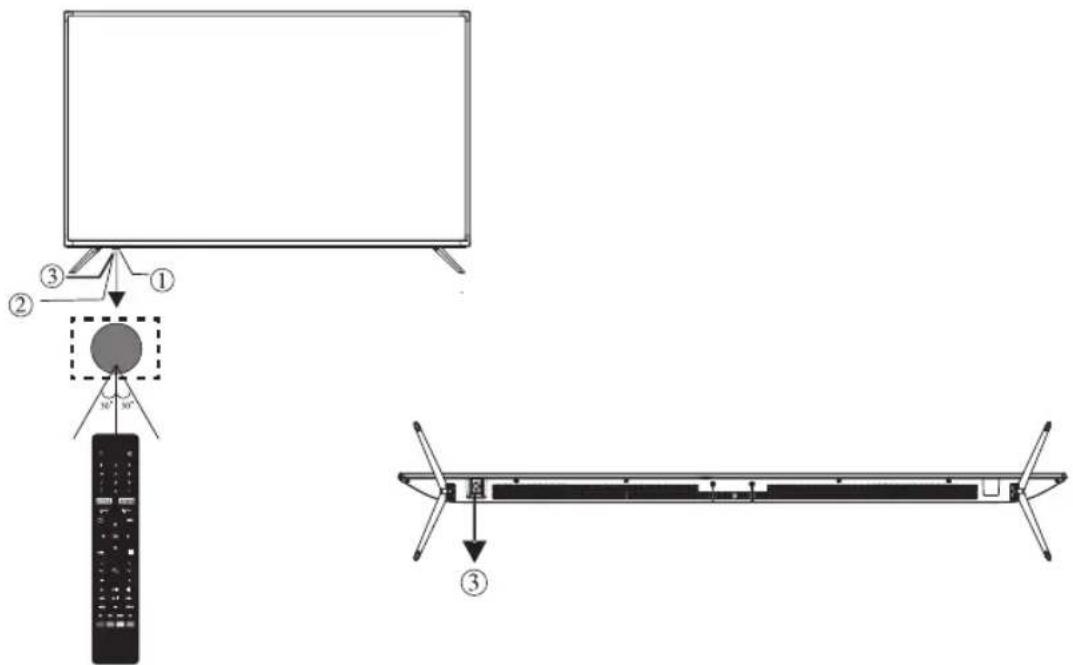
Diagram showing TV setup with remote control, screen, and cable assembly with numbered components
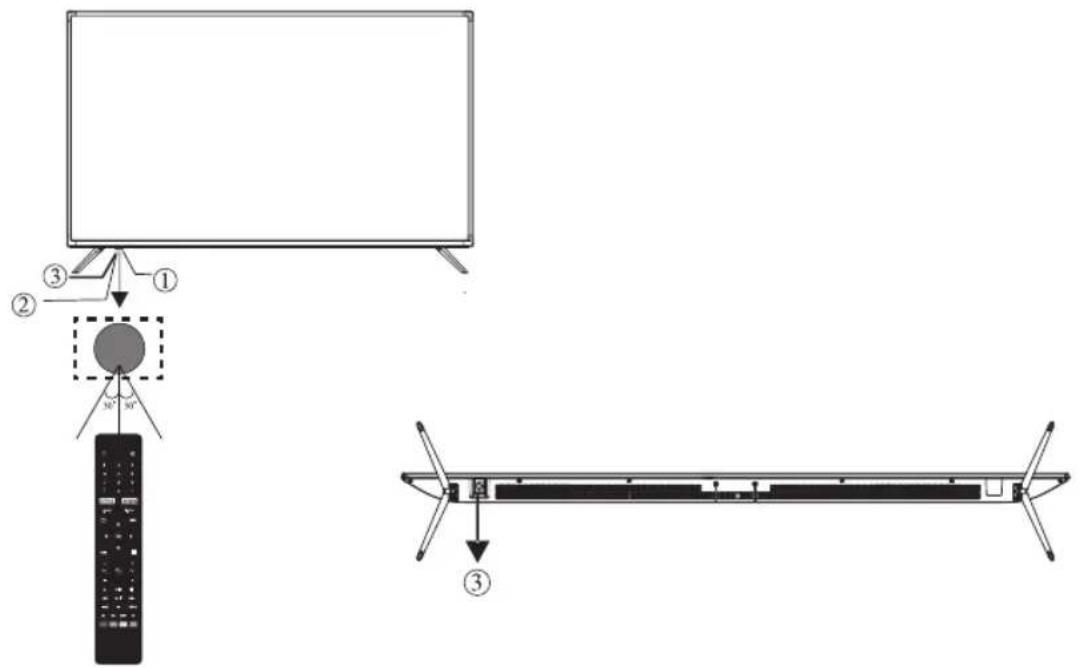
- Remote control sensor.
- LED indicator: Red STANDBY.
- “-” VOL- and move left.
“+” VOL+ and move right.
“^” CH- and move down
“♥” CH+ and move up
- Short press to confirm or enter the menu
- Long press to power off
text_image
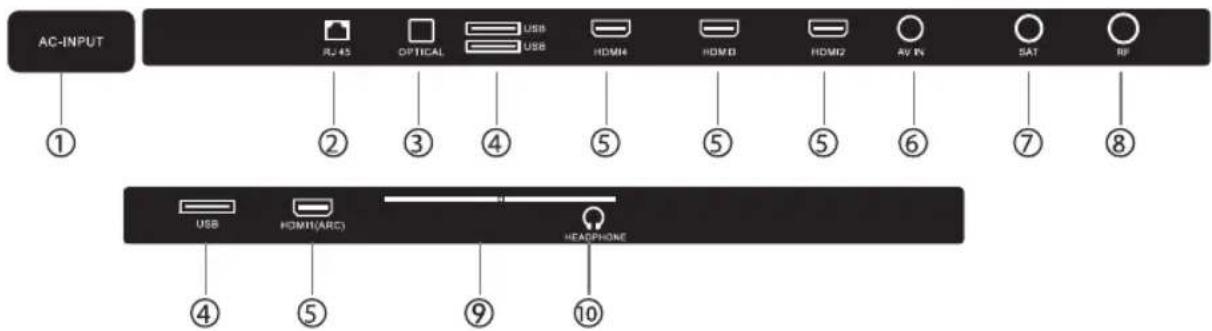
AC-INPUT ① ② ③ ④ ⑤ ⑥ ⑦ ⑧ ④ ⑤ ⑨ ⑩ RJ 45 OPTICAL USB USB HDMI4 HDMI3 HDMI2 AV IN SAT RF USB HDMI(ARC) HEARTPHONE| 1. Power supply input 6. AV input: external AV signal input and relevant right / left sound channel inputs. | |
| 2. RJ45: internet port 7.SAT | |
| 3. OPTICAL audio output 8. ANT: Antenna 75Ω | |
| 4. USB port 9. Cl: Common Interface | |
| 5. HDMI connection 10. Earphone output | |
GETTING STARTED
Using the remote control
When using the remote control, aim at the remote sensor on the TV. If there is an object between the remote control and the remote sensor on the unit, the unit may not work.
- Point the remote control at the REMOTE SENSOR located on the TV.
• The infrared remote sensors may not function properly when the TV is used in a brightly lit area. - It is recommended to use the remote control at an effective distance of about 7 meters.
Installing batteries in the remote control
- Open the cover on the back of the remote control.
- Install two AAA size batteries. Make sure the “+” and ends of the battery match the diagram in the battery compartment.
- Replace the cover.
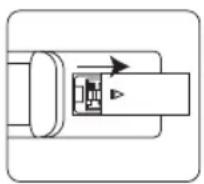
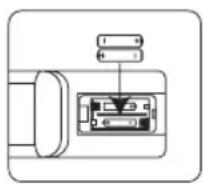
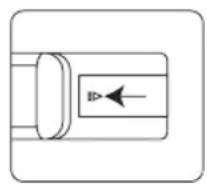
Battery replacement
You will need to install the batteries in the remote control for it to work by following the instructions below.
When the battery does not have enough power, the working distance of the remote control will be shortened considerably.
Notes on Battery Use:
Using the wrong type of batteries can cause chemical leaks and / or explosions. The following should be noted:
- Always make sure that the batteries are inserted with the + and - terminals in the correct direction as shown in the battery compartment.
- Different types of batteries have different characteristics. Do not mix different types.
- Do not mix old and new batteries. The combination of old and new batteries reduces the life of the batteries and / or leads to chemical leaks.
- If the battery does not work, replace it immediately.
- Leaking chemicals in batteries can cause skin irritation. If a chemical leaks from a battery, wipe it up immediately with a dry cloth and immediately replace the new battery.
- The life expectancy of batteries may be shorter due to storage conditions. Remove the batteries whenever you anticipate that the remote control will not be used for an extended period.
- The batteries (battery bank or batteries installed) must not be exposed to excessive heat such as sun, fire or the like.
CAUTION
- It may cause an explosion if the batteries are not replaced correctly.
- Only batteries with the same type or equivalent can be replaced.
CONNECTION AND SET UP
CABLE INSTALLATION
Carefully read the relevant content in "Maintenance and Safety Notice" before installation and use.
- Remove the TV from the retail box and place it on a secure flat surface.
NOTE:
When plugging or unplugging the TV, computer, or other equipment, you need to make sure that the AC power has already been turned off; When unplugging the power cord or signal cable, hold the plug (the insulated part), do not pull on the cable body.
- The RF output terminal can be connected to the RF input port on the TV.
- The DVD output AV terminal can be connected to the TV's AV input port through the AV cable.
- Connect one end of the HDMI cable to the HDMI output port, connect the other end of the HDMI cable to the HDMI port on the TV. It supports HDCP 2.2 on all HDMI inputs.
NOTE:
When connecting the HDMI, please insert carefully, do not press too hard so that the pin does not break.
- Check and make sure that all AV cables are properly connected with the corresponding ports.
- Connect the AV power cable to a 100-240 VAC power supply.
NOTE:
The power input range for the TV is 100-240VAC 50/60 Hz, please do not connect the power input port of the TV with the AV power out of the above range.
Keep the insulated part of the plug when you are unplugging the power cord, do not directly touch the metal part of the cord.
QUICK START GUIDE
- Connection
- Connect the electrical network and the antenna.
- Press the button on the remote control to turn on the TV from standby mode.
- Initial setup
When the TV is initially turned on, a sequence of on-screen prompts will help you configure the basic settings.
- Select the desired OSD (On Screen) language.
Press the ▲ / ▼ / ▶ button, then press the OK button.
- Select the appropriate country.
Press the ▲ / ▼ / ▶ button to select the country, and then press the OK button to Start Tuning Channels.
REMOTE CONTROL
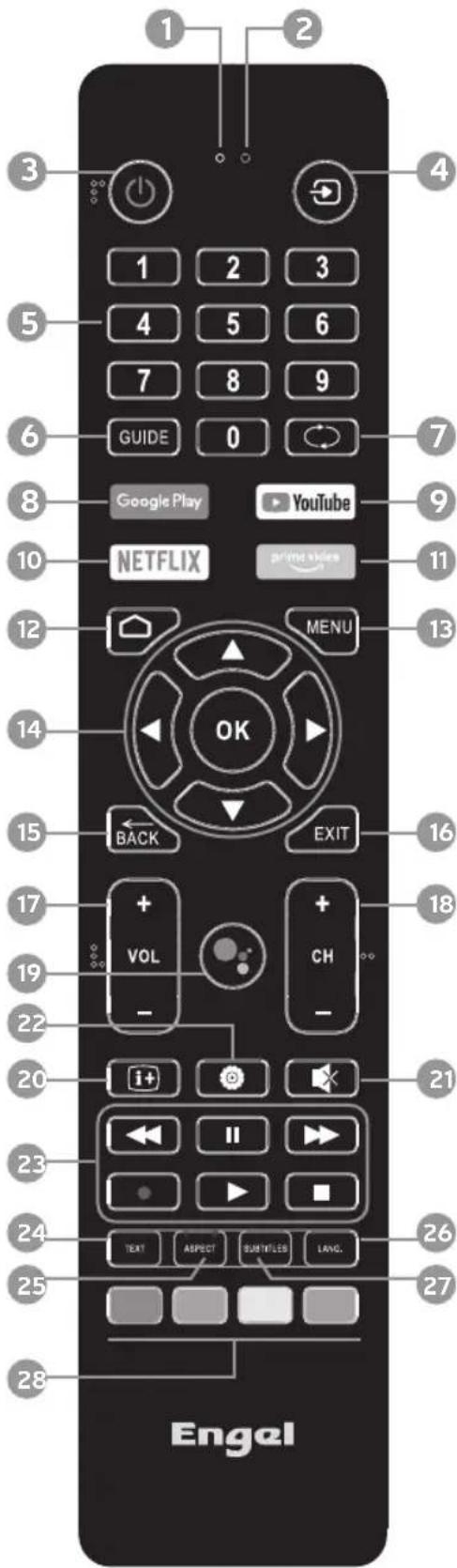
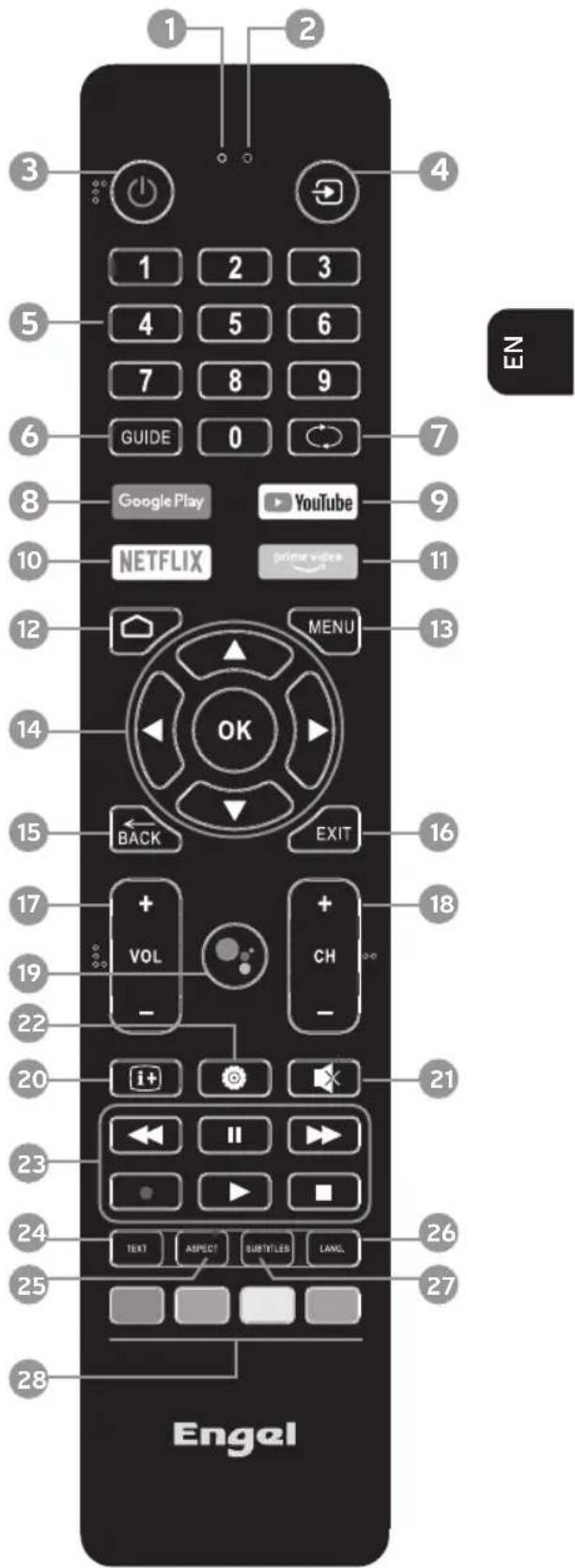
1. LED
- Green LED lights to indicate your remote is using Bluetooth.
- Red LED will light to indicate your remote is using infrared.
2. Microphone
Speak into the microphone when using Google Assistant.
3. STANDBY Button
Press to switch between on and standby.
4. Input Button
Press to switch between inputs.
5. NUMBER Buttons
Press to select a Live TV channels.
6. GUIDE Button
Press to view the Live TV Programme Guide.
7. CHANNEL BACK Button
Press to jump to last channel viewed
8. GOOGLE PLAY button
Press to access Google Play (internet connection required).
9. YOUTUBE button
Press to access YouTube (internet connection required).
10. NETFLIX Button
Connects to Netflix for viewing online TV shows and flms (internet connection required).
11. PRIME VIDEO Button
Connects to Prime Video for viewing online TV shows and flms (internet connection required).
12. HOME Button
Press to view the home screen.
13. MENU Button
Press when viewing Live TV to access the main menu.
14. OK and NAVIGATION

- Press OK to select items in menus.
- Press ▲ / ▼ / ◀ to navigate around menus.
15. BACK Button
Press to move back through menus.
16. EXIT Button
Press to exit menus or Apps.
17. VOLUME +/- Buttons
Press to increase and decrease the volume level.
text_image
1 2 3 4 1 2 3 5 4 5 6 7 8 9 6 GUIDE 0 7 8 Google Play YouTube 9 10 NETFLIX prime slides 11 12 MENU 13 14 OK 15 BACK EXIT 16 17 + VOL + CH 18 - - - 20 i+ 21 23 24 25 TEXT ASPECT SUBTITLES LANG. 26 27 28 EngalREMOTE CONTROL
18. CHANNEL +/- Buttons
Press to scroll up and down the channel list.
19. GOOGLE ASSISTANT Button
Press the Google Assistant button, when the green LED appears on the remote ask Google a question.
20. INFORMATION Button
Press when viewing Live TV to see programme information.
21. MUTE Button
Press to mute or un-mute the volume.
22. SETTING BUTTON
Press to open the settings menu.
23. REWIND - PAUSE - FAST FORWARD - RECORD - PLAY - STOP Buttons
- Press to rewind videos.
- Press to Pause videos.
- Press the fast forward videos.
- Press to Record Live TV, a storage device must me connected.
- Press the play videos.
- Press to Stop videos.
24. TEXT Button
Press to select the teletext mode.
25. ASPECT button
Press to adjust the aspect ratio of the picture.
26. LANGUAGE Button
Press to select an alternative language if available.
27. SUBTITLE Button
Press to access the AUDIO menu where you can switch Audio Description and Subtitles on and of.
28. COLOURED Buttons
Operations according to the prompt within menu or while watching TV.
text_image
1 2 3 4 1 2 3 5 4 5 6 7 8 9 6 GUIDE 0 7 8 Google Play YouTube 9 10 NETFLIX prime video 11 12 MENU 13 14 OK 15 BACK EXIT 16 17 + VOL + CH 18 19 - - - 20 i+ 21 23 II 24 TEXT ASPECT SUSTITLES LANG. 25 26 27 28 EngelBASIC OPERATION
Turning the TV on and off
- Turn on the TV
Connect the energy cable. At this time the TV will enter standby mode, press the ⏻ button on the remote control to turn on the TV from standby mode.
- Turn off the TV
Press the ⏻ button on the remote control to enter standby mode.
Do not leave your computer in standby mode for long periods of time. It is best to disconnect the whole of the electrical network and the antenna.
- No signal
There is a No Signal menu on the screen when there is no input signal. In TV / DTV mode, if there is no signal within fifteen minutes, the TV will automatically turn off.
Program selection
- Use of CH + / CH- on the TV panel or remote control.
Press CH + to increase the channel number.
Press CH to decrease the channel number.
- Use of digital buttons 0-9.
You can select the channel number by pressing 0 to 9. (In TV, DTV mode)
Adjusting the volume
- Press the VOL +/- button to adjust the volume.
- If you want to turn off the sound, press MUTE.
- You can release the silence by pressing MUTE or increase / decrease the volume.
Changing the input source
You can select the input source by pressing the button on the remote control.
Press the ▲ /▼button to scroll through the input source and press the OK button to confirm your choice.
MENU OPERATION
INITIAL SETUP
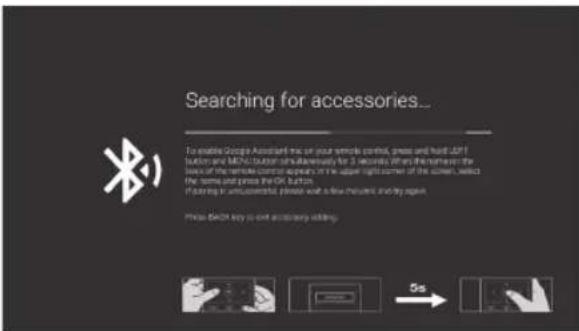
The first you turn your TV, the setup wizard will guide you through setting up basic settings. Please according to the text tip to first time setup.
text_image
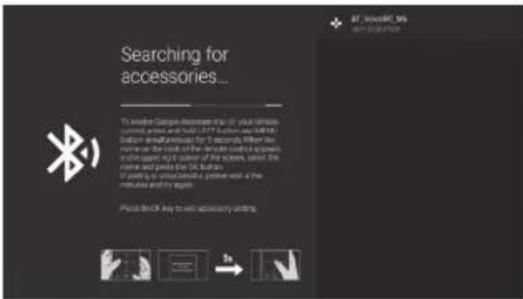
Searching for accessories... To enable Google Assistant mix on your remote control, press and hand OFF button and MCHS button simultaneously for 3 seconds where the name or the name of the remote control appears in the upper right corner of the screen, which the name and press the OK button. If calling to wireless, please wait a few minutes and try again. Please check key to exit necessary adding.This function is used for the remote control pair code. After the code is successful, you can use the Bluetooth remote control to operate the TV. If you don't need to use the Bluetooth remote control, you can press the BACK button to skip this step.
text_image
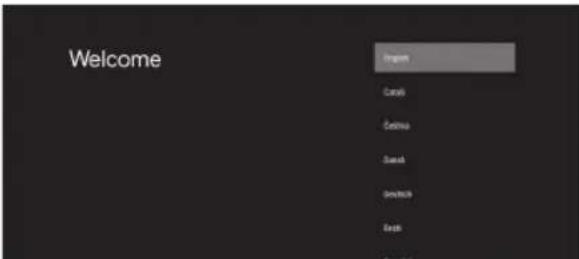
Welcome Refresh Cash Cashflow Send SendTo SendTo SendToPress ▲ / ▼ to select the system language and press OK to confirm.
text_image
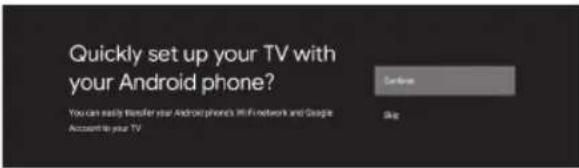
Quickly set up your TV with your Android phone? You can easily transfer your Android phone's WiFi network and Google Account to your TVConnect your Android phone to your TV, select "Continue" to continue the connection, and choose "Skip" to skip this step.
text_image
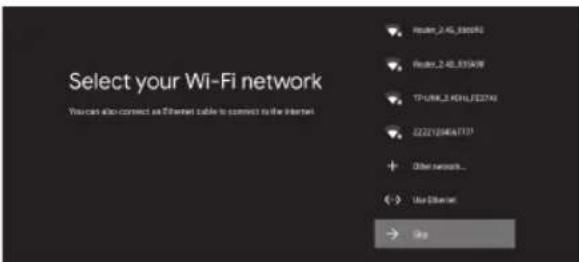
Select your Wi-Fi network You can also connect an Ethernet cable to connect to the Internet Route_2.45.390092 Route_2.48.375096 TP/URL_2.46HL/ED7A9 22221564E777 Other networks... Use Other Web WinPress ▲ / ▼ to select the the Wifi to connect, press OK and enter the password to confirm the connection is successful. You can also try use Ethernet and skip select network
text_image
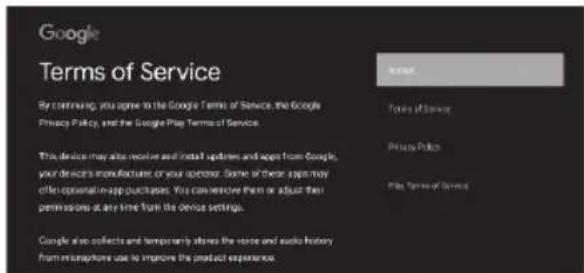
Google Terms of Service By continuing, you agree to the Google Terms of Service, the Google Privacy Policy, and the Google Play Terms of Service. This device may also receive email install updates and upgrade from Google, your devices manufacturer or your operator. Some of these apps may offer optional-app purchases. You can remove them or adjust their permissions at any time from the device settings. Google also collects and temporarily alters the voice and audio history from microphone use to improve the product experience.
By accepting the Google Terms of Service to improve the product experience, select "Accept" to accept this condition.
text_image
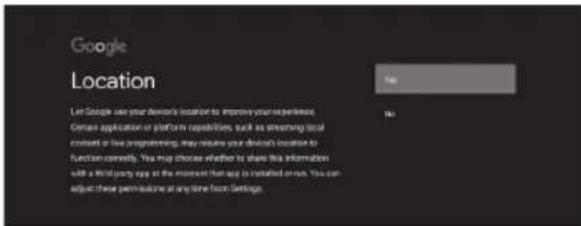
Google Location Let Google use your device's location to improve your experience, Option application or platform capabilities, such as streaming/local consult or new programming, may reduce your device's location to function correctly. You may choose whether to share this information with a third party copy at the moment than up to installed option. You can adjust these permissions at any time from Settings.Agree to Google to get the location information of your device to get more features, choose "YES" to accept.
text_image
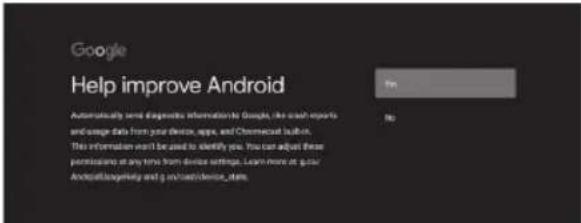
Google Help improve Android Automatically send diagnostic information to Google, the each reports and usage data from your device, apps, and Chomecost launch. This information won't be used to identify you. You can adjust these permissions at any time from device settings. Learn more at your Android/Android help and go/no change/demise_idm.By agreeing to automatically send diagnostic information to Google to improve discriminative power, choose "YES" to accept.
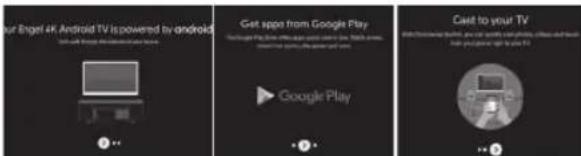
text_image
Your Engel 4K Android TV is powered by android Get apps from Google Play Google Play Cast to your TV- Your device is powered by Android TV and press ▶ button to select the browsing feature.
- You can get more apps from Google Play and press the ▶ button to go to the next screen.
MENU OPERATION
- Transfer photos and other content to the TV via the built-in chromecast, press OK to complete the browsing.
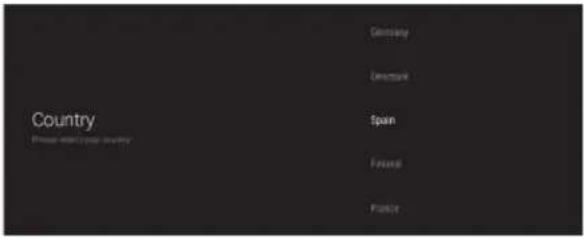
text_image
Country Germany Umspark Spain Forsal FrancePress ▲ / ▼ to select the country of your device and press OK to confirm.
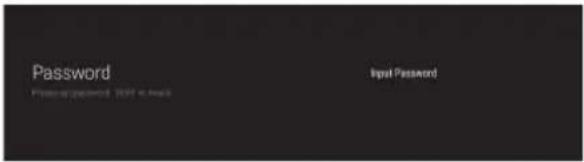
text_image
Password Input PasswordUsed to set your device's password to ensure security and privacy.
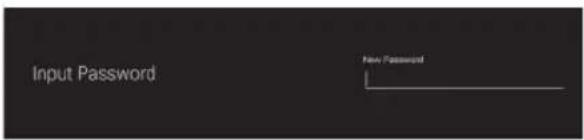
text_image
Input Password New PasswordPress OK to pop up the soft keyboard, and use the remote control to enter the 4-digit password automatically jump to the next interface.
text_image
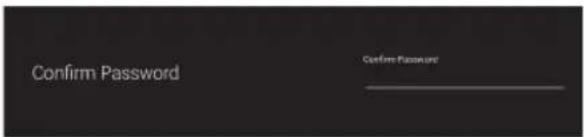
Confirm Password Confirm PasswordConfirm the password again and keep it consistent. Use the remote control to enter the password and complete the password confirmation.
text_image
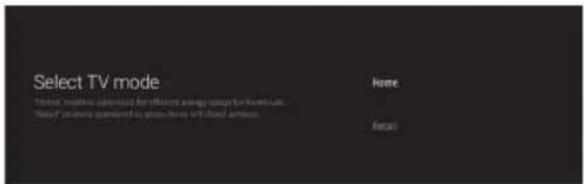
Select TV mode "Total modes approved for efficiency average range for next data. "Value of users approved to store them with fixed optionFor selecting the mode, press ▲ / ▼key to select Home mode and press OK to confirm.
text_image
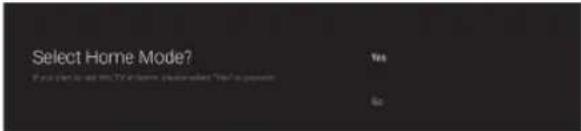
Select Home Mode? If you want to use this Home, then select "Yes" or "No" Yes NoConfirm the selected mode again, select "Yes" to confirm the selected mode, and select "No" to return to the previous step.
text_image
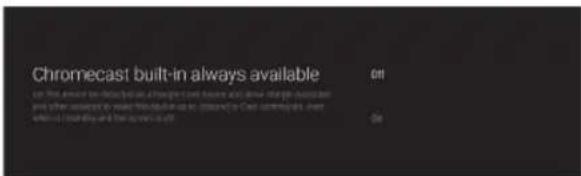
Chromecast built-in always available On the amount to create new, although I can build up all other projects and other projects to build in place as follows: or that is currently available.Let this device be detected as a Google Cast device and allow Google Assistant and other services to wake this device up to respond to Cast commands, even when on standby and the screen is off.
text_image
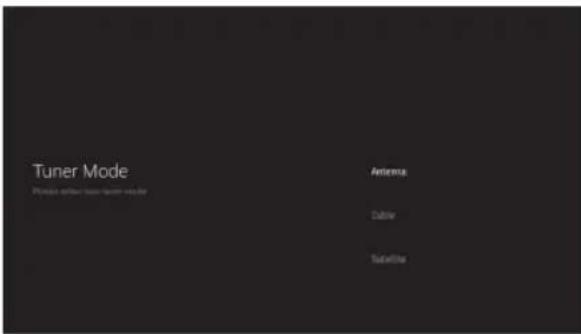
Tuner Mode Please select funer modes on the Antenna Dubler SatelliteTo select the Tuner mode for searching, press ▲ / ▼ to select and press OK to confirm.
text_image
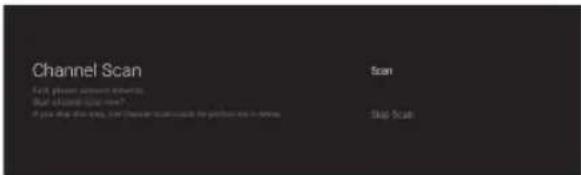
Channel Scan Scan Start please answer questions. What should scan next? If you what then select, then Check or scan would be performed in terms Step StepsPress ▲ / ▼ to select whether to search, select "Scan" to search, select "Skip Scan" to skip the search.
MENU OPERATION
text_image
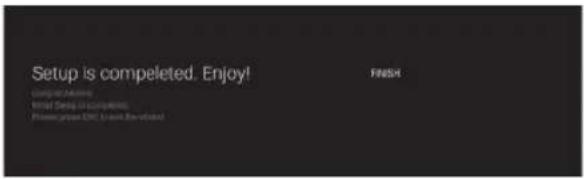
Setup is completed. Enjoy! WINISH WINISH Setup is completed. Please print PDF (Print) before FINISHPress OK to complete the setup.
text_image
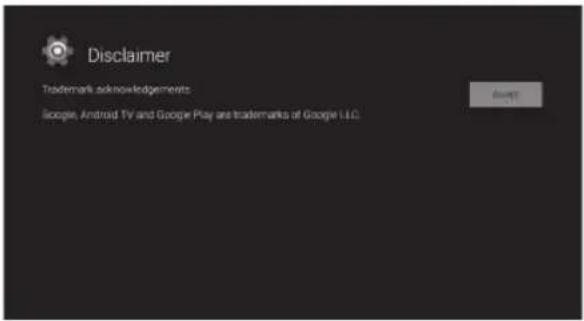
Disclaimer Trademark acknowledgements Google, Android TV and Google Play and trademarks of Google LLC.Press the OK button to agree to (Disclaimer). After setting is complete, You can watch TV.
HOME SCREEN
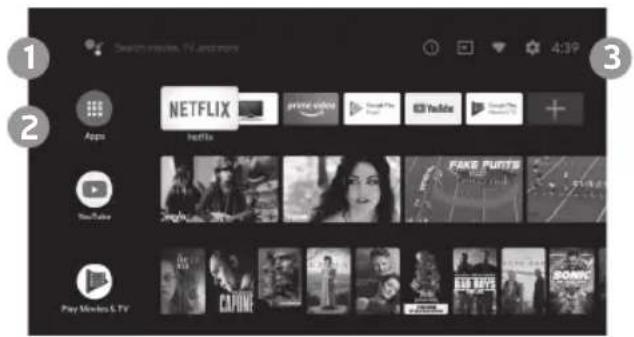
Press the HOME button to go to the home page.
text_image
1 2 3 4:39 Search video, TV and more Apps Netflix YouTube Play Movies & TV1) open the google assistant start a voice search or use keyboard search
2) Among the applications installed on the TV, the icons for the favourite applications are shown inside here.(Favourite applications can be added/deleted/ changed its order by users.)
Apps: Click to jump to Apps screen where all the installed applications are listed.
3) ① Notification: Display the notifications.
Inputs: Icon to select an input source.
Network & Internet: Icon to Setup Network, Such as wifi.
Settings: Various settings can be configured here. For details on the settings, see the next explanation.
INPUT SOURCE
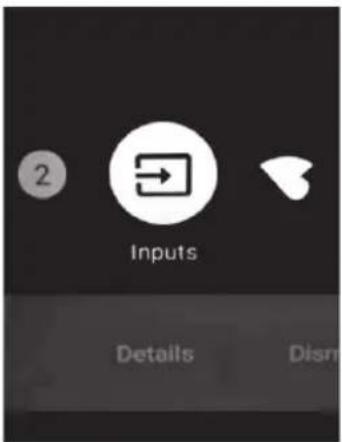
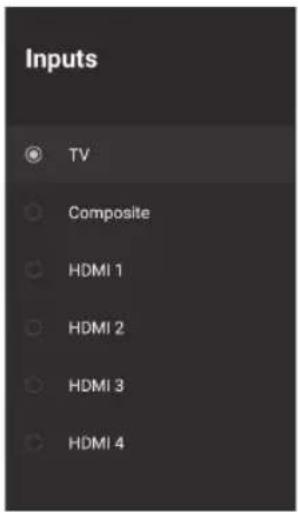
1) In the HOME interface, press ▲ / ▼ / ◀ / ▶ to select the "Inputs" icon, press OK to open the input source list, then press up to highlight an input and press OK to switch.
text_image
2 Inputs Details Disn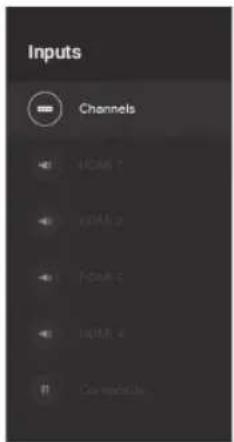
text_image
Inputs Channels V3/CM 1 V3/CM 2 V3/CM 3 V3/CM 4 Connectable...2) Under Live TV, press the SOURCE button to display the list of input sources. You can select the desired source.
text_image
Inputs TV Composite HDMI 1 HDMI 2 HDMI 3 HDMI 4MENU OPERATION
NAVIGATING THE ON-SCREEN MENU
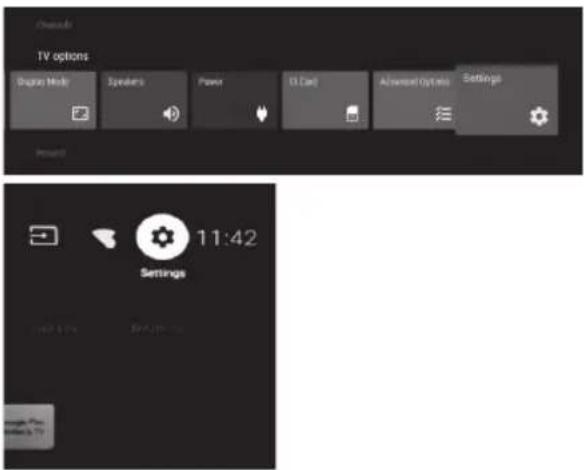
1) There are two ways to enter. First, in Live TV, press the menu button to display TV options, press ▲ ▼ / ▶ select the settings menu and press OK to confirm. Second, in the HOME interface, press the ▶ key to select the icon of the circular settings menu, press OK to confirm.
text_image
Chancs TV options Digital Audio Speakers Power D Card Advanced Options Settings Power 11:42 Settings2) Press ▲ / ▼button to select what you want set.
3) Press OK to enter setting.
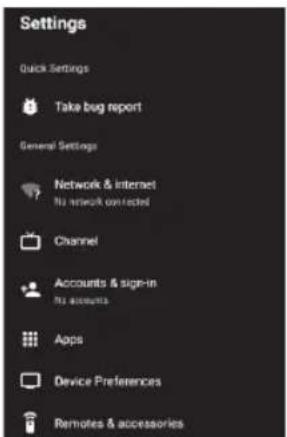
text_image
Settings Quick Settings Take bug report General Settings Network & Internet No network connected Channel Accounts & sign-in No accounts Apps Device Preferences Remotes & accessoriesPress BACK to return to the previous menu. If the main menu is displayed, pressing BACK will close the onscreen menu.
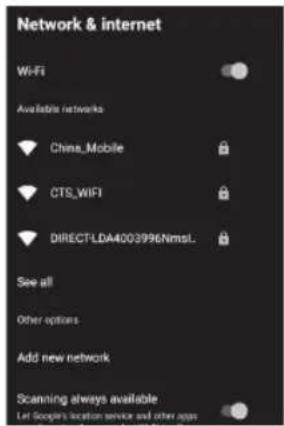
NETWORK & INTERNET
1) Press ▲ button to select what you want set.
2) Press OK button to adjust.
3) After finishing your adjustment, press OK button to save and return to the previous menu.
text_image
Network & internet WiFi Available networks China_Mobile CTS_WIFI DIRECT:LDA40G3996NmsL. See all Other options Add new network Scanning always available Let Google's service service and other apps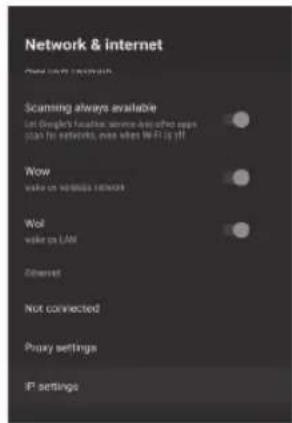
text_image
Network & internet Scan to own network Scanning always available Let Google's baseline, screen and other apps pass for networks, none when Wi-Fi is off Wow wake on wireless network Wol wake on LAM Ethernet Not connected Proxy settings IP settingsCHANNEL
text_image
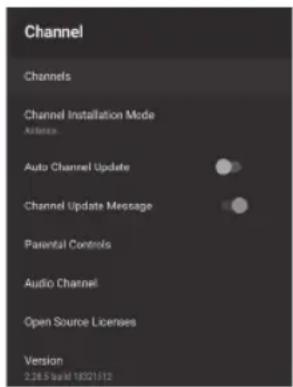
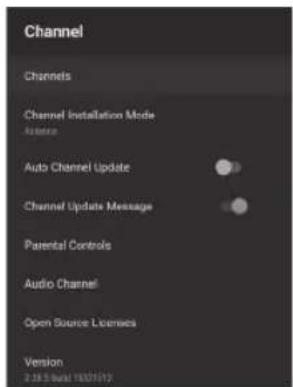
Channel Channels Channel Installation Mode Antenna Auto Channel Update Channel Update Message Parental Controls Audio Channel Open Source Licenses Version 2.58.3 (mail 1602197)Channels: Display the scan sub-menu based on different Channel installation modes.
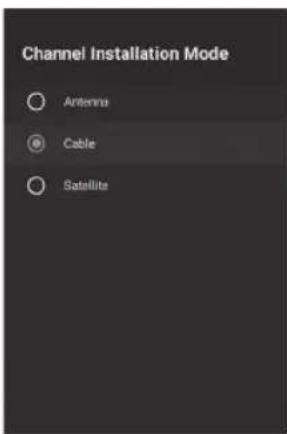
Channel installation mode: Select on-screen display channel sources. You can select the signal type.
- Antenna: Set the signal type to antenna. When set to Antenna, the TV can receive analog and digital (DVB-T/DVB-T2) broadcasting signals.
- Cable: Set the signal type to cable. When set to Cable, the TV can receive analog and QAM broadcasting signals.
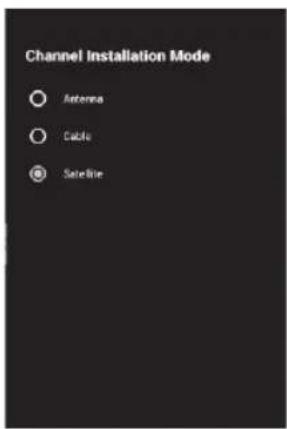
- Satellite: Set the signal type to Satellite. When set to Satellite, the TV can receive Satellite broadcasting signals.
MENU OPERATION
Auto Channel Update
Parental controls: Press ▲ / ▼button to select the option then press OK button to enter the sub-menu.
Audio Channel: Press ▲ / ▼button to select the option then press OK button to enter the sub-menu.
Open source licenses: Press ▲ / ▼button to select the option then press OK button to enter the sub-menu.
Antenna
text_image
Channel Installation Mode Antenna Cable Satellite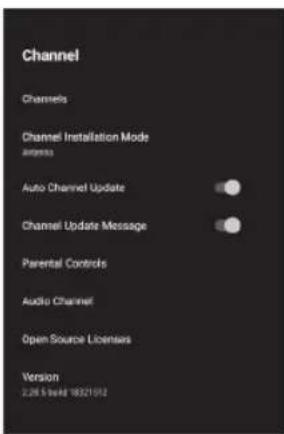
text_image
Channel Channels Channel Installation Mode Anpass Auto Channel Update Channel Update Message Parental Controls Audio Channel Open Source Licenses Version 2.265 KB/18321912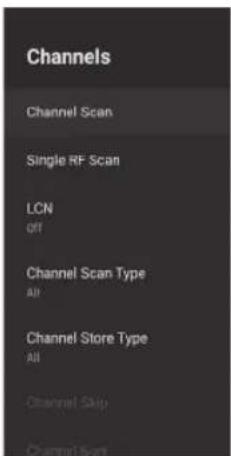
text_image
Channels Channel Scan Single RF Scan LCN Off Channel Scan Type All Channel Store Type All Channel Skip Channel Scan1) Menu->Settings->Channel->Channel Installation Mode enter, choose Antenna or Cable.
2) Enter Menu-> Settings-> Channel-> Channels.
text_image
Status: Scanning. Antenna Analog Channels: 0 Digital Channels: 0 16%- Channel Scan directly enters the ATV+DTV automatic search platform interface of Antenna.
Update Scan: Re-automatically search for frequency points outside the station.
text_image
Search for Analog Channels Scan Frequency (MHz) Scan Up Scan Down
Analog Manual Scan: Manual ATV search station. After input the frequency point, you can select up or down search station.
text_image
Scan Single RF Channel. (Digital Only) Cable Digital Channels 0% Frequency (KHz) 306000 Scan Signal Level 0% Signal Quality 0%Single RF Scan: DTV manual search, left and right after selecting RF Channel, directly OK search.
Cable
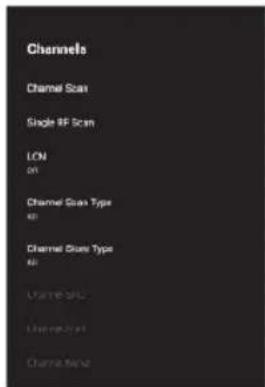
text_image
Channels Channel Scan Single RF Scan LCN ON Channel Scan Type BD Channel Scan Type BD Channel Scan Channel Scan Channel Scan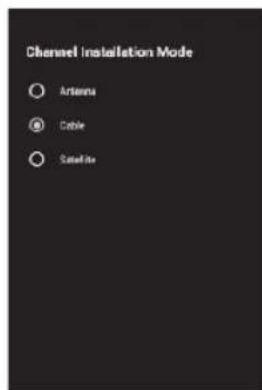
text_image
Channel Installation Mode ○ Antenna ● Cable ○ Satellite1) Menu->Settings->Channel->Channel Installation Mode, select Cable.
2) Enter Menu-> Settings-> Channel-> Channels.
MENU OPERATION
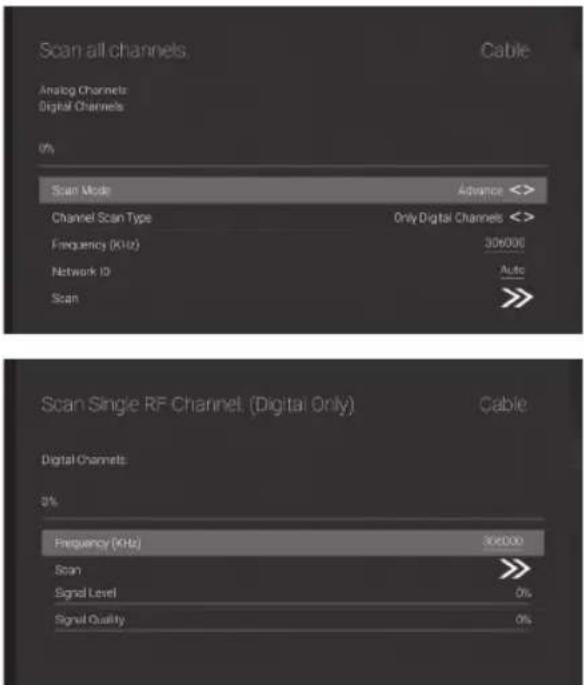
3) Enter Channel Scan, where Numericable are the local operators, and the default Scan Mode is Advance; Others have Advance, Quick and Full Scan modes.
text_image
Scan all channels Cable Analog Channels Digital Channels 0% Scan Mode Advance <> Channel Scan Type Only Digital Channels <> Frequency (kHz) 306000 Network ID Auto Scan >>> Scan Single RF Channel. (Digital Only) Cable Digital Channels 0% Frequency (kHz) 306000 Scan >> Signal Level 0% Signal Quality 0%Single RF Scan: manual search station.
SATELLITE
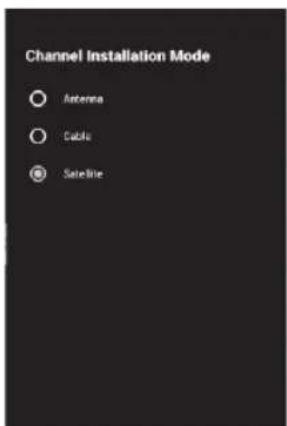
text_image
Channel Installation Mode Antenna Cable Satellite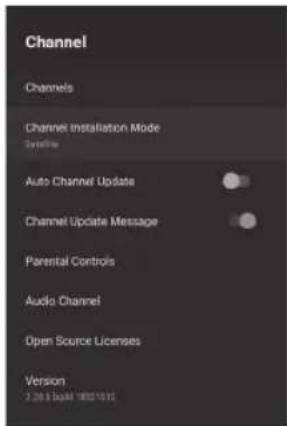
text_image
Channel Channels Channel Installation Mode Sunshine Auto Channel Update Channel Update Message Parental Controls Audio Channel Open Source Licenses Version 2.28.5.644 1802-1812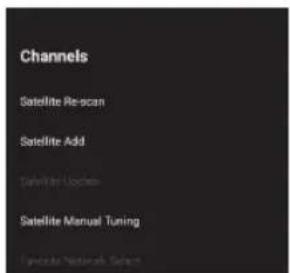
text_image
Channels Satellite Re-scan Satellite Add Satellite Uscale Satellite Manual Tuning Fancaus Network Select1) Menu->Configuration->Channel->Channel Installation Mode, select Preferred Satellite or General Satellite.
2) Enter Menu Settings-> Channel-> Channels-> Satellite Re-scan.
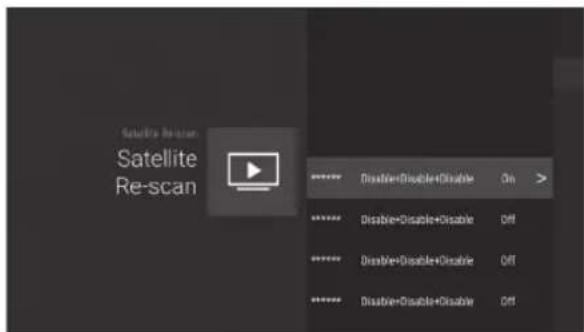
text_image
Satellite Re-scan Satellite Re-scan ***** Disable+Disable+Disable On > ***** Disable+Disable+Disable Off ***** Disable+Disable+Disable Off ***** Disable+Disable+Disable Off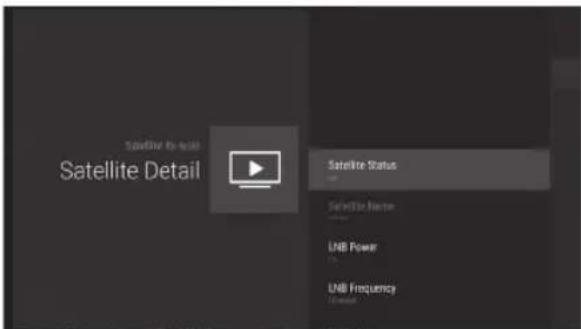
text_image
Satellite to sale Satellite Detail Satellite Status Satellite Name LNB Power LNB FrequencyMENU OPERATION
Press OK to enter the Satellite parameter Settings, which include LNB POWER, LNB Frequency, DisEqC Set, 22K and other parameters. Then go back to Satellite Re-scan and right click to enter the search menu. Then go back to Satellite Re-scan and right click to enter the search menu.
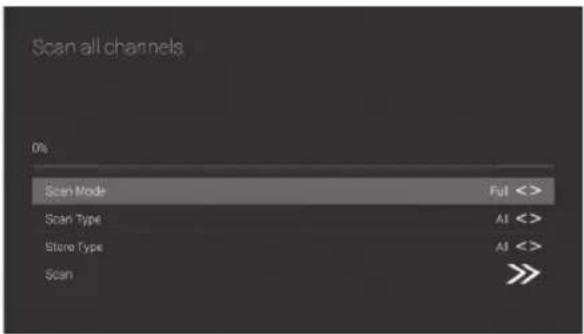
text_image
Scan all channels 0% Scan Mode Full <> Scan Type A1 <> Store Type A1 <> Scan >>Add Satellite: Add a star broadcast signal.
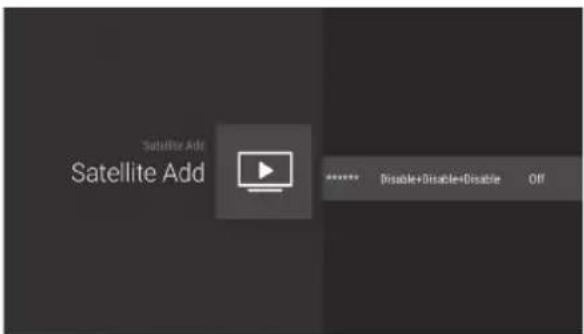
text_image
Satellite Add Satellite Add ***** Disable+Disable+Disable OffManual Satellite Tuning: Manually search for a specific TP, which can be added by Satellite Add if necessary.
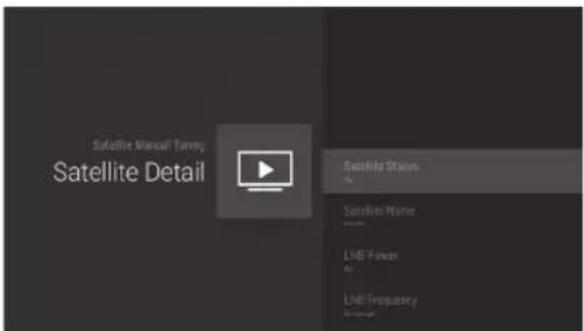
text_image
Satellite Manual Turning Satellite Detail Satellite Status Satellite Name LME Power LME FrequencyACCOUNTS & SIGN IN
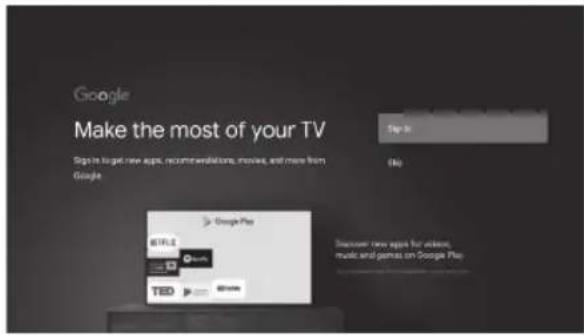
text_image
Google Make the most of your TV Signs target new apps, recommendations, movies, and more from Google Google Play Google Play TBD Google Play Discover new apps for videos, music and games on Google PlayPress UP/DOWN button to select Sign in or Skip.

APPS
text_image
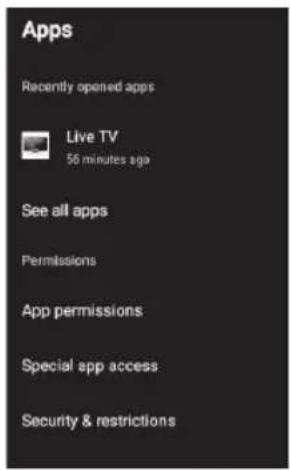
Apps Recently opened apps Live TV 56 minutes ago See all apps Permissions App permissions Special app access Security & restrictionsIn this menu, you can set the APP permissions, and read the app lists.
- Press ▲ / ▼button to select what you want set.
- Press OK button to adjust.
- After finishing your adjustment, Press BACK button to return to the previous menu.
MENU OPERATION
DEVICE PREFERENCES
ABOUT
text_image
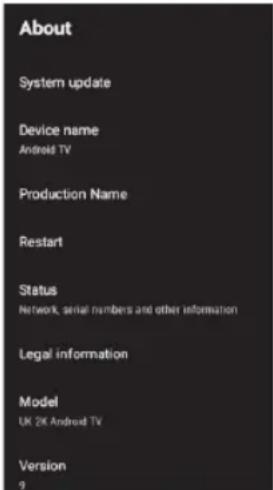
About System update Device name Android TV Production Name Restart Status Network, serial numbers and other information Legal information Model UK 2K Android TV Version 9In this menu, you can read the information and settings of TV.
- Press ▲ / ▼button to select what you want set.
- Press OK button to adjust.
- After finishing your adjustment, Press BACK button to return to the previous menu.
DATE & TIME
text_image
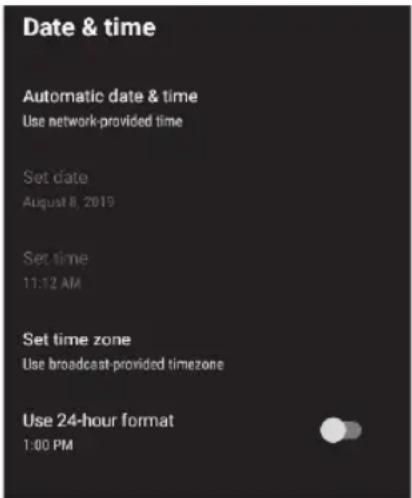
Date & time Automatic date & time Use network-provided time Set date August 8, 2019 Set time 11:12 AM Set time zone Use broadcast-provided timezone Use 24-hour format 1:00 PMAutomatic date & time: Press ▲ / ▼ button to select the option then press OK button to enter the sub-menu.(Optional:Use network-provided time,Off)
Set date: Press ▲ / ▼ button to select the
option then press OK button to enter the sub-menu.
Set time: Press ▲ / ▼ button to select the option then press OK button to enter the sub-menu.
Set time zone: Press ▲ / ▼ button to select the option then press OK button to enter the sub-menu.
Use 24-hour format: Press ▲ / ▼ button to select the option then press OK button to choose ON/OFF.
TIMER:
text_image
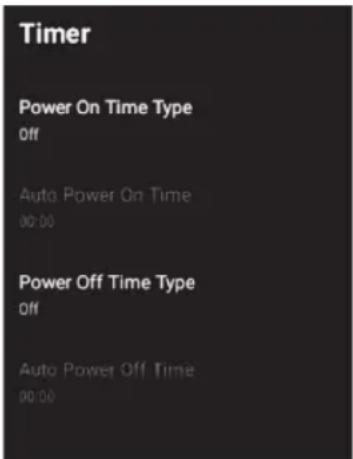
Timer Power On Time Type Off Auto Power On Time 00:00 Power Off Time Type Off Auto Power Off Time 00:00Power On Timer Type: Press ▲ / ▼button to select the option then press OK button to choose ON/OFF/ONCE.
Power On Timer: Press ▲ / ▼button to select the option then press OK button to enter the sub-menu.
Power Off Timer Type: Press ▲/▼button to select the option then press OK button to choose ON/OFF/ONCE.
Power Off Timer: Press ▲ / ▼ button to select the option then press OK button to enter the sub-menu.
MENU OPERATION
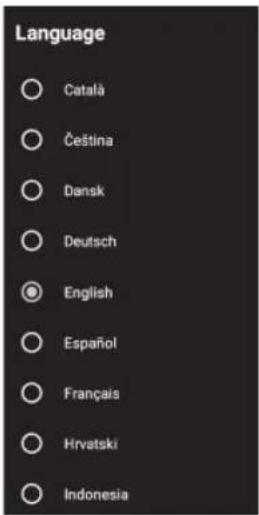
LANGUAGE:
text_image
Language ○ Català ○ Čeština ○ Dansk ○ Deutsch ◎ English ○ Español ○ Français ○ Hrvatski ○ IndonesiaLanguage: Press ▲ / ▼button to select the option then press OK button to enter the select language.
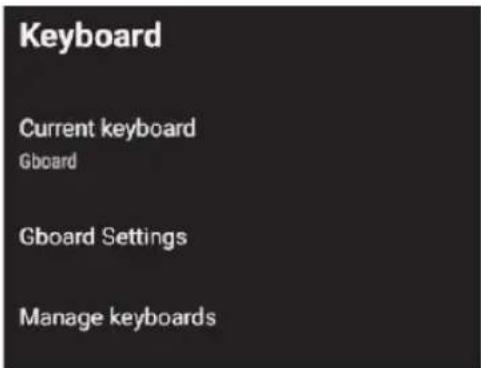
KEYBOARD
text_image
Keyboard Current keyboard Gboard Gboard Settings Manage keyboardsCurrent keyboard: Press button to select the option then press OK button to enter the sub-menu.
Gboard Settings: Press button to select the option then press OK button to enter the sub-menu.
Manage keyboards: Press button to select the option then press OK button to enter the sub-menu.
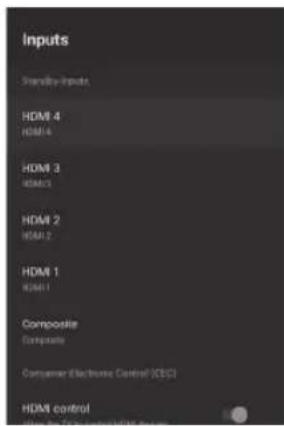
INPUTS
text_image
Inputs SignalInput HDMI 4 HDMI 4 HDMI 3 HDMI 3 HDMI 2 HDMI 2 HDMI 1 HDMI 1 Composite Composite Consumer Electronic Control (CES) HDMI control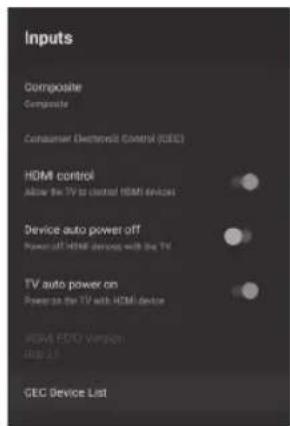
text_image
Inputs Composite Composite Consumer Electronics Control (GEC) HDMI control Allow the TV to control HDMI devices Device auto power off Power off HDMI devices with the TV TV auto power on Power on the TV with HDMI device HDMI ECD Version 2010.13 GEC Device List
Inputs: Press button to select the option then press OK button to enter the sub-menu.
HDMI control: Press button to select the option then press OK button to choose ON/OFF.
Device auto power off: Press button to select the option then press OK button to choose ON/OFF.
TV auto power on: Press button to select the option then press OK button to choose ON/OFF.
HDMI EDID Version: show EDID version.
CEC Device List: Press button to select the option then press OK button to enter the sub-menu
POWER
text_image
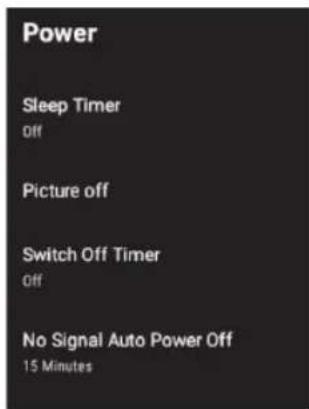
Power Sleep Timer Off Picture off Switch Off Timer Off No Signal Auto Power Off 15 MinutesMENU OPERATION
Sleep Timer: Press button to select the option then press OK button to enter the sub-menu. (Optional: off, 10 minutes, 20 minutes, 30 minutes, 40 minutes, 50 minutes, 60 minutes, 90 minutes, 120 minutes).
Picture off: Press button to select the option then press OK button to turn off the TV.
Switch off timer: Press button to select the option then press OK button to enter sub-menu.(Optional: off, 30 minutes, 60 minutes, 90 minutes, 120 minutes, 150 minutes, 180 minutes, 210 minutes, 240 minutes).
No signal Auto Power Off: Press button to select the option then press OK button to enter sub-menu. (Optional: off, 5 minutes, 10 minutes, 15 minutes, 30 minutes, 60 minutes).
PICTURE
text_image
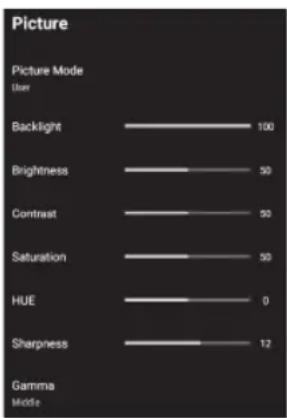
Picture Picture Mode iter Backlight 100 Brightness 50 Contrast 50 Saturation 50 HUE 0 Sharpness 12 Gamma mode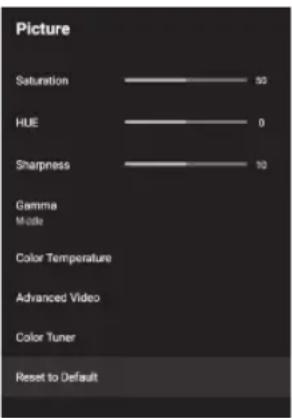
text_image
Picture Saturation 90 HUE 0 Sharpness 10 Gamma Middle Color Temperature Advanced Video Color Tuner Reset to DefaultPicture Mode: Press ▲ / ▼button to select the option then press OK button to enter submenu.(Optional: user, Standard, Vivid, Sport, Movie, Game, Energy saving).
Backlight/Brightness/Contrast/Saturation/HUE/Sharpness: Press ▲ / ▼button to select the option. Press ◀ to decrease the parameter. Press ▶ to increase the parameter.
Gamma: Press ▲ / ▼button to select the option then press OK button to enter sub-menu. (Optional: Dark, middle, Bright).
Color Temperature: Press ▲ / ▼button to select the option then press OK button to enter sub-menu.
Advanced Video: Press ▲ / ▼outton to select the option then press OK button to enter the sub-menu.
Reset to Default: Reset all settings to the factory defaults.
SOUND
text_image
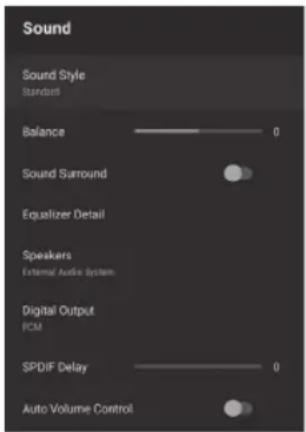
Sound Sound Style Standard Balance 0 Sound Surround Equalizer Detail Speakers External Audio System Digital Output PCM SPDIF Delay 0 Auto Volume Control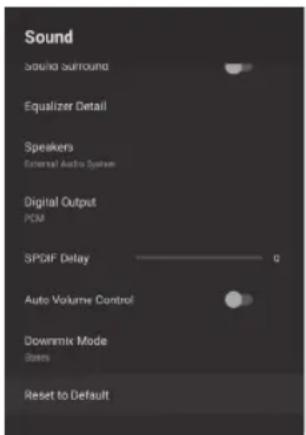
text_image
Sound Sound Surround Equalizer Detail Speakers External Audio System Digital Output PCM SPOIF Delay Auto Volume Control Downmix Mode Stores Reset to DefaultSound style: Press ▲ / ▼button to select the option then press OK button to enter the sub-menu.
(Optional: user, Standard, Vivid, Sports, Movie, Music, News)
Balance/Bass/Treble: Press ▲ / ▼button to select the option.press to decrease the parameter.Press to increase the parameter.
Sound Surround: Press ▲ / ▼button to select the option then press OK button to choose ON/OFF.
Equalizer Detail: Press ▲ /▼button to select the option then press OK button to enter the
MENU OPERATION
sub-menu.
Speakers: Press ▲ / ▼button to select the option then press OK button to enter the sub-menu.
(Optional: TV Speaker, External Audio System)
Digital Output: Press ▲ / ▼button to select the option then press OK button to enter the sub-menu.
(Optional: Auto,Bypass, PCM, Dolby Digital Plus, Dolby Digital)
SPDIF Delay: Press ▲ / ▼button to select the option. Press to decrease the parameter. Press to increase the parameter.
Auto Volume Control: Press ▲ / ▼button to select the option then press OK button to choose ON/OFF.
Downmix Mode: Press ▲ / ▼button to select the option then press OK button to enter the sub-menu.
(Optional: Stereo, Surround)
Reset to Default: Reset all settings to the factory defaults.
STORAGE
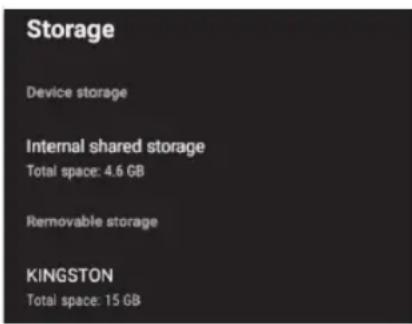
text_image
Storage Device storage Internal shared storage Total space: 4.6 GB Removable storage KINGSTON Total space: 15 GBInternal shared storage: Press ▲ / ▼button to select the option then press OK button to enter the sub-menu.
Removeable Storage: Press ▲ / ▼button to select the option then press OK button to enter the sub-menu.(Note:Show external devices if available)
HOME SCREEN
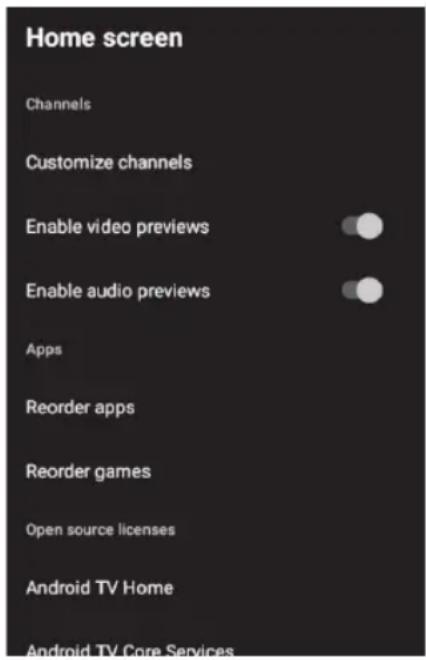
text_image
Home screen Channels Customize channels Enable video previews Enable audio previews Apps Reorder apps Reorder games Open source licenses Android TV Home Android TV Core ServicesIn this menu, you can set channels, apps, open source licenses.
- Press ▲ / ▼button to select what you want set.
- Press OK button to adjust.
- After finishing your adjustment, Press BACK button return to the previous menu.
RETAIL MODE
text_image
Retail Mode Retail Mode OffRetail mode: Press ▲ / ▼button to select the option then press OK button to choose ON/OFF.
MENU OPERATION
GOOGLE
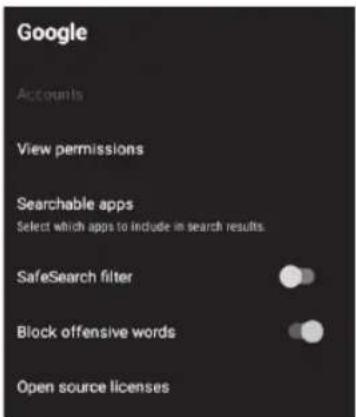
text_image
Google Accounts View permissions Searchable apps Select which apps to include in search results. SafeSearch filter Block offensive words Open source licensesIn this menu, you can set searchable apps, safe search filter, block offensive words, open source licenses.
- Press ▲ / ▼button to select what you want set.
- Press ok button to adjust.
- After finishing your adjustment, Press BACK button return to the previous menu.
CHROMECAST BUILT-IN
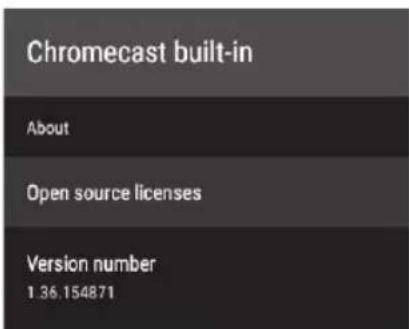
text_image
Chromecast built-in About Open source licenses Version number 1.36.154871In this menu, you can read the information and settings of Chromecast.
- Press ▲ /▼button to select what you want set.
- Press ok button to adjust.
- After finishing your adjustment, Press BACK button return to the previous menu.
SCREEN SAVER
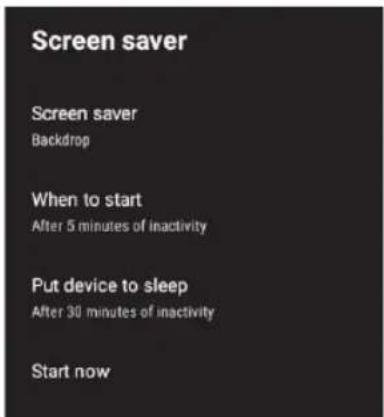
text_image
Screen saver Screen saver Backdrop When to start After 5 minutes of inactivity Put device to sleep After 30 minutes of inactivity Start nowScreen saver: Press ▲ / ▼outton to select the option then press OK button to enter the sub-menu.
(Optional: Turn screen off, Backdrop, Colors).
When to Start: Press ▲ / ▼ button to select the option then press OK button to enter the sub-menu.
(Optional: 5 minutes, 15 minutes, 30 minutes, 1 hour, 2 hours).
Put device to sleep: Press ▲ / ▼button to select the option then press OK button to enter the sub-menu.
(Optional: 30 minutes, 1 hour, 3 hours, 6 hours, 12 hours, Never).
Start now: Press ▲ / ▼ button to select the option then press OK button to enter screen saver.
LOCATION
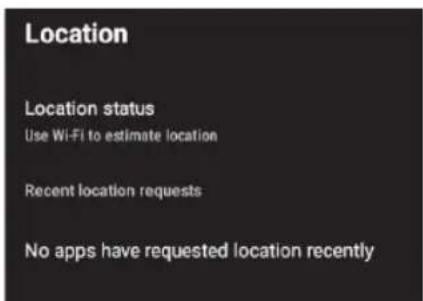
text_image
Location Location status Use Wi-Fi to estimate location Recent location requests No apps have requested location recentlyLocation status: Press ▲ / ▼button to select the option then press OK button to enter the sub-menu.
(Optional:Use Wi-Fi to estimate location, Off).
MENU OPERATION
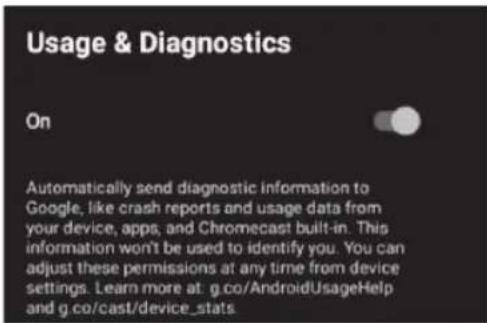
text_image
Usage & Diagnostics On Automatically send diagnostic information to Google, like crash reports and usage data from your device, apps, and Chromecast built-in. This information won't be used to identify you. You can adjust these permissions at any time from device settings. Learn more at. g.co/AndroidUsageHelp and g.co/cast/device_stats.Usage & diagnostics: Press ▲/ ▼utton to select the option then press OK button to choose ON/OFF.
ACCESSIBILITY
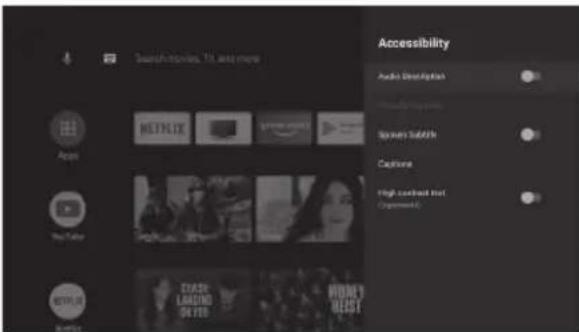
text_image
Search videos, 71 and more Accessibility Audio Description Screen Subtle Camera High keyboard Hot CameraAudio Description: Press ▲ / ▼button to select the option then press OK button to choose ON/OFF.
Visually Impaired: Press ▲ / ▼button to select the option then press OK button to enter the sub-menu.
Spoken Subtitle: Press ▲ / ▼button to select the option then press OK button to choose ON/OFF.
Captions: Press ▲ / ▼button to select the option then press OK button to enter the sub-menu.
High contrast text: Press ▲ / ▼button to select the option then press OK button to choose ON/OFF.
RESET
Press OK button to enter the sub-menu. Reset-Erase everything.
REMOTE & ACCESSORIES
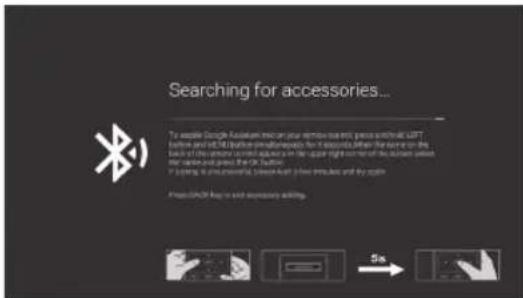
text_image
Searching for accessories... To enable Google Fuzium more on your website and pass through USB before and OFF before download up to 10 seconds. When the server is the label of the other version, it allows access to the upper right corner of the server when the server is open and closed at the OK button. If a server is environmental, please switch a power button and try again. Please check if you want to access any additional items. 5s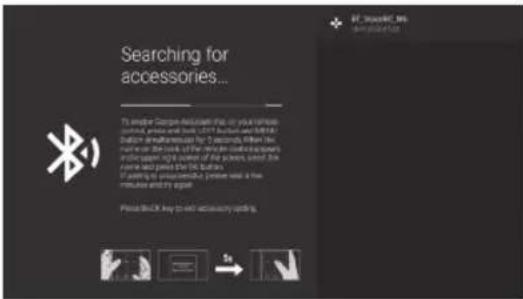
text_image
Searching for accessories... To end the Google Accessories that do your latest control, please and buy LIFT feedback on LIFT Switch to determine my 'Accessory'. When we read the book of the next book, you can get up your own in the popular right corner of the screen, read the name and press the UK button. If saying to possible this, please read a new minutes and the app! Please click OK key to exit accessory rating.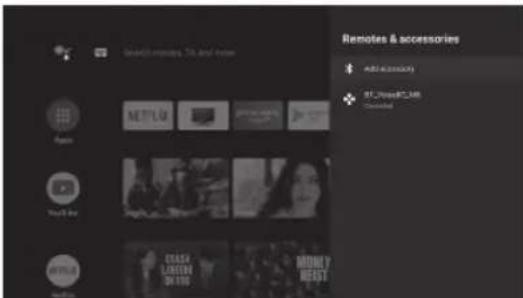
text_image
Mobile App Store, TV and Home App NETFLUG You're the Other Add accessories ST-Read/FT-148 Connected PULSE LEMON DR 100 MONEY HEATSIn this menu, you can pair Bluetooth devices.
- Press the "MENU" and "LEFT" buttons at the bottom of the remote control for 5 seconds.
- When the LED starts to flash, release it. The remote controller will send the pairing signal to the TV and display the information of the remote control on the right side of the screen.
- Press the OK button to display the pairing. If the paired is displayed, the connection is successful.
- If the couldn't pair appears, the connection fails. Wait 30 seconds and then press the "MENU" and "LEFT" buttons at the bottom of the remote control for 5 seconds to repeat the previous steps.
- Press BACK button return to the previous menu.

MENU OPERATION
MULTIMEDIA PLAYER
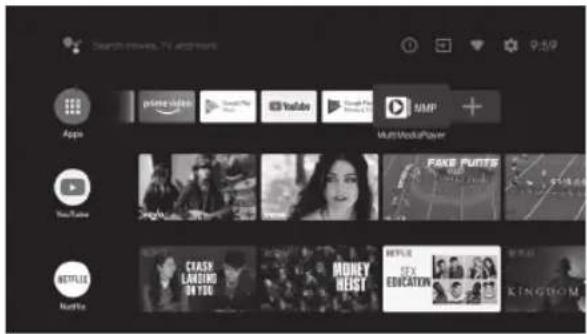
text_image
Search movies, TV and more 9:59 Appin YouTube Netflix Multi-Week Player FAKE FUNDS KINGHUAO MILK SOX ECONATION CHINESE LANDING ON YOU RIOHEY MEASY NEEFLER KINGHUAO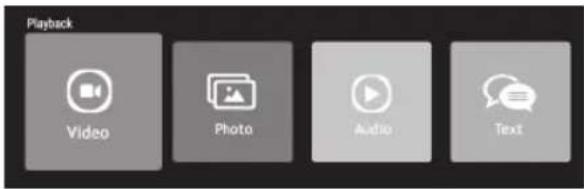
text_image
Playback Video Photo Audio TextIn the HOME interface, select the MMP APP to display Video, Photo, Audio, Text. After inserting the USB flash drive, you can view the corresponding files in the USB flash drive.
NOTE:
The menu may be different depending on when you purchased the TV.
SAFETY INSTRUCTIONS
MAINTENANCE
Early breakdowns can be avoided. Careful and regular cleaning can extend the amount of time your new TV will have. Be sure to turn off and unplug the power cord before beginning any cleaning.
Cleaning the screen
- It is a good way to clean the dust off your screen for a while. Dampen a soft cloth in a mixture of warm water and a little fabric softener or dish detergent. Dry the cloth until it is almost dry, and then use it to clean the screen.
- Make sure there is no excess water on the screen, and then allow it to air dry before turning on the TV.
Cabin cleaning
To remove dirt or dust, wipe the cabinet with a soft, dry, lint-free cloth. Please make sure not to use a damp cloth.
Prolonged absence

If you want the TV to remain idle for an extended period (for example, during holidays), it is best to disconnect the power source and the antenna to avoid possible damage from lightning or electric shock.
Disposal of old electrical appliances
The European Directive 2002/96 / EC on Waste from Electrical and Electronic Equipment (WEEE) requires that old household electrical appliances are not disposed of in the normal flow of unsorted municipal waste. Old appliances must be collected separately to optimize the impact on human health and the environment.
The crossed out "wheel tray" symbol on the product reminds you of your obligation, that when you dispose of the appliance, it must be collected separately. Consumers should contact local governments or retailers for information on the proper treatment of used electrical appliances.

HIGH-DEFINITION MULTIMEDIA INTERFACE
HIGH DEFINITION MULTIMEDIA INTERFACE
The terms HDMI and HDMI High Definition Multimedia Interface, and the HDMI logo are trademarks or registered trademarks of HDMI Licensing Administrator, Inc. in the United States and other countries.
TROUBLESHOOTING GUIDE
Before contacting the maintenance technician, make the following brief inspection. If the problem persists, unplug the TV and call for service
| PROBLEMA SOLUCIÓN DE PROBLEMA | |
| No sound or image - Check if the main plug is connected to an outlet.- Check if you have pressed the POWER button on the TV.- Check the contrast and brightness adjustment of the image. | |
| Normal picture, but no sound | - Check the volume.- Does it sound muted? Press the MUTE button.- Try another channel, the problem may be in the broadcast.- Is the audio cable installed correctly? |
| The remote control does not work | - Check if there is any object that causes a barrier between the product and the remote control.- Are the batteries installed with the correct polarity (+ to +, - to -)?- Has the correct remote operating mode been set: TV, VCR, etc.?- Install new batteries. |
| Sudden blackout - Is the sleep timer set?- Check the power control settings. Interrupted energy.- There is no transmission in the station tuned with automatic activation. | |
| The image appears slowly after turning on | - This is normal, the image is muted during the product startup process. Please contact your service center if the image has not appeared after five minutes. |
| Poor color or poor image - Adjust the color in the menu option.- Maintain a sufficient distance between the product and the VCR.- Try another channel, the problem may be in the broadcast.- Is the video cable installed correctly?- Activate any function to restore image brightness. | |
| Horizontal / vertical bars or image shake | - Check for local interference, such as an electrical appliance or a power tool. |
| Poor reception on some channels | - Problems with radio or cable television products. Change to another station.- The station signal is weak, redirect the antenna to receive the weakest station.- Check for sources of possible interference. |
| Lines or streaks in images - Check the antenna (Change the direction of the antenna). | |
| There is no output from one of the speakers | - Adjust the balance in the menu option. |
Policy on defective pixels
Due to the complexity of the technology used in the manufacture of LCD, TFT and LED screens, it is possible that some of the pixels that make up the screen may be defective. While it is desirable for all the pixels to function correctly, this is not always possible from a production perspective. For this reason, Ersax Trade S.L certi es that its LED TV products meet the criteria of admissible defect described herein and certi es that its LED TV screens are class A.
| Defective pixels 19"-20"-22"-24" 29"-32" 39"-40" 46"-50"-55" | ||||
| Bright pixel (max.) 4 4 4 4 | ||||
| Dark pixel (max.) 8 9 14 16 | ||||
| Maximum permitted sum of pixels 5 7 12 12 | ||||
| Double adjacent pixels (max.) | 1 | 1 | 1 | 1 |
If an LED TV screen has dark or bright pixels, this is only considered to be a fault by Ersax Trade S.L when the ranges established herein for an LED panel to be considered defective are exceeded, thereby allowing Ersax Trade S.L to manage the replacement or warranty of the panel due to a product non-conformance. As a rule and except for limited exceptions, Ersax Trade S.L considered an LED TV product to be faulty when it has a considerable number of permanently bright or dark pixels. As a reference, an LCD/LED panel has more than 1 million pixels and a single defective pixel is therefore not considered to constitute a lack of conformance and cannot be catalogued as a fault, as this circumstance will not act the correct functioning of the product.
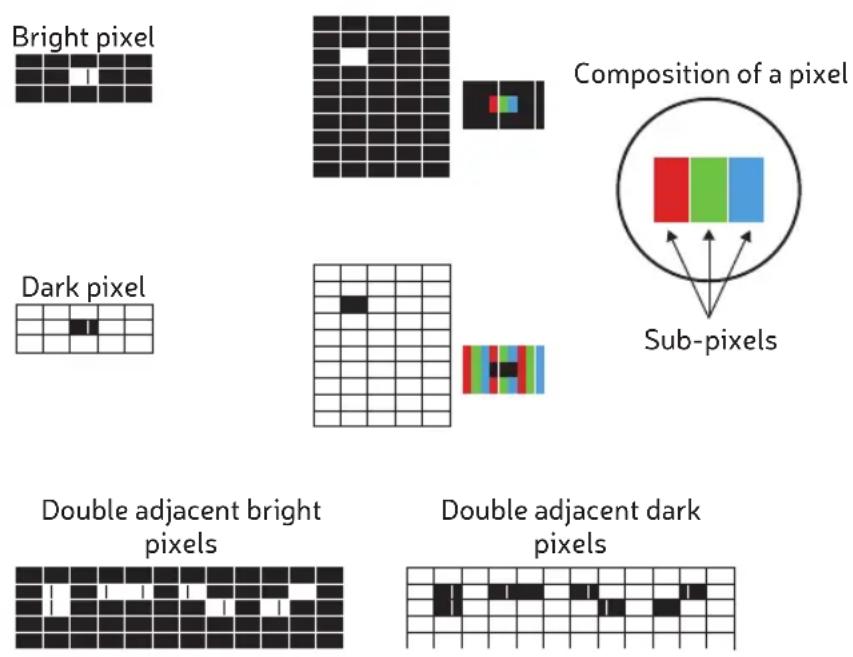
Therefore, if an LED screen meets the above criteria, it cannot be changed or repaired as this is not considered to be a lack of product conformance and cannot be catalogues as a defect or fault.
androidtv
TV LED
natural_image
Front view of a modern flat-screen TV with a black logo and 'feng' branding on the front screen (no additional text or symbols visible)PORTUGUÊS
CONTEÚDO
natural_image
Cartoon illustration of a smiling computer monitor holding a book and a document (no text or symbols present)natural_image
Cartoon illustration of a computer monitor with hands holding a document, surrounded by a money bag and a falling dollar sign (no text or symbols)natural_image
Illustration of a smiling man presenting to a computer monitor with a power cord (no text or symbols)natural_image
Cartoon illustration of a computer monitor with a sad face and crushing expression, surrounded by steam from above (no text or symbols)natural_image
Cartoon illustration of a computer monitor with a sad face and two hands, accompanied by a printer (no text or symbols present)natural_image
Cartoon illustration of a computer monitor with an angry face and electrical plugging (no text or symbols)natural_image
Symbolic icon of a person climbing a ladder inside a circle (no text or symbols)INSTRUÇÕES IMPORTANTES DE SEGURANÇA
natural_image
Cartoon illustration of a smiling computer monitor with hands and electrical components, no text or symbols presentnatural_image
Illustration of a smiling computer monitor and a worker with a toolbox, both pointing at it (no text or symbols present)
SOBRE A ELIMINAÇÃO
text_image
Parede 3°Fixação do suporte
natural_image
Technical line drawing of a server rack with front and side views, showing internal components and directional arrows (no text or symbols)PAINEL FRONTAL E TRASERO
text_image
Searching for accessories... For enable Groups Assistant this on your remote control, press and hold APT button and MDA button simultaneously for 2 seconds, when the server is the back of the remote control panel on the upper right corner of the screen, switch the name and press the OK button. If saving in unticompensible, please wait a few minutes and try again. Please check key to exit accessory asking: 5stext_image
Quickly set up your TV with your Android phone? You can easily transfer your Android phone's 80-F network and Google Account to your TVtext_image
Select your Wi-Fi network You can also connect an Ethernet cable to connect to the Internet. Route: 2.45.333638 TCP: 2.4601.FESTAD 2727120461777 + Other network... ← User Email → Skiptext_image
Google Terms of Service Or confirming, you agree to the Google Terms of Service, the Google Privacy Policy, and the Google Play Terms of Service. This device may also receive and install updates and apps from Google, your device's manufacturer or your operator. Some of these apps may offer optional in-app purchases. You can remove them or adjust their permissions at any time from the device settings. Google also collects and temporary stores the voice and audio history from microphone use is improves the product experience.text_image
Google Location Let Google use your device's location to improve your experience. Certain application or platform capabilities, such as streaming local content in live programming, may require your device's location to function currently. You may choose whether to share this information. with a third party app at the moment that app is installed online. You can select these permissions as any other link settings.text_image
Your Engel 4K Android TV is powered by androids Can call to email or make a new user on the screen. Get apps from Google Play Google Play Cast to your TVtext_image
Country Please select your country* Delhiurny Denmark Spain Finland Praticetext_image
Password Press any password that this is right. Input Passwordtext_image
Input Password New Passwordtext_image
Confirm Password Confirm Passwordtext_image
Select TV mode Used mode is optimized for off-point energy usage for long cans Total number of users is determined to select cents with fixed values. Home Retailtext_image
Select Home Mode? If you plan to use this TV or home, please select "Yes" or "No"; Yes Notext_image
Chromecast built-in always available Only 100% offer for complete use of a double card interface and allow double amount and other commands by default. This build-in is required to be saved to Card interface, your own on January 25 at the start date.text_image
Tuner Mode Effector select user Tuner mode Antenna Cable Satellitetext_image
Channel Scan Last platform corresponds to scan Your download cost was? If you stop this day, the channel scan would be performed in Mean Scan Skip Scantext_image
Setup is completed. Enjoy! compliance Final Setup is completed. Please press OK to exit the system.text_image
Disclaimer Trademark acknowledgements: Google, Android TV and Google Play are trademarks of Google LLC.text_image
Settings Quick Settings Take bug report General Settings Network & internet No network corrected Channel Accounts & sign-in Fix accounts Apps Device Preferences Remotea & accessoriestext_image
Network & internet WiFi Available networks China_Mobile CTS_WIFI DIRECT:LDA4003996NmsL See all Other options Add new network Scanning always available Let Google's location service and other apps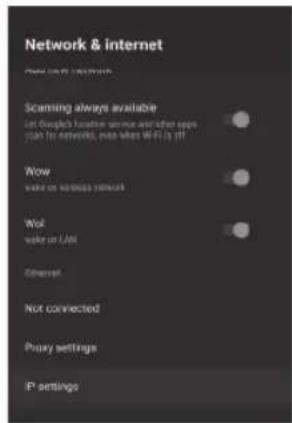
text_image
Network & internet Scan to access network Scanning always available Let Google's home server and other apps plan for networks, once when WiFi is off Wow wake on wireless network Wok wake on U/L Ethernet Not connected Proxy settings IP settingsCANAL
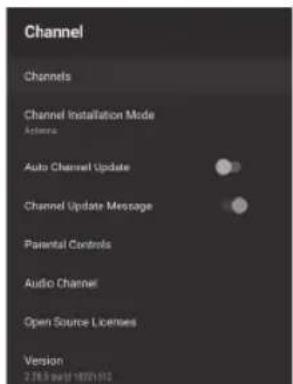
text_image
Channel Channels Channel Installation Mode Actions Auto Channel Update Channel Update Message Parental Controls Audio Channel Open Source Licenses Version 2.36.5 (mail 14072.112)text_image
Channel Installation Mode Antenna Cable Satellite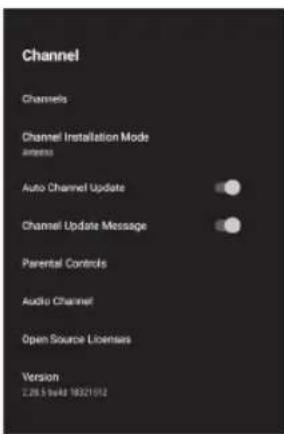
text_image
Channel Channels Channel Installation Mode Access Auto Channel Update Channel Update Message Parental Controls Audio Channel Open Source Licenses Version 2.05.5 Web 18321912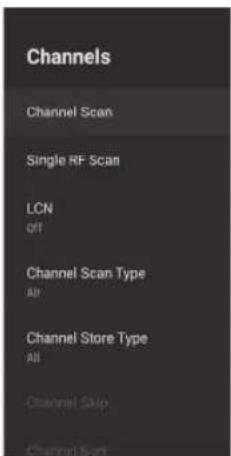
text_image
Channels Channel Scan Single RF Scan LCN Off Channel Scan Type All Channel Store Type All Channel Skip Channel Slottext_image
Status: Scanning. Antenna Analog Channels: 0 Digital Channels: 0 16%3) A varredura de canal entra diretamente na interface da plataforma de pesquisa automática ATV+ DTV da antena.
text_image
Search for Analog Channels Scan Frequency (MHz) Scan Up Scan Down
text_image
Scan Single RF Channel. (Digital Only) Cable Digital Channels: 0% Frequency (KHz) 206000 Scan Signal Level 0% Signal Quality 0%text_image
Channels Channel Scan Single RF Scan LOU ON Channel Scan Type ARI Channel Scan Type ARI Channel type Channel type Channel type Channel type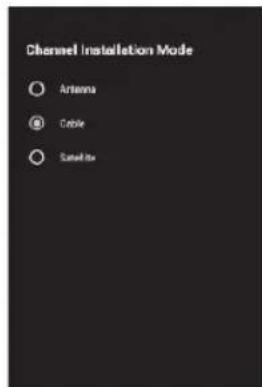
text_image
Channel Installation Mode Antenna Cable Satellitetext_image
Scan all channels. Cable Analog Channels: Digital Channels 0% Scan Mode Advance <> Channel Scan Type Only Digital Channels <> Frequency (kHz) 326000 Network ID Auto Scan >> Scan Single RF Channel. (Digital Only) Cable Digital Channels 0% Frequency (kHz) 326000 Scan Signal Level 0% Signal Quality 0%text_image
Channel Installation Mode Antenna Cable Satellite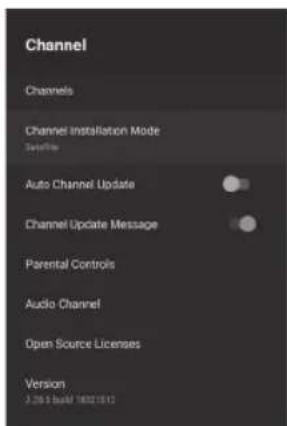
text_image
Channel Channels Channel Installation Mode SyncInfo Auto Channel Update Channel Update Message Parental Controls Audio Channel Open Source Licenses Version 3.265 Build 18021812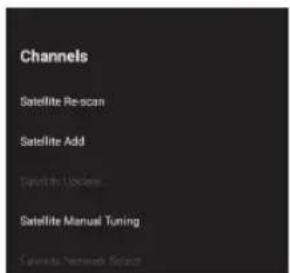
text_image
Channels Satellite Re-scan Satellite Add Satellite Lockers Satellite Manual Tuning Cancels Network Securitytext_image
Scan all channels 0% Scan Mode Full < > Scan Type AI < > Store Type AI < > Scantext_image
Apps Recently opened apps Live TV 56 minutes ago See all apps Permissions App permissions Special app access Security & restrictionstext_image
Date & time Automatic date & time Use network-provided time Set date August 8, 2019 Set time 11:12 AM Set time zone Use broadcast-provided timezone Use 24-hour format 1:00 PMtext_image
Keyboard Current keyboard Gboard Gboard Settings Manage keyboardstext_image
Inputs Composite Composite Consumer Electronics Control (CEC) HDMI control Inside the TV to control HDMI devices Device auto power off Power off HDMI devices with the TV TV auto power on Power off the TV with HDMI device HDMI ECD Version HDMI 2.0 CEC Device Listbar
Picture | Picture Mode | Value | |---|---| | Backlight | 100 | | Brightness | 90 | | Contrast | 50 | | Saturation | 50 | | HUE | 0 | | Sharpness | 12 | | Gamma Viddle | |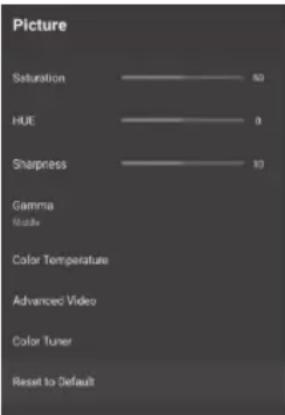
text_image
Picture Saturation 50 HUE 0 Sharpness 10 Gamma Mode Color Temperature Advanced Video Color Tuner Reset to Defaulttext_image
Sound Sound Style standard Balance 0 Sound Surround Equalizer Detail Speakers External Audio System Digital Output PCM SPDIF Delay 0 Auto Volume Control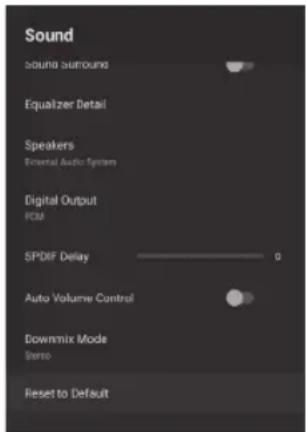
text_image
Sound Sound Surround Equalizer Detail Speakers Trinidad Audio System Digital Output FCM SPDIF Delay Auto Volume Control Downmix Mode Stereo Reset to Defaulttext_image
Storage Device storage Internal shared storage Total space: 4.6 GB Removable storage KINGSTON Total space: 15 GBtext_image
Home screen Channels Customize channels Enable video previews Enable audio previews Apps Reorder apps Reorder games Open source licenses Android TV Home Android TV Core Servicestext_image
Retail Mode Retail Mode Offtext_image
Google Accounts View permissions Searchable apps Select which apps to include in search results. SafeSearch filter Block offensive words Open source licensestext_image
Chromecast built-in About Open source licenses Version number 1.36.154871text_image
Screen saver Screen saver Backdrop When to start After 5 minutes of inactivity Put device to sleep After 30 minutes of inactivity Start nowtext_image
Location Location status Use Wi-Fi to estimate location Recent location requests No apps have requested location recentlytext_image
Usage & Diagnostics On Automatically send diagnostic information to Google, like crash reports and usage data from your device, apps, and Chromecast built-in. This information won't be used to identify you. You can adjust these permissions at any time from device settings. Learn more at: g.co/AndroidUsageHelp and g.co/cast/device_stats.text_image
Search movies, 21, and more Accessibility Audio Description Options Required Screen Subtitle Capture High soundset out Copments Play Netflix YouTube CASH LANDING ON YOU WHOLEY BEASTtext_image
Searching for accessories... To enable Google Foundation more on your website search, press and install USB. before and will better download any of the users. When the save on the back of this software, you can get a new user to access the user when the next page is opened at the USB button. If buying or downloading, please wait a free session and try again. Press OFF/USB help to switch accessing activity. 5ms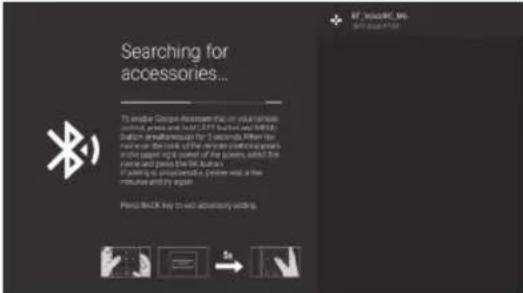
text_image
Searching for accessories... To enable a European accessories on your website control, which are best (2.0) but not an XML solution elsewhere for 3.0 seconds. When the control is used, the result of the version of the web can be used to the server is required to use the system, which is the root and press the Web Server. If using it, you can also use the Web Server to allow the response and again. Please block key to add accessory writing.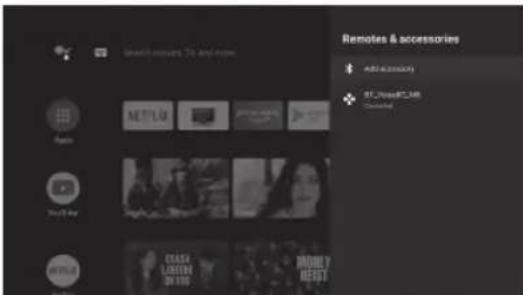
text_image
Read resources 75 and more Autres & accessories Add accessories 82.0000000 Downloadtext_image
Search movies, TV and more 9:59 Appis YouTube Netflix Multi-Week Player FAKE FUNDS THE WORLD'S FUTURE KNYKING CHINESE LANDING ON YOU RIOUET MILKIE SOX EDUCATION KINGHAI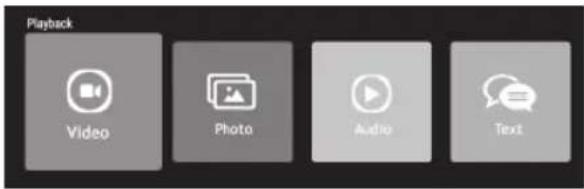
text_image
Playback Video Photo Audio TextDistributor & manufacturer authorized representative:
Hereby, ERSAX TRADE, S.L. declares that these equipments are in compliance with the essential requirements and other relevant provisions of Directives 2014/53/EU (RED), 2009/125/EC (ERP)
With the standard or other normative documents:
EMC:
ETSI EN 301 489-1 V2.2.0 (2017-03)
ETSI EN 301 489-3 V2.1.1 (2017-03)
ETSI EN 301 489-17 V3.2.0 (2017-03)
EN 55032: 2015
EN 55035: 2017
EN 61000-3-2: 2014,
EN 61000-3-3: 2013
ERP:
EN 50564: 2011 + IEC 62087 Ed.2 + 642/2009/EC
RADIO:
ETSI EN 300 328 V2.1.1 (2016-11)
ETSI EN 300 440 V2.1.1 (2017-03)
ETSI EN 301 893 V2.1.1 (2017-05)
ETSI EN 303 340 V1.1.2 (2016-09)
Health:
EN 62311:2008
EN 62479: 2010
Safety:
EN 60065: 2014+A11: 2017
GB Note on environmental protection:
After the implementation of the European Directive 2002/96/EU in the national legal system, the following applies: Electrical and electronic devices may not be disposed of with domestic waste. Consumers are obliged by law to return electrical and electronic devices at the end of their service lives to the public collecting points set up for this purpose or point of sale. Details to this are defined by the national law of the respective country. This symbol on the product, the instruction manual or the package indicates that a product is subject to these regulations. By recycling, reusing the materials or other forms of utilising old devices, you are making an important contribution to protecting our environment.