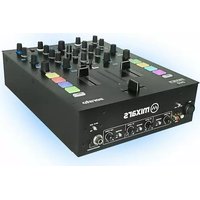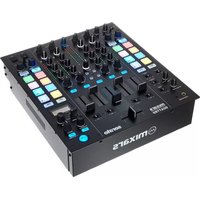
Quattro - DJ Equipment Mixars - Free user manual and instructions
Find the device manual for free Quattro Mixars in PDF.



| Product Type | DJ mixer with integrated controller for Serato DJ |
| Brand | Mixars |
| Model | Quattro |
| Dimensions (W x D x H) | 320 mm x 362 mm x 107 mm |
| Weight | 5.35 kg |
| Power Supply | 100-240 V AC, 50/60 Hz, 20 W |
| Audio Inputs | 4 Phono/Line inputs (RCA), 4 auxiliary Line inputs (RCA), 2 microphone inputs (combo XLR/TRS), 2 USB inputs, FX return input (TRS) |
| Audio Outputs | Balanced XLR Master output, secondary RCA Master output, Booth TRS output, Record RCA output, FX send output (TRS) |
| Number of Channels | 4 channels |
| Built-in Effects | 15 effects: Filter, Flanger, Delay, Echo, Reverb, Transformer, Pitch, Loop Roll, Reverse Roll, Noise, Bit Crusher, Gate, Tape Delay, Vinyl Brake, Send/Return |
| Equalizer | 3-band per channel (Bass, Mid, Treble) with cut down to -25 dB |
| Crossfader | Adjustable curve (Hard/Soft), reverse, adjustable power |
| Audio Interface | 10 inputs / 12 outputs, DVS ready, 48 kHz/24 bit sampling |
| Compatible Software | Serato DJ (Windows drivers required, Mac driverless) |
| Display | Onboard screen for FX settings (BPM, time, depth) |
| Headphone Output | 6.35 mm and 3.5 mm jacks with volume and Cue/Master mix |
| Maintenance and Cleaning | Clean with a dry cloth; do not block ventilation openings |
| Safety | Do not expose to water or moisture; unplug during thunderstorms; use in a temperate environment |
| Spare Parts and Repairability | No user-serviceable parts; contact a professional for any maintenance |
| Warranty and Support | Firmware updates available on Mixars website |
Frequently Asked Questions - Quattro Mixars
User questions about Quattro Mixars
0 question about this device. Answer the ones you know or ask your own.
Ask a new question about this device
Download the instructions for your DJ Equipment in PDF format for free! Find your manual Quattro - Mixars and take your electronic device back in hand. On this page are published all the documents necessary for the use of your device. Quattro by Mixars.
USER MANUAL Quattro Mixars
Professional 4-Channel Club Mixer with dual Audio interface for Serato DJ
User Manual (EN/ITA/FRA/ESP/DEU)
Safety Instructions
- Read these Instructions.
- Keep these Instructions.
- Heed all Warnings.
- Follow all Instructions.
- Do not use this apparatus near water.
- Clean only with dry cloth.
- Do not block any ventilation openings. Install in accordance with the manufacturer's instructions.
- Do not install near any heat sources such as radiators, heat registers, stoves, or other apparatus (including amplifiers) that produce heat.
- Do not defeat the safety purpose of the polarized plug. A polarized plug has two blades with one winder than the other. The wide blade is provided for your safety. If the provided plug does not fit into your outlet, consult an electrician for replacement of the obsolete outlet.
-
Protect the power cord from being walked on or pinched particularly at plugs, convenience receptacles, and the point where they exit from the apparatus.
-
Only use attachments/accessories specified by the manufacturer.
-
Use only with the cart, stand, tripod, bracket, or table specified by the manufacturer, or sold with the apparatus. When a cart is used, use caution when moving the cart/appara combination to avoid injury from tip-over.

-
Unplug this apparatus during lightning storms or when unused for long periods of time.
-
Refer all servicing to qualified service personnel. Servicing is required when the apparatus has been damaged in any way, such as power-supply cord or plug is damaged, liquid has been spilled or objects have fallen into the apparatus, the apparatus has been exposed to rain or moisture, does not operate normally, or has been dropped.
-
WARNING: To reduce the risk of fire or electric shock, do not expose this apparatus to rain or moisture.
-
Since the appliance coupler is used as the disconnection device, the disconnect device shall remain readily operable.
- The ventilation should not be impeded by covering the ventilation openings with items, such as newspapers, table-cloths, curtains, etc.
- No naked flame sources, such as lighted candles, should be placed on the apparatus.
- The apparatus should be used in moderate climate.
- The apparatus shall not be exposed to dripping or splashing and that no objects filled with liquids, such as vases, shall be placed on the apparatus.
WARNING
To reduce the risk of fire or electric shock, do not expose this apparatus to rain or moisture. The apparatus shall not be exposed to dripping or splashing and that no objects filled with liquids, such as vases, shall be placed on the apparatus.
CAUTION
To reduce the risk of electric shock, do not remove any cover. No user-serviceable parts inside.
Refer servicing to qualified service personnel only.

CAUTION
RISK OF ELECTRIC SHOCK DO NOT OPEN


The exclamation point within the equilateral triangle is intended to alert the user to the presence of important operation and maintenance (servicing) instructions in the literature accompanying this appliance.

The lightning flash with arrowhead symbol within the equilateral triangle is intended to alert the use to the presence of un-insulated “dangerous voltage” within the product’s enclosure that may be of sufficient magnitude to constitute a risk of electric shock.
CAUTION
To prevent electric shock, do not use this polarized plug with an extension cord, receptacle or other outlet unless the blades can be fully inserted to prevent blade exposure.
A. Accessories and Driver Installation
Check for the following parts included in the package with the main unit:
| Hardware guide x 1 | USB Cable x 1 | AC cord x 1 |
Driver installation
The Mixars Quattro is a class-compliant device for Mac OS X however will require drivers for Windows. Please make sure you have completed driver installation before use with Serato DJ.
Mac
No driver needed
Windows
Download the driver via our website: www.mixars.com
Double click on the .exe file to start installation and follow the on-screen instructions. Please note that you may have to reconnect Quattro after installation.
B. Controls and functions Rear
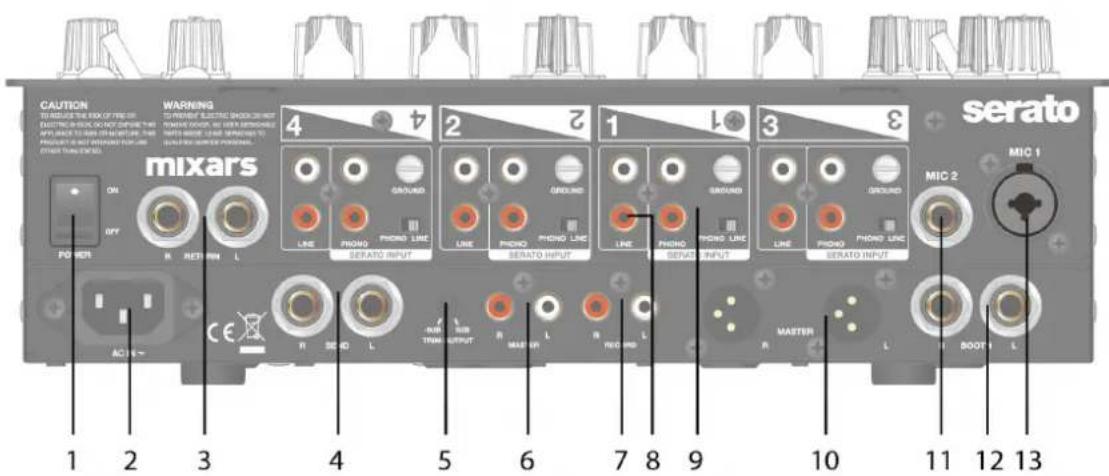
text_image
CAUTION TO REACH THE RISK OF THE AIR ELECTRIC IN ENSC. DO NOT DURING THIS APPLIANCE TO RUN ON MOUNTING THIS PRODUCTS ARE BEAMOUNTED FOR USE OTHER THAN SEATED WARNING 4 4 2 1 3 serato MIC 1 micars 4 2 1 3 MIC 2 R RETURN L SERATO INPUT SEARATO INPUT SEARATO INPUT SEARATO INPUT MATERIAL MAIN MAIN MAIN MAIN MAIN MAIN MAIN MAIN MAIN MAIN MAIN MAIN MAIN MAIN MAIN MAIN MAIN MAIN MAIN MAIN MAIN MAIN MAIN MAIN MAIN MAIN MAIN MAIN MAIN MAIN MAIN MAIN MAIN MAIN MAIN MAIN MAIN MAIN MAIN MAIN MAIN MAIN MAIN MAIN MAIN MAIN MAIN MAIN MAIN MAIN 1 2 3 4 5 6 7 8 9 10 11 12 13- Power On/Off switch
Turns the power of the unit On and Off.
- AC In
Connect the power cord here.
- FX Return input, TRS
FX Return input for onboard FX.
- FX Send output, TRS
FX Send output for the onboard FX.
- Output Level Trim knob
Adjust the output level from 0dB to -6dB.
- Secondary Master output, RCA
Secondary RCA Master output (Unbal.), controlled via the «Master» knob
- Record output
Additional RCA Record output (Unbal.)
- Secondary Line inputs
Line signal dedicated secondary input for each channel.
- Main Phono/Line inputs (Serato Inputs)
Main Phono / Line Inputs for each channel.
Use the dedicated «Phono / Line» button nearby
for selecting the right setting depending on the equipment used (Phono or Line sources).
Use this inputs for Serato timecode Vinyls/ CDs in order to use with Serato DJ.
- Master output, Balanced XLR
Main Balanced XLR output, controlled via the «Master» knob
- Secondary Mic input
TRS Microphone input, controlled via the «MIC/AUX» knob.
- Booth Output, TRS
Secondary TRS output (Bal.), controlled via the «Booth» knob
- Mic input
XLR / TRS Combo Microphone input, controlled via the «MIC/AUX» knob
Top
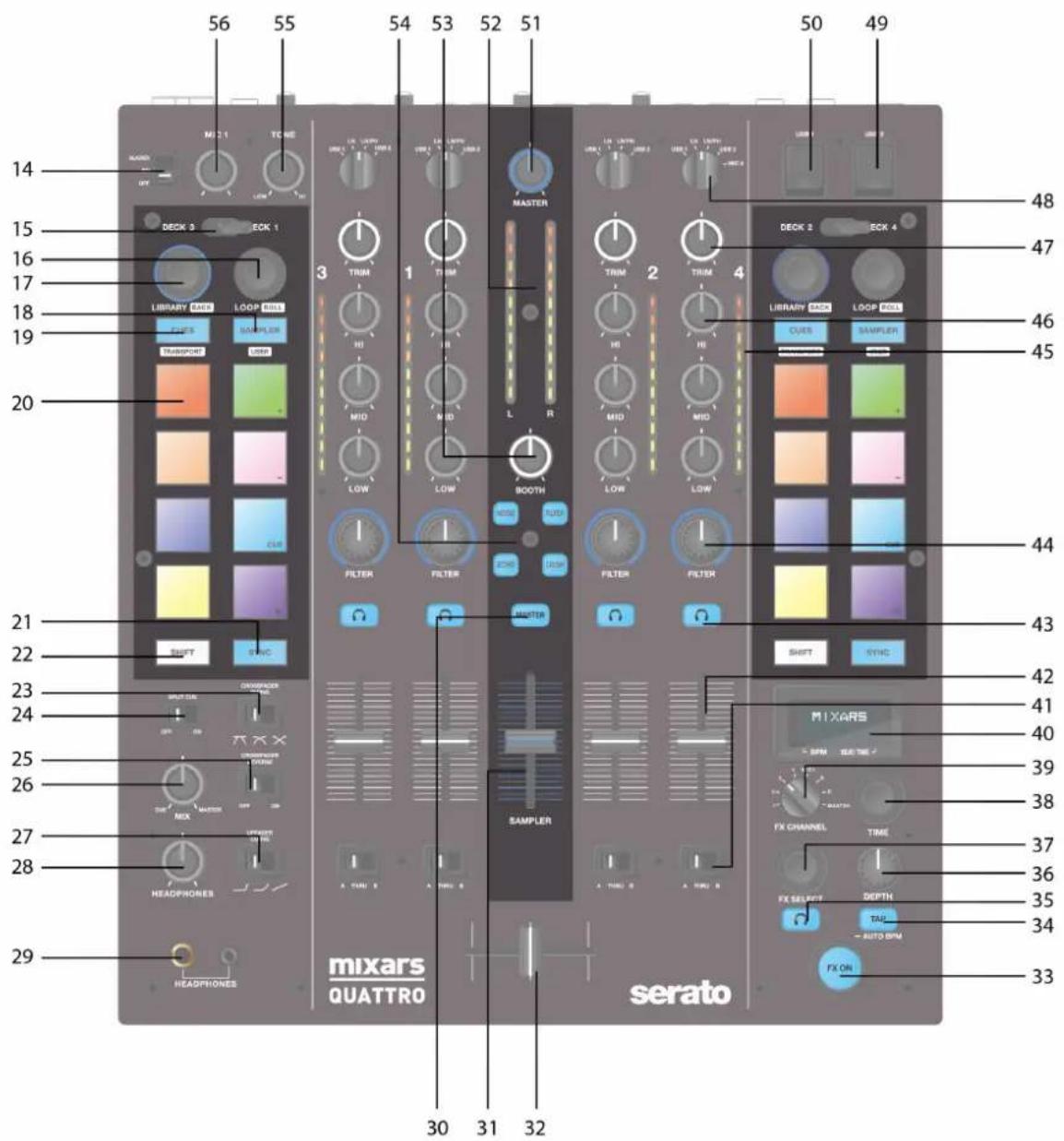
text_image
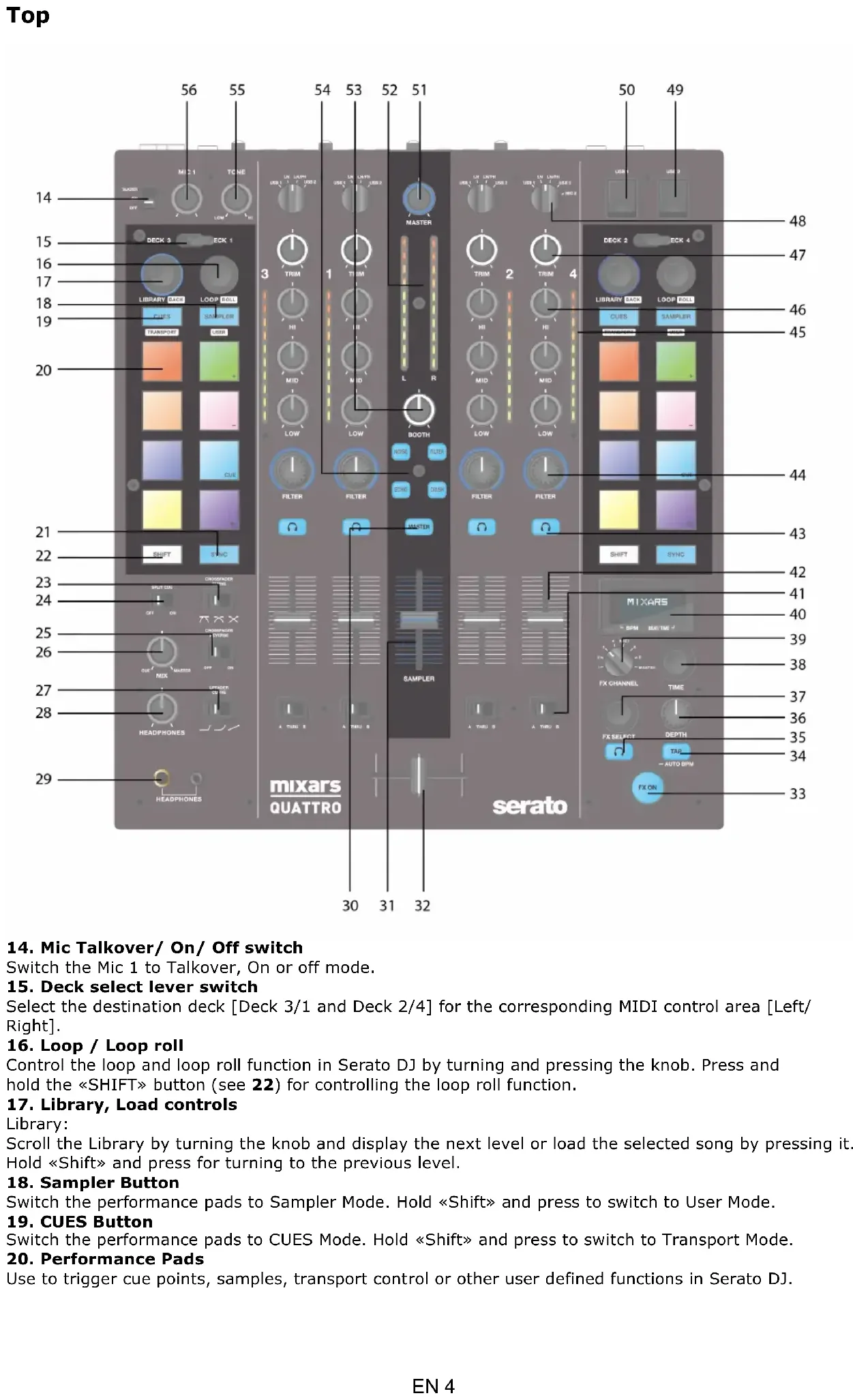
56 55 54 53 52 51 50 49 14 15 16 17 18 19 20 21 22 23 24 25 26 27 28 29 30 31 32 mixars QUATTRO serato MAX 1 TC SE Library CLK LOOP RED CLOES SAMPLED TAXPOCK LUXR DECK 3 ECK 1 3 TRIM 1 TURM MASTER LAB LUXR TRIM 2 TRIM 4 DECK 2 ECK 4 LIBRARY CLK LOOP RED CLOES SAMPLED SOFT SYNC FILTER FILTER SOFT S SWITCHER SAMPLER SWITCH SYMC FX CHANNEL TIME FX SELECT DEPTH TAU AUTO BPM FX ON 30 31 32 48 47 46 45 44 43 42 41 40 39 38 37 36 35 34 3314. Mic Talkover/ On/ Off switch
Switch the Mic 1 to Talkover, On or off mode.
15. Deck select lever switch
Select the destination deck [Deck 3/1 and Deck 2/4] for the corresponding MIDI control area [Left/Right].
16. Loop / Loop roll
Control the loop and loop roll function in Serato DJ by turning and pressing the knob. Press and hold the «SHIFT» button (see 22) for controlling the loop roll function.
17. Library, Load controls
Library:
Scroll the Library by turning the knob and display the next level or load the selected song by pressing it. Hold «Shift» and press for turning to the previous level.
18. Sampler Button
Switch the performance pads to Sampler Mode. Hold «Shift» and press to switch to User Mode.
19. CUES Button
Switch the performance pads to CUES Mode. Hold «Shift» and press to switch to Transport Mode.
20. Performance Pads
Use to trigger cue points, samples, transport control or other user defined functions in Serato DJ.
21. Sync Button
Synchronize a track to another by pressing the corresponding «Sync» button and turn off the function by pressing «Sync» while holding «Shift».
22. Shift button
Hold for enabling the shifted functions of some controls
23. Crossfader Fader Curve switch
Switch among the 3 cross fader settings Hard (towards left) to Soft (towards right) for different application.
24. Split Cue On/Off switch
If enabled, the headphones signal gets split: Master signal on one channel, and the enabled Cue signals selected via the «CUE» buttons (see 43), on the other channel.
25. Crossfader Reverse switch
Reverses the Left with the Right Channel on the crossfader.
26. CUE Mix
Turn for adjusting between Cue and Master signal on the headphone output.
27. Upfader Fader Curve switch
Switch among the 3 cross fader settings Hard (towards left) to Soft (towards right) for different application.
28. Headphones Level
Adjust the headphones volume.
29. Headphones Output connector
6.35mm and 3.5mm jack for connecting headphones
30. Master On CUE switch
Press to enable the Master on CUE headphone channel.
31. Sampler Volume
Control sampler volume level in Serato DJ
32. Crossfader
Crossfade between the Left and Right channels of audio assigned to them by the « Channel assignment switch» (see 41)
33. FX ON switch
Enable/ disable the FX proceeded signal to the master output.
34. TAP button
Tap to enter manual BPM to the FX unit. Press and hold for 3 sec to enable auto BPM detection.
35. FX CUE switch
Enable/ disable the FX proceeded signal to the headphone cue output.
36. FX Depth parameter knob
Adjust the FX depth or dry/wet of the selected FX.
37. FX Select encoder
Turn to select different FX and press to select.
38. FX Time parameter knob
Adjust the FX time/ beat parameter of the selected FX. Press to switch between Time and Beat parameter.
39. FX on Channel selector
Select the desired channel to apply the FX.
40. Onboard FX display
Display various information about the FX
41. Channel assignment switch
Assign the corresponding channel to the left or right channel of the corssfader. When "THRU" is selected, the channel signal will go through to master directly bypassing the crossfader.
42. Channel faders
Adjust the volume level of the corresponding channel.
43. Cue On/Off
Assign the corresponding channel to the Cue signal.
44. Channel Sound Texture FX knob (FILTER)
Adjust the parameter/ level of the selected sound texture FX.
45. Channel level meter
Display the corresponding channel level signal
46. Channel EQ
Adjust the equalizer settings for the corresponding channel
47. Channel Trim
Adjust the overall level for the corresponding channel.
48. Source Switch
Select the input to be controlled on the corresponding channel.
Switch between Phono/Line (see 9), Line (see 8), Serato - USB1 (see 50) or Serato - USB2 (see 49).
For Deck 4, there is an extra input source of MIC 2.
49. USB 2 connector
Connect the mixer to your computer using the included USB cable for using it with Serato DJ. To use this USB device, use the «Source Switch» (see 48) to select to USB2
50. USB 1 connector
Connect the mixer to your computer using the included USB cable for using it with Serato DJ. To use this USB device, use the «Source Switch» (see 48) to select to USB1
51. Master volume
Adjust the volume of the master level signal.
52. Master Level Meter
Display the Master Level Signal.
53. Booth
Adjust the level of the «Booth» output.
54. Sound Texture FX selection switch.
Switch between Filter, Noise, Crush and Echo effect and control the FX parameter by «Channel Sound Texture FX knob» (see 44)
55. Mic 1 tone control
Control the tone of the mic 1.
56. Mic 1 level control
Control the level of the mic 1.
C. On board FX Controls and functions
The Quattro provides a BPM synced FX unit for adding special effects to the performance. There are 15 different FX selections:
| Filter | Flanger | Delay | Echo | Reverb |
| Transformer | Pitch | Loop Roll | Reverse Roll | Noise |
| Bit Crusher | Gate | Tape Delay | Vinyl Brake | Send/return |
The Display of the Quattro shows various info about the FX:
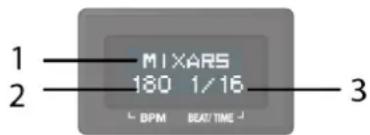
text_image
1 2 MIXARS 180 1/16 + BPM BEAT TIME -1 31. The FX Name
The current selected FX is shown. Turn the FX select Encoder to change to a different FX, the new FX name will be flashing. Press the encoder to select the FX and the display name will stop flashing.
2. BPM
The current BPM is shown. Tap the TAP button to enter a manual BPM. Press and hold the TAP button for 3 seconds to enable Auto BPM, the display will show "AUTO BPM" for 2 seconds.
3. Beat/ Time parameter
The current Beat/ Time parameter is shown. Press the TIME encoder to switch the selection between Beat and Time parameter.
For different FX, the TIME and DEPTH knobs control different parameters:
| Effect | Time Control Function | Depth Control Function |
| Filter | Beat range: 1/4 to 64/1Time Range: 10ms to 32000ms (when over 9999ms, "a.bs" format will be used in normal display. E.g. "32.0s" for 32000ms) | Depth (Dry/Wet) 0-100% |
| Flanger | Beat range: 1/4 to 64/1Time Range: 10ms to 32000ms (when over 9999ms, "a.bs" format will be used in normal display. E.g. "32.0s" for 32000ms) | Depth (Dry/Wet) 0-100% |
| Delay | Beat range: 1/8 to 16/1Time Range: 1ms to 4000ms | Depth (Dry/Wet) 0-100% |
| Echo | Beat range: 1/8 to 16/1Time Range: 1ms to 4000ms | Depth (Dry/Wet) 0-100% |
| Reverb | Non BPM synced. Just adjust the extend (room size) of reverb from 0% to 100%. Display on normal display should show "0%" to "100%". "Size" should be shown on display as title when turning the time knob. | Depth (Dry/Wet) 0-100% |
| Transformer | Beat range: 1/16 to 16/1Time Range: 10ms to 16000ms (whenover 9999ms, "a.bs" format will be used in normal display. E.g. "16.0s" for 16000ms) | Depth (Dry/Wet) 0-100% |
| Pitch | Non BPM synced. Pitch range from -50% to 100%. "PITCH" is shown as title when adjusting this parameter. | Fixed 100% Wet |
| Loop Roll | Beat range: 1/16 to 16/1Time Range: 10ms to 4000ms | Fixed 100% Wet |
| Reverse Roll | Beat range: 1/16 to 16/1Time Range: 10ms to 4000ms | Fixed 100% Wet |
| Noise | Beat range: 1/4 to 64/1Time Range: 10ms to 32000ms (when over 9999ms, "a.bs" format will be used in normal display. E.g. "32.0s" for 32000ms) | Depth (Dry/Wet) 0-100% |
| Bit Crusher | Non BPM synced. Quality parameter range from -100% to 100%. "QUALITY" is shown on title when adjusting this parameter | Depth (Dry/Wet) 0-100% |
| Gate | Non BPM synced. Threshold adjustment of steps:From 0% to 100% | Depth (Dry/Wet) 0-100% |
| Tape Delay | Non BPM synced. Tone pitch of the delay signal form -100% to 100%. | Depth (Dry/Wet) 0-100% |
| Vinyl Brake | Non BPM synced. Break time from 10ms to 4000ms. | Manual control of the Break FX.Turn clockwise to engage and shorten the break time.Turn anti-clockwise to re-engage the break FX with a longer break time. |
| Send/return | NA. Display "---" for the time/ beat field | Depth (Dry/Wet) 0-100% |
D. Audio Routing
There are 2 audio routing settings in Quattro, namely the Serato routing and non-Serato routing. In Serato mode routing, the Quattro acts as a controller and most of the mixing is done in Serato DJ software. It allows post-crossfader FX from Serato DJ. The Serato mode audio routing:
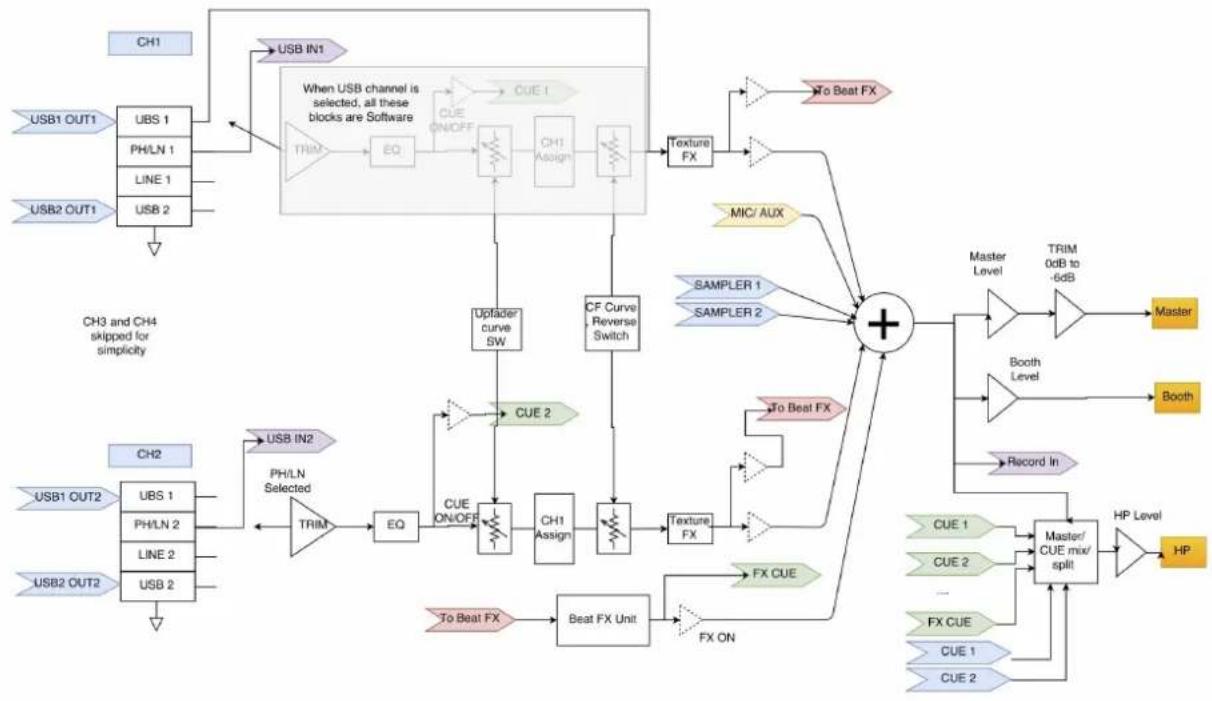
flowchart
graph TD
    A["USB1 OUT1"] --> B["UBS 1"]
    C["USB2 OUT1"] --> D["USB 2"]
    B --> E["When USB channel is selected, all these blocks are Software"]
    D --> E
    E --> F["CUE ON/OFF"]
    F --> G["EQ"]
    G --> H["CH1 Assign"]
    H --> I["CF Curve Reverse Switch"]
    I --> J["Texture FX"]
    J --> K["To Beat FX"]
    K --> L["+"]
    M["USB IN2"] --> N["USB IN2 Selected"]
    O["USB2 OUT2"] --> P["USB 1"]
    Q["USB1 OUT2"] --> R["USB 1"]
    S["USB2 OUT2"] --> T["USB 2"]
    U["Ch3 and CH4 skipped for simplicity"] --> V["UPfader curve SW"]
    W["Ch3 and CH4 skipped for simplicity"] --> X["CUE 2"]
    Y["Ch3 and CH4 skipped for simplicity"] --> Z["CUE ON/OFF"]
    AA["Ch3 and CH4 skipped for simplicity"] --> AB["CHEX ON/OFF"]
    AC["Ch3 and CH4 skipped for simplicity"] --> AD["CHEX ON/OFF"]
    AE["Ch3 and CH4 skipped for simplicity"] --> AF["CHEX ON/OFF"]
    AG["Ch3 and CH4 skipped for simplicity"] --> AH["CHEX ON/OFF"]
    AI["Ch3 and CH4 skipped for simplicity"] --> AJ["CHEX ON/OFF"]
    AK["Ch3 and CH4 skipped for simplicity"] --> AL["CHEX ON/OFF"]
    AM["Ch3 and CH4 skipped for simplicity"] --> AN["CHEX ON/OFF"]
    AO["Ch3 and CH4 skipped for simplicity"] --> AP["CHEX ON/OFF"]
    AQ["Ch3 and CH4 skipped for simplicity"] --> AR["CHEX ON/OFF"]
    AS["Ch3 and CH4 skipped for simplicity"] --> AT["CHEX ON/OFF"]
    AU["Ch3 and CH4 skipped for simplicity"] --> AV["CHEX ON/OFF"]
    AW["Ch3 and CH4 skipped for simplicity"] --> AX["CHEX ON/OFF"]
    AY["USB IN1"] --> AZ["USB IN1 Selected"]
    BA["USB2 IN1"] --> BB["USB 2 Selected"]
    BC["USB1 OUT1"] --> BD["USB 1 Selected"]
    BE["USB2 OUT1"] --> BF["USB 2 Selected"]
    BG["USB1 OUT2"] --> BH["USB 1 Selected"]
    BI["USB2 OUT2"] --> BJ["USB 2 Selected"]
    BK["USB1 OUT2"] --> BL["USB 1 Selected"]
    BM["USB2 OUT2"] --> BN["USB 2 Selected"]
    BO["USB1 OUT2"] --> BP["USB 1 Selected"]
    BQ["USB2 OUT2"] --> BR["USB 2 Selected"]
    BS["USB1 OUT2"] --> BT["USB 1 Selected"]
    BU["USB2 OUT2"] --> BV["USB 2 Selected"]
    BW["USB1 OUT2"] --> BX["USB 1 Selected"]
    BY["USB2 OUT2"] --> BZ["USB 2 Selected"]
    CA["USB1 OUT2"] --> CB["USB 1 Selected"]
    CC["USB2 OUT2"] --> CD["USB 2 Selected"]
    DD["USB1 OUT2"] --> DE["USB 1 Selected"]
    DF["USB2 OUT2"] --> DG["USB 2 Selected"]
    DH["USB1 OUT2"] --> DI["USB 1 Selected"]
    DJ["USB2 OUT2"] --> DJA["USB 2 Selected"]
    DK["USB1 OUT2"] --> DL["USB 1 Selected"]
    DV["USB2 OUT2"] --> DW["USB 2 Selected"]
    DX["CUE 1"] --> DXA["CUE CUE"]
    DXB["CUE 2"] --> DXC["CUE CUE"]
    DXD["CUE 1"] --> DXE["CUE CUE"]
    DXF["CUE 2"] --> DXG["CUE CUE"]
    DXH["CUE 1"] --> DXI["CUE CUE"]
    DXJ["CUE 2"] --> DXK["CUE CUE"]
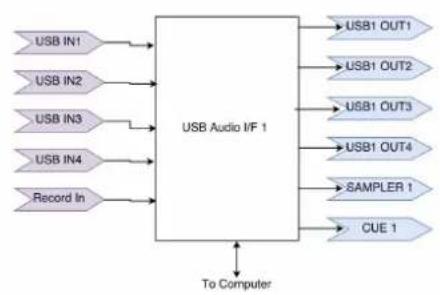
flowchart
graph LR
    A["USB IN1"] --> B["USB Audio I/F 1"]
    C["USB IN2"] --> B
    D["USB IN3"] --> B
    E["USB IN4"] --> B
    F["Record In"] --> B
    B --> G["USB1 OUT1"]
    B --> H["USB1 OUT2"]
    B --> I["USB1 OUT3"]
    B --> J["USB1 OUT4"]
    B --> K["SAMPLER 1"]
    B --> L["CUE 1"]
    B --> M["To Computer"]
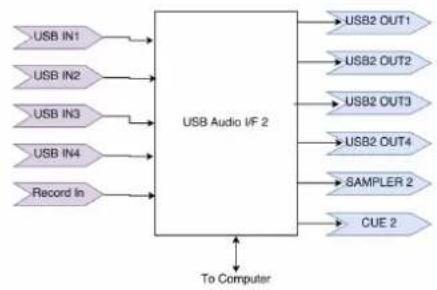
flowchart
graph LR
    A["USB IN1"] --> B["USB Audio I/F 2"]
    C["USB IN2"] --> B
    D["USB IN3"] --> B
    E["USB IN4"] --> B
    F["Record In"] --> B
    B --> G["USB2 OUT1"]
    B --> H["USB2 OUT2"]
    B --> I["USB2 OUT3"]
    B --> J["USB2 OUT4"]
    B --> K["SAMPLER 2"]
    B --> L["CUE 2"]
    B --> M["To Computer"]
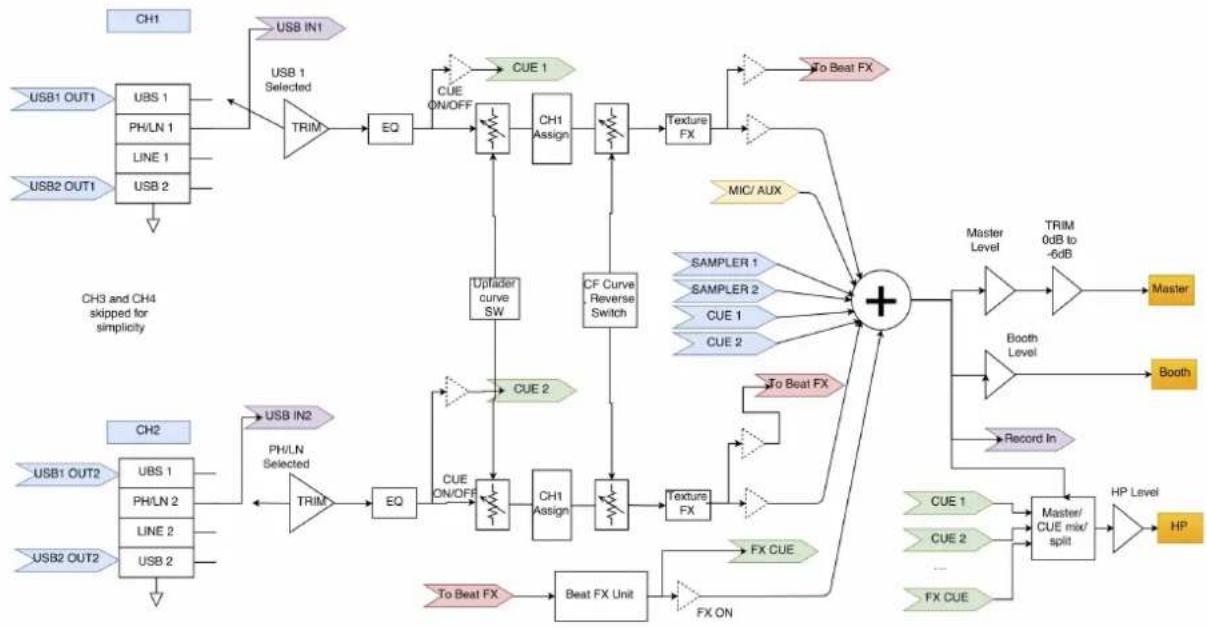
In non-Serato mode routing, the Quattro works as a typical external hardware mixer that the mixing is done by Quattro hardware.
The non-Serato mode Audio routing:
flowchart
graph TD
    A["USB1 OUT1"] --> B["UBS 1"]
    A --> C["PH/LN 1"]
    A --> D["LINE 1"]
    A --> E["USB 2"]
    F["USB2 OUT1"] --> G["USB 1"]
    H["USB1 IN1"] --> I["USB 1 Selected"]
    J["USB 2"] --> K["TRIM"]
    L["USB 1"] --> M["EQ"]
    N["USB 2"] --> O["TRIM"]
    P["USB 1"] --> Q["THRU"]
    R["USB 2"] --> S["TRIM"]
    T["USB 1"] --> U["CUE ON/OFF"]
    V["USB 2"] --> W["CUE ON/OFF"]
    X["USB 1"] --> Y["THRU"]
    Z["USB 2"] --> AA["TRIM"]
    AB["USB 1"] --> AC["CUE 1"]
    AD["USB 2"] --> AE["CUE 2"]
    AF["USB 1"] --> AG["CUE 2"]
    AH["USB 2"] --> AI["CUE 2"]
    AJ["USB 1"] --> AK["CUE 2"]
    AL["USB 2"] --> AM["CUE 2"]
    AN["USB 1"] --> AO["CUE 2"]
    AP["USB 2"] --> AQ["CUE 2"]
    AR["USB 1"] --> AS["CUE 2"]
    AT["USB 2"] --> AU["CUE 2"]
    AV["USB 1"] --> AW["CUE 2"]
    AX["USB 2"] --> AY["CUE 2"]
    AZ["USB 1"] --> BA["CUE 2"]
    BB["USB 2"] --> BC["CUE 2"]
    BD["USB 1"] --> BE["CUE 2"]
    BF["USB 2"] --> BG["CUE 2"]
    BH["USB 1"] --> BI["CUE 2"]
    BJ["USB 2"] --> BK["CUE 2"]
    BL["USB 1"] --> BM["CUE 2"]
    BN["USB 2"] --> BO["CUE 2"]
    BP["USB 1"] --> BQ["CUE 2"]
    BR["USB 2"] --> BS["CUE 2"]
    BT["USB 1"] --> BU["CUE 2"]
    BV["USB 2"] --> BW["CUE 2"]
    BX["USB 1"] --> BY["CUE 2"]
    BZ["USB 2"] --> CA["CUE 2"]
    CB["USB 1"] --> CC["CUE 2"]
    DD["USB 2"] --> DJ["CUE 2"]
    BEX --> DK["CUE 2"]
    BEY --> DL["CUE 2"]
    BEZ --> DW["CUE 2"]
    BXZ --> DX["CUE 2"]
    BXY --> DXB["CUE 2"]
    BXZL --> DXC["CUE 2"]
    BXZLX --> DXD["CUE 2"]
    BXZLX --> DXE["CUE 2"]
    BXZLX --> DXF["CUE 2"]
    BXZLX --> DXG["CUE 2"]
    BXZLX --> DXH["CUE 2"]
    BXZLX --> DXI["CUE 2"]
    BXZLX --> DXJ["CUE 2"]
    BXZLX --> DXK["CUE 2"]
    BXZLX --> DXL["Cue 1"]
    BXZLX --> DXM["Cue 1"]
    BXZLX --> DXN["Cue 1"]
    BXZLX --> DXO["Cue 1"]
    BXZLX --> DXP["Cue 1"]
    BXZLX --> DXQ["Cue 1"]
    BXZLX --> DXR["Cue 1"]
    BXZLX --> DXS["Cue 1"]
    BXZLX --> DXT["Cue 1"]
    BXZLX --> DXU["Cue 1"]
    BXZLX --> DXV["Cue 1"]
    BXZLX --> DXW["Cue 1"]
    BXZLX --> DXX["Cue 1"]
    BXZLX --> DXY["Cue 1"]
    BXZLX --> DXZ["Cue 1"]
    BXZLX --> DXZC["Cue 1"]
    BXZLX --> DXZD["Cue 1"]
    BXZLX --> DXZE["Cue 1"]
    BXZLX --> DXZF["Cue 1"]
    BXZLX --> DXZG["Cue 1"]
    BXZLX --> DXZH["Cue 1"]
    BXZLX --> DXZI["Cue 1"]
    BXZLX --> DXZJ["Cue 1"]
    BXZLX --> DXZK["Cue 1"]
    BXZLX --> DXZL["Cue 1"]
    BXZLX --> DXZM["Cue 1"]
    BXZLX --> DXZN["Cue 1"]
    BXZLX --> DXZO["Cue 1"]
    BXZLX --> DXZP["Cue 1"]
    BXZLX --> DXZQ["Cue 1"]
    BXZLX --> DXZR["Cue 1"]
    BXZLX --> DXZS["Cue 1"]
    BXZLX --> DXZT["Cue 1"]
    BXZLX --> DXZU["Cue 1"]
    BXZLX --> DXZV["Cue 1"]
    BXZLX --> DXZW["Cue 1"]
    BXZLX --> DXZX["Cue 1"]
    BXZLX --> DXZY["Cue 1"]
    BXZLX --> DXZW["Cue 1"]
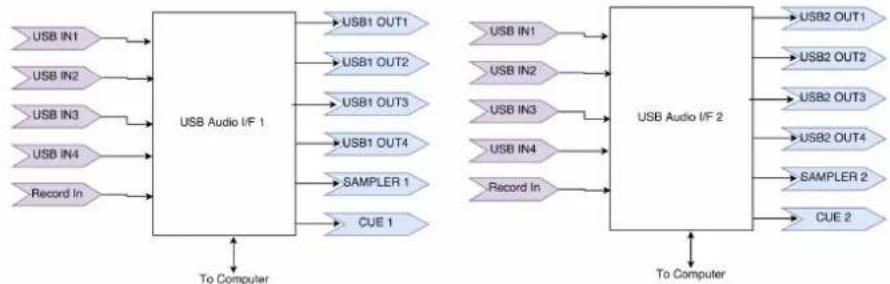
flowchart
graph LR
    subgraph Left_Circuit
        A1["USB IN1"] --> B1["USB Audio I/F 1"]
        A2["USB IN2"] --> B1
        A3["USB IN3"] --> B1
        A4["USB IN4"] --> B1
        A5["Record In"] --> B1
        B1 --> C1["USB1 OUT1"]
        B1 --> D1["USB1 OUT2"]
        B1 --> E1["USB1 OUT3"]
        B1 --> F1["USB1 OUT4"]
        B1 --> G1["SAMPLER 1"]
        B1 --> H1["CUE 1"]
    end
    subgraph Right_Circuit
        I1["USB IN1"] --> J1["USB Audio I/F 2"]
        I2["USB IN2"] --> J1
        I3["USB IN3"] --> J1
        I4["USB IN4"] --> J1
        I5["Record In"] --> J1
        J1 --> K1["USB2 OUT1"]
        J1 --> L1["USB2 OUT2"]
        J1 --> M1["USB2 OUT3"]
        J1 --> N1["USB2 OUT4"]
        J1 --> O1["SAMPLER 2"]
        J1 --> P1["CUE 2"]
    end
    Left_Circuit -->|To Computer| B
    Right_Circuit -->|To Computer| J
    Left_Circuit -->|To Computer| G
    Left_Circuit -->|To Computer| H
    Right_Circuit -->|To Computer| K
    Right_Circuit -->|To Computer| L
    Right_Circuit -->|To Computer| M
    Right_Circuit -->|To Computer| N
    Right_Circuit -->|To Computer| O
There are different ways to switch between the 2 audio routings:
-
When Serato DJ software is open and initiated, it will trigger the connected Quattro to change to Serato mode routing automatically.
-
Press and hold the MASTER button and power on the Quattro. Audio routing mode and be selected and changed by using the FX Select encoder and the current selected mode is shown on the Display. Turn the FX Select encoder to select desired audio routing and press to confirm and finish the power on.
-
When the Quattro is powered on and in use, press and hold the 2 SHIFT buttons for 5 seconds, a system utility menu will be shown on the display. Use the FX Selector Encoder to select to the Audio routing section and select desired audio routing.
The audio interface is a 10-in 12-out interface with assignment:
| CH | Inputs | Outputs |
| 1 | Deck 1 in L (DVS) | Deck 1 out L |
| 2 | Deck 1 in R (DVS) | Deck 1 out R |
| 3 | Deck 2 in L (DVS) | Deck 2 out L |
| 4 | Deck 2 in R (DVS) | Deck 2 out R |
| 5 | Deck 3 in L (DVS) | Deck 3 out L |
| 6 | Deck 3 in R (DVS) | Deck 3 out R |
| 7 | Deck 4 in L (DVS) | Deck 4 out L |
| 8 | Deck 4 in R (DVS) | Deck 4 out R |
| 9 | Record in L | CUE out L |
| 10 | Record in R | CUE out R |
| 11 | NA | Sampler out L |
| 12 | NA | Sampler out R |
| 13 | NA | NA |
| 14 | NA | NA |
| 15 | NA | NA |
| 16 | NA | NA |
E. System Utility Menu
To enter System Utility Menu, press and hold the 2 SHIFT buttons when the Quattro is working. The menu will be shown on the Display. Use the FX Select Encoder to browse to different option and press the encoder to select and change the settings:
- Audio routing
Select between Serato and non-Serato Audio routing
- Crossfader power
Select between the linear and power crossfader setting. This will also update the selection in connected Serato DJ software on both USB 1 and USB 2 connection.
- Firmware Version
Display the firmware version.
4.Exit system utility menu
Press the FX Select Encoder to exit system utility menu.
F. Firmware Update
Mixars will continue improve the product and fix bugs by releasing new firmware for the production. New firmware and firmware update software tool can be downloaded from Mixars website (http://www.mixars.com). Firmware update procedure:
-
Download the firmware update tool and latest firmware from Mixars website.
-
Connect the USB able to the computer.
-
Press and hold the FX CUE and TAP button and power on. "FIRMWARE UPDATE" will be shown on the display and the Quattro is in Firmware update mode.
-
Open the firmware update software and locate the firmware update file.
-
Follow the on-screen instruction to start firmware update and wait for the prompt for update finish
-
Power cycle the Quattro after firmware update.
G. Specifications
1. GENERAL SECTION
Power Supply AC 100\~240V 50Hz/60Hz
Dimensions 320(W) × 362(D) × 107(H) mm
Consumption 20W
Weight 5.35Kg
2. STANDARD TEST CONDITION
Ambient Temperature 23 +/- 2 degC
Relative Humidity 65% +/- 5%
NOTE: Measurements can be carried out between 5 degC to 35 degC and 45% to 85% relative humidity.
3. INPUT/OUTPUT IMPEDANCE & SENSITIVITY: (1KHz, EQ FLAT, MAX. GAIN)
3-1. INPUT IMPEDANCE AND REFERENCE INPUT LEVEL:
BOOTH: 600 OHM / 0dBV (1V) ± 2dB (Signal to Signal 600 ohm)
MASTER(RCA): 1K OHM / 0dBV (1V) ± 1dB (load=100K ohm)
RECORD: 1K OHM / -9dBV (355mV) ± 1dB (load=100K ohm)
SEND: 1K OHM / -14dBV (200mV) ± 1dB (load=100K ohm)
PHONE: 32 OHM / -3dBV (708mV) ± 1dB (load=32 ohm)
4. MAXIMUM GAIN: ( EQ FLAT, REFERENCE INPUT LEVEL, MAX. GAIN)
MASTER (XLR) · BOOTH OUTPUT:
| LINE : | +14dB (AT 600Ω) ± 1dB |
| PHONO : | +50dB (AT 600Ω) ± 2dB |
| MIC : | +54dB (AT 600Ω) ± 2dB |
| RETURN: | +20dB (AT 600Ω) ± 1dB |
MASTER(RCA) OUTPUT:
| LINE : | +14dB (AT 100KΩ) ± 1dB |
| PHONO : | +50dB (AT 100KΩ) ± 2dB |
| MIC : | +54dB (AT 100KΩ) ± 2dB |
| RETURN: | +20dB (AT 600Ω) ± 1dB |
RECORD OUTPUT:
| LINE : | +5dB (AT 100KΩ) ± 1dB |
| PHONO : | +41dB (AT 100KΩ) ± 2dB |
| MIC : | +45dB (AT 100KΩ) ± 2dB |
| RETURN: | +11dB (AT 600Ω) ± 1dB |
SEND OUTPUT:
| LINE : | +0dB (AT 100KΩ) ± 1dB |
| PHONO : | +36dB (AT 100KΩ) ± 2dB |
| MIC : | +40dB (AT 100KΩ) ± 2dB |
5. MAXIMUM INPUT: ( EQ FLAT,MIC,TRIM,MASTER AT 9 O'CLOCK, ADJUST INPUT 1KHz LEVEL TO OUTPUT LEVEL LESS THAN 1% T.H.D WITH A-w/20KHz LPF )
| LINE: | MORE THAN +15dBV | THD<1% |
| RETURN: | MORE THAN +9dBV | THD<1% |
| PHONO: | MORE THAN -21dBV | THD<1% |
| MIC: | MORE THAN -25dBV | THD<1% |
6. MAXIMUM OUTPUT: (LINE INPUT, EQ FLAT, MIC, TRIM, MASTER AT MAX, ADJUST INPUT 1KHz LEVEL TO OUTPUT LEVEL LESS THAN 1% WITH A-w/20kHz LPF)
| MASTER(XLR): | MORE THAN +17dBV | LOAD=600Ω | THD<1% |
| BOOTH: | MORE THAN +17dBV | LOAD=600Ω | THD<1% |
| MASTER(RCA): | MORE THAN +17dBV | LOAD=100KΩ | THD<1% |
| RECORD: | MORE THAN +8 dBV | LOAD=100KΩ | THD<1% |
| SEND: | MORE THAN +3dBV | LOAD=100KΩ | THD<1% |
| PHONE: | MORE THAN +4dBV | LOAD=32Ω | THD<1% |
7. FREQUENCY RESPONSE: (EQ FLAT, PHONO AT -60dB/OTHER REFERENCE INPUT LEVEL, MIC,TRIM,MASTER AT MAX.)
| LINE: | 20 - 20KHz +2/-3dB |
| MIC: | 20 - 20KHz +2/-3dB |
| PHONO: | 20 - 20KHz +2/-3dB |
| USB: | 20 - 20KHz (48K/24b-1KHz、20Hz、20KHz.WAV) +2/-3dB |
8. THD + N: (1KHz INPUT, MIC TRIM & MASTER AT 12 O'CLOCK, WITH A-w./20KHz LPF)
| LINE : | 0.01 % AT 0dB INPUT |
| RETURN : | 0.01 % AT 0dB INPUT |
| PHONO : | 0.02 % AT -36dB INPUT |
| MIC : | 0.03 % AT -40dB INPUT |
9. S/N RATIO: (1KHz INPUT, MIC/AUX, TRIM, MASTER AT 12 O'CLOCK, WITH A-w/20KHz LPF, INPUT SHORT WHEN NO SIGNAL)
| LINE : | 81dB AT 0dB INPUT |
| RETURN : | 81dB AT 0dB INPUT |
| PHONO : | 81dB AT -36dB INPUT |
| MIC : | 74dB AT -40dB INPUT |
10. CROSSTALK: (1KHz INPUT, MIC/AUX, TRIM, MASTER AT 12 O'CLOCK WITH A-w/ 20KHz LPF, INPUT SHORT WHEN NO SIGNAL)
| LINE: | MORE THAN 81dB @ EACH CHANNEL INPUT AT 0dB INPUT |
| PHONO: | MORE THAN 81dB @ EACH CHANNEL INPUT AT -36dB INPUT |
11. L&R CHANNEL SEPARATION: (1KHz INPUT, MIC/AUX, TRIM, MASTER AT 12 O'CLOCK WITH A-w/20KHz LPF, INPUT SHORT WHEN NO SIGNAL)
| LINE: | MORE THAN 81dB @BETWEEN L AND R CHANNEL AT 0dB INPUT |
| PHONO: | MORE THAN 81dB @BETWEEN L AND R CHANNEL AT -36dB INPUT |
12. EQUALIZER RESPONSE: (REFERENCE INPUT LEVEL, MIC/AUX, TRIM MASTER AT MAX. WITH 20KHz LPF)
LINE:
(1) Low Band: (Low Band center frequency is 70Hz)
Maximum level: +12 ± 1dB (at 70Hz)
Minimum level: -25 ± 1dB (at 70Hz)
(2) Middle Band: (Middle Band center frequency is 1KHz)
Maximum level: +12 ± 1dB (at 1KHz)
Minimum level: -25 ± 1dB (at 1KHz)
(3) High Band: (Hi Band center frequency is 13KHz)
Maximum level: +12 ± 1dB (at 13KHz)
Minimum level: -25 ± 1dB (at 13KHz)
MIC :
Hi: -28dB ± 2dB AT 100Hz
Low: -28dB ± 2dB AT 10KHz
13. Fader Kill: (0dB 1KHz INPUT LEVEL, TRIM/MASTER AT 12 O'CLOCK. MIC SW OFF WITH A-w/ 20KHz LPF)
Channel Fader: MORE THAN 91dB AT 1KHz
Cross Fader: MORE THAN 91dB AT 1KHz
14. LEVEL DIFFERENCE L&R: (1KHz REFERENCE INPUT LEVEL, TRIM, MASTER AT MAX. WITH A-w/20KHz LPF)
LINE: ±1dB
PHONO: ±1.5dB
15. NOTES
(1) The specifications are subject to change to any improvement by negotiations in advance.
(2) The parts are subject to change to any improvement within the range of the specifications.
text_image
CAUTION WARNING 4 2 1 3 serato MIC 1 mixars GROUND ORCLND GROUND ORCLND MIC 2 SERATO INPUT LINE PHOND LINE LINE PHOND LINE LINE PHOND LINE LINE PHOND LINE SERATO INPUT MAIN EN MAIN EN MAIN EN MAIN EN MAIN EN MAIN EN MAIN EN MAIN EN MAIN EN MAIN EN MAIN EN MAIN EN MAIN EN MAIN EN MAIN EN MAIN EN MAIN EN MAIN EN MAIN EN MAIN EN MAIN EN MAIN EN MAIN EN MAIN EN MAIN EN MAIN EN MAIN EN MAIN EN MAIN EN MAIN EN MAIN EN MAIN EN MAIN EN MAIN EN| LINEA: | +14dB (a 100KΩ) ± 1dB |
| PHONO: | +50dB (a 100KΩ) ± 2dB |
| MIC: | +54dB (a 100KΩ) ± 2dB |
| RITORNO: | +20dB (a 600Ω) ± 1dB |
USCITA REGISTRAZIONE:
| LINEA: | +5dB (a 100KΩ) ± 1dB |
| PHONO: | +41dB (a 100KΩ) ± 2dB |
| MIC: | +45dB (a 100KΩ) ± 2dB |
| RITORNO: | +11dB (a 600Ω) ± 1dB |
USCITA INVIO:
| LINEA: | +0dB (a 100KΩ) ± 1dB |
| PHONO: | +36dB (a 100KΩ) ± 2dB |
| MIC: | +40dB (a 100KΩ) ± 2dB |
5. INGRESSO MASSIMO: (EQ FLAT, MIC, TRIM, MASTER A ORE 9, REGOLAZIONE LIVELLO INGRESSO 1KHz A LIVELLO USCITA INFERIORE ALL'1% T.H.D CON A-w/20KHz LPF)
LINEA: SUPERIORE A +15dBV THD<1%
RITORNO: SUPERIORE A +9dBV THD<1%
| PHONO: | SUPERIORE A -21dBV | THD<1% |
| MIC: | SUPERIORE A -25dBV | THD<1% |
6. USCITA MASSIMA: (INGRESSO LINEA,EQ FLAT, MIC, TRIM, MASTER AL MASSIMO, REGOLAZIONE LIVELLO INGRESSO 1KHz A LIVELLO USCITA INFERIORE ALL'1% CON A-w/20kHz LPF)
| MASTER(XLR): | SUPERIORE A +17dBV | CARICO=600Ω | THD<1% |
| CABINA: | SUPERIORE A +17dBV | CARICO=600Ω | THD<1% |
| MASTER(RCA): | SUPERIORE A +17dBV | CARICO=100KΩ | THD<1% |
| REGISTRAZIONE: | SUPERIORE A +8 dBV | CARICO=100KΩ | THD<1% |
| INVIO: | SUPERIORE A +3dBV | CARICO=100KΩ | THD<1% |
| PHONO: | SUPERIORE A +4dBV | CARICO=32Ω | THD<1% |
7. RISPOSTA IN FREQUENZA: (EQ FLAT, PHONO A -60dB/ALTRO LIVELLO INGRESSO DI RIFERIMENTO, MIC, TRIM, MASTER AL MASSIMO)
MIC: 20 - 20KHz +2/-3dB
PHONO: 20 - 20KHz +2/-3dB
LINEA: ±1dB PHONO: ±1.5dB
15. NOTE
17. Library, commandes Load
Bibliothèque :
PHONO : 32 OHM / -3dBV (708mV) ± 1dB (charge = 32 ohm)
4. GAIN MAXIMUM : ( EQ FLAT, NIVEAU D'ENTRÉE DE RÉFÉRENCE, GAIN MAX.) MASTER (XLR) · SORTIE BOOTH :
| LINE : | +14dB (AT 600Ω) ± 1dB |
| PHONO : | +50dB (Å 600Ω) ± 2dB |
| MIC : | +54dB (Å 600Ω) ± 2dB |
| RETOUR : | +20dB (Å 600Ω) ± 1dB |
SORTIE MASTER(RCA) :
| LINE : | +14dB (Å 100KΩ) ± 1dB |
| PHONO : | +50dB (Å 100KΩ) ± 2dB |
| MIC : | +54dB (Å 100KΩ) ± 2dB |
| RETOUR : | +20dB (Å 600Ω) ± 1dB |
SORTIE ENREGISTREMENT :
| LINE : | +5dB (Å 100KΩ) ± 1dB |
| PHONO : | +41dB (Å 100KΩ) ± 2dB |
| MIC : | +45dB (Å 100KΩ) ± 2dB |
| RETOUR : | +11dB (Å 600Ω) ± 1dB |
SORTIE ENVOI :
| LINE : | +0dB (Å 100KΩ) ± 1dB |
| PHONO : | +36dB (Å 100KΩ) ± 2dB |
| MIC : | +40dB (Å 100KΩ) ± 2dB |
5. ENTRÉE MAXIMUM : (EQ FLAT, MIC, TRIM, MASTER SUR 9 HEURES, RÉGLER LE NIVEAU D'ENTRÉE À 1KHz SUR UN NIVEAU DE SORTIE INFÉRIEUR À 1% de T.H.D AVEC UN LPF de -w/20KHz)
LINE : SUPÉRIEURE À +15dBV THD<1%
| Guía hardware x 1 | Cable USB x 1 | Cable AC x 1 |
text_image
CAUTION WARNING 4 2 1 3 mixars GROUND CIRCUO GROUND GROUND MIC 1 MIC 2 SERATO ON OFF R RETURN L LINE PHOND PHOND LINE LINE PHOND PHOND LINE LINE PHOND PHOND LINE LINE PHOND PHOND LINE LINE PHOND PHOND LINE LINE PHOND PHOND LINE LINE PHOND PHOND LINE LINE PHOND PHOND LINE LINE PHOND PHOND LINE LINE PHOND PHOND LINE LINE PHOND PHOND LINE LINE PHOND PHOND LINE LINE PHOND PHOND LINE LINE PHOND PHOND LINE LINE PHOND PHOND LINE Line PRMOR R MATH R NND R R MATH R NND R R MATH R NND R R MATH R NND R R MATH R NND R R MATH R NND R R MATH R NND R R MATH R NND R R MATH R NND R R MATH R NND R R MATH R NND R R MATH R NND R R MATH R NND R R MTH R NND R R MATH R NND R R MATH R NND R R MATH R NND R R MATH R NND R R MATH R NND R R MATH R NND R R MATH R NND R R MATH R NND R R MATH R NND R R MATH R NND R R MATH R NND R R MATH R NND S R MATH R NND S R MATH R NND S R MATH R NND S R MATH R NND S R MATH R NND S R MATH R NND S R MATH R NND S R MATH R NND S R MATH R NND S R MATH R NND S R MATH R NND S R MATH R NND S R METH R NND S R MATH R NND S R MATH R NND S R MATH R NND S R MATH R NND S R MATH R NND S R MATH R NND S R MATH R NND S R MATH R NND S R MATH R NND S R MATH R NND S R MATH R NND S R MATH R NND T R MATH R NND T R MATH R NND T R MATH R NND T R MATH R NND T R MATH R NND T R MATH R NND T R MATH R NND T R MATH R NND T R MATH R NND T R MATH R NND T R MATH R NND T R MATH R NND T R MOTH R NND T R MATH R NND T R MATH R NND T R MATH R NND T R MATH R NND T R MATH R NND T R MATH R NND T R MATH R NND T R MATH R NND T R MATH R NND T R MATH R NND T R MATH R NND T R MATH R NND S R MATH R NND S R MATH R NND S R MATH R NND S R MATH R NND S R MATH R NND S R MATH R NND S R MATH R NND S R MATH BUTTER / OUT OF TIME ON / EDITION ON / AC/AC/AC/AC/AC/AC/AC/AC/AC/AC/AC/AC/AC/AC/AC/AC/AC/AC/AC/AC/AC/AC/AC/AC/AC/AC/AC/AC/AC/AC/AC/AC/AC/AC/AC/AC/AC/AC/AC/AC/AC/AC/AC/AC/AC/AC/AC/AC/AC/AC/AC/ AC/ AC/ AC/ AC/ AC/ AC/ AC/ AC/ AC/ AC/ AC/ AC/ AC/ AC/ AC/ AC/ AC/ AC/ AC/ AC/ AC/ AC/ AC/ AC/ AC/ AC/ AC/ AC/ AC/ AC/ AC/ AC/ AC/ AC/ AC/ AC/ AC/ AC/ AC/ AC/ AC/ AC/ AC/ AC/ AC/ AC/ CONJER- Interruptor Power On/Off
- Salida Master, balanceada XLR
Salida principal balanceada XLR, controlada por el mando «Master»
- Entrada Mic 2
39. Selector FX Channel
- Exit system utility menu
MASTER(RCA) AUSGANG:
| LEITUNG: | +14dB (AT 100KΩ) ± 1dB |
| PHONO: | +50dB (AT 100KΩ) ± 2dB |
| MIC: | +54dB (AT 100KΩ) ± 2dB |
| RÜCKLEITUNG: | +20dB (AT 600Ω) ± 1dB |
RECORD-AUSGANG:
| LEITUNG: | +5dB (AT 100KΩ) ± 1dB |
| PHONO: | +41dB (AT 100KΩ) ± 2dB |
| MIC: | +45dB (AT 100KΩ) ± 2dB |
| RÜCKLEITUNG: | +11dB (AT 600Ω) ± 1dB |
GESENDETER AUSGANG:
| LEITUNG: | +0dB (AT 100KΩ) ± 1dB |
| PHONO: | +36dB (AT 100KΩ) ± 2dB |
| MIC: | +40dB (AT 100KΩ) ± 2dB |
5. MAXIMALER EINGANG: (EQ FLACH, MIC, GETRIMMT, MASTER AUF 9 UHR, EINSTELLUNG EINGANG 1KHz PEGEL ZU AUSGANGSPEGEL WENIGER ALS 1% T.H.D MIT A-w/20KHz LPF)
| LEITUNG: | MEHR ALS +15dBV | THD<1% |
| RÜCKLEITUNG: | MEHR ALS +9dBV | THD<1% |
| PHONO: | MEHR ALS -21dBV | THD<1% |
| MIC: | MEHR ALS -25dBV | THD<1% |