LV-HD340 - Projector LA VAGUE - Free user manual and instructions
Find the device manual for free LV-HD340 LA VAGUE in PDF.



| Product type | LED Projector |
| Native resolution | 1280 x 720 (compatible 1920 x 1080) |
| Light source | LED |
| Brightness | 2500 lumens |
| Aspect ratio | 16:9 / 4:3 |
| Projection distance | 1.5 - 4 meters |
| Keystone correction | Manual ±15° |
| Power supply | 110-240 V ~ 50/60 Hz |
| Power consumption | 60 W |
| Dimensions (L x W x H) | 220 x 166 x 90 mm |
| Weight | 1200 g |
| Video inputs | 2x HDMI, 1x VGA, 1x AV |
| Multimedia inputs | 1x USB, 1x SD |
| Audio output | 3.5 mm jack |
| Wireless connectivity | Wi-Fi (Miracast, AirPlay) |
| Multimedia playback | Photo, music, video (USB/SD) |
| Focus | Manual (wheel) |
| Menu languages | English, French, German, etc. |
| Special functions | Multi-screen, noise reduction, mirroring |
| Maintenance and cleaning | Soft dry cloth, avoid liquids and moisture |
| Safety | Do not open, do not look at the lens |
| Spare parts and repairability | No user-serviceable parts. Contact customer service. |
Frequently Asked Questions - LV-HD340 LA VAGUE
User questions about LV-HD340 LA VAGUE
0 question about this device. Answer the ones you know or ask your own.
Ask a new question about this device
Download the instructions for your Projector in PDF format for free! Find your manual LV-HD340 - LA VAGUE and take your electronic device back in hand. On this page are published all the documents necessary for the use of your device. LV-HD340 by LA VAGUE.
USER MANUAL LV-HD340 LA VAGUE
ANSCHLÜSSE



TECHNISCHE DATEN
- Please read the entire user manual carefully before using the projector.
- To ensure the stability of the power supply, use standard grounded power sockets.
- Only use a power source as indicated on the projector.
- Please do not open projector. There are no user-serviceable parts in the projector. Opening the projector will void warranty. If there is a problem with your projector contact your supplier.
- Please do not directly look into the projector lens. The bright light could damage your eyes.
- Please do not place projector on a surface that may block air flow from the vents. A soft fabric could prevent air flow. Place the projector on stable hard surface.
- Please keep projector away from any liquids. The projector is not water proof or water resistant and is not for use outside.
- To prevent electrical shock please keep projector away from moisture.
- Please turn off and unplug projector when not in use.
- Please use original packaging material when storing your projector.
PRODUCT OVERVIEW
1 Status LED
2 On / Off button
3 Navigation
4 Select input
5 Back in the menu
6 Call up the menu
7 Objective Focus
8 Keystone correction

INTERFACES
1 3,5mm audio output
2 3.5mm audio/video input
3 HDMI input
4 VGA input
5 SD card input
6 Infrared input
7 HDMI input
8 USB input

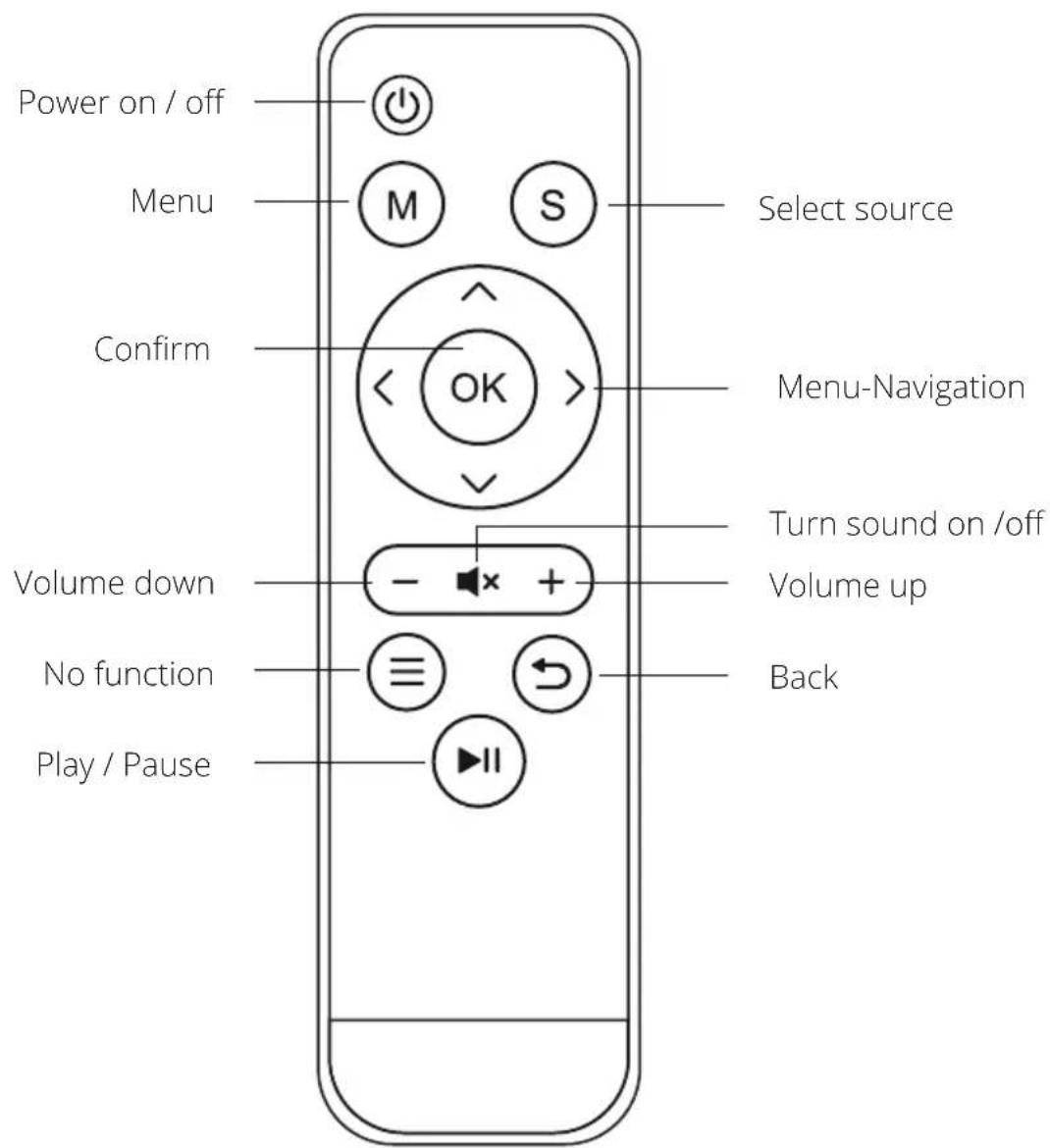
REMOTE CONTROL
INITIAL STEPS
Connecting the power cable
Connect the power cable to the side of the projector and to a power outlet. If the indicator light at the top of the projector turns red, the projector is in standby mode.
Power up
Remove the lens cap from the lens.
Press the „Power“ button on the top of the projector or the „Power“ button on the remote control. If the indicator light on the top of the projector is steady green, the projector is turned on.
Press the „Power“ button again either on the projector or on the remote control to turn off the projector.
Keystone correction/image focusing
Use the rear keystone adjustment dial (7) located at the top of the projector to adjust the angle of the projector. Use the front keystone adjustment dial (8), also located on the top of the projector, to adjust the image focus.
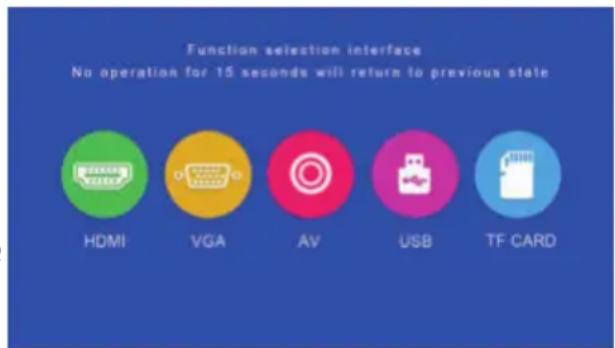
Selecting the signal source
Press the „S“ button on the projector or the „Source“ button on the remote control to open the menu for selecting the input signal.
Use the arrow buttons on the remote control or on the projector to select the appropriate signal source and confirm with „OK“.
Multimedia connection
Insert a SD card or a USB device into the appropriate input. Select the USB/SD media source, then select the desired media (Photo/Movie/Music/File). Select the file(s) you want to view, and then press the Play/Pause button on the remote control.
The following formats are supported for „USB“ and „TF Card“ sources:
| File Format File extension Codec | ||
| Picture | JPEG .jpg | |
| BMP .bmp | ||
| PNG .png | ||
| Music | WMA .wma | |
| MP3 .mp3 | ||
| AC3/WAV .ac3 / .wav | ||
| Movie | RM/RMVB .rm / .rmvb RV8 / 9 / 10 | |
| AVI .avi | ||
| ASF .wmv / .asf | ||
| MP4 .mp4 / .mov / .3gp | ||
| H264 .mov MPEG 1,2,4 | ||
| MKV .mkv | ||
| FLV .flv H.364 | ||
| PS .mpg/.mpeg/.vro/.vob vc1 | ||
| TS .ts | H.264 | |
HDMI Equipment Connection
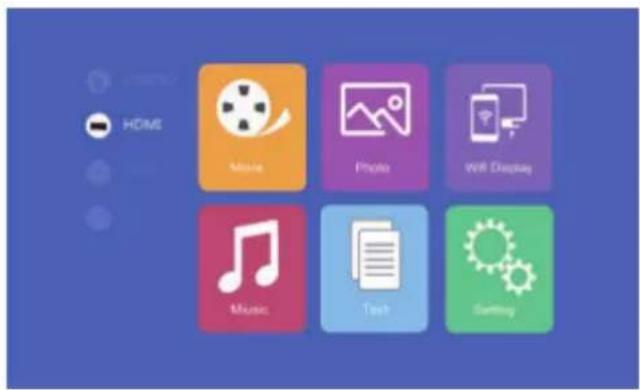
Connect a computer and other HDMI devices to the corresponding input located at the side of the projector. Select the media source „HDMI“, and press „OK“.
VGA Equipment Connection
Connect a computer and other VGA devices to the corresponding input located at the side of the projector. Select the media source „VGA“, and press „OK“.

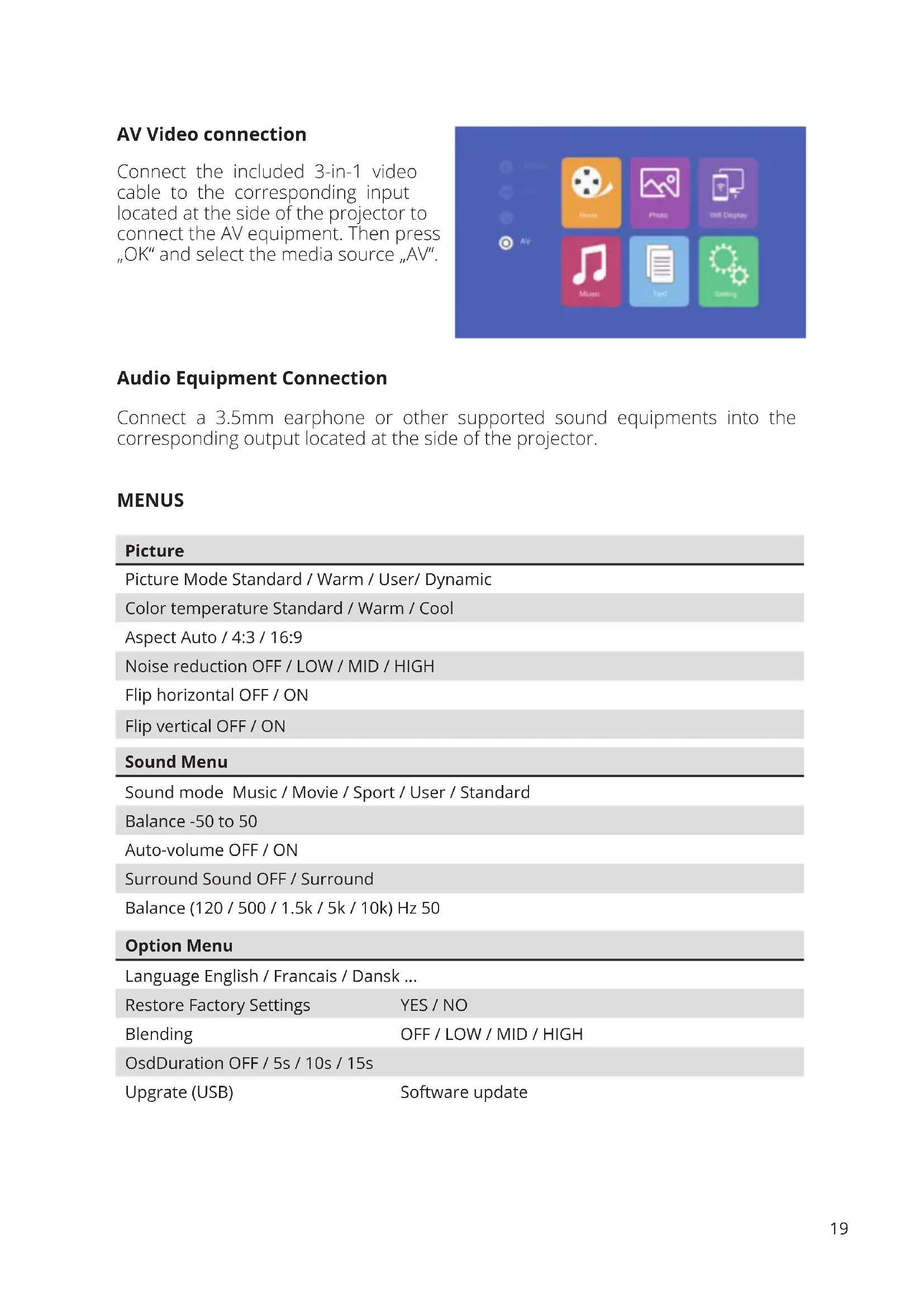
AV Video connection
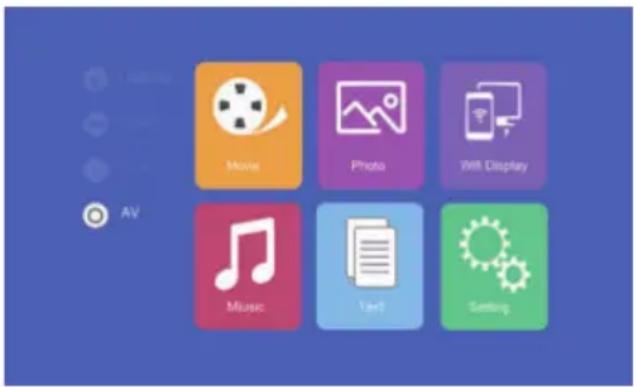
Connect the included 3-in-1 video cable to the corresponding input located at the side of the projector to connect the AV equipment. Then press „OK“ and select the media source „AV“.
Audio Equipment Connection
Connect a 3.5mm earphone or other supported sound equipments into the corresponding output located at the side of the projector.
MENUS
Picture
| Picture Mode Standard / Warm / User/ Dynamic |
| Color temperature Standard / Warm / Cool |
| Aspect Auto / 4:3 / 16:9 |
| Noise reduction OFF / LOW / MID / HIGH |
| Flip horizontal OFF / ON |
| Flip vertical OFF / ON |
Sound Menu
| Sound mode Music / Movie / Sport / User / Standard |
| Balance -50 to 50 |
| Auto-volume OFF / ON |
| Surround Sound OFF / Surround |
| Balance (120 / 500 / 1.5k / 5k / 10k) Hz 50 |
Option Menu
| Language English / Francais / Dansk ... | |
| Restore Factory Settings | YES / NO |
| Blending | OFF / LOW / MID / HIGH |
| OsdDuration OFF / 5s / 10s / 15s | |
| Upgrade (USB) | Software update |
MULTI-SCREEN
This allows the screen content of a smartphone or tablet to be displayed wirelessly or via a USB cable on the projector.
Please note that not all content can be displayed due to copy protection requirements of the respective app provider (e.g. Netflix). By using the Amazon Firestick or Google Chromecast, you can also stream content from these providers.
Basic settings for multi-screen-sharing
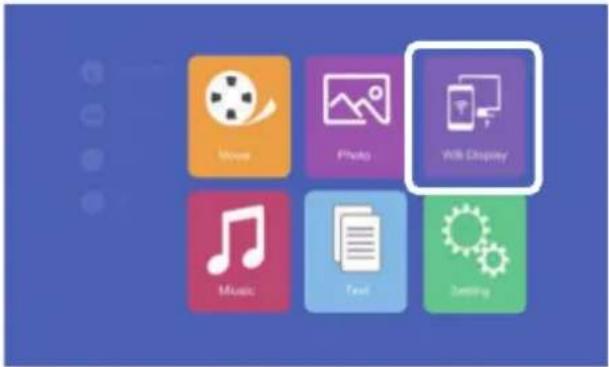
To enter multi-screen-interface select "Wifi Display" on the main menu and press "OK".
Multi-screen for Android phones
Requirements
Operating system Android 5.0 model with min. 1 GB RAM
Resolution WVGA 1080P
Storage At least 40MB free space needed
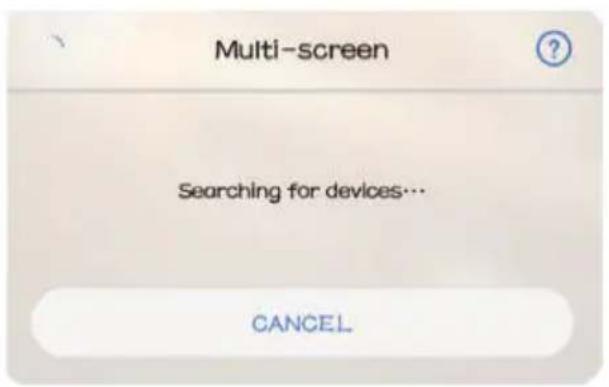
Step 1: From the WiFi Display menu, select Miracast.
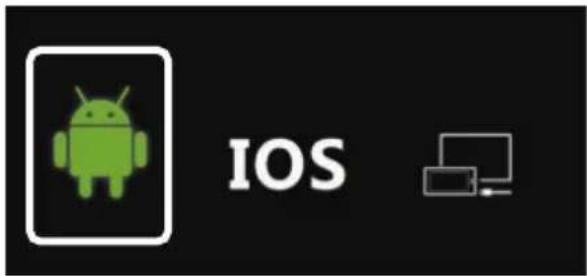
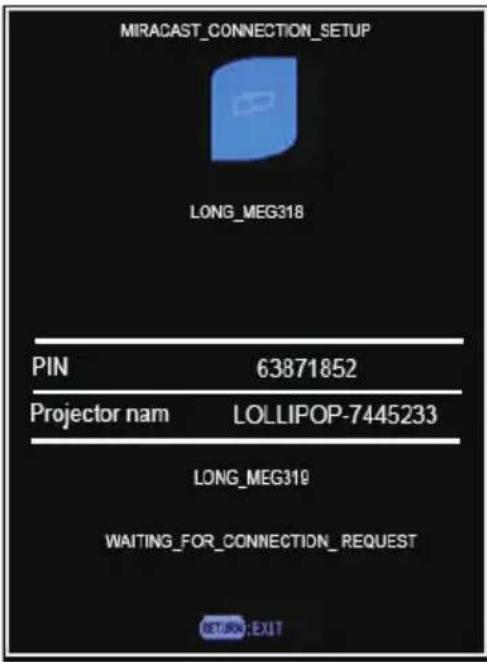
Step 2: Go to the Miracast / Wireless Display / Multiscreen function on your smartphone and connect to the projector via the SSID.


Multi-screen for iPhones
| Requirements |
| Operating system iOS 7 and above |
| iPhone 5 / iPod Generation 5 / iPad3 or higher |
| Supported resolutions iPhone: 480 x 320 / 1136 x 640iPad 1024 x 768 / 2048 x 1536 |
| Storage At least 40MB free space needed |
Step 1: Open the settings menu in your phone, turn on WiFi, and connect to your wireless network.
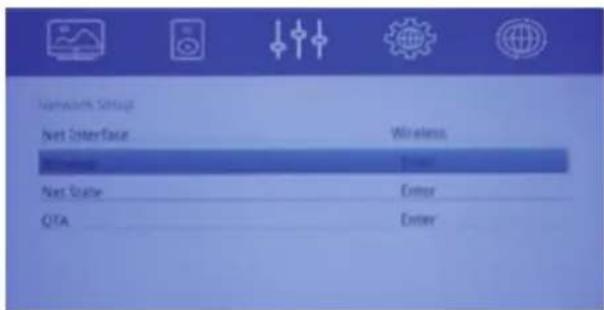
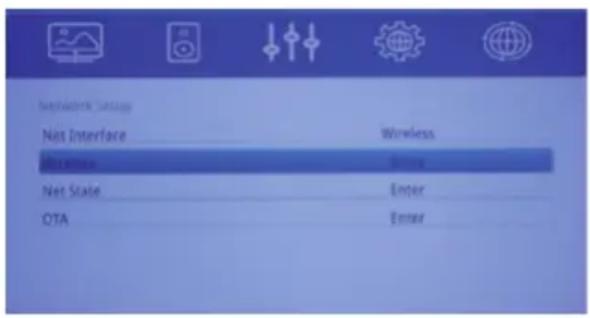
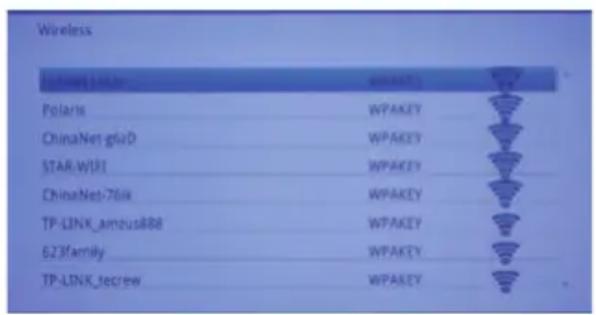
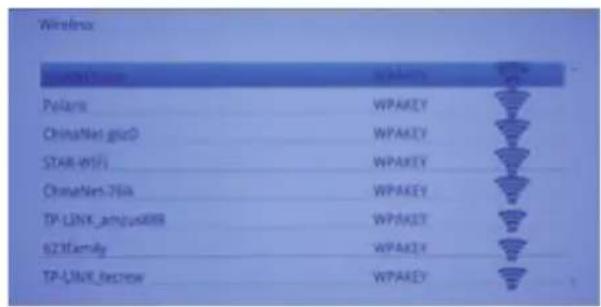
Step 2: Connect the projector to the same WLAN by selecting the symbol in the „Setting“ area and register the projector in the WLAN as follows:
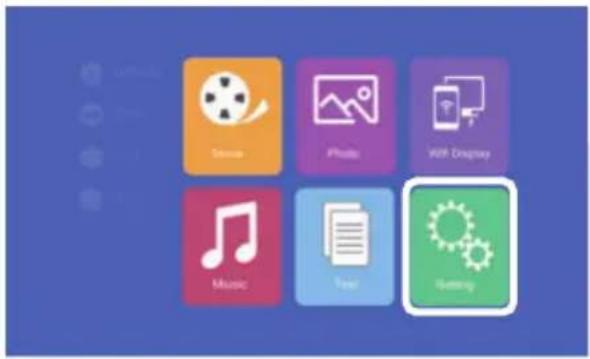


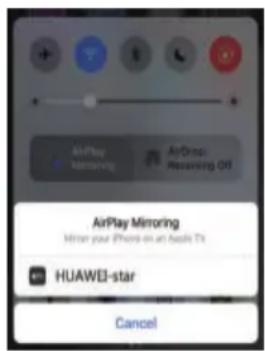
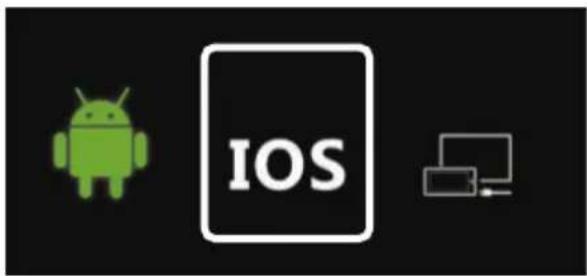
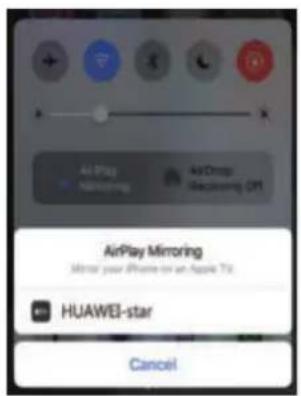
Step 3: Enter „Wifi Display“ from the main menu, select „iOS Airplay“ and press „OK“ to enter iOS wireless connection interface.

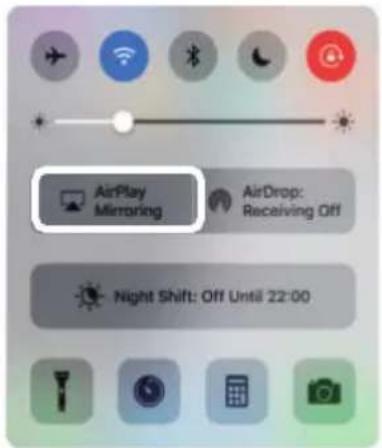
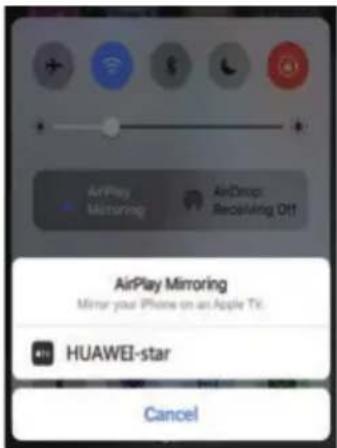
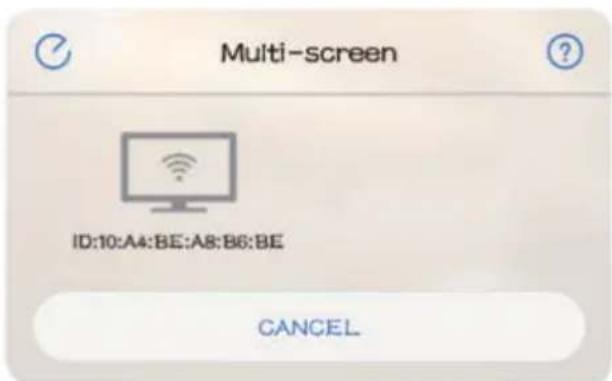
Step 4: Confirm Air-Play Mirroring by selecting the SSID on the IOS device.
Connection via cable connection (Android)
Please check if your Android device supports image transfer via USB cable.
Step 1: From the WiFi Display menu, select Cablecast.


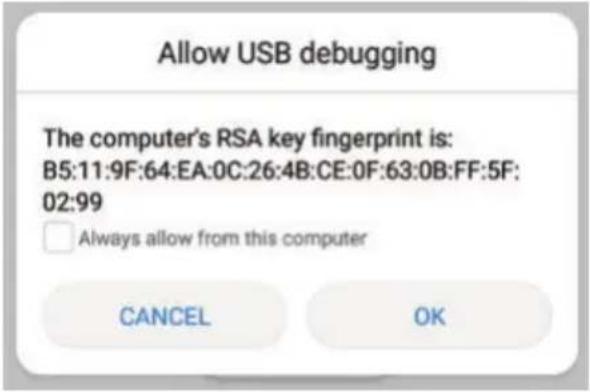
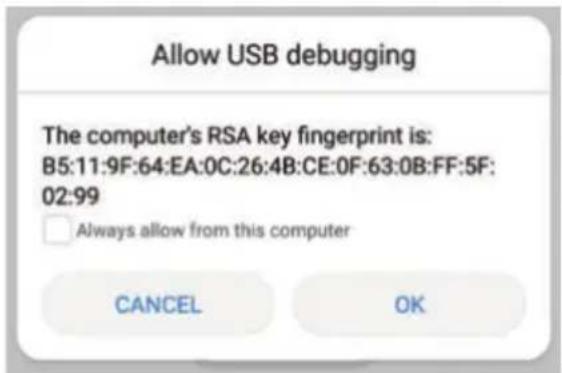
Step2: Connect your AndroidsmartphonetotherightUSBport(nottheOUT-5VUSBport) using the original USBcablesupplied by the phonemanufacturer. Then open the settings on your Android smartphone and enable „USB debugging“ in the developer options.
If you do not find the menu item „Developer options“ in your settings, it must be activated first. Please search the Internet for the necessary steps to do this.


Connection via a cable connection (iOS)
Step 1: From the WiFi Display menu, select Cablecast.


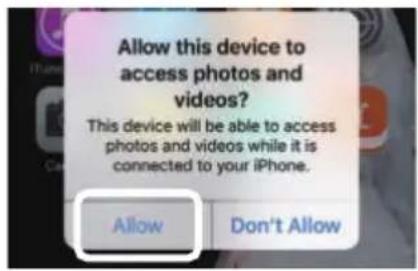
Step 2: Confirm the connection with „Trust“. Use only original Apple USB cable.
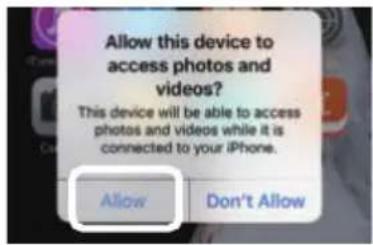
Step 3: Click on "Allow" to start sharing multiple screens.


SPECIFICATIONS
| Display method LCD |
| Contrast 1000:1 |
| Physical resolution 1280 x 720 (supports 1920 x 1080) |
| Light source LED |
| Projection distance 1,5 - 4m |
| Picture format 16:9 / 4:3 |
| Brightness 2500 lumens |
| Keystone correction ±15° manual |
| Network connection 110 - 240V ~ 50/60Hz |
| Power consumption 60W |
| Input interfaces USB / SD / HDMI / AV / VGA |
| Output interface 3,5mm audio jack |
| Dimensions 220 x 166 x 90mm |
Weight 1200g
DISPOSAL
This symbol indicates that this product is subject to the European Directive and must not be disposed of together with other household waste. Refer to and follow local regulations for separate collection of electrical and electronic equipment. Proper disposal of old products helps to avoid negative effects on the environment and health.
MANUFACTURER
VEHNSGROUP
VEHNSGROUP GmbH
Changes and errors excepted.
The manufacturer accepts no liability for damage resulting from incorrect, improper or incompatible use of the product.
© VEHNS GROUP GmbH
CONNEXIONS





CARACTÉRISTIQUES TECHNIQUES
Technologie LCD
Contraste 1000:1
COLLEGAMENTI

Connessione via cavo (Android)

DATI TECNICI
Tecnologia LCD
Contrasto 1000:1
Conexión multimedia


Multi-pantalla para iPhones
Demandas


DATOS TÉCNICOS
Tecnología LCD
Contraste 1000:1
Resolución física 1280 x 720 (soportes 1920 x 1080)
Fuente de luz LED
- ANSCHLÜSSE
- PRODUCT OVERVIEW
- INTERFACES
- REMOTE CONTROL
- INITIAL STEPS
- CONNECTING THE POWER CABLE
- POWER UP
- KEYSTONE CORRECTION/IMAGE FOCUSING
- SELECTING THE SIGNAL SOURCE
- MULTIMEDIA CONNECTION
- HDMI EQUIPMENT CONNECTION
- VGA EQUIPMENT CONNECTION
- AV VIDEO CONNECTION
- AUDIO EQUIPMENT CONNECTION
- MENUS
- MULTI-SCREEN
- BASIC SETTINGS FOR MULTI-SCREEN-SHARING
- MULTI-SCREEN FOR ANDROID PHONES
- REQUIREMENTS
- MULTI-SCREEN FOR IPHONES
- CONNECTION VIA CABLE CONNECTION (ANDROID)
- CONNECTION VIA A CABLE CONNECTION (IOS)
- DISPOSAL
- MANUFACTURER
- VEHNSGROUP
- CONNEXIONS
- CARACTÉRISTIQUES TECHNIQUES
- COLLEGAMENTI
- CONNESSIONE VIA CAVO (ANDROID)
- DATI TECNICI
- CONEXIÓN MULTIMEDIA
- MULTI-PANTALLA PARA IPHONES
- DEMANDAS
- DATOS TÉCNICOS
Brand : LA VAGUE
Model : LV-HD340
Category : Projector