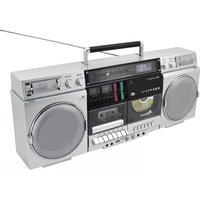
SCD1980 - Boombox Soundmaster - Free user manual and instructions
Find the device manual for free SCD1980 Soundmaster in PDF.

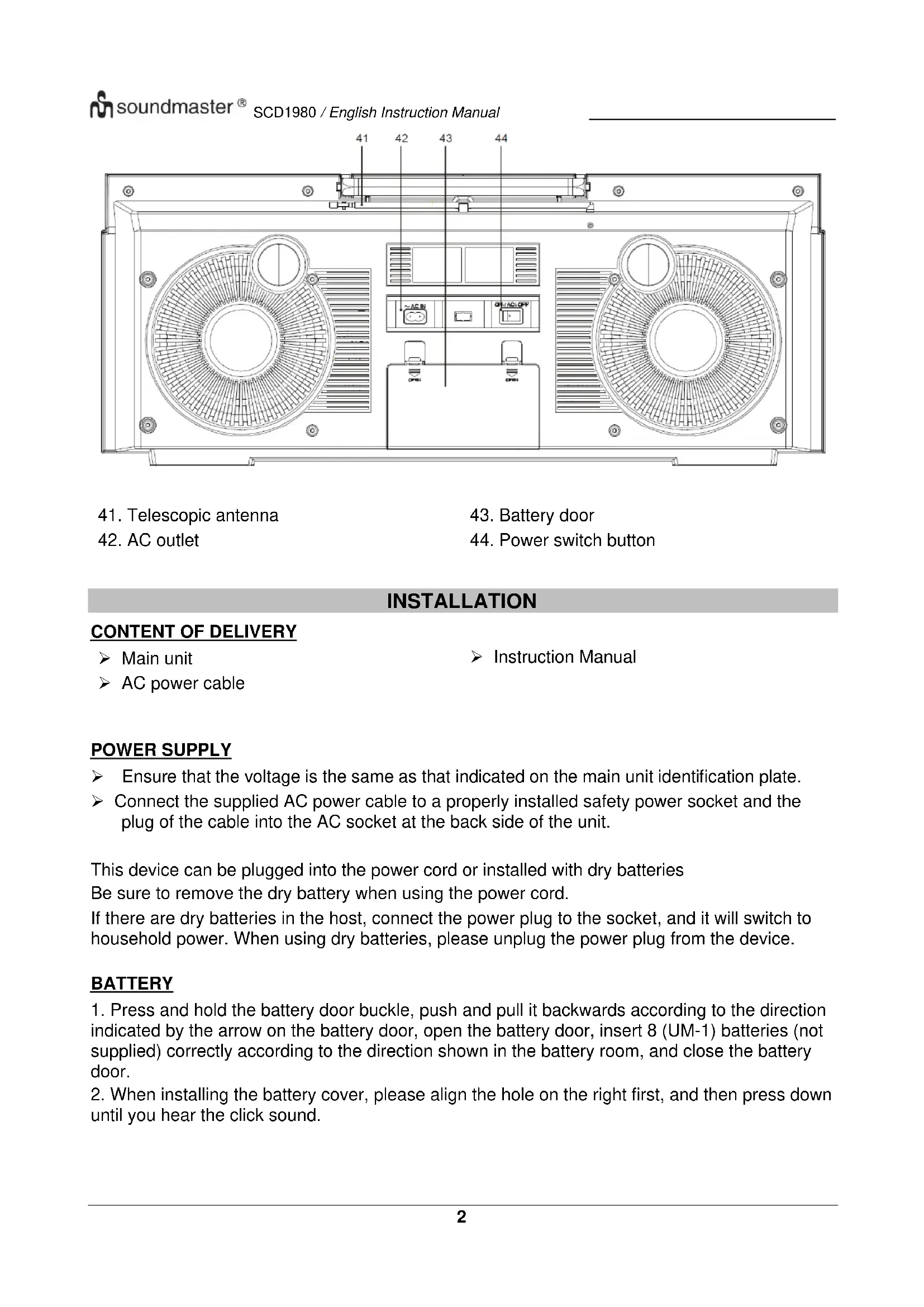


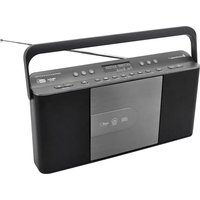
| Product type | Radio cassette recorder |
| Brand | Soundmaster |
| Model | SCD1980 |
| Power supply | Mains 230 V~50 Hz or 8 UM-1 batteries (not included) |
| Main functions | CD player, cassette deck, DAB+/FM radio, Bluetooth, USB, Micro SD card, auxiliary input |
| Speakers | 2 speakers (main and tweeter) |
| Sound settings | Volume, Bass, Treble, X-Bass, Echo, Microphone volume |
| Microphone connectors | 2 x 6.35 mm jack sockets |
| Headphone jack | Yes (3.5 mm jack) |
| Antenna | Telescopic |
| CD playback | Audio CD, CD-R/RW, MP3 |
| Cassette | Playback and recording, auto stop |
| Recording | To cassette, to USB or Micro SD card (MP3 format) |
| Digital radio | DAB+ (Band III) |
| FM radio | 87.5 – 108 MHz |
| Bluetooth | Pairing with mobile devices |
| Display | LCD screen |
| Cleaning | Dry cloth, do not use abrasive products |
| Safety | Class 1 laser, do not open, use in dry indoor environment |
| Additional information | Manual downloadable at soundmaster.de, declaration of conformity available |
Frequently Asked Questions - SCD1980 Soundmaster
User questions about SCD1980 Soundmaster
0 question about this device. Answer the ones you know or ask your own.
Ask a new question about this device
Download the instructions for your Boombox in PDF format for free! Find your manual SCD1980 - Soundmaster and take your electronic device back in hand. On this page are published all the documents necessary for the use of your device. SCD1980 by Soundmaster.
USER MANUAL SCD1980 Soundmaster
Festsender speichern
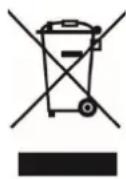
Do not dispose of this product with the normal household waste at the end of its life cycle. Return it to a collection point for the recycling of electrical and electronic devices. This is indicated by the symbol on the product, user manual or packaging
The materials are recyclable according to their labeling. By reusing materials or other forms of recycling old devices and packaging, you are making an important contribution to protecting our environment. If necessary, remove batteries and personal data before disposal free of charge and ask your local authority about the responsible disposal point.
| 警告 | WARNING | |
| Risk of electric shock Do not open! | ||
| Caution: To reduce the risk of electric shock, do not remove the cover (or back). There are no user serviceable parts inside. Refer servicing to qualified service personnel. | ||

This symbol indicates the presence of dangerous voltage inside the enclosure, sufficient enough to cause electric shock.

This symbol indicates the presence of important operating and maintenance instructions for the device

Used batteries are hazardous waste and NOT to be disposed of with the household waste! As a consumer you are legally obligated to return all batteries for environmentally responsible recycling - no matter whether or not the batteries contain harmful substances*)
Return batteries free of charge to public collection points in your community or shops selling batteries of the respective kind. Only return fully discharged batteries *) marked Cd = cadmium, Hg = mercury, Pb = lead
- Only use mercury and cadmium-free batteries.
- Used batteries are hazardous waste and NOT to be disposed of with the household waste!!!
- Keep batteries away from children. Children might swallow batteries.
- Contact a physician immediately if a battery was swallowed.
- Check your batteries regularly to avoid battery leakage.
- Batteries shall not be exposed to excessive heat such as sunshine, fire or the like.
- CAUTION: Danger of explosion if battery is incorrectly replaced
- Replace only with the same or equivalent type

CAUTION - INVISIBLE LASER RADIATION WHEN OPENING THE COVER OR PRESSING THE SAFETY INTERLOCK. AVOID EXPOSURE TO THE LASER BEAM.
To prevent possible hearing damage, do not listen at high volume levels for long periods
- Use the device in dry indoor environments only.
- Protect the device from humidity.
- This apparatus is for moderate climates areas use, not suitable for use in tropical climates countries.
Safety, Environmental and Setup Instructions
- No objects filled with liquids, such as vases, shall be placed on the apparatus.
- The mains plug or an appliance coupler is used as the disconnect device, the disconnect devices shall remain readily operable.
- Connect this device to a properly installed and earthed wall outlet only. Make sure the mains voltage corresponds with the specifications on the rating plate.
- Make sure the mains cable stays dry during operation. Do not pinch or damage the mains cable in any way.
- A damaged mains cable or plug must immediately be replaced by an authorized service center.
- In case of lightning, immediately disconnect the device from the mains supply.
Children should be supervised by parents when using the device. - Clean the device with a dry cloth only.
- Do NOT use CLEANING AGENTS or ABRASIVE CLOTHS!
- Do not expose the device to direct sunlight or other heat sources.
- Install the device at a location with sufficient ventilation in order to prevent heat accumulation.
- Do not cover the ventilation openings!
- Install the device at a safe and vibration-free location.
- Install the device as far away as possible from computers and microwave units; otherwise radio reception may be disturbed.
- Do not open or repair the enclosure. It is not safe to do so and will void your warranty. Repairs only by authorized service/ customer center.
- No naked flame sources, such as lighted candles, should be placed on the unit.
- When you are necessary to ship the unit store it in its original package. Save the package for this purpose.
- In case of malfunction due to electrostatic discharge or fast transient (burst), remove and reconnect the power supply.
- If the unit is not using for a long period of time, disconnect it from the power supply by unplugging the power plug. This is to avoid the risk of fire.
LOCATION OF CONTROLS
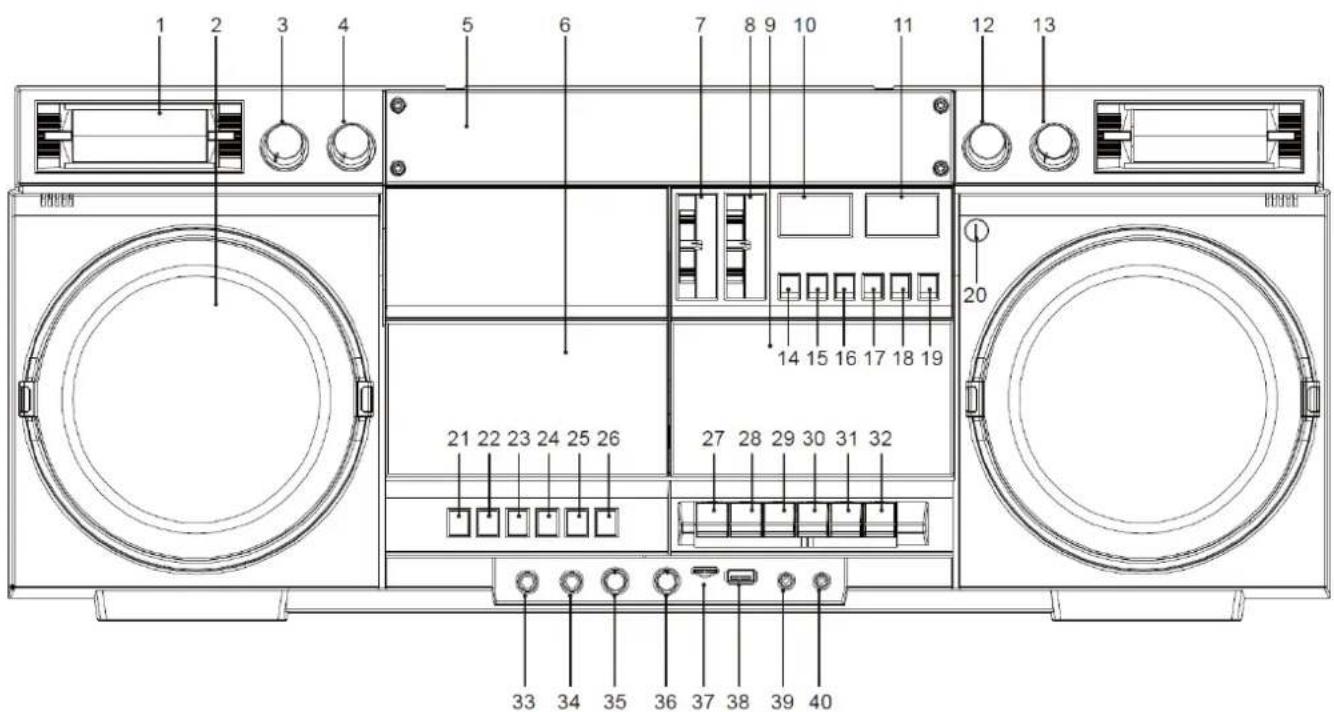
- Tweeter
- Main speaker
- Treble control
- Bass control
- Radio scale + Display
- CD door
- Function switch
- Band switch
- Cassette door
- Left level meter
- Right level meter
- FM Tuning
- Volume control
- Folder -button
- Folder + button
- USB/Micro SD - Record button
- USB/Micro SD - Delete button
- Bluetooth/USB/Micro-SD Mode selection
- X Bass button
-
Built-in microphone for cassette recording
-
Stop button/search station
- Previous/Rewind/Up button
- Play/pause/confirm button
- Next song/fast forward/down button
- Programming/Menu
- Repeat/browse information button
- Cassette recording button
- Cassette playback button
- Cassette rewind button
- Cassette fast forward button
- Cassette stop/Eject button
- Cassette pause button
- Microphone 1 socket
- Microphone 2 socket
- Reverb adjustment button
- Microphone volume adjustment button
- Micro SD socket
- USB socket
- AUX IN socket
- Headphone jack

-
Telescopic antenna
-
AC outlet
-
Battery door
-
Power switch button
INSTALLATION
CONTENT OF DELIVERY
Main unit
AC power cableInstruction Manual
POWER SUPPLY
Ensure that the voltage is the same as that indicated on the main unit identification plate.
Connect the supplied AC power cable to a properly installed safety power socket and the plug of the cable into the AC socket at the back side of the unit.
This device can be plugged into the power cord or installed with dry batteries
Be sure to remove the dry battery when using the power cord.
If there are dry batteries in the host, connect the power plug to the socket, and it will switch to household power. When using dry batteries, please unplug the power plug from the device.
BATTERY
- Press and hold the battery door buckle, push and pull it backwards according to the direction indicated by the arrow on the battery door, open the battery door, insert 8 (UM-1) batteries (not supplied) correctly according to the direction shown in the battery room, and close the battery door.
- When installing the battery cover, please align the hole on the right first, and then press down until you hear the click sound.
BASIC OPERATIONS
POWER ON
Switch the POWER switch located on back side to ON position.
SELECTING MODES
Move the FUNCTION slide switch on front side to the desired source.
STANDBY
Move the FUNCTION slide switch to TAPE position (no TAPE button pressed) to switch the unit into standby
POWER OFF
Switch the POWER switch located on back side to OFF position.
ERP2function
When the product is in stop mode/or no audio signal output, it will automatically switch to standby mode after 15 minutes. Press any button to wake up and enter the working mode.

ADJUSTING VOLUME
Rotate the "VOLUME" knob to decrease or increase the volume.
Note: The pointer of the level meter swings with rhythms of the audio signal.
DAB+
Move the function switch to "FM/DAB", and then turn the band switch to the "DAB" position to enter the DAB mode and turn the volume to moderate position. For the first time, it will automatically search for channels, and the channels found will be automatically stored.
Note: Pull out the telescopic antenna and adjust its position for better reception.
Full scan
Short press the "MENU" button, then short press the "DOWN/UP" button to select the menu, select "Full scan", and then press the "ENTER" button to confirm, it will search for channels in all frequency bands, and save all the programs found in order In DAB's program list; if DAB's program list is empty, DAB's menu mode will always be displayed
Manual tune
Short press the "MENU" button, then short press the "DOWN/UP" button to select the menu, select "Manual tune", and then press the "ENTER" button to confirm. Enter the DAB frequency point list in the menu, press the "DOWN/UP" button to select a certain frequency point, and then press the "ENTER" button to enter the manual search state, and the interface displays the signal strength of the frequency point. Press the "MENU" button to exit the manual search
DRC
DAB dynamic range control, setting options include DRC off/DRC low/DRC high.
Press the "DOWN/UP" button to switch between different modes.
Press the "ENTER" button to confirm, the selected mode has a ** mark on the right
Prune
This function will clear the invalid stations, that is, the invalid stations marked with '?' in the program list
In DAB mode, press the "MENU" button to enter the menu; short press the "DOWN/UP" button to select the menu, select the "Prune" option, and then press the "ENTER" button to enter the mode selection
Information
When the DAB program is playing, short press the "INFO" button to view the relevant information of the DAB program in sequence.
- Dynamic Label segment (DLS): Dynamic text information, if not, display Playing
- Signal Strength : Displays the signal strength of the current program
- Program Type (PTY) : program type, if not, show No PTY
- Ensemble Name: Radio name
Frequency and Channel: Radio frequency, such as 7A 188.928MHz
Signal error: 0: BER 0% - Bit-rate and Audio status : Bit-rate, such as 128kbps / DAB
Time: Radio time
Date: Radio date
DAB Program List
Press the "DOWN/UP" button to browse all DAB programs in order, after selecting a program, press the "ENTER" button to choose to play the program.
Preset Store
Select the desired station; short press the "MENU" button, use the "DOWN/UP" button to select Preset Store to enter the program storage interface, use the "DOWN/UP" button to view the program of each memory point, if the memory point is empty Empty is displayed; when a memory point is selected, press the "ENTER" button to save the currently playing program to this memory point.
Preset Recall
Select the preset station; short press the "MENU" button, use the "DOWN/UP" button to select Preset Recall to enter the preset station interface, use the "DOWN/UP" button to view the program of each memory point, when a memory point is selected press the "ENTER" button to recall and play the program on this memory point, if the memory point is empty, it will display Empty
FM
Turn the function switch to "FM/DAB"
Turn the band switch to "FM" position, turn the volume to moderate position, turn the tuning button, you can choose to listen to FM band 87,5-108 MHz of any radio program,
Note: Pull out the telescopic antenna and adjust its position for better reception. If you have strong reception signal you can choose FM Stereo position for better sound feeling.
CD
Move the function switch to the "CD" position.
Press the "OPEN/CLOSE" position, open the CD door, put the disc printing side up on the spindle of the CD movement, and then close the CD door.
After a few seconds, the total track will be read, and automatically play the first music, LCD will display the current playing information, such as total track/format/playing current track/playing time, etc.
Press the "▶" button to temporarily stop playing, and press this button again to resume playing. To stop playing in the middle: press the "STOP" button to stop playing
When playing a CD: single press "<" will skip to the previous song, long press "<" for fast rewind function; single press >>" will skip to the next song, long press >>" for fast forward function
When playing a CD:
Press the "REP" button repeatedly for following options:
- Rep 1: Repeat the currently played track
- Rep Dir : Repeat the currently played folder (MP3 Disc / USB only)
- Rep All : Repeat all tracks
- Random: Tracks are played in random order
- Intro : All tracks will be played for few seconds
Operation of the programming function
In the stop state, press the "PROG" button, the LCD displays "MEM" and "P01" flashes at the same time, enter the programming state.
Press the "<>" / "> button, and then press the "PROG" button Save the tracks, so operate, CD can program up to 20 tracks. MP3 can program 99 tracks.
After programming, press the “▶” button to play in the programmed order, press the “STOP” button during programming to stop programming, and exit the programming state
Clear memory
In the program play state, press the "STOP" button twice and then press the "▶" play button to switch to the normal play state
When the unit is no longer in the CD playback function, the previous programming will cancel itself
Disc handling precautions
Do not write on the label side with a ballpoint pen or other writing implements
Never use record cleaning spray, benzine, thinner, antistatic fluid, or any other solvents for cleaning
Never attach labels or stickers to discs. (This will warp the disc or make it unusable)
Never use anti-scratch film or cover
Do not use the following discs:
*Discs exposed due to removal of stickers or labels
*Badly warped or cracked discs
*Irregular discs, such as heart-shaped discs
CASSETTE
Playback function:
Turn the function switch to the "TAPE" position.
Put the music tape with the opening downwards into the tape compartment, close the door and press the "PLAY" cassette button.
If you need to fast forward or rewind, press "FFWD" button or "REW" button.
If you need to pause the playback, you can press the "PAUSE" pause button, if you press the "PAUSE" pause button again during the pause, you can resume playback.
If you want to stop playing, press " STOP/EJ "button to stop playing
For removing the tape press "STOP/EJ" again for opening the tape compartment
Recording function:
a. In the state of radio/Bluetooth/CD/USB/Micro SD, put in the tape to be recorded, and press the "REC" button to record the current corresponding function music.
b. Microphone recording: Turn the function switch to the "TAPE" position, put in the tape to be recorded, press the "REC" button, you can speak to the host, and record the spoken content on the tape through the internal recording microphone, when you want to play it back, rewind the tape to the starting point of the original recording, press the "PLAY" button to play back.
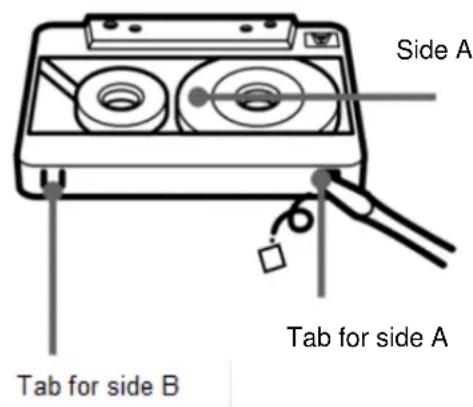
Note: To prevent accidental recording, break off the cassette tab from side A or side B.
To use the tape again for recording pls use adhesive tape to cover the tab.
BLUETOOTH
Move the function switch to the "Bluetooth/USB/SD/AUX" position, the LCD screen will display the word "PAIR".
a. Turn on the Bluetooth function on the mobil device and search for SCD1980, the word "PAIR" flashes on the LCD screen.
Note: "PAIR" does not flash after the pairing is successful.
b. During Bluetooth playback, press the play/pause button "▶" to pause the playback, press the "▶" button again to continue playback. Press "<>" to skip to the previous song; press "> " to skip to the next song.
c. Long press "▶" and press the play/pause button to exit the Bluetooth pairing function. At this time, the word "PAIR" on the LCD screen is flashing, and enter the search pairing state again
USB/MICRO SD
USB/MICRO SD playback
Move the function switch to the "Bluetooth/USB/SD/AUX" position, press the "MODE" button to switch among the three functions of BT/USB/SD.
When switching to USB or Micro SD card, the LCD screen will display the corresponding words "USB or SD".
After inserting the USB or Micro SD, the track will be played automatically, single press the "▶" play/pause button to pause playback, press again to continue playing.
Single press "<=" to skip to the previous song, long press "<=" for fast rewind function; single press ">=" to skip to next song, press and hold ">=" for fast forward function.
When selecting a track, the LCD screen will display the track for 3 seconds and then display the playing time.
Short press the "FOLDER+/-" button to select the folder function.
2. Recording function, insert USB or Micro SD card
When playing any function of cassette/radio/BT/CD/AUX for USB/CD
a. Press and hold the "REC" button to enter the recording function. When recording to a USB disk, the word "USB" on the display will flash. When recording to a Micro SD card, the word "SD" will flash on the display, and the currently playing music will be recorded to the USB or Micro SD card.
b. Short press the "REC" button to switch between the recording file and the playback file; short "DEL" button during recording is to stop recording, and a recording file in MP3 format will be generated. If you want to delete the recording file, you need to play the current file to be deleted long press the "DEL" button, the LCD screen will display "DELE" to delete the currently playing file.
-
When there is no playback file in USB or Micro SD, play the recording file directly
-
If USB and Micro SD exist at the same time, USB will be recorded first
AUX FUNCTION
In the BT/USB/Micro SD function state, after plugging in the AUX cable, the LCD screen will display the word "AUX" and switch to the AUX function.
SOUND AND EFFECT ADJUSTMENT
"X-BASS" function: Short press this button to turn on the low-frequency boost, and the LCD screen will display the words "HBASS ON", press this button again to turn off the bass boost, and the LCD screen will display "NORMAL".
"BASS Knob": Rotate to increase / to decrease low frequency
"TREBL Knob": Rotate to increase / to decrease high frequency
"VOLUME Knob": Rotate to increase / to decrease the volume of the device.
"MIC_VOL Knob": Turn clockwise to increase the MIC volume, and counterclockwise to decrease the external MIC volume.
"ECHO Knob": Turn clockwise to increase the reverberation echo effect, and counterclockwise to decrease the reverberation echo effect.
Headphone function

When playing all music, insert the earphone into the earphone jack, adjust the volume properly, and enjoy the music after wearing the earphone. To prevent possible hearing damage, do not listen at high volume levels for long periods.
SETTINGS
Manual time and date setting
- Long press the "STOP" button in the power-on state to enter the manual time and date setting.
- When the LCD displays 12H or 24H, select the time display format through "DOWN/UP", and then click "STOP" to confirm and enter the next step of time setting.
- Then press "DOWN/UP" to select the time and date, and then press "STOP" to confirm.
- Note: In the DAB state, when a valid DAB station is received, the time and date of the station will be automatically synchronized
System Settings
In DAB mode
Press "MENU" to enter system settings
System menu settings include: Language, Factory Reset, SW Version.
Press the "DOWN/UP" button to rotate the next menu, press "ENTER" to enter the menu.
Automatically exit to the program interface when there is no operation for 30s.
System
- Language>System language: press the "MENU" button, then use the "DOWN/UP" button to select to enter the language setting interface, the default is English, the selected language includes English /Deutsch /Italiano/Français; press "ENTER" to confirm, there is a **' mark on the right side of the selected item.
- Factory Reset system reset: short press the "MENU" button, then use the "DOWN/UP" button to select
, then press the "ENTER" button to confirm, use the "DOWN/UP" button to select "YES" and then press "ENTER" to confirm, all states will be restored after reset to factory default. - SW Version software version: press the "MENU" button, then use the "DOWN/UP" button to select
, and then press the "ENTER" button to confirm, you can view the software version information
The current instruction manual can be downloaded from www.soundmaster.de
Technical changes and misprints reserved.
Copyright by Woerlein GmbH, 90556 Cadolzburg, www.soundmaster.de
Duplication only with the permission of Woerlein GmbH

PROTECTION DE L'ENVIRONNEMENT

Cadolzburg, www.soundmaster.de
Hereby, Worlein GmbH declares that this device is in compliance with the essential requirements and other relevant provisions of Directive 2014/53/EU.
A copy of the declaration of conformity can be obtained from the above address.

- Festsender speichern
- LOCATION OF CONTROLS
- INSTALLATION
- CONTENT OF DELIVERY
- POWER SUPPLY
- BATTERY
- BASIC OPERATIONS
- POWER ON
- SELECTING MODES
- STANDBY
- POWER OFF
- ERP2function
- ADJUSTING VOLUME
- DAB+
- Full scan
- Manual tune
- DRC
- Prune
- Information
- DAB Program List
- Preset Store
- Preset Recall
- FM
- CD
- Operation of the programming function
- Clear memory
- Disc handling precautions
- CASSETTE
- Playback function:
- Recording function:
- BLUETOOTH
- USB/MICRO SD
- USB/MICRO SD playback
- Recording function, insert USB or Micro SD card
- AUX FUNCTION
- SOUND AND EFFECT ADJUSTMENT
- Headphone function
- SETTINGS
- Manual time and date setting
- System Settings
- System
- PROTECTION DE L'ENVIRONNEMENT
Brand : Soundmaster
Model : SCD1980
Category : Boombox