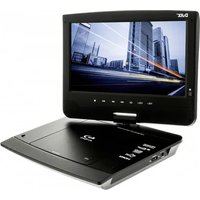
PVS 1007-20BR - Portable DVD Player D-JIX - Free user manual and instructions
Find the device manual for free PVS 1007-20BR D-JIX in PDF.



| Product type | Portable Blu-ray player |
| Brand | D-Jix |
| Model | PVS 1007-20BR |
| Screen size | 10 inches |
| Dimensions (W x D x H) | 262 x 205 x 42 mm |
| Weight | 1.3 kg |
| Power supply | DC 9-12V via AC adapter or built-in Li-polymer battery |
| Battery life | Approximately 2 hours |
| Compatible disc formats | BD, BD-R, BD-RE, DVD±R/RW, DVD-Video, VCD, CD, CD-R/RW |
| Video formats | H.264, VC1, MPEG1, MPEG-2, MPEG4 |
| Audio formats | Dolby Digital, Dolby Digital Plus, Dolby TrueHD, DTS-HD, MP3 |
| HDMI output | Yes (480i/576i, 480p/576p, 720p, 1080i, 1080p, 1080p@24Hz) |
| Connectivity | USB 1.1, HDMI, AV output, Ethernet, SD/MMC card reader |
| Special features | BD-Live, zoom forward/backward, repeat, parental control |
| Signal system | PAL/NTSC |
| Power consumption | 10 W |
| Operating temperature | 0°C to 40°C |
| Included accessories | Remote control, AV cable, AC adapter, car charger cable, earphones, user manual |
| Maintenance and cleaning | Unplug and clean with a damp cloth. Do not use detergent. |
| Safety | Do not expose to water, heat, do not open. Risk of electric shock. |
| Spare parts and repairability | Not provided, contact a professional. |
| Warranty | Legal warranty for hidden defects (art. 1641 CC), valid in metropolitan France. |
Frequently Asked Questions - PVS 1007-20BR D-JIX
User questions about PVS 1007-20BR D-JIX
0 question about this device. Answer the ones you know or ask your own.
Ask a new question about this device
Download the instructions for your Portable DVD Player in PDF format for free! Find your manual PVS 1007-20BR - D-JIX and take your electronic device back in hand. On this page are published all the documents necessary for the use of your device. PVS 1007-20BR by D-JIX.
USER MANUAL PVS 1007-20BR D-JIX
natural_image
Black D-IX 3D TV device with a basketball game displayed on its screen, no visible text or symbols on the device itself.DVD
VIDEO

Blu-ray Disc

DOLBY
TRUEHD

dts-hd
Master Audio

Java™
POWERED

PVS 1007-20 BR
Blu-ray player
User Guide
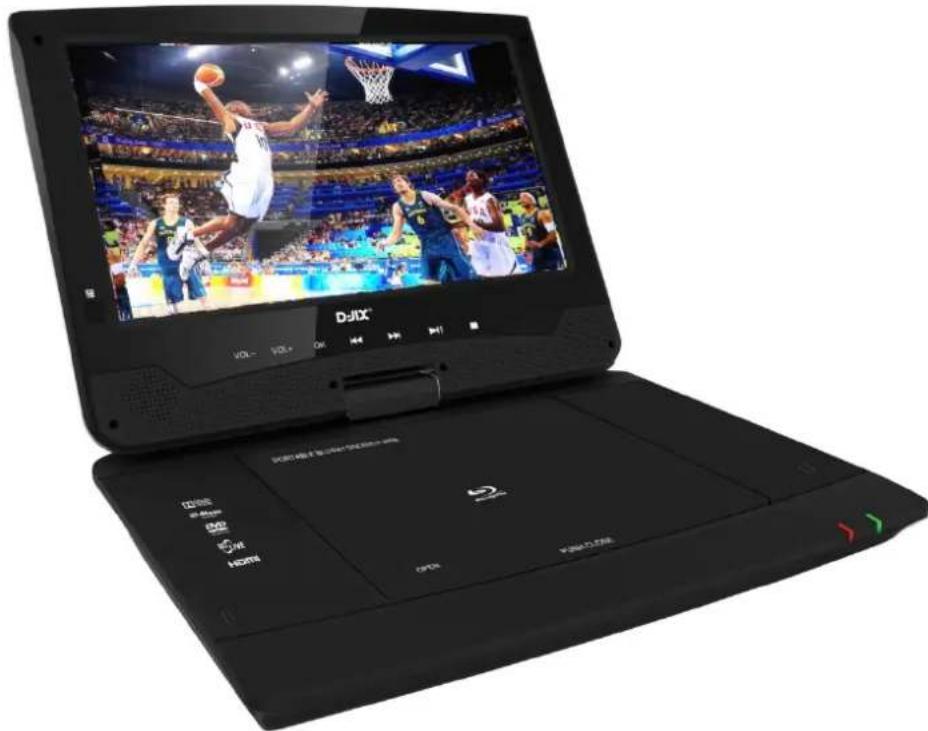
Photo representative only
This guide must be read before using the device
DECLARATION OF CONFORMITY
CE
We, D-JIX (Logicom - 55 rue de Lisbonne, 75008 Paris, France), declare that the D-JIX PVS 1007-20 BR (MBP1061) portable Blu-ray player complies with the essential and applicable requirements of the following directives:
- 2004/108/EC on safety and electromagnetic compatibility.
- 2006/95/EC on electrical equipment designed for use within certain voltage limits.
- 2006/66/EC on batteries and accumulators.
- 2011/65/EU on the restriction of certain hazardous substances.
- 2009/125/EC on establishing a framework for the setting of ecodesign requirements for energy-related products.
Any product modification unauthorized by D-JIX voids this declaration of conformity and the user's authority to operate this device.
Paris, 18 July 2013
Bernard Bessis, President

natural_image
Simple line drawing of a hand holding an object, no text or symbols presentTABLE OF CONTENTS
Table of Contents
DECLARATION OF CONFORMITY 1
OVERVIEW OF THE PVS 1007-20 BR 4
SAFETY AND GENERAL INFORMATION 4
LISTENING SAFELY 6
ENVIRONMENTAL INFORMATION 6
MAIN CHARACTERISTICS ____ 7
DIAGRAMS AND FUNCTIONS 7
View of the DVD player 7
Remote control 8
USING THE REMOTE CONTROL 9
ACCESSORIES 10
CONNECTING THE POWER SUPPLY 10
CONNECTING A USB DEVICE 10
CONNECTING AN SD/MMC CARD 10
CONNECTING AUDIO/VIDEO OUTPUT 11
HDMI OUTPUT CONNECTION 12
INTERNET CONNECTION 12
BASIC OPERATION 13
PLAYING AN AUDIO FILE 14
PLAYING AN IMAGE FILE 15
PLAYING A VIDEO FILE 16
BD LIVE 17
GENERAL SETTINGS 18
DISPLAY SETTINGS 21
AUDIO SETTINGS 22
SYSTEM INFORMATION 23
TECHNICAL SPECIFICATIONS 24
USING THE BATTERY 24
TROUBLESHOOTING 25
WARRANTY AND AFTER-SALES SERVICE 26
OVERVIEW OF THE PVS 1007-20 BR
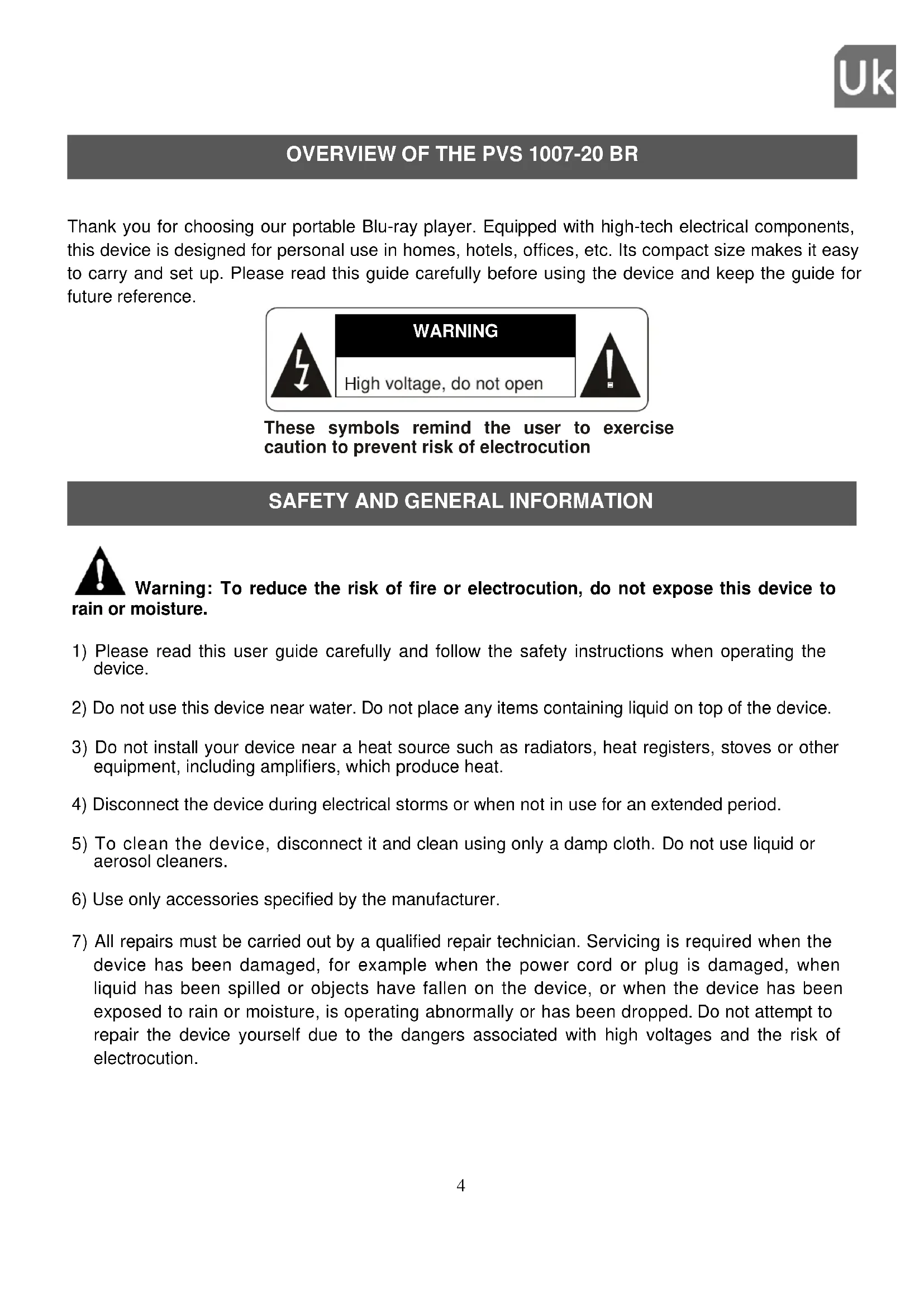
Thank you for choosing our portable Blu-ray player. Equipped with high-tech electrical components, this device is designed for personal use in homes, hotels, offices, etc. Its compact size makes it easy to carry and set up. Please read this guide carefully before using the device and keep the guide for future reference.

text_image
WARNING High voltage, do not openThese symbols remind the user to exercise caution to prevent risk of electrocution
SAFETY AND GENERAL INFORMATION

Warning: To reduce the risk of fire or electrocution, do not expose this device to moisture.
1) Please read this user guide carefully and follow the safety instructions when operating the device.
2) Do not use this device near water. Do not place any items containing liquid on top of the device.
3) Do not install your device near a heat source such as radiators, heat registers, stoves or other equipment, including amplifiers, which produce heat.
4) Disconnect the device during electrical storms or when not in use for an extended period.
5) To clean the device, disconnect it and clean using only a damp cloth. Do not use liquid or aerosol cleaners.
6) Use only accessories specified by the manufacturer.
7) All repairs must be carried out by a qualified repair technician. Servicing is required when the device has been damaged, for example when the power cord or plug is damaged, when liquid has been spilled or objects have fallen on the device, or when the device has been exposed to rain or moisture, is operating abnormally or has been dropped. Do not attempt to repair the device yourself due to the dangers associated with high voltages and the risk of electrocution.
8) Do not use discs with irregular shapes, for example heart-shaped or star-shaped discs. These may cause the device to malfunction.
9) Do not dispose of the device or the battery in fire. There is a serious risk of explosion and/or release of highly toxic chemicals.
10) Do not expose the device to extended periods of sunshine or low temperatures.
11) Do not submerge the device in water and do not use in damp or wet locations.
12) Do not expose the device to fire or other hazardous environments, for example at petrol stations or in areas where explosive materials are used.
13) Never look at the laser beam emitted by the device. This device carries the following label:

text_image
CLASS 1 LASER PRODUCT14) Do not block the ventilation openings. These must not be obstructed by placing the portable Blu-ray player on a cushion, sofa or other similar surface. The slots and opening on the unit are designed for ventilation.
15) Do not place you portable Blu-ray player on a cart, bracket, tripod or table. The device may fall and cause damage or injury.
16) Never place heavy or sharp objects on the LCD screen.
17) Only use the mains adapter supplied with the portable Blu-ray player. The use of any other adapter will void the warranty.
18) The mains adapter plug is used to disconnect the device and must remain easily accessible.
LISTENING SAFELY
Before using the earphones, check that the volume is not set to maximum to prevent hearing loss.
The high volume settings are intended for individuals with reduced hearing capacity and not for those with normal hearing.
Do not use the earphones while driving.
Adjust the volume so that you can hear the sounds around you.


To prevent possible hearing damage, do not listen at high volume levels for long periods.
Listening to a portable audio player at high volumes can damage your hearing and lead to hearing impairment (deafness, ringing ears, tinnitus and hyperacusis). In order to prevent these risks it is recommended not to use the device at full volume; use must not exceed one hour per day.
This product complies with standards EN 50332-1:2000 and EN 50332-2:2003 on sound pressure level restrictions, in compliance with Article L. 5232-1 of the French Public Health Code relating to portable audio players.
To protect your hearing, only use the earphones supplied, or those with reference D-JIX EM-100 or headphones with reference D-JIX CM-100 available on our site www.djix.fr.
Do not use pre-amplified or amplified models of headphones or earphones (i.e. with individual volume control and/or self-powered by batteries), as they do not ensure adherence to the maximum volume.
If the headphones or earphones need replaced, use a model identical to the original to ensure adherence to the maximum volume.
For further information, please contact our hotline or visit our site at www.djix.fr.
ENVIRONMENTAL INFORMATION

This logo indicates that this is electrical or electronic equipment containing hazardous substances that may have an effect on the environment and human health.
These products should therefore be treated as waste under EU Directive 2012/19/EC, of Wednesday, July 04, 2012, on electrical and electronic equipment waste. They should not be disposed of with unsorted municipal waste and instead should be returned to a waste dropoff company or through a community collection or recovery program.

Please always take your device to a professional to perform removal of the built-in battery.
MAIN CHARACTERISTICS
• A 10-inch high-brightness color LCD screen.
- Compatible with Blu-ray, DVD, VCD, MP3, MP4, CD, JPEG and Xvid formats amongst others. Built-in stereo speaker.
• Built-in lithium polymer rechargeable battery.
• Supports PAL or NTSC systems.
- Supports operating systems in several languages, fast-forward/fast-backward, repeat function.
- Zoom in/out function.
• Supports HDMI output signal function.
DIAGRAMS AND FUNCTIONS
View of the DVD player

text_image
D-JIX® 1 2 3 4 5 6 7 8 9 VOL- VOL+ OK MH PH HI 10 MO PORTABLE BLU-RAY DISCOVO-PLAYER DOLEY TRUARD dts HD DVD VIDEO RO LIVE HDMI Blu-ray Disc OPEN RUSH CLOSE 11 12 13 14 15- Screen
- Previous key
- OK key
- Volume + key
- Infrared sensor
- Volume - key
- Next key
- PLAY/PAUSE key
- STOP key
- Speakers
- Disc door
- Press to shut
- OPEN key
- Charge indicator
- Power indicator
Right side

text_image
1 2 3 4 5 6Left side

text_image
DC BY 0.5V 7 8Rear

text_image
LAN 9- 3.5mm jack
- AV output
- AV input
- HDMI output
-
SD/MMC port
-
USB port
- 12V DC IN
- ON/OFF button
- Ethernet port
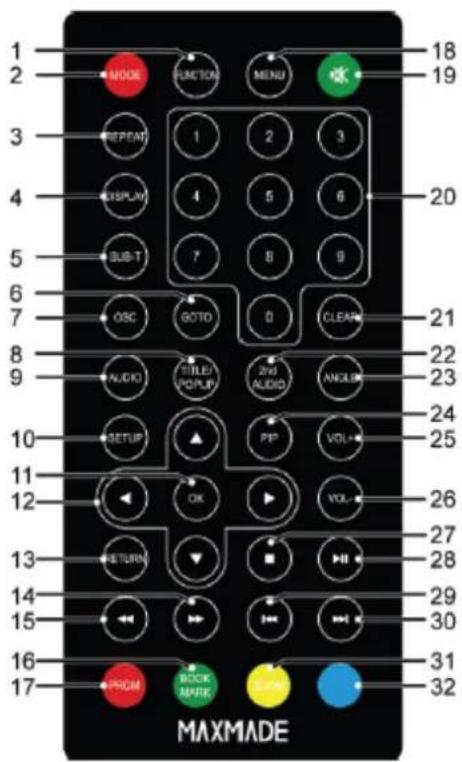
Remote control
text_image
1 2 3 4 5 6 7 8 9 10 11 12 13 14 15 16 17 MODE FUNCTION MENU 20 21 22 23 24 25 26 27 28 29 30 31 32 MAXMADE- Function
- Mode
- Repeat
- Display
- Subtitle
- Goto
- OSC
- Title/Popup
- Audio
- Setup
- OK
- Arrow keys
- Return
- Fast-forward
- Fast-backward
- Green/Book mark
17 Red/Program
18 Menu
19 Mute
20 Numeric keys
21 Clear
22 2 ^nd Audio
23 Angle
24 PIP
25 Volume +
26 Volume -
27 Stop
28 Play/Pause
29 Previous
30 Next
31 Yellow/Book mark view
32 Blue/Zoom
USING THE REMOTE CONTROL
Insert the CR2025 battery into the remote control as shown below.

text_image
Diagram showing two mechanical or electrical component states with labeled components and directional arrows indicating movement or transformation.CR2025 battery
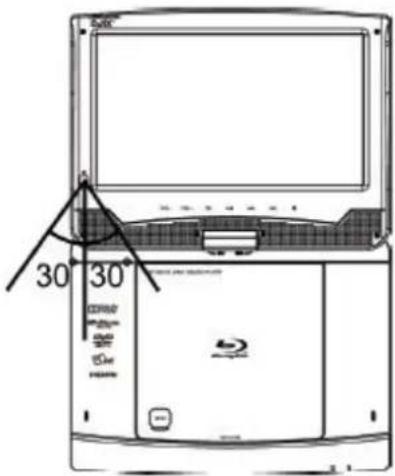
When using the remote control, ensure the infrared light is pointing at the infrared sensor on the device. The distance between the device and the remote control must be less than 3 meters. Refer to the following illustration.
text_image
30 30Note:
1). Avoid dropping the device or placing it in a damp location.
2). Avoid exposing the device's infrared sensor to direct sunlight.
3). Replace the remote control's battery once exhausted.
ACCESSORIES
| 10-inch LCD screen | 1 |
| Remote control | 1 |
| Audio/video cable 1 | |
| Mains power adapter | 1 |
| Cigarette lighter power cable 1 | |
| Instruction manual 1 | |
| Earphones 1 |
CONNECTING THE POWER SUPPLY
Plug the adapter jack plug into the 12V DC IN input jack located at the right of the device then plug the other end into the mains socket. Refer to the illustration below.

text_image
12V DC On/Off button DC IN 12V ON OFFCONNECTING A USB DEVICE
The device can be connected to a USB mass storage device. Refer to the following illustration.

text_image
AV OUT AV IN HOME OUT SDMMC USBCONNECTING AN SD/MMC CARD
The device can be connected to an SD/MMC card. Refer to the following illustration.

text_image
AV OUT AV IN HDMI OUT SDMMCCONNECTING AUDIO/VIDEO OUTPUT
The device can be connected to an external speaker. Refer to the following illustration.
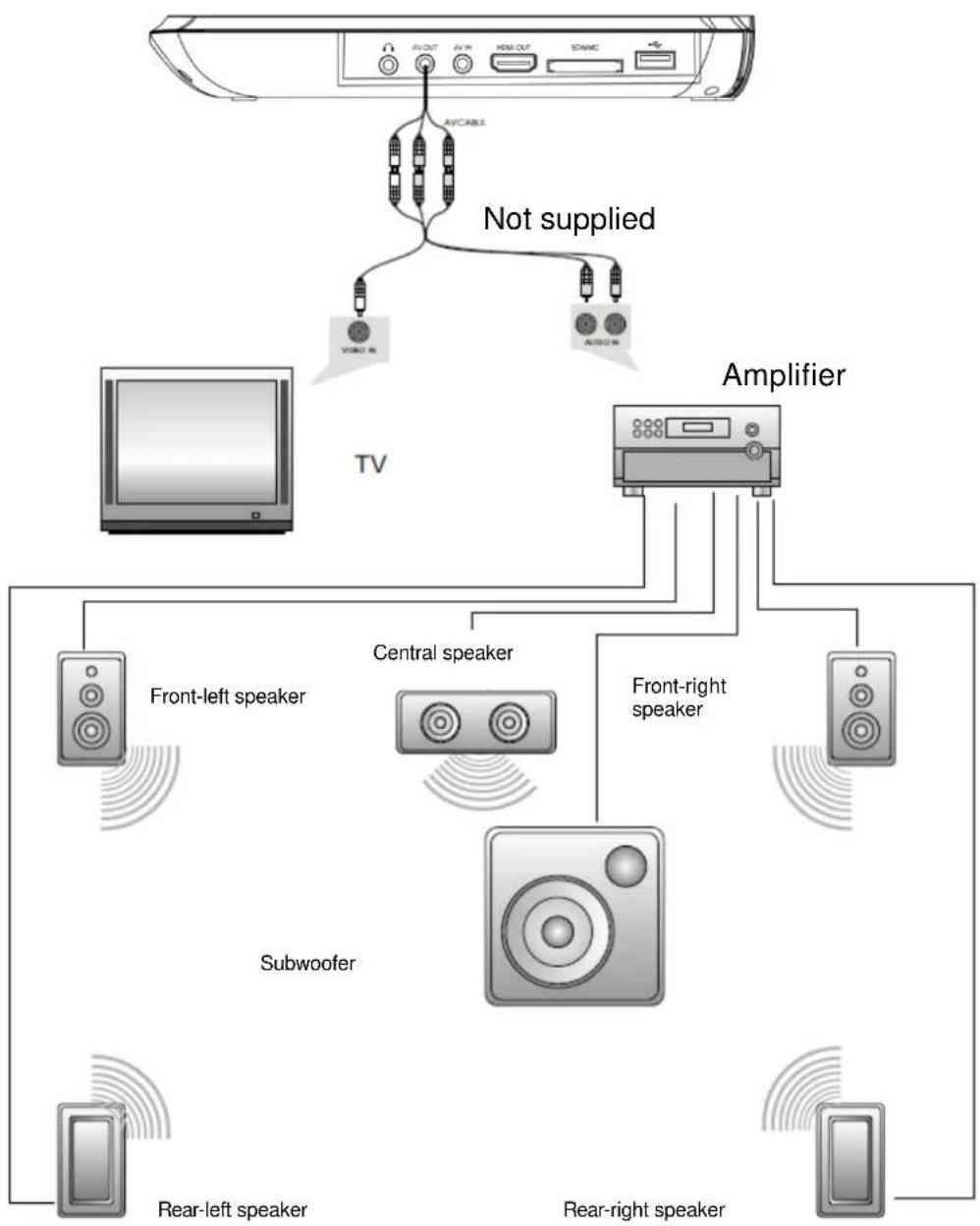
flowchart
graph TD
    A["TV"] --> B["Amplifier"]
    B --> C["Subwoofer"]
    C --> D["Rear-left speaker"]
    C --> E["Rear-right speaker"]
    C --> F["Front-left speaker"]
    C --> G["Central speaker"]
    C --> H["Front-right speaker"]
    A --> I["AVCABLE"]
    I --> J["Not supplied"]
    J --> K["AC/DC"]
    J --> L["VISA IN"]
    J --> M["ALB/DC"]
Note: Use 480p/576p or 480i/576i resolution to maximize image quality.
HDMI OUTPUT CONNECTION
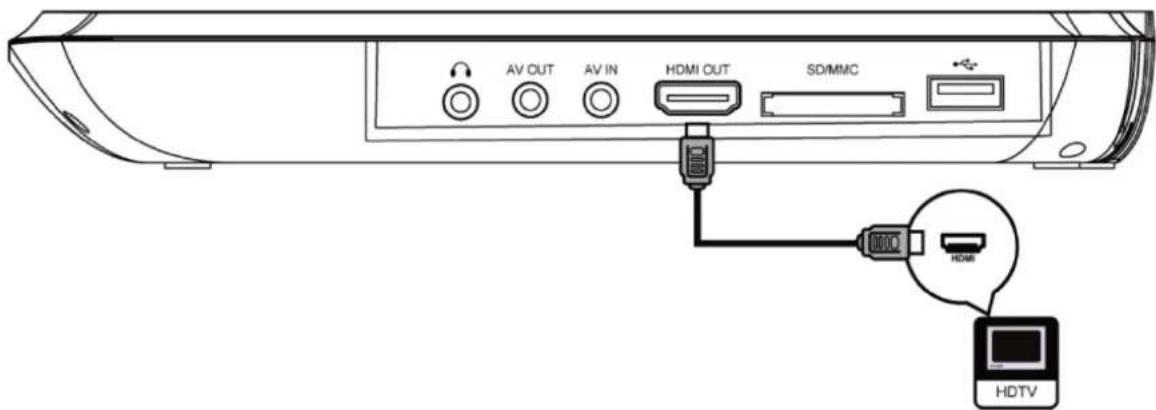
The device can be connected using an HDMI cable (not supplied) to a screen supporting HDMI. Refer to the following illustration.
text_image
AV OUT AV IN HDMI OUT SD/MMC HDMI HDTVPlease change the resolution to 1080p for better image quality.
After using the HDMI connection, remember to switch the resolution back to 720p for best image quality on the Blu-ray player.
INTERNET CONNECTION
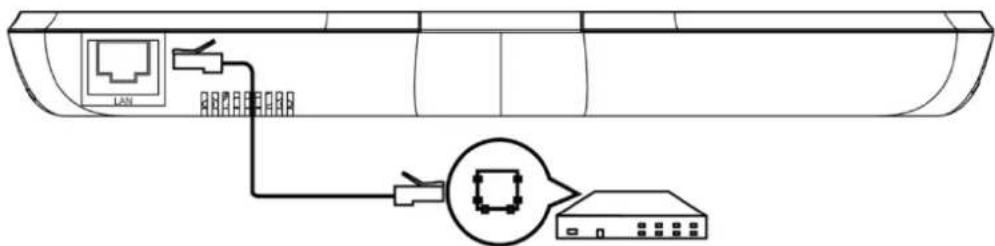
The device can be connected to the Internet using an Ethernet cable to enable access to BD-Live content.
text_image
Diagram showing network connection between a router and a server, with labeled ports and connections.To connect your Blu-ray player to the Internet, connect the Ethernet cable (not supplied) to the Ethernet port of the Blu-ray player and then connect it to a modem or router.
BASIC OPERATION
Switching on the player
Slide the ON button on the left of the player to switch on the player.
Setup menu
To access the setup menu on the Blu-ray player, press the "SETUP" button on the remote control.

If a CD is inserted into the player, you will not be able to access the settings menu.
Browsing the menus
When a menu is displayed, press the navigation buttons (◀ ▶ ▼ ▲) on the remote control.
Choosing the language
- Select "General Settings" in setup.
- Press the Up/Down buttons to select "Language".
- Press the right navigation button to select "Player Menu". Then select the desired language.
Playing a disc
- Press the button located on the door of the Blu-ray player.
- Insert a disc face up.
- Close the door of the Blu-ray player and start playing the disc.
- To stop playback, press ■.
PLAYING AN AUDIO FILE
Place a disc, an SD/MMC card or a mass storage unit into the player.
Press "FUNCTION" to access the Media Center. Press "FUNCTION" again to leave the menu. Press the ▲▼ navigation arrows or the "OK" key on the remote control to select the storage device containing your Audio files.
Then select "Music" using the ▲▼navigation arrows and press the "OK" key on the remote control to confirm. This enables the Blu-ray player to display only Audio files.
After this, you can browse through your storage device. To browse, use the ▲▼ navigation arrows and the "OK" button on the remote control. To return to the previous folder, select "FUNCTION".
Use the remote control to control playback of your audio files.
| Button | Action | |
| ▶II | Play or Resume playback/Pause | |
 | Stop playback | |
| Skip to next or previous | ||
 | Fast-backward or fast-forward playback. Press several times to increase speed. (max x5) | |
| Use to choose the number of the Audio file to listen to. | ||
| REPEAT | Use to choose repeat mode. | |
Note:
- During playback, press "FUNCTION" to display the previous music folder.
- For multi-session discs, only the first session will be played.
- This player cannot read files which are protected by digital rights management.
- This Blu-ray player does not support MP3PRO audio file format.
- The special characters of MP3 ID3 audio files might not display correctly on the screen.
PLAYING AN IMAGE FILE
Place a disc, an SD/MMC card or a mass storage unit into the player.
Press "FUNCTION" to access the Media Center. Press "FUNCTION" again to leave the menu. Press the ▲▼ navigation arrows or the "OK" key on the remote control to select the storage device containing your Image files.
Then select "Image" using the ▲▼navigation arrows and press the "OK" key on the remote control to confirm. This enables the Blu-ray player to display only Image files.
After this, you can browse through your storage device. To browse, use the ▲▼ navigation arrows and the "OK" button on the remote control. To return to the previous folder, select "FUNCTION".
Use the remote control to control playback of your audio files.
| Button | Action |
 | Use to rotate an image. |
 | Use to invert a photo. |
 | Stop image playback. |
 | Use to select the speed of image transition (slow, medium, fast). |
 | Use to choose the number of the Image file to view. |
| REPEAT | Use to choose repeat mode. |
Image option:
Press the "OSC" button on the remote control to access the image options.
- File: use to determine/select the number of the desired image.
- Selection mode: use to change the playback mode (Normal, Shuffle, Random).
- Transition speed: use to select the speed of image transition (slow, medium, fast).
- Transition mode: use to change the transition animation between two images.
Listening to music during image playback:
Create a musical slideshow to play both MP3 and JPEG files simultaneously.
- Select your Music (refer to "playing an audio file") and start playback.
- Press "FUNCTION" and return to the main menu with the choice between Photo, Music, Video or AVCHD and choose Photo.
- Browse to the folder containing your Images and start playback of your images.
Note:
- The music continues until the folder containing your music is finished
- To stop playback of the music, press ■ twice.
Place a disc, an SD/MMC card or a mass storage unit into the player.
Press "FUNCTION" to access the Media Center. Press "FUNCTION" again to leave the menu. Press the ▲▼ navigation arrows or the "OK" key on the remote control to select the storage device containing your Image files.
Then select "Video" using the ▲▼navigation arrows and press the "OK" key on the remote control to confirm. This enables the Blu-ray player to display only Video files.
After this, you can browse through your storage device. To browse, use the ▲▼ navigation arrows and the "OK" button on the remote control. To return to the previous folder, select "FUNCTION".
Use the remote control to control playback of your Video/Disc files.
| Button | Action | |
| AUDIO | Use to select the language on the audio track | |
| SUBTITLE | Use to choose the language of the subtitles | |
| REPEAT | Use to activate or deactivate repeat mode | |
| ZOOM | Use to zoom in/out on the video | |
| BOOKMARK SET | Use to save a point during playback | |
| BOOKMARK VIEW | Use to select a point during playback | |
| GOTO | Use to jump to a specified time during playback | |
| 2^nd AUDIO | Use to choose the audio track from the main movie or the PiP video. | |
| PiP | Use to activate the 2^nd video | |
| OSC | Use to access options relating to selection and control of the video during playback. | |
 | Play or Resume playback/Pause | |
| Stop current playback | ||
| Skip to next or previous | ||
| Fast-backward or fast-forward playback. Press several times to increase speed. (max x5) | ||
Display options:
TOP menu: use to display additional information or the content of the disc.
POP UP: use to display the disc's menu without stopping playback.
DISPLAY: use to display extra disc information.
Note: For Blu-ray disc with the Java application, the resume function is not available.
BD LIVE
Enjoy the BD-live function which allows you to use the Interactive functions of the disc when the Blu-ray player is connected to the Internet.
- Additional content (such as trailers, subtitles, BD-Java, etc) can be downloaded to a USB mass storage device.
- Certain video data can be viewed during download.
- When a disc supporting BD-Live is in playback, the player or the disc ID can be sent to the supplier of the content via the Internet.
Note:
- The Blu-ray player must be connected and set to access the Internet.
- For slower Internet connections, connecting to the Internet may take longer.
- Follow the instructions given by the disc when using the BD-Live function.
- It is recommended that a USB mass storage device with at least 1GB of free space is used.
GENERAL SETTINGS
Press the "Setup" key to display the setup menu. Press "Setup" again to leave the menu.
In the sub-menu, press "◀▶▼▲" to select the desired option then the "OK" key to confirm. The system can be configured to your own preferences.
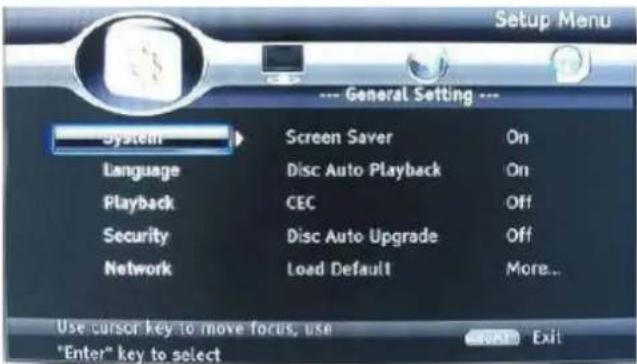
1. System:
text_image
Setup Menu --- General Setting --- System Screen Saver On Language Disc Auto Playback On Playback CEC Off Security Disc Auto Upgrade Off Network Load Default More... Use cursor key to move focus, use "Enter" key to selectThe System option can be set here.
- Screen saver: use to activate or deactivate the screen saver
• Auto playback: use to activate or deactivate auto playback when you insert a Disc. - CEC: use to activate or deactivate Consumer Electronics Control which enables compatible devices to communicate with each other and to send each other control commands (HDMI only).
- Defaults settings: use to restore the default settings of the Blu-ray player.
- Easy installation: use to quickly configure the Blu-ray player (language, resolution and screen format).
- BUDA: use to view the remaining memory on your Blu-ray player and to select where to store the BD-live data (USB, Internal Memory, SD/MMC Card).
2. Language:

text_image
Setup Menu --- General Setting --- System OSD English Language Menu English Playback Audio English Security Subtitle English Network Use cursor key to move focus, use "Enter" key to selectUse to set the language for different uses.
- Player (OSD) menu: use to choose the language for the Blu-ray player.
• Disc menu: use to choose the language in the disc menus.
• Audio: use to change the language of the audio track of the disc. - Subtitles: use to change the language of the subtitles of the disc.
Note: You must select the audio language and the subtitles which can be played with your disc.
3. Playback settings:

text_image
Setup Menu --- General Setting --- System Closed Caption On Language Angle Mark On Playback PIP Mark On Security Secondary Audio ... On Network Last Memory On Use cursor key to move focus, use Cancel Exit "Enter" key to selectUse to activate certain functions of disc playback.
- Closed Caption: use to activate or deactivate the audio description for hearing-impaired users.
- Angle Mark: use to activate or deactivate management of playback from all different angles contained on the disc.
- PiP Mark: use to activate or deactivate the PiP mark function
• Secondary audio: use to activate or deactivate the audio of the PiP - Resume play: use to activate or deactivate resume playback when a disc is restarted.
- PBC: use to support certain VCD discs for chapters and menus.
4. Security:

text_image
Setup Menu --- General Setting --- System Change Password More... Language Parental Control More... Playback Country Code More... Security Network Use cursor key to move focus, use "Enter" key to selectUse to set the options relating to security of the Blu-ray player.
- Change password: use to change the parental control password
- Parental control: use to choose the parental control restriction level.
• Country code: use to choose the country code of the Blu-ray player.
Note:
The initial code is 0000.
5. Connectivity:
Use to set the options relating to the Internet.
- Internet connection: use to enable or disable connection to the Internet.
- Information: use to determine connection information when connected to the Internet (IP Address, Network Mask, Default Gateway, DNS1, DNS2)
- Connection test: use to determine whether you are connected to the Internet.
• IP setting: use to obtain an IP address automatically or manually.
• BD-Live connection: use to restrict or allow BD-live content.
• Proxy setting: use to set a proxy.
DISPLAY SETTINGS
Press the "Setup" key to display the setup menu. Press "Setup" again to leave the menu.
Press ▶ once to access the display settings.
In the sub-menu, press "◀▶▼▲" to select the desired option then the "OK" key to confirm. The system can be configured to your own preferences.
1. TV

text_image
Setup Menu --- Display Setting --- TV Screen 16:9 Full Resolution 480I/576I TV System NTSC Color Space RGB HDMI Deep Color Off Video Process Motion Video... Use cursor Key to move focus, use "Enter" key to selectUse to set the display options of the Blu-ray player and output screens.
• TV screen: use to choose the display format for the TV
- Resolution: use to choose the display resolution of the player and your TV
- TV system: use to choose from the European standard (PAL), the US standard (NTSC) or the International standard (Multi).
• Color space: use to change the color transmission mode for screen compatibility for colors.
- HDMI deep color: use to set the depth of the colors for HDMI (30bits, 36bits, 48bits or deactivated).
- 1080p 24Hz HDMI: use to activate 24Hz frame rate which improves the image quality/smoothness on movies.
2. Video Process:

text_image
Setup Menu --- Display Setting --- TV Video Process Motion Video... Video Adjust Sharpness More... Low Use cursor key to move focus, use "Enter" key to selectUse to choose the screen settings of the Blu-ray player.
• Video adjust: use to adjust the brightness, contrast, hue and saturation.
- Sharpness: use to choose the sharpness of the picture.
AUDIO SETTINGS
Press the "Setup" key to display the setup menu. Press "Setup" again to leave the menu.
Press ▶ twice to access the audio settings.
In the sub-menu, press "◀▶▼▲" to select the desired option then the "OK" key to confirm. The system can be configured to your own preferences.
1. Audio Output

text_image
Setup Menu Audio Setting --- Audio Output Spdif PCM SACD Output HDMI PCM Speaker Sett... Down_samp 48K Post Process DRC Auto Karaoke Setup Use cursor key to move focus, use "Enter" key to selectUse to choose the audio output settings of the Blu-ray player.
• HDMI digital: use to set the sound decoding
- Bitstream: sends the undecoded audio to the amplifier
• PCM: decodes the signal and sends it to the amplifier (not supplied)
• Re-encode: encodes and sends the audio
• Down sampling: use to change the data rate.
- Dolby DRC: use to activate or deactivate Dolby DRC (uncompressed audio format).
• DRC: use to choose a dynamic sound mode.
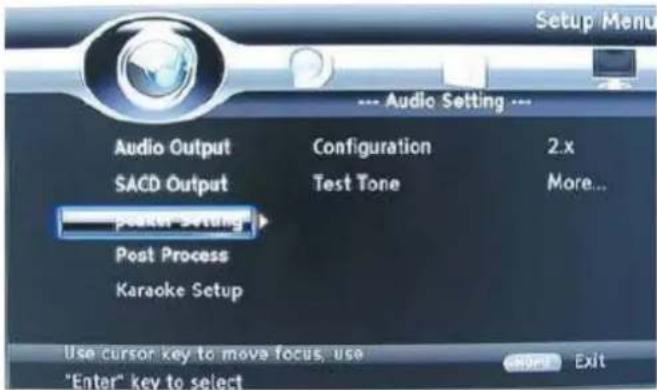
2. Speaker settings
text_image
Setup Menu Audio Setting --- Audio Output Configuration 2.x SACD Output Test Tone More... power setting Post Process Karaoke Setup Use cursor key to move focus, use "Enter" key to select- Configuration: use to adjust the audio system.
• Test audio: use to test the audio system.
SYSTEM INFORMATION
Press the "Setup" key to display the setup menu. Press "Setup" again to leave the menu.
Press ▶ three times to access system information.
In the sub-menu, press "◀▶▼▲" to select the desired option then the "OK" key to confirm. The system can be configured to your own preferences.

text_image
Setup Menu System information --- Software Version : BDP Y3.0 MAC : 50 -8A -CB -00 -00 -00 Use cursor key to move focus, use "Enter" key to selectDisplays the Blu-ray system information (the information in the above image is given as an example only).
TECHNICAL SPECIFICATIONS
Compatible discs: BD, BD-R, BD-RE, DVD+R/RW, DVD-R/RW, DVD-Video, VCD, CD, CD-R/RW
Video formats: H.264/VC1/MPEG1/MPEG-2/MPEG4
Audio format: Dolby Digital, Dolby Digital Plus, Dolby TrueHD, DTS-HD, MP3
Signal system: PAL/NTSC
Screen size: 10 inches
HDMI output: 480i/576i, 480p/576p, 720p, 1080i, 1080p, 1080p@24Hz
Video output: 1 Vp-p/75 ohm
Audio output: 2 Vrms >1 kohm
0.5 Vp-p (75 ohm)
MP3 frequency: 32kHz, 44.1kHz, 48kHz
MP3 average bit rate: 112kbps - 320kbps
USB: supports USB 1.1
Laser: BD wavelengths: 405 +5nm/-5nm
DVD wavelengths: 650 +12nm/-10nm
CD wavelengths: 790 +15nm/-15nm
Power source: 9-12V DC
Consumption: 10 W
Operating temperature: 0\~40°C
Weight: 1.3 kg
Dimensions (W x D x H): 262X42X205mm
Battery type: Li-Polymer
USING THE BATTERY
The device uses a long-life Li-polymer battery as its portable power supply. The battery has no "memory effect" and can therefore be recharged completely safely, whether completely or partially discharged. The battery is completely charged in less than 6 hours and lasts for around 2 hours.
The battery can only be recharged when the device is switched off and remains connected to the mains supply.
- The normal operating temperature is 0^ C to 40^ C;
- Always disconnect from the mains supply when the device is not in use
- The device heats up during playback. This is normal, but it is preferable to avoid extended playback or playback while the device is unattended.
- Avoid striking the device against other objects and keep away from heat sources and damp areas.
Warning : Danger of explosion if the battery is incorrectly replaced. Replace only with the same battery type or equivalent.
TROUBLESHOOTING
| PROBLEM SOLUTION | |
| The remote control is not responding | - Check that the player is connected to a power outlet.- Check that the infrared light is pointing at the infrared sensor on the device.- Check that the batteries are correctly inserted into the remote control. |
| No image or sound | Check that device is installed under optimal conditions: volume set to medium, audio or TV receiver working correctly, audio system correctly connected. |
| No image with HDMI connection | If the player is connected to an unauthorized display device with an HDMI cable, the audio/video signal cannot be displayed. |
| No High Definition signal works on the TV | - Check that the audio cables are correctly connected to the audio input of your TV.- Assign the audio input of the television to the corresponding video input |
| No sound with the HDMI connection | You will not be able to hear sound if your HDMI output is connected to a non-HDCP device or a device which is only DVI compatible. |
| The disc is not read | - Check that your disc is correctly inserted.- Check that your disc is supported by the Blu-ray player. Check with the technical specifications.- Check that your disc is a Region 2 disc.- Clean you disc. |
This product is continuously being improved; functions and specifications are subject to change without prior notice.
WARRANTY AND AFTER-SALES SERVICE
SCOPE OF WARRANTY
The D-Jix supplier warranty is valid for normal use of the device as defined in the instructions.
This warranty excludes damage due to a cause that is external to the device. Specifically, the warranty does not apply if the device is damaged as a result of a bump or drop, an operating error, a connection that does not comply with these instructions, or inadequate protection against heat, humidity, or freezing temperatures.
The warranty is applicable only in metropolitan France.
The legal warranty for hidden defects applies in compliance with Articles 1641 et seq. of the French Civil Code.
LOGICOM S.A.
55 rue de Lisbonne
75008 Paris 8ème
PROCEDURES FOR CONTACTING AFTER-SALES SERVICES
Before returning the device to the vendor, you must contact us in order to be sure that your device is faulty.
- Have your device to hand.
- A customer service number is available on +44 (0)1 48 63 67 94/+44 (0)1 48 63 67 95 or you can use the website www.djix.fr
- An interactive voice response system will provide you with a solution for each of your problems.
JRV1.0
DJIX®
natural_image
Black D-IX 3D TV device with a basketball game displayed on its screen, no visible text or symbols on the device itself.
VIDEO

Blu-ray Disc

DOLBY
TRUEHD

dts-hd
Master Audio

Java™
POWERED

PVS 1007-20 BR
Lecteur Blu-ray
natural_image
Simple line drawing of a curved object with intersecting lines (no text or symbols)SOMMAIRE
Sommaire
DECLARATION DE CONFORMITE 28
PRESENTATION DU PVS 1007-20 BR 31
SECURITE ET INFORMATIONS GENERALES 31
SECURITE LIE A L'ECOUTE 33
INFORMATION SUR L'ENVIRONNEMENT 33
PRINCIPALES CARACTERISTIQUES 34
text_image
CLASS 1 LASER PRODUCTtext_image
O PV/CLR PV/IR HOME ESP/AMR USB 1 2 3 4 5 6Côté gauche

text_image
DC BY: 0.5V 7 8Arrière

text_image
LAN 9- Prise Jack 3.5mm
- Sortie AV
- Entrée AV
- Sortie HDMI
-
Port SD/MMC
-
Prise USB
- DC IN 12V
- Bouton ON/OFF
- Port Ethernet
Télécommande

text_image
1 2 3 4 5 6 7 8 9 10 11 12 13 14 15 16 17 MODE FUNCTION MENU 20 21 22 23 24 25 26 27 28 29 30 31 32 MAXMADE- Function
- Mode
- Repeat
- Display
- Subtitle
- Goto
- OSC
- Title/Popup
- Audio
- Setup
- OK
- Touche de direction
- Return
- Avancé
- Reculé
- Vert/Book mark set
text_image
Diagram showing two mechanical assembly states with labeled components and directional arrows indicating movement or transformation.Pile CR2025
text_image
DC IN Bouton DC IN 12V ON OFFCONNECTER UN PERIPHERIQUE USB
text_image
Setup Menu --- General Setting --- System Language Playback Security Network Screen Saver Disc Auto Playback CEC Disc Auto Upgrade Load Default On Off Off More... Use cursor key to move focus; use "Enter" key to selecttext_image
Setup Menu --- General Setting --- System OSD English Language Menu English Playback Audio English Security Subtitle English Network Use cursor key to move focus, use "Enter" key to selecttext_image
Setup Menu --- General Setting --- System Closed Caption On Language Angle Mark On Playback PIP Mark On Security Secondary Audio ... On Network Last Memory On Use cursor key to move focus, use CERT Exit "Enter" key to selecttext_image
Setup Menu --- General Setting --- System Change Password More... Language Parental Control More... Playback Country Code More... Security Network Use cursor key to move focus, use "Enter" key to select Exittext_image
Setup Menu --- Display Setting --- TV Screen 16:9 Full Resolution 480I/576I TV System NTSC Color Space RGB HDMI Deep Color Off Video Process Motion Video... Use cursor key to move focus, use "Enter" key to selecttext_image
Setup Menu --- Display Setting --- TV Video Process Motion Video... Video Adjust Sharpness More... Low Use cursor key to move focus, use "Enter" key to selecttext_image
Setup Menu Audio Setting --- Audio Output Spdif PCM SACD Output HDMI PCM Speaker Sett... Down_samp 48K Post Process DRC Auto Karaoke Setup Use cursor key to move focus, use "Enter" key to selecttext_image
Setup Menu Audio Setting --- Audio Output Configuration 2.x SACD Output Test Tone More... poster setting Post Process Karaoke Setup Use cursor key to move focus, use "Enter" key to selecttext_image
Setup Menu --- System information --- Software Version : BDP Y3.0 MAC : 50 -8A -CB -00 -00 -00 Use cursor key to move focus, use "Enter" key to selectCHAMP D'APPLICATION DE LA GARANTIE
natural_image
Black Dijkstra 3D TV device with a basketball game on screen, displayed against a white background (no visible text or symbols on the device body beyond branding)
VIDEO

Blu-ray Disc

DOLBY
TRUEHD

dts-hd
Master Audio

Java™
POWERED
LIVE
PVS 1007-20 BR
Blu-Ray-Player
Bedienungsanleitung
text_image
CLASS 1 LASER PRODUCTtext_image
Diagram showing two mechanical components with positive charges and directional arrows, likely illustrating a process or assembly.Batterie CR2025
text_image
30 30 15.5mHinweis:
text_image
DC IN 12V On/Off-Schalter DC IN 12V ON OFFtext_image
AV OUT AV IN HDMI OUT SODMICtext_image
Diagram showing network connection between a router and a server, with labeled ports and cable connections.text_image
Setup Menu --- General Setting --- System Screen Saver On Language Disc Auto Playback On Playback CEC Off Security Disc Auto Upgrade Off Network Load Default More... Use cursor key to move focus, use "Enter" key to selecttext_image
Setup Menu --- General Setting --- System OSD English Language Menu English Playback Audio English Security Subtitle English Network Use cursor key to move focus, use "Enter" key to selecttext_image
Setup Menu --- General Setting --- System Closed Caption On Language Angle Mark On Playback PIP Mark On Security Secondary Audio ... On Network Last Memory On Use cursor key to move focus, use "Enter" key to selecttext_image
Setup Menu --- General Setting --- System Change Password More... Language Parental Control More... Playback Country Code More... Security Network Use cursor key to move focus, use "Enter" key to selecttext_image
Setup Menu --- Display Setting --- TV Screen 16:9 Full Resolution 480I/576I TV System NTSC Color Space RGB HDMI Deep Color Off Video Process Motion Video... Use cursor key to move focus, use "Enter" key to selecttext_image
Setup Menu --- Display Setting --- TV Video Process Motion Video... Video Adjust Sharpness More... Low Use cursor key to move focus, use "Enter" key to selecttext_image
Setup Menu Audio Setting --- Audio Output Spdif PCM SACD Output HDMI PCM Speaker Set... Down_samp 48K Post Process DRC Auto Karaoke Setup Use cursor key to move focus, use "Enter" key to selecttext_image
Setup Menu Audio Setting --- Audio Output Configuration 2.x SACD Output Test Tone More... Preaser Setting Post Process Karaoke Setup Use cursor key to move focus, use "Enter" key to selectnatural_image
Black Dijkstra laptop displaying a basketball game in progress, with no visible text or symbols on the device itself.
VIDEO

Blu-ray Disc

DOLBY
TRUEHD

dts-hd
Master Audio

Java™
POWERED

PVS 1007-20 BR
Lector Blu-ray
Manual de uso
Bernard BESSIS, Presidente Director General

natural_image
Simple line drawing of a hand holding an object, no text or symbols presentÍNDICE
Índice
text_image
CLASS 1 LASER PRODUCTtext_image
DC IN 12V ON OFFCONECTAR UN PERIFÉRICO USB
text_image
AV OUT AV IN HOW OUT SDMMC USBCONECTAR UNA TARJETA SD/MMC
text_image
Diagram showing network connection between a router and a server, with labeled ports and cable connections.text_image
Setup Menu --- General Setting --- System Screen Saver On Language Disc Auto Playback On Playback CEC Off Security Disc Auto Upgrade Off Network Load Default More... Use cursor key to move focus, use "Enter" key to selecttext_image
Setup Menu --- General Setting --- System OSD English Language Menu English Playback Audio English Security Subtitle English Network Use cursor key to move focus, use "Enter" key to selecttext_image
Setup Menu --- General Setting --- System Closed Caption On Language Angle Mark On Playback PIP Mark On Security Secondary Audio ... On Network Last Memory On Use cursor key to move focus, use "Enter" key to selecttext_image
Setup Menu --- General Setting --- System Change Password More... Language Parental Control More... Playback Country Code More... Security Network Use cursor key to move focus, use "Enter" key to select Exittext_image
Setup Menu --- Display Setting --- TV Screen 16:9 Full Resolution 480I/576I TV System NTSC Color Space RGB HDMI Deep Color Off Video Process Motion Video... Use cursor key to move focus, use "Enter" key to selecttext_image
Setup Menu --- Display Setting --- TV Video Process Motion Video... Video Adjust Sharpness More... Low Use cursor key to move focus, use "Enter" key to selecttext_image
Setup Menu Audio Setting --- Audio Output Spdif PCM SACD Output HDMI PCM Speaker Sett... Down_samp 48K Post Process DRC Auto Karaoke Setup Use cursor key to move focus, use "Enter" key to selecttext_image
Setup Menu Audio Setting --- Audio Output Configuration 2.x SACD Output Test Tone More... Prealer Setup Post Process Karaoke Setup Use cursor key to move focus, use "Enter" key to selecttext_image
Setup Menu --- System Information --- Software Version : BDP Y3.0 MAC : 50 -8A -CB -00 -00 -00 Use cursor key to move focus, use "Enter" key to selectSalida HDMI: 480i/576i, 480p/576p, 720p, 1080i, 1080p, 1080p @ 24 Hz
natural_image
Black D-8X laptop displaying a basketball game in progress, with no visible text or symbols on the device itself.
text_image
DVD VIDEO 6 Blu-rayDisc DOLBY TRUEHD dts-HD Master Audio Java™ POWERED BD LIVEPVS 1007-20 BR
Leitor Blu-ray
natural_image
Simple line drawing of a curved object with intersecting lines (no text or symbols)SUMÁRIO
Sumário
text_image
CLASS 1 LASER PRODUCTnatural_image
Pure electrical circuit lines without any symbols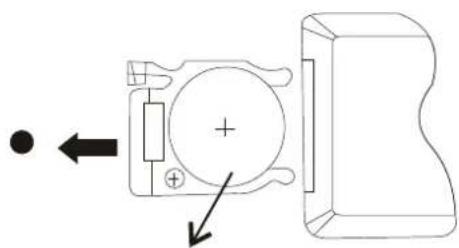
natural_image
Pure electrical circuit lines without any symbolsPilha CR2025
text_image
DC IN 12V Botão On/Off DC IN 12V ON OFFLIGAR UM PERIFERICO USB
text_image
Diagram showing network connection between a router and a server, with labeled ports and connections.text_image
Setup Menu --- General Setting --- System Screen Saver On Language Disc Auto Playback On Playback CEC Off Security Disc Auto Upgrade Off NetworkLoad Default More... Use cursor key to move focus, use "Enter" key to selecttext_image
Setup Menu --- General Setting --- System OSD English Language Menu English Playback Audio English Security Subtitle English Network Use cursor key to move focus, use "Enter" key to selecttext_image
Setup Menu --- General Setting --- System Closed Caption On Language Angle Mark On Playback PIP Mark On Security Secondary Audio ... On Network Last Memory On Use cursor key to move focus, use *Enter" key to selecttext_image
Setup Menu --- General Setting --- System Change Password More... Language Parental Control More... Playback Country Code More... Security Network Use cursor key to move focus, use "Enter" key to select Exittext_image
Setup Menu --- Display Setting --- TV Screen 16:9 Full Resolution 480I/576I TV System NTSC Color Space RGB HDMI Deep Color Off Video Process Motion Video... Use cursor key to move focus, use "Enter" key to selecttext_image
Setup Menu --- Display Setting --- TV Video Process Motion Video... Video Adjust Sharpness More... Low Use cursor key to move focus, use "Enter" key to selecttext_image
Setup Menu Audio Setting --- Audio Output Spdif PCM SACD Output HDMI PCM Speaker Set... Down_samp 48K Post Process DRC Auto Karaoke Setup Use cursor key to move focus, use "Enter" key to selecttext_image
Setup Menu Audio Setting --- Audio Output Configuration 2.x SACD Output Test Tone More... Preaser Setting Post Process Karaoke Setup Use cursor key to move focus, use "Enter" key to selecttext_image
Setup Menu --- System information --- Software Version: BDP Y3.0 MAC : 50 -8A -CB -00 -00 -00 Use cursor key to move focus, use "Enter" key to selectSaída HDMI: 480i/576i, 480p/576p, 720p, 1080i, 1080p, 1080p@24Hz
Saída vídeo: 1 Vp-p/75 Ohm
Saída áudio: 2 Vmrs >1 kohm
0.5-Vp-p (75 ohm)
natural_image
Black D-IXE laptop displaying a basketball game in progress, with no visible text or symbols on the device itself.
VIDEO

Blu-ray Disc

DOLBY
TRUEHD

dts-hd
Master Audio

Java™
POWERED

PVS 1007-20 BR
Lettore Blu-ray
Manuale d'uso
natural_image
Simple line drawing of a curved object with intersecting lines (no text or symbols)INDICE
Indice
text_image
CLASS 1 LASER PRODUCTtext_image
DC IN 100V 7 8Parte posteriore

text_image
LAN 9- Presa Jack 3,5 mm
- Uscita AV
- Ingresso AV
- Uscita HDMI
-
Porta SD/MMC
-
Presa USB
- DC IN 12V
- Pulsante ON/OFF
- Porta Ethernet
Telecomando

text_image
1 2 3 4 5 6 7 8 9 10 11 12 13 14 15 16 17 MODE FUNCTION MENU 20 21 22 23 24 25 26 27 28 29 30 31 32 MAXMADE1. Function
text_image
Diagram showing two mechanical or electrical component states with labeled components and directional arrows indicating movement or transformation.Pila CR2025
text_image
DC IN 12V Pulsante ON/OFF DC IN 12V ON OFFCOLLEGARE UNA PERIFERICA USB
text_image
Diagram showing network connection between a router and a server, with labeled ports and connections.text_image
Setup Menu --- General Setting --- System Screen Saver On Language Disc Auto Playback On Playback CEC Off Security Disc Auto Upgrade Off Network Load Default More... Use cursor key to move focus, use "Enter" key to selecttext_image
Setup Menu --- General Setting --- System OSD English Language Menu English Playback Audio English Security Subtitle English Network Use cursor key to move focus, use "Enter" key to selecttext_image
Setup Menu --- General Setting --- System Closed Caption On Language Angle Mark On Playback PIP Mark On Security Secondary Audio ... On Network Last Memory On Use cursor key to move focus, use *Enter* key to selecttext_image
Setup Menu --- General Setting --- System Change Password More... Language Parental Control More... Playback Country Code More... Security Network Use cursor key to move focus, use "Enter" key to selecttext_image
Setup Menu --- Display Setting --- TV Screen 16:9 Full Resolution 480I/576I TV System NTSC Color Space RGB HDMI Deep Color Off Video Process Motion Video... Use cursor key to move focus, use "Enter" key to selecttext_image
Setup Menu --- Display Setting --- TV Video Process Motion Video... Video Adjust Sharpness More... Low Use cursor key to move focus, use "Enter" key to selecttext_image
Setup Menu Audio Setting --- Audio Output Spdif PCM SACD Output HDMI PCM Speaker Set... Down_samp 48K Post Process DRC Auto Karaoke Setup Use cursor key to move focus, use "Enter" key to selecttext_image
Setup Menu Audio Setting --- Audio Output Configuration 2.x SACD Output Test Tone More... Poster Setting Post Process Karaoke Setup Use cursor key to move focus, use "Enter" key to selecttext_image
Setup Menu --- System Information --- Software Version : BDP Y3.0 MAC : 50 -8A -CB -00 -00 -00 Use cursor key to move focus, use "Enter" key to selectFrequenza MP3: 32kHz, 44.1kHz, 48 kHz
Bit rate medio MP3: 112kbps – 320 kpbs
USB: supporta USB 1.1
natural_image
Black DDXI 3D TV device with a basketball game displayed on its screen, no visible text or symbols on the device itself.
VIDEO

Blu-ray Disc

DOLBY
TRUEHD

dts-hd
Master Audio

Java™
POWERED

PVS 1007-20 BR
Blu-rayspeler
natural_image
Simple line drawing of a boat with hull and sail (no text or symbols)INHOUDSOPGAVE
Overzicht
text_image
CLASS 1 LASER PRODUCTtext_image
Diagram showing two mechanical or electrical component states with labeled components and directional arrows indicating movement or transformation.Batterij CR2025
text_image
Diagram showing network connection between a router and a server, with labeled ports and connections.text_image
Setup Menu --- General Setting --- System Screen Saver On Language Disc Auto Playback On Playback CEC Off Security Disc Auto Upgrade Off NetworkLoad Default More... Use cursor key to move focus, use "Enter" key to selectHier kunt u de systeemopties instellen.
text_image
Setup Menu --- General Setting --- System OSD English Language Menu English Playback Audio English Security Subtitle English Network Use cursor key to move focus, use "Enter" key to selecttext_image
Setup Menu --- General Setting --- System Closed Caption On Language Angle Mark On Playback PIP Mark On Security Secondary Audio ... On Network Last Memory On Use cursor key to move focus, use Cancel Exit "Enter" key to selecttext_image
Setup Menu --- General Setting --- System Change Password More... Language Parental Control More... Playback Country Code More... Security Network Use cursor key to move focus, use "Enter" key to selectWEERGAVE-INSTELLING:
text_image
Setup Menu --- Display Setting --- TV Screen 16:9 Full Resolution 480I/576I TV System NTSC Color Space RGB HDMI Deep Color Off Video Process Motion Video... Use cursor key to move focus, use "Enter" key to selecttext_image
Setup Menu --- Display Setting --- TV Video Process Motion Video... Video Adjust Sharpness More... Low Use cursor key to move focus, use "Enter" key to selecttext_image
Setup Menu Audio Setting --- Audio Output Spdif PCM SACD Output HDMI PCM Speaker Set... Down_samp 48K Post Process DRC Auto Kareoke Setup Use cursor key to move focus, use "Enter" key to selecttext_image
Audio Setting --- Audio Output Configuration 2.x SACD Output Test Tone More... poster setting Post Process Karaoke Setup Use cursor key to move focus, use "Enter" key to select HKEY Exittext_image
Setup Menu --- System Information --- Software Version : BDP Y3.0 MAC : 50 -8A -CB -00 -00 -00 Use cursor key to move focus, use "Enter" key to selectnatural_image
Black DuJX laptop displaying a basketball game in progress, with no visible text or symbols on the device itself.
VIDEO

Blu-ray Disc

DOLBY
TRUEHD

dts-hd
Master Audio

Java™
POWERED

LIVE
PVS 1007-20 BR
Odtwarzacz Blu-ray
natural_image
Simple line drawing of a curved object with intersecting lines (no text or symbols)SPIS TREŚCI
Spis treści
DEKLARACJA ZGODNOŚCI 191
OPIS PVS 1007-20 BR 194
BEZPIECZEŃSTWO I INFORMACJE OGÓLNE 194
BEZPIECZEŃSTWO PODCZAS SŁUCHANIA 196
INFORMACJE ZWIĄZANE ZE ŚRODOWISKIEM 196
PODSTAWOWE WŁAŚCIWOŚCI 197
SCHEMATY I FUNKCJE 197
WIDOK ODTWARZACZA DVD 197
PILOT 198
OBSŁUGA PILOTA 199
WYPOSAŻENIE 200
PODŁĄCZENIE DO GNIAZDA ZASILAJĄCEGO 200
PODŁĄCZENIE PERYFERYJNEGO URZĄDZENIA USB 200
PODŁĄCZENIE KARTY SD/MMC 200
PODŁĄCZENIE WYJŚCIE AUDIO-VIDEO 201
PODŁĄCZENIE WYJŚCIE HDMI 202
POŁĄCZENIE Z INTERNETEM 202
PODSTAWOWE ZASTOSOWANIE 203
ODTWARZANIE PLIKU AUDIO 204
ODCZYT PLIKU OBRAZOWEGO 205
ODTWARZANIE PLIKU WIDEO 206
BD LIVE 207
USTAWIENIA OGÓLNE 208
USTAWIENIA WYŚWIETLANIA 211
USTAWIENIA AUDIO 212
INFORMACJE O SYSTEMIE 213
SPECYFIKACJE TECHNICZNE 214
STOSOWANIE BATERII 214
NAPRAWA 215
GWARANCJA I SERWIS POSPRZEDAŻOWY 216
OPIS PVS 1007-20 BR
text_image
CLASS 1 LASER PRODUCTtext_image
Diagram showing two mechanical or electrical component states with labeled components and directional arrows indicating movement or transformation.Bateria CR2025