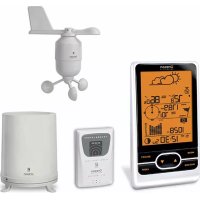
WMR86A - Weather Station OREGON SCIENTIFIC - Free user manual and instructions
Find the device manual for free WMR86A OREGON SCIENTIFIC in PDF.



| Product Type | Weather Station |
| Brand | Oregon Scientific |
| Model | WMR86A |
| Base station dimensions | 94 x 51 x 182.5 mm (L x W x H) |
| Base station weight | 241 g (without batteries) |
| Base station power | 3 AA 1.5 V batteries |
| Anemometer/wind vane dimensions | 178 x 76 x 214 mm |
| Anemometer/wind vane weight | 100 g |
| Anemometer/wind vane power | 2 AA 1.5 V batteries |
| Outdoor temperature/humidity sensor dimensions | 92 x 60 x 20 mm |
| Outdoor temperature/humidity sensor weight | 62 g |
| Outdoor temperature/humidity sensor power | 2 AAA 1.5 V batteries |
| Rain gauge dimensions | 114 x 114 x 145 mm |
| Rain gauge weight | 241 g |
| Rain gauge power | 2 AA 1.5 V batteries |
| Wireless range | 100 m (328 ft) without obstruction |
| Transmission frequency | 433 MHz |
| Main functions | Radio-controlled clock, weather forecast, indoor/outdoor temperature/humidity, dew point, wind (direction, speed, wind chill), UV index, barometer, precipitation, moon phase, backlight, auto-scan |
| Indoor temperature range | -50 °C to 70 °C (-58 °F to 158 °F) |
| Outdoor temperature range | -30 °C to 60 °C (-22 °F to 140 °F) |
| Humidity range | 2 % to 98 % (indoor), 5 % to 95 % (outdoor) |
| Barometric range | 700 – 1050 mb/hPa |
| Maintenance | Clean with a soft cloth, do not use abrasive or corrosive products |
| Safety instructions | Do not immerse in water, do not open the housing, use only new batteries of the same type |
| Additional sensor compatibility | THGR810, UVN800, THWR800 sensors, STC800 solar panel (sold separately) |
Frequently Asked Questions - WMR86A OREGON SCIENTIFIC
User questions about WMR86A OREGON SCIENTIFIC
0 question about this device. Answer the ones you know or ask your own.
Ask a new question about this device
Download the instructions for your Weather Station in PDF format for free! Find your manual WMR86A - OREGON SCIENTIFIC and take your electronic device back in hand. On this page are published all the documents necessary for the use of your device. WMR86A by OREGON SCIENTIFIC.
USER MANUAL WMR86A OREGON SCIENTIFIC
Packaging Contents....1
Base Station 1
Wind Sensor 1
Temperature & Humidity Sensor .... 1
Rain Gauge 2
Accessories - Sensors....2
Overview....2
Front View 2
Back View 2
LCD Display....2
Wind Sensor 3
Rain Gauge .... 3
Outdoor Temperature / Humidity Sensor .... 4
Getting Started....4
Set Up Remote Wind Sensor 4
Set Up Remote Temperature / Humidity Sensor ..4
Set Up Rain Gauge .... 4
Set Up Base Station 4
Verify Connection....5
Wind Sensor 5
Temperature / Humidity Sensor 5
Rain Gauge .... 5
Mounting / Placing Of Sensors .... 5
Wind Sensor 5
Temperature / Humidity Sensor 6
Rain Gauge 6
Clock Reception 6
Clock / Calendar 7
Moon Phase 7
Auto Scanning Function....7
Weather Forecast 7
Temperature And Humidity....7
Temperature And Humidity Trend 8
Wind Chill / Direction / Speed....8
Uvi / Barometer / Rainfall....8
UV Index 9
Barometer....9
Rainfall 9
Backlight 9
Reset....9
Specifications 9
About Oregon Scientific 10
EU Declaration Of Conformity....11
FCC statement....11
INTRODUCTION
Thank you for selecting the Oregon Scientific™ Weather Station (WMR86 / WMR86A).
The base station is compatible with other sensors. To purchase additional sensors, please contact your local retailer.

Sensors with this logo 3.0 are compatible with this unit.
NOTE Please keep this manual handy as you use your new product. It contains practical step-by-step instructions, as well as technical specifications and warnings you should know about.
PACKAGING CONTENTS
BASE STATION

1 x Base Station

3 x AA UM-3
1.5V batteries
WIND SENSOR

natural_image
3D rendering of a propeller or fan device with four wheels and a triangular blade (no text or symbols visible)1 x Wind Sensor (1 x Wind Vane Above and 1 x Anemometer Below)

1 x sensor connector

2 x AA UM-3
1.5V batteries

4 x Screws
(Type A)

1 x Round
U- bolt
TEMPERATURE & HUMIDITY SENSOR

natural_image
Exterior view of a modern office building (no signage)1 x Temperature / Humidity Sensor

natural_image
Pure technical line drawing of a mechanical component without any text, numbers, or symbols1 x wall mount bracket

1 x Table stand

2 x AAA UM-4
1.5V battery
RAIN GAUGE

natural_image
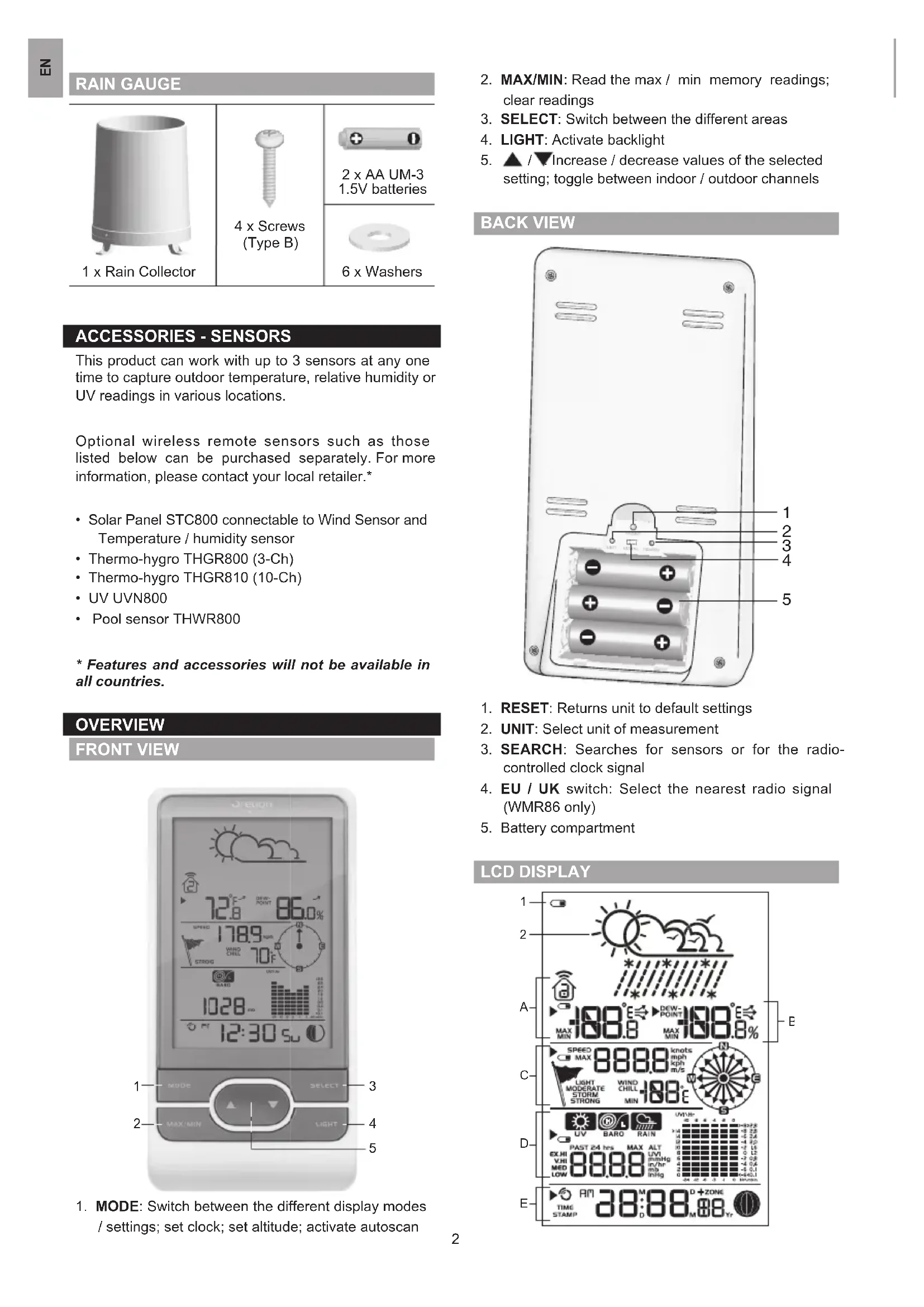
Exterior view of a cylindrical industrial trash bin with three legs (no text or symbols visible)1 x Rain Collector

4 x Screws
(Type B)

2 x AA UM-3
1.5V batteries

6 x Washers
ACCESSORIES - SENSORS
This product can work with up to 3 sensors at any one time to capture outdoor temperature, relative humidity or UV readings in various locations.
Optional wireless remote sensors such as those listed below can be purchased separately. For more information, please contact your local retailer.*
- Solar Panel STC800 connectable to Wind Sensor and Temperature / humidity sensor
• Thermo-hygro THGR800 (3-Ch)
• Thermo-hygro THGR810 (10-Ch) - UV UVN800
• Pool sensor THWR800
* Features and accessories will not be available in all countries.
OVERVIEW
FRONT VIEW

-
MODE: Switch between the different display modes / settings; set clock; set altitude; activate autoscan
-
MAX/MIN: Read the max / min memory readings; clear readings
- SELECT: Switch between the different areas
- LIGHT: Activate backlight
- ▲ / ▼ Increase / decrease values of the selected setting; toggle between indoor / outdoor channels
BACK VIEW

- RESET: Returns unit to default settings
- UNIT: Select unit of measurement
- SEARCH: Searches for sensors or for the radio-controlled clock signal
- EU / UK switch: Select the nearest radio signal (WMR86 only)
- Battery compartment
LCD DISPLAY

- Main unit battery low
- Weather forecast
A. Temperature Area
B. Humidity / Dew Point Area
C. Wind Speed / Wind Direction / Wind Chill Area
D. UVI / Barometer / Rainfall Area
E. Clock / Calendar / Moon Phase Area
A Temperature Area

- Indoor 🏠 / Outdoor channel temperature and humidity is displayed
- Outdoor sensor battery is low
- Selected area icon
- MAX / MIN temperature is displayed
- Temperature trend
- Temperature reading (°C / °F)
B Humidity / Dew Point Area

- Dew point level – Temperature is displayed
- MAX / MIN humidity / dew point level is displayed
- Humidity trend
- Humidity reading
C Wind Speed / Wind Direction / Wind Chill Area

- Selected area icon
- Wind speed level indicator
- Wind speed level description
- Wind speed reading (m/s, kph, mph or knots)
- Wind direction display
- Minimum wind chill is displayed
D UVI / Barometer / Rainfall Area

- UVI / barometer / rainfall reading is displayed
-
Outdoor UV / rain sensor battery is low
-
Past 24hrs rainfall is displayed
- UVI level indicator
- UVI / barometric pressure (mmHg, inHg or mb) / rainfall readings (in or mm) for the current hour
- Maximum UV is displayed
- UVI / barometric pressure / rainfall historical bar chart display
E Clock / Calendar / Moon Phase Area

- Clock signal reception indicator
- Timestamp is displayed
- Time zone offset
- Moon phase
- Time / date / calendar
WIND SENSOR

- Wind direction
- Wind vane casing
- Anemometer
- Solar power socket
RAIN GAUGE
Base and funnel:

- Rain gauge
- Battery compartment
- RESET button

- Funnel
- Indicator
OUTDOOR TEMPERATURE / HUMIDITY SENSOR

- LED status indicator
- RESET hole
- °C / °F: Select temperature unit
- CHANNEL switch
- Battery compartment
GETTING STARTED
NOTE Install batteries in the remote sensors before the base station matching the polarities (+ and -).
NOTE Use alkaline batteries for longer usage and consumer grade lithium batteries in temperatures below freezing.
SET UP REMOTE WIND SENSOR
The wind sensor takes wind speed and direction readings.
The sensor is battery operated. It is capable of transmitting data to the base station wirelessly within an approximate operating range of 100 meters (328 feet).
To insert batteries:

natural_image
Mechanical component diagram showing a rotating arm with three spherical joints (no text or symbols)
natural_image
Illustration of a cartoon character inside a helmet with a downward arrow, no text or symbols present- Unscrew the anemometer from the wind sensor carefully.
- Insert batteries matching the polarities (+ / -) and replace the anemometer. Press RESET after each battery change.
SET UP REMOTE TEMPERATURE / HUMIDITY SENSOR
The remote sensor can collect data from up to 3 channels.
To set up the remote sensor:
- Slide open the battery door.
- Slide channel switch to select a channel (1, 2, 3). Ensure you use a different channel for each sensor.
- Insert the batteries, matching the polarities (+ / -).
- Press RESET after each battery change.
- Close the battery door.
SET UP RAIN GAUGE
The rain gauge collects rain and takes rainfall readings. The sensor can remotely transmit data to the base station.
To set up the rain gauge:

natural_image
Illustration of a cylindrical industrial component with an upward arrow and number 1, no text or symbols present.
natural_image
Mechanical assembly diagram showing a component with labeled parts and an arrow indicating direction (no readable text or symbols)- Remove screws and slide the cover off in an upwards motion.
- Insert the batteries (2 x UM-3 / AA), matching the polarities (+ / -). Press RESET after each battery change.

natural_image
Mechanical component assembly with metallic parts and a numbered label (3) in the corner, no readable text or symbols present.- Remove the fi bre tape.
SET UP BASE STATION
NOTE Install batteries in the remote sensors before the base station matching the polarities (+ and -).
- Slide open the battery door.

natural_image
Metallic mobile phone casing with a downward arrow indicator (no text or symbols)
natural_image
Front view of a silver mobile phone casing with three buttons and ventilation slots (no text or symbols visible)- Insert the batteries, matching the polarities (+ / -).
- Press RESET after each battery change.
- Close the battery door.
NOTE Do not use rechargeable batteries. It is recommended that you use alkaline batteries with this product for longer performance.
NOTE Batteries should not be exposed to excessive heat such as sunshine or fire.
The battery icon indicator ☐ may appear in the following areas:
| AREA MEANING | |
| Weather Forecast Area | Battery in the base station is low. |
| Temperature or Humidity Area | The displayed channel indicates the outdoor sensor for which battery is low. |
| Wind Speed / Wind Direction / Wind Chil Area | Battery in the wind sensor is low. |
| UVI / Barometer / Rainfall Area | Battery in the UV / Rain sensor is low. |
VERIFY CONNECTION
Before proceeding to install sensors outside, please verify communication to the base station.
WIND SENSOR

Press SELECT until the selected area icons in the middle display area.
- Wind speed: Gently rotate the wind vane and confirm a numerical reading on the base station, e.g., 1789.
- Wind direction indicator. Move the direction of the wind indication and verify the icon moves in the same direction ⏻.
TEMPERATURE / HUMIDITY SENSOR

- Press SELECT until the selected area icon is in the upper display area.
- Press ▲ / ▼ to select channel 1 and verify a numerical reading.
RAIN GAUGE

- Press SELECT until the selected area icon is in the lower display area.
- Press MODE until is displayed.
- Tilt the tipping funnel on the rain gauge several times and verify a numerical reading on the base station.
TIP If no reading is displayed for a sensor, press the SEARCH button on the base station to initiate a wireless sensor search.
MOUNTING / PLACING OF SENSORS
WIND SENSOR
NOTE The sensor should be positioned in an open area away from trees or other obstructions.

natural_image
Two-step diagram showing mechanical assembly with labeled parts (a and b), no text or symbols present.Secure the sensor connector in the desired location:
a. Align the back of the sensor connector to an existing pole. Secure in place by inserting the ends of the U-bolt into the holes on the sensor connector and securing it with washers and bolts.
OR
b. Insert 4 type A screws into the holes of the sensor connector. Screw firmly into place, i.e., fence.
Slide wind vane onto the smaller end of the sensor connector.

natural_image
3D rendering of a helicopter with propeller and directional arrow (no text or symbols)IMPORTANT Ensure that the wind sensor is pointing North to enable it to record accurate readings.
TEMPERATURE / HUMIDITY SENSOR

TIP Ideal placements for the sensor would be in any location on the exterior of the home at a height of not more than 1.5 m (5 ft) and which can shield it from direct sunlight or wet conditions for an accurate reading.

natural_image
Diagram showing a device with a labeled component and its corresponding view (no text or symbols present)Secure the sensor in the desired location using the wall mount bracket or table stand.
RAIN GAUGE
The base station and rain gauge should be positioned within an effective range: about 100 meters (328 feet) in an open area.
The rain gauge should be mounted horizontally about 1 meter (3 feet) from the ground in an open area away from trees or other obstructions to allow rain to fall naturally for an accurate reading.
To ensure a level plane:
Put a few drops of water on the cross at the base of the funnel to check the horizontal level.

Water will pool to the center of the cross when the rain gauge is level.
If water remains on 1-4, the gauge is not horizontal. If necessary, adjust the level using the screw.

natural_image
Mechanical assembly diagram showing two stages of a turning process with arrows indicating direction (no text or symbols)NOTE For best results, ensure the base is horizontal to allow maximum drainage of any collected rain.
TIP Press RESET button on base station to erase all testing data.
CLOCK RECEPTION
This product is designed to synchronize its calendar clock automatically once it is brought within range of a radio signal:
WMR86:
• EU: DCF-77 signal: within 1500 km (932 miles) of Frankfurt, Germany.
- UK: MSF-60 signal: within 1500 km (932 miles) of Anthorn, England.
WMR86A:
- WWVB-60 signal: within 3200km (2000 miles) of Fort Collins Colorado.
WMR86 only - slide the EU / UK switch to the appropriate setting based on your location. Press RESET whenever you change the selected setting.
The reception icon will blink when it is searching for a signal. If the radio signal is weak it can take up to 24 hours to get a valid signal reception.
indicates the status of the clock reception signal.
| ICON MEANING | |
| Time is synchronized. Receiving signal is strong | |
| Time is not synchronized. Receiving signal is weak | |
To enable (and force a signal search) / disable the clock radio reception (clock synchronization):
-
Press SELECT to navigate to the Clock / Calendar / Moon Phase Area. ▶ will show next to the Area.
-
Press and hold SEARCH.
appears when it is enabled.
NOTE For best reception, the base station should be placed on a flat, non-metallic surface near a window in an upper floor of your home. The antenna should be placed away from electrical appliances and not be moved around when searching for a signal.
CLOCK / CALENDAR
To manually set the clock:
(You only need to set the clock and calendar if you have disabled the clock radio reception).
-
Press SELECT to navigate to the Clock Area. ▶ will show next to the Area.
-
Press and hold MODE to change the clock setting. The setting will blink.
-
Press ▲ / ▼ to increase / decrease the setting value.
-
Press MODE to confirm.
-
Repeat steps 3 to 4 to set the time zone offset hour (+ / -23 hours), 12 / 24 hour format, hour, minute, year, date / month format, month, date and weekday language.
NOTE If you enter +1 in the time zone setting, this will give you your regional time plus 1 hour.
If you are in the US (WMR86A only) set the clock to:
0 for Pacific time +1 for Mountain time
+2 for Central time +3 for Eastern time.
NOTE The weekday is available in English (E), German (D), French (F), Italian (I), Spanish (S) or Russian (R).
To change the clock display:
- Press SELECT to navigate to the Clock Area. ▶ will show next to the Area.
-
Press MODE to toggle between:
-
Clock with Seconds
- Clock with Weekday
- Calendar
MOON PHASE
The Calendar must be set for this feature to work (see Clock / Calendar section).
| New Moon Full Moon |  | ||
| Waxing Crescent |  | Waning Gibbous | |
| First quarter |  | Third quarter | |
| Waxing Gibbous |  | Waning Crescent |
AUTO SCANNING FUNCTION
To activate the outdoor temperature and humidity auto-scan function:
- Press SELECT to navigate to the Temperature or Humidity Area.▶ will show next to the Area.
- Press and hold MODE to activate auto-scan. The temperature and humidity display will scroll from indoor to ch1 through to ch3.
- Press any key to stop the auto-scan.
NOTE Channel 1 is used for the outdoor temperature and humidity sensor. Additional temperature and humidity sensors can use other channels.
WEATHER FORECAST
The weather display in the top part of the screen shows the current weather and the weather forecast for the next 12-24 hours within a 30-50 km (19-31 mile) radius.
Weather Forecast Area
| ICON DESCRIPTION | |
 | Sunny |
 | Partly cloudy |
 | Cloudy |
 | Rainy |
 | Snowy |
TEMPERATURE AND HUMIDITY
The weather station displays indoor and outdoor readings for:
- Temperature / relative humidity (current / maximum / minimum)
- Trend line
- Wind chill (current / minimum) and dew point level (current / maximum / minimum)
The weather station can connect up to 3 remote sensors.
NOTE Channel 1 is dedicated for outdoor temperature and humidity.
shows which remote sensor's data you are viewing.
appears when indoor data is displayed.
The timestamp records the date and time when storing the temperature and humidity readings in memory.
To select the temperature measurement unit:
Press UNIT to select °C / °F.
NOTE The unit of all temperature related displays will be changed simultaneously.
To view temperature (Current / Min / Max temperature) readings:
- Press SELECT to navigate to the Temperature Area. ▶ will show next to the Area.
- Press ▲ / ▼ to select the channel.
- Press MAX / MIN to toggle between current / MAX / MIN displays.
To view humidity (Humidity, Dew point) readings:
- Press SELECT to navigate to the Humidity Area. ▶ will show next to the Area.
- Press ▲ / ▼ to select the channel.
- Press MODE repeatedly to toggle between the humidity / dew point displays.
- Press MAX / MIN to toggle between current / MAX / MIN displays.
The timestamp is displayed accordingly in the Clock Area.
To clear the memories and timestamp for the temperature, humidity and dew point readings:
In the Temperature or Humidity Area, press and hold MAX / MIN to clear the readings.
NOTE The dew point advises at what temperature condensation will form.
TEMPERATURE AND HUMIDITY TREND
The trend lines are shown next to the temperature and humidity readings. The trend is shown as follows:
The base station provides wind speed and wind direction information.
To read the wind direction find the compass point the is pointing to.

The timestamp records the date and time when storing the wind speed readings.
To select the wind speed unit:
Press UNIT to switch between:
- Metres per second (m / s)
• Kilometers per hour (kph)
• Miles per hour (mph) - Knots (knots)

The wind level is shown by a series of icons:
| ICON | LEVEL | DESCRIPTION |
| N/A <2 mph (<4km/h) | ||
| Light 2-8 mph (3~13 km/h) | ||
| Moderate 9-25 mph (~14-41 km/h) | ||
| Strong 26-54 mph (~42-87 km/h) | ||
| Storm >55 mph (>88 km/h) |
To view the maximum wind speed and minimum wind chill readings:
- Press SELECT to navigate to the Wind Speed / Wind Direction / Wind Chill Area. ▶ will show next to the Area.
- Press MAX / MIN to toggle between current / MAX wind speed and current / MIN wind chill displays.
The timestamp is displayed accordingly in the Clock Area.
To clear minimum wind chill reading / maximum wind speed reading:
- Press SELECT to navigate to the Wind Speed / Wind Direction / Wind Chill Area. ▶ will show next to the Area.
- Press MAX / MIN repeatedly until minimum wind chill reading or maximum wind speed reading is displayed.
- Press and hold MAX / MIN to clear the readings.
NOTE The wind chill factor is based on the combined effects of temperature and wind speed. Displayed wind chill is calculated solely from Channel 1 sensors.
UVI / BAROMETER / RAINFALL
The weather station works with one UV sensor and one rain gauge. The station is capable of storing and displaying the hourly history data for the last 10 hours of UV index, and 24 hours of rainfall and barometric pressure readings.
| UVI | BAROMETER | RAINFALL |
The bar chart display shows the current and historical data for the UV index, barometric pressure and rainfall readings.
NOTE The number shown in the horizontal axis (Hr) indicates how long ago each measurement was taken (e.g. 3 hours ago, 6 hours ago, etc.). The bar represents the measurement taken for that specific 1 hour period.
E.g., if it is 10:30 pm now, the bar plotted directly above
-1 shows the reading recorded from 9 to 10 pm and
-6 shows the reading recorded earlier in the evening, between 4pm-5pm.
To view the UV / Barometer / Rainfall readings:
- Press SELECT to navigate to the UV / Barometer / Rainfall Area. ▶ will show next to the Area.
- Press MODE to toggle between UVI / Barometer / Rainfall readings. The corresponding icon will appear:
| UVI BAROMETER RAINFALL | ||
 |  |  |
To select the measurement unit for the barometer or rainfall readings:
In the UV / Barometer / Rainfall Area, press UNIT to switch between:
- Barometer: Millimeters of mercury (mmHg), inches of mercury (inHg), millibars per hectopascal (mb).
- Rainfall: Millimeters (mm), inches (in), recorded for that hour.
NOTE As the purpose of the bar graph is only to provide a quick comparison between the records of the past 24 hours, the vertical axis cannot convert from inches to mm. Therefore, changing the measurement unit will have no effect on the bar graph display.
UV INDEX
The UV index levels are as follows:
| UV INDEX DANGER LEVEL ICON | ||
| 0-2 Low | LOW | |
| 3-5 Moderate | MED | |
| 6-7 High | HI | |
| 8-10 Very high | V.HI | |
| 11 and above Extremely high | EX.HI | |
To view the maximum UV reading:
- Press SELECT to navigate to the UVI / Barometer / Rainfall Area. ▶ will show next to the Area.
- Press MODE repeatedly to select UV display.
- Press MAX / MIN to toggle between current / MAX UV index display.
The timestamp is displayed accordingly in the Clock Area.
To clear maximum UV reading:
- Press SELECT to navigate to the UVI / Barometer / Rainfall Area. ▶ will show next to the Area.
- Press MODE repeatedly to select UV display.
- Press and hold MAX / MIN to clear the readings.
BAROMETER
To set the altitude level compensation for the Barometer readings:
-
Press SELECT to navigate to the UVI / Barometer / Rainfall Area. ▶ will show next to the Area.
-
Press MODE repeatedly to select Barometric display.
- Press and hold MODE to enter the altitude setting.
- Press ▲ / ▼ to increase / decrease the setting value.
- Press MODE to confirm the setting.
RAINFALL
To view the recorded rainfall of the current hour or last 24 hours:
- Press SELECT to navigate to the UVI / Barometer / Rainfall Area. ▶ will show next to the Area.
- Press MODE repeatedly to select Rainfall display.
- Press MAX / MIN repeatedly to toggle between current, past 24 hour rainfall.
BACKLIGHT
Press LIGHT to activate the backlight for 5 seconds.
RESET
Press RESET to return to the default settings.
SPECIFICATIONS
BASE STATION
| Dimensions(L x W x H) | 94 x 51 x 182.5 mm(3.7 x 2.0 x 7.2 inches) |
| Weight | 241 g (8.5 oz) without battery |
| Battery | 3 x UM-3 (AA) 1.5V |
INDOOR BAROMETER
| Barometer unit | mb, inHg and mmHg |
| Measuring range | 700 – 1050mb/hPa |
| Accuracy | +/- 10 mb/hPa |
| Altitude setting | Sea levelUser setting for compensation |
| Weather display | Sunny, Partly Cloudy, Cloudy, Rainy and Snowy |
| Memory | Historical data and bar chart for last 24hrs |
INDOOR TEMPERATURE
| Temp. unit | °C / °F |
| Displayed range | -50°C to 70°C (-58°F to 158°F) |
| Operating range | 0°C to 50°C (32°F to 122°F) |
| Accuracy | 0°C - 40°C: +/- 1°C (+/- 2.0°F) |
| 40°C - 50°C: +/- 2°C (+/- 4.0°F) | |
| Memory | Current, Min and Max temp.Dew Point w/ Min and Max |
INDOOR RELATIVE HUMIDITY
| Displayed range | 2% to 98% |
| Operating range | 25% to 90% |
Accuracy 25% - 40%: +/- 7%
40% - 80%: +/- 5%
80% - 90%: +/- 7%
Memory Current, Min and Max
RADIO-CONTROLLED / ATOMIC CLOCK
Synchronization Auto or disabled
Clock display HH:MM:SS
Hour format 12hr AM/PM or 24hr
Calendar DD/MM or MM/DD
Weekday in 5 (E, D, F, I, S, R)
languages
REMOTE WIND SENSOR UNIT
Dimensions 178 x 76 x 214 mm
(L x W x H) (7 x 3 x 8.4 inches)
Weight 100 g (0.22 lbs) without battery
Wind speed unit m/s, kph, mph, knots
Speed accuracy 2 m/s \~ 10 m/s (+/- 3 m/s)
10 m/s \~ 56 m/s (+/- 10%)
Direction accuracy 16 positions
Transmission of Approx. every 56 seconds wind speed signal
Memory Max wind speed
Battery 2 x UM-3 (AA) 1.5V batteries
OUTDOOR TEMPERATURE / HUMIDITY UNIT
Dimensions 92 x 60 x 20 mm
(L × W × H) (3.6 × 2.4 × 0.79 in)
Weight 62 g (2.22oz) without battery
Humidity range 5% to 95%
Humidity accuracy 25% - 40%: +/- 7%
40% - 80%: +/- 5%
80% - 90%: +/- 7%
Temp. unit °C / °F
Temperature outdoor range -30°C to 60°C (-22°F to 140°F)
Temperature -20°C to 0°C:
+/- 2.0°C (+/- 4.0°F)
0^ C to 40^ C :
+/- 1.0°C (+/- 2.0°F)
40^ to 50^ :
+/- 2.0°C (+/- 4.0°F)
50^ to 60^ :
+/- 3.0°C (+/- 6.0°F)
RF frequency 433MHz
Range Up to 100 meters (328 feet) with no obstructions
Transmission Approx. every 102 seconds
Channel no. 3
Batteries 2 x UM-4 (AAA) 1.5V
REMOTE RAIN GAUGE
Dimensions 114 x 114 x 145 mm
(L x W x H) (4.5 x 4.5 x 5.7 inches)
Weight 241 g (0.54 lbs) without battery
Rainfall unit Mm and in
Range 0 mm – 9999 mm
Accuracy < 15 mm: +/- 1 mm
15 mm to 9999 mm: +/- 7%
Memory Past 24hrs, hourly from last memory reset
Battery 2 x UM-3 (AA) 1.5V
PRECAUTIONS
- Do not subject the unit to excessive force, shock, dust, temperature or humidity.
- Do not cover the ventilation holes with any items such as newspapers, curtains etc.
- Do not immerse the unit in water. If you spill liquid over it, dry it immediately with a soft, lint-free cloth.
- Do not clean the unit with abrasive or corrosive materials.
- Do not tamper with the unit's internal components. This invalidates the warranty.
- Only use fresh batteries. Do not mix new and old batteries.
- Images shown in this manual may differ from the actual display.
- When disposing of this product, ensure it is collected separately for special treatment and not as household waste.
- Placement of this product on certain types of wood may result in damage to its finish for which Oregon Scientific will not be responsible. Consult the furniture manufacturer's care instructions for information.
- The contents of this manual may not be reproduced without the permission of the manufacturer.
- Do not dispose old batteries as unsorted municipal waste. Collection of such waste separately for special treatment is necessary.
- Please note that some units are equipped with a battery safety strip. Remove the strip from the battery compartment before first use.
NOTE The technical specifications for this product and the contents of the user manual are subject to change without notice.
NOTE Features and accessories will not be available in all countries. For more information, please contact your local retailer.
ABOUT OREGON SCIENTIFIC
Visit our website (www.oregonscientific.com) to learn more about Oregon Scientific products. If you're in the US and would like to contact our Customer Care department directly, please visit: https://us.oregonscientific.com/service/support.asp
For international inquiries, please visit: http://us.oregonscientific.com/about/international.asp
EU DECLARATION OF CONFORMITY
Hereby, Oregon Scientific, declares that this Pro Weather Station (models: WMR86 / WMR86A) is in compliance with the essential requirements and other relevant provisions of Directive 1999/5/EC. A copy of the signed and dated Declaration of Conformity is available on request via our Oregon Scientific Customer Service.

COUNTRIES RTTE APPROVAL COMPLIED
All EU countries, Switzerland CH
and Norway N
FCC STATEMENT
This device complies with Part 15 of the FCC Rules. Operation is subject to the following two conditions: (1) This device may not cause harmful interference, and (2) This device must accept any interference received, including interference that may cause undesired operation.
WARNING Changes or modifications not expressly approved by the party responsible for compliance could void the user's authority to operate the equipment.
NOTE This equipment has been tested and found to comply with the limits for a Class B digital device, pursuant to Part 15 of the FCC Rules. These limits are designed to provide reasonable protection against harmful interference in a residential installation.
This equipment generates, uses and can radiate radio frequency energy and, if not installed and used in accordance with the instructions, may cause harmful interference to radio communications. However, there is no guarantee that interference will not occur in a particular installation. If this equipment does cause harmful interference to radio or television reception, which can be determined by turning the equipment off and on, the user is encouraged to try to correct the interference by one or more of the following measures:
- Reorient or relocate the receiving antenna.
- Increase the separation between the equipment and receiver.
- Connect the equipment into an outlet on a circuit different from that to which the receiver is connected.
- Consult the dealer or an experienced radio / TV technician for help.
DECLARATION OF CONFORMITY
The following information is not to be used as contact for support or sales. Please visit our website at http://us.oregonscientific.com/service/ for all enquiries.
We
Name: Oregon Scientific, Inc.
Address: 19861 SW 95 ^th Ave., Tualatin, Oregon 97062 USA
Telephone No.: 1-800-853-8883
declare that the product
Product No.: WMR86 / WMR86A
Product Name: Pro Weather Station
Manufacturer: IDT Technology Limited
Address: Block C, 9/F, Kaiser Estate, Phase 1, 41 Man Yue St., Hung Hom, Kowloon, Hong Kong
is in conformity with Part 15 of the FCC Rules. Operation is subject to the following two conditions: 1) This device may not cause harmful interference. 2) This device must accept any interference received, including interference that may cause undesired operation.
Professionell Väderstation
natural_image
3D rendering of a propeller with propeller blades and four spherical arms (no text or symbols)
4 x Skruvar
(Type A)

1 x Runda
U-fästen
TEMPERATUR & LUFTFUKTIGHETSSENSOR

natural_image
White rectangular electronic device with ventilation slots and a closed lid (no visible text or symbols)1 x Temperatur / Luftfuktighets-sensor

natural_image
Simple line drawing of a symmetrical mechanical or electrical component with no text or symbolsnatural_image
Simple 3D rendering of a cylindrical object with four legs, resembling a trash bin or container (no text or symbols visible)1 x Regnuppsamlare

4 x Skruvar (Type B)

2 x UM-3 (AA)
1.5V batterier

6 xBrickor
TILLBEHÖR - SENSORER
- Uppsamlare
- Indikator
UTOMHUSTEMPERATUR-/ LUFTFUKTIGHETSSENSOR

natural_image
Mechanical assembly diagram showing a bracket with internal components and a numbered label (3) in the corner, no readable text or symbols present.- Ta bort tejpen.
ATT STÄLLA IN HUVUDENHETEN
natural_image
Two views of a silver remote control panel showing a button with a downward arrow and three buttons on the side (no text or symbols visible)natural_image
Mechanical assembly diagram showing a lever mechanism with motion arrows (no text or symbols)
natural_image
Mechanical assembly diagram showing a bracket with bolts and a pin, no text or symbols presentnatural_image
3D illustration of a helicopter with propeller and directional arrow (no text or symbols)natural_image
Diagram showing a device with a plug and a separate device (no text or symbols present)natural_image
Two mechanical diagrams showing a rotating component and a screw being inserted (no text or symbols)natural_image
3D rendering of a propeller with propeller blade and four spherical arms (no text or symbols)natural_image
White rectangular electronic device with a closed lid and ventilation slots (no visible text or symbols)natural_image
Simple line drawing of a symmetrical mechanical or architectural component with no text or symbolsnatural_image
White cylindrical trash bin with three legs (no text or symbols visible)1 Coletor de Chuva
- Funil
- Indicador
SENSOR DE TEMPERATURA / UMIDADE DO AMBIENTE EXTERNO

- Indicador LED de status
- Orifício de RESET
- °C / °F: seleciona a unidade de temperatura
- Interruptor CHANNEL
- Compartimento de pilhas
INTRODUÇÃO
natural_image
Mechanical assembly diagram showing a motor or gear assembly with no visible text or symbols- Remova a fi ta de fi bra.
natural_image
Close-up of a silver mobile phone rear panel with a white downward arrow on the side (no text or symbols visible)
natural_image
Front view of a silver mobile phone casing with three buttons and mounting holes (no text or symbols visible)- Pressione SELECT até que o ícone de área seleccionada ▶ esteja na área situada no canto superior.
- Pressione ▲ / ▼ para selecionar canal 1 verifique a leitura numérica.

MEDIDOR DE CHUVA

natural_image
Two-step diagram showing mechanical assembly with labeled parts (a and b), no text or symbols present.natural_image
3D rendering of a helicopter with propeller and ground-mounted sensor (no text or symbols)natural_image
Diagram showing a device with a plug and connector, next to a rectangular device (no text or symbols)natural_image
Abstract grayscale graphic with a central droplet and cross shape, no text or symbols present.
natural_image
Close-up of a mechanical component with curved arrows indicating motion or force (no text or symbols visible)
natural_image
Close-up of a mechanical device with a cylindrical component inserted, showing motion blur (no text or symbols visible)Alcance exibido 2% a 98%
natural_image
3D rendering of a propeller with propeller blades and three spherical arms (no text or symbols)natural_image
White rectangular electronic device with a closed lid and ventilation slots (no visible text or symbols)natural_image
Pure technical line drawing of a mechanical component without any text, numbers, or symbols1 muurbevestigingssteun

1 x tafelstaander

2 x AAA UM-4
1,5V batterijen
REGENMETER

natural_image
Simple 3D rendering of a cylindrical object with four legs, resembling a trash bin or container (no text or symbols visible)1 x Regenvanger

4 x Schroeven (Type B)

2 x AA UM-3
1,5V batterijen

6 x Ringen
ACCESSOIRES - SENSOREN
- Trechter
- Indicator
BUITENSENSOR TEMPERATUUR / VOCHTIGHEID

natural_image
Two grayscale diagrams showing mechanical components with arrows indicating motion or force, no text or symbols present.natural_image
Illustration of a cylindrical industrial component with an upward arrow and circular label (no text or symbols)
natural_image
Mechanical assembly diagram showing a motor or housing component with a numbered label (2) and an arrow pointing to a specific part, no readable text or symbols present.natural_image
Mechanical assembly diagram showing a bracket with internal components and a numbered label (3) in the corner, no readable text or symbols present.- Verwijder de tape.
BASISSTATION OPSTELLEN
natural_image
Metallic remote control panel with a downward arrow indicator (no text or symbols)
natural_image
Front view of a silver remote control panel with three buttons and mounting holes (no text or symbols visible)natural_image
Mechanical assembly diagram showing a lever mechanism with motion arrows (no text or symbols)
natural_image
Mechanical assembly diagram showing a bracket with bolts and a pin, no text or symbols presentnatural_image
3D illustration of a helicopter with propeller and ground-mounted arm (no text or symbols)natural_image
Diagram showing a device with a plug and cable inserted into a rectangular device (no text or symbols present)natural_image
Pure electrical circuit lines without any symbols
natural_image
Close-up of a mechanical component with a curved base and arrow indicating motion (no text or symbols)
natural_image
Close-up of a mechanical assembly with a screw and shaft (no visible text or symbols)Kalender DD / MM of MM / DD
Weekdag in 5 talen (E, D, F, I, S, R)
DRAADLOZE WINDSENSOR
natural_image
3D rendering of a propeller or fan with propellers and a propeller blade (no text or symbols visible)natural_image
White rectangular electronic device with a circular vent and ventilation slots (no visible text or symbols)natural_image
Simple line drawing of a symmetrical mechanical or electrical component with no text or symbolsnatural_image
Exterior view of a cylindrical trash can with four legs (no text or symbols)- Imbuto
- Indicatore
SENSORE TERMOIGROMETRO

natural_image
Two technical diagrams showing a mechanical component with labeled parts, no readable text or symbols present.natural_image
Illustration of a cylindrical industrial component with an upward arrow and number 1 label (no text or symbols on the object itself)
natural_image
Mechanical assembly diagram showing a component with a labeled arrow and numbered marker (2), no readable text or symbols present.natural_image
Mechanical assembly diagram showing a bracket with internal components and a numbered label (3) in the corner, no readable text or symbols present.natural_image
Metallic remote control panel with a downward arrow indicator (no text or symbols)
natural_image
Front view of a silver mobile phone casing with three buttons and ventilation slots (no text or symbols visible)natural_image
Mechanical assembly diagram showing a metal rod connected to a bracket with a curved wire loop (no text or symbols)
natural_image
Mechanical assembly diagram showing a bracket with bolts and a pin, no text or symbols presentnatural_image
3D rendering of a helicopter with propeller and directional arrow (no text or symbols)natural_image
Diagram showing a device with a plug and connector, next to a rectangular device (no text or symbols)natural_image
Abstract grayscale graphic with a central droplet and cross shape, no text or symbols present.
natural_image
Close-up of a mechanical component with a curved arrow indicating motion or force (no text or symbols visible)
natural_image
Close-up of a mechanical assembly with a tool and screw (no visible text or symbols)Station de base....1
natural_image
3D rendering of a propeller with propeller blades and spherical base (no text or symbols)natural_image
White rectangular electronic device with a closed lid and ventilation slots (no visible text or symbols)natural_image
Simple line drawing of a symmetrical mechanical or electrical component with no text or symbols1 support de fixation murale
natural_image
Exterior view of a cylindrical metal trash bin with three legs (no text or symbols)INSTALLATION DU THERMO HYGROMÈTRE
natural_image
3D rendering of a cylindrical mechanical component with an upward arrow and number 1 label (no text or symbols on the object itself)
natural_image
Mechanical assembly diagram showing a component with a labeled arrow and numbered marker (2), no readable text or symbols present.natural_image
Mechanical assembly diagram showing a bracket with internal components and a numbered label (3) in the corner, no readable text or symbols present.natural_image
Close-up of a silver mobile phone rear panel with a white downward arrow on the side (no text or symbols visible)
natural_image
Front view of a silver mobile phone casing with three buttons and mounting holes (no text or symbols visible)natural_image
Mechanical assembly diagram showing a metal rod connected to a vertical pole with a curved wire loop (no text or symbols)
natural_image
Mechanical assembly diagram showing a bracket with bolts and a labeled component (b), no text or symbols present.natural_image
3D illustration of a helicopter with propeller and ground-mounted sensor (no text or symbols)natural_image
Abstract grayscale graphic with a central droplet and cross shape, no text or symbols present.
natural_image
Close-up of a mechanical component with a curved arrow indicating motion (no text or symbols visible)
natural_image
Close-up of a mechanical assembly with a screw and clamped components (no visible text or symbols)bar
| Time | UVI \ Hr | | :--- | :--- | | -10 | 4 | | -8 | 6 | | -6 | 5 | | -4 | 5 | | -2 | 5 | | 0 | 5 | | Time Range (min) | UVI \ Hr | | :--- | :--- | | >14 | 4 | | 14 | 6 | | 12 | 5 | | 10 | 5 | | 8 | 5 | | 6 | 5 | | 4 | 5 | | 2 | 5 | | 0 | 5 | | Time Range (min) | UVI \ Hr | | :--- | :--- | | -24 | 4 | | -12 | 6 | | -9 | 5 | | -3 | 5 | | -1 | 5 | | 0 | 5 | | +8 | 4 | | +6 | 5 | | +4 | 5 | | +2 | 5 | | +0 | 5 | | -2 | 5 | | -4 | 5 | | -6 | 5 | | <-6 | 5 | | Time Range (min) | UVI \ Hr | | :--- | :--- | | >28 | 4 | | 28 | 6 | | 24 | 5 | | 20 | 5 | | 16 | 5 | | 12 | 5 | | 8 | 5 | | 4 | 5 | | 0.1 | 5 | | Time Range (min) | UVI \ Hr | | :--- | :--- | | -24 | 4 | | -12 | 6 | | -9 | 5 | | -3 | 5 | | -1 | 5 | | 0 | 5 | | Time Range (min) | UVI \ Hr | | :--- | :--- | | >28 | 4 | | 28 | 6 | | 24 | 5 | | 20 | 5 | | 16 | 5 | | 8 | 5 | | 4 | 5 | | <0.1 | 5 | | Time Range (min) | UVI \ Hr | | :--- | :--- | | >28 | 4 | | 28 | 6 | | 24 | 5 | | 20 | 5 | | 16 | 5 | | 8 | 5 | | 4 | 5 | | <0.1 | 5 | | Time Range (min) | UVI \ Hr: h: min| | :--- | :---| | >28 | 4 | | 28 | 6 | | 24 | 5 | | 20 | 5 | | 16 | 5 | | 8 | 5 | | <0.1 | 5 | | Time Range (min) | UVI \ Hr: h: min| | :--- | :---| | >28 | 4 | | 28 | 6 | | 24 | 5 | | 20 | 5 | | 16 | 5 | | <0.1 | 5 | | Time Range (min) | UVI \ Hr: h: min| | :--- | :---| | >28 | 4 | | 28 | 6 | | 24 | 5 | | 20 | 5 | | <0.1 | 5 | | Time Range (min) | UVI \ Hr: h: min| | :--- | :---| | >28 | 4 | | 28 | 6 | | 24 | 5 | | <0.1 | 5 | | Time Range (min) | UVI \ Hr: h: min| | :--- | :---| | >28 | 4 | | 28 | 6 | | <0.1 | 5 | | Time Range (min) | UVI \ Hr: h: min| | :--- | :---| | >28 | 4 | | 28 | 6 | | <0.1 | 5 | | Time Range (min) | UVI \ Hr: h: min| | :--- | :---| | >28 | 4 | | 28 | 6 | | | <0.1 | 5 | | Time Range (min) | UVI \ Hr: h: min| | :--- | :---| | >28 | 4 | | 28 | 6 | | | <0.1 | 5 | | Time Range (min) | UVI \ Hr: h: min| | :--- | :---| | >28 | 4 | | 28 | 6 | |\( ^{+} \) = -6, +7, +9, +11, +13, +15, +17, +19, +21, +23, +25, +27, +29, +31, +33, +35, +37, +39, +41, +43, +45, +47, +49, +51, +53, +55, +57, +59, +61, +63, +65, +67, +69, +71, +73, +75, +77, +79, +81, +83, +85, +87, +89, +91, +93, +95, +97, +99, +101, +103, +105, +107, +109, +111, +113, +115, +117, +119, +121, +123, +125, +127, +129, +131, +133, +135, +137, +139, +141, +143, +145, +147, +149, +151, +153, +155, +157, +159, +161, +163, +165, +167, +169, +171, +173, +175, +177, +179, +181, +183, +185, +187, +189, +191, +193, +195, +197, +199, +201, +203, +205, +207, +209, +211, +213, +215, +217, +219, +221, +223, +225, +227, +229, +231, +233, +235, +237, +239, +241, +243, +245, +247, +249, +251, +253, +255, +257, +259, +261, +263, +265, +267, +269, +271, +273, +275, +277, +279, +281, +283, +285, +287, +289, +291, +293, +295, +297, +299, +301, uHh: h: min Note: The chart displays two rows of bars for each bar in the table. The first row contains all bars with '+' indicating the value above the bar. The second row contains all bars with '-' indicating the value below the bar. The third row contains all bars with an '<' indicating the value below the bar. The fourth row contains all bars with an '+' indicating the value above the bar. The fifth row contains all bars with an '+' indicating the value above the bar. The sixth row contains all bars with an '+' indicating the value above the bar. The seventh row contains all bars with an '-' indicating the value above the bar. The eight row contains all bars with an '+' indicating the value above the bar. The nine row contains all bars with an '+' indicating the value above the bar. The bottom row contains all bars with an '+' indicating the value above the bar. The bottom row contains all bars with an '-' indicating the value above the bar. The bottom row contains all bars with an '+' indicating the value above the bar. The bottom row contains all bars with an '+' indicating the value above the bar. The bottom row contains all bars with an '+' indicating the value above the bar. The bottom row contains all bars with an '+' indicating the value above the bar. The bottom row contains all bars with an '+' indicating the value above the bar. The bottom row contains all bars with an '+' indicating the value above the bar. The top row contains all bars with an '+' indicating the value above the bar. The top row contains all bars with an '+' indicating the value above the bar. The top row contains all bars with an '+' indicating the value above the bar. The top row contains all bars with an '+' indicating the value above the bar. The top row contains all bars with an '+' indicating the value above the bar. The top row contains all bars with an '+'indicating the value above the bar. The bottom row contains all bars with an '+' indicating the value above the bar. The top row contains all bars with an '+' indicating the value above the bar. The bottom row contains all bars with an '+' indicating the value above the bar. The bottom row contains all bars with an '+' indicating the value above the bar. The bottom row contains all bars with an '+' indicating the value above the bar. The bottom row contains all bars with an '+' indicating the value above the bar. The bottom row contains all bars with an '+' indicating the value above the bar. The bottom row contains all bars with an '+'indicating the value above the bar. The bottom row contains all bars with an '+'indicating the value above the bar. The bottom row contains all bars with an '+'indicating the value above the bar. The bottom row contains all bars with an '+'indicating the value above the bar. The bottom row contains all bars with an '+'indicating the value above the bar. The bottom row contains all bars with an '+'indicating the value above the Bar The bottom row contains all bars with an '+'indicating the value above the Bar The bottom row contains all bars with an '+'indicating the value above the Bar The bottom row contains all bars with an '+'indicating the value above the Bar The bottom row contains all bars with an '+'indicating the value above the Bar The bottom row contains all bars with an '+'indicating the value above the Bar The bottom row contains All Bars at this point in both units.https://us.oregonscientific.com/service/support.asp
EUROPE - DÉCLARATION DE CONFORMITÉ
natural_image
3D rendering of a propeller or fan with propellers and spherical base (no text or symbols visible)natural_image
White rectangular electronic device with a circular vent and ventilation slots (no visible text or symbols)natural_image
Pure technical line drawing of a mechanical component without any text, numbers, or symbolsnatural_image
Exterior view of a cylindrical metal trash can with three legs (no text or symbols visible)1 x Pluviómetro
- Embudo
- Indicador
SENSOR DE TEMPERATURA Y HUMEDAD EXTERIOR

natural_image
Mechanical component diagram showing a rotating arm with three spheres connected by a belt, no text or symbols present.
natural_image
Illustration of a mechanical component with a labeled section (2), showing internal structure and motion arrows (no text or symbols)natural_image
Illustration of a cylindrical industrial component with an upward arrow and number 1 label (no text or symbols on the object itself)
natural_image
Mechanical assembly diagram showing a motor or actuator component with a numbered callout (no text or symbols present)natural_image
Mechanical assembly diagram showing a bracket with internal components and a numbered label (3) in the corner, no readable text or symbols present.- Retire la cinta.
MONTAJE DE LA UNIDAD PRINCIPAL
natural_image
Metallic flip phone casing with a white downward arrow on the side panel (no text or symbols visible)
natural_image
Front view of a silver mobile phone casing with four buttons and mounting holes (no text or symbols visible)natural_image
Mechanical assembly diagram showing a metal rod connected to a bracket with a curved wire loop (no text or symbols)
natural_image
Mechanical assembly diagram showing a bracket with bolts and a pin, no text or symbols presentnatural_image
3D rendering of a helicopter with propeller and ground-mounted sensor (no text or symbols)natural_image
Diagram showing a device with a plug and a rectangular device, no text or symbols presentnatural_image
Abstract grayscale graphic with a central droplet and surrounding icons (no text or symbols)
heatmap
| UVI\Hp | -40 | -8 | -6 | -4 | -2 | 0 | |---|---|---|---|---|---|---| | >14 | 10 | 8 | 6 | 4 | 2 | 1 | | 14 | 12 | 8 | 6 | 4 | 2 | 1 | | 12 | 10 | 8 | 6 | 4 | 2 | 1 | | 8 | 10 | 8 | 6 | 4 | 2 | 1 | | 6 | 10 | 8 | 6 | 4 | 2 | 1 | | 4 | 10 | 8 | 6 | 4 | 2 | 1 | | 2 | 10 | 8 | 6 | 4 | 2 | 1 | | 0 | 10 | 8 | 6 | 4 | 2 | 1 | | >8 | +8 | +6 | +4 | +2 | 0 | <-6 | |---|---|---|---|---|---|---| | -24 | -24 | -24 | -24 | -24 | -24 | -24 | | -12 | -12 | -12 | -12 | -12 | -12 | -12 | | -8 | -8 | -8 | -8 | -8 | -8 | -8 | | -6 | -6 | -6 | -6 | -6 | -6 | -6 | | -4 | -4 | -4 | -4 | -4 | -4 | -4 | | -2 | -2 | -2 | -2 | -2 | -2 | -2 | | 0 | 0 | 0 | 0 | 0 | 0 | 0 | | >2.8 | >2.8 | >2.8 | >2.8 | >2.8 | >2.8 | >2.8 | | 2.8 | >2.8 | >2.8 | >2.8 | >2.8 | >2.8 | >2.8 | | 2.4 | >2.8 | >2.8 | >2.8 | >2.8 | >2.8 | >2.8 | | 2.0 | >2.8 | >2.8 | >2.8 | >2.8 | >2.8 | >2.8 | | 1.6 | >2.8 | >2.8 | >2.8 | >2.8 | >2.8 | >2.8 | | 1.2 | >2.8 | >2.8 | >2.8 | >2.8 | >2.8 | >2.8 | | 0.8 | >2.8 | >2.8 | >2.8 | >2.8 | >2.8 | >2.8 | | 0.4 | >2.8 | >2.8 | >2.8 | >2.8 | >2.8 | >2.8 | | 0.1 | >2.8 | >2.8 | >2.8 | >2.8 | >2.8 | >2.8 | | <0.1 | <0.1 | <0.1 | <0.1 | <0.1 | <0.1 | <0.1 | The chart displays a heatmap with color intensity (black) and scale (Homs). The color values are estimated based on the bar height in the legend (e.g., '≥' = high, '≤') and the scale is estimated based on the bar height.Alcance Hasta 100 metros (328 pies)
sin obstrucciones
Alcance 0 mm – 9999 mm
| Precisión | < 15 mm: +/- 1 mm |
| 15 mm a 9999 mm: +/- 7% |
natural_image
3D rendering of a propeller or fan with propellers and wheels (no text or symbols visible)1 x Funk-Windsensor
natural_image
White rectangular electronic device with ventilation slots and a central screen (no visible text or symbols)natural_image
Simple line drawing of a symmetrical mechanical or architectural component with no text or symbolsnatural_image
Exterior view of a cylindrical trash bin with three legs (no text or symbols visible)natural_image
3D rendering of a cylindrical industrial component with an upward arrow and number 1 label (no text or symbols on the object itself)
natural_image
Mechanical assembly diagram showing a component with a labeled arrow and numbered marker (2), no readable text or symbols present.natural_image
Mechanical assembly diagram showing a bracket with internal components and mounting base (no text or symbols)natural_image
Metallic remote control panel with a downward arrow indicator (no text or symbols)
natural_image
Front view of a silver mobile phone casing with three buttons and mounting holes (no text or symbols visible)natural_image
Mechanical assembly diagram showing a metal rod connected to a bracket with a curved wire loop (no text or symbols)
natural_image
Mechanical assembly diagram showing a bracket with bolts and a pin, no text or symbols presentnatural_image
3D rendering of a helicopter with propeller and ground-mounted sensor (no text or symbols)natural_image
Diagram showing a device with a handle and internal components, next to a rectangular device (no text or symbols present)natural_image
Pure electrical circuit lines without any symbols
natural_image
Close-up of a mechanical component with a curved arrow indicating motion (no visible text or symbols)
natural_image
Close-up of a mechanical tool interacting with a base, showing a curved arm and a central shaft (no text or symbols visible)
- INTRODUCTION
- PACKAGING CONTENTS
- BASE STATION
- WIND SENSOR
- TEMPERATURE & HUMIDITY SENSOR
- RAIN GAUGE
- ACCESSORIES - SENSORS
- OVERVIEW
- FRONT VIEW
- BACK VIEW
- LCD DISPLAY
- OUTDOOR TEMPERATURE / HUMIDITY SENSOR
- GETTING STARTED
- SET UP REMOTE WIND SENSOR
- SET UP REMOTE TEMPERATURE / HUMIDITY SENSOR
- To set up the remote sensor:
- SET UP RAIN GAUGE
- SET UP BASE STATION
- VERIFY CONNECTION
- TEMPERATURE / HUMIDITY SENSOR
- MOUNTING / PLACING OF SENSORS
- To ensure a level plane:
- CLOCK RECEPTION
- WMR86:
- WMR86A:
- CLOCK / CALENDAR
- To manually set the clock:
- To change the clock display:
- MOON PHASE
- AUTO SCANNING FUNCTION
- WEATHER FORECAST
- TEMPERATURE AND HUMIDITY
- To view temperature (Current / Min / Max temperature) readings:
- To view humidity (Humidity, Dew point) readings:
- To clear the memories and timestamp for the temperature, humidity and dew point readings:
- TEMPERATURE AND HUMIDITY TREND
- To select the wind speed unit:
- To view the maximum wind speed and minimum wind chill readings:
- To clear minimum wind chill reading / maximum wind speed reading:
- UVI / BAROMETER / RAINFALL
- To view the UV / Barometer / Rainfall readings:
- To select the measurement unit for the barometer or rainfall readings:
- UV INDEX
- To view the maximum UV reading:
- To clear maximum UV reading:
- BAROMETER
- To set the altitude level compensation for the Barometer readings:
- RAINFALL
- To view the recorded rainfall of the current hour or last 24 hours:
- BACKLIGHT
- RESET
- SPECIFICATIONS
- RADIO-CONTROLLED / ATOMIC CLOCK
- REMOTE WIND SENSOR UNIT
- OUTDOOR TEMPERATURE / HUMIDITY UNIT
- REMOTE RAIN GAUGE
- PRECAUTIONS
- ABOUT OREGON SCIENTIFIC
- EU DECLARATION OF CONFORMITY
- COUNTRIES RTTE APPROVAL COMPLIED
- FCC STATEMENT
- DECLARATION OF CONFORMITY
- We
- declare that the product
- Professionell Väderstation
- TEMPERATUR & LUFTFUKTIGHETSSENSOR
- TILLBEHÖR - SENSORER
- UTOMHUSTEMPERATUR-/ LUFTFUKTIGHETSSENSOR
- ATT STÄLLA IN HUVUDENHETEN
- SENSOR DE TEMPERATURA / UMIDADE DO AMBIENTE EXTERNO
- INTRODUÇÃO
- REGENMETER
- ACCESSOIRES - SENSOREN
- BUITENSENSOR TEMPERATUUR / VOCHTIGHEID
- BASISSTATION OPSTELLEN
- DRAADLOZE WINDSENSOR
- SENSORE TERMOIGROMETRO
- INSTALLATION DU THERMO HYGROMÈTRE
- EUROPE - DÉCLARATION DE CONFORMITÉ
- SENSOR DE TEMPERATURA Y HUMEDAD EXTERIOR
- MONTAJE DE LA UNIDAD PRINCIPAL
Brand : OREGON SCIENTIFIC
Model : WMR86A
Category : Weather Station