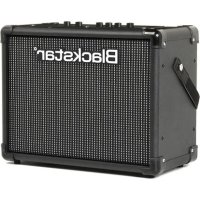
USER MANUAL ID:Core Stereo 20 V2 BLACKSTAR
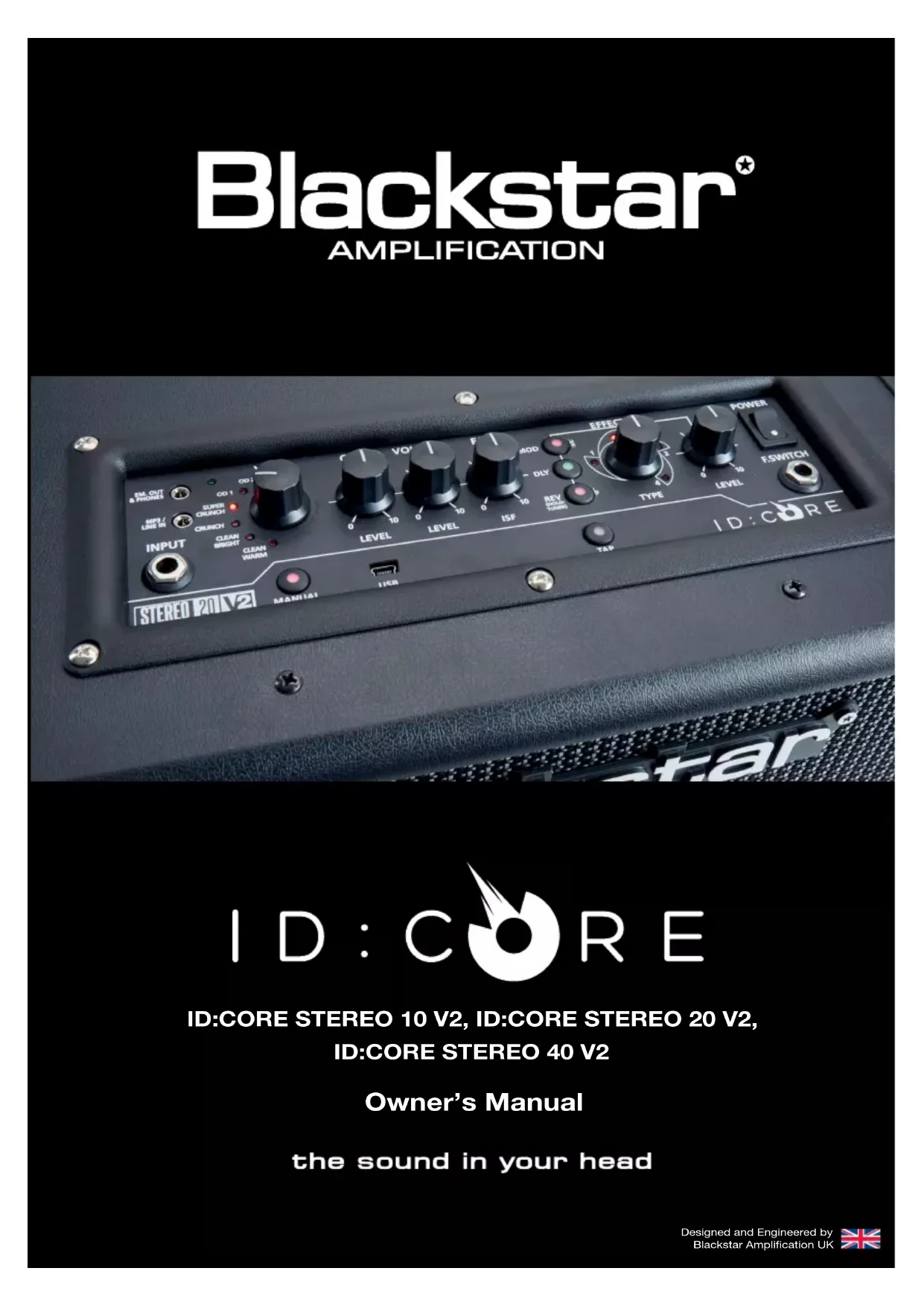
ID:CORE STEREO 10 V2, ID:CORE STEREO 20 V2,
ID:CORE STEREO 40 V2
Owner's Manual
the sound in your head
IMPORTANT SAFETY INSTRUCTIONS
- Read these instructions.
- Keep these instructions.
- Heed all warnings.
- Follow all instructions.
- Do not use this apparatus near water.
- Clean only with dry cloth.
- Do not block any ventilation openings.
- Install in accordance with the manufacturer's instructions.
- Do not install near any heat sources such as radiators, heat registers, stoves, or other apparatus (including amplifiers) that produce heat.
- Do not defeat the safety purpose of the polarized or grounding-type plug. A polarized plug has two blades with one wider than the other. A grounding type plug has two blades and a third grounding prong. The wide blade or the third prong are provided for your safety. If the provided plug does not fit into your outlet, consult an electrician for replacement of the obsolete outlet.
- Protect the power cord from being walked on or pinched particularly at plugs, convenience receptacles, and the point where they exit from the apparatus.
- Only use attachments/accessories specified by the manufacturer.
- Unplug this apparatus during lightning storms or when unused for long periods of time.
- Refer all servicing to qualified service personnel. Servicing is required when the apparatus has been damaged in any way, such as power supply cord or plug is damaged, liquid has been spilled or objects have fallen into the apparatus, the apparatus has been exposed to rain or moisture, does not operate normally, or has been dropped.
"TO COMPLETELY DISCONNECT THIS APPARATUS FROM THE AC MAINS, DISCONNECT THE POWER-SUPPLY CORD PLUG FROM THE AC RECEPTACLE." "WARNING: TO REDUCE THE RISK OF FIRE OR ELECTRIC SHOCK, DO NOT EXPOSE THIS APPARATUS TO RAIN OR MOISTURE. THE APPARATUS SHALL NOT BE EXPOSED TO DRIPPING OR SPLASHING AND THAT OBJECTS Filled WITH LIQUIDS, SUCH AS VASES, SHALL NOT BE PLACED ON APPARATUS."

This symbol is intended to alert the user to the presence of important operation and maintenance (servicing) instructions in the literature accompanying the appliance.
This symbol is intended to alert the user to the presence of uninsulated "dangerous voltage" within the product's enclosure that may be of sufficient magnitude to constitute a risk of electric shock to persons.
BLACK
Warning!
Follow all warnings and instructions marked on the product!
Danger! High internal operating voltages.
Do not open the equipment case. There are no user serviceable parts in this equipment. Refer all servicing to qualified service personnel.
Clean only with a dry cloth.
Condensation can form on the inside of an amplifier if it is moved from a cold environment to a warmer location. Before switching the unit on, it is recommended that the unit be allowed to reach room temperature.
Unauthorised modification of this equipment is expressly forbidden by Blackstar Amplification Ltd.
Never push objects of any kind into ventilation slots on the equipment casing.
Do not expose this apparatus to rain, liquids or moisture of any type.
Avoid placing vessels filled with liquid on top of the amplifier.
Do not place this product on an unstable trolley, stand or table. The product may fall, causing serious damage to the product or to persons!
Do not cover or block ventilation slots or openings.
This product should not be placed near a source of heat such as a stove, radiator, or another heat producing amplifier.
Use only the supplied power cord which is compatible with the mains voltage supply in your area.
Power supply cords should always be handled carefully and should be replaced if damaged in any way.
Never break off the earth (ground) pin on the power supply cord.
The power supply cord should be unplugged when the unit is to be unused for long periods of time.
Before the unit is switched on, the loudspeaker should be connected as described in the handbook using the lead recommended by the manufacturer.
Always replace damaged fuses with the correct rating and type.
Never disconnect the protective mains earth connection.
High loudspeaker levels can cause permanent hearing damage. You should therefore avoid the direct vicinity of loudspeakers operating at high levels. Wear hearing protection if continuously exposed to high levels.
If the product does not operate normally when the operating instructions are followed, then refer the product to a qualified service engineer.
BLACK
The U.S. Government's Occupational Safety and Health Administration (OSHA) has specified the following permissible noise level exposures:
Duration Per Day In Hours:Sound Level dBA,Slow Response
8 90
6 92
4 95
3 97
2 100
12 102
1 105
110
14 or less 115
According to OSHA, any exposure in excess of the above permissible limits could result in some hearing loss.
Ear plug protectors in the ear canals or over the ears must be worn when operating this amplification system in order to prevent a permanent hearing loss if exposure is in excess of the limits as set forth above. To ensure against potentially dangerous exposure to high sound pressure levels, it is recommended that all persons exposed to equipment capable of producing high sound pressure levels such as this amplification system be protected by hearing protectors while this unit is in operation.

All electrical and electronic products should be disposed of separately from the municipal waste stream via designated collection facilities appointed by the government or the local authorities.

BLACK
Introduction
Thank you for purchasing this Blackstar IDCORE amplifier. Like all our products, this amp is the result of countless hours of painstaking Research and Development by our world-class design team. Based in Northampton (UK), the Blackstar team are all experienced musicians themselves and the sole aim of the development process is to provide guitarists with products which are the ultimate tools for self-expression.
All Blackstar products are subjected to extensive laboratory and road testing to ensure that they are truly uncompromising in terms of reliability, quality and above all TONE.
ID:CORE represents a truly ground-breaking achievement, combining unique innovations, an intuitive, traditional control set and the versatility of programmability.
Please read through this handbook carefully to ensure you get the maximum benefit from your new Blackstar product.
If you like what you hear and want to find out more about the Blackstar range of products please visit our website at www.blackstaramps.com.
Thanks!
The Blackstar Team
Features
Since 2007, Blackstar has led the way in the innovation of guitar amplification. ID:CORE represents the culmination years of technical Research and Development. These amps have an intuitive control set like a traditional amp, but have the versatility of programmability. The unique controls allow you, the guitarist, to custom design your own sound.
The Voice control has six different settings - Clean Warm, Clean Bright, Crunch, Super Crunch, OD 1, OD 2. When used together with Blackstar's patented ISF control you can get the exact tone you're thinking of.
The effects section delivers studio quality Super Wide Stereo modulation, delay and reverb effects simultaneously that you can store with your sound. New for 'V2' products is the addition of a new envelope filter modulation effect for funky cleans, or touch-sensitive lead lines.
Deep editing and storing of patches is simple using the Blackstar INSIDER software. Patches can be shared, uploaded and downloaded via the online community. The USB connector also allows you to record from your amp directly to your computer, now with 4-channel USB audio flexibility and simpler Reamping for 'V2'.
An emulated stereo output, and stereo MP3-line input with Dynamic EQ for strong bass response at low volumes, complete the package.
Factory Reset
The default factory patches and settings can be restored to your amplifier at any time. Simply hold down the MOD, DLY and REV switches simultaneously, whilst switching on the amplifier.
The voice LED will count down to indicate that a factory reset is imminent. If any of the MOD, DLY and REV switches are released before the Voice LEDs have switched off, then the operation is cancelled and the amplifier will remain unaffected.
Finally, switch the amplifier power off to complete the process. When powered on, your amplifier will be restored to the factory default settings.
IMPORTANT NOTE:
This process will overwrite any user saved patches and settings.
By using the unique Voice control and the patented ISF, ID:CORE amplifiers allow unparalleled flexibility and ease of use, enabling you to design the sound in your head and deliver it at home, in the studio or in rehearsal.
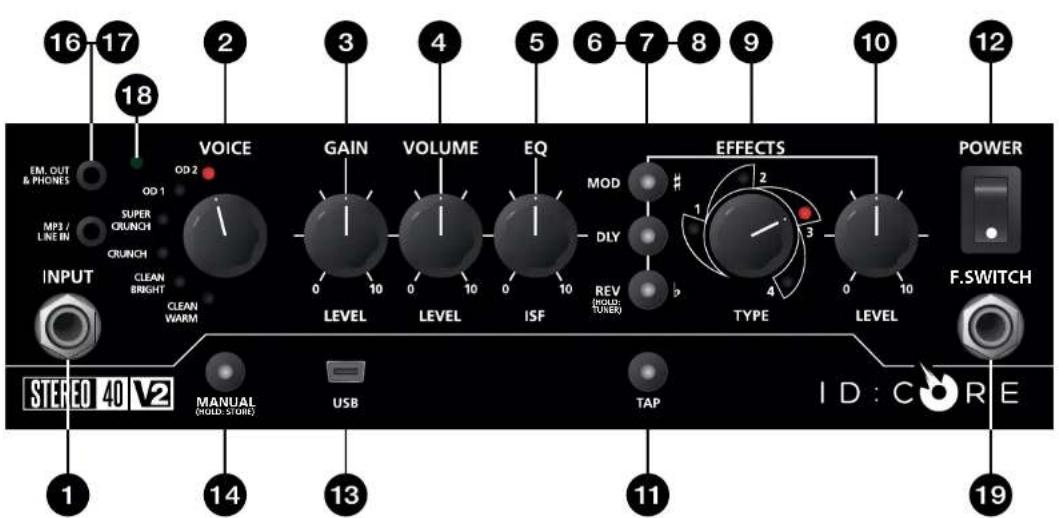
Front Panel
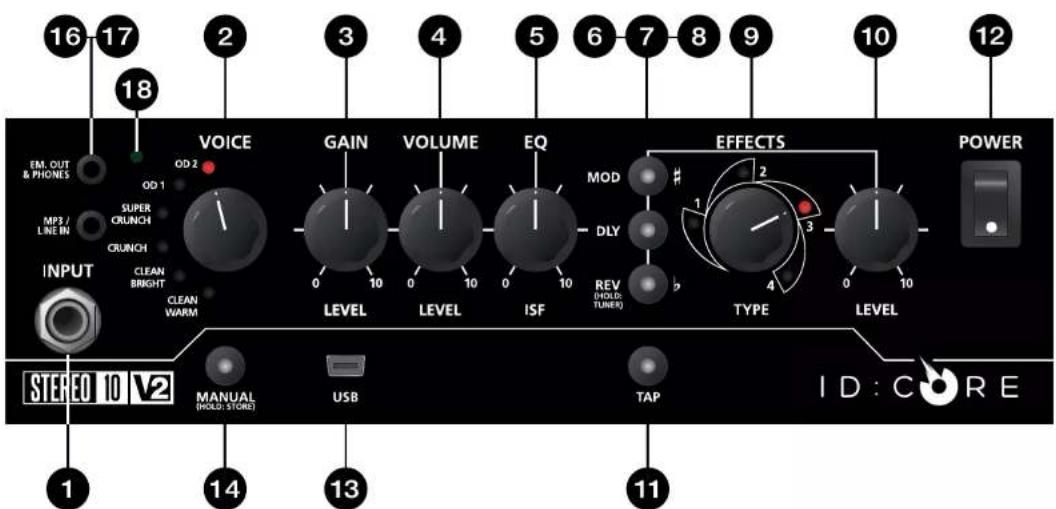
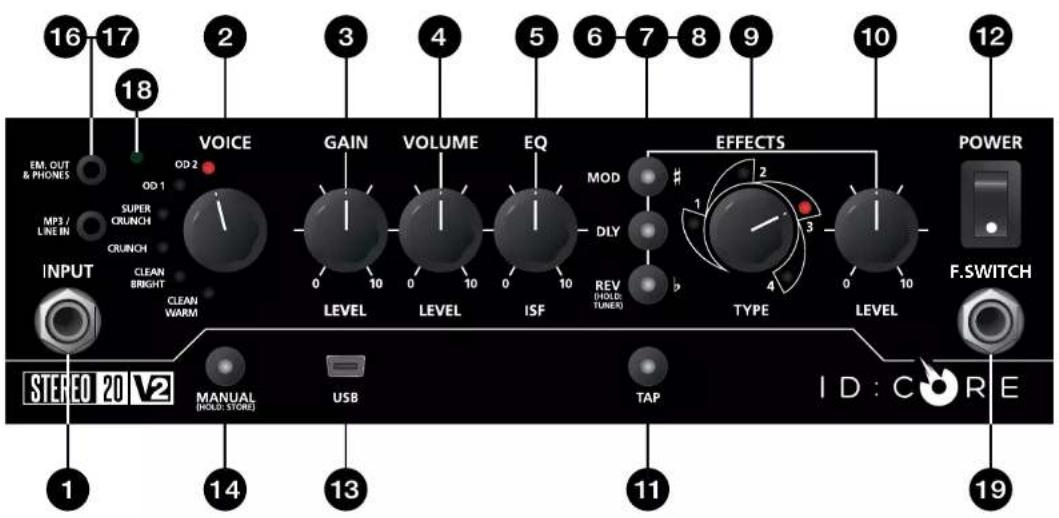
Plug your guitar in here.
Always use a good quality screened guitar lead.
2. Voice
The Voice control changes the preamp voicing, ranging from ultra clean to extremely overdriven.
Clean Warm - Classic clean, dynamic
Clean Bright - 'Boutique', will break up when pushed hard
Crunch - Classic medium gain overdrive
Super Crunch - More gain and punch than Crunch
OD 1-Hot-rodded Master Volume overdrive
OD 2 - Mid boosted overdrive
This setting is saved when you store a patch.
3. Gain
The Gain control adjusts the amount of overdrive or distortion. Low settings (counter clockwise) will deliver a clean sound on the edge of break up. As the Gain control is turned clockwise the sound will become more overdriven, moving through beautiful crunch tones until, at its maximum position, a full distorted tone is achieved. This setting is saved when you store a patch.
4. Volume
This controls the preamp volume. High levels of volume will introduce the effect of valve power amp distortion and compression. This is a global setting and not saved when storing a patch.
5.ISF
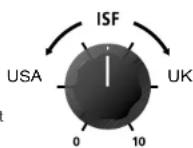
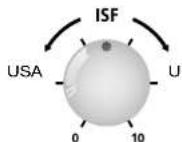
The patented ISF control allows you to choose the exact tonal signature you prefer. Fully counter clockwise has a more American characteristic with a tight bottom-end and more aggressive middle, and fully clockwise has a British characteristic which is more 'woody' and less aggressive. This leads to a very familiar, musical response. This setting is saved when you store a patch.
6. MOD (Modulation)
Press this switch to turn the stereo modulation effect on, off, or focus the effect for editing. This setting is saved when you store a patch.
7. DLY (Delay)
Press this switch to turn the stereo delay effect on, off, or focus the effect for editing.
BLACK
This setting is saved when you store a patch.
8. REV (Reverb)
Press this switch to turn the stereo reverb effect on, off, or focus the effect for editing. This setting is saved when you store a patch.
For all three effect switches/buttons, the LED shows what state the effect is in:
LED Effect State Description
| LED red | Effect on but not ‘focused’ for editing | Effect is active, but not affected by the front panel effect controls |
| LED green | Effect on and ‘focused’ for editing | Effect active and affected by the front panel effect controls |
Repeatedly pressing each effect switches on the front panel has the following effect:
Current Effect State Next Effect State
| Effect off Turns the effect on and 'focuses' the effect. Any previously focused effect reverts to an 'on' state |
| Effect on but not "focused" focuses the effect. Any previously focused effect reverts to an 'on' state |
| Effect on and 'focused'Turns the effect off (if any other effect(s) are on, the previously 'focused' effect resumes being 'focused') |
NOTE: Only one effect may be 'focused' at any time.
9. Effect Type
This changes the effect type and edits a parameter of the currently 'focused' effect (modulation, delay, or reverb).
Each segment represents a different effect (four for each type of effect). An LED shows which effect type is currently active. The distance travelled through the 'segment' modifies an effect parameter. The Effects Table below shows the modifiable parameters.
This setting is saved when you store a patch.
10. Effect Level
This modifies an effect parameter. For modulation and delay effects, turning the Level control while holding down the Tap button (11) modifies the rate/time of the effect.
The Effects Table below shows the modifiable parameters.
This setting is saved when you store a patch.
11. Tap
The Tap switch is used to set the rate/time of the current 'focused' effect. The time between each press of the tap button defines the rate set.
Once set, the Tap LED will flash in time with the set rate of the currently 'focused' effect.
The Effects Table below shows the modifiable parameters:
Effects Table
| Effect | Segment Parameter | Level Parameter | Tap Parameter |
| MODULATION |
| Phaser | Mix Depth | Speed | |
| Chorus / Flanger | Morph | Mix | Speed |
| Envelope | Sensitivity | Depth | - |
| Tremolo | Frequency modulation depth Amplitude modulation depth Speed |
| DELAY |
| Linear | Feedback | Delay level Time | |
| Analogue | Feedback | Delay level Time | |
| Tape | Feedback | Delay level Time | |
| Multi | Feedback | Delay level Time | |
| REVERB |
| Room | Size | Reversal level | - |
| Hall | Size | Reverso level | - |
| Spring | Size | Reverso level | - |
| Plate | Size | Reverso level | - |
This setting is saved when you store a patch.
12. Power Switch
This switch is used to turn the amplifier on and off; the white dot marks the ON position.
13. USB
Plug a USB cable in here to connect the amplifier to a Windows PC or Mac. Blackstar's INSIDER software offers a host of features and can be downloaded from: www.blackstarinsider.co.uk
See the USB Audio section on page 15 for more information.
NOTE: The amplifier will appear on a personal computer as an audio capture device within recording software.
14. Manual
Press this switch to toggle between Patch and Manual Mode. When the amplifier is in Manual Mode, the sound will reflect the current physical position of the knobs. This is applicable to the Voice, Gain, Volume and ISF knobs. Any effects that are active when switching to Manual Mode will be turned off.
While in Manual Mode any of the controls can still be modified by the Blackstar INSIDER software but this means that the sound will not represent the positions of the knobs on the front panel
Patch Mode
Patch mode is indicated by the Manual LED (14) being unlit. See Programmability section on page 14 for more information.
Tuner Mode
Holding Reverb (8) switch for one second will engage the tuner. The Recall Indicator LED (18) will flash continuously to indicate the amplifier is in Tuner Mode. The amplifier output will be muted whilst in Tuner Mode.
The Voice LEDs will indicate the closest note to the note being played.
CleanWarmString1E
Clean Bright String 2 (A)
Chunk String 3 (D)
Super Crunch String 4 (G)
CD1 String 5 (3)
The MOD, DLY and REV LEDs act as indicators to show how close the played note is to the tuned note.
MOD LED red Note is sharop (above pitch)
DLY LED green Note is in tune
RFV LFD rec Noln is flal (belloo pitch)
All other LEDs on the front panel will be off in Tuner Mode.
Pressing any button will exit Tuner Mode.
Connect a Blackstar FS-11 footcontroller (not supplied) to control your ID:CORE in one of the following modes:
FS-11 Switch 1 Switch 2
| Default Mode Toggles between 2 patches, selectable via INSIDER | Toggles all saved patch effects on/off |
| Alternative Mode | Patch down | Patch up |
In Alternative Mode (selected via INSIDER) patches will cycle on a 'loop', e.g. switching up from OD2 will move to Clean Warm.
When in Manual Mode, the effect of any footcontroller switch will depend on its last state. Pressing Switch 1 will return the amplifier to Patch Mode. Pressing Switch 2 will toggle the effects off and on without returning to Patch Mode.
16. MP3/Line In
Connect the output of your MP3 or CD player here. Adjust the player's volume to match that of your guitar to enable you to play along.
17. Emulated/Headphone Out
This output emulates the tonal characteristics of a guitar speaker cabinet and provides a natural tone for connection to headphones, a recording device, PA system or mixing desk.
To make full use of the Super Wide Stereo effects, use a 'stereo 3.5mm jack to two mono jacks' splitter lead to feed two channels of the recording device or mixer. Always use a good quality screened lead.
Turning the Volume knob will control the Emulated Output level.
NOTE: The Amplifier speakers will mute when a cable is connected to the Emulated Output.
18. Recall Indicator
The Recall Indicator shows if there is a mismatch between the current value of a parameter within the amplifier and the corresponding physical front panel control. For example, when you change to a different patch the controls on the front panel may not always reflect the setting you are hearing.
To prevent unexpected level jumps in the control you are adjusting, the front panel knobs will have no effect on the sound until the knob reaches the current parameter value. Once reached the Recall Indicator flashes twice and the knob takes control of the value and can increase or decrease the value.
The recall indicator will flash each time the physical knob 'passes through' the currently active value that you are hearing.
Recall is active for Gain, Volume and ISF.
When the Tuner is active the Recall Indicator will flash continuously.
Rear Panel
The supplied detachable DC power supply is connected here. Always ensure the Power Switch (12) is in the OFF position before connecting the power supply. The load should only be connected to a power outlet that is compatible with the voltage, power and frequency requirements stated on the power supply. If in doubt seek advice from a qualified technician.
Programmability
Storing Patches
Your ID:CORE amplifier stores 6 patches (1 patch per Voice setting).
To store the current sound as a patch press and hold the Manual switch for two seconds. The currently selected Voice LED will flash to indicate the patch has been stored.
Storing a patch will overwrite any previous patch in that location.
Patches can also be stored via Blackstar's INSIDER software.
NOTE: Each patch on your ID:CORE must use the Voice setting assigned to that patch i.e. the Clean Warm patch uses the Clean Warm voice.
Recalling Patches
When in Patch Mode turn the Voice control to choose the desired Voice patch.
Patches can also be recalled via the Blackstar INSIDER software or a connected footcontroller (ID:CORE STEREO 20, 40 only).
NOTE:To recall a patch, the Manual LED must be off to indicate Patch Mode. Turning the Voice control while the Manual LED is on (in Manual Mode) will only select the indicated voice.
BLACK
USB Audio
Standard audio drivers are used to connect the amplifier to a PC or Mac. No specific drivers are required. For a guide on low-latency USB recording visit:
www.blackstaramps.com/usrecording
NOTE: Always connect the amplifier via a main USB port, often found on the rear of the computer.
The amplifier will appear as an audio capture device within recording software. The USB audio signal output level from your ID:CORE amplifier can be controlled independently of your amplifier's speaker volume by holding down the Tap switch (11) whilst turning the Gain control (3) on the front panel (see the Advanced Features section on page 16). This will allow you to achieve a strong recording signal level whilst monitoring the output at a lower, more comfortable level, or even silently if you prefer; simply turn the amplifier speaker volume to zero using the Volume control on the front panel.
The audio output via USB from your amplifier directly to your computer is carried across four independent, simultaneous channels:
Channel 1: Stereo emulated, left channel - The fully processed guitar sound, with speaker cabinet emulation. Contains the left channel of the Super Wide Stereo effects.
Channel 2: Stereo emulated, right channel - The fully processed guitar sound, with speaker cabinet emulation. Contains the right channel of the Super Wide Stereo effects.
Channel 3: Preamp output - The preamp sound of the Voice and EQ stage, taken before the effects, and without any speaker cabinet emulation. Ideal for use with your own effects and cabinet emulation plugins from your recording software/DAW.
Channel 4: Unprocessed guitar signal - The signal as it comes out of your guitar. Record this signal for later use during Reamping (see 'Reamping' section below).
These audio streams can be recorded simultaneously within your chosen recording software/DAW.
TIP: To record a truly Super Wide Stereo-effected sound - which is faithfully recreated when playing back your recorded tracks on any stereo speakers - pan the stereo emulated left channel 100% left in the mix, and pan the right channel 100% right.
Your ID:CORE amplifier can also receive audio input from your computer:
Channel 1: Line input, left channel - Used for audio monitoring or MP3/backing track playback. Playback through the left internal speaker.
Channel 2: Line input, right channel - Used for audio monitoring or MP3/bocking track playback. Playback through the right internal speaker.
Channel 3: Reamping input - Send a pre-recorded unprocessed guitar signal to your amplifier for Reamping, when in Reamping mode.
Channel 4: Unused
BLACK
Reamping
The amplifier can be switched into Raamping Mode via the Blackstar INSIDER software. This is a non-storable setting and will be switched off either when the USB cable is removed, or when the amplifier power is switched off.
When activated, Reamping Mode allows the amplifier to accept a pre-recorded, dry guitar signal via USB and return a fully processed audio signal. This return signal can then be captured using recording software on the connected PC or Mac.
Advanced Features
Your ID:CORE amplifier has further advanced features which are aimed at more in-depth users who enjoy getting the most from their amplifier. These features do not have Independent controls on the front panel of the amplifier, but instead are accessed by using the Tap switch (11) as a 'shift key' and using other controls to access these features.
Independent Music Playback Volume - Tap + Volume
Under most circumstances, the volume of your music playback via the MP3/Line Input is effectively controlled directly from your playback device. For quieter environments and general convenience you can also further reduce the music playback volume of your ID:CORE amplifier by simply holding down the Tap switch (11) whilst turning the Volume control (4) on the front panel.
USB Recording Level - Tap + Gain
As stated in the USB Audio section (see page 15), the output level of the USB audio signal from your ID:CORE amplifier can be controlled independently of your amplifier's speaker volume by holding down the Tap switch (11) whilst turning the Gain control (3) on the front panel.
Effect Speed/Time - Tap + Effects Level
As stated in the Effect Level section (see page 10), the speed/time of the modulation and delay effects can be controlled by holding down the Tap switch (11) whilst turning the Effect Level control (10) on the front panel. This can be very useful for setting a specific accurate effect tempo instead of using the Tap switch.
Firmware Update
Firmware updates are initiated via the Blackstar INSIDER software. A new version of the Blackstar INSIDER software will be released whenever an update is available.
Important note: Always connect the amplifier to a main USB port (usually found on the on the rear of your PC or Mac) when updating the firmware. Never use a front mounted USB port, USB hub or a USB extension cable. Doing so may result in a failed update, which could cause your amplifier to become unresponsive.
When the amplifier is connected (via USB) to a version of the Blackstar INSIDER software containing newer firmware, a message will be displayed prompting you to install the latest files. Whilst updating, the amplifier controls will be unresponsive. Front panel voice LEDs will cycle to indicate data activity during the update process
The amplifier power should not be switched off during a firmware update. If the amplifier is switched off during an update, the controls may be unresponsive after the power is reapplied and the amplifier will produce no sound. The voice LEDs will cycle to indicate that the amplifier contains no valid firmware.
If you are experiencing problems with the firmware update process the amplifier can be forced to power up in Update Mode. Hold down the Manual (14) & MOD (6) switches simultaneously, whilst switching on the amplifier to enter this mode with the voice LEDs cycling to indicate Update Mode. Connect the amplifier to the Blackstar INSIDER software to begin a firmware update.
The amplifier must be connected to the Blackstar INSIDER software to reinstall valid firmware. The update process will start automatically if the Blackstar INSIDER software detects that the amplifier is in this state.
Technical Specification
ID:CORE STEREO 10 V2
Power: 2 x 5 Watts (Stereo 10 Watts)
Weight (kg): 3.7
Dimensions (mm): 340(W) x 265(H) x 185(D)
ID:CORE STEREO 20 V2
Power: 2 x 10 Watts (Stereo 20 Watts)
Weight (kg): 5.2
Dimensions (mm): 375(W) x 292(H) x 185(D)
Footcontroller (not supplied): FS-11 footcontroller
ID:CORE STEREO 40 V2
Power:2x20 (Stereo 40 Watts)
Weight (kg): 6.2
Dimensions (mm): 434(W) x 336(H) x 185(D)
Footcontroller (not supplied): FS-11 footcontroller
LED Effect State Description
FS-11 Switch 1 Switch 2
Specifications Techniques
ID:CORE STEREO 10 V2
Puissance: 2 x 5 Watts (Stereo 10 Watts)
Poids (kg): 3.7
Dimensions (mm): 340(W) x 265(H) x 185(D)
ID:CORE STEREO 10 V2
Puissance: 2 x 5 Watts (Stereo 10 Watts)
Poids (kg): 3.7
Dimensions (mm): 340(W) x 265(H) x 185(D)
ID:CORE STEREO 20 V2
Puissance: 2 × 10 Watts (Stereo 20 Watts)
Weight (kg): 5.2
Dimensions (mm): 375(W) x 292(H) x 185(D)
Pédalier (non fourni): FS 11 footcontroler
ID:CORE STEREO 40 V2
Power: 2 x 20 (Stereo 40 Watts)
Weight (kg): 6.2
Dimensions (mm): 434(W) x 336(H) x 185(D)
Pédalier (non fourni): FS-11 footcontroller
JAVISO!
Mode Alternative Patch down Patch up
ID:CORE STEREO 40 V2
Power: 2 x 20 Watios (Stereo 40 Watios)
Peso (kg): 6.2
Dimensiones (mm): 434(W) x 336(H) x 185(D)
Footcontroller (no incluido): FS-11 footcontroller
Clean Warm Sate 1 (E)
Clean Bright Suite 2 (A)
Crunch Series 3 (D)
Super Crunch Suite 4 (G)
DD1Sate 6 B
FS-11 Taster 1 Taster 2
17. Emulated/Headphone Out
www.blackstaramps.com/usbrecording
ID:CORE STEREO 40 V2
URL: www.blackstaramps.com
FRAUSSKSTNE
七次特徵
FJFJFJFJFJFJFJFJFJFJFJFJFJFJFJFJFJFJFJFJFJFJFJFJFJFJFJFJFJFJFJFJFJFJFJFJFJFJFJFJFJFJFJFJFJFJFJFJFJFJF
二的七不十不卡子在上了心保存
5.ISF
TSH左回同上位置之末下实木土卡卡下之
A
TRELLP#F#KU的M#N的A#R力K#V卡卡下,右
口同上
卡子安土下士之七不加存
6. MOD(SATEV·HJUN)
| Clean Warm | F |
| Clean Bright | A |
| Crunch | D |
| Super Crunch | G |
| OD 1 | B |
MOD, DLY, REVCOLED为的音程为九、近如点灯下知与使中。
Effect Speed/Time = Tap + Effects Level (EFP=KUT·LEVILの
Technical Specification
ID:CORE STEREO 10
Power: 2 x 5 Watts (Sterco 10 Watts)
Weight (kg) : 3.7
Dimensions (mm) : 340 (W) x 265 (H) x 185 (D)
ID:CORESTEREO 20
Power: 2 x 10 Watts (Stereo 20 Watts)
Weight (kg) : 5.2
Dimension (mm): 375 (x 292 (D) x 185 (D)
Footcontroller(别克):FS-11 Footcontroller
10:CORESTERFO 40
Power: 2 x 20 Watts (Stereo 24 Watts)
Weight (kg) : 6.2
Dimension (mm) : 434 (W) x 336 (D) x 185 (D)
Footcontroller(别克):FS11 Footcontroller
1D:CORESTEREO 4OH
Power: 2 x 20 (Sterco 40 Watts)
Weight (kg) : 2.5
Dimension (mm): 320(W) x 160(D) x 185(D)
Footcontroller(别克):FS-11 footcontroller
警告!
重要安全信息!
Clean Warm String 1 (E)
Clean Bright String 2 (A)
Crunch String 3 (D)
Super Crunch String 4 (G)
OD 1 String 5 (B)
www.blackstaramps.com/usbrecording
ID:CORE STEREO 10 V2 Front Panel
ID:CORE STEREO 20 V2 Front Panel
ID:CORE STEREO 40 V2 Front Panel
| 中文 | | DeutschFris | Gals Englssense |
| 93 | BLACK | | |
| 中文 | DeutschFris | Gals Engliheuse |
| | |
| | |
| | |
| | |
| | |
| | |
| | |
| | |
| | |
| | |
| | |
| | |
| | |
| | |
| | |
| | |
| | |
| | |
| | |
| | |
| BLACK | 102 |
V2
Blackstar Amplification Ltd, Beckett House, 14 Billing Road, Northampton, NN1 5AW, UK For the latest information go to: www.blackstaramps.com
Whilst the information contained herein is correct at the time of publication, due to our policy of constant improvement and development, Blackstar Amplification Ltd reserves the right to alter specifications without prior notice.