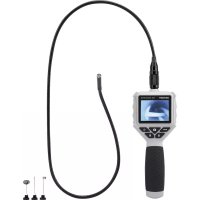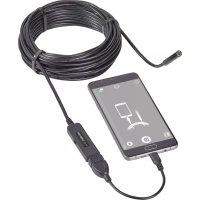
BS26 - Video camera VOLTCRAFT - Free user manual and instructions
Find the device manual for free BS26 VOLTCRAFT in PDF.
Download the instructions for your Video camera in PDF format for free! Find your manual BS26 - VOLTCRAFT and take your electronic device back in hand. On this page are published all the documents necessary for the use of your device. BS26 by VOLTCRAFT.
USER MANUAL BS26 VOLTCRAFT
10.4 Installing the app and connecting the product .....................................35
2 Introduction Dear customer, Thank you for purchasing this product. If there are any technical questions, please contact: www.conrad.com/contact 3 Intended use This endoscope is a visual aid for troubleshooting and inspecting facilities and appliances that do not carry a voltage. The endoscope must not be used in areas that are at risk of explosion or for inspecting people and animals. The gooseneck camera is waterproof (IP67) and suitable for use in aqueous liquids (not acids or alkalis). The base unit must not be exposed to moisture or immersed in liquids. The brightness of the light on the tip of the camera can be adjusted. The image is displayed via an app on a compatible mobile device. Images and video recordings can be saved and viewed on the display device. The signal is transferred between your mobile device and the endoscope via Wi-Fi. Power is supplied via a built-in rechargeable battery. Using the product for purposes other than those described above may damage the product. Improper product use can cause a short circuit, re, electric shock or other hazards. This product complies with statutory, national and European regulations. For safety and approval purposes, you must not rebuild and/or modify the product. Read the operating instructions carefully and store them in a safe place. Make this product available to third parties only together with the operating instructions. All company and product names contained herein are trademarks of their respective owners. All rights reserved.25 4 Features and functions
Endoscope with goose neck
Wireless image transfer to mobile devices via Wi-Fi (with free app for Android
Compact front camera
LED light with adjustable brightness 5 Delivery content
Operating instructions 6 Up-to-date operating instructions Download the latest product information at www.conrad.com/ downloads or scan the QR code shown. Follow the instructions on the website. 7 Explanation of symbols The following symbols appear on the product/device or in the text: The symbol warns of hazards that can lead to personal injury.26 8 Safety Instructions Read the operating instructions carefully and especially observe the safety information. If you do not follow the safety instructions and information on proper handling, we will assume no liability for any resulting personal injury or damage to property. Such cases will invalidate the warranty/guarantee.
This product is not a toy. Keep it out of the reach of children and pets.
Do not leave packaging material lying around carelessly. It may become a dangerous plaything for children.
Should you have any questions or concerns after reading this document, please contact our technical support or a professional technician.
Maintenance, modications and repairs must be carried out by a technician or a specialist repair centre.
Handle the product carefully. Impact, shocks or a fall even from a low height can damage the product.
8.3 Operating environment
Do not expose the product to any mechanical stress.
Protect the product from extreme temperatures, strong jolts, ammable gases, vapours, and solvents.
The base unit is not waterproof and therefore cannot be immersed under water. Protect the base unit from splashing water.
Only use the product to inspect systems that do not carry a voltage. The camera head is made of metal and can lead to short circuits.
Protect the product from direct sunlight.
Never switch the device on immediately after taking it from a cold into a warm environment. This may cause condensation to form, which can destroy the product. Allow the product to reach room temperature before using it.27
Avoid operation near strong magnetic or electromagnetic elds, transmitter aerials or HF generators. These may prevent the product from functioning properly.
Consult an expert when in doubt about the operation, safety or connection of the device.
If it is no longer possible to operate the product safely, stop using it and prevent unauthorised use. DO NOT attempt to repair the product yourself. Safe operation can no longer be guaranteed if the product: – is visibly damaged, – is no longer working properly, – has been stored for extended periods in poor ambient conditions or – has been subjected to any serious transport-related stress.
8.5 Li-ion rechargeable battery
The rechargeable battery is permanently built into the product and cannot be replaced.
Never damage the battery. Damaging the casing of the battery may cause it to explode or catch re!
Never short-circuit the contacts/connections of the battery. Do not throw the battery or the product into re. Risk of re and explosion!
Charge the battery regularly, even if you are not using the product. The rechargeable battery does not need to be discharged before charging.
Never leave the product unattended when the battery is charging.
When charging the battery, place the product on a heat-resistant surface. It is normal for a certain amount of heat to be generated during charging.28
8.6 Connected devices
Always observe the safety information and operating instructions of any other devices which are connected to the product.
Attention, LED light:
Do not look directly into the LED light!
Do not look into the beam directly or with optical instruments!29 9 Product overview
This product is controlled via the Voltcraft BS-26 BS-27 smartphone app. Recording screen 9 “File” button 10 Battery indicator 11 Brightness control 12 “Rotate” button 13 “Settings” button 14 Recording time 15 Video record button 16 Photo button31 Settings 17 “Previous” button 18 “Camera settings” button 19 “FAQs” button 20 “Language” button32 Camera settings 21 “Previous” button 22 “Maximum Video Recording Time” 23 “Camera Resolution” 24 “Frames per Second”33 Files 25 “Previous” button 26 Recording thumbnails 27 “Videos” button 28 “Photos” button Note: Refer to the information in section “10.4 Installing the app and connecting the product” on page 35 for instructions on installing and setting up the app.34 10 Operation
10.1 Charging the battery
Note: The battery must be charged in the following scenarios: – Before rst use – When the battery indicator (6) shows a low battery status
1. Connect the micro USB port (8) on the product to a suitable USB power source
(max. 5 V/1 A). Use the micro USB cable included with the product. Æ The battery indicator (6) will ash green.
2. Wait until charging is complete and the battery indicator (6) is constant green.
3. Disconnect the micro-USB cable from the product and the power supply.
10.2 Installing the hook attachment
Tip: The optional hook attachment allows you to reach small objects in areas that are difcult to access.
1. Slide the hook attachment onto the camera head.
2. Ensure that the hook attachment is securely in place and cannot become loose
unintentionally. Æ The hook attachment is now ready for use.
10.3 Switching the product on/off
1. Press the on/off button (5).
Æ The product will switch on, and the battery indicator (6) will briey ash green before switching to constant green. Æ When the battery indicator (6) stops ashing and stays constant green, the product is ready to connect.
2. To switch off the product, press the on/off button (5) again.35
10.4 Installing the app and connecting the product
1. Download the Voltcraft BS-26 BS-27 app. The app is available for both iOS and
2. Switch on the product (see section “10.3 Switching the product on/off” on
3. Enable Wi-Fi on your mobile device and search for the network "BS-26_IP_
4. Then connect to this network. No password is required.
5. Open the Voltcraft BS-26 BS-27 app.
Æ The product is now connected to the app. Important: – When you are using the app, your mobile device will not be able to access the Internet via Wi-Fi. – To avoid interference with image transmission, disable mobile network access while using the app.
10.5 Adjusting the brightness
1. Tap the brightness button + (4) to increase the brightness of the light.
2. Tap the brightness button - (7) to decrease the brightness of the light.
Note: – Alternatively, you can also adjust the brightness by sliding the brightness controller (14) in the app.
10.6 Recording videos
1. Align the camera with the area you want to capture.
2. In the Voltcraft BS-26 BS-27 app, tap the “Video record” button (15) to start a
3. Touch “Video record” button (15) again to stop the video recording.
1. Align the camera with the area you want to capture.
2. In the Voltcraft BS-26 BS-27 app, touch the “Photo” button (16) to take a photo
1. To view videos or photos in the app, tap the "File" button (9).
Æ The saved photos/videos will be displayed.
2. To view the list of photos or videos, tap:
– the button for photos – the button for videos
3. To view a photo in full screen or play a video, tap the desired le followed by
4. The selected video/photo will be displayed.
Tip: – To share a video/photo, tap the le you want to share, and then tap the button. – To delete a video/photo, tap the le you want to delete, and then tap the button.
10.9 Changing the app settings
1. To change the app settings, touch the “Settings” icon (18) on the main interface.
Æ The settings menu will open.
2. Follow the onscreen prompts to change the settings.
10.10 Viewing the app information
To display more information about the app (e.g. version number), touch the “FAQs” button (19) in the settings menu. Æ The information will be displayed onscreen.37 11 Cleaning and maintenance Important: – Do not use any aggressive cleaning agents, rubbing alcohol or other chemical solutions. These may damage the housing and can cause the product to malfunction. – Do not immerse the base unit in water. Only the gooseneck is waterproof!
1. Disconnect the product from the power supply.
2. Clean the product with a dry, lint-free cloth.
12 Disposal This symbol must appear on any electrical and electronic equipment placed on the EU market. This symbol indicates that this device should not be disposed of as unsorted municipal waste at the end of its service life. Owners of WEEE (Waste from Electrical and Electronic Equipment) shall dispose of it separately from unsorted municipal waste. Spent batteries and accumulators, which are not enclosed by the WEEE, as well as lamps that can be removed from the WEEE in a non-destructive manner, must be removed by end users from the WEEE in a non-destructive manner before it is handed over to a collection point. Distributors of electrical and electronic equipment are legally obliged to provide free take-back of waste. Conrad provides the following return options free of charge (more details on our website):
at the Conrad collection points
at the collection points of public waste management authorities or the collection points set up by manufacturers or distributors within the meaning of the ElektroG End users are responsible for deleting personal data from the WEEE to be disposed of. It should be noted that different obligations about the return or recycling of WEEE may apply in countries outside of Germany.38 13 Declaration of Conformity (DOC) Conrad Electronic SE, Klaus-Conrad-Straße 1, D-92240 Hirschau hereby declares that this product conforms to the 2014/53/EU directive.
Click on the following link to read the full text of the EU declaration of conform- ity: www.conrad.com/downloads Enter the product item number in the search box. You can then download the EU declaration of conformity in the available languages. 14 Technical data
EasyManual