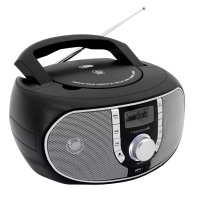
SCD1700 - Cd player/recorder Soundmaster - Free user manual and instructions
Find the device manual for free SCD1700 Soundmaster in PDF.



| Product type | CD player/recorder |
| Brand | Soundmaster |
| Model | SCD1700 |
| Mains power supply | Supplied mains power cable (230 V~) |
| Battery power | 6 LR14 (type C) 1.5 V batteries |
| Main functions | CD player (audio and MP3), DAB+ radio, FM radio, USB player, AUX input, headphone jack |
| Display | LCD screen |
| Antenna | Telescopic antenna for DAB/FM |
| Supported audio formats | Audio CD, MP3 CD, MP3 files on USB flash drive |
| CD/USB playback modes | Normal, repeat (1 track, folder, all), random, intro, programmed |
| CD/USB programming | Up to 20 tracks (CD) or 99 tracks (MP3/USB) |
| Radio presets | DAB and FM stations |
| Automatic shutdown (standby) | After 15 minutes without audio signal |
| Sleep timer | 15, 30, 45, 60, 90 minutes or off |
| System settings | Time, date, backlight, language, auto update, reset |
| Auxiliary input | 3.5 mm jack (AUX IN) |
| Headphone output | 3.5 mm jack |
| Safety | Class 1 laser, protection against electric shock, do not open |
| Maintenance | Clean with a dry cloth, do not use detergents or abrasive cloths |
| Included accessories | Mains power cable, instruction manual |
| Compliance | CE, directive 2014/53/EU |
| Additional information | Manual available at www.soundmaster.de ; manufacturer: Wörlein GmbH |
Frequently Asked Questions - SCD1700 Soundmaster
User questions about SCD1700 Soundmaster
0 question about this device. Answer the ones you know or ask your own.
Ask a new question about this device
Download the instructions for your Cd player/recorder in PDF format for free! Find your manual SCD1700 - Soundmaster and take your electronic device back in hand. On this page are published all the documents necessary for the use of your device. SCD1700 by Soundmaster.
USER MANUAL SCD1700 Soundmaster
natural_image
Black portable radio with digital display and antenna, no visible text or symbols on the device itself.DEUTSCH
ENGLISH
FRANÇAIS
NEDERLANDS
ITALIANO
ČEŠTINA
SLOVENSKÝ
Festsender speichern
Festsender speichern
Copyright by Woerlein GmbH, 90556 Cadolzburg, www.soundmaster.de
Do not dispose of this product with the normal household waste at the end of its life cycle. Return it to a collection point for the recycling of electrical and electronic devices. This is indicated by the symbol on the product, user manual or packaging
The materials are reusable according to their markings. By reusing, recycling or other forms of utilization of old devices you make an important contribution to the protection of our environment.
Please contact your local authorities for details about collection points.
| WARNINGRisk of electric shockDo not open! |
Caution: To reduce the risk of electric shock, do not remove the cover (or back). There are no user serviceable parts inside. Refer servicing to qualified service personnel.

This symbol indicates the presence of dangerous voltage inside the enclosure, sufficient enough to cause electric shock.

This symbol indicates the presence of important operating and maintenance instructions for the device
Used batteries are hazardous waste and NOT to be disposed of with the household waste! As a consumer you are legally obligated to return all batteries for environmentally responsible recycling – no matter whether or not the batteries contain harmful substances*)
Return batteries free of charge to public collection points in your community or shops selling batteries of the respective kind.
Only return fully discharged batteries
*) marked Cd = cadmium, Hg = mercury, Pb = lead
- Only use mercury and cadmium-free batteries.
- Used batteries are hazardous waste and NOT to be disposed of with the household waste!!!
- Keep batteries away from children. Children might swallow batteries.
- Contact a physician immediately if a battery was swallowed.
- Check your batteries regularly to avoid battery leakage.
- Batteries shall not be exposed to excessive heat such as sunshine, fire or the like.
- CAUTION: Danger of explosion if battery is incorrectly replaced
- Replace only with the same or equivalent type
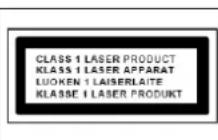
CAUTION - INVISIBLE LASER RADIATION WHEN OPENING THE COVER OR PRESSING THE SAFETY INTERLOCK. AVOID EXPOSURE TO THE LASER BEAM.
To prevent possible hearing damage, do not listen at high volume levels for long periods
- Use the device in dry indoor environments only.
- Protect the device from humidity.
- This apparatus is for moderate climates areas use, not suitable for use in tropical climates countries.
Safety, Environmental and Setup Instructions
- No objects filled with liquids, such as vases, shall be placed on the apparatus.
- The mains plug or an appliance coupler is used as the disconnect device, the disconnect devices shall remain readily operable.
- Connect this device to a properly installed and earthed wall outlet only. Make sure the mains voltage corresponds with the specifications on the rating plate.
- Make sure the mains cable stays dry during operation. Do not pinch or damage the mains cable in any way.
- A damaged mains cable or plug must immediately be replaced by an authorized service center.
- In case of lightning, immediately disconnect the device from the mains supply.
- Children should be supervised by parents when using the device.
- Clean the device with a dry cloth only.
- Do NOT use CLEANING AGENTS or ABRASIVE CLOTHS!
- Do not expose the device to direct sunlight or other heat sources.
- Install the device at a location with sufficient ventilation in order to prevent heat accumulation.
- Do not cover the ventilation openings!
- Install the device at a safe and vibration-free location.
- Install the device as far away as possible from computers and microwave units; otherwise radio reception may be disturbed.
- Do not open or repair the enclosure. It is not safe to do so and will void your warranty. Repairs only by authorized service/ customer center.
- No naked flame sources, such as lighted candles, should be placed on the unit.
- When you are necessary to ship the unit store it in its original package. Save the package for this purpose.
- In case of malfunction due to electrostatic discharge or fast transient (burst), remove and reconnect the power supply.
- If the unit is not using for a long period of time, disconnect it from the power supply by unplugging the power plug. This is to avoid the risk of fire.
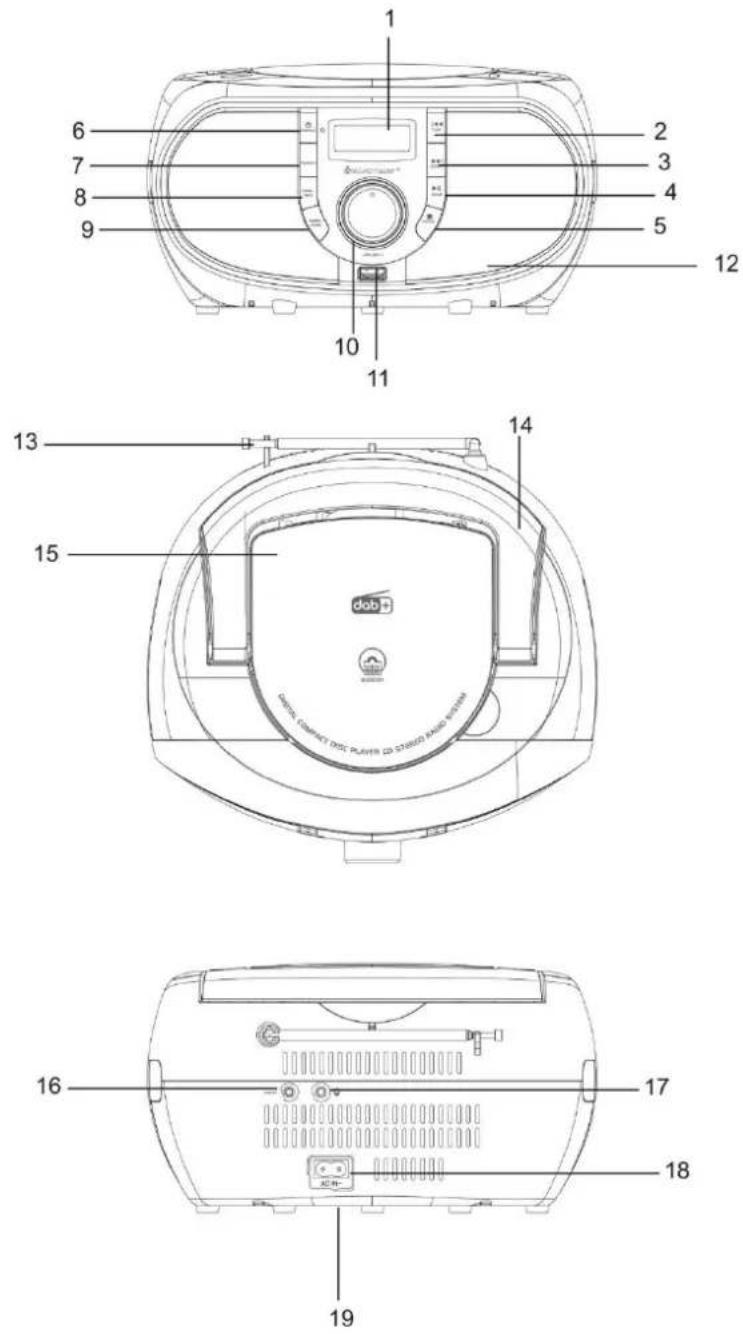
LOCATION OF CONTROLS
FRONT VIEW
1 LCD DISPLAY
2 SKIP- / TUNE-
3 SKIP+ / TUNE+
4 PLAY / PAUSE / SCAN
5 STOP / ENTER
6 STANDBY / SOURCE
7 FOLDER
8 MENU / INFO
9 MODE / PROGRAM
10 VOLUME - / +
11 USB PORT
12 SPEAKER
TOP VIEW
13 ANTENNA
14 HANDLE
15 CD DOOR
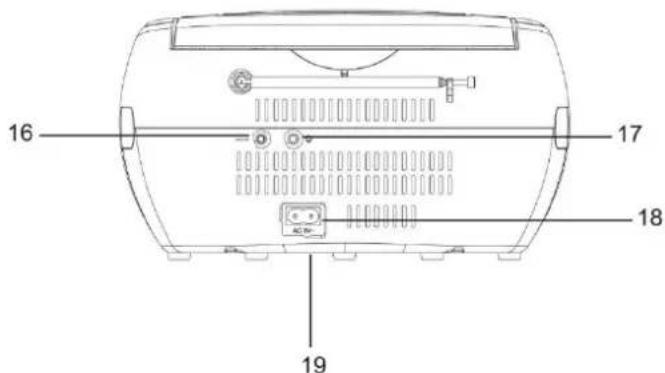
BACK VIEW
16 AUX IN
17 HEADPHONE JACK
18 AC SOCKET
19 BATTERY COMPARTMENT
INSTALLATION
Content of delivery
Main unit
▶ AC power cable
Instruction manual
Power supply
➢ Ensure that the voltage is the same as that indicated on the main unit identification plate.
Connect the supplied AC power cable to a properly installed safety power socket and the plug of the cable into the AC socket at the back side of the unit.
Battery operation
- Open the lid of the battery compartment at the bottom of the unit.
- Insert 6 batteries of type LR14 ("C" size) 1.5 V. Please ensure that the polarity is correct (see indicated in the battery compartment).
- Then close the battery lid.
Note:
If the device is operated with batteries and is in standby mode, the batteries will still be discharged. To avoid this, we recommend removing the batteries or connecting the device to the mains. The display and the blue lights are turned off.
When the unit is powered by batteries, in order to play longer time, it is better not adjust the volume to max.
ERP power management
The unit will turn off automatically after 15 minutes in standby mode if there is no audio signal. To turn on the unit again press the “STANDBY / SOURCE” button.
BASIC OPERATIONS
Power on / off
Press "STANDBY / SOURCE" button to turn the unit on.
Press and hold "STANDBY / SOURCE" button to turn off the unit in standby mode.
Selecting modes
During on mode, press the "STANDBY / SOURCE" button repeatedly to switch between the different modes.
Adjusting volume
Rotate the "VOLUME - / +" knob to decrease or increase the volume.
DAB
Extend completely the telescopic antenna. Change its position to improve the reception.
Press repeatedly the "STANDBY / SOURCE" button, until "DAB" is shown in the display.
The radio will automatically start a full scan of DAB+ stations if the unit is powered on the first time. When the scan is complete, the stations are stored in alphabetical order. The first available station will be played.
Note: If there is no DAB+ reception at any time, change the position of the unit or adjust the antenna. Press and hold the "PLAY / PAUSE / SCAN" button for approx. 3 seconds to start a new search.
Select DAB radio station
Press the "SKIP- / TUNE-" or "SKIP+ / TUNE+" and select the desired radio station.
To confirm the selection, press the "STOP / ENTER" button.
Preset store
- Select the desired radio station.
- Press and hold the "MODE / PROG" button until "Preset store" is shown in the display.
- Choose with "SKIP- / TUNE-" or "SKIP+ / TUNE+" the desired program station number.
- Press to confirm "STOP / ENTER". "Preset X stored" is shown in the display (X = station number).
Preset recall
- Press the "MODE / PROG" button. "Preset recall" is shown in the display.
- Select with "SKIP- / TUNE-" or "SKIP+ / TUNE+" the desired stored radio station.
- Press to confirm "STOP / ENTER".
DAB information
Press repeatedly the "MENU / INFO" button to show the following DAB information:
DLS, signal strength, genre, multiplex, frequency, signal error, audio bit rate, time, date.
DAB menu
To enter the DAB menu, press and hold the "MENU / INFO" button. Select with the "SKIP-/TUNE-" or "SKIP+/TUNE+" one of the following settings and press "STOP / ENTER":
- Full scan:
Starts the station scan. The DAB frequency band is scanned for stations.
- Manual tune:
To do so you need to know the station frequency. This can be found on the internet site of the broadcasting service. Select individual frequencies using the "STOP / ENTER" button.
• DRC:
Short for Digital Range Control (dynamic range). The term DRC describes the ratio between the quietest and the loudest sound. If the dynamic range is very high there are very soft sounds as well as very loud sounds.
Under some circumstances this may present a problem with playback. Let us assume that you are listening to a radio station in a relatively loud environment. By increasing the volume you can play the quiet sections louder.
This however has the disadvantage that the loud sections become uncomfortably loud. It makes sense here to reduce the dynamic range. Select between the options:
- DRC off: The dynamic range is not reduced.
- DRC high: The dynamic range is sharply reduced.
- DRC low: The dynamic range is slightly reduced
- Prune:
It may be that you can no longer receive some stations after a station scan or change of location. With this function you can delete these stations from the reception list. Select "YES" and confirm with the "STOP / ENTER" button.
- System
See under "SYSTEM SETTINGS".
FM
- Press repeatedly the "STANDBY / SOURCE" button, until "FM" is shown in the display.
- Extend completely the telescopic antenna. Change its position to improve the reception.
- There are two options to search for and preset radio stations.
• Automatic scan:
Important! Any preset radio stations will be overridden.
Press and hold the "PLAY / PAUSE / SCAN" button for approx. 3 seconds. The system scans the complete frequency band for radio stations. Any stations found will be preset from lowest to highest frequency. When the search is complete, the number of stations found is displayed.
- Manual scan for audio stations:
Briefly press the "SKIP- / TUNE-" or "SKIP+ / TUNE+" buttons, until you have found the radio station which you are looking for. If you keep one of the buttons pressed down, the device will search to the previous, respectively next radio station.
Preset store
Is the same as in DAB mode.
Preset recall
Is the same as in DAB mode.
Info display
Press repeatedly the "MENU / INFO" button to show the following FM information: Radio text, PTY, name, mono or stereo broadcast, time, date.
FM menu
To enter the FM menu, press and hold the "MENU / INFO" button. Select with the "SKIP- / TUNE-" or "SKIP+ / TUNE+" one of the following settings and press "STOP / ENTER":
- Scan setting:
Select the desired option for automatic station search.
- All stations: Search for all stations that can be received. In this case, station search also stops for weak stations.
- Strong stations only: Only clear stations are searched.
- Audio setting:
Select the MONO or STEREO for FM reception.
- System
See under "SYSTEM SETTINGS".
CD
- Press repeatedly the "STANDBY / SOURCE" button, until "CD" is shown in the display.
- Open the CD compartment by pulling the CD door upwards by the tab.
- Insert an audio CD with the printed side facing upwards on to the central cone so that the CD clicks into place and then close the lid of the CD compartment.
- The CD will start the playback from the first title.
- In order to remove a CD, please press the "STOP / ENTER" button, open the CD door and lift the CD out carefully.
Keep always the CD deck closed.
NOTE: If a disc is inserted with a wrong side face up, respectively if no disc is inserted, then the message "NO DISC" appears in the display.
Control buttons:
To start or interrupt the playback, press the "PLAY / PAUSE / SCAN" button.
To stop the playback, press the "STOP / ENTER" button.
With "SKIP+ / TUNE+" button you can jump to the next track.
If the button is kept pressed down, the machine starts to search forwards through the tracks.
The "SKIP- / TUNE-" button can be used as follows:
Press once = This starts the current track again from the beginning.
Press twice = This jumps back to the previous track.
If the button is kept pressed down, the machine starts to search backwards through the tracks.
To select a folder, press the "FOLDER" button (only for MP3-CD or USB).
Audiobook function (Resume)
If you change the mode or turn off the unit and come back to the CD mode, the unit starts the playback from the last point.
Press the "STOP / ENTER" button and start the playback again, the unit starts with the first track (track 1).
ID3 function
During playing a MP3-CD or USB, press the "MENU / INFO" button to activate the ID3 function.
Further information (Title, artist, album) are shown in the display (If available and stored).
Press "MENU / INFO" again to deactivate the function.
Repeat and playback functions
The following repeat and playback functions can be selected during playback by repeatedly pressing the "MODE / PROG" button:
Track repeat – The display shows "REP-1".
➢ Folder repeat – The display shows "REP-DIR". (only for USB and CD-MP3 playback)
CD repeat – The Display shows "REP-ALL".
Playing in random order – The display shows "RANDOM".
Intro function – The first 10 seconds of the tracks are played. Then the device changes to the next track – The display shows "INTRO".
Normal playback mode.
Programmed play
This can be used to program any desired sequence of tracks.
- Press the "STOP / ENTER" button.
- Press the "MODE / PROG" button. "P01 T--001" is shown in the display (P_01 means the program number, T--001 means track number).
- Use the "SKIP+ / TUNE+" or "SKIP- / TUNE-" buttons to select the desired track and press the "MODE / PROG" button again. The display "P01" change to "P02".
- Select the next track with the "SKIP+ / TUNE+" or "SKIP- / TUNE-" buttons and press the "MODE / PROG" button again. Repeat the procedure until all the desired tracks are selected.
NOTE: Once the storage capacity of the tracks to be programmed has been reached "FULL" will show in the display (CD = max 20 tracks, MP3-CD or USB = max 99 tracks).
-
Press the "STOP / ENTER" button to start the programmed playback. The upper-left of the display will show "MEM".
-
Press once the "STOP / ENTER" button to stop the playback while retaining the program.
-
To play the programmed back again, press the "PLAY / PAUSE / SCAN" button.
-
To delete the program, press the "STOP / ENTER" button twice. The notification "MEM" will disappear.
USB
This device has been developed in line with the latest technical advances in the USB field. The wide range of different USB storage devices of all types which are currently on the market, unfortunately do not allow us to guarantee full compatibility with all USB storage devices. For this reason, in rare cases there may be problems in playing back files from USB storage devices. This is not a malfunction of the device.
- Press repeatedly the "STANDBY / SOURCE" button, until "USB" is shown in the display.
- Connect a USB storage device directly into the port. Playback will automatically start after a few seconds.
The control functions, repeat functions and programmed play are the same as in CD mode.
Note:
• Always directly connect a USB storage medium to the USB port to prevent any malfunctions.
- The USB port is not designed for charging external devices.
CAUTION: Switch the device to a different operating mode before you remove the USB storage device.
AUX IN
Via this socket you can also hear the sound of other playback devices such as MP3 players, CD players etc. through the loudspeakers.
- Please connect the external device with a 3.5mm stereo jack plug to the AUX-IN socket at the back side of the unit.
- Press repeatedly the "STANDBY / SOURCE" button, until "Auxiliary Input" is shown in the display.
- You will hear the sound playback from the external device through the loudspeakers. You may adjust the volume with volume buttons buttons. The CD buttons are not functional.
- For the remaining procedure please see the operating instructions of the external sound source.
Note: Adjust the volume of the external device to a comfortable level.
SYSTEM SETTINGS
Note: The system settings are only in DAB or FM mode available!
-
To enter the system settings, press and hold the "MENU / INFO" button and select with the "SKIP+ / TUNE+" or "SKIP- / TUNE-" button the point "SYSTEM". Press the "STOP / ENTER" button to confirm the selection.
-
Select with "SKIP+ / TUNE+" or "SKIP- / TUNE-" the settings and confirm each by pressing the "STOP / ENTER" button:
Sleep
The unit will automatically switch off after the adjusted minutes. Set the following minutes: 15, 30, 45, 60, 90, off. Confirm the selection with "STOP / ENTER".
Time
Set Time/Date: Set manually time and date.
Auto update: Set the source for the time update:
- Update from Any (Update from DAB or FM)
- Update from DAB
- Update from FM
- No update
Set 12/24 hour: Set the time format 12h or 24h.
Set date format: Set the date format DD-MM-YYYY or MM-DD-YYYY.
Backlight: Set the backlight and the timeout level.
- Timeout: Set the time until the display will be dimmed.
- On level: Set backlight level in on mode: High, medium, low.
- Dim level: Set the backlight level in off mode (standby): High, medium, low
Language
Select the desired menu language: German, English, French, Italiano.
Continued "SYSTEM SETTINGS". To enter the system menu, see at previous page!
➢ Factory reset
All stations and adjustments will be deleted!
Software upgrade
SW Version
Shows the currently installed software.
HEADPHONE
To listen to music privately, use headphones with a 3.5mm stereo jack plug and connect them to the headphones socket on the back of the system. The speakers will be muted.
The current instruction manual can be downloaded from www.soundmaster.de
Technical changes and misprints reserved. Copyright by Woerlein GmbH, 90556 Cadolzburg, www.soundmaster.de Duplication only with the permission of Woerlein GmbH
PROTECTION DE L'ENVIRONNEMENT
INSTALLATION
Contenu du paquet
13 ANTÉNA
14 MADLO
15 DVÍŘKA MECHANIKY CD
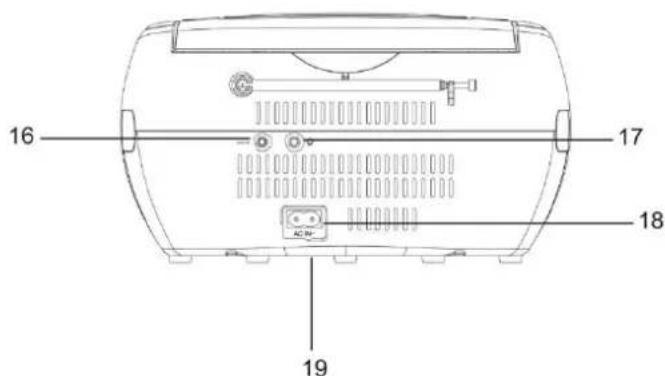
POHLED ZEZADU
16 VSTUP AUX
17 KONEKTOR PRO SLUCHÁTKA
18 NAPÁJECÍ ZDÍŘKA
19 PROSTOR PRO BATERIE
MONTÁŽ
Obsah dodávky
Cadolzburg, www.soundmaster.de
D 90556 Cadolzburg, Germany
Tel: +49 9103 71 67 0
Fax: +49 9103 71 67 12
E-Mail: info@soundmaster.de
Internet: www.soundmaster.de
Hereby, Wörlein GmbH declares that this device is in compliance with the essential requirements and other relevant provisions of Directive 2014/53/EU.
A copy of the declaration of conformity can be obtained from the above address.
- Festsender speichern
- LOCATION OF CONTROLS
- FRONT VIEW
- TOP VIEW
- BACK VIEW
- INSTALLATION
- Content of delivery
- Power supply
- Battery operation
- Note:
- ERP power management
- BASIC OPERATIONS
- Power on / off
- Selecting modes
- Adjusting volume
- DAB
- Select DAB radio station
- Preset store
- Preset recall
- DAB information
- DAB menu
- - Full scan:
- - Manual tune:
- • DRC:
- - Prune:
- - System
- FM
- • Automatic scan:
- - Manual scan for audio stations:
- Info display
- FM menu
- - Scan setting:
- - Audio setting:
- CD
- Control buttons:
- Audiobook function (Resume)
- ID3 function
- Repeat and playback functions
- Programmed play
- USB
- AUX IN
- SYSTEM SETTINGS
- Continued "SYSTEM SETTINGS". To enter the system menu, see at previous page!
- HEADPHONE
- PROTECTION DE L'ENVIRONNEMENT
- Contenu du paquet
- POHLED ZEZADU
- MONTÁŽ
- Obsah dodávky
Brand : Soundmaster
Model : SCD1700
Category : Cd player/recorder