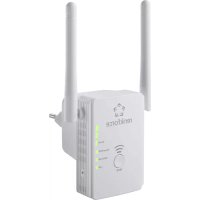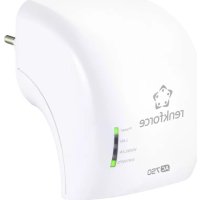
RFWFE200 - Wifi repeater Renkforce - Free user manual and instructions
Find the device manual for free RFWFE200 Renkforce in PDF.



| Product type | WLAN Repeater / Access Point / Router |
| Brand | Renkforce |
| Model | RFWFE200 |
| Dimensions (L x H x D) | Approx. 60 x 75 x 100 mm |
| Weight | Approx. 100 g |
| Power supply | 100 - 240 V AC, 50/60 Hz, 0.3 A max (direct mains plug) |
| Power consumption | Max. 0.3 A |
| Protection class | II (double insulation) |
| Network interfaces | 2 x RJ45 10/100 Mbit/s (1 x WAN, 1 x LAN) |
| WLAN standards | IEEE 802.11b/g/n (2.4 GHz) and IEEE 802.11a/n/ac (5 GHz) |
| Max. WLAN data rate | 300 Mbit/s (2.4 GHz) + 433 Mbit/s (5 GHz) |
| Frequency ranges / transmission power | 2.412 - 2.472 GHz (≤20 dBm) / 5.150 - 5.250 GHz (≤17 dBm) / 5.725 - 5.850 GHz (≤13 dBm) |
| Encryption protocols | WPA2, WPA, WEP |
| Operating modes | Repeater, Access Point (AP), Router |
| WPS function | Yes (quick setup) |
| Reset | Recessed Reset button (hold >3s) |
| Configuration | Web interface http://ap.setup (default IP 192.168.10.1) |
| Operating conditions | 0 to +40°C, 10 - 90% RH (non-condensing) |
| Storage conditions | -10 to +70°C, 10 - 90% RH (non-condensing) |
| Intended use | Indoor only, dry rooms |
| Maintenance and cleaning | Unplug before cleaning; use a dry, lint-free cloth; avoid harsh products |
| Safety | Do not use if damaged; avoid contact with moisture; do not open |
| Spare parts and repairability | No user-serviceable parts; repair by a professional |
| Package contents | Repeater, RJ45 cable, manual |
Frequently Asked Questions - RFWFE200 Renkforce
User questions about RFWFE200 Renkforce
0 question about this device. Answer the ones you know or ask your own.
Ask a new question about this device
Download the instructions for your Wifi repeater in PDF format for free! Find your manual RFWFE200 - Renkforce and take your electronic device back in hand. On this page are published all the documents necessary for the use of your device. RFWFE200 by Renkforce.
USER MANUAL RFWFE200 Renkforce
flowchart
graph LR
    A["Host Wi-Fi"] -->|Host Network| B["Network"]
    B -->|Extended Network| C["Laptop"]
www.conrad.com/downloads
Anschlüsse ....2x RJ45 10/100 MBit/s, 1x WAN, 1x LAN
WLAN...... IEEE802.11b/g/n, 2,4 GHz, max. 300 MBit/s; ...... IEEE802.11a/n/ac, 5 GHz, max. 433 MBit/s;
Frequenzbereiche/Sendeleistung ..2,412 – 2,472 GHz, ≤ 20 dBm; 5,150 – 5,250 GHz, ≤ 17 dBm 5,725 – 5,850 GHz, ≤ 13 dBm
Verschlüsselungsprotokolle......WPA2; WPA, WEP
Betriebsarten ...... Repeater; Access-Point; Router
Abmessungen (B x H x T) ...... ca. 60 x 75 x 100 mm
GB Operating Instructions
WLAN Access Point and Range Extender 300 Mbit/s 2.4 GHz + 433 Mbit/s 5 GHz
Order No. 2300465
Intended use
The product has 3 operating modes: "Repeater", "Access Point" (AP) and "Router". The "Repeater" mode serves to amplify your existing WLAN network and expand the coverage area.
The "Access Point" (AP) mode provides a separate WLAN network.
The "Router" mode serves to connect the devices that are connected to the product to the Internet using your existing modem.
You can connect your devices to the product in all modes via WLAN or LAN.
Power is supplied through the mains socket into which the product is plugged. For safety and compliance reasons, you may not convert and/or modify the product in any way. If you use the product for purposes other than those described above, the product can be damaged. Moreover, improper use involves risks such as short-circuits, fire, electric shocks, etc. Please read the operating instructions carefully and keep them. Please include these operating instructions when you pass the product on to a third party.
This product complies with the applicable national and European regulations. All names of companies and products are the trademarks of the respective owners. All rights reserved.
Package contents
• WLAN Access Point and Range Extender 300 Mbit/s 2.4 GHz + 433 Mbit/s 5 GHz
- RJ45 cable
- Operating instructions
Latest operating instructions
Download the latest operating instructions at
www.conrad.com/downloads or scan the QR code shown. Follow the instructions on the website.
Explanation of symbols

The lightning symbol inside a triangle is used when there is a potential risk of personal injury, e.g. through an electric shock.

An exclamation mark in a triangle indicates important instructions in this operating manual which absolutely have to be observed.
The arrow symbol indicates specific tips and advice on operation.
Safety Instructions

Please read the operating instructions carefully and pay particular attention to the safety instructions. We do not assume liability for any injuries/material damages resulting from failure to observe the safety instructions and the information in these operating instructions regarding the proper use of the product. Furthermore, in such cases, the warranty/guarantee will be null and void.

a) Product
- The design of the product complies with Safety Class II. Only a standard mains socket connected to the public supply may be used as the power source for the device.
-
If the product is damaged, do not touch it; there is a danger to life from electric shock!
First completely switch off the mains voltage to the mains socket to which the power adapter is connected (e.g., switch off at the corresponding circuit breaker or remove the safety fuse and then switch off the corresponding RCD). Only then unplug the power adapter from the mains socket and take the product to a specialised workshop. -
Check the product for damage before each use!
- If you detect any damage, do NOT connect the product to the mains voltage! This may cause fatal injury!
- The product is suitable for dry, enclosed indoor areas only. It must not be allowed to become damp or wet; never handle it if your hands are wet!
• There is a risk of a life-threatening electric shock!

b) General
- Protect the product from extreme temperatures, direct sunlight, strong vibrations, high humidity, moisture, combustible gases, vapours and solvents.
• The product is not a toy. Keep out of the reach of children and pets. - Do not carelessly leave the packaging material lying around. It may become a dangerous plaything for children.
- Handle the product with care; it can be damaged by impacts, blows or falls even from a low height.
- If you have any questions that are not answered in this manual, please contact our technical service or another specialist.
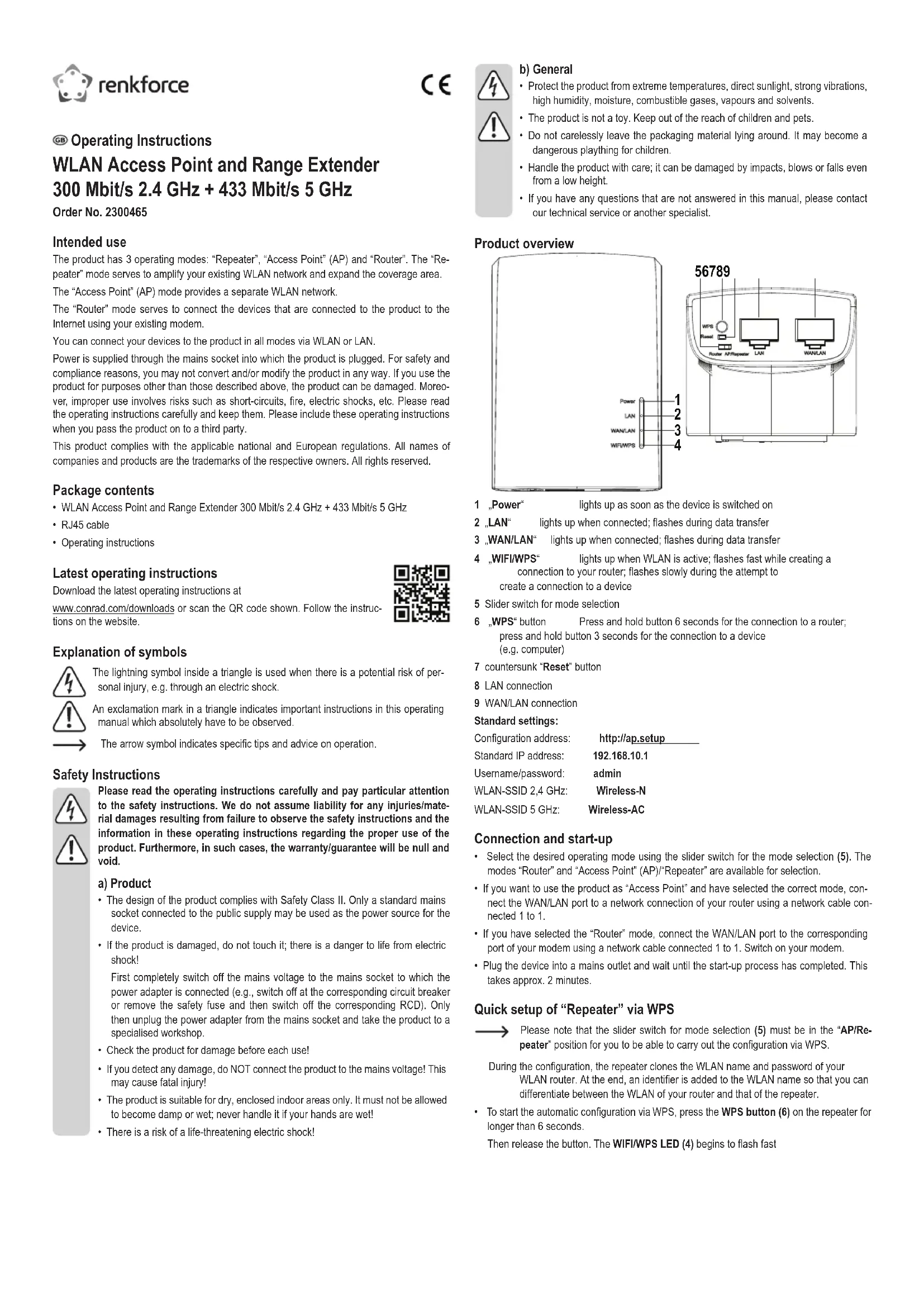
Product overview
text_image
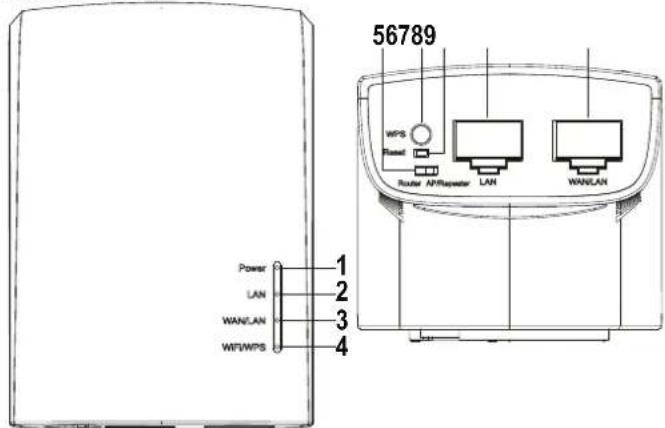
56789 WIPS Power Router APRepeater LAN WANLAN Power LAN WANLAN 3 41 "Power" lights up as soon as the device is switched on
2 „LAN“ lights up when connected; flashes during data transfer
3 „WAN/LAN“ lights up when connected; flashes during data transfer
4 _WIFI/WPS* lights up when WLAN is active; flashes fast while creating a connection to your router; flashes slowly during the attempt to create a connection to a device
5 Slider switch for mode selection
6 "WPS" button Press and hold button 6 seconds for the connection to a router; press and hold button 3 seconds for the connection to a device (e.g. computer)
7 countersunk "Reset" button
8 LAN connection
9 WAN/LAN connection
Standard settings:
| Configuration address: | http://ap.setup |
| Standard IP address: | 192.168.10.1 |
| Username/password: | admin |
| WLAN-SSID 2,4 GHz: | Wireless-N |
| WLAN-SSID 5 GHz: | Wireless-AC |
Connection and start-up
- Select the desired operating mode using the slider switch for the mode selection (5). The modes "Router" and "Access Point" (AP)/"Repeater" are available for selection.
- If you want to use the product as "Access Point" and have selected the correct mode, connect the WAN/LAN port to a network connection of your router using a network cable connected 1 to 1.
- If you have selected the "Router" mode, connect the WAN/LAN port to the corresponding port of your modem using a network cable connected 1 to 1. Switch on your modem.
- Plug the device into a mains outlet and wait until the start-up process has completed. This takes approx. 2 minutes.
Quick setup of "Repeater" via WPS
Please note that the slider switch for mode selection (5) must be in the "AP/Repeater" position for you to be able to carry out the configuration via WPS.
During the configuration, the repeater clones the WLAN name and password of your WLAN router. At the end, an identifier is added to the WLAN name so that you can differentiate between the WLAN of your router and that of the repeater.
- To start the automatic configuration via WPS, press the WPS button (6) on the repeater for longer than 6 seconds.
Then release the button. The WIFI/WPS LED (4) begins to flash fast
- Press the WPS button on your WLAN router within 2 minutes. Alternatively you can also start the WPS function on the web interface of the router.
Please see the operating manual of your router for further details. - As soon as the configuration is completed, the WIFI/WPS LED stops flashing and remains lit.
- To connect a device via WLAN, select your WLAN with the added identifier. The password for the WLAN is identical to the WLAN of your router. Alternatively, you can also use the WPS function (press the button on the repeater for 3 seconds).
Devices can now likewise be connected to the two network ports.
Overview of the modes and access to the web interface
"Repeater" mode
- If you have not carried out the configuration via WPS, proceed after the base configuration on the web interface with the chapter "Manual configuration for "Repeater".
- In both cases, connect a computer or a mobile device to the WLAN or one of the two network ports of the repeater. If the repeater is already configured, the password is identical to that of your router; otherwise, the WLAN is unencrypted.
- Open your browser and then the configuration page http://ap.setup of the repeater. If the repeater is not yet configured, its internal DHCP server is still running. In this case, therefore, you can also call up the configuration page using the 192.168.10.1.
If the repeater is already configured and you have problems opening the configuration page, please restart both your computer and the repeater (unplug and plug in again). Alternatively, open the web interface using the IP address. Because the repeater is already integrated into your network, you can see the IP address in your WLAN router. Please see the handbook for your router for further details.
"Access Point" mode
- If the access point is correctly connected to your router, it is generally already also ready to use. However, even in this case, you should still carry out the base configuration on the web interface and the configuration of the WLAN (chapter "Configuration of "Access Point").
- Connect a computer or a mobile device to the WLAN or the LAN port of the AP.
- Open your browser and then the configuration page http://ap.setup of the AP.
- If the page is not shown, open it using the IP address. Because the access point is already integrated into your network, you can see the IP address in your WLAN router. Please see the handbook for your router for further details.
"Router" mode
- Connect a computer or a mobile device to the WLAN or the LAN port of the router.
- Open the configuration page of the router. To do this, enter either the web address http://ap.setup or the standard IP address 192.168.10.1.
- Because the configuration of "Router" mode occurs in the web interface, again first carry out the base configuration, then the configuration of the router (chapter "Configuration for "Router").
Logging onto the web interface (all modes)
- First select the desired language and wait until the page has reloaded.
- Enter admin as both username and password and log in.
Base configuration on the web interface (all modes)
- As soon as you see the web interface, change the password for the webpage "Password Settings". Confirm the new password. If, when you access the web interface, a pop-up for changing the password is shown, you can also click on OK here.
- Then configure the time zone using "Time Zone Settings". Activate the NTP option; then select the time zone and lastly an NTP server. Confirm the selection. After the new registration, the time is automatically adjusted.
If you have set up the repeater using WPS, the basic configuration is thereby completed. Naturally, it is then possible to change additional settings.
If you want to open the web interface again after the base configuration, you have to enter as the login password not the standard password, but rather the new password you set.
If the device does not function correctly after the configuration, reset it to the factory settings and try it again.
Configuration for "Access Point"
- After the completion of the base configuration, click on the "AP ..." button at the top left to start the setup.
- If desired, change the two names of the WLAN networks (2.4 and 5 GHz).
- Now select an encryption for the WLAN. We recommend here that you select the standard WPA2-PSK, since it offers the highest security. If you have devices that support only WPA, select both standards.
- Enter a password for the WLAN. It should have min. 8 characters and consist of numbers as well as upper and lower case letters.
- To finish, click on the button at the lower left to save the selection. As soon as the changes are saved, the setup is complete.
→ If you carried out the configuration via WLAN, you must now still connect your device to the new WLAN network
Configuration for "Router"
- After the completion of the base configuration, click on the "Router ..." button at the top left to start the setup.
- At the top, select the type of your Internet access. If you have e.g. a DSL connection and standards data address PPPoE here.
- Enter your full username and the password for your DSL connection in the corresponding fields.
- Then, if desired, change the two names of the WLAN networks (2.4 and 5 GHz).
- Now select an encryption for the WLAN. We recommend here that you select the standard WPA2-PSK, since it offers the highest security. If you have devices that support only WPA, select both standards.
- Enter a password for the WLAN. It should have min. 8 characters and consist of numbers as well as upper and lower case letters.
- To finish, click on the button at the lower left to save the selection. As soon as the changes are saved, the setup is complete.
→ If you carried out the configuration via WLAN, you must now still connect your device to the new WLAN network.
Manual configuration for "Repeater"
- After the completion of the base configuration, click on the "Repeater ..." button at the top left to start the setup.
- Click in the list to select the WLAN to which you want to connect the repeater or that you want to amplify. If the WLAN to which you want to connect the repeater is not shown, refresh the list.
- Now in the open field, enter the password of the WLAN network that you previously selected.
- The names of the WLAN SSIDs are automatically carried over from your router. Then an identifier is added to the name. However, you can change both names as desired.
- To finish, click on the button at the lower left to save the selection. As soon as the changes are saved, the setup is complete.
If you carried out the configuration via WLAN, you must now still connect your device to the new WLAN network.
Positioning of "Repeater"
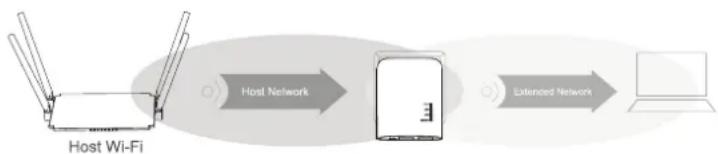
- When you have finished configuring the repeater, you should position it correctly, as shown in the following image.
- Try various locations and select the installation location where the best connection to your existing WLAN router is.
- So that the repeater is not too far from your WLAN router, test the connection e.g. with your smartphone. If you are connected directly to your router, min. 3 bars of the WLAN display should be active.
flowchart
graph LR
    A["Host Wi-Fi"] -->|Host Network| B["Router"]
    B -->|Extended Network| C["Laptop"]
Resetting to Factory Settings
Proceed as follows to reset the product to factory settings.
- Plug the device into a mains outlet and wait until the start-up process has completed.
- Press and hold the countersunk "Reset" (7) for more than 3 seconds. Then release the button again.
- The product will restart and is then reset to the factory settings. This process takes about 1 to 2 minutes.
Care and Cleaning

Never use abrasive cleaning agents, cleaning alcohol or other chemical solvents, since these can attack the housing or even impair operation.
- Unplug the product from the mains before every cleaning and remove all connection cables.
- Use a dry, lint-free cloth to clean the product.
Disposal

Electronic and electrical products do not belong in the household waste.
Dispose of the unserviceable product in accordance with the applicable legal regulations.
Declaration of Conformity (DOC)
We, Conrad Electronic SE, Klaus-Conrad-Straße 1, D-92240 Hirschau, hereby declare that this product conforms to the directive 2014/53/EU.

The full text of the EU declaration of conformity is available at the following Internet address:
www.conrad.com/downloads
Select the language by clicking a flag symbol and enter the order number of the product in the search field; then you will be able to download the EU declaration of conformity in PDF format.
Technical data
Operating voltage 100 - 240 V/AC 50/60 Hz max. 0.3 A
Connections ......2x RJ45 10/100 MBit/s, 1x WAN, 1x LAN
WLAN ..... IEEE802.11b/g/n, 2.4 GHz, max. 300 MBit/s;
..... IEEE802.11b/g/n, 5 GHz, max. 433 MBit/s;
Frequency range/ 2.412 - 2.472 GHz, ≤ 20 dBm;
transmission power .... 5.150 - 5.250 GHz, ≤ 17 dBm .... 5.725 - 5.850 GHz, ≤ 13 dBm
Encryption protocols....WPA2; WPA, WEP
Operating modes ...... Repeater; Access Point; Router
Dimensions (W x H x D) .... approx. 60 x 75 x 100 mm
Weight approx. 100 g
Operating conditions ....0 to +40 °C / 10 - 90% rel. humidity (noncondensing)
Storage conditions ....-10 to +70 °C / 10 - 90% rel. humidity (noncondensing)
F Mode d'emploi
flowchart
graph LR
    A["Host Wi-Fi"] -->|Host Network| B["Device"]
    B -->|Extended Network| C["Laptop"]
www.conrad.com/downloads
flowchart
graph LR
    A["Host Wi-Fi"] -->|Host Network| B["Device"]
    B -->|Extended Network| C["Laptop"]
www.conrad.com/downloads