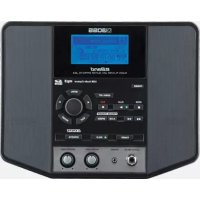
eBand JS8 - Hi-fi system BOSS - Free user manual and instructions
Find the device manual for free eBand JS8 BOSS in PDF.



| Product type | Audio player with guitar effects (hi-fi system) |
| Brand | BOSS |
| Model | eBand JS8 |
| Dimensions | 264 x 166 x 201 mm |
| Weight | 1.7 kg (without AC adapter) |
| Power supply | Included AC adapter (DC IN), consumption 400 mA |
| Main functions | Playback of songs (SD/USB), recording, COSM effects (130 presets, 100 user), tuner, metronome, phrase trainer, USB audio interface, reamping, patch sync |
| Connectors | GUITAR/MIC IN (6.35 mm jack), AUX IN (stereo mini-jack), PHONES (stereo mini-jack), LINE OUT (RCA), EXP PEDAL/CTL1,2 (6.35 mm TRS jack), USB Type A, USB Type B, DC IN |
| Supported audio formats | JS-8 (recording/playback), MP3 (44.1 kHz, 64-320 kbps), WAV (44.1 kHz, 8/16/24 bits, stereo/mono) |
| Memory storage | SD/SDHC card (for recording and playback), USB flash drive (playback and import) |
| Maximum number of songs | Up to 4,000 songs |
| Maintenance and cleaning | Clean with a soft, dry or slightly damp cloth; do not use solvents |
| Safety | Safety instructions included: do not open, use only the supplied adapter, avoid moisture and high temperatures, disconnect during storms |
| Spare parts and repairability | AC adapter, USB cable, SD card included; options: expression pedals (Roland EV-5, BOSS FV-500L/H), footswitches (FS-5U, FS-6); repair by authorized center |
| Included accessories | AC adapter, owner's manual, SD card, USB cable, Roland Maintenance information sheet |
| Warranty and service | Contact your dealer or an authorized Roland center for any repairs |
Frequently Asked Questions - eBand JS8 BOSS
User questions about eBand JS8 BOSS
0 question about this device. Answer the ones you know or ask your own.
Ask a new question about this device
Download the instructions for your Hi-fi system in PDF format for free! Find your manual eBand JS8 - BOSS and take your electronic device back in hand. On this page are published all the documents necessary for the use of your device. eBand JS8 by BOSS.
USER MANUAL eBand JS8 BOSS
Before using this unit, carefully read the sections entitled: "USING THE UNIT SAFELY" (p. 42) and "Important Notes" (p. 43). These sections provide important information concerning the proper operation of the unit. Additionally, in order to feel assured that you have gained a good grasp of every feature provided by your new unit, this owner's manual should be read in its entirety, and it should be saved and kept on hand as a convenient reference.
Copyright © 2009 BOSS CORPORATION
All rights reserved. No part of this publication may be reproduced in any form without the written permission of BOSS CORPORATION.
BOSS is a registered trademark of BOSS Corporation in the United States and/or other countries.
Printing Conventions and icons in This Manual
| Text or numerals enclosed in square brackets [ ] | Indicate buttons. |
| [WRITE] WRITE button | |
 | Indicates information that you should be aware of when using the JS-8. |
 | Indicates supplementary information about an operation. |
 | Indicates information about a convenient operation. |
 | Indicates a reference page. |
Checking the Package Contents
• JS-8
- AC Adaptor
- Owner's Manual (This document)
- SD Card (Already inserted when the JS-8 is shipped.) Contains the JS-8 Song List Editor, USB audio driver, and song and rhythm data.
- USB Cable
• Roland Service (Information Sheet)
COSM
Technology that simulates existing physical structures, materials, and the like using different, virtual means is called "modeling technology."
COSM (Composite Object Sound Modeling) is a technical innovation from Roland that combines a number of such sound-modeling technologies to create new and unique sounds.
Contents
Main Features 2
Setting Up the JS-8 4
Basic setup for the JS-8 4
Basic operation of the JS-8 ....5
Using the JS-8 with Other Devices 6
Play Your Guitar with Songs as YourBacking ..... 8
Playing Songs 8
Playing Songs on USB Memory 8
Recording Performances 9
Selecting Songs 10
Switching Effects....12
Saving Effects 13
Convenient Practice Functions ....14
Tuner/Metronome....14
Phrase Trainer 15
Importing Songs 16
Importing Songs from CD Players and Other Devices .....16
Capturing Songs from Various Sound Sources ....17
Using the JS-8 Song List Editor ....18
Quitting the Song List Editor ....19
Convenient Functions 20
Advanced Editing of Effect Parameters ....20
Saving Effects 20
About the JS-8's Internal Effects ....22
Adjusting the Guitar and Mic Input Sensitivity ....31
Turning Off the Internal Speakers ....31
Calling Up the Effect Stored in a Song (Patch Sync) ......31
Using Foot Switches and Expression Pedals 32
Using USB Audio Interfaces ....33
Using Commercial SD Cards 35
Initializing SD Cards 35
Backing Up 36
Recovering Backed Up Data (RECOVER) 37
Song Settings
(Song Information/Protect/Effects/Song Name) 38
Converting songs and transferring them between media....38
Various System Settings 39
Appendices 40
Error Messages 40
Troubleshooting....41
USING THE UNIT SAFELY 42
Important Notes 43
Index 44
Specifications 44
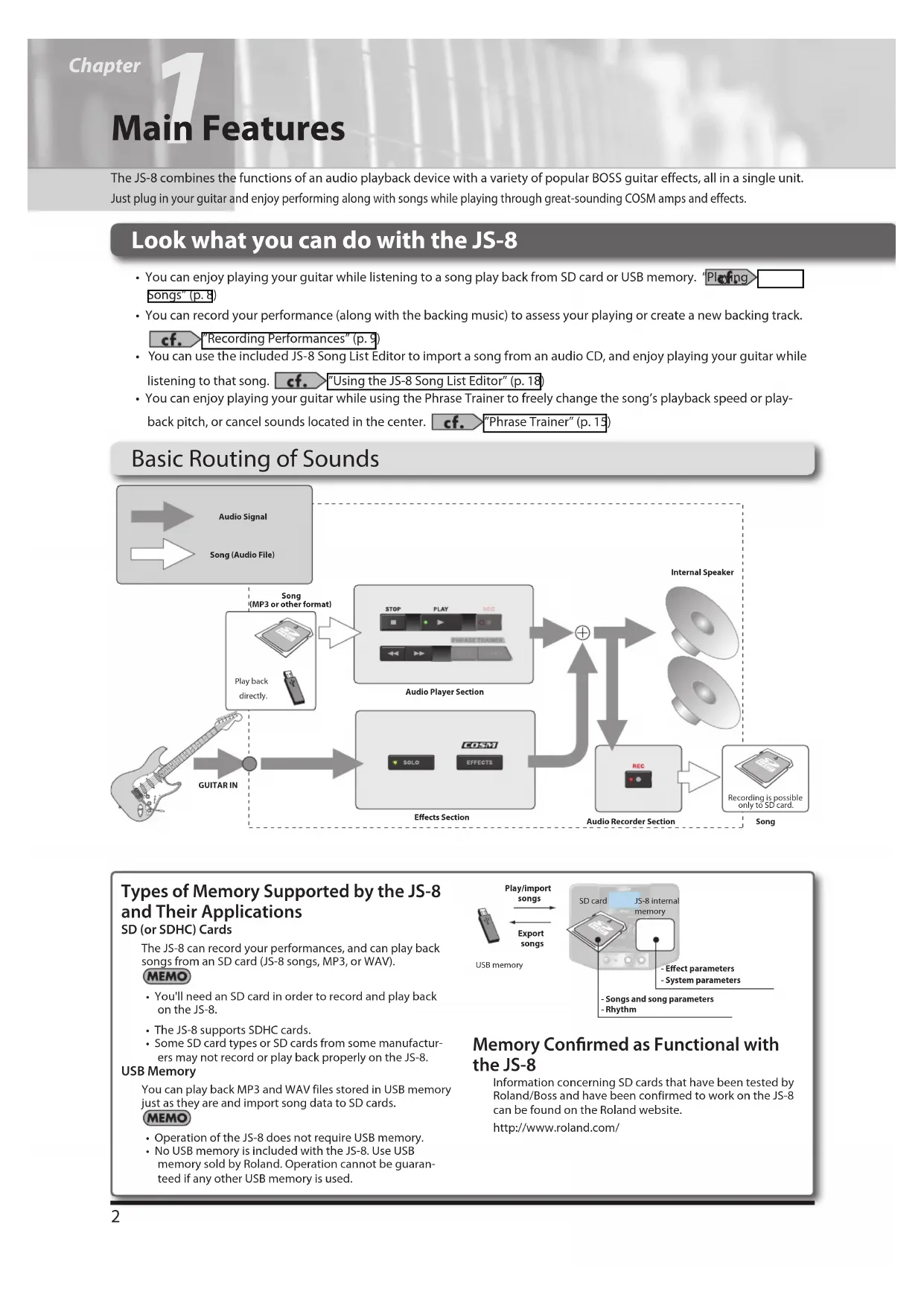
The JS-8 combines the functions of an audio playback device with a variety of popular BOSS guitar effects, all in a single unit. Just plug in your guitar and enjoy performing along with songs while playing through great-sounding COSM amps and effects.
Look what you can do with the JS-8
- You can enjoy playing your guitar while listening to a song play back from SD card or USB memory. "Playing"
songs" (p. 8)
- You can record your performance (along with the backing music) to assess your playing or create a new backing track.
cf. "Recording Performances" (p. 9)
- You can use the included JS-8 Song List Editor to import a song from an audio CD, and enjoy playing your guitar while
listening to that song. cf. "Using the JS-8 Song List Editor" (p. 18)
- You can enjoy playing your guitar while using the Phrase Trainer to freely change the song's playback speed or play-
back pitch, or cancel sounds located in the center. cf. "Phrase Trainer" (p. 15)
Basic Routing of Sounds

flowchart
graph TD
    A["Audio Signal"] --> B["Song (Audio File)"]
    B --> C["Song (MP3 or other format)"]
    C --> D["Play back directly."]
    D --> E["Audio Player Section"]
    E --> F["⊕"]
    F --> G["Internal Speaker"]
    G --> H["Audio Recorder Section"]
    H --> I["Recording is possible only to SD card."]
    J["GUITAR IN"] --> K["●"]
    K --> L["Effects Section"]
    L --> M["COSM"]
    M --> N["SOLO"]
    M --> O["EFFECTS"]
    N --> P["+"]
    O --> P
    P --> Q["↓"]
    Q --> H
Types of Memory Supported by the JS-8 and Their Applications
SD (or SDHC) Cards
The JS-8 can record your performances, and can play back songs from an SD card (JS-8 songs, MP3, or WAV).
MEMO
- You'll need an SD card in order to record and play back on the JS-8.
• The JS-8 supports SDHC cards. - Some SD card types or SD cards from some manufacturers may not record or play back properly on the JS-8.
USB Memory
You can play back MP3 and WAV files stored in USB memory just as they are and import song data to SD cards.
MEMO
• Operation of the JS-8 does not require USB memory.
- No USB memory is included with the JS-8. Use USB memory sold by Roland. Operation cannot be guaranteed if any other USB memory is used.

flowchart
graph TD
    A["USB memory"] --> B["Play/import songs"]
    B --> C["Export songs"]
    C --> D["SD card"]
    D --> E["JS-8 internal memory"]
    E --> F["- Effect parameters"]
    E --> G["- System parameters"]
    E --> H["- Songs and song parameters"]
    E --> I["- Rhythm"]
Memory Confirmed as Functional with the JS-8
Information concerning SD cards that have been tested by Roland/Boss and have been confirmed to work on the JS-8 can be found on the Roland website.
http://www.roland.com/
Sound Path When Used with Connected Devices
You can use the JS-8 with digital audio players, computers, and other devices to play sounds and more.
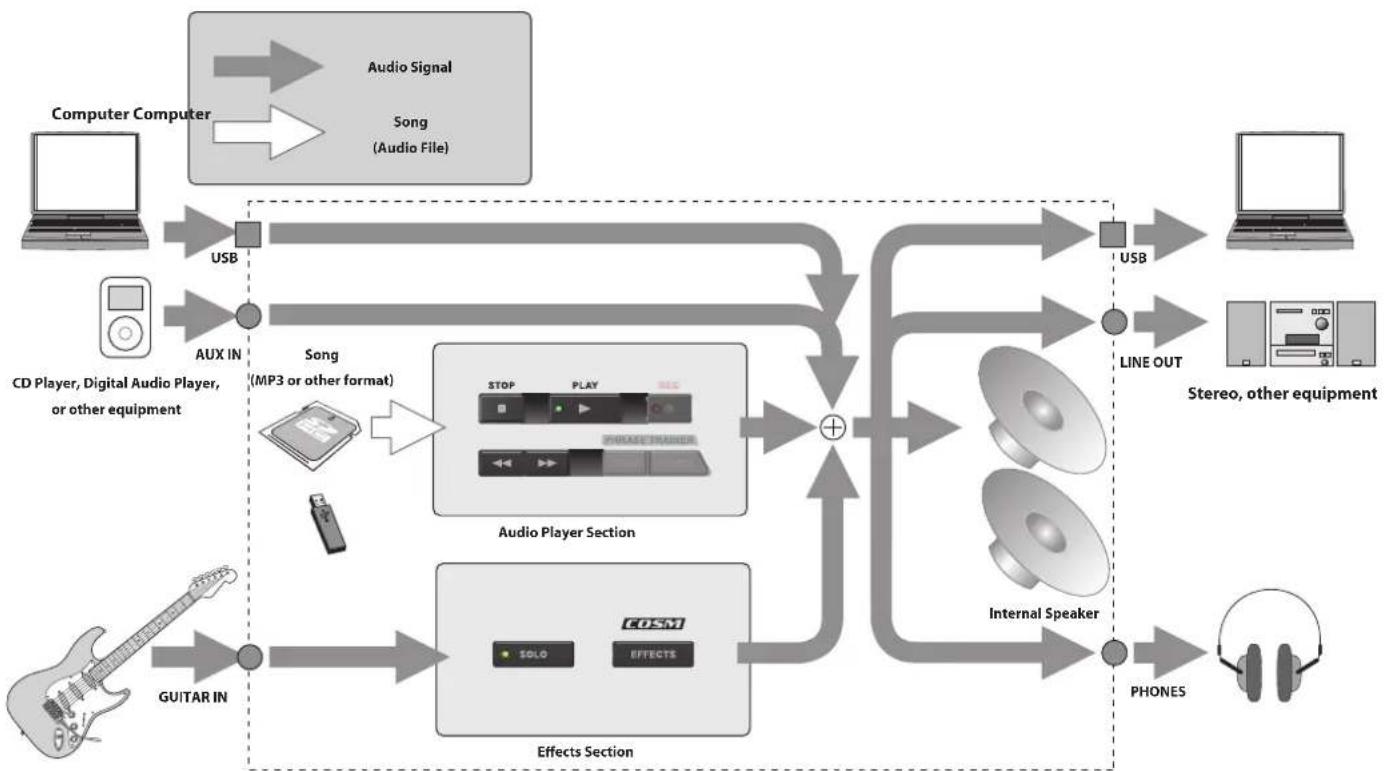
flowchart
graph TD
    A["Computer Computer"] --> B["USB"]
    C["CD Player, Digital Audio Player, or other equipment"] --> D["AUX IN"]
    D --> E["Audio Player Section"]
    F["Guitar IN"] --> G["Effects Section"]
    H["Mobile Device"] --> I["SOLO"]
    I --> G
    J["Audio Signal"] --> K["Audio File"]
    L["Audio Signal"] --> M["Audio File"]
    N["Audio Signal"] --> O["Audio File"]
    P["Audio Signal"] --> Q["Audio File"]
    R["Audio Signal"] --> S["Audio File"]
    T["Audio Signal"] --> U["Audio File"]
    V["Audio Signal"] --> W["Audio File"]
    X["Audio Signal"] --> Y["Audio File"]
    Z["Audio Signal"] --> AA["Audio File"]
    AB["Line OUT"] --> AC["+"]
    AD["Internal Speaker"] --> AE["+"]
    AF["PhONES"] --> AG["+"]
    AH["Stereo, other equipment"] --> AI["+"]
    AJ["Audio Player Section"] --> AK["+"]
    AL["Audio Player Section"] --> AM["+"]
    AN["Audio Player Section"] --> AO["+"]
    AP["Audio Player Section"] --> AQ["+"]
    AR["Audio Player Section"] --> AS["+"]
    AT["Audio Player Section"] --> AU["+"]
    AV["Audio Player Section"] --> AW["+"]
    AX["Audio Player Section"] --> AY["+"]
    AZ["Audio Player Section"] --> BA["+"]
    BB["Audio Player Section"] --> BC["+"]
    BD["Audio Player Section"] --> BE["+"]
    BF["Audio Player Section"] --> BG["+"]
    BH["Audio Player Section"] --> BI["+"]
    BJ["Audio Player Section"] --> BK["+"]
    BL["Audio Player Section"] --> BM["+"]
    BN["Laptop"] --> BO["+"]
    BP["Laptop"] --> BO
    BO --> BR["+"]
    BS["Tereo"] --> BT["+"]
    BU["Stereo"] --> BV["+"]
    BW["Burnout/Control"] --> BX["Guitar IN"]
    BX --> BY["Guitar IN"]
Songs Supported by the JS-8
The JS-8 works with songs in the following formats.
JS-8 Songs (Recording/Playback)
- Roland/BOSS proprietary compression format
MP3 (Playback only)
• Sampling Rate: 44.1 kHz
- Bit Rate: 64-320 kbps
WAV (Playback only)
• Sampling Rate: 44.1 kHz
• Quantization Bit Rate: 8/16/24-bit
• Monaural or Stereo Data
- Uncompressed (Linear)
MEMO
The JS-8 does not support song formats other than those described above.
Setting Up the JS-8
Basic setup for the JS-8
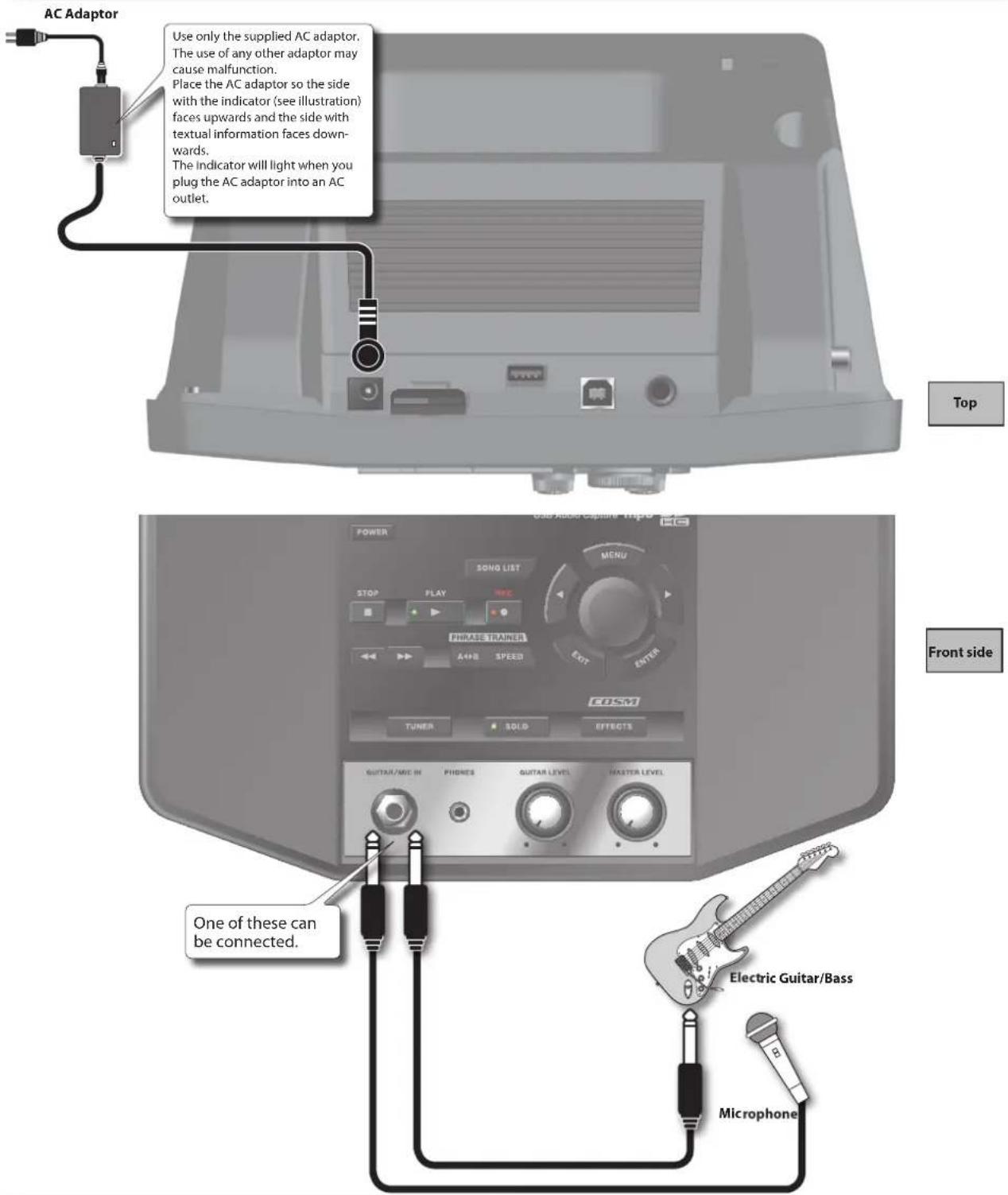
To prevent malfunction and/or damage to speakers or other devices, always turn down the volume, and turn off the power on all devices before making any connections.
Howling could be produced depending on the location of microphones relative to speakers. This can be remedied by:
- Changing the orientation of the microphone(s).
- Relocating microphone(s) at a greater distance from speakers.
- Lowering volume levels.
MEMO
The JS-8 does not feature a phantom power supply, so no sound will be produced if you connect a condenser mic or other mic that requires phantom power.

If necessary, read "Adjusting the Guitar and Mic Input Sensitivity" (p. 31)
Basic operation of the JS-8
![MENU Button This calls up various different functions depending on the screen displayed. Turning the Power On/ Turning the Power Off Once the connections have been completed [4-4] [19-20], turn on power to your vari- ous devices in the order specified. By turning on devices in the wrong order, you risk causing malfunction and/or damage to speakers and other devices. When powering up • Turn on the power to your component stereo system or mixer last. When powering down • Turn off the power to your component stereo system or mixer first. This unit is equipped with a protection circuit. A brief interval (a few seconds) after power up is required before the unit will operate normally. Cursor Button This moves the position of the cursor (highlighted portion) in the display. Use the dial to adjust the high- lighted value. Dial Use this to change values and settings. ENTER Button Use this to confirm selection of an item, and to adjust the values of settings and switch among them. EXIT Button Press this to cancel settings and return to previous screens.](/content/2026/04/618871/images/9ed05a65e163c3595a21476a88fbaf8e50fb23e9c08667f3ef93a21f744bfc37.jpg)
About the Top Screen
This screen will appear when you turn on the JS-8's power. The procedures explained in this manual will start from this screen.

Play Mode Display
| Displayed | Description Displayed Description | ||
| ONE→ | The current song plays to the end and stops. | SHUFFLE | Songs in the list are played back in random order. |
| ONE←→ | Playback of the current song is repeated. | SHUFFLE←→ | Playback of songs in list is repeated in random order. |
| LIST→ | Songs are played back in the listed order. | A← | Time location "A" has been registered for AB Repeat. |
| LIST←→ | Playback of songs in the list is repeated. | A←→E←→ | Playback will repeat between time locations "A" and "B" (AB Repeat). |
The explanations in this manual include illustrations that depict what should typically be shown by the display. Note, however, that your unit may incorporate a newer, enhanced version of the system (e.g., includes newer sounds), so what you actually see in the display may not always match what appears in the manual.
- By pressing a cursor button you can move the cursor (highlighted area) to the song name, effect, patch name, play mode, or playback position.
- You can use the dial to change the value at the cursor location.
Using the JS-8 with Other Devices

About the Cover Holder (indentation)
If you detach the cover of the USB connector, place it in the cover holder so that it won't be lost.

About the Ground Terminal
Depending on the circumstances of a particular setup, you may experience a discomforting sensation, or perceive that the surface feels gritty to the touch when you touch this device, microphones connected to it, or the metal portions of other objects, such as guitars. This is due to an infinitesimal electrical charge, which is absolutely harmless. However, if you are concerned about this, connect the ground terminal (see figure) with an external ground. When the unit is grounded, a slight hum may occur, depending on the particulars of your installation. If you are unsure of the connection method, contact the nearest Roland Service Center, or an authorized Roland distributor, as listed on the "Information" page.
Unsuitable places for connection
•Water pipes (may result in shock or electrocution)
•Gas pipes (may result in fire or explosion)
•Telephone-line ground or lightning rod
(may be dangerous in the event of lightning)
About the SD Cards and the SD Card Connector
Insert the SD card, label side up, into the slot in the JS-8's rear panel.
Press the inserted SD card until you hear an audible "click."
Recording and playback on the JS-8 requires an SD card.
Never insert or remove an SD card while this unit's power is on. Doing so may corrupt the unit's data or the data on the SD card.
Carefully insert the SD card all the way in-until it is firmly in place.
To prevent dust from entering the SD card connector and to prevent the SD card from being stolen, you should screw on the connector cover.
About the USB Memory Connector
Only USB memory can be connected to the USB memory connector. Do not connect devices such as a hard disk or CD-ROM drive.
About the Expression Pedal and Footswitch
Use only the specified expression pedals and foot switches (Roland EV-5, BOSS FV-500L, FV-500H, FS-5U, FS-6; sold separately). By connecting any other expression pedals, you risk causing malfunction and/or damage to the unit.
Never connect or disconnect the expression pedal or the footswitch while this unit's power is on.
About the Security Slot
Connect a commercially available anti-theft security cable here.
http://www.kensington.com/


About the AUX IN Jack
Input audio from line-level devices here.
MEMO
Use the controls of the connected device to adjust the input level.
About the LINE OUT Jacks
Output audio to a component stereo system or other device from here.
Caution When Making Connections
To prevent malfunction and/or damage to speakers or other devices, always turn down the volume, and turn off the power on all devices before making any connections.
Howling could be produced depending on the location of microphones relative to speakers. This can be remedied by:
- Changing the orientation of the microphone(s).
- Relocating microphone(s) at a greater distance from speakers.
- Lowering volume levels.
Play Your Guitar with Songs as YourBacking
Playing Songs
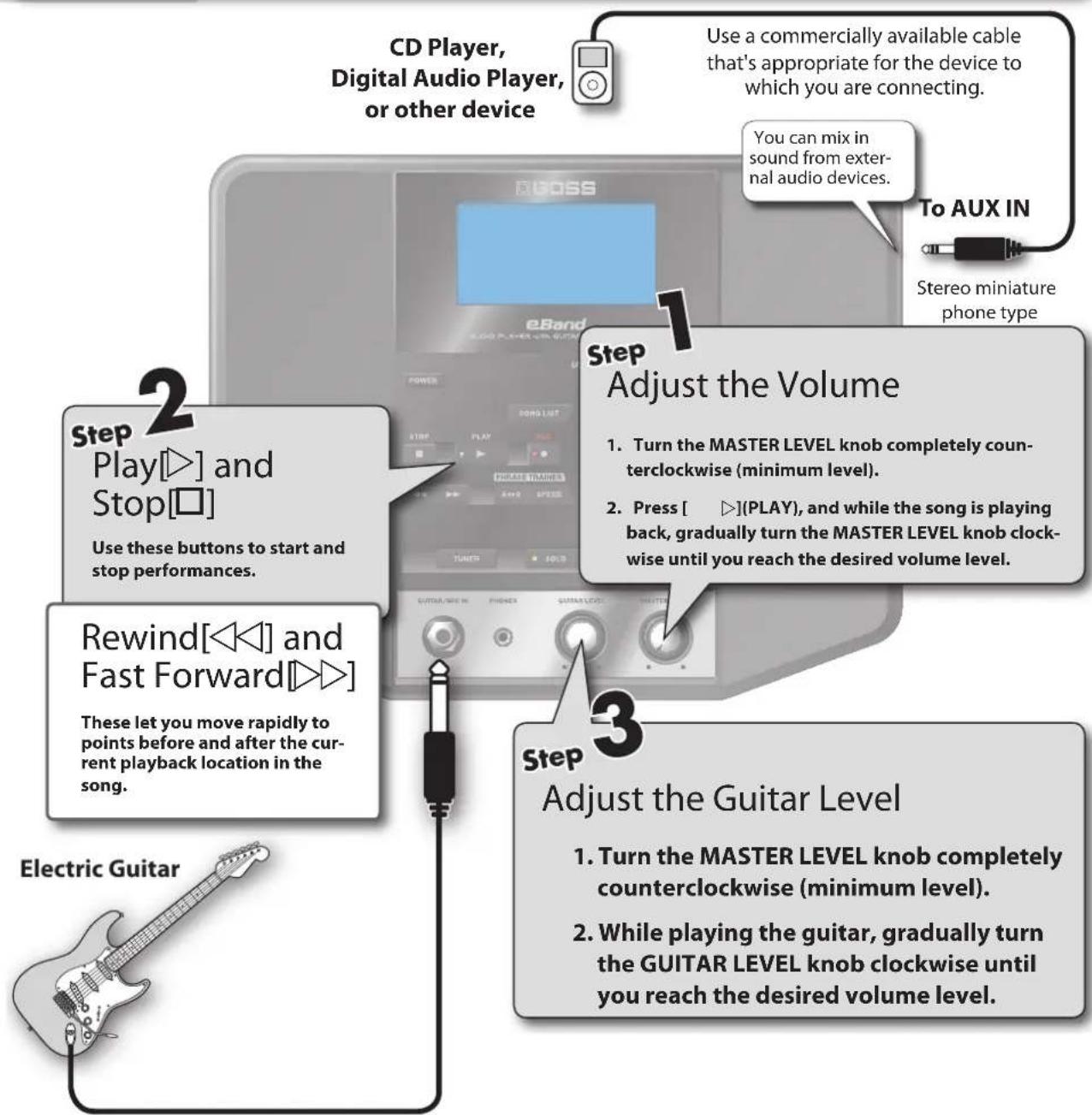
flowchart
graph TD
    A["CD Player, Digital Audio Player, or other device"] --> B["Step Play[▷"] and_Stop["□"]]
    B --> C["Use these buttons to start and stop performances."]
    C --> D["Rewind[◀◀"] and_Fast_Forward["▷◀"]]
    D --> E["These let you move rapidly to points before and after the current playback location in the song."]
    E --> F["Electric Guitar"]
    G["Use a commercially available cable that's appropriate for the device to which you are connecting."] --> H["To AUX IN"]
    H --> I["Stereo miniature phone type"]
    J["Step Adjust the Volume"] --> K["1. Turn the MASTER LEVEL knob completely counterclockwise (minimum level)."]
    K --> L["2. Press [ ▷"](PLAY), and while the song is playing back, gradually turn the MASTER LEVEL knob clockwise until you reach the desired volume level.]
    L --> M["3. Adjust the Guitar Level"]
    M --> N["1. Turn the MASTER LEVEL knob completely counterclockwise (minimum level)."]
    N --> O["2. While playing the guitar, gradually turn the GUITAR LEVEL knob clockwise until you reach the desired volume level."]
MEMO
While stopped, pressing o will return the song playback location to the beginning (00:00) (Zero Return).
TIP
Playing Songs on USB Memory
- Connect the USB memory device to the USB memory connector.
The contents of the USB memory device will be displayed. - Using the dial, select the song that you want to play, then press [ENTER].
- Continue by following the procedure in "Playing Songs."
Recording Performances
You can record the exact sounds you hear from the JS-8.
. To Stop Recording Press [□](STOP). When recording stops, the display will indicate REC END. Saves the recorded song and starts playback. Discards the recorded content. At the message "Are you sure?", press [ENTER] to discard the recording. (The recorded content will not be saved.)](/content/2026/04/618871/images/c13c1ef4c1180eff1e23629af7869ab6cb56e00d234b18047abba22ddd9fc99b.jpg)
MEMO
- Recorded data (songs) are automatically assigned the name "SONG****" (with **** indicating the number).
- You can easily find songs you've recorded in the JS-8 by using the "USER" category in the SEARCH function.

To select the "USER" category, refer to "Narrowing the Number of Songs Appearing In the Display (SEARCH Function)" (p. 10)

With the MENU button...
From the top screen, you can press [MENU] to access the following operations.
| MENU Category | Description |
| BEST 30 EDIT | Add the current song to the BEST 30. |
| AB EDIT | Make precise settings for the AB REPEAT function. |
| CAPTURE | Capture audio. This is a convenient way to capture a song. |
| METRONOME | Sound the metronome. |
| PHRASE LOOP | Use the Phrase Loop function. |
| SONG INFO | Confirm song information and edit song names. |
| MENU Category | Description |
| SYSTEM | Make a variety of JS-8 settings. cf. p. 39 |
| ERASE | Delete the selected song. |
| EXPORT | Convert the selected song to WAV format and write it to USB memory. cf. p. 38 |
| IMPORT | Store the songs on the selected USB memory to the SD card. cf. p. 38 |
| CONVERT | Convert MP3 data on the SD card to JS-8 song format. cf. p. 38 |
MEMO
The displayed MENU items will differ depending on the operational state (e.g., the screen that is shown or the location of the cursor).
Selecting Songs
Selecting Songs
- Press [SONG LIST].
- Turn the dial to select a song.
- Press [ENTER].
Select the song you want to hear or the rhythm you want played.
MEMO
You can narrow the number of songs displayed by specifying certain conditions (SEARCH Function).
Use of the demo song and rhythm data supplied with this product for any purpose other than private, personal enjoyment without the permission of the copyright holder is prohibited by law. Additionally, this data must not be copied, nor used in a secondary copyrighted work without the permission of the copyright holder.
Narrowing the Number of Songs Appearing in the Display (SEARCH Function)
- Press [SONG LIST].
- Press [MENU].
- Select the search type with the dial and press [ENTER].
Narrowing down the songs listed in the display helps you find the songs you are looking for more quickly.
MEMO
- Narrowing search results with the SEARCH function applies to songs shipped with the JS-8 and songs saved to the JS-8 using the JS-8 Song List Editor [p. 18].
- You can display up to a maximum of 4,000 songs.
Ranking Your Favorite Songs (BEST 30)
- Before starting, first select a song you want to list in the BEST 30.
- Press [MENU].
- Select BEST 30 EDIT with the dial and press [ENTER].
- Determine the order using the dial, then press [ENTER].
This process determines the songs listed when BEST 30 is selected as the SEARCH type.
Including your favorite songs, allows you to always have the songs you want appear in song lists.
MEMO
You can't specify an order for songs saved in USB memory. (They can't be registered in BEST 30.)

With the MENU button...
Pressing [SONG LIST] and then [MENU] allows you to carry out the following procedures.
You can choose from the following types of searches.
| SEARCH Type Description | |
| ALL SONGS | Songs recorded with the JS-8, registered album title or artist name are listed. |
| USER | Data recorded with the JS-8 is automatically registered in this category. |
| BEST 30 | Only the thirty favorite songs are listed, if these songs have already been ranked (1–30). |
| ALBUM/ARTIST | Songs are listed by album title (ALBUM) or artist name (ARTIST).MEMOThese headings are available when album titles and artist names are registered to the songs.By using the included JS-8 Song List Editor (p. 1B) you can use your computer to register and edit album names and artist names. |
| RHYTHM | Only short phrases (RHYTHM LOOP) contained on the card included with the JS-8 are listed.MEMOBy using the included JS-8 Song List Editor (p. 1B) you can use your computer to add your favorite audio files as rhythms. |
| USB MEMORY | Browses files saved to the USB memory. |
| SD CARD | Browses files saved to the SD card.MEMOOnly if the VIEW SW parameter is ON. (p. 39) |

With "Selecting Songs," songs are displayed according to the selected search type.
| MENU Category Description | |
| REMOVE | Remove the selected song from the BEST 30 list.MEMOThis is shown only if BEST 30 is selected as the type of search. |
How to Use the RHYTHM Data
The rhythm data in the included card can be played back repeatedly in place of the metronome or backing.
- Press [SONG LIST].
- Press [MENU].
- Select RHYTHM with the dial and press [ENTER].
- Turn the dial to select the song (rhythm data) and press [ENTER].
- Use the cursor buttons to move the cursor to the play mode (p. 5).
- Use the dial to set the play mode to ONE.
- Press ▷; the rhythm will play.
Switching Effects
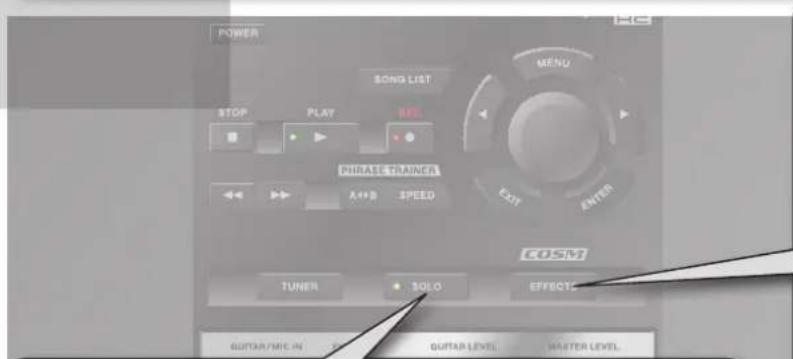
Switch to the SOLO Effect
Press [SOLO].

The SOLO icon will light if SOLO is on.
One effect patch can be selected for the times when SOLO is on, and another can be selected for the times when it is off.

With the MENU button...
Pressing [EFFECT] and then [MENU] allows you to carry out the following procedures.
| MENU Category Description | |
| WRITE | Saves the effect currently being edited. Also copies the currently selected effect. |
| EXCHANGE | Exchanges one effect for another. |
| INITIALIZE | Initializes the effect settings. |
MEMO
The displayed MENU items will differ depending on the operational state (e.g., the screen that is shown or the location of the cursor).
Select Effects
Press [EFFECTS].
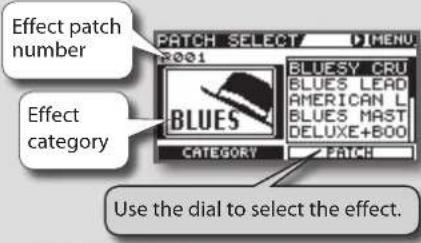
Effect Category

For Bass

For Microphone

User

Switching Back and Forth Between Two Effects
On the JS-8, one effect patch number can be assigned for the times when the SOLO button is switched on, and another can be assigned as the one to use when the SOLO button is off. As a result, all you need to do is press the [SOLO] button to instantly switch between two different effects.
- Press [MENU].
- Select SYSTEM with the dial and press [ENTER].
- Select SYSTEM SETTING with the dial and press [ENTER].
- Set PATCH SYNC parameter to OFF.
The PATCH SYNC function (p. 31) will be ignored.
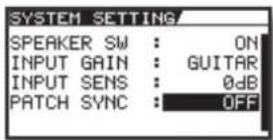
- Press [EXIT].
The top screen appears. - Press [SOLO] so SOLO is turned OFF (indicator unlit).
- Press [EFFECTS], select an effect patch using the dial, then press [ENTER].
The effect patch to be used when SOLO is OFF has thus been assigned.
- Press [SOLO] so SOLO is turned ON (indicator lit).
- Press [EFFECTS], select an effect patch using the dial, then press [ENTER].
The effect patch to be used when SOLO is ON has thus been assigned.
When you're at the top screen, you can toggle between the two different effects selected in step 7 and step 9 simply by pressing [SOLO].
Changing Effects to Get the Desired Sound
- Press [EFFECTS].
- Press the right cursor button.
You can create sounds by choosing song genres and using intuitive sound-shaping grids that adjust multiple parameters with a single control.
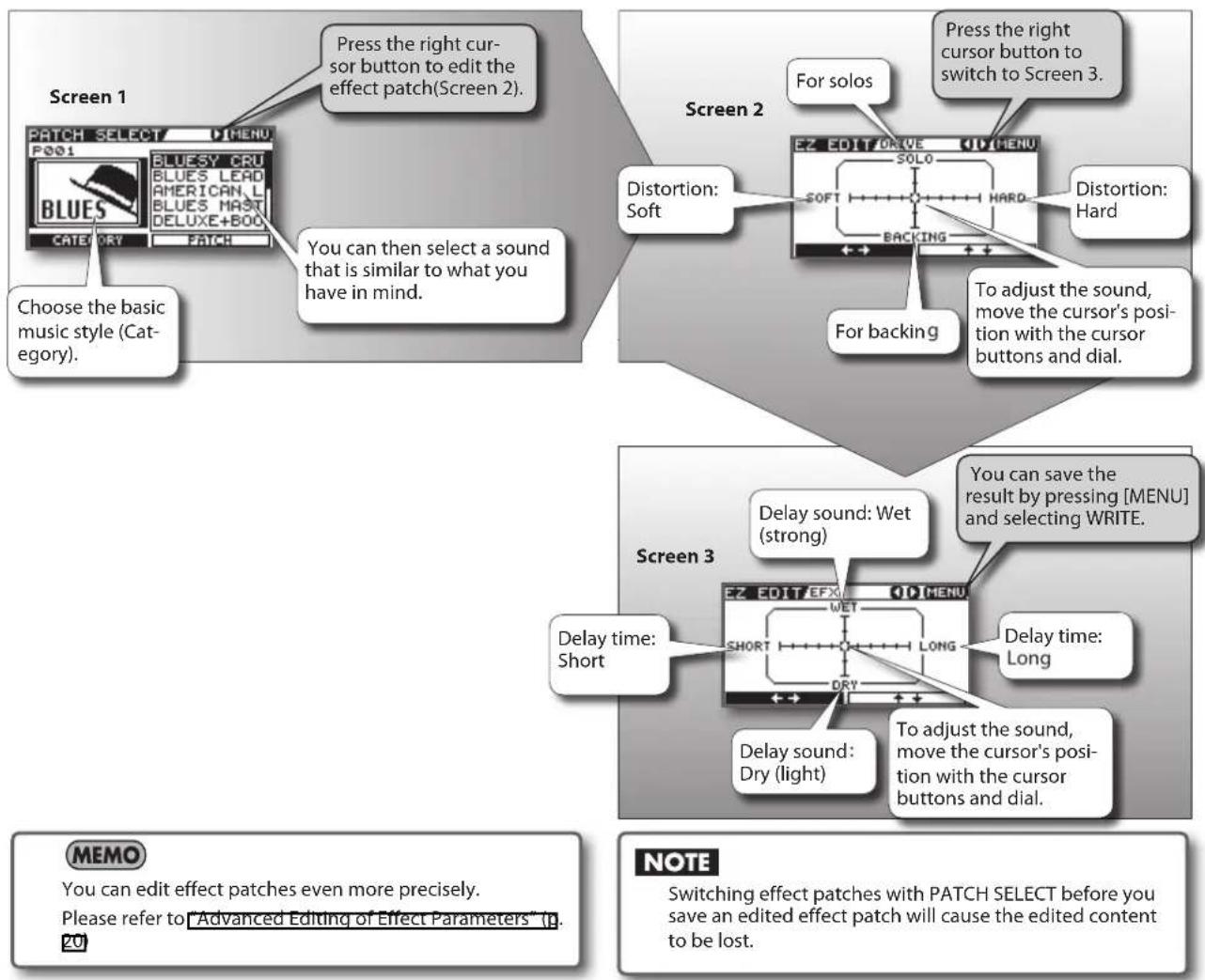
flowchart
graph TD
    A["Screen 1"] --> B["Choose the basic music style (Category)."]
    B --> C["Choose the right cursor button to edit the effect patch (Screen 2)."]
    C --> D["You can then select a sound that is similar to what you have in mind."]
    D --> E["Screen 2"]
    E --> F["For solos"]
    E --> G["For backing"]
    E --> H["Distortion: Soft"]
    E --> I["Distortion: Hard"]
    E --> J["To adjust the sound, move the cursor's position with the cursor buttons and dial."]
    E --> K["Delay sound: Wet (strong)"]
    E --> L["Delay time: Short"]
    E --> M["Delay sound: Dry (light)"]
    E --> N["You can save the result by pressing [MENU"] and selecting WRITE.]
    E --> O["To adjust the sound, move the cursor's position with the cursor buttons and dial."]
Saving Effects
- After editing the effect patch, press [MENU].
- Select WRITE with the dial and press [ENTER].
![PACK WRITE MENU WRITE TO : U001 (USER PATCH 001 BLUESY CRUNCH /BCDEFGHITKLMINOPRSTUWJNY2 EXIT:CANCEL ENTER:WRITE Use the left and right cursor buttons and the dial to name the effect. Press [ENTER] to save the effect to the selected effect patch number. Select the effect patch number that you want to save your changes to. Pressing [MENU] allows you to carry out the following procedures. MENU Category Description ALL DELETE Deletes the all characters. DELETE Deletes the character and shifts the characters that follow to the left. INSERT Inserts a blank space at the cursor position.](/content/2026/04/618871/images/2e68a2eae1fc0174724320e5d336215b2b11a93f2da6cbe9191c57948cb4a61a.jpg)
Convenient Practice Functions
![eBoss eBand AUDIO PLAYERS WITH SUTTER EFFECTS...J&G USB Audio Capture mp3 52 POWER SONG LIST MENU STOP PLAY REC PHRASE TRAINER A++8 SPEED COSM TUNER SOLD TUNER Press [TUNER]. Metronome 1. Press [MENU]. 2. Select METRONOME with the dial and press [ENTER]](/content/2026/04/618871/images/96095b1756ae25ef7016db701ed57308cc1612f27242470f6548e61d25f55e11.jpg)
Use this feature to tune your instruments.
Play along with the metronome to learn how to perform at a steady tempo.
![TUNER PITCH : 440Hz Adjust the tuning until the desired pitch is shown and both triangles are lit. DisplayDescription Too low Tuned Too high This sets the frequency of A4 (the middle A on a piano keyboard). steady tempo. Press [SPEED] two or more times to match the song's rhythm; that pace is set as the TEMPO. METRONOME SPEED: TAP ENTER: 120 VOLUME 4/4 120 100 SEAT TEMPO VOLUME This sets the metronome beat. This sets the tempo (BPM). This sets the metronome volume. MEMO • You can't play back songs in the Metronome screen. • The metronome will stop sounding when you exit the](/content/2026/04/618871/images/a62b809dbd8ae2570991ffce511249ac84bd921512c7b02d81cfb6ba84e2fd07.jpg)
Standard Tuning
| 7th6 | th5th | 4th3rd | 2nd1st | |||
| Guitar | BE | ADG | BE | |||
| Bass | BE | ADG |
MEMO
- You can't play back songs in the Metronome screen.
- The metronome will stop sounding when you exit the Metronome screen.
Phrase Trainer
Repeating Playback of a Fixed Segment (AB REPEAT)
- Press ▷.
- Press [A◀▶B] at the start point, and again at the end point of the segment to be repeated.
Use this feature for guitar solo practice and in other situations where you want to practice along with a single section as it plays back repeatedly.
MEMO
To turn AB Repeat off, press [A◀▶B] once again.
TIP
Precise Adjustment of the AB REPEAT Segment
You can precisely adjust the start and end points of the segment to be repeated.
- In the Top screen, press [MvENU].
- Select METRONOME with the dial and press [ENTER].
- In the AB REPEAT EDIT screen, adjust the start point (A) and the end point (B).
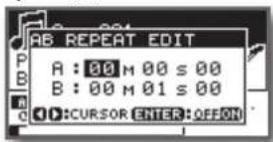
MEMO
- You can press [ENTER] in the AB REPEAT EDIT screen to alternately switch the AB REPEAT function on and off without clearing the markers.
- With MP3 data, you may be unable to play back from a specific time (the performance starts near the specified time). In such cases, if you want playback to start at an exact point, use the CONVERT function [p. 38] to convert the file to a JS-8 song.
- The interval between A and B cannot be less than one second.
MEMO
Phrase Trainer settings are saved as part of each song on the SD card. However, these settings are not saved for songs in USB memory or protected songs.
This icon is shown if AB Repeat is on.

The PH.TRainer icon will be lit if Speed, Pitch, or Center Cancel are on.
Practicing with the Song Tempo Changed and Center Sound Removed
Press [SPEED].
This lets you slow down the song tempo to practice faster passages and remove the center sound from songs so you can use them for backing as you perform.
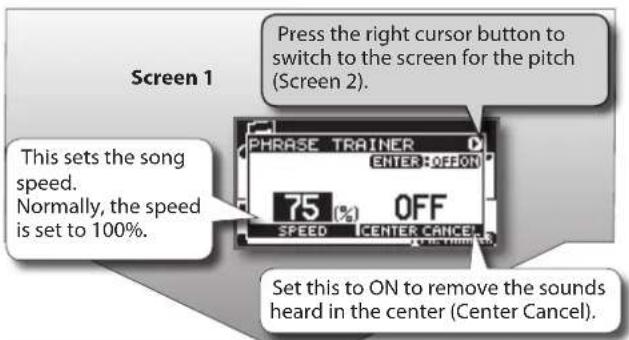
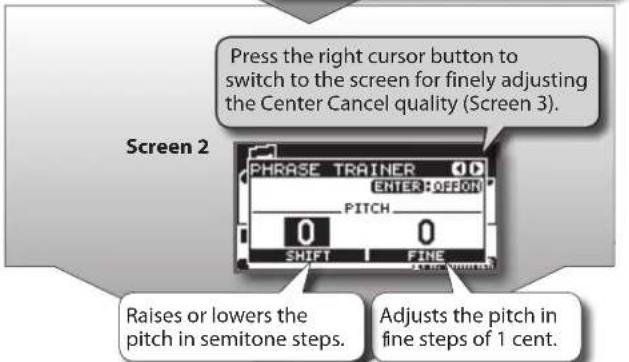

MEMO
- The center cancel effect is also obtained on the sound being input via AUX IN and USB.
- Depending on the recorded audio, it may not be possible to completely eliminate the sound.
Importing Songs from CD Players and Other Devices
CD player, Digital Audio Player, or other equipment
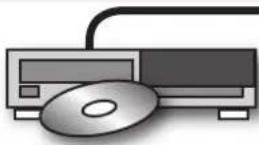
Use a commercially available cable that's appropriate for the device to which you are connecting.

To AUX IN
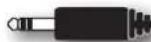
Stereo miniature phone type
Importing the Song (CAPTURE)
Use this procedure to import (capture) songs from CD players and other devices.
- Press [MENU].
- Select CAPTURE with the dial and press [ENTER].
- On your CD player (or other device), start playback of the song that you want to capture.
- To quit importing, press [EXIT].
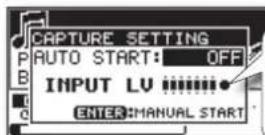
Adjust the volume of the connected device so that the "●" input level indicator does not light.
Capturing Data at the Desired Time Capturing Automatically
![CAPTURE SETTING AUTO START: OFF INPUT LU ENTER MANUAL START Press [ENTER] to start the capture.](/content/2026/04/618871/images/b78cbfb24af7415705b70d04036f95ad03469f121e9701bfc6392ccb52c260ba.jpg)
This mode (OFF) lets you start data capture manually by pressing the [ENTER] button.
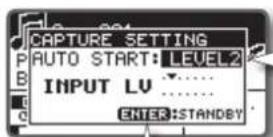
In this mode, the capture begins automatically when the input level exceeds a set value. (LEVEL1-LEVEL7)
Press [ENTER] to switch to standby mode. In standby mode, the capture begins automatically when the input level exceeds a set value.
MEMO
If there is a silence of two seconds or longer during the capture operation, recording will end, and you'll be returned to recording-standby mode.
MEMO
- Audio input from the GUITAR/MIC IN jack (guitar, vocals, etc.) are not recorded during captures.
- Captured data (songs) are automatically assigned the name "SONG****" (with **** indicating the number).
- You can easily find songs you've captured in the JS-8 by using the "USER" category in the SEARCH function.
• The captured data will be saved in JS-8 format.
Capturing Songs from Various Sound Sources
The JS-8 can capture songs using various different methods.
| Source Capture Method | |
| Analog connection (audio input to AUX IN jack) | Refer to "Importing the Song (CAPTURE)" (p. 18). |
| Digital connection (audio input to USB port)MEMOThe USB driver must be installed beforehand (p. 33). | 1. Connect the computer to the JS-8's USB port by a USB cable.2. When the USB SELECT screen appears in the JS-8, select AUDIO and press [ENTER].3. Use the computer software to select the JS-8 as the audio output destination.MEMOFor instructions on how to switch the output destination, refer to the user's guide for the software you are using.4. Follow the instructions in "Importing the Song (CAPTURE)" (p. 16 to capture the data. |
| USB Memory | 1. Connect the USB memory to the JS-8's USB port.2. Use the dial to select the song you want to capture, and press [ENTER].3. Use the dial to select the song that you want to capture, and press [ENTER].4. Press [ENTER]. |
| Importing Songs to the JS-8 from Computers (USB Port) | Refer to "Using the JS-8 Song List Editor" (p. 18). |
- Unauthorized recording, distribution, sale, lending, public performance, broadcasting, or the like, in whole or in part, of any work (musical composition, video, broadcast, public performance, etc.) copyrighted by a third party is prohibited by law.
- Do not use this unit for purposes that could infringe on a copyright held by any third party. Roland Corporation and BOSS Corporation assume no liability whatsoever with regard to any infringement of third-party copyright arising through your use of this unit.
Using the JS-8 Song List Editor
You can use the JS-8 Song List Editor (hereafter referred to as "Song List Editor") for the following.
- Record music CDs onto the JS-8's SD card.
- Record WAV/MP3 files onto the JS-8's SD card.
- Edit songs recorded on the JS-8's SD card.
For details on using the Song List Editor, refer to the Song List Editor Help.
1. Connecting to the Computer

flowchart
graph TD
    A["Computer"] --> B["JS-8"]
    B --> C["Switch"]
    C --> D["USB"]
    D --> E["00000"]
    E --> F["USB"]
- Connect the computer to the JS-8's USB port by a USB cable.
- When the USB SELECT screen appears in the JS-8, select JS-8 SONG LIST EDITOR and press [ENTER].
2. Installing the Song List Editor
The SD card included with the JS-8 comes with Song List Editor contained on the card.
MEMO
If Song List Editor is already installed in your computer, the steps below are not necessary.
Proceed to "3. Starting up the Song List Editor".
- Using Explorer or My Computer (Windows) or Finder (Mac OS), navigate to the folders on the JS-8.
- Open the WIN folder (Windows users) or the MAC folder (Mac OS users).
- Copy the USB driver installer for your computer's operating system to a folder on the computer.
Windows XP/Vista users (in the WIN folder)
- JS8_EditorWin***.zip
Mac OS users (in the MAC folder)
- JS8_EditorMac***.zip
- Double-click the installer listed above to uncompress it.
- In the folder that is created when you uncompress the file, read the readme_e.txt file and install Song List Editor as directed.
3. Starting up the Song List Editor
Windows users
Start button → All Programs → click "JS-8 Song List Editor"
Mac users
Application Folder → Roland folder → JS-8 Song List Editor folder → double-click "JS-8 Song List Editor"
Importing Songs into the JS-8 from CDs (CD IMPORT)
This procedure converts music CDs to songs and imports them into the JS-8.
- Load the CD you want to import into the JS-8.
- Click "CD Ripping."
- Use the Song List Editor to select the song you want to import.
- Click "OK."
Importing WAV or MP3 into the JS-8 (IMPORT)
This procedure imports WAV or MP3 audio data into the JS-8.
- Click "IMPORT."
- Use the Song List Editor to select the song (audio file) you want to import.
- Click "Open."
Editing Song Information Quitting the Song List Editor
You can use the Song List Editor to edit information (song names, artist names, and album titles) registered to songs stored in the JS-8.
MEMO
- The JS-8's Search function works by using this information.
• The Song List Editor supports MP3 tag data. - The song name edited by Song List Editor can be viewed but not edited on the JS-8.
Displaying Song Names with Non-Alphabetic Characters
You can use the Song List Editor to name songs using not only letters of the alphabet, numerals, and symbols, but also double-byte characters (such as Japanese "kanji" characters).
In addition, the JS-8 can display song names (even those containing double-byte characters), when the songs are imported into the JS-8 using the Song List Editor.
- Click Song List Editor's "Disconnect."
- Close Song List Editor (Quit).
Windows users
"File" menu → Click "Exit."
Mac OS users
"JS-8 Song List Editor" menu → Click "Quit JS-8 Song List Editor."
-
Press JS-8's [EXIT].
-
When the message "Are you sure?" appears, press [ENTER].
-
Disconnect the USB cable.
MEMO
• The JS-8 can handle up to a maximum of 4,000 songs.
- You can register up to 2,000 headings, including those for Album Title, Artist Name.
Advanced Editing of Effect Parameters
Press [EFFECTS].

flowchart
graph TD
    A["Effect patch number"] --> B["Use the dial to select the effect category."]
    B --> C["Select the effect patch you want to edit here."]
    D["Press the right cursor button to switch to Screen 2, 3."] --> E["Press the right cursor button to switch to Screen 4."]
    F["Screen 1"] --> G["Effect patch number"]
    G --> H["Use the dial to select the effect category."]
    H --> I["Select the effect patch you want to edit here."]
    J["Screen 2"] --> K["To adjust the sound, move the cursor's position with the cursor buttons and dial."]
    L["Screen 3"] --> M["Press the right cursor button to switch to Screen 4."]
    N["Screen 4"] --> O["Pressing [MENU"] p.21 enables various editing procedures.]
    P["Screen 5 (Example: AMP)"] --> Q["Use the cursor buttons and dial to edit the parameters."]
    Q --> R["Press [ENTER"] to switch the effect on and off.]
    S["Screen 5 (Example: AMP)"] --> T["Press the cursor button to access additional parameters for the selected effect."]
    U["Screen 5 (Example: AMP)"] --> V["Press [MENU"], then select WRITE to save the edit.]
    W["Screen 5 (Example: AMP)"] --> X["Press [ENTER"] to switch the effect on and off.]
    Y["Screen 5 (Example: AMP)"] --> Z["Move the cursor to the effect that you want to edit."]
    AA["Screen 5 (Example: AMP)"] --> AB["Use the dial to switch the selected effect on and off."]
    AC["Screen 5 (Example: AMP)"] --> AD["(Example) AMP ON: AMP OFF: AMP"]
Saving Effects
- After editing the effect, press [MENU].
- Use the cursor buttons to select WRITE, and then press [ENTER].
Pressing [MENU] allows you to carry out the following procedures.
| MENU Category | Description |
| ALL DELETE Deletes the all characters. | |
| DELETE | Deletes the character and shifts the charac- ters that follow to the left. |
| INSERT Inserts a blank space at the cursor position. | |
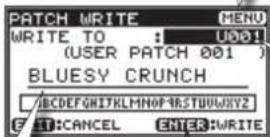
Select the effect patch number you want to save your changes to.
Use the left and right cursor buttons and the dial to name the effect.
NOTE
Switching effects with PATCH SELECT before you save an edited effect will cause the edited content to be lost.
TIP
To Copy an Effect Patch
Call up the effect patch you want to copy, then merely save that effect patch as it is to the desired effect patch number.
About the Effect Menu
Pressing [EFFECT] and then [MENU] allows you to carry out a variety of different procedures.
| MENU Category | Description Screen | ||
| WRITE | Saves the effect patch currently being edited (or copies the current patch if it's unedited). |  | |
| PATCH NAME | Changes the name of the effect patch. |  Use the left and right cursor buttons and the dial to name the effect.Press [ENTER] to enter the change. Use the left and right cursor buttons and the dial to name the effect.Press [ENTER] to enter the change. | Pressing [MENU] allows you to carry out the following procedures. |
| MENU Category Description | |||
| ALL DELETE Deletes the all characters. | |||
| DELETE Deletes the character and shifts the characters that follow to the left. | |||
| INSERT Inserts a blank space at the cursor position. | |||
| EXCHANGE | Exchanges the current effect patch with another patch. |  | |
| INITIALIZE | Restores the effect settings to their default factory state. | The message "Are you sure?" appears.To return to the factory settings, press [ENTER].If you decide to cancel, press [EXIT]. | |
MEMO
The displayed MENU items will differ depending on the operational state (e.g., the screen that is shown or the location of the cursor).
About the JS-8's Internal Effects
The trademarks listed in this document are trademarks of their respective owners, which are separate companies from Roland/BOSS. Those companies are not affiliated with Roland/BOSS and have not licensed or authorized BOSS's JS-8. Their marks are used solely to identify the equipment whose sound is simulated.
Internal Effects
With the JS-8, you can use seven effects types simultaneously in a single effects patch, including AMP (amp modeling), FX (various effects), EQ (equalizer), NS (noise suppressor), DELAY (delay), CHORUS (chorus), and REVERB (reverb).
For the FX type, you can select among compressor, distortion, wah, and a wide variety of other effects.
| Internal Effects | |
| AMP (amp modeling) | Models sounds passed through guitar and bass amps.COSM modeling simulates not just preamp and speaker characteristics, but even miking as well.You can select from a large number of different amp types. . "AMP parameter list" ("MIC TYPE" (p. 24) |
| FX (effects) | Provides a wide variety of effects to choose from, including compressor, distortion, wah, and many others. . "FX parameter list" (p. 29) |
| EQ (equalizer) | Adjusts the volume levels for different frequencies in the low-frequency to high-frequency ranges.Low and high midrange settings feature parametric equalization. . "EQ parameter list" (p. 28) |
| NS (noise suppressor) | This effect suppresses noise and hum from the guitar's pickups.Since the noise reduction follows the guitar sound's envelope (the change in volume over time), it has practically no influence on the guitar sound itself, thus producing a highly natural effect. . "NOISE SUPPRESSOR parameter list" (p. 28) |
| DLY (delay) | A delayed sound is added to the normal guitar sound, producing a thicker tone with a distinctive ambience. . "DELAY parameter list" (p. 29) |
| CHO (chorus) | This effect adds a subtle frequency modulation, producing a beautiful sound with greater breadth and body. . "CHORUS parameter list" (p. 30) |
| REV (reverb) | This effect adds reverberation and other spatial effects.Set the REVERB TYPE to choose from a variety of different types of reverb sound. . "REVERB parameter list" (p. 30) |
AMP parameter list
| TYPE Parameter | ||
| OFF/ON | Turns the AMP OFF/ON. | |
| JC CLEAN | BOSS CLEAN | This is a clean sound that is smooth and warm. |
| JC-120 | This is the sound of the Roland JC-120. | |
| JAZZ COMBO | This is a sound suited to jazz. | |
| FULL RANGE | This is a sound with flat response.Good for acoustic guitar. | |
| TW CLEAN | CLEAN TWIN | This models a Fender Twin Reverb. |
| PRO CRUNCH | This models a Fender Pro Reverb. | |
| TWEED | This models a Fender Bassman 4 x 10" Combo. | |
| DELUX CRUNCH | This models a Fender Deluxe Reverb. | |
| CRUNCH | BOSS CRUNCH | This is a crunch sound that faithfully reproduces picking nuances. |
| BLUES | This is a sound suited to blues. | |
| WILD CRUNCH | This is a crunch sound with wild distortion. | |
| STACK CRUNCH | This is a crunch sound with high gain. | |
| COMBO | VO DRIVE | This models the drive sound of a VOX AC-30TB. This is a sound that it suited to sixties-style British rock. |
| VO LEAD | This models the lead sound of the VOX AC-30TB. | |
| VO CLEAN | This models the clean sound of the VOX AC-30TB. | |
| MATCH | MATCH DRIVE | This models the sound produced using the left input on a Matchless D/C-30, a modern tube amp widely used in styles from blues to rock. |
| FAT MATCH | This models the sound of a Matchless modified for high gain. | |
| MATCH LEAD | This models the sound produced using the right input on a Matchless D/C-30 | |
| BG LEAD | BG LEAD | This models the lead sound of the MESA/Boogie combo amp, a tube amp that was very popular in the late '70s and '80s. |
| BG DRIVE | This models a MESA/Boogie with TREBLE SHIFT SW on. | |
| BG RHYTHM | This models the rhythm channel of a MESA/Boogie combo amp. | |
| MS CLASSIC | MS1959 I | This models the sound produced using Input I on a Marshall 1959 Super Lead amp. This is a trebly sound suited to hard rock. |
| MS1959 I+II | The sound of connecting Inputs I and II of the Marshall 1959 amp in parallel, creating a sound with a stronger low end than I. | |
| MS MODERN | MS HIGAIN | This models the sound of a Marshall modified with a midrange boost. |
| MS SCOOP | This is a Marshall sound that's been tweaked for a metal sound. | |
| R-FIER | R-FIER VINTAGE | Models the sound of the Channel 2 VINTAGE Mode on the MESA/Boogie DUAL Rectifier. |
| R-FIER MODERN | Models the sound of the Channel 2 MODERN Mode on the MESA/Boogie DUAL Rectifier. | |
| R-FIER CLEAN | Models the sound of the Channel 1 CLEAN Mode on the MESA/Boogie DUAL Rectifier. | |
| T-AMP | T-AMP LEAD | The models AMP3 on a Hughes & Kettner TriAmp. |
| T-AMP CRUNCH | The models AMP2 on a Hughes & Kettner TriAmp. | |
| T-AMP CLEAN | The models AMP1 on a Hughes & Kettner TriAmp. | |
| HI-GAIN | BOSS DRIVE | This is a drive sound producing awesome distortion. |
| SLDN | This models a Soldano SLO-100, a very popular tube amp in the 1980s. | |
| LEAD STACK | This is a lead sound with high gain. | |
| HEAVY LEAD | A powerful lead sound featuring extreme distortion. | |
| METAL | BOSS METAL | This is a metal sound suited to heavy riffs. |
| 5150 DRIVE | This models the lead channel of a Peavey EVH 5150. | |
| METAL LEAD | This is a lead sound suited to metal. | |
| EDGE LEAD | This is a sharp sound suited for lead play. | |
| BASS | BASS CLEAN | Clean sound that is great for use with bass guitars. |
| BASS CRUNCH | Crunch sound with natural distortion that sounds great with bass guitars. | |
| BASS HIGAIN | A high-gain sound suitable for use with bass guitars. | |
| Parameter | |
| GAIN | Adjusts the distortion of the amp. |
| LEVEL | Adjusts the volume of the entire preamp.MEMOBe careful not to raise the LEVEL setting too high. |
Convenient Functions
Parameter
| BASS MIDDLE TREBLE PRESENCE These adjust the volume of the respective EQ bands. Frequency MEMO When you set the TYPE parameter to VO DRIVE, VO LEAD, VO CLEAN, MATCH DRIVE, FAT MATCH, or MATCH LEAD, the PRESENCE parameter functions as the high cut filter found in the original amps. | ||
| BRIGHT | Turns the bright setting OFF/ON. MEMO The BRIGHT parameter setting is only partially available with some JC CLEAN, TW CLEAN, CRUNCH, or BG LEAD settings in TYPE. | |
| OFF Bright | is not used. | |
| ON | Bright is switched on to create a lighter and crisper tone. | |
| GAIN SW | Provides for selection from three levels of distortion. Distortion will successively increase for settings of LOW, MIDDLE and HIGH. | |
| SOLO SW | Set SOLO SW to ON to add a boost in volume that's suitable for solos. | |
| SOLO LEVEL | Adjusts the volume level when the SOLO SW is ON. | |
| SP TYPE | Select the speaker type. | |
| OFF | This turns off the speaker simulator. | |
| ORIGIN | This is the built-in speaker of the amp you selected with AMP TYPE. | |
| 1x8" | This is a open-back speaker cabinet with one 8-inch speaker. | |
| 1x10" | This is a open-back speaker cabinet with one 10-inch speaker. | |
| 1x12" | This is a open-back speaker cabinet with one 12-inch speaker. | |
| 2x12" | This is a open-back speaker cabinet with two 12-inch speakers. | |
| 4x10" | This is a closed-back speaker cabinet with four 10-inch speakers. | |
| 4x12" | This is a closed-back speaker cabinet with four 12-inch speakers. | |
| 8x12" | This is a double stack of two closed-back cabinets, each with four 12-inch speakers. | |
| Parameter | ||
| MIC TYPE | This setting selects the simulated mic type. | |
| DYN57 | This is the sound of the SHURE SM-57, a general-use dynamic mic used for instruments and vocals. Optimal for use in mik-ing guitar amps. | |
| DYN421 | This is the sound of the SENNHEISER MD-421, a dy-namic mic with extended low end. | |
| CND451 | This is the sound of the AKG C451, a small-diaphragm condenser mic for use with instruments. | |
| CND87 | This is the sound of the NEU-MANN U87, a large-diaphragm condenser mic with flat response. | |
| FLAT | Simulates a mic with perfectly flat response.Produces a sonic image close to that of listening to the sound directly from the speakers (on site). | |
| MIC DIS. | Simulates the distance between the mic and speaker. | |
| OFF MIC | This setting points the mic away from the speaker. | |
| ON MIC | Provides conditions whereby the mic is directed more to-wards the speaker. | |
| MIC POS. | This simulates the mic position. | |
| CENTER | Simulates the condition that the mic is set in the middle of the speaker cone. | |
| 1-10 | Simulates the condition that the mic is moved away from the center of the speaker cone. | |
| MIC LEVEL | Adjusts the volume of the mic. | |
FX parameter list
| Parameter | |
| OFF/ON | Turns FX OFF/ON. |
| FX SELECT Parameter | |
| OD/DS | This effect distorts the sound to create long sustain.Select the type of distortion with TYPE, then use DRIVE to adjust the amount of distortion. |
| WAH | You can connect an expression pedal to the EXP PEDAL CTL1/2 jack and use the pedal to control the wah effect in real time. |
| COMP | This is an effect that produces a long sustain by evening out the volume level of the input signal.Use the SUSTAIN parameter to adjust the length of the effect and ATTACK to adjust the strength of the picking attack. |
| LIMITER | The limiter attenuates loud input levels to prevent distortion.Adjust THRESHOLD to match the guitar input signal. |
| OCTAVE | This adds a note one octave lower, creating a richer sound.Play a single tone while completely muting the other strings. |
| AC.PROCESSOR (AC.PRO) | This processor allows you to change the sound produced by the pickup on an acoustic electric guitar, creating a richer sound similar to that obtained with a microphone placed close to the guitar.You can select the acoustic guitar type. |
| PHASER | By adding varied-phase portions to the direct sound, the phaser effect gives a whooshing, swirling character to the sound.You can select the phaser configuration. |
| FLANGER | The flanging effect gives a twisting, jet-airplane-like character to the sound. |
| TREMOLO | Tremolo is an effect that creates a cyclic change in volume. |
| ROTARY | This produces an effect like the sound of a rotary speaker.Setting CTL 1/2 to ROTARY SPEED SEL allows you to switch the speaker's rotation speed between SLOW and FAST with the footswitch [0.32]. |
| UNI-V | This models a Uni-Vibe. Although this resembles a phaser effect, it also provides a unique modulation that you can't get with a regular phaser. |
| PAN | Alternately changes the volume level of the left and right channels. When monitoring the sound in stereo, this effect makes the guitar sound "fly" back and forth between the speakers. |
OD/DS parameter list
| BOOSTER | |
| Mid Bst | This is a booster with unique characteristics in the midrange. This produces a great sound for solos. |
| Cln Bst | This not only functions as a booster, but also produces a clean tone that has punch even when used alone. |
| Trbl Bst | This is a booster that has bright sound characteristics. |
| BLUES | |
| Blues | This is the crunch sound of the BOSS BD-2.This produces distortion that faithfully reproduces the nuances of picking. |
| Crunch | A crunch sound with an added element of amp distortion. |
| Natural | This provides the natural sounding distortion of a slightly overdriven amp. |
| OD | |
| OD-1 | The sound of the BOSS OD-1.This produces sweet, mild distortion. |
| T-Scrm | This models an Ibanez TS-808. |
| Turbo | This is the high-gain overdrive sound of the BOSS OD-2. |
| Warm OD | This is a warm overdrive. |
| DIST | |
| Dist | This gives a basic, traditional distortion sound. |
| Mild DS | This produces a mild distortion sound. |
| Mid DS | This distortion sound features a boosted midrange. |
| CLASSIC | |
| RAT | This models a Pro Co RAT. |
| GUV DS | This models a Marshall GUV' NOR. |
| DST+ | This models an MXR DISTORTION+. |
| MODERN | |
| Modern | This is the deep distortion sound of a large stack-type amp. |
| Solid | This is a distortion sound featuring an edge effect. |
| Stack | A fat sound with an added element of a stack amp's distortion. |
| METAL | |
| Loud | This distortion sound is ideal for performing heavy riffs. |
| Metal Z | This is the sound of the BOSS MT-2.It produces a wide range of metal sounds, from old style to slash metal. |
| Lead | Produces a distortion sound with the smoothness of an overdrive along with a deep distortion. |
| FUZZ | |
| 60s FZ | This models a FUZZFACE. It produces a fat fuzz sound. |
| Oct FZ | This models an ACETONE FUZZ. |
| Muff FZ | This models an Electro-Harmonix Big Muff π. |
| Parameter | |
| DRIVE | Adjusts the depth of distortion. |
| TONE | Adjusts the tone. |
| EFFECT LEVEL | Adjusts the volume of the OD/DS sound. |
WAH parameter list
| Parameter | ||
| MODE | Selects the wah mode. | |
| MANUAL | An expression pedal connected to the EXP PEDAL/CTL1,2 jack will control wah. | |
| T.UP This produces a wah effect matched to the intensity of picking. | ||
| T.DOWN | ||
| TYPE (*1) | Selects the type of wah. | |
| CRY WAH | This models the sound of the CRY BABY wah pedal popular in the '70s. | |
| VO WAH | This models the sound of the VOX V846. | |
| FAT WAH | This is a wah sound featuring a bold tone. | |
| LIGHT | This wah has a refined sound with no unusual characteristics. | |
| 7ST WAH | This expanded wah features a variable range compatible with seven-string and baritone guitars. | |
| RESO | This completely original effect offers enhancements on the characteristic resonances produced by analog synth filters. | |
| Parameter | |
| PEDAL POS. (*1) | Adjusts the position of the wah pedal.MEMOThis parameter will change when you operate the expression pedal. |
| SENS (*2) | This sets the sensitivity of response to the input sound. |
| FREQUENCY (*2) | Adjusts the center frequency of the Wah effect. |
| PEAK (*2) | This sets the intensity of the wah sound. |
(*1) Setting available with MODE set to MANUAL.
(*2) Setting available with MODE set to T.UP or T.DOWN.
COMP parameter list
| Parameter | |
| SUSTAIN | This sets the sustain for the sound. |
| ATTACK | This sets the attack (onset) of the sound. |
| LEVEL | This sets the volume level of the effect. |
LIMITER parameter list
| Parameter | |
| THRESHOLD | When the input signal level exceeds the level set here, limiting will be applied. |
| RELEASE | Adjusts the amount of time that the limiting effect is applied after the signal exceeds the threshold level. |
| LEVEL | This sets the volume level of the effect. |
OCTAVE parameter list
| Parameter | |
| OCTAVE LEVEL | This sets the volume level of the effect sound. |
| DIRECT LEVEL | This sets the volume level of the direct sound. |
AC.PROCESSOR parameter list
| Parameter | ||
| TYPE | Selects the modeling type. | |
| SMALL | This is the sound of a small-bodied acoustic guitar. | |
| MEDIUM | This is a standard, unadorned acoustic guitar sound. | |
| BRIGHT | This is a bright acoustic guitar sound. | |
| POWER | This is a powerful acoustic guitar sound. | |
| BASS | Adjusts the low-end volume. | |
| MIDDLE | Adjusts the midrange volume. | |
| TREBLE | Adjusts the high-end volume. | |
PHASER parameter list
| Parameter | ||
| TYPE | Selects the number of stages that the phaser effect uses. | |
| 4 STAGE | This is a four-phase effect. A light phaser effect is obtained. | |
| 8 STAGE | This is an eight-phase effect. This is the most common phaser effect. | |
| 12 STAGE | This is a twelve-phase effect. A deep phase effect is obtained. | |
| BI-PH. | This is the phaser with two phase shift circuits connected in series. | |
| RATE This sets the speed of the effect. | ||
| DEPTH | This sets the richness of the effect. | |
| RESONANCE | This sets the intensity of the effect. | |
FLANGER parameter list
| Parameter | |
| RATE This sets the | speed of the effect. |
| DEPTH | This sets the richness of the effect. |
| MANUAL | Adjusts the modulation frequency of the flanger effect. |
| RESONANCE | This sets the intensity of the effect. |
TREMOLO parameter list
| Parameter | |
| RATE | This sets the speed of the effect. |
| DEPTH | This sets the richness of the effect. |
| WAVE SHAPE | Adjusts changes in volume level. A higher value will steepen wave's shape. |
MEMO
About the RATE Parameter in PHASER, FLANGER, and TREMOLO Effect
When set to BPM, the value of the RATE parameter is set according to the value of the "EFFECT TEMPO" (p. 30) specified for each patch. This makes it easier to achieve effect sound settings that match the tempo of the song.
ROTARY parameter list
| Parameter | |
| RATE SLOW | This parameter adjusts the SPEED SELECT of rotation when set to "SLOW." |
| RATE FAST | This parameter adjusts the SPEED SELECT of rotation when set to "FAST." |
| DEPTH | This sets the richness of the effect. |
| SPEED SELECT | This parameter changes the simulated speaker's rotating speed. |
UNI-V parameter list
| Parameter | |
| RATE | This sets the speed of the effect. |
| DEPTH | This sets the richness of the effect. |
| LEVEL | This sets the volume level of the effect. |
PAN parameter list
| Parameter | |
| RATE This sets the | speed of the effect. |
| DEPTH | This sets the richness of the effect. |
| WAVE SHAPE | Adjusts the sound character of the volume level changes imparted with the pan effect. |
EQ parameter list
| LEVEL | Adjusts the volume before the equalizer. |
| LO-MID Q | Adjusts the width of the area affected by the EQ centered at the “LO MID FREQ.” Higher values will narrow the area. |
| HI-MID Q | Adjusts the width of the area affected by the EQ centered at the “HI MID FREQ.” Higher values will narrow the area. |
| LO CUT | This sets the frequency at which the low cut filter begins to take effect. When “FLAT” is selected, the low cut filter will have no effect. |
| HI CUT | This sets the frequency at which the high cut filter begins to take effect. When “FLAT” is selected, the high cut filter will have no effect. |
MEMO
About the RATE Parameter in ROTARY, UNI-V, and PAN Effect
When set to BPM, the value of the RATE parameter is set according to the value of the "EFFECT TEMPO" (p. 30) specified for each patch. This makes it easier to achieve effect sound settings that match the tempo of the song.
NOISE SUPPRESSOR parameter list
| Parameter | |
| OFF/ON | Turns the NOISE SUPPRESSOR OFF/ON. |
| THRESHOLD | This adjusts the effect in response to the level of noise. A value of 0 switches off the noise suppressor.MEMOSetting this higher than necessary may cause no sound to be produced when the guitar is played at low volume. |
| RELEASE | Adjusts the time from when the noise suppressor begins to function until the noise level reaches "0." |
DELAY parameter list
| Parameter | ||
| OFF/ON | Turns the DELAY OFF/ON. | |
| TYPE | Use this to choose the type of delay. | |
| SINGLE This is a simple monaural delay. | ||
| PAN | This delay is specifically for stereo output. This provides a tap delay effect that divides the delay time between the left and right channels. | |
| STEREO | The direct sound is output from the left channel, and the effect sound is output from the right channel. | |
| REV. This produces the effect of playback in reverse. | ||
| ANALOG This produces a mild analog delay sound. | ||
| TAPE This setting provides the characteristic wavering sound of a tape echo. | ||
| MOD. This is a delay with a pleasant chorus-type effect added to the delay repeats. | ||
| HICUT This features a more suppressed high end than the Single delay. | ||
| PH.LOOP | This provides a phrase loop effect where you can record up to 40 seconds of a performance and play it back repeatedly in a loop. You can use the loop for backing, and add more material by overdubbing additional performances in the loop.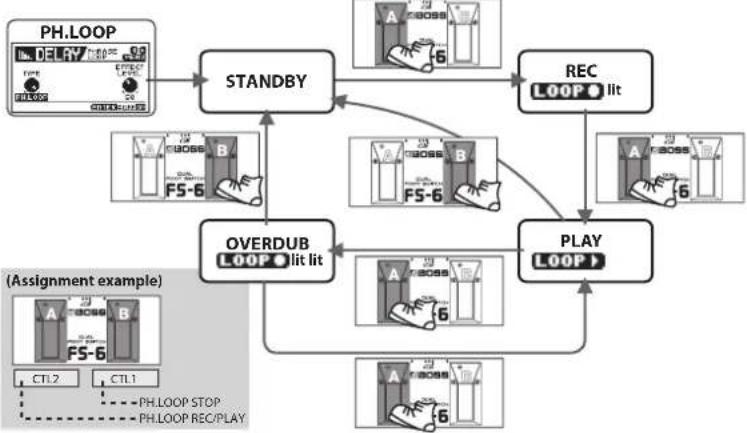 MEMOYou'll need a footswitch (e.g., FS-6; sold separately) in order to use PH.LOOP. MEMOYou'll need a footswitch (e.g., FS-6; sold separately) in order to use PH.LOOP. | |
| DELAY TIME | This sets the delay time.MEMOWhen set to BPM, the value of the DELAY TIME parameter is set according to the value of the "EFFECT TEMPO" (p. 30) specified for each patch. This makes it easier to achieve effect sound settings that match the tempo of the song. | |
| FEEDBACK | This sets the number of repetitions for the delay. | |
| EFFECT LEVEL | This sets the volume level of the effect.MEMOWhen TYPE is set to REVERSE, this adjusts the balance of direct and effect sound. | |
The PHRASE LOOP function
When you choose PHRASE LOOP from MENU in the top screen, the delay TYPE will switch to Phrase Loop (PH.LOOP) and pedal assignments will be made automatically.

MEMO
- In the PHRASE LOOP screen, the pedals are assigned as follows. CTL1=PH.LOOP STOP CTL2=PH.LOOP REC/PLAY
- When you exit the PHRASE LOOP screen, the effect and pedal assignments will return to their previous settings.
CHORUS parameter list
| Parameter | ||
| OFF/ON | Turns the CHORUS OFF/ON. | |
| TYPE | Use this to choose the type of chorus. | |
| MONO This chorus effect outputs the same sound from the left and right channels. | ||
| ST 1 This is a stereo chorus effect that adds different chorus sounds to L channel and R channel. | ||
| ST 2 | This stereo chorus uses spatial synthesis, with the direct sound output in the left channel and the effect sound output in the right channel. | |
| MN MLD This features a more suppressed high end than MONO. | ||
| ST1 MLD This features a more suppressed high end than ST 1. | ||
| ST2 MLD This features a more suppressed high end than ST 2. | ||
| RATE | This sets the speed of the effect.MEMOWhen set to BPM, the value of the RATE parameter is set according to the value of the "EFFECT TEMPO" (p. 30) specified for each patch. This makes it easier to achieve effect sound settings that match the tempo of the song. | |
| DEPTH | This sets the richness of the effect. | |
| EFFECT LEVEL | This sets the volume level of the effect. | |
REVERB parameter list
| Parameter | ||
| OFF/ON | Turns the REVERB OFF/ON. | |
| TYPE | Use this to choose the type of reverb. | |
| AMBI. | Simulates an ambience mic (off-mic, placed at a distance from the sound source) used in recording and other applications. Rather than emphasizing the reverberation, this reverb is used to produce a sense of openness and depth. | |
| ROOM Simulates the reverberation in a small room. Provides warm reverberations. | ||
| HALL 1 Simulates the reverberation in a concert hall. Provides clear and spacious reverberations. | ||
| HALL 2 Simulates the reverberation in a concert hall. Provides mild reverberations. | ||
| PLATE | Simulates plate reverberation (a studio effect unit that uses the vibration of a large metal plate to produce reverberation). Provides a metallic sound with a distinct upper range. | |
| REVERB TIME | Adjusts the length (time) of reverberation. | |
| HIGH CUT | The high cut filter adjusts the amount of high frequencies in the reverb sound. When “FLAT” is selected, the high cut filter will have no effect. | |
| EFFECT LEVEL | This sets the volume level of the effect. | |
EZ CHARACTER parameter list
| Parameter | |
| EFFECT TEMPO | This sets the tempo when RATE parameters such as DELAY TIME, PHASER, and FLANGER are synchronized to the song tempo.Set DELAY TIME and RATE to (Whole Note)-(16th Note).You can also input the tempo by tapping [SPEED] in time with the beat (TAP function). |
| EZ CHAR | This adjusts the character of the guitar tone, ranging from solo tone (-20) to a tone used for backing (+20). |
Adjusting the Guitar and Mic Input Sensitivity
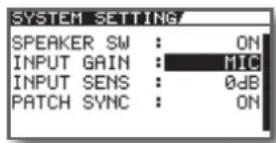
You can connect a mic to the JS-8's GUITAR/MIC IN jack and adjust the input sensitivity.
- Press [MENU].
- Select SYSTEM, and then press [ENTER].
-
Select SYSTEM SETTING, and then press [ENTER].
-
Set the INPUT GAIN.
| INPUT GAIN | |
| GUITAR Ideal input | put sensitivity when a guitar is connected |
| MIC Ideal input | sensitivity when a mic is connected |
MEMO
The JS-8 features an effect especially designed for use. Use INPUT SENS to precisely adjust the input sensitivity.
Turning Off the Internal Speakers
You can output audio from the JS-8's LINE OUT jacks to an external playback device (Ex. component stereo system).
When doing so, you may want to turn off the JS-8's internal speakers.
Use the following procedure to switch off the internal speakers.
- Press [MENU].
- Select SYSTEM, and then press [ENTER].
- Select SYSTEM SETTING, and then press [ENTER].
- Set SPEAKER SW parameter to OFF.

Calling Up the Effect Stored in a Song (Patch Sync)
The effect patch stored in each song can be called up at the same time that you switch songs.
- Turn the dial to select the desired song.
- Press [MENU].
- Select SONG INFO, then press [ENTER].
- Press the right cursor button once to access the following screen.
![SONG INFO BOSS eBand 90 OFF -PATCH SYNC - SONG PRO- OFF OFF LEVEL TECT SONG SOLO If you press [MENU] to select SET PATCH, the currently selected effect patch number will be registered (assigned) to PATCH SYNC. Specifies the effect patch that will be called up if SOLO is OFF. Specifies the effect patch that will be called up if SOLO is ON.](/content/2026/04/618871/images/8265925754835b04b940f8a416b67a48ca1085f6e08088b7587392bf0baa5de9.jpg)
| Effect Patch Number | |
| OFF Play using the current effect patch. | |
| P*** Call up the specified preset effect patch. | |
| U*** Call up the specified user effect patch. | |
TIP
You can disable (turn off) the Patch Sync function in System Settings.
- Press [MENU].
- Select SYSTEM, then press [ENTER].
-
Select SYSTEM SETTING, then press [ENTER].
-
Set PATCH SYNC parameter to OFF.
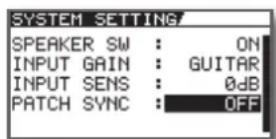
If this is disabled, the Patch Sync setting will be ignored, and the currently selected effect patch will be used. (The effect patch will not change when you switch songs.)
MEMO
The Patch Sync function cannot be used for songs in USB memory.
Using Foot Switches and Expression Pedals

flowchart
graph TD
    A["Exped Pedal/CTL1,2 jack"] --> B["One of these can be connected."]
    B --> C["RedWhite"]
    C --> D["Footswitch (BOSS FS-6)"]
    C --> E["Footswitch (BOSS FS-5U)"]
    C --> F["Footswitch (BOSS FS-6)"]
    C --> G["Footswitch (BOSS FS-5U)"]
    H["Roland EV-5"] --> I["TIP RING"]
    I --> J["Compression Pedal Roland EV-5, etc."]
    style A fill:#f9f,stroke:#333
    style B fill:#ccf,stroke:#333
    style C fill:#cfc,stroke:#333
    style D fill:#fcc,stroke:#333
    style E fill:#cff,stroke:#333
    style F fill:#ffc,stroke:#333
    style G fill:#fcc,stroke:#333
If you're using an FS-5U footswitch, set its POLARITY switch as shown below.
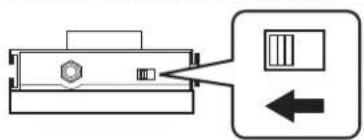
natural_image
Pure diagram of a device with no text, numbers, or symbols visibleIf you're using an FS-6 footswitch, set its MODE and POLARITY switches as shown below.
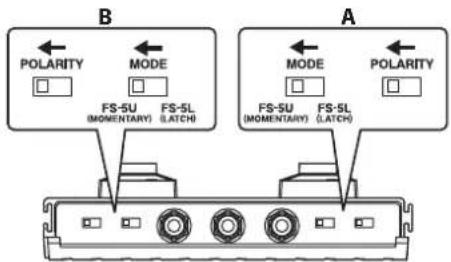
MEMO
Never connect or disconnect the expression pedal or the footswitch while this unit's power is on.
If you connect a separately sold footswitch, you'll be able to perform a variety of operations with your foot.
- Press [MENU].
- Select SYSTEM, then press [ENTER].
- Select PEDAL SETTING, then press [ENTER].
| PEDAL SETTING | |
| PLAY/STOP Operate | the player (Play/Stop). |
| REC/STOP Operate | the recorder (Rec/Stop). |
| PATCH +1 Select the next effect patch number (+1). | |
| PATCH -1 | Select the previous effect patch number (-1). |
| SOLO Switch SOLO on and off. | |
| PH.LOOP REC/PLAY | Control REC/PLAY in PHRASE LOOP (DELAY). |
| PH.LOOP STOP | Stop PHRASE LOOP (DELAY). The recorded content will be erased at the same time. |
| ROTARY SPEED SEL | Switch the speaker's rotation speed (SLOW/FAST). |
| TUNER Switch the Tuner screen on/off. | |
MEMO
If a separately sold expression pedal is connected, the operation of the expression pedal is determined by the effect that's selected.
| Effect setting Expression | pedal operation |
| FX=ON,FX SELECT=WAH, andMODE=MANUAL | Operates as a wah pedal. |
| Other than the above Operates as a volume pedal. | |
Using USB Audio Interfaces
Exchanging audio data between a computer and the JS-8 via USB requires installation of a USB driver on the computer you are using. Follow the instructions below to install the USB driver.
MEMO
- It is only necessary to install the USB driver on the computer the first time the driver is used.
- The USB driver is contained on the SD card included with the JS-8.
- The latest version of the USB driver can be found on the Roland website.
Preparing to Install the USB Driver
Save the USB driver installer for your computer.
MEMO
The following procedure is not necessary if you already have downloaded the USB driver from the Roland website and saved it on your computer. If so, proceed to "Installing the USB Drive".
- Connect the computer to the JS-8's USB port by a USB cable.
- When the USB SELECT screen appears in the JS-8, select JS-8 SONG LIST EDITOR and press [ENTER].
- Using Explorer or My Computer (Windows) or Finder (Mac OS), navigate to the folders on the JS-8.
- Open the WIN folder (Windows users) or the MAC folder (Mac OS users).
- Copy the USB driver installer for your computer's operating system to a folder on the computer.
Windows XP/Vista users (in the WIN folder)
- JS8_XPDrv***.zip (for Windows XP)
- JS8_VistaDrv***.zip (for Windows Vista)
- JS8_Vista64Drv***.zip (for Windows Vista 64-bit edition)
Mac OS users (in the MAC folder)
- JS8_MacDrv***.zip (for Mac OS X 10.4, 10.5)
MEMO
Although the copy-destination folder can be anywhere on the computer, we recommend that you copy to a folder that will be easy to locate later.
- Disconnect the JS-8 from the computer:
With Windows Vista/XP
- In My Computer, right-click on the "JS-8" icon (or "Removable disk (*:)" icon) to "Eject" the disk.
With Mac OS X
- Drag the "JS-8" icon to the eject icon in the Dock.
MEMO
If you're using Windows Vista/XP and were unable to "eject" in step 5, proceed as follows.
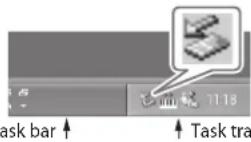
- Click the icon in the task tray, then click the "Stop USB Disk-drive (*:)" message displayed there.
-
Click [OK] in the "Safe To Remove Hardware" dialog box that appears.
-
Press [EXIT].
-
When the message "Are you sure?" appears, press [ENTER].
Installing the USB Driver
- Disconnect a USB cable from the JS-8's USB port.
- Double-click the USB driver that you downloaded from the Roland website or copied as described in "Installing the USB driver"; the file will be decompressed.
- Read the "Readme.htm" file found in the uncompressed folder, and install the driver as directed.
Playing Songs on a Computer Through the JS-8
You can listen to audio played back with a computer through the JS-8's speakers via a USB connection.
- Connect the computer to the JS-8's USB port by a USB cable.
- When the USB SELECT screen appears in the JS-8, select AUDIO and press [ENTER].
- Set the JS-8 as the output destination for audio played back by the computer's audio playback software.
MEMO
For instructions on how to switch the output destination, refer to the user's guide for the software you are using.
Using the JS-8 with Commercial Digital Audio Workstation (DAW) Software
Since you can use the JS-8 as a USB audio interface for your DAW, you'll be able to record audio from your guitar or mic into your DAW. Play back audio from the DAW for monitoring purposes, or through the JS-8's effects to "re-amp" previously recorded tracks.
- Connect the computer to the JS-8's USB port by a USB cable.
- When the USB SELECT screen appears in the JS-8, select AUDIO and press [ENTER].
- Press [MENU].
- Select SYSTEM, and then press [ENTER].
-
Select USB (COMPUTER), and then press [ENTER].
-
Select AUDIO ROUTING, and then press [ENTER].
-
Set the desired USB audio routing (see the table below).
-
Select the JS-8 as the audio input and audio output device in the DAW software you're using.
MEMO
For details on how to switch the destination of your DAW's output, refer to the owner's manual for your DAW software.
| USB AUDIO ROUTING Description USB AUDIO ROUTING Description | |||
DEFAULT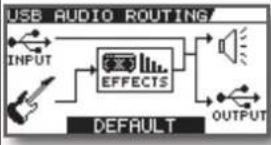 | Select this setting when using the JS-8 as a USB audio interface or when playing the guitar while playing back songs with the computer. | RE-AMP | Select this setting when "re-amping" guitar sounds that were previously recorded without any effects added.MEMOUse the GUITAR LEVEL knob to adjust the volume level that's output from the USB connector of the JS-8. |
GUITAR (EFX) | Select this setting when playing the guitar while playing back songs with the computer or when using the computer to record guitar sounds with effects added. | DIRECT OFF | Select this setting when playing audio from the computer as is.MEMOWith this setting, you cannot play guitar sounds directly through the JS-8's speakers.The only sound that can be played through the speakers is audio from the computer. |
GUITAR (DRY)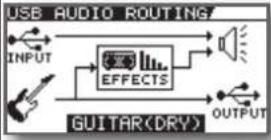 | Select this setting when playing the guitar while playing back songs with the computer or when using the computer to record guitar sounds without any effects added.MEMOWith this setting, you can still monitor the guitar sound with effects, but the DAW will capture the sound before effects are applied. | MEMOIf you turn the JS-8's power off with USB AUDIO ROUTING set to RE-AMP or DIRECT OFF, it will be set to DEFAULT the next time you turn the power on. | |
MEMO
What is "Re-Amping?"
This is a technique in which a guitar sound is recorded directly into a DAW without any effects, then played back through effects later to create a finished guitar sound after the fact. The advantage of re-amping is that, even after recording, you can use your recorded performance as is to create new sounds. This technique is particularly advantageous if you've ever recorded your guitar with effects added, and then later realized you were unhappy with the results, or found that the guitar gets "lost in the mix" after other parts are added.
With re-amping, you can focus on recording a great performance instead of worrying about getting the perfect effects sound. Once your performance has been recorded dry, you can then play it back through the JS-8's effects, adjust the sound just the way you want it, and then record the result as a new track in the DAW.
When you intend to record a sound dry and re-amp it later, choose GUITAR (DRY) as the JS-8's USB audio routing. This allows you to monitor the live guitar sound with effects (for inspiration during recording) while sending the dry sound to the DAW software. To play recorded audio from the DAW through the JS-8's effects, select RE-AMP as the USB audio routing.
Using Commercial SD Cards
Removing SD Cards
- Press [POWER] to turn off the JS-8.
- Remove the SD card connector cover.
- Push SD card inward, and then release your finger.
- Remove the SD card.
NOTE
Remove an SD card only while the JS-8's power is switched off. Removing an SD card with the JS-8 turned on may result in corruption of data recorded on the SD card or damage to the card itself.
Initializing SD Cards
- Press [MENU].
- Select SYSTEM, and then press [ENTER].
- Select SD CARD, and then press [ENTER].
- Select FORMAT, and then press [ENTER].
- When the message "Are you sure?" appears, press [ENTER].
NOTE
Initializing the SD card causes the loss of all data on the card. Song protection settings are also disregarded. Since there is no way to recover data after initialization, be sure to back up any important data before initializing.
MEMO
If you want to copy data from one SD card to another freshly initialized SD card, back up the first SD card ("Backing Up SD Cards" (p. 36)), and then recover the backed-up data to the new SD card ("Recovering Backed Up Data to SD Cards (RECOVERY)" (p. 37)).
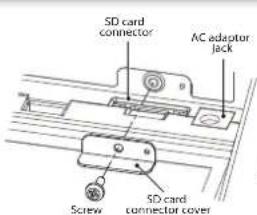
- Remove the cover
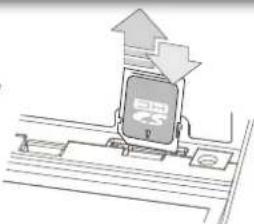
natural_image
Illustration of a train with an upward arrow and a train car, no text or symbols present- Press and then release your finger
MEMO
After inserting the SD card into the JS-8, reattach the SD card connector cover in its original position.
About the SD card Write/Protect Function (Lock)
Write
Protect

The contents of the memory card can be protected by write protecting it.
To write protect a card, slide the write protect switch on the side of the memory card to the "LOCK" position. Unlock write protect to delete data on the card.
Specifications for SD Cards Used with the JS-8
The JS-8 supports SD cards meeting the following specifications.
• Maximum capacity: 32 GB
- SD/SDHC standard
Memory Confirmed as Functional with the JS-8
Information on SD cards confirmed to work with the JS-8 can be found on the Roland website.
http://www.roland.com/
MEMO
• The JS-8 supports SDHC memory cards.
- Some SD card types or SD cards from some manufacturers may not record or play back properly on the JS-8.
SD Card Capacity and Recording Time
The following table shows the approximate number of songs that can be recorded on the JS-8 when using the following capacities of SD card.
| With JS-8 songs With MP3 W | th WAV | ||
| Songs per GB | 50 songs 200 songs | 20 songs | |
| 32 GB | 1,700 songs 4,000 songs | 600 songs | |
MEMO
• Figures in the table above are based on a song length of five minutes.
- MP3 songs are calculated as data encoded at a 44.1 kHz sample rate and 128 kbps bit rate.
- Song data, USB drivers, and other data were stored on the supplied SD card before it left the factory. Because of this, the number of songs that can be recorded on the card will be reduced by the amounts shown below. JS-8 song: 20 songs, MP3: 80 songs, WAV: 10 songs
- WAV figures are based on stereo data with a sampling rate of 44.1 kHz and quantization bit rate of 16 bits.
- The number of songs you can record may vary according to the songs contained.
- Regardless of the amount of free space that is available, the JS-8 can only store a maximum of 4,000 songs.
Backing Up
Backing Up SD Cards
You can back up data on SD cards to computers.
MEMO
The computer procedures in the following descriptions use Explorer and My Computer with Windows and Finder and other applications with the Mac OS.
- Connect the computer to the JS-8's USB port by a USB cable.
- When the USB SELECT screen appears in the JS-8, select JS-8 SONG LIST EDITOR and press [ENTER].
- Using Explorer or My Computer (Windows) or Finder (Mac OS), navigate to the folders on the JS-8.
MEMO
"Removable Disk (*:)" may appear instead of the JS-8 icon.
- Copy (drag and drop) the entire ROLAND folder within the JS-8 icon to a folder residing on the computer.
NOTE
Copy the entire ROLAND folder. Copying only portions within the ROLAND folder may render the data unusable as backup data.
- Disconnect the JS-8 from the computer.
With Windows Vista/XP
Right-click on the "JS-8" icon in My Computer (or the "Removable Disk (*:)" icon) and execute "Eject."
With Mac OS
Drag the "JS-8" icon to the eject icon in the Dock.
- Press [EXIT].
- When the message "Are you sure?" appears, press [ENTER].
Backing Up Effects to SD Cards (PATCH BACKUP)
- Press [MENU].
- Select SYSTEM, and then press [ENTER].
- Select PATCH BACKUP, and then press [ENTER].
- Select BACKUP, and then press [ENTER].
- When the message "Are you sure?" appears, press [ENTER].
Recovering Backed Up Data (RECOVER)
Recovering Backed Up Data to SD Cards (RECOVERY)
Use this procedure to restore JS-8 data previously backed up on a computer to SD cards.
You can restore the JS-8 to its status at the time the data was backed up.
MEMO
The computer procedures in the following descriptions use Explorer and My Computer with Windows and Finder and other applications with the Mac OS.
-
Connect the computer to the JS-8's USB port by a USB cable.
-
When the USB SELECT screen appears in the JS-8, select JS-8 SONG LIST EDITOR and press [ENTER].
-
Open the JS-8 icon, and put the ROLAND folder into the trash (delete it).
-
Copy (drag and drop) the backed up entire "ROLAND" folder on the computer to the "JS-8" icon (or the "Removable disk (*:)" icon) and drop it there (overwriting it).
MEMO
"Removable Disk (*:)" may appear instead of the JS-8 icon.
NOTE
-
Recovering (copying) backed up data to an SD card results in the loss of the content of the card prior to the recovery, restoring the card with the data at the time the data was backed up.
• Copy the entire ROLAND folder. Copying only portions within the ROLAND folder may render the data unusable as backup data. -
Disconnect the JS-8 from the computer.
With Windows Vista/XP
Right-click on the "JS-8" icon in My Computer (or the "Removable Disk (*:)" icon) and execute "Eject."
With Mac OS
Drag the "JS-8" icon to the eject icon in the Dock.
- Press [EXIT].
- When the message "Are you sure?" appears, press [ENTER].
Recovering Effects Backed Up on SD Cards (PATCH RECOVER)
- Press [MENU].
- Select SYSTEM, and then press [ENTER].
- Select PATCH BACKUP, and then press [ENTER].
- Select RECOVER, and then press [ENTER].
![PATCH RECOVER MODE : ALL USER PATCH USE this mode to recover all the effects backed up on an SD card to the JS-8. ENTER RECOVER Press [ENTER] to recover the data. (This will overwrite the data stored in all patches.)](/content/2026/04/618871/images/415caa22212a0b19466f6ccbcc9bd2421d59697ada713c9262e727b3b2786480.jpg)
![PATCH RECOVER MODE : ONE USER PATCH U001 U001 BACKUP PATCH 1 USE this mode to recover only specified effects to the JS-8. ENTER:RECOVER Specify the destination effect patch that you'd like to recover the patch to. Specify the effect patch number to be recovered. Press [ENTER] to recover the data. (This will overwrite the data stored in all patches.)](/content/2026/04/618871/images/6078ade2759860747d6498d341c78e26a89b1a73c1411ccbf8bc19ddc2191e70.jpg)
Song Settings (Song Information/Protect/Effects/Song Name)
- Select the song whose information you want to edit.
- Press [MENU].
- Select SONG INFO, then press [ENTER].

flowchart
graph TD
    A["Screen 1"] --> B["Song size"]
    B --> C["Song format"]
    C --> D["Song length (time)"]
    D --> E["Press the right cursor button to switch to Screen 2."]
    E --> F["Screen 2"]
    F --> G["This sets the volume of song playback."]
    G --> H["Press the right cursor button to switch to Screen 3."]
    H --> I["If you press [MENU"] to select SET PATCH, the currently selected effect patch number will be registered (assigned) to PATCH SYNC.]
    I --> J["Screen 3"]
    J --> K["Use the left and right cursor buttons and the dial to name the song."]
    K --> L["To cancel the changes, press [EXIT"].]
    L --> M["To save the changes, press [ENTER"].]
    M --> N["Pressing [MENU"] allows you to carry out the following procedures.]
    N --> O["MENU Category"]
    O --> P["Description"]
    P --> Q["ALL DELETE Deletes the all characters."]
    Q --> R["DELETE"]
    R --> S["Deletes the character and shifts the characters that follow to the left."]
    S --> T["INSERT"]
    T --> U["Inserts a blank space at the cursor position."]
MEMO
- For songs in USB memory, only Screen 1 can be viewed.
- The song name edited by Song List Editor can be viewed but not edited on the JS-8.
Converting songs and transferring them between media
Here's how you can convert a song's format, or transfer songs between an SD card and USB memory.
- Use the dial to select the desired song.
- Press [MENU].
- Choose the desired action from the menu, and press [ENTER].
| MENU Category Description | |
| EXPORT | Write the currently selected song to USB memory. |
| IMPORT | Store the songs on the selected USB memory to the SD card. |
| CONVERT | Convert MP3 data on the SD card to JS-8 song format. |
- When the message "Are you sure?" appears, press [ENTER].
MEMO
The displayed MENU items will differ depending on the operational state (e.g., the screen that is shown or the location of the cursor).
Various System Settings
-
Press [MENU].
-
Use the dial to select SYSTEM, and then press [ENTER].
You can make a variety of settings for the JS-8 in the SYSTEM screen.
| SYSTEM Category Description | |
| SYSTEM SETTING | Allows you to turn the internal speaker on and off and adjust the GUITAR/MIC IN jack input sensitivity (INPUT GAIN). |
| GLOBAL EQ | Adjusts the tone of the entire JS-8. |
| USB (COMPUTER) Allows you to switch the USB mode and audio data routing. | |
| SD CARD Allows you to edit the VIEW SW parameter, check the capacity, and initialize (format) the card. | |
| USB MEMORY Allows you to confirm the capacity of the connected USB memory. | |
| PEDAL | Allows you to assign functions to an externally connected footswitch. |
| PATCH BACKUP | Allows you to back up and recover effects. |
| LCD Allows you to adjust the LCD display's contrast. | |
| FACTORY RESET | Allows you to restore the JS-8 to its original default factory settings.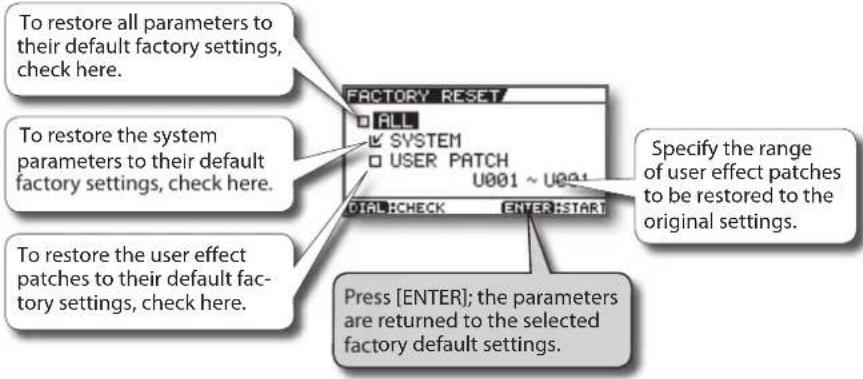 |
About the VIEW SW parameter for the SD card
If VIEW SW is turned ON, an SD CARD item will be added to the SONG LIST.
By selecting SD CARD in the SONG LIST, you'll be able to directly view the contents of the SD card from the JS-8's own screen, just as on your computer.
| VIEW SW Description | |
| OFF | SD CARD will not be shown in the SONG LIST. (Factory setting) |
| ON | SD CARD will be shown in the SONG LIST. By selecting SD CARD in the SONG LIST, you can view the files that are saved on the SD card. |
- Press [MENU].
- Select SYSTEM, then press [ENTER].
- Select SD CARD, then press [ENTER].
- Select SETTING, then press [ENTER].
Error Messages
Cannot Edit Song Name!
It is not possible to edit the song name. Use Song List Editor to edit the name.
MEMO
The song name edited by Song List Editor can be viewed but not edited on the JS-8.
Card Full!
There is no free space on the SD card.
Either delete unwanted songs from this card (p. 9), or use a different SD card that contains free space. (p. 35)
Card Locked!
The SD card's write protection is activated.
Turn off write protection. (p. 35)
Card Read Error!
The SD card cannot be read. Format the SD card.(p. 35)
NOTE
However, be aware that formatting an SD card will erase all data stored on that card.
Card Write Error!
Cannot write to the SD card. Format the SD card. (p. 35)
NOTE
However, be aware that formatting an SD card will erase all data stored on that card.
Data Not Found!
There is no effect data backed up to the SD card.
Data Too Long!
Playback is not possible because the song is too long (too large).
Data Too Short!
Playback is not possible because the song is too short.
Drive Busy!
The data could not be read or written fast enough.
MEMO
- If this error message appears when you're playing high-bit-rate MP3 data, or when you've raised the playback speed or pitch of MP3 data, use CONVERT to convert that MP3 data to JS-8 song format before using it.
- If this error message appears when you're playing back a song from USB memory, use IMPORT to import that song into the SD card before using it.
No Card!
No SD card is inserted in the JS-8.
No File!
The selected song does not exist on the SD card.
From the song list, delete the song that produced the error.
Protected!
The song is protected.
Turn off protection. (p. 38)
Too Many Songs!
The limit on the number of songs that can be recorded on an SD card (4,000) has been reached. [p. 35]
Either delete unwanted songs from this card (p. 9), or use a different SD card that contains free space. (p. 35)
Unformatted Card!
Unformatted USB Memory!
Either the SD card (or USB memory) is not formatted, or is formatted in a format that the JS-8 cannot recognize.
Use the JS-8 to format the SD card. (p. 35)
(Or use your computer to initialize the USB memory.)
NOTE
Formatting will erase all content stored on the SD card (or USB memory).
Unsupported Card!
Unsupported USB Memory!
This card (or USB Memory) cannot be used by the JS-8.
Use an SD card (USB Memory) that Roland has verified as working with the JS-8. Before using a commercially available SD card, please refer to the Roland website (http://www.roland.com/).
Unsupported Format!
The song cannot be played because it is in a format not supported by the JS-8.
USB is not connected!
No USB cable is connected.
Use a USB cable to connect the JS-8 to your computer.
USB Memory Full!
There is no free space on the USB Memory.
Either delete unwanted songs from this USB Memory (p. 9), or use a different USB Memory that contains free space.
USB Memory Read Error!
The USB Memory cannot be read.
Use your computer to initialize the USB memory.
NOTE
However, be aware that formatting an USB Memory will erase all data stored on that USB memory.
USB Memory Write Error!
Cannot write to the USB Memory.
Use your computer to initialize the USB memory.
NOTE
However, be aware that formatting an USB Memory will erase all data stored on that USB memory.
Troubleshooting
Power not turning on
- Make sure the JS-8's AC adaptor is properly connected to the power outlet and the JS-8 (p. 4).
No sound
• Is the MASTER LEVEL knob turned down? (p. 8)
• Is the SPEAKER switch set to OFF? (p. 31)
• Are there any songs on the SD card?
Recorded sound is distorted
• Could the guitar level be excessive?
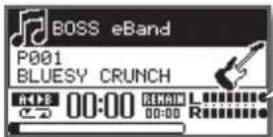
Adjust the GUITAR LEVEL (p. 8) or SONG LEVEL (p. 38) so that does not light.
Can't play MP3/WAV file
- Are the MP3 file's sampling rate and bit rate or the WAV file's sampling rate and quantization bit rate supported by the JS-8? [p. 3]
- Increasing the playback speed or changing the pitch of MP3s with higher bit rates may not be effective in playing back these files. In such cases, convert the song to JS-8 format. [p. 38]
Can't set AB REPEAT segment times correctly
- Time locations A and B cannot be set less than one second apart. You must leave at least one second between them.
- You may be unable to properly play back AB REPEAT segments with MP3s. In such cases, convert the song to JS-8 format. [p. 38]
Low volume from the device connected to the GUITAR/MIC IN or AUX IN jack
- Are you using a connection cable that includes a resistor? Use connection cables that do not contain resistors.
• Is the external device's volume properly adjusted?
• Is the GUITAR LEVEL knob turned down? [p. 8] - Is a mic connected with INPUT GAIN switched to the guitar setting? Adjust the INPUT GAIN. [p. 31]
Can't run the unit
- Is the JS-8 connected via USB to the computer application?
Can't record/can't import songs
- Do you have an SD card inserted?
• Is the SD card lock on? [p. 35] - Does the SD card have too little free space available? (p. 35)
- Are you using an SD card that is known to work with the JS-8?
- Do you have more than 4,000 songs (including WAV and MP3 files)? [p. 35] Delete any songs you don't need. [p. 9]
- The JS-8 only handles up to 2,000 artist, album, and keyword headings. Delete any unneeded artists, albums, or keywords. p. 19
Problems with SD cards
"Unsupported Card!" displayed
• Is the SD card completely inserted?
- Have you inserted an SD card that is not supported by the JS-8?
SD card data corrupted
Corruption of data on SD cards may be caused by the following. Reinitialize the SD card.
• Could the power have been turned off during recording or while the JS-8 was connected via USB to your computer?
- Did you disconnect the USB cable while the JS-8 was connected to a computer?
- Did you remove the SD card while the JS-8 was still turned on?
• Could the SD card have been subjected to strong impact?
Problems with USB memory
USB memory not recognized
• Is the USB memory securely connected?
- The JS-8 supports FAT-formatted USB memory. On a computer, reformat the USB memory to FAT format.
Cannot EXPORT to USB memory
• Is the USB memory write protected?
- Does the USB memory have too little free space available?
Problems with USB connection
- Is the USB cable properly connected?
• Is the computer turned on? - Are you using an OS supported by the JS-8?
• Is the SD card completely inserted? - Have you inserted an SD card that is not supported by the JS-8?
USING THE UNIT SAFELY
INSTRUCTIONS FOR THE PREVENTION OF FIRE, ELECTRIC SHOCK, OR INJURY TO PERSONS
About ⚠ WARNING and ⚠ CAUTION Notices
| ⚠ WARNING | Used for instructions intended to alert the user to the risk of death or severe injury should the unit be used improperly. |
| ⚠ CAUTION | Used for instructions intended to alert the user to the risk of injury or material damage should the unit be used improperly.* Material damage refers to damage or other adverse effects caused with respect to the home and all its furnishings, as well to domestic animals or pets. |
About the Symbols
| The △symbol alerts the user to important instructions or warnings. The specific meaning of the symbol is determined by the design contained within the triangle. In the case of the symbol at left, it is used for general cautions, warnings, or alerts to danger. | |
| The ☉symbol alerts the user to items that must never be carried out (are forbidden). The specific thing that must not be done is indicated by the design contained within the circle. In the case of the symbol at left, it means that the unit must never be disassembled. | |
| The ● symbol alerts the user to things that must be carried out. The specific thing that must be done is indicated by the design contained within the circle. In the case of the symbol at left, it means that the power-cord plug must be unplugged from the outlet. |
ALWAYS OBSERVE THE FOLLOWING

WARNING
Do not open (or modify in any way) the unit or its AC adaptor.
Do not attempt to repair the unit, or replace parts within it (except when this manual provides specific instructions directing you to do so). Refer all servicing to your retailer, the nearest Roland Service Center, or an authorized Roland distributor, as listed on the "Information" page.
Never install the unit in any of the following locations.
- Subject to temperature extremes (e.g., direct sunlight in an enclosed vehicle, near a heating duct, on top of heat-generating equipment); or are
- Damp (e.g., baths, washrooms, on wet floors); or are
- Exposed to steam or smoke; or are
- Subject to salt exposure; or are
- Humid; or are
- Exposed to rain; or are
• Dusty or sandy; or are - Subject to high levels of vibration and shakiness.
Make sure you always have the unit placed so it is level and sure to remain stable. Never place it on stands that could wobble, or on inclined surfaces.
Be sure to use only the AC adaptor supplied with the unit. Also, make sure the line voltage at the installation matches the input voltage specified on the AC adaptor's body. Other AC adaptors may use a different polarity, or be designed for a different voltage, so their use could result in damage, malfunction, or electric shock.
Use only the attached power-supply cord. Also, the supplied power cord must not be used with any other device.

WARNING


Do not excessively twist or bend the power cord, nor place heavy objects on it. Doing so can damage the cord, producing severed elements and short circuits. Damaged cords are fire and shock hazards!
This unit, either alone or in combination with an amplifier and headphones or speakers, may be capable of producing sound levels that could cause permanent hearing loss. Do not operate for a long period of time at a high volume level, or at a level that is uncomfortable. If you experience any hearing loss or ringing in the ears, you should immediately stop using the unit, and consult an audiologist.
Do not allow any objects (e.g., flammable material, coins, pins); or liquids of any kind (water, soft drinks, etc.) to penetrate the unit.
Immediately turn the power off, remove the AC adaptor from the outlet, and request servicing by your retailer, the nearest Roland Service Center, or an authorized Roland distributor, as listed on the "Information" page when: The AC adaptor, the power-supply cord, or the plug has been damaged; or
- If smoke or unusual odor occurs
- Objects have fallen into, or liquid has been spilled onto the unit; or
- The unit has been exposed to rain (or otherwise has become wet); or
• The unit does not appear to operate normally or exhibits a marked change in performance.
In households with small children, an adult should provide supervision until the child is capable of following all the rules essential for the safe operation of the unit.


WARNING
Protect the unit from strong impact. (Do not drop it!)
Do not force the unit's power supply cord to share an outlet with an unreasonable number of other devices. Be especially careful when using extension cords-the total power used by all devices you have connected to the extension cord's outlet must never exceed the power rating (watts/amperes) for the extension cord. Excessive loads can cause the insulation on the cord to heat up and eventually melt through.
Before using the unit in a foreign country, consult with your retailer, the nearest Roland Service Center, or an authorized Roland distributor, as listed on the "Information" page.

CAUTION
The unit and the AC adaptor should be located so their location or position does not interfere with their proper ventilation.
Always grasp only the plug on the AC adaptor cord when plugging into, or unplugging from, an outlet or this unit.
At regular intervals, you should unplug the AC adaptor and clean it by using a dry cloth to wipe all dust and other accumulations away from its prongs. Also, disconnect the power plug from the power outlet whenever the unit is to remain unused for an extended period of time. Any accumulation of dust between the power plug and the power outlet can result in poor insulation and lead to fire.


CAUTION
Try to prevent cords and cables from becoming entangled. Also, all cords and cables should be placed so they are out of the reach of children.
Never climb on top of, nor place heavy objects on the unit.
Never handle the AC adaptor or its plugs with wet hands when plugging into, or unplugging from, an outlet or this unit.
Before moving the unit, disconnect the AC adaptor and all cords coming from external devices.
Before cleaning the unit, turn off the power and unplug the AC adaptor from the outlet (p. 4).
Whenever you suspect the possibility of lightning in your area, disconnect the AC adaptor from the outlet.
Should you remove connector covers, screw, ground terminal, and SD cards, keep them in a safe place out of children's reach, so there is no chance of them being swallowed accidentally.


Important Notes
Microsoft and Windows are registered trademarks of Microsoft Corporation.
The screen shots in this document are used in compliance with the guidelines of the Microsoft Corporation.
Windows ^® is known officially as: "Microsoft" Windows ^® operating system."
Apple and Macintosh are registered trademarks of Apple Inc.
Mac OS is a trademark of Apple Inc.
Pentium is a registered trademark of Intel Corporation.
All product names mentioned in this document are trademarks or registered trademarks of their respective owners.
MPEG Layer-3 audio compression technology is licensed from Fraunhofer IIS Corporation and THOMSON Multimedia Corporation.
The SD logo ( ) and SDHC logo ( ) are trademarks of SD-3C, LLC.

MMP (Moore Microprocessor Portfolio) refers to a patent portfolio concerned with microprocessor architecture, which was developed by Technology Properties Limited (TPL). Roland has licensed this technology from the TPL Group.
Power Supply
Do not connect this unit to same electrical outlet that is being used by an electrical appliance that is controlled by an inverter (such as a refrigerator, washing machine, microwave oven, or air conditioner), or that contains a motor. Depending on the way in which the electrical appliance is used, power supply noise may cause this unit to malfunction or may produce audible noise. If it is not practical to use a separate electrical outlet, connect a power supply noise filter between this unit and the electrical outlet.
The AC adaptor will begin to generate heat after long hours of consecutive use. This is normal, and is not a cause for concern.
Before connecting this unit to other devices, turn off the power to all units. This will help prevent malfunctions and/or damage to speakers or other devices.
Placement
Using the unit near power amplifiers (or other equipment containing large power transformers) may induce hum. To alleviate the problem, change the orientation of this unit; or move it farther away from the source of interference.
This device may interfere with radio and television reception. Do not use this device in the vicinity of such receivers.
Noise may be produced if wireless communications devices, such as cell phones, are operated in the vicinity of this unit. Such noise could occur when receiving or initiating a call, or while conversing. Should you experience such problems, you should relocate such wireless devices so they are at a greater distance from this unit, or switch them off.
Do not expose the unit to direct sunlight, place it near devices that radiate heat, leave it inside an enclosed vehicle, or otherwise subject it to temperature extremes. Excessive heat can deform or discolor the unit.
When moved from one location to another where the temperature and/or humidity is very different, water droplets (condensation) may form inside the unit. Damage or malfunction may result if you attempt to use the unit in this condition. Therefore, before using the unit, you must allow it to stand for several hours, until the condensation has completely evaporated.
Depending on the material and temperature of the surface on which you place the unit, its rubber feet may discolor or mar the surface.
You can place a piece of felt or cloth under the rubber feet to prevent this from happening. If you do so, please make sure that the unit will not slip or move accidentally.
Maintenance
For everyday cleaning wipe the unit with a soft, dry cloth or one that has been slightly dampened with water. To remove stubborn dirt, use a cloth impregnated with a mild, non-abrasive detergent. Afterwards, be sure to wipe the unit thoroughly with a soft, dry cloth.
Never use benzine, thinners, alcohol or solvents of any kind, to avoid the possibility of discoloration and/or deformation.
Repairs and Data
Please be aware that all data contained in the unit's memory may be lost when the unit is sent for repairs. Important data should always be backed up on USB memory or computer, or written down on paper (when possible). During repairs, due care is taken to avoid the loss of data. However, In certain cases (such as when circuitry related to memory itself is out of order), we regret that it may not be possible to restore the data, and Roland assumes no liability concerning such loss of data.
Additional Precautions
Please be aware that the contents of memory can be irretrievably lost as a result of a malfunction, or the improper operation of the unit. To protect yourself against the risk of loosing important data, we recommend that you periodically save a backup copy of important data you have stored in the unit's memory on USB memory or computer.
Unfortunately, it may be impossible to restore the contents of data that was stored on USB memory or computer once it has been lost. Roland Corporation and BOSS Corporation assume no liability concerning such loss of data.
Use a reasonable amount of care when using the unit's buttons, sliders, or other controls; and when using its jacks and connectors. Rough handling can lead to malfunctions.
Never strike or apply strong pressure to the display.
When connecting / disconnecting all cables, grasp the connector itself-never pull on the cable. This way you will avoid causing shorts, or damage to the cable's internal elements.
To avoid disturbing your neighbors, try to keep the unit's volume at reasonable levels. You may prefer to use headphones, so you do not need to be concerned about those around you (especially when it is late at night).
When you need to transport the unit, package it in the box (including padding) that it came in, if possible. Otherwise, you will need to use equivalent packaging materials.
Use only the specified expression pedal (Roland EV-5, BOSS FV-500L, or FV-500H; sold separately). By connecting any other expression pedals, you risk causing malfunction and/or damage to the unit.
Some connection cables contain resistors. Do not use cables that incorporate resistors for connecting to this unit. The use of such cables can cause the sound level to be extremely low, or impossible to hear. For information on cable specifications, contact the manufacturer of the cable.
Before Using SD Cards
Carefully insert the SD card all the way in-until it is firmly in place.

- Push
2. Release your finger
Never touch the terminals of the SD card. Also, avoid getting the terminals dirty.
SD cards are constructed using precision components; handle the cards carefully, paying particular note to the following.
- To prevent damage to the cards from static electricity, be sure to discharge any static electricity from your own body before handling the cards.
- Do not touch or allow metal to come into contact with the contact portion of the cards.
- Do not bend, drop, or subject cards to strong shock or vibration.
- Do not keep cards in direct sunlight, in closed vehicles, or other such locations (storage temperature: -25 to 85 °C).
- Do not allow cards to become wet.
- Do not disassemble or modify the cards.
Copyright
Recording, duplication, distribution, sale, lease, performance, or broadcast of copyrighted material (musical works, visual works, broadcasts, live performances, etc.) belonging to a third party in part or in whole without the permission of the copyright owner is forbidden by law.
This product can be used to record or duplicate audio or visual material without being limited by certain technological copy-protection measures. This is due to the fact that this product is intended to be used for the purpose of producing original music or video material, and is therefore designed so that material that does not infringe copyrights belonging to others (for example, your own original works) can be recorded or duplicated freely.
Do not use this unit for purposes that could infringe on a copyright held by a third party. We assume no responsibility whatsoever with regard to any infringements of third-party copyrights arising through your use of this unit.
Use of the demo song and rhythm data supplied with this product for any purpose other than private, personal enjoyment without the permission of the copyright holder is prohibited by law. Additionally, this data must not be copied, nor used in a secondary copyrighted work without the permission of the copyright holder.
Index
A
AB REPEAT 5,15,41
AC.PROCESSOR....25,27
ALL DELETE 13, 20, 21, 38
AMP 22
Audio Interface 33
B
Backing Up 36
back up 39
BEST 30....9,10,11
C
Cannot Edit Song Name! 40
Capacity 35
CAPTURE 16
Card Full! 40
Card Locked! 40
Card Read Error! 40
Card Write Error! 40
CD IMPORT 19
CD RIPPING 19
Center Cancel 15
CHORUS 22,30
COMP 25,27
Connecting 18
CONVERT 38
Cursor Button 5
D
Data Not Found! 40
Data Too Long! 40
Data Too Short! 40
DAW 34
DELAY 22,29
Dial 5
Digital Audio Workstation 34
E
Effect Parameters 20
Effects 12, 20, 22, 36, 37, 38
ENTER Button 5
EQ 22,28
Error Messages 40
EXCHANGE 12,21
EXIT Button 5
EXPORT 38,41
Expression Pedal 6,32,44
EZ CHARACTER 30
F
FACTORY RESET 39
FLANGER 25, 27
footswitch 29, 32, 39, 44
FX 22,25
G
GLOBAL EQ 39
Guitar Level 8
|
IMPORT 19
Importing Songs 16
INITIALIZE 12, 21
INPUT GAIN 31,39
Input Sensitivity 31
L
LCD 39
LIMITER 25,27
Lock 35
N
Memory Confirmed 2
MENU Button 5
Metronome 14
MP3 2,3,19,35
N
Name 5
No Card! 40
No File! 40
NOISE SUPPRESSOR 28
C
OCTAVE.... 25, 27
OD/DS 25,26
P
PAN 25,28
PATCH BACKUP 39
PATCH NAME 21
PATCH RECOVER 37
PEDAL 25,32,39
PHASER....25, 27
pitch 15
Play 8
Playing 33
Play Mode ....5
Power Button 5,41,43
Protect 38
Protected! 40
F
Re-Amp 34
REC 5
Recording 9
Recording Time 35
RECOVER 37,39
REMAIN 5
REMOVE 11
REVERB 22,30
RHYTHM 11
ROTARY 25, 28, 32
Routing......2
S
Saving Effects 13, 20
SD Card 2,35,36,37,43
SD CARD 11,35,39
SD card Write/Protect Function ..... 35
SEARCH 10
Selecting Songs 10
SET PATCH 31,38
SOLO 12
Song Information 19,38
Song List Editor 18, 19
Song Name 19,38
SPEAKER SW 31
SPEED 15
Stop 8
Switching Effects 12
SYSTEM SETTING 31,39
T
Tempo 14, 15
Too Many Songs! 40
Top Screen 5
TRÉMOLO 25, 27
Troubleshooting 41
Tuner 14
Tuning....14
U
Unformatted Card! 40
Unformatted USB Memory! 40
UNI-V 25,28
Unsupported Card! 40
Unsupported Format! 40
Unsupported USB Memory! 40
USB Audio Interfaces.... 33
USB AUDIO ROUTING 34
USB (COMPUTER) 34, 39
USB Driver 33
USB is not connected! 40
USB MEMORY 11,39
USB Memory Full 40
USB Memory Read Error! 40
USB Memory Write Error! 40
v
Volume 8
W
WAH 25,26
WAV 2,3,19,35
WRITE 12, 13, 20, 21
Specifications
| JS-8: Audio Player with Guitar Effects (eBand) | |
| AD Conversion • 24-bit + AF method (GUITAR/MIC IN)• 24-bit (AUX IN) | |
| DA Conversion • 24-bit | |
| Sampling Frequency | • 44.1 kHz |
| Effect Patches • Preset: 130• User: 100 | |
| Nominal Input Level | • GUITAR/MIC IN: -20 dBu(INPUT GAIN=GUITAR)• GUITAR/MIC IN: -32 dBu(INPUT GAIN=MIC)• AUX IN: -15 dBu |
| Input Impedance • GUITAR/MIC IN: 1 M ohm• AUX IN: 22 k ohms | |
| Nominal Output Level | • PHONES: -10 dBu• LINE OUT: -10 dBu |
| Output Impedance | • PHONES: 44 ohms• LINE OUT: 1 k ohm |
| Connectors • GUITAR/MIC IN (1/4 inch phone type)• AUX IN (Stereo miniature phone type)• PHONES (Stereo miniature phone type)• LINE OUT (RCA phono type)• EXP PEDAL/CTL1,2 (1/4 inch TRS phone type)• USB (Type A)• USB (Type B)• DC IN |
| Current Draw • 400 mA |
| Dimensions • 264 (W) x 166 (D) x 201 (H) mm• 10-7/16 (W) x 6-9/16 (D) x 7-15/16 (H) inch |
| Weight • 1.7 kg• 3 lbs 12 oz(excluding AC adaptor) |
| Accessories • AC adaptor | |
| Owner's ManualSD cardUSB cableRoland Service (Information Sheet) | |
| Options | Footswitch (BOSS FS-5U)Dual Footswitch (BOSS FS-6)Expression Pedal (Roland EV-5, BOSS FV-500L, BOSS FV-500H) |
0 dBu = 0.775 Vrms
In the interest of product improvement, the specifications and/or appearance of this unit are subject to change without prior notice.
AF method (Adaptive Focus method)
This is a proprietary method from Roland & BOSS
that vastly improves the signal-to-noise (S/N) ratio
of the A/D and D/A converters.
AUDIO PLAYER with GUITAR EFFECTS JS-8
Bedienungsanleitung
Copyright © 2009 BOSS CORPORATION
natural_image
Diagram of a mechanical component with an arrow pointing to a rectangular block and an arrow pointing to it (no text or symbols present)
NOTIZ
natural_image
Diagram of a computer monitor with an upward arrow indicating motion (no text or symbols)Cannot Edit Song Name!
Unsupported USB Memory!
USB is not connected!
ALL DELETE 13, 20, 21, 38
AMP 22
Anschließen 18
Aufnahme 9
Aufnahme Time 35
Cannot Edit Song Name! 40
CAPTURE 16
Card Full! 40
Card Locked! 40
Card Read Error! 40
Card Write Error! 40
CD IMPORT 19
CD RIPPING 19
CENTER CANCEL 15
CHORUS 22,30
COMP 25,27
CONVERT 38
Cursortaste 5
D
Data Not Found! 40
Data Too Long! 40
Data Too Short! 40
DAW 34
DELAY 22,29
Digital Audio Workstation (DAW) ... 34
Drive Busy! 40
E
Effekte 12, 20, 22, 36, 37, 38
Effektparameter 20
Song List Editor 18, 19
SPEAKER SW 31
SPEED 15
Unsupported Card! 40
Unsupported Format! 40
USB (COMPUTER) 34, 39
USB AUDIO ROUTING 34
USB is not connected! 40
USB MEMORY 11,39
USB Memory Full! 40
USB Memory Read Error! 40
USB Memory Write Error! 40
USB-Treiber 33
W
WAH 25,26
WAV 2,3,19,35
WRITE 12, 13, 20, 21
Technische Daten
| JS-8: Audio-Player mit Gitarreneffekten (eBand) | |
| AD-Wandlung | 24-bit + AF-Methode (GUITAR/MIC IN)24-bit (AUX IN) |
| DA-Wandlung | 24-bit |
| Sampling-Frequenz | 44,1 kHz |
| Effekt-Patches | Preset: 130Benutzer: 100 |
| Nomineller Eingangspegel | GUITAR/MIC IN: -20 dBu(INPUT GAIN=GUITAR)GUITAR/MIC IN: -32 dBu(INPUT GAIN=MIC)AUX IN: -15 dBu |
| Eingangsimpedanz | GUITAR/MIC IN: 1 MOhmAUX IN: 22 kOhm |
| Nomineller Ausgangspegel | PHONES: -10 dBuLINE OUT: -10 dBu |
| Ausgangsimpedanz | PHONES: 44 OhmLINE OUT: 1 kOhm |
Copyright © 2009 BOSS CORPORATION
natural_image
Diagram of a device with ports and an arrow pointing to a component (no text or symbols)Cannot Edit Song Name!
USB is not connected!
Désactivez la protection. (p. 38)
Too Many Songs!
Unsupported USB Memory!
ALL DELETE 13, 20, 21, 38
AMP 22
B
BEST 30....9,10,11
Bouton ENTER 5
Bouton EXIT......5
Bouton MENU 5
Bouton Power 5,41,43
C
Cannot Edit Song Name! 40
Capacité 35
CAPTURE 16
Card Full! 40
Card Locked! 40
Card Read Error! 40
Card Write Error! 40
Carte SD 2,35,36,37,43
CD IMPORT 19
CD RIPPING 19
Center Cancel 15
Cheminement 2
CHORUS 22,30
Effets 12, 20, 22, 36, 37, 38
Song List Editor 18, 19
SPEAKER SW 31
SPEED 15
SYSTEM SETTING 31,39
T
Tempo 14,15
Unsupported Card! 40
Unsupported Format! 40
Unsupported USB Memory! 40
USB (COMPUTER) 34, 39
USB AUDIO ROUTING 34
USB is not connected! 40
USB MEMORY 11,39
USB Memory Read Error! 40
USB Memory Write Error! 40
V
Verrouillage 35
WRITE 12, 13, 20, 21
MEMO
natural_image
Diagram of a device with an arrow pointing to a rectangular component (no text or symbols present)natural_image
Illustration of a person pressing a device on a machine, with an upward arrow indicating motion (no text or symbols present)Cannot Edit Song Name!
Unsupported USB Memory!
USB is not connected!
ALL DELETE 13, 20, 21, 38
AMP 22
B
Backup 36
BEST 30....9,10,11
C
Cannot Edit Song Name! 40
Capacità 35
CAPTURE 9,16
Card Full! 40
Card Locked! 40
Card Read Error! 40
Card Write Error! 40
CD IMPORT 19
CD RIPPING 19
Center Cancel 15
CHORUS 22,30
COMP 25,27
Connessione 18
CONVERT 9,15,38
D
Data Not Found! 40
Data Too Long! 40
Data Too Short! 40
DAW 34
DELAY 22,29
Drive Busy! 40
Driver USB 33
E
Effetti ...... 12, 13, 20, 22, 12, 36, 37
EQ 22,28
ERASE 9
EXCHANGE.... 12, 21
EXPORT 9,38,41
EZ CHARACTER 30
F
FACTORY RESET 39
FLANGER 25,27
PEDAL 25, 26, 32, 39
PHASER 25,27
Protezione 38
Scheda SD 2, 35, 36, 37, 43
Unsupported Card! 40
Unsupported Format! 40
USB (COMPUTER) 34, 39
USB AUDIO ROUTING 34
USB is not connected! 40
USB MEMORY 11,39
USB Memory Full! 40
USB Memory Read Error! 40
USB Memory Write Error! 40
W
WAH 25,26
WAV 2,3,19,35
Workstation audio digitale 34
WRITE 12, 13, 20, 21
Specifiche
Copyright © 2009 BOSS CORPORATION
natural_image
Pure diagram of a mechanical component with an arrow pointing to it, no text or symbols presentCannot Edit Song Name!
Unsupported USB Memory!
USB is not connected!
ALL DELETE 13, 20, 21, 38
Cannot Edit Song Name! 40
Capacidad 35
CAPTURE 16
Card Full! 40
Card Locked! 40
Card Read Error! 40
Card Write Error! 40
CD IMPORT 19
CD RIPPING 19
CHORUS 22,30
COMP 25,27
Conexión 18
Controlador USB 33
CONVERT 38
Efectos 12, 20, 22, 36, 37, 38
EQ 22,28
PEDAL 25, 26, 32, 39
PHASER 25, 27
Proteger 38
Protegered!...... 40
R
Reamplificar 34
REC 5
REMAIN 5
REMOVE 11
Reproducir 8
Reproduciring 33
Reproducir Mode 5
REVERB 22,30
RHYTHM 11
ROTARY 25, 28, 32
Ruta 2
S
SD CARD 11,35,39
SEARCH 10
Unsupported Card! 40
Unsupported Format! 40
Unsupported USB Memory! 40
USB AUDIO ROUTING 34
USB (COMPUTER) 34, 39
USB is not connected! 40
USB MEMORY 11,39
USB Memory Full! 40
USB Memory Read Error! 40
USB Memory Write Error! 40
W
WAH 25,26
WAV 2,3,19,35
WRITE 12, 13, 20, 21
Especificaciones
Copyright © 2009 BOSS CORPORATION
Gravando performances 9
Gravando performances
Gravando performances
Pressione O.
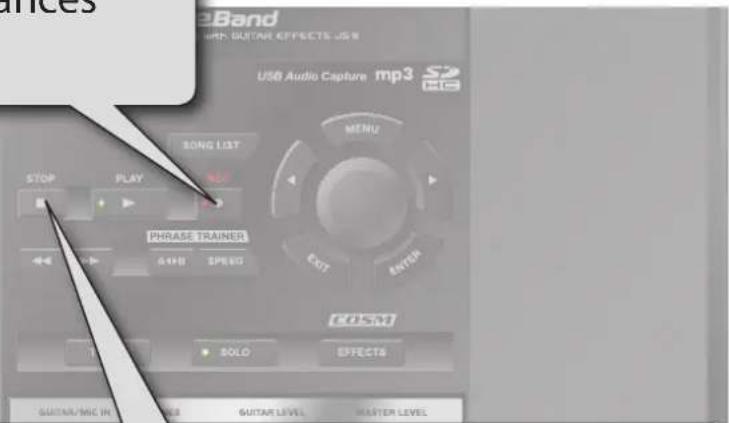
Instalando o driver USB
natural_image
Illustration of a train on tracks with an upward arrow and stairs, no text or symbols presentCannot Edit Song Name!
Unsupported USB Memory!
USB is not connected!
"Unsupported Card!" exibido
- Afastar o seu dedo
ALL DELETE 13, 20, 21, 38
AMP 22
B
BEST 30....9,10,11
Botão Cursor ....5
Botão ENTER 5
Botão EXIT......5
Botão MENU 5
Botão Power 5,41,43
C
Cannot Edit Song Name! 40
Capacidade 35
CAPTURE 16
Card Full! 40
Card Locked! 40
Card Read Error! 40
Card Write Error! 40
Cartão SD ......2, 35, 36, 37, 43
CD IMPORT 19
CD RIPPING 19
Center Cancel 15
CHORUS 30
COMP 25,27
Conexão 18
CONVERT 38
D
Data Not Found! 40
Data Too Long! 40
Data Too Short! 40
DAW 34
DELAY 22,29
Dial 5
Direcionamento....2
Drive Busy! 40
Driver USB 33
E
Song List Editor 18, 19
SPEAKER SW 31
SPEED 15
SYSTEM SETTING 31, 39
T
Tela superior 5
Too Many Songs! 40
Trava 35
TREMOLO 25,27
Trocando efeitos 12
U
Unformatted Card!...... 40
Unformatted USB Memory! 40
UNI-V 25,28
Unsupported Card! 40
Unsupported Format! 40
USB (COMPUTER) 34, 39
USB AUDIO ROUTING 34
USB is not connected! 40
USB MEMORY 11,39
USB Memory Full! 40
USB Memory Read Error! 40
USB Memory Write Error! 40
W
WAH 25,26
WAV 2,3,19,35
WRITE 12, 13, 20, 21
Especificações
Copyright © 2009 BOSS CORPORATION
natural_image
Diagram of a device component with an arrow pointing to a rectangular box (no text or symbols present)
Taakbalk
↑ Systeemvak
| Met JS-8-songs | Met MP3 | Met WAV | |
| Songs per GB | 50 songs 200 songs | 20 songs | |
| 32 GB | 1.700 songs 4.000 songs | 600 songs |
MEMO
Cannot Edit Song Name!
Unsupported USB Memory!
USB is not connected!
"Unsupported Card!" wordt getoond
Unformatted Card! 40
Unformatted USB Memory! ...... 40
UNI-V 25,28
Unsupported Card! 40
Unsupported Format! 40
Unsupported USB Memory! ...... 40
USB (COMPUTER) 34, 39
USB AUDIO ROUTING 34
USB is not connected! 40
USB MEMORY 11,39
USB Memory Full! 40
USB Memory Read Error! 40
USB Memory Write Error! 40
USB-audio-interface 33
WRITE 12, 13, 20, 21
Specifications
| JS-8: Audiospeler met gitaareffecten (eBand) | |
| AD-conversie • 24 bit + AF-methode | |
| DA-conversie • 24 bit | |
| Samplefrequentie | • 44,1 kHz |
| Effectpatches • Voorinstelling: 130• Gebruiker: 100 | |
| Nominaalingangsniveau | • GUITAR/MIC IN: -20 dBu(INPUT GAIN=GUITAR)• GUITAR/MIC IN: -32 dBu(INPUT GAIN=MIC)• AUX IN: -15 dBu |
| Ingangsimpedantie | • GUITAR/MIC IN: 1M ohm• AUX IN: 22k ohm |
| Nominaal uitgangsniveau | • PHONES: -10 dBu• LINE OUT: -10 dBu |
| Uitgangsimpedantie | • PHONES: 44 ohm• LINE OUT: 1k ohm |
IMPORTANT: THE WIRES IN THIS MAINS LEAD ARE COLOURED IN ACCORDANCE WITH THE FOLLOWING CODE.
BLUE: NEUTRAL
BROWN: LIVE
As the colours of the wires in the mains lead of this apparatus may not correspond with the coloured markings identifying the terminals in your plug, proceed as follows:
The wire which is coloured BLUE must be connected to the terminal which is marked with the letter N or coloured BLACK. The wire which is coloured BROWN must be connected to the terminal which is marked with the letter L or coloured RED.
Under no circumstances must either of the above wires be connected to the earth terminal of a three pin plug.

-For EU Countries
This product complies with the requirements of EMC Directive 2004/108/EC.
-For the USA
FEDERAL COMMUNICATIONS COMMISSION RADIO FREQUENCY INTERFERENCE STATEMENT
This equipment has been tested and found to comply with the limits for a Class B digital device, pursuant to Part 15 of the FCC Rules. These limits are designed to provide reasonable protection against harmful interference in a residential installation. This equipment generates, uses, and can radiate radio frequency energy and, if not installed and used in accordance with the instructions, may cause harmful interference to radio communications. However, there is no guarantee that interference will not occur in a particular installation. If this equipment does cause harmful interference to radio or television reception, which can be determined by turning the equipment off and on, the user is encouraged to try to correct the interference by one or more of the following measures:
– Reorient or relocate the receiving antenna.
– Increase the separation between the equipment and receiver.
- Connect the equipment into an outlet on a circuit different from that to which the receiver is connected.
- Consult the dealer or an experienced radio/TV technician for help.
This device complies with Part 15 of the FCC Rules. Operation is subject to the following two conditions:
(1) this device may not cause harmful interference, and
(2) this device must accept any interference received, including interference that may cause undesired operation.
Unauthorized changes or modification to this system can void the users authority to operate this equipment.
This equipment requires shielded interface cables in order to meet FCC class B Limit.
For Canada
NOTICE
This Class B digital apparatus meets all requirements of the Canadian Interference-Causing Equipment Regulations.
AVIS
This product contains chemicals known to cause cancer, birth defects and other reproductive harm, including lead.
For the USA
DECLARATION OF CONFORMITY Compliance Information Statement
Model Name : JS-8
Type of Equipment: Audio Player with Guitar Effects
Responsible Party : Roland Corporation U.S.
Address: 5100 S.Eastern Avenue, Los Angeles, CA 90040-2938
Telephone : (323) 890-3700
For EU Countries


This symbol indicates that in EU countries, this product must be collected separately from household waste, as defined in each region. Products bearing this symbol must not be discarded together with household waste.

- Checking the Package Contents
- COSM
- Contents
- Main Features 2
- Setting Up the JS-8 4
- Play Your Guitar with Songs as YourBacking ..... 8
- Importing Songs 16
- Using the JS-8 Song List Editor ....18
- Convenient Functions 20
- Appendices 40
- Look what you can do with the JS-8
- Basic Routing of Sounds
- Types of Memory Supported by the JS-8 and Their Applications
- Memory Confirmed as Functional with the JS-8
- Sound Path When Used with Connected Devices
- Songs Supported by the JS-8
- JS-8 Songs (Recording/Playback)
- MP3 (Playback only)
- WAV (Playback only)
- MEMO
- Setting Up the JS-8
- Basic setup for the JS-8
- Basic operation of the JS-8
- About the Top Screen
- Using the JS-8 with Other Devices
- About the Cover Holder (indentation)
- About the Ground Terminal
- About the SD Cards and the SD Card Connector
- About the USB Memory Connector
- About the Expression Pedal and Footswitch
- About the Security Slot
- About the AUX IN Jack
- About the LINE OUT Jacks
- Caution When Making Connections
- Play Your Guitar with Songs as YourBacking
- Playing Songs
- TIP
- Playing Songs on USB Memory
- Recording Performances
- With the MENU button...
- Selecting Songs
- Narrowing the Number of Songs Appearing in the Display (SEARCH Function)
- Ranking Your Favorite Songs (BEST 30)
- How to Use the RHYTHM Data
- Switching Effects
- Switch to the SOLO Effect
- Select Effects
- Switching Back and Forth Between Two Effects
- Changing Effects to Get the Desired Sound
- Saving Effects
- Convenient Practice Functions
- Phrase Trainer
- Repeating Playback of a Fixed Segment (AB REPEAT)
- Precise Adjustment of the AB REPEAT Segment
- Practicing with the Song Tempo Changed and Center Sound Removed
- Press [SPEED].
- Importing Songs from CD Players and Other Devices
- Importing the Song (CAPTURE)
- Capturing Data at the Desired Time Capturing Automatically
- Capturing Songs from Various Sound Sources
- Using the JS-8 Song List Editor
- Connecting to the Computer
- Installing the Song List Editor
- Starting up the Song List Editor
- Importing Songs into the JS-8 from CDs (CD IMPORT)
- Importing WAV or MP3 into the JS-8 (IMPORT)
- Editing Song Information Quitting the Song List Editor
- Displaying Song Names with Non-Alphabetic Characters
- Windows users
- Mac OS users
- Advanced Editing of Effect Parameters
- NOTE
- To Copy an Effect Patch
- About the Effect Menu
- About the JS-8's Internal Effects
- Internal Effects
- AMP parameter list
- Convenient Functions
- FX parameter list
- About the RATE Parameter in PHASER, FLANGER, and TREMOLO Effect
- About the RATE Parameter in ROTARY, UNI-V, and PAN Effect
- DELAY parameter list
- The PHRASE LOOP function
- CHORUS parameter list
- REVERB parameter list
- EZ CHARACTER parameter list
- Adjusting the Guitar and Mic Input Sensitivity
- Turning Off the Internal Speakers
- Calling Up the Effect Stored in a Song (Patch Sync)
- Using Foot Switches and Expression Pedals
- Using USB Audio Interfaces
- Preparing to Install the USB Driver
- With Windows Vista/XP
- With Mac OS X
- Installing the USB Driver
- Playing Songs on a Computer Through the JS-8
- Using the JS-8 with Commercial Digital Audio Workstation (DAW) Software
- What is "Re-Amping?"
- Using Commercial SD Cards
- Removing SD Cards
- Initializing SD Cards
- About the SD card Write/Protect Function (Lock)
- Write
- Protect
- Specifications for SD Cards Used with the JS-8
- SD Card Capacity and Recording Time
- Backing Up
- Backing Up SD Cards
- With Mac OS
- Backing Up Effects to SD Cards (PATCH BACKUP)
- Recovering Backed Up Data (RECOVER)
- Recovering Backed Up Data to SD Cards (RECOVERY)
- Recovering Effects Backed Up on SD Cards (PATCH RECOVER)
- Song Settings (Song Information/Protect/Effects/Song Name)
- Converting songs and transferring them between media
- Various System Settings
- About the VIEW SW parameter for the SD card
- Error Messages
- Cannot Edit Song Name!
- Card Full!
- Card Locked!
- Card Read Error!
- Card Write Error!
- Data Not Found!
- Data Too Long!
- Data Too Short!
- Drive Busy!
- No Card!
- No File!
- Protected!
- Too Many Songs!
- Unformatted Card!
- Unformatted USB Memory!
- Unsupported Card!
- Unsupported USB Memory!
- Unsupported Format!
- USB is not connected!
- USB Memory Full!
- USB Memory Read Error!
- USB Memory Write Error!
- Troubleshooting
- Power not turning on
- No sound
- Recorded sound is distorted
- Can't play MP3/WAV file
- Can't set AB REPEAT segment times correctly
- Low volume from the device connected to the GUITAR/MIC IN or AUX IN jack
- Can't run the unit
- Can't record/can't import songs
- Problems with SD cards
- "Unsupported Card!" displayed
- SD card data corrupted
- Problems with USB memory
- USB memory not recognized
- Cannot EXPORT to USB memory
- Problems with USB connection
- USING THE UNIT SAFELY
- INSTRUCTIONS FOR THE PREVENTION OF FIRE, ELECTRIC SHOCK, OR INJURY TO PERSONS
- ALWAYS OBSERVE THE FOLLOWING
- WARNING
- CAUTION
- Important Notes
- Power Supply
- Placement
- Maintenance
- Repairs and Data
- Additional Precautions
- Before Using SD Cards
- Release your finger
- Copyright
- Index
- A
- B
- C
- D
- E
- F
- G
- |
- L
- N
- P
- S
- T
- U
- v
- W
- Specifications
- AUDIO PLAYER with GUITAR EFFECTS JS-8
- Bedienungsanleitung
- Copyright © 2009 BOSS CORPORATION
- NOTIZ
- Technische Daten
- Specifiche
- R
- Especificaciones
- Gravando performances
- Instalando o driver USB
- "Unsupported Card!" exibido
- Especificações
- "Unsupported Card!" wordt getoond
- FEDERAL COMMUNICATIONS COMMISSION RADIO FREQUENCY INTERFERENCE STATEMENT
- NOTICE
- AVIS
- DECLARATION OF CONFORMITY Compliance Information Statement
- For EU Countries
Brand : BOSS
Model : eBand JS8
Category : Hi-fi system