eBand JS10 - Hi-fi system BOSS - Free user manual and instructions
Find the device manual for free eBand JS10 BOSS in PDF.



| Product Type | Hi-fi system with built-in guitar effects |
| Brand | Boss |
| Model | eBand JS10 |
| Category | Hi-fi system |
| Power supply | AC adapter (included) |
| Supported audio formats | MP3, WAV, eBand (proprietary) |
| Storage | SD/SDHC card (up to 32 GB), USB flash drive |
| Built-in effects | COSM (amps, modulation, reverb, delay, etc.) |
| Main functions | Tuner, recording, Phrase Trainer (speed, pitch, Center Cancel), AB Repeat, PATCH SYNC |
| Input connectors | 2x INPUT (Guitar/Mic), 1x AUX INPUT |
| Output connectors | LINE OUT, PHONES |
| USB connectors | USB COMPUTER (audio/editor), USB MEMORY (flash drive) |
| Pedal/Expression | 2x EXP PEDAL/CTL (FS-5U, FS-6, EV-5 optional) |
| Built-in speakers | Yes |
| Display | Backlit LCD |
| Safety | Adjustable auto-off (AUTO OFF) |
| Maintenance | Clean with a soft dry cloth, avoid solvents |
| Included accessories | AC adapter, USB cable, SD card (containing software and songs) |
| Options | Control pedals (FS-5U, FS-6), expression pedal (EV-5) |
| Repairability | For repairs, contact an authorized Roland/Boss service center |
Frequently Asked Questions - eBand JS10 BOSS
User questions about eBand JS10 BOSS
0 question about this device. Answer the ones you know or ask your own.
Ask a new question about this device
Download the instructions for your Hi-fi system in PDF format for free! Find your manual eBand JS10 - BOSS and take your electronic device back in hand. On this page are published all the documents necessary for the use of your device. eBand JS10 by BOSS.
USER MANUAL eBand JS10 BOSS
natural_image
Illustration of two musicians playing guitar and singing into a microphone, with audio equipment in the background (no text or symbols)
eBand
AUDIO PLAYER with GUITAR EFFECTS
JS-10
English
Deutsch
Français
Italiano
Español
Português
Nederlands


eBand
AUDIO PLAYER with GUITAR EFFECTS
JS-10
Owner's Manual
Panel Descriptions....3
Front Panel 3
Top Panel / Side Panels....4
Top Screen....4
Basic Operation ....5
Turning the Power On....5
Turning the Power Off....5
Moving the Cursor....5
Selecting an Item 5
Changing the Value 5
[MENU] Button....6
Play the Guitar with Songs as Your Backing....7
Selecting Songs....7
Displaying Songs by Category....7
Registering Your 30 Favorite Songs (BEST 30)....7
Selecting Songs on the USB Flash Drive....8
Deleting Songs 8
Playing a Guitar While Playing Back a Song....8
Switching the Play Mode....9
Tuning....9
Recording Performances 10
Switching Effects....10
Changing the Speed of Songs....11
Changing the Pitch of Songs ....11
Removing the Center Sound (Center Cancel)....12
Repeating Playback of a Specified Segment (AB REPEAT) .....12
Precise Adjustment of the AB REPEAT Segment .....12
Importing Songs from a PC to the JS-10 (eBand Song List Editor) ..13
Before Using eBand Song List Editor....13
Connecting the JS-10 to Your PC....13
Installing eBand Song List Editor on Your PC ....13
Starting Up eBand Song List Editor ....13
Using eBand Song List Editor....14
Ripping Songs from CD to the JS-10 (Ripping)....15
Editing Song Information 16
Ending the Connection with the PC....16
Before using this unit, carefully read the sections titled "USING THE UNIT SAFELY" (p. 40) and "IMPORTANT NOTES" (p. 41). These sections provide important information concerning the proper operation of the unit. Additionally, in order to gain a good grasp of every feature provided by your new unit, this owner's manual should be read in its entirety, and it should be saved and kept on hand as a convenient reference.
Copyright © 2012 BOSS CORPORATION
All rights reserved. No part of this publication may be reproduced in any form without the written permission of BOSS CORPORATION.
Convenient Functions....17
Editing the Effects....17
Visually Editing the Sound (EZ EDIT) 17
Advanced Editing of Sounds (PATCH EDIT)....18
MENU of an EFFECT screen....18
Saving Patches....19
Exchanging Two Patches (EXCHANGE) 19
Initializing the Effect Settings (INITIALIZE)....19
Backing Up Data on an SD Card to a PC (BACK UP) .....20
Recovering Data Backed Up on a PC to the SD Card (RECOVERY) .20
Changing the Parameters of Songs .....21
View the Song Information....21
Naming Songs....21
Writing Songs to a USB Flash Drive (Export) .....22
Importing Songs in the USB Flash Drive to the JS-10 (Import) . . . .22
Changing the Patch When the Song is Switched (PATCH SYNC) . .22
Specifying Audio Settings....23
Switching the INPUT Jack Sensitivity....23
Adjusting the Balance of Low to High Frequency Ranges (Global EQ) 23
Turning Off the JS-10 Speakers .....23
System Settings for the JS-10....24
Changing the Function of the USB COMPUTER Port .....24
Allocating Functions to Footswitches 24
Backing Up Effect User Patches to an SD Card .....24
Restoring Effect User Patches Backed Up on the SD Card . .25
Viewing Free Space on the SD Card and the USB Flash Drive 25
Adjusting Display Contrast .....25
Enabling Auto Off....26
Listing the Files on the SD Card as a Song List....26
Selecting the Sound Output from the USB COMPUTER Port 26
Initializing an SD Card (FORMAT) 26
Returning the JS-10's Settings to Default Factory Settings .26
Using the JS-10 as a USB Audio Interfaces....27
Preparing a USB Driver 27
Installing the USB Driver....27
Playing Songs on a PC Through the JS-10 .....27
Using the Commercially Available SD Cards....28
Replacing the SD Card 28
Using Footswitches and Expression Pedals....30
Allocating Functions to Footswitches ....30
Appendices 31
Effect Parameter List ....31
Error Messages....36
Troubleshooting 37
Signal Flow 38
Memory Configuration in the JS-10....38
Specifications....39
USING THE UNIT SAFELY ....40
IMPORTANT NOTES....41
Index 43
Front Panel
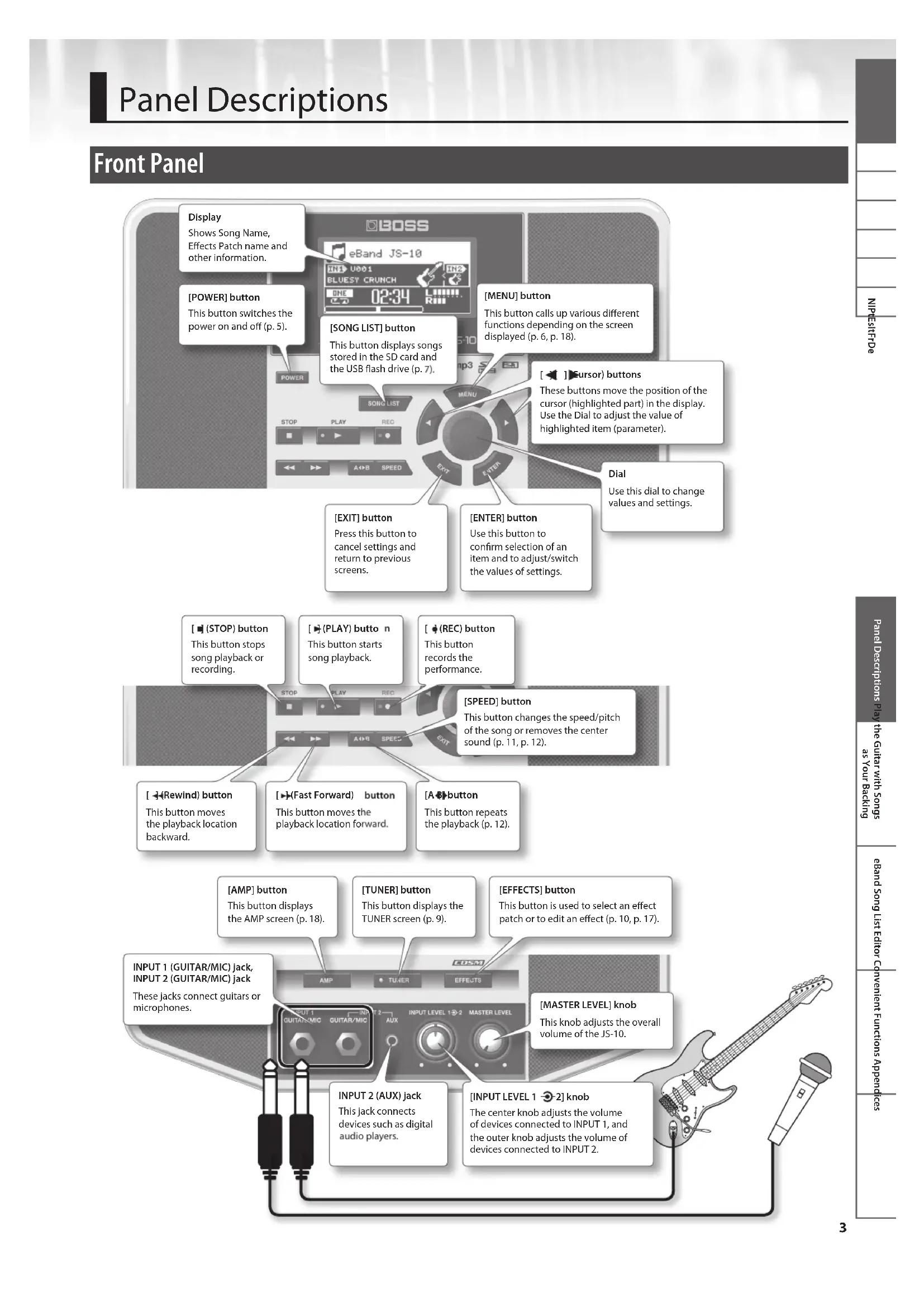
![Display Shows Song Name, Effects Patch name and other information. [POWER] button This button switches the power on and off (p. 5). [SONG LIST] button This button displays songs stored in the SD card and the USB flash drive (p. 7). [MENU] button This button calls up various different functions depending on the screen displayed (p. 6, p. 18). [◀] [Cursor] buttons These buttons move the position of the cursor (highlighted part) in the display. Use the Dial to adjust the value of highlighted item (parameter). Dial Use this dial to change values and settings. [EXIT] button Press this button to cancel settings and return to previous screens. [ENTER] button Use this button to confirm selection of an item and to adjust/switch the values of settings.](/content/2026/04/618845/images/13c5c97419555233560df716f2ff430bad53f5b6105d02433055d9e358437764.jpg)
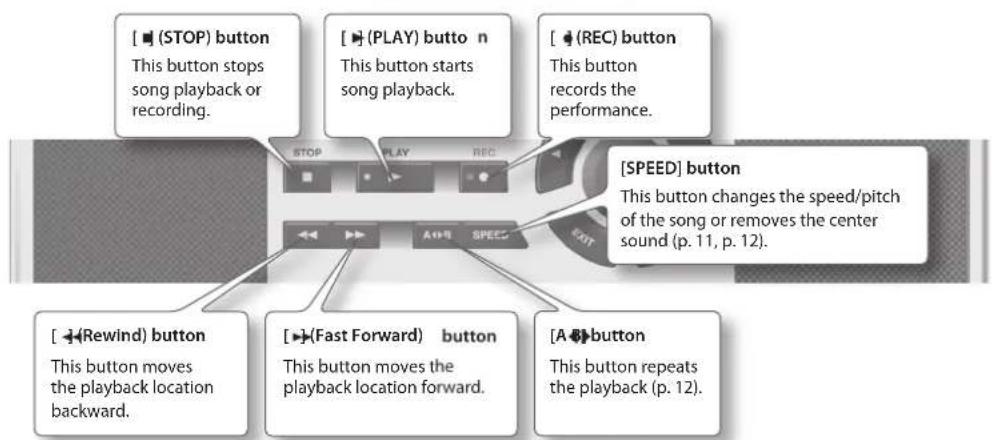
flowchart
graph TD
    A["STOP"] --> B["This button stops song playback or recording."]
    C["(PLAY) button"] --> D["This button starts song playback."]
    E["(REC) button"] --> F["This button records the performance."]
    G["Rewind"] button --> H["This button moves the playback location backward."]
    I["(Fast Forward) button"] --> J["This button moves the playback location forward."]
    K["A button"] --> L["This button repeats the playback (p. 12)."]
![[AMP] button This button displays the AMP screen (p. 18). [TUNER] button This button displays the TUNER screen (p. 9). [ EFFECTS] button This button is used to select an effect patch or to edit an effect (p. 10, p. 17). INPUT 1 (GUITAR/MIC) jack, INPUT 2 (GUITAR/MIC) jack These jacks connect guitars or microphones. INPUT LEVEL 1-2 MASTER LEVEL [MASTER LEVEL] knob This knob adjusts the overall volume of the JS-10. INPUT 2 (AUX) jack This jack connects devices such as digital audio players. [INPUT LEVEL 1-2] knob The center knob adjusts the volume of devices connected to INPUT 1, and the outer knob adjusts the volume of devices connected to INPUT 2.](/content/2026/04/618845/images/46991dca8e596ef6d1cd520ee602c08187c54b98a175bdc4151ab1a2e859caa0.jpg)
Top Panel / Side Panels

* To prevent malfunction and equipment failure, always turn down the volume, and turn off all the units before making any connections.
* Never insert or remove SD cards or SDHC cards while this unit is turned on. Doing so may corrupt the unit's data or the data on the SD card or SDHC card.
* Carefully insert the USB flash drive, SD card, or SDHC card all the way in – until they are firmly in place.
* Place the AC adaptor so the side with the indicator (see illustration) faces upwards and the side with textual information faces downwards. The indicator will light when you plug the AC adaptor into an AC outlet.
Top Screen
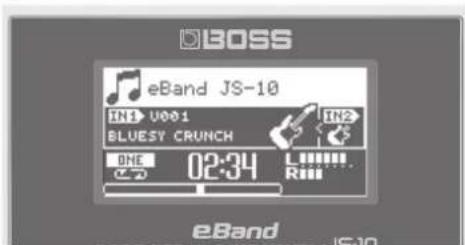
This screen is the basic screen that appears when you turn on the power.
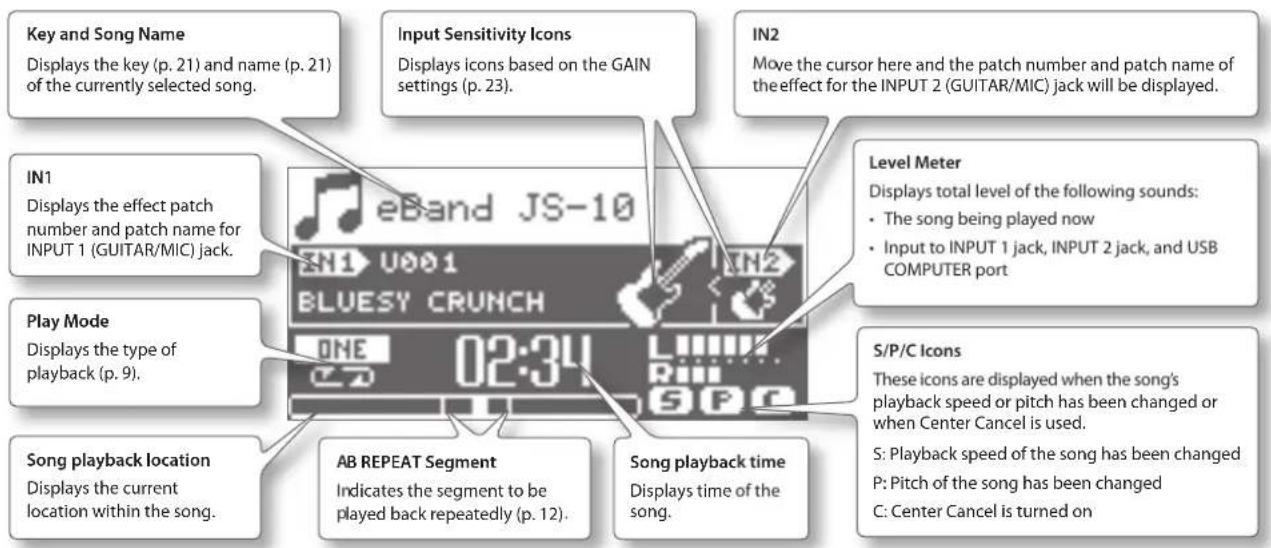
The explanations in this manual include illustrations that depict what should typically be shown by the display.
Note, however, that your unit may incorporate a newer, enhanced version of the system (e.g., includes newer sounds), so what you actually see in the display may not always match what appears in the manual.
Basic Operation
This section introduces the basic operations for using the JS-10.
Turning the Power On
Once everything is properly connected (p. 4), be sure to follow the procedure below to turn on the power. If you turn on equipment in the wrong order, you risk causing malfunction or equipment failure.
MEMO
- Before turning the unit on/off, always be sure to turn the volume down. Even with the volume turned down, you might hear some sound when switching the unit on/off. However, this is normal and does not indicate a malfunction.
- With the factory settings, the JS-10 will automatically be switched off 30 minutes after you stop playing or operating the unit. If you don't want the unit to turn off automatically, change the "AUTO OFF" setting to "OFF" as described on p. 26.

1. Turn the [MASTER LEVEL] knob down to the minimum level.

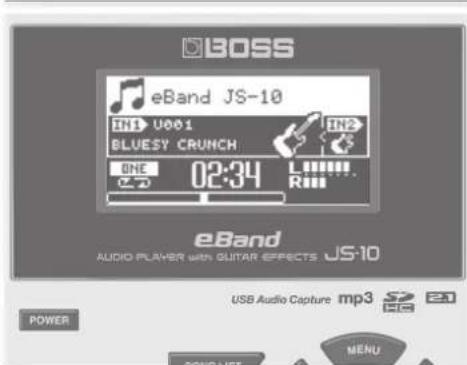
2. Press the [POWER] button to turn the unit on.

The unit's display will be lit.
* This unit is equipped with a protection circuit. A brief interval (a few seconds) after turning the unit on is required before it will operate normally.
3. Turn the [MASTER LEVEL] knob and adjust the volume.
Files included on the supplied SD card
The supplied SD card is inserted into the JS-10 prior to being shipped from the factory.
The following files are included on the SD card.
eBand Song List Editor
This PC software can rip songs from CDs to JS-10 and add names to eBand songs.
Connect the JS-10 with your PC to use this software. For details, refer to "Importing Songs from a PC to the JS-10 (eBand Song List Editor)" (p. 13).
USB driver
This PC driver (control software) is used for listening to your PC's sound on the JS-10.
For details, refer to "Using the JS-10 as a USB Audio Interfaces" (p. 27).
ROLAND folder
Files needed for the operation of the JS-10 are saved in this folder. Make sure not to change or delete the contents of this folder.
MEMO
For details about the memory configuration in JS-10 or the data that is saved, refer to "Memory Configuration in the JS-10" (p. 38).
[MENU] Button
Press the [MENU] button to display a menu for each screen.
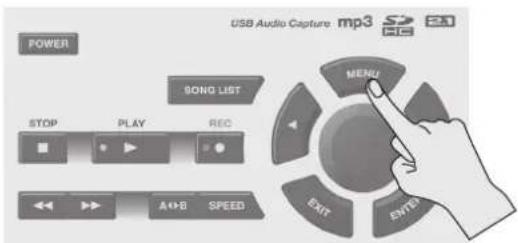
The JS-10 has the following menu screens.
- Menu in the Top screen (p. 6)
- Menu in the SONG LIST screen (p. 7)
- Menu in the EFFECT screen (p. 18)
Menu on the top screen
Press the [MENU] button in the top screen to display the MENU screen.
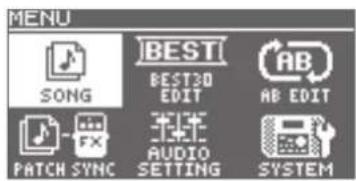
You can access the JS-10's settings from this screen.
| MENU Explanation | ||
| SONG | SONG INFO Confirm | m song information (p. 21). |
| SONG NAME Change | ge song names (p. 21). | |
| EXPORT | Write the selected song to the USB flash drive (p. 22).* "EXPORT" is not displayed if the USB flash drive has not been inserted. | |
| IMPORT | Store the selected songs on the USB flash drive to the SD card (p. 22).* "IMPORT" is not displayed if a song on the USB flash drive has not been selected. | |
| ERASE Delete the selected song (p. 8). | ||
| BEST 30 EDIT Add the current song to the BEST 30 (p. 7). | ||
| AB EDIT | Make precise settings for the AB REPEAT function (p. 12). | |
| PATCH SYNC Apply the setting in PATCH SYNC (p. 22). | ||
| AUDIO SETTING | INPUT | Select the input sensitivity and other settings that match the device connected to INPUT 1 and INPUT 2 jacks (p. 23). |
| EQ | Apply the equalizer on the overall sound of the JS-10 and adjust its balance (p. 23). | |
| SPEAKER | Turns the JS-10's built-in speakers on or off (p. 23). | |
| SYSTEM | USB MODE Switch | the USB MODE (p. 24). |
| PEDAL | Assign functions to an externally connected footswitch (p. 30). | |
| PATCH BACKUP Back up effects (p. 24). | ||
| PATCH RECOVER | Recover the effects that were backed up (p. 25). | |
| SD INFO Check the free space on the SD card (p. 25). | ||
| USB MEMORY | Check the free space on the USB flash drive (p. 25). | |
| SETTING | Make a variety of the JS-10 settings (p. 25 - p. 26). | |
| SD CARD FORMAT (*) | Initialize (format) the SD card (p. 29). | |
| FACTORY RESET | Restore the JS-10 to its original default factory settings (p. 26). | |
MEMO
(*) The SD card that is supplied with the JS-10 cannot be initialized.
Play the Guitar with Songs as Your Backing
Selecting Songs
Here's how to select the song you want to hear or the rhythm you want played.
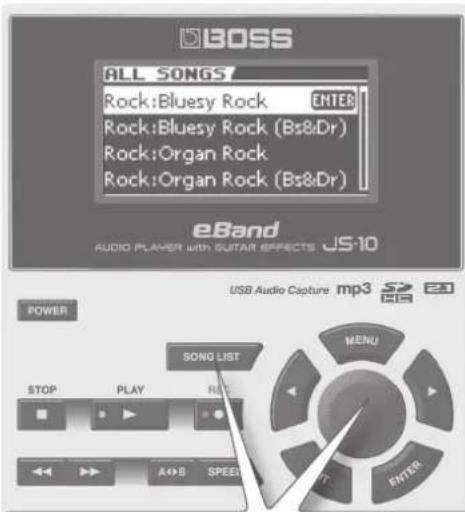
- Press the [SONG LIST] button. The SONG LIST screen appears.
- Turn the Dial to select a song.

natural_image
Close-up of a mechanical component with hexagonal nuts and circular ports (no visible text or symbols)3. Press the [ENTER] button.
MEMO
- You can also select a song by turning the dial while a song name is selected in the Top screen.
- Press the [▶] (PLAY) button in the SONG LIST screen to audition the selected song.
• The JS-10 can handle up to 4,000 songs.
Displaying Songs by Category
Here's how to have songs be displayed according to a category you select, such as the album title or artist name.
- Follow this sequence of steps: [SONG LIST] button → [MENU] button.
The MENU popup appears.
- Select a category.
| MENU Explanation | |
| ALL SONGS | Songs recorded with the JS-10 and songs that have album title and artist name registered are listed. |
| USER Data recorded with the JS-10 is added to this category. | |
| BEST 30 | The thirty favorite songs are listed, if these songs have already been ranked (1–30). |
| ALBUM Songs are listed by album title. | |
| ARTIST | Songs are listed by artist name. |
| RHYTHM | Rhythms contained on the SD card included with the JS-10 are listed. |
| USB MEMORY | Files stored in the USB flash drive are listed. |
| SD CARD | Files stored in the SD card are listed. |
| REMOVE | Removes the selected song from the BEST 30 list. |
MEMO
- "ALBUM" and "ARTIST" are available when album titles or artist names are registered with the songs.
- "SD CARD" is available when SD VIEW (p. 26) is ON.
- "REMOVE" is available when BEST 30 is displayed.
- By using the included eBand Song List Editor (p. 13), you can use your computer to register and edit album titles and artist names. Also, when you import an audio file, you can select the target song list (Song, Rhythm, or User).
-
Categorization of songs works on songs included with the JS-10 and songs stored with eBand Song List Editor (p. 13).
-
Press the [ENTER] button.
Registering Your 30 Favorite Songs (BEST 30)
You can set the songs listed when BEST 30 is selected as the song category.
Registering your favorite songs allows you to always have the songs you want in song lists.
- Before starting, select songs you want to list in the BEST 30.
-
Follow this sequence of steps: [MENU] button → "BEST 30 EDIT" → [ENTER] button.
The BEST 30 EDIT screen appears. -
Select the rank.
-
Press the [ENTER] button.
MEMO
You cannot register songs in the USB flash drive as BEST 30.
Selecting Songs on the USB Flash Drive
You can select songs on the USB flash drive.
- Follow this sequence of steps: [SONG LIST] button → [MENU] button → "USB MEMORY" → [ENTER] button.
- Select the song you want to play.
- Press the [ENTER] button.
File formats supported by the JS-10
eBand format
Roland/BOSS proprietary compression format
MP3 format
| MP3 Format | |
| Sampling rate 44.1 kHz | |
| Bit rate 64 K – 320 Kbps |
WAV format
| WAV Format | |
| Sampling rate 44.1 kHz | |
| Quantization bit rate 16 bits | |
| Encoding Uncompressed (Linear) | |
Deleting Songs
Here's how to delete the selected song.
NOTE
You cannot restore songs once they are deleted.
- Before starting, select the song you want to delete (p. 7).
- Follow this sequence of steps: [MENU] button → "SONG" → [ENTER] button → "ERASE" → [ENTER] button.
The message "Are you sure?" appears. - To delete a song, press [ENTER] button.
The song will be deleted.
Playing a Guitar While Playing Back a Song
You can enjoy playing a guitar while playing back a favorite song as your backing.
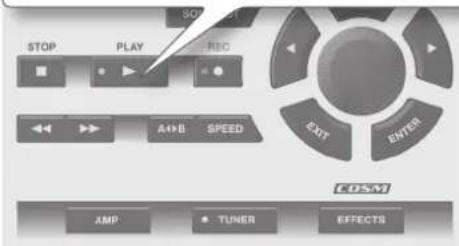
- Press the [▶] (PLAY) button. The playback of the song will start.

- Gradually turn the [MASTER LEVEL] knob clockwise until you reach the desired volume level.
- Turn the [INPUT LEVEL 1] knob and [INPUT LEVEL 2] knob down to the minimum level (turn completely counterclockwise).
- While playing the guitar, gradually turn the [INPUT LEVEL 1] knob or [INPUT LEVEL 2] knob clockwise until you reach the desired volume level.
- Press the [■] (STOP) button to stop the song.
MEMO
- Pressing the [■] (STOP) button while the song is stopped will return the song playback location to the beginning (00:00).
- Press the [◀] (Rewind) button or the [▶] (Fast Forward) button to move the song's playback location back or forward.
- Howling (feedback) could be produced depending on the location of microphones relative to speakers. This can be remedied by:
- Changing the orientation of the microphone(s).
- Relocating microphone(s) at a greater distance from speakers.
- Lowering volume levels.
* When you connect a microphone, select an effect from the categories for microphones (p. 10). Also, switch the input sensitivity of the INPUT jack to mic (p. 23).
Playing a guitar while playing back a song on audio players

MEMO
When instruments are connected to the INPUT 2 (GUITAR/MIC) jack and the INPUT 2 (AUX) jack, only the instrument connected to the INPUT 2 (AUX) jack can be used.
Switching the Play Mode
You can change how the songs are played.
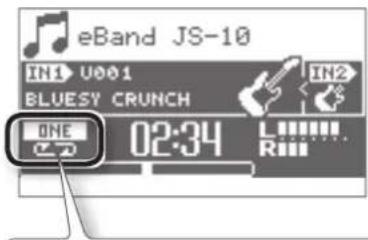
Display Explanation

The current song plays to the end and then stops.

Playback of the current song is repeated.

Songs in the song list are played back in order. *

Songs in the song list are played back in order. Playback continues until the [■] (Stop) button is pressed. *

Songs in the song list are played back randomly. *

Songs in the song list are played back randomly. Playback continues until the [■] (Stop) button is pressed.

Time location "A" is registered ("Repeating Playback of a Specified Segment (AB REPEAT)" (p. 12)).

Playback will repeat between time locations "A" and "B" ("Repeating Playback of a Specified Segment (AB REPEAT)" (p. 12)).
MEMO
When you select a Play Mode marked with an asterisk (*), the current song will be played to the end and stop if a screen other than "Top Screen" (p. 4) is displayed.
Tuning
Use the tuner in the JS-10 to tune the guitar or bass connected to INPUT 1 or INPUT 2.
- Press the [TUNER] button. The TUNER screen appears.
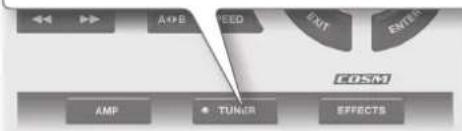
flowchart
graph TD
    A["AMP"] --> B["TUNER"]
    B --> C["EFFECTS"]
    D["OPEN"] --> E["FEED"]
    E --> F["ENT"]
    F --> G["OUTPUT"]
    G --> H["COSM"]

PITCH Set the frequency of A4 (the middle A on a piano keyboard).

- Adjust the tuning until the desired pitch is shown and both triangles are lit.
| Display Explanation | |
| Too low | |
| Tuned | |
| Too high | |
MEMO
The [TUNER] button will be lit when it is tuned.
Standard tuning
| 7th 6th | 5th 4th | 3rd 2nd | 1st | ||||
| Guitar BEADG | BE | ||||||
| Bass | BE | A | DG | ||||
Recording Performances
You can record the sounds exactly as you hear them from the JS-10.
- To record while the song is being played back, first press the [▶] (PLAY) button, and then press the [●] (REC) button.
The song will be played back and recorded along with the sounds input to INPUT 1 jack and INPUT 2 jack.
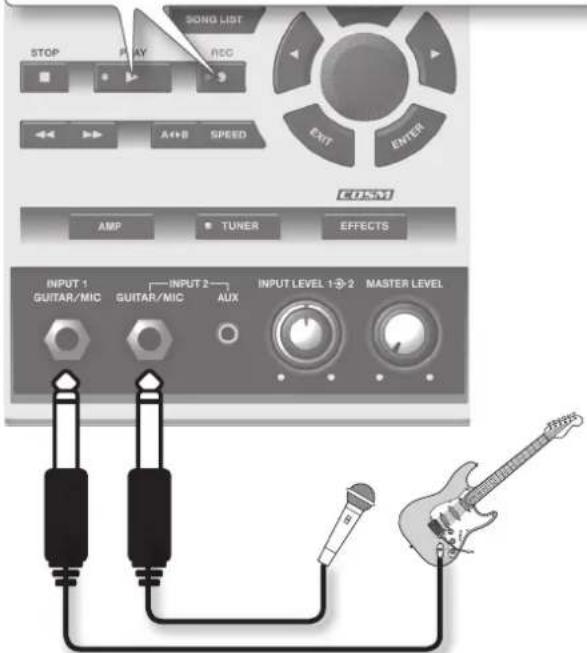
MEMO
In order to record only the sounds input to INPUT 1 jack and INPUT 2 jack, just press the [●] (REC) button without pressing the [▶] (PLAY) button (i.e., do not play back the song).
- Press the [■] (STOP) button to stop recording.
The REC END popup appears.

- Decide what to do with the recording.
| Icon Explanation | |
| SAVE | The recording is saved in “USER” category in the song list. |
| ERASE | The recording is discarded. (The recorded content will not be saved.) |
| PREVIEW(Press the [▶] (PLAY) button) | Listen to the recording. |
MEMO
Recorded data (songs) are automatically assigned the name "SONG****: (original song name)" (with **** indicating the number). However, if the original song name was edited with eBand Song List Editor, then it will be "SONG****."
Switching Effects
The internal effects can be switched.
- Select either IN1 or IN2.
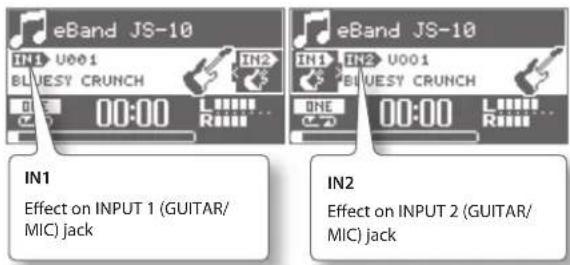
MEMO
The effect will not be applied on AUX jack.
- Press the [EFFECTS] button.
The PATCH SELECT screen appears.
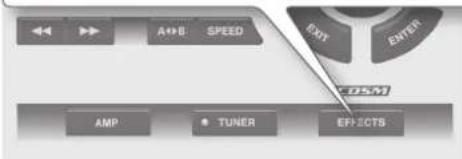
- Select a category.

| Usage Category | ||||
| For Guitar |  |  |  |  |
 |  |  |  | |
 |  |  |  | |
 |  | |||
| For Bass |  | |||
| For Microphone |  | |||
| For User Patch |  | |||
* When you connect a microphone, select an effect from the categories for microphones (p. 10). Also, switch the input sensitivity of the INPUT jack to mic (p. 23).
4. Select a patch.
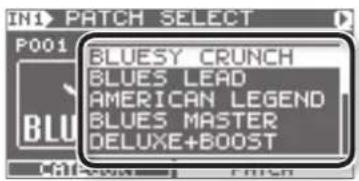
MEMO
In the default factory settings, appropriate effect patches are assigned for each song on the supplied SD card. For details, refer to "Changing the Patch When the Song is Switched (PATCH SYNC)" (p. 22).
Changing the Speed of Songs
You can change the playback speed of songs.
This feature lets you slow down the song tempo to practice difficult or fast passages. Changing the song's speed will not have an effect on the pitch.
- Press the [SPEED] button.

2. Select SPEED.
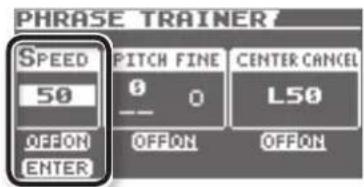
3. Press the [ENTER] button.
Turn SPEED to "ON" to change the speed.
4. Set the playback speed.
You can set the speed in the range of 50 to 150 (%). Normally, the speed is set to 100.
MEMO
When the speed is changed, the "S" icon that indicates the speed change appears on the top screen.

Changing the Pitch of Songs
You can change just the pitch without changing the playback speed of songs.
- Press the [SPEED] button.

2. Select PITCH or FINE.

3. Press the [ENTER] button.
PITCH FINE is turned "ON." Pitch of the song can now be changed.
4. Apply the settings for PITCH or FINE.
The pitch is changed.
You can change the PITCH setting in the range from -6 through +7 (in semitone steps).
You can change the FINE setting in the range from -50 through +50 (in fine steps of 1 cent).
MEMO
- When the pitch is changed, the "P" icon that indicates the pitch change appears on the top screen.
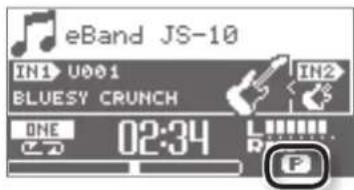
- If a KEY is set in the song parameters (p. 21), the KEY indicator works according to the PITCH settings.
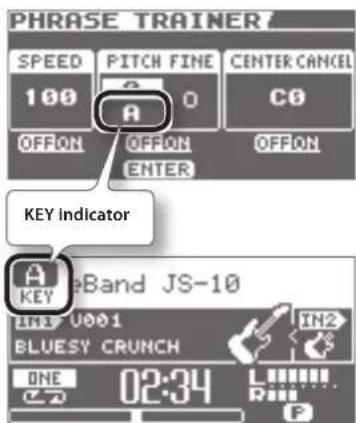
Removing the Center Sound (Center Cancel)
Songs can be played back with the center sound removed.
- Press the [SPEED] button.
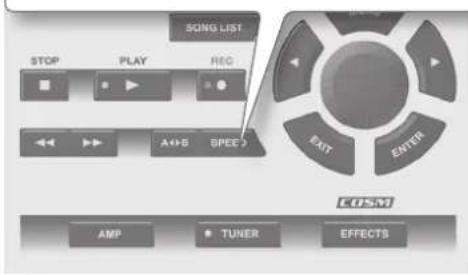
- Select CENTER CANCEL.
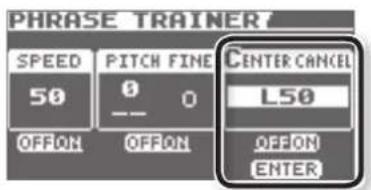
- Press the [ENTER] button.
Turn CENTER CANCEL to "ON."
- Set the location of the sound you want to remove.
"C0" removes the center sound, while "L**" remove the left sound and "R**" removes the right sound.
MEMO
- Center Cancel applies also to input sounds from the INPUT 2 (AUX) jack and USB COMPUTER port.
• Some sounds cannot be removed completely. - When Center Cancel is turned on, the "C" icon indicating that it is on appears on the top screen.

Repeating Playback of a Specified Segment (AB REPEAT)
Use this feature for guitar solo practice and in other situations where you want to practice along with a single section as it plays back repeatedly.
- Press the [▶] (PLAY) button.
- Press the [A,B] button at the start point and also at the end point of the repeat segment.
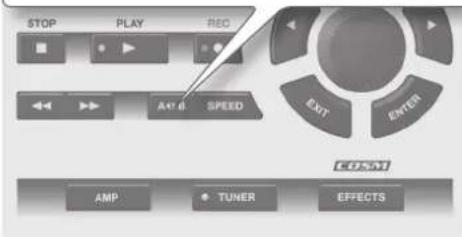

To turn AB REPEAT off, press the [A ◀▶] button again.
Precise Adjustment of the AB REPEAT Segment
You can precisely adjust the start and end points of the segments to be repeated.
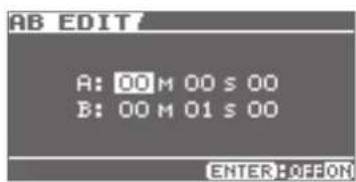
- Follow this sequence of steps: [MENU] button → "AB EDIT" → [ENTER] button.
- On the AB EDIT screen, adjust the start point (A) and the end point (B).
MEMO
- You can press [ENTER] on the AB EDIT screen to alternately switch the AB REPEAT function on and off.
- With MP3 data, you may be unable to play back from a specific time (the performance starts near the specified time).
• The interval between A and B cannot be less than one second.
Importing Songs from a PC to the JS-10 (eBand Song List Editor)
eBand Song List Editor is software that operates on the PC.
You can perform the following tasks by connecting the PC to the JS-10 with a USB cable and starting eBand Song List Editor.
- Import songs on music CDs to the JS-10
- Import WAV files and MP3 files on your PC to the JS-10
- Edit song information of songs stored on the JS-10
MEMO
For information on how to use eBand Song List Editor, refer to the Help in eBand Song List Editor.
Before Using eBand Song List Editor
Prepare to use eBand Song List Editor on your PC.
Connecting the JS-10 to Your PC
- Follow this sequence of steps:[MENU] button → "SYSTEM" → [ENTER] button → "USB MODE" → [ENTER] button → "eBand SONG LIST EDITOR" → [ENTER] button.
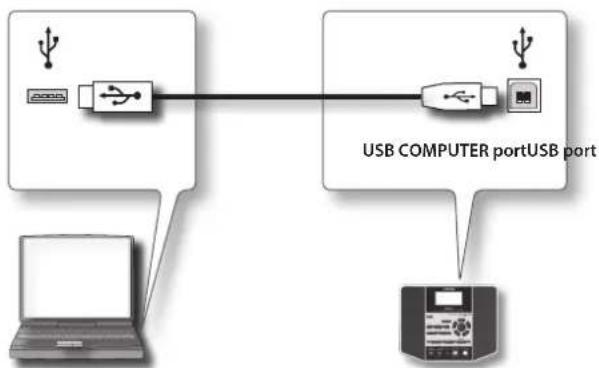
- Connect the PC and the JS-10 with the supplied USB cable.
flowchart
graph TD
    A["User"] --> B["USB switch"]
    B --> C["USB port"]
    D["Laptop"] --> E["Printer"]
    E --> F["USB COMPUTER port"]
    style A fill:#f9f,stroke:#333
    style B fill:#ccf,stroke:#333
    style C fill:#cfc,stroke:#333
    style D fill:#fcc,stroke:#333
    style E fill:#cff,stroke:#333
    style F fill:#ffc,stroke:#333
Installing eBand Song List Editor on Your PC
Install eBand Song List Editor on your PC. eBand Song List Editor is included on the SD card that is supplied with the JS-10.
MEMO
-
If the latest eBand Song List Editor is already installed in your PC, proceed to "Starting Up eBand Song List Editor" (p. 13).
• The description of computer procedures will use My Computer (or Computer) with Windows and Finder with the Mac OS. -
Using your PC, locate the folders inside "JS-10 EBAND."
- Double-click one of the files shown below.
| File Name Supported OS | |
| Win.zip Windows 7, Vista | or XP |
| Mac.dmg | Mac OS |
The contents of the file are displayed.
- Copy the "Song List" folder to your PC.
MEMO
We recommend that you copy to a folder that will be easy to locate afterward.
- If you're using Windows, close the "Win.zip" window. If you're using Mac OS, drag the "Mac" icon to the Eject icon in the Dock.
- Read the file ReadmeEN.txt in the "Song List" folder that you copied to your PC, and then install eBand Song List Editor.
Starting Up eBand Song List Editor
Windows users
- Click the PC's [Start] button → [All Programs] → "eBand Song List Editor" → "eBand Song List Editor."
Mac OS users
- Double-click the Application folder → Roland folder → eBand Song List Editor folder → "eBand Song List Editor."
Using eBand Song List Editor
![[Import] button This button imports audio files (WAV/MP3) from the PC to the JS-10. [Export] button This button converts the selected eBand song into WAV format and writes it to the PC. [Delete] button This button deletes the selected song. [Write] button This button saves the content edited in the list area to the SD card. [Disconnect] button This button disconnects communication between the JS-10 and the PC. [CD Ripping] button This button rips (reads and saves) songs from an audio CD (p. 15). Song Rhythm User Disconnect List Mode buttons These buttons switch the song list (Song/Rhythm/User) for the "List area." List area You can edit the song information in this area. Clicking "List Mode buttons" (Song/Rhythm/User) will switch the content shown in this area.](/content/2026/04/618845/images/c8dbd7d4985567bb0a42c35287ce3cc1a6f8a07bed43ad7f18282f4cf7a2f199.jpg)
MEMO
• The JS-10 can handle up to 4,000 songs.
Ripping Songs from CD to the JS-10 (Ripping)
You can rip songs from music CDs to the JS-10. The ripped songs are added to the song list selected with the "List Mode button" ([Song] button, [Rhythm] button, or [User] button).
MEMO
In order to rip from a music CD, you will need administrator privileges on your PC.
- Click the List Mode button to select the song list to which you want to add the song.
Decide which song list to add the ripped songs will go. - Insert the CD that you want to rip into your PC's CD drive.
- Click the [CD Ripping] button in eBand Song List Editor.
The CD Ripping screen appears on your PC.
![[Obtain again] button Downloads and re-displays the title names and artist names. Your PC must be connected to the Internet. CD Rolling Album Name BOSS eBand BEST Track Title Name Artist Name 1 Sunflossing A SOUND INNOVATOR 2 The ZOE Project SLICER 3 Hear No Music SPACE ECHO 4 '90 Live-Act Set DRIVE ZONE 5 Oversea ADVANCED EQ 6 Light Speed app... LOOP STATION 7 Deep Blue ROTARY ENSEMBLE 8 Groovstrack #1 GIGA DELAY 9 From One to An... CHORUS ENSEMBLE 10 Moonbox Stay Tired. Track information The track numbers of the songs on the music CD are displayed. If the PC is connected to the Internet, Gracenote® MusicID obtains the song names and artist names and displays them automatically. However, the information that is available can vary depending on the CD.](/content/2026/04/618845/images/8f19a21eef5a1237152f40f6f516bfcf7a5ef409e78c93dbe4f343ec60edacff.jpg)
-
In eBand Song List Editor, select the song you want to rip.
-
Click the [OK] button.
The selected song will be ripped to the JS-10's SD card. When the ripping is complete, the song will be added to the song list.
MEMO
Do not rip a song while playing a music CD on your PC. Noise may be mixed in with the ripped song.
Selecting the Song Format When Ripping Songs
Here's how to select the song format when ripping songs from CD to the JS-10.
- Make settings by clicking "Conserve Card Memory" in the "Options" menu.
| Conserve Card Memory Import format | |
| ON (Selected) | eBand song formatData is compressed and imported, placing priority on the card capacity. |
| OFF (Cleared) | WAV formatData is imported, placing priority on the audio quality (uncompressed). |
MEMO
The default setting is "ON" (Conserve Card Memory).
File formats that can be imported
The types and formats of files that can be imported using eBand Song List Editor are as follows.
MP3 format
| Format Settings | |
| Sampling rate 44.1 kHz | |
| Bit rate 64 K – 320 Kbps | |
| File name extension | .mp3 (not case-sensitive) |
| Length | One second or more |
MEMO
- MP3 files are imported as MP3 format, regardless of the "Conserve Card Memory" setting.
- If the MP3 file being imported contains ID3 tags for the song name, artist name, and album title, this information can also be imported.
WAV format
| Format Settings | |
| Sampling rate 44.1 kHz | |
| Quantization bit rate | 16 bits |
| Encoding | Uncompressed (Linear) |
| File name extension | .wav (not case-sensitive) |
| Length | One second or more |
Editing Song Information
You can edit song information (song information, artist name, and album title) for songs saved on the JS-10. The edited song information is shown on the JS-10's display.
![Song Name / Rhythm Name Song Name or Rhythm Name is displayed. Artist (*1) Artist name is displayed. [Write] button This button saves the content edited in the list area to the SD card. Type The format of the song in the list is displayed. This display cannot be changed. eBand Song Editor File Option Help CD Ripping Import Export Delete Write Song Rhythm User Disconnect Song Name Demo:Guide to eBand Rock:Bluesy Rock (Key:G) Rock:Bluesy Rock (Bs&Dr, Key:G) Body:Grass Rock (Key:D) Artist BOSS Corporation BOSS Corporation BOSS Corporation BOSS Corporation Album BOSS Corporation BOSS Corporation BOSS Corporation Type eBand eBand eBand Protect On On On Album (*1) Album title is displayed. Protect The song protection setting (On/Off) is displayed.](/content/2026/04/618845/images/22e600bd9cc7fb770849eeaf52922f277c1c168dee3b75d27a685c208033c823.jpg)
MEMO
- (*1) When the song list displayed in the list area is "Rhythm" or "User," then "Album" and "Artist" will not be shown.
- You can store up to 2,000 album titles and artist names combined on the JS-10.
- eBand Song List Editor allows you to use double-byte characters (such as Japanese) for song names, artist names, and album titles. Also, you can display the double-byte song names, if these songs are imported to the JS-10 with eBand Song List Editor.
Entering text
- Select the cell that you want to edit.
If you are using Windows, right-click the appropriate cell with the mouse. If you are using Mac OS, double-click the appropriate cell.
- Enter text.
- When you finish entering, press the [Enter] key (or the [return] key) on your PC's keyboard.
The input is confirmed.
MEMO
For details on how to enter text, refer to "Using eBand Song List Editor" (PDF) from the Help menu in eBand Song List Editor.
Saving the edited information
- Click the [Write] button.
The edited information will be saved on the JS-10's SD card.
NOTE
After you have edited the song information, be sure to click the [Write] button. If you exit eBand Song List Editor without saving or disconnect from the PC, the edited information will be lost.
Ending the Connection with the PC
- Click the [Disconnect] button in eBand Song List Editor.
- Press the [EXIT] button on the JS-10. The message "Are you sure?" appears.
- To end the connection, press the [ENTER] button on the JS-10. * To use the eBand Song List Editor again, follow the procedure in "Connecting the JS-10 to Your PC" (p. 13).
Convenient Functions
Editing the Effects
Here's how to edit the JS-10's built-in effects and create your own favorite sound.
Visually Editing the Sound (EZ EDIT)
You can create sounds intuitively by using visual sound-shaping grids (dual-axis graph), which allow you to adjust multiple parameters with a single control.
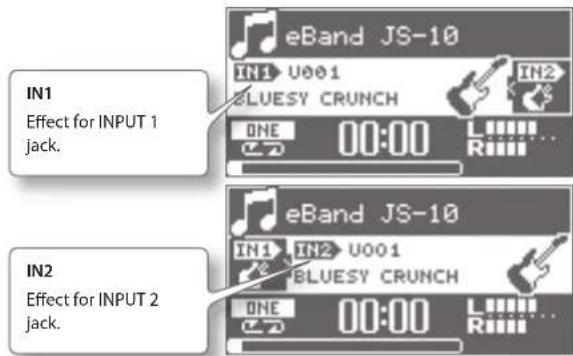
- Select which of the two available effects you want to edit. Select "IN1" to edit the effect for the INPUT 1 jack and select "IN2" to edit the effect for the INPUT 2 jack.
- Press the [EFFECTS] button.
The PATCH SELECT screen appears.

-
Select the category of the sound you want to create from CATEGORY.
-
Press the [▶] (Cursor) button.
The cursor moves to PATCH.
-
Select the sound that is similar to what you have in mind from PATCH.
-
Press the [▶] (Cursor) button.
The EZ EDIT screen appears.
Set the parameters using the cursor and the Dial.

NOTE
If you switch patches before saving an edited effect, the edited information will be lost.
The edited information will also be lost if you switch songs with the PATCH SYNC parameter set to ON, because the patches will be switched at the same time.
To save the edited information, refer to "Saving Patches" (p. 19).
MEMO
You can edit patches even more precisely. Refer to "Advanced Editing of Sounds (PATCH EDIT)" (p. 18).
Advanced Editing of Sounds (PATCH EDIT)
Different combinations of multiple effects and settings are saved in effect patches.
Here's how to use PATCH EDIT to edit all parameters in these effects.
- Follow the procedure in "Visually Editing the Sound (EZ EDIT)" (p. 17) to display the EZ EDIT screen.
- Press the [▶] (Cursor) button a number of times.
The PATCH EDIT screen appears.

- Press the [ENTER] button.
A screen for editing effects appears (screenshots below are the AMP screen and the MOD SELECT screen).
![Move Page Symbols (◄{ ► When these symbols are displayed, other edit screens appear when [◄][►] (cursor) buttons are pressed. IN1 HNP GAIN LEVEL NATURAL CLEAN 50 50 INTI MOD SELECT TREMOLO CHORUS FLANGER PHASER ROTARY UNI-V PAN ENTER: OFF/PAN ENTER: OFF/PAN ENTER Switches the effect ON and OFF.](/content/2026/04/618845/images/0bb38ba93b607f9e79f76ef22d591b5b97534c4f25ffd79e121bc6eba650f80a.jpg)
MEMO
- You can display the AMP screen by pressing the [AMP] button on the front panel.
- For details on parameters in effects, refer to "Effect Parameter List" (p. 31).
MENU of an EFFECT screen
In the effects-related screens such as PATCH SELECT or PATCH EDIT, press the [MENU] button to display the EFFECT MENU screen.


| EFFECT MENU Explanation | |
| WRITE/NAME | Saves the patch currently being edited (or copies the currently selected patch). |
| EXCHANGE | Exchanges the currently selected patch with another patch. |
| INITIALIZE | Restores the effect settings to their default factory state. |
MEMO
The displayed MENU items differ depending on the screen or the location of the cursor.
Saving Patches
Saving the effect settings as patches allows you to call them up anytime.
NOTE
If you switch the edited effect settings without saving or switch the songs, the edited information will be lost.
- In a screen for editing effects, follow this sequence of steps: [MENU] button → "WRITE/NAME" → [ENTER] button. The PATCH WRITE screen appears.
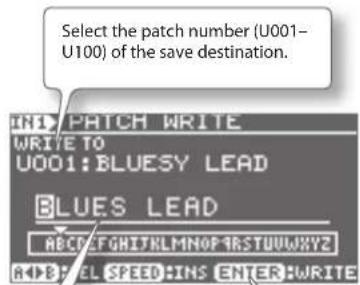
Use the [◀][▶(Cursor) buttons and the Dial to specify names.
ENTER
Current effect settings will be saved at the selected patch number.
MEMO
Use the following buttons to delete text or insert spaces.
| Button Explanation | |
| [←] (Rewind) button | Switch between uppercase and lowercase. |
| [→] (Fast Forward) button | Switch the character type (letters/numbers/ symbols). |
| [SPEED] button Inserts a blank space at the cursor position. | |
| [A▶B] button | Deletes the character and shifts the characters that follow to the left. |
- Press the [ENTER] button.
The effect will be saved.
Copying a patch
Call up the patch (p. 10) you want to copy, and then save that patch under a different patch number, as shown in "Saving Patches" (p. 19).
Exchanging Two Patches (EXCHANGE)
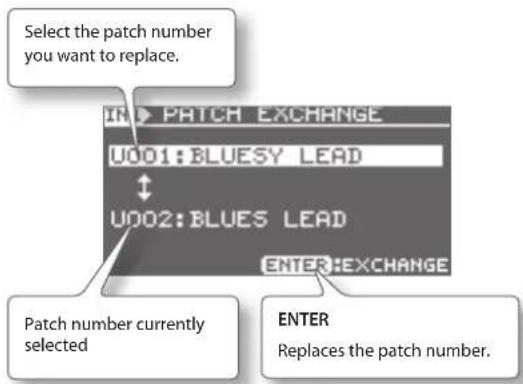
You can exchange the current patch number with another patch number.
- In the PATCH SELECT screen, follow this sequence of steps: [MENU] button → "EXCHANGE" → [ENTER] button. The PATCH EXCHANGE screen appears.
Initializing the Effect Settings (INITIALIZE)
Initializing an effect sets the effect settings to their standard values. Use this function when you want to create an effect patch from scratch.
-
In a screen for editing effects, follow this sequence of steps: [MENU] button → "INITIALIZE" → [ENTER] button. The message "Are you sure?" appears.
-
Press the [ENTER] button. The effects settings will be set to standard values.
Backing Up Data on an SD Card to a PC (BACK UP)
Here's how to back up data on an SD card to your PC.
MEMO
The description of computer procedures will use My Computer (or Computer) with Windows and Finder with the Mac OS.
- Follow the procedure in "Changing the Function of the USB COMPUTER Port" (p. 24) and set USB MODE to "eBand SONG LIST EDITOR."
- Connect the PC to the JS-10 with a USB cable.
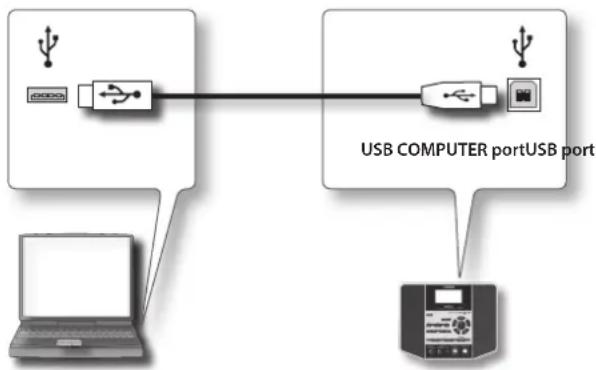
flowchart
graph TD
    A["USB COMPUTER port"] --> B["USB Port"]
    C["Laptop"] --> A
    D["Computer"] --> B
    style A fill:#f9f,stroke:#333
    style B fill:#ccf,stroke:#333
    style C fill:#dfd,stroke:#333
    style D fill:#dfd,stroke:#333
- Using your PC, locate the folders inside "JS-10 EBAND."
MEMO
"Removable Disk (*:) may appear instead of the "JS-10 EBAND" icon.
- Copy (drag and drop) the entire ROLAND folder within the "JS-10 EBAND" icon to a folder on the PC.
NOTE
Copy the entire ROLAND folder. Copying only parts of the ROLAND folder may render the data unusable as backup data.
- Disconnect the JS-10 from the PC.
- For Windows 7
In the lower right of your screen, click the [▲] icon → [icon, and then click "Eject JS-10 EBAND."
- For Windows Vista/XP
In the lower right of your screen, click the [icon ([in XP) and then click "Safely remove USB Mass Storage Device."
- For Mac OS
Drag the "JS-10 EBAND" icon to the eject icon in the Dock.
MEMO
You can back up effect patches to an SD card. For details, refer to "Backing Up Effect User Patches to an SD Card" (p. 24).
- Press the [EXIT] button.
The message "Are you sure?" appears.
- To end the connection, press the [ENTER] button on the JS-10.
Recovering Data Backed Up on a PC to the SD Card (RECOVERY)
Use this procedure to restore the JS-10 data previously backed up on a PC to the SD card.
MEMO
The description of computer procedures will use My Computer (or Computer) with Windows and Finder with the Mac OS.
- Follow the procedure in "Changing the Function of the USB COMPUTER Port" (p. 24) and set USB MODE to "eBand SONG LIST EDITOR."
- Connect the PC to the JS-10 with a USB cable.
- Open the "JS-10 EBAND" icon, and put the ROLAND folder into the trash (delete it).
MEMO
"Removable Disk (*:) may appear instead of the "JS-10 EBAND" icon.
- Copy (drag and drop) the entire backed up ROLAND folder on the PC to the "JS-10 EBAND" icon and drop it there.
NOTE
- Recovering (copying) backed up data on PC to an SD card results in the loss of the content of the card prior to the recovery, restoring the card with the data at the time the data was backed up.
- Copy the entire ROLAND folder. Copying only parts of the ROLAND folder may render the data unusable as backup data.
-
When recovering the backed up data, be sure to exit eBand Song List Editor.
-
Disconnect the JS-10 from the PC.
- For Windows 7
In the lower right of your screen, click the [▲] icon → [icon, and then click "Eject JS-10 EBAND."
- For Windows Vista/XP
In the lower right of your screen, click the [ ] icon ([ ] in XP) and then click "Safely remove USB Mass Storage Device."
- For Mac OS
Drag the "JS-10 EBAND" icon to the eject icon in the Dock.
- Press the [EXIT] button.
The message "Are you sure?" appears.
- To end the connection, press the [ENTER] button on the JS-10.
Changing the Parameters of Songs
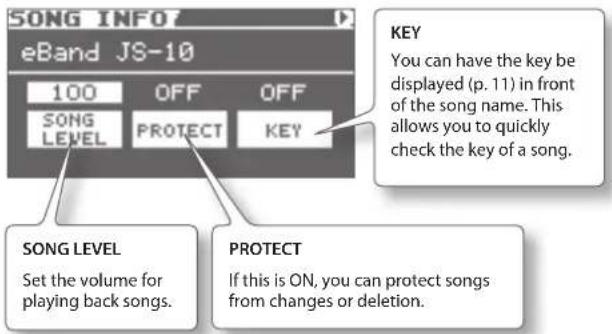
Songs contain the information shown below in addition to audio data.
- Playback volume settings
- Song protection settings
- Key settings
This information can be displayed or changed.
MEMO
You cannot change the parameters of songs saved on a USB flash drive.
- Select a song.
- Follow this sequence of steps: [MENU] button → "SONG" → [ENTER] button → "SONG INFO" → [ENTER] button.
The SONG INFO screen appears.
- Change the settings.
View the Song Information
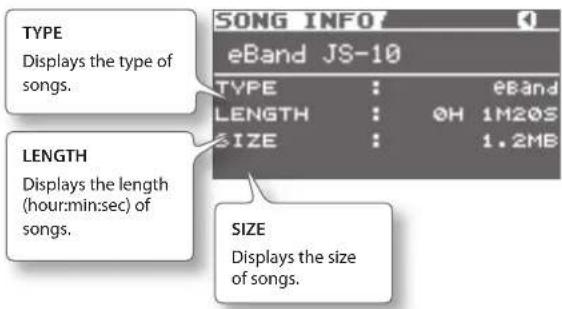
You can display information for the selected song.
- On the SONG INFO screen, press the [▶] (Cursor) button a number of times.
The SONG INFO screen appears.
Naming Songs
Here's how to name songs or change their names.
MEMO
If you used the eBand Song List Editor to edit song information (p. 16), rip songs (p. 15), or import songs (p. 22), then you cannot add or change the name of these songs using the following procedure. When you want to add or change the name of that song, use eBand Song List Editor.
- Select a song.
- Follow this sequence of steps: [MENU] button → "SONG" → [ENTER] button → "SONG NAME" → [ENTER] button. The SONG NAME screen appears.
- Name the song.

MEMO
Use the following buttons to delete text or insert spaces.
| Button Explanation | |
| [ ←] (Rewind) button | Switch between uppercase and lowercase. |
| [ ►] (Fast Forward) button | Switch the character type (letters/numbers/symbols). |
| [SPEED] button Inserts a blank space at the cursor position. | |
| [A ◀▶B] button | Deletes the character and shifts the characters that follow to the left. |
- Press the [ENTER] button.
The message "Are you sure?" appears.
- Press the [ENTER] button to confirm the name.
The song now has a new name.
Writing Songs to a USB Flash Drive (Export)
You can export eBand songs saved on an SD card to a USB flash drive.
- Connect the USB flash drive to the USB MEMORY port.
- Select a song in the JS-10.
- Follow this sequence of steps: [MENU] button → "SONG" → [ENTER] button → "EXPORT" → [ENTER] button. The SONG EXPORT screen appears.

MEMO
The "EXPORT" menu is not displayed if the USB flash drive has not been inserted.
- Press the [ENTER] button to export the songs.
The song will be written to the USB flash drive.
Importing Songs in the USB Flash Drive to the JS-10 (Import)
You can import songs in the USB flash drive to the JS-10.
- Connect the USB flash drive to the USB MEMORY port.
- Select a song in the USB flash drive.
- Follow this sequence of steps: [MENU] button → "SONG" → [ENTER] button → "IMPORT" → [ENTER] button.
The SONG IMPORT screen appears.

MEMO
The "IMPORT" menu is not displayed if a song on the USB flash drive has not been selected.
- Press the [ENTER] button.
The song will be saved as USER on the SD card.
MEMO
For details about the memory configuration in the JS-10 or the data that is saved, refer to "Memory Configuration in the JS-10" (p. 38).
Changing the Patch When the Song is Switched (PATCH SYNC)
If a patch number is set for a song in advance, you can call up that patch number automatically when the song is switched.
MEMO
The PATCH SYNC function cannot be used for songs in the USB flash drive.
- Follow this sequence of steps: [MENU] button → "PATCH SYNC" → [ENTER] button. The PATCH SYNC screen appears.
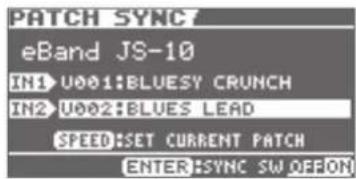
- Apply the settings for PATCH SYNC.
Set the patch number at IN1 for INPUT 1's effect, and IN2 for INPUT 2's effect.
| IN1/IN2 Explanation | |
| OFF The patch will | not change when you switch songs. |
| P*** | Calls up the specified preset patch number when the song is switched. |
| U*** | Calls up the specified user patch number when the song is switched. |
Disabling the PATCH SYNC function
You can switch the JS-10 PATCH SYNC function ON and OFF. Set it to OFF if you want the patch number set in PATCH SYNC to always be ignored.
- Press the [ENTER] button on the PATCH SYNC screen. Press the [ENTER] button to alternately switch it ON and OFF.
| SYNC SW Explanation | |
| OFF | The PATCH SYNC function is disabled.The patch number set in PATCH SYNC will be ignored, and the current effect setting will be used. |
| ON | The PATCH SYNC function is enabled.When you switch a song, the patch changes to the number set in PATCH SYNC. |
Setting Current Patch in PATCH SYNC
You can set the patch number of the current effect in PATCH SYNC.
-
Align the cursor with either the IN1 patch number or the IN2 patch number on the PATCH SYNC screen.
Align the cursor with the effect you want to add to PATCH SYNC. -
Press the [SPEED] button.
The current patch number is set in PATCH SYNC. The next time you switch to this song, the patch number set will be called up automatically.
Specifying Audio Settings
Here's how to specify the settings related to the input and output of audio.
Switching the INPUT Jack Sensitivity
Select the input sensitivity that matches the device connected to the JS-10's INPUT 1 and INPUT 2 (GUITAR/MIC) jacks.
- Follow this sequence of steps: [MENU] button → "AUDIO SETTING" → [ENTER] button → "INPUT" → [ENTER] button. The INPUT screen appears.

MEMO
The Input Sensitivity icon displayed on the top screen changes according to the GAIN settings.

* When setting the GAIN to mic, be sure to check that the effect from the microphone category is selected beforehand.
* Howling (feedback) is produced if you set the GAIN to mic while a guitar effect is selected.
* Also, if you switch from a factory default song, the guitar effect may change automatically to the effect set in PATCH SYNC (p. 22) and produce sudden howling (feedback). If this is the case, set the PATCH SYNC's SYNC SW setting to OFF so that the patch is not allowed to switch.
Adjusting the Balance of Low to High Frequency Ranges (Global EQ)
Here's how to apply the equalizer to the overall sound of the JS-10 and adjust its balance.
- Follow this sequence of steps: [MENU] button → "AUDIO SETTING" → [ENTER] button → "EQ" → [ENTER] button. The GLOBAL EQ screen appears.
- Apply the GAIN setting for each band.
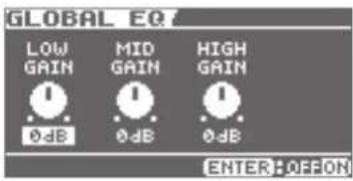
| GLOBAL EQ Explanation |
| LOW GAIN Adjusts the low-end volume. |
| MID GAIN Adjusts the midrange volume. |
| HIGH GAIN Adjusts the high-end volume. |
MEMO
Press the [ENTER] button in the GLOBAL EQ screen to turn the equalizer on and off.
Turning Off the JS-10 Speakers
You can output audio from the JS-10's LINE OUT jacks to an external playback device (e.g., component stereo system). When doing so, you may want to turn off the JS-10's internal speakers.
- Follow this sequence of steps: [MENU] button → "AUDIO SETTING" → [ENTER] button → "SPEAKER" → [ENTER] button.
Apply the settings for SPEAKER SW.
| SPEAKER SW | Explanation |
| OFF | No sound will be produced by the internal speakers. |
| ON | The sound will be produced by the internal speakers. |
MEMO
The tone quality of sound output from the OUTPUT jack changes based on the SPEAKER SW settings. This does not indicate a malfunction.
System Settings for the JS-10
You can make a variety of settings for the JS-10 in the SYSTEM screen.
- Follow this sequence of steps: [MENU] button → "SYSTEM" → [ENTER] button.
The MENU > SYSTEM screen appears.
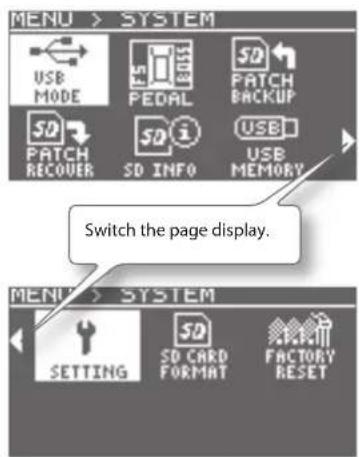
Changing the Function of the USB COMPUTER Port
Here's how to select the function of the JS-10's USB COMPUTER port.
- On the MENU > SYSTEM screen, follow this sequence of steps: "USB MODE" → [ENTER] button.
The USB MODE popup appears.

- Specify the setting for USB MODE.
| USB MODE Explanation | |
| eBand SONG LIST EDITOR | Select this option when using eBand Song List Editor (p. 13). |
| AUDIO | Select this option when using the JS-10 to listen to PC sound or when using PC software to record the JS-10 sound (p. 27). |
- Press the [ENTER] button.
Allocating Functions to Footswitches
You can assign functions to pedals connected to the JS-10. Refer to "Using Footswitches and Expression Pedals" (p. 30).
Backing Up Effect User Patches to an SD Card
You can back up effect user patches saved on the JS-10 to an SD card.
- On the MENU > SYSTEM screen, follow this sequence of steps: "PATCH BACKUP" → [ENTER] button.
The PATCH BACKUP screen appears.
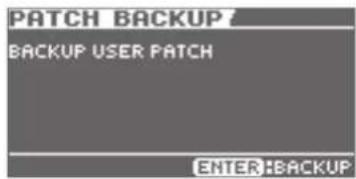
- Press the [ENTER] button.
The message "Are you sure?" appears.
- Press the [ENTER] button to back up the patch.
The effect settings will be backed up.
Restoring Effect User Patches Backed Up on the SD Card
You can restore effect user patches backed up on the SD card.
- On the MENU > SYSTEM screen, follow this sequence of steps: "PATCH RECOVER" → [ENTER] button. The PATCH RECOVER screen appears.
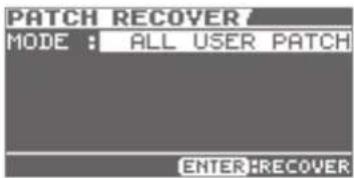
- Specify the setting for MODE.
| MODE Explanation | |
| ALL USER PATCH | All user patches that were backed up will be restored to the JS-10. |
| ONE USER PATCH | Only the specified user patch is restored to the JS-10. |
2-1. If you selected ONE USER PATCH, then select the user patch number you want to restore and the user patch number where you want it restored.
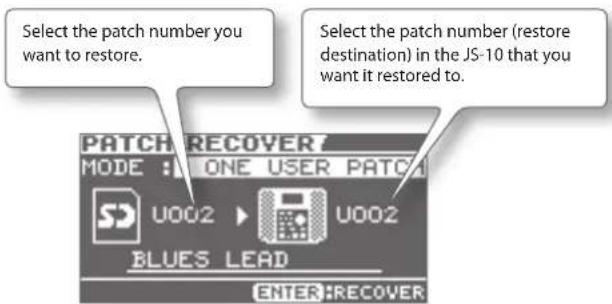
- Press the [ENTER] button. The message "Are you sure?" appears.
- Press the [ENTER] button to restore the patch. The user patch is restored to the JS-10.
Viewing Free Space on the SD Card and the USB Flash Drive
You can check how much free space there is in the USB flash drive and on the SD card inserted in the JS-10.
- On the MENU > SYSTEM screen, follow this sequence of steps: "SD INFO" or "USB MEMORY" → [ENTER] button. The SD CARD INFO (or the USB MEMORY INFO) screen appears.
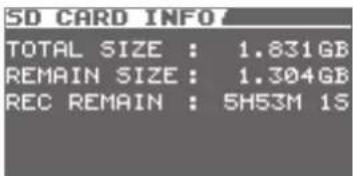
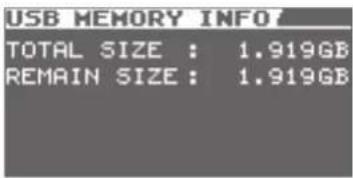
| Item Explanation | |
| TOTAL SIZE | Displays the total size of the memory. |
| REMAIN SIZE Disp | ays the remaining free space in the memory. |
| REC REMAIN | Displays how much time you can record to the SD card (applicable only in the SD INFO screen). |
Adjusting Display Contrast
You can adjust the contrast of the JS-10's display.
- On the MENU > SYSTEM screen, follow this sequence of steps: "SETTING" → [ENTER] button. Specify the setting for LCD CONTRAST.
| LCD CONTRAST | Explanation |
| 1-16 | Adjusts the display contrast. The larger the number the brighter the display becomes. |
Enabling Auto Off
The JS-10 powers off automatically when there is no performance or operation for 30 minutes (default factory setting). You can change how long the JS-10 can remain inactive before it powers off automatically.
NOTE
The settings will be lost if the power is turned off while editing. Save the settings in advance to prevent this from happening.
1. On the MENU > SYSTEM screen, follow this sequence of steps: "SETTING" → [ENTER] button.
Specify the setting for AUTO OFF.
| AUTO OFF Explanation | |
| OFF Auto off is disabled. | |
| 10MIN, 30MIN,240MIN | Set how long (in minutes) the JS-10 can remain inactive before it powers off automatically. |
Listing the Files on the SD Card as a Song List
You can change the setting to display the files saved on the SD card as a list in the SONG LIST screen.
1. On the MENU > SYSTEM screen, follow this sequence of steps: "SETTING" → [ENTER] button.
Specify the setting for SD VIEW.
| SD VIEW Explanation | |
| OFF This setting is the default factory setting. | |
| ON | “SD CARD” is displayed on the SEARCH screen in SONG LIST. If you select “SD CARD,” files saved on the SD card are displayed as a list. |
Selecting the Sound Output from the USB COMPUTER Port
You can choose to output only the sound input from the INPUT 1 (GUITAR/MIC) jack or the INPUT 2 (GUTAR/MIC) jack from the USB COMPUTER port or to output a mixed sound created by input from the INPUT 2 (AUX) jack and the USB COMPUTER port (p. 38).
1. On the MENU > SYSTEM screen, follow this sequence of steps: "SETTING" → [ENTER] button.
Specify the setting for USB AUDIO OUT.
| USB AUDIO OUT Explanation | |
| INPUT | Outputs sound that is input to the INPUT 1 (GUITAR/MIC) jack or the INPUT 2 (GUITAR/MIC) jack only. |
| ALL | Mixes and outputs all sounds that are input to the INPUT 1 (GUITAR/MIC) jack, the INPUT 2 (GUITAR/MIC) jack, the INPUT 2 (AUX) jack, and the USB COMPUTER port. |
Initializing an SD Card (FORMAT)
This procedure lets you the commercially available SD cards in the JS-10.
Refer to "Initializing an SD card (FORMAT)" (p. 29).
Returning the JS-10's Settings to Default Factory Settings
Here's how to restore the parameters in the JS-10 to their original default factory settings.
1. On the MENU > SYSTEM screen, follow this sequence of steps: "FACTORY RESET" → [ENTER] button.
The FACTORY RESET screen appears.
2. Select the parameter (add checkmark) whose settings you want to restore to the default factory settings.

NOTE
If you restore the default factory settings for the selected parameters, previously saved settings will be lost.
3. Press the [ENTER] button.
The message "Are you sure?" appears.
4. To return to the default factory settings, follow this sequence of steps: "OK" → [ENTER] button.
The settings will return to the default factory settings.
Using the JS-10 as a USB Audio Interfaces
You can use the JS-10 to listen to PC sound via USB and also use the software on your PC to record the JS-10's sound via USB.
Preparing a USB Driver
Save the USB driver files to your PC.
MEMO
- It is only necessary to install the USB driver on the PC the first time the driver is used.
- The USB driver file is included on the supplied SD card. The latest version of the USB driver can be found on the Roland website.
http://www.roland.com/support/
- You can install the driver on a Mac computer, but it needs to be a model with an Intel processor.
-
If the latest USB driver file is stored on your PC, proceed to "Installing the USB Driver" (p. 27).
• The description of computer procedures will use My Computer (or Computer) with Windows and Finder with the Mac OS. -
Follow the procedure in "Changing the Function of the USB COMPUTER Port" (p. 24) and set USB MODE to "eBand SONG LIST EDITOR."
-
Connect the PC to the JS-10 with a USB cable.
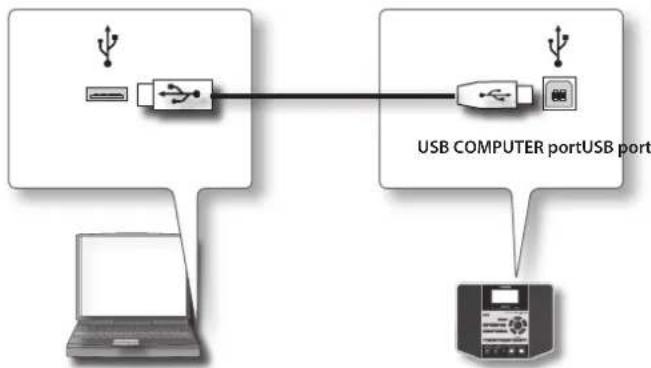
flowchart
graph TD
    A["User"] --> B["USB COMPUTER port USB port"]
    C["Laptop"] --> B
    D["Printer"] --> B
-
Using your PC, locate the folders inside "JS-10 EBAND."
-
Double-click one of the files shown below.
| File Name Supported OS | |
| Win.zip Windows 7, Vista, or XP | |
| Mac.dmg | Mac OS |
The contents of the file are displayed.
- Copy a "Drivers" folder to your PC.
MEMO
We recommend that you copy to a folder that will be easy to locate afterward.
-
Disconnect the JS-10 from the PC.
-
For Windows 7 In the lower right of your screen, click the [■] icon → [💡] icon, and then click "Eject JS-10 EBAND."
- For Windows Vista/XP In the lower right of your screen, click the [icon] icon ([icon] in XP) and then click "Safely remove USB Mass Storage Device."
-
For Mac OS Drag the "JS-10 EBAND" icon to the eject icon in the Dock.
-
Press the JS-10's [EXIT] button.
The message "Are you sure?" appears.
- To end the connection, press the [ENTER] button on the JS-10.
Installing the USB Driver
Installation of the USB driver is done by using the USB driver file stored in your PC.
- Disconnect the USB cable from the JS-10.
- Follow the procedure in "Changing the Function of the USB COMPUTER Port" (p. 24) and set USB MODE to "AUDIO." A folder containing the USB driver will be created.
- Read the "Readme.htm" file found in the created folder and install the driver as directed.
Playing Songs on a PC Through the JS-10
You can play songs on a PC and use the JS-10's speakers to listen to them.
- Follow the procedure in "Changing the Function of the USB COMPUTER Port" (p. 24) and set USB MODE to "AUDIO."
- Connect the PC to the JS-10 with a USB cable.
- Set the JS-10 as the output destination for audio played back by the PC's audio playback software.
MEMO
For instructions on how to switch the audio output destination, refer to the user's guide for the software you are using.
Using the Commercially Available SD Cards
In addition to the supplied SD card, you can also use commercially available SD cards.
Specifications for SD cards usable with the JS-10
The JS-10 supports SD cards meeting the following specifications.
• Capacity: 1–32 GB
- SD/SDHC standard
SD cards verified to work with the JS-10
Information on SD cards confirmed to work with the JS-10 can be found on the Roland website.
http://www.roland.com/support/
MEMO
• The JS-10 supports SDHC cards.
- Some SD card types or SD cards from some manufacturers may not record or play back properly on the JS-10.
SD card capacity and recording time
The following table shows the approximate number of songs that can be recorded on the JS-10 depending on the capacity of the SD card.
| Size | With eBand songs | With WAV With | MP3 |
| Songs per GB | 50 songs(4 hours) | 20 songs(1.5 hours) | 200 songs(17 hours) |
| 32 GB | 1,700 songs(130 hours) | 600 songs(50 hours) | 4,000 songs(550 hours) |
MEMO
• Figures in the table above are based on a song length of five minutes.
- Songs, USB drivers, and other data are stored on the supplied SD card. Because of this, the number of songs that can be recorded on the card is less than the numbers in the table above.
- MP3 songs are calculated as data encoded at a sampling rate of 44.1 kHz and a bit rate of 128 Kbps.
- WAV songs are based on stereo data with a sampling rate of 44.1 kHz and a quantization bit rate of 16 bits.
- The number of songs you can record may vary according to the songs included.
- Regardless of the amount of free space available, the JS-10 can only store a maximum of 4,000 songs.
Replacing the SD Card
Here's how to replace the supplied SD card with a different SD card.
NOTE
Never insert or remove an SD card or SDHC card while this unit is turned on. Doing so may corrupt the unit's data or the data on the SD cards or SDHC cards.
- Press the [POWER] button to turn off the JS-10.
- Remove the SD CARD slot cover.

- Push in the SD card and release your finger.
- Remove the SD card.
- Insert the new SD card into the JS-10.
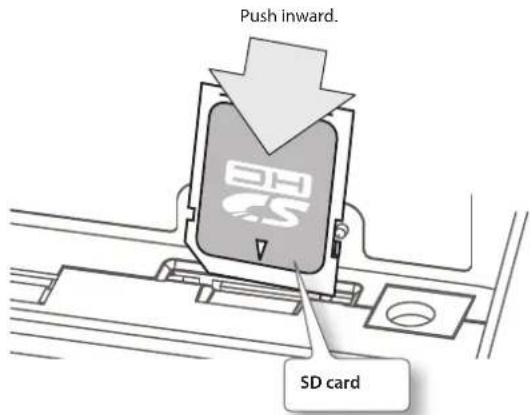
- Put the SD CARD slot cover back on.
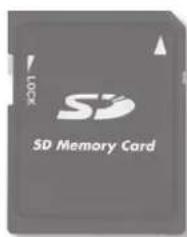
About the SD card write protect function (LOCK)
The contents of the SD card can be protected by write protecting it. To write protect a card, slide the write protect switch on the side of the SD card to the "LOCK" position. To use the JS-10 functions, release the LOCK.
Write protect switch

Initializing an SD card (FORMAT)
This procedure lets use the commercially available SD cards in the JS-10.
NOTE
- The supplied SD card cannot be initialized (formatted) using the JS-10, to protect its content. If you initialize the supplied SD card with your PC, songs, USB drivers, and eBand Song List Editor on the card will all be lost. Song protection settings will be ignored.
-
Since there is no way to recover data after initialization, be sure to back up any important data before initializing the card (p. 20).
-
Follow this sequence of steps: [MENU] button → "SYSTEM" → [ENTER] button → "SD CARD FORMAT" → [ENTER] button.
The SD CARD FORMAT screen appears.
- Press the [ENTER] button.
The message "Are you sure?" appears.
- To initialize the SD card, follow this sequence of steps: "OK" → [ENTER] button.
The SD card will be initialized.
MEMO
Follow the procedure below to copy data from one SD card to another freshly initialized SD card.
3-1. Back up the first SD card (p. 20).
3-2. Restore the backed up data to the new SD card (p. 20).
Using Footswitches and Expression Pedals
You can connect two BOSS FS-5U (sold separately), a BOSS FS-6 (sold separately), or a Roland EV-5, etc. (sold separately) to perform a variety of operations with your foot.
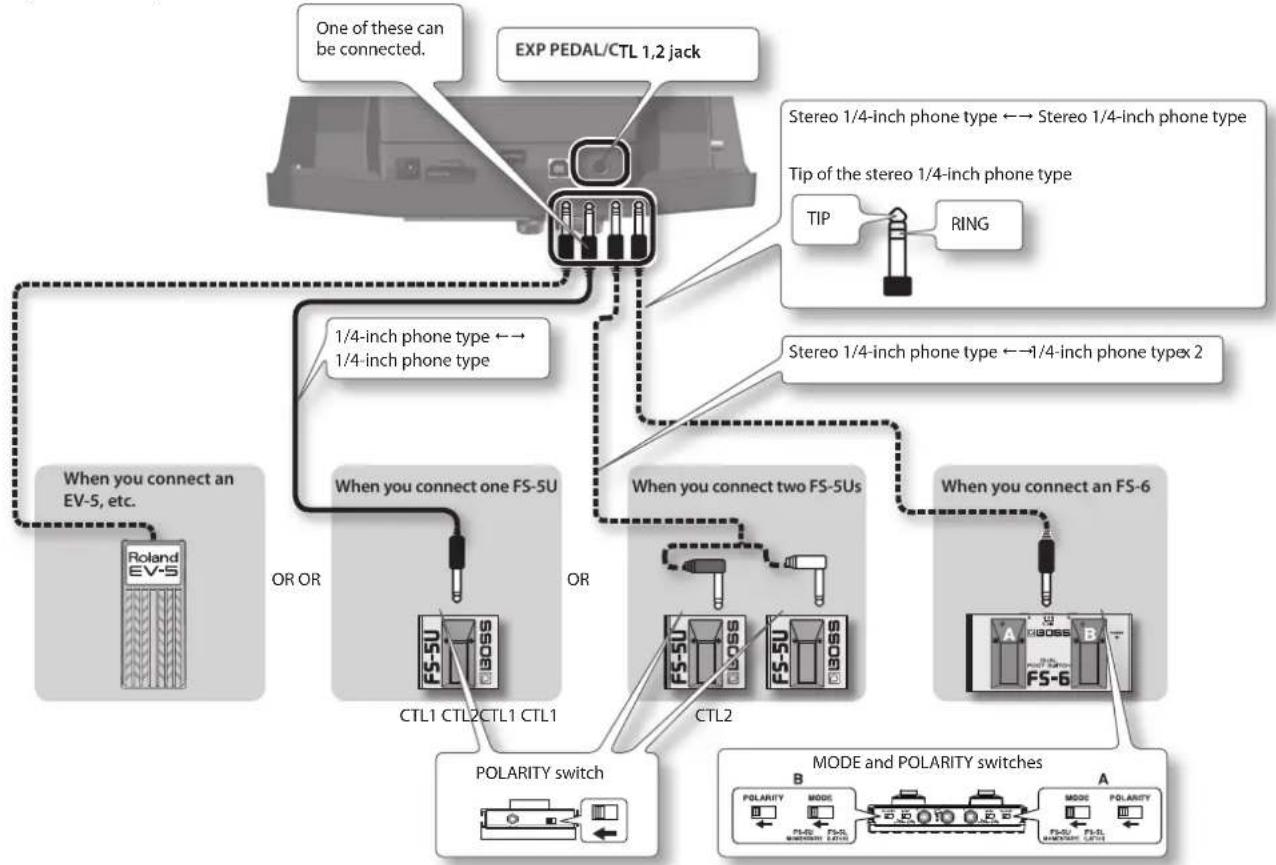
flowchart
graph TD
    A["One of these can be connected."] --> B["EXP PEDAL/CTL 1,2 jack"]
    B --> C["Stereo 1/4-inch phone type ← Stereo 1/4-inch phone type"]
    B --> D["Tip of the stereo 1/4-inch phone type"]
    C --> E["TIP"]
    C --> F["RING"]
    G["When you connect an EV-5, etc."] --> H["ROLAND EV-5"]
    H --> I["OR OR"]
    I --> J["When you connect one FS-5U"]
    J --> K["CTL1 CTL2CTL1 CTL1"]
    K --> L["OR"]
    L --> M["When you connect two FS-5Us"]
    M --> N["CTL2"]
    N --> O["When you connect an FS-6"]
    O --> P["POLARITY switch"]
    P --> Q["MODE and POLARITY switches"]
    Q --> R["A"]
    Q --> S["B"]
    Q --> T["C"]
    Q --> U["D"]
MEMO
- Never connect or disconnect a footswitch or expression pedal while this unit's power is on.
- Use only the specified expression pedal (Roland EV-5; sold separately). By connecting any other expression pedal, you risk causing malfunction and/or damage to the unit.
Allocating Functions to Footswitches
- Follow this sequence of steps: [MENU] button → "SYSTEM" → [ENTER] button → "PEDAL" → [ENTER] button.
Set a function to CTL 1 or CTL 2.
| CTL 1 / CTL 2 Explanation | |
| PLAY/STOP Operate the player (Play/Stop). | |
| REC/STOP Operate the recorder (Rec/Stop). | |
| IN1 PATCH +1 | Switch the effect patch number for INPUT 1 (GUITAR/MIC) jack (+1). |
| IN1 PATCH -1 | Switch the effect patch number for INPUT 1 (GUITAR/MIC) jack (-1). |
| IN2 PATCH +1 | Switch the effect patch number for INPUT 2 (GUITAR/MIC) jack (+1). |
| IN2 PATCH -1 | Switch the effect patch number for INPUT 2 (GUITAR/MIC) jack (-1). |
Functions you can control with expression pedals
The function of the expression pedal (sold separately) changes depending on whether the WAH effect for INPUT 1 is ON or OFF.
MEMO
Controls from the expression pedal work on the sound input to the INPUT 1 jack.
| WAH effect (p. 35) Expression pedal's function |
| ON Operates as wah pedal for INPUT 1. |
| OFF Operates as volume pedal for INPUT 1. |
Effect Parameter List
The product names mentioned in this document are registered trademarks or trademarks of their respective owners. In this manual, these names are used because it is the most practical way of describing the sounds that are simulated using COSM technology.
AMP
COSM technology simulates different preamp characteristics, speaker sizes, and cabinet shapes.
| Parameter/ Range | Explanation |
| ON/OFF | |
| OFF, ON Turns the | AMP effect on/off. |
| TYPE | |
| This sets the type of the preamp. | |
| NATURAL CLEAN | An unembellished, clean sound that minimizes the amp's idiosyncrasies, such as its trebly character and boomy low end. |
| FULL RANGE | An amp with a broad frequency range and an extremely flat response.Good for acoustic guitar. |
| COMBO CRUNCH | Crunch sound that allows the nuances of your picking to be expressed even more faithfully than on conventional combo amps. |
| STACK CRUNCH | Great-feeling crunch sound that responds well to picking dynamics while retaining all the defining characteristics of a 4 x 12" speaker cabinet. |
| HIGAIN STACK | High-gain sound of a vintage Marshall specially revamped in a way that is possible only with COSM modeling technology. |
| POWER DRIVE | A straight drive sound that works well in a broad range of situations, from backing to lead. A sound like this cannot be obtained from any existing combo amp or stack amp. |
| EXTREME LEAD | A new type of sound that smoothes out the uneven frequency response that is typical of existing large stack amps. |
| CORE METAL | A large stack sound that has been tweaked extensively in the pursuit of the ultimate metal sound. |
| JC-120 This model | s the sound of the Roland JC-120. |
| CLEAN TWIN This | models a Fender Twin Reverb. |
| PRO CRUNCH This | models a Fender Pro Reverb. |
| TWEED This model | ls a Fender Bassman 4 x 10" Combo. |
| DELUXE CRUNCH | This models a Fender Deluxe Reverb. |
| VO DRIVE | This models the drive sound of a VOX AC-30TB.This is a sound that it suited to sixties-style British rock. |
| VO LEAD | This models the lead sound of the VOX AC-30TB. |
| MATCH DRIVE | This models the sound input to left input on a Matchless D/C-30. A simulation of the tube amp widely used in styles from blues rock to fusion. |
| BG LEAD | This models the lead sound of a MESA/Boogie combo amp.The sound of a tube amp typical of the late '70s to '80s. |
| BG DRIVE | This models a MESA/Boogie combo amp with TREBLE SHIFT SW on. |
| MS1959 I | This models the sound input to Input I on a Marshall 1959.This is a trebly sound suited to hard rock. |
| MS1959 I+II | The sound of connecting inputs I and II of the guitar amp in parallel, creating a sound with a stronger low end than I. |
| R-FIER VINTAGE | Models the sound of the Channel 2 VINTAGE Mode on the MESA/Boogie DUAL Rectifier. |
| Parameter/ Range | Explanation |
| R-FIER MODERN | Models the sound of the Channel 2 MODERN Mode on the MESA/Boogie DUAL Rectifier. |
| T-AMP LEAD | This models a Hughes & Kettner Triamp AMP3. |
| SLDN | This models a Soldano SLO-100. This is the typical sound of the eighties. |
| 5150 DRIVE | This models the lead channel of a Peavey EVH 5150. |
| BASS CLEAN | Clean sound that is great for use with bass guitars. |
| BASS CRUNCH | Crunch sound with natural distortion that sounds great with bass guitars. |
| BASS HIGAIN A high-gain sound suitable for use with bass guitars. | |
| GAIN | |
| 0–120 | Adjusts the distortion of the amp. |
| LEVEL | |
| 0–100 | Adjusts the volume of the entire preamp.* Be careful not to raise the Level setting too high. |
| BASS | |
| 0–100 | Adjusts the tone for the low frequency range. |
| MIDDLE | |
| 0–100 | Adjusts the tone for the middle frequency range. |
| TREBLE | |
| 0–100 | Adjusts the tone for the high frequency range. |
| PRESENCE | |
| 0–100 | Adjusts the tone for the ultra high frequency range. |
| BRIGHT | |
| Turns the bright setting on/off.* The BRIGHT parameter setting is available only with certain PREAMP TYPEs. | |
| OFF | Bright is not used. |
| ON | Bright is switched on to create a lighter and crisper tone. |
| T-COMP | |
| -10–+10 Adjusts the sense of tube compression of the amp. | |
COMP/LIMITER
This is an effect that produces a long sustain by evening out the volume level of the input signal. You can switch it to a limiter to suppress only the sound peaks and prevent distortion.
| Parameter/ Range | Explanation |
| ON/OFF | |
| OFF, ON Turns the | COMP/LIMITER effect on/off. |
| TYPE | |
| COMP The effect operates as a compressor. | |
| LIMITER The effect operates as a limiter. | |
| SUSTAIN *1 | |
| 0-100 | Adjusts the range (time) over which low-level signals are boosted. Larger values will result in longer sustain. |
| ATTACK *1 | |
| 0-100 | Adjusts the strength of the picking attack when the strings are played. Higher values result in sharper attack, creating a more clearly defined sound. |
| THRESHOLD *2 | |
| 0-100 | Adjust this as appropriate for the input signal from your guitar. When the input signal level exceeds this threshold level, limiting will be applied. |
| RELEASE *2 | |
| 0-100 | Adjusts the time from when the signal level drops below the threshold until when limiting is removed. |
| TONE | |
| -50-+50 Adjusts the tone. | |
| LEVEL | |
| 0-100 Adjusts the volume. | |
*1. Setting available when TYPE is set to COMP.
*2. Setting available when TYPE is set to LIMITER.
OD/DS (Overdrive/Distortion)
This effect distorts the sound to create long sustain.
| Parameter/ Range | Explanation |
| ON/OFF | |
| OFF, ON Turns the | OD/DS effect on/off. |
| TYPE | |
| Selects the type of distortion. | |
| CLN BOOST | This not only functions as a booster, but also produces a clean tone that has punch even when used alone. |
| BLUES OD | This is a crunch sound of the BOSS BD-2.This produces distortion that faithfully reproduces the nuances of picking. |
| OD-1 | This is the sound of the BOSS OD-1.This produces sweet, mild distortion. |
| T-SCREAM This models an Ibanez TS-808. | |
| DISTORTION This gives a basic, traditional distortion sound. | |
| RAT This models a Proco RAT. | |
| GUV DS This models a Marshall GUV' NOR. | |
| DST+ This models a MXR DISTORTION+. | |
| METAL ZONE | This is the sound of the BOSS MT-2.It produces a wide range of metal sounds, from old style to slash metal. |
| ‘60s FUZZ | This models a FUZZFACE.It produces a fat fuzz sound. |
| OCT FUZZ This models an ACETONE FUZZ. | |
| MUFF FUZZ This models an Electro-Harmonix big Muff π | |
| DRIVE | |
| 0–120 Adjusts the | depth of distortion. |
| BOTTOM | |
| -50–+50 | Adjusts the tone for the low frequency range. Turning this to the left (counterclockwise) produces a sound with the low end cut; turning it to the right boosts the low end in the sound. |
| TONE | |
| -50–+50 Adjusts the tone. | |
| EFFECT LEVEL | |
| 0–100 Adjusts the volume of the effect sound. | |
This effect reduces the noise and hum picked up by guitar pickups. Since it suppresses the noise in synchronization with the envelope of the guitar sound (the way in which the guitar sound decays over time), it has very little effect on the guitar sound, and does not harm the natural character of the sound.
| Parameter/Range | Explanation |
| ON/OFF | |
| OFF, ON Turns the | NOISE SUPPRESSOR effect on/off. |
| THRESHOLD | |
| 0-100 | Adjust this parameter as appropriate for the volume of the noise.If the noise level is high, a higher setting is appropriate.If the noise level is low, a lower setting is appropriate.Adjust this value until the decay of the guitar sound is as natural as possible.* High settings for the threshold parameter may result in there being no sound when you play with your guitar volume turned down. |
EQ (Equalizer)
This adjusts the tone as a equalizer. A parametric type is adopted for the high-middle and low-middle range.
| Parameter/ Range | Explanation |
| ON/OFF | |
| OFF, ON Turns the | EQUALIZER effect on/off. |
| LOW GAIN | |
| -20--+20dB Adjusts | the low frequency range tone. |
| HIGH GAIN | |
| -20--+20dB Adjusts | the high frequency range tone. |
| LEVEL | |
| -20--+20dB Adjusts | the overall volume level of the equalizer. |
| LO-MID FREQ (Low Middle Frequency) | |
| 20.0Hz-10.0kHz | Specifies the center of the frequency range that will be adjusted by the LO-MID GAIN. |
| LO-MID Q (Low Middle Q) | |
| 0.5-16 | Adjusts the width of the area affected by the EQ centered at the LO-MID FREQ.Higher values will narrow the area. |
| LO-MID GAIN (Low Middle Gain) | |
| -20--+20dB Adjusts | the low-middle frequency range tone. |
| HI-MID FREQ (High Middle Frequency) | |
| 20.0Hz-10.0kHz | Specifies the center of the frequency range that will be adjusted by the HI-MID GAIN. |
| HI-MID Q (High Middle Q) | |
| 0.5-16 | Adjusts the width of the area affected by the EQ centered at the HI-MID FREQ.Higher values will narrow the area. |
| HI-MID GAIN (High Middle Gain) | |
| -20--+20dB Adjusts | the high-middle frequency range tone. |
| LOW CUT (Low Cut Filter) | |
| FLAT, 20Hz-800Hz | This sets the frequency at which the low cut filter begins to take effect.When "FLAT" is selected, the low cut filter will have no effect. |
| HIGH CUT (High Cut Filter) | |
| 630Hz-12.5kHz, FLAT | This sets the frequency at which the high cut filter begins to take effect. When "FLAT" is selected, the high cut filter will have no effect. |
MODULATION
Use MOD SELECT to select the effect that you want to use.
| Parameter/ Range | Explanation | |
| ON/OFF | ||
| OFF, ON Turns the | MODULATION effect on/off. | |
| MOD SELECT (Modulation Select) | ||
| Select the modulation type. | ||
| PHASER Phaser p. | 33 | |
| FLANGER Flanger | p. 34 | |
| CHORUS | Chorus | p. 34 |
| TREMOLO | Tremolo | p. 34 |
| ROTARY Rotary | p. 34 | |
| UNI-V | Uni-Vibe | p. 34 |
| PAN | Pan | p. 34 |
PHASER
By adding varied-phase portions to the direct sound, the phaser effect gives a whooshing, swirling character to the sound.
| Parameter/ Range | Explanation |
| TYPE | |
| Selects the number of stages that the phaser effect will use. | |
| 4 STAGE | This is a four-phase effect. A light phaser effect is obtained. |
| 8 STAGE | This is an eight-phase effect. It is a popular phaser effect. |
| 12 STG | This is a twelve-phase effect. A deep phase effect is obtained. |
| BI-PH. | This is the phaser with two phase shift circuits connected in series. |
| RATE | |
| 0-100 (*) | This sets the rate of the phaser effect. |
| DEPTH | |
| 0-100 | Determines the depth of the phaser effect. |
| RESONANCE | |
| 0-100 | Determines the amount of resonance (feedback). Increasing the value will emphasize the effect, creating a more unusual sound. |
Setting parameters with Tap Tempo
The values for the parameters marked with an asterisk (*) can be set so they match the timing you use when pressing the [SPEED] button (Tap Tempo).
Tap the [SPEED] button two or more times in succession to specify a tempo for the parameter.
FLANGER
The flanging effect gives a twisting, jet-airplane-like character to the sound.
| Parameter/Range | Explanation |
| RATE | |
| 0–100 (*) This sets | the rate of the flanging effect. |
| DEPTH | |
| 0–100 Determines | the depth of the flanging effect. |
| RESONANCE | |
| 0–100 | Determines the amount of resonance (feedback).Increasing the value will emphasize the effect, creating a more unusual sound. |
| MANUAL | |
| 0–100 | Adjusts the center frequency at which to apply the effect. |
CHORUS
In this effect, a slightly detuned sound is added to the original sound to add depth and breadth.
| Parameter/ Range | Explanation |
| MODE | |
| Selection for the chorus mode. | |
| MONO | This chorus effect outputs the same sound from both L channel and R channel. |
| ST1 | This is a stereo chorus effect that adds different chorus sounds to L channel and R channel. |
| ST2 | This stereo chorus uses spatial synthesis, with the direct sound output in the L channel and the effect sound output in the R channel. |
| RATE | |
| 0–100 (*) Adjusts the rate of the chorus effect. | |
| DEPTH | |
| 0–100 | Adjusts the depth of the chorus effect.To use it for doubling effect, set the value to 0. |
| EFFECT LEVEL | |
| 0–100 Adjusts the volume of the effect sound. | |
TREMOLO
Tremolo is an effect that creates a cyclic change in volume.
| Parameter/ Range | Explanation |
| RATE | |
| 0–100 (*) Adjusts the frequency (speed) of the change. | |
| DEPTH | |
| 0–100 Adjusts the depth of the effect. | |
| WAVE SHAPE | |
| 0–100 | Adjusts changes in volume level.A higher value will steepen wave's shape. |
ROTARY
This produces an effect like the sound of a rotary speaker.
| Parameter/ Range | Explanation |
| RATE | |
| 0–100 (*) Adjust the rotation speed. | |
UNI-V (Uni-Vibe)
This models a Uni-Vibe.
Although this resembles a phaser effect, it also provides a unique undulation that you can't get with a regular phaser.
| Parameter/ Range | Explanation |
| RATE | |
| 0–100 (*) Adjusts the rate of the UNI-V effect. | |
| DEPTH | |
| 0–100 Adjusts the depth of the UNI-V effect. | |
PAN
With the volume level of the left and right sides alternately changing, when playing sound in stereo, you can get an effect that makes the guitar sound appear to fly back and forth between the speakers.
| Parameter/ Range | Explanation |
| RATE | |
| 0–100 (*) Adjusts the frequency (speed) of the change. | |
| DEPTH | |
| 0–100 Adjusts the depth of the effect. | |
| WAVE SHAPE | |
| 0–100 | Adjusts changes in volume level.A higher value will steepen wave's shape. |
DELAY
This effect adds delayed sound to the direct sound, giving more body to the sound or creating special effects.
| Parameter/ Range | Explanation |
| ON/OFF | |
| OFF, ON Turns the | DELAY effect on/off. |
| DELAY TIME | |
| 1ms–1000ms (*) | This determines the delay time. |
| FEEDBACK | |
| 0–100 | This sets the amount of delay sound returned to the input.A higher value will increase the number of the delay repeats. |
| HIGH CUT (High Cut Filter) | |
| 630Hz–12.5kHz, FLAT | This sets the frequency at which the high cut filter begins to take effect. When “FLAT” is selected, the high cut filter will have no effect. |
| EFFECT LEVEL | |
| 0–120 Adjusts the | volume of the delay sound. |
REVERB
This effect adds reverberation to the sound.
| Parameter/ Range | Explanation |
| ON/OFF | |
| OFF, ON Turns the | REVERB effect on/off. |
| TYPE | |
| This selects the reverb type. Various different simulations of space are offered. | |
| AMBI. (AMBIENCE) | Simulates an ambience mic (off-mic, placed at a distance from the sound source) used in recording and other applications. Rather than emphasizing the reverberation, this reverb is used to produce a sense of openness and depth. |
| ROOM | Simulates the reverberation in a small room. Provides warm reverberations. |
| HALL | Simulates the reverberation in a concert hall. Provides clear and spacious reverberations. |
| PLATE | Simulates plate reverberation (a reverb unit that uses the vibration of a metallic plate). Provides a metallic sound with a distinct upper range. |
| REV TIME (Reverb Time) | |
| 0.1 s–10.0 s Adjusts the length (time) of reverberation. | |
| HIGH CUT (High Cut Filter) | |
| 630Hz–12.5kHz, FLAT | This sets the frequency at which the high cut filter begins to take effect. When “FLAT” is selected, the high cut filter will have no effect. |
| EFFECT LEVEL | |
| 0–100 Adjusts the | volume of the reverb sound. |
EZ CHAR
| Parameter/ Range | Explanation |
| EZ CHAR (EZ Character) | |
| -20--+20 | Increasing the value makes the tone suitable for solos and decreasing it makes the tone suitable for backing. |
WAH
You can control the wah effect in real time by stepping on the expression pedal connected to the EXP PEDAL/CTL 1, 2 jack.
MEMO
WAH can be used in effects for the INPUT 1 jack.
| Parameter/Range | Explanation |
| ON/OFF | |
| OFF, ON Turns the | WAH effect on/off. |
Setting parameters with Tap Tempo
The values for the parameters marked with an asterisk (*) can be set so they match the timing you use when pressing the [SPEED] button (Tap Tempo).
Tap the [SPEED] button two or more times in succession to specify a tempo for the parameter.
Error Messages
| Message Explanation Page | ||
| Cannot Edit Song Name! | The song name cannot be edited. Use eBand Song List Editor to edit the name.A song name edited using eBand Song List Editor can be viewed but not edited on the JS-10. | p. 13 |
| Card Full! | There is no free space on the SD card.Either delete unnecessary songs from this card or use a different SD card with free space. | p. 8, p. 28 |
| Card Locked! The SD card's write protection is activated. Turn off the write protection. p. 29 | ||
| Card Read Error! | The SD card cannot be read. Format the SD card.* Be aware that formatting an SD card will erase all data stored on that card. | p. 29 |
| Card Write Error! | Cannot write to the SD card. Format the SD card.* Be aware that formatting an SD card will erase all data stored on that card. | p. 29 |
| Data Not Found! There is no effect data backed up on the SD card. — | ||
| Data Too Long! Playback/Recording is not possible because the song is too long (big). — | ||
| Data Too Short! Playback/Recording is not possible because the song is too short. — | ||
| Disconnect USB Cable! | USB cable is connected to the JS-10. Disconnect the USB cable from the JS-10. | — |
| Drive Busy! | The data could not be read or written fast enough.If this error message appears when you're playing back a song from a USB flash drive, use IMPORT to import that song onto the SD card before using it. | p. 22 |
| No Card! No SD card is inserted in the JS-10. p. 28 | ||
| No File! Song Erased! | The selected song does not exist on the SD card. Erase the song that caused the error. | p. 8 |
| Preset Data Exists! | You cannot format the SD card supplied with the JS-10. | p. 29 |
| Protected! | The song is protected. Turn off the write protection. | p. 21 |
| Stop Player! | You cannot operate while the JS-10's recorder is recording or playing back. Press the [■] (STOP) button and stop the recording or playback. | — |
| System Error! | Data could not be written to the internal memory of JS-10. The JS-10 may be malfunctioning.Contact Roland Service Center or an authorized Roland distributor. | — |
| Too Many Songs! | The limit on the number of songs that can be recorded on an SD card (4,000) has been reached.Either delete unnecessary songs from this card or use a different SD card with free space. | p. 8, p. 28 |
| Unformatted Card!Unformatted USB Memory! | Either the SD card (or USB flash drive) is not formatted, or it is formatted in a format that the JS-10 cannot recognize. Use the JS-10 to format the SD card. Use your PC to initialize the USB flash drive.* Formatting will erase all content stored on the SD card (or USB flash drive). | p. 29 |
| Unsupported Card!Unsupported USB Memory! | This SD card (or USB flash drive) cannot be used by the JS-10. Use an SD card (or USB flash drive) that Roland has verified as working with the JS-10.Before using a commercially available SD card, please refer to the Roland website.http://www.roland.com/support/ | — |
| Unsupported Format! | The song cannot be played back because it is in a format not supported by the JS-10. | — |
| USB Memory Full! | There is no free space on the USB flash drive.Either delete unnecessary songs from this USB flash drive or use a different USB flash drive with free space. | p. 8, p. 28 |
| USB Memory Read Error! | The USB flash drive cannot be read. Use your PC to initialize the USB flash drive.* Be aware that formatting the USB flash drive will erase all data stored on that USB flash drive. | — |
| USB Memory Write Error! | Cannot write to the USB flash drive. Use your PC to initialize the USB flash drive.* Be aware that formatting the USB flash drive will erase all data stored on that USB flash drive. | — |
Troubleshooting
| Problem Points to check Page | ||
| Power not turning on | Make sure the JS-10's AC adaptor is properly connected to the power outlet and the JS-10. | p. 4 |
| No sound | Could the MASTER LEVEL knob be turned down? p. 3 | |
| Are the headphones connected to the PHONES jack? p. 4 | ||
| Could the SPEAKER switch be set to OFF? | p. 23 | |
| Are there any songs on the SD card? | p. 7 | |
| Recorded sound is distorted | Are the [INPUT LEVEL 1] knob and [INPUT LEVEL 2] knob turned up to an excessive level?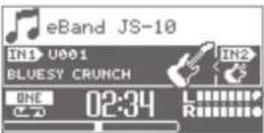 Adjust the INPUT LEVEL 1/2 knobs or SONG LEVEL so that“●”does not light. Adjust the INPUT LEVEL 1/2 knobs or SONG LEVEL so that“●”does not light. | p. 3 |
| Can't play MP3/WAV file | Are the MP3 file's sampling rate and bit rate or the WAV file's sampling rate and quantization bit ratesupported by the JS-10? | p. 8 |
| Can't set AB REPEAT segment times correctly | Time locations A and B cannot be set less than one second apart. You must leave at least onesecond between them. | p. 12 |
| The volume level of the instrumentconnected to INPUT 1 jack or INPUT 2 jack istoo low. | Are you using a connection cable that contains a resistor?Use connection cables that do not contain resistors. | p. 3 |
| Is the external device's volume properly adjusted? | — | |
| Are the [INPUT LEVEL 1] knob and [INPUT LEVEL 2] knob turned down? | p. 3, p. 8 | |
| Is a mic connected with INPUT GAIN switched to the guitar setting? Adjust the INPUT GAIN. | p. 23 | |
| Can't run the unit | Is the message "IDLING..." displayed on the JS-10's screen?Run the unit after disconnecting the USB connection. | — |
| Can't recordCan't Import songsCan't write to the SD cardData write operation from eBand Song ListEditor to the JS-10 fails | Is the SD card completely inserted into the JS-10? | p. 28 |
| Are you sure the write protection switch on the SD card in the JS-10 is not in the LOCK position? p. 29 | ||
| Does the SD card have too little free space available? | p. 28 | |
| Are you using an SD card that is verified to work with the JS-10? | p. 28 | |
| Do you have more than 4,000 songs (including WAV and MP3 files)?Delete any songs you don't need. | p. 8 | |
| The JS-10 only handles up to 2,000 artists and albums combined. Delete any unneeded artists oralbums. | p. 8 | |
| "Unsupported Card" displayed | Is the SD card completely inserted into the JS-10? | p. 28 |
| Are you using an SD card that is known to work with the JS-10? | ||
| SD card may be broken | The following causes may be possible if the data on the SD card is corrupted.Could the power have been turned off during recording or while the JS-10 was connected via USBto your PC?Did you disconnect the USB cable while the JS-10 was connected to your PC?Did you remove the SD card while the JS-10 was still turned on?Could the SD card have been subjected to strong impact?Reinitialize the SD card. | p. 29 |
| USB flash drive is not recognized | Is the USB flash drive completely inserted into the JS-10? | — |
| The JS-10 supports FAT-formatted USB flash drive. If the USB flash drive is not FAT-formatted, use aPC to reformat the USB flash drive in FAT format. | ||
| Cannot export to USB flash drive | Is the USB flash drive write protected? | — |
| Does the USB flash drive have too little free space available? | ||
| Can't connect to the PC | Is the USB cable properly connected? | p. 13, p. 27 |
| Is the PC turned on? | — | |
| Are you using an OS supported by the JS-10? | p. 13 | |
| Is the SD card completely inserted? | p. 28 | |
| Are you using an SD card that is verified to work with the JS-10? | p. 28 |
Adjust the INPUT LEVEL 1/2 knobs or SONG LEVEL so that "●" does not light.
Signal Flow

flowchart
graph TD
    A["Guitar"] -->|INPUT 1 (GUITAR/MIC) jack| B["IN1"]
    C["Microphone"] -->|INPUT 2 (GUITAR/MIC) jack| D["IN2"]
    E["Audio Player"] -->|INPUT 2 (AUX) jack| F["SON Player"]
    G["PC"] --> H["USB COMPUTER port"]
    I["PhONES jack"] --> J["Headphones"]
    K["LINE OUT jacks"] --> L["JS-10 Internal Speaker"]
    M["Audio Recorder"] --> N["PC"]
    O["INPUT AL"] --> P["USB COMPUTER port"]
    Q["USB AUDIO OUT: [MENU"] → "SYSTEM" → "SETTING"] --> P
    B --> R["Effector"]
    D --> R
    F --> R
    P --> R
    style A fill:#f9f,stroke:#333
    style C fill:#f9f,stroke:#333
    style E fill:#f9f,stroke:#333
    style G fill:#f9f,stroke:#333
    style I fill:#f9f,stroke:#333
    style K fill:#f9f,stroke:#333
    style M fill:#f9f,stroke:#333
    style Q fill:#f9f,stroke:#333
Memory Configuration in the JS-10
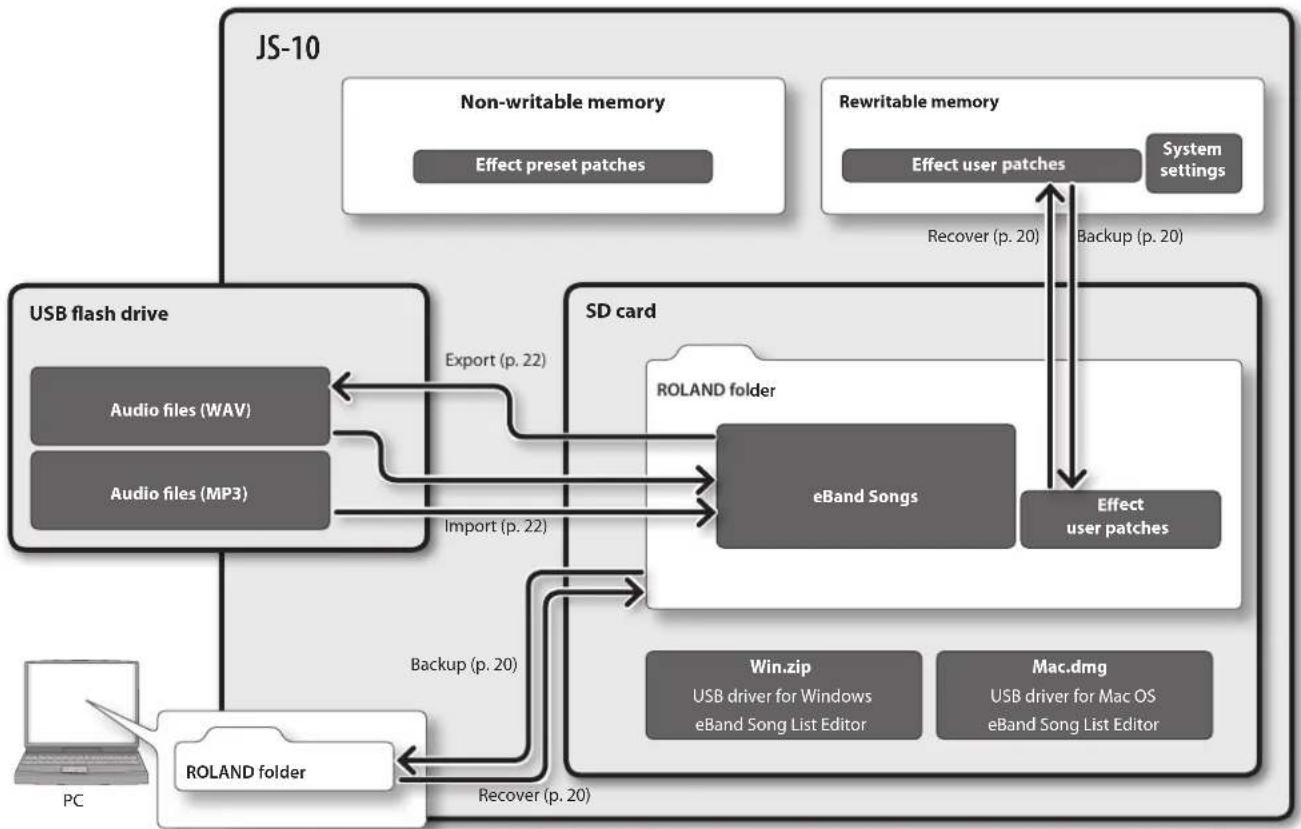
flowchart
graph TD
    A["JS-10"] --> B["USB flash drive"]
    A --> C["SD card"]
    A --> D["Rewellable memory"]
    B --> E["Audio files (WAV)"]
    B --> F["Audio files (MP3)"]
    C --> G["eBand Songs"]
    C --> H["Win.zip\nUSB driver for Windows\neBand Song List Editor"]
    C --> I["Mac.dmg\nUSB driver for Mac OS\neBand Song List Editor"]
    D --> J["Effect user patches"]
    D --> K["Recover (p. 20)"]
    D --> L["Backup (p. 20)"]
    D --> M["Export (p. 22)"]
    D --> N["Import (p. 22)"]
    D --> O["Recover (p. 20)"]
    P["PC"] --> Q["ROLAND folder"]
    Q --> R["Backup (p. 20)"]
    R --> S["ROLAND folder"]
    S --> T["Redundable memory"]
    T --> U["Non-writable memory"]
    U --> V["Effect preset patches"]
    T --> W["System settings"]
    W --> X["Recover (p. 20)"]
    W --> Y["Backup (p. 20)"]
Specifications
BOSS eBand JS-10: AUDIO PLAYER with GUITAR EFFECTS
| Capacity SD/SDHC Card: 1 G | -32 GB | |
| Data Types | eBand Songs (Recording/Playback)WAV (Quantization bit rate: 16 bits, Playback only)MP3 (Bit rate: 64 K–320 Kbps, Playback only) | |
| External Memory | USB Flash Memory (sold separately)* Use USB Flash Memory sold by Roland. We cannot guarantee operation if other products are used. | |
| AD Conversion 24 bits + AF method | ||
| DA Conversion 24 bits | ||
| Sampling Frequency 44.1 kHz | ||
| Effect Patches | Preset: 130User: 100 | |
| Data Capacity* These recording times are approximate. Times may be slightly shorter depending on the number of songs that were created. | eBand Songs | Hours per GB: 4 hours32GB: 130 hours |
| WAV/16 bits/Stereo | Hours per GB: 1.5 hours32GB: 50 hours | |
| MP3/128 Kbps/Stereo | Hours per GB: 17 hours32GB: 550 hours | |
| Nominal Input Level | INPUT 1 jack (GUITAR/MIC) | -10 dBu (INPUT GAIN = GUITAR) |
| INPUT 2 jack (GUITAR/MIC) | -32 dBu (INPUT GAIN = MIC) | |
| INPUT 2 jack (AUX) -20 dBu | ||
| Input Impedance | INPUT 1 jack (GUITAR/MIC) | 1 MΩ |
| INPUT 2 jack (GUITAR/MIC) | ||
| INPUT 2 (AUX) 47 kΩ | ||
| Nominal Output Level | LINE OUT: -10 dBu | |
| Output Impedance | LINE OUT: 1 kΩ | |
| Internal Speakers | 2.1 channels (2-channel Stereo and Woofer) | |
| Rated Power Output | 12 W (Stereo Speaker 3.5 W x 2 + Woofer 5 W) | |
| Display | Graphic LCD 132 x 64 dots | |
| Connectors | INPUT 1 (GUITAR/MIC) jack (1/4 inch phone type)INPUT 2 (GUITAR/MIC) jack (1/4 inch phone type)INPUT 2 (AUX) jack (Stereo miniature phone type)PHONES jack (Stereo miniature phone type)LINE OUT jacks (RCA phono type)EXP PEDAL/CTL1, 2 jack (1/4 inch TRS phone type)USB MEMORY port (USB Type A)USB COMPUTER port (USB Type B)DC IN jack | |
| Current Draw | 700 mA | |
| Dimensions | 264 (W) x 169 (D) x 209 (H) mm10-7/16 (W) x 6-11/16 (D) x 8-1/4 (H) inch | |
| Weight | 1.8 kg4 lbs(excluding AC adaptor) | |
| Accessories | AC adaptorSD card (Inserted into the JS-10 prior to being shipped from the factory.)USB cableOwner's Manual | |
| Options (sold separately) | Footswitch (BOSS FS-5U)Dual Footswitch (BOSS FS-6)Expression Pedal (Roland EV-5, BOSS FV-500L, BOSS FV-500H)USB Flash Memory* Use USB Flash Memory sold by Roland. We cannot guarantee operation if other products are used. | |
0dBu = 0.775Vrms
In the interest of product improvement, the specifications and/or appearance of this unit are subject to change without prior notice.
* AF method (Adaptive Focus method)
This is a proprietary method from Roland & BOSS that vastly improves the signal-to-noise (S/N) ratio of the A/D and D/A converters.
INSTRUCTIONS FOR THE PREVENTION OF FIRE, ELECTRIC SHOCK, OR INJURY TO PERSONS
About ⚠️ WARNING and ⚠️ CAUTION Notices
 WARNING WARNING | Used for instructions intended to alert the user to the risk of death or severe injury should the unit be used improperly. |
| [062Y] CAUTION | Used for instructions intended to alert the user to the risk of injury or material damage should the unit be used improperly.* Material damage refers to damage or other adverse effects caused with respect to the home and all its furnishings, as well to domestic animals or pets. |
About the Symbols
 | The △symbol alerts the user to important instructions or warnings. The specific meaning of the symbol is determined by the design contained within the triangle. In the case of the symbol at left, it is used for general cautions, warnings, or alerts to danger. |
| [H20K] | The ☒symbol alerts the user to items that must never be carried out (are forbidden). The specific thing that must not be done is indicated by the design contained within the circle. In the case of the symbol at left, it means that the unit must never be disassembled. |
| [K47C] | The ●symbol alerts the user to things that must be carried out. The specific thing that must be done is indicated by the design contained within the circle. In the case of the symbol at left, it means that the power-cord plug must be unplugged from the outlet. |
ALWAYS OBSERVE THE FOLLOWING
WARNING
Do not disassemble or modify by yourself
Do not open (or modify in any way) the unit or its AC adaptor.

Do not repair or replace parts by yourself
Do not attempt to repair the unit, or replace parts within it (except when this manual provides specific instructions directing you to do so). Refer all servicing to your retailer, the nearest Roland Service Center, or an authorized Roland distributor, as listed on the "Information" page.

Do not use or store in the following types of locations


- Subject to temperature extremes (e.g., direct sunlight in an enclosed vehicle, near a heating duct, on top of heat-generating equipment); or are
- Damp (e.g., baths, washrooms, on wet floors); or are
- Exposed to steam or smoke; or are
- Subject to salt exposure; or are
- Humid; or are
- Exposed to rain; or are
• Dusty or sandy; or are - Subject to high levels of vibration and shakiness.
Do not place in an unstable location
Make sure you always have the unit placed so it is level and sure to remain stable. Never place it on stands that could wobble, or on inclined surfaces.

WARNING
Use only the included AC adaptor and the correct voltage
Be sure to use only the AC adaptor included with the unit. Also, make sure the line voltage at the installation matches the input voltage specified on the AC adaptor's body. Other AC adaptors may use a different polarity, or be designed for a different voltage, so their use could result in damage, malfunction, or electric shock.

Use only the included power cord
Use only the attached power-supply cord. Also, the included power cord must not be used with any other device.

Do not bend the power cord or place heavy objects on it
Do not excessively twist or bend the power cord, nor place heavy objects on it. Doing so can damage the cord, producing severed elements and short circuits. Damaged cords are fire and shock hazards!

Avoid extended use at high volume
This unit, either alone or in combination with an amplifier and headphones or speakers, may be capable of producing sound levels that could cause permanent hearing loss. Do not operate for a long period of time at a high volume level, or at a level that is uncomfortable. If you experience any hearing loss or ringing in the ears, you should immediately stop using the unit, and consult an audiologist.

WARNING
Don't allow foreign objects or liquids to enter unit
Never allow foreign objects (e.g., flammable objects, coins, wires) or liquids (e.g., water or juice) to enter this product. Doing so may cause short circuits, faulty operation, or other malfunctions.


Turn off the unit if an abnormality or malfunction occurs
Immediately turn the unit off, remove the AC adaptor from the outlet, and request servicing by your retailer, the nearest Roland Service Center, or an authorized Roland distributor, as listed on the "Information" page when:

- The AC adaptor, the power-supply cord, or the plug has been damaged; or
• If smoke or unusual odor occurs; or - Objects have fallen into, or liquid has been spilled onto the unit; or
- The unit has been exposed to rain (or otherwise has become wet); or
- The unit does not appear to operate normally or exhibits a marked change in performance.
Adults must provide supervision in places where children are present
When using the unit in locations where children are present, be careful so no mishandling of the unit can take place. An adult should always be on hand to provide supervision and guidance.

Do not drop or subject to strong impact Protect the unit from strong impact. (Do not drop it!)

WARNING
Do not share an outlet with an unreasonable number of other devices
Do not force the unit's power-supply cord to share an outlet with an unreasonable number of other devices. Be especially careful when using extension cords—the total power used by all devices you have connected to the extension cord's outlet must never exceed the power rating (watts/amperes) for the extension cord. Excessive loads can cause the insulation on the cord to heat up and eventually melt through.

Do not use overseas
Before using the unit in a foreign country, consult with your retailer, the nearest Roland Service Center, or an authorized Roland distributor, as listed on the "Information" page.

CAUTION
Place in a well ventilated location
The unit and the AC adaptor should be located so their location or position does not interfere with their proper ventilation.

CAUTION
Grasp the plug when connecting or disconnecting the AC adaptor
Always grasp only the plug on the AC adaptor cord when plugging into, or unplugging from, an outlet or this unit.

Periodically clean the AC adaptor's plug
At regular intervals, you should unplug the AC adaptor and clean it by using a dry cloth to wipe all dust and other accumulations away from its prongs. Also, disconnect the power plug from the power outlet whenever the unit is to remain unused for an extended period of time. Any accumulation of dust between the power plug and the power outlet can result in poor insulation and lead to fire.

Manage cables for safety
Try to prevent cords and cables from becoming entangled. Also, all cords and cables should be placed so they are out of the reach of children.

Avoid climbing on top of the unit, or placing heavy objects on it
Never climb on top of, nor place heavy objects on the unit.

CAUTION
Do not connect or disconnect the AC adaptor with wet hands
Never handle the AC adaptor or its plugs with wet hands when plugging into, or unplugging from, an outlet or this unit.

Disconnect everything before moving the unit
Before moving the unit, disconnect the AC adaptor and all cords coming from external devices.

Unplug the AC adaptor from the outlet before cleaning
Before cleaning the unit, turn it off and unplug the AC adaptor from the outlet (p. 4).

If there is a possibility of lightning strike, disconnect the AC adaptor from the outlet
Whenever you suspect the possibility of lightning in your area, disconnect the AC adaptor from the outlet.

Keep small items out of the reach of children
To prevent accidental ingestion of the parts listed below, always keep them out of the reach of small children.

• Included Parts SD Card (p. 28)
- Removable Parts
USB caps (p. 4),
SD CARD slot cover (p. 28),
screw (p. 28)
IMPORTANT NOTES
Power Supply
- Do not connect this unit to same electrical outlet that is being used by an electrical appliance that is controlled by an inverter or a motor (such as a refrigerator, washing machine, microwave oven, or air conditioner). Depending on the way in which the electrical appliance is used, power supply noise may cause this unit to malfunction or may produce audible noise. If it is not practical to use a separate electrical outlet, connect a power supply noise filter between this unit and the electrical outlet.
-
The AC adaptor will begin to generate heat after long hours of consecutive use. This is normal, and is not a cause for concern.
• To prevent malfunction and equipment failure, always make sure to turn off the power on all your equipment before you make any connections. -
With the factory settings, the JS-10 will automatically be switched off 30 minutes after you stop playing or operating the unit. If you don't want the unit to turn off automatically, change the "AUTO OFF" setting to "OFF" as described on p. 26.
* The settings you were editing will be lost when the unit is turned off. If you want to keep your settings, you must save your settings before turning the unit off.
Placement
- Using the unit near power amplifiers (or other equipment containing large power transformers) may induce hum. To alleviate the problem, change the orientation of this unit; or move it farther away from the source of interference.
- This device may interfere with radio and television reception. Do not use this device in the vicinity of such receivers.
- Noise may be produced if wireless communications devices, such as cell phones, are operated in the vicinity of this unit. Such noise could occur when receiving or initiating a call, or while conversing. Should you experience such problems, you should relocate such wireless devices so they are at a greater distance from this unit, or switch them off.
- Do not expose the unit to direct sunlight, place it near devices that radiate heat, leave it inside an enclosed vehicle, or otherwise subject it to temperature extremes. Excessive heat can deform or discolor the unit.
- When moved from one location to another where the temperature and/or humidity is very different, water droplets (condensation) may form inside the unit. Damage or malfunction may result if you attempt to use the unit in this condition. Therefore, before using the unit, you must allow it to stand for several hours, until the condensation has completely evaporated.
- Depending on the material and temperature of the surface on which you place the unit, its rubber feet may discolor or mar the surface. You can place a piece of felt or cloth under the rubber feet to prevent this from happening. If you do so, please make sure that the unit will not slip or move accidentally.
- Avoid the use of insecticides, perfumes, alcohol, nail polish, spray cans, etc., near the unit. Swiftly wipe away any liquid that spills on the unit using a dry, soft cloth.
Maintenance
- For everyday cleaning wipe the unit with a soft, dry cloth or one that has been slightly dampened with water. To remove stubborn dirt, use a cloth impregnated with a mild, non-abrasive detergent. Afterwards, be sure to wipe the unit thoroughly with a soft, dry cloth.
- Never use benzine, thinners, alcohol or solvents of any kind, to avoid the possibility of discoloration and/or deformation.
Repairs and Data
- Please be aware that all data contained in the unit's memory may be lost when the unit is sent for repairs. Important data should always be backed up SD cards, SDHC cards, computers, USB flash drives, or written down on paper (when possible). During repairs, due care is taken to avoid the loss of data. However, in certain cases (such as when circuitry related to memory itself is out of order), we regret that it may not be possible to restore the data, and Roland assumes no liability concerning such loss of data.
Additional Precautions
- Please be aware that the contents of memory can be irretrievably lost as a result of a malfunction, or the improper operation of the unit. To protect yourself against the risk of loosing important data, we recommend that you periodically save a backup copy of important data you have stored in the unit's memory on SD cards, SDHC cards, computers, or USB flash drives.
- Unfortunately, it may be impossible to restore the contents of data that was stored in the unit's memory, SD cards, SDHC cards, computers, or USB flash drives once it has been lost. Roland Corporation assumes no liability concerning such loss of data.
- Use a reasonable amount of care when using the unit's buttons, sliders, or other controls; and when using its jacks and connectors. Rough handling can lead to malfunctions.
- Never strike or apply strong pressure to the display.
- When disconnecting all cables, grasp the connector itself—never pull on the cable. This way you will avoid causing shorts, or damage to the cable's internal elements.
- To avoid disturbing others nearby, try to keep the unit's volume at reasonable levels. You may prefer to use headphones, so you do not need to be concerned about those around you.
- When you need to transport the unit, package it in the box (including padding) that it came in, if possible. Otherwise, you will need to use equivalent packaging materials.
- Use only the specified expression pedal (Roland EV-5, BOSS FV-500L, BOSS FV-500H; sold separately). By connecting any other expression pedals, you risk causing malfunction and/or damage to the unit.
- Some connection cables contain resistors. Do not use cables that incorporate resistors for connecting to this unit. The use of such cables can cause the sound level to be extremely low, or impossible to hear. For information on cable specifications, contact the manufacturer of the cable.
Before Using External Memories
- Carefully insert the USB flash drives, SD cards, or SDHC cards all the way in—until it is firmly in place.
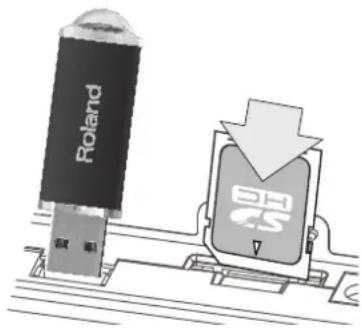
- Never touch the terminals of the USB flash drives, SD cards, or SDHC cards. Also, avoid getting the terminals dirty.
- USB flash drives, SD cards, or SDHC cards are constructed using precision components; handle the memories or cards carefully, paying particular note to the following.
• To prevent damage to the cards from static electricity, be sure to discharge any static electricity from your own body before handling the cards.
- Do not touch or allow metal to come into contact with the contact portion of the cards.
- Do not bend, drop, or subject cards to strong shock or vibration.
- Do not keep cards in direct sunlight, in closed vehicles, or other such locations.
- Do not allow cards to become wet.
- Do not disassemble or modify the cards.
Copyrights / Licenses / Trademarks
- It is forbidden by law to make an audio recording, video recording, copy or revision of a third party's copyrighted work (musical work, video work, broadcast, live performance, or other work), whether in whole or in part, and distribute, sell, lease, perform, or broadcast it without the permission of the copyright owner.
- Do not use this product for purposes that could infringe on a copyright held by a third party. We assume no responsibility whatsoever with regard to any infringements of third-party copyrights arising through your use of this product.
- The copyright of content in this product (the sound waveform data, style data, accompaniment patterns, phrase data, audio loops and image data) is reserved by Roland Corporation and/or Atelier Vision Corporation.
- Purchasers of this product are permitted to utilize said content for the creating, performing, recording and distributing original musical works.
- Purchasers of this product are NOT permitted to extract said content in original or modified form, for the purpose of distributing recorded medium of said content or making them available on a computer network.
- MMP (Moore Microprocessor Portfolio) refers to a patent portfolio concerned with microprocessor architecture, which was developed by Technology Properties Limited (TPL). Roland has licensed this technology from the TPL Group.
- MPEG Layer-3 audio compression technology is licensed from Fraunhofer IIS Corporation and THOMSON Multimedia Corporation.
- CD and music-related data from Gracenote, Inc., copyright © 2000-2012 Gracenote.
- Gracenote Software, copyright © 2000-2012 Gracenote.
- This product and service may practice one or more of the following U.S. Patents: #5,987,525; #6,061,680; #6,154,773, #6,161,132, #6,230,192, #6,230,207, #6,240,459, #6,330,593, and other patents issued or pending. Some services supplied under license from Open Globe, Inc. for U.S. Patent: #6,304,523.
- Gracenote and CDDB are registered trademarks of Gracenote.
- The Gracenote logo and logotype, and the "Powered by Gracenote" logo are trademarks of Gracenote.

• The SD logo (SDHC logo

• ASIO is a trademark of Steinberg Media Technologies GmbH.
- This product contains eCROS integrated software platform of eSOL Co., Ltd. eCROS is a trademark of eSOL Co., Ltd. in Japan.
• MP3 codec is Copyright © 1995-2010, SPIRIT.
- Roland, BOSS, COSM, and eBand are either registered trademarks or trademarks of Roland Corporation in the United States and/or other countries.
- Company names and product names appearing in this document are registered trademarks or trademarks of their respective owners.
A
[A◄► B] button ..... 3, 12, 19, 21
AB EDIT.... 12
AB REPEAT.... 12
AB REPEAT Segment 4
AC Adaptor 4
AF method 39
ALBUM 7
ALL SONGS 7
AMP 31
[AMP] button 3
ARTIST....7
AUDIO SETTING.... 23
AUTO OFF 26
B
BACKING 17
BEST 30....7
BEST 30 EDIT....7
Bit Rate 8,15
C
Capacity SD card 28
CD Ripping screen 15
Center Cancel.... 12
CHORUS.... 34
C icon 4,12
COMP 32
Contrast 25
Cursor buttons.... 3
D
Data Capacity 39
DC IN jack 4
DELAY 35
delete
SONG....8
Dial.... 3
Display 3
Distortion.... 32
DS.... 32
E
eBand Song List Editor 13
eBand Songs.... 39
Effect
Edit.... 17
INITIALIZE.... 19
Parameters.... 31
Select.... 10
EFFECT MENU screen.... 18
[EFFECTS] button 3,10,17
[ENTER] button 3,5
EQ.... 23,33
Equalizer 23,33
ERASE
SONG....8
EXCHANGE 19
[EXIT] button 3
EXPORT.... 22
EXP PEDAL/CTL 1,2 jack.....4,30
Expression Pedal.... 30
EZ CHAR.... 35
EZ EDIT screen 17
F
FACTORY RESET.... 26
[▶] (Fast Forward) button..... 3
FLANGER 34
Footswitch.... 30
FORMAT SD Card.... 29
G
GAIN 23
Global EQ.... 23
H
HARD.... 17
1
IMPORT 22
IN1/IN2 4,10,17
INITIALIZE
Effect 19
JS-10 26
SD Card.... 29
INPUT 23
INPUT 1 (GUITAR/MIC) jack, INPUT 2
(GUITAR/MIC) jack.... 3
INPUT 2 (AUX) jack.... 3
[INPUT LEVEL 1 ⬤2] knob..... 3
INPUT screen 23
K
Key 4
KEY....21
L
LCD CONTRAST 25
LENGTH 21
Level Meter 4
LIMITER.... 32
LINE OUT jacks.... 4,23
LOCK 29
M
[MASTER LEVEL] knob .... 3
Memory Configuration.... 38
[MENU] button.... 3,6
MENU screen 6
MENU > SYSTEM screen.... 24
MODE 25
MODULATION 33
MP3 8,15,39
N
Noise Suppressor 33
NS....33
0
OD 32
Overdrive.... 32
P
PAN 23,34
PATCH BACKUP 24
PATCH EDIT screen 18
PATCH EXCHANGE screen ..... 19
PATCH RECOVER 25
PATCH SELECT screen ..... 10,17
PATCH SYNC 22
PATCH WRITE screen 19
PEDAL 30
PHASER.... 33
PHONES jack.... 4
P icon.... 4,11
Pitch
SONG.... 11
[▶] (PLAY) button 3,8
Play Mode 4,9
[POWER] button 3,5
Power Cord 4
PROTECT 21
Q
Quantization Bit Rate.... 8,15
R
[●] (REC) button.... 3,10
REC END popup.... 10
Recording 10
REC REMAIN 25
REMAIN SIZE 25
REMOVE....7
REVERB 35
[◀] (Rewind) button.... 3
RHYTHM....7
Ripping.... 15
ROTARY.... 34
S
Sampling Rate 8,15
SD CARD....7,28
Initialize 29
SD CARD FORMAT.... 29
SD CARD slot 4,28
SD INFO 25
SD VIEW 26
Security slot 4
S icon.... 4,11
Signal 38
SIZE 21
SOFT 17
SOLO 17
SONG
ERASE 8
Pitch.... 11
Speed 11
SONG EXPORT screen 22
SONG IMPORT screen 22
SONG INFO 21
SONG LEVEL 21
[SONG LIST] button 3,7
Song List Editor 13
Song Name 4
SONG NAME 21
Song playback location ..... 4
Song playback time 4
SPEAKER SW 23
Speed
SONG.... 11
[SPEED] button ..... 3, 11, 12, 19, 21
[■] (STOP) button.... 3
SYNC SW 22
SYSTEM.... 24
T
TOTAL SIZE 25
TREMOLO.... 34
[TUNER] button 3,9
TUNER screen.... 9
Tuning....9
TYPE 21
U
UNI-V 34
Uni-Vibe 34
USB AUDIO OUT 38
USB cap holder 4
USB COMPUTER port 4, 13, 20, 24, 27
USB MEMORY 7,8,25
USB MEMORY port 4
USB MODE.... 13,24
USER 7
V
volume pedal.... 30
W
WAH.... 30,35
WAV 8,15,39
WRITE/NAME 19
BOSS
English
Deutsch
Français
Italiano
Español
Português
Nederlands
Copyright © 2012 BOSS CORPORATION
eBand Song List Editor
HINWEIS
DREHREGLER
OD/DS (Overdrive/Distortion)
eBand Song List Editor 13
eBand Songs.... 39
EFFECT MENU-Display.... 18
[EFFECTS]-Taster 3,10,17
Effekt
auswählen.... 10
editieren.... 17
INITIALIZE.... 19
Parameter 31
[ENTER]-Taster 3,5
EQ.... 23,33
Equalizer 23,33
ERASE
SONG....8
EXCHANGE 19
[EXIT]-Taster 3
EXPORT.... 22
EXP PEDAL/CTL 1, 2-Buchse .... 4, 30
Expression Pedal.... 30
EZ CHAR.... 35
EZ EDIT-Display 17
F
FACTORY RESET.... 26
[▶] (Fast Forward)-Taster..... 3
FLANGER 34
FORMAT
SD-Karte 29
Fußschalter 30
G
GAIN 23
Geschwindigkeit
SONG....11
Global EQ.... 23
H
HARD.... 17
|
IMPORT.... 22
IN1/IN2 4,10,17
INITIALIZE
Effekte.... 19
JS-10 26
SD-Karte.... 29
INPUT 23
INPUT 1 (GUITAR/MIC)-Buchse,
INPUT 2 (GUITAR/MIC)-Buchse..... 3
PATCH EDIT-Display 18
PATCH EXCHANGE-Display ..... 19
PATCH RECOVER 25
PATCH SELECT-Display ..... 10, 17
PATCH SYNC 22
[◀] (Rewind)-Taster.... 3
RHYTHM....7
Ripping.... 15
ROTARY.... 34
S
Sampling Rate 8,15
SD CARD....7,28
Initialize 29
SD CARD FORMAT.... 29
SD CARD-Schacht.... 4,28
SD INFO 25
SD VIEW 26
Sicherheitskette.... 4
Signal 38
SIZE 21
SOFT 17
SOLO 17
SO
ERASE 8
Pitch.... 11
Speed 11
[SPEED]-Taster ..... 3, 11, 12, 19, 21
Speicherstruktur 38
S-Symbol 4,11
Stimmen....9
[■] (STOP)-Taster 3
SYNC SW 22
SYSTEM.... 24
T
Tonhöhe
SONG....11
TOTAL SIZE 25
TREMOLO.... 34
[TUNER]-Taster 3,9
TUNER-Display.... 9
TYPE.... 21
U
UNI-V.... 34
Uni-Vibe 34
USB-Abdeckung 4
USB AUDIO OUT 38
Song List Editor)....13
Avant d'utiliser eBand Song List Editor....13
Copyright © 2012 BOSS CORPORATION
REMARQUES IMPORTANTES....41
Index 43
Face avant

eBand Song List Editor
natural_image
Close-up of a mechanical component with hexagonal nuts and circular features (no visible text or symbols)MÉMO
OD/DS (Overdrive/Distorsion)
[A◄►B], bouton ..... 3, 12, 19, 21
AB EDIT.... 12
AB REPEAT.... 12
Accordage.... 9
Bouton [SPEED]..... 3, 11, 12, 19, 21
Bouton (STOP) [■] 3
Bouton [TUNER] 9
C
Capacité
Carte SD 28
eBand Song List Editor 13
Écran CD Ripping 15
Écran EFFECT MENU.... 18
Écran EZ EDIT 17
Écran INPUT 23
Écran MENU 6
Écran PATCH EDIT 18
Écran PATCH EXCHANGE ..... 19
Écran PATCH SELECT ..... 10,17
Écran PATCH WRITE 19
Écran TUNER 9
Effe
INITIALIZE.... 19
Modifier 17
Sélectionner 10
Égaliseur.... 23
Copyright © 2012 BOSS CORPORATION
eBand Song List Editor
natural_image
Close-up of a mechanical component with hexagonal nuts and circular ports (no visible text or symbols)MEMO
eBand Song List Editor 13
Pulsante [SPEED]..... 11, 12, 19, 21
Pulsante [■] (STOP).... 3
Pulsante [TUNER] 3,9
Copyright © 2012 BOSS CORPORATION
eBand Song List Editor
natural_image
Close-up of a mechanical component with hexagonal nuts and circular components (no visible text or symbols)- Pulse el botón [▶] (PLAY).
RECUERDE
eBand Song List Editor 13
Ecualizador 23
INPUT 1 (GUITAR/MIC), conector;
INPUT 2 (GUITAR/MIC), conector ... 3
INPUT 2 (AUX), conector..... 3
[INPUT LEVEL 1, Ⓞ2], mando..... 3
INPUT, pantalla 23
K
KEY.... 21
L
LCD CONTRAST 25
LENGTH 21
LIMITER.... 32
LINE OUT, conectores ..... 4, 23
LOCK 29
M
Mando 3
[MASTER LEVEL], mando ..... 3
Gravando performances ....10
Song List Editor)....13
Antes de usar o eBand Song List Editor ....13
eBand Song List Editor
natural_image
Close-up of a mechanical component with hexagonal nuts and circular features (no visible text or symbols)Gravando performances
MEMO
Instalando o driver USB
Botão [SPEED] ..... 3, 11, 12, 19, 21
Conector EXP PEDAL/CTL 1,2..4,30
Conector INPUT 1 (GUITAR/MIC),
conector INPUT 2 (GUITAR/MIC) ... 3
Conector INPUT 2 (AUX).... 3
Conector PHONES 4
eBand Song List Editor 13
Efeito
Edição 17
INITIALIZE.... 19
Parâmetros 31
Seleccionar 10
EQ.... 23,33
Tela CD Ripping.... 15
Tela EFFECT MENU 18
Tela EZ EDIT.... 17
Tela INPUT 23
Tela MENU 6
Tela MENU > SYSTEM..... 24
Tela PATCH EDIT.... 18
Tela PATCH EXCHANGE.... 19
Tela PATCH SELECT.... 10,17
Tela PATCH WRITE 19
Tela SONG EXPORT.... 22
Tela SONG IMPORT.... 22
Tela TUNER 9
eBand Song List Editor
natural_image
Close-up of a mechanical component with hexagonal nuts and circular components (no visible text or symbols)3. Druk op de [ENTER]-knop.
MEMO
- Selecteer IN1 of IN2.
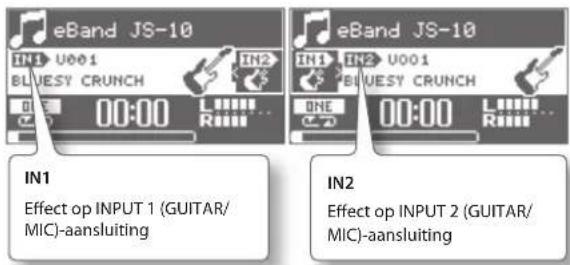
MEMO
2. Selecteer PITCH of FINE.

3. Druk op de [ENTER]-knop.
MEMO
De standaardinstelling is "ON" (Conserve Card Memory).
DIAL
OD/DS (Overdrive/Distortion)
- De MP3-codec is copyright © 1995-2010, SPIRIT.
[A ◀ B]-knop.... 3, 12, 19, 21
AB REPEAT.... 12
AB REPEAT-segment.... 4
AF-methode 39
CD Ripping-scherm 15
Center Cancel.... 12
CHORUS.... 34
COMP 32
Contrast 25
C-pictogram 4,12
Cursorknoppen 3
D
DC IN-aansluiting 4
DELAY 35
Display 3
Distortion.... 32
DS.... 32
E
eBand Song List Editor 13
eBand-songs.... 39
Effect
Bewerken.... 17
INITIALIZE.... 19
Parameters.... 31
Selecteren 10
EFFECT MENU-scherm 18
[EFFECTS]-knop.... 3, 10, 17
[ENTER]-knop.... 3,5
EQ.... 23,33
Equalizer 23,33
ERASE
SONG....8
EXCHANGE 19
[EXIT]-knop.... 3
EXPORT.... 22
PATCH EDIT-scherm 18
PATCH EXCHANGE-scherm ..... 19
PATCH RECOVER 25
PATCH SELECT-scherm ..... 10, 17
PATCH SYNC 22
PATCH WRITE-scherm 19
PEDAL.... 30
PHASER.... 33
PHONES-aansluiting 4
[▶] (PLAY)-knop.... 3,8
Pop-upvenster REC END..... 10
[POWER]-knop.... 3,5
P-pictogram 4,11
PROTECT 21
R
[●] (REC)-knop 3,10
REC REMAIN 25
REMAIN SIZE.... 25
REMOVE 7
REVERB 35
RHYTHM....7
Ripping.... 15
ROTARY.... 34
S
Samplefrequentie....8,15
SD CARD....7,28
Initialiseren 29
SD CARD FORMAT.... 29
SD CARD-sleuf 4
SD INFO 28
SENS 25
SET PATCH 26
SIENS SW 23
Signaal 38
Snelheid
SONG....11
SOLO 21
SONG....4
ERASE 8
Snelheid.... 11
Toonaard 11
SONG EXPORT-scherm 17
SONG IMPORT-scherm 17
SONG INFO 4,22
SONG LEVEL 22
Song List Editor 13
[SONG LIST]-knop.... 7
SONG NAME 3,21
SPEAKER SW 21
[SPEED]-knop..... 3, 11, 12, 19, 21
S-pictogram 11
Stemming 9
[■] (STOP)-knop 3
SYSTEM.... 24
T
[◀] -knop (Terugspoelen) ..... 3
Toonaard
SONG.... 11
TOTAL SIZE 22,25
TREMOLO.... 34
[TUNER]-knop 9
TUNER-scherm.... 9
U
UNI-V.... 34
Uni-Vibe.... 34
USB AUDIO OUT 38
USB COMPUTER-poort
4,13,20,24,27
When you need repair service, call your nearest Roland Service Center or authorized Roland distributor in your country as shown below.
AFRICA
EGYPT
Al Fanny Trading Offi ce 9, EBN Hagar Al Askalany Street, ARD E1 Golf, Heliopolis, Cairo 11341, EGYPT TEL: (022)-417-1828
REUNION
MARCEL FO-YAM Sarl 25 Rue Jules Hermann, Chaudron - BP79 97 491 Ste Clotilde Cedex, REUNION ISLAND TEL: (0262) 218-429
SOUTH AFRICA
T.O.M.S. Sound & Music (Pty) Ltd. 2 ASTRON ROAD DENVER JOHANNESBURG ZA 2195, SOUTH AFRICA TEL: (011) 417 3400
Paul Bothner(PTY)Ltd.
Royal Cape Park, Unit 24 Londonderry Road, Ottery 7800 Cape Town, SOUTH AFRICA TEL: (021) 799 4900
ASIA
CHINA
Roland Shanghai Electronics Co., Ltd. 5F. No.1500 Pingliang Road Shanghai 200090, CHINA TEL: (021) 5580-0800
Roland Shanghai Electronics
Co., Ltd. (BEIJING OFFICE) 3F, Soluxe Fortune Building 63 West Dawang Road, Chaoyang District, Beijing, CHINA TEL: (010) 5960-2565
HONG KONG
Tom Lee Music 11/F Silvercord Tower 1 30 Canton Rd Tsimshatsui, Kowloon, HONG KONG TEL: 852-2737-7688
Parsons Music Ltd.
8th Floor, Railway Plaza, 39 Chatham Road South, T.S.T, Kowloon, HONG KONG TEL: 852-2333-1863
INDIA
Rivera Digitec (India) Pvt. Ltd. 411, Niman Kendra Mahalaxmi Flats Compound Off. Dr. Edwin Moses Road, Mumbai-400011, INDIA TEL: (022) 2493 9051
INDONESIA
PT. Citra Intirama Ruko Garden Shopping Arcade Unit 8 CR, Podomoro City Ji.Letjend. S.Parman Kav.28 Jakarta Barat 11470, INDONESIA TEL: (021) 5698-5519/5520
KOREA
Cosmos Corporation 1461-9, Seocho-Dong, Seocho Ku, Seoul, KOREA TEL: (02) 3486-8855
MALAYSIA/
SINGAPORE
Roland Asia Pacifi c Sdn. Bhd. 45-1, Block C2, Jalan PJU 1/39, Dataran Prima, 47301 Petaling Jaya, Selangor, MALAYSIA TEL: (03) 7805-3263
PHILIPPINES
G.A. Yupangco & Co. Inc. 339 Gil J. Puyat Avenue Makati, Metro Manila 1200, PHILIPPINES TEL: (02) 899 9801
TAIWAN
ROLAND TAIWAN ENTERPRISE
CO., LTD. 9F-5, No. 112 Chung Shan North Road Sec. 2 Taipei 104, TAIWAN R.O.C. TEL: (02) 2561 3339
THAILAND
Theera Music Co., Ltd. 100-108 Soi Verng Nakornkasem, New Road, Sumpantawong, Bangkok 10100, THAILAND TEL: (02) 224-8821
VIET NAM
VIET THUONG CORPORATION 386 CACH MANG THANG TAM ST. DIST.3, HO CHI MINH CITY, VIET NAM
OCEANIA
AUSTRALIA/
NEW ZEALAND
Roland Corporation Australia Pty., Ltd. 38 Campbell Avenue Dee Why West. NSW 2099, AUSTRALIA
For Australia TEL: (02) 9982 8266 For New Zealand TEL: (09) 3098 715
CENTRAL/LATIN AMERICA
ARGENTINA
Instrumentos Musicales S.A. Av.Santa Fe 2055 (1123) Buenos Aires, ARGENTINA TEL: (011) 4508-2700
BARBADOS
A&B Music Supplies LTD 12 Webster Industrial Park Wildey, St.Michael, BARBADOS TEL: (246) 430-1100
BRAZIL
Roland Brasil Ltda. Rua San Jose, 211 Parque Industrial San Jose Cotia - Sao Paulo - SP, BRAZIL TEL: (011) 4615 5666
CHILE
Comercial Fancy II S.A. Rut.: 96.919.420-1 Nataniel Cox #739, 4th Floor Santiago - Centro, CHILE TEL: (02) 688-9540
COLOMBIA
Centro Musical Ltda. Cra 43 B No 25 A 41 Bododega 9 Medellin, COLOMBIA TEL: (574) 3812529
COSTA RICA
JUAN Bansbach Instrumentos Musicales Ave.1. Calle 11, Apartado 10237, San Jose, COSTA RICA TEL: 258-0211
CURACAO
Zeelandia Music Center Inc. Orionweg 30 Curacao, Netherland Antilles TEL: (305) 5926866
DOMINICAN REPUBLIC
Roland Ireland E2 Calmount Park, Calmount Avenue, Dublin 12, Republic of IRELAND TEL: (01) 4294444
ITALY
Roland Italy S. p. A. Viale delle Industrie 8, 20020 Arese, Milano, ITALY TEL: (02) 937-78300
NORWAY
Roland Scandinavia Avd.
Kontor Norge Lilleakerveien 2 Postboks 95 Lilleaker N-0216 Oslo, NORWAY TEL: 2273 0074
POLAND
ROLAND POLSKA SP. Z O.O. ul. Kty Grodziskie 16B 03-289 Warszawa, POLAND TEL: (022) 678 9512
PORTUGAL
Roland Systems Group EMEA, S.L Branch Offi ce Porto Edificio Tower Plaza Rotunda Eng. Edgar Cardoso 23, 9°G 4400-676 Vila Nova de Gaia, PORTUGAL TEL: (+351) 22 608 00 60
ROMANIA
FBS LINES Plata Libertatii 1, 535500 Gheorgheni, ROMANIA TEL: (266) 364 609
RUSSIA
Roland Music LLC Dorozhnaya ul.3,korp.6 117 545 Moscow, RUSSIA TEL:(495) 081 4967
TEL (493) 501-4987
SERBIA
Music AP Ltd. Sutjeska br. 5 XS - 24413 Palic, SERBIA TEL: (024) 570-205
SLOVAKIA
DAN Acoustic s.r.o. Povazská 18. SK - 940 01 Nové Zár SLOVAKIA TEL: (035) 6424 330
SPAIN
Roland Systems Group EMEA, S.L. Paseo Garcia Faria, 33-35 08005 Barcelona, SPAIN TEL: 93 493 91 00
SWEDEN
Roland Scandinavia A/S SWEDISH SALES OFFICE Mårbackagatan 31, 4 tr. SE-123 43 Farsta, SWEDEN TEL: (0) 8 683 04 30
SWITZERLAND
Roland (Switzerland) AG Landstrasse 5, Postfach, CH-4452 Itingen, SWITZERLAND TEL - (061) 975-9987
UKRAINE
EURHYTHMICS Ltd. P.O.Box: 37-a. Nedecey Str. 30 UA - 89600 Mukachevo, UKRAINE TEL: (03131) 414-40
UNITED KINGDOM
Roland (U.K.) Ltd. Atlantic Close, SWANSEA SA7 9FJ, UNITED KINGDOM TEL: (01792) 702701
MIDDLE EAST
BAHRAIN
Moon Stores No.1231&1249 Rumaytha Building Road 3931, Manama 339, BAHRAIN TEL: 17 813 942
IRAN
MOCO INC. Jadeh Makhsous Karaj (K-9), Nakhe Zarin Ave. Jalal Street, Reza Alley No.4 Tehran 1389716791, IRAN TEL: (021)-44545370-5
ISRAEL
Halilit P. Greenspoon & Sons Ltd. 8 Retzif Ha'alia Hashnia St. Tel-Aviv-Yafo ISRAEL TEL: (03) 6823666
JORDAN
MUSIC HOUSE CO. LTD. FREDDY FOR MUSIC P. O. Box 922846 Amman 11192, JORDAN TEL: (06) 5692696
KUWAIT
EASA HUSAIN AL-YOUSIFI & SONS CO. Al-Yousifi Service Center P.O.Box 126 (Safat) 13002, KUWAIT TEL: 00 965 802929
LEBANON
Chahine S.A.L. George Zeidan St., Chahine Bldg., Achrafi eh, P.O.Box: 16-5857 Beirut, LEBANON TEL: (01) 20-1441
OMAN
TALENTZ CENTRE L.L.C. Malatan House No.1 Al Noor Street, Ruwi SULTANATE OF OMAN TEL: 2478 3443
QATAR
AL-EMADI TRADING & CONTRACTING CO. P.O. Box 62, Doha, QATA TEL: 4423-554
SAUDI ARABIA
aDawliah Universal Electronics APL Behind Pizza Inn Prince Turkey Street aDawliah Building, PO BOX 2154, Alkhobar 31952, SAUDI ARABIA TEL: (03) 8643601
SYRIA
Technical Light & Sound Center PO Box 13520 Bldg No.49 Khaled Abn Alwalid St. Damascus, SYRIA TEL: (011) 223-5384
TURKEY
ZUHAL DIS TICARET A.S. Galip Dede Cad. No.33 Beyoglu, Istanbul, TURKEY TEL: (0212) 249 85 10
U.A.E. Zak Electronics & Musical
Instruments Co. L.L.C. Zabeel Road, Al Sherooq Bldg., No. 14, Ground Floor, Dubal, U.A.E. TEL: (04) 3360715
NORTH AMERICA
CANADA
Roland Canada Ltd. (Head Offi ce) 5480 Parkwood Way Richmond B. C., V6V 2M4, CANADA TEL: (604) 270 6626
Roland Canada Ltd. (Toronto Offi ce) 170 Admiral Boulevard Mississauga On L5T 2N6, CANADA TEL: (905) 362 9707
U.S.A.
Roland Corporation U.S. 5100 S. Eastern Avenue Los Angeles, CA 90040-2938, U. S. A. TEL: (323) 890 3700
For EU Countries


This symbol indicates that in EU countries, this product must be collected separately from household waste, as defined in each region. Products bearing this symbol must not be discarded together with household waste.

IMPORTANT: THE WIRES IN THIS MAINS LEAD ARE COLOURED IN ACCORDANCE WITH THE FOLLOWING CODE.
BLUE: NEUTRAL
BROWN: LIVE
As the colours of the wires in the mains lead of this apparatus may not correspond with the coloured markings identifying the terminals in your plug, proceed as follows:
The wire which is coloured BLUE must be connected to the terminal which is marked with the letter N or coloured BLACK. The wire which is coloured BROWN must be connected to the terminal which is marked with the letter L or coloured RED. Under no circumstances must either of the above wires be connected to the earth terminal of a three pin plug.

-For EU Countries
This product complies with the requirements of EMC Directive 2004/108/EC.
-For the USA
FEDERAL COMMUNICATIONS COMMISSION RADIO FREQUENCY INTERFERENCE STATEMENT
This equipment has been tested and found to comply with the limits for a Class B digital device, pursuant to Part 15 of the FCC Rules. These limits are designed to provide reasonable protection against harmful interference in a residential installation. This equipment generates, uses, and can radiate radio frequency energy and, if not installed and used in accordance with the instructions, may cause harmful interference to radio communications. However, there is no guarantee that interference will not occur in a particular installation. If this equipment does cause harmful interference to radio or television reception, which can be determined by turning the equipment off and on, the user is encouraged to try to correct the interference by one or more of the following measures:
– Reorient or relocate the receiving antenna.
– Increase the separation between the equipment and receiver.
- Connect the equipment into an outlet on a circuit different from that to which the receiver is connected.
- Consult the dealer or an experienced radio/TV technician for help.
This device complies with Part 15 of the FCC Rules. Operation is subject to the following two conditions:
(1) this device may not cause harmful interference, and
(2) this device must accept any interference received, including interference that may cause undesired operation.
This equipment requires shielded interface cables in order to meet FCC class B limit.
Any unauthorized changes or modifications not expressly approved by the party responsible for compliance could void the user's authority to operate the equipment.
For Canada
NOTICE
This Class B digital apparatus meets all requirements of the Canadian Interference-Causing Equipment Regulations.
AVIS
This product contains chemicals known to cause cancer, birth defects and other reproductive harm, including lead.
-For the USA
DECLARATION OF CONFORMITY Compliance Information Statement
Model Name : JS-10
Type of Equipment : Audio Player with Guitar Effects
Responsible Party : Roland Corporation U.S.
Address : 5100 S.Eastern Avenue, Los Angeles, CA 90040-2938
Telephone : (323) 890-3700
BOSS
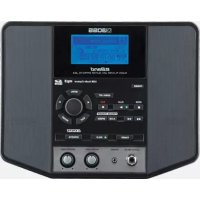
- eBand
- Front Panel
- Top Panel / Side Panels
- Top Screen
- Basic Operation
- Turning the Power On
- MEMO
- Turn the [MASTER LEVEL] knob down to the minimum level.
- Press the [POWER] button to turn the unit on.
- Turn the [MASTER LEVEL] knob and adjust the volume.
- Files included on the supplied SD card
- eBand Song List Editor
- USB driver
- ROLAND folder
- [MENU] Button
- Menu on the top screen
- Play the Guitar with Songs as Your Backing
- Selecting Songs
- Press the [ENTER] button.
- Displaying Songs by Category
- Registering Your 30 Favorite Songs (BEST 30)
- Selecting Songs on the USB Flash Drive
- File formats supported by the JS-10
- eBand format
- Deleting Songs
- NOTE
- Playing a Guitar While Playing Back a Song
- Playing a guitar while playing back a song on audio players
- Switching the Play Mode
- Display Explanation
- Tuning
- Recording Performances
- Switching Effects
- Select a patch.
- Changing the Speed of Songs
- Select SPEED.
- Set the playback speed.
- Changing the Pitch of Songs
- Select PITCH or FINE.
- Apply the settings for PITCH or FINE.
- Removing the Center Sound (Center Cancel)
- Repeating Playback of a Specified Segment (AB REPEAT)
- Precise Adjustment of the AB REPEAT Segment
- Importing Songs from a PC to the JS-10 (eBand Song List Editor)
- Before Using eBand Song List Editor
- Connecting the JS-10 to Your PC
- Installing eBand Song List Editor on Your PC
- Starting Up eBand Song List Editor
- Windows users
- Mac OS users
- Using eBand Song List Editor
- Ripping Songs from CD to the JS-10 (Ripping)
- Selecting the Song Format When Ripping Songs
- File formats that can be imported
- MP3 format
- WAV format
- Editing Song Information
- Entering text
- Saving the edited information
- Ending the Connection with the PC
- Convenient Functions
- Editing the Effects
- Visually Editing the Sound (EZ EDIT)
- Advanced Editing of Sounds (PATCH EDIT)
- MENU of an EFFECT screen
- Saving Patches
- ENTER
- Copying a patch
- Exchanging Two Patches (EXCHANGE)
- Initializing the Effect Settings (INITIALIZE)
- Backing Up Data on an SD Card to a PC (BACK UP)
- Recovering Data Backed Up on a PC to the SD Card (RECOVERY)
- Changing the Parameters of Songs
- View the Song Information
- Naming Songs
- Writing Songs to a USB Flash Drive (Export)
- Importing Songs in the USB Flash Drive to the JS-10 (Import)
- Changing the Patch When the Song is Switched (PATCH SYNC)
- Disabling the PATCH SYNC function
- Setting Current Patch in PATCH SYNC
- Specifying Audio Settings
- Switching the INPUT Jack Sensitivity
- Adjusting the Balance of Low to High Frequency Ranges (Global EQ)
- Turning Off the JS-10 Speakers
- System Settings for the JS-10
- Changing the Function of the USB COMPUTER Port
- Allocating Functions to Footswitches
- Backing Up Effect User Patches to an SD Card
- Restoring Effect User Patches Backed Up on the SD Card
- Viewing Free Space on the SD Card and the USB Flash Drive
- Adjusting Display Contrast
- Enabling Auto Off
- On the MENU > SYSTEM screen, follow this sequence of steps: "SETTING" → [ENTER] button.
- Listing the Files on the SD Card as a Song List
- Selecting the Sound Output from the USB COMPUTER Port
- Initializing an SD Card (FORMAT)
- Returning the JS-10's Settings to Default Factory Settings
- On the MENU > SYSTEM screen, follow this sequence of steps: "FACTORY RESET" → [ENTER] button.
- Select the parameter (add checkmark) whose settings you want to restore to the default factory settings.
- To return to the default factory settings, follow this sequence of steps: "OK" → [ENTER] button.
- Using the JS-10 as a USB Audio Interfaces
- Preparing a USB Driver
- Installing the USB Driver
- Playing Songs on a PC Through the JS-10
- Using the Commercially Available SD Cards
- Specifications for SD cards usable with the JS-10
- SD cards verified to work with the JS-10
- SD card capacity and recording time
- Replacing the SD Card
- About the SD card write protect function (LOCK)
- Using Footswitches and Expression Pedals
- Functions you can control with expression pedals
- Effect Parameter List
- AMP
- COMP/LIMITER
- OD/DS (Overdrive/Distortion)
- EQ (Equalizer)
- MODULATION
- PHASER
- Setting parameters with Tap Tempo
- FLANGER
- CHORUS
- TREMOLO
- ROTARY
- UNI-V (Uni-Vibe)
- PAN
- DELAY
- REVERB
- EZ CHAR
- WAH
- Specifications
- INSTRUCTIONS FOR THE PREVENTION OF FIRE, ELECTRIC SHOCK, OR INJURY TO PERSONS
- ALWAYS OBSERVE THE FOLLOWING
- WARNING
- Do not share an outlet with an unreasonable number of other devices
- Do not use overseas
- CAUTION
- Place in a well ventilated location
- Grasp the plug when connecting or disconnecting the AC adaptor
- Periodically clean the AC adaptor's plug
- Manage cables for safety
- Avoid climbing on top of the unit, or placing heavy objects on it
- Do not connect or disconnect the AC adaptor with wet hands
- Disconnect everything before moving the unit
- Unplug the AC adaptor from the outlet before cleaning
- If there is a possibility of lightning strike, disconnect the AC adaptor from the outlet
- Keep small items out of the reach of children
- IMPORTANT NOTES
- Power Supply
- Placement
- Maintenance
- Repairs and Data
- Additional Precautions
- Before Using External Memories
- Copyrights / Licenses / Trademarks
- A
- B
- C
- D
- E
- F
- G
- H
- 1
- K
- L
- M
- N
- 0
- P
- Q
- R
- S
- T
- U
- V
- W
- HINWEIS
- |
- Face avant
- MÉMO
- OD/DS (Overdrive/Distorsion)
- RECUERDE
- Gravando performances
- Instalando o driver USB
- Druk op de [ENTER]-knop.
- Selecteer PITCH of FINE.
- AFRICA
- EGYPT
- REUNION
- SOUTH AFRICA
- Paul Bothner(PTY)Ltd.
- ASIA
- CHINA
- Roland Shanghai Electronics
- HONG KONG
- Parsons Music Ltd.
- INDIA
- INDONESIA
- KOREA
- MALAYSIA/
- SINGAPORE
- PHILIPPINES
- TAIWAN
- ROLAND TAIWAN ENTERPRISE
- THAILAND
- VIET NAM
- OCEANIA
- AUSTRALIA/
- NEW ZEALAND
- CENTRAL/LATIN AMERICA
- ARGENTINA
- BARBADOS
- BRAZIL
- CHILE
- COLOMBIA
- COSTA RICA
- CURACAO
- DOMINICAN REPUBLIC
- ITALY
- NORWAY
- Roland Scandinavia Avd.
- POLAND
- PORTUGAL
- ROMANIA
- RUSSIA
- SERBIA
- SLOVAKIA
- SPAIN
- SWEDEN
- SWITZERLAND
- UKRAINE
- UNITED KINGDOM
- MIDDLE EAST
- BAHRAIN
- IRAN
- ISRAEL
- JORDAN
- KUWAIT
- LEBANON
- OMAN
- QATAR
- SAUDI ARABIA
- SYRIA
- TURKEY
- U.A.E. Zak Electronics & Musical
- NORTH AMERICA
- CANADA
- U.S.A.
- For EU Countries
- FEDERAL COMMUNICATIONS COMMISSION RADIO FREQUENCY INTERFERENCE STATEMENT
- NOTICE
- AVIS
- DECLARATION OF CONFORMITY Compliance Information Statement
Brand : BOSS
Model : eBand JS10
Category : Hi-fi system