ME25 - Guitar BOSS - Free user manual and instructions
Find the device manual for free ME25 BOSS in PDF.



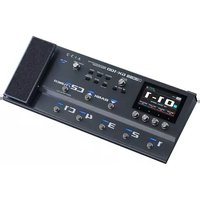
| Product Type | Multi-Effects Guitar |
| Brand | BOSS |
| Model | ME-25 |
| Dimensions (W x D x H) | 300 x 191 x 72 mm (max height 93 mm) |
| Weight | 1.9 kg (including batteries) |
| Power Supply | 9 V DC, BOSS PSA series AC adaptor or 6 R6/LR6 (AA) batteries |
| A/D D/A Conversion | 24 bits + AF method / 24 bits |
| Sampling Frequency | 44.1 kHz |
| Number of Memories | 60 |
| Nominal Input Level | INPUT: -10 dBu, AUX IN: -18 dBu |
| Input Impedance | INPUT: 1 MΩ, AUX IN: 22 kΩ |
| Nominal Output Level | -10 dBu |
| Output Impedance | 2 kΩ |
| Display | 2-digit 7-segment LED |
| Current Draw | 150 mA |
| Battery Life | Alkaline: 9 h, Carbon: 3 h |
| Modeling Technology | COSM (Composite Object Sound Modeling) |
| Amp Models | 10 types (CLEAN, TWIN, TWEED, VO DRIVE, BG LEAD, MS VINTAGE, MS MODERN, 5150 DRIVE, R-FIER, ULTRA METAL) |
| Built-in Effects | Compressor, OD/DS, modulation, delay, reverb, pedal effects (wah, octave, freeze), etc. |
| Phrase Loop Function | Up to 38 seconds recording |
| Connectors | INPUT, AUX IN, OUTPUT L/MONO, R, PHONES, USB type B |
| Built-in Tuner | Yes, with pitch calibration (440 Hz default) |
| Safety | Detailed safety instructions in the manual: do not open, use specified adaptor, avoid liquids |
| Maintenance | Clean with a soft, dry cloth; do not use solvents |
| Spare Parts and Repairability | Contact a Roland authorized service center; AC adaptor sold separately |
Frequently Asked Questions - ME25 BOSS
User questions about ME25 BOSS
0 question about this device. Answer the ones you know or ask your own.
Ask a new question about this device
Download the instructions for your Guitar in PDF format for free! Find your manual ME25 - BOSS and take your electronic device back in hand. On this page are published all the documents necessary for the use of your device. ME25 by BOSS.
USER MANUAL ME25 BOSS
ME-25 GUITAR MULTIPLE EFFECTS
Owner's Manual Bedienungsanleitung Mode d'emploi Manuale dell'utente Manual de instrucciones Manual do proprietário Gebruikershandleiding
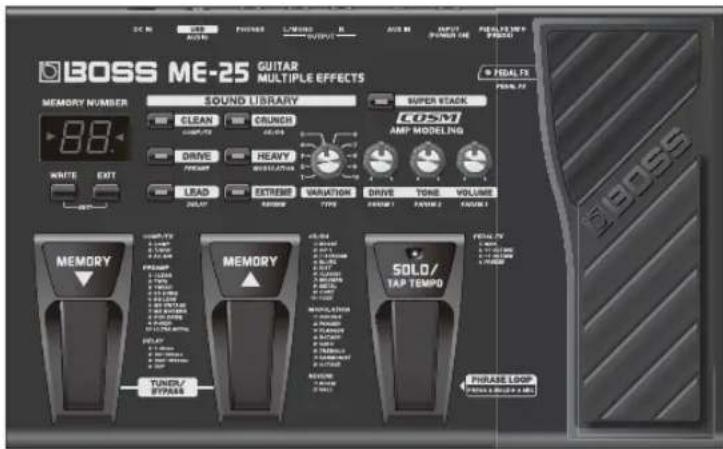
ME-25 GUITAR MULTIPLE EFFECTS
Owner's Manual
Before using this unit, carefully read the sections entitled: "USING THE UNIT SAFELY" (p. 13) and "IMPORTANT NOTES" (p. 14).
These sections provide important information concerning the proper operation of the unit. Additionally, in order to feel assured that you have gained a good grasp of every feature provided by your new unit, this manual should be read in its entirety. The manual should be saved and kept on hand as a convenient reference.
Copyright © 2010 BOSS CORPORATION
All rights reserved. No part of this publication may be reproduced in any form without the written permission of BOSS CORPORATION.
Main Features
- A large number of realistic preamp modeling algorithms using COSM
The unit is equipped with a diverse array of COSM amplifiers (ten types), ranging from clean sound to high-gain sound.
- Thanks to the Sound Library, you can get just the right sound when you need it
You can obtain the ideal sound simply by selecting a category and a variation.
• Super Stack feature
You can get the powerful sound of a large stacked tube amp with just the simple press of a button.
- Phrase Loop feature
You can record and loop the playback of phrases up to 38 seconds long.
- Can be linked with a PC using USB
You can use digital audio workstations (DAW) to accomplish digital recording and import new sounds.
About COSM
(Composite Object Sound Modeling)
Composite Object Sound Modeling—or “COSM” for short—is BOSS/Roland’s innovative and powerful technology that’s used to digitally recreate the sound of classic musical instruments and effects. COSM analyzes the many factors that make up the original sound—including its electrical and physical characteristics—and creates a digital model that accurately reproduces the original.
Making the Connections and
Turning the Power On 2
Let's Play! 3
Using the Sound Library...... 4
Saving Sounds (Memory Write)...... 4
Making Detailed Settings for Effects
(Edit Mode) 5
Adjusting the Noise Suppressor....5
Effect Guide ....6
COMP/FX (Compressor/Effects)....6
OD/DS (Overdrive/Distortion)......6
PREAMP 6
MODULATION 7
DELAY....7
REVERB....8
PEDAL FX (Pedal Effects) 8
Convenient Functions 9
Tuning the Guitar (Tuner)....9
Phrase Loop Play ....10
Checking the Values of Controls....10
Making the Settings for Control Operation .... 10
Computer Connection Via USB 11
Installing the USB Driver.... 11
Using Digital Audio Workstations (DAW).... 11
Appendices.... 12
Restoring the Factory Settings (Factory Reset)......12
Adjusting the Expression Pedal 12
Signal Flow....12
USING THE UNIT SAFELY.... 13
IMPORTANT NOTES ...... 14
Main Specifications....14
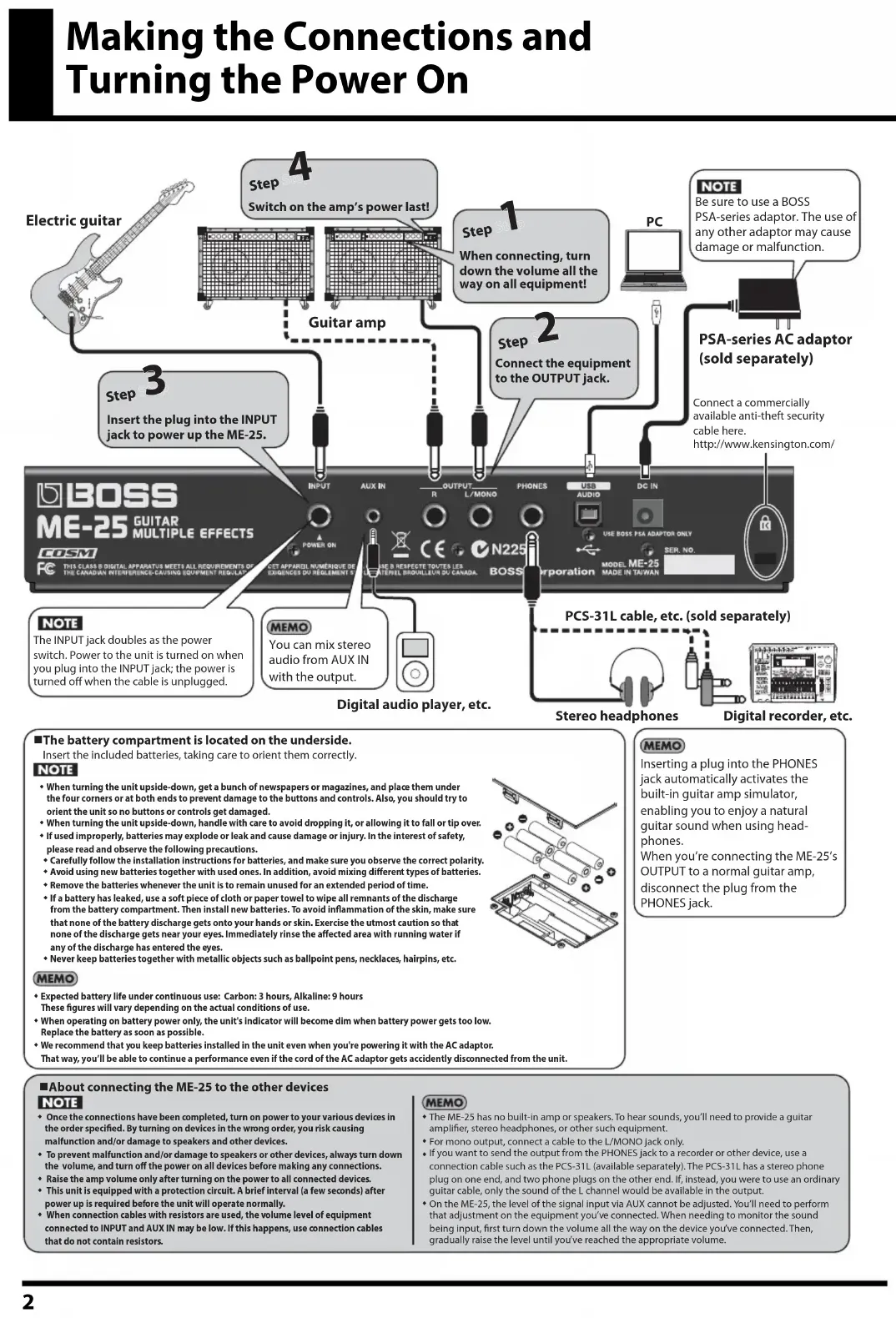
Making the Connections and
Turning the Power On
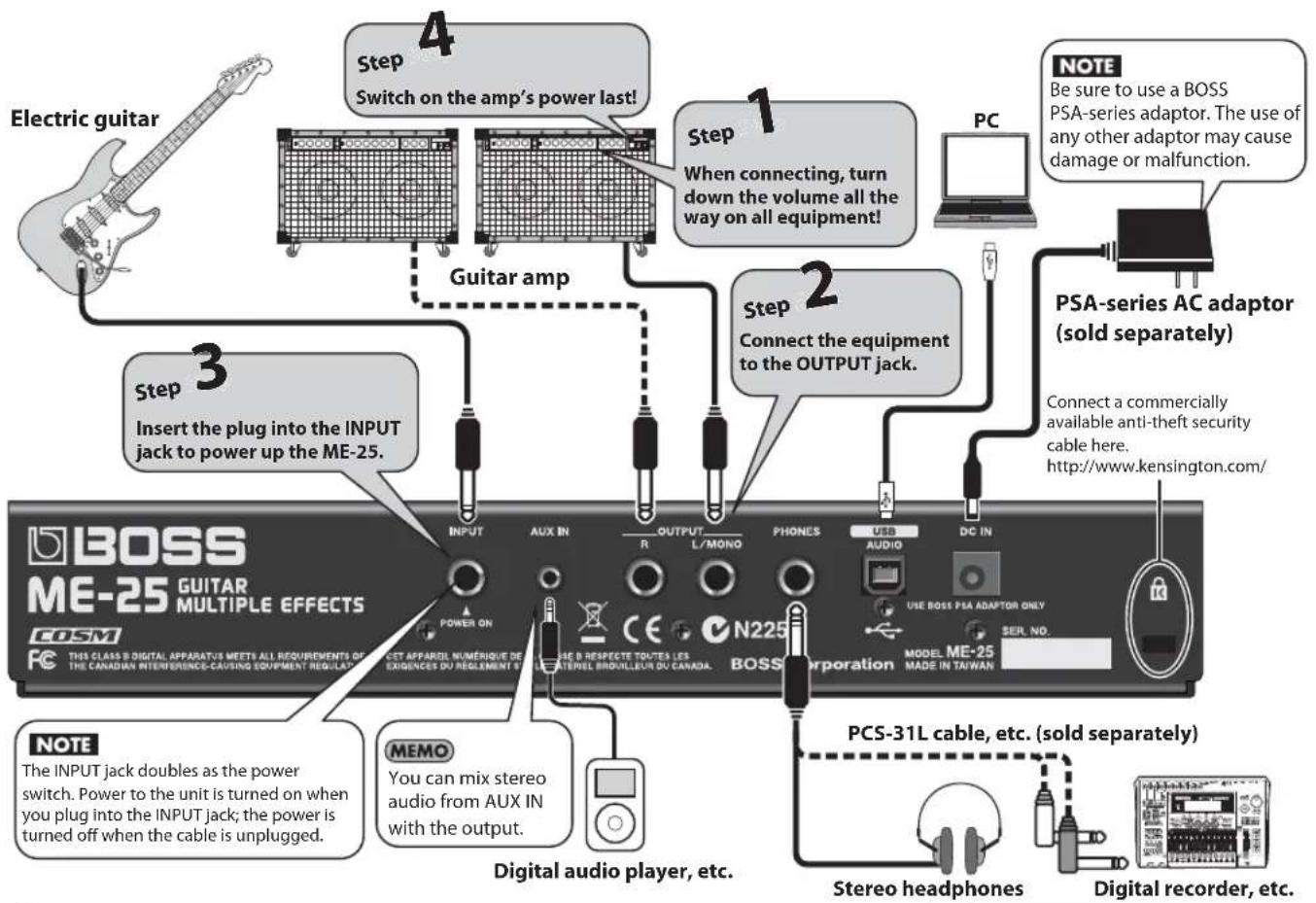
flowchart
graph TD
    A["Electric guitar"] --> B["Step 1: Switch on the amp's power last!"]
    B --> C["Step 2: Connect the equipment to the OUTPUT jack."]
    C --> D["Step 3: Insert the plug into the INPUT jack to power up the ME-25."]
    D --> E["Step 4: Switch on the amp's power last!"]
    E --> F["PC: PC with notes to be sure to use a BOSS PSA-series adaptor. The use of any other adaptor may cause damage or malfunction."]
    F --> G["PSA-series AC adaptor (sold separately)."]
    G --> H["Connect a commercially available anti-theft security cable here. http://www.kensington.com/"]
    H --> I["PCS-31L cable, etc. (sold separately)."]
    I --> J["Stereo headphones"]
    I --> K["Digital recorder, etc."]
■The battery compartment is located on the underside.
Insert the included batteries, taking care to orient them correctly.
NOTE
- When turning the unit upside-down, get a bunch of newspapers or magazines, and place them under the four corners or at both ends to prevent damage to the buttons and controls. Also, you should try to orient the unit so no buttons or controls get damaged.
- When turning the unit upside-down, handle with care to avoid dropping it, or allowing it to fall or tip over.
- If used improperly, batteries may explode or leak and cause damage or injury. In the interest of safety, please read and observe the following precautions.
- Carefully follow the installation instructions for batteries, and make sure you observe the correct polarity.
- Avoid using new batteries together with used ones. In addition, avoid mixing different types of batteries.
♦ Remove the batteries whenever the unit is to remain unused for an extended period of time.
If a battery has leaked, use a soft piece of cloth or paper towel to wipe all remnants of the discharge from the battery compartment. Then install new batteries. To avoid inflammation of the skin, make sure that none of the battery discharge gets onto your hands or skin. Exercise the utmost caution so that none of the discharge gets near your eyes. Immediately rinse the affected area with running water if any of the discharge has entered the eyes. - Never keep batteries together with metallic objects such as ballpoint pens, necklaces, hairpins, etc.
MEMO
- Expected battery life under continuous use: Carbon: 3 hours, Alkaline: 9 hours These figures will vary depending on the actual conditions of use.
* When operating on battery power only, the unit's indicator will become dim when battery power gets too low. Replace the battery as soon as possible.
We recommend that you keep batteries installed in the unit even when you're powering it with the AC adaptor. That way, you'll be able to continue a performance even if the cord of the AC adaptor gets accidentally disconnected from the unit.

natural_image
Exploded view diagram of a battery pack assembly (no text or labels)MEMO
Inserting a plug into the PHONES jack automatically activates the built-in guitar amp simulator, enabling you to enjoy a natural guitar sound when using headphones.
When you're connecting the ME-25's OUTPUT to a normal guitar amp, disconnect the plug from the PHONES jack.
■About connecting the ME-25 to the other devices
NOTE
Once the connections have been completed, turn on power to your various devices in the order specified. By turning on devices in the wrong order, you risk causing malfunction and/or damage to speakers and other devices.
• To prevent malfunction and/or damage to speakers or other devices, always turn down the volume, and turn off the power on all devices before making any connections.
- Raise the amp volume only after turning on the power to all connected devices.
This unit is equipped with a protection circuit. A brief interval (a few seconds) after power up is required before the unit will operate normally.
- When connection cables with resistors are used, the volume level of equipment connected to INPUT and AUX IN may be low. If this happens, use connection cables that do not contain resistors.
MEMO
The ME-25 has no built-in amp or speakers. To hear sounds, you'll need to provide a guitar amplifier, stereo headphones, or other such equipment.
- For mono output, connect a cable to the L/MONO jack only.
If you want to send the output from the PHONES jack to a recorder or other device, use a connection cable such as the PCS-31L (available separately). The PCS-31L has a stereo phone plug on one end, and two phone plugs on the other end. If, Instead, you were to use an ordinary guitar cable, only the sound of the L channel would be available in the output.
* On the ME-25, the level of the signal input via AUX cannot be adjusted. You'll need to perform that adjustment on the equipment you've connected. When needing to monitor the sound being input, first turn down the volume all the way on the device you've connected. Then, gradually raise the level until you've reached the appropriate volume.
Once you've finished making the connections, try playing sounds as you operate the ME-25.


Should you encounter unexpected results, such as no sound being produced, check the following.
Are connections to other devices correctly made?
Check the connections once more.
Is the volume turned down?
Check the volume levels on any connected amp or mixer.
- Has the level been lowered with the expression pedal?
When the expression pedal is set to control volume, sounds are not output when the toe of the pedal is in the raised position.
Using the Sound Library
What's the Sound Library?
The Sound Library contains sounds in a variety of styles.
You can obtain ideal sounds with ease, simply by selecting a sound provided in the Sound Library.
Six categories are available (CLEAN, CRUNCH, DRIVE, HEAVY, LEAD, and EXTREME), with ten different variations provided for each.
For information on Sound Library sounds, read the separate "Sound Library List."

1. Choose the category you want.
"SL" will appear in the display.
2. Choose the variation you want.
3. Press [EXIT].
This completes the procedure for selecting sounds from the Sound Library.
![BOSS ME25 - Press [EXIT]. - 1](/content/2026/04/620547/images/19ce58263153def0f9458b0414a54acd7f2b1ffbc75ef11b94a43c702023f0db.jpg)
Sounds cannot be added and saved in the Sound Library using the ME-25 itself. Sounds that you like and want to reuse should be saved in memory (Memory Write).
![BOSS ME25 - Press [EXIT]. - 2](/content/2026/04/620547/images/333e7ed804c07da990bc54fc79a20860c2694538c3eeffdc64a7f20908460d68.jpg)
When saving the sounds in memory, placing them in the order that you intend to use during the performance will be helpful.
Saving Sounds (Memory Write)
This saves the current effect, noise suppressor, and control settings in a memory.
NOTE
- Until you perform a Memory Write operation, switching off the power or changing memories will cause any tones you've created to be lost.
- Carrying out a Memory Write operation causes the sound already saved at the destination memory to be lost.

1. Press [WRITE].
The memory number shown in the display will start blinking.
2. Use the MEMORY pedals to choose the memory number where you'd like to save the memory.

Pressing and holding a pedal lets you switch memories successively.

To cancel the Memory Write procedure, press [EXIT].
3. Press [WRITE] again.
The memory number will blink more rapidly, indicating that the sound has been saved.
![BOSS ME25 - Press [WRITE] again. - 1](/content/2026/04/620547/images/7b9630f97a9cf2edcdd4e20d19ace139d13ffec4384c01e6c613eb2ea4fdda4b.jpg)
To copy a memory, call up the memory you want to copy, then simply carry out a Memory Write operation. You can copy the memory by choosing a different memory number and saving it there.
Making Detailed Settings for Effects (Edit Mode)
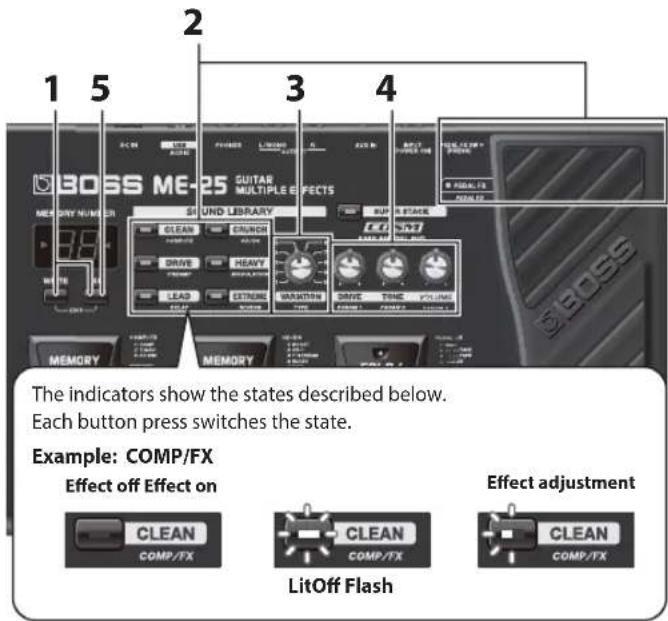
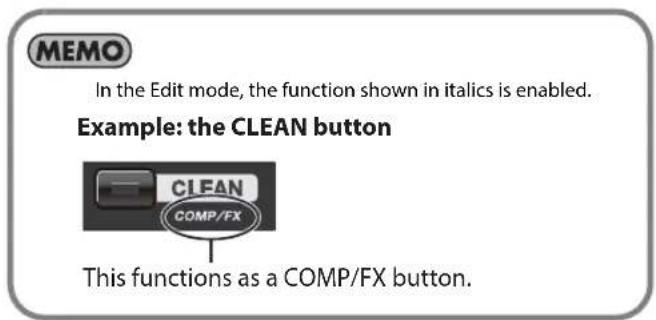
In Edit mode, you can make detailed settings for all the effects.
Adjusting the Noise Suppressor
This suppresses the noise and hum picked up by the guitar's pickups.
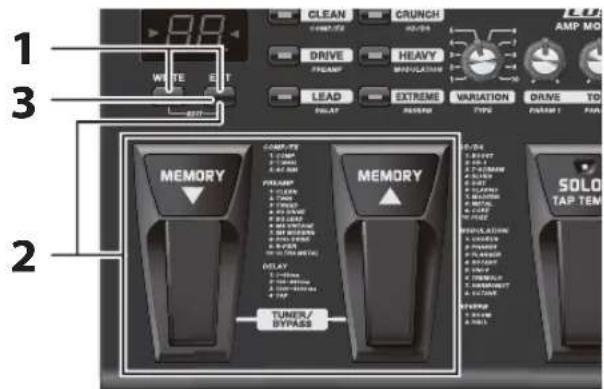
1. Hold down [EXIT] and press [WRITE].
"Ed" appears in the display and operation switches to Edit mode.
1. Hold down [EXIT] and press [WRITE].
"Ed" appears in the display and operation switches to Edit mode.
2. Choose the effect whose settings you want to make.
The indicator for the selected effect flashes.

To select PEDAL FX, firmly press down on the toe of the expression pedal until the PEDAL FX indicator is lit.
For more information about each effect, read "Effect Guide" (p. 6).
3. Choose the type of effect.

The number of types varies depending on the effect. For instance, setting the COMP/FX type to 4 selects 3 (AC SIM) as the type.
4. Adjust the effect as desired.
5. Press [EXIT].
This ends Edit mode.
6. If you want to save the settings you've just made, carry out the Memory Write procedure (p. 4).

Turning off the power or switching memories before you carry out a Memory Write operation causes the sound you've created to be lost.
2. Holding down [EXIT] and use the MEMORY ▼ or ▲ pedals to adjust the the noise suppressor.
The current noise suppressor setting (t0–t9) appears in the display.
![BOSS ME25 - Holding down [EXIT] and use the MEMORY ▼ or ▲ pedals to adjust the the noise suppressor. - 1](/content/2026/04/620547/images/52bd38658f1fb6842de326da515520087b202a472a9a9f3337767c00a3550730.jpg)
• A setting of t0 (zero) turns off the noise suppressor.
- Adjusting the noise suppressor setting higher than necessary may result in no sound when the guitar is played at low volume.
3. Press [EXIT (EDIT)].
This ends Edit mode.
4. If you want to save the setting, carry out a Memory Write operation (p. 4).

Turning off the power or switching memories before you carry out a Memory Write operation causes the sound you've created to be lost.
Effect Guide
All product names mentioned in this document are trademarks or registered trademarks of their respective owners.
Those companies are not affiliated with BOSS and have not licensed or authorized BOSS's ME-25. Their marks are used solely to identify the equipment whose sound is simulated by BOSS's ME-25.
COMP/FX (Compressor/Effects)
This produces an effect that sustains the sound without distortion.
| TYPE | Explanation | PARAM 1 | PARAM 2 | PARAM 3 |
| 1: COMP | This produces an effect that sustains the sound without distortion. | SUSTAIN:This sets the sustain for the sound. | ATTACK:This sets the attack (onset) of the effect sound. | LEVEL:This sets the volume level of the effect. |
| 2: T.WAH | This produces a wah effect matched to the intensity of your picking. | SENS:This sets the sensitivity of response to the input sound. | TONE:This sets the tone (brightness) of the wah. | PEAK:This sets the intensity of the wah sound. |
| 3: AC SIM | This transforms the sound of your electric guitar into an acoustic guitar sound. | LOW:This adjusts the tone of the low frequency range. | HIGH:This adjusts the tone of the high frequency range. | LEVEL:This sets the volume level of the effect. |
OD/DS (Overdrive/Distortion)
These effects add distinctive distortion or sustain.
| TYPE | Explanation | PARAM 1 | PARAM 2 | PARAM 3 |
| 1: BOOST | This is a gain booster. It works well for creating distortion with a COSM preamp, or for creating punchy clean tones when used alone. | DRIVE: This sets the intensity of the distortion. | TONE: This sets the brightness of the sound. | LEVEL: This sets the volume level for OD/DS. |
| 2: OD-1 | This is the sound of the BOSS OD-1. It produces sweet, mild distortion. | |||
| 3: T-SCREAM | This models an Ibanez TS-808. | |||
| 4: BLUES | This is a unique overdrive that faithfully reproduces the nuances of picking. | |||
| 5: DIST | This is a sharp distortion with rich sustain. | |||
| 6: CLASSIC | This is the sound of a vintage stack-type amp. | |||
| 7: MODERN | This is the sound of a large high-gain amp. | |||
| 8: METAL | This is a distortion that emphasizes the midrange. | |||
| 9: CORE | This is a distortion that cuts the midrange. | |||
| 10: FUZZ | This is a distortion that is distinctively rough and heavy. |
PREAMP
This models preamp response.
| TYPE | Explanation | PARAM 1 | PARAM 2 | PARAM 3 |
| 1: CLEAN | This is a clean sound that is smooth and warm. | DRIVE:This sets the amount of distortion of the pre-amp. | TONE:This sets adjusts the tone quality of the pre-amp. | VOLUME:This sets adjusts the volume level of the pre-amp. |
| 2: TWIN | This models a Fender Twin Reverb. | |||
| 3: TWEED | This is a crunch sound of a Fender Bassman. | |||
| 4: VO DRIVE | This is a crunch sound reminiscent of a VOX combo amp. | |||
| 5: BG LEAD | This is a lead sound of a Mesa/Boogie combo amp. | |||
| 6: MS VINTAGE | This is a sound reminiscent of 1970s Marshall amps. | |||
| 7: MS MODERN | This models the higher-gain sound of Marshall amps of recent vintage. | |||
| 8: 5150 DRIVE | This is a lead channel of a Peavey EVH5150. | |||
| 9: R-FIER | This models a Mesa/Boogie Dual Rectifier. | |||
| 10: ULTRA METAL | This is an original metal amp of exclusive design that produces sound having distinct contours along with bold bass and heavy distortion.This is ideal for all kinds of metal play, including complex and intense riffs, heavy and thundering downtuned bass riffs, speedy solos, and more. |
MODULATION
These effects broaden, modulate, and/or pitch shift the sound.
| TYPE | Explanation | PARAM 1 | PARAM 2 | PARAM 3 |
| 1: CHORUS | This effect adds subtle wavering to transform the tone into one that is broader, thicker, and more beautiful. | RATE:This sets the speed of the effect | DEPTH:This sets the richness of the effect | E.LEVEL:This sets the volume level of the effect. |
| 2: PHASER | This effect creates a sweeping, phase-shifted sound. | RATE:This sets the speed of the effect | DEPTH:This sets the richness of the effect | RESONANCE:This sets the intensity of the effect. |
| 3: FLANGER | This creates a modulation effect like the rising and falling sound of a jet engine. | RATE:This sets the speed of the effect | DEPTH:This sets the richness of the effect | RESONANCE:This sets the intensity of the effect. |
| 4: ROTARY | This effect produces the sound of rotating speakers. | RATE:This sets the speed of the effect | DEPTH:This sets the richness of the effect | E.LEVEL:This sets the volume level of the effect. |
| 5: UNI-V | This models the Uni-Vibe, an effect that's part of the rock sound of the 1960s. | RATE:This sets the speed of the effect | DEPTH:This sets the richness of the effect | E.LEVEL:This sets the volume level of the effect. |
| 6: TREMOLO | This produces a retro effect through cyclical changes in the volume level. | RATE:This sets the speed of the effect | DEPTH:This sets the richness of the effect | E.LEVEL:This sets the volume level of the effect. |
| 7: HARMONIST | This creates harmonies reminiscent of twin guitars.* Play only single notes when using the harmonist effect | KEY:This sets the musical key of the song being played.Ex.(E) [IMAGE] (F#) [IMAGE] | HARMONY:This sets the pitch of the harmony.[IMAGE] Detune +1 Octave-1 Octave | E.LEVEL:This sets the volume level of the effect. |
| 8: OCTAVE | This imparts thickness by adding sound an octave lower.* Play only single notes when using the octave effect. | - D.LEVEL: | This sets the volume level of the direct sound. | E.LEVEL:This sets the volume level of the effect |
DELAY
This delays the sound to produce an echo-like effect. It lets you add thickness and create complex sounds.
| TYPE | Explanation | PARAM 1 | PARAM 2 | PARAM 3 |
| 1: 1–99 ms | This is a delay of 1 to 99 ms (milli-seconds), which is ideal for a doubling effect. | TIME:This sets the delay time in steps of 1 ms.Ex. 2ms 98299 | FEEDBACK:This sets the number of times the delay sound repeats. | E.LEVEL:This sets the volume level of the delay sound. |
| 2: 100–990 ms | This delay has a delay time of 100 to 990 ms (milliseconds). | TIME:This sets the delay time in steps of 10 ms.Ex. 120ms 98299 | FEEDBACK:This sets the number of times the delay sound repeats. | E.LEVEL:This sets the volume level of the delay sound. |
| 3: 1000–6000 ms | This is a delay of 1,000 to 6,000 ms (milliseconds), which is suited to special effects. | TIME:This sets the delay time in steps of 100 ms.Ex. 1200ms 68268 | FEEDBACK:This sets the number of times the delay sound repeats. | E.LEVEL:This sets the volume level of the delay sound. |
| 4: TAP | This allows you to use the SOLO pedal to set the delay time (see below). | TIME:This sets the beat for the delay sound.Ex.\( 8888888888888888888888888888888888888888888888888888888888888888888888888888888888888888888888888888 | FEEDBACK:This sets the number of times the delay sound repeats. | E.LEVEL:This sets the volume level of the delay sound. |
Applying Effects in Time with the Song Tempo (Tap Tempo)
When TAP is selected, you can set the delay's tempo as dotted eighth notes or quarter notes by pressing the SOLO pedal two or more times in time with the tempo of the song.
The SOLO pedal's indicator flashes in time with the current tempo.

When TAP is selected as the delay type, the SOLO feature cannot be switched on or off.

flowchart
graph TD
    A["Timing"] --> B["Speaker Icon"]
    C["Delay Sound"] --> D["Speaker Icon"]
    E["TIME setting"] --> F["Speaker Icon"]
    G["Speaker Icon"] --> H["Speaker Icon"]
Making Detailed Settings for Effects (Edit Mode)
REVERB
This adds lingering reverberations to the sound.
| TYPE | Explanation | PARAM 1 | PARAM 2 | PARAM 3 |
| 1: ROOM | This simulates the reverberations inside a room. | -- LEVEL: | This sets the volume level of the effect. | |
| 2: HALL | This simulates the reverberations inside a hall. |
PEDAL FX (Pedal Effects)
This produces a variety of effects using the ME-25's expression pedals.

For information on how to use pedal effects, read "Using Pedal Effects" (p. 3).
| TYPE | Explanation | PARAM 1 | PARAM 2 | PARAM 3 |
| 1: WAH | This is a wah effect. | --- | ||
| 2: +1 OCTAVE | This lets you continuously vary the pitch up to one octave higher or lower than the original sound.* Play only single notes when using the octave effect. | |||
| 3: -1 OCTAVE | ||||
| 4: FREEZE | This lets you sustain sound by operating a pedal. You can use this to hold a chord sound while playing a melody line. |
Using FREEZE
- Press the heel of the expression pedal.
- Play the guitar, and while the sound is playing, press the toe of the expression pedal.
The sound is sustained for as long as you keep the pedal pressed.
* You can adjust the volume of the sustained sound by changing the pedal position.
- Pressing the heel of the expression pedal stops the sustained sound.
Tuning the Guitar (Tuner)

1. Press the MEMORY ▼ pedals at the same time.
The tuner is switched on.
2. If necessary, adjust the reference pitch.
You can change the reference pitch by holding down [EXIT] and pressing the MEMORY ▼ ▲ pedals.
| Display Pitch |
| 35-45 435-445 [Hz] |
MEMO
- The reference pitch setting is saved automatically, so there is no need to make this setting each time you tune.
The reference pitch was set to 40 (440 Hz) when the unit was shipped from the factory.
3. Play a single open note on the string to be tuned.
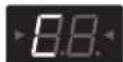
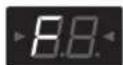
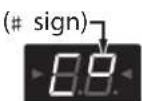
The name of the note closest to the current pitch of the string played appears in the display.
(C)
(F)
(G)

(D) (E)

(A)

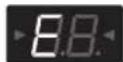
(B)
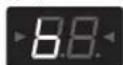
4. Tune so that the desired pitch is displayed and both tuning guide indicators light up.
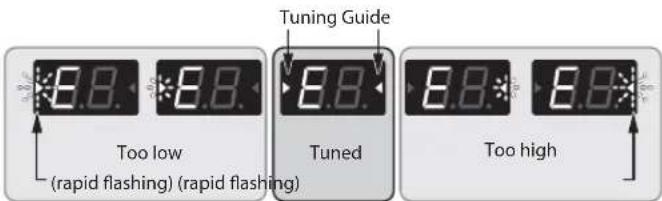
5. Press the MEMORY ▼ pedals at the same time.
The tuner is switched off.
Bypass Feature (BYPASS)
In Tuner mode, the sound output is the same as the input sound, with no effects applied (bypass).
You can use the expression pedal to control the volume.
Phrase Loop Play
You can record up to 38 seconds of a performance and play back the recorded section over and over. You can also layer additional performances with the recording as it plays back (overdubbing). This lets you create realtime backing performances on the fly.

flowchart
graph TD
    A["1. Press & hold > 2sec"] --> B["STANDBY"]
    B --> C["2."]
    C --> D["REC"]
    D --> E["3."]
    E --> F["PLAY"]
    F --> G["4."]
    G --> H["OVERDUB"]
    H --> I["5."]
    I --> B
    style A fill:#f9f,stroke:#333
    style B fill:#ccf,stroke:#333
    style C fill:#cfc,stroke:#333
    style D fill:#fcc,stroke:#333
    style E fill:#cff,stroke:#333
    style F fill:#ffc,stroke:#333
    style G fill:#cfc,stroke:#333
    style H fill:#fcc,stroke:#333
    style I fill:#cfc,stroke:#333
- Hold down the SOLO pedal for two seconds or longer (STANDBY).
Phrase Loop goes into recording standby and the SOLO pedal's indicator flashes at a fixed interval.
- Press the SOLO pedal (REC).
Recording starts as soon as you press the SOLO pedal, and the SOLO pedal's indicator flashes rapidly.
- Press the SOLO pedal again (PLAY).
Recording ends. As soon as recording stops, repeated playback of what you've recorded starts, and the SOLO pedal's indicator lights continuously.
MEMO
An oscillating sound may be audible when the recording time is extremely short.
- To layer additional recordings (overdubbing), repeat Steps 2 and 3 (OVERDUB).
TIP
You can switch memories even during phrase loop play, which lets you record a variety of overdubbed sounds.
- To stop loop playback, press the SOLO pedal twice in quick succession (STANDBY).
Loop playback/recording stops, and Phrase Loop returns to recording standby.
MEMO
- Press the pedal twice within the span of one second.
-
When playback ends, the recorded data is deleted.
-
Hold down the SOLO pedal for 2 seconds or longer.
This exits Phrase Loop mode.
Checking the Values of Controls
Operations such as calling up memories or Sound Library sounds may result in discrepancies between the stored parameters and the actual positions of the controls.
You can get the actual parameter values to appear in the display so you can check them.
Hold down [EXIT] and turn the control for the value you want to check.
NOTE
The value of the knob appears on the display for several seconds.
Making the Settings for Control Operation
When you call up memories, an effect's parameters may not reflect the actual position of the control knobs. You can set how the parameters behave when the control knobs are moved in this state.
- Hold down [EXIT] and press the MEMORY pedal.

- Use MEMORY ▼ pedals to select the method of control operation.
Display Control operation
| n0 The value changes immediately as the knob is turned (factory setting). |
| n1 The value changes once the knob is turned past the position corresponding to the currently set value. |
- Press [WRITE].
The setting is stored in memory.
Computer Connection Via USB
Connecting the unit to a computer enables you to manage the sounds on the ME-25 or to use a digital audio workstation (DAW) to record, play back, and edit audio.
Installing the USB Driver
By using the dedicated driver, you can record, play back, and edit audio with high-quality sound and stable timing, and control the ME-25 using MIDI.
You can download the ME-25 driver from the Roland local website (http://www.oland.com/).
You must install the driver before you make USB connections.
The program and procedures for installing the driver may vary according to your operating environment; carefully read the Readme included in the downloaded file.
Using Digital Audio Workstations (DAW)
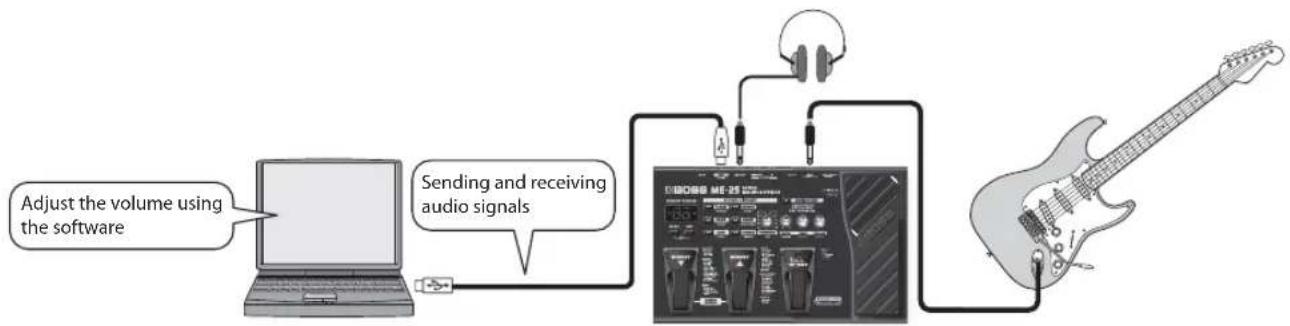
You can use the ME-25 as an audio interface to the DAW via USB.
flowchart
graph LR
    A["Laptop"] -->|Adjust the volume using the software| B["BoSS ME-25 audio"]
    B --> C["Audio Signals"]
    C --> D["Handheld with headphones"]
    D --> E["Electric Guitar"]
NOTE
Use your computer's software to adjust the level of the signal input via USB (it cannot be adjusted on the ME-25 itself). To adjust the volume of a guitar, use the expression pedal or adjust other volume related parameters.
To monitor the sound being input, first lower the volume all the way using your computer's software. Then, gradually raise the level until you've obtained the amount of volume you want.
MEMO
When the ME-25 is connected to a computer, the built-in guitar amp simulator is switched on.
The signal that is input via AUX IN is not output using USB.
Restoring the Factory Settings (Factory Reset)
You can restore the settings in the ME-25 (memories, tuner reference pitch, and knob response method) to the values set when the unit was shipped from the factory.
MEMO
Performing a factory reset causes all settings saved in memory to be lost.
1. Hold down [EXIT] and press the MEMORY ▼ pedal.
"FA" appears in the display.
2. Press [WRITE].
The Tuning Guide flashes.
3. Press [WRITE] again.
The display flashes and the factory reset is executed.
NOTE
Never turn off the power while factory reset is in progress.
Adjusting the Expression Pedal
The ME-25's expression pedal has been set for optimal operation at the factory. However, extended use and certain operating environments can result in the pedal going out of adjustment. If you encounter problems such as the expression pedal's ON/OFF switch not functioning or the volume pedal not fully cutting off the sound, you can use the following procedure to readjust the pedal.
NOTE
When operating the expression pedal, be careful not to get your fingers pinched between the movable part and the panel. In places with small children, an adult should provide supervision and guidance until the child is capable of following all the rules essential for the safe operation of the unit.
1. Hold down [EXIT] and press the SOLO Pedal.
The display shows "Pd" then "Up."
2. Move the heel of the expression pedal all the way down, then release the pedal and press [WRITE].
The display shows "dn."
3. Move the toe of the expression pedal all the way down, then release the pedal and press [WRITE].
A value indicating the current stiffness (sensitivity) of the expression pedal switch appears in the display.
MEMO
If the display flashes in Steps 2 or 3, press the pedal again, and then press [WRITE].
4. Use the MEMORY ▼ pedals to adjust the stiffness (sensitivity) of the expression pedal toe switch.
The lower the value, the more easily the switch will respond, even when pressed lightly.
MEMO
This is set to "5" when shipped from the factory.
5. Press [WRITE].
The setting is saved in memory.
Signal Flow

flowchart
graph LR
    A["ME-25"] --> B["INPUT"]
    B --> C["EFFECT"]
    C --> D["COMP/FX"]
    D --> E["OD/DS PR"]
    E --> F["SAMPEDAL FX"]
    C --> G["NOISE SUPPRESSOR"]
    G --> H["VOLUME (PEDAL)"]
    H --> I["MODULATION"]
    I --> J["DELAY REMERB"]
    J --> K["OUTPUT"]
    K --> L["MONITOR"]
    L --> M["USB OUT"]
    K --> N["USB IN"]
    K --> O["AUX IN"]
    K --> P["PHONES"]
    P --> Q["USB"]
* Essentially, effects are connected in the order illustrated above. However, this order may change automatically in order to optimize the connection order and accommodate particular settings.
USING THE UNIT SAFELY
INSTRUCTIONS FOR THE PREVENTION OF FIRE, ELECTRIC SHOCK, OR INJURY TO PERSONS
About ⚠ WARNING and ⚠ CAUTION Notices
| WARNING | Used for instructions intended to alert the user to the risk of death or severe injury should the unit be used improperly. |
| CAUTION | Used for instructions intended to alert the user to the risk of injury or material damage should the unit be used improperly.* Material damage refers to damage or other adverse effects caused with respect to the home and all its furnishings, as well to domestic animals or pets. |
About the Symbols
| The △ symbol alerts the user to important instructions or warnings. The specific meaning of the symbol is determined by the design contained within the triangle. In the case of the symbol at left, it is used for general cautions, warnings, or alerts to danger. | |
| The ○ symbol alerts the user to items that must never be carried out (are forbidden). The specific thing that must not be done is indicated by the design contained within the circle. In the case of the symbol at left, it means that the unit must never be disassembled. | |
| The ● symbol alerts the user to things that must be carried out. The specific thing that must be done is indicated by the design contained within the circle. In the case of the symbol at left, it means that the power-cord plug must be unplugged from the outlet. |
ALWAYS OBSERVE THE FOLLOWING
! WARNING
- Do not open (or modify in any way) the unit or its AC adaptor.

- Do not attempt to repair the unit, or replace parts within it (except when this manual provides specific instructions directing you to do so). Refer all servicing to your retailer, the nearest Roland Service Center, or an authorized Roland distributor, as listed on the "Information" page.

- Never install the unit in any of the following locations.

- Subject to temperature extremes (e.g., direct sunlight in an enclosed vehicle, near a heating duct, on top of heat-generating equipment); or are

- Damp (e.g., baths, washrooms, on wet floors); or are
- Exposed to steam or smoke; or are
- Subject to salt exposure; or are
• Humid; orar - Exposed to rain; or are
• Dusty or sandy; or are - Subject to high levels of vibration and shakiness.
• Make sure you always have the unit placed so it is level and sure to remain stable. Never place it on stands that could wobble, or on inclined surfaces.

- Use only the specified AC adaptor (PSA series), and make sure the line voltage at the installation matches the input voltage specified on the AC adaptor's body. Other AC adaptors may use a different polarity, or be designed for a different voltage, so their use could result in damage, malfunction, or electric shock.

- Do not excessively twist or bend the power cord, nor place heavy objects on it. Doing so can damage the cord, producing severed elements and short circuits. Damaged cords are fire and shock hazards!

• This unit, either alone or in combination with an amplifier and headphones or speakers, may be capable of producing sound levels that could cause permanent hearing loss. Do not operate for a long period of time at a high volume level, or at a level that is uncomfortable. If you experience any hearing loss or ringing in the ears, you should immediately stop using the unit, and consult an audiologist.

WARNING
- Do not allow any objects (e.g., flammable material, coins, pins); or liquids of any kind (water, soft drinks, etc.) to penetrate the unit.


- Immediately turn the power off, remove the AC adaptor from the outlet, and request servicing by your retailer, the nearest Roland Service Center, or an authorized Roland distributor, as listed on the "Information" page when: - The AC adaptor or the power-supply cord has been damaged; or - If smoke or unusual odor occurs - Objects have fallen into, or liquid has been spilled onto the unit; or - The unit has been exposed to rain (or otherwise has become wet); or - The unit does not appear to operate normally or exhibits a marked change in performance.
• In households with small children, an adult should provide supervision until the child is capable of following all the rules essential for the safe operation of the unit.

- Protect the unit from strong impact. (Do not drop it!)

- Do not force the unit's power-supply cord to share an outlet with an unreasonable number of other devices. Be especially careful when using extension cords—the total power used by all devices you have connected to the extension cord's outlet must never exceed the power rating (watts/amperes) for the extension cord. Excessive loads can cause the insulation on the cord to heat up and eventually melt through.
- Before using the unit in a foreign country, consult with your retailer, the nearest Roland Service Center, or an authorized Roland distributor, as listed on the "Information" page.
- Batteries must never be recharged, heated, taken apart, or thrown into fire or water.


- Never expose Battery to excessive heat such as sunshine, fire or the like.

CAUTION
• The unit and the AC adaptor should be located so their location or position does not interfere with their proper ventilation.

• Always grasp only the output plug or the body of the AC adaptor when plugging into, or unplugging from, this unit or an outlet.

- At regular intervals, you should unplug the AC adaptor and clean it by using a dry cloth to wipe all dust and other accumulations away from its prongs. Also, disconnect the power plug from the power outlet whenever the unit is to remain unused for an extended period of time. Any accumulation of dust between the power plug and the power outlet can result in poor insulation and lead to fire.
• Try to prevent cords and cables from becoming entangled. Also, all cords and cables should be placed so they are out of the reach of cl

- Never climb on top of, nor place heavy objects on the unit.

- Never handle the AC adaptor body, or its output plugs, with wet hands when plugging into, or unplugging from, an outlet or this unit.

• Before moving the unit, disconnect the AC adaptor and all cords coming from external devices.

• Before cleaning the unit, turn off the power and unplug the AC adaptor from the outlet (p. 2).

- Whenever you suspect the possibility of lightning in your area, disconnect the AC adaptor from the outlet.

[Non-Text]

CAUTION


• If used improperly, batteries may explode or leak and cause damage or injury. In the interest of safety, please read and observe the following precautions (p. 2).
- Carefully follow the installation instructions for batteries, and make sure you observe the correct polarity.
- Avoid using new batteries together with used ones. In addition, avoid mixing different types of batteries.
- Remove the batteries whenever the unit is to remain unused for an extended period of time.
- If a battery has leaked, use a soft piece of cloth or paper towel to wipe all remnants of the discharge from the battery compartment. Then install new batteries. To avoid inflammation of the skin, make sure that none of the battery discharge gets onto your hands or skin. Exercise the utmost caution so that none of the discharge gets near your eyes. Immediately rinse the affected area with running water if any of the discharge has entered the eyes.
- Never keep batteries together with metallic objects such as ballpoint pens, necklaces, hairpins, etc.
sed batteries must be disposed of in compliance with whatever regulations for their safe disposal that may be observed in the region in which you live.
would you remove a USB connector cap, keep them in a safe place out of children's reach, so there is no chance of them being swallowed accidentally.
IMPORTANT NOTES
Power Supply: Use of Batteries
- Do not connect this unit to same electrical outlet that is being used by an electrical appliance that is controlled by an inverter (such as a refrigerator, washing machine, microwave oven, or air conditioner), or that contains a motor. Depending on the way in which the electrical appliance is used, power supply noise may cause this unit to malfunction or may produce audible noise. If it is not practical to use a separate electrical outlet, connect a power supply noise filter between this unit and the electrical outlet.
- The AC adaptor will begin to generate heat after long hours of consecutive use. This is normal, and is not a cause for concern.
- If you'll be using the ME-25 for an extended time, we recommend that you use an AC adaptor. If you prefer to use a battery, we recommend an alkaline battery.
- Batteries should always be installed or replaced before connecting any other devices. This way, you can prevent malfunction and/or damage to speakers or other devices.
- Batteries are supplied with the unit. The life of these batteries may be limited, however, since their primary purpose was to enable testing.
- Before connecting this unit to other devices, turn off the power to all units. This will help prevent malfunctions and/or damage to speakers or other devices.
Placement
- Using the unit near power amplifiers (or other equipment containing large power transformers) may induce hum. To alleviate the problem, change the orientation of this unit; or move it farther away from the source of interference.
• This device may interfere with radio and television reception. Do not use this device in the vicinity of such receivers. -
Noise may be produced if wireless communications devices, such as cell phones, are operated in the vicinity of this unit. Such noise could occur when receiving or initiating a call, or while conversing. Should you experience such problems, you should relocate such wireless devices so they are at a greater distance from this unit, or switch them off.
-
Do not expose the unit to direct sunlight, place it near devices that radiate heat, leave it inside an enclosed vehicle, or otherwise subject it to temperature extremes. Excessive heat can deform or discolor the unit.
- When moved from one location to another where the temperature and/or humidity is very different, water droplets (condensation) may form inside the unit. Damage or malfunction may result if you attempt to use the unit in this condition. Therefore, before using the unit, you must allow it to stand for several hours, until the condensation has completely evaporated.
- Depending on the material and temperature of the surface on which you place the unit, its rubber feet may discolor or mar the surface. You can place a piece of felt or cloth under the rubber feet to prevent this from happening. If you do so, please make sure that the unit will not slip or move accidentally.
Maintenance
- For everyday cleaning wipe the unit with a soft, dry cloth or one that has been slightly dampened with water. To remove stubborn dirt, use a cloth impregnated with a mild, non-abrasive detergent. Afterwards, be sure to wipe the unit thoroughly with a soft, dry cloth.
- Never use benzine, thinners, alcohol or solvents of any kind, to avoid the possibility of discoloration and/or deformation.
Repairs and Data
- Please be aware that all data contained in the unit's memory may be lost when the unit is sent for repairs. Important data should always be backed up on a computer, or written down on paper (when possible). During repairs, due care is taken to avoid the loss of data. However, in certain cases (such as when circuitry related to memory itself is out of order), we regret that it may not be possible to restore the data, and Roland assumes no liability concerning such loss of data.
Additional Precautions
- Please be aware that the contents of memory can be irretrievably lost as a result of a malfunction, or the improper operation of the unit. To protect yourself against the risk of losing important data, we recommend that you periodically save a backup copy of important data you have stored in the unit's memory on a computer.
- Unfortunately, it may be impossible to restore the contents of data that was stored in the unit's memory or computer once it has been lost. BOSS/Roland Corporation assumes no liability concerning such loss of data.
- Use a reasonable amount of care when using the unit's buttons, sliders, or other controls; and when using its jacks and connectors. Rough handling can lead to malfunctions.
- When connecting / disconnecting all cables, grasp the connector itself—never pull on the cable. This way you will avoid causing shorts, or damage to the cable's internal elements.
- To avoid disturbing your neighbors, try to keep the unit's volume at reasonable levels. You may prefer to use headphones, so you do not need to be concerned about those around you (especially when it is late at night).
- When you need to transport the unit, package it in the box (including padding) that it came in, if possible. Otherwise, you will need to use equivalent packaging materials.
- Some connection cables contain resistors. Do not use cables that incorporate resistors for connecting to this unit. The use of such cables can cause the sound level to be extremely low, or impossible to hear. For information on cable specifications, contact the manufacturer of the cable.
Copyright/Licence/Trademarks
- Do not use this unit for purposes that could infringe on a copyright held by a third party. We assume no responsibility whatsoever with regard to any infringements of third-party copyrights arising through your use of this unit.
- MMP (Moore Microprocessor Portfolio) refers to a patent portfolio concerned with microprocessor architecture, which was developed by Technology Properties Limited (TPL). Roland has licensed this technology from the TPL Group.
- Roland, BOSS, and COSM are either registered trademarks or trademarks of Roland Corporation in the United States and/or other countries.
• All product names mentioned in this document are trademarks or registered trademarks of their respective owners.
Printing Conventions and icons in This Manual
| Text or numerals enclosed in square brackets [] | Indicate buttons. [WRITE] WRITE button |
| NOTE | Indicates information that you should be aware of when using the ME-25. |
| MEMO | Indicates supplementary information about an operation. |
| TIP | Indicates information about a convenient operation. |
| cf.(p. **) | Indicates a reference page. |
Main Specifications
ME-25: Guitar Multiple Effects
| AD Conversion | 24-bit + AF method* AF method (Adaptive Focus method)This is a proprietary method from Roland & BOSS that vastly improves the signal-to-noise (S/N) ratio of the A/D and D/A converters. |
| DA Conversion | 24-bit |
| Sampling Frequency | 44.1 kHz |
| Memory 60 | |
| Nominal Input Level | INPUT: -10 dBu |
| AUX IN: -18 dBu | |
| Input Impedance | INPUT: 1M ohm |
| AUX IN: 22k ohms | |
| Nominal Output Level | -10 dBu |
| Output Impedance | 2k ohms |
| Display 7 segments, 2 digits LED | |
| Power Supply DC 9 V | |
| Dry Batteries (R6/LR6(AA) type) x 6 AC Adaptor (BOSS PSA series: sold separately) | |
| Current Draw 150 mA | |
| Expected battery life under continuous use | Alkaline: 9 hoursCarbon: 3 hours(These figures will vary depending on the actual conditions of use.) |
| Dimensions 300 (W) x 191 (D) x 72 (H) mm11-13/16 (W) x 7-9/16 (D) x 2-7/8 (H) inches | |
| Weight 1.9 kg, 4 lbs 4 oz (including batteries) | |
| Accessories Owner's ManualSound Library/Memory List (Leaflet)Sound Library StickerDry Batteries (Alkaline: LR6 (AA) type) x 6Roland Service (Information Sheet) | |
| Options AC Adaptor: BOSS PSA series |
* 0 dBu = 0.775 Vrms
* In the interest of product improvement, the specifications and/or appearance of this unit are subject to change without prior notice.
ME-25 GUITAR MULTIPLE EFFECTS
Bedienungsanleitung
Copyright © 2010 BOSS CORPORATION
OD/DS (Overdrive/Distortion)......6
PREAMP 6
MODULATION 7
DELAY....7
REVERB....8
PEDAL FX (Pedaleffekte)......8
(Factory Reset)....12
Anpassen des Expression-Pedals....12
Signalfluss ....12
SICHERER BETRIEB DES GERÄTS ....13
natural_image
Exploded view diagram of a battery pack assembly (no text or labels)OD/DS (Overdrive/Distortion)
Copyright © 2010 BOSS CORPORATION
OD/DS (Saturation/distorsion)....6
PREAMP 6
MODULATION 7
DELAY....7
REVERB....8
REMARQUES IMPORTANTES....14
MÉMO
OD/DS (Saturation/distorsion)
Copyright © 2010 BOSS CORPORATION
Copyright © 2010 BOSS CORPORATION
3. Pulse [EXIT (EDIT)].
Copyright © 2010 BOSS CORPORATION
Usando a Digital Audio Workstations (DAW)....11
Apêndices.... 12
Restaurando os ajustes de fábrica (factory reset)......12
MEMO
1. Mantenha [EXIT] pressionado e pressione [WRITE].
Recurso bypass (BYPASS)
Instalando o driver USB
Usando a Digital Audio Workstations (DAW)
The Ground Truth image displays a single, solid horizontal line, which is a stylistic or background element (like a rule line on paper). According to Rule 2, such lines must be ignored by the OCR result. The provided OCR content is "____", which consists of underscores. Underscores are not equivalent to a solid line and are not permitted under the “Stylistic/Background Lines (Ignore)” rule. Outputting underscores for a solid line constitutes an error, as it misrepresents the visual element and violates the instruction to ignore stylistic lines. Therefore, the OCR result is inconsistent with the Ground Truth.
[Non-Text]
[Non-Text]
[Non-Text]
[Non-Text]
[Non-Text]
[Non-Text]
[Non-Text]
[Non-Text]
[Non-Text]
[Non-Text]
[Non-Text]
[Non-Text]
[Non-Text]
[Non-Text]
[Non-Text]
[Non-Text]
[Non-Text]
[Non-Text]
[Non-Text]
[Non-Text]
[Non-Text]
[Non-Text]
[Non-Text]
[Non-Text]
[Non-Text]
[Non-Text]
[Non-Text]
[Non-Text]
[Non-Text]
OBSERVAÇÕES IMPORTANTES
Copyright © 2010 BOSS CORPORATION
OD/DS (Overdrive/Distortion)....6
PREAMP 6
MODULATION 7
DELAY....7
REVERB....8
PEDAL FX (Pedaaleffecten)....8
"Phrase Loop-weergave" (p. 10)
"Geluiden opslaan (Memory Write)" (p. 4)
TIP
Wat is de Sound Library?
OD/DS (Overdrive/Distortion)
De fabrieksinstelling is "5."
5. Druk op [WRITE].



- ME-25 GUITAR MULTIPLE EFFECTS
- Owner's Manual
- Main Features
- Making the Connections and
- Turning the Power On
- ■The battery compartment is located on the underside.
- NOTE
- MEMO
- ■About connecting the ME-25 to the other devices
- Using the Sound Library
- What's the Sound Library?
- Choose the category you want.
- Choose the variation you want.
- Press [EXIT].
- Saving Sounds (Memory Write)
- Press [WRITE].
- Use the MEMORY pedals to choose the memory number where you'd like to save the memory.
- Press [WRITE] again.
- Making Detailed Settings for Effects (Edit Mode)
- Adjusting the Noise Suppressor
- Hold down [EXIT] and press [WRITE].
- Choose the effect whose settings you want to make.
- Choose the type of effect.
- Adjust the effect as desired.
- Press [EXIT].
- If you want to save the settings you've just made, carry out the Memory Write procedure (p. 4).
- Holding down [EXIT] and use the MEMORY ▼ or ▲ pedals to adjust the the noise suppressor.
- Press [EXIT (EDIT)].
- If you want to save the setting, carry out a Memory Write operation (p. 4).
- Effect Guide
- COMP/FX (Compressor/Effects)
- OD/DS (Overdrive/Distortion)
- PREAMP
- MODULATION
- DELAY
- Applying Effects in Time with the Song Tempo (Tap Tempo)
- REVERB
- PEDAL FX (Pedal Effects)
- Using FREEZE
- Tuning the Guitar (Tuner)
- Press the MEMORY ▼ pedals at the same time.
- If necessary, adjust the reference pitch.
- Play a single open note on the string to be tuned.
- Tune so that the desired pitch is displayed and both tuning guide indicators light up.
- Press the MEMORY ▼ pedals at the same time.
- Phrase Loop Play
- TIP
- Checking the Values of Controls
- Making the Settings for Control Operation
- Computer Connection Via USB
- Installing the USB Driver
- Using Digital Audio Workstations (DAW)
- Restoring the Factory Settings (Factory Reset)
- Hold down [EXIT] and press the MEMORY ▼ pedal.
- Press [WRITE].
- Adjusting the Expression Pedal
- Hold down [EXIT] and press the SOLO Pedal.
- Move the heel of the expression pedal all the way down, then release the pedal and press [WRITE].
- Move the toe of the expression pedal all the way down, then release the pedal and press [WRITE].
- Use the MEMORY ▼ pedals to adjust the stiffness (sensitivity) of the expression pedal toe switch.
- Press [WRITE].
- Signal Flow
- USING THE UNIT SAFELY
- INSTRUCTIONS FOR THE PREVENTION OF FIRE, ELECTRIC SHOCK, OR INJURY TO PERSONS
- ALWAYS OBSERVE THE FOLLOWING
- ! WARNING
- WARNING
- CAUTION
- IMPORTANT NOTES
- Power Supply: Use of Batteries
- Placement
- Maintenance
- Repairs and Data
- Additional Precautions
- Copyright/Licence/Trademarks
- Main Specifications
- Bedienungsanleitung
- MÉMO
- OD/DS (Saturation/distorsion)
- Pulse [EXIT (EDIT)].
- Mantenha [EXIT] pressionado e pressione [WRITE].
- Instalando o driver USB
- Usando a Digital Audio Workstations (DAW)
- OBSERVAÇÕES IMPORTANTES
- Wat is de Sound Library?
- Druk op [WRITE].
Brand : BOSS
Model : ME25
Category : Guitar