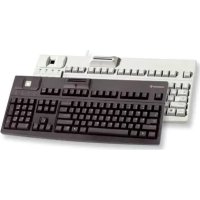
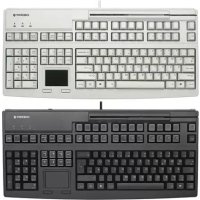
MultiBoard MX V2 G807044 - Computer Keyboard Cherry - Free user manual and instructions
Find the device manual for free MultiBoard MX V2 G807044 Cherry in PDF.



| Product type | Programmable computer keyboard |
| Brand | Cherry |
| Model | MultiBoard MX V2 G807044 |
| Interface | USB 2.0 |
| Power supply | 5 V DC via USB port |
| Power consumption | max. 500 mA |
| Switch technology | Cherry MX with gold crosspoint contacts |
| Main functions | Physical and virtual programming, 3-track magnetic card reader, PC/SC smart card reader, touchpad (depending on model), integrated memory, WMI statistics, UnifiedPOS |
| Magnetic card reader | 3 tracks, ISO 7811/12, JIS, AAMVA, Gemini standards |
| Reading speed (mag. card) | from 6.3 to 250 cm/s |
| Smart card reader | Compatible with Omnikey CardMan 3121, ISO 7816, CCID, PC/SC, CT-API standards |
| Insertion cycles (smart card) | approximately 200,000 |
| Touchpad | Replaces mouse, configuration via CHERRY Tools |
| Programming | via CHERRY Tools software (physical and virtual) |
| Integrated memory | Yes, to save configuration |
| Operating temperature | 0 °C to +50 °C |
| Storage temperature | -20 °C to +60 °C |
| Cleaning | Slightly damp cloth, mild detergent, no solvents |
| Safety | Avoid liquid penetration, do not remove keycaps |
Frequently Asked Questions - MultiBoard MX V2 G807044 Cherry
User questions about MultiBoard MX V2 G807044 Cherry
0 question about this device. Answer the ones you know or ask your own.
Ask a new question about this device
Download the instructions for your Computer Keyboard in PDF format for free! Find your manual MultiBoard MX V2 G807044 - Cherry and take your electronic device back in hand. On this page are published all the documents necessary for the use of your device. MultiBoard MX V2 G807044 by Cherry.
USER MANUAL MultiBoard MX V2 G807044 Cherry
natural_image
Front view of a vintage computer keyboard and keyboard with no visible text or symbols on the keys or background.CHERRY

CHERRY MultiBoards G80-7xxx/-8xxx
Programmable Keyboards with Card Reader
Operating Manual......8
Mode d'emploi....13
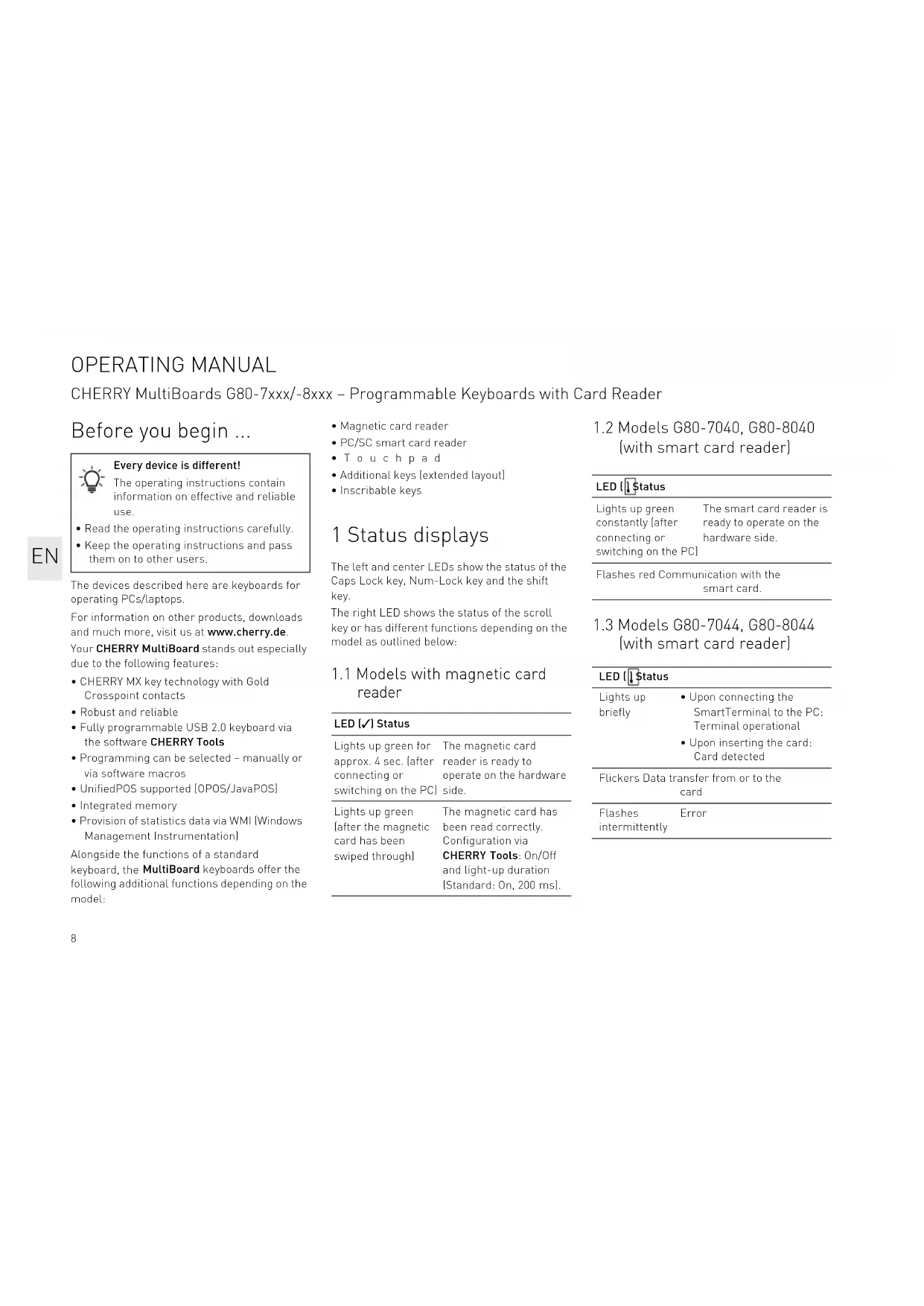
Before you begin ...

Every device is different!
The operating instructions contain information on effective and reliable use.
- Read the operating instructions carefully.
- Keep the operating instructions and pass them on to other users.
The devices described here are keyboards for operating PCs/laptops.
For information on other products, downloads and much more, visit us at www.cherry.de.
Your CHERRY MultiBoard stands out especially due to the following features:
- CHERRY MX key technology with Gold Crosspoint contacts
- Robust and reliable
- Fully programmable USB 2.0 keyboard via the software CHERRY Tools
- Programming can be selected – manually or via software macros
• UnifiedPOS supported (OPOS/JavaPOS) - Integrated memory
- Provision of statistics data via WMI (Windows Management Instrumentation)
Alongside the functions of a standard keyboard, the MultiBoard keyboards offer the following additional functions depending on the model:
• Magnetic card reader
• PC/SC smart card reader
- Touchpad
• Additional keys (extended layout)
- Inscribable keys
1 Status displays
The left and center LEDs show the status of the Caps Lock key, Num-Lock key and the shift key.
The right LED shows the status of the scroll key or has different functions depending on the model as outlined below:
1.1 Models with magnetic card reader
LED (√) Status
| Lights up green for approx. 4 sec. (after connecting or switching on the PC) | The magnetic card reader is ready to operate on the hardware side. |
| Lights up green (after the magnetic card has been swiped through) | The magnetic card has been read correctly. Configuration via CHERRY Tools: On/Off and light-up duration [Standard: On, 200 ms]. |
1.2 Models G80-7040, G80-8040 (with smart card reader)
LED Status
| Lights up green constantly (after connecting or switching on the PC) | The smart card reader is ready to operate on the hardware side. |
| Flashes red Communication with the smart card. |
1.3 Models G80-7044, G80-8044 (with smart card reader)
LED (Status
| Lights up briefly | Upon connecting the SmartTerminal to the PC: Terminal operationalUpon inserting the card: Card detected |
| Flickers Data transfer from or to the card | |
| Flashes intermittently | Error |
2 Keyboard connection
2.1 Models with smart card reader
- Only insert the USB connector in a USB hub, which supplies 500mA electricity, or the USB root hub (system USB connection).
2.2 Further models
- Insert the USB connector in any USB connection in your system.
3 Magnetic card reader – 3-track version
The magnetic card reader reads all DIN ISO 7811/-12, Gemini, AAMVA and JIS compliant cards. It can read the tracks individually, in pairs or all together. The decoding of the data can take place either in the keyboard [standard] or via the software as desired.
3.1 Using the magnetic card reader
1 Insert the magnetic card into the magnetic card reader from the right with magnetic strips pointing downwards towards the keyboard.
2 Pull the magnetic card to the left through the magnetic card reader.
An acoustic signal confirms the successful/unsuccessful completion of the reading process:
1 x beep = reading process successful. The data is transferred. 2 x beeps = reading process unsuccessful. The data is not transferred.
Configuration via CHERRY Tools: signal for successful/unsuccessful reading process, duration.
3.2 Definition of headers and terminators
Headers and terminators mark the start and the end of the magnetic card data transmission. They can be defined using the software CHERRY Tools. The header/terminator code is inserted before/after the actual magnetic card data.
4 Smart card reader
The built-in smart card reader can read and write on all smart cards based on DIN ISO 7816. It is CCID-compatible and is usually detected by the operating system. If not, you must install a driver or CT-API [see 6.3 "Software for smart card reader"].
4.1 Using the smart card reader
- Insert the smart card into the smart card slot with the chip pointing downwards and towards the keyboard. Contact is established after a clear pressure point is passed.
5 Touchpad
The touchpad replaces the mouse. You can move the mouse cursor with your finger, and select and drag objects.
5.1 Move the mouse cursor
- Move your finger across the touchpad.
5.2 Double-click
- Touch the touchpad twice in quick succession.
Configuration via CHERRY Tools: touchpad on/off, double click on/off.
OPERATING MANUAL
CHERRY MultiBoards G80-7xxx/-8xxx - Programmable Keyboards with Card Reader
6 Software installation
Download the driver and the software from our website www.cherry.de at Service > Downloads.
6.1 CHERRY Tools
The following functions are supported:
- Configuration of keyboard/keys/magnetic card reader
- Update of country-specific settings (country table)
- Display of key configuration (KeyViewer)
6.2 CHERRY UPOS support
The standards OPOS and JavaPOS are combined and constantly developed (www.nrf-arts.org) under the umbrella of the UPOS (Unified Point of Sale) specification.
If you use applications which access the keyboard or the magnetic card reader via OPOS or JavaPOS:
Windows operating system
• Install the software CHERRY OPOS Support or CHERRY JPOS Support.
Linux operating system
- Use the installation scripts for JavaPOS support.
6.3 Software for smart card reader
• Install the smart card reader driver for the PC/SC interface using the hardware assistant.
For additional CT-API support (MKT 1.0) and homebanking:
- Run the CHERRY SmartCard Setup
7 Programming of keyboard/keys/magnetic card reader
Configuration takes place via the software CHERRY Tools. You can program the keyboard either manually or virtually.
7.1 Physical programming
The configuration is written in the internal memory of the keyboard. It also remains saved when the connection cable is disconnected.
7.2 Virtual programming
The configuration is saved as software macro in a file on the computer.
- Install the software CHERRY Tools. You can configure all the functions of the keyboard via the Designer included in the software.
Operation instructions are included in the direct help for the CHERRY Tools software. It offers you information where you need it and can be called up with F1.
8 Tips
8.1 Cleaning the keyboard

CAUTION: Damage may be caused by harsh cleaning agents or liquids in the keyboard
- Do not use solvents such as gasoline or alcohol and scouring agents or scouring sponges for cleaning.
- Prevent liquids from entering the keyboard.
- Do not remove the keycaps of the keyboard.
1 Switch off the PC.
2 Clean the keyboard with a slightly damp cloth and some mild cleaning agent (e.g. dishwashing liquid).
3 Dry off the keyboard with a soft, lint-free cloth.
8.2 RSI syndrome

RSI stands for "Repetitive Strain Injury". RSI arises due to small movements continuously repeated over a long period of time.
Typical symptoms are discomfort in the fingers or neck.
- Set up your workspace ergonomically.
- Position the keyboard and mouse in such a manner that your upper arms and wrists are outstretched and to the sides of your body.
• Take several short breaks, with stretching exercises if necessary. - Change your posture often.
9 Device disposal

- Do not dispose of devices with this symbol in household waste.
- Dispose of the devices in accordance with statutory regulations – at your local dealer or at municipal recycling centers.
10 Technical specifications
10.1 Overview
| Article No. Magnetic card reader | Smart card reader | Touchpad |
| G80-7000 X | ||
| G80-7040 X X | ||
| G80-7044 X X | ||
| G80-8000 X | ||
| G80-8113 X X | ||
| G80-8200 X | ||
| G80-8040 X X | ||
| G80-8044 X X |
10.2 Keyboard
| Description Value | |
| USB interface USB connector | |
| Transmission rate to the system | max. 12 Mbps |
| Power supply | +5 V/DC ±5% SELV |
| Current input max. 500 mA | |
| Storage temperature: -20 °C ... +60 °C | |
| Operating temperature 0 °C ... +50 °C | |
10.3 Magnetic card reader
| Description | Value |
| Tracks | 1 + 2 + 3 |
| Scanning speed | 6.3 up to 250 cm/s for standard 75 to 210 dpi |
| Standards | ISO 7811/-12, JIS 1, AAMVA, Gemini |
| Magnet head | >1 mill. scanning cycles |
10.4 Smart card reader
| Description | Value |
| Compatibility | Omnikey CardMan 3121 [Aviator] |
| Transmission rate to the card | max. 420 Kbps |
| Standards | ISO 7816, CCID, PC/SC, CT-API |
| Protocols | T=0, T=1, S=8 (IIC), S=9 (3-wire; SLE 4418/28), S=10 (2-wire; SLE 4432/42) |
| Contacts | Lowering contacts |
| Mating cycles | approx. 200 000 |
OPERATING MANUAL
CHERRY MultiBoards G80-7xxx/-8xxx - Programmable Keyboards with Card Reader
11 Contact
Please provide the following information about the device when you make an inquiry:
- Item and serial no. of the product
• Name and manufacturer of your system - Operating system and, if applicable, installed service pack version
For Europe:
Cherry Europe GmbH
Cherrystraße 2
91275 Auerbach/OPf.
Germany
Cherry Americas, LLC
5732 95th Avenue
Suite 850
Kenosha, WI 53144
USA
Tel.: +1 262 942 6508
Email: sales@cherryamericas.com
Internet: www.cherryamericas.com
12 Certifications
12.1 Federal Communications Commission (FCC) Radio Frequency Interference Statement
Information to the user: This equipment has been tested and found to comply with the limits for Class B digital device, pursuant to Part 15 of the FCC Rules. These limits are designed to provide reasonable protection against harmful interference in a residential installation. This equipment generates, uses and can radiate radio frequency energy and, if not installed and used in accordance with the instructions, may cause harmful interference to radio communications. However, there is no guarantee that interference will not occur in a particular installation. If this equipment does cause harmful interference to radio or television reception, which can be determined by turning the equipment off and on, the user is encouraged to try to correct the interference by one or more of the following measures:
- Reorientate or relocate the receiving antenna.
- Increase the separation between the equipment and receiver.
- Connect the equipment into an outlet on a circuit different from that to which the receiver is connected.
- Consult the dealer or an experienced radio/TV technician for help.
Caution: Any changes or modifications not expressly approved by the party responsible for compliance could void the user's authority to operate the equipment.
12.2 For UL
For use with Listed Personal Computers only!
12.3 UKCA
UK Authorised Representative:
Authorised Representative Service
The Old Methodist Chapel
Great Hucklow
SK17 8RG
UK
MODE D'EMPLOI
CHERRY MultiBoards G80-7xxx/-8xxx - Programmable Keyboards with Card Reader
Avant de commencer ...