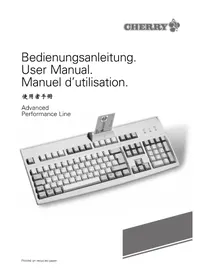
G818015 LQ - Computer Keyboard Cherry - Free user manual and instructions
Find the device manual for free G818015 LQ Cherry in PDF.



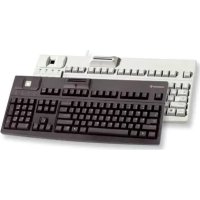
| Product Type | Computer keyboard with integrated smart card reader |
| Brand | Cherry |
| Model | G818015 LQ |
| Category | Computer keyboard |
| Dimensions (L x D x H) | 458 x 195 x 53.1 mm |
| Power Supply | +5 V ±5% DC, 50 mA nominal, 100 mA max, via PC keyboard interface |
| Interfaces | IBM compatible keyboard (mini-DIN 6-pin), serial option (SUB-D 9-pin) |
| Main Functions | Keyboard with vertical smart card reader, PC/SC compatible, Secure-Pin-Entry, Plug & Play |
| Compatibility | Windows Hardware Compatibility List (WHQL), drivers available at support.cherry.de |
| Status Indicators | Green LED for card activation, flashing red LED for Secure-Pin-Entry mode |
| Operating Temperature | 0°C to 50°C |
| Storage Temperature | -20°C to 60°C |
| Safety | Do not use if damaged, avoid humidity and heat, do not insert sharp objects, protect smart cards |
| Maintenance and Cleaning | Clean dry or with a slightly damp cloth, without chemicals |
| Accessories | Optional protective sheet, WetEx, serial adapter if necessary |
| Warranty | No warranty for modifications not approved by Cherry |
| General Information | User manual included, manual available in several languages |
Frequently Asked Questions - G818015 LQ Cherry
User questions about G818015 LQ Cherry
0 question about this device. Answer the ones you know or ask your own.
Ask a new question about this device
Download the instructions for your Computer Keyboard in PDF format for free! Find your manual G818015 LQ - Cherry and take your electronic device back in hand. On this page are published all the documents necessary for the use of your device. G818015 LQ by Cherry.
USER MANUAL G818015 LQ Cherry
text_image
Performance LineInhaltsverzeichnis
- Scope of this manual 7
- General Advice 7
- Introduction 7
- Safety instructions 7
- Installation and operation 8
5.1 Inserting a smartcard 8
5.2 How the card terminal works ____ 8
5.2.1 Model RS 6700 8
5.2.2 Model RS 6720 ADD (5.2.2.1, 5.2.2.2, 5.2.2.3) 9 - Demo application 9
- Status indicators 9
- Troubleshooting 9
- Care and maintenance 10
- Technical specifications ____ 10
- Accessories 10
Table des matières
text_image
Technical diagram of a computer keyboard with labeled components including connectors, ports, and memory slotsBildbeschreibung
⑤Optional: serial port
Description de l'illustration
5.2.2.2 G 83-6716 LQ...
5.2.2.3 G 83-6717 LQ...
natural_image
Solid gray rectangular shape with a thin white diagonal line on the right edge (no text or symbols)1. Scope of this Manual
Model: RS 6700
G 83-6700 LP..
G 83-6700 LQ..
Model: Single Core
G 81-8015 LP..
G 81-8015 LQ..
G 81-7015 LP..
G 81-7015 LQ..
Model: RS 6720 ADD
G 83-6720 LP...(with Gemplus GemPC 420)
G 83-6716 LQ... (with Gemplus GCR 410 [WHQL])
G 83-6717 LQ... (with Gemplus GCR 410 [EMV])
General Advice
Cherry continually improves its products in accordance with technological developments. We therefore reserve the right to make any technical alterations. The establishment of reliability as well as the definition of technical details takes place according to Cherry's international examinations, which comply with generally recognized regulations or standard. Requirements which deviate from these norms are to be covered through the determined operating conditions by the user. If necessary, we are also available to help. Improper handling, storage, external influences and/ or further processing can lead to disturbances and defects during use. We stress that we do not grant any warranty or accept any liability if our product is altered by the user, the exception being that this is released expressly in writing for the specific case of use. This is also especially valid if repairs and maintenance work have not been carried out by trained personnel. Possible compensation claims against us whatever the legal justifications, are out of the question as long as they do not concern intent or negligence on our behalf. The above-mentioned restriction does not apply to compensation claims, according to the Product Liability Law. The following operating instructions are only valid for the accompanying product. Further information can be obtained from your local Cherry dealer or direct from Cherry GmbH.
3. Introduction
Cherry's all-in-one IBM-compatible keyboard with integrated smartcard terminal is the perfect solution for PC-based smartcard applications relating to monetary transactions, access authorization and identification systems.
4. Safety Instructions
- Never attempt to use a keyboard that has clearly been damaged in some way.
- Only use the device in dry conditions indoors.
- Do not expose the device to bright sunshine or other sources of heat for prolonged periods of time.
- Only clean the device with a dry or slightly moist cloth. Do not use chemical cleaners.
text_image
I the device with a dry of moist cloth. Do not use cleaners.- Do not insert any sharp or pointed objects into the smartcard slot or between the keys.
Warning!
Smartcards may contain data of considerable (financial) value, as well as personal (encryption) keys or codes.
Please take appropriate precautions against theft or misuse!
5. Installation and Operation
Check the contents of the packaging (keyboard with integrated smartcard terminal, user instructions) to make sure that nothing has been lost or damaged in transit.
Careful!
Connecting the keyboard to a PC system while the latter is switched on and running may cause a power spike that could damage the PC or cause it to function abnormally.
→switch off your PC before connecting a keyboard or other device!
- Plug the keyboard cable ④ with 6-pin mini-DIN connector into your PC's keyboard port, using an appropriate keyboard adapter if necessary.
- If fitted, plug the serial cable with 9-pin SUB-D jack into a free serial port on your PC and screw it tight.
- Once all the necessary cables have been connected, switch on the PC. The keyboard is now ready for use.
- The range of functions available from the smartcard terminal depends on your application software.
5.1 Inserting a Smartcard
A small symbol shows you which way round to hold the smartcard when inserting it into the reader.
Vertical card reader:
The chip should be at the bottom, facing the user. To ensure that the smartcard slots into the proper position for scanning, the user must push the card past an action point, involving some initial resistance.
5.2 How the Card Terminal works
5.2.1 Model RS 6700/Single Core
The integrated smartcard terminal was developed in compliance with the PC/SC (Personal Computer Smart Card Workgroup – http://www.pcscworkgroup.com) specification, meaning that it is ideal for developers who want to produce smartcard-based PC applications. Using the appropriate driver or IFD (Interface Device) handler, the card terminal can be integrated with the PC's operating system.
You will find the associated drivers for the different operating systems either on the data carrier included with the product, or the latest versions on our web site in the Internet at: http://support.cherry.de
The Plug & Play function incorporated in the operating system is supported by the optional enclosed "Installation Disk". To install the driver, follow the instructions displayed on the screen on booting.
The product is listed by Microsoft in the Windows Hardware Compatibility List (WHQL) as "Smart Card Keyboard".
5.2.2 Model RS 6700 ADD
5.2.2.1 G 83-6720 LP...
The integrated smartcard terminal is in accordance with the smartcard terminal GemPC 420 Smart card reader from Gemplus.
The appropriate driver and further information for the different operating systems can be downloaded from the Internet website of:
http://www.Gemplus.com/products/hardware/drivers.htm
5.2.2.2 G 83-6716 LQ...
The integrated smartcard terminal is in accordance with the smartcard terminal GCR 410p resp. GemPC 410 (WHQL) from Gemplus.
The appropriate driver and further information for the different operating systems can be downloaded from the Internet website of:
http://www.Gemplus.com/products/hardware/drivers.htm
5.2.2.3 G 83-6716 LQ...
The integrated smartcard terminal is in accordance with the smartcard terminal GCR 410 (EMV) from Gemplus.
The appropriate driver and further information for the different operating systems can be downloaded from the Internet website of:
http://www.Gemplus.com/products/hardware/drivers.htm
6. Demo application and development tools
Please find demo applications, e.g. for the function of a value checker, for the German cash card and an editing software for GSM cards, as well as
development tools on the enclosed Cherry CD ROM. If there is no Cherry CD ROM included, the latest version of demo application can be downloaded from our homepage http://support.cherry.de
Warning!
The terminal will only work properly if used in conjunction with the appropriate Cherry driver for your PCs operating system. Cherry accepts no liability in the event that unauthorized software drivers are used with the terminal.
→Only install software drivers supplied by Cherry!
7. Status Indicators
The LEDs ③indicate the keyboard's operating status. When the system is booted up, the keyboard performs a self-test; all the LEDs light up at once for a short time.
Smart card switch on is explicitly indicated by the green LED with chip-card symbol. "Secure PIN Entry" mode is signalled by the red flashing PIN LED. In this mode it is possible to send the PIN entered using the numeric keypad directly to the smart card.
natural_image
Solid gray rectangular shape with a thin white diagonal line on the right edge (no text or symbols)8. Troubleshooting
If the keyboard is not working properly
- Check all connections; a loose keyboard cable is often the cause of problems.
If the smartcard terminal is not working properly - Check that the smartcard is positioned correctly in the reader; check that it is fully inserted and facing in the right direction.
Check the I/O port settings in your PC software and change them if necessary.
Reboot the PC and watch the status indicators (LEDs; see above). Contact your maintenance provider if necessary.
→Check that your smartcard is supported by the reader/software.
→Check installation of Cherry driver.
9. Care and Maintenance
Both the keyboard and smartcard reader are zero-maintenance devices. To protect the keyboard itself from dust, dirt and spills, you can fit it with a protective film (cf. Accessories). With a protective film fitted, you can use the keyboard in more demanding environments.
10. Technical Specifications
Power supply
(through PC keyboard port):
+5V ±5% SELV
Current input:
Typically 50 mA; 100 mA max.
Dimensions (L x W x H mm):
458 × 195 × 53.1 mm
Temperature range:
- Operating temperature: 0 °C to +50 °C
- Storage temperature: -20 °C to +60 °C
Interfaces:
- IBM-compatible keyboard interface (6-pin mini-DIN connector)
- Optional: serial interface (9-pin SUB-D jack)
11. Accessories
- WetEx ^® protective film
natural_image
Gray rectangular shape with a white diagonal line on the right edge, no text or symbols present.natural_image
Solid gray rectangular shape with a thin white diagonal line on the right edge (no text or symbols)CE Declaration of Conformity
We, Cherry GmbH, declare that the Keyboards are in conformance with: Low Voltage Directive 73/23/EEC tested in accordance with EN60950. Also that the
EMC Directive 89/336/EEC has been fulfilled to EN50082-1:1997, including
EN61000-4-2: 1995
EN61000-4-3: 1996
EN61000-4-6: 1996.
ENV50204: 1995 and that of EN55022: 1994 +
Corrigendum 1997 + A1: 1995 + A2: 1997, Class B.
Federal Communications Commission (FCC) Radio Frequency Interference Statement Information to the User
This equipment has been tested and found to comply with the limits for a Class B digital device, pursuant to Part 15 of the FCC Rules. These limits are designed to provide reasonable protection against harmful interference in a residential installation. This equipment generates, uses and can radiate radio frequency energy and, if not installed and used in accordance with the instructions, may cause harmful interference to radio communications. However, there is no guarantee that interference will not occur in a particular installation. If this equipment does cause harmful interference to radio or television reception, which can be determined by turning the equipment off and on, the user is encouraged to try to correct the interference by one or more of the following measures:
- Reorient or relocate the receiving antenna.
- Increase the separation between the equipment and receiver.
- Connect the equipment into an outlet on a circuit different from that to which the receiver is connected
- Consult the dealer or an experienced radio/TV technician for help.
Caution:
Cherry is not responsible for any radio or television interference caused by unauthorized modifications of this equipment or the substitution or attachment of connecting cables and equipment other than those specified by Cherry. Such unauthorized modifications, substitutions, or attachments may void the user's authority to operate the equipment. The correction of interferenc caused by such unauthorized modifications substitutions, or attachments will be the responsibility of the user. Use only shielded interface cables to ensure compliance.
Canadian Radio Interference Regulations
This digital apparatus does not exceed the Class B limits for radio noise emissions from digital apparatus set out in the Radio Interference Regulations of the Canadian Department of Communications.
Errors, omissions and technical modifications excepted.
Printed in Germany.
D/E/F,C, August '00,
45xxxxxx, 4, Mün,
©2000 Cherry GmbH