MultiBoard G808113 - Computer Keyboard Cherry - Free user manual and instructions
Find the device manual for free MultiBoard G808113 Cherry in PDF.

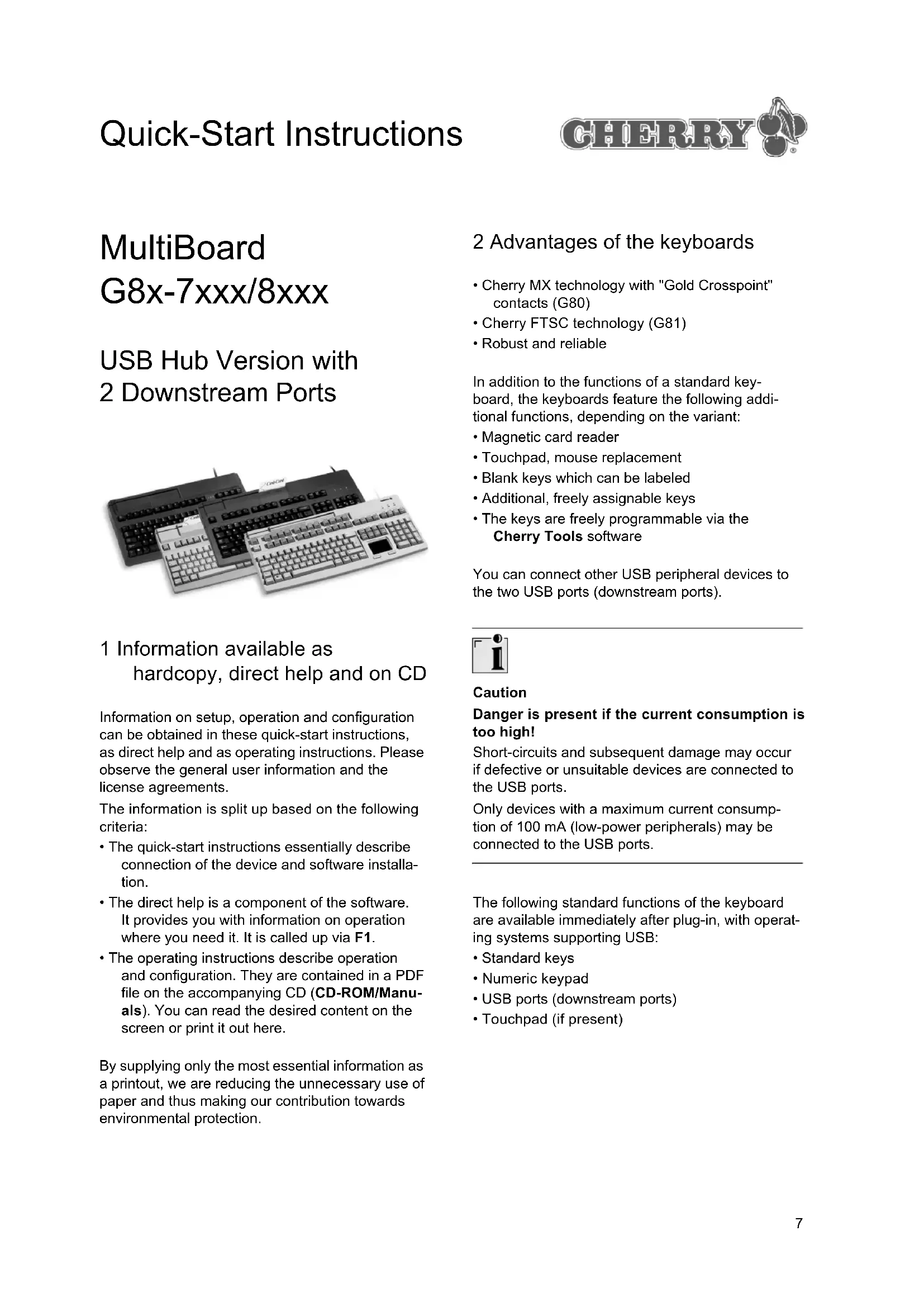


| Product type | Computer keyboard with built-in USB hub |
| Key switch technology | MX Cherry with Gold Crosspoint contacts (G80) / Cherry FTSC (G81) |
| Number of keys | 120/121 keys including 41 programmable (model G80-8113) |
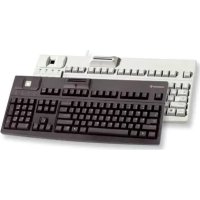
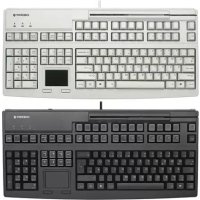
| Additional functions | Magnetic card reader, touchpad, programmable keys, additional programmable keys (with Cherry Tools software) |
| Dimensions (L x W x H) | 470 x 220 x 64 mm |
| Weight (including packaging) | Approx. 2000 g |
| Power supply | +5 V/DC ±5% SELV via USB, max. power consumption 400 mA |
| Interfaces | USB connector, 2 USB downstream connectors (USB 2.0 Full Speed) |
| Cable length | Approx. 1.75 m |
| Operating temperature | 0°C to +50°C |
| Storage temperature | -20°C to +60°C |
| LED indicators | Indicators for Num Lock, Caps Lock, and Scroll Lock |
| Key programming | Free assignment via Cherry Tools software |
| Magnetic card reader | Reading speed: 3 to 125 pps (75 bpp) / 3 to 50 pps (210 bpp), cycles up to 1,000,000 |
| Touchpad | Resolution 1000 dpi (model G80-8113) |
| System compatibility | Windows 98/ME/2000/XP, Linux (via standard USB drivers) |
| Maintenance and cleaning | Use a soft cloth dampened with a mild detergent, no solvents or penetrating liquids |
| Safety | Do not connect devices consuming more than 100 mA to the USB downstream ports; optional Lithium battery must be replaced correctly |
| General information | Abbreviated instruction manual on paper, online help (F1), complete instruction manual on CD-ROM (PDF) |
| Support | Free online support: http://support.cherry.de; telephone hotline Mon-Thu 7:15-16:00, Fri 7:15-13:30 (GMT+1) |
Frequently Asked Questions - MultiBoard G808113 Cherry
User questions about MultiBoard G808113 Cherry
0 question about this device. Answer the ones you know or ask your own.
Ask a new question about this device
Download the instructions for your Computer Keyboard in PDF format for free! Find your manual MultiBoard G808113 - Cherry and take your electronic device back in hand. On this page are published all the documents necessary for the use of your device. MultiBoard G808113 by Cherry.
USER MANUAL MultiBoard G808113 Cherry
16.3 Federal Communications Commission (FCC) Radio Frequency Interference Statement
Information to the user: This equipment has been tested and found to comply with the limits for Class B digital device, pursuant to Part 15 of the FCC Rules. These limits are designed to provide reasonable protection against harmful interference in a residential installation. This equipment generates, uses and can radiate radio frequency energy and, if not installed and used in accordance with the instructions, may cause harmful interference to radio communications. However, there is no guarantee that interference will not occur in a particular installation. If this equipment does cause harmful interference to radio or television reception, which can be determined by turning the equipment off and on, the user is encouraged to try to correct the interference by one or more of the following measures:
-
Reorientate or relocate the receiving antenna.
-
Increase the separation between the equipment and receiver.
- Connect the equipment into an outlet on a circuit different from that to which the receiver is connected.
- Consult the dealer or an experienced radio/TV technician for help.
Caution: Unauthorized changes or modifications could void the authority to operate the equipment.
16.4 Canadian Radio Interference Regulations
This digital apparatus does not exceed the Class B limits for radio noise emissions from digital apparatus set out in the Radio Interference Regulations of the Canadian Department of Communications.
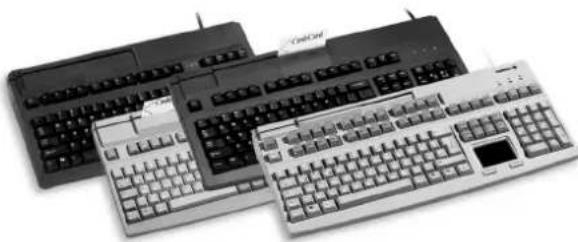
USB Hub Version with 2 Downstream Ports
1 Information available as hardcopy, direct help and on CD
Information on setup, operation and configuration can be obtained in these quick-start instructions, as direct help and as operating instructions. Please observe the general user information and the license agreements.
The information is split up based on the following criteria:
- The quick-start instructions essentially describe connection of the device and software installation.
- The direct help is a component of the software. It provides you with information on operation where you need it. It is called up via F1.
- The operating instructions describe operation and configuration. They are contained in a PDF file on the accompanying CD (CD-ROM/Manu-als). You can read the desired content on the screen or print it out here.
By supplying only the most essential information as a printout, we are reducing the unnecessary use of paper and thus making our contribution towards environmental protection.
2 Advantages of the keyboards
- Cherry MX technology with "Gold Crosspoint" contacts (G80)
- Cherry FTSC technology (G81)
- Robust and reliable
In addition to the functions of a standard keyboard, the keyboards feature the following additional functions, depending on the variant:
- Magnetic card reader
- Touchpad, mouse replacement
- Blank keys which can be labeled
Additional, freely assignable keys - The keys are freely programmable via the Cherry Tools software
You can connect other USB peripheral devices to the two USB ports (downstream ports).

Caution
Danger is present if the current consumption is too high!
Short-circuits and subsequent damage may occur if defective or unsuitable devices are connected to the USB ports.
Only devices with a maximum current consumption of 100mA (low-power peripherals) may be connected to the USB ports.
The following standard functions of the keyboard are available immediately after plug-in, with operating systems supporting USB:
- Standard keys
- Numeric keypad
- USB ports (downstream ports)
- Touchpad (if present)
2.1 Status indicators
The keyboard performs a self-test when plugged in or when the PC is switched on: All of the LEDs illuminate once briefly. In normal operation, the LEDs show the status of the locked-key function of the Num, Caps and Scroll keys.
3 Technical data of all variants
| Designation Value | |
| Interfaces USB plug, 2 U | USB downstream ports in accordance with USB 2.0 (full speed, 12 Mbit/s) |
| Reading speed of magnetic card reader | 3 to 125 ips at 75 bpi, 3 to 50 ips at 210 bpi (ips = inches per second, bpi = bits per inch) |
| Total number of reads by magnetic card reader | up to 1,000,000 |
| Power supply +5 V/DC ±5 % SELV | |
| Current consumption max. | 400 mA |
| Current output max. 100 | mA per downstream port |
| Storage temperature range | -20 °C to +60 °C |
| Operating temperature range | 0 °C to +50 °C |
| Cable length approx. 1.75 m | |
4 Technical data of the MultiBoard G81-7000
| Designation Value | |
| Keyboard type 104/105 | keys, magnetic card reader, 19" compact size, FTSC technology |
| Weight (incl. packaging) | approx. 2050 g |
| Dimensions (L x W x H) | 405 x 220 x 64 mm |
5 Technical data of the MultiBoard G81-8000
| Designation Value | |
| Keyboard type 104/105 | keys, magnetic card reader, FTSC technology |
| Weight (incl. packaging) | approx. 2250 g |
| Dimensions (L x W x H) | 470 x 220 x 64 mm |
6 Technical data of the MultiBoard G80-8113
| Designation Value | |
| Keyboard type 120/121 | keys, 41 of which can be labeled, magnetic card reader, touchpad, MX technology with "Gold Cross-point" contacts |
| Touchpad resolution 1000 dpi | |
| Weight (incl. packaging) | approx. 2000 g |
| Dimensions (L x W x H) | 470 x 220 x 64 mm |
7 Technical data of the MultiBoard G80-8200
| Designation Value | |
| Keyboard type 120/121 | keys, 48 of which can be labeled, magnetic card reader, MX technology with "Gold Crosspoint" contacts |
| Weight (incl. packaging) | approx. 2250 g |
| Dimensions (L x W x H) | 470 x 220 x 64 mm |
8 Pin assignment of USB plug and port
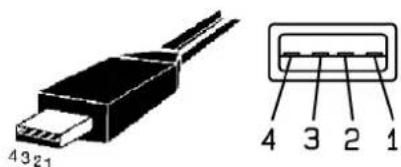
USB plug and port (downstream port) of the keyboard
| Pin Assignment | |
| 1 | + |
| 2 –DATA | |
| 3 | + |
| 4 | GND |
9 Device connection
Attaching the device via the USB port
1 Find a USB port on the back of your PC or on a Cherry keyboard with USB hub.
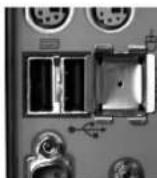
2 Insert the USB plug of the device into any USB port.
10 Installation of the software
Installation consists of two steps:
- Installation of the standard USB drivers
- Installation of the Cherry Tools software
10.1 Installation of the standard USB drivers

Windows XP or Windows 95/NT?
Windows XP already contains standard USB drivers for a keyboard.
Windows 95/NT do not support USB. If the PC has a USB port, USB Keyboard Support or USB Legacy Mode must be set to enabled in the BIOS of the PC. The standard keys will now function, but the special keys are not supported.
5
D
Installing the USB drivers under Windows 98/2000/ME
Precondition: You may need the Windows installation CD during installation.
1 Connect the device to the PC.
2 Start the PC.
The operating system detects the device. The message New hardware component found is displayed on the screen. The Hardware Assistant program is started.
3 Click on the Continue button. The Locate Driver Files dialog box is displayed and informs you which file is required.
4 Place the Windows installation CD into your CD-ROM drive. You may need to enter the path of the installation files. Example: With a CD-ROM drive D and the Windows 98 operating system: D:\Win98.
5 Follow the driver installation instructions on the screen.
10.2 Installation of the Cherry Tools software

Current Cherry software on the Internet
The software is continually updated. The current version can be downloaded from Cherry via the Internet: http://support.cherry.de
Installing "Cherry Tools" software under Windows 98/ME/2000/XP
1 Place the Cherry CD in your CD-ROM drive. The CD-ROM starts automatically. Installation begins.
2 If the CD-ROM does not start automatically, double-click the CD-ROM drive in Windows Explorer and then the Start.exe file. Installation begins.
3 Follow the installation instructions on the screen. The Cherry Tools software is installed.
10.3 Installation of the Cherry OPOS/JPOS Support software
If you use applications which access the keyboard or magnetic card reader via OPOS or JPOS:
Install the Cherry OPOS Support or Cherry JPOS Support software.
The functions of the magnetic card reader are available. You do not need to install the Cherry Tools software.
11 Programming the keys
The configuration is not saved in the keyboard, but rather as a file on the PC.
Install the Cherry Tools software. The keys can be configured freely.
Programming of the keys is described in the direct help of the Cherry Tools software.
12 Magnetic card reader
The configuration is not saved in the keyboard, but rather as a file on the PC.
Install the Cherry Tools software. The functions of the magnetic card reader are available.
Programming of the magnetic card reader is described in the direct help of the Cherry Tools software.
13 Cleaning the device

Caution!
Damage may be caused by harsh cleaning agents or liquids in the device
1 Do not use solutions such as gasoline or alcohol and scouring agents or scouring foam for cleaning.
2 Avoid allowing fluids to enter the device.
1 Moisten a soft cloth with a mild cleaning agent. Example: Dish detergent.
2 Remove soiling from the surface of the device.
3 Remove any cleaning agent residue with a water-moistened cloth.
4 Dry off the device with a soft, lint-free cloth.
14 Support
To help you with any problems you may encounter in the installation of the keyboard or the software, we provide you with a free support service.
Cherry Support can be contacted at http://support.cherry.de. There you can submit your questions to us directly around the clock and seven days a week.
If you do not have an Internet connection, please contact us at the following address:
Cherry GmbH
CherrystaBe
D-91275 Auerbach, Germany
Hotline:
Tel.: +49(0)9643-18-206
Fax: +49(0)9643-18-1545
We are available to help you Monday to Thursday from 7:15 a.m. to 4:00 p.m. and Friday from 7:15 p.m. to 1:30 p.m. (GMT + 1 h).
15 General Advice
Cherry continuously optimizes products as new technologies are developed. For this reason we reserve the right to make technical alterations. The evaluation of product reliability and the definition of the product's technical performance are carried out according to Cherry's own requirements in order to meet internationally recognized regulations and standards. Requirements in addition to these can be met through mutual cooperation. Improper usage, handling, storage and external influences could lead to faults and defects during use.
We do not accept warranty for defects caused by alterations to our product by the user and shall not be held liable for unauthorized modifications. All repairs must be made by Cherry or an officially appointed organization or persons. There is a danger of explosion if the optional lithium battery is not exchanged in the correct manner! Possible compensation claims against Cherry or its nominated officers - whatever the legal justification including physical or stress related injuries - are excluded. Exceptions to this exist in the case of intent or gross negligence on the part of Cherry, infringements of Product Liability Law or in cases of injury, bodily harm or risk to health. These operating
instructions only apply to the accompanying product.
Full details can be obtained from your local Cherry dealer or direct from Cherry GmbH.
16 Certification
16.1 CE Declaration of Conformity
We, Cherry GmbH, hereby declare that the keyboards of series MultiBoard G8x-7xxx/8xxx (MX 7000 USB, MY 7000 USB, MX 8000 USB, MY 8000 USB, MX 8100 USB) accord with the following requirements:
Low-Voltage Directive 73/23/EEC tested in accordance with EN 60950
EMC Directive 89/336/EEC, tested in accordance with EN 55024
Tested according to the standard Cherry testing procedures.
16.2 Information on the GS Approval
Due to the position of the zero key on the number block the keyboard is not to be used in Germany for balancing work which is carried out blind to a great extent. A keyboard with non-German key button assignment is not to be used on a long-term basis at computer workplaces in Germany in view of the character assignment (DIN 2137, Part 2).
16.3 Federal Communications Commission (FCC) Radio Frequency Interference Statement
Information to the user: This equipment has been tested and found to comply with the limits for Class B digital device, pursuant to Part 15 of the FCC Rules. These limits are designed to provide reasonable protection against harmful interference in a residential installation. This equipment generates, uses and can radiate radio frequency energy and, if not installed and used in accordance with the instructions, may cause harmful interference to radio communications. However, there is no guarantee that interference will not occur in a particular installation. If this equipment does cause harmful interference to radio or television reception, which can be determined by turning the equipment off and on, the user is encouraged to try to correct the interference by one or more of the following measures:
- Reorientate or relocate the receiving antenna.
- Increase the separation between the equipment and receiver.
- Connect the equipment into an outlet on a circuit different from that to which the receiver is connected.
- Consult the dealer or an experienced radio/TV technician for help.
Caution: Unauthorized changes or modifications could void the authority to operate the equipment.
16.4 Canadian Radio Interference Regulations
This digital apparatus does not exceed the Class B limits for radio noise emissions from digital apparatus set out in the Radio Interference Regulations of the Canadian Department of Communications.
16.3 Federal Communications Commission (FCC) Radio Frequency Interference Statement
Information to the user: This equipment has been tested and found to comply with the limits for Class B digital device, pursuant to Part 15 of the FCC Rules. These limits are designed to provide reasonable protection against harmful interference in a residential installation. This equipment generates, uses and can radiate radio frequency energy and, if not installed and used in accordance with the instructions, may cause harmful interference to radio communications. However, there is no guarantee that interference will not occur in a particular installation. If this equipment does cause harmful interference to radio or television reception, which can be determined by turning the equipment off and on, the user is encouraged to try to correct the interference by one or more of the following measures:
-
Reorientate or relocate the receiving antenna.
-
Increase the separation between the equipment and receiver.
- Connect the equipment into an outlet on a circuit different from that to which the receiver is connected.
- Consult the dealer or an experienced radio/TV technician for help.
Caution: Unauthorized changes or modifications could void the authority to operate the equipment.
16.4 Canadian Radio Interference Regulations
This digital apparatus does not exceed the Class B limits for radio noise emissions from digital apparatus set out in the Radio Interference Regulations of the Canadian Department of Communications.