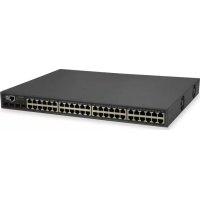
GTP5271 - Switch LEVELONE - Free user manual and instructions
Find the device manual for free GTP5271 LEVELONE in PDF.



| Product Type | Network Switch |
| Brand | LevelOne |
| Model | GTP5271 |
| Rack Form Factor | Standard 19-inch (1U) |
| Power Supply | 100-240 V AC, 50/60 Hz |
| Management Interface | Web (192.168.1.1 default) and serial console (115200 baud) |
| Default Credentials | Username: admin, Password: admin |
| Ports | RJ-45 ports (unspecified), console port |
| Package Contents | Main unit, power cord, quick installation guide, L-shaped brackets, CD-ROM, console cable, rubber feet, EU declaration |
| Operating Temperature | 0 °C to 45 °C |
| Operating Humidity | 10% to 90% non-condensing |
| Installation Environment | Indoor, away from sunlight and heat sources, good ventilation |
| Initial Configuration | Connection via console cable to PC or via web browser |
| Maintenance | Clean with a dry cloth; avoid moisture and shocks |
| Safety | Grounding required; do not place heavy objects on the device |
Frequently Asked Questions - GTP5271 LEVELONE
User questions about GTP5271 LEVELONE
0 question about this device. Answer the ones you know or ask your own.
Ask a new question about this device
Download the instructions for your Switch in PDF format for free! Find your manual GTP5271 - LEVELONE and take your electronic device back in hand. On this page are published all the documents necessary for the use of your device. GTP5271 by LEVELONE.
USER MANUAL GTP5271 LEVELONE
Quick Installation Guide

text_image
level® oneDigital Data Communications GmbH, Germany.
http://www.level1.com
Contents
English 2
Deutsch....6
Français ....10
Español....14
Italiano 18
Português 22
This Quick Installation Guide only describes the most basic situations and settings. All detailed information is described in the user manual.
English
Package Contents
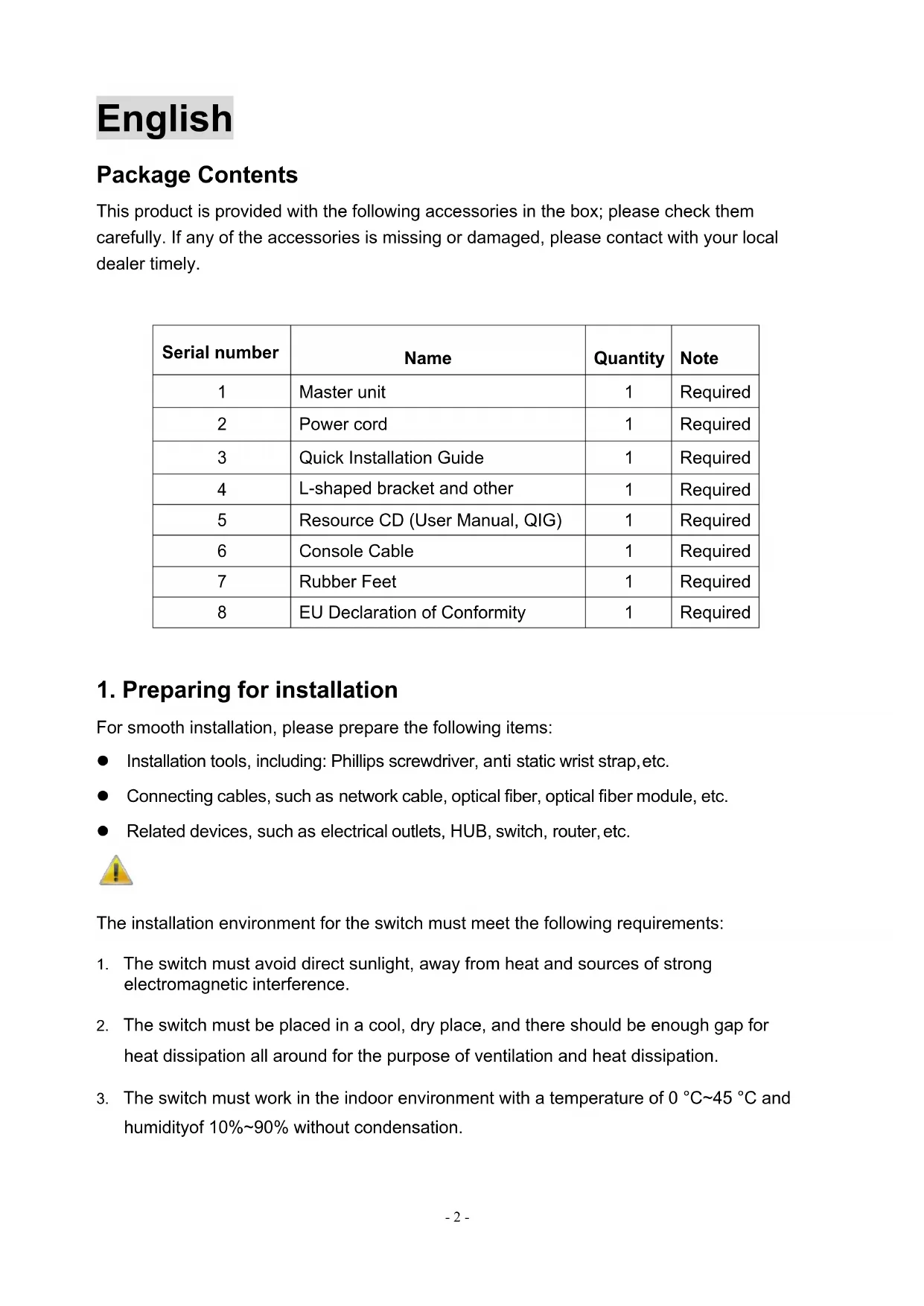
This product is provided with the following accessories in the box; please check them carefully. If any of the accessories is missing or damaged, please contact with your local dealer timely.
| Serial number | Name | Quantity | Note |
| 1 | Master unit | 1 | Required |
| 2 | Power cord | 1 | Required |
| 3 | Quick Installation Guide | 1 | Required |
| 4 | L-shaped bracket and other | 1 | Required |
| 5 | Resource CD (User Manual, QIG) | 1 | Required |
| 6 | Console Cable | 1 | Required |
| 7 | Rubber Feet | 1 | Required |
| 8 | EU Declaration of Conformity | 1 | Required |
1. Preparing for installation
For smooth installation, please prepare the following items:
● Installation tools, including: Phillips screwdriver, anti static wrist strap, etc.
- Connecting cables, such as network cable, optical fiber, optical fiber module, etc.
● Related devices, such as electrical outlets, HUB, switch, router, etc.

The installation environment for the switch must meet the following requirements:
- The switch must avoid direct sunlight, away from heat and sources of strong electromagnetic interference.
- The switch must be placed in a cool, dry place, and there should be enough gap for heat dissipation all around for the purpose of ventilation and heat dissipation.
- The switch must work in the indoor environment with a temperature of 0 ^ 45 ^ and humidity of 10%90% without condensation.
2. Equipment Installation
■ It is installed in the rack
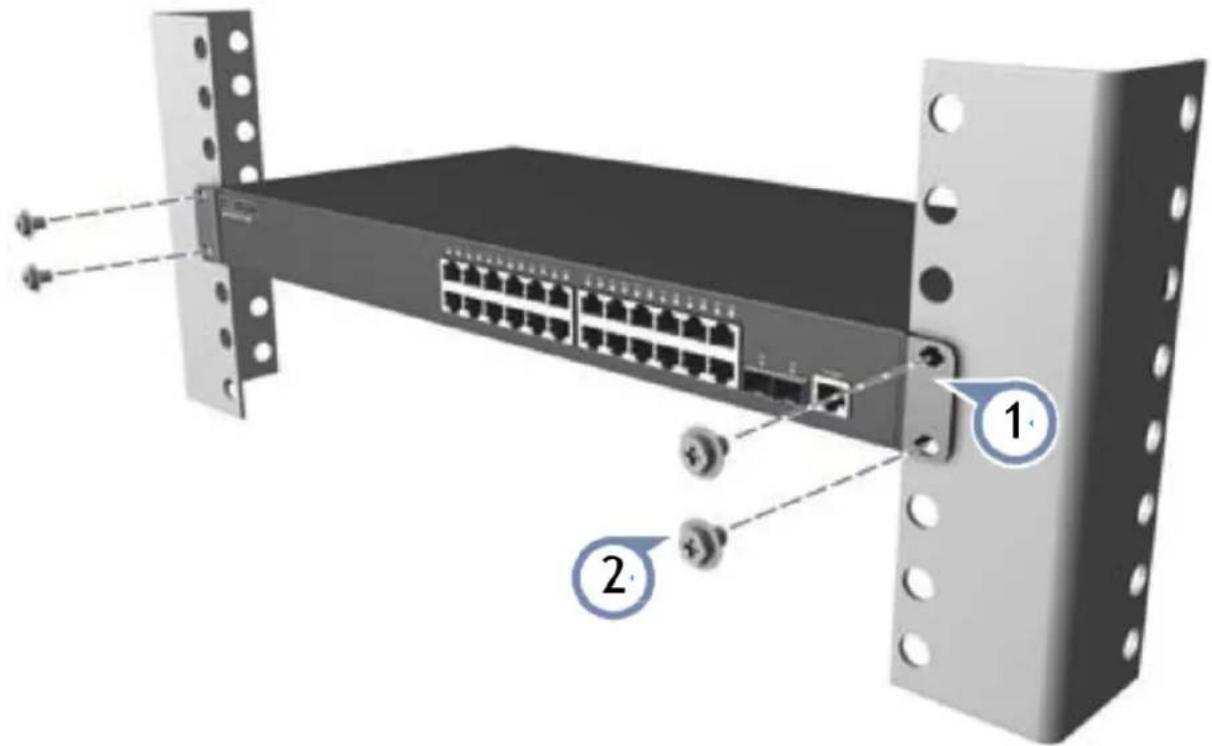
Install the switch on a 19-inch standard rack, and the installation steps are as follows:
- Check the grounding and stability of the rack;
- Install the two L-shaped brackets in the accessories on both sides of the switch panel, and fix them with the screws in the accessories:
- Place the switch in the appropriate location of the rack, and support it using a tray;
- Secure the L-shaped brackets on the guide slots fixed at both ends of the rack, to ensure that the switch can be mounted on the rack in astable horizontal manner:
- Use a power cord to connect the switch power connector with the powersocket.
text_image
Diagram of a network switch device showing ports, connectors, and labeled parts 1 and 2■ Installed on the working table
Install the switch on a working table, and the installation steps are as follows:
- Place the switch with its bottom up on a sufficiently large, stable and properly-grounded working table;
- Remove the adhesive protective paper from the foot pad, and stick the 4 pads in the 4round slots at the bottom of the casing respectively;
- Flip over the switch, and place it on the working tablestably;
- Use a power cord to connect the switch power connector with the power socket.
- The switch uses 100-240V, 50/60Hz AC, and make sure that both power supply and grounding are normal before power on.
- After power on, please check the switch's power indicator (Power) is on, and if so, it indicates that the power supply is connected properly.
- Do not place heavy objects on the top of the switch.
3. Perform Initial Configuration
text_image
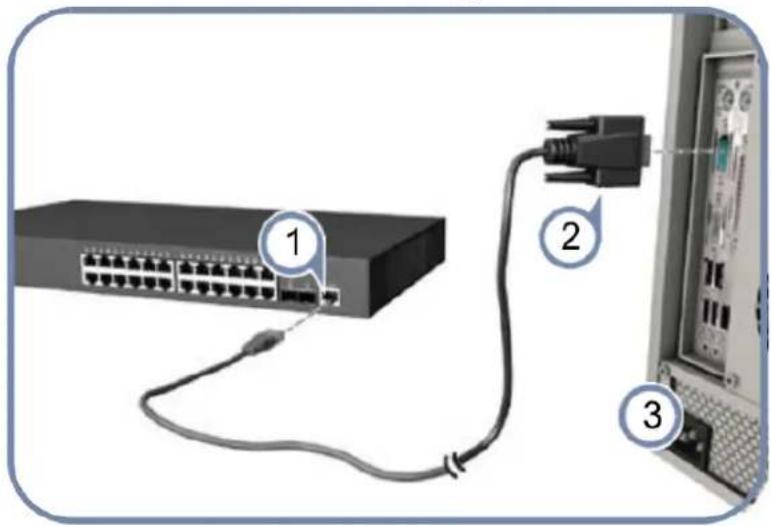
Diagram showing connection between a network switch and an external device, labeled with numbered components.- Connect a PC to the switch console port using the included console cable.
- Configure the PC's serial port: 115200 bps, 8 characters, no parity, one stop bit, 8 data bits, and no flow control.
- Log in to the CLI using default settings: Username "admin" and password "admin."

Note: For further information on switch configuration, refer to the Web Management Guide and CLI Reference Guide.
4. Logging on to the equipment
- Connect the RJ-45 interface cable of a switch with a computer using a network cable.
- Set the TCP/IP properties of the computer, see the Appendix: Setting up yourcomputer.
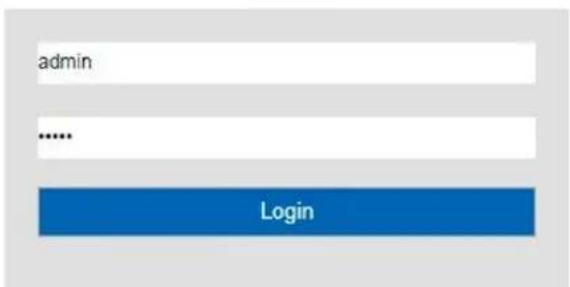
- Logging on to the equipment: Open a browser and type 192.168.1.1 in the address bar, and then press Enter; in the pop-up login interface, enter the factory logon username "admin", password "admin" and click OK.

text_image
192.168.1.1 File Edit View Favorites Tools Help
text_image
admin ...... Login5. Appendix: Setting up your computer
Windows
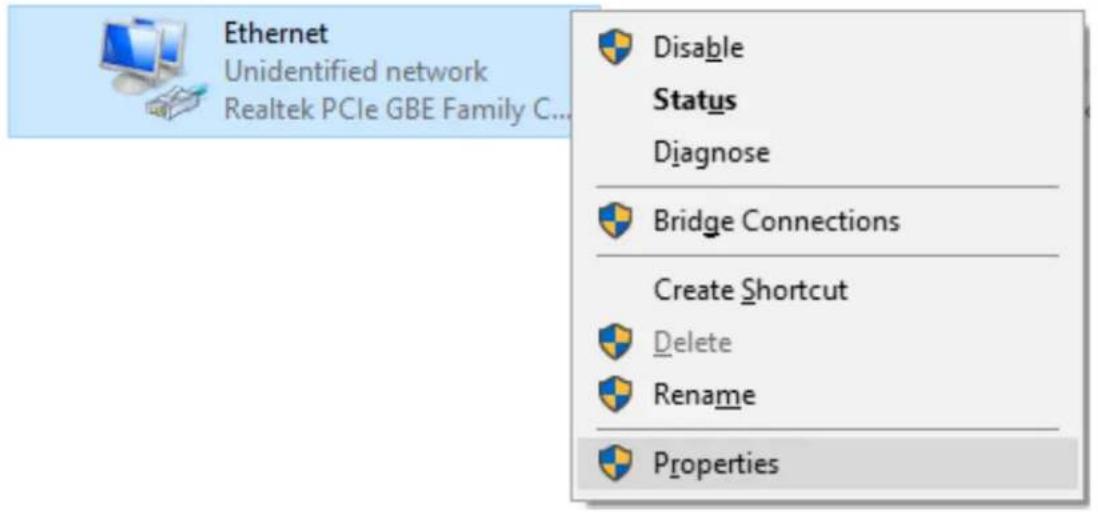
- Click Start—> Control Panel—> Network and Internet—> Network and Sharing Center—> Change adapter settings, right click Local connection and select Properties;
text_image
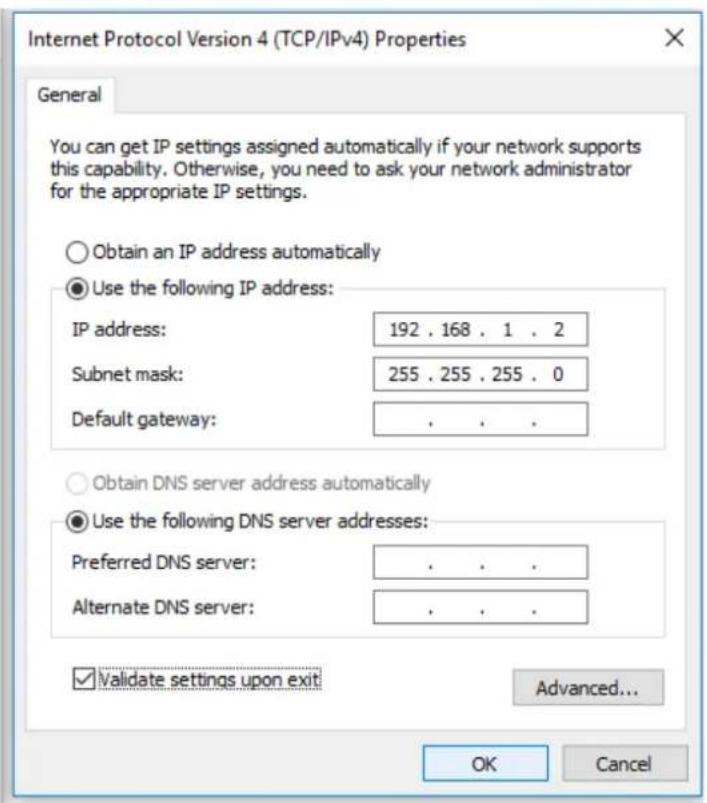
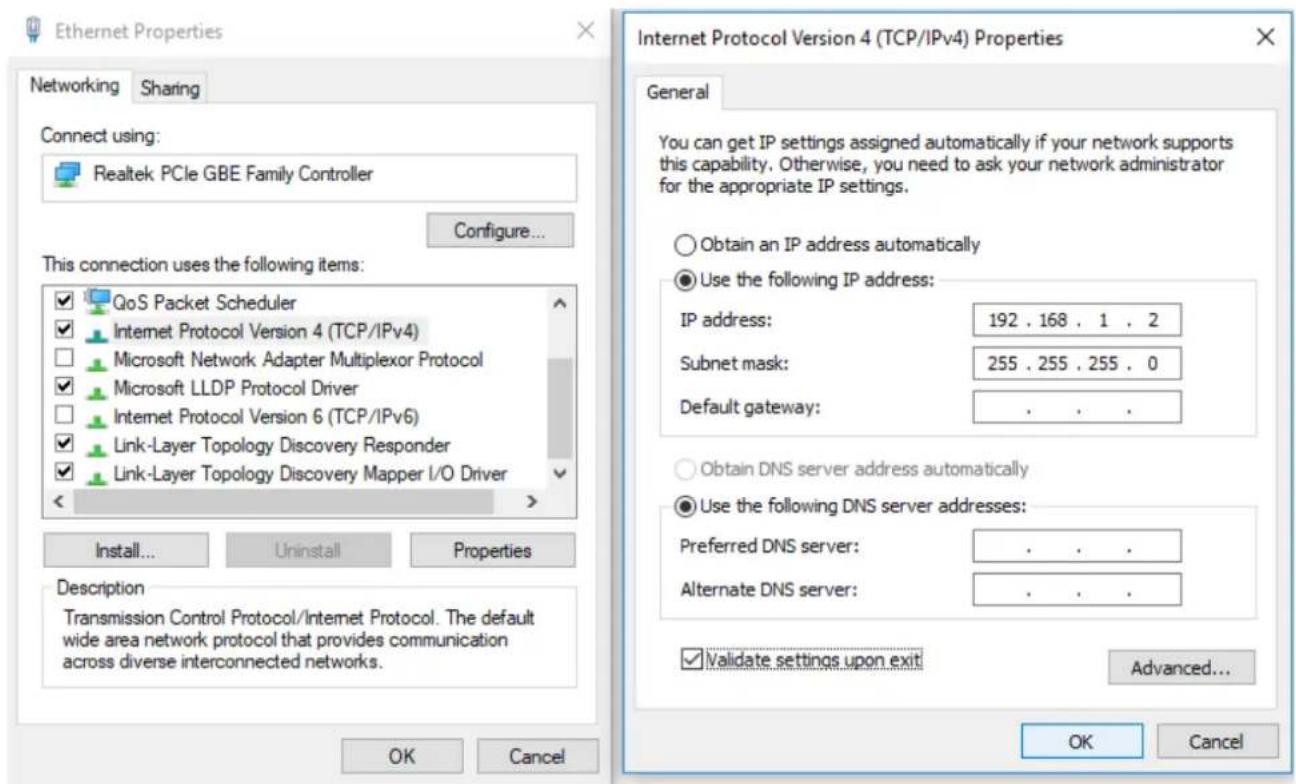
Ethernet Unidentified network Realtek PCIe GBE Family C... Disable Status Diagnose Bridge Connections Create Shortcut Delete Rename Properties- Double-click Internet Protocol 4 (TCP/IPv4); Set the computer's IP address: The computer's IP address should be any one of the following free IP addresses 192.168.1.2 \~ 192.168.1.254, and then click OK, to return to the previous page, click OK.
text_image
Ethernet Properties Networking Sharing Connect using: Realtek PCIe GBE Family Controller Configure... This connection uses the following items: QoS Packet Scheduler Internet Protocol Version 4 (TCP/IPv4) Microsoft Network Adapter Multiplexor Protocol Microsoft LLDP Protocol Driver Internet Protocol Version 6 (TCP/IPv6) Link-Layer Topology Discovery Responder Link-Layer Topology Discovery Mapper I/O Driver Install... Uninstall Properties Description Transmission Control Protocol/Internet Protocol. The default wide area network protocol that provides communication across diverse interconnected networks. Internet Protocol Version 4 (TCP/IPv4) Properties General You can get IP settings assigned automatically if your network supports this capability. Otherwise, you need to ask your network administrator for the appropriate IP settings. Obtain an IP address automatically Use the following IP address: IP address: 192 . 168 . 1 . 2 Subnet mask: 255 . 255 . 255 . 0 Default gateway: . Obtain DNS server address automatically Use the following DNS server addresses: Preferred DNS server: . Alternate DNS server: . Validate settings upon exit Advanced... OK Cancel OK CancelDeutsch
Lieferumfang
text_image
Diagram of a network switch device with labeled ports and connectors, showing internal structure and terminal connections.text_image
Diagram showing connection between a network switch and an external device, labeled with numbered components.text_image
Ethernet Unidentified network Realtek PCIe GBE Family C... Disable Status Diagnose Bridge Connections Create Shortcut Delete Rename Propertiestext_image
Ethernet Properties Networking Sharing Connect using: Realtek PCIe GBE Family Controller Configure... This connection uses the following items: QoS Packet Scheduler Internet Protocol Version 4 (TCP/IPv4) Microsoft Network Adapter Multiplexor Protocol Microsoft LLDP Protocol Driver Internet Protocol Version 6 (TCP/IPv6) Link-Layer Topology Discovery Responder Link-Layer Topology Discovery Mapper I/O Driver Install... Uninstall Properties Description Transmission Control Protocol/Internet Protocol. The default wide area network protocol that provides communication across diverse interconnected networks. Internet Protocol Version 4 (TCP/IPv4) Properties General You can get IP settings assigned automatically if your network supports this capability. Otherwise, you need to ask your network administrator for the appropriate IP settings. Obtain an IP address automatically Use the following IP address: IP address: 192 . 168 . 1 . 2 Subnet mask: 255 . 255 . 255 . 0 Default gateway: . Obtain DNS server address automatically Use the following DNS server addresses: Preferred DNS server: . Alternate DNS server: . Validate settings upon exit Advanced... OK Cancel OK CancelFrançais
text_image
Diagram of a network switch device with labeled ports and connectors, showing internal structure and connection points.text_image
Diagram showing connection between a network switch and an external device, labeled with numbered components.text_image
Ethernet Unidentified network Realtek PCIe GBE Family C... Disable Status Diagnose Bridge Connections Create Shortcut Delete Rename Propertiestext_image
Ethernet Properties Networking Sharing Connect using: Realtek PCIe GBE Family Controller Configure... This connection uses the following items: ✓ QoS Packet Scheduler ✓ Internet Protocol Version 4 (TCP/IPv4) □ Microsoft Network Adapter Multiplexor Protocol ✓ Microsoft LLDP Protocol Driver □ Internet Protocol Version 6 (TCP/IPv6) ✓ Link-Layer Topology Discovery Responder ✓ Link-Layer Topology Discovery Mapper I/O Driver Install... Uninstall Properties Description Transmission Control Protocol/Internet Protocol. The default wide area network protocol that provides communication across diverse interconnected networks. OK Cancel
text_image
Internet Protocol Version 4 (TCP/IPv4) Properties General You can get IP settings assigned automatically if your network supports this capability. Otherwise, you need to ask your network administrator for the appropriate IP settings. Obtain an IP address automatically Use the following IP address: IP address: 192 . 168 . 1 . 2 Subnet mask: 255 . 255 . 255 . 0 Default gateway: . Obtain DNS server address automatically Use the following DNS server addresses: Preferred DNS server: . Alternate DNS server: . Validate settings upon exit Advanced... OK CancelEspañol
text_image
Diagram of a network switch device with labeled ports and connectors, showing internal structure and connection points.text_image
Diagram showing connection between a network switch and an external device, labeled with numbered components.text_image
Ethernet Unidentified network Realtek PCIe GBE Family C... Disable Status Diagnose Bridge Connections Create Shortcut Delete Rename Propertiestext_image
Ethernet Properties Networking Sharing Connect using: Realtek PCIe GBE Family Controller Configure... This connection uses the following items: ✓ QoS Packet Scheduler ✓ Internet Protocol Version 4 (TCP/IPv4) □ Microsoft Network Adapter Multiplexor Protocol ✓ Microsoft LLDP Protocol Driver □ Internet Protocol Version 6 (TCP/IPv6) ✓ Link-Layer Topology Discovery Responder ✓ Link-Layer Topology Discovery Mapper I/O Driver Install... Uninstall Properties Description Transmission Control Protocol/Internet Protocol. The default wide area network protocol that provides communication across diverse interconnected networks. OK Cancel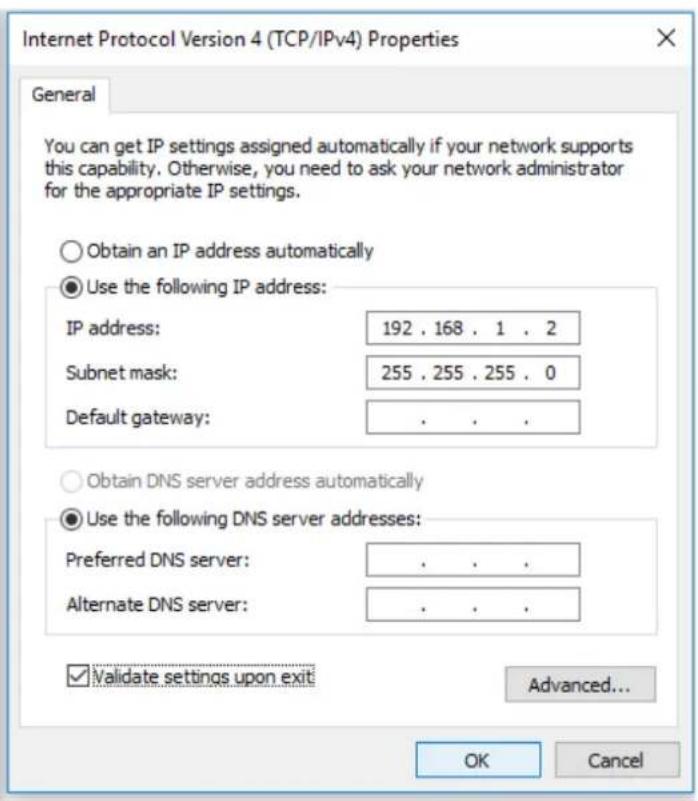
text_image
Internet Protocol Version 4 (TCP/IPv4) Properties General You can get IP settings assigned automatically if your network supports this capability. Otherwise, you need to ask your network administrator for the appropriate IP settings. Obtain an IP address automatically Use the following IP address: IP address: 192 . 168 . 1 . 2 Subnet mask: 255 . 255 . 255 . 0 Default gateway: . . . . Obtain DNS server address automatically Use the following DNS server addresses: Preferred DNS server: . . . . Alternate DNS server: . . . . Validate settings upon exit Advanced... OK CancelItaliano
text_image
Diagram of a network switch device showing labeled ports and connectors, with numbered annotations pointing to specific components.text_image
Diagram showing connection between a network switch and an external device, labeled with components 1, 2, and 3.text_image
Ethernet Unidentified network Realtek PCIe GBE Family C... Disable Status Diagnose Bridge Connections Create Shortcut Delete Rename Propertiestext_image
Ethernet Properties Networking Sharing Connect using: Realtek PCIe GBE Family Controller Configure... This connection uses the following items: QoS Packet Scheduler Internet Protocol Version 4 (TCP/IPv4) Microsoft Network Adapter Multiplexor Protocol Microsoft LLDP Protocol Driver Internet Protocol Version 6 (TCP/IPv6) Link-Layer Topology Discovery Responder Link-Layer Topology Discovery Mapper I/O Driver Install... Uninstall Properties Description Transmission Control Protocol/Internet Protocol. The default wide area network protocol that provides communication across diverse interconnected networks. Internet Protocol Version 4 (TCP/IPv4) Properties General You can get IP settings assigned automatically if your network supports this capability. Otherwise, you need to ask your network administrator for the appropriate IP settings. Obtain an IP address automatically Use the following IP address: IP address: 192 . 168 . 1 . 2 Subnet mask: 255 . 255 . 255 . 0 Default gateway: . Obtain DNS server address automatically Use the following DNS server addresses: Preferred DNS server: . Alternate DNS server: . Validate settings upon exit Advanced... OK Cancel OK CancelPortuguês
text_image
Diagram of a network switch device showing ports, connectors, and labeled parts 1 and 2text_image
Diagram showing connection between a network switch and an external device, labeled with numbered components.text_image
Ethernet Unidentified network Realtek PCIe GBE Family C... Disable Status Diagnose Bridge Connections Create Shortcut Delete Rename Propertiestext_image
Ethernet Properties Networking Sharing Connect using: Realtek PCIe GBE Family Controller Configure... This connection uses the following items: ✓ QoS Packet Scheduler ✓ Internet Protocol Version 4 (TCP/IPv4) □ Microsoft Network Adapter Multiplexor Protocol ✓ Microsoft LLDP Protocol Driver □ Internet Protocol Version 6 (TCP/IPv6) ✓ Link-Layer Topology Discovery Responder ✓ Link-Layer Topology Discovery Mapper I/O Driver Install... Uninstall Properties Description Transmission Control Protocol/Internet Protocol. The default wide area network protocol that provides communication across diverse interconnected networks. OK Cancel